
b2ap3_thumbnail_life_threatening_hack_400.jpg

Hacking Attacks Can Have Deadly Consequences

b2ap3_thumbnail_life_threatening_hack_400.jpgWe all know that hackers are never good news. All they want to do is ruin someone’s day by planting a threat in an innocent person’s PC or steal some data from a business. However, some hackers could potentially have much more dangerous (and deadly) agendas, like sabotaging hospital equipment.

We know, you don’t often associate hacking attacks with the physical world, but in many cases, some severe hacking attacks can have life-changing consequences. For example, hospital pumps that are responsible for delivering appropriate doses of drugs and other life-sustaining fluids to patients can be compromised and used for delivering deadly doses. Another example is the insulin pump, which monitors blood glucose levels, or the implantable cardioverter defibrillator, which is responsible for jolting patients back to life if they go into cardiac arrest. Perhaps one of the most nerve-wracking hospital hacks is that of a CT Scanner, where attackers can potentially change radiation exposure amounts and limits.

Now that we’ve completely ruined any further hospital experience for you, basically, what we want to get across to our readers with this article, is that you absolutely CANNOT dismiss hackers as potential threats, especially in a world where wars are being fought over the Internet, and technology aids in war zones in unforeseen ways. Hackers continue to find new and creative ways to engage in cyber attacks, and they will continue to pose a significant threat to your business if you don’t do anything to stop them.

Hacking attacks against hospital equipment are a huge cause for concern, but you shouldn’t underestimate attacks against your own company, either. Hackers access business networks just like yours on a daily basis, hoping to take something important and turn a profit off of it. This could be private employee records (Social Security numbers, dates of birth, etc.), client payment information (like credit card numbers), and other confidential information. Other times, hackers might not have any specific agenda, and could just be looking to wreak havoc with viruses, malware, and other damaging cyber threats. Either way, the introduction of malicious entities into your network could have disastrous effects.

The best way to avoid the fallout from hacking attacks is to prevent them from happening in the first place. Your business needs to take a proactive stance against all of the common avenues that hackers exploit to gain access to your network infrastructure. This means implementing powerful solutions that keep threats out, and those that can detect and eliminate potential threats found within an infrastructure.

A Unified Threat Management (UTM) solution is designed to offer the comprehensive protection that your organization needs to stay safe when it feels like the world is out to get you. A firewall can keep the majority of threats from accessing your network by checking out data traveling to and from your network. Compounded with an antivirus solution, you can effectively keep threats out of your system, and promptly eliminate those that do somehow get through. Additional security measures, like spam blocking and web content filtering, can limit your staff’s exposure to potentially dangerous entities by keeping suspicious messages out of your email inbox, and blocking content that may be compromised while surfing the web.

While your business’s network security might not be a life-or-death situation, a ruined business is a huge first step toward a ruined life. If you want to make sure your network is equipped to handle hacking threats, give NuTech Services a call at 810.230.9455.
b2ap3_thumbnail_malware_lock_up_400.jpg

Alert: How Hackers are Scamming Users With Fake IT Support Hotline

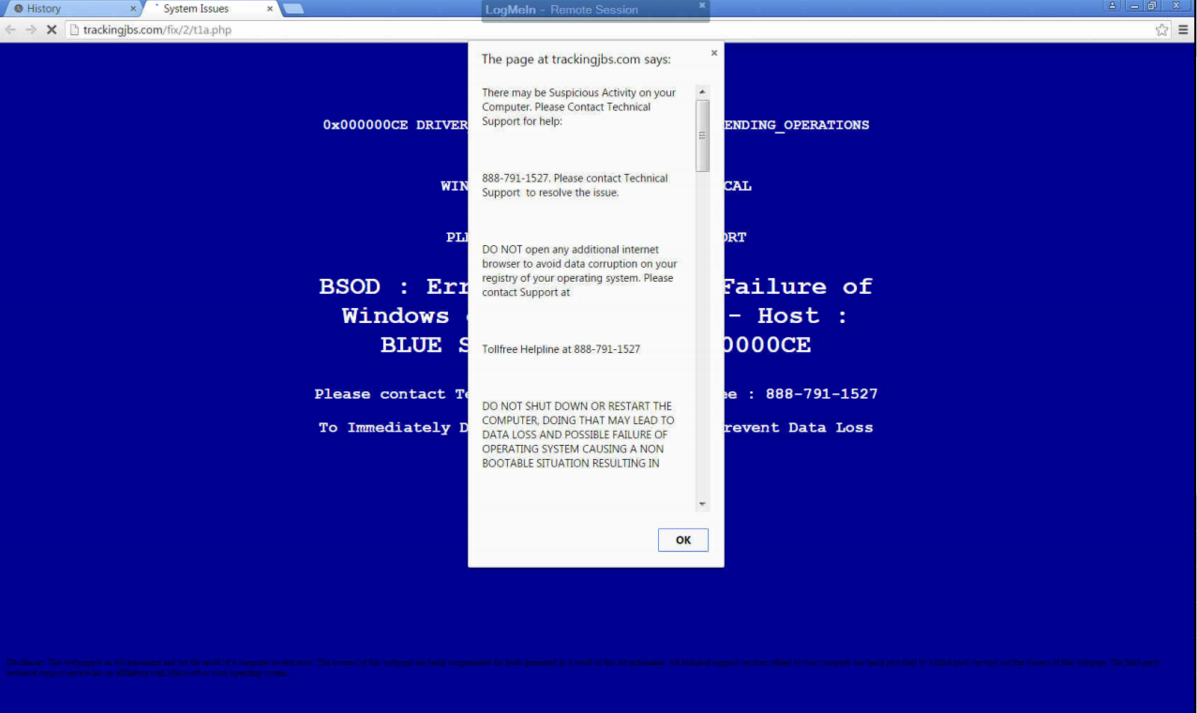
b2ap3_thumbnail_malware_lock_up_400.jpgThere’s a wicked string of malware on the Internet that locks users out of their browser and directs them to call a phone number. That phone number reaches hackers who have set up a subterfuge as an IT support company. If this happens to you, even if you are in the middle of something important, do not call the phone number.

This particular piece of malware startles the user by blocking their progress within their web browser, suggesting them to contact a fake tech support hotline to “fix” their computer. It will show a screen that’s similar to the Windows fatal system error blue screen, along with a fake technical support message that pops up, informing the user of the “problem.” As you can see by the provided screenshot, this blue screen of death is deceptive because it’s only displayed within the browser, instead of taking up the entire screen like Microsoft’s real blue screen of death.

blue screen

Whatever you do, DON’T CALL THE PROVIDED PHONE NUMBER. The blog Delete Malware explains: “If you call [the number] they won’t actually remove adware from your computer. They will hijack your computer and steal all of your bank information and passwords. They are crooks, don’t call them!”

Fortunately, this error isn’t as critical as what it seems. In fact, this is a common tactic of social engineering: make the problem seem much worse than it is, causing the victim to flip out and do something rash–like call the fake IT support phone number.

What then are you supposed to do? You can make the issue go away simply by closing the browser via task manager (Ctrl + Alt + Delete), or rebooting the PC. However, it’s still annoying to deal with because you’ll lose any unsaved data, along with any progress made to whatever project you’re working on. Plus, rebooting your system won’t technically solve the problem; the malware will still be embedded in your system, waiting for another chance to strike.

Therefore, to get down to the root of this problem, you’re going to want to isolate and properly delete the malicious file. For this level of real IT support, you’re going to want to call the trained professionals at NuTech Services. We’ve got the tools needed to find and eliminate such threats, and even block them from hitting your system in the first place with a Unified Threat Management solution.

Lastly, we’d like to point out that the perpetrators of this hack are relying on the fact that the user doesn’t know who to call for IT support in a crisis situation. It’s reasons like this why you and your staff need to be familiar with who to call in an emergency IT situation, like NuTech Services at 810.230.9455. When it comes to taking care of IT issues, we’re the real deal, and we take offense that hackers these days are posing as trustworthy IT technicians in order to get at a user’s personal data. It’s an unsettling trend that will only be brought down by companies being vigilant about their network security.

To that end, NuTech Services can help. Call us today to find out how we can protect you from the worst of the web.

b2ap3_thumbnail_cloud_security_400.jpg

How a Cloud Service Without Role-Based Access Controls is Asking For Trouble

b2ap3_thumbnail_cloud_security_400.jpgCloud computing started out as a trend, but it’s become a staple in the modern business environment. A recent poll of IT and business executives by Harvard Business Review and Verizon shows that 84 percent of respondents have increased their use of cloud services in the past year, 39 percent of which “increased significantly.” The issue that comes from such an increase is the idea of employees accessing information that they aren’t supposed to.

This particular type of security problem is called role-based access control, which is an increasing cause for concern in the cloud environment. Despite role-based access control being a prevalent part of network security, perhaps due to the cloud’s ease of use, user permissions are a problem that often get overlooked in cloud computing.

User permissions are an ordinary part of any traditional in-house IT infrastructure. They’re ordinarily handled by your in-house IT staff or a trusted IT professional. One of the main advantages of an in-house network is that your technicians will generally understand each employee’s role within the organization, especially if the business is small or medium-sized. The issue at hand is the fact that your cloud service provider will be responsible for the security oversight of your cloud network, and it’s more likely than not that they will be unfamiliar with your organization’s personnel infrastructure.

For the record, we aren’t suggesting that outsourced network security is bad. In fact, we highly recommend it; we’re just trying to raise awareness of the fact that cloud computing isn’t a service that can be implemented without security in mind. For example, you’ll want to make sure that your chosen cloud solution provides the level of control that you need, along with security that can be implemented on different levels according to each user’s role within the organization. Doing so will likely require a dedicated administrator within the company, or ensuring that you retain proper relations with the cloud provider so they can cater to your specific role-based control needs.

NetworkComputing explains:

When you have employees with different roles in your company, access control is a key feature that can help ensure basic cloud administrative security. You’ll need to exercise caution to prevent credentials from being compromised, and to ensure menial errors don’t spoil your day. Implementing robust and powerful access control is important to protect company resources.

Furthermore, you’ll want to make sure that any information that’s required for a user’s role will available to them, and only them. For example, in-house IT workers have access to more information than the average worker, much of which is sensitive in nature. Despite this, according to a recent study by Intermedia and Precision Sample, IT workers are 10 percent more likely than non-IT staff to give away their login credentials for superfluous reasons.

The idea behind limiting access to data on a per-user basis is to limit the data’s exposure to potential threats. Much of the time, however, you want to have secondary layers of protection up and running in order to maximize the security of your business. For example, two-factor authentication uses an SMS message or a phone call to deliver a secondary credential for use when accessing an account. These types of precautions can aid in role-based access to information, making it much more difficult for other users to access critical information.

Cloud computing is such a powerful and efficient practice that it’s no surprise it’s grown so rapidly over the past few years. The best way to approach cloud security is by understanding the services you’re taking advantage of, and relying on a trustworthy cloud service provider. NuTech Services can assist your business with all of its cloud computing needs, including the maintenance, upkeep, and management of your cloud data.

For more information about how we can help your business with cloud computing, contact NuTech Services at 810.230.9455.

b2ap3_thumbnail_gmail_logo_400.jpg

Gmail Implements Warning System to Notify Users of Unencrypted Messages

b2ap3_thumbnail_gmail_logo_400.jpgAn email could be just about anything, and you should always approach them with caution. What appears to be a harmless attachment could be a spam message in disguise, with malware or viruses attached. Keeping this kind of security in mind can be difficult for the average business, but if your organization uses Gmail, you’ll be warned of whether or not your received messages are sent over a secured connection.

In other words, Gmail will tell you if there’s a chance that your received messages were tampered with by hackers while in transit. By doing so, Google is hoping to emphasize the importance of improving online security to all users and service providers for webmail. Encryption is necessary in today’s security-minded online society, and Google wants to raise awareness of this important fact. While Gmail already takes advantage of an HTTPS encryption protocol for its own mail service, this is only a small step toward increasing the security of online email services. The HTTPS only encrypts the browser’s connection with the server, rather than all of the traffic to and from senders and receivers.

Basically, email providers need to be using encryption to shield messages while they’re in transit, or risk the possibility of hackers compromising the messages. Many email providers have already started taking advantage of encryption protocol, a trend known as STARTTLS, for their messaging systems, including Google, Comcast, Microsoft, Yahoo, and a few others.

As explained by ZDNet:

A lot of providers don’t support STARTTLS, meaning that any email encrypted by the sender can’t be read when it’s received on the other end. This so-called opportunistic encryption works when both email providers support STARTTLS. If one doesn’t, then the other provider falls back to an unencrypted form.

The most important thing that email providers should take away from this shift in encryption policy is the need to make their user-security a top priority, just like major players like Google and Microsoft do.

While this new encryption protocol by email providers can help you potentially avoid an unsecured email, you don’t want to rely on it to keep all of your important digital assets safe. What your organization needs is a comprehensive security solution that’s designed to maximize network security, without sacrificing ease of use. Even the most basic security solutions, like a firewall and antivirus solution, are effective at limiting a user’s exposure to online threats. Still, you want something with a bit more power, especially when it comes to guaranteeing the security of your business’s assets.

The solution that your business needs is a Unified Threat Management tool, that’s designed to augment common security practices with powerful, enterprise-level measures. A UTM uses a firewall and antivirus, but also provides preventative measures like content filtering and spam blocking. This helps your organization stay productive without sacrificing security. To find out how your business can reap the benefits of a UTM solution, contact NuTech Services at 810.230.9455.

b2ap3_thumbnail_smartphone_battery_life_400.jpg

Tip of the Week: 7 Tips to Extend the Life of Your Android’s Battery

b2ap3_thumbnail_smartphone_battery_life_400.jpgOne experience shared by every mobile device user is batteries losing power faster than they’d like. Until someone invents a battery that never again needs to be recharged, this struggle will always be real. Here are seven ways to make your mobile device’s battery last longer.

Dim Your Screen
Go to Settings > Display and toggle Adaptive brightness.

Your screen is likely your device’s biggest energy hog. The longer it’s powered on and the brighter it is, the more power it will sap from the batteries. For example, you don’t really need your screen to remain powered on for a full minute after you’re done checking a notification. Therefore, make adjustments to your screen’s settings accordingly.

Turn Off Location Service (GPS)
Go to Settings > General > Location.

As long as your phone’s location service is enabled, it will use energy to stay connected to GPS satellites. Unless you’re actively using an app that requires GPS, like Google Maps, it’s likely that you won’t need GPS and you can go ahead and turn it off.

Disable WiFi When Out and About
Go to Settings > WiFi, Bluetooth, or Data Usage.

If you ever get a chance to connect your device to WiFi, do it and save yourself some precious data. However, when you’re traveling from place-to-place and you’re outside the range of any usable WiFi, then you’ll want to go ahead and disable your device’s WiFi. Otherwise, your device will use a significant amount of energy looking for and trying to connect to usable WiFi signals.

Turn Vibration Off
Hit the Volume Down key until you feel the phone vibrate, then hit it once more to silence all notifications.

When in social situations, having your phone vibrate for notifications is a great way to not annoy others. However, it requires significant battery power to get your phone to buzz and shake like that. By turning off your phone’s vibration setting, you’ll extend the battery of your phone just a wee bit more, especially if you’re one to receive constant notifications.

Manually Update App
Go to Play Store > Settings > Auto-update apps, and turn auto-update off or set it to update over WiFi only.

By default, your phone is set to automatically update its apps. While this works out fine if you’ve got a full battery, if you’re trying to conserve battery power, the last thing you’ll want is for your phone to connect to the Play Store and start downloading data.

Disable Background Data
Go to Settings > Data Usage.

Just because you’ve closed an app doesn’t mean that it’s not doing something behind the scenes. For some of your apps, they might be consuming more background data than you think (like GPS information). Disabling the collection of background data will save you battery power, but it also might cause some of your apps to not function properly when you go use them, so just be aware of that.

Airplane Mode
Go to Settings > Connections > More networks > Airplane mode.

Before you get desperate enough to conserve power that you turn off your phone entirely, try airplane mode. This is a handy feature that gives you access to several of your device’s useful apps, like clock, calendar, and contacts while cutting off its connection to networks like the Internet. If your phone isn’t trying to push data to all of its Internet-connected apps, then it will eat up much less power. Obviously, you won’t be able to send or receive messages or calls, but you’ll be able to reserve power until you need it.

These are just some of the battery-saving tips you can try, there are actually several more things you can try if you’ve gone through this list and still find your battery dying quicker than you’d like. What are some ways that you keep your batteries powered? Let us know in the comments.

b2ap3_thumbnail_windows_10_rollout_400.jpg

Windows 10 On Pace to Be the Most Popular OS By 2017

b2ap3_thumbnail_windows_10_rollout_400.jpgWith Windows 10 making leaps and bounds in the business environment, Microsoft has created another commercial success for both consumer use and workplace productivity. In recent weeks, Windows 10’s adoption has slowed significantly, but in a few years it’s expected to surpass other Windows operating systems in terms of usability.

Gartner has made a prediction that, by January 2017, Windows 10 will be used by half of all businesses, making it the most widely used Windows version so far. This comes off as a surprise, especially since its adoption rate has seemingly plateaued as of late. Businesses still tend to stick to operating systems that they know and love, like Windows 7, and feel little need to move to something bigger and better. Still, there are some factors that can change Windows 10’s adoption rate for the better.

For example, Windows 7, which is widely considered to be the favored Windows operating system at the present moment, will reach its end of support date in January 2020. While this sounds like it’s far off, it doesn’t change the fact that Microsoft will eventually stop supporting Windows 7, just like it stopped supporting Windows XP. Considering the fact that Windows 8 and 8.1 aren’t very popular, the clear cut winner here is Windows 10.

According to ZDNet:

Gartner said many organizations are planning to begin pilots for Windows 10 in the first half of 2016, and will broaden their deployments later in the year. It expects that at least half of organizations will have started some production deployments by the beginning of 2017, with an eye to completing their migrations in 2019.

Up until fairly recently, Windows 10 was a huge hit, which can be attributed to the free download from Windows 7 and 8.1 for the first year of Windows 10’s existence. This pushed Windows 10’s growth rate far past that of Windows 7 and 8, and while the consumer might see nothing wrong with an immediate upgrade to Windows 10, businesses might see things differently. Basically, businesses that want to adopt Windows 10 won’t do so right away. Instead, they’ll be making plans to do so in the near future.

The lesson that you can learn here is that, while upgrading to the latest Windows operating system has its merits, you should be approaching it in a logical manner. If other businesses are waiting to take advantage of Windows 10, doesn’t it make sense to get a head start on them by leveraging the latest and greatest Windows operating system? Doing so will help you take better advantage of your resources, including your current (and future) technology solutions. Plus, you’ll be able to rest easy knowing that your technology is up to date.

Still, you don’t want to blindly upgrade. You need to make sure that the upgrade isn’t going to complicate your usage of legacy applications. This means that you’ll want to consult a trained technician before upgrading. For help answering any questions you have about Windows 10, give us a call at 810.230.9455.

b2ap3_thumbnail_bad_cell_phone_etiquitte_400.jpg

Tip of the Week: 4 Social Taboos Smartphone Users Should Never Break

b2ap3_thumbnail_bad_cell_phone_etiquitte_400.jpgCellphone etiquette goes hand-in-hand with common sense. Here are four cellphone etiquette tips that every device owner should know.

Don’t Use Your Phone During Mealtime
Mealtime is a social time for pretty much every culture around the globe. During this time, it’s expected that you are fully present and engaged in conversation–which is super hard to do if you’re glued to your phone. Even the quick glance at the screen to check notifications can be construed as rude.

Solution: Turn your phone off during mealtime, or at least, keep it off the table.

A restaurant in Iowa, Sneaky’s Chicken, offers a 10 percent discount for diners who don’t bring their treasured phone to their meal. Also, Bucato, in Los Angeles, has a dedicated “cell-phone section.”

Use a Voice Level That’s Appropriate for Your Setting
While it’s okay to use your phone in a room with other people, it’s not okay to talk on your phone using such a high volume that others around you can’t focus or must talk over you. The problem here often comes from phone calls with poor connections, causing the caller to feel the need to talk louder so they can be heard. Then there are those who feel the need to speak in abnormally high volumes when using the phone, no matter the situation or quality of their connection, much to the chagrin of those in the same room. Awareness of the volume of one’s own voice is the best deterrent here, which for some people, is easier said than done.

Solution: If you need to speak at higher-than-normal volume when using the phone, step outside or go to the next room

Hang Up Before Checking Out
While it’s perfectly acceptable to shop and use your phone at the same time, it’s rather rude to continue talking on your phone while a cashier is ringing you out. Even if you don’t plan on having a grand conversation with the person behind the register, talking on the phone still communicates that you essentially don’t think very highly of them and their time. Plus, it just makes things awkward for the poor cashier if they have to interrupt your conversation in order to ask you a question about your purchase.

Solution: In a scenario where you must stay on the phone while the cashier is ringing you out, at the very least, apologize for the inconvenience and be attentive to them just in case they need to ask you a question.

Don’t Leave Long Voicemails
Just because you can explain every detail possible in a voicemail, doesn’t mean that you should. When a voicemail goes beyond the one minute mark with no prospect of coming to an end anytime soon, it can overwhelm a person. This is especially the case if the message goes into great detail, requiring you to scramble to find a pen and paper; then you don’t get to a pen in time and have to listen to the long message all over again. Grrrr.

Solution: If you’ve got a lot to share, make the voicemail primarily about having the person call you back. Otherwise, it’s best to just leave your name, what you’re calling about, your callback number, and nothing more.

Surprisingly, as common sense as these tips are, we see cellphone users break them all the time. When it comes to preventing annoyances such as these, spreading knowledge about proper cell phone usage goes a long way. Therefore, if you know of any offenders of cell phone etiquette, share this article with them–in a subtle way.

What are some of the most annoying cellphone usage habits that you’ve observed (or are guilty of)? Let us know in the comments.

b2ap3_thumbnail_google_fiber_400.jpg

Google Fiber and the Race to Provide Consumers With the Fastest Internet Possible

b2ap3_thumbnail_google_fiber_400.jpgYour business relies on a steady Internet connection to maintain operations. The inner workings of your cabling infrastructure are what ensure that you constantly have access to both online and offline networks for your organization. Most businesses utilize the services of major cable companies like Time Warner Cable and Comcast to facilitate this need, but some cities around the United States have access to another option: Google Fiber.

Explaining Google Fiber
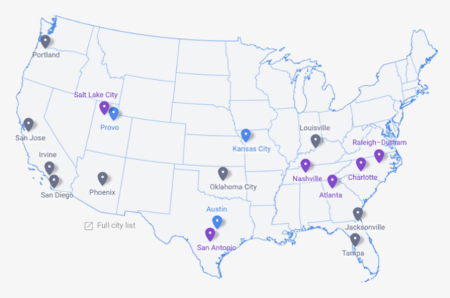
Originally, Google Fiber was only an experiment that was designed to deliver high-speed Internet and cable television to the Kansas City metropolitan area. Now, it’s a full-fledged Internet service provider, although its locations are limited to only a few cities within the United States.

map ib

As explained by CIO:

And optical fiber is the only choice for connectivity that exceed 1,000 Mbps, aka Gigabit Internet. Optical fiber provides higher bandwidths – download speeds 40 times faster and upload speeds more than 300 times faster than garden variety broadband – and spans much longer distances than electrical cabling. And some companies, such as Bell Labs, Cisco, and Comcast are claiming that their new “fiber optic” services (when eventually installed) will be 10 times faster than Google.

Does It Work?
The common consensus so far is that Google Fiber isn’t much different from other Internet service providers, and it’s a convenient service for those who want to keep their personal lives and businesses connected to the Internet. Unlike big names in the cable industry like Time Warner Cable and Comcast, however, Google Fiber isn’t associated with scandal and lackluster customer service, making it an attractive third-party choice. Businesses in areas where Google Fiber is available often cite that the service is cheap and convenient for their purposes, stating that they appreciate the fast Internet option.

In other cases, some users were dissatisfied with Google’s bundled service offerings, claiming that privacy is a major concern. Google’s systems scan users’ Internet activity in order to customize ads from Google and YouTube, which doesn’t sit well with some privacy advocates. These settings can be altered, but shouldn’t be touched without the knowledge of a trained professional technician.

Your business shouldn’t question whether or not you have reliable access to both your wired and wireless networks, especially for your applications and data stored in the cloud. If you lose access to both information and your software solutions, your business could be crushed by unexpected downtime costs. Therefore, what you require is reliability and scalability; the ability to shift your networking requirements in accordance with your business’s needs.

If you want to ensure reliability for both your wired and wireless technology, NuTech Services’s skillful technicians can help your organization optimize its Internet deployment strategy. For more information, give us a call at 810.230.9455.
b2ap3_thumbnail_cloud_backup_and_security_400.jpg

Why the Cloud is the Best Option For Your Data’s Backup Policy

b2ap3_thumbnail_cloud_backup_and_security_400.jpgThe cloud is a great tool that can help your business fully leverage its technology solutions, but one of the most common problems that people associate with the cloud is that they believe it’s not nearly as secure as a private in-house IT network. However, contrary to popular belief, the cloud is a very secure medium for your data storage and deployment, particularly for your data backup needs.

For a demonstration, let’s take a common problem, like the storage of backed-up copies of data, and apply it to the cloud. There are two common ways to store data backups: on tape, which is prone to user error and requires a significant amount of physical space for effective use; and then there’s cloud-based backup. Normally, data backups would take up a ton of space on your in-house network. Furthermore, storing your data backups on the network that you’re backing up is just plain silly. Therefore, it makes the most sense to store your data off-site in a secure data center, or in the cloud.

The Shortcomings of Tape
Though tape backups have been used by businesses for a very long time, they’re an outdated technology that doesn’t appeal to the average small and medium-sized business. Tape can be considered a manual mode of data backup because it relies on human interaction to work properly. This means that it’s the responsibility of your staff to set the backup and make sure that it happens every night. Otherwise, you could potentially lose an entire day’s worth of work. Furthermore, processing a backup is a resource-intensive task that shouldn’t be done during normal work hours. In general, the tape backup process is inefficient and dated at best, especially in light of more modern backup solutions.

The Benefits of Cloud Backup
The benefits of a cloud backup solution are overwhelming when compared to the typical tape backup solution. While tape requires humans to set and perform backups, a cloud-based data backup solution automatically takes snapshots of data that’s been changed since the last backup was taken. This eliminates the chance of user error, and ensures that the backups are taken without a hitch. Unlike tape backups, which effectively take a backup of ALL data on the network, a cloud backup solution only tracks changes made to files. This means that there’s less strain placed on the system during the backup, meaning that data can be backed up multiple times without the severe repercussion of downtime.

The cloud makes storing data both more efficient and more secure, especially for backup and disaster recovery processes. NuTech Services’s backup and disaster recovery (BDR) solution is a device that’s capable of changing the way that your business handles data backups. With our BDR device, your organization can take advantage of multiple backups that are taken periodically throughout the day. Then, thanks to your data’s convenient location in the cloud, the BDR device can rapidly deploy the backed-up copy of your data to your business’s infrastructure. In the event of a hardware failure or similar disaster, the BDR can act as your server, allowing you time to find a more permanent solution to the problem.

For more information about our BDR device, give us a call at 810.230.9455.
b2ap3_thumbnail_security_for_your_passwords_400.jpg

Tip of the Week: Make Your Password Rhyme Every Time

b2ap3_thumbnail_security_for_your_passwords_400.jpgPassword security is quite the conundrum. We want our passwords to be easy to remember, but the problem is that passwords that are easy to remember are often simple and insecure. Therefore, it becomes a best practice to use complicated passwords with both upper and lower-case letters, numbers, and symbols to compensate. The “passpoem” might resolve this issue in the most obvious way.

The method in question suggests that passwords chosen by your average PC user aren’t nearly as secure as they should be, but are very easy to remember. As explained in an essay from the university of Southern California, written by Marjan Ghazvininejad and Kevin Knight, it’s best to use randomly generated 60-bit strings (basically, a series of 60 ones and zeros), and convert these strings into words or phrases.

Confused? Let us explain a little more in detail. This method is derived from a XKCD comic (which you can find here) that describes the difficulty of remembering passwords. Basically, what it entails is taking a string of numbers, like 10101101010100101101010101010101010110101101, and converting segments of this code into words to create an English phrase. The above string would wind up reading “correct horse battery staple,” which is complete and utter nonsense, but very easy to remember by associating it with a mental image or a story.

Rather than use a 44-bit string like the above example, Ghazvininejad and Knight suggest using a 60-bit string to increase security, and to create a poem-like string of words that makes sense and is easy to remember. Going too in-depth into this method would take a considerable amount of time to explain, but the basic idea is to create something that’s easy to remember while making it borderline impossible for a computer to guess. By today’s standards, the 44-bit string would take around an hour to crack, while a 60-bit string would take well over a decade. How’s that for secure?

While using segments from existing poems is a possibility, Knight and Ghazvininejad don’t suggest doing so. Considering how there are millions of poems online, the chances of getting hacked are much higher than if the string of characters were truly random. However, while using a line from your favorite poem isn’t as secure as a string of 60 characters, it’s certainly more secure than using a simple password like “MOM385” or “password.” On one hand, you’re using real words that can be used in a dictionary attack; but on the other, you’re using a long password (which is a best practice). So, it’s really up to you to decide how you want to approach password security.

Of course, you’ll need multiple passwords for all of your different accounts. This in itself can make memorizing passwords a huge pain. Therefore, the best way that you can remember all of your passwords and effectively use them to maximize your account security, is by taking advantage of a password manager. NuTech Services can help your business get set up with the best password manager on the market. To learn more, give us a call at 810.230.9455.

b2ap3_thumbnail_streaming_media_400.jpg

Netflix, Hulu, or Amazon, Which Video Service Makes the Best Gift?

b2ap3_thumbnail_streaming_media_400.jpgSometimes it’s a pain trying to figure out what you’ll be getting your loved ones during the holiday season. Thankfully, there are some relatively fail-safe options for those who love entertainment, like watching television or going to the movies. A subscription to the right video-streaming service might be able to help you save a trip to your local department store and all of the madness that comes with it.

While there are plenty of video-streaming services to choose from, there are three that stand head and shoulders above the rest. Considering how often some people find themselves binge-watching their favorite TV shows on these popular services, it’s a safe bet that your loved ones will appreciate every moment they use the application.

Here’s a quick rundown of what you can expect from the top three online video-streaming services.

netflixNetflix – Starts at $7.99 a Month
Netflix is an exceptionally sought-after service, with well over 65 million subscribers. Though it’s drawn the anger of broadcast television networks, it’s a great alternative, boasting several popular movies and TV shows, as well as some exclusive content. If you want to give Netflix as a gift to someone, you should first make sure that they aren’t already a subscriber. Try mentioning Netflix casually; perhaps ask something like, “Have you checked out that new Netflix original series, Marvel’s Jessica Jones?” Or, if they already have a subscription, you can suggest that you cover the cost of renewal for the existing subscription.

Netflix’s roster shifts periodically, offering new movies or TV shows, while occasionally removing less popular media. This offers a continuous stream of new content to watch; and, to make things better, subscribers have the opportunity to get DVDs mailed to them, if they so desire for an additional fee.

amazon plusAmazon Prime – $99 a Year
Just like Netflix, Amazon Prime is a very popular service, netting around 80 million users at the time of this writing. This means that you should also make sure that your intended recipient isn’t a current subscriber. Prime allows its users to stream entertainment services, like original shows and movies, with an additional benefit; Prime subscribers can rent the latest movies, just like pay-per-view.

Unlike Netflix, however, Amazon Prime comes with a ton of other services that can present more value to your gift’s recipient. Prime offers free, two-day shipping on products from Amazon’s huge web store, which can potentially let subscribers save so much money on shipping that it feels like Prime is paying for itself. Additionally, Prime offers several other membership benefits, including Prime Music, Prime Photos, Prime Pantry, Prime Early Access, Kindle Owner’s Lending Library, and more. Plus, if you actually use Prime to buy physical presents for people, they’ll gift wrap it for a small charge.

hulu plusHulu Plus – Starts at $7.99
Hulu Plus is streaming service that focuses on delivering current television shows shortly after they’re broadcasted, but they also have many TV shows and movies available to view. Just like Netflix, though, Hulu Plus is starting to offer its own original content. At the present moment, Hulu Plus has around 9 million subscribers, and now, users can remove ads for an additional cost. There’s a chance that this number will rise, especially with the holiday season on the horizon.

What are some of your favorite ideas for entertainment and holiday gifts? Let us know in the comments.

b2ap3_thumbnail_workplace_collaboration_400.jpg

Technology Has the Power to Bring the Office Together Like Never Before

b2ap3_thumbnail_workplace_collaboration_400.jpgThe technological landscape of the office has changed significantly over the years. Only a decade ago collaboration could only be accomplished through sitting down in a conference room and discussing issues face to face. Today, however, technology is changing the way that we as a society view collaboration, and thanks to various achievements in software development, it’s easier than ever to work together on team initiatives.

Don’t Be Afraid of New Solutions
We all now the convenience of being able to communicate with the click of a button. Email and conference calling have been great additions to the office collaboration environment, but in recent years there have been more comprehensive and streamlined solutions that are constantly improving the way we work together. For example, video conferencing allows workers to communicate in ways which were previously unheard of, and instant messaging sure beats sending an email for an urgent request.

The important thing to consider when improving the way your office communicates and collaborates is that you should embrace new solutions, but not without completely forgetting the basics. Email is still a vital communication medium that your organization needs, and so is the office telephone line. While certain features of these solutions are better performed by more recent technologies, they are still vital assets.

It Doesn’t Take a Genius
Contrary to popular belief, it doesn’t take a rocket scientist to operate collaboration technology in an easy, efficient manner. Most modern solutions like instant messaging, Voice over Internet Protocol, and more, are all similar to everyday products that are used by the average PC enthusiast. This means that your employees will be relatively familiar with working with your office’s technology solutions, because they use similar services outside the office. For example, your employees might use Facebook messaging or Skype video calls for their personal matters, and they’re used to the simplified interfaces that have come about from innovations in recent times.

Establish Proper Boundaries and Protocol
Granted, some solutions still require a little bit of training, like making sure your employees are using your enterprise-level solutions in ways which are beneficial to their workplace collaboration, and not distracting others or compromising your business’s data security. A big part of this is training your employees on what these solutions should (and shouldn’t) be used for; for example, there’s no reason to use the video conferencing solution when you have a perfectly fine conference room to use at your leisure. Furthermore, your collaboration solutions should only be used for in-house purposes. Your employees shouldn’t be using their work email for personal use. Not only is it unprofessional, but it complicates things significantly if they decide to leave the company.

Overall, your technology collaboration solutions should be designed to allow for maximum productivity and efficiency. For more information about how we can help your business better communicate and collaborate in the workplace, contact NuTech Services at 810.230.9455.

b2ap3_thumbnail_snap_to_mouse_400.jpg

Tip of the Week: Take Advantage of Your Mouse’s “Snap To” Feature

b2ap3_thumbnail_snap_to_mouse_400.jpgComputers are designed to save people significant time when it comes to getting work done, and with a few simple tweaks and adjustments, you can trim even more seconds off a project, which really adds up in terms of gaining productivity. Your PC’s Snap To mouse feature is a classic example of this.

When enabled, Snap To automatically moves your mouse pointer to the dialogue box that pops up. This is the box that typically appears after you delete a file, close a window, or perform any other similar task.

Although, when using Snap To, be careful about what you click on. For example, your pointer may automatically move to the “Ok button” for something that you don’t want to approve; something like, “Are you sure you want to permanently delete this file?” A blunder like this can be avoided if you simply take a moment to read what you click on, instead of rushing yourself and clicking the first thing that pops up.

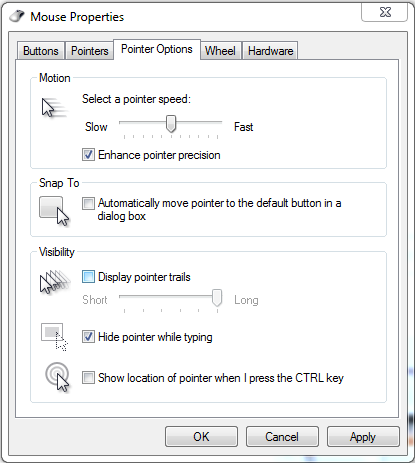
To enable this feature, go to Control Panel > Mouse Properties. Next, click on the Pointer Options tab and then checkmark the Snap To box that says “Automatically move pointer to the default button in a dialog box.”

snap to

Click OK or Apply when you’re done.

Be warned, this Snap To feature might take a little while to get used to (it’s always surprising to have your mouse pointer move when you’re not expecting it to). Also, in the event that you don’t want to go through these steps and enable Snap To, most dialogue boxes allow you to select the OK button by hitting the Enter key.

At the end of the day, it might seem like this is a rather silly tip because you’re just saving yourself few seconds of not having to move the pointer. However, any worker concerned about productivity understands the importance of saving a few seconds here and there, and how tips like this can save you significant time in the long run. Plus, when on a laptop with a squirrely touchpad, this can save you those few seconds of frustration.

For more productivity tips, subscribe to NuTech Services’s blog and check back every week.