check_your_wifi_strength_400.jpg

Tip of the Week: What to Do When Your Device Won’t Connect to Wi-Fi

check_your_wifi_strength_400.jpg

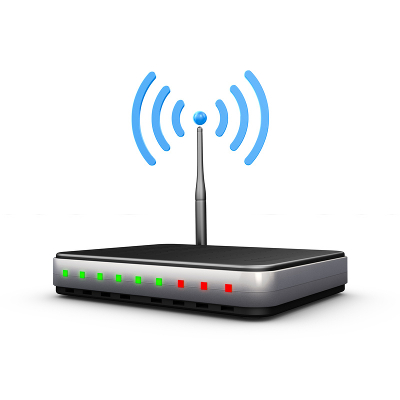
Wi-Fi deadspots are very real, and tend to be annoying, fickle things. Despite maybe a wireless signal being strong enough for everyone else in a room to receive it, something may be interfering with the device. As a result, the Wi-Fi simply isn’t sufficiently strong enough to connect the device to the Internet. Fortunately, there are a few troubleshooting steps that may be taken to resolve the connection’s cutback.

Step One: Check Your Positioning
The first step to any Wi-Fi troubleshooting is to make sure that the router is located far enough away from any other electronic devices, as these devices can negatively influence the strength of the signal. This is especially true when these devices are positioned between the router and the workstation it is connecting to. Walls and floors can also affect the signal–the thicker the obstruction, the weaker the signal.

A relatively simple fix, especially when the router needs to be shared by multiple floors, is to elevate its position on the lower level. This reduces the amount of space the signal will have to cover before passing through the ceiling/floor (ideally without issue), as well as the amount of obstacles it has to contend with to reach the users on the level it is on.

Step Two: Antenna Adjustments
If a router (or PC) has an external antenna, it may be beneficial to adjust the antenna’s position until the signal’s sweet spot is found. Opinions of optimal antenna orientation vary, so it’s likely that the user will need to find the ideal alignment through some good, old-fashioned trial and error.

If that still isn’t effective enough to resolve the deadspot issue, there’s always the option of replacing the antenna itself. By simply unscrewing the included antenna and replacing it with a stronger model (or if absolutely necessary, a stand-alone antenna and extension cord combo), you can hopefully extend your reception out of your poorly-placed dead zone. After these adjustments are implemented, a device can pick up a signal that–under normal circumstances–would be out of reach.

If the equipment in question doesn’t have an adjustable antenna, there are USB adapters available to plug into a device that can work similarly to how the standalone and extension cord setup can, thanks to their longer USB connection cords.

If these adjustments still don’t deliver satisfactory results, it may be worth it to consider investing in a Wi-Fi extender. Rather than trying to maneuver a router and receiver to make a better connection, using a Wi-Fi extender means there only has to be a clear signal to each device from the extender’s position. This is a very effective solution if an immovable obstacle (say, for example, a wall) is blocking the signal, as the extender can create a detour around the obstacle, preserving the signal quality.

Step Three: Upgrades and Updates
Finally, check the router and adapters themselves. While age shouldn’t have too much effect on their performance, it could eventually develop into a problem if left unaddressed. Therefore, like all other office solutions, the costs associated with regularly upgrading equipment will likely be well worth the investment. However, if the equipment in question is too new to warrant a complete replacement, or hasn’t had its firmware upgraded in a while, it’s worth checking with the manufacturer or online for any updates that have been made to the device’s firmware or drivers.

With these practices at your disposal, your Wi-Fi isn’t likely to cause many problems in your office again. If you still can’t get your Wi-Fi to work as intended, NuTech Services would be happy to help. To learn more, reach out to us at 810.230.9455.
the_cloud_rundown_400.jpg

Educate Yourself About the Cloud Before Choosing a Cloud Provider

the_cloud_rundown_400.jpg

As a business owner, you’ve probably heard plenty about how the cloud can improve operations and make your life easier. While it’s certainly capable of doing both, it’s important to understand what, exactly, the cloud is. How do you select the proper solution for your organization’s specific needs?

What is the Cloud?
The cloud is a way of computing that allows your business to store and access data in an online environment. To put it simply, you’re using someone else’s computer for the purposes of storing data. This computer or server is managed and secured, either by your business’s IT department or by security professionals within public cloud providers. As long as you have an Internet connection, you can access your data from anywhere at any time, and scale resources to match your particular needs at any given moment. This flexibility is the greatest benefit that the cloud offers businesses.

By using a cloud solution, you can cut your costs and increase mobile productivity substantially. The cloud can also improve internal collaboration across departments through shared storage space. In general, cloud computing is such a solid investment that you’d be hard-pressed to find a business that doesn’t utilize the cloud in some way, shape, or form.

We’ll discuss the three types of cloud solutions in detail so you can make an educated decision regarding your business’s cloud investment.

Public Cloud
The public cloud is a place where the general public can store data within a cloud environment. It’s set up in a way which allows users to access only their own part of the cloud. Of course, this also depends on the provider, but it can be either a free or paid service for however many resources you use. For a good example of how the public cloud works, look at G-Suite (Google’s cloud services), Microsoft Office 365, and Dropbox.

Granted, the public cloud still has its downsides. If you lose your Internet connection or you’re traveling without access to the Internet, you’ll have problems accessing your data. Plus, some providers are known to change the locations of stored data without informing you of the change, which could become problematic. Another major concern is that you won’t have complete and total control over your security standards.

While the services work for their price and are good for consumers, the public cloud might fall short of business expectations. A more customized solution can be found in the private or hybrid cloud.

Private Cloud
When we talk about the private cloud, we usually refer to one of two setups. Sometimes a company has the resources to host their own cloud solution, but in other cases, providers might offer an isolated section of their infrastructure for exclusive use by your organization. The provided solution is based on resource usage, while the private cloud that’s hosted on-site tends to be a bit more costly due to hiring IT staff to maintain it. Either way, the private cloud offers substantial improvements in terms of security, while requiring a bit more loving maintenance.

Hybrid Cloud
The hybrid cloud is a solution designed to utilize qualities of both the public and private cloud to achieve a similar level of service to both. By reaching through an infrastructure’s firewall to access resources, it effectively allows for a similar level of service as a public cloud with exceptionally more powerful security solutions. The hybrid cloud is ideally for use by organizations that need the customization it offers.

Which type of cloud are you interested in? To learn more about your options, give us a call at 810.230.9455.

prevent_security_issues_400.jpg

Test Your Knowledge of These 3 Common Security Threats

prevent_security_issues_400.jpg

Security is a critical part of running your business, especially in a world where organizations require technology for most any task. In fact, some of the most dangerous threats are known to hide within a company’s network, waiting for any opportunity to strike. With the right preventative measures, you can keep your network safe from catching threats before they hit your network in the first place.

Defining Malware
Malware is short for “malicious software,” which is an overarching phrase referring to malicious code designed to cause problems. Malware often injects code into applications to execute viruses or trojans. One of the most common types of malware is a variant called ransomware, which you’ve probably heard of thanks to a number of high-profile infections. When a machine is infected with ransomware, it encrypts the files on the device until the ransom is paid to the hacker. Aside from this rather dangerous strain, other types of malware can have far-reaching and varied effects.

Defining Rootkits
Like malware, a rootkit is at home on a system. Unlike some types of malware, however, a rootkit is designed to allow a hacker to gain control of a system while remaining undetected for extended periods of time. Rootkits are dangerous thanks to their ability to avoid detection by software that’s supposed to find them, like firewalls and antivirus solutions.

Defining Trojans
Trojans are malicious entities that allow hackers to access a system by misleading the user. Trojans are backdoors that can allow hackers access to a system at a later date, and they are often installed alongside other malware to distract the user from taking preventive action. The trojan can be used for a number of purposes, from data destruction to surveillance or espionage.

The Solution: Preventative Security Measures
Since so many threats are blocked by preventative security measures, it would be foolish not to implement them. There are several ways you can keep threats out of your system, including:

  • Firewall: Firewalls act as a bouncer for your network, keeping threats from entering or leaving your infrastructure. They work best when combined with other preventative measures, like antivirus, content filters, and spam blockers.
  • Antivirus: Antivirus solutions detect and eliminate threats that have made it past your firewall solution. Antivirus offers prompt threat detection, which is important since malware that’s left unchecked could cause untold troubles.
  • Spam blocker: Threats often arrive in your email inbox as spam, and the unknowing employee could accidentally click a malicious link or reveal important credentials. A spam blocker eliminates the vast majority of spam from even hitting your inbox.
  • Content filter: A content filter is helpful for keeping your employees from accessing sites known to host malware, as well as inappropriate or time-wasting sites, like social media.

A Unified Threat Management (UTM) solution is a great way to take advantage of all of the above solutions. It’s widely considered to be the most comprehensive and useful preventative measure available to SMBs. If you want to learn more about UTMs, be sure to give NuTech Services a call at 810.230.9455.

cleaning_your_computer_400.jpg

Tip of the Week: How to Clean Your PC Like an IT Pro

cleaning_your_computer_400.jpg

Just as anything else will, a computing device will need some TLC to keep it physically clean and in tip-top shape. In order to clean your system safely, you will need proper tools, and the know how to properly clean your PC.

For a basic cleaning, a can or two of compressed air and lint-free wipes should suffice. For jobs that will require a little more elbow grease, you will need to add a few more items to this list–a small screwdriver, cotton swabs, and isopropyl alcohol (make sure it’s isopropyl, and not ethyl-based).

Cleaning Out the Desktop
Before you get started, keep in mind that you’ll be dealing with some pretty sensitive hardware. We highly recommend having an experienced technician handle this for you.

First and foremost, you’ll want to completely power-down your system. This includes not only powering down the machine but also killing power to the surge protector it is plugged into and removing the power supply cord from your system. Wipe down the case exterior using a static-free dust cloth and get rid of dust that has been caught in the external vents, preferably by using your compressed air once the case has been opened. For dust bunnies of above-average size and other assorted crumbs, carefully go through and wipe them away with cotton swabs before using the compressed air to rid the system of the remaining dust.

As you use the compressed air, be sure not to sustain the stream for too long, as it could damage some of the more sensitive components of your system. You should also be very careful of what you touch in the system and avoid any bare or soldered wire to avoid serious electric shock. As you will almost certainly be generating static, make sure that you touch the metal and plastic frameworks frequently enough to keep you fairly equalized.

Once you’ve finished with that, close the case back up and go over it again with your dust cloth.

While it may be tempting to just take a vacuum to the buildup of dust in your system, don’t. The bristles on the vacuum are notorious for generating static, which can easily damage the delicate internal parts that your system relies on to function.

Making Your Screen Spic and Span
There is little more annoying than fingerprints and smudges streaking up your screen, especially when you are trying to focus on your work. Fortunately, cleaning the screen of your display is fairly similar to cleaning a window, with a few special considerations.

If you utilize an LCD display, applying a half and half mixture of distilled water and white vinegar to a microfiber cloth and gently wiping the screen works wonders to rid it of debris. If you still operate a CRT monitor, an ammonia-free glass cleaner will do just fine while preserving the screen’s coating. Make sure that you don’t spray the device with whatever liquid you use in either case. Instead, apply the cleanser directly to the cloth and wipe down the screen that way.

Keeping the Keyboard and Mouse Clean
Of all of your computer’s components, the keyboard and mouse will be the ones that are exposed to the most debris and bacteria as they are handled almost constantly during computer use. To do a basic cleaning, unplug your keyboard from the rest of the system and turn it upside-down, gently shaking it to dislodge any crumbs and other particles that are trapped between the keys. Another option is to use a can of compressed air, spraying between the keys at a 45-degree angle. Once you’re confident that most of the accumulated mess is cleared away, gently flip it over and shake it out again before carefully wiping it with an antibacterial wipe and drying it with a microfiber cloth.

If your keyboard is a membrane type keyboard, it is possible to remove the keys to get a good, comprehensive clean. Before you do so, be sure to create a record of the keyboard’s layout so your keys may be replaced properly.

To remove the keycaps, use the small screwdriver to gently pry them from their housing. However, because they can be difficult to put back on, leave larger keys (like the space bar, shift, and enter) on the keyboard as it is being cleaned. Use compressed air, cotton swabs, and isopropyl alcohol to clean out the grime that was hiding under the keys. Once you’re satisfied, snap the keycaps back in place and test thoroughly.

As far as the mouse goes, the overwhelmingly more common LED-sensor models will only need to be wiped down with a lint-free cloth and a few quick swabs of rubbing alcohol.

A Clean Workstation is a Happy Workstation
Keeping your computer clean can provide many benefits beyond just the aesthetic value. Equipment will likely run better, last longer, and be less apt to make you sick through exposure to simmering bacteria and germs. For more ways to optimize your technology experiences, make sure you keep checking back to our blog.

usbad_idea_400.jpg

Without Protection, Your USB Ports Could Become RIP Ports

usbad_idea_400.jpg

It seems like everything available today can function with a USB connection, be it a thumb drive, device charger, or a desktop device–there are even USB-powered mini fridges meant for a single soda can. Unfortunately, “everything” includes malicious devices and malware.

If a USB drive is infected by malware, you can put your computer and data at risk by merely plugging it in, and there are some malicious USB devices out there that pose some pretty serious threats.

USB Kill 2.0 
Despite being powered by electricity, computers don’t mix well with too much charge, as USBKill.com has capitalized on. Creating a dongle that is capable of siphoning power off of the device it is plugged into, USBKill.com’s proprietary device then releases the energy back into the system as a power surge attack.

Intended for hardware developers to test their devices’ resistances against ‘juice jacking’ (a form of data theft that extracts data as a device is charging), the USB Kill 2.0 permanently damaged–if not destroyed–95% of all devices it was tested with without the company’s proprietary USB protection shield. This shield is what allows the USB Kill 2.0 to be safely used for its intended purpose–to test electrical attack resistance.

What’s more, in some cases when used without the shield, the USB Kill 2.0 wipes data from the device. While this is not what the USB Kill 2.0 is intended to do, this occurs simply because the charge is enough to damage the device’s drive controllers.

Needless to say, a business saboteur could find great use in the $56 USB Kill 2.0 as a method of attack, and there aren’t many effective protections a workplace can implement, besides educating employees to resist the temptation of plugging in any USB device they find.

USB-to-Ethernet Theft
Best practices for workstation security dictate that a system be locked whenever its user steps away, no matter how briefly. However, a security researcher recently discovered a method of extracting data from a locked computer using, you guessed it, a USB-connected device. By disguising itself in a particular way, the target computer adopts the device as the preferred network interface, allowing the hacker to extract data to a rogue computer attached to the cable’s other end in about 13 seconds. The best defense, according to the researcher who uncovered this flaw: don’t leave your workstation logged in and unattended, even with the screen locked.

What a Business Can Do to Protect Itself
Of course, not all USBs are evil carriers of the worst malwares and threats, but by no means should they be used after being found on the street willy-nilly, especially in a workplace setting. In order to protect business workstations and data from threats, simply enforce a requirement to have any USBs fully checked by your IT department before in-office use. Alternatively, consider utilizing a cloud solution as a much safer option to meet your mobile storage needs.

To protect your business from possible saboteurs introducing their USB-based malware, it is also wise to secure exposed ports with locking devices.

While USB devices seem to be the pinnacle of affordable convenience in data storage, they are far more trouble than they are worth, at least in terms of security. There are much safer solutions to implement that feature equal, if not greater mobility than even a flash drive. A cloud solution, for instance, can be accessed from anywhere there is an Internet connection, kept safe in a well-protected, offsite location. New and improved solutions like these make risk-laden devices, such as USB dongles, unnecessary.

For more IT tips, tricks, and solutions, subscribe to our blog.

ebay_password_innovation_400.jpg

These Innovative Technologies are Helping eBay Move Beyond Passwords

ebay_password_innovation_400.jpg

Technology continues to grow more advanced, and with it comes major pain points that need to be resolved. Today’s modern businesses will need to adapt by implementing new solutions for both themselves and their customers or clients. In this fashion, eBay has begun to implement an assortment of new features to assist with the customer experience.

The first of these features is called “One Time Password,” which is an initiative that’s attempting to take the “two” out of two-factor authentication. Rather than requiring users to remember a password, eBay wants to send you a confirmation code via SMS that can keep the user logged in indefinitely. The goal is to keep users logged in regardless of how the code was used–allowing those who logged in via a mobile device or desktop more flexibility with their logins.

eBay is also working to allow account authentication through the use of the Touch ID sensor that’s found on more recent Apple devices. The goal is to eliminate the need to remember a password in the first place so that users of Apple products will be able to more efficiently use eBay’s services.

Of course, these services are bound to bring about questions regarding eBay’s motivation for creating such features. Senior Director for Identity and Member Communication Product Management Dave Comer stated: “One Time Password and Touch ID Authentication eliminate the need to remember your password when you want access to the eBay Marketplace… We all use so many applications that require passwords and login information that it is impossible for users to remember them all. We want to eliminate the friction entirely.”

eBay’s reasoning might make sense, but does the security hold up on its end of the bargain? Consider how easy it would be to accidentally leave eBay open on an unlocked workstation. Users could fall victim to either lighthearted pranks or financially motivated crimes. Passwords might make things more difficult for the user, but this difficulty is for their benefit. Complex passwords are more difficult to guess, which makes things more difficult for hackers.

In addition to these advancements, eBay plans on increased functionality with Android Wear devices. Users will soon be able to receive notifications on their wearable devices that show them items they may be interested in purchasing. Users will also be able to read and respond to messages through their smart device.

Yet, this presents a similar security problem. Wearable devices have consistently shown that they are less secure than other mobile devices, and much less so than desktop solutions. Unless eBay is implementing other serious security measures, these new features may not be worth the risk.

For the small and medium-sized business, eBay’s technological advancements should resonate. SMBs should be using two-factor authentication whenever possible, such as security systems which utilize a user’s smartphone to deliver an access code when logging into a network. This way, hackers will have a much harder time accessing an account–even if they’ve somehow managed to get a hold of legitimate credentials. Plus, new physical security solutions like pin pads and smart door locks can now be unlocked directly with an employee’s smartphone.

If your business is ready to tackle network security, NuTech Services can help. To learn more, reach out to us at 810.230.9455.

productivity_dos_and_donts_400.jpg

Tip of the Week: Crank Up the Tunes and Turn Up the Productivity

productivity_dos_and_donts_400.jpg

With the use of portable personal music players and streaming services like Spotify, Google Play Music, and Pandora, unobtrusively listening to music in the workplace has become much easier–but has it also made it easier for employees to be more distracted from their tasks? Additionally, assuming that music does create a boost in productivity, why does it do so?

Research has shown that, depending on what variables are present in the environment and what the employee is engaged in doing, music can either boost or hinder productivity levels.

One such variable was the nature of the task itself, and how much cognitive creativity and focus it demanded of the employee. The process of checking email certainly doesn’t change very much as it progresses, but developing a proposal for a business transaction very well might. In cases where a task is mostly repetitive, studies have shown that listening to background music does show notable benefits to both employee performance during such tasks, and how efficiently the task is completed.

Another hypothesis is that (especially in the increasingly-popular open office spaces) productivity may be boosted simply because the headphones employees use to listen to music also help to drown out the other distracting factors present in the office environment. These other distractions, whether they’re caused by equipment noise or coworker conversations, can break employee focus and disrupt tasks. Naturally, if these distractions are blocked out and overpowered by a consistent environment created by music, the employee will be less likely to shift their attention to the distraction, and instead, be more likely to stay focused on their work.

Despite the boosts to attentiveness that listening to music can provide to someone performing a relatively mundane, basic task, someone trying to focus on a new or complicated process will most likely find that even the most subtle tones can be horribly distracting. These effects can be made worse if the song is unfamiliar to them; worse still if there are lyrics involved. After all, the first instinct many will have when encountering new music (especially music with lyrics), is to focus on the tune as part of their overall critique of the music. In fairness, studies have indicated that tasks involving parts of the brain that don’t deal with verbal language can be benefitted by lyrical compositions–designing and developing software, for instance–but it may be safer to stick with exclusively instrumental pieces.

Of course, every worker is different. Some may not be bothered by lyrics or new music being introduced to them, others may find that these common distractions are uncommonly distracting. As a result, it may not be a bad idea to give your employees a few options to take advantage of until they can lock down how their own auditory secret sauce is composed.

What do you prefer to listen to while you’re working? Share your favorite selections in the comments below!

image_based_backup_solution_400.jpg

Save Considerable Time By Automating Your Data Backup Process

image_based_backup_solution_400.jpg

Is your organization still relying on antiquated tape backup to keep your data safe? A more reliable, less time-consuming alternative known as image-based, or “snapshot” backup, could change the way that you look at disaster recovery. In fact, image-based backup has the potential to optimize your business’s data continuity.

Tape backup, though it used to be an industry standard, has simply fallen behind the times for modern businesses. Compared to modern data backup practices, tape falls short of the demands placed on a modern organization’s data infrastructure. They are resource-intensive and often need to be performed after-hours so as not to disturb normal workflow. Plus, since they’re so resource-intensive, tape backups are often only performed once–at the end of the day. This means that in a worst-case scenario you could lose up to 24 hours worth of information and productivity.

The Big Difference
Compared to tape backup, image-based backup is much more efficient and manageable. As its name suggests, image-based backup takes a snapshot of your organization’s data. These snapshots record changes to files that have been altered recently and apply these changes to a backup that’s stored on or off-site in a secure, compliant space. Since these backups only record changes made to files, they are smaller and less resource-intensive, which allows them to be taken multiple times a day–even as often as every 15 minutes.

Perhaps the greatest advantage that image-based backup offers is its autonomy. It’s less prone to user error, since your team doesn’t need to manually set and run the backups at the end of each work day. Granted, you still have to check the backups and make sure that they work properly.

Your business can’t afford to cut corners on backup and disaster recovery. If a problem happens down the road, disasters could render your business dysfunctional for extended periods of time. Even the most common of disasters, like a power outage or a hardware failure, could cause downtime and major data loss. Other disasters like floods, fires, collapsed power lines, and more can even damage the integrity of your company. Replacing hardware can damage your IT budget, and the resulting downtime could push your business into the red even further.

NuTech Services can arm your business with a quality backup and disaster recovery solution designed specifically for your needs. You can back up your data in several off-site locations, including a secure data center in the cloud. This data can then be deployed in a moment’s notice, right to the BDR device. The BDR device can be used as a replacement server while you work on finding a more permanent solution to your woes. This keeps downtime to a minimum and your operations pushing forward even in the face of disaster.

To learn more, reach out to us at 810.230.9455.
ten_thousand_hour_rule_400.jpg

Does 10,000 Hours of Practice Automatically Make Someone an Expert?

ten_thousand_hour_rule_400.jpg

You’re already a business owner, but let’s say that you want to pick up some new skills. You want to be known as an expert in a new field, and you’re pretty dedicated to doing so. Perhaps you’re familiar with the 10,000 hours rule, which attempts to explain how someone becomes a master of a particular craft. Well, we hate to burst your bubble, but this rule might not be as simple as it sounds.

What the 10,000 Hour Rule Is

The 10,000 hour rule claims that in order to learn a craft and develop world-class skill, one has to have at least 10,000 hours of experience working with the skill. The original report, published in 1993, found that the most accomplished students at a music academy in Berlin had put in an average of 10,000 hours of practice by the time they turned 20 years old. It seems simple enough, right? You put in plenty of practice and you can possess a world-class skill.

Why it Might Be Wrong
In his new book, Anders Ericsson (who worked on the original report), along with his co-author Robert Pool, attempt to further understand and isolate the science behind the 10,000 hour rule. They came to a number of conclusions concerning the nature of the initial study:

  • There’s nothing special about 10,000 hours: The number 10,000 was chosen specifically because it was a nice, rounded number. Plus, regardless of how skilled they were, the musicians tested were nowhere near their peak, or “world class,” by the time they reached 20 years old. It’s been proven that pianists tend to reach their peak at around 30 years old, so the 10,000 rule isn’t quite true.
  • 10,000 was only the average: By proxy, if you put in 10,000 hours of effort, you’ll only be meeting the average skill level of those who are working toward the same goal. Thus, you can’t be considered “world class” at all. Other studies have shown that it can take as many as ten years to reach a goal.
  • Practice isn’t enough: It was found that investing time and practice into a task doesn’t necessarily make you better at it; rather, it’s the quality of the practice that yields results. This “deliberate practice” pushes the practitioner beyond their comfort zone and forces them to up their game.

The Lesson: Practice Makes Perfect, Not Necessarily Time
There are a few lessons that can be learned from the 10,000 hour rule, but none of them actually have anything to do with 10,000 hours of practice specifically. They can still, nonetheless, be very helpful when learning a new skill and applying it to your life.

  • Train the right way: You can dramatically improve your own skills if you’re diligent about it, but only if you approach it in a productive way. For example, a writer who’s trying to develop their skills can’t improve if they write while the television is turned on.
  • Practice, practice, practice: Regardless if you spend 500 hours or 10,000 hours honing a craft, you’ll be improving your skills. After all, practice is the only real way to improve, and regardless of how much time you invest into it, you’ll see results.
  • There’re no limitations: Regardless of where you stand professionally, there’s always room for self-improvement. You can always reach for loftier goals, and once you start working on a skill, keep working at it. You’ll likely see your hard work pay off.

We think it’s safe to say that you can’t become an expert in a craft overnight, and that even successful business owners have skills that they can dramatically improve by focusing on the right things.

lesser_known_shortcuts_400.jpg

Tip of the Week: Be More Efficient With These Windows 10 Shortcuts

lesser_known_shortcuts_400.jpg

A mouse can be very handy when it comes to navigating around the documents you have to work on, but it can also slow you down. Fortunately, key command shortcuts exist for situations just like these, and as Windows 10 has continued to improve, more shortcuts have been included to accomplish more tasks with improved efficiency.

Quick Access to the Start Menu
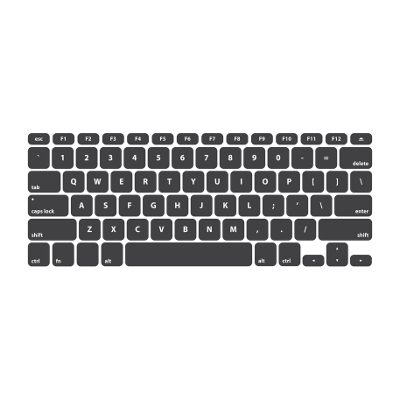
Take, for instance, the Start menu. Almost anyone who has sat at a computer knows that by clicking the Windows icon in the bottom left-hand corner, a comprehensive menu of your available content is revealed. However, for those those cases when a mouse is unavailable and a trackpad (if working on a laptop) is inefficient, you can navigate the Start menu exclusively with your keyboard. Press the Windows key to open the menu and navigate up and down the column with the arrow keys. You may also begin a search by just typing, once you have opened the Start menu.

For users seeking a more advanced experience, there’s an additional menu, the Power Users menu, that offers utilities like your device’s Event Viewer, Device Manager, and Command Prompt module.

Greater Accessibility of Your Apps
You can also press the Windows Key in combination with a number key to open the associated apps that appear on your taskbar. If the app is already open, it’s a quick way to minimize and maximize a window. Adding the Control key to the combination will open a new window for an app. For example, if you want a separate Chrome window, and Chrome is the fifth app on your taskbar, you would press Ctrl+Windows+5. Alternatively, to open a new app from your taskbar, you can use Windows+T to highlight your first toolbar app by selecting which app to launch with the arrow keys and Enter.

Utilizing a Virtual Desktop
If you are one to heavily use virtual desktops in your day-to-day, you can quickly create one by pressing Windows key+Shift+D. Once you are finished, Windows key+Ctrl+F4 will close the virtual desktop back down.

With these shortcuts now in your arsenal, you have the tools to help you stay productive–with or without a mouse. For more tips, tricks, and handy information, keep coming back to NuTech Services’s blog!

voip_softphones_400.jpg

3 Ways VoIP Phone Systems are Superior to Traditional Landlines

voip_softphones_400.jpg

Compared to traditional telephone solutions, software-based phone systems have become a major opportunity for businesses to cut costs and improve efficiency. Even if traditional phone systems have their uses, VoIP still wins out by eliminating unnecessary costs and simplifying your business’s physical infrastructure. You might find that VoIP has a place in your office, too.

VoIP takes advantage of your business’s Internet connection to transfer your voice to the desired recipient, usually through a software client that’s installed on a workstation, laptop, or smartphone. The main draw for VoIP is that it works anywhere as long as you have an Internet connection. Organizations have widely accepted VoIP as a viable alternative to the traditional telephony system for a number of reasons. We’ll go over the three most beneficial reasons to use VoIP as your trusted communications solution.

VoIP is Versatile
One of the big pain points that businesses have with their office phone system is that they can’t easily take it on the road with them when they leave the office. VoIP makes this easy by installing a softphone application on any applicable device, like a smartphone or a laptop. Just hook up a headset or microphone and you’re all set–it’ll be just like using your office phone.

VoIP is Flexible
Onboarding new employees is another major problem for growing businesses. A larger workforce means adding new telephones and new cables to your communications infrastructure. In a worst-case scenario, you may need to remodel your office to accommodate for the changes in the size of your workforce or communications infrastructure. VoIP eliminates this need. All you have to do is add a new user, including their extension, and configure the phone system. Although, depending on the size of your workforce, you may need to keep a close eye on your bandwidth, as it relies on your Internet connection to work properly.

VoIP is Cost-Effective
If you compare the costs of VoIP to those of a traditional phone system, you’ll be in for a pleasant surprise. A great way to describe the cost savings is by comparing VoIP to that of cable cutters who no longer want cable television. Those who pay for cable television get access to countless channels that they can’t possibly watch all of. Thanks to monthly services like Netflix and Hulu Plus, viewers pay a fraction of the price they would normally pay for entertainment, leading them to cancel their television plans in favor of more affordable monthly payments. Similarly, telephone providers often bundle together services that your business may not want or need, and you certainly don’t want to pay for things you won’t use. Since VoIP only uses your Internet connection, it uses a service you already pay for, making it convenient and budget-friendly. You can add all of those additional features later on if you want them.

If your business is considering a new approach to communications, try VoIP from NuTech Services. We’ll work with you to find a solution that’s just right for your business. To learn more, reach out to us at 810.230.9455.

votimg_machine_problems_400.jpg

Outdated Software Puts Voters Personal Information at Risk

votimg_machine_problems_400.jpg

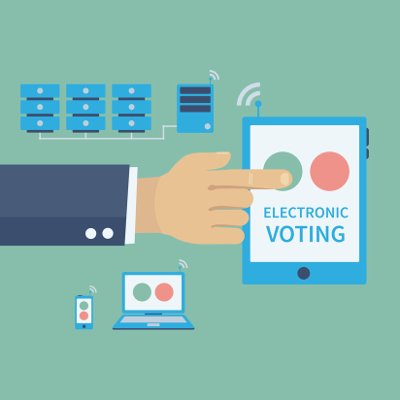
As the U.S. election rapidly approaches, many citizens are strongly concerned with who they’ll vote for. Unfortunately, not enough of these same citizens are nearly as concerned with what they’ll vote on, as the electronic voting machines utilized in many polling places are notoriously insecure to breaches.

While most of the country doesn’t actually utilize these machines (¾ of American voters use paper ballots to elect the new President) there are some states who use these electronic machines exclusively: Delaware, Georgia, Louisiana, New Jersey and South Carolina. Because of this, there’s still a chance that these flawed machines could negatively influence an election. The way we see it, businesses could learn some valuable cybersecurity lessons from this major electoral oversight.

It is a matter of common sense that older operating systems will be vulnerable to more recent threats, even without the knowledge that developers eventually stop producing security patches to better protect the outdated OS after a period of time.

Knowing this, however, only makes it worse to know that the majority of electronic voting machines currently run Windows XP, which hasn’t received a patch since 2014. That makes three years of threats evolving and improving while these voting machines have gone without a single security update. This means that there is a potential for serious tampering to occur, potentially keeping citizens from being able to vote.

Furthermore, many of these machines have not been replaced in years, despite newer and more secure models becoming available. This is in part due to a lack of financial resources in most areas, and in part due to legislative pushback against spending money to replace a machine that has yet to completely fail.

These issues reinforce the importance of maintaining up-to-date solutions, as well as updating and maintaining equipment proactively rather than subscribing to a problematic break-fix model.

Fortunately for the American voter, there are resources in place for those who are concerned for the sanctity and efficacy of their vote. The Verified Voting Foundation, devoted to “safeguarding elections in the digital age,” has an online map resource that breaks down into counties and describes what devices they utilize in counting votes. However, there is little indication of when the website was last updated beyond the copyright information at the bottom of the page, which says 2014. Therefore, the website may not be fully up-to-date, so it is better used as a guideline, rather than gospel.

Despite the presumed budgetary benefits of waiting to replace equipment only when absolutely necessary, a break/fix approach will ultimately cause an administrator more issues and wind up costing more in the long run. On the other hand, a managed service approach allows for a stable, budgetable cost for IT services with reduced downtime, maintained solutions and systems, and an overall more pleasant and productive experience. If you’re interested in implementing a managed solution to your company’s IT, as American polling places clearly should, contact NuTech Services for more information.

workplace_flexibility_400.jpg

Tip of the Week: 4 Tools that Provide Your Employees With Greater Flexibility

workplace_flexibility_400.jpg

Flexibility is an important part of the modern work environment, especially as technology has made it much easier to work anytime, anywhere. Employees understand that this flexibility exists in many industries, and they want to reap the benefits of a flexible work environment. However, it’s not that easy; there are quite a few pitfalls that can easily take a stab at your business’s productivity.

On the plus side, flexible work hours allow your team to flourish as people, rather than employees. Your employees no-doubt have families and personal interests of their own that they would like to devote time to. However, the biggest argument for workplace flexibility comes in the form of mobile technology becoming practically omnipresent in today’s environment. In the context of society, mobility is, more or less, a primary concern. Everyone carries a smartphone with them in order to stay up-to-date on email, and to receive important phone calls or to dial into a conference call.

Then there’s the problem of achieving a work-life balance. If an employee is constantly tethered to the office, even while at home, it can feel somewhat invasive to that employee’s domestic life, which can lead to dissatisfaction, and in some cases, disruption. Nobody likes to receive a phone call in the middle of the night, or at the dinner table, about something that can easily be handled the following morning.

Whether or not you want to implement a flexible workplace environment is ultimately up to you, but if you do choose to go all-in on this investment, you’ll need the proper technology solutions to ensure maximum communication and productivity.

  • Voice over Internet Protocol: A VoIP phone system uses your Internet connection to send your voice to the call’s recipient. It’s basically like a traditional phone system without the complex wiring. VoIP systems also come equipped with your standard phone line functions, like transferring, conference calling, etc, and some even have video conferencing technology.
  • Virtual Private Network: A VPN encrypts data that’s sent to and from your business’s infrastructure. They’re great for keeping sensitive data secure from hackers who would steal information while it’s in transit. The reason you’ll want this is because hackers may be lurking on public Wi-Fi connections, just waiting for someone like you to access the network.
  • Cloud Computing: Your business’s data and applications are available to those who are hooked up to your on-site network, but what about those who choose to work remotely? Cloud computing lets you host information and applications in an online environment, where anyone who has access to an Internet connection can utilize it. 
  • Mobile Device Management: If your team is using their own devices to access your company’s sensitive information, you need to make sure that they comply with your BYOD policy. A mobile device management solution can be used to limit access to data on a per user and per device basis, as well as allowing you to remotely wipe devices that are potentially compromised.

If your business is ready and willing to invest in a flexible, modern workforce and workplace, NuTech Services can help. Our solutions are designed to give you maximum control over your data, while allowing your team to work anytime, anywhere. To learn more, give us a call at 810.230.9455.