Free A Paper beside a Person Typing on a Laptop Stock Photo

What’s Changing in the Cybersecurity Insurance Market?

Cybersecurity insurance is still a pretty new concept for many SMBs. It was initially introduced in the 1990s to provide coverage for large enterprises. It covered things like data processing errors and online media.

Since that time, the policies for this type of liability coverage have changed. Today’s cyber insurance policies cover the typical costs of a data breach. Including remediating a malware infection or compromised account.

Cybersecurity insurance policies will cover the costs for things like:

  • Recovering compromised data
  • Repairing computer systems
  • Notifying customers about a data breach
  • Providing personal identity monitoring
  • IT forensics to investigate the breach
  • Legal expenses
  • Ransomware payments

Data breach volume and costs continue to rise. 2021 set a record for the most recorded data breaches on record. And in the first quarter of 2022, breaches were up 14% over the prior year.

No one is safe. Even small businesses find they are targets. They often have more to lose than larger enterprises as well. About 60% of small businesses close down within 6 months of a cyber incident.

The increase in online danger and rising costs of a breach have led to changes in this type of insurance. The cybersecurity insurance industry is ever evolving. Businesses need to keep up with these trends to ensure they can stay protected.

Here are some of the cyber liability insurance trends you need to know about.

Demand is Going Up

The average cost of a data breach is currently $4.35 million (global average). In the U.S., it’s more than double that, at $9.44 million. As these costs continue to balloon, so does the demand for cybersecurity insurance.

Companies of all types are realizing that cyber insurance is critical. It’s as important as their business liability insurance. Without that protection, they can easily go under in the case of a single data breach.

With demand increasing, look for more availability of cybersecurity insurance. This also means more policy options, which is good for those seeking coverage.

Premiums are Increasing

With the increase in cyberattacks has come an increase in insurance payouts. Insurance companies are increasing premiums to keep up. In 2021, cyber insurance premiums rose by a staggering 74%.

The costs from lawsuits, ransomware payouts, and other remediation have driven this increase. Insurance carriers aren’t willing to lose money on cybersecurity policies. Thus, those policies are getting more expensive. This is at the same time as they are more necessary.

Certain Coverages are Being Dropped

Certain types of coverage are getting more difficult to find. For example, some insurance carriers are dropping coverage for “nation-state” attacks. These are attacks that come from a government.

Many governments have ties to known hacking groups. So, a ransomware attack that hits consumers and businesses can very well be in this category.

In 2021, 21% of nation-state attacks targeted consumers, and 79% targeted enterprises. So, if you see that an insurance policy excludes these types of attacks, be very wary.

Another type of attack payout that is being dropped from some policies is ransomware. Between Q1 and Q2 of 2022, ransomware attacks increased by 24%.

Insurance carriers are tired of unsecured clients relying on them to pay the ransom. So many are excluding ransomware payouts from policies. This puts a bigger burden on organizations. They need to ensure their backup and recovery strategy is well planned.

It’s Harder to Qualify

Just because you want cybersecurity insurance, doesn’t mean you’ll qualify for it. Qualifications are becoming stiffer. Insurance carriers aren’t willing to take chances. Especially on companies with poor cyber hygiene.

Some of the factors that insurance carriers look at include:

  • Network security
  • Use of things like multi-factor authentication
  • BYOD and device security policies
  • Advanced threat protection
  • Automated security processes
  • Backup and recovery strategy
  • Administrative access to systems
  • Anti-phishing tactics
  • Employee security training

You’ll often need to fill out a lengthy questionnaire when applying for insurance. This includes several questions about your cybersecurity situation. It’s a good idea to have your IT provider help you with this.

This can seem like a lot of work that you have to do to qualify for cyber insurance. As you review the questions, your IT partner can identify security enhancements. Just like other forms of insurance, if you take steps to reduce risk, it can often reduce your premiums.

So, it pays to do a cybersecurity review before applying for cyber insurance. You can save yourself time and money. It can also fortify your defenses against cyberattacks.

Need Help Making Sense of Cybersecurity Policies?

Cybersecurity coverage and insurance applications can be complex. If you answer wrong on a question, it can mean paying hundreds more in premiums than you should.

If you’re considering cybersecurity insurance, don’t go it alone. Give us a call and schedule a consultation. We can explain the policy details and provide guidance.


Featured Image Credit

This Article has been Republished with Permission from The Technology Press.

Free photos of Cyber

What Cybersecurity Attack Trends Should You Watch Out for in 2023?

The new year has just begun and it’s a time of renewal as we plan for the possibilities to come in 2023. It’s also a time when you need to plan for resiliency in the face of ever-present cyberattacks.

Sixty-eight percent of surveyed business leaders feel that cybersecurity risks are getting worse. They have a good reason. Attacks continue to get more sophisticated. They are also often perpetrated by large criminal organizations. These criminal groups treat these attacks like a business.

In 2021, the average number of global cyberattacks increased by 15.1%.

To protect your business in the coming year, it’s important to watch the attack trends. What new methods are hackers using? What types of attacks are increasing in volume? Knowing these things is important. It helps you better update your IT security to mitigate the risk of a data breach or malware infection.

We’ve pulled out the security crystal ball for the upcoming year. And we’ve researched what cybersecurity experts are expecting. Here are the attack trends that you need to watch out for.

Attacks on 5G Devices

The world has been buzzing about 5G for a few years. It is finally beginning to fulfill the promise of lightning-fast internet. As providers build out the infrastructure, you can expect this to be a high-attack area.

Hackers are looking to take advantage of the 5G hardware used for routers, mobile devices, and PCs. Anytime you have a new technology like this, it’s bound to have some code vulnerabilities. This is exactly what hackers are looking to exploit.

You can prepare by being aware of the firmware security in the devices you buy. This is especially true for those enabled for 5G. Some manufacturers will build better firmware security into their designs than others. Make sure to ask about this when purchasing new devices.

One-time Password (OTP) Bypass

This alarming new trend is designed to get past one of the best forms of account security. Multi-factor authentication (MFA) is well-known as very effective at preventing fraudulent sign-in attempts. It can stop account takeovers even in cases where the criminal has the user’s password.

There are a few different ways that hackers try to bypass MFA. These include:

  • Reusing a token: Gaining access to a recent user OTP and trying to reuse it
  • Sharing unused tokens: The hacker uses their own account to get an OTP. Then attempts to use that OTP on a different account.
  • Leaked token: Using an OTP token leaked through a web application.
  • Password reset function: A hacker uses phishing to fool the user into resetting a password. They then trick them into handing over their OTP via text or email.

Attacks Surrounding World Events

During the pandemic, the cyberattack volume increased by approximately 600%. Large criminal hacking groups have realized that world events and disasters are lucrative.

They launch phishing campaigns for world events. Attacks come for everything from the latest hurricane or typhoon to the war in Ukraine. Unsuspecting people often fall for these scams. This is because they are often distracted by the crisis.

People need to be especially mindful of scams surrounding events like these. They will often use social engineering tactics, such as sad photos, to play on the emotions.

Smishing & Mobile Device Attacks

Mobile devices go with us just about everywhere these days. This direct connection to a potential victim is not lost on cybercriminals. Look for more mobile device-based attacks, including SMS-based phishing (“smishing”).

Many people aren’t expecting to receive fake messages to their personal numbers. But cell numbers are no longer as private as they once were. Hackers can buy lists of them online. They then craft convincing fake texts that look like shipping notices or receipts. One wrong click is all it takes for an account or data breach.

Mobile malware is also on the rise. During the first few months of 2022, malware targeted to mobile devices rose by 500%. It’s important to ensure that you have good mobile anti-malware. As well as other protections on your devices, such as a DNS filter.

Elevated Phishing Using AI & Machine Learning

These days, phishing emails are not so easy to spot. It used to be that they nearly always had spelling errors or grainy images. While some still do, most don’t.

Criminal groups elevate today’s phishing using AI and machine learning. Not only will it look identical to a real brand’s emails, but it will also come personalized. Hackers use these tactics to capture more victims. They also allow hackers to send out more targeted phishing messages in less time than in years past.

Schedule a Cybersecurity Check-Up Today

Is your business prepared for the cyber threats coming in 2022? Don’t wait to find out the hard way! Give us a call and schedule a cybersecurity check-up to stay one step ahead of the digital criminals.


Featured Image Credit

This Article has been Republished with Permission from The Technology Press.

gold Apple iPhone smartphone held at the door

Don’t Set Yourself Up to Fail: Tips for Safer Home Security Setups

The global home security market has been growing by leaps and bounds. By 2026, experts expect the market to expand at a rate of 20.1%. This is on top of an expected increase of 21.6% from 2021 to 2022.

From Ring doorbell cams to entire home security systems, consumers want these solutions. Watching your front door from afar has never been so easy. With cloud-based video streams, homeowners can view any part of their home.

Sharing doorbell camera shots on neighborhood social media groups is now common. These home security systems also provide peace of mind at a wallet-friendly cost.

But don’t let the ease of setup fool you. Home security cameras can open your family up to risks if you don’t take precautions. Often, people are so excited to see what they can do, they don’t stop to think about device security.

There are horror stories online about hacked video cameras. This includes strangers saying disturbing things through those cameras to children.

Additionally, in 2019, Ring suffered a data breach. That breach exposed the personal data of over 3,000 Ring users. This included usernames and passwords.

It’s enough to make you reconsider your decision to add extra security. But don’t let those incidents scare you off. You can properly secure a home video camera system to ensure it’s not breached.

Here are some of the things you should do for a safe home security setup.

Make Sure Your Router is Secure

You access an IP security camera via the internet. Any commands going to the system or footage coming from it go through your router. So, you need to make sure that your router is properly secured.

Hackers breach routers so they can get to the devices connected to that network. Ensure your router security protocol is no lower than WPA2. The next generation, WPA3, is even better. These protocols govern the protection of data transmitted through the wireless network.

Give the router a strong password that is at least 12 characters long. Software can crack a password of only 8 standard characters instantly. But a 12-character password with at least one upper case letter, number, and symbol takes 34,000 years.

Change the Default Username & Password

You also need a strong password for your security system’s admin account. You should also change the default device and username. Hackers have lists of all these device defaults and use them to break into these systems.

Changing the default username and password for the device should be one of the first things you do. Otherwise, it could be mere minutes after you connect to the internet that you’re hacked.

Ensure the System Uses SSL/TLS Or Other Encryption

You don’t want the footage from your cameras transmitted for anyone to grab and watch. Make sure the security system you choose notes SSL/TLS. Or another standard encryption.

This ensures that the data cannot be intercepted and accessed. SSL is short for Secure Sockets Layer, and TLS is short for Transport Layer Security. Without a form of encryption, a hacker can easily breach your device.

Keep the Software Updated

If your security system has an automatic update feature, turn that on. Unfortunately, many users don’t think about updating their device software. This leaves it more vulnerable to a hack.

Updates often include important security fixes for found vulnerabilities. You want to make sure updates install promptly. That’s why automating this is best.

Consider Access Levels for Multiple Users

Do you have several family members accessing your cloud-based security device? If so, set up some access levels. Not everyone needs to be at an administrator level.

Hackers love it when they can breach the login of an admin user for an account. This gives them more privileges, like changing settings. Giving lower-level privileges, such as “view only,” to most family members improves security.

Enable Camera Security Features

There will be various security features that are available with your system. Manufacturers often do not enable all security settings by default. The user must turn all or some of them on.

If you’re unsure of what settings should be on or off, we’ll be happy to help. Some home security systems have generous sharing options. This can be an invitation for hackers. You want to restrict these as much as possible.

Make Sure Your Mobile Device is Secure

Most people access their security cam through their smartphone. Make sure that you secure yours and keep it updated with the latest operating system. Hackers can gain access to a security system through a device with weak safeguards.

Add things like:

  • Mobile anti-malware
  • DNS filtering
  • Screen lock
  • Automated updating

Looking for Help Protecting Your Cloud Security System?

Give us a call and schedule a visit. We’ll be happy to help you ensure your security system is set up with best practices.


Featured Image Credit

This Article has been Republished with Permission from The Technology Press.

Free photos of Voicemail

7 VoIP Setup Tips for a More Productive Office

The global pandemic put a big emphasis on the need to run a business from anywhere. Enabling employees to work remotely requires cloud solutions. This includes collaborative platforms like Google Workspace and Microsoft 365. VoIP (Voice over Internet Protocol) phone systems have also become critical.

VoIP allows companies to stay in contact with customers and potential customers. Employees can work from anywhere and still answer the business phone line. Callers get a similar experience no matter where employees may be working, office, or home.

When you have people working from home, those old landline systems are inefficient. This has led to a large movement by businesses to VoIP. Both for necessity and cost-savings.

According to Microsoft, 82% of organizations have reported saving money after implementing VoIP.

While VoIP is the way to go for the future, this doesn’t mean it’s foolproof. Companies that don’t set up their system efficiently, can experience issues. This includes things like dropped calls, low bandwidth, and features left unused.

If you’ve been struggling to make your cloud phone system more efficient, check out these tips below. They provide setup best practices for VoIP. Use these to positively impact your bottom line.

1. Check Network Capabilities

You can’t just assume that you can enable a VoIP system, and all will be well. Your network may not be able to handle the extra bandwidth needs without adjustments.

Things you want to look at include jitter and packet loss. Additionally, review router settings to make sure it can handle peak traffic times. Experiencing dropped calls or choppy audio shows a need to address issues. These may include adjusting network hardware and/or increasing your ISP bandwidth.

2. Prioritize Your VoIP Software Using QoS Rules

Quality of Service (QoS) is a router settings area that allows you to say which traffic is most important. If QoS is not in place, it means resource issues. A large cloud backup could kick in and interrupt your calls because it’s taking up bandwidth.

QoS sets up “traffic lanes” that give priority to certain functions. You’ll want to have your VoIP software prioritized to get the bandwidth it needs. This avoids issues with less critical processes hogging up internet resources.

Using QoS keeps your calls smooth. It also improves the reliability of your cloud phone system. It’s also a good idea to use these rules for other important cloud activities.

3. Provide Quality Headsets for Your Team

A cheap headset can ruin the call experience for a potential customer. If someone calls in and can’t hear anything or gets choppy reception, they’ll quickly get frustrated. They will most likely figure that your company doesn’t have its act together.

Your employees may not be able to afford high-quality headsets. They also may not know what type to buy. Head off potential problems by issuing quality headsets for your team to use.

4. Set Up Departments & Ring Groups

One of the great features of VoIP phone systems is the ability to set up ring groups. You first set up your department groups (accounting, marketing, etc.). Then set the included employee extensions.

Creating a ring group allows you to have a call go to your customer support department as a whole. This is better than one person, who may be busy. That way, the whole group gets the ring, and the first available person can pick up.

Ring groups improve the caller experience by reducing the wait time. It can also mitigate the need for the caller to leave a voicemail and get stuck waiting on a callback.

5. Create Your Company Directory

Auto assistants are extremely helpful and nearly all VoIP systems have them. First, you set up your company directory and then record messages to prompt the caller.

For example, you can set up a message that prompts them to input the last name of the person they are trying to reach. If they aren’t calling a specific person, they can be routed to a department.

While setting up a company directory takes a little effort upfront, it will save much more. You no longer will need to have someone specifically routing every call. Callers can also get to the person or department they need faster. This improves the customer experience and boosts office productivity.

6. Have Employees Set Up Their Voicemail & VM to Email

When you get out of a long meeting, going through a bunch of voicemails can take time. Instead of having to listen to each one to see which calls are a priority, you could simply read through them.

The voicemail to email feature in VoIP phone systems will automatically transcribe voicemails. They are then emailed to the recipient. This improves efficiency. It also eliminates wasted time having to listen to entire messages to know who called.

Have employees set up this feature with their extension and email address. Some VoIP systems also offer an option to have transcribed voicemails sent via SMS.

7. Train Your Team on the Call Handling Process

Don’t leave your employees to jump in and learn a VoIP system themselves. It’s important to train them on the features and the company calling process. This ensures that your team can enjoy all those time-saving features.

Get Help Enhancing Your Business Phone System

Need help improving your business phone system? Looking for a better customer experience? Give us a call and schedule a consultation. We can help!


Featured Image Credit

This Article has been Republished with Permission from The Technology Press.
Free photos of Cyber security

5 Ways to Balance User Productivity with Solid Authentication Protocols

One constant struggle in offices is the balance between productivity and security. If you give users too much freedom in your network, risk increases. But add too many security gates, and productivity can dwindle.

It’s a fine balance between the two, but one you can achieve. Organizations need to recognize the importance of both. And not sacrifice one for another.

A recent report from Microsoft notes a dangerous lack of authentication security. Just 22% of Azure Active Directory users had multi-factor authentication (MFA) enabled. This means that over three-quarters were at a much higher risk of an account breach.

Why do organizations fail to adopt important security protocols, like MFA? We know that it’s as much as 99.9% effective at stopping fraudulent sign-ins. Yet so many companies aren’t adopting it.

User inconvenience is the biggest reason. MFA is not expensive. In fact, it’s free to enable in nearly all cloud applications. But if users say that it’s hurting productivity and is a pain to use, companies may not bother with it.

But sacrificing security can hurt productivity worse. Downtime due to a data breach is expensive and can put smaller companies out of business. The main cause of data breaches is credential compromise. So, if you’re not protecting your authentication process, the risk of becoming a breach victim is high.

35% of data breaches initiate from breached login credentials.

There are ways to have both secure and productive users. It simply takes adopting some solutions that can help. These are tools that improve authentication security. But do it in a way that keeps user convenience in mind.

Solutions to Improve Security Without Sacrificing Convenience

Use Contextual Authentication Rules

Not every user needs to go through the same authentication process. If someone is working in your building, they have a certain trust factor. If someone is attempting to log in from outside the country, they do not have that same trust.

Contextual authentication is used with MFA to target users that need to reach a higher bar. You may choose to limit or block system access to someone attempting to log in from a certain region. Or you may need to add an additional challenge question for users logging in after work hours.

Companies don’t need to inconvenience people working from normal locations during typical hours. But they can still verify those logging in under non-typical circumstances. Some of the contextual factors you can use include:

  • Time of day
  • Location
  • The device used
  • Time of the last login
  • Type of resources accessed

Install a Single Sign-on (SSO) Solution

A report on U.S. employees found they use a lot of apps. Workers switch between an average of 13 apps 30 times per day. That’s a lot of inconveniences if they need to use an MFA action for each of those logins.

Single sign-on applications solve this problem. They merge the authentication process for several apps into just one login. Employees log in once and can go through MFA a single time.

Using multi-factor authentication isn’t nearly as inconvenient. Users gain access to everything at the same time. SSO solutions help organizations improve their security without all the pushback from users.

Recognize Devices

Another way to better secure network access is to recognize devices. This is typically done using an endpoint device manager. This automates some of the security behind user authentication. Thus, it doesn’t inconvenience the person.

First, register employee devices in the endpoint device manager. Once completed, you can then set up security rules. Such as blocking unknown devices automatically.

You can also put in place device scanning for malware and automated updates. Both these things increase security without sacrificing productivity.

Use Role-based Authentication

Your shipping clerk may not have access to sensitive customer information. But your accounting team does. One can have a lower barrier to authentication.

Using role-based authentication saves time when setting up new employee accounts. Authentication and access happen based on the person’s role. Admins can program permissions and contextual authentication factors once. Then, the process automates as soon as an employee has their role set.

Consider Adding Biometrics

One of the most convenient forms of authentication is biometrics. This would be a fingerprint, retina, or facial scan. The user doesn’t need to type in anything. It also takes just a few seconds.

Biometric hardware can be costly, depending on the size of your organization. But you can introduce it over time. Perhaps using biometrics with your most sensitive roles first, then expanding.

Additionally, many apps are now incorporating things like facial scanning. Users can authenticate using a typical smartphone, making it much more affordable.

Need Help Improving Authentication Security?

Don’t give up important security because you’re afraid of user pushback. Give us a call and schedule a security consultation.


Featured Image Credit

This Article has been Republished with Permission from The Technology Press.

Free illustrations of Checklist

What to Include in a Year-end Technology Infrastructure Review

When the year is coming to a close, it’s the perfect time to plan for the future. Most businesses begin the year with the hope of growing and improving operations. Much of how a business operates depends on technology. So, it makes sense to look to your IT for areas of optimization.

A year-end technology review provides an opportunity to look at several areas of your IT. The goal is to take time to focus on improvements you can make to boost your bottom line. As well as what tactics to take to reduce the risk of a costly cyberattack.

A recent study by Deloitte looked at digitally advanced small businesses. Small businesses that make smart use of technology are well ahead of their peers. Here are some of the ways they excel:

  • Earn 2x more revenue per employee
  • Experience year-over-year revenue growth nearly 4x as high
  • Had an average employee growth rate over 6x as high

The bottom line is that companies that use technology well, do better. They are also more secure. According to IBM, businesses that have an incident response plan reduce the costs of a data breach by 61%. Using security AI and automation can lower costs by 70%.

This year-end, take some time to do a technology review with your IT team or managed IT provider. This will set you up for success and security in the coming year.

Considerations When Reviewing Your Technology at Year-End

The goal of a year-end technology review is to look at all areas of your IT infrastructure. Security, efficiency, and bottom-line considerations will be the key drivers for future initiatives.

Technology Policies

When technology policies get outdated, people stop following them. Review all your policies to see if any of them need updating to reflect new conditions. For example, if you now have some staff working from home, make sure your device use policy reflects this.

When you update policies, let your employees know. This gives them a refresher on important information. They may have forgotten certain things since onboarding.

Disaster Recovery Planning

When is the last time your company did an incident response drill? Is there a list of steps for employees to follow in the case of a natural disaster or cyberattack?

Take time to look at disaster recovery planning for the new year. You should also put dates in place for preparedness drills and training in the coming months.

IT Issues & Pain Points

You don’t want to go through a big IT upgrade without considering employee pain points. Otherwise, you might miss some golden opportunities to improve staff productivity and well-being.

Survey your employees on how they use technology. Ask questions about their favorite and least favorite apps. Ask what struggles they face. Let them tell you how they feel technology could improve to make their jobs better. This, in turn, benefits your business. It can also help you target the most impactful improvements.

Privileged Access & Orphaned Accounts

Do an audit of your privileged accounts as part of your year-end review. Over time, permissions can be misappropriated. This leaves your network at a higher risk of a major attack.

You should ensure that only those that need them have admin-level permissions. The fewer privileged accounts you have in your business tools, the lower your risk. Compromised privileged accounts password open the door to major damage.

While going through your accounts, also look for orphaned accounts. You need to close these because they’re no longer used. Leaving them active poses a security risk.

IT Upgrade & Transformation Plans for the New Year

If you make IT upgrades and decisions “on the fly” it can come back to bite you. It’s best to plan out a strategy ahead of time, so you can upgrade in an organized way.

Have a vulnerability assessment performed. This gives you a list of potential problems your company should address. Eliminating vulnerabilities improves your cybersecurity. Planning ahead allows you to budget for your upgrades and avoid unplanned expenses.

Cloud Use & Shadow IT

Review your use of cloud applications. Are certain apps hardly used? Do you have redundancies in your cloud environment? A review can help you cut waste and save money.

Also, look for uses of shadow IT by employees. These are cloud applications that are being used for work but did not go through approval. Management may not even be aware of them. Remove this security risk by either closing the accounts or officially approving them.

Customer-Facing Technology

Don’t forget to look at the customer experience of your technology infrastructure. Go through your website and contact process as a customer would.

If you get frustrated by things like site navigation, then your customers and leads may be too. Include optimizations to your customer-facing technology in your new year plans.

Schedule a Technology & Security Assessment Today!

We can help you with a thorough review of your technology environment to give you a roadmap for tomorrow. Contact us today for a free consultation.


Featured Image Credit

This Article has been Republished with Permission from The Technology Press.
Free illustrations of Neon

What Are the Advantages of Implementing Conditional Access?

It seems that nearly as long as passwords have been around, they’ve been a major source of security concern. Eighty-one percent of security incidents happen due to stolen or weak passwords. Additionally, employees continue to neglect the basics of good cyber hygiene.

For example, 61% of workers use the same password for multiple platforms. And 43% have shared their passwords with others. These factors are why compromised credentials are the main cause of data breaches.

Access and identity management have become a priority for many organizations. This is largely due to the rise of the cloud. As well as the practice of people needing to only enter a username and password to access systems.

Once a cybercriminal gets a hold of an employee’s login, they can access the account and any data that it contains. This is especially problematic when it’s an account like Microsoft 365 or Google Workspace. These accounts can access things like cloud storage and user email.

Below, we’ll explain what conditional access is. As well as how it works with multi-factor authentication (MFA). We’ll also review the advantages of moving to a conditional access process.

What Is Conditional Access?

Conditional access is also known as contextual access. It is a method of controlling user access. You can think of it as several “if/then” statements, meaning “if” this thing is present, “then” do this.

For example, conditional access allows you to set a rule that would state the following. “If a user is logging in from outside the country, require a one-time-passcode.”

Conditional access allows you to add many conditions to the process of user access to a system. It is typically used with MFA. This is to improve access security without unnecessarily inconveniencing users.

Some of the most common contextual factors used include:

  • IP address
  • Geographic location
  • Time of day
  • The device used
  • Role or group the user belongs to

Conditional access can be set up in Azure Active Directory. It can also be set up in another identity and access management tool. It’s helpful to get the assistance of your IT partner. We can help with setup and the conditions that would make the most sense for your business.

The Benefits of Implementing Conditional Access for Identity Management

Improves Security

Using conditional access improves security. It allows you more flexibility in challenging user legitimacy. It doesn’t just grant access to anyone with a username and password. Instead, the user needs to meet certain requirements.

Contextual access could block any login attempts from countries where no employees are. It could also present an extra verification question when employees use an unrecognized device.

Automates the Access Management Process

Once the if/then statements are set up, the system takes over. It automates the monitoring for contextual factors and takes the appropriate actions. This reduces the burden on administrative IT teams. It also ensures that no one is falling between the cracks.

Automated processes are more accurate and reliable than manual processes. Automation removes the human error component. This helps ensure that each condition is being verified for every single login.

Allows Restriction of Certain Activities

Conditional access isn’t only for keeping unauthorized users out of your accounts. You can use it in other ways. One of these is to restrict the activities that legitimate users can do.

For example, you could restrict access to data or settings based on a user’s role in the system. You can also use conditions in combination. Such as, lowering permissions to view-only. You could trigger this if a user holds a certain role and is logging in from an unknown device.

Improves the User Login Experience

Studies show that as many as 67% of businesses don’t use multi-factor authentication. This is despite the fact that it’s one of the most effective methods to stop credential breaches.

One of the biggest reasons it is not used is because of the inconvenience factor for employees. They may complain that it interferes with productivity. Or say that it makes it harder for them to use their business applications.

Using conditional access with MFA can improve the user experience. For example, you can require MFA only if users are off the premises. You can put in place extra challenge questions on a role or context-based basis. This keeps all users from being inconvenienced.

Enforces the Rule of Least Privilege

Using the rule of least privilege is a security best practice. It means only granting the lowest level of access in a system as necessary for a user to do their work. Once you have roles set up in your identity management system, you can base access on those roles.

Conditional access simplifies the process of restricting access to data or functions. You can base this on job needs. It streamlines identity management. This is because it contains all functions in the same system for access and MFA rules. Everything stays together, making management simpler.

Get Help Implementing Conditional Access Today!

Once conditional access is set up, the automated system takes over. It improves your security and reduces the risk of an account breach. Contact us today for a free consultation to enhance your cybersecurity.


Featured Image Credit

This Article has been Republished with Permission from The Technology Press.

Free A Person Working on His Laptop Stock Photo

Tips for Overcoming Barriers to a Smooth BYOD Program

Bring your own device (BYOD) is a concept that took hold after the invention of the smartphone. When phones got smarter, software developers began creating apps for those phones. Over time, mobile device use has overtaken desktop use at work.

According to Microsoft, mobile devices make up about 60% of the endpoints in a company network. They also handle about 80% of the workload. But they’re often neglected when it comes to strong cybersecurity measures.

This is especially true with employee-owned mobile devices. BYOD differs from corporate-owned mobile use programs. Instead of using company tools, employees are using their personal devices for work. Many businesses find this the most economical way to keep their teams productive.

Purchasing phones and wireless plans for staff is often out of reach financially. It can also be a pain for employees to carry around two different devices, personal and work.

It’s estimated that 83% of companies have some type of BYOD policy.

You can run BYOD securely if you have some best practices in place. Too often, business owners don’t even know all the devices that are connecting to business data. Or which ones may have data stored on them.

Here are some tips to overcome the security and challenges of BYOD. These should help you enjoy a win-win situation for employees and the business.

Define Your BYOD Policy

If there are no defined rules for BYOD, then you can’t expect the process to be secure. Employees may leave business data unprotected. Or they may connect to public Wi-Fi and then enter their business email password, exposing it.

If you allow employees to access business data from personal devices, you need a policy. This policy protects the company from unnecessary risk. It can also lay out specifics that reduce potential problems. For example, detailing the compensation for employees that use personal devices for work.

Keep Your Policy “Evergreen”

As soon as a policy gets outdated, it becomes less relevant to employees. Someone may look at your BYOD policy and note that one directive is old. Because of that, they may think they should ignore the entire policy.

Make sure that you keep your BYOD policy “evergreen.” This means updating it regularly if any changes impact those policies.

Use VoIP Apps for Business Calls

Before the pandemic, 65% of employees gave their personal phone numbers to customers. This often happens due to the need to connect with a client when away from an office phone. Clients also may save a personal number for a staff member. For example, when the employee calls the customer from their own device.

Customers having employees’ personal numbers is a problem for everyone. Employees may leave the company, and no longer answer those calls. The customer may not realize why.

You can avoid the issue by using a business VoIP phone system. These services have mobile apps that employees can use. VoIP mobile apps allow employees to make and receive calls through a business number.

Create Restrictions on Saved Company Data

Remote work has exasperated the security issue with BYOD. While BYOD may have meant mobile devices in the past, it now means computers too. Remote employees often will use their own PCs when working outside the office.

No matter what the type of device, you should maintain control of business data. It’s a good idea to restrict the types of data that staff can store on personal devices. You should also ensure that it’s backed up from those devices.

Require Device Updates

When employee devices are not updated or patched, they invite a data breach. Any endpoint connected to your network can enable a breach. This includes those owned by employees.

It can be tricky to ensure that a device owned by an employee is kept updated. Therefore, many businesses turn to endpoint management solutions. An endpoint device manager can push through automated updates. It also allows you to protect business data without intruding on employee privacy.

The monitoring and management capabilities of these tools improve security. This includes the ability to safelist devices. Safelisting can block devices not added to the endpoint manager.

Include BYOD in Your Offboarding Process

If an employee leaves your company, you need to clean their digital trail. Is the employee still receiving work email on their phone? Do they have access to company data through persistent logins? Are any saved company passwords on their device?

These are all questions to ask when offboarding a former staff member. You should also make sure to copy and remove any company files on their personal device. Additionally, ensure that you deauthorize their device(s) from your network.

Let Us Help You Explore Endpoint Security Solutions

We can help you explore solutions to secure a BYOD program. We’ll look at how your company uses personal devices at your business and recommend the best tools. Contact us today for a free consultation.


Featured Image Credit

This Article has been Republished with Permission from The Technology Press.
Free illustrations of Checklist

Simple Setup Checklist for Microsoft Teams

Microsoft Teams is a lot of things. It’s a video conferencing tool, a team messaging channel, and a tool for in-app co-authoring, just to name a few. During the pandemic, the popularity of Teams skyrocketed.

User numbers for MS Teams jumped from 20 million in November 2019 to 75 million in April 2020. As of this year, Microsoft reports a user count of 270 million for the platform. This makes it the most popular business tool for team communications.

But one of the things that makes the app popular is also one that can make the setup complex. Microsoft Teams has many moving parts, but to use them effectively they need to be well organized. Additionally, users need to have a chance to learn the system and train on best practices.

What Can Microsoft Teams Do?

First, let’s look at the different areas of Microsoft Teams and what it can do. Then, we’ll give you a simple setup checklist to help your team get up and running productively.

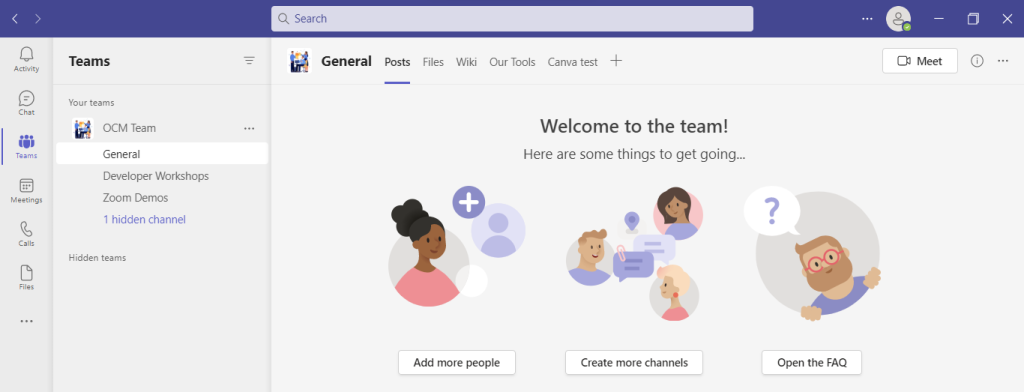
You can think of Teams as a virtual office in the cloud. It’s a centralized hub where teams can communicate, collaborate, and manage tasks. There is also an external communication component to Teams. You can use the app to video conference with anyone. You can also invite guests to a chat channel.

Here are some of the features of MS Teams:

  • Siloed chat channels
  • Security for team communications
  • Integration with Office apps
  • Integration with 3rd party apps
  • File sharing
  • Video and audio conferencing
  • VoIP phone system (with an extra add-on)
  • Keep all team resources in a single place
Microsoft Teams

Microsoft Teams Versions

Some good news for small businesses is that there is a free version of Microsoft Teams. If you sign up for a Microsoft 365 business plan, you get the app included, but with a few more features.

Microsoft has also been pushing MS Teams for personal use. So, you can use it to keep your departments better coordinated at work. Or to manage family video calls or PTA meeting collaboration. It’s a versatile and scalable virtual office platform.

Easy Checklist for Setting Up Microsoft Teams

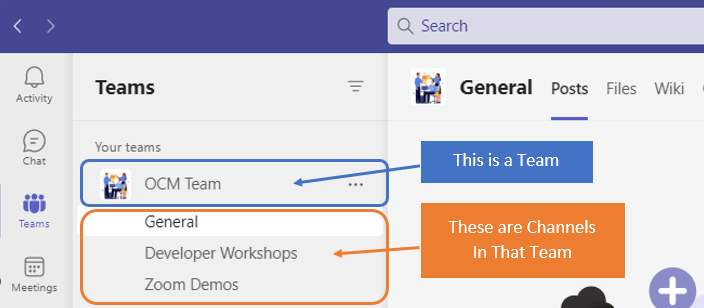
1. Set Up Your Teams/Departments

One of the advantages of Teams is that it allows you to set up specific areas for your groups to collaborate. You do not want everyone to set these teams up on their own, or you could end up with an unorganized mess.

Some ideas for setting these up:

  • Set up teams by department (accounting, marketing, etc.)
  • Add a company-wide team (where everyone can collaborate)
  • Set up teams by role (office managers, executives, etc.)

Typically, if you mirror the hierarchy of your organization, that’s a good place to start. Team areas are secured so only those users invited can see or access any of the content in that team.

Set up Your Teams - Departments

2. Add Team Members

For each team, add the members allowed to take part in that team. These would be people that can see the resources posted in that team area. It would normally be the members of the department or group that the team is designed for.

3. Set Up Team Channels

The next level beneath the Team is the Channels. These team channels help organize conversations. For example, within a team set up for your marketing department, you may decide to add three channels. This keeps conversations more focused and makes it easier to find things.

For instance, you could have channels for:

  • Website Management
  • Social Media
  • Offline Advertising

Team channels are another area that you want to control. Don’t let everyone set up channels without a plan, otherwise, things get messy fast.

4. Set Up Team Tabs

Tabs are a great way to foster productivity. Say that employees on your accounting team need to access a tax reporting website. Inevitably, there can be time wasted asking for that link or a login. This is especially true if someone is filling in for a co-worker.

Team Tabs

You can add that website link and info to the Tabs area at the top of the team channels. Just click the plus sign to add a new resource and consolidate things for your team members.

5. Schedule MS Teams Training

One of the reasons that company initiatives fail is that users weren’t properly enabled. If users aren’t trained on using MS Teams, then they’ll revert to using whatever they used before. This negates the benefits of moving to Teams when not everyone is onboard.

Work with a Microsoft professional to train your teams. We can provide tips on the most productive features. As well as short-cut their learning curve quite a bit! Make sure to have a realistic timeframe. You should also survey users on whether they feel they need more training.

Need Some Help Implementing Teams in Your Organization?

We can help you over many of the roadblocks that organizations face when starting with Teams. Contact us today for a free consultation to enhance your collaboration and productivity.


Featured Image Credit

This Article has been Republished with Permission from The Technology Press.
Free Stylish workspace with computer and simple furniture Stock Photo

7 Things to Consider When Getting a New Computer to Avoid Buyer’s Remorse

Have you ever bought a new computer and then had buyer’s remorse a few months later? Maybe you didn’t pay attention to the storage capacity and ran out of space. Or you may have glossed over memory and experienced constant freeze-ups.

An investment in a new PC isn’t something you want to do lightly. Doing your research ahead of time and consulting with a trusted friend or IT shop can help. It will keep you from making major mistakes that could come back to haunt you later.

Here are several things to consider before you put down your hard-earned money on a new computer.

The Amount of Memory (RAM)

One of the big mistakes that people make when looking for a new computer is to ignore the RAM. Random access memory may be called RAM on the specification or “memory.” If your system has low memory, you run into all sorts of problems.

These issues can include:

  • Browser freezing up when you have too many tabs open
  • Issues watching videos
  • Some software not working properly
  • Sluggish behavior
  • Inability to open multiple applications
  • Constant freezes

Memory is the “thought process” of the PC. If there isn’t enough, it can’t take on another task until it completes the current processing tasks. This can cause frustration and ruin your productivity.

People often go for those low-priced computer deals when looking for a new device. But these can include only 4GB of RAM. That’s not a lot if you do much more than staying in a single application or just a few browser tabs.

The higher the RAM, the more responsive the system performance. So, look for PCs with at least 8GB of RAM. Or higher if you do any graphics/video or other processing-intensive activities.

User Reviews for Longevity

Buying a new computer is an investment. So, it’s natural to want that investment to last as long as possible. You don’t want to spend $700 on a new computer, only to begin experiencing problems when it’s just two years old.

Take your time to research user reviews on the specific models you’re considering. You’ll begin to see patterns emerging. Steer clear of models that have consistent complaints about breakdowns sooner than expected.

You may have to pay a little more for a system that has a better track record of performance. But it will save you in the long run when you have more years of usable life before that device needs replacement.

Whether the PC is for Personal or Business Use

If you have a small business or are a freelancer, you may try to save money by buying a consumer PC. But this could end up costing you more in the long run.

Consumer PCs aren’t designed for continuous “9-to-5” use. They also often lack certain types of firmware security present in business-use models. The price gap has also shortened between good consumer computers and business versions. If you’re not looking at the cheap systems, you’ll find that it’s not that much more to get a business-grade device.

The Processor Used

It can be confusing to read through the processor specifications on a computer. How do you know if Intel Core i7 or i3 is best for your needs? What’s the performance difference between AMD and Intel processors?

If you don’t want to do the research yourself, you could call up your local IT shop. We will be happy to steer you in the right direction. We’ll explain in layman’s terms the differences. As well as which processor makes the most sense for your intended use.

For Laptops: The Case Type

If you’re looking for a laptop computer, it’s important that it is durable. Laptops have some unique characteristics that differ from desktops. For example, the screen is often folded down one or more times per day. Additionally, the keyboard is part of the case and is not easily replaced by the user.

If you get a laptop with a cheap plastic case, it’s bound to break during normal use. Keys could also easily pop off the keyboard, requiring a trip to a computer repair shop.

You want to consider the materials used for the case. Paying an extra $20-$30 upcharge for a better casing is definitely worth it. It can help you avoid unneeded headaches.

Storage Capacity

Storage capacity can be a pain point that you experience after the fact. If you buy a computer without paying attention to hard drive space, you could regret it. You may not be able to transfer over all your “stuff” from the old system.

But storage capacity can also be an area where you can save some money. If you store most of your files in the cloud, then you may not need a lot of hard drive space. The less space you need, the lower the price.

Hard Drive Type

If you can get a computer with a solid-state drive (SSD) rather than a traditional hard disk drive (HDD) you should. SSDs are faster and less likely to have read/write issues. They have no moving parts; thus they are quieter as well.

Solid-state drives have come down in price quite a bit recently. There are many affordable options, and you’ll also find some PCs with both a hard drive and SSD.

Come to Us Before You Spend Money on a New Computer

Don’t blindly invest in a new computer without some expert guidance. Contact us today for a free consultation to save you from a bad new PC experience.


Featured Image Credit

This Article has been Republished with Permission from The Technology Press.
Free illustrations of Survey

7 Apps That Can Help You Improve Customer Experience in 2023

Paying attention to your customer experience directly impacts your bottom line. Companies that are “customer-centric” are 60% more profitable than those that aren’t. In this digital age, customers also expect more from those they do business with.

In today’s world, people can order something on their phones and see it on their doorstep the next day. Keeping up with expectations means leveraging the right technology.

As 2023 is on the horizon, it’s the perfect time to improve your customer experience. Thanks to cloud technology, you don’t have to spend a fortune to do it. Just put in place some of the applications below. These apps focus on making leads and customers happy.

1. Online Survey Application

Doing an annual customer satisfaction survey is a great way to check in with customers. Successful businesses take the feedback they get and use it to make their company better.

But doing these surveys through a Word document attached to an email is so last decade! Use an online survey application to make the process seamless for you and your customers.

Online survey tools are available widely online. If you have Microsoft 365, you’ll find one included. These allow people to fill out surveys on any device and not worry about sending them back in an attachment.

On the receiving end, there is no long process of collating data. Just open your form survey tool and see the results instantly.

2. Smart Chat Bot

Most businesses have a limit on how many hours a day they can pay staff to answer questions. Customer service hours are typically the same as business hours. And staff can get busy, which means answers may take longer to send back to an inquiry.

Putting a smart chatbot on your business website can improve customer satisfaction. It allows people to get an answer right away. They can also get that answer any time of day or night.

68% of consumers like chatbots because they give them fast answers to questions. While they can’t answer every single question, they can handle quite a few. For example, in healthcare and banking, chatbots can take 75-90% of questions.

3. Business Mobile App

People tend to live on their mobile phones these days. They carry them with them everywhere. Mobile apps are often the preferred method of connecting with data and businesses. More Google searches are now done via mobile devices than by desktops.

Think about creating a business mobile app. One that allows customers to connect with you to order products and services. You can use it for customer support, to initiate virtual calls, and more.

4. Facebook Messenger Support

Facebook Messenger is the 2nd most popular iOS app of all time. This Facebook-connected application makes it easy to communicate with friends, family, and companies.

Many businesses now use Messenger to connect with leads and provide customer support. When you use an app that is so popular in this way, you make it easier for customers to reach you. The ability to get a quick answer through Messenger can boost a customer’s opinion of your company.

5. VoIP Phone System with Good Mobile App

When customers must juggle different numbers for your staff, it gets confusing. Should they call your sales rep at their desk line or mobile number? Using a VoIP phone system simplifies the entire process.

Employees can have a single number that they use when at their desks, at their home office, or anywhere. Make sure the VoIP service has a good mobile app. One that is easy for employees to use. This ensures they can easily handle customer calls using their smartphone. It also keeps them from reverting to using their personal number.

6. Text Notification Apps

SMS is becoming the new email for many companies. Retailers like Shoe Carnival and World Market have customers opt-in to text messaging. Customers like this for shipping notifications and to get sale and coupon alerts.

There are several services online that you can use for this purpose. Offering text updates can significantly improve your customers’ experience. Use them for appointment reminders, sale notices, or shipping alerts.

7. All-in-One CRM & Sales Platform

One thing that frustrates customers is a disconnect between sales and support. They may have had a conversation with a salesperson to customize an order. Then, find that customer service knows nothing about it.

To streamline the information flow, look for an all-in-one CRM/Sales platform. These are cloud services that offer a CRM module and a sales module, and both connect. There is a single customer record, so all notes from the sales and customer support side are in the same place. Both teams can view all customer interactions.

This improves the customer experience and results in fewer dropped balls. Efficiency and productivity improve as well because everyone is on the same page.

Get Help with Customer-Facing Technology Support

It’s easy to get lost in a sea of different cloud applications. Let us help you navigate to a better customer experience. Contact us today for a free consultation.


Featured Image Credit

This Article has been Republished with Permission from The Technology Press.

Look to These Technologies to Help Keep Your Workforce Focused

Look to These Technologies to Help Keep Your Workforce Focused

Look to These Technologies to Help Keep Your Workforce Focused

Business can get stressful. Not only for the people tasked with managing an organization, but for the workforce as a whole. Fortunately, businesses are identifying that technology can go a long way toward making all this work less stressful. Let’s go through some of the innovative technology that is being used to keep employees engaged.

Before we start it has to be said that without proper training, most technology will be as much of a headache for users as not having any at all. That’s why the IT professionals at Omega Technical Solutions make it a point to not only get the technology that your company needs in place, we can help you develop the training regimens crucial to get the rapid ROI you are looking for from any investment.

Communications

Improving your business’ communications can go a long way toward building an efficient business. Every business needs to employ some degree of communications. The smallest business needs a telephone number and management software to help them manage the scheduling, time entries, sales, and other tasks. These basic tools offer communications options that are often in real time. These include automated schedule reminders, time mandates, task lists, and client interactions.

With improved communication, collaboration becomes simpler as well. Today, there are lots of collaboration tools that serve to automate rote operational tasks while also providing fast access to a lot of tools that can help spur on productivity. These include video conferencing, project management, and other tools designed specifically to move business along faster. 

Security Balance

By now, you know that keeping your business secure from security threats is a teamwide effort. What you may not understand is that it has to be a balance between robust security tactics and solutions and attempts to shield your staff from near-constant exposure to that security. You see, while there are people in your organization that completely understand why they are inundated with security prompts and authentication, many won’t and will get “fatigued” by the near ceaseless focus on organizational security. This security fatigue can actually make your organization less secure as the more people are confronted with attempts to maintain security, the less they will consider these things important. 

In order to keep your employees engaged in your security policies, you need to balance the use of tactics with robust security tools designed to work in the background. Now, we are definitely proponents of doing whatever you need to do to keep your organization’s data safe, but there are ways to keep your employees from having to constantly lose focus because of organizational security. 

Workplace Flexibility

When speaking of workplace flexibility, it covers both the strategies you use as far as remote working as well as the tools you utilize while maintaining an office. For those businesses that have staff that can work from home, but don’t really like them to, it may be time to look at the productivity metrics without bias. The main argument out there against remote work is that the business loses control over the employees. Managers at these businesses don’t believe that their staff works as diligently while out of the office, and they worry that the company culture they work hard to cultivate will go by the wayside. 

Most studies suggest that while employees may be more distracted working from home, they also are much more productive when they do work. In fact, one study found that overall, people work more and are up to 47% more productive working from home than they are in a traditional office environment. Also, there is nothing to say that you can’t implement a hybrid work strategy that has your staff in the office on certain days and able to work remotely on others. Today’s employees are more cognizant of their work/life balance than at any other time in western history, so remote work is also a solid retention strategy. 

If you do require in-house work, you need to have strategies in place that allow workers the flexibility to work the way they need to be most productive. This often means having a dynamic Wi-Fi network in place that allows people to move around the office and collaborate with their contemporaries. Since most employees now carry smartphones, integrating tools that can be accessed from mobile devices is also a solid strategy to help keep their staff engaged.

In order for your company to function the way you’d like it to, you have to consider adjusting to the ways your staff can be most productive. The IT experts at NuTech Services can help you strategize policies that can maximize operational productivity and procure technologies designed to build the most productive workforce. Give us a call today at 810.230.9455.

Tip of the Week: Improve LinkedIn Privacy

Tip of the Week: Improve LinkedIn Privacy

Tip of the Week: Improve LinkedIn Privacy

Have you ever received an email notification that someone has checked out your LinkedIn profile? While you might be flattered in the moment, you might then suddenly notice that LinkedIn is doing the same thing to you, telling others when you have looked at their profile. While this isn’t always a bad thing, and can even be good for networking, you might want to adjust this setting so that your privacy can be maintained a bit better.

Adjusting Your Privacy Settings on LinkedIn

The first step is to navigate to the LinkedIn website, which you can find here. After this, you should click on your profile icon in the topmost bar (near the right corner of your screen). You then want to click on Settings & Privacy.

You should see several options in the left column, but the one you want to click on is Visibility. Afterwards, select Profile Viewing Options.

When you select Private Mode from the list, you will see a couple of different options, both of which have some merit, depending on how private you want to get with your account. The first option is Someone At [Insert Workplace Here], while the other hides your identity entirely. It’s up to you how thorough you want to be with this setting.

It’s worth mentioning that people will see that someone viewed their profile no matter what you do; you just have more power over how you look to someone when you view their profile. If you want your company’s name to appear still, then go with the former option. If you would rather have complete anonymity, then go with the latter.

There is one caveat to this setting adjustment, and it’s a big one: when you appear private to others, they will appear private to you, meaning you won’t know who is viewing your profile, although you might get a couple of hints based on where they work. Still, it’s a setting that you might consider adjusting, so now you know how to do it!

Privacy on social media is kind of an odd thing; you don’t want to overshare, but you also don’t want to be a complete stranger. It’s up to you to determine how and why you use social media. We just urge you to always use caution when interacting with anyone you don’t know, as you never know who could be on the other end of the account.

What are some tips and tricks you would like to see us cover in the future?

Remember When Apple Recommended Physical Persuasion to Fix a Computer?

Remember When Apple Recommended Physical Persuasion to Fix a Computer?

Remember When Apple Recommended Physical Persuasion to Fix a Computer?

Apple has long been a key part of the technology industry, producing quality hardware year after year. Although Apple tends to produce sleek and high-end hardware running its proprietary operating systems, these devices are far from perfect and were especially controversial at certain points in the past.

One Model Had to Be Slammed on the Desk to Work Properly

You can’t make this stuff up. We would normally steer clear of telling you to whack your device on your desk, but one particular Apple device needed a little tough love in order to function properly.

1982 saw Apple experience a massive surge in popularity. Steve Jobs was on the cover of Time magazine, and the company experienced its first ever $1 billion in annual sales. Even though Apple was producing devices that looked marvelous in comparison to the competition, they often came at the cost of functionality. Look to the Apple III for a perfect example of this in action.

To make the Apple III as sexy as possible for the consumer, the unsightly air vents were removed.

Computers produce a lot of heat even under the best of circumstances, so imagine how much these bulky pieces of machinery produced when cooling vents were removed from the equation. When there is no air circulation, you create what is essentially an oven that roasts the insides of the device, rendering it incapable of functioning as intended.

And let’s also remove the fans for good measure, Apple said. Why do you need fans if there are no vents?

In response to the considerable heat, parts would expand within the device and grow dislodged from their connectors, leading to further issues that turn the computer into a $4,240 liability–the equivalent of about $14,270 in modern US currency. When their devices wouldn’t function properly, frustrated business workers would call Apple to complain and ask for support.

One day, in frustration to the issue, an Apple engineer by the name of Daniel Kottke accidentally fixed his device by slamming it onto his desk, snapping the warped parts back to where they were supposed to be. With the parts back in place, the device worked as it was intended to all of a sudden.

So, you can imagine the look of shock and astonishment on people’s faces when they contact Apple for tech support, only to have the technicians tell them to slam it on the desk and give it a smack for good measure.

We Won’t Tell You to Beat Your Technology

Of course, modern technology support has evolved considerably since 1982. We won’t tell you to beat up your device to get it to work the way it’s supposed to; we’ll take care of your technology for you so that you can focus on being productive throughout the workday. To learn more about what we can do for your business, call us today at 810.230.9455.

card_skimming_69867689_400.jpg

Nothing Good Comes from Card Skimmers

card_skimming_69867689_400.jpg

Card skimming is a very real problem for companies and individuals alike, but there will always be those who are more impacted by these kinds of financial scams—particularly those who rely on prepaid cards provided by the government for food assistance and so on.

Skimming Losses Really Hurt Those Receiving Assistance

It has been confirmed by authorities that those who take advantage of Electronic Benefits Transfer, better known as EBT, which permits those paying for their food purchases through the Supplemental Nutrition Assistance Program, or SNAP, are at greater risk for loss from card skimming.

This is largely due to the way that the SNAP card works. The associated EBT account is debited to reimburse the store for the purchase, making the EBT card the same as a debit card. The card also has a PIN associated with it that allows the user to withdraw money from an ATM.

The issue with EBT cards is that they lack the protections that other payment cards have, like smart chip technology or fraud protections. SNAP funds can be stolen and spent, and without these protections in place, those who need the funds are left in a tight spot.

This shouldn’t come as a surprise to anyone who uses cards for payment—after all, hackers have been stealing card data for as long as they have existed—but they are getting much better at doing so inconspicuously. One way that they do this is through the use of card skimming devices which they hide inside cash machines, or those that are camouflaged to look like they are a part of the machine itself. This puts people at risk of having their card data stolen and duplicated by hackers and scammers, who can then use that information for fraudulent purchases or to sell them online to the highest bidder.

What Can You Do?

Until more states implement improved security measures for EBT cards, like eliminating the magnetic strip and replacing it with the modern security chips that other cards use, most of the security measures taken will depend on the user being more aware of how and where they are using their cards. Be on the lookout for signs that a machine has been tampered with, especially if the devices are found in a place that isn’t out in the open. And, of course, if you see something suspicious, say something so that others don’t become victims, too.

We want to help you be as secure as possible in your use of technology, so for more great tips and tricks, be sure to call us at 810.230.9455.

cool_data_262582377_400.jpg

Data Sure is Neat, Part 2

cool_data_262582377_400.jpg

How much information does your typical book hold? If you haven’t read it yet, go back and read our last blog about how much data is stored in the Library of Congress, then come back here to learn more about the everyday applications of data and how much we store on a day-to-day basis.

Examining the Bit

Data is made up of bits, or strings of ones and zeros. There are 7 bits in English characters and 8 bits in a byte.

Data is stored in ones and zeros because that’s the way we have been doing it for the past 70 years. We like to use the example of a machine that has seven lights on it to represent data. If the light is on, then it’s a zero, and if it’s off, it’s a one. The combinations of lights translate into various characters, like letters, numbers, and symbols, and when strung together in large arrays, can represent vast quantities of data to be read by a system.

Magnets use this method to store data, and they are the backbone of the present-day hard drive. With spinning platters that look an awful lot like a stack of  CDs, the hard drive uses magnets to read and write data to the drive. These devices are sensitive and can detect something as tiny as something billions of times smaller than an eyelash cut into a hundred different pieces. Pretty shocking stuff.

Basically, the hard drive was crucial to the development of data storage, and it remains to this day a common staple in the office environment and even for consumer electronics. Solid state drives, or SSDs, are also quite popular, and they run using electrical charges to tiny transistors. Since they don’t rely on mechanical movements or magnets, they are the preferred choice for mobile devices, tablets, and laptops, and they can run a lot faster than your average desktop computer HDD as a result.

How Much Data is Contained On Your Smartphone?

If the US Library of Congress holds 51 Terabytes, how much does the average smartphone hold?

A typical high-end smartphone has about a quarter or half a terabyte, but if your smartphone has a Micro SD card slot, you could potentially expand its storage by an entire terabyte. That is about a 50th of the Library of Congress, or over a million books. It’s pretty shocking, considering how small those little guys are.

Here are just a couple of ways you can use a 1 Terabyte Micro SD card:

  • 200,000 songs
  • 250 full-length movies in full HD
  • 6.5 million pages of PDF documents
  • 250,000 photos taken with a 12 megapixel camera
  • Essentially every video game from the 80s and 90s.
  • Or you could store 10,000 copies of Windows 95 and Microsoft Office 95.

How Much Data Does Humanity Produce?

Humanity has produced 44 zettabytes as of 2020, and this would require 44 billion 1 TB Micro SD cards. This number could double by the end of this year, and by 2025, it could exceed 200 zettabytes. Absolutely mind-blowing.

Considering the fact that more than 62 percent of all people on the planet use social media, send emails, move information from one point to the next, and so on, this isn’t that surprising. With 300 billion emails sent daily and over 500 hours of YouTube content uploaded daily, data generation is not slowing down anytime soon.

Look, Data is Important

We hope that this look at data generation has made you look at your own data in a different light. Yes, new data is created all the time, but you can save a lot of time and energy by protecting the data you already store with data backup and disaster recovery solutions. Failing to do so is like doing the same work twice; there’s no reason for it, so don’t do it.

NuTech Services can be your go-to resource for data backup solutions. To learn more, contact us at 810.230.9455.

dataLibrary_82175447_400.jpg

Data Sure is Neat! Part 1

dataLibrary_82175447_400.jpg

It isn’t a secret that technology has come so, so far as compared to just a short time ago. Take data, for instance. Let’s dive into why something so incredibly small is so incredibly important (and while we’re at it, how much space today’s data would take up in other formats).

What is Data?

To explain data, let’s go back to how data was stored before we had fancy-schmancy computers and smartphones and the like—in books! The typical novel contains somewhere from 60,000 to 110,000 words, with lengthier epics containing more (as you would expect). To get a sense of exactly how much data this translates to, let’s turn our attention to the typical text message, with its maximum of 160 characters, and anywhere from one to three sentences on average. English-language characters are each 7 bits, with each bit represented by a 1 or a 0. 01000001 stands in for “A,” while 01000010 stands in for “B.”

So, what does this matter? I promise, we’re getting there.

A text message can contain a total of 1120 bits of data, 1120 ones and zeroes. With 8 bits in every byte, this translates to 140 bytes per text message. 1,000,000 bytes make one Megabyte.

The average word to be found in our novel is made up of about five characters, meaning it could contain anywhere between 300,000 to 555,000 characters. Multiplying by seven for the bits that make up each character, and dividing by 8 for the bits in each byte, we have 481,250 bytes, or 0.48125 Megabytes, in our book.

Following this logic, a large book could contain about a half a Megabyte of information…then you also have to consider metadata, the cover, and the other assorted information an ebook would contain, which means it’ll be about one Megabyte in size. This is added to further by any images or illustrations.

How Much Data Can Be Found in a Library?

Okay, so because libraries often hold books that are far larger than the average novel—textbooks, reference books, encyclopedias, dictionaries, and the like—some files will be much, much larger than a Megabyte, while others could very well be much smaller. For simplicity, let’s assume that the average book in our hypothetical library equals one Megabyte.

The typical library generally holds between 5,000 and 500,000 books, although some hold millions. The United States Library of Congress, for instance, has over 51 million books, 25 million manuscripts, and millions of other items in its massive collection. Again, to keep things simple, let’s omit everything but the text in each of the 51 million books and calculate the data stored within.

51 million Megabytes equals about 51 thousand Gigabytes, which then converts to 51 Terabytes. Many PCs contain 1 to 2 Terabyte drives, so the entire book collection of the Library of Congress could be contained on about 25 home computers. Crazy, when you think about it.

Of course, we don’t currently have mobile devices with this kind of capacity, but who knows what the future will hold.

It’s also important to acknowledge that we only calculated based on the text alone. If each book was scanned in as images, you could expect the total per book to be closer to 8 Megabytes, with a need for 408 Terabytes to hold the Library of Congress. That would take far more than a room of workstations to contain.

Stay Tuned for the Data Your Organization Handles

Next time around, we’ll discuss how much data the average human being generates, in addition to what is stored in your business each day. Make sure you check back so you don’t miss it!

hybridWork_527720872_400.jpg

Hybrid Work Has Led to a Decrease in Necessary Office Space

hybridWork_527720872_400.jpg

With the COVID pandemic still affecting businesses all over the world, many are still considering remote and hybrid work operations. In fact, there are many employees who have yet to step back into the workplace in any capacity, meaning that workspaces previously well-populated are being underutilized.

According to a 2022 Office Space survey conducted by Robin Powered, businesses are struggling to make effective use of their office space due to a number of factors. These factors include the ongoing pandemic, the Great Resignation, and the simple adoption of remote or hybrid work policies in general. Here are some of the results and numbers from the report:

  • 46% of respondents surveyed in July don’t use any more than half of their available office space.
  • A paltry 11% utilize all of their available office space.
  • 48% of respondents claim their use of available office space has decreased since the start of the pandemic.
  • 60% of those currently using half or less of their current office space had already downsized pre-pandemic.
  • 46% of those surveyed plan to reduce their office space in 2023.
  • 59% of those surveyed plan to cut their office space by half or more.

The reason behind these numbers makes perfect sense. 83% of respondents claim that they have made the above changes to save money, whereas 73% of them have plans to move in the direction of hybrid operations before they would consider layoffs or other cost-saving measures.

The interesting part of the survey is how employees respond to these new policies. Here are some of the results:

  • 37% of employees working for surveyed companies work in-house full-time.
  • 61% of employees are working in hybrid accommodations.
  • 87% of hybrid employees spend two or more days a week at the office.

So, if your employees are spending time away from the office, you should be shifting your focus to how you can best support your employees during their remote and hybrid work times. After all, you’re saving money from the arrangement, so why not reinvest those assets into making the experience better and more meaningful for your employees?

If you work with a technology provider like NuTech Services to handle the implementation and management of your remote work needs, then you’ll know for sure that your infrastructure can handle this shift for long-term success. To get started, call us today at 810.230.9455.

computerTranslate_238459874_400.jpg

Tip of the Week: Translating a Gmail Message

computerTranslate_238459874_400.jpg

There are times when you might receive an email written in another language. Even if it’s unlikely, it helps to be able to translate a message for the rare time when you might receive one, particularly if your organization occasionally conducts business beyond your country’s borders. Let’s go over how you can use Gmail’s built-in translation functionality.

We should start by saying that we doubt the translation function will ever be 100% guaranteed accurate, but it should do well enough to give you an idea of what the other person has to say. If that’s all you need, then this tool might be just for you. Otherwise, consider a more comprehensive solution.

Translate Your Email in Gmail

First, you’ll see that the moment you receive an email that seems to be written in another language, you’ll see the translation open at the top of the page. If you see this button, you can translate the message into your preferred language using the Translate button. Click it and it will run the translation right away.

Now, if you don’t see the translation button, you’ll have to tweak some settings. Tap the three-dot menu for the message and find the translate Message menu. You’ll see this open up the Translate bar. Select the language from the drop-down list, or have Gmail detect the language on its own. Once you do, you can click on the Translate Message option to complete it. You can also revert it to the original language in the same way.

If you want to just turn on automatic translation, you can do it pretty easily. This option should be on the right side of the screen after you have translated your message, along with the language you have selected. You can disable automatic translations in the same way.

We hope you got some value out of today’s blog. Be sure to subscribe to learn more!

Risk_135412552_400.jpg

You Need to Address Risks Head On

Risk_135412552_400.jpg

Nowadays, there seems to be risks at every turn that can negatively impact your business. Obviously, some are more concerning than others, but ultimately you need to find solutions to every problem you have to ensure that it can run routinely, let alone efficiently. Let’s take a look at some of the risks the average small business faces and what technology can do to help you circumvent these particular issues. 

Network Security

One of the biggest problems that businesses face is the prospect of having their network breached by cybercriminals. The concern is that because there are so many people looking to steal data or illegally access your network to siphon money, data, and leave your business holding the bag, that you need a comprehensive plan to keep your network secure. 

These days, IT threats come in all sizes. There are marginal threats that can slow down your business’ growth to ransomware that could have a marked effect on your ability to operate. That’s why it is crucial to ensure that you are doing everything you can to protect your business from cyberthreats. Three of the most important are:

  • Employee training – Most threats that negatively affect a business hit your employees in some way first. Making sure that they know how to spot a potential phishing attack; how to make, and when to update, a secure password; and how to securely handle data is critical. 
  • Security software – The deployment of security software is more in-depth for businesses than it is for individuals, but it’s the same concept. Deploying antivirus and anti-malware tools can help eliminate threats; spam protection can cut down on the amount of time-wasting and potentially dangerous messages your staff is exposed to; firewalls can help eliminate threats entering your network; and content filtering can keep staff off of potentially dangerous websites.
  • Data backup – One of the best ways to ensure that no threats have longer lasting effects on your business is by ensuring that important data and applications are backed up locally and in the cloud. 

Physical Security

More people are working remotely, sure, but many businesses are trying to maintain a company culture with employees working from an office or other location. With crime on the rise, it’s important that every business has the security tools in place to ward against theft and other physical security problems. You may be surprised to know that a lot of data breaches start because of a physical security breach. 

There are several strategies and tools that NuTech Services can help with to maximize your business’ physical security. They include:

  • Digital cameras – One of the best deterrents to those interested in breaching the security of your business are cameras. Security systems can go a long way toward protecting all of your investments. 
  • Access control systems – Not every employee needs access to every part of your business. Putting in advanced access control systems can help keep unauthorized people out of certain areas and can produce sophisticated logs that can help you ascertain when problems happen if one does pop up.
  • Digital signage – Sometimes not having clear signage can inadvertently cause security problems. Digital signage is continuously customizable and more affordable now than at any time in the past. 

Keep Your Business Secure

At NuTech Services, we can help your business be as secure as possible from a litany of threats. If you would like to talk to one of our knowledgeable consultants about how we can help you get your security where you need it to be, give us a call today at 810.230.9455.