right_data_recovery_400.jpg

The Right Data Recovery Strategy Is Important to Protect Your Business

right_data_recovery_400.jpg

Data recovery is a major consideration that every organization that depends on data has to plan for as a part of their business continuity strategy. Since there are so many ways that businesses can lose data, there needs to be a plan to recover data for any possible reason. Today, we will take a different look at operational data loss and talk about how your organization should consider strategizing data recovery.

Data Value in Business
The first thing that you need to know is that losing data is a very big deal. In fact, there is an entire field of study created to deal with this very issue. Called infonomics, this can put a dollar value on an organization’s data. While some organizations continuously deny that data has a tangible value, it is becoming more evident than ever that those organizations (typically insurance and accounting) have a vested interest in data’s value remaining intangible. Every other business can be sure that their data has monetary value.

With the acknowledgement that the analysis of organizational data can help businesses run a more efficient and profitable business, any standard enacted to properly evaluate this asset would be made to promote a strategy of organization-wide data security. If you need to justify spending capital on a data protection and redundancy strategy, you should be able to ascertain what the actual value your data has to your organization. A few ways you can value data include:

  • How much capital would it cost to replace lost data?
  • How much revenue is dependent on that data?
  • How much money could you make by selling or renting the data you have?
  • How much capital will you have to spend to protect this data?

However, you look at your organization’s data, it is an asset, and as those assets are compromised on your network, or removed from your network, you need to have a solution in place to get that data back.

Data Backup
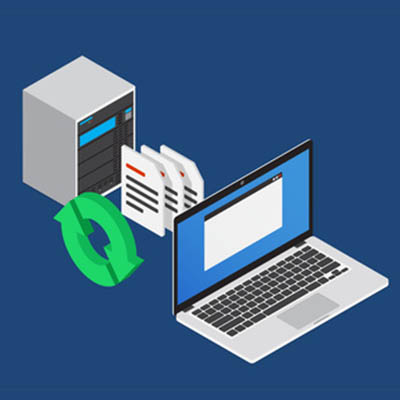
The first step in any data recovery strategy is data backup. At NuTech Services, we believe that the best data backup strategy is to promote redundancy. In order to do so we promote a strategy that backs up data locally AND offsite. This presents options to make data recovery more efficient.

Our BDR service initially backs up your entire network. Since backing up an entire network will take a long time, and any downtime is extraordinarily costly, setting up a backup solution that protects the data you need without taking down the network at all, is important. Our BDR keeps data redundant on multiple hard drives and provides an organization with the much-desired data security it is looking for from a comprehensive solution.

Disaster Recovery
The first thing that has to be said is that the best data recovery strategy is one that never has to be used. However, data loss disasters can (and do) happen, leaving your business to pick up the pieces. The best way to do this is to have a dedicated disaster recovery platform in place that takes two crucial factors into account:

  • Recovery Point Objective (RPO) – The interval of time that might pass during a disruption before the amount of data lost exceeds the maximum threshold that your business can weather.
  • Recovery Time Objective (RTO) – The duration of time within which data or business process must be restored after a disruption before it can be considered a complete break in continuity.

By thoroughly managing your disaster recovery program, your organization is sure to be able to get its data back–and its business’ processes up and running–to ensure that your business is able to sustain operational integrity. For more information about how to get a data backup and disaster recovery working for your business, call NuTech Services today at 810.230.9455.
totw_scams_400.jpg

Tip of the Week: Avoiding Scams

totw_scams_400.jpg

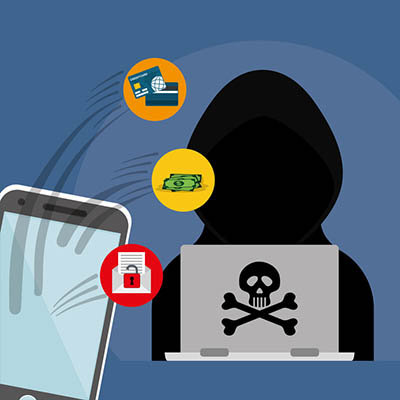
Uh oh. One of your employees sat down at their workstation and was presented with a pop-up telling them that Microsoft has detected a fatal issue with their workstation, and if they don’t let someone remote in to fix it, all of their data will be lost. This could be a serious problem… especially if your employee falls for this scam and lets in a threat.

Tech support scams are not an uncommon thing, blending social engineering and phishing together to deliver the desired result to a scammer. For our tip, we’ll discuss how to identify and avoid these scams and deprive a scammer of that result.

A Global Problem
Make no mistake, these scams are an issue all around the world. While the impact is felt the greatest in the United States, China, and India, scammers clearly don’t discriminate by region.

However, there’s another layer to the issue of tech support scams.

There is an intense level of competition in India for employment opportunities, especially among the generation who should now be entering the workforce. For some reference as to how intense this competition is, 2016 saw a state-owned bank receive over one and a half million applications for just 1,500 open positions. This makes it not uncommon for many job applicants to be grossly overqualified for the position they are seeking, recipients of a master’s degree in business administration often applying to be a street sweeper. Naturally, this provides ample motivation for the populace to take any job that presents itself – even if it is at the expense of another.

Many call centers in India will take full, unabashed advantage of this, hiring young job-seekers through a convoluted and secretive process – sometimes not even informing the applicant who they are actually working for. This process can also cost the applicant a not-insignificant sum, as they are often charged for these interviews and trainings. Once the training is complete, an applicant leaves with a start date.

However, these jobs are often not what is expected. Instead of working in customer service, these youths are tasked with initiating a scam. They will call a target, deliver their “pitch,” and transfer the primed caller to a senior scammer who seals the deal. However, despite abysmal pay for being involved in these scams and the emotional burden placed on them by interacting with their often-helpless and terrified targets, many of these scammers find that scams are, again, one of the few effective ways to make money. As a result, many of these young scammers – effectively exploited themselves – end up embracing their role, working to get as big a piece of the pie as possible.

Thwarting These Attempts
Of course, while those on the other end of the line may not be in a great position themselves, you want to make sure that their efforts to scam you are ultimately wasted. To accomplish this outcome, it is important to remember a few key warning signs.

  • Don’t Call Us, We’ll Call You – The first thing to remember is that, if a Microsoft representative suddenly calls you without warning, they probably aren’t actually with Microsoft. You should even take your caller ID with a grain of salt, as that can be spoofed to look official enough to trust.
  • Weak Link in the Chain – Links are another favorite weapon of scammers, as they can be shared in an email to direct a user to a website filled with fake warning pop-ups. Avoid clicking on these links, and if you are presented with an alert screen, restart your computer. Scammers will also work to ensure that they reach the top results of search engines through sponsored ads to attract those legitimately looking for help. These links should be avoided as well. Google has made serious efforts to not allow scammers to run Remote IT Support ads, but it hasn’t stopped everything yet.
  • Remain in Control – Unless you are absolutely sure that a third party is trustworthy, never give up control of your computer. Otherwise, you could hand precious data over to a scammer or otherwise land yourself in hot water.

The Better Method
Of course, if you enlist the services of NuTech Services, a fair amount of these points become moot, as you will have access to an experienced team of trustworthy IT professionals who have your business’ interests at heart. For more information, give us a call at 810.230.9455.

Have you ever encountered a scam like this before? Tell us about it in the comments!

_a_b_testing_400.jpg

Know Your Tech: A/B Testing

_a_b_testing_400.jpg

A key component to effectively attracting your audience is to better understand their preferences. Even the most seemingly insignificant change, like changing the color of the buttons on your website, can have a major impact on how effective your materials are. Fortunately, through a process called A/B testing, observing the impact of these changes is somewhat straightforward.

A/B Testing, Defined
Running an A/B test is the process of comparing a single variable to deem which option, Option A or Option B, is the more effective of the two. The key to an effective A/B test is to only change one thing between the two test subjects – otherwise, you have no way of knowing exactly what it was that was the influential change.

A/B tests can be used to make a wide variety of choices, from something as simple as an adjustment to a call-to-action to a different layout to a particular page. In this case, Option A should be the way things currently are to serve as a control for the experiment, while Option B displays your proposed change. Each option is then presented to an equally-sized segment of your audience to deem which of the two is the more effective.

Setting Up an A/B Test
A/B testing can be used to make a vast number of decisions, as long as they are approached one at a time. As we said before, if multiple variables are involved in a single test, that test isn’t going to deliver reliable enough results to make any well-supported decisions. It is also worth mentioning that A/B testing tends to work better when comparing options for relatively minor changes, like calls-to-action or images included in an email or on a landing page, rather than big ones.

The first step will be to decide which variable you intend to test, followed by your determination of a metric to base your observations against. Does this change boost engagement? Increase the time spent on page? Improve your click-through rate?

Once this has been accomplished, you’re ready to state what your control option will be, and what your change will be after that. Your control group should be whatever you currently have in place, so you can accurately judge if a change would be an improvement or not. Then you need to settle on a sample size, or the number of recipients that will be a part of this test.

Not all changes will be accurately measured with a sample size alone. Some changes would be better left running until a statistically significant data sample has been collected. Speaking of statistical significance, you will also need to decide how significant your results have to be before a change is deemed to be worthwhile.

Running An A/B Test
There are two real keys to running a successful A/B test: first, you have to give it enough time to collect the data you’ll need to come to a conclusion, and second, both options need to be tested at the same time to prevent other variables from affecting your data. Of course, if the variable that your A/B test is evaluating is timing, this doesn’t apply so much.

In short, A/B testing is a relatively simple way to make sure that you’re having as large an impact on your audience as possible. Can you think of any times that you’ve done something similar to test out a proposed change? Tell us about it in the comments!

managed_services_manage_400.jpg

Why It’s Great that Managed Services are Managed

managed_services_manage_400.jpg

One of the key benefits of managed IT services is right in the title. It’s managed, meaning that you don’t have to worry about maintaining or configuring your systems. Many small businesses see these kinds of advertisements out in the world but don’t necessarily understand what services are being marketed to them. We’ll take a deep dive into what you can expect from “managed” services for your organization.

Defining Managed Services
Managed services are any services your organization takes advantage of that aren’t managed directly by your company. Perhaps the best example is comparing it to the way the average consumer uses their email. Let’s say you use Gmail as your preferred email service for personal use. Do you manage the mail server running Gmail? Probably not, making the average Gmail user a patron of managed services. If you think about it in this sense, any service that your organization doesn’t manage on its own could be considered a managed service.

In the case of managed IT services, the term “managed” means anything that’s not hosted on your infrastructure or maintained by your on-site employees. This can be anything from cloud-based data storage and web applications to entirely hosted hardware infrastructures that are accessed virtually through the cloud. If you can think it, you can build it–the technology infrastructure of your dreams, without all of the frustration of managing and maintaining it on your own.

The rise of managed IT services has its roots in break-fix IT, where businesses would take their technology to a specialist in order to get issues resolved. This approach meant that they didn’t need employees to maintain the technology on-site, but it also came at a steep cost. Break-fix IT companies would take advantage of businesses that came to them in this fashion, taking care of immediate problems without taking measures for the long term. This meant that businesses would often experience even more issues without addressing the overarching problem, leading to wasted dollars and wasted time.

Now, back to the “managed” part. When a business isn’t managing its own IT, they don’t have to worry about these issues because they are being addressed by a company that A.) Knows how to take care of technology, B.) Takes proactive measures to ensure issues don’t reoccur, and most important of all, C.) Can save your business precious time and resources that can be better spent on other tasks. Imagine having enough time to invest in new outreach initiatives for potential clients, or finally having enough in your budget to not only invest in new technology solutions but implement great ways to increase your bottom line.

NuTech Services specializes in providing small businesses with the managed services they need to stay competitive with larger organizations. Managed services often come at a better price point than hiring an entire internal IT department, making it an attractive option for both businesses that don’t have resources to maintain an on-site infrastructure and those that have enough of a staff to manage one, but not enough to maintain it properly. We can either supplement your current help or function entirely as an outsourced IT provider. All you have to do is reach out and ask what we can do for your business.

To learn more about the managed IT business model, reach out to us at 810.230.9455.

encryption_key_400.jpg

Know Your Tech: Encryption Key

encryption_key_400.jpg

Security is a necessity. Every technology professional will tell you this, but in an age where employees are taking information on the go, it’s trickier than it’s ever been before. Encryption is one of the ways that businesses are attempting to shore up their security, but this also requires having an encryption key. This week’s technology term is all about encryption, as well as how encryption keys protect your business’ data.

Defining Encryption and Encryption Keys
Encryption is the act of scrambling your organization’s data so that it can’t be seen by prying eyes. Anyone who doesn’t have the encryption key will see nothing but a bunch of nonsense. Through the use of algorithms, these keys are guaranteed to be unique, meaning that there are no two patterns that are alike. Of course, depending on the type of encryption being used, there could be one or two keys needed to decrypt information.

Symmetric algorithm: Symmetric algorithms are often called secret key encryption. This uses one key to encrypt and decrypt data. Since this makes for an efficient encryption method, it can be used to encrypt large amounts of data. The bad side of this encryption is that it only uses one single encryption key, so you need to make sure that it remains in your possession at all times.

Asymmetric algorithm: Asymmetric algorithms are commonly used in public/private encryption, in which there are two keys involved. The public key–the one used to encrypt data–can be shared, whereas the other–the private key–is private, and used to decrypt the data later. Asymmetric is considered the more secure of the two options, since the private key that decrypts the data isn’t actually shared.

What Are These Keys Used For?
Encryption keys are used for a variety of objectives, but the ultimate goal is still the same: security of both the data and the encryption keys themselves. The strength of the encryption key depends on several variables, including the length of the symmetric keys and the algorithm used to create it. These keys usually have short shelf lives called a crypto-period, meaning that you should understand details about how the encryption key will be used before committing to it and expecting it to work for you indefinitely.

  • Data encryption keys: These keys prevent data from being read by anyone who isn’t authorized to view it. These keys are also held onto for a bit past their crypto-period.
  • Authentication keys: An authentication key is used to determine that the data encrypted has not been altered at all while it’s in transit. This is ideal for sending and receiving data so that authenticity is guaranteed.
  • Digital signature keys: Digital signature keys are similar to authentication keys, but they take it a step further by applying a digital signature to the user. This means that someone who digitally signs a document can’t actually deny that they’ve done so.
  • Root keys: The public key infrastructure is used for authentication and digital signatures, and the root key is the highest level of key in this infrastructure. Due to the importance of this key, it’s generally protected by a hardware security module.
  • Master keys: A master key can be used to encrypt multiple other keys. This means that they need to be extremely secure with a hardware security module, and they should last for a long time, if not forever.
  • Key encryption keys: These keys can transport other encryption keys. They should be long-lasting and unchanging.

Does your organization want to take full advantage of encryption? To get started, reach out to us at 810.230.9455.

no_just_kill_power_400.jpg

Tip of the Week: Why You Shouldn’t Just Kill Power to Windows

no_just_kill_power_400.jpg

There’s a big difference between turning off any other appliance, like a stereo or a television, and turning off a computer. A computer takes much more time to shut down than your average device, but why is this the case? Is there a way to speed up this process? This tip will explain these processes and provide some ideas for how you can make this process much faster.

Why Shutdown is So Slow
Let’s take a look at this process as a whole. As a computer is running, there are many components that are doing different jobs. When a computer (or any computing device, like a phone or game console) is shut down, it needs to follow a procedure to make sure data doesn’t get lost. A full shutdown will aim to minimize damage to internal components, empty the RAM, wipe the virtual memory on the hard drive, remove all cached data, close all open applications, and turn off the operating system.

If your computer shuts down without going through this entire process, it could cause file corruption or other damage to its contents that could create issues.

Steps to a Proper Shutdown
It’s important to remember that even though there are a lot of different stages to the shutdown process, but it should go pretty quickly.

The first step in this process is that any applications that are opened are checked to make sure that the data has been saved. If not, the process is interrupted to inform the user. The computer then initiates a sequence that shuts down all services and programs, and it has to confirm that they have indeed been closed before eliminating any unneeded program data. A log is made of anything strange happening during the process, so the user can consult it later. All users are logged out of the system and the computer shuts down on an operating system level. Once this happens, any updates are installed, and the machine is turned off completely.

Speed Up Your Shutdown (and Startup) Times
There are ways your business can improve shutdown speed, but they are somewhat complex and difficult to do on your own with limited IT experience. This is why we recommend working with a provider like NuTech Services to make the process easier and more efficient for your organization. We can help your organization make sure that the shutdown process is as streamlined as possible. The same goes for your computer boot times. If you or someone on your staff has a laptop that seems to take forever to ‘wake up,’ there are steps we can take to investigate why and resolve it.

We recommend that your computers get restarted regularly (based on their performance) so as to help the computer keep itself in top working order. To learn more, reach out to us at 810.230.9455.

excel_features_power_400.jpg

Tip of the Week: Excel Features for the Power User

excel_features_power_400.jpg

As useful as a spreadsheet can be to convey information, they can be a little drab and disengaging if the full capabilities of Microsoft Excel aren’t understood and leveraged. For today’s tip, we’ll go over a few little-known and underutilized features that can help you create spreadsheets with both more style, and more utility.

Visible Zeros
There is a fair chance that, at some point, you will need to input data into Excel that begins with zeroes, whether you’re documenting serial numbers or what have you. The trouble is, Excel has a habit of hiding these zeros, so 0056907 would display as 56907. This unfortunately renders the data inaccurate. However, an easy fix to this is to just add a quotation mark in front of the number. This prevents the zeros from being omitted, so instead of resulting in 56907, you would keep your original “0056907.

Adding a Drop-Down List
Adding a drop-down list to a spreadsheet is a simple, yet effective way to limit the input a particular cell will accept. The first thing you have to do is select the cell that needs to have drop-down capabilities, and then click Validate in the Data tab in the header menu. On the Settings page of the window that pops up, there will be a menu labelled Allow. From that menu, select List and highlight the cells that make up the options you want in your drop-down, and finally, click OK.

Accessing Tools on the Developer Tab
Depending on your needs, you may require some more advanced capabilities in your spreadsheet, like creating option buttons, creating macros, and other features. These can all be found in the Developer tab, which is hidden by default. In order to access it, you will first have to access the Excel menu at the top of your screen and select Preferences. Once you’re provided with the Preferences menu, select Ribbon & Toolbar. You will then see a list of the various options that you can add or remove from your Tabs. Selecting Developer will give you access to the tools that tab contains.

Shading Every Other Row
If spreadsheets have any faults, the eye can easily wander when one is looking at them. Adding shading to the formatting, more specifically, to break up individual rows can be very helpful to someone trying to read the information the spreadsheet has to share. To do this, you will need to highlight the area where you want to display the effect or use the Select All shortcut (Ctrl + A) to apply the effect to the entire sheet. In the Home tab, click into Conditional Formatting and select New Rule from the drop-down menu. You will then have a Style drop-down menu to select from, from which you should pick Classic, after which you should select Use a formula to determine which cells to format. Enter the formula =MOD(ROW(),2) and pick your desired color, and your spreadsheet should be striped quite nicely.

Do you know any other tricks to improve the use of Microsoft Excel? Share them in the comments!

what_you_need_backup_400.jpg

How to Be Selective when Picking a Backup Solution

what_you_need_backup_400.jpg

You literally never know when your data may be lost. It may be frightening to consider, but there are so many factors that could lead to you losing your data, ranging from an act of nature to user error. To counter this, you need to make sure your backup solution meets certain requirements. Today, we’ll review those requirements.

What Does Your Company Need from Its Backup?
Your backup, in many ways, should be your company’s saving grace. Whatever the cause of your data loss may be, the loss itself creates a significant issue in and of itself. Buildings can be repaired, equipment can be replaced, but once data is gone, it is practically impossible to retrieve it without some kind of backup in place.

Therefore, it is important for your backup to meet certain benchmarks:

  • How quickly can data be backed up?
  • How quickly can data be restored?
  • How badly could your operations be interrupted in the interim?
  • How protected is my backup against its own disasters, especially the same ones that could influence the data I have stored in-house?

What Kind of Data Backup Best Fits My Needs?
There are a few kinds of backup solutions available, and while it may not be a bad idea to maintain multiple forms of backup in a hybrid approach, we always recommend that your backup strategy revolve around the use of a cloud backup solution. The reasons for this are simple: a cloud solution can be automated, eliminating the risk of user error leading to a backup not being refreshed, and your data is kept in multiple locations, adding the protection of redundancy.

How Can I Get Started with a Backup Solution?
In order to really begin with a backup solution that fits the requirements we’ve reviewed, it is best to go through a reputable vendor. NuTech Services can help with that – not only do we have good working relationships with a variety of reputable vendors, we’ll act as your representative with them, ensuring that you get what you need for your business’ benefit.

For more information about backups and how to go about implementing one, give us a call at 810.230.9455.

totw_guide_multiple_displays_400.jpg

Tip of the Week: Your Guide to Using Multiple Displays

totw_guide_multiple_displays_400.jpg

Depending on the task you’re trying to work on, it can sometimes seem like there just isn’t enough space on your computer monitor. One of the best solutions is to add another monitor. However, this sometimes requires more that just plugging another display into your system. For this week’s tip, we’ll review the steps to connecting multiple displays to your workstation.

Preparation
Connecting multiple monitors is a process, so before you begin, you should make sure you have all your ducks in a row. First, you need to make sure that your computer is capable of supporting multiple monitors in the first place.

To do so, you need to make sure you have sufficient graphics ports to connect these multiple monitors to. Look at the back of your computer and check for graphics ports, or ones labeled DVI, HDMI, DisplayPort, or VGA. Depending on what you see, your computer may or may not have a discrete graphics card, which dictates whether or not you can most likely use more than two monitors. If you only have a motherboard, two displays are generally your cap, while three or more – in addition to the first two – suggest that you have the separate graphics card.

However, even this doesn’t always mean that you can use more than two displays. Checking for the make and model of your graphics card and running it through a quick Google search with the amount of monitors you’d want to use should tell you if your card can support them.

If not, there is always the possibility of adding an additional graphics card, as long as you have the real estate and a sufficient power supply in your computer to support it. If you do, you will want to be sure that you use the same brand of card as your system currently uses. This will improve your performance and cause much less trouble for you in the long run. In addition to this, you will also need to be sure that you have the appropriate connector cables, and that they will connect properly between your tower and your display.

From there, all you have to do is obtain the additional monitors you want to use, which will be dictated by your budget, your needs and intended use, and your available real estate.

Setup and Configuration
Unfortunately, you still aren’t quite ready to dive back in – you need to tell your computer itself to play nice with all these monitors, too. Fortunately, the Windows operating system makes this fairly simple.

Press Windows + P to pull up a simple menu of your display modes. These modes are as follows:

  • PC screen only – Your primary monitor will be the only one utilized.
  • Duplicate – All monitors will show the same desktop.
  • Extend – The monitors work collaboratively to provide a single, expanded desktop.
  • Second screen only – Your secondary monitor will be the only one utilized.

Generally speaking, you will most likely want to utilize the ‘Extend’ setting.

Once you have done all this, you will want to right-click anywhere on your desktop to pull up your Display settings. Using the diagram provided, mimic the way your screens are set up, each numbered box representing one of them. Clicking Identify will have the screens identify themselves by number. You can also adjust whether your taskbar is displayed on all screens and change up your desktop customization for each.

It doesn’t take much to help boost your productivity at work, which means even the smallest changes can make a big difference. How many monitors do you prefer to use? Tell us in the comments!

server_room_need_air_400.jpg

Does Your Server Room Need Air Conditioning?

server_room_need_air_400.jpg

You don’t need us to tell you that servers, workstations, and many other network components create a lot of heat from constant use. Servers in particular produce an incredible amount of heat, so much that they need to be kept in a climate-controlled room to ensure they don’t overheat and cause hardware failure. How can you make sure that your business’ servers are in an adequate environment to preserve your organization’s future?

It all starts by examining the current environment in which you store your hardware. Are you storing your servers in a closet (or other small room) with only fans to cool them? Is there poor air circulation? What about humidity? All of these variables need to be addressed before too much damage is done to your server.

Prolonged exposure to heat can cause permanent damage to your server units, decreasing their value over time and lowering the quality of service you get from them. However, not just any air conditioning system will do to protect this critical hardware. The best kind of air conditioning for a server room includes a comprehensive approach to climate control. This includes sensors that can measure room humidity and temperature. Ideally, you want sensors that can be monitored remotely so that you can always keep an eye on the environment. This allows you to properly manage the environment your organization’s critical hardware is in.

While you want to monitor humidity and make sure that it doesn’t exceed a certain threshold, you should also be wary of the room becoming too dry. Storing active electronics in a dry room is certainly not an ideal situation, as this can create unwanted static electricity that can cause damage to devices.

Air flow is also extremely important, as you want to make sure that your servers are actually being hit by the cool air so that they can be adequately cooled down. For example, you don’t want to have your air conditioning on at its highest setting in your server room because it might be wasteful in the long run, whereas air blowing directly on your server cabinets can accomplish largely the same goal with less investment into your energy costs. To this end, air conditioning units can be installed in the floor or ceiling, directly above or below the cabinets, so as to get the most out of your investment.

Of course, no amount of air conditioning can prepare you for the worst-case scenario–the inevitable failure of your business’ server units and loss of its data. In cases like this, you should always be prepared for the worst. A comprehensive data backup system needs to be implemented in order to guarantee that the worst doesn’t wipe your organization off the map entirely. To this end, NuTech Services can help. We’ll identify how you can optimize your server infrastructure and data backup system so that an unexpected disaster doesn’t prematurely end your business. To learn more, reach out to us at 810.230.9455.

tottw_how_to_improve_invoice_400.jpg

Tip of the Week: How to Improve Your Invoicing Processes

tottw_how_to_improve_invoice_400.jpg

One of the most important considerations in any business is to ensure that payments are properly received and processed. Otherwise, you may as well not be in business at all. To help expedite this, we’re dedicating this week’s tip to creating a better, more effective invoice. Let’s get into it.

How to Create Your Invoice
First, you need to have some way to actually construct the invoice document itself. For this, you have some options. If you use Microsoft Office products, both Excel and Word have templates you can use to put it together, and G Suite users can leverage any number of integrations to do the same. Alternatively, there are many software titles out there that offer more specific functions based on need and preference.

Once you have selected your software, you can start to put your invoice together. You will want to be sure that your invoice includes the following information:

  • Description – You want to be crystal clear on your invoices about what you are billing for, especially if part of it refers to time spent rendering a service. This will allow you to properly bill your clients while allowing them to understand exactly what they are being billed for, cutting back on how often your invoices are contested. Overall, every invoice should include the order number it refers to, the total amount owed, how the invoice can be paid, and when payment is due.
  • Discount Details – If you are offering any discounts, you will also want to make sure these are clearly annotated on your invoices as well – especially for those who are first signing on to your services. Otherwise, these discounts may confuse your clients and instill a false expectation for the future – creating surprise and frustration when the discounts are gone later.
  • Schedules and Policies – Just as you were held to a schedule to deliver your service, your client needs to be held to a schedule to pay for it. Consistency will also help your client prepare their payments on time. On a related note, your invoice should thoroughly explain your company policies on discounts, late payments and associated fines, and due dates to make your expectations of the client very clear.

Of course, this isn’t everything that can, or should, go on your invoices. However, these aspects are crucial enough to be mentioned and detailed separately. You should also consider other elements to include on your invoice, making use of what would otherwise be blank space. You may consider adding a more personalized touch and suggesting the next steps that a client should take, based on the services you are billing them for.

Furthermore, add some more of a personal touch by including some kind of thank-you message on the invoice. Write up a brief piece thanking your client for their business and have it printed on the invoice. Not only is this a visible way to earnestly say thank you, the appreciation you show may help to expedite payments and encourage repeat business.

When and How to Distribute Your Invoice
If you want to receive your payments on time, how you send your invoices is just as important as how they look. First and foremost, they need to be sent much sooner than later.

If yours is like many businesses, you may have found that your invoices go unpaid for long stretches of time. Estimates put the total of unpaid invoices to small businesses at well over $800 billion, and that was back in January of this year. This is why it is crucial that your invoices are distributed efficiently – it may be a long time before you get them back.

This is another reason that technology solutions are useful tools to assist you in managing your invoices digitally. Most invoicing software will likely enable you to track the status of the invoices you’ve sent.

If you want more assistance in managing your invoices, reach out to NuTech Services. We’d be happy to assist you, all you have to do is call 810.230.9455. In the meantime, don’t forget to subscribe to our blog for more useful technology tips and advice!

totw_canned_response_gmail_400.jpg

Tip of the Week: Creating Canned Responses in Gmail

totw_canned_response_gmail_400.jpg

If you’re like most business users, you rely on email quite a bit to stay apprised of what is going on, as do most of the people you are likely in communication with. As such, you most likely understand that, while most emails require some kind of response or confirmation of receipt, not all of these messages require a heartfelt message. This is where Gmail’s Canned Responses come in handy.

This week’s tip will go over how to set up your own canned responses to streamline your repetitive, but necessary, communications.

How to Set Up Canned Responses
First, you’ll need to log in to the browser version of Gmail. Once there, click on the Gear icon in the top right under your profile image and select Settings from the menu. From there, you’ll see a horizontal menu that will display Advanced, click into it. You will see the option to enable Canned Responses. Click the radio button to select enable, and then save your changes. You can now create canned responses to use in your correspondence.

Creating and Using Your Canned Responses
To create a canned response to use, open the message composer and write out what you want your message to say. Once you are satisfied with your return message, access the message window options by clicking the button in the bottom-right corner. That menu should now have a Canned responses option, with a sub-menu that allows you to save a New canned response. You will be prompted to give your new response a name, and then it will be saved for future use in that sub-menu.

What kind of messages would you anticipate using canned responses for? Tell us what you think in the comments!

tech_term_forensic_computer_400.jpg

Tech Term: Computer Forensics, Defined

tech_term_forensic_computer_400.jpg

Pop culture gives us an impression of what cyber investigations look like. Official-looking people, in impeccable suits, typing away at terminals and analyzing the data scrolling past them on their heads-up displays. In reality, computer forensics (as they are actually called) are a little less dramatic, and much more serious. For today’s tech term, we’ll dig into the field of computer forensics.

What are Computer Forensics, and What Are They Used For?
Computer forensics can be defined as the application of certain specialized techniques to locate and analyze the information on a computer or computer system, protecting it for use as evidence in a trial. Once the requisite warrants have been acquired, a forensic technician is tasked with isolating the device from outside influence by disconnecting it from the Internet before copying every file and poring over their contents for evidence.

The investigator must make a copy of these files so as to preserve the original evidence. Accessing a file can be enough to change it slightly, potentially rendering their evidence inadmissible.

Computer forensics can be leveraged in a wide variety of cases, as any given device may contain evidence of a crime to be, or that was, perpetrated, as well as effectively be the scene of the crime itself. An investigation dives deep, not only focusing on the presence of files, emails, or other documents pertinent to the case on the device, but also on an analysis of these items’ metadata, as it reveals when data appeared on a computer, when it was edited and saved last, and who the user was that carried out these actions.

These methods have been used to crack cases involving a dirty laundry list of crimes, as this sample of their uses suggests:

  • Intellectual Property Theft and Industrial Espionage
  • Employment Disputes
  • Bankruptcy Investigations
  • Inappropriate Email and Internet Usage in the Workplace
  • Regulatory Compliance
  • Forgeries and Fraud Investigations

Alternative Sources of Analysts
Of course, law enforcement are not the only bodies that maintain and utilize computer forensics labs. Six major companies, including Walmart, American Express, and Target, have accredited laboratories, and there are countless other independent labs that have not been accredited. These in-house labs can often outperform traditional law enforcement groups, as they are better able to keep their solutions on the cutting edge.

In fact, these labs are often recruited by law enforcement to assist in solving crimes. Target’s labs have announced in the past that they have assisted with “felony, homicide, and special-circumstances cases” on a volunteer basis for years, a spokesperson claiming in 2008 that a full quarter of cases worked by Target’s laboratory had nothing to do with the company.

How Does Your Technology Compare?
If you want a team on your side that will take as much care to protect your solutions as a computer forensics team does to track down cybercrime, give NuTech Services a call at 810.230.9455.

totw_google_home_how_to_400.jpg

Tip of the Week: Working from Google Home

totw_google_home_how_to_400.jpg

It is no secret that Google can serve a great utility in the office through its many services and applications. However, have you ever considered how the Google Assistant can, well, assist you through devices like your smartphone and the assorted smart speakers that Google has produced? For today’s tip, we’ll review how some of the features of the Google Assistant can lend you a hand in the professional environment.

Basic Automation
Since productivity is one of the top goals in almost any office, it only makes sense to first focus on how using Google Home can boost your productivity through automation. While the device can serve many purposes on its own, it truly blossoms as a productivity tool through integrations with other devices and services.

For example, if you have equipped your office with smart lights or smart thermostats, you can adjust your office’s environment simply by telling Google to make the change you want. As a result, you can take greater control over your business environment without interrupting your productivity. After all, doesn’t it take much less time and effort to simply say, “Hey Google, turn off the lights in the conference room,” or “Hey Google, set temperature to 73 degrees,” than it would to interrupt what you were doing and go manually make the same changes?

More Advanced Automation (Kind Of)
If you’re at all familiar with the web service IFTTT, you can integrate it with your Google Home device to automate a variety of outcomes, based on predetermined triggers. It’s right in IFTTT’s name: If This, Then That.

Using IFTTT, you can connect your Google Home (or whichever Google device you’re using) to design your own commands that require the use of the Google Home. All you have to do is set “this” to be the Google Assistant, and choose the trigger you want your command to use. These triggers will all be of the spoken word variety, and each command can feature a few different variations. Once you’ve assigned the words to the command, click Create Trigger. To add the desired action you want automated, click through “that.”

You can then search through the available channels that you can trigger through your Google Assistant, select the one you want, and fill in the required configuration fields. Once you hit finish, your automated action will be active and ready to go when you are.

Activating More Commands
The Google Home devices have other utilities baked in that can be of some use to you in an office setting, especially if multiple devices are in use.

For instance, if your office is large and you can’t get ahold of someone through message or phone call, your Google Home device can function as an intercom. By accessing the Assistant on your smartphone, you can command the Google Home to “broadcast” and it will replay whatever message you speak into it afterwards to any Home devices connected to your account.

Of course, the Google Home devices are receptive to commands from multiple users, with up to six accounts being able to use the devices in their own way. The Google Home will even customize their answers based on the user making the request through its Voice Match training.

Finally, if a visitor to the office has something to share over the Google Home, the Guest mode allows them to connect directly to the device, without needing to connect to Wi-Fi. This means that you can keep your Wi-Fi password to yourself, and not give it out to every visitor to your office.

How else can you think of to use the Google Home to augment your day-to-day activities in the office? Share your ideas in the comments!

how_to_clean_desktop_400.jpg

Your Office Deserves a Good Cleaning

how_to_clean_desktop_400.jpg

In keeping with the freshly rejuvenated feel that springtime brings, many people take advantage of this energy by doing some much-needed spring cleaning after the long winter months. Why shouldn’t the workplace join in the fun? In this blog, we’ll explain how a fresh and clean office can benefit your employees and your business as a whole – and just as importantly, how to go about tidying up properly.

Why Your Office Needs to Be Kept Clean
Regardless of the industry you operate in, chances are that your business relies on technology solutions in order to function properly. From this conclusion, it can be inferred that if your solutions were to go on the fritz or even break down entirely, you would find yourself experiencing downtime and the associated lack of productivity.

Keeping your solutions and the environment they are stored in clean and organized is key to maintaining their functionality. Without the proper care and maintenance, your technology doesn’t stand a chance for very long, which can (and will) cause no small harm to your business.

To combat these effects, there are plenty of solutions you can deploy to assist you, along with some traditional cleaning methods and basic organizational strategies.

Digital Methods
There are plenty of ways to improve your organizational functionality, starting with your document organization solution. What is the current state of your retained files? Are they well-organized into a hierarchy, such that everyone in the business who needs access can gain it by following the system? Are they fully digitized and backed up, or are they squirreled away in metal boxes that take up valuable real estate? Going paperless is an environmentally conscious and admirable strategy, not to mention a good way to save some capital.

Organizing and Optimizing Your Computer
While you’re occupied with dealing with your file storage and organization, it also doesn’t hurt to take a look at some of your other technology solutions to ensure that everything is as it should be where they are involved. Take, for example, your email solution and its inbox.

It’s no secret that email messages have a tendency to pile up and become unmanageable if left unorganized for too long. By auditing the messages you receive and setting up filters to automate their organization, you can make your inbox largely independent.

As for your desktop and the files found on it, treat the files there as you would the files in your document organization system. Are there any being stored on your individual device that should actually be stored in the company’s shared files? A hierarchy of folders can help you organize any files that are left after those that can be moved to shared resources have been migrated.

Keeping Things Tidy
Of course, what’s a good office cleaning without taking a few workstations and getting rid of any accumulated dust and grime? Have a trusted IT resource open up the devices and give them a thorough cleaning with some canned air, and clean out some of the exterior in the same way. You should also give your network infrastructure the same treatment with duster. Once your computers and servers are cleaned out, it never hurts to rethink your cable management to minimize dust collection and reduce the very real tripping hazard these cables can create.

Finally, you should also participate in some more traditional spring cleaning. Clean your floors and bathrooms, and get rid of any “science experiments” left in the break room refrigerator. This will all make your office environment more comfortable, healthier, and thereby more productive.

What are some of your best cleaning tips? Share them with us in the comments!

identity_theft_Security_400.jpg

Preventing Identity Theft Should be a Priority, But Do You Know How to Handle It?

identity_theft_Security_400.jpg

The more people use technology, the more they have to deal with the negative aspects of doing so. One of the most prevalent problems users experience today is cybercrime that leads to identity theft. What can you do to prevent this from happening to you?

How You Can Work with Identity Thief
There are numerous ways that a potential identity thief can gain access to the information they want. Since businesses often collect a lot of data, would-be identity thieves have both more data to steal, and typically more access points in which to get into the network. Additionally, a lot of companies may say that they have hackers as a top-of-mind threat, but since a comprehensive cybersecurity strategy requires that everyone within an organization buy into it, there are usually some holes left open though a lack of employee diligence; or, worse yet, blatant employee indifference. Since throwing employee regulations out there won’t stop someone who is hell-bent on getting the information, knowing how to protect your business becomes critical.

One-way hackers can get sensitive information is though the trash. You’ve seen it in movies and on television: organizations go through the mail and recreate shredded documents to get sensitive information. That’s why doing what you can to create a paperless office can go a long way toward protecting against the dumpster-diving thieves of the world.

Your Responsibilities if You Allow Your Clients’ Identities to Be Stolen
No matter how diligent you are about your data protection, there can be a time where your network is breached, and your clients’ sensitive information could be stolen. To help your clients out, you’ll want to provide them with the following information:

  • Notified Banks or Creditors – If it was financial information that was stolen it is their responsibility to notify their financial institution and see what services they can offer to help rectify the situation. Most banks have been proactive in the quest to limit identity theft and can walk your clients through what they need to know to ensure that any personal information hackers make off with will be of little consequence. If you do this promptly they can report this breach and ensure that they will be protected. Unauthorized charges within two days of any complaint limits individual liability to a mere $50; a huge savings in some identity theft cases.
  • Credit Reports – Any client that has his/her data potentially stolen has to monitor their credit reports. Setting fraud alerts will help automate this process, although they should still constantly check for warning signs of fraud. If reports come back conclusive for identity theft, considering a credit freeze until everything returns to normal may be a good option.
  • Theft Reports – In the U.S. the Federal Trade Commission (FTC) only has the resources to follow up on larger-scale fraud cases, but they will monitor identity theft cases to identify suspicious patterns that suggest the involvement of organizational wire fraud. The FTC’s website has a form that will file a complaint. Once that is done, it may be best to secure a police report to dot all the i’s and cross all the t’s. This report needs to be sent to all creditors and credit reporting agencies to ensure that you aren’t on the hook for malicious or unauthorized access.
  • Lock It Down – Immediately updating passwords is a great way to lock down your accounts after a potential breach. Furthermore, not only should you report any false use of your Social Security Number, you should also ensure that no additional accounts have been opened in your name.

Identity theft is serious business. NuTech Services’s IT experts can do their best to keep unwanted entities out of your network. For more information about cyber security and data theft, call us today at 810.230.9455.

Spam_avoid_emails_400.jpg

Tip of the Week: How to Avoid Spam Emails

Spam_avoid_emails_400.jpg

Would you just give your bank account information to anyone who called you up and asked for it? Probably not. For the same reason, you wouldn’t just download attachments from your email messages without a second thought. This can be a dangerous practice, as some of the most common threats nowadays spread themselves via unwanted email attachments. It’s important that you can identify when it’s the right time to download an attachment, and when it’s best to just leave it be without exposing your business to unnecessary risk.

First, a little information about why you might be forced to make this decision in the first place. Spam messages are often the easiest way to spread the influence of malware and other threats. It’s simply a fact that you can send one message to countless individuals knowing that at least some of them will be fooled into downloading the attachment, and in turn, downloading all of the nasty things found on it.

For example, ransomware makes its home on workstations due to infected attachments. Your company might receive an unsolicited message from a prospective employee, who has attached their resume for review. Before your HR department knows what’s happening, their files are encrypted due to the attachment actually containing malware from a hacker. Surprise–your organization has fallen victim to a targeted phishing attack, with an infected infrastructure being the fallout.

While your spam filter might flag some of these messages as dangerous, it’s unlikely that the most dangerous ones will be caught in its web. Be wary of messages that claim to be receipts, shipping information, resumes/CVs, and other information that might be important for your organization. Hackers understand this and want to take advantage of that knowledge, which could potentially put your company in a tight spot.

Ultimately, the best way to keep your company safe is by taking a two-pronged approach–educating your employees on the importance of email security, and a technology solution designed to eliminate the majority of spam in the first place. The first can be maintained simply by holding awareness training and actively practicing proper email etiquette. Teach your employees that they should never open attachments from anyone they don’t know, and to always investigate the source of the message before declaring that it’s safe enough.

For the second measure, you can rely on NuTech Services to help you out. Our technicians can hook you up with an enterprise-level spam blocker to keep the majority of dangerous messages from making their way to your inbox in the first place. It’s a great measure that can minimize your employees’ exposure to risky elements. To learn more, reach out to us at 810.230.9455.

medical_records_digital_400.jpg

Tip of the Week: Do You Know How to Protect Medical Data?

medical_records_digital_400.jpg

Businesses that work with medical data are in a tricky situation, as the slightest issue with security could place considerable risk on storing this data. If you’re not careful, you could be putting your business at risk. With the compliance issues that have to be regarded, the security of any medical data you store on your infrastructure has to be made a priority. How can you minimize the risk of storing this data without compromising your business’ effectiveness?

Compliance regulations, like the Health Insurance Portability and Accountability Act (HIPAA), will make things a bit more difficult for your business. However, your business shouldn’t be hit too hard if you’re being mindful of the regulations while planning how you store medical records and other sensitive information. Here are some tips to help you keep your business as secure as possible.

Encryption is Key
The strange thing about HIPAA is that it doesn’t necessarily require that your business have data encryption implemented. Considering how much it helps in the event of a data breach, it’s ludicrous to think that it’s not required at all. Encryption essentially scrambles data so that you need an encryption key in order to view it properly. This makes any stolen data practically useless, as military-grade encryption is incredibly tough to crack by your average hacker.

Implement Comprehensive Security Solutions
More often than not, it’s better to stop attacks from happening before they infect your infrastructure rather than respond to them afterward. You can do this by implementing a Unified Threat Management solution, which includes a firewall, antivirus, content filter, and spam protection to minimize the security threats of your company at all times. These preventative measures don’t necessarily guarantee immunity to threats and hackers, but they significantly reduce the chances that you’ll suffer from them.

Limit Access Based on User Roles
The more users have access to certain data, the more threats can potentially access that specific data. Think about it this way; if you have 10 computers on your network, any one of those computers can be used to infiltrate your network. However, it’s unlikely that all 10 of the users also need the same privileges to access important data. You can keep specific data safe by limiting the number of users who have access to it.

Does your business utilize medical records or other sensitive information? Your company could be at risk of being fined due to compliance regulations. To find out how your business fares regarding data compliance, reach out to NuTech Services at 810.230.9455. We can work with you to ensure that you’re being as proactive as you need to be to ensure your data is secure.
password_strength_400.jpg

Tip of the Week: A Secure 2018 Relies on Powerful Passwords

password_strength_400.jpg

Password security is one of the most important parts of using an online account. It seems that the average user runs into the paradox of password security by using either complex, hard-to-remember passwords, or simple and less-secure passwords that put their accounts at risk. Even if the user is aware of the benefits that come from using a secure password, chances are that they will sideline security in favor of ease of access.

According to a list of the worst passwords in 2017 compiled by Splashdata, some of the worst passwords included “password” and “123456.” These two have topped the list since at least 2010, when Splashdata made their debut survey. Other passwords included in the top five include “12345678,” “qwerty,” and “12345.” Even “starwars” made the list at #16. For further reference, you can view the list of the worst passwords in 2017 here.

Best practices for password security are relatively well-known, especially considering how many experts study this particular field. Here are some tips from the guidelines recommended by the United States Computer Emergency Readiness Team, or US-CERT. In fact, US-CERT was created by the Department of Homeland Security for the specific purpose of preserving online security against threats.

Some sites or applications force users to use these best practices when creating a password, so do yourself a favor and keep these in mind:

  1. Use different passwords on different systems and accounts.
  2. Don’t use passwords that are based on personal information that can be easily accessed or guessed.
  3. Use a combination of capital and lowercase letters, numbers, and special characters.
  4. Don’t use words that can be found in any dictionary of any language.
  5. Develop mnemonics (or spoken memory tricks) such as passphrases for remembering complex passwords.
  6. Consider using a password manager program to keep track of your passwords.

NuTech Services is of the firm mind that you should never underestimate the importance of network security best practices–particularly password security. To learn more about how you can secure your business, reach out to us at 810.230.9455.

multi-device_email_400.jpg

Tip of the Week: Sync Your Inboxes with IMAP

multi-device_email_400.jpg

How many emails do you send on a daily basis? You use it so frequently that you might not second-guess how it actually works. Depending on the way your business uses email, you might be able to optimize the way that it works for your mobile devices. There are two types of protocol that work to varying degrees for your email solution.

The first kind of email protocol is called POP, or Post Office Protocol. This can be seen in a similar way to snail mail. POP works by downloading messages to your device from the mail server through your email client. However, this keeps you from downloading the messages onto other devices. If you want to check your email on your smartphone, the same messages will not be accessible on your desktop–it’s just the way it works.

On the other hand, you have the preferred method of handling multi-device email: IMAP, or Internet Message Access Protocol. IMAP stores the messages live on an email server rather than downloading them directly to the devices. This means that the messages remain on the email server and are accessed by a mail client on any device you use. Any actions performed on the messages are done so through the mail server. This is the best way to use email if you’re hoping to keep your messages in sync across your devices.

Modern email systems generally allow for IMAP, including Google’s Gmail, Microsoft Outlook, and Mozilla’s Thunderbird. Some, like Apple’s iCloud, even default to it. Depending on your business’ needs, you’ll want to implement a communications solution that allows your team to access email on a multitude of devices–that’s where we come in.

If your business is unfamiliar with mobile devices, NuTech Services can work with your organization to ensure that your mobile device policy matches up properly with your email client. You want to ensure that any devices accessing company information are secured from end to end. Furthermore, these devices need access to information unimpeded so that productivity can commence. We can work with your organization to make this happen.

To learn more about email, mobile devices, and business technology for a modern workforce, reach out to NuTech Services at 810.230.9455.