remote_worker_pros_vs_cons_400.jpg

Tip of the Week: Would Remote Workers Benefit Your Business?

remote_worker_pros_vs_cons_400.jpg

If you allow your workforce to work remotely, your business can flourish under the right conditions. You still need to think about the risks associated with it, though. If you’re not careful about your remote work strategy, it could blow up in your face. Here are some of the ways you can minimize the risk of remote workers.

The Benefits of Remote Work
Have you ever stopped to consider that a lot of your budget is spent paying for rent and other utilities, like heat, power, and air conditioning? These are some of the major costs associated with operations. You need to pay for these services in order to actually make a profit for your organization. However, if you downsize your office space and eliminate unnecessary expenses, you can take advantage of new opportunities. You also provide your employees with more flexibility so that they can work how they want. Thanks to this flexibility, you can provide your workers with benefits that they may not be able to find elsewhere. That’s not even mentioning that you can hire anyone from anywhere, eliminating geographical barriers for good for any new hires.

A good example to consider is how a remote working plan could help parents with young children. They need to work, but it’s also important for them to spend time with their new family. A flexible schedule is the ideal way for a parent to keep their work schedule while taking care of their kids, allowing them to be there when it’s needed. The freedom and flexibility associated with remote working can help you retain employees, as it costs more to hire new employees than keep current ones.

The Downsides
The freedom and flexibility that comes from remote working can also be a major issue. What if the worker decides to just throw away the workday on chores or television instead of doing their work? These types of distractions don’t exist in the office environment, but they might prove to be too irresistible to the remote worker. Plus, remote employees have been known to suffer from reduced communication and interaction skills with their coworkers, which can limit productivity and morale.

Correcting the Downsides
To keep remote workers from holding your business back, you should focus on hiring only remote workers that have strong communication skills and use them to foster a sense of connection during the on-the-job training stage. You should periodically check in with your remote workers to ensure that they are working properly and to remind them that they are an important part of your workplace. Make sure that they feel valued and develop camaraderie. However, there is a fine line that you don’t want to cross here, as a misstep could lead to micromanagement.

Having the technology to ensure your workers can collaborate is a crucial step toward making sure your business is ready for this development. Technology can reduce the gap between your in-house and remote workers to create a great workplace for your entire staff. To learn more about remote workers and managing them effectively, reach out to NuTech Services at 810.230.9455.

just_the_tips_400.jpg

Tip of the Week: Using Your Computer to Its Full Potential

just_the_tips_400.jpg

Your computer, and the many resources you use it to access, are made for utility. As a result, there is an assortment of useful features built into many commonly used systems and solutions. For this week’s tip, we’ll go over some of the shortcuts that you may not have known about.

For Windows
The Windows operating system itself comes with a few shortcuts that can make using your computer much more convenient.

A cluttered screen can be extremely distracting, but minimizing and maximizing each window each time you need a different one can add up to be a major time sink. Arguably even more so, it gets annoying pretty quickly. Windows provides a fix that sounds a little silly — to quickly minimize every window other than the one you want to keep, click and hold the bar at the top (where the minimize, full screen, and close buttons are located) and shake your mouse. All other active windows will minimize. Repeating this action calls your windows back to your display.

  • You can also use your taskbar to accomplish a similar result. Pressing the Windows key and the number of the application on your taskbar will open it, and then can minimize and maximize it.
  • If you have a file selected and you need to rename it, pressing F2 will allow you to do so without right-clicking and selecting Rename from the options.
  • If you want to speed up deleting a sentence you just typed, pressing Ctrl as you hit backspace will delete your text word-by-word, instead of character-by-character.
  • Windows also makes it easier to take specific screenshots of your active window: all you have to do is press Alt and Print Screen.

For Chrome
Google Chrome is a highly utilizable browser, with plenty of shortcuts and features baked in.

  • We’ve all had those searches we regret, and Google never seems to let us forget about them–until now, that is. Using your arrow keys, select the unwelcome suggestion, and press Shift + Delete to eliminate it.
  • If you’ve ever wanted to move multiple tabs to a new browser window, you know how quickly the back-and-forth gets old. By holding Ctrl, you can select multiple tabs and drag them to an existing window or create an entirely new window.

For Any Browser
If you aren’t a Chrome user, there are still plenty of shortcuts that will work for any of the popular browsers.

  • Selecting text in a web page can be frustrating, as you can easily grab an unwanted chunk by drifting your mouse too far one way or another. This can be avoided by clicking in the text where you want to begin highlighting, then pressing Shift as you click on the end of your desired segment.
  • You can quickly access the address bar at any time by pressing F6, or Ctrl + L.
  • Once you’re done with one of your tabs, middle-clicking it will close it.

How many of these tips did you know about? Are there any you know of that we missed? Share them in the comments!

using_smartphone_tips_400.jpg

Tip of the Week: Using Your Smartphone More Effectively in Five Ways

using_smartphone_tips_400.jpg

It’s getting to the point where most people have a smartphone, even if they shouldn’t necessarily have one. If you go all-in on a device like this to boost your productivity and efficiency, then you know how difficult it can be at times. We’re here to provide you with some tips to help you better take advantage of your smart device.

Use Your Mobile Wireless Hotspot
Often times you’ll find yourself limited by not having a wireless connection for devices like your laptop or tablet. In instances like this, you can turn your smartphone into a mobile wireless hotspot to “piggyback” off of your cellular data plan, providing Internet access to other devices that may need it.

A Bring Your Own Device strategy can help your organization supply employees with a stipend to cover any costs of using the device as a mobile hotspot. On the other hand, you can simply provide them with company devices that have enough data to fulfill their needs.

Sort Your Home Screen
You don’t have to suffer from a cluttered home screen on your device. In fact, depending on your personal preferences, you can either sort your apps into folders, or distribute them across various screens so that you know where to locate each of them. You don’t want to lose track of your applications when you need them most.

Customize Your Email and Browser Options
If you’re using an iPhone or Android device, chances are that your device will default to a specific web browser or email management application. You don’t necessarily have to use these, though. As long as you can find an app for your preferred email application, or whichever application your organization uses to communicate, you can install it and achieve a comparable level of functionality regardless of your choice.

Of course, you’ll want to work with your IT department to ensure that you’re not downloading any malware-laden versions of applications–particularly email and web browsers, which you will be using often.

Use Your Shortcuts
Your device has a plethora of shortcuts available, so do your best to work with them whenever you can. The more you get used to these shortcuts, you’ll find yourself being more productive. Consider how much time you waste trying to figure out just what you’re doing with your device, and you’ll see the importance of understanding how these shortcuts work.

Of course, depending on the model of your phone, you’ll have different shortcuts at your disposal. This is because the software installed on them is likely to be different, so just play around a little bit to find the best shortcuts available for your device.

Research Insurance Options
What would you do if your mobile device fell out of your pocket or bag and smashed into a thousand pieces on the pavement? What about if you lost it while you were out and about? Whatever ill fortune may present itself, you’ll want to look into insurance to make sure that you’re covered in the event of a disastrous scenario.

What are your best smartphone tips? Do you have any that you think should have been on our list? Let us know in the comments.

laptop_toolbox400.jpg

Tip of the Week: Give Your Desktop Some TLC

laptop_toolbox400.jpg

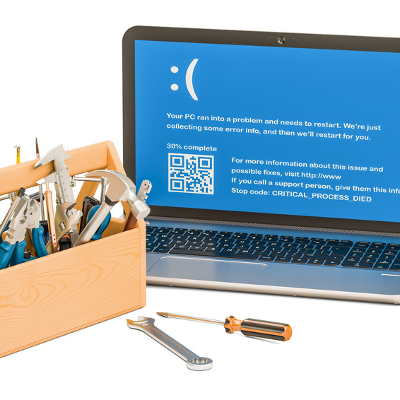
Maintaining a network of PCs can be a lot of work. We wouldn’t blame you for having trouble keeping your business’ computers up-to-date–especially if you don’t have a dedicated IT department on-site. It doesn’t have to feel impossible, though. With proactive technology maintenance and the following tips, you’ll be sure to stay productive throughout the workday.

Update Your Devices
Microsoft issues updates that are meant to improve the performance and security of its operating systems. It’s recommended that you implement these updates as soon as possible so that they can do what they were designed to do: help your computer’s performance. To check if your device has potential updates, just hit the Windows key and navigate through Settings > Update & Security > Windows Update > Check for Updates. If your device needs an update, this page will tell you. Once you’ve done this, all you need to do is restart your computer and complete the installation process.

Restart Your Device
One of the best ways you can improve the performance of your computer is to restart it completely. This gives your computer a moment to catch its breath. It’s just like trying to push your body too hard–sooner or later, you’ll crash and need to take a break. If you don’t, you run the risk of working your technology too hard, which could result in your technology breaking down prematurely. To restart your PC, click on the Start menu or press the Windows key. Next, select Power and click Restart.

Disable Startup Apps
Some programs will start as soon as you power up your computer. A couple examples might be Microsoft Office, antivirus, Spotify, or anything else that is set to do so. If your computer takes too long to start up, you can disable applications so that they don’t run automatically when you turn your computer on. To do this, open your task manager by using the Ctrl+Alt+Delete keyboard shortcut. Select More Details for the option Startup and Disable any programs that you don’t want to initiate on startup. Just be careful of the ones you actually disable, as some of them might be required to keep your computer running properly.

Have these three tips helped out your PC performance? To learn more, reach out to us at 810.230.9455.

Wordlogo400.jpg

Tip of the Week: 3 Useful Microsoft Word Features

Wordlogo400.jpg

Microsoft Office’s Word is undoubtedly one of the most popular word processing software in the world, perhaps even the most popular. Still, there are many people who use Word on a regular basis without putting the majority of its features to use. Here’s three more Word capabilities that you’ll find very handy.

Change the Case of your Text
HAVE YOU EVER ACCIDENTALLY WRITTEN SOMETHING ENTIRELY IN CAPS? It happens to everyone. However, many people don’t realize that you don’t have to delete everything and rewrite it. Microsoft Word has a handy feature that allows users to change the case of your text. You can choose from: Sentence case. Lowercase. UPPERCASE. Capitalize Each Word. and tOGGLE cASE.

word ib 1

Auto-Update Date & Time
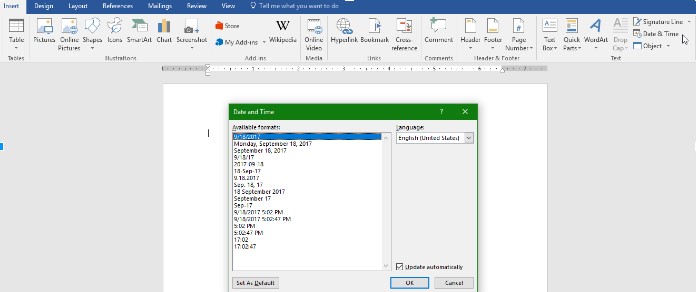
Even though the majority of business correspondences are done digitally, there are still some times when you need to write a good ol’ fashioned direct mail letter. For example, many businesses like to send a welcome message/onboarding letter to new clients. These letters will probably be uniform, with some personalization for each client. Word offers some assistance in making sure the information is updated in the letter. One very handy one when working with templates is the auto-update Date & Time feature.

Under the Insert tab, click the Date & Time button and a pop-up window will appear. Click the date format you want and then be sure to click the “update automatically” box in the bottom right corner. Now the date will automatically be updated every time you open (or print) the document.

word ib 2

Get Rid of Unwanted Formatting
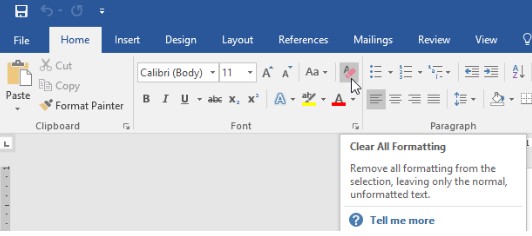
Most people who use Microsoft Word on a regular basis have had to deal with accidentally pasting text that held the formatting of the document you copied it from. This contagious font will even take over the rest of the document, following the formatting of what was pasted rather than your desired format.

Word has a command that you can use to Clear All Formatting. It can be found in the menu and its icon looks like the letter ‘A’ with a pink eraser. You can also use the keyboard shortcut: Ctrl+Space

word ib 3

For more great information about the software you use every day, visit our blog regularly.

continuity_plans_keep_business_alive_400.jpg

Prepping For A Weather Event Needs To Happen In Your Business

continuity_plans_keep_business_alive_400.jpg

Running a business requires the ability to stay in control, especially when others couldn’t. However, there are some situations–like major weather events–that simply will not be controlled. In cases like these, you need to make sure your business is prepared to withstand the worst. A business continuity plan can help you do so.

A business continuity plan is a comprehensive strategy that, when enacted, will allow business operations to continue despite some detrimental circumstance that would have otherwise derailed them. For example, a lightning strike killing the power to your office building, a flood leaving it inaccessible, or a hurricane wiping your place of business off the map–any of these events would severely hinder, if not halt, your ability to do business if you are not prepared.

In short, without a business continuity plan in place, you’re vulnerable to chance–a risk that no business owner should take if they can help it. That is why it is so important to have a plan before it’s needed.

The first step to creating a plan is to establish what that plan needs to address. To do this, you will need to identify where your greatest losses would be if disaster befell your business. What would the costs be if you were to suddenly lose all business function? How would the additional expenses of a disaster influence your cash flow? How long would it take you to recover? This is what is known as a Business Impact Analysis, and it can help you to prioritize your most pressing concerns to ensure they make it into the plan.

Your plan should address the following six considerations:

  1. Establish the plan’s reach
  2. Identify your key business areas
  3. Establish which business functions are critical
  4. Outline which business areas and functions are interdependent
  5. Establish a limit to how much downtime each function can experience
  6. Plan to continue operations

Once your plan is developed and documented, with responsibilities properly distributed, you need to train your staff and test the procedures that were just laid out.

Of course, you also need to be sure that your data is preserved, despite what may happen to your in-house equipment. A reliable backup solution is an integral part of any business continuity strategy. This backup should be incrementally updated throughout the day, and preferably, hosted in the cloud. At the very least, it needs to be in a disparate location than your original data, as a backup that is destroyed along with the original data will do you no good.

Unfortunately, we can’t control the weather. We can, however, control how we prepare for it. NuTech Services can help you put solutions in place to protect your business-essential data. Call 810.230.9455 for more.

tech_tips_400.jpg

Tip of the Week: 10 Technology Practices To Improve Business As Usual

tech_tips_400.jpg

In a business, some jobs belong to certain people: managers make sure that work is done when it needs to be, human resources make sure the workforce is accounted for, and so on. However, some jobs belong to everyone in the modern workplace who works with technology, For our tip of the week, we’ll go over some of these shared responsibilities.

Use the Network
As an insurance policy for your data, make sure that everything is saved to the network, and not on your local PC. This is simply a function of risk management–the network is backed up, while it’s much less likely that your individual PC is. Therefore, by storing data on the network, it won’t be lost if your workstation breaks down–and if your network is properly backed up, your data will still be safe.

Check Email Cognizantly
It is only too easy to click through email messages without really getting the message, which only helps those who use email as a cyber weapon. The easiest way to avoid falling victim to such attacks is to avoid opening attachments from unfamiliar senders. This is a favorite method of cyber criminals to introduce malware into their victims’ networks, so your best bet is to avoid any unexpected attachments.

Let Data Be
Keep your data safe by keeping it in-house where it is secured and backed up, and not uploading it onto your portable device or media storage. Without the protections put in place by the network, your data is much more vulnerable to peeking eyes or meddlesome actions.

Leverage Cloud Technology
If you must access data from outside the network, use a secure cloud solution to do so. The cloud has much more to protect it than a pocket-sized media device does. Ideally, you would also be accessing the cloud via a company virtual private network, as well.

Use Secure Passwords
As much as you love your dog or can remember your make and model of car, these don’t make secure passwords. It wouldn’t take long for someone who knew a little about you to try those exact variables. Instead, use a unique sequence of letters, numbers, and symbols for each account. If you can’t remember more than one password, try using a password manager. At the very least, use passphrases instead of passwords–instead of using a password like ‘FidoMazzerati,’ make a passphrase like ‘FidoLovesToRideInTheM@zzer@ti.’

Keep Passwords To Yourself
After going through the trouble to create a password that is complex enough to satisfy the previous rule, why share it with someone who could easily take advantage of it, or pass it to someone who will? As an example, take your Social Security Number, or other unique form of identification. You wouldn’t pass that around to people, but it essentially serves the same purpose as a password.

Lock Your Workstation
It doesn’t matter whether the risk is of someone stealing data or of someone messing around with your workstation as a prank–either way, productivity and focus in the office will suffer. One of the easiest means of avoiding this is to develop the habit of locking your workstation whenever you step away.

Take Note Of All Issues
Computer problems are bound to happen at some point. It helps to be prepared to fix them when they do. Whenever you encounter an issue, take notes that describe exactly what you were doing so the IT professional can figure out if there’s an underlying issue, and when possible, include a screenshot of the error.

Let IT Handle It
Your computer and the software it relies on will need to be upgraded and, eventually, replaced. When that time comes, don’t take it upon yourself to make any changes in the attempt to save someone else the trouble. Call IT in to help — it is one of the reasons they’re there.

However, many businesses don’t have the resources to hire the IT staff they need. That’s why managed services are part of our offering here at NuTech Services. We can help you monitor and maintain your IT–we’re just a call to 810.230.9455 away.

excel_tips_400.jpg

Tip of the Week: Making Your Excel Use Easier

excel_tips_400.jpg

When it comes to making a spreadsheet, Microsoft Excel is the go-to program for many users. However, many of these users spend much more time creating and formatting these spreadsheets than they have to. For today’s tip, we’ll outline some experience-improving shortcuts that can improve how you use Excel.

Auto Sum Shortcut
You can use Excel as a quick-adding calculator. This can be made even easier with a quick shortcut. Once you’ve highlighted all the cells you’re trying to total up, pressing Alt and = will give you the final result.

Multiple Cells with the Same Text
We’ve all been there–arduously pasting the same text into cell after cell. Fortunately, there’s a shortcut that will let you do the same thing. Again, after highlighting all the cells that need the same text, you simply type the desired input, but press Ctrl and Enter rather than just hitting the Enter button on its own.

Speedy Data Sorting
Sometimes, we need to order the data in a spreadsheet by a particular variable. The Microsoft Auto Filter is a handy way to do so. Once your data is in the spreadsheet, you can select the columns you want to Auto Filter by clicking the top rows. Once that’s attended to, click Data. You will then see the option for Filter and then Auto Filter. This adds drop-down option menus to the top rows of each column, allowing you to sort them based on that column’s data, alphabetizing or grouping the data by its value.

What are your favorite Excel shortcuts? Let us know in the comments, and be sure to come back to the NuTech Services blog for more handy tips and trick!

quietier_pc_400.jpg

Tip of the Week: Options for Quieting a Noisy Computer

quietier_pc_400.jpg

How much noise does your work desktop make? Chances are that the majority of it comes from the fans. These fans are designed to cool down the systems while also maintaining an acceptable noise level. However, the longer your technology lasts, you might realize that these fans seem a bit louder than usual due to your machine needing more work from them to keep the innards cool.

It’s also worth noting that your PC might be caked in dust from years of use. With the dust blockading the fans, they’ll have to work a bit harder than before to get enough airflow, which means that they will create more noise. It’s certainly worth checking out if your computer has suddenly grown louder than you’re used to.

Unlike other fans that you might have in the office, computer fans don’t have settings that you can easily adjust. Furthermore, it’s unwise to mess with your PC fan speed in general, since it’s designed to keep your PC components at an optimal temperature. It might be a better move to just replace the noisy fans and upgrade to better, more quiet fans. Since fans are one of the few mechanical parts in most modern computers, they are the components that will show significant wear and tear, even if you take proper care of your computer.

Disclaimer: If you’re looking to replace your computer’s fans or do any work requiring you to open the case and swap out parts, then it’s highly recommended that you either know what you’re doing or have the assistance of an IT professional.

If you’re seriously contemplating changing out your fans, keep the following in mind:

  • A bigger fan will move more air at lower speeds, which makes for a quieter experience. Just make sure that your computer’s tower can accommodate it.
  • Look for fans that change their speeds to the amount of heat created by the PC. This keeps the fan’s noise levels to a minimum, even when it’s not being used as much.,
  • More powerful, high-end desktops require a lot of airflow. By these, we mean PCs dedicated to intensive tasks, such as gaming or video editing. These often have to use multiple fans, so there’s no way around that. However, a technician can probably install some sound-muffling foam to keep the noise to a minimum.

While your PC’s fans could be a major source of noise, there could be other problems associated with a loud computer. If you want to get to the root of the problem, reach out to NuTech Services for professional technology consultation and maintenance. To learn more, call us at 810.230.9455.

dispose_of_computers_400.jpg

Tip of the Week: Cover Your Assets By Properly Disposing of Your Old Computers

dispose_of_computers_400.jpg

It can be difficult to think about replacing expensive hardware like desktops and servers without breaking your budget, much less having to deal with your old data. Thankfully, there are certain steps that you can take to make the transition to a new PC or server much easier, and it all starts with properly getting rid of your old technology.

Before we get started, though, we want to emphasize the importance of taking preventative measures. These keep you from getting into a situation where you don’t have the technology you need. In other words, if your desktop is outdated, then you shouldn’t wait until it completely breaks down before you replace it. This makes it imperative that you identify warning signs for your ailing technology before it suddenly stops working.

Warning Signs
To get started thinking about what to do when your computer breaks down, look for the following warning signs.

  • General PC slowdown
  • Freezing or even operating system crashes
  • Corrupted files or data loss
  • Random shutdowns
  • Startup errors

Keep in mind that these symptoms could be signs of other PC issues as well.

Understand When You Need to Replace Technology
Nothing your business utilizes can last forever, including technology like workstations and servers. If you suspect that your PC is reaching its limit, it’s crucial that you implement a strategy to properly replace it and dispose of the old one. If there’s no such policy to adhere to, you could be putting your business at risk of a data breach, and putting yourself at odds when the investigators look into whether it was your fault for failing to follow best practices. Gartner explains, “Best-practice PC disposal processes provide an audit trail documenting the serial-numbered inventory of disposed PCs, certification that proprietary and personal data has been removed and made unrecoverable, and transfer/reuse of software licenses, where applicable.”

Does your business have old technology that’s holding you back from moving forward? If so, contact NuTech Services right away. Our technicians can help your business completely wipe the data off of your old technology’s hard drives, or transfer it to your new, more recent hardware. Plus, we can recycle your business’s old devices so they won’t cause harm to the environment.

Our goal is to help your business make a smooth transition to new hardware solutions without putting your sensitive data at risk. To learn more about what we can do for your organization, reach out to us at 810.230.9455.

cracked_screen_400.jpg

Tip of the Week: What You Should Do After You’ve Cracked Your Phone’s Screen

cracked_screen_400.jpg

A cracked screen can happen to anyone at any time. All it takes is bumping into someone or your grip slipping off of your device, and boom–cracked screen. In cases, such as this, what’s the best way to move forward?

The first step is accepting that you may have made a mistake and dropped the phone, but this doesn’t help you fix it. Here are six ways that you can approach your cracked-screen scenario.

Just Leave it Be
If you really don’t want to get a new device or look into ways to fix your phone screen, well… just leave it as it is. This is certainly an option if the screen still works fine, but it might be a bit annoying to deal with. One thing you can do is patch up the screen with a screen protector so that it doesn’t fall apart, and hope for the best. However, if the crack is on the outside and you’re scratching your fingers on it, the next choice might be worth looking into.

Try to Find a Replacement
Since everyone and their brother owns a smartphone these days, and they are often replaced before the devices themselves are unusable, you’ll have an easier time finding a spare than ever before. It’s often the case that if you find a suitable device, all you have to do is move the SIM card from the old device to the new one. Just keep in mind that your replacement device needs to be on the same carrier (a Verizon phone, for example, can’t be used on a Sprint network). If you are the owner of a business that likes to provide phones to your workers, ensuring that you have insurance covering the phone can be the best way to mitigate the cost of one of your people inevitably cracking the screen on their company-issued smartphone.

Gamble on a DIY Repair
If a second-hand smartphone doesn’t sound like something you’d enjoy, perhaps you could attempt to repair the device yourself. While there are plenty of YouTube tutorials for do-it-yourselfers, you’ll be taking a risk that you might otherwise be better off without. Therefore, only attempt to fix it yourself if you’re aware of the consequences and committed to accepting the results, even if it doesn’t work out your way. You can probably find a replacement screen on the Internet from sources like eBay, but it might be more complex of a job than you’ve bargained for.

Have Someone Fix the Screen
If you’d rather not take any chances with your device’s maintenance, you can try to find someone who is willing to do the job for you. In most cases, this means finding a local company that you can hire for the repair job. Sometimes the service provider itself will handle this, but more likely they would have to send it out for repairs. You want to avoid going through the manufacturer (unless you’d rather foot a pricey repair bill), so it’s best to reach out to your internal IT department or a trusted IT provider.

Trade or Sell Your Phone
If you know that you’re just going to buy a new phone anyway, you might be able to get a little bit of value out of your old device before it’s gone forever. Try trading in your phone or selling it to someone who’s willing to pay a little bit of extra cash for it. Just make sure that you eliminate any data located on the device before handing it over. If you don’t know how to do this, just give us a call and we’ll be happy to assist you.

Look for a Better Price
If you’re just going to purchase a new device, you can find unlocked smartphones online–often at a better price than their designated commercial value. Even better is that these devices aren’t held back by contracts, so wireless carriers aren’t a problem either. However, it’s important that you find a device that actually works. Look for sellers who have a good reputation for providing quality used products. Remember, every time you purchase a used device, you’re dealing with at least some sort of risk.

With smartphones being extremely important for communications and remote productivity, every business should be cognizant of solid smartphone practices. If you are looking to manage the role smartphones have on your network security, or, if you’d like to expand the role smartphones have in your business, you should talk to one of NuTech Services’s IT professionals. We can present solutions like mobile device management, allowing your business to take advantage of a comprehensive bring your own device policy. We also have lines on innovative ways to affordably improve organizational smartphone deployments. Call us today at 810.230.9455.

internet_connectivity_speed_400.jpg

Tip of the Week: Resolve a Poor Internet Connection By Following These 3 Steps

internet_connectivity_speed_400.jpg

When the Internet goes down in the modern office, chaos ensues. The only way to subdue the panicked masses is to provide answers and to resolve the issue, ASAP. If you happen to find yourself in such an Internet-less predicament, then be sure to follow these three troubleshooting tips.

Is Everything Plugged In?
This may seem like a rather trivial thing to check, but sometimes the worst problems happen because the obvious is overlooked. When your Internet connection fails, be sure to check key components of your network like your modem and cables in order to make sure that everything is plugged in. Considering all of the activity that goes on in a work space, it’s important to keep in mind that accidents happen and equipment can get bumped and the wrong devices can get unplugged. Remember, looks can be deceiving and even a loose cable can be the culprit, so giving your cable connections a firm jiggle may prove an easy fix.

Turn Your Technology Off and on Again
It’s rather comical how many technology woes are remedied by simply turning a device off and on again, yet it’s a troubleshooting method that’s wholeheartedly recommended by IT technicians because it routinely does the trick! One piece of equipment you’ll want to restart first is the modem. If that doesn’t do it, then try restarting your wireless router or PC.

Now, before you go and compulsively restart everything, you’re first going to want to pause and apply some logic to the situation by asking some basic questions. For example, if the Internet is out on your workstation but it’s working on another office computer, then you know it’s an issue with your PC and not the network. If your smartphone lost Internet signal but the signal your PC that’s wired into the network is working fine, then you’ll know that you’ve got a problem with your wireless router and not the modem itself.

Call Your Internet Service Provider
If you go through the previous two steps and you’re still experiencing issues with your Internet connection, then the problem may lie with your Internet service provider. While it’s certainly a relief to learn that the problem isn’t your fault, it’s nevertheless annoying to still have to deal with lost productivity. If you do contact your ISP regarding the issue, they should be able to confirm if it’s an issue on their end, and they may even be able to help by giving you an estimate of when the issue will be resolved. This insight will allow you to better manage your downtime by helping you know what to do next, like sending your staff out to lunch early while the Internet is being fixed instead of having everybody sit around with hands in their pockets.

Bonus Tip: Have a Backup Plan
While we’re on the topic of lost productivity, it’s good to remind business owners about having a business continuity plan that includes backup solutions that allow employees to continue working while the Internet is down, like apps that aren’t totally dependent on the Internet and perhaps a way to connect mission-critical devices to a 4G wireless signal.

While it’s common for businesses to lose Internet connection every so often, it shouldn’t happen so frequently that it eats into your bottom line and causes serious problems. If this is the case, then you’ll want IT professionals to take a look at your network. NuTech Services can perform this task for you by discovering the issue and taking the necessary steps to get your network connections working at optimal levels. For assistance troubleshooting any of your company’s technologies, give us a call at 810.230.9455.

net_security_tips_400.jpg

Tip of the Week: Ways to Be Active and Proactive With Your Network Security

net_security_tips_400.jpg

Security troubles have many causes, but the only way to protect your business from any of them is to implement a comprehensive enterprise-level security solution. There are two other ways that you can work to protect your business, implementing software patches, and avoiding social engineering attempts.

Applying Software Patches
It should be clear that software patches are designed to fix security problems and improve the functionality of the software, but some organizations simply don’t have time to implement them manually, or they simply don’t understand the purpose for them. Part of the problem is that sometimes the developers aren’t necessarily clear that patches are available, while other times those within your organization may not even know how to administer them. Regardless of the reason, there are usually problems on a network that will go unattended for extended periods of time.

Most hackers only want to take advantage of the issues they can detect. Thus, there could be countless threats out there designed to target countless unpatched vulnerabilities on your network that not even the hackers can know about. It makes sense for a hacker to use just one exploit to target a handful of vulnerabilities. Therefore, it’s important to make sure that all software that you use is updated and patched.

Additionally, your systems shouldn’t be running unused programs. The more software you have, the more ways hackers can take advantage of your organization’s network vulnerabilities. Moreover, you might even be wasting revenue on renewing software licenses that you don’t even need, so it’s best perform a network audit from time to time to get the worthless software off your infrastructure.

Dodging Social Engineering Attempts
Social engineering is broadly categorized as any method that takes advantage of unprepared users or those who are ignorant of solid network security practices. Examples include a phone call or email message claiming that the network has been breached by a foreign entity and that “tech support” needs to remote into the computer and resolve the issue. There are other, more subtle methods as well, such as targeted spear phishing attacks that go after specific users with personal information that convince them that the hacker is someone in authority.

These types of attacks vary in sophistication, but they can range anywhere from an employee receiving a message claiming that they’ve won a prize, to the intruder physically following your employees into the office and stealing sensitive data manually. In instances like these, a little bit of employee training can go a long way. Teach them to look for anything suspicious, and inform them that vigilance is incredibly important in the workplace.

These two security improvements barely scratch the surface of what your organization should be focusing on for network security. If you want to fully protect your business to the best of your ability, give us a call at 810.230.9455.

ssid_name_400.jpg

Tip of the Week: You May Want to Remove Your Wi-Fi Information From the WiGLE Database

ssid_name_400.jpg

The next time you look at your device’s available Wi-Fi connections when in public, take a look at what some of the local connection names are. Chances are that you’ll see some names that match a nearby organization or family. Others might still be using the default SSID, like Linksys/Netgear-something-or-other. Others might get a little more creative. The latter example may have the right idea; using an obscure wireless network name is much more secure than naming your connection after what it’s associated with.

That’s not to say that those who have named their home Wi-Fi networks things like “FBI Surveillance Van 3” or “Pretty Fly for a Wi-Fi” are in the right, but you get the idea. Instead of misleading people with your SSID, you want to think of your wireless network’s name as a shield against possible hacking attacks. In fact, it’s recommended that you don’t broadcast it at all if you can help it, but this isn’t always an option–especially for organizations that offer Wi-Fi to the public as part of their consumer obligation.

One website in particular highlights the importance of naming your Wi-Fi network something inconspicuous. A service called WiGLE collects information from wireless networks and compiles it in an online database that’s searchable. WiGLE also offers software solutions that can map, query, and update these databases. Among the uses for WiGLE are: educating the public, research projects, site surveys, journalism, analyzing wireless usage, and finding usable networks while on the go.

Knowing that a tool like this exists, should make you stop and ask several questions. If your wireless network’s data is being collected, is it at risk? Is it something that you should be worried about? How do you remove your business’s wireless network from WiGLE? Well, WiGLE has posted answers to all of these questions:

“If your network is in WiGLE and you don’t like it, we’ll take it out immediately, but you should look into making your network harder to detect AND more secure; remember that you’re the one bombarding passers-by with your signal. We aren’t affiliated directly with any particular community or interest (other than our own), but we applaud the efforts of the people who wrote the stumbling software that feeds our project, the people looking to use wireless in innovative ways, and especially the community of people who just dig wireless network access and dig sharing it.”

To learn more, you can access the website here.

What are your thoughts on WiGLE? Let us know in the comments, and be sure to reach out to us for help securing your company’s wireless network.

Are you confident in the security of your wireless network? Don’t hesitate to call us at 810.230.9455 if you feel it’s time to audit one of your most targetable entry-points.

find_your_lost_phone_400.jpg

Tip of the Week: Activate These Solutions Now Before You Misplace Your Mobile Device Later

find_your_lost_phone_400.jpg

Can’t find your mobile device? If you’ve taken precautions and enabled solutions designed to track the whereabouts of your device, then you’ve got no reason to panic. Of course, hindsight is 20/20, so you’ll want to make sure you activate a phone-finding solution now (while you’ve got your device in your sights).


For an iPhone or Apple Device
If you’re an Apple enthusiast, you can use the Find My iPhone feature to locate any device connected to your Apple account. Log into your iCloud account or download the Find My iPhone app (before you lose your device, of course), which will help you keep track of your devices should you lose them. You can even track where your device is and where it has been. You can even lock the device and send it a message telling whoever finds it how to contact you! 

For an Android Device
Android makes finding your lost device as easy as performing a Google search. If you’re signed into your Google account, and you have your device linked to it, all you have to do is type into the search bar, “Find my Phone.” As long as there’s a device connected to your Google account, you’ll be shown a small map in the search results which shows you where the device is located. You can then proceed to ring the device and find it, if it is turned on and nearby.

For Other Devices
If you lose a more obscure device, you might have a little more trouble locating it. Thanks to a great app called Prey, you can find just about any laptop or smartphone that may be missing. You can install Prey for free on up to three devices, and as long as a thief hasn’t completely wiped your device, you’ll have a decent shot at discovering who has found it. Provided that your device has a Wi-Fi chip, a webcam, and the app installed, Prey can take a picture of whoever has found the device as well as where it is located.

Any devices that have Prey installed on them will automatically issue a report to you every so often, starting at 20 minutes. This can tell you exactly what’s happening with your device. This includes webcam snapshots, desktop captures, program installations, changed files, and so much more. Of course, if you think that maybe someone has just found your device and hasn’t stolen it, you have the option of letting them know how to contact you through various methods. Worst case scenario, you can lock it or remotely wipe it to secure any data located on it.

For more great tips and tricks on how to get the most out of your technology, subscribe to NuTech Services’s blog.

charge_your_smartphone_battery_400.jpg

Tip of the Week: How to Charge Your Mobile Device Battery Faster

charge_your_smartphone_battery_400.jpg

Most of the time, you don’t care about how long it takes to charge your device’s battery–that is, until you find yourself in a bind and need a full charge ASAP! It’s in a moment like this when you frantically ask the question, “Is there any way to make this battery charge any faster!?” Fortunately, there is.

Power Off Your Device
The first charging tip happens to be the most obvious: turn off the device while it charges. This way, your battery is fully devoted to the task of charging, instead of your juice being diverted to open apps.

Although, as we’re all well aware, there are many times when you need a charge, but you’re not in a position to power off your device. After all, you may need to take a phone call or use the device to get work done. In an all-too-common scenario such as this, there are actions you can take to speed up a charge. Consider the following.

Disable the Device’s Internet Connection
Your phone uses a bunch of juice just to stay connected to the World Wide Web. If the task you’re working on doesn’t require an Internet connection, then you can disconnect from the web by activating airplane mode. While in airplane mode, you can still use many of your device’s core apps, like the calendar, calculator, alarm clock, etc.

Turn Off Bluetooth
Bluetooth is another major power drain for mobile devices. If you’re not in need of a Bluetooth signal, then your device will charge faster if Bluetooth is turned off.

Use a Wall Outlet
Yes, you can charge your device while it’s plugged into another device’s USB port, but the reality of the situation is that a direct connection to a wall outlet provides way more juice than another device’s USB port. In fact, in some scenarios, you may experience that a device charging via another device’s USB only prevents your device from losing power more quickly.

The mechanics behind this actually makes a lot of sense. Essentially, different chargers have different power outputs. PC Advisor explains, “While a PC’s USB port is specified at 2.5W for USB 1.0 and 2.0 and 4.5W for USB 3.0 (so always use a USB 3.0 port in preference to USB 1.0 or 2.0 when available), a phone charger might be rated at 5W and a tablet charger 10W, for example.”

Upgrade Your Charger
We should note that just because you’ve got your device plugged into the wall, doesn’t mean that it’s receiving the maximum charge. Sometimes, a charger may be rated at 5W when your device can accept a higher charge like 10W. If this is the case, then upgrading your charger appropriately will allow you to take full advantage of your phone’s charging potential. To better understand your device’s charging capability, consult the owner’s manual.

Quick Charge 2.0 By Qualcomm
Thinking beyond the tweaks you can make to your device, you can employ an outside solution like Quick Charge 2.0 by Qualcomm and have a 3300mAh battery reach 60 percent capacity in only 30 minutes. Compare this to a normal 5W charger which would charge the same battery to 12 percent in the same amount of time. Of course, the catch is that the device needs to be running certain Snapdragon processors. So again, be sure to look into your device’s capabilities before following through with this solution. See the Quick Charge 2.0 in action by clicking here >>

By trying these best practices, you should be able to get the charge you need in order to supercharge your productivity! Do you have any additional tips that you try to get the most out of your device’s battery? If so, share them in the comments below!

protect_your_workers_identities_400.jpg

Tip of the Week: Worried About Identity Theft at Work? Follow These Tips for Peace of Mind

protect_your_workers_identities_400.jpg

The Bureau of Justice estimated that five percent of the entire U.S. population were victimized by identity thieves, a total of 11.7 million people. While the methods of collecting the data that identity thieves need to commit their crime vary from dumpster diving for carelessly discarded documents, to email phishing scams, there is a particular target that can easily supply them with the data they will need: the workplace.

While many businesses must collect a lot of personal data from their clients for billing purposes, their employees are also made vulnerable if some of that data was to be absconded with. After all, in order to properly pay an employee for their work, an employer will need a lot of their personally identifiable information on record. As a result, a workplace becomes a high-value target for someone seeking the data necessary to complete fraudulent actions in someone else’s name and becomes the responsibility of the entire business to safeguard that data, for the sake of their employees and their clients.

To that end, every employee should be educated in the best practices for protecting a company’s trove of sensitive information, and policies need to be implemented and enforced to ensure that these best practices are followed. To get you started with securing your office, make sure these four best practices are followed by everyone associated with your company.

Don’t Leave Workstations Unattended
Computers need to be locked and only accessible by its user’s password. Otherwise, anyone (be it a less-than-trustworthy employee or someone off the street stumbling across an opportunity) could access that workstation and any company documents available to that employee.

Go Paperless
Identity thieves love paper trails. Whether it be copies of sensitive files that make their way to the trash, or even documents that get left lying around the office, the fact of the matter is that having paper copies of sensitive information only increases the risk that this information will get stolen. Going paperless is a way to minimize this risk entirely.

Train Employees to Know What Email Scams Looks Like
Scams targeting email inboxes are some of the top ways that identities are compromised. Therefore, in addition to having a good spam blocking solution in place, you’re going to want to make sure that every worker knows what an email scam looks like so they won’t fall for one. You may know how to spot an obvious email scam, like an unsolicited email requesting sensitive information, but how sure are you that your staff knows what a scam looks like as well?

Implement Enterprise-Level Security Solutions
Without proactive solutions in place to protect your company’s sensitive data, it could easily fall into the wrong hands if a hacker breached your network. Every business needs to have security tools in place like antivirus, firewalls, spam-blocking, and content filtering. Thankfully, a solution like a Unified Threat Management tool offers businesses an easy way to get this kind of comprehensive protection in one easy-to-implement package!

Of course, there are many other steps to take to prevent your workplace from becoming an identity thief’s jackpot. NuTech Services can help advise you on the other steps your business needs to take in order to keep the identities it deals with properly protected. Call us today at 810.230.9455 for more information on the steps you need to take to prevent identity theft.

basic_net_security_400.jpg

Tip of the Week: 4 Scams to Look Out for and What You Can Do to Prevent Them

basic_net_security_400.jpg

There’s no question that cybersecurity is an important part of managing a business, especially with so much technology in your office. Yet, the real challenge comes from making sure that your employees know and understand best practices, and are willing to adhere to them. Here are some easy ways that you can help your employees understand just how important IT security really is.

Change Passwords Frequently
Password security is a big problem for both the commercial and domestic computer user. Too often you see stories about users having passwords like “password” or “123456.” To help your team avoid this, create a handout that has the following best practices on it:

  • Make your passwords long (at least 16 characters). The longer, the better, as this makes the passwords more difficult to guess.
  • Make your passwords complex. Use a plethora of special characters, numbers, and both upper and lower-case letters.
  • Never use the same password twice. When a hacker steals a password, they may try to use it on other related accounts.

Of course, a password manager makes these tips much easier to accomplish; particularly one that allows you to share passwords across your organization’s network. You can group together users and distribute credentials as they’re needed, synced in real time to their devices. As a bonus, you can use complex passwords without the frustrations of forgetting and remembering them.

Watch Out for Spam
Hackers will often spread spam in the hopes that someone will slip up and offer important credentials or personally-identifiable information via email or phone call. We’ve outlined a couple of common spam situations below, so that you know what to look for:

  • A big congratulations: If you get an email saying that you’ve won the lottery or a big winner who needs to claim the prize, you can disregard it as spam. In general, if something is urging for immediate action, you might want to think twice about what it is.
  • Fake law enforcement threats: Hackers know that people are intimidated by the authorities, so they will create messages claiming to be from the FBI or local law enforcement. They will then declare that you have done something wrong and that there is a fine. Messages like this use fear against you, so be careful not to fall into the trap.
  • Spear phishing tactics: These are tactics in which hackers will target specific users and tailor their attacks to the individual. Details to look for could include customized phone numbers, addresses, and personal information regarding their schedule or workplace. Since the attacks don’t look like generic spam, they can fool users.
  • Whaling schemes: These are top-tier social engineering threats that almost don’t classify as spam due to how dangerous they are. Whaling schemes, or CEO fraud, is when a hacker impersonates the business owner in an attempt to get financial departments to wire transfer funds to offshore bank accounts. Look for inconsistencies with email addresses, or simply ask the one who has sent the message, if it’s a real request or not.

Many of the above email threats can be mitigated with an enterprise-level spam blocking solution. Spam blocking keeps suspicious messages from hitting your inbox in the first place, which increases the chances that your employees won’t see them at all. However, there are still some that might manage to squeeze past filters. Therefore, the only real way to prevent these problems is by taking proactive security measures.

To learn more about cybersecurity, reach out to NuTech Services at 810.230.9455.

are_you_being_scammed_400.jpg

Tip of the Week: 6 Tips to Avoid Getting Scammed This Holiday Season

are_you_being_scammed_400.jpg

The ingenuity of criminals knows no bounds, especially when it comes to the holidays. You’d think that scammers would be merciful during this time of peace on Earth and goodwill to man. Nope. This is when they step up their scamming efforts, which means you need to be ever vigilant.

Here are six scams to be mindful of this holiday season.

Be Careful Where You Donate
The holidays are a great time to make end-of-the-year donations that you can deduct from your taxes. Unfortunately, scammers know how to play on people’s heartstrings and they’ll set up fake charities with slick online websites in order to scam you out of money that should be going to help others.

To make sure you’re giving to a legitimate charity, AARP recommends, “Before donating to a charity, make sure it is registered with the Secretary of State and ask how much of the money goes to the charitable fundraiser and how much goes to the charitable purpose.”

Be Wary of Fake Gift Cards
Often used as a gift for the person who “has everything” or as a small supplement to be given besides a larger gift, gift cards are a very popular gift to give. However, gift cards are also a vehicle for scammers to use. For example, how often do you see great deals on gift cards on online auction sites? As it turns out, those “great deals” are very likely for stolen, worthless cards.

The easiest way to avoid this sort of scam is to only purchase gift cards from a trusted, licensed merchant. Also, if you’re purchasing the card at the store it’s for, ask the cashier to check the balance of the card so you don’t get scammed into buying a bogus card placed on the rack by the thief.

Be Sure to Track Your Packages
The holidays are crunch time for parcel delivery services. For thieves that may lack hacking and technical skills, simply walking up to a front porch and stealing a package is an easy way to make some fast cash. They may even have zero use for what’s in the box, but that won’t keep them from walking off with your goods, just in case there’s a chance that it contains an item of value.

To prevent this risk, when you order a package make sure that your signature is required in order to receive it. This will prevent the package from being left on your steps for a thief to easily grab. Also, remember that you can have the package delivered to your work address if nobody will be at your house to sign off for your package.

Watch for Credit Card Skimmers
Some thieves even have the know-how to steal data from your credit card using skimming devices at ATMs and other POS devices. Therefore, it’s preferable to shop with a credit card over a debit card, and there’s a lot to be said for cash being a secure way to pay for things. Also, look closely at the device before scanning your card. If it looks like it’s been tampered with, then you’ll want to alert store management.

Don’t Fall for Bogus Deals
Finally, it never hurts to rely on some relatively timeless shopping advice: if an offer sounds too good to be true, it probably is. Before completing any purchase that seems like the deal of a lifetime, make sure you at least familiarize yourself with all of the terms, and consider the ones that probably aren’t mentioned. No deal is worth risking your financial future for.

Be Safe Online
Finally, there are plenty of scams to be found online. The best way to avoid getting taken by an online Grinch is to follow best security practices. These include:

  • Before submitting any sensitive information, look for the padlock icon in the address bar, along with HTTPS at the beginning of the URL.
  • Only shop on websites that have a good reputation.
  • Avoid using public Wi-Fi when shopping online.
  • Avoid using your debit card online. Instead, use credit cards and gift cards.
  • Be skeptical of unsolicited emails in your inbox, especially when it comes to fake invoices and bogus shipping orders.

By avoiding these six scams you can shop with confidence this holiday season. It’s also important to keep in mind that these scams are utilized by thieves all year round, so you’ll want to always be looking out for them.

Have you fallen for any of these scams or encountered any of them while shopping? If so, share with us your scam story in the comments.

cleaning_your_computer_400.jpg

Tip of the Week: How to Clean Your PC Like an IT Pro

cleaning_your_computer_400.jpg

Just as anything else will, a computing device will need some TLC to keep it physically clean and in tip-top shape. In order to clean your system safely, you will need proper tools, and the know how to properly clean your PC.

For a basic cleaning, a can or two of compressed air and lint-free wipes should suffice. For jobs that will require a little more elbow grease, you will need to add a few more items to this list–a small screwdriver, cotton swabs, and isopropyl alcohol (make sure it’s isopropyl, and not ethyl-based).

Cleaning Out the Desktop
Before you get started, keep in mind that you’ll be dealing with some pretty sensitive hardware. We highly recommend having an experienced technician handle this for you.

First and foremost, you’ll want to completely power-down your system. This includes not only powering down the machine but also killing power to the surge protector it is plugged into and removing the power supply cord from your system. Wipe down the case exterior using a static-free dust cloth and get rid of dust that has been caught in the external vents, preferably by using your compressed air once the case has been opened. For dust bunnies of above-average size and other assorted crumbs, carefully go through and wipe them away with cotton swabs before using the compressed air to rid the system of the remaining dust.

As you use the compressed air, be sure not to sustain the stream for too long, as it could damage some of the more sensitive components of your system. You should also be very careful of what you touch in the system and avoid any bare or soldered wire to avoid serious electric shock. As you will almost certainly be generating static, make sure that you touch the metal and plastic frameworks frequently enough to keep you fairly equalized.

Once you’ve finished with that, close the case back up and go over it again with your dust cloth.

While it may be tempting to just take a vacuum to the buildup of dust in your system, don’t. The bristles on the vacuum are notorious for generating static, which can easily damage the delicate internal parts that your system relies on to function.

Making Your Screen Spic and Span
There is little more annoying than fingerprints and smudges streaking up your screen, especially when you are trying to focus on your work. Fortunately, cleaning the screen of your display is fairly similar to cleaning a window, with a few special considerations.

If you utilize an LCD display, applying a half and half mixture of distilled water and white vinegar to a microfiber cloth and gently wiping the screen works wonders to rid it of debris. If you still operate a CRT monitor, an ammonia-free glass cleaner will do just fine while preserving the screen’s coating. Make sure that you don’t spray the device with whatever liquid you use in either case. Instead, apply the cleanser directly to the cloth and wipe down the screen that way.

Keeping the Keyboard and Mouse Clean
Of all of your computer’s components, the keyboard and mouse will be the ones that are exposed to the most debris and bacteria as they are handled almost constantly during computer use. To do a basic cleaning, unplug your keyboard from the rest of the system and turn it upside-down, gently shaking it to dislodge any crumbs and other particles that are trapped between the keys. Another option is to use a can of compressed air, spraying between the keys at a 45-degree angle. Once you’re confident that most of the accumulated mess is cleared away, gently flip it over and shake it out again before carefully wiping it with an antibacterial wipe and drying it with a microfiber cloth.

If your keyboard is a membrane type keyboard, it is possible to remove the keys to get a good, comprehensive clean. Before you do so, be sure to create a record of the keyboard’s layout so your keys may be replaced properly.

To remove the keycaps, use the small screwdriver to gently pry them from their housing. However, because they can be difficult to put back on, leave larger keys (like the space bar, shift, and enter) on the keyboard as it is being cleaned. Use compressed air, cotton swabs, and isopropyl alcohol to clean out the grime that was hiding under the keys. Once you’re satisfied, snap the keycaps back in place and test thoroughly.

As far as the mouse goes, the overwhelmingly more common LED-sensor models will only need to be wiped down with a lint-free cloth and a few quick swabs of rubbing alcohol.

A Clean Workstation is a Happy Workstation
Keeping your computer clean can provide many benefits beyond just the aesthetic value. Equipment will likely run better, last longer, and be less apt to make you sick through exposure to simmering bacteria and germs. For more ways to optimize your technology experiences, make sure you keep checking back to our blog.