
b2ap3_thumbnail_do_you_need_a_consultant_400.jpg

Tip of the Week: How to Know When You Need a Consultant

b2ap3_thumbnail_do_you_need_a_consultant_400.jpgHave you ever felt like you aren’t sure how to proceed, or how to get yourself out of a rut? You surely don’t want your competitors to know about your weak points, but you feel so much pressure that you might think twice about asking for tips of the trade. After all, a hand once in a while can make all of the difference. This is when you might consider outsourcing a consultant.

Before you cave in and let an outside consultant in on your problems, be sure to take these factors into consideration.

What’s the Worst Way to Approach Consultation?

  • Approach consultation as your only option. This, in particular, is something you want to avoid at all costs. Outsourcing your consultation needs to a third party is a valuable asset, but you don’t want to do this as a last resort and become reliant on the opinions of the consultant. It’s important to maintain control of your problems and keep them from spiraling out of control.
  • Confuse your responsibilities with those of your consultant’s. Before engaging in dealings with a consultant and signing your name on the dotted line, make sure that each party’s responsibilities are clearly mapped out. This way, you won’t confuse who is responsible for performing certain tasks, and you can move forward with certainty.
  • Without an end result in mind. Make sure that you always keep your goals in mind when looking for a consultant. This way, they’ll be able to help you get a clear picture of where you want to be, and how to get there.

What’s the Best Way to Approach Consultation?

  • Be as specific as possible. There’s no room for ambiguity in business. You can’t formulate an accurate plan of action without getting into specifics. You can avoid this by remaining open with your consultant and letting them in on your ideas.
  • Find consultants with a similar mindset. One of the best roles that an IT consultant can perform for you is managing a project on your behalf. To this end, it helps that you find a consultant who thinks like you and can best replicate your expectations. Furthermore, they must have proven their expertise in the industry in order to facilitate a proper level of trust. Give them a trial run to see how they perform under pressure.
  • Be sure to take responsibility for your decision. Just like any other choice in life, you can’t take it back once you’ve chosen which consultant you want to hire. This means taking responsibility for whether or not they perform to your expectations, and realizing that even if it’s not your fault, you’re the one who made the choice. Use this experience to make more educated decisions in the future. It can help to hire a consultant who has skills you don’t have. This way, you’re less likely to get stuck in a foreign situation.

NuTech Services knows how stressful and difficult running a business can be. We also know that you have a lot of work ahead of you, and that you can use a hand or two to stay ahead of the competition. We always maximize the communication between ourselves and our clients when we’re providing a consultation, and we want to see you succeed more than anything else.

NuTech Services can perform any function of your normal in-house IT staff, including IT consultation, minus the hefty salary required of hiring a new employee. For more information, give NuTech Services a call at 810.230.9455.


b2ap3_thumbnail_chrome_flat_400.jpg

Tip of the Week: How to Set Up User Permissions For Google Chrome

b2ap3_thumbnail_chrome_flat_400.jpgAre you looking for a way to manage Internet use on a single computer that’s being used by multiple people? To help you keep your browsing history and settings intact and keep unwanted users from accessing the web, Google has a free add-on available for Chrome created for just this very purpose.

With this add-on, you gain the ability to essentially lock Chrome and only grant access to those you’ve given permission to use it. Although, this add-on is experimental, so be sure to keep potential issues in mind:

How to Install this Helpful Add-On for Google Chrome:
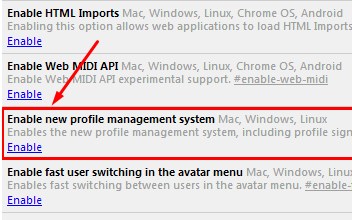
Open Chrome and enter chrome://flags in the search bar, now hit enter. From here, you will see a list of all the experimental add-ons available for Chrome. The one you want to track down is “Enable new profile management system.

profile management

With the long list of add-ons before you, you’ve got the option to find the needed add-on a little quicker by using the CTRL+F (find) function.

Once you’ve located the add-on, click Enable. Next, close Chrome and open it again. You will now find the extension to be active. You can tell that the add-on is active because the sign-in screen will have a similar look to the sign-in screen used for Windows.

To login to your Chrome browser, select the Google account that you want to use, or enter the login credentials of an another account. Once logged in, you will be all set to browse the Internet like you normally would. Be sure to logout when you’re done. This will prevent other users from browsing Chrome with your Google account and messing with your settings.

Limitations of the Add-On
This add-on works great if you’re logged in and working with a single Google account. However, this add-on is designed to only work in conjunction with a single Google account, which means you will be unable to use a Google App, like Google Drive, under an account different than the one associated with the add-on. Therefore, this add-on isn’t ideal for users that routinely cycle through different Google accounts in single browsing sessions.

If you’ve installed the add-on and you don’t like how it limits your use of multiple Google accounts, then you can simply remove it by going to chrome://flags, finding the add-on, and clicking Disable.

This add-on is a great solution to keep unwanted people from using Chrome on your computer, but it’s doesn’t come close to protecting people from messing with other applications and settings on your PC, or deterring hackers. For a more comprehensive network security solution, call NuTech Services at 810.230.9455.

b2ap3_thumbnail_it_company_for_your_needs_400.jpg

Tip of the Week: How to Find the Perfect Outsourced IT Company for Your Needs

b2ap3_thumbnail_it_company_for_your_needs_400.jpgA growing company tends to experience a lot of IT pains. This is because growth usually goes hand-in-hand with an expanding IT infrastructure, and your in-house IT staff might not be able to keep up with the increased workload. This is especially painful if your budget isn’t as flexible as you’d like. You decide that it’s in your best interest to outsource your IT, but where should you start looking?

Outsourcing your IT comes with a lot of great benefits, and it should always be considered as a viable option. Compared to hiring a full-time team member, you save money in the long run by taking advantage of easily-budgetable payments. In addition to cost-efficiency, you also need to look for technology competency. Not all of the so-called professionals you meet will have the skills to back up their claims. The solution to finding the best of the best can be as easy as holding a “mock interview,” of sorts with the prospective outsourced IT vendor.

Are They Up-to-Date in the Industry?
It’s only natural that technology professionals keep up with the latest occurrences in the industry, and your prospective business partner should be no different. Are they keeping up with the latest security protocol and backup practices? Are they always trying to use the latest technologies to stay ahead of the competition? If they are, it shows a passion that can be leveraged for your benefit.

NuTech Services is one such business. We stay ahead by following reliable news feeds and staying aware of important findings and trends. We know what a reliable IT staff should concentrate on, and our strategies reflect these trends to help your company take full advantage of its technology.

How Do They Handle Difficult Tasks?
In IT, issues that aren’t a technician’s expertise frequently arise. This means that they might not be entirely comfortable dealing with a situation. How IT staff handle stressful situations like these can make or break their service. Do they research the problem? Do they strive to make clarity one of their biggest and best selling points?

They absolutely should, and NuTech Services knows this better than anyone else. We always work to find the best solution to a problem, even if we’re unfamiliar with it. If it looks like a job that we can’t help you with, we’ll find someone from our list of trusted IT vendors who can assist you to the best of their ability. Their work is a reflection of our company, and since you trust us, you know you can trust them to perform their duties to both your expectations and our own.

How Do They Handle Hypothetical Situations?
Now that you’ve limited the number of applicants to those who know what they’re doing, you can impose hypothetical situations onto your candidates to see who has a thought process similar to your own. This process is perhaps the most important part of hiring an outsourced IT agency. You want to make sure that they have solid business practices by seeing them in action for yourself.

At NuTech Services, you can see our prowess with your own eyes with a IT consultation. This can address any problems or questions you might have concerning your technology. We do our best to explain the problems to you, and make sure that you know all of your options before you commit to a particular solution.

These tips can help you locate a quality IT specialist, but why do so when you have NuTech Services readily available to help you out at this very moment? All you have to do is call 810.230.9455 to get started. We’ll work with you to make sure your technology is working at maximum capacity.

b2ap3_thumbnail_presentation_power_400.jpg

Tip of the Week: 5 Ways to Put the Power Back In Your PowerPoint Presentations

b2ap3_thumbnail_presentation_power_400.jpgPresentations are a necessary, albeit time-consuming, responsibility that you have as a business owner. Thankfully, there are simple tools like Microsoft PowerPoint available to help make your job a little easier. Unfortunately, it’s very easy to make a boring or less-than-great presentation, which can hamper the audience’s ability to let the message sink in. Here are five ways to make sure that your next PowerPoint is as effective as possible.

pp tips 1.jpg

Minimal Text Means a More Effective Message
When making a presentation, some users will find that it’s very easy to load their PowerPoint presentations full of text. This is one of the most common ways that PowerPoint presentations fall short when it comes to value. The slideshow text shouldn’t be used as a substitution for your own voice. It’s difficult for an audience to read the text on a slideshow and listen to you speak at the same time, so use a minimal amount of text whenever possible; and whatever you do, do not read directly from the slides.

spock giving directions

Use Quality, High Definition Graphics
During the construction phase of your presentation, it’s important that you keep the quality of images in mind. Just because the presentation looks great on your monitor doesn’t mean that it will look fine when blown-up on a big screen. Low or normal quality graphics might look blurry when applied to a large screen, so it’s important to always use high quality graphics whenever you can. Try to avoid using generic Microsoft Office clip art graphics and stock photos, if possible.

Don’t Use Animated Transitions
It’s true that the occasional slide transition can help ease the monotony of simply clicking the button and advancing to the next slide, but animating every single image and bullet point is a little overkill. You want the audience to be able to concentrate on you and your presentation. If they’re too busy staring at words whipping all over the screen, you run the risk of losing their attention, which is counterproductive to your goals and intentions.

Use a Single Clear and Consistent Font
pp tips 3othing is more unprofessional than a PowerPoint presentation that can’t seem to decide which font it likes the most. If your slideshows use multiple different fonts, you’ve likely fallen victim to this common mistake. Use one font and make sure every slide uses only that one. Your slideshow should utilize a basic font like Arial that can be seen uniformly across the entire presentation area. Fancy letters aren’t necessarily good for your presentation, either, so avoid those as often as possible.

Use a Uniform Color Scheme
Inconsistent colors can be one of the worst ways to destroy a presentation. Just because your presentation can have all of the colors of the rainbow doesn’t mean that it needs to. The less complex your color scheme is, the better for your viewers. Try using your company’s logo as a jump-off point, and be sure to use the templates provided by Microsoft Office. Unlike the clip art, the templates are actually very sharp and simple to use.

All of this winds down to one overarching tip that should always be followed when constructing the PowerPoint slideshow. You should always design it with the end user in mind. The audience is the one who has to view it, so make it easy on the eyes and use it to augment your presentation in a professional manner. After all, you’re the one they want to see, not the PowerPoint.

Do you have any particularly helpful tips you’d like to share concerning PowerPoint? Let us know in the comments, and be sure to call NuTech Services at 810.230.9455 for more tips on how to make the most out of MS Office.

b2ap3_thumbnail_authentication_security_400.jpg

Tip of the Week: How to Integrate 2-Step Verification with Your Google Account

b2ap3_thumbnail_authentication_security_400.jpgIt seems like you can’t go a week without hearing about some new security vulnerability or massive data breach. Naturally, this leads the average computer user to feel nervous, especially when dealing with sensitive information. With only a password standing between you and your account, hackers can easily access it if you’re careless. Two-factor authentication is the key to maximizing your online security.

Most online accounts allow you to set up some form of two-factor authentication, but today we’re going to concentrate on how to set it up on your Google account.

How It Works
Google calls their two-factor authentication service, “2-Step Verification.” Basically, Google will require that you use more than one form of login credential before allowing access to your account. This generally comes in the form of an SMS message sent to your phone, a voice call, and more. Google can even provide you with a security key that you plug into your PC’s USB port as a two-factor authentication tool.

The plus side of this is that it makes it extremely difficult for hackers to access your account if the only credential they have is your password. This means that the hacker needs to work twice as hard and steal your actual hardware if they want to get into your account. This brings the chances of you getting hacked down to almost zero.

Besides that point, however, there’s quite literally no reason not to integrate two-factor authentication for any and all of your online accounts. Not only is it easy, but the benefits greatly outweigh the costs, if any. The prominent security threats and vulnerabilities that are prevalent throughout the business world should speak for themselves. Without two-factor authentication, you’re missing out on a vital, albeit basic, way of keeping your sensitive data safe.

How to Set Up Google’s 2-Step Verification
In order to set up your Google 2-Step verification, all you need to do to get started is log into your Google account, then go to this URL.

Click on Start setup >> and Google can walk you through the rest. You’ll have to provide Google with your phone number so they can send you text messages when you attempt to log in. This means that you should probably have your phone on you, or at least nearby, when you begin the setup procedure.

Google’s 2-Step Verification can do a lot more than simple text messages, too. For instance, it allows you to use your landline phone system (if you still have one of those in your office) and receive automated voice calls from Google which contain your verification code. You can even print off a set of one-time codes for later use, if you’re planning on traveling a lot.

Again, most online accounts allow for two-factor authentication, so remember that it’s important and necessary to take all of the security precautions you can in the hostile environment that is online computing. You want only the best security to keep your data and your business safe from hackers, thieves, and scam artists. If you need help setting up two-factor authentication, NuTech Services can help your business integrate the best solutions possible. Just give us a call at 810.230.9455 to learn more.

b2ap3_thumbnail_maximum_productivity_400.jpg

Tip of the Week: Achieve Maximum Productivity for Your Team with These 5 Technologies

b2ap3_thumbnail_maximum_productivity_400.jpgYou pay your employees to come to the office and perform their daily duties, but how much of that time is actually being spent working? Every wasted minute cuts into your daily profits, which can waste countless minutes. If you want to get the most out of your team, there are several technology strategies that the modern business can take advantage of to maximize productivity.

Surveillance Cameras
Depending on your productivity problem, there are varied levels of solutions which you might integrate. When the boss rarely makes rounds around the office, your team might be encouraged to “loaf around,” which is the act of wasting time. If you can’t leave the room for even a minute without your team goofing off, surveillance cameras might be the best way to set them straight.

max productivity1.jpg

This might be a worst-case scenario, but believe it or not, some offices need to take advantage of these kinds of solutions to maintain order. Surveillance systems are now much more cost-effective than in the past, so integrating one into your IT strategy is more affordable than it sounds. With a camera installed in the office, employees will understand that any loafing that’s performed in the office will be recorded, and incriminating evidence can and will be used against them when it comes time for a review. Some cameras can even allow you to watch a live feed of your office on your mobile device, which is ideal for the traveling business owner.

Automatic Door Locks
One of the more common ways that employees tend to waste time is through their breaks. When it comes to extra time spent on breaks, every wasted minute can really add up. If every employee slacks off a few minutes here and there, it can add up quickly and cut into your company’s bottom line. Automatic locks on your organization’s doors can encourage your team to stop wasting time and get back to work.

max productivity2.jpg

After all, you aren’t paying them to be late and irresponsible. With automatic locks, you can set them to lock the door right at 8:00 a.m., or whenever your office opens. If they don’t make it to work on time, they’ll be forced to either endure the embarrassment of needing someone to let them in, or lose a day’s pay. They’ll quickly get the point. This might seem like an extreme measure, but it’s one that might be necessary. Just like surveillance cameras, these locks can be controlled remotely from your mobile devices if need be.

Content Filtering
Your employees sit in front of a workstation all day in order to work, not browse the Internet searching for memes or wasting time on social media. Unfortunately, even the best employees can be susceptible to the allure of sites like Facebook, YouTube, BuzzFeed, and so on. Content filtering can be used to keep your team off of these websites, which can keep them on task. In fact, companies that have integrated a content filtering solution have seen productivity increase as much as 23 percent.

Unified Threat Management
Content filtering is one of the many functions of NuTech Services’s Unified Threat Management (UTM) solution. In addition to content filtering, the UTM provides users with an enterprise-level firewall, antivirus, and spam-blocking solutions. You can view how your team is taking advantage of your business’s network, including if they are streaming movies or playing games. By blocking these countless distractions, your team will have no choice but to focus on the task at hand.

Functioning Workstations
This isn’t something you might immediately think of when it comes to workplace productivity. Sometimes the reason that your team might not get as much done as possible is because their technology isn’t working properly. A workstation that is bogged down and in need of maintenance can be a significantly difficult hurdle to jump for the average employee.

max productivity3.jpg

You don’t even want to think about the costs associated with hardware failure. It’s more efficient to simply make sure that all of your business’s technology operates in its intended fashion. NuTech Services can monitor and maintain your systems to make sure that all of the latest patches and updates are applied, which can increase both productivity and security.

With these five technologies, you’ll be able to help your team understand the value of productivity. For more information, give NuTech Services a call at 810.230.9455.
b2ap3_thumbnail_do_not_succumb_to_stress_400.jpg

Tip of the Week: 5 Ways to Prevent Getting Burned By Your Job

b2ap3_thumbnail_do_not_succumb_to_stress_400.jpgOccupational burnout is a real risk for the busy business owner. Wikipedia defines it as, “Characterized by short-term exhaustion, lack of enthusiasm and motivation, feeling drained, and also may have the dimension of frustration and/or negative emotion and cynical behavior, and as a result reduced professional efficacy.” Can you relate? How can you prevent occupational burnout?

You might pride yourself on how many extra hours you put in each week, but pride can quickly take you to the burnout line. Before you know it, you’ve crossed that line and you’re terrorizing your workers. Okay, maybe it won’t get that bad around the office, but occupational burnout does negatively affect relationships and can unknowingly take you to some ugly places if left unchecked.

More than hurting your relationships, occupational burnout can negatively affect your company’s bottom line. This is ironic because the whole reason you may be working all those extra hours is to make more money. When you’re working so much that you’re essentially running on empty, you’re no longer doing yourself or anybody else any favors, so you might as well stop, take a break, and recharge.

Occupational burnout is similar to an illness that gets worse over time. Like an illness, it can be prevented if you notice the signs early on and take action. Here are five actions you can take to prevent occupational burnout.

  • Take frequent breaks.
  • Be physically active.
  • Get plenty of rest.
  • Foster a friendly work environment.
  • Shorten your commute.

Take Frequent Breaks
It’s recommended by Inc. that workers take a break every twenty minutes. This may sound a little ridiculous, but that’s only if you’re defining a break to be an extended period of time, like twenty minutes-to-an-hour. Instead, a break can be just a step away from your computer and a lap around the room. A mini-break like this should be enough to reset your mind so you can better focus on your project and not get bogged down by being locked in on the same project for hours on end.

Be Physically Active
You don’t have to become a bodybuilder or run a marathon to avoid office burnout, just some light physical activity will do the trick. It could be doing stretches, simple exercises like jumping jacks, brisk walking, anything that gets your heart pumping so you’re not sedentary at your desk all day long. Even making a switch to a standing desk can significantly boost your energy levels and help stave off occupational burnout. Remember, if you feel good, you’ll work well.

Get Plenty of Rest
No matter how much caffeine you pump yourself full of, you have to succumb to sleep sometime. It may seem like you’re getting a lot done by forsaking sleep, but the reality of running on too little rest is that the quality of your work suffers (as well as your immune system). Additionally, not having enough sleep means you will crash hard and have a night or a weekend where you oversleep, which totally cancels out your marathon effort of not sleeping. It’s better to discipline your schedule and get regular sleep every night.

Foster a Friendly Work Environment
A burned out worker is irritable and more susceptible to lash out at co-workers. This causes a chain reaction where everybody is on each other’s nerves, creating a toxic work environment. As the business owner, you set the culture for your company. If you’re emotionally healthy and not at risk of burnout, you’ll find it much easier to treat your employees well and the quality of their work will improve.

Shorten Your Commute
Studies show that shorter commutes equate to a happier work experience. One reason for this is because of the stress that accompanies the commuting experience. Fighting traffic (not to mention the weather) and pushing yourself not to be late can really chip away at your positive outlook and lead to occupational burnout. Taking steps to shorten your commute and spend less time on the road will reduce your chance of burning out and doing something extreme, like road rage. Remember, the shortest commute is no commute; working from home is a great way to prevent office burnout.

While it’s normal to have a bad day and experience stress, it’s another thing entirely to reach the point of occupational burnout. Taking these five proactive measures will be good for your physical and emotional health, which will help keep things cool, calm, collected, and productive around the office.

What are some preventative measures you take to avoid occupational burnout? Share them with us in the comments.

b2ap3_thumbnail_windows_media_android_400.jpg

Tip of the Week: Use Windows Media Player to Sync Your PC’s Files to Android

b2ap3_thumbnail_windows_media_android_400.jpgSo you’ve got yourself a new Android device and you want to transfer all of your favorite media from your PC onto the device. How do you go about doing this? While there all several different ways you can transfer your files, one of the easiest ways is to take advantage of a program that’s already installed on your PC: Windows Media Player.

Why WMP is the Practical Choice
It may be that you’ve not before considered WMP as an option to transfer your files onto your Android device. This is because Google, the makers of Android, would prefer oh so much that you use Google Play in conjunction with Google Drive, their cloud storage solution. While you can take the all-Google route to transfer and manage your media, and to be fair, a lot of users do, it might not be the best choice for everyone.

In particular, users that have a vast library of media to transfer and manage may frown on the monthly fees associated with Google Drive. Granted, Google’s rates are extremely reasonable and Drive storage is even free up to 15GB, but $1.99 per month for 100GB and $9.99 for 1TB can add up.

Another disadvantage about using the cloud for your mobile device’s media is that you will be dependant upon an Internet connection to access it. This isn’t an attractive option for people in areas with spotty coverage and users with a limited data plan that will quickly be consumed by accessing large files.

You’ve Got Some Free Options
Without having to download any new software, you’ve already got some free options on your PC that will transfer your files from your PC to your Android device. First off, you can simply connect the Android device to your PC via USB or wireless connection and then drag and drop a file from one device to the other. This is an easy way to transfer a file. You can even select all of your files and transfer them with one big drag and drop. However, users that have a constantly-changing media library will quickly become annoyed at having to go through this process every time they add a new file.

How to Sync Your Media Using Windows Media Player
If you have an ever-changing media library, you’re going to want to take advantage of an application that has a syncing feature, like Windows Media Player. To sync your Android device using WMP, open WMP and connect your device to the PC. If this is the first time connecting the device, then you may have to download and install a driver for it, which Windows will walk you through once a connection is detected.

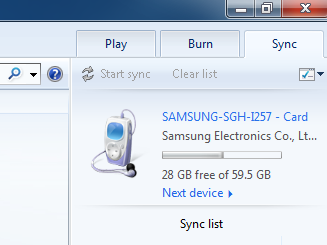
With your device and PC successfully connected to each other and driver installed, go to the sync tab on the right side of the screen where you should see a graphic representing your device.

media android

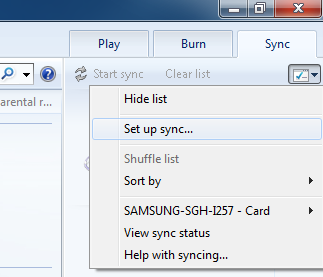
Underneath the Sync tab is a box icon with a green checkmark. Click on it for a drop down menu to appear. From here, select Set up sync…

media android 2

Now you will want to go to the Device Setup menu. The default setting will allow the device and WMP to sync automatically, meaning that any change to either library will instantly be reflected in the corresponding library every time a connection is made. To activate this automatic sync feature, along with any other adjustments you wish to make, select the Finish button in the Device Setup menu.

Upon selecting the Finish button, your computer will jump into action and begin syncing your files. Once the sync is finished, you can disconnect your device and take all of your favorite media with you wherever you go. To access the media on your mobile device, you can use the standard media player on your device, or a host of other third party media players available on the App store.

The media player that someone uses to manage and play their digital content can vary greatly depending on the needs and preferences of the user. You might be more of an iTunes kind of person, or perhaps you’re happy with Google’s offerings. When selecting a media player, don’t forget about your faithful friend Windows Media Player. You may find yourself surprised that it can do exactly what you need it to.