276677721_tips_400.jpg

Tip of the Week: Simple Windows 10 Tips

276677721_tips_400.jpg

Windows 10 is the benchmark in PC operating systems at this juncture. It offers users all types of great options from previous versions of Windows, while integrating some of today’s most dynamic technology to provide users with the very best in organization and ease-of-use. Today we will talk about five very simple tips that will get you started getting the full function of Windows 10.

Shake to Minimize

Sometimes when you are working in any Windows platform, you will have too many windows open and you just want everything out of your face except the thing you are currently viewing. Well in Windows 10 there is a cool little feature you can use to make that happen very quickly. Just take your mouse (or your finger if you have a touchscreen) and click-and-hold the title bar of the app you are working in and shake it back and forth. This will minimize all other open applications. To get them back, simply repeat the action.

Choose Folders on Start Menu

The start menu is extremely useful in Windows 10, but sometimes it can get cluttered. To choose which folders you want to see on your Start Menu go to Settings > Personalization > Start then click on the “Choose which folders appear on Start” link at the bottom of the screen. From there you can toggle the folders you want to see in your Start menu. 

Find the Original Control Panel

The settings options in Windows 10 are far and away easier to use, but if you are one of those people that likes working with tools they know, the old Control Panel is still available in Windows 10 as it is still the go-to option for customizing advanced options. The easiest way to access the control panel is by clicking on the Cortana icon on the taskbar and typing in “control panel”. It will give you immediate access to all user settings. 

Selectively Sync Folders with OneDrive

One of the best parts of using Windows 10 is the integration with OneDrive cloud storage. Windows 10’s OneDrive integration provides users a lot of flexibility. To sync folders with data stored in OneDrive, make sure OneDrive is running and right-click on the OneDrive icon in the notification area. Select Settings and then navigate to the Account tab. Under the Account tab you will see the option to “Choose folders”. Click on choose folders and you will see a list of the folders you have in OneDrive, select the ones that you would like access to through Windows 10 and select OK. Now you have access to this data through your File Explorer in Windows 10.

Customize Your Application Notifications

Having too many notifications is one of the most frustrating parts of modern technology. To keep from being bogged down with too many notifications, you can customize which notifications you see in Windows 10. To do so, click on Start > Settings > System > Notifications & action. Once there all you have to do is scroll down and select the notifications you want on, and which ones would be better served not notifying you.

Windows 10 has hundreds of options for any user to customize their experience. Check back next week when we provide some more advanced tips on how to best experience the OS.

163051357_digital-signage_400.jpg

Tip of the Week: Using Digital Signage

163051357_digital-signage_400.jpg

Businesses often utilize signage to direct visitors to specific points of interest in their offices, but with the advent of digital technologies, the potential for digital signage is nearly endless. If leveraged properly, these displays can be used to provide key insights into operations, as well as notify employees and visitors of important information.

When we say digital signage, what we mean is having digital displays in your office. You may have seen them out and about in other locations, such as fast food restaurants using monitors as menu boards. In essence, digital signage solutions give your business the opportunity to broadcast content to screens around your office for a variety of reasons, and they are great opportunities to make your workplace a more dynamic experience as a whole.

Showcase Important Information or Statistics

Sometimes you need your employees to see announcements, but you want to make the information known in a more public location. Otherwise, you can use it to display statistics, like the number of sales or a countdown to a certain date or time. Either way, digital signage can be used to keep your staff informed.

Digital signage is also helpful for navigating the office. You can have signs indicating where important locations, like a conference room or bathroom, are located. 

Display Upcoming Dates and Events

All businesses have deadlines of some sort, and digital signage is a perfect way to broadcast it to your entire office… or at least the locations where digital signage is used. It’s an easy, supplemental way of drawing attention to certain times, dates, or events that are arriving in the future. 

Monitor Goals More Effectively

Digital signage can help your organization keep its employees accountable through the display of goals and key performance indicators. You might even be able to foster some healthy competition between your organization’s employees, as their performance will be displayed in an easy-to-understand format.

Does your business need assistance with setting up or acquiring resources for digital signage? NuTech Services can equip you with all the assets you need to make effective use of digital signage. To learn more about what we can do for your business, reach out to us at 810.230.9455.

48319365_word_400.jpg

Tip of the Week: How to Customize Your Microsoft Word Tools

48319365_word_400.jpg

It’s probably pretty fair to say that Microsoft Word has become the poster child for word processing programs – and for good reason: its tools and capabilities are very well-suited for the user’s needs. Did you know that you can even adjust Word so that it better fits your use of it? For this week’s tip, we’ll go over a few ways to do so.

Customizing the Quick Access Toolbar

The Quick Access Toolbar can be found at the top left of the window, with default options like Save, Undo, and Redo. It’s pretty easy to spot, isn’t it? This is one of the reasons that adjusting it to your preferences can be so helpful.

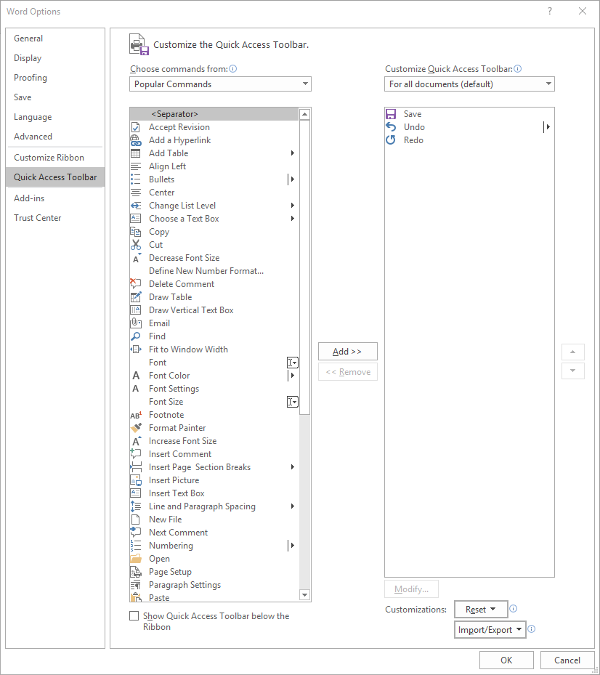
Making these changes is fairly simple. Your first step is to access the Quick Access Toolbar’s options. Under File. select Options, and in the window that appears, click Quick Access Toolbar in the sidebar menu. It should look like this:

From here, you can see that the typical Save, Undo, and Redo options are in the Quick Access Toolbar – which is all well and good, but you can easily use keyboard shortcuts to accomplish the same things.

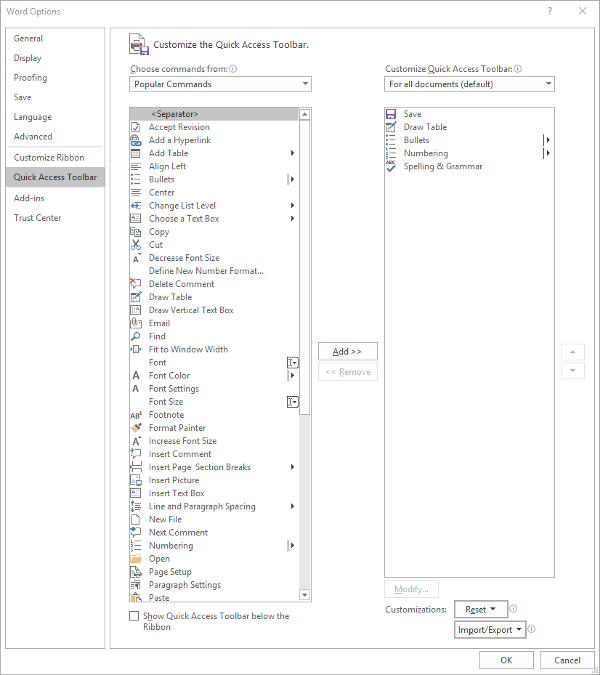
You might find a different assortment of tools more handy to keep in your Quick Access Toolbar. Altering them is simple enough from this menu, all you have to do is select the item and click the appropriate button, Add>> or <<Remove. The list on the left defaults to Popular Commands, but there are plenty of options to choose from, based on your needs. For now, we’ll stick to Popular Commands.

Let’s assume you use Word to put a lot of data into context, so you use a lot of lists and tables… and it needs to be spelled correctly. You can easily change your Quick Access Toolbar to meet these preferences.

Once you’ve done so, just click OK and your changes will be saved. You can always revert to the default settings by using the Reset option as well.

Customizing the Ribbon

The Ribbon in Word is where you find your options like Home, Insert, and the rest. Depending on your usage, you may not have much of a need for some of these options. Let’s assume that you don’t have any purpose for the Mailings tab, or the Draw tab, for that matter.

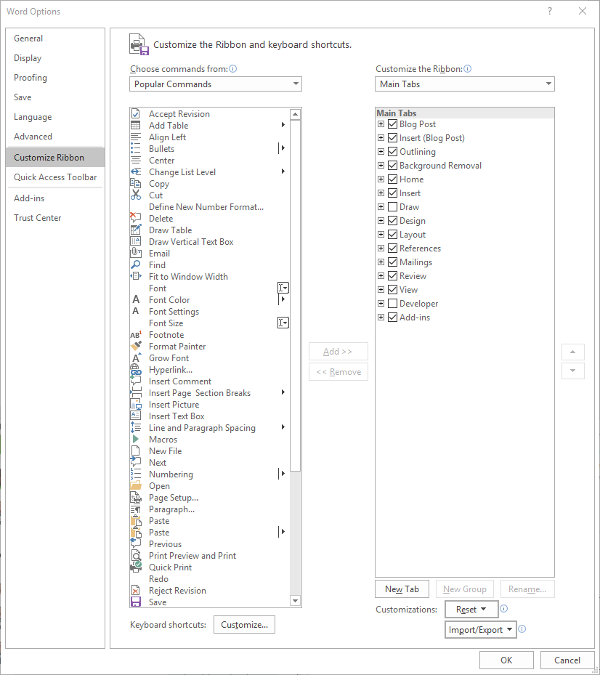
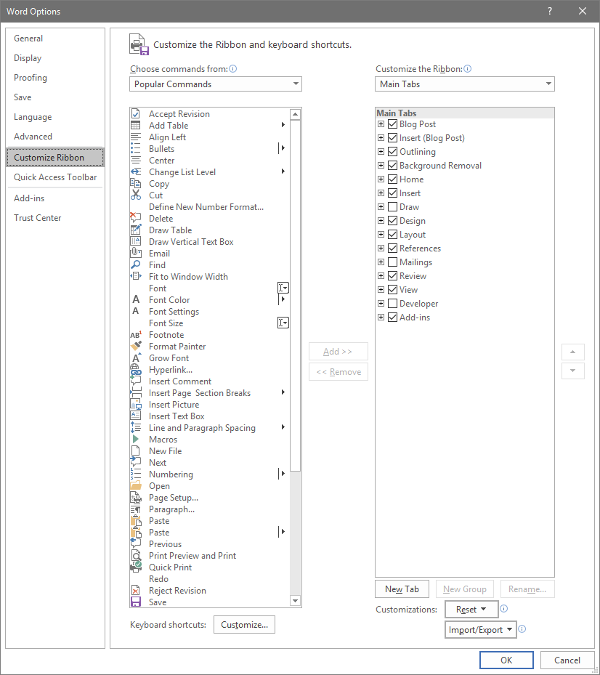
Again accessing File and Options, this time we’re looking for Customize Ribbon, which looks like this:

Just as we did with the Quick Access Toolbar above, you can adjust what is displayed in the Ribbon. Since we’ve established that – in this example – we have no purpose for either the Mailings or Draw tabs, we can uncheck them to remove them from the Ribbon display.

Customizing the Status Bar

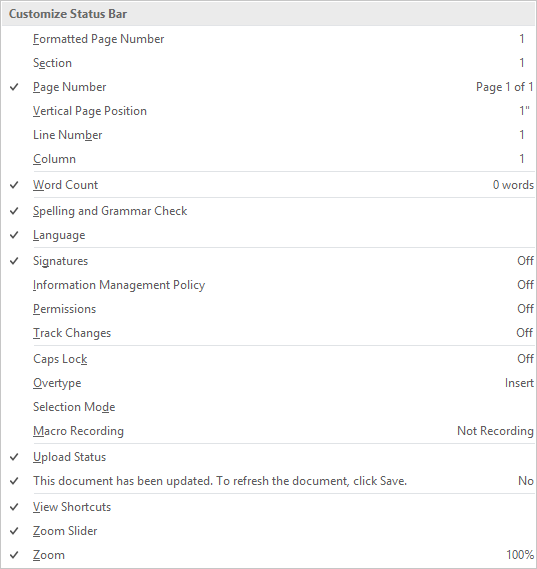
At the very bottom of the window is the Status Bar, which can be altered to provide other valuable information based on what you have prioritized. Doing so is very simple: just right-click on the Status Bar, and select (or deselect) the options.

There you have it- three ways to customize Microsoft Word to better suit your purposes. For more technology tips, make sure you subscribe to our blog!

85639707_microsoft_word_400.jpg

Tip of the Week: Adjusting Microsoft Word to Match Your Style

85639707_microsoft_word_400.jpg

The popularity of Microsoft Word is undeniable, in part because it features preconfigured settings to make it easier for its users. While these settings are useful for most of these users, they might not reflect your business’ use of Word. Fortunately, you can make adjustments to these settings to increase the value that Word can offer your business. Here, we’ve put together some tips to help you make these changes, if you so choose.

Before we get started, we want to make sure that you know to consult with your IT department or provider before you go to make any of these changes. That way, they will be able to undo any mistakes you or your employees might make during the following processes.

Customizing Word’s Rules to Meet Your Preferences

It’s likely that there are some things that you regularly type into Microsoft Word that it may not agree with. Your company’s name might not exactly jive with the grammatical rules that the rest of the language should subscribe to, for instance, or you may prefer to stylize certain terms or phrases differently. Word isn’t going to like this, and is going to try to let you know that a mistake has been made. Of course, it might also just change the word you typed to what it is “supposed” to be.

These corrections can be a pain to repeatedly make, and there’s always the chance that one will be missed. Fortunately, Word offers you the opportunity to “teach” it new rules via a fairly simple process.

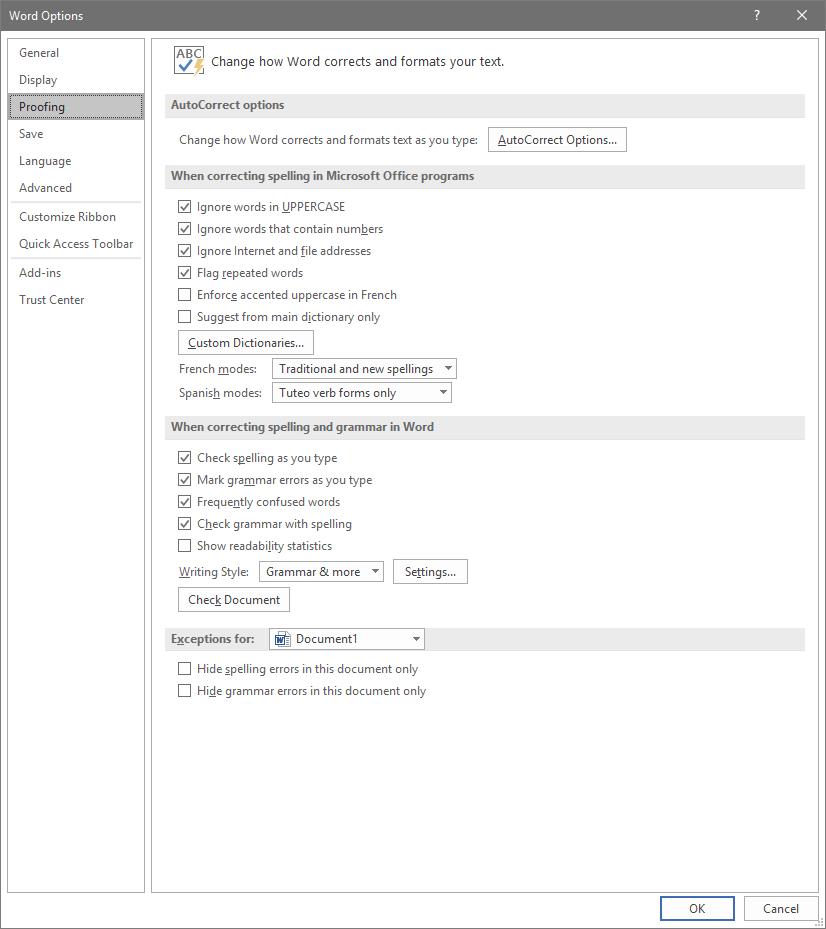
To access these rules, select File, and from there, Options. A new window should pop up with a Proofing option in the list. That page looks like this:

Adjusting AutoCorrect

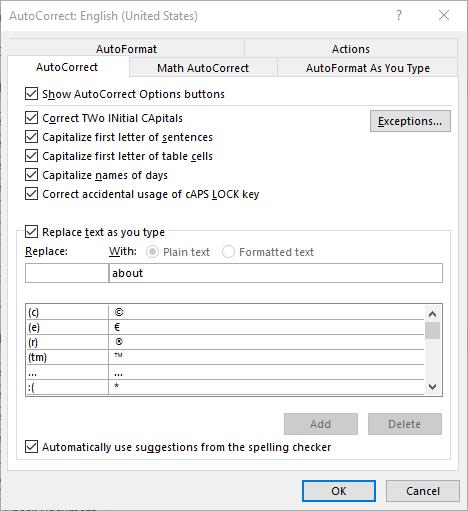
Here, you can alter a variety of proofing options, including your AutoCorrect Options. Clicking that button will present you with another window.

This window allows you to set your AutoCorrect rules, identify any exceptions you might want to make, and review how misspelled text can be automatically revised.

Establishing Grammar Rules

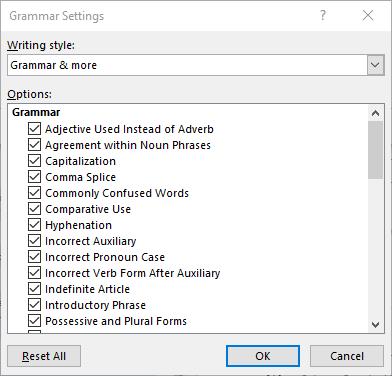
Returning to the Proofing List window, you also have other options that allow you to adjust Word’s corrections. For instance, clicking the Settings… button under When correcting spelling and grammar in Word provides another window. From here, you can control which grammar rules Word will flag or ignore in your copy.

Stop Worrying About Word Changing What You Write

By implementing these changes, you can prevent small annoyances from interrupting you as you work with Microsoft Word. This way, you can accomplish more without having to worry about dealing with automatic corrections again.

For more tips on how to best leverage your solutions to save you valuable time and money, subscribe to our blog!

2.5_72712129_windows_400.jpg

Tip of the Week: How to Speed Up a Slow Windows 10 Device

2.5_72712129_windows_400.jpg

Windows 10 is a remarkable tool. Having said this, it can sometimes seem to slow to a crawl… not the ideal situation when you’re trying to be productive. That’s why we’re devoting this week’s tip to speeding up Windows 10.

However, as with any changes you are considering to your computer, you should lean on your IT resource to determine if it’s okay to make these adjustments. Better yet, IT may want to make them for you. One way or another, make sure you get the all-okay before switching anything on a work device.

Cleansing of Bloatware
Whether you picked something up during your browsing or the device’s manufacturer installed it during production, your computer can easily collect programs known as bloatware or adware. These programs, while not always harmful per se, can easily eat up system resources for nothing. Ask your IT resource to seek out these programs and eliminate them for you. This alone may result in some considerable boosts to your computing speeds.

Adjust Power Settings
While it may sound like a good idea, the Power saver plan that comes baked-into Windows 10 can actually make your experience as a user more of a pain. This is because this setting cuts your device’s processes to minimum so that energy can be conserved. Furthermore, desktops are plugged in as a rule, leaving little reason to use Power saver anyways. To improve performance on your Windows 10 laptop, stick to the Balanced power option when unplugged, and switch to High when power is available.

Kill Windows Tips and Tricks
Yes, it’s ironic that we’re recommending that you disable Windows Tips and Tricks in a tip-based blog post, but there are a few compelling reasons to do so. Most pertinent to our current conversation, the fact that Windows is analyzing your usage with these capabilities enabled means that your device’s performance is going to suffer.

In order to disable these invasive bits of advice, click the Start button. Under your Settings, access System and from there, Notifications & actions. Under the Notifications section, you will find the option to Get tips, tricks, and suggestions as you use Windows.” Deactivate this option, and you won’t have anything more to worry about.

Finally, the Cliché: Restart Your Device
Yes, this suggestion has become a joke in and of itself, as the IT field’s go-to question. However, there’s a really good reason for this: restarting a device can often solve its issues. This is because it clears out the use of the computer’s resources, wiping unneeded memory usage and stopping equally unneeded background processes. Restarting your workstation effectively gives it a fresh slate, allowing it to run much better than it did when it was bogged down.

Let us know if there are any other tips you want us to share in the comments, and don’t forget to subscribe!

85140760_S_time_400.jpg

Tip of the Week: 3 Ways to Optimize Your Time

85140760_S_time_400.jpg

Time always seems to escape so many of us. What should be easily accomplishable in a morning can easily stretch to the afternoon, for what seems like no reason. The hard truth is, it isn’t time’s fault… it’s our own bad practices. For today’s tip, we’re going over how you can fight these tendencies to optimize your use of the time that is available.

1. Prioritize

One of the biggest time sinks to be found in any business is the simple act of deciding what to work on next. We’ve all been there at some point: having finished one task, we suddenly reference our to-do list and encounter the same problem as a kid has in a candy store… too many options.

Taking a few moments at the start of every day to organize these tasks can greatly improve how you spend your time throughout the rest of the day, and can ultimately lead to far less waffling later on. With a set process laid out, you no longer have to make the decision over what to work on next – it has already been made.

To create this order, look at everything you have to work on and establish how urgent each task is compared to the others. Deadlines are a handy way to help establish this, or if someone else in your organization needs it before they can continue their work. Identifying these qualities and ordering your tasks accordingly from the start is a small time investment, especially when you consider the impact it can have on your productivity later on. Utilizing a communications and collaboration solution can help you establish the organizational priority of each of your tasks with the help of your team.

2. Habitually Limit the Time You Spend on Rote Tasks

There are always those tasks that pop up throughout the day that seem insignificant at the time. Take checking your email, for example… how long does it take to do that? However, checking email and a variety of other tasks can quickly grow from a momentary activity to an extended process.

After all, there’s always the chance that briefly responding to an email could pull you into an extended and time-consuming debate.

Furthermore, some of these tasks carry the expectation that you will immediately drop what you’re doing to take care of whatever’s needed. Emails are notorious for communicating this urgency, whether or not it was intended. Regardless, it puts pressure on the employee to switch their focus, which hurts productivity.

Instead, establish a practice of setting a concrete period out of your day where you will check and respond to your email, or whatever task it is that applies to your situation. Actually schedule this time into your day, using the business management solution that your company has in place to control schedules. Outside of that time, leave that task alone… if an email’s contents are truly that important, you’ll find out about them some other way before long.

3. Delegation and Outsourcing

We get it, business matters and activities tend to be kept close to the chest. After all, if you can’t trust yourself to do something right, who can you trust? Who else has the incentive you do, to do the best job possible?

Frankly? Someone you’ve hired to do a job.

Delegation can be difficult, of course, but only if you don’t trust those around you. However, there are plenty of resources out there, both inside your business and available through outsourcing, that could do exactly the job that needs ro be done. As a result, you can divert your focus to tasks that need it more, trusting the resource to produce.

You may have to put in a bit of time picking the best resources, especially when outsourcing, but the results will be well worth the time.

NuTech Services can help you put these practices into action, with the added effects of the solutions that can be implemented to make these practices easier. Give us a call at 810.230.9455 to further discuss any of the solutions we’ve described here, and for more handy tips that could help you better leverage your time, subscribe to our blog!.

78169116_S_email_400.jpg

Tip of the Week: Simplifying Your Email with Consolidation

78169116_S_email_400.jpg

How many email accounts do you have? Out of those, how many do you check regularly, and how many different platforms are they on? Too many, and you’re apt to miss something important. That’s why we’re going over how to ensure that your emails are well-organized and accessible from a single source.

One Account, Two Accounts, Three Accounts, Four…
Based on your work responsibilities and how your office is structured, it is quite possible that you need regular access to multiple email accounts. You could have one you use internally, one for communicating with clients, one to reach out to vendors, one to use to sign up for resources… you get the point. When all is said and done, that’s a lot of email messages.

However, you presumably have other work responsibilities beyond just checking your email, so switching between all of them just isn’t a practical option. Well, it just so happens that you won’t need to switch, as the email client you choose will be able to consolidate these multiple accounts for you. Before we get into how, we need to make sure that we’re speaking the same language here.

– An email account is the individual address used to send or receive a message. In your organization, you might have employee1@yourbusiness.com and employee2@yourbusiness.com. Likewise, each employee may have a different account for their different responsibilities – for instance, employee1vendor@yourbusiness.com and employee1internal@yourbusiness.com.

– An email client is the program that allows you to send and receive emails. Gmail and Microsoft Outlook are two perfect examples. If you have multiple clients stored on the same server, they can be used pretty much interchangeably, each client presenting all emails. An email client also has a few features that enable you to better keep track of multiple email accounts, provided you have set it up to do so.

Let’s go over your options now.

Multiple Inboxes
The people who developed the email clients that we use weren’t naive. They understood that a given user isn’t going to be tied down to a single email provider, and certainly not a single account. This is why email clients can support multiple inboxes, assuming they are configured correctly. Multiple inboxes allow a user to access a single client to manage multiple email accounts, streamlining the process greatly and enabling customized organization.

Multiple Email Personalities
On the other hand, some users don’t mind leveraging one inbox, but might still need to utilize more than one address in their correspondence. There is also a method that enables the use of a single, catch-all inbox, but enables the user to select which email address (in this case, known as personalities) their response is sent from.

To do so, you will first need to set up an email account that you do not give out, as it will serve as the catch-all address that all of your emails ultimately accumulate within. Once it has been set up, you need to set all of your other accounts to forward their contents to that mailbox – your internal IT resource should be able to help.

Once your messages are all being sent to the catch-all account, you will be able to respond to these emails from the address that they were originally sent to.

Setting Up Inboxes and Personalities
In order to accomplish either of these tasks for your client of choice, you will need to adjust a few settings.

Gmail
To add another account to your Gmail client, you’ll need to access your Settings, which means you have to click on the gear icon. Once you’re in your Settings, you should see a tab labeled Accounts and Import. Under that tab, there is a Check mail from other accounts section. Click on Add a mail account, and follow the instructions provided.

To add additional personalities to your Gmail account, you’ll need to again navigate to the Accounts and Import tab. There, you will find a section labeled Send Mail As, with the option to Add another email address. This will also allow you to choose your default email address.

Outlook
As it happens, there are too many different versions of Microsoft Outlook and too many variables to allow us to provide a walk-through. Fortunately, Microsoft does offer some documentation that instructs users how to manage their “connected accounts.” Of course, you can also call 810.230.9455 for our assistance, as well.

Are there any solutions that you frequently use that you’d like some extra tips for? Tell us which ones in the comments section, and don’t forget to subscribe!

100923125_document_400.jpg

Tip of the Week: Do Yourself a Favor, Document Your Processes

100923125_document_400.jpg

The average business has a lot of internal processes, and these processes are typically pretty concrete: to accomplish this task, follow steps A, B, and C, in that order. However, due to the sheer volume of processes like these, it helps to have these processes documented for the benefit of your future employees… and, if we’re being honest, your future self. For this week’s tip, we’ll go over the proper process for documenting a task.

Let’s face it, if your business operates anything like most do, you have far too many of these processes for anyone to reasonably remember. This means that making sure that your processes are both comprehensively recorded and accessible for your employees to reference is a crucial facet to your productivity.

Fortunately, doing so is relatively simple, as long as you go about it properly.

Step One: Identify What You’re Documenting
The important thing to remember about creating documentation is that, unless the task itself is incredibly granular, making the documentation too specific isn’t going to help anyone. On the flip side, any documentation that is too vague isn’t likely to provide anyone with the value that it should.

You need to store your documentation in a centralized place that all employees can access. It helps even more if there is a system in place to allow you to search the contents of each document, sort them in various ways, and highlight changes and edits made to processes. In other words, utilizing a document management system or a knowledge center of some kind will go a long way in preserving the functionality of your processes. There are plenty of tools and applications out there for this, and we can help you choose the best one for your situation based on your specific needs.

Step Two: DIARI (Do It And Record It)
This step will form the basic shape of your documentation, as it will create a step-by-step guide to completing the task as a whole. You’ll need to go through a run-through of the process you’re trying to document, recording every step you take.

Don’t be shy about including details, either. For instance, if your process will require the same questions to be asked each time it is put into action, include the list of questions in your documentation. If someone is supposed to be contacted specifically, identify them in your documentation and provide their contact information.

From here, you should have a pretty good handle on how the process typically goes down… and the insights to make it even better.

Step Three: Refine, Repeat, Revise
When you were running through your process, were there any steps that would have made more sense to do earlier so you could be better prepared for a later responsibility? Try rearranging the steps in your documentation and trying it again. Did it work better, or worse? Take these observations into account and act accordingly.

Really, once you commit the time to doing it properly, creating invaluable and useful documentation isn’t that difficult of a process. You can even bring multimedia into it, if it’s a good fit, using tools like Steps Recorder on Windows.

For more handy IT tips, make sure you subscribe to our blog!

how_to_find_lost_phone_400.jpg

Tip of the Week: Locating a Misplaced Smartphone

how_to_find_lost_phone_400.jpg

The great thing about smartphones, in a business sense, is how portable they are – you can literally be productive almost anywhere. Unfortunately, this also means that they can be lost almost anywhere. Luckily, there just so happens to be a feature built into Android that can help you find yours.

The Stakes Are High
A lost smartphone is something that needs to be taken seriously nowadays. Not only is it an expensive device to replace, its contents could be considered priceless. Anything you’ve accessed via that phone (potentially including your finances and social media) is then at risk. If this device was used for business purposes, your data could be at stake if your device was stolen – and, if you used it as a part of a two-factor authentication measure, there goes your access to your network.

Clearly, this wouldn’t be a good thing.

This is precisely why Android includes a feature to help you find a device, should it ever be lost.

Auto-Location
On your Android device, you need to work proactively and enable a few settings.

In your Settings, you should be able to find a Find My Device option. Make sure this is turned on. Your Location should be set to High accuracy. Finally, you will want to enable Google to Use Location History. While this will diminish your privacy from the eyes of Google, it will make your phone that much easier to find.

To locate your device, you’ll then need to access the same Google account that is used on the device in question from a web browser. Google is able to give you a general idea of where the device was last located on a map, and even what Wi-Fi networks it is connected to. The Find My Device application can do the same thing if you have access to a second device.

Find My Device also allows you to remotely lock your device and display a message to help anyone who might find it get it back to you. Once you’re in the vicinity of your device, you can also command your device to ring. This command will override the volume settings, increasing the chances of it being heard.

If you truly believe that your device has been stolen, there is also the nuclear option: remotely wiping the device via Find My Device.

Keep in mind, in order for these features to work, you absolutely have to enable them on your phone first. Otherwise, you’ll be out of luck if the device ever goes missing.

Act Fast
It is also important to remember that these features will only work as long as the phone is on. Sure, you could still check for its last known location in Find My Device, but there’s no guarantee that it will still be there.

Finally, if you truly believe that your device was stolen, contact the proper authorities and give them everything you know.

With any luck, you’ll be able to find your lost phone lickety-split. While you’re here, take a look at some of our other blogs, where you can find other handy tricks and useful information, courtesy of NuTech Services.

totw_replicate_relocate_400.jpg

Tip of the Week: How to Replicate and Relocate Text Easily

totw_replicate_relocate_400.jpg

Sometimes, things are written in the wrong place. Fortunately, there are means of moving them if they happened to be written using a computer. These processes are relatively very simple and are so commonly used that the shortcuts are right next to each other on the keyboard. For today’s tip, we’ll review how you can cut, copy, and paste content in effectively any program you use.

Once you have your content selected, whether it’s text or an image, all you have to do is press two keys.

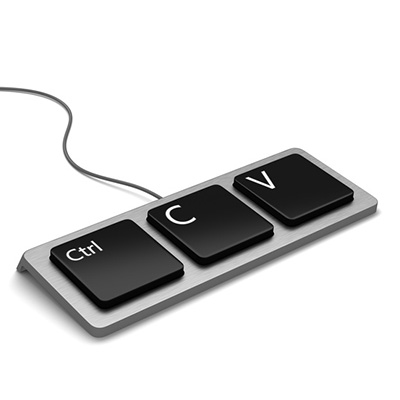
To cut a word or phrase from one place in your content, press Ctrl + X. To copy this content instead, keeping the original and duplicating it elsewhere, press Ctrl + C. Pasting your content is just as simple – with the place you want the content added selected, press Ctrl + V. This will insert your content where you want.

If you happen to be copy-pasting from a website to another document, it may not be a bad idea to paste it without bringing any formatting from the website over. Otherwise, it is apt to look funny on your documents. Pasting without formatting is almost as simple as regular pasting, you just add another keystroke in the middle: Ctrl + Shift + V.

Of course, any of the tasks can be accomplished with the mouse alone. Right clicking on a word, an image, or a group of selected text will bring up a menu that includes all of the above options. However, your cursor is generally more accurate than the mouse, so you may have to undo your efforts (Ctrl + Z) a few times before it’s right.

Real World Example:
Let’s say you want to send a webpage link to someone in an email or instant message. In your web browser, click the address bar (that’s the part with the ‘http://… “). That will highlight the URL. Hold down Ctrl and press C. Then go into your email or instant messenger, click where you want to paste the URL, and hold down Ctrl and press V.

Whichever you use, it’s bound to be more time-efficient than rewriting anything that needs to go in a different spot. Make sure you subscribe to our blog, so you can be alerted whenever we upload more content!

evernote_tips_400.jpg

Tip of the Week: Using Templates in Evernote

evernote_tips_400.jpg

The note-taking application Evernote is a favorite of many users, as it allows them to keep extensive notes in an organized fashion. Its true utility goes beyond that of a digital scratch pad, however, as it has additional features that offer much more. For this week’s tip, we’ll review one particularly useful feature: templates.

What Are Templates?
Evernote’s templates are handy, pre-built structures for notes that provide users with a simpler means of organizing specific types of information. Instead of taking time struggling with your formatting each time you start a new note, you can apply one of the templates that Evernote offers on their website. Those with a subscription to Evernote Plus, Premium, or Business can even use formatting they’ve created in past notes to generate their own templates for repeated use.

Applying Templates in Evernote
Once you’ve acquired a few templates, either from the Evernote website’s collection or from a past note, applying one of your choosing is relatively simple.

  • In Evernote, start a new note.
  • In the body of the note, click Templates to view the ones you have saved.
  • From there, you can search for any templates you have, delete ones you no longer want or need, edit their names, and of course, apply them to notes.
  • If you want to edit a template, follow the same process, and once you’ve made the changes that you want, save it as a new template. Note: only those with Plus, Premium, or Business accounts are able to do this.
  • Plus, Premium, and Business users are also able to create their own templates this way.

So, what do you think? Is this a welcome change to Evernote? What other improvements would you like to see them make down the line? Let us know in the comments!