mobileMagnifyingGlass_71159277_400.jpg

Tip of the Week: Adjust Your Screen Size in Android

mobileMagnifyingGlass_71159277_400.jpg

Sometimes you just want to look at your phone without squinting at the screen to read small text. In cases like this, you can change the display size of your Android’s screen. To get started, simply follow the directions in this blog article. Before you know it, you’ll be browsing your phone without having to strain your eyes.

Please keep in mind that you need to be running at least Android 10 to follow the steps in this blog.

Change Your Display Size in Android

We should preface this by saying that we aren’t changing the physical screen size; rather, we are adjusting the screen’s zoom. Adjusting the zoom can make fonts easier to read and objects easier to see or interact with. To get started, go to the Settings app. If you swipe down on your screen twice, you should see a gear icon at the top of the screen. Tap it to open up the Settings.

From here you should select Display. You should see several options appear before you, but the one you are looking for is Display Size. If you don’t see this option, you should see a Screen Zoom option which functionally does the same thing.

You should see within this setting a drag bar at the bottom of the screen. You can tap and drag the meter to adjust the screen zoom for your device. Find your preferred setting and you should be all set.

Can I Change the Screen Resolution?

Adjusting the resolution can also help make certain objects or texts more crisp. To change this, simply follow the same directions outlined above. However, instead of clicking on Display Size or Screen Zoom, click on Screen Resolution. You can adjust it to suit your needs.

That’s it! By following these simple tips, you can use your device without straining your eyes or viewing blurry images. You’ll find that it’s easier on your eyes and more enjoyable to use in general.

For more great tips and tricks, be sure to subscribe to our blog.

appCacheCleaner_294613377_400.jpg

Clearing an Android Device’s Cache

appCacheCleaner_294613377_400.jpg

While you’re using your device, it will store data in a temporary location called the cache. In order for your device to operate as well as it can, you might find yourself in need of a good ol’ cache-clearing. You can do this on the device level and on the application level. Let’s take a look at how you can do this for your Android device.

Clear the App Cache

If you have an application on your device that is giving you issues, you can clear the cache to try and resolve the issue. Start by opening your Settings app and selecting Apps. This process might look slightly different depending on your device’s operating system and model, but it should be something close to this.

Pay attention to where it says Your Apps. You should see a hamburger menu here, which will display all of your device’s applications. If you sort your apps by their size, you’ll see which ones are taking up most of the space on your device. Select the app you want to clear the cache for to move on to the next step.

From the app’s page, you’ll see an option for Storage. At the bottom of the screen, select the Clear Cache option. The cache will automatically refill over time—after all, the data stored in the cache is supposed to improve performance and make your device run a bit better—so if you ever notice that it’s getting a little too bogged down, it’s a good idea to periodically clear the cache.

Clear the Browser Cache

Similarly, you will want to clear your browser cache every so often to delete any temporarily stored images and site files. Here is the process for how you can do it with your favorite web browser:

  • Chrome: Three Dot Menu > Settings > Privacy and Security > Clear Browsing Data
  • Firefox: Three Dot Menu > Settings > Delete Browsing Data
  • Edge: Three Dot Menu > Settings > Privacy and Security > Clear Browsing Data

The process is mostly the same for each of the mobile web browsers. All you have to do is select the kind of data you’d like to delete from the cache.

What other tips would you like to see us cover in the future? Be sure to let us know in the comments.

416046837_notifications_400.jpg

Tip of the Week: Get Your Dismissed Notifications Back in Android

416046837_notifications_400.jpg

Picture this scenario: you’re going about your day and get an important notification, only for that notification to, well, get cleared. You want to go back and check it so you don’t miss it. This is thankfully quite easy to do by viewing your Android notification history.

First, you’ll have to take a couple of steps to set it up.

Turn On Your Notification History for Android

Android has a feature for notification history which is hidden away in the settings. This feature gives you the ability to see a list of your notifications. It’s not active by default, so it’s time to turn it on. Follow this simple process:

  • Access your Settings either by swiping down on your homescreen to get to the integrated shortcut, or by navigating through your applications to find them.
  • Once there, access your Notification settings, and from there, Advanced settings.
  • You’ll then see Notification history. Tap it to access it.
  • Once you do, you’ll be presented with a deactivated switch. Turn the switch to On, and you’ll have a list of the notifications you recently dismissed!

What About Apple Devices?

Apple does not have an equivalent feature; once your Apple notifications have been acknowledged, they are cleared and gone for good.

Have Any Other Ideas for Tips?

You use technology every day to be productive, and we want to help you get the most out of it. To learn more about what we can do for your business, contact us today at 810.230.9455.

affordable_phone_370903149_400.jpg

Phones for 2022 – The Value Devices

affordable_phone_370903149_400.jpg

Last week, we published a blog about the most impressive new smartphones on the market, but the price tag might be a bit daunting for some organizations and users. For those focused more on value, here are three options that you can pick up for less than $500.

Google Pixel 5a 5G

The Pixel 5a, more or less a copy of the Pixel 4a, offers a brushed aluminum back and Gorilla Glass 6 front protecting its aluminum frame. It also sports a 6.34-inch,1,080 x 2,400 pixel OLED display. Instead of using the more recent Tensor chip, the 5a is powered by a Qualcomm Snapdragon 765G with 6G of RAM and 128 GB of onboard storage. The specs are basically the same as the Pixel 4a, but there is still a significant power for price for this mid-range smartphone.

The camera setup is similar to other Pixel phones. Powered by the Android 12 operating system, the Pixel 5a’s 12.2MP wide angle lens and 16MP ultrawide angle lens can take some excellent pictures for a mid-tier phone. The front-facing lens is an 8MP wide angle lens. Compared to the other Pixel phones, the battery here is quite impressive, sitting at 4,680 mAh for a 122-hour battery life and 18W fast charging. Users also have access to a rear-mounted fingerprint sensor and IP67 dust and water resistance. Only available in Mostly Black, $449 can get you the Pixel 5a from the Google Store.

Google Pixel 5a
Body:  Aluminum frame, aluminum back, Gorilla Glass 3 front. 
Display: 6.34-inch OLED, 1,080 x 2,400 (~415 ppi)
OS: Android 11, Upgradable to Android 12
Chipset: Qualcomm Snapdragon 765G
Memory: 6 GB RAM, 128 GB Storage
Expandable Memory: No
Cameras: Rear – 12.2 MP 27mm; 16 MP 119º; Front – 8 MP 24mm
Sounds: Stereo sound
Battery (battery endurance rating): 4,680 mAh (122 hours)
Security: Rear-mounted fingerprint sensor
Miscellaneous: IP67 dust and water resistant
Other versions: n/a

Samsung Galaxy A71 5G

With an aluminum frame, the A71 5G sports a plastic back and Gorilla Glass 3 on the front, along with a 6.7-inch Super AMOLED Plus display with a 1,080 x 2,400 resolution. The model will determine whether you are equipped with an Exynos 980 chipset with either 6 or 8 GB of RAM. Regardless, you are getting 126 GB of onboard storage with microSDXC expandability. The device comes with Samsung’s One UI 3.0 operating system and Android 10, but it can be upgraded to Android 11 and One UI 3.2.

The device’s back has four rear-facing cameras in total: one a 64 MP wide angle lens, another 12 MP ultrawide lens, and a 5 MP macro lens joined by a 5MP depth camera. On the front, you get a 32 MP wide angle lens. The Galaxy A71 5G offers 5G capabilities powered by a 4,500 mAh battery with 25W fast charging. The device is also secured by an in-display fingerprint sensor. The A71 5G is available in Prism Cube Black, Prism Cube Silver, and Prism Cube Blue online for $250 to $350.

Samsung Galaxy A71 5G
Body: Aluminum frame, plastic back, Gorilla Glass 3 front
Display: 6.7-inch Super AMOLED Plus, 1,050 x 2,400 (~393 ppi)
OS: Android 10, upgradeable to Android 11; One UI 3.0
Chipset: Exynos 980
Memory: 6-to-8 GB RAM; 128 GB onboard storage
Expandable Memory: microSDXC
Cameras: Rear – 64 MP 26mm; 12 MP 123º; 5 MP macro; 5 MP depth; Front – 32 MP 26mm 
Sounds: Stereo sound
Battery (battery endurance rating): 4,500 mAh (98  hours)
Security: In-display fingerprint sensor
Miscellaneous: 25W fast charging
Other versions: Samsung Galaxy A71; Samsung Galaxy A72 (2021)

Motorola Moto G Power

Constructed from a hard plastic frame and back as well as a glass front, the Moto G Power is a far cry from quality build, but it does have a solid value proposition. Its screen is a 6.6-inch IPS LCD, 90 hertz display with a resolution of 720 x 1,600, running Android 11 on its Qualcomm Snapdragon 662 chipset, with 4 GB of RAM and your choice of 64 GB or 128 GB of onboard storage. This device only costs about $200, so it’s hard to beat that value.

As for its camera, the Moto G Power claims a 48 MP wide angle camera with a pair of 2 MP cameras for depth and macro resolution. On the front, there’s an 8 MP wide angle lens. This device also sports a 5,000 mAh battery and 10W fast charging with 130 hours of battery life, all for under $200. With a side-mounted fingerprint sensor to help secure it and a water-repellent coating protecting it, the Moto G Power is a relatively affordable choice in Flash Gray and Polar Silver.

Motorola G Power
Body: Plastic frame, plastic back, glass front
Display: 6.6-inch IPS LCD; 720 x 1,600 (~270 ppi)
OS: Android 11
Chipset: Qualcomm Snapdragon 662
Memory: 4 GB RAM; 64-to-126 GB onboard storage
Expandable Memory: microSDXC
Cameras: Rear – 48 MP wide; 2 MP depth; 2MP macro; Front – 8 MP wide
Sounds: Stereo sound
Battery (battery endurance rating): 5,000 mAh (~130 hours)
Security: Side-mounted fingerprint sensor
Miscellaneous: Water-repellent coating
Other versions: n/a

Other Phones to Think About

There are other phones you can purchase based on the value they offer, such as the last iteration of today’s flagship devices. They might cost you more than the above options, but they are certainly less than those from this year. All that said, even this year’s flagships also offer multiple models that are somewhat affordable. Instead of the iPhone 13 Pro Max, maybe purchase an iPhone 13. The Google Pixel 6 comes with the new Tensor chip, and only costs $599. Regardless, know that it isn’t that hard to find a good value in a device without having to shell out an extra $50 every month to lease from your carrier.

Next week, we’ll take a look at the form factor for this year’s smartphones, including their designs. Don’t miss it!

253622932_email_encryption_400.jpg

Considering Encryption in Light of Android Messages’ Update

253622932_email_encryption_400.jpg

With the addition of end-to-end encryption to Google’s Android Messages application, we have a perfect opportunity to discuss the concept of encryption and why it is so important. Let’s dive right in, shall we?

First, let’s go over what encryption is, as a bit of background.

What is Encryption, and How Does it Work?

If you’re looking to keep data secure as you share it or store it, encryption is one of the best means to do so.

For instance, let’s say that (for whatever reason) we wanted to share a line from Romeo and Juliet with someone, but we wanted to make sure that the someone we’re sharing it with would be the only one to get that information. By using encryption, we can take the following passage…

“But, soft, what light through yonder window breaks?
It is the east, and Juliet is the sun.”

…and turn it into this as it is sent along:

OoLCYOGthzwihU03wMa6y1xdbXhK4bM+XQCE02c2LCV6qg2mdGPG4MWgPHOQzmkfUC2jxq2/sKE9eN4E+6ByUBGukTFnxL9ShM0oqIv3HAN7m8yXBOwyMa9B6Hn2FXYw

Once this information has been encrypted, only someone with the decryption key could take this jumble and restore it to William Shakespeare’s classic piece. Think of it like using the Ovaltine decoder ring from A Christmas Story

Obviously, this is a gross oversimplification of how encryption works. In reality, encryption is effectively an enormously complicated math problem that would take even the most powerful computer centuries to solve.

Okay, so now that we’ve established what encryption is, let’s dive into what Google has done with its Android Messages app.

Google is Adding Encryption to the Stock Message App on Android

First announced at the launch of its beta test in November of 2020, all up-to-date instances of the default Android Messages application now feature end-to-end encryption. This is certainly a welcome improvement, as SMS messages are often used to transmit sensitive information and two-factor authentication proofs.

As of right now, this encryption feature comes into play with one-on-one chats between users who have chat features enabled on their device, and is visually represented by a padlock at the top of the screen.

Encryption is a Tool That You Should Be Using

While encryption alone won’t be enough to completely protect your business’ processes as a whole, that isn’t to say that it can be skipped—quite the opposite.

NuTech Services can assist you in implementing this and various other security measures and protocols. To learn more about what we have to offer, give us a call at 810.230.9455.

201836699_malicious_app_mobile_400.jpg

Don’t Let a Malicious Application Undermine Your Mobile Security

201836699_malicious_app_mobile_400.jpg

While you’ll probably hear us recommend that you update as soon as possible at every opportunity, the source of these updates is important to consider. This is especially the case now that mobile security firm Zimperium has discovered a new mobile spyware that pretends to update your mobile device… but actually steals data and monitors the user’s search history and location.

Called “System Update,” many Android users have already fallen victim.

What “System Update” Does

The Remote Access Trojan (or RAT) that powers this spyware isn’t available through the Google Play store. This means that this message/contact/device info/browser bookmark/search history/microphone and camera access-stealing application isn’t available to most users.

However, should a user download it, the app could continuously track their location with the application kicking into effect whenever new information is sent to the device. The app then covers its tracks once your data is stolen, making it something that should not be taken lightly.

How is System Update Being Spread?

Perhaps unsurprisingly, phishing has proven to be an effective means for the System Update application to be spread. Despite repeated warnings from Google to never install applications from outside the official Google Play Store, many—especially those with aging devices—seek out new apps and options from other, far less trustworthy sources.

How to Protect Yourself

First, don’t download applications from outside of the Google Play Store. While some malicious apps have snuck past the review process to appear on its pages, this is a very rare occurrence. Question every attempt made to send you to another source of a download, erring on the side of avoidance.

NuTech Services can help your business do even more to protect your business from these kinds of threats, providing and using tools like mobile device management (MDM) and a Bring Your Own Device (BYOD) policy. Give us a call today to learn more at 810.230.9455.

217849482_frustrated_mobile_400.jpg

Frustrated by Your Android Device Lately? A Bad Update Might be Why

217849482_frustrated_mobile_400.jpg

With a global market share of 71.9 percent, the Android operating system that Google provides is well and away the most utilized there is today. Despite the fact that different phone manufacturers will fiddle with the OS to fit into the devices they create, Android tends to be pretty stable—which is part of the reason why many users were surprised around March 22nd, 2021. This is when these users discovered that their applications were crashing incessantly.

This issue wasn’t constrained to a given application, either—numerous, otherwise unrelated applications began to persistently crash whenever the user attempted to start them up.

Gmail reportedly created issues amongst users, while others found themselves unable to do a Google search through their browser. Lastpass also became notorious for crashing during this time. Other applications remained unscathed with no apparent rhyme or reason. It wasn’t as though Google’s applications were specifically creating issues—applications of all kinds were crashing, and giving users no small amount of stress as a result.

The Cause of These Android App Crashes

The underlying cause of these issues was soon identified, and the news quickly spread on Twitter: a system application known as Android WebView had received a buggy update.

Powered by the Chrome browser, WebView is meant to give other applications the capability to reference web-related content. For a short time, the only recourse against these application crashes was to uninstall the updated version—but Google soon released a new update fixing the bug. In fact, some users missed the issue entirely, based simply on the timing of their device’s update checks.

This proves an important point, regardless: while updates are important and should always be seriously considered, they aren’t always perfect and can present some unforeseen flaws. This is something that should always be kept in mind when installing an update on either a work device or a personal device.

This is precisely why we follow a policy to always evaluate updates in a controlled environment—particularly when they pertain to mission critical apps. While it only took Google 12 hours or so to identify and mitigate the issue, it needs to be remembered that it was a particularly pressing one. There is no guarantee that all update-borne issues will be resolved so quickly, especially if one doesn’t affect as many people. The time you have to wait could extend from hours to full days, weeks, or even months.

Hence, why we always recommend that you test updates and patches before applying them to your business’ devices… just to be safe.

Don’t get us wrong: keeping your IT up-to-date is important. However, it is also important that you are still able to use it afterwards. NuTech Services is here to help businesses like yours with their critical IT management and maintenance. Reach out to us at 810.230.9455 to find out more about how we can help.

264585236_guest_mode_400.jpg

Tip of the Week: Politely Protect Your Data with Android Guest Mode

264585236_guest_mode_400.jpg

For many people, their mobile device contains a mixture of sensitive information and personal details. In some cases, some of the data isn’t even theirs—instead, it belongs to their workplace. Naturally, this makes many people less inclined to share the use of their device, but most people also want to avoid being rude.

For precisely these circumstances, Android’s Guest Mode feature allows you to be courteous without potentially undermining the security of your device or, more accurately, the data stored on it.

What is Android Guest Mode?

First appearing in 2014 as a part of Android 5.0 Lollipop, Android Guest Mode is a way that your team can more easily fight against a scammer. Unfortunately, firewalls and antivirus aren’t exactly capable of protecting a phone if the user hands it over to someone with malicious intent—something that could easily happen if the scammer sold their story well enough.

Should this play out, the phone immediately becomes a direct threat to your data.

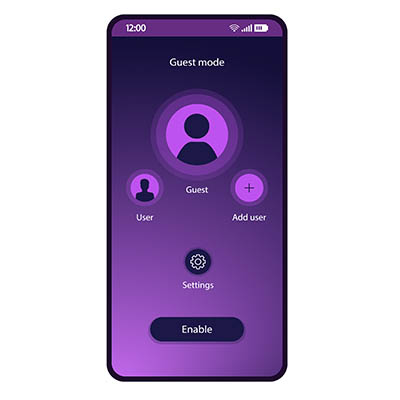
Guest Mode offers you a safe alternative to handing a phone filled with sensitive data over to a potential hacker by allowing you to effectively wipe your device before you share it. If the device’s manufacturer supports the Android feature, you can hide away all your settings, applications, accounts, and other data. Activating Guest Mode allows you to still share the use of your device without sharing access to the data that the borrower has no reason to see.

Unfortunately for Samsung users, the phone manufacturer has removed this feature from their version of Android. Otherwise, an Android user should find the task of enabling and disabling this feature easy to accomplish.

Turning Guest Mode On and Off

Enabling Guest Mode is very simple:

  • Access your device’s Settings.
  • From there, access Advanced and Multiple users. If your manufacturer has changed their menu order, search for “Guest Mode.”
  • Switch the toggle to “On” to enable Guest Mode.

After doing this, the Quick Settings panel and profile it shows can be accessed to Add guest. Reverting to your own settings is as simple as returning to Quick Settings and the user profile. Selecting the option Remove guest and providing verification will restore your device.

Security always needs to remain top of mind, so keep coming back to our blog for regular reminders to help keep your business protected. We can help, too, with our managed services, so give us a call at 810.230.9455 to learn more.

199361750_lost_mobile_400.jpeg

What to Do Immediately If You’ve Lost Your Phone

199361750_lost_mobile_400.jpeg

In our last blog we gave you some advice on what to do if your phone has gone missing, but if it has been stolen or lost for good, there are more pressing issues than the anger and loss you feel; you need to ensure that you and the people you do business with are protected. Let’s take a look at what you need to do to make that happen.

Step 1: Assume Your Phone is Gone for Good

The first thing you need to be aware of is that you probably won’t be getting your device back. In fact, you should operate like you’ll never see it again. This is unfortunate as you’ll need to fork over hundreds of dollars to replace it, but in order to protect yourself and others and avoid even more cost, you have to take action. 

The truth is that your phone has access to a lot of different accounts. Think about how many apps you consistently use, and how many of them have access to your financial and personal information. Now think about how much data is on there from other people. Instant messages, contact info, social media, and your work profile all are exposed if someone is able to access the contents of your phone. 

Once it’s gone, it’s gone. Forget about that phone and forge ahead. 

Step 2: Remotely Lock and Wipe Your Device

Go ahead and wipe the device. You can do this with Apple’s Find My iPhone setting on iPhone or Google’s Find My Device application on Android. From these hubs you can track the device (if you want) but at this point you should just focus on getting the information off of the device as quickly as possible. 

To do this, Apple users will need to log into their iCloud account, while Android users will need to navigate to Google’s Find My Device page. Either one of these methods will give you the device’s exact location, which can be used in context. If it’s at the restaurant you last ate at, you could just go get it, but if it’s some other place you haven’t been, you will want to wipe it and lock the contents of it down. 

If you haven’t set the tools up, your wireless carrier or phone’s manufacturer may be able to help. Here are some links to information that you will need to get in touch with them:

Step 3: Report It

Now that you’ve come to the conclusion that you’ll never see your device again, you need to report it. If you own the device—not had it provided to you through work—you should contact your mobile carrier. They can block your phone from the network and make it much more difficult for people to siphon information off of it. 

For your convenience, here is some carriers’ contact information:

If your phone was given to you by your workplace, you definitely need to report it to them as well so they can take the steps to protect their company data. This goes for any device used for your work in any way. A lost device is a clear liability, with both your data and company data at real risk. Businesses need to have the capability to revoke access to company data and email remotely, or at least remove the device’s work profile.

Step 4: Change Your Passwords

It won’t be easy, it won’t be fun, but it’s time to fill a pot of coffee and change all of your passwords. You will have to change your passwords for your mobile account, and to be on the safe side, all of the accounts found on your phone. First start with these three, if you have them. 

Obviously, every password needs to be unique and complex. Don’t use the same password twice.

Then you will want to prioritize your next moves. Changing passwords is an extremely lengthy experience. We’ve given you an avenue of attack here, starting with: 

  • Email accounts (if you have others besides your main Apple/Google/Microsoft accounts)
  • Banking/financial accounts (bank accounts, credit cards, PayPal, merchant accounts, etc.)
  • Cloud storage accounts (e.g. Dropbox, Amazon, Box, iCloud, Google Drive, Onedrive, etc.)
  • Hosting/Domain-related accounts (e.g. GoDaddy, Network Solutions, Cloudflare, etc.)
  • Social media (e.g. LinkedIn, Facebook, Twitter, etc.)
  • eCommerce stores (e.g. Amazon, Best Buy, Walmart, ebay, etc.)
  • Services/utilities (e.g. Netflix, Hulu, your electric company, insurance companies, etc.)
  • Games and other apps

Again, this is going to take a long time. Take your time. You’ll feel better when all of your accounts are newly secured.

If You Suspect Your Phone Has Been Stolen, Report It to Authorities

After you are done with this, if it’s obviously been stolen, report it to the police. Why not? It probably won’t have any effect, but it is good to have a police record of the theft. These days, people don’t often steal phones, but it does happen occasionally. Most people today know that you can track a stolen phone, but those brazen enough to lift a smartphone are probably not the type of people you want to go confront over it. 

If You Find a Lost Phone

Now if you come across a phone in your daily jaunt out into the world, you will want to find someone to give it to. Typically if you find a phone it will be on a restaurant or bar room table. Just find the manager and give it over. It won’t take long and it could really help someone else out. 

We hope you never have to experience the loss of a phone, but if it does happen, we sincerely hope this guide helps.

254906239_lost_mobile_phone_400.jpeg

How to Find Your Lost iPhone or Android Smartphone

254906239_lost_mobile_phone_400.jpeg

Imagine for a second you are out to a socially distant dinner date with the friends that you barely get to see. You wrap up dinner and say your goodbyes and when you get to your car you realize that you don’t have your phone. COMPLETE PANIC! Your whole life is on your phone. Now imagine that when you went back to the restaurant to get your phone, it wasn’t anywhere to be found. We’ll talk you through how to proceed. 

Use Google’s Find My Device App to Find an Android Device

Android users have access to a feature called Google Find My Device, that you should definitely set up if you haven’t already. You first need to install it from the Google Play Store.

Once the app is installed, it will ask you to log into your Google account. You will want to set up a strong and unique password just as you would with any other account. When asked, you will want to Allow Find My Device to access this device’s location. Now you will be able to see where your phone is. 

Using Apple’s Find My iPhone to Locate Your Device

Apple provides a similar service to iPhone users. You will need to enable Find My iPhone. Find My iPhone is a built-in service that comes as a part of iCloud. As expected, it allows users to track the whereabouts of a lost or stolen device. If you suspect that your iPhone has been stolen, you probably shouldn’t try and go to the location it is at, for safety’s sake. 

The Find My iPhone feature also allows users to remotely wipe the device. This feature can help you avoid identity theft, a data breach, or any other unfortunate experience that could happen with someone in possession of your phone. You will need to opt-in to these services, but you will be glad you did if the worst becomes reality. Here’s how:

On your iPhone or iPad:

  • Open Settings.
  • Access iCloud.
  • Locate the Find My iPhone/Find My iPad slider and make sure it is switched On.

If you haven’t already set up an iCloud account, you’ll be taken through the steps by a tutorial. You will want to set up your iCloud account with a unique and strong password. We keep harping on this point, but it is an important one. 

Apple will let you track your device through its iCloud service as long as it is still on or not in airplane mode. 

Most iPhone users already have, but if you haven’t you should set up Touch ID or Face ID on your device. That way, it will be extremely difficult to access the contents of your phone. To do this, access Settings under Touch ID & Passcode.

If you are careful, you will probably never need these features, but if you do have to use them you will be thankful they are there. With the increasing price of new mobile devices (and the importance of the data stored on them) they offer a kind of insurance against loss or theft. 

At NuTech Services, we know the importance of technology for businesses and individuals alike and hope that you never have to worry about these features. Contact us today if you have any questions about how to protect your business’ data against theft at 810.230.9455.

93116530_mobile_games_400.jpg

Tip of the Week: Four Tips and Tricks Within the Google Play Store

93116530_mobile_games_400.jpg

The Google Play Store is the Android operating system’s primary source of applications and widgets and can do a lot more than many might first think. Let’s consider a few useful tools and tricks that are incorporated into the Play Store that you should keep in mind.

Using a Password to Restrict Purchases

App store purchases can become notoriously expensive, and fast, so it makes sense to do whatever you can to help prevent any unauthorized purchases from going through. One means of doing so is to restrict the capability to make purchases behind password protection. That way you can avoid unwanted spending on your Android device… particularly if others regularly utilize your device.

Filter Apps Based on their Content

The Play Store has content available meant for a wide variety of age groups, due to the inclusion of gambling, violence, or other adult-themed elements present. While this is certainly a reason to restrict such apps for younger users, it also serves as an excellent reason to restrict what your business users can download—although you should also discourage them from using any apps not intended for business use during work hours anyways.

To filter out inappropriate apps, navigate to the Play Store and access Settings. Once there, tap Content Filtering, and select and deselect the maturity levels that apply to your needs.

View All Application Orders and Purchases

Keeping track of your investments into your applications is much simpler that you might expect, as the Play Store keeps a running record of your purchases. Finding this list is simple: all you must do is visit the web version of the Play Store and, via the Gear icon, access the My orders section.

See All Android Devices

Finally, you can track each device connected to a Google Account and used to access the Play Store, as there is a list in your account that outlines them. Finding this list is also fairly simple: from the online Play Store, click into the Gear icon and from there, Settings.

Have you heard about any other tricks behind the Google Play Store? Share them with us in the comments!

81236505_android_400.jpg

Tip of the Week: Simple Solutions to a Few Android Problems

81236505_android_400.jpg

While the Android platform is a highly capable mobile platform, there are a few oddities baked in that can create some annoyances for the user. To help you out, we’ve assembled a few tips to help you prevent these annoyances from impacting your use of your mobile device.

Screen Rotating Too Much? Lock It in Place!

How often have you been in the middle of doing something, only to shift your phone’s position and have your screen switch orientation as it calibrates to what it assumes is what you are looking for? It doesn’t take long for this to get old, and quick.

Fortunately, Android 9 and later iterations have included a fix for this. In your System Settings, access Display and from there, Advanced. Here is where you’ll find the Auto-rotate screen option and the means to switch it off.

Samsung device users have a bit of a different process. This toggle can instead be found in the Quick Settings menu (the one that emerges from the top of your screen by swiping down twice). It includes an icon labeled Auto rotate, which you will want to switch to Portrait. This effectively disables Landscape mode from switching over unless commanded to in context.

Too Many Notifications? You Have More Options than “Yes” or “No”!

We’ve all been there before, too, and have had those applications that—if given permission to notify you of things—do so seemingly incessantly. Android has now made it very simple to adjust these permissions on the fly. Once you receive one of these annoying notifications, you can press and hold it to access a control panel. This panel can be used to either silence your notifications, or completely turn them off.

Has Your Phone Stopped Charging Well? Clean Up the Charging Port!

Debris that accumulates in your phone’s charging port over time can easily interfere with your device’s ability to charge. So, before you assume the worst and start budgeting for a costly repair job, why not try cleaning out this debris?

With extreme caution, take a toothpick or a cotton swab and try to tease out any junk that the device has collected over time. Then, try charging your device again and see if you have any more success in doing so. You may just find that your issue was little more than pocket lint, and not a problem with the hardware.

For more useful technology information, advice, and tips, subscribe to our blog!

221390155-secure-mobile_400.jpg

What’s the Best Way to Secure Your Mobile Device?

221390155-secure-mobile_400.jpg

Smartphones now come with a variety of ways that users can elect to unlock their device, from biometrics to tactile patterns to good, relatively old-fashioned personal identification numbers. Of course, not all these authentication measures secure your phone equally well. Let’s consider some of these measures to determine which one is best for your device’s security.

Why Mobile Security is So Important in the First Place

Consider the capabilities of our mobile devices today, as compared to those that were considered high-end before Apple premiered the iPhone in 2007 (Not to discredit all the classic PDA/smartphones that came before the iPhone, like the Palm Trio, the Blackberry, and the line of super cool HTC Windows phones, but general consensus feels that the big shift in mobile computing really started with Apple). The difference is staggering. While those devices that are affectionately referred to as “dumb phones” certainly can contain sensitive data, it is effectively nothing compared to what a smartphone can access.

Applications for money management, shopping, medical data, and so many other examples of personal information currently reside on today’s mobile devices—which is precisely what makes the security that protects these devices so important. The authentication method that a user can confirm their identity through is just one example of this security.

The Best Options, and the Worst Options

The various methods that are available to users now each offer their own method of maintaining security, presumably for the user’s convenience. However, as we have established previously, not all these authentication methods are equally good.

Let’s review your various available options and see how their differences make some a better solution than the others.

Passcodes/PINs/Passwords

These authentication measures are effectively the baseline security on any mobile device, as they also protect the device from other forms of authentication being added without approval. While these security measures are by no means impassable, they form the foundation for any decent security measures if used responsibly.

Of course, we do have to address the inherent weaknesses that these authentication requirements present. Most of these weaknesses are derived from the user responsible for setting them up. For instance, a 2012 study demonstrated that most people used PINs that either represented personally important years, simply repeated digits, or heavily featured the number “69.”  Also prevalent, numbers that are simple to type: 1234, 7890, and so on. Another research study revealed that the benefits on a six-digit PIN were negligible as compared to a four-digit PIN, as the added length provides a false sense of security and winds up encouraging less-secure PINs in general.

Of course, passwords are also an option (and a stronger one to boot) if the user has the patience to retype their password each time the device locks. The consensus is that these authentication measures are the most secure option currently available.

Biometrics

Improved hardware and software now allow users to effectively use their own bodies as the key to their mobile devices, as biometric authentication is now incorporated into many mobile devices. Of course, the efficacy of biometric authentication isn’t universally consistent—some methods are simply more secure than others are.

Fingerprint Sensors: Most smartphones will have fingerprint-detection capabilities for some time, some projections seeing up to 90 percent of devices incorporating these tools by 2023, while 95 percent of phones had such a sensor in 2018.

There are various technologies in play that power these sensors, with varying security efficacy. For instance, Samsung devices are beginning to include sensors under the screen, which create a three-dimensional image of a fingerprint. While this makes them inherently very secure, screen protectors have been shown to bamboozle them, potentially allowing any fingerprint to unlock them. Furthermore, fingerprints can potentially be harvested from surfaces and transplanted to a device, so properly training your device to your unique fingerprint is crucial.

Iris Scanning: The prevailing opinion is that iris scanning is the most secure form of biometric authentication, as fingerprints aren’t as unique as a person’s irises are. Some phones feature these capabilities, but they may not be as popular, as scanning the iris can take a little longer simply because the user must look directly at the sensor for it to work.

Facial Recognition: Many manufacturers have begun to phase out fingerprint sensors for facial recognition options, especially as full screens have grown in popularity. With appropriately captured reference data, decent facial recognition software can simplify the unlocking process significantly.

However, the quality of the software and the images it uses for reference can cause some issue. Poor-quality images—like those with excessive glare—can make it easier for an attacker to make it past the lock, not to mention make it more challenging for the user.

Pattern Passwords/Knock Codes

Finally, many Android devices have the option to designate a pattern on a 2×2 or 3×3 grid that must be tapped correctly to unlock the device. Studies have shown that this method is by far the least secure of the authentication requirements, as it becomes far easier for an attacker to figure out the user’s chosen pattern.

For instance, in one study, researchers discovered that a full 65 percent of the 351 participants selected a code that began at the top-left square and immediately proceeded to the top-right, presumably influenced by Westernized reading patterns. Larger grids encouraged shorter patterns, and the data collected during the study revealed that some patterns were commonly adopted:

  1. An hourglass: top left, top right, bottom left, bottom right, top left, top right
  2. A square: Top left, top right, bottom right, bottom left, top left, top right
  3. The number seven: Top left, top left, top right, top right, bottom left, bottom left

Proving patterns are an even worse method, these researchers also observed that knock codes were more easily forgotten, with about 10 percent of participants having forgotten theirs by the end of the 10-minute study, and their five-second entry time being slower than the 4.5 seconds needed for a PIN.

Make Sure Your Mobile Device is Secured

With our mobile devices playing such a huge role in our personal and professional lives, their security needs to be prioritized, with only the most secure methods protecting them.

For assistance in managing your security, from your in-house business solutions to the devices your employees use each day, reach out to NuTech Services. Our team can assist you in implementing the technology you need while educating your employees on the importance of secure practices. Give us a call at 810.230.9455 to learn more.

69189555_sms_business_messaging_400.jpg

Verified Business SMS Added to Messages

69189555_sms_business_messaging_400.jpg

Now that text messaging is being used for marketing, it isn’t that rare to see messages in your inbox that are from businesses. Most of these messages, however, seem to come from a random number. Google has taken notice and is rolling out a way for businesses to verify that they are the ones that are sending users messages.

Most users that have an Android device use the Messages application to send and receive SMS messages. Companies that use this platform for marketing could have their messages routinely ignored because people don’t trust the content that comes from seemingly random numbers. 

With verified SMS, however, every message that is sent to a prospect or customer is verified to actually come from the company. In fact, the recipient won’t even receive the message until it is verified. The content is transmitted with the business’ name, logo, and confirmed with a verification badge. Google has stated that the content is never revealed to them, meaning that the content is secure and sent privately like any other text message.

How Do You Turn on Verified SMS?

Obviously, you need to have a device that runs a recent version of Android mobile OS. To turn on Verified SMS:

  • Open the stock Android Messages app
  • In the three-dot menu, access your Settings
  • Access Verified SMS
  • Switch on Verify business message sender 

Now you don’t have to waste time with unverified marketing or sales content. 

For more great tips, visit our blog regularly.

newphone_78117894_400.jpg

Tip of the Week: How to Restore Your Android Apps and Settings

newphone_78117894_400.jpg

There are a few reasons that you’d need to restore your Android device. Some reasons are good, like you finally got the phone you were given an IOU for over the holidays, and some are bad, like your old phone had just broken. For this week’s tip, we’ll assume it is the first reason, as we go over how you can easily prepare your phone data for migration.

Even if you aren’t planning on replacing your phone soon, it may make sense to pay attention here, as this process will also make it easier to restore your data to a new phone if needed. Either way, this process is much easier if you make some proactive preparations on your current phone.

Enabling the Native Android Backup Capabilities 

The first step is to make sure that your current phone has the backup service running. It can be found in your Settings, under System. Tap the Backup option, and check to see that the option to Back up to Google Drive is selected. If it isn’t, do so.

Now you have a copy of your current phone’s configuration to restore from, which you can do from the initial configuration of your new device. If you were using the Google Now or Pixel Launcher, even your backgrounds, icons, and folder structure is saved.

During setup, hit the Let’s Go button that appears at the welcome screen. Tap Copy your data, and connect to Wi-Fi.

Now, you’ll be presented with your restoration options. Since we just went over how to save a backup in the cloud, let go with the option to use A backup from the cloud. You’ll be prompted to sign into your Google account, and to agree to Google’s Terms of Service.

From the list of backup options, select the correct one. You can easily hit Restore to recover all of your previous device’s settings and data, and can select which apps to reinstall via Apps.

As your data is pulled over, you will be guided through the rest of the setup process.

Voila! Your new phone is now equipped with your selected tools and settings, ready for you to jump right back in. For more handy tips, make sure you subscribe to our blog!

smart_compose_400.jpg

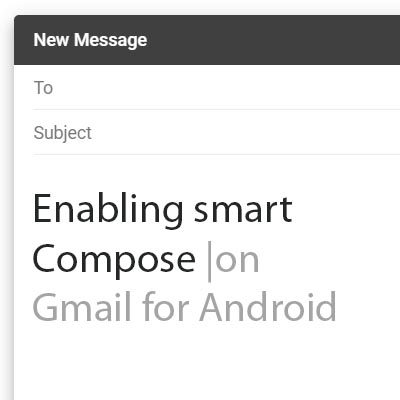
Tip of the Week: Enabling Smart Compose on Gmail for Android

smart_compose_400.jpg

As we have opened our lives to technologies like machine learning and artificial intelligence, it would seem that the beneficial predictions made in science fiction are more likely to become fact. Many of these technologies have actually manifested in some of the smallest, but most useful, ways. For this week’s tip, we’ll learn how to leverage Gmail’s predictive Smart Compose feature on Android.

Those familiar with the online version of Gmail will find all of this quite familiar, as Smart Compose has been predicting their next words for some time now. It will seem newer to those more familiar with the Gmail application in macOS and Windows, as it hasn’t been available there until now.

Using Smart Compose on Android Devices

The first thing you’ll have to have in order to use Smart Compose is an active Google account, with the latest version of the Gmail application installed on your chosen device. As you type, Smart Compose will present its predictive text suggestions that a user can either accept, or just keep typing to ignore. While this form of machine learning is pretty basic, it does demonstrate how a device can “learn” how a user is most likely to use it – in this case, what word is likely to come next in the user’s sentence.
Turning Smart Compose Off (and On Again)

Of course, some users may find these suggestions inconvenient or distracting. That’s totally fair, and means that these users should deactivate the Smart Compose feature. Access the Gmail app’s menu by pressing the hamburger icon at the top left. You should see your Settings from there. You will be asked to choose from the accounts that have access to your device. Once you’ve selected the appropriate account, look under General settings to find Smart Compose. Use the toggle switch to activate it or deactivate it as you please.

While Smart Compose may not be quite as impressive as the artificial intelligence that appears in feature films, it has one major advantage over them: it can actually be used to benefit your business. For other ways that you can give your business operations a boost through technology solutions and tips, subscribe to our blog! You can also reach out to us directly by calling 810.230.9455.

187442149_mobile_400.jpg

Tip of the Week: 9.0 Pie Brings with It New Features

187442149_mobile_400.jpg

Over two billion devices in the world run the Android mobile operating system. Most of them that have been purchased in the past year, as well as the ones that have been updated recently, run on the current operating system, Android 9.0 Pie. With this latest mobile operating system, Google has made it clear that they want to be seen as the smartphone software provider. Today, we’ll take you through how you can get the most out of your Android Pie experience.

New Gestures
The latest version of Android OS contains a built-in new gesture navigation system, but it might not be turned on automatically. To turn this on, go to Settings > System > Gestures. Then you must tap on Swipe on Home Button and press the on-screen toggle switch. You will see the change propagate almost immediately–the three-icon setup will change to a singular pill-shaped icon.

Navigation isn’t much different from the other builds, either. Tap the pill icon to bring back the homescreen and long press it to bring up your Google Assistant. You can then swipe up twice or long-swipe from the home icon to bring up your app drawer.

Another change that needed to occur is that Android 9.0 Pie removes the dedicated button for recent applications. Users now need to singular short swipe up from the bottom of the screen to open up a carousel gallery that shows all recently opened apps. You can then navigate by swiping between apps or using the home icon to swipe fast-left or right to move through the apps more quickly. To clear the apps, swipe up on the specific app window. To clear all of the apps, just scroll all the way to the left and tap the Clear All button to exit out of all running applications.

Android 9.0 Pie actually tries to predict what you’re likely to need next. These commands are within the apps. If you find it useful, you can drag these suggestions, found at the top of your app drawer, onto the screen. You can then find the shortcuts offered by each app by long-pressing the specific application’s icon. This includes opening an application in split-screen mode, a considerable improvement from Android 8.0 Oreo.

Device Notes
One extremely useful feature for smartphone users is the ability to open your device using a fingerprint scanner, but an even better one is when you can use the scanner on devices that don’t feature an in-display fingerprint reader to keep your screen from turning off.

The alarm clock in Android 9.0 provides some additional functionality. When your notification panel is open (swipe down from the top), you only need to tap on the clock in the system tray to open your clock app and manage the alarms.

What do you think about Android 9.0? What are your favorite features? Let us know in the comments.

android_phone_ransom_400.jpg

Android Ransomware Kits on the Rise

android_phone_ransom_400.jpg

The do-it-yourselfers of the world have enjoyed the autonomy that the Internet brings into their lives. They can now look up how-to guides and YouTube videos on how to do just about anything. However, the Internet has also given hackers and other cybercriminals access to all sorts of technology that makes using malware and other threats easier than ever before–even for inexperienced users.

Malware kits are certainly not a new concept, although you might be surprised to hear that the first kits first emerged as early as the 1990s. The introduction of the Dark Web made the transfer of illegal goods and services easier on a global scale, and developing technologies like cryptocurrency have only contributed to the rise of contraband being spread without consequences. The anonymity provided by virtual private networks is simply the icing on the cake, making it difficult for authorities to investigate the activity.

While most of these kits target the Windows operating system, there is an increasing number of malware kits that target other operating systems. In the past year alone, cybersecurity analysts expect an increase in ransomware kits that target Android smartphones. These types of kits are called “ransomware as a service,” in which just about any user with basic knowledge of how computers work to pull off a legitimate ransomware attack.

The type of malware that’s targeting Android smartphones can potentially cost your business thousands of dollars, and that’s not mentioning the data and reputation lost from the incident. These kits go for about $200 on the black market, making them a very lucrative solution. To make matters worse, there are plenty of reasons why Android devices are ideal targets for these types of attacks. Android is used on the vast majority of smartphones–approximately 86% of smartphones around the world. The fact that a $200 investment can yield untold profits makes it tempting, regardless of how ethical the decision is.

Furthermore, statistics show that many Android users are running outdated versions of the operating system, which means that there are patches and security updates that aren’t being implemented on these devices. This makes it more likely that the ransomware attack will succeed on Android-based devices.

It’s almost guaranteed that your business will eventually have to deal with mobile devices in the workplace, accessing important data and information from your network. The best way to ensure that mobile devices are secure from these types of threats is to implement a mobile device management policy that takes into account security and network access. To learn more about how you can keep your business safe from ransomware, reach out to us at 810.230.9455.

little_green_android_400.jpg

Tip of the Week: 5 Handy Android Shortcuts

little_green_android_400.jpg

With business becoming more and more mobile, there is a greater need for the devices we use to offer features that allow the user to boost efficiency and avoid downtime. It just so happens that Android devices come with a few little-known ways to accomplish these goals. For this week’s tip, we’ll go over a few ways your phone can be used more efficiently.

Fast Snap
If there are two apps that you use frequently, and often need to switch between as reference, you’ll appreciate this feature. Pressing the overview key (the little square icon) will switch you between the two apps you used most recently. If you are on your device’s home screen, this action will pull up the application you were using last.

Fast Vibrate/Do Not Disturb
We’ve all been in a position where a sudden ringing of a phone would be frowned upon, a situation that’s extremely likely in a business setting. If you find yourself in such an occasion and you realize your phone is still at full volume, you can simply activate the screen and hold the volume down button. This will set the device to vibrate mode.

If vibrate is still too loud, pressing the volume down button once again after the phone has been set to vibrate will activate Do Not Disturb, saving you from having your phone go off at an inopportune time.

Notification Customization
If a particular app is interrupting your workday needlessly, you can tell your Android device under what circumstances that app can provide you with a notification. When the next notification pops up, press and hold the notification until you are offered the opportunity to dictate when the app can ping you through some additional settings.

Freeze Reboot
If you ever find yourself with an inexplicably locked-up and frozen device, you can force it to reboot with the Power and Volume Up buttons. Pressing both down simultaneously for anywhere from 10 to 15 seconds will cause your device to restart. If it doesn’t, that may be a sign that something more serious is happening, or that your phone simply needs a recharge.

Power Button Ends Call
If you’re like most business users, you’re busy from the beginning of the workday to the time you clock out. This is especially true if your work takes you out of the office. To save a few extra moments of time, there’s an easier way to hang up a call on your Android device. Instead of fumbling around to press the end call button on your touchscreen, the power button can be used to end the call.

In your settings, access Accessibility and engage the Power Button Ends Call setting. This enables you to end a call with a much easier gesture that you can successfully pull off without looking.

security_android_400.jpg

11 Ways to Enhance Android Security

security_android_400.jpg

It should come as no surprise that hackers are always trying to get ahead of security developers, just as it should be no surprise that these hackers often target the Android operating system. After all, the Android OS is used on mobile devices all over the world. If your business leverages these devices, there are quite a few security considerations you need to keep in mind.

Remember Security Basics
There are multiple ways to help your mobile security that take relatively little effort on your part. If you aren’t already in the habit, get used to locking your device whenever it isn’t in use. To unlock your device, you should require a PIN at the very least, and leverage biometric authentication whenever possible. This will help to keep your phone secured if it should be lost or stolen in public.

Use Google Play to Keep Your Devices Organized
Whenever you download an application from the Google Play Store, you are given the option to install the app on any device associated with your Google account. This list is also used to locate a misplaced device. You can help to make this easier by renaming your devices to differentiate between them more easily. Should you need to remove a device from your list, all you have to do is uncheck the box labelled Show in Menus.

Make Sure Your Trusted Devices are Updated
Every device you access your Google account with is automatically added to a list of trusted devices. You should make sure that this list only has devices on it that you know and trust. If there is a device that is unfamiliar on this list, you should remove it and change your password immediately. To check which devices have access to your Google account, visit https://myaccount.google.com/device-activity.

Finding a Lost Device
In the event that your device is misplaced, Google has a solution that you can leverage to find it more easily by taking a few proactive measures. First, open up your Android device’s Settings and find the Google option. From there, select Security and activate the Find My Device setting. While in settings, you should also confirm that your Location settings are activated so that Find My Device will work properly. You can even use the web version of Find My Device to make your lost device ring and help to find it.

Leverage Google’s Security Check
If you ever suspect that your Google account is vulnerable to access by unauthorized parties, the web giant provides a security checker that evaluates your preparations. This tool can be found here: https://myaccount.google.com/security-checkup.

Review the Passwords Saved to Smart Lock
One of Google’s features is a handy one, but could foreseeably create some difficulties in the future. Smart Lock will save the credentials you use to access different accounts with the device. However, you should periodically check and be sure that the passwords are properly updated to avoid issues when you try to access your saved accounts.

Connect with Caution
While it can be handy to connect an app to your Google account, this isn’t a permission you should grant willy-nilly. Some apps will only be needed once or twice, and others will become a tool you regularly use. If you no longer have use for an app, it is best that you remove it from your account. After all, the more connections your account has, the more vulnerable it is to attack. You can edit your account permissions by visiting https://myaccount.google.com/permissions.

Be Discerning When Downloading Apps
Even the Google Play Store can have a threatening application available, despite the best efforts to screen out such apps. As a result, you should be sure to only download applications from the Play Store, and even then, consider each app and its permissions before adding it to your device.

Leverage Android’s App-Scanning Capabilities
Android has a security scanning feature built in, eliminating the need to download a third-party app to accomplish the same thing. In Settings, access Security & Location. Under Google Play Protect, make sure that Scan device for security threats is selected. Your device will now periodically run automatic scans in the background for threats, only notifying you if an issue is discovered.

Reinforcing with Third-Party Apps
Despite the incorporation of Android’s security scanning capabilities, it may not hurt to add additional protections. A trusted IT provider will be able to recommend solutions that you can rely on to protect your devices.

Incorporating 2FA
2FA, or Two-Factor Authentication, is another excellent way to keep others from accessing your accounts. With a solution like Google Authenticator or many others, a single-use code will be generated that is a necessary credential along with your username and password. You’ll want to lean on your IT provider to ensure you have a trustworthy 2FA solution that meets a business’ needs.

If you want to learn more about mobile security, or any other IT topic, lean on the resources at NuTech Services. We’re available at 810.230.9455.