one_note_benefits_400.jpg

Microsoft OneNote May Be the Best Note-Taking Tool on the Market

one_note_benefits_400.jpg

Most modern PCs come pre-installed with a handy tool by Microsoft called OneNote (and it’s also included with Office 365). Today, we’ll run through the features that OneNote offers that make it a useful business tool.

Keep in mind, we’ll be focusing on OneNote 2016. Older versions of OneNote have some of the same features, but if you are running an older version of Office, you may want to consider upgrading.

Benefits of OneNote
OneNote was clearly designed with collaboration in mind, as you can save your Notebooks either to your local network drive, or to Microsoft’s OneDrive. You are able to share your Notebooks with others in your organization and work together, letting you collaborate on projects and share notes in the cloud.

While OneNote on its own isn’t the best word processor, spreadsheet app, or presentation software, it offers what can be described as the highlight reel of the other Office 365 applications. You can write, build simple tables, show charts and graphs, and even draw, but it won’t replace your other Office 365 applications.

Note Taking Capabilities
OneNote offers an impressive number of features that make it an excellent choice for quick note creation and organization. As you create a Notebook, you can divide it into tabs, and then divide those tabs into pages. OneNote also has premade templates for you to utilize, or you can create your own, to best arrange the particular information that note is to contain.

Of course, your notes can include more than just text. OneNote allows you to take clippings from web pages and insert them into your note. Another great thing about OneNote is you to pull text directly from images by right-clicking them, or search for text that appears in included images, with a considerably high level of success.

Plus, with the right equipment, OneNote supports handwritten note-taking, and is able to convert it into font-based text with good accuracy. The same can be said of its math function. By typing out or drawing a simple equation, the formula can be both converted to text and solved, as long as it was properly formatted. 

You can format your pages to suit your needs, and OneNote also offers a very handy feature that allows you to link content on one page to content elsewhere in OneNote for quick access. Finally, for added security, notes can be password protected, so if they are shared with someone they shouldn’t be, your data is still safe.

OneNote offers plenty of highly usable features to improve your business’ organization and collaboration. So, tell us, will you try it out in your company? Would you try it out for personal use? What do you use to stay organized? Let us know in the comments!
windows_apps_full_screen_400.jpg

Tip of the Week: How to Automatically Open a Windows App in Fullscreen

windows_apps_full_screen_400.jpg

If you’re a regular user of Windows applications, you’ll notice that they will, by default, open into smaller windows, allowing users to customize the size of their windows as need be. Usually, when you want to increase the size of the app, you have to click the maximize button in the top-right corner. However, you can save a little bit of time each time you do this by setting Windows to default to full-screen mode for this application.

First, you’ll want to pick the application, and find it’s shortcut on your desktop. When we say “shortcut,” we are referring to the little icons on your desktop that open a program, like Microsoft Word or your preferred Internet browser.

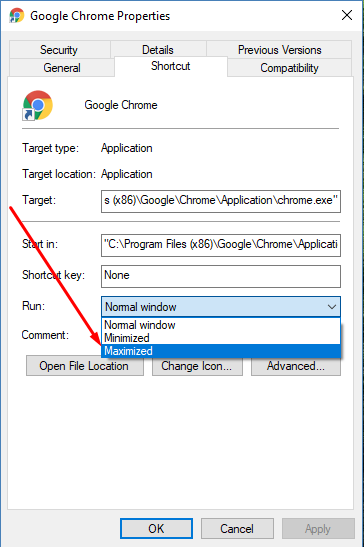
Select the app’s icon and right-click it. Go to the bottom of the dropdown menu and you’ll see Properties. Click it and you’ll open a Properties window, which will open up to the Shortcut tab.

You’re looking for the Run drop-down menu. It will be just a few selections down from the top of the tab. Currently, you’ll notice that it’s set to Normal window. However, if you click on the down arrow, you’ll be shown choices for Normal Window, Minimized, or Maximized. Click on Maximized, and whenever you open the program in the future, it will default to full screen mode. Once you’ve done this, click Apply to save the changes.

ib app full screen 1

While it might not seem like it saves a lot of time, it will certainly be more convenient. Just take a moment to optimize your settings now and you’ll save a lot of time and frustration in the future. To learn more about how to save time and optimize your business technology, subscribe to NuTech Services’s blog.

find_your_lost_phone_400.jpg

Tip of the Week: Activate These Solutions Now Before You Misplace Your Mobile Device Later

find_your_lost_phone_400.jpg

Can’t find your mobile device? If you’ve taken precautions and enabled solutions designed to track the whereabouts of your device, then you’ve got no reason to panic. Of course, hindsight is 20/20, so you’ll want to make sure you activate a phone-finding solution now (while you’ve got your device in your sights).


For an iPhone or Apple Device
If you’re an Apple enthusiast, you can use the Find My iPhone feature to locate any device connected to your Apple account. Log into your iCloud account or download the Find My iPhone app (before you lose your device, of course), which will help you keep track of your devices should you lose them. You can even track where your device is and where it has been. You can even lock the device and send it a message telling whoever finds it how to contact you! 

For an Android Device
Android makes finding your lost device as easy as performing a Google search. If you’re signed into your Google account, and you have your device linked to it, all you have to do is type into the search bar, “Find my Phone.” As long as there’s a device connected to your Google account, you’ll be shown a small map in the search results which shows you where the device is located. You can then proceed to ring the device and find it, if it is turned on and nearby.

For Other Devices
If you lose a more obscure device, you might have a little more trouble locating it. Thanks to a great app called Prey, you can find just about any laptop or smartphone that may be missing. You can install Prey for free on up to three devices, and as long as a thief hasn’t completely wiped your device, you’ll have a decent shot at discovering who has found it. Provided that your device has a Wi-Fi chip, a webcam, and the app installed, Prey can take a picture of whoever has found the device as well as where it is located.

Any devices that have Prey installed on them will automatically issue a report to you every so often, starting at 20 minutes. This can tell you exactly what’s happening with your device. This includes webcam snapshots, desktop captures, program installations, changed files, and so much more. Of course, if you think that maybe someone has just found your device and hasn’t stolen it, you have the option of letting them know how to contact you through various methods. Worst case scenario, you can lock it or remotely wipe it to secure any data located on it.

For more great tips and tricks on how to get the most out of your technology, subscribe to NuTech Services’s blog.

apps_for_voice_to_text_400.jpg

3 Talk-to-Text Apps that Get the Job Done

apps_for_voice_to_text_400.jpg

Mobile platforms have given way to entirely new ways to develop and make use of apps. More business professionals than ever before are relying on their smartphones to get work done while out of the office, but the functionality of the on-screen keyboard interface has some of them stumped on how to stay productive. It’s for this reason that developers have created applications designed to listen to users’ voices, and record them in text format.

Here are three of the most reliable options we know of that can turn your voice into text.

Evernote
Evernote has been a major note-taking application for the Android and iOS mobile platforms, as it helps users keep track of their ideas and manage their content. It’s designed to capture and store sound bytes, which can then be converted into text format. You can keep both audio and the transcribed text file together and easily accessible. This useful option gives users an outlet to cross-check between the two to make sure that everything has been translated properly.

Other than capturing audio to text, Evernote also allows you to collect information and catalog it in a way which allows for easy searching. This gives you near-instantaneous access to your data. You can chat with collaborators using a real-time, built-in chat system, as well as share files. This provides the seamless cooperation tools that the business world needs to succeed.

Dragon Dictation
Another way to take advantage of voice-to-text integration is the #1 audio dictation software, Dragon. The app itself is quite simple; it has one button that’s used to stop and record audio. Once you’ve finished reciting what you’d like to record, the text will show up. It might be a little difficult at first, but it doesn’t take too long to accomplish. The Dragon software behind the app is renowned for having great accuracy, which will allow you to produce lengthy emails, notes, status updates, and more. You can easily copy the text and save it for later, too.

Voice Assistant
Voice Assistant is an app that has been redesigned for iOS and is now easier to use than ever before. All you need to do is switch to your preferred option, and you can convert your audio files to text with ease. Once the text file is available, you can then use the auto-copy feature to send your transcripts to apps that you use the most. This makes Voice Assistant a convenient medium that can work across platforms. It’s a great alternative to built-in voice assistants like Siri. Voice Assistant supports over 22 different languages and can integrate with many of today’s most popular apps. It can be purchased for only $0.99.

If you’re hoping to make voice-to-text dictation easier, all you need to do is consider these three options. Do you find this feature useful? If so, how do you go about turning audio files to text? Let us know in the comments.

b2ap3_thumbnail_spoiler_alert_400.jpg

Tip of the Week: Use This Chrome Extension to Avoid Online Movie Spoilers

b2ap3_thumbnail_spoiler_alert_400.jpgThe Internet is a great and wondrous thing, giving us information about pretty much anything we could ever hope for. However, this is a dangerous thing for those who want to go about their entertainment “spoiler-free.” In other words, you want to be pleasantly surprised when you watch your favorite movies or TV shows. Sometimes the Internet isn’t so kind toward that goal. Well, here’s a somewhat viable solution: the Spoiler Alert extension for Google Chrome.

Especially with Star Wars, Episode VII: The Force Awakens just around the corner, there’s no time like the present to arm yourself against the savage assault of spoilerific Internet content. The extension for Spoiler Alert is capable of blocking certain web content in accordance with your specifications. While the extension asks you to sign up with your email and date of birth, it allows you to browse categories and block content related to specific TV shows and movies. CNet cites that the only movie currently available to block spoilers of is The Force Awakens, but hey, isn’t that all that matters?

Spoiler Alert also works for certain other events, like sports, new episodes of TV shows, and the like. This is particularly helpful for popular dramas that are huge hits in pop culture (think The Walking Dead), or for keeping you from viewing the score of the big game until you’ve watch it. You can even use it to avoid all of the political debates and debauchery, if you so desire.

However, Spoiler Alert is still far from ideal. As explained by Rick Broida at CNet:

One problem I discovered is that Spoiler Alert doesn’t seem to work past the initial page-load. So on Facebook, for example, if you scroll down far enough that the site loads more content, the extension doesn’t block anything in that additional load. That’s a problem. But this blocker is still in beta, so hopefully the developers can address that. In the meantime, I’m just happy to have at least some line of defense against our spoiler culture. Seriously, people, why would you want to know everything (or anything) about “The Force Awakens” before getting to the theater?

In some cases, Spoiler Alert only blocks headings, titles, and text, rather than images, but in other cases it’s capable of blocking the entire site, while offering the choice of entering at the risk of being spoiled. You can change these settings to suit your needs, though, like if you’ve already seen the latest episode of your weekly TV show. Another solution to this dilemma is to completely avoid Facebook, Twitter, and pretty much any online news aggregate, but that’s not really a viable choice. As a business owner, you probably spend a lot of time on the Internet doing research on new solutions and clientele. You shouldn’t have to have your fun ruined by Internet spoilers just because you’re doing your job.

In the meantime, Spoiler Alert might alleviate the problem to a degree, but the fact remains that the Internet is rife with spoilers that can potentially ruin the experiences of folks around the world. If you know of another way to keep spoilers away, feel free to share it in the comments; and please, no spoilers!

b2ap3_thumbnail_android_clock_400.jpg

Tip of the Week: How to Prevent Lollipop’s Bug From Breaking Your Alarm Clock

b2ap3_thumbnail_android_clock_400.jpgIf you own an Android device, you’re no-doubt aware that Google issued an upgrade to Android’s OS not too long ago. This update, dubbed Android 5.0 Lollipop, presents several aesthetic upgrades to devices which were running a previous Android OS. However, there were also some functionality changes, a few of which were less than desired; like the unexpected changes to Android’s alarm clock.

Don’t Put This Tip “On Snooze”
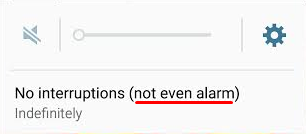
Before the Lollipop upgrade, Android’s alarm clock application worked in silent mode. This was exceptionally useful, especially if you wanted to turn your phone’s sound off overnight to get a good night’s rest. However, in Lollipop, Silent mode is called Mute mode, where all sounds from calls, texts, and other notifications are silenced… including alarms.

alarm 1

You don’t need us to tell you that this new functionality change can affect your ability to get to work on time in the morning. Thankfully, there’s a pretty simple fix to this problem, even if it’s not the most obvious solution.

Since Lollipop doesn’t allow alarms to go off in Mute mode, there’s an extra hoop you have to jump through in order to get them to work properly. You can set your phone to only go off for what are called Priority Interruptions. Because alarms are always considered priority interruptions, you shouldn’t have to worry about the alarm being silenced.

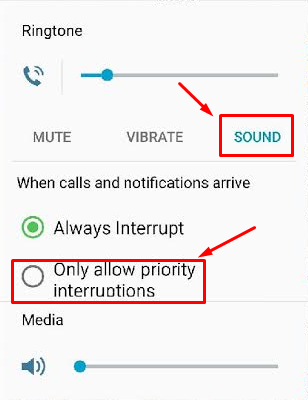
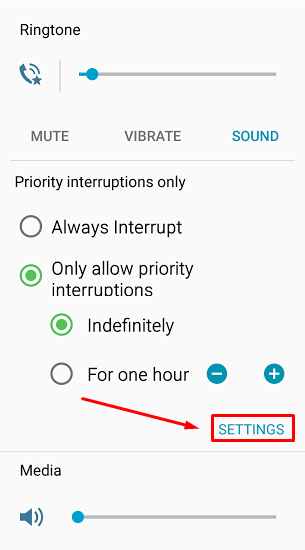
To activate Priority Interruptions, turn up your volume to Sound or Vibrate. Next, select Only allow priority interruptions.

alarm 2

Doing this opens a menu beneath your selection. Then, click Settings.

alarm 3

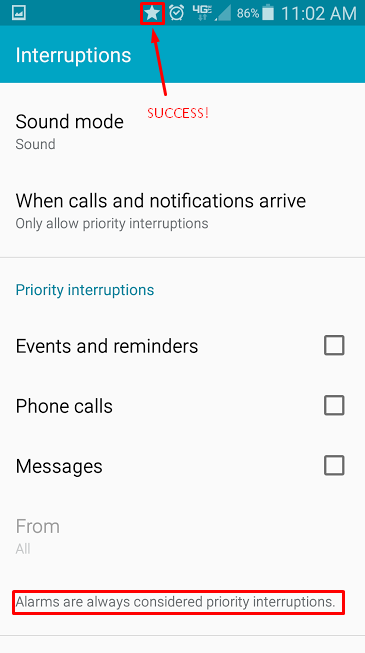
This lets you view the Priority Interruptions settings. Don’t be fooled by the Silent choice here; Priority Interruptions only work in Sound or Vibrate mode. If you really want a Silent mode similar to the previous version of Android, you can uncheck messages, phone calls, and reminders in Sound mode. This lets it basically act the same as it used to, more or less.

alarm 4

If you’re successful in setting your Priority Interruptions, a star will appear next to your alarm clock symbol at the top of your screen. Afterwards, it’s best to make a test alarm to make sure that it goes off as planned. It’d be a shame to go through all of this trouble just to miss your alarm. Of course, if all else fails, you could always get a dedicated alarm clock from your local department store; or, get a pet. Whichever works for you.

Be sure to subscribe to NuTech Services’s tech blog for great tips every week.