b2ap3_thumbnail_more_PC_mistakes_400.jpg

Tip of the Week: Every PC User Should Know NOT to Do These 3 Things

b2ap3_thumbnail_more_PC_mistakes_400.jpgKnowing how to properly use your PC is key to its longevity. Therefore, you should never take for granted basic PC best practices. Here are three basic PC best practices that are easy to overlook.

Don’t Plug Your Computer Equipment Directly Into an Outlet
While it’s likely that you plug a variety of your electronics directly into your outlet, you shouldn’t do this with computer equipment. The problem here is that electricity coming directly from outlets can fluctuate. For example, this is why your building’s lights may randomly get dimmer and then brighter. While your light bulbs can handle these power fluctuations, your computer equipment cannot; and it may lead to irreversible damages.

Instead, be sure to plug your equipment directly into a surge protector. This is a simple power strip that can be found at most any store. Though even a cheap power strip is better than no power strip, a basic power strip will not protect your PC as well as a heavy-duty one. Therefore, it’s worth it to drop some extra cash on a power strip that’s rated to protect your equipment from surges, instead of one that’s designed only to provide you with extra outlets.

For the best solution to these power surges, consider an Uninterrupted Power Supply (UPS). This is a device that both restricts surges in electricity, as well as provides additional power during a surge’s low point.

Don’t Click Next or Ok Without First Reading
Granted, it’s unreasonable to expect someone to read every word of every software agreement, but at the very least, you should skim it over to have an idea of what you’re agreeing to. It may be the case that a shady third-party software company is trying to pull a fast one on you. ComputerHope.com explains:

It is not uncommon for new users to click Ok or Next without reading what they are agreeing to and not making sure there are no check boxes still checked. Make sure you read every prompt before agreeing, or you may be agreeing to install new browser toolbars, a program you didn’t intend to install, or other crapware.

Don’t Open Unknown Email Attachments
A quality spam filter will go a long way to prevent a PC from getting slammed with a virus or malware. However, even the most secure system can be compromised if the user makes the mistake of downloading something that they shouldn’t, like a corrupted email attachment. Viruses that spread through email attachments are among the most common ways that computers become infected. In order to trick you to download the dangerous attachment, hackers will disguise the message as originating from a trustworthy source, like your bank, your hospital, a parcel delivery service, a resume, and much more.

As a rule, never download an email attachment unless you’re absolutely sure of the source, and if something seems sketchy, it probably is. Remember, if the email appears to come from a legitimate source, then you can always call the sender using the phone number that you have on record in order to confirm the message. If your source admits to not sending you the message, then you know it’s a scam.

By following these three best practices, you’re sure to save yourself the headache (and expense) of dealing with PC performance issues. Knowing how to properly use a PC is the best way to prevent issues and breakdowns. To learn more PC tips and best practices, subscribe to NuTech Services’s blog and give us a call at 810.230.9455.

e_waste_management_400.jpg

Why You Shouldn’t Chuck Your E-Waste In the Garbage

e_waste_management_400.jpgToday’s society practices a policy of upgrading to brand-new devices whenever the next big thing drops. We see this all the time when businesses want to keep up with the latest trends by upgrading to new workstations that utilize recent operating systems, or because their old hardware feels slow. However, this can have a negative effect on the environment in the form of e-waste.

E-waste is defined by ewasteguide.info as:

e-Waste for short – or Waste Electrical and Electronic Equipment (WEEE) – is the term used to describe old, end-of-life or discarded appliances using electricity. It includes computers, consumer electronics, fridges etc which have been disposed of by their original users. On this website – the e-Waste Guide – “e-waste” is used as a generic term embracing all types of waste containing electrically powered components. e-Waste contains both valuable materials as well as hazardous materials which require special handling and recycling methods.

In other words, your computers, servers, network components, and other hardware, all contain valuable metals and other materials that can be potentially hazardous to the environment if left unchecked. This wouldn’t normally be a problem if these materials were properly recycled, but the fact remains that e-waste is an exceptionally prevalent problem in many third-world countries that don’t have a specific workflow for getting rid of these gadgets.

Due to it being vastly cheaper to ship discarded devices overseas (rather than properly recycling them), many countries suffer from exorbitant e-waste, just like Guiyu, China. According to Slate, Guiyu has a population of around 150,000, and is known as the e-waste capital of the world. It houses many businesses that are dedicated to dismantling discarded devices for their valuable components, but their processes are often dangerous to both the inhabitants of Guiyu, and its environment.

For example, Slate explains that “to extract metals from a circuit board, the workers burn each part over an open fire; this process releases large amounts of toxic gas into the air and the town’s water supply.” This practice is naturally a cause for concern, especially considering the fact that the pollution winds up in the bloodstream of the inhabitants in the form of metals like lead, copper, zinc, etc.

The first step toward preventing this pollution from worsening is to take the proper steps when recycling your old technology. First, you should take steps to ensure that all private or sensitive data is removed from the device. NuTech Services can help you through this process. The last thing you want is for some stranger to get ahold of your device and tamper with it for information that’s stored on it. Once you’re sure sure that no information is left on the device, we’ll handle the recycling of the device in an environmentally-friendly manner.

To ensure that you always follow the best practices of replacing and recycling your old technology, contact NuTech Services at 810.230.9455.

b2ap3_thumbnail_email_gaffs_400.jpg

Tip of the Week: 4 Common Email Mistakes and How to Avoid Them

b2ap3_thumbnail_email_gaffs_400.jpgEmail is a staple in offices around the world, but many organizations are finding it easier than ever to make simple mistakes that can be easily avoided with proper training procedures. It’s a best practice to ensure that your team is adequately trained on how to efficiently use your chosen email client to its maximum potential. Here are four of the most common email mistakes that the average employee can make, and how they can easily be avoided in the future.

Avoid Major Spelling and Grammar Errors
The importance of spelling and grammar in both internal and outgoing communications cannot be stressed enough. While a minor error here or there is acceptable, anyone who wants to be considered a professional in their industry should take the time to put together messages that are both grammatically correct and easy to read. This is especially true when dealing with prospective clients. You want to be seen as the expert, and showing that you’re a well-rounded and educated individual will reinforce this thought.

Most email clients like Outlook and Gmail have a built-in spell checker that can be used for a quick idea of how many corrections need to be made, but it’s often better to compose an email in a word processor like Microsoft Word. This lets you use the powerful spell checker that the program provides, and allows you to use a copy/paste tactic where there’s minimal room for error.

Don’t Accidentally CC the Wrong People
If you’re dealing with a medium-to-large workforce, you might find it easier to communicate with all of your employees by simply clicking the “carbon copy” option when issuing statements via email. However, this comes with a risk. When you’ve received a CC of a message, and you have some input, you want to make sure that you don’t reply to all, especially if it’s something that’s only meant to be seen by the recipient. Always be aware of what you’re sending, and who you’re sending it to.

Or, better yet, don’t complain about one of your coworkers through email at all. Email should be a formal type of communication in the workplace, and you shouldn’t be using it like it’s your personal account. If someone is checking up on your email messages, it could come back to haunt you later. Still, letting off some steam in the workplace is often a necessity, so if you feel you absolutely have to get something off your chest, do it in person rather than through email.

Make Sure Your Email is Finished Before Sending It
This seems like a given, but you’d be surprised how often some folks forget to finish an email before hitting the “send” button. Again, you want to ensure that you’re retaining your professional presence with both your staff and your prospective or current clients, and sending half-finished emails isn’t going to help this goal. It’s relatively easy to hit the “send” button before your message is actually complete, especially if you’re multitasking and distracted by your other responsibilities.

This is especially why it’s important that you give your message a thorough proofreading that helps you ensure that the message is complete and ready to be sent. It’s an important part of the email process, and shouldn’t be overlooked if you’re in a hurry.

Be Absolutely Sure Who You’re Sending Your Message To
While the other mistakes we’ve mentioned thus far have somewhat trivial repercussions, sending a message that potentially reveals sensitive information to the wrong person could have far-reaching complications. If it’s internally, it’s possible that it’s no big deal, and can be resolved by simply asking the recipient to disregard the email. However, if the message is sent to an external party, and it contains sensitive information, you should immediately put yourself in damage control mode.

In the event that you accidentally send company information to an unknown email address (which you shouldn’t), it’s important to assess how important this information was and take action as soon as possible. For example, if you sent passwords or usernames (which you shouldn’t), promptly change the credentials. You should also make an attempt to notify any party involved, especially clients. While it might be embarrassing, it’s better than the alternative.

For more best practices and tips, be sure to subscribe to our blog.

b2ap3_thumbnail_cia_hacked_400.jpg

If a Teenager Can Hack the CIA, You Can Be Hacked Too!

b2ap3_thumbnail_cia_hacked_400.jpgWith new threats emerging all of the time, it’s no wonder that cybersecurity is such a major part of any technological endeavor. Your should be using the most powerful security solutions on the market in order to avoid intensive hacks. Despite the emphasis that our society places on security, it takes a high-notoriety hack to truly shake the public into action; for example, what if the Central Intelligence Agency were hacked by a teenager?

Well, that kind of happened. As reported by WIRED, CIA Director John Brennan had his email broken into by the hacker in question. By posing as a Verizon worker, the hacker was able to gain access to Brennan’s AOL email account. The hacker used a targeted spear phishing tactic, where he posed as a worker to trick real Verizon employees into handing over sensitive information about Brennan’s account. Surprisingly, all they needed were the last four digits of Brennan’s bank card.

Then, to add insult to injury, the hacker and his associates changed the password on Brennan’s account, locking him out of it and gaining access to his inbox. Since this was his personal email account, you’d think things wouldn’t be any different from a normal hack; well, the problem here is that Brennan’s inbox contained secret government documents from Brennan’s work email address, which he forwarded to his personal inbox. You don’t need us to tell you that this was a bad move on Brennan’s part. According to WIRED:

After providing the Verizon employee with a fabricated employee Vcode—a unique code that he says Verizon assigns employees—they got the information they were seeking. This included Brennan’s account number, his four-digit PIN, the backup mobile number on the account, Brennan’s AOL email address and the last four digits on his bank card.

“[A]fter getting that info, we called AOL and said we were locked out of our AOL account,” he said. “They asked security questions like the last 4 on [the bank] card and we got that from Verizon so we told them that and they reset the password.” AOL also asked for the name and phone number associated with the account, all of which the hackers had obtained from Verizon.

The most unnerving part of this entire situation is the fact that Brennan wasn’t necessarily at fault for the hack itself. The only thing he did wrong was send sensitive information from his work email to his private email address. The real issue at hand should be the fact that these hackers easily wound up accessing an important government worker’s email address. Simple security questions aren’t going to be enough to stop hackers from accessing your accounts. If they really want to, they can get whatever information they need.

Therefore, taking advantage of several security layers is the best way to protect your accounts. Part of this is practicing a quality password security protocol. You should be using secure passwords with several different types of characters, including upper and lower case letters, numbers, and symbols. Strong passwords help keep hackers from cracking your login credentials.

Another best practice is to integrate two-factor authentication into your account logins. This type of solution requires a secondary credential in addition to your normal username and password, making it much more difficult for hackers to attack your accounts. These credentials are usually sent to your smartphone in the form of a SMS message, an automated voice message, or even to your secondary email account. In other words, hackers need physical access to your device in order to obtain this credential.

You don’t want to be stuck in an embarrassing (or potentially incriminating) situation like the one the CIA Director is in now. Give NuTech Services a call at 810.230.9455 and ask us about how we can improve your business’s network security.

b2ap3_thumbnail_cloud_management_400.jpg

3 Ways to Make Sure that Your Technology Doesn’t Get Stuck In the Past

b2ap3_thumbnail_cloud_management_400.jpgThe purpose of business technology is to propel an enterprise into the future. Yet, too many businesses are reluctant to make major adjustments to their current IT systems, wrongly believing that it’s not worth the investment. The best way to approach upgrading is to use an IT roadmap that lays out a plan for your technology’s future. This way, you won’t be surprised by what the future holds.

Here are three easy ways that you can “future-proof” your IT infrastructure.

Lease Whatever Computer Hardware that You Can
Generally speaking, it’s easier to upgrade when you’re leasing equipment, rather than having to pay for new equipment outright. Often times, a hardware refresh will even be included in the terms of the lease, and at no additional cost. This way, you won’t have to worry about the consequences of hanging on to your old technology for too long because your hardware refresh will already be scheduled and taken care of by your vendor.

At first glance, it may seem like the monthly expense of leasing hardware will end up costing you more than if you paid upfront for the equipment, but the cost-savings of leasing hardware can be seen in that the cost is now an operating expense, instead of a capital expense–which is very advantageous for your company’s future budget.

Layout Your IT Infrastructure to Accommodate Your Company’s Growth
One mistake that a non-future-minded company does with their technology is to set up their IT infrastructure to only accommodate their current computing needs, instead of designing the system to handle their organization’s growth. An IT system that’s designed for the future will have enough open access points to accommodate new users stemming from an increase in staff numbers, as well as enough available hard drive space and computing power to handle the IT trends that consume a lot of network resources, like BYOD (Bring Your Own Device) and The Internet of Things.

By not planning for future growth, you’ll be caught off guard by something that should be simple, like adding a new workstation. Also, you don’t want to get stuck not having enough bandwidth for an important video conferencing meeting with a client, due to too many users participating in the meeting.

Make Sure that Your Cloud Service is Flexible
A business that’s taking advantage of the cloud will often have an outside company host and manage their cloud services, either partially or exclusively. Due to the unpredictability of your company’s future computing needs, you’re going to want to commit to a cloud agreement that’s flexible, instead of locking you into some strict terms. NetworkComputing explains:

Cloud deployments tend to be dynamic — not static — and must grow or shrink depending on the requirements of the client. Any agreement with a managed service provider (MSP) needs to cater to the variability that the consumptive nature of the cloud provides.

Before implementing technology for your business, NuTech Services will take the time to discuss with you the future of your company’s computing needs so that your IT systems will be prepared for anything that the future will throw at you. We can assist you with finding the right hardware, laying out an IT roadmap, managing your cloud services in a way that best suites your current and future needs, and much more.

Call us today at 810.230.9455 to prepare yourself for whatever the future’s got in store for your organization.

b2ap3_thumbnail_distractions_at_work_400.jpg

Tip of the Week: 3 Ways to Take Back Your Day From Workplace Distractions

b2ap3_thumbnail_distractions_at_work_400.jpgIn today’s competitive workplace environments, productivity is at a premium. Although, thanks to our gadgets, the allure of the Internet, and of course, having to interact with people, working at the modern office isn’t without its fair share of distractions, which hinder productivity. Here are three tips that you can use to tune out the distractions so you can get more work done.

Active “Airplane Mode” On Your Smartphone
When you really need to hunker down and focus, having your smartphone nearby may not be the best move. Unless you’re an extremely disciplined individual, it can be very difficult to ignore the slew of notifications periodically hitting your phone. Yet, it’s likely that you need your phone for what you’re working on, like to access your contacts, calendar, and clock. One way to still access basic apps like these while eliminating the distractions of the Internet is to set your phone to airplane mode. When you’re done with your project, simply turn off airplane mode and any notifications that you missed will promptly appear, as well as voicemail messages.

Bonus productivity tip: If you use your smartphone as your alarm clock, use airplane mode while you sleep in order to avoid being awakened by notifications and even phone calls.

Headphones Keep People at Bay
By putting on a pair of headphones, you’re essentially communicating to the world, “I don’t want to be bothered.” Of course, not everyone will take the hint and you’ll still have a few people tap you on the shoulder to ask a question. Hopefully, the inquires will be essential and they’ll think twice about offering you their opinions regarding what’s trending on social media.

Using your headphones, you might be able to listen to music in order to help you focus better (if you use Spotify, check out their Focus playlists). Although, not every worker has this ability. Therefore, you can also try listening to white noise in order to drown out the noisy distractions in the room. If neither of these options agree with the way you’re wired to work, then you can simply wear the headphones without actually using them for music as a way of communicating to your coworkers that you’re not to be bothered.

Schedule Times For Checking Your Email
If you’re one to keep your inbox open throughout the day, then you’re going to keep one eye on it while trying to be productive. This spells trouble for any project you’re working on because you’ll get slammed with notifications often and at random times. Actually, this applies to other forms of digital communication as well, like social media. Instead, try scheduling times throughout the day to check your email so that you can focus better on the task at hand. You can even take advantage of an email autoresponder tool that lets people know what time you’ll be checking your email. This way, people won’t wonder what’s wrong with you or their computer because they didn’t get an instant response. Remember, if it’s an urgent matter, they can always just pick up the phone and give you a call.

These tips may seem overly simple, but they’ve got the potential to enhance your focus and revolutionize productivity in your office. Try them out and let us know in the comments how they work for you!

b2ap3_thumbnail_risk_factors_for_employees_400.jpg

You Might Be Surprised At the Ways Your Employees Put Your Data At Risk

b2ap3_thumbnail_risk_factors_for_employees_400.jpgOctober is Cyber Security Month and we want to use this time to bring awareness to the different aspects of cyber security. One often overlooked element of cyber security is employee risk management. What level of risk does your staff pose to your network’s security? You can easily find this out by taking an online test.

This employee risk assessment tool is brought to you by StaySafeOnline.org. It’s a quiz designed for employees to take so they can better understand how their use of technology may be putting their organization at risk. The quiz asks employees questions about how they use their mobile devices in the workplace, how they share data, along with other questions meant to reveal security best practices. The employee risk management test can be found here:

http://www.emc.com/microsites/workplacesecurity/index.htm

At the end of the test, the online tool will calculate the test taker’s risk score, and every manager knows how powerful a motivator it can be to rank people. What makes this tool so valuable is that it’s designed to educate your workers about best practices. Once they understand exactly how their “bad behavior” is putting the company at risk, they’ll then feel compelled to change their ways. This is a much more effective tool than yet another memo to read about why cyber security is important.

As great of a security tool as this is, it won’t solve all of your cyber security woes. Even if you’ve got your entire staff lined up on how to properly use their technology, you’re still putting your business at risk if you don’t have the proper protections in place. If your business doesn’t have a strong firewall or up-to-date antivirus software, then even the most careful workers can put your network at risk. Implementing proven security solutions like a mobile device management solution or a Unified Threat Management tool will make your network virtually impenetrable when combined with a workforce that’s educated on security best practices.

For a security assessment that goes even more in depth than an online quiz, give NuTech Services a call at 810.230.9455. We offer businesses a security service called penetration testing where we seek out every weak point of your network for the purpose of offering solutions to best protect your company’s data. Call us today and quiz us about what we can do to keep your information safe!

b2ap3_thumbnail_meeting_about_meeting_400.jpg

3 Ways To Buck the Trend of Unproductive Meetings

b2ap3_thumbnail_meeting_about_meeting_400.jpgRunning a business means going to meetings. There’s really no way around it. And while you can’t run a business without meetings, you can run your meetings as efficiently as possible so that they’re not a complete waste of time. Unfortunately, according to a recent study by Blue Jeans Network, the worldwide trends for meetings show that they can hinder productivity more than help it.

The study is an annual report released by Blue Jeans Network, a cloud-based video conferencing company. They analyzed the data from more than five million video meetings in 177 countries, of which more than a third had an in-person component. When compared to similar studies done from previous years, patterns were spotted that showed people are wasting more time in meetings than they should. Here are a few of the more noteworthy findings.

Most Meetings Are Taking Place at the Most Unproductive Time
In separate studies, it’s been proven that different parts of the work day are better for meetings. For example, morning meetings are ideal because that’s when people are most alert, and the worst time for a meeting is in the middle of the afternoon because that’s when office workers tend to feel the most dull-brained. According to the study, the most popular meeting time is mid-afternoon, sometime around 3 p.m.

Solution: Schedule your meetings during the mornings, preferably right after the coffee kicks in.

It’s Normal For Meetings to Start Late
One of the most annoying aspects of meetings is waiting for people to show up. While waiting for Johnny-come-lately to make an appearance, everyone is forced to participate in small talk–and get paid for it. This kills productivity. According to the study, a whopping 81 percent of meetings start late, up 30 percent from the previous year. Inc. describes how tardiness is dangerous because it’s a self-perpetuating problem:

If you arrive five minutes late to a meeting and it hasn’t started yet, you’ll figure you haven’t missed anything, so you’ll likely do the same next time, or maybe show up even later. Meanwhile, the punctual people who’ve sat around waiting for you will figure they have better uses for their time, and next time they’ll come five minutes late as well, or maybe even later.

Solution: Be strict about your meeting times and have consequences for late comers.

Bad Weather Equates to More Meetings
The study shows that Winter, with all of its blusteriness and bitter cold, sees twice as many meetings as other times of the year–when it’s presumably warmer and nicer outside. It’s also the case that, the worse the weather is, the more likely that a meeting will take place. The study shows that “meetings were up by as much as 26 percent during the recent Texas flooding, and an impressive 35 percent during the Boston blizzards last winter.”

Solution: Consistency is key to not wasting too much time during meetings, and to not have unnecessary meetings. By having regularly-scheduled meetings, you will decrease the number of unnecessary meetings that take place, simply because someone feels a strange connection to the weather patterns.

Meetings are kind of a necessary evil, but if you plan them right, you can make them more productive and less, well, evil. In addition to being on time and intentional about how often you meet, you can take advantage of technologies like video conferencing and cloud-based scheduling software that will keep your meetings as productive as possible. To schedule a meeting with NuTech Services about this, give us a call at 810.230.9455.

b2ap3_thumbnail_security_for_it_400.jpg

Your Inbox Needs a Sheriff with a Strike Plan

b2ap3_thumbnail_security_for_it_400.jpgSpam emails often contain viruses leading to any number of potentially threatening situations for your company’s network. Therefore, it’s essential that your network has a security solution in place that acts as a sort of virtual sheriff, blocking malicious messages from accessing your network, while granting passage to the good guys.

For your company’s spam filtering needs, a Unified Threat Management solution is useful. A UTM is the sheriff your network needs; able to spot and eliminate harmful spam emails with black-belt proficiency. Like any good sheriff, a UTM solution has a strike plan in place to get your sensitive data out of any potentially threatening situations. One helpful way to understand this is to think of this approach as an A-B-C strike plan.

A: Take an Assessment of the Situation
Your email inbox is constantly being bombarded by spam messages. In fact, did you know that more than 60 percent of all the email traffic over the Internet is spam? A good spam filtering solution takes a thorough assessment of your company’s email situation and is ready for anything; in a similar way to how a sheriff would give a potential criminal an ocular patdown, looking for any hidden weapons. With a UTM, every single message (no exceptions) gets stopped, assessed, and its security situation broken down.

B: Garner if the Email is a Security Risk
When an email is given a “patdown,” the UTM sheriff looks for a security risk. What’s that email hiding? It could be something sinister like a virus-filled attachment tucked underneath its pant leg. Or maybe an email is disguised to look like a legitimate message in the same way a criminal tries to conceal their identity. This kind of email trickery is known as spear phishing, and imposter messages like these can easily get past a standard-grade spam solution. As long as your enterprise-level UTM network sheriff is around, your business will be safe.

C: Clear the Message for Passage
After garnering that the message is safe, then, and only then, will it be cleared for passage to your inbox. Otherwise, the malicious message will go straight to your spam folder, and possibly even deleted automatically if that’s the setting you choose.

Ultimately, an end result like this is the highest goal for every spam filtering solution. In addition to a UTM protecting your company’s network security situation, it will also protect your wallet. For example, did you know that it cost the average office worker $712 per year in salaried hours to sort through all the spam themselves that hit their inbox? Therefore, as far as productivity goes, it’s like your UTM is providing your network with a gym partner to spot you, as well as a sheriff to keep you safe.

It doesn’t matter whether you’re using a PC or a MAC, with a UTM solution protecting your network, you’ll gain a sunny disposition regarding your network’s security. Call us at 810.230.9455, we’re always available to take your call!

b2ap3_thumbnail_it_maintenance_400.jpg

Overcome IT Performance Issues with These 4 Proven Practices

b2ap3_thumbnail_it_maintenance_400.jpgIs your network running a little sluggish? Computing hardware isn’t perfect and requires a certain level of maintenance in order to keep everything running at capacity. Before you swap out your old server units for new ones, try these maintenance best practices.

Update Your Software
For whatever software you use, it’s best practice to run the most up-to-date version. In addition to providing your system with improved security, software updates will often include fixes to bugs that tend to slow things down (not to mention put you at risk for viruses and other online threats). In order to take full advantage of the benefits of running updated software, it’s best practice to have a solution in place that upgrades your system in a timely fashion. With NuTech Services’s managed IT service, we remotely provide upgrades for your network so that you don’t have to.

Corrective Maintenance
One of the most unpleasant hardware maintenance practices is fixing an issue that’s disabled your system. Performing corrective maintenances like this can be expensive, and breakdowns always seem to happen at the worst possible time. Regardless, fixes like this must be done so your business can function. At NuTech Services, we’ve found that the best way to approach corrective maintenance is to prevent these breakdowns from happening in the first place. This is the route we take with our preventative IT care.

Server Virtualization
Depending on how old your problem-prone server unit is, and depending on if you possess another server unit that runs well and is underutilized, you can migrate the data off your older server unit to your newer, more powerful one. This is a solid practice that will save you money by not having to pay for maintenance on two separate units, as well as free up space. However, it’s important to know what you’re doing before making such a move because over-consolidation with excessive virtual machines on a physical server can lead to deteriorating performance and system instability.

A Hardware Refresh
For network equipment like server units, it’s standard to get three to five years of use out of them before experiencing performance issues that cause you to seriously consider replacing them. Depending on the severity of your issues, you may be able to extend the life and improve the performance of your server with a hardware refresh. This includes installing additional CPUs or RAM, as well as upgrading the storage. It’s a tough call choosing whether or not to go with a hardware refresh or to replace the unit altogether. For this reason, it’s always a good idea to first check with your IT consultant.

Implementing these best practices will minimize performance issues and extend the life of your server units, and NuTech Services is here to assist you with all of these recommendations. Of course, technology isn’t perfect and every piece of hardware will eventually fail. When it does, you’ll have to purchase replacement hardware that meets the needs of your business and NuTech Services can assist you with this too.

For help with all of your company’s technology-related needs, give us a call today at 810.230.9455.

b2ap3_thumbnail_screenshot_pc_400.jpg

Tip of the Week: Taking a Screenshot is Ridiculously Easy

b2ap3_thumbnail_screenshot_pc_400.jpgSometimes explaining issues with your technology to someone over the phone is difficult at best. To help your tech support better understand the issue you’re dealing with, provide screenshots to help with your explanations. All you have to do to take a screenshot is hit a few keys. Here’s how it’s done.

Screenshots in Windows
For a Windows PC, look at the top-most row of keys. How often do you use these? Probably not that often. Well, maybe the Escape key. Either way, look toward the right-hand side of this row and you’ll find the PrtScn key. PrtScn will create a .png file of your entire desktop screen at the time you press it. Unfortunately, you’re not going to see the file immediately; it’s only being stored on your clipboard until you paste it into another program.

To do so, you can use pretty much any common application that allows you to paste images into it. Some of the more basic programs you can use are Microsoft Word, OneNote, Outlook, and even MS Paint. Open your preferred program, hold down Ctrl, and press V to paste the image into the application you are working in. This is also the keyboard shortcut for Paste, which you can keep in mind for later use.

For example, let’s use Microsoft Paint. Now that you have the screenshot pasted into Paint, you can draw on it using Paint’s various features to emphasize what the problem is. You can crop it to the area of interest, paint on arrows, and so on. This helps you better explain to tech support what the problem is.

Afterward, all you have to do is save the file using either a .png or .jpg file extension. To do so, click File > Save As. Give your file a name and you should be all set to send it off for analysis from tech support. If you’d rather not toy with the image, you can paste the image directly into Microsoft Outlook instead.

Forget PrtScn: Try LightShot to Simplify Things
While taking a screenshot using PrtScn isn’t terribly difficult, it can be somewhat time-consuming to tailor your image to specifically show your problem. Instead, we prefer to use a tool called LightShot. It’s an application designed specifically to take screenshots, and best of all, it’s entirely free to use. You can download the app here: https://app.prntscr.com/en/download.html

With LightShot, hitting the PrtScn key does much more than take a screenshot of your entire desktop. Instead, your screen will be greyed out and you can select a specific part of your screen for a screenshot. You can then save your image locally on your PC, or upload it to the cloud for sharing via URL. Once you get used to taking screenshots, you’ll wonder how you ever lived without them. Not only can it be an easy way to share concentrated content, but it can also be a great way to communicate what your specific problems are to IT support.

If IT support issues have you troubled, you’ll be glad to hear that NuTech Services’s remote maintenance and management solution is designed to prevent issues from becoming bigger problems. Give us a call at 810.230.9455 to learn more.

b2ap3_thumbnail_android_battery_400.jpg

Tip of the Week: 3 Tricks to Get the Most Power Out of Your Android Device

b2ap3_thumbnail_android_battery_400.jpgSmartphones are exceptionally useful tools capable of enhancing your productivity, even while out of the office, but this comes at a steep cost. If your phone’s battery isn’t optimized to handle the workload, the multitude of apps will quickly drain it and you’ll be left with a dead device.

Thankfully, there are a ton of ways you can conserve your battery’s charge. To avoid being tethered to an outlet at all times, CNet has several suggestions for cutting down the amount of energy your battery wastes throughout the day.

Disable GPS-Based Services
Your phone will have its GPS enabled when you first receive it. This helps it communicate your location to satellites and cell phone towers. Unfortunately, all of this communication with the GPS phone chip eats up your device’s battery. Since many of these GPS features aren’t necessarily required for your device to function properly, you can get by just fine by turning them off.

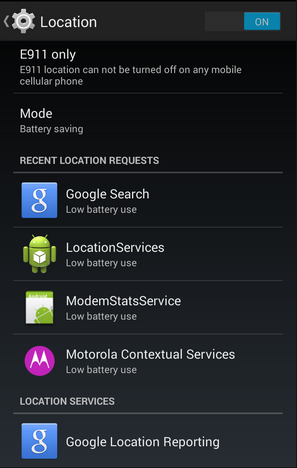
Do this by going to Location reporting and Location history. These settings use your phone’s GPS alongside other Google applications to enhance your user experience, but they aren’t really necessary. Disable them by going to Settings > Location > Google Location Reporting.

in blog android

Turn Off WiFi Scanning
You probably use WiFi the most when you’re in the office or at home, but while you’re out and about, your device continuously scans for a new connection. This scanning constantly drains the battery, and automatically connecting to random WiFi networks while on the go can be a security threat.

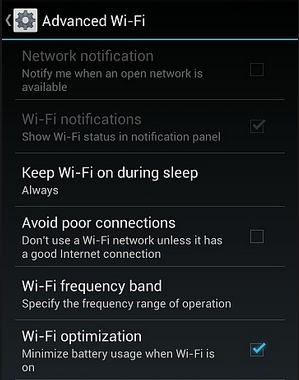
To do this, make sure your autoconnect feature is turned off, and turn off WiFi scanning by going to WiFi settings > Advanced. If the WiFi scanning box is unchecked, you’re all set.

in blog android2

Keep Track of Your Data Sync
Android smartphones constantly sync to your Google account. This keeps your device’s data backed up and up to date, but the process of syncing your data might have unintended consequences… like a drained battery. Turning off your sync might solve this problem, but it’s more efficient to choose what data you’d like to sync.

Android allows you to filter the data sync process to certain files, like pictures and videos. Do this by heading to Settings > Accounts. Select the account to access the sync settings. You can then uncheck any items you don’t want synced, or turn it off completely if you want.

While there are plenty of ways to conserve your device’s battery, these are only three of them. For more tips and tricks on how to make your Android device as useful and efficient as possible, give us a call at 810.230.9455.

b2ap3_thumbnail_coca_cola_spill_400.jpg

Why Coca-Cola’s #MakeItHappy Commercial Fails to Make IT Happy

b2ap3_thumbnail_coca_cola_spill_400.jpgOne of the most memorable Super Bowl XLIX commercials yet again came from Coca-Cola. In classic Coca-Cola fashion (pun intended), they premiered an inspirational video with the message, “Let’s all make the World Wide Web a better place, #MakeItHappy.” We can’t contest to Coke’s feel-good message, but as an IT Company, we must object to one horrifying aspect of this commercial.

To find out what’s got us so hot over here at NuTech Services, watch the commercial for yourself:

There. Right there at 0:16. Did you see it? We’re given an inside look at an absolutely gorgeous data center that seems to house most of the Internet, and who’s in charge of upkeeping this infrastructure? Apparently, it’s some wanna-be technician who thinks it’s okay to bring an open container in a data center container.

In the real world, no self-respecting data center would ever allow this. And not to be too picky, but we feel the need to point out that the volume in a data center of this size would be so loud that the tech wouldn’t be able to hear every beep and boink like he’s on the deck of the Starship Enterprise. In reality, the technician would need ear protection to dampen the noise coming from the thousands of server fans. But we digress.

Adding insult to injury is Coke’s absurd idea that spilling its soft drink inside a server will somehow cause “the happiness found in every bottle” to digitize and transform the Internet into a place of rainbows and participation ribbons. Granted, we’re just as sick of all the negativity on the web as the next user, and this snarky article probably isn’t doing much to #MakeItHappy; however, in all of our years of computer repair and seeing lots of computers fall victim to various spills, it’s our experience that not once has a spilled-drink scenario caused happiness.

In fact, we’ve seen the complete opposite to be the case as users of soaked computers become distraught and frustrated, expressing monitor-smashing and hate-filled-texting-like symptoms, similar to the behavior displayed at the intro of Coke’s commercial. Don’t take our word for it, see for yourself the look on the face of YouTuber Gail as she pleads with the Internet for help after destroying her laptop from having Coca-Cola “spilled all in it.”

It’s safe to say that Gail, aka “Southernstateofmind1,” isn’t happy from her Coca-Cola mishap. In fact, she’s “on the verge of tears,” and dem’ ain’t happy tears either.

After digging a little deeper on YouTube we come to TechRax’s channel and his pointless experiment of dousing a new iPhone 5 with Coca-Cola–shield your eyes, Apple enthusiasts.

Somehow, the iPhone survives its Coke bath. It could be due to the superb engineering on behalf of Apple, but we think it has more to do with the power of Bob Marley’s good vibes. We’re betting that your company’s server units couldn’t survive a Coke spill as well as this iPhone, as pointed out by these four YouTube users commenting on the Coca-Cola commercial.

  • TrevorSpace Animations: Whoever made this commercial clearly doesn’t know how computers work.
  • 0yisaicai0: But seriously though, coming from one who works in a security firm, I cringed a bit when that bottle tipped over. That’s serious network damages, right there.
  • TECGaming: I tried this with my servers, it totally just fried them. Thanks a lot Coke for not brightening my day but costing me 25 Grand on my server.
  • Data Cave (an actual data center company) shares our sentiments: Coke’s Super Bowl commercial definitely had a great message overall, but not exactly the best message for having drinks inside of a data center. Server rooms are Coke-free zones!

We wholeheartedly agree with Data Cave on this one, and any techie that brings a drink into a server room should be #Fired.

Woops. I Really Did Spill Coke on My Computer. What Do I Do Next?
The accidental spilling of drinks on computers is a common occurrence. Hundreds of PCs are needlessly damaged every day due to user negligence and a case of the clumsies. Sometimes a user gets lucky and can salvage their equipment, like with the iPhone user. Unfortunately, Gail’s scenario is more often the case with electronic circuitry being fried and the soaked equipment needing serious repair.

First thing’s first; if you spill liquid on your computer, power off your machine. One thing Coke got right is that a beverage in contact with electrical equipment produces sparks and a sizzly noise. Once the wet machine is turned off, dampen the outside of it with a dry cloth and be sure not to move it too much, or else risk the liquid seeping further into the machine.

If, and only if, you have the technical skills to open the case and dry your equipment out with a cloth and hair dryer, do so. Otherwise, we highly recommend that you take it to a professional so you don’t risk disrupting the insides and worsening the damage. Professional IT technicians will be able to accurately assess the damage and determine if it’s salvageable or not.

Our experience with spilled drinks informs us that there’s only one scenario where Coke spilled inside a server leads to happiness, and that’s after the fact when it’s remembered that the data is backed up and can easily be recovered, thanks to having a solution like our Backup and Disaster Recovery tool in place. #BePreparedForAnything

At the end of the day, we recommend that Coca-Cola stick to making feel-good commercials about singing songs and polar bears and leave the technical stuff to the IT professionals at NuTech Services.

b2ap3_thumbnail_do_not_succumb_to_stress_400.jpg

Tip of the Week: 5 Ways to Prevent Getting Burned By Your Job

b2ap3_thumbnail_do_not_succumb_to_stress_400.jpgOccupational burnout is a real risk for the busy business owner. Wikipedia defines it as, “Characterized by short-term exhaustion, lack of enthusiasm and motivation, feeling drained, and also may have the dimension of frustration and/or negative emotion and cynical behavior, and as a result reduced professional efficacy.” Can you relate? How can you prevent occupational burnout?

You might pride yourself on how many extra hours you put in each week, but pride can quickly take you to the burnout line. Before you know it, you’ve crossed that line and you’re terrorizing your workers. Okay, maybe it won’t get that bad around the office, but occupational burnout does negatively affect relationships and can unknowingly take you to some ugly places if left unchecked.

More than hurting your relationships, occupational burnout can negatively affect your company’s bottom line. This is ironic because the whole reason you may be working all those extra hours is to make more money. When you’re working so much that you’re essentially running on empty, you’re no longer doing yourself or anybody else any favors, so you might as well stop, take a break, and recharge.

Occupational burnout is similar to an illness that gets worse over time. Like an illness, it can be prevented if you notice the signs early on and take action. Here are five actions you can take to prevent occupational burnout.

  • Take frequent breaks.
  • Be physically active.
  • Get plenty of rest.
  • Foster a friendly work environment.
  • Shorten your commute.

Take Frequent Breaks
It’s recommended by Inc. that workers take a break every twenty minutes. This may sound a little ridiculous, but that’s only if you’re defining a break to be an extended period of time, like twenty minutes-to-an-hour. Instead, a break can be just a step away from your computer and a lap around the room. A mini-break like this should be enough to reset your mind so you can better focus on your project and not get bogged down by being locked in on the same project for hours on end.

Be Physically Active
You don’t have to become a bodybuilder or run a marathon to avoid office burnout, just some light physical activity will do the trick. It could be doing stretches, simple exercises like jumping jacks, brisk walking, anything that gets your heart pumping so you’re not sedentary at your desk all day long. Even making a switch to a standing desk can significantly boost your energy levels and help stave off occupational burnout. Remember, if you feel good, you’ll work well.

Get Plenty of Rest
No matter how much caffeine you pump yourself full of, you have to succumb to sleep sometime. It may seem like you’re getting a lot done by forsaking sleep, but the reality of running on too little rest is that the quality of your work suffers (as well as your immune system). Additionally, not having enough sleep means you will crash hard and have a night or a weekend where you oversleep, which totally cancels out your marathon effort of not sleeping. It’s better to discipline your schedule and get regular sleep every night.

Foster a Friendly Work Environment
A burned out worker is irritable and more susceptible to lash out at co-workers. This causes a chain reaction where everybody is on each other’s nerves, creating a toxic work environment. As the business owner, you set the culture for your company. If you’re emotionally healthy and not at risk of burnout, you’ll find it much easier to treat your employees well and the quality of their work will improve.

Shorten Your Commute
Studies show that shorter commutes equate to a happier work experience. One reason for this is because of the stress that accompanies the commuting experience. Fighting traffic (not to mention the weather) and pushing yourself not to be late can really chip away at your positive outlook and lead to occupational burnout. Taking steps to shorten your commute and spend less time on the road will reduce your chance of burning out and doing something extreme, like road rage. Remember, the shortest commute is no commute; working from home is a great way to prevent office burnout.

While it’s normal to have a bad day and experience stress, it’s another thing entirely to reach the point of occupational burnout. Taking these five proactive measures will be good for your physical and emotional health, which will help keep things cool, calm, collected, and productive around the office.

What are some preventative measures you take to avoid occupational burnout? Share them with us in the comments.

5 Tips for Saving Money on your IT

Saving a little on your technology can go a long ways, but cutting too many corners can lead to additional problems and expensive downtime. Here are a few ways you can cut costs without creating long term issues.

Don’t be Afraid to Replace

Got an older PC that’s causing you a lot of issues? Older technology is typically more expensive to run, and after a while, it’s cheaper to simply buy a new desktop than it is to continue pouring money into something that always seems broken. It’s a great time to buy workstations, and if things are tight you can even buy refurbished desktops to keep costs low.

Enforce Energy Efficiency

If you reduce the amount of energy your technology uses each day, your utility bill from the electric company will decrease as well. Switching to LCD monitors (if you are still using old CRT dinosaurs), and enforcing company-wide policies to turn off monitors or put workstations to sleep at night can make a big difference.

Stop Dealing with Vendors

You hired your employees to work, not sit on the phone with a PC manufacturer because your hard drive crashed. Businesses waste money by paying employees to go around in circles with vendor tech support all the time. IT firms like NuTech Services build relationships with vendors and are able to get things done faster. This means issues get resolved quickly and your employees don’t need to deal with less-than-helpful support.

Stop Paying your Phone Bill

Yes, you heard us right. Cease paying your phone company by switching over to a VoIP solution instead. Small businesses save up to 80% on their telephone communication expenses, so the investment pays for itself quickly. Many VoIP systems allow your users to take their phone and use it anywhere, giving you increased flexibility and functionality.

Get Proactive Monitoring and Maintenance

Nearly all day-to-day IT issues can be completely prevented with just a little bit of maintenance. NuTech Services offers these services to our clients, reducing the amount of downtime they experience. Traditional computer support only fix computer issues when they arise. NuTech Services provides proactive monitoring and maintenance to ensure fewer issues plague your business.

Disaster Recovery and Why it Matters to Michigan Businesses

When you mention the term ‘disaster recovery,’ most people think about the big ground-shattering events like earthquakes, fires, floods, tropical storms, etc. While these natural events are certainly disasters and devastating in their own right, smaller things can constitute as a disaster for your business, and they aren’t seasonal.

Let’s look at the definition of disaster.

dis·as·ter

A calamitous event, especially one occurring suddenly and causing great loss of life, damage, or hardship, as a flood, airplane crash, or business failure.

To NuTech Services, a disaster is anything that involves a major loss of data or major downtime. When one of our clients experience a server malfunction that leaves most employees sitting idle unable to work, that is a disaster.

The Cost of a Disaster

Downtime is a very terrible expense to not try to avoid. Try this simple formula for yourself:

Number of Employees Affected by an IT Outage X Average Employee Hourly Cost (NOT WAGES)
+ Average Company Hourly Income X Percentage of Income Lost Due to the IT Outage

This simple formula will tell you about how expensive every hour of downtime is for your company. The hardest value in the formula is understanding the percentage of income lost. Not all companies might have a figure, but you will want to consider it as you do the math. This doesn’t include the cost of repair, consultation, parts, or any of the remediation required to get things back up and running.

Disaster’s Harbinger

Disaster can strike from any direction. Hard drives can go, data can be corrupted, hardware can fail, and networks can go down, and systems can become infected with viruses and malware. User error can cause disaster, as well as theft and other malevolent activity. While companies should take precautions to safeguard themselves against threats both external and internal, and managed maintenance can prevent a lot of foreboding issues, having a solid disaster recovery plan can mean faster turnaround when there is devastating downtime.

Employing a disaster recovery plan starts with the data – your most important IT asset. Computers can be replaced, hardware can be repurchased and software can be reinstalled. Your data is the culmination of countless hours of work by all of your employees ever. It’s no wonder why most businesses that suffer a major data loss go out of business within the first year. You can lose your credibility, and things go into disarray. Data needs to be backed up.

Your backed up data should be archived regularly offsite. Most importantly, your backup solution needs to be easy to test, and tested regularly. You don’t want to find out your backups are corrupted when it is too late.

The time to put together your company’s disaster recovery solution is now. Contact NuTech Services at 810.230.9455 to talk about solutions for safeguarding your data and your business in the event of a disaster, large or small.

computer memory

Slow Computer? Increase your memory to boost computer Speeds

computer memorySometimes when your workstation feels bogged down, a relatively cheap and simply hardware update can make a huge difference in performance. Adding more RAM (Random Access Memory, often just referred to as memory) can be a game changer for your bogged down PC.

There are several factors that contribute to the speed of a PC. Let’s very briefly break these down:

CPU/Processor

The CPU handles all of calculations a computer performs. These days consumer-class CPUs handle billions and even trillions of instructions per second. While dated processors can greatly influence the actual speed of a computer, if your PC is fairly new (as in 1 or 2 years old, and possibly older for higher end builds) it’s likely not bottlenecking your performance. Today, CPUs are equipped with two, four, or even more cores, which means the CPU can handle an more calculations exponentially and consume less electricity.

RAM/Memory

Random Access Memory is basically the short-term memory of your computer. While your computer is loading and running applications, they get stored in the RAM. The RAM is much faster than the hard drive, so your computer doesn’t need to spin it’s wheels looking for specific files and parts of applications. The more RAM you have, the more “stuff” that can be stored in it. The faster your RAM, the faster your computer can sift through the data that gets temporarily pushed into it. Once your RAM is full, your computer will depend on the hard drive to retrieve information, and that’s where things get sluggish. Once you stop running a program, it will remove itself from the RAM to free up some space for everything else running.

Hard Drive

The hard drive is the storage device of a computer. For extremely high-end PCs, the hard drive is the bottleneck. Hard drives, when compared to RAM, are very slow to access and write information. Once your computer needs to rely on your hard drive heavily for RAM, things are going to start getting bogged down. While it’s great that your PC can rely on your hard drive in this way for those times it needs some extra memory, it is likely this is the slowdown. Unfortunately, because hard drives are mechanical and have moving parts, there’s limitations to how fast science can make them perform. There are costly solid-state drives, but as a performance-improving factor on a standard workstation, typically solid state drives aren’t the cost-effective answer.

Of course, there are software factors as well. Malware and Spyware can bog down your system, and after a lot of use, temporary files can bog things down. Before upgrading hardware, you’ll want to have a technician run a quick evaluation on your PC – it’s possible a little cleanup can make all the difference in the world.

Otherwise, the next step is upgrading the RAM. RAM is usually relatively cheap, even to double or triple your existing RAM with faster, higher performance memory. Often the cost of the new RAM itself will be between $50 and $100, and more than likely less than that, and that’s for a substantial increase, but it depends on your PC.

Is your computer running slow? Does it get bogged down by the time you have all of your day-to-day applications open? Contact us at 810.230.9455 for a quick evaluation to see if a simple, cost-effective upgrade will help you perform your job more effectively.