cookies_353673440_400.jpg

What Are Browser Cookies, Anyways?

cookies_353673440_400.jpg

What do a bakery and a web browser have in common? Both have cookies—but, what are browser cookies, and what do they do? Let’s take a few moments to explore the concept of the browser cookie and what their function is.

So, What Are Browser Cookies?

A browser cookie is quite simply a text file that your computer uses as a kind of identification as it connects to a network, nowadays most associated with the Internet. HTTP cookies help to differentiate between users and make each of their browsing experiences the best they can be.

To accomplish this, HTTP/browser/Internet cookies enable your browser to track and save data about each user’s browsing sessions—jargon for the time spent on each website. Whenever you visit a website for the first time, the server that hosts the website’s data shares information with your browser that is recorded in a cookie on the browser. The next time you visit that website, the cookie tells the website what information to show you from your past sessions.

This is how websites are able to remember that a user has logged in after the browser is closed, or keep track of items that have been added to a shopping cart. In fact, cookies are responsible for allowing the “back” button to work on your browser. 

Not All Cookies are the Same

Okay, to this point, we’ve primarily discussed first-party cookies, or those that the websites you visit create directly. So long as you’re browsing safely, these cookies will generally be safe to collect.

However, there are also third-party cookies, those that come from another website than the one you’re visiting. These are frequently spread through advertisements to help track a user’s surfing patterns.

Session cookies are those that only last as long as a user is on a website, and marketing cookies are those that help shape the ads that a user sees based on their browsing history—they’re the reason that you might keep seeing ads for a tortilla press after looking up recipes for homemade tortillas.

Other cookies include performance/analytical cookies, which give those who run websites the metrics they need to improve them. These metrics include things like the length of time spent on a website, the levels of activity different parts of the website see, and if visitors manage to find what they are looking for.

Some Cookies Should Be Avoided

Generally speaking, a business should only enable the minimal cookies needed to function. Otherwise, more data may be shared than you are comfortable with, and you might be exposing your data to threats. Fortunately, most cookies are relatively simple to remove if need be.

How to Remove Cookies in Different Browsers

Google Chrome

Access the three-dot menu, and from there, Settings. Under Privacy and security, click Clear browsing data and proceed to Advanced. Once you’ve selected a time period, select Clear data.

Microsoft Edge

Select Settings, and then Privacy and services. You’ll see a section labeled Clear browsing data, where you can Choose what to clear. You’ll be prompted to select the time range to clear data from, which you can accomplish by clicking Clear now.

Mozilla Firefox

Click on Options, and then on Privacy & Security. You’ll see Cookies and Site Data, and the option to Clear Data.

As always, NuTech Services is here to assist you with all aspects of your technology. Find out how else we can assist you by giving us a call at 810.230.9455 and asking us about our IT support and consulting services.

325656030_privacy_settings_400.jpg

Browser Privacy Settings that You Should Know

325656030_privacy_settings_400.jpg

You’d be hard-pressed to find a business that doesn’t rely on the Internet in some way, and everyone uses web browsers as a method of interfacing with the Internet. These browsers, however, are not necessarily the most secure applications by default. With some adjustments to the features, you too can optimize security and privacy when using your preferred web browser.

Optimizing Chrome’s Security

Chrome might be one of the most popular browsers out there, but it’s also one that needs to use certain extensions to optimize security and privacy. Consult your IT resource to install extensions from the Chrome Web Store. These extensions can be added or removed by using the three-dot menu and following this pathway: More > More Tools > Extensions.

In Privacy and security, you can also see the Cookies and other site data. Click on the option to Block third-party cookies, just so you don’t wind up storing passwords that shouldn’t be stored.

Optimizing Firefox’s Security

Firefox actually has some decent built-in security standards which you can adjust by going through Preferences > Privacy & Security. There are options for Standard, Strict, or Custom settings.

  • The Standard option, the default, blocks trackers in private browsing, cryptominers, and third-party cookies.
  • Strict takes everything included in Standard and blocks trackers and fingerprints.
  • Custom allows the user to adjust how these trackers are blocked.

These settings can be applied to all active tabs just by reloading them with the Reload All Tabs button.

Optimizing Edge’s Security

Edge also tries to keep security as basic as possible, though there are some features that include Tracker prevention, as well as built-in Basic, Balanced, and Strict settings.

  • Basic blocks the trackers utilized for fingerprinting and cryptomining.
  • Balanced, the default setting, blocks trackers from unvisited sites while allowing those that can help speed up browsing.
  • Strict blocks the most trackers, potentially interfering with the functionality of some sites.

Optimizing Safari’s Security

Safari has several built-in features that allow it to stop ad tracking present on websites, as well as a list of trackers that you have sent traffic to over the past 30 days. Safari provides this feature through the Preferences and Privacy settings. Just make sure that Prevent cross-site tracking is selected and delete your cookies manually. This information can also be managed in the Manage Website Data setting. Furthermore, Safari also allows you to Block all cookies, so use this feature if you want to do so.

NuTech Services can help your organization optimize its security and privacy settings in all aspects of your operations. To learn more, reach out to us at 810.230.9455.

423837102_password_management_400.jpg

Tip of the Week: Is Browser-Based Password Management Safe to Use?

423837102_password_management_400.jpg

Passwords are quite literally everywhere nowadays. With so much of modern life now controlled or held within user accounts, keeping your passwords both secure and straight in your head is crucial. Many web browsers now offer some built-in password management utility to help make this process more convenient for the user, but is this option available at the cost of security?

Let’s examine how secure each major browser’s integrated password manager is, as well as how to disable them if you so choose.

How Secure is Your Chosen Browser’s Password Management?

Let’s do a side-by-side comparison of the password managers now built into the major browsers on the market: Google Chrome, Firefox, Microsoft Edge, and Safari. 

Chrome

Tied to the user’s Google account, the password manager found in Google Chrome offers many of the features one would expect of a modern password manager. Not only is it itself protected by two-factor authentication, but it also offers the capability to generate a random password on the user’s behalf whenever they create a new online account. This password generation helps to prevent users from simply recycling the same password over and over which minimizes the chances of a single data breach undermining more than one account.

Firefox

Whenever you access one of your accounts through Firefox, the browser will prompt you to save the username and password you used on that device where it can be viewed through your browser’s Options. From that point on, the credentials will be saved. The default setting for this capability is unfortunately insecure, but you can set a master password to protect its contents, making this the most secure option available to you.

Edge

Microsoft was late to the party concerning its password management, only adding the capability to its browser at the start of January 2021 to supplement its other security features. Among these features is Password Monitor, which helps to alert the user of breaches, as well as the capability to auto-generate a password when creating an account.

Safari

Rounding out our selection of browsers, Safari features a bundled password generator and management tool, enabling you to autofill your passwords into the websites you visit. Taking it a step further, contact info and credit card information can be saved, with all of it accessible on all your devices with iCloud Keychain. Of course, this platform is Apple-agnostic, and is relatively stingy compared to many third-party password management options, with no two-factor authentication available.

So, What’s the Most Secure Offering?

As a general rule, integrated password managers will do in a pinch, but the better option is to instead use a dedicated password manager. The reason that this is the case? Primarily: most integrated password management platforms don’t require the passwords they save to be all that secure. The opposite is usually true of your dedicated management programs, which also offer the convenience of generating sufficiently secure passwords at the click of the mouse.

We also recommend that you supplement your password security whenever available with two-factor authentication, in addition to many of the typical best practices we always recommend, including:

  • Keeping your devices and browsers up to date to ensure security patches are installed properly.
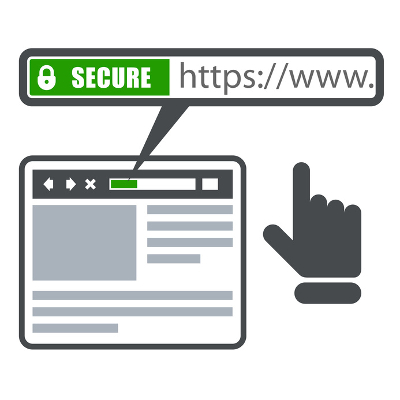
  • Avoiding websites without SSL certificates (which will simply have “http” in the URL, as compared to “https”) or using publicly-accessible Wi-Fi connections. This is noted with a little lock icon in your browser address bar.
  • Being discerning about the browser extensions or software titles you enable.

How to Deactivate the Built-In Password Management in Your Browser

Each option provides its own means of disabling its integrated password manager:

Chrome

In the Chrome browser, access the three-dot menu and select Settings. Under Autofill, click into Passwords and switch off Offer to Save Passwords.

Firefox

In your Firefox browser, access the hamburger menu and select Options. Find Privacy & Security out of the options on the left and locate the Logins and Passwords section. Deselect Ask to save logins and passwords for websites.

Edge

In Edge, access the three-dot menu and click into Settings. From there, select Passwords and then deselect the option to Offer to save passwords.

Safari

In Safari, access the Menu and select Preferences. Accessing the AutoFill category, deselect everything: Using info from my contacts, User names and passwords, Credit cards, and Other forms.

If you’re looking for reliable IT solutions, along with the means to keep them secure, look no further than what NuTech Services provides. Learn more about what we have to offer by calling 810.230.9455 today.

390064020_malicious_browser_400.jpg

Watch Out for Malicious Browser Extensions

390064020_malicious_browser_400.jpg

Browser extensions are nifty little programs that can be implemented into your web browser itself, adding onto its capabilities and utility… at least, that’s the concept. Unfortunately, these programs also give cybercriminals a means of secretly launching an attack. The security firm Avast recently identified 28 such third-party extensions that have been installed—according to the download numbers, at least—by about three million people on Google Chrome and Microsoft Edge combined.

How Do These Threats Work?

These attacks work similarly to how a phishing attack or a spoofed email would, as a user is promised one thing but winds up receiving something very different. While a malicious application may perform the task it claims to, it also may redirect the user to a phishing website or ad (making the cybercriminal some money) or simply steal some of the user’s information, like their birthday or email address.

In the case of these extensions, the code needed for several different malicious operations was present, including:

  • Redirecting traffic to advertisements (falsely generating revenue)
  • Redirecting traffic to phishing websites
  • Collecting personal data
  • Collecting browsing history
  • Downloading additional malware onto a user’s device

Avast’s researchers believe that only the first code was actively utilized, generating ill-gotten revenue for the creators of these extensions. Regardless, these extensions should be removed from any systems on your business’ network that they may be installed on.

The impacted extensions are as follows:

Chrome

  • App Phone for Instagram
  • Direct Message for Instagram
  • DM for Instagram
  • Downloader for Instagram
  • Invisible mode for Instagram Direct Message
  • Odnoklassniki UnBlock. Works quickly.
  • Spotify Music Downloader
  • Stories for Instagram
  • The New York Times News
  • Universal Video Downloader
  • Upload photo to Instagram™
  • Video Downloader for FaceBook™
  • Vimeo™ Video Downloader
  • VK UnBlock. Works fast.
  • Zoomer for Instagram and Facebook

Edge

  • DM for Instagram
  • Downloader for Instagram
  • Instagram App with Direct Message DM
  • Instagram Download Video & Image
  • Pretty Kitty, The Cat Pet
  • SoundCloud Music Downloader
  • Stories for Instagram
  • Universal Video Downloader
  • Upload photo to Instagram™
  • Video Downloader for FaceBook™
  • Video Downloader for YouTube
  • Vimeo™ Video Downloader
  • Volume Controller

Again, we encourage you to check your company’s network to ensure that these extensions are not installed in any of your users’ browsers, and that you encourage your employees to do the same.

Not sure how to go about doing so? NuTech Services can help. As a managed service provider, our services include remotely monitoring your business’ technology and network for threats while keeping abreast of this kind of news so that we can proactively resolve any issues that may influence your operations. 

Find out more today by reaching out to us at 810.230.9455.

118204795_chrome_colored_tabs_400.jpg

Chrome Adds Color Coded Tabs and We’re So Thankful

118204795_chrome_colored_tabs_400.jpg

Google Chrome is adding a cool feature over the next week or so (it may already have been released for you). The next feature is sure to make a big difference for some and will be non-descript for others. Let’s unpack colorful tabs in Google Chrome.

Adding More Organization Into Your Chrome Browser

Admit it, you have a tendency to use too many browser tabs. At any given time, you may have 5-10-20 browser tabs open. If you use more than one screen, it could be more. Way more. Most users use their Chrome browser for so much of your online life that you hardly pay attention. Then you wonder why your PC is running slow. The truth is people use a lot of browser tabs, and they are better off for it. 

Google, knowing their users’ behavior better than most companies has come up with a new feature that will allow you to assign a certain color to a browser tab and then group them together with like-colored tabs. This feature will be rolled out to users in this update

The update should be coming this week, but it will hit everyone at different times (Google is deliberate about their updates). You may already have the feature in your Chrome browser. When it does come it will be as a default browser update, and will be a change for all Chrome users. All you will need to do is right-click on tabs, group them together, and assign a color.

Are you a tab-hoarder, or a tab-minimalist? Is this feature going to help you? Leave your comments below and be sure to return to our blog for more great information about technology.

120234781_keyboard_shortcut_400.jpg

Tip of the Week: Keyboard Shortcuts for Convenient Browsing

120234781_keyboard_shortcut_400.jpg

With its all-purpose functionality really coming to the forefront in the office, your Internet browser is likely one of your most used computer programs. Considering that so much of your time is spent using the Internet, we thought it would make sense to share a few shortcuts to make it more efficient for you.

If you want to try them out as you read along, make sure you open a new browser window… we don’t want you leaving this page before you read all of them!

Jump to Address Bar: Ctrl+L

Let’s say that it’s the beginning of your day, so you are checking your email for the first time. Afterwards, you know that you need to go to a particular website. Windows offers a quick shortcut that selects and clears the address bar so you don’t have to even stop typing before you move along. To make the jump, simply press Ctrl+L.

Quickly Add the Dot Com: Ctrl+Enter

Let’s use an easy example for this one, like the official website of the 1996 movie Space Jam. Visiting this website is as easy as typing in “www-dot-spacejam-dot-com,” but this shortcut allows you to just type in “spacejam” instead. Pressing Ctrl+Enter will automatically add the “www-dot” and “dot-com” in for you.

Open a Search in a New Tab: Alt+Enter

Of course, a lot of searches come about as something else is being done online, and that something isn’t always something you can navigate away from. If you’re trying to open a new website up or perform a search in a new tab, pressing Alt+Enter rather than just the latter will open what you typed in a new tab.

These two shortcuts also work together, so pressing Ctrl+Alt+Enter after typing “spacejam” would add the missing domain information and navigate to it in a new tab.

Open Clear Browsing Data: Ctrl+Shift+Delete

Finally, when you’re all done browsing the Space Jam website (or whatever else you may have used these tips to do), you can more conveniently open your option to clear your browsing data.  Pressing Ctrl+Shift+Delete will bring you to the requisite screen for you to press the button.

Before you navigate away from this page, make sure you subscribe to our blog for more useful tips and time-saving best practices!

best_browser_400.jpg

Which Browser is Best for Your Needs?

best_browser_400.jpg

There are a variety of web browsers out there, and that variety is much larger than most people think. While most can list off the main ones: Chrome, Safari, Edge, and Firefox, there are many more to consider. However, the real question remains: which one is best for you?

In a Nutshell: Probably Chrome…
The most used browser today is Chrome, with about 60 percent of the market share going to it. This isn’t an accident, as Chrome has historically prioritized the two things that Internet users want most – options and speed.

Chrome has always been fast, and despite some other browsers reaching comparable speeds, they just can’t match Chrome’s consistency in that arena. It also doesn’t hurt that Chrome has a remarkably simple interface that hides a massive amount of functionality, only supplemented by a huge extensions list.

However, Mozilla’s Firefox option has also exploded in popularity with its release of Quantum, which allows it to give Chrome a run for its money where speed is concerned. With additional security features and other useful elements, Mozilla is another tempting option.

Microsoft’s Edge browser is another option for many, especially if they prioritize the ability to easily share web pages through either email or assorted social networks, or to take notes on web pages and save them. Furthermore, as it was developed by Microsoft, the same company that develops Windows itself, Edge and Windows integrate quite well with each other.

…But It Depends
Of course, if your browsing tends to have a specific purpose or need, there are other browsers that may lend themselves better to your given objective. For instance, Opera has a feature called Opera Turbo, which can help make slow broadband speeds less of an issue.

Another option is Vivaldi, which would be ideal for those who want a customizable browsing experience. This browser lets a user create their own keyboard shortcuts and mouse gestures, as well as provides far more options that effectively allow the user to customize their own browser. Those who are particularly concerned about their online privacy might prefer the inherent features found in the Brave Browser or in the Tor Browser, and those who frequently download things from torrents might prefer Torch Browser.

At the end of the day, your choice will depend on your preferences. NuTech Services can help you weigh your options and make the best choice for you and your business. Give us a call at 810.230.9455 today.

tt_breadcrumb_400.jpg

Know Your Tech: Breadcrumbs

tt_breadcrumb_400.jpg

A trail of breadcrumbs can be a useful thing, whether you’re using it like Hansel and Gretel to find their way back home, or you’re using it in computing to find your way back to a page you were previously on. Today’s tech term is dedicated to the latter.

What is Breadcrumb Navigation?
As per the aforementioned fairy tale, breadcrumb navigation consists of a path leading home. In this case, home is the homepage. With breadcrumb navigation, you can more easily keep track of how you got to the current web page you’re on, as well as the path back to the home page. This path can typically be viewed at the top of the page. Each step includes a link that navigates back to a specific page.

Let’s say that you’re looking at a service page on a website. If the path you took leads back to the home page, you’ll see all of the pages in between in the breadcrumbs menu. For the sake of this example, let’s say the pages in between are the second menu item and the fifth menu item. It would look something like this:

Home > [Menu 2] > [Menu Item 5]

Since these breadcrumbs are links, you can click on any one of them to be brought back to that page. This lets you continue browsing with minimal chance of getting lost on the site trying to backtrack.

More Than Just Websites
You might notice that this navigation style is similar to the ones used in toolbars in file folders or files saved on your desktop. The reason is the same–it makes finding certain files easier at a later date. The location can also be shared with others who need to know where it is.

Breadcrumbs are typically meant for helping users with browsing and organization. Are there any other features out there you can think of that do the same thing? Let us know in the comments.

tech_term_cookies_defined_400.jpg

Tech Term: Cookies Defined

tech_term_cookies_defined_400.jpg

Chances are, if you’ve spent any amount of time around a computer, you’ve heard of browser cookies. What you may not have heard, is what these cookies do. For today’s Tech Term, we’ll explore what cookies are, and what they do.

What are Cookies?
A cookie is a sample of information that a website stores on a user’s computer in text format that only that particular website can access. This information, made up of name-value pairs, informs the website if you have ever visited before and allows it to personalize your experience as a user. These cookies are often removed once the browser window is closed down, but they can be designed to last longer.

Cookies are what enable a website to “remember” that you are logged in and allow you to change particular settings without them reverting back the next time you navigate to a new page. Furthermore, cookies can allow websites to remember your browsing tendencies and suggest things that might interest you, even if you haven’t logged in. This is especially apparent on ecommerce sites that offer you products that might interest you based on the products that you’ve viewed in the past.

Are Cookies Dangerous?
In a word, no. All these pieces of data are viewable only by the website that delivered them. This means that Website A can only see cookies that it has delivered, and its cookies are likewise hidden from Website B. As a result, if Website B was attempting some malicious activities, the information that Website A has stored is safe.

However, some cookies are used for purposes that may be unwelcome to some users. Have you ever been browsing for a particular item on Amazon, and then notice that the other websites you visit are displaying advertisements for related items? This is the result of an advertising cookie taking note of what you have demonstrated interest in, thereby allowing it to customize the advertisement to best fit your interests.

Clearing Cookies
Of course, you can remove the cookies that your browser has accumulated by using the Clear Private Data tool. However, this will also erase any saved login credentials that you do want websites to have saved. The majority of browsers have ways to workaround this by whitelisting some websites as trusted to save cookies.

Are there any other Tech Terms you’d like defined, or do you have more questions about cookies? Reach out to us at 810.230.9455 and let us know!

browser_comparison_400.jpg

Tip of the Week: Browser Security 2018

browser_comparison_400.jpg

The Internet browser is one of the most utilized applications on most computers. With so many complex and aggressive issues popping up on the Internet it would be useful to know which of today’s most utilized browsers are best at keeping your computing network free from threats. Today we will take a look at each of the five most utilized web browsers to find out which is the most reliable and secure for your business to use.

What Risks Do You Face?
The risks are numerous and unrelenting. Around every corner on the Internet there are muggers with knives looking to take your stuff. The good news is that for many of the threats present, there are solutions to a lot of them–pretty much as soon as they are discovered. The Internet security community has leveraged this constant attention into immense profits. According to an article in Forbes, the cybersecurity industry is growing rapidly and is expected to be worth $170 billion by 2020, with a good portion of growth dependent on the ever-present Internet of Things.

To get a good idea about what kind of threats you face, all you need to do is take a look at the cybersecurity markets.There are cybersecurity markets for gadgets, appliances, cars, and more. There is cybersecurity insurance. PricewaterhouseCoopers has forecasted a $7.5 billion market for data insurance to come to fruition by 2020.

Four of the largest banking institutions in the world, J.P. Morgan Chase, Bank of America, Citigroup, and Wells Fargo spend upwards of $1.5 billion on cybersecurity annually. If the least risk-averse people in the world are spending a fortune, you know what you are up against. These organizations have seen companies decimated by cybersecurity lapses and understand the risk; something you and your business should consider a sign that it’s time to do something about protecting the people that depend on you against the rogue actors who breach and roam around computing networks like yours and take what they please.

Small Business Browsing
You’d think that in the context of a small business’ computing, they wouldn’t need the protection that global banking institutions do, but with all the risks that are there, there has to be some attention paid to the issue and some investment in understanding how to mitigate those risks that are laid on your organization by constant threats from the web. The good news is that most of what you need to do is attainable by simply understanding how the web works, and through the use of a secure Internet browser.

The most well-known, and most utilized, Internet browsers include: Google Chrome (56.3%), Apple’s Safari (14.5%), Mozilla Firefox (5.7%), with other browsers making up for less than 5% including Microsoft Edge/Internet Explorer, Opera and others. Any Internet browser worth its salt will do a great deal to keep users’ computers and networks from being maligned by malware and other problems.

This is accomplished by producing secure connections. In the browser, any website identified with the protocol “https://” has a secure connection. This connection encrypts the data that is sent and received through the browser to keep any transmission of data on that site from being intercepted, stolen, or leaked. This allows data to be protected during interchange providing a semblance of privacy. Since the two components every secure connection requires are privacy and identification, this encryption starts things off pretty well.

Since the typical connection between the Internet browser and any server it is cooperating with is initially short on security, websites rely on secure connections through the use of digital certificates in order to know exactly who a website is owned and run by to establish a trustworthiness of the Internet browser.

Google Chrome
Google Chrome, long known for its reliability and popularity, sports the most powerful sandbox of any of the major browsers. A sandbox is an isolated environment that attempts to keep the Internet contained, and thus away from your network or computer. Google has the fastest response time to security vulnerabilities, but with the use of “Chrome apps”, weaknesses begin to present themselves. If you stick to the browser itself, you are looking at the most secure of the major Internet browsers.

The issue of privacy, however, makes Chrome tricky to get a hold on. Google, after all, has built an empire by knowing things about its users. This lack of privacy, even if it just results in you having more advertisements targeting you than before, is disconcerting to some and can be seen as a necessary evil for using Google’s browser.

Mozilla Firefox
Firefox is getting old. Since Firefox doesn’t utilize the sandbox technology, it doesn’t have the buffer between the user and the web that most browsers have. Firefox has a problem with their JavaScript plugins sharing the same namespace, which exposes all plugins to potential attack by any malicious plugin. In order to get the most out of Firefox, you have to understand and practice safe browsing habits, and aren’t installing plugins from developers you don’t trust.

Privacy, however has been Firefox’s strength from day one. Mozilla collects very little data and does not trade information on its users; and, remains the only of the major browsers that is open sourced. This allows users to open up the source code to see exactly what is going on.

Apple’s Safari
Apple’s browser is limited to just Apple products after attempting, and failing, to move the browser over to the PC. Safari is known for developing and releasing patches fast, and as a secure browsing experience because the risks were just not as prevalent for devices running macOS or iOS as they were for those that run Windows.

Like Chrome, and the Microsoft browsers we will mention later, user privacy isn’t on the list of priorities for Apple. While a lack of privacy could be looked upon as a positive characteristic of a browser (as more transparency helps develop bug fixes faster), if you are running a Mac OS, sticking with Safari is your best bet.

Opera
Opera is the oldest Internet browser on this list. Having gone through a major overhaul in 2013, Opera replaces their proprietary engine to go with Chromium, the same engine used by Google’s Chrome browser (and others). As far as security goes, Opera has a lot going for it. Having a small percentage of the market share is a major one (one their developers would gladly shed), as this kind of security through obscurity keeps threats to a minimum. Despite using the same browser engine as Chrome, Opera doesn’t support browser apps, limiting its already minimal exposure.

Privacy in Opera is much like Firefox’s. They have a very conservative data collection policy which despite the software not being open sourced, does present users with privacy concerns some peace of mind.

Microsoft Edge and Internet Explorer
Microsoft’s browser was once the predominant one in use. Today their market share has dwindled into the single digits, with the “new” Edge browser still gaining traction. Internet Explorer is barely being supported any longer, so it’s best to avoid that software at all costs, but Edge seems to be just a scaled down IE that doesn’t support ActiveX technology or Browser Helper Objects. It has its own limited set of in-browser apps that give people looking to infiltrate the browser more access points.

Privacy in Microsoft’s browsers is non-existent as Microsoft has a history of collecting everything. There are options to make it less transparent, but users should be happy the Edge isn’t IE.

No matter what browser you use, you have to be cognizant of sharing data you don’t want others to see. Understanding what your responsibilities are will go a long way toward keeping your data and network safe from security threats. For more information about Internet browser security and privacy, or to discuss your organization’s general network security, call NuTech Services today at 810.230.9455.

recovering_tabs_browser400.jpg

Tip of the Week: Closed A Tab On Accident? Here’s How To Restore It

recovering_tabs_browser400.jpg

Have you ever accidentally closed a tab before you were done with it? It’s a classic case of clicking just a little too close to the X. We’ll walk you through how you can open up Google Chrome tabs, not just on your ordinary desktop web browser, but your Android device as well. It’s a lot easier than searching for the same web pages as before!

For the Chrome web browser, it’s as simple as right-clicking in the space that you would ordinarily click if you were to open a brand new tab. You will then click on Reopen Closed Tab. You can also use the keyboard shortcut for Ctrl+Shift+T.

But what if you want to access any recently closed tabs on your Android device? There’s a very simple way to do this, as well. You can start by opening up the Google Chrome app. Next, tap the three-dot menu in the top right corner of your screen. A couple selections down on the menu, you’ll see the option for Recent tabs. From this screen, you’ll be able to see all of the recent tabs that you have closed out of.

The cool thing about this screen is that you can even see the tabs of your other devices that are synced with your mobile device. To restore a closed tab, all you have to do is tap the title of the page you want reopened.

As for other browsers like Mozilla Firefox, you’ll see the option to restore your last browsing session the next time you open the web browser. All you have to do is click the Restore Previous Session. Right-clicking on the tab in Microsoft Edge will also present a similar function compared to Google Chrome.

For more great tips and tricks, visit NuTech Services’s blog today.

tabbed_browsing_400.jpg

Tip of the Week: How to Use Tabs to Their Full Potential

tabbed_browsing_400.jpg

Tabbed browsing–it’s so commonplace that some might not even think about what it was like to use the Internet before tabs became a thing. Believe it or not, even this seemingly simple feature has a lot of depth to it. There are all sorts of tips and tricks that you can use to better use the tabbing features of your favorite web browser.

Open a Link in a New Tab
There are several ways to open up a link in a new tab. The first is to use the middle button of your mouse, which can be found by clicking in the mouse wheel used for scrolling. You can also right-click the link and select Open in a new tab. Furthermore, in Internet Explorer and Firefox, you can simply hold down Ctrl and click the link to open it in a new tab.

Close a Tab
The middle button on your mouse is great for closing out of a tab as well. You can just click the X, too, but what fun is that? After all, shortcuts are placed in order to make your life easier, so why not use them to the best of your ability?

Open a New Tab
There’s a keyboard shortcut to open up a new tab. To do so, just use Ctrl+T.

Reopen a Closed Tab
Let’s say that you accidentally close a tab that you wanted to keep open. You can use the keyboard shortcut Ctrl+Shift+T to reopen a closed tab. If there are multiple tabs that you want to reopen, just repeatedly use the shortcut until you are content.

Switch Between Open Tabs
You can even use your keyboard to jump quickly from one tab to the next. Just hold down Ctrl and press the corresponding number on your keyboard. For example, if you use Ctrl+1, you’ll be directed to the first tab from the left.

BONUS for Edge Users
Do you use Windows 10’s Edge browser? If so, there is a great new tab feature for anyone who tends to have way too many tabs open at any given time (you know who you are). Edge users can make groups of tabs and set them aside for later. Click the icon to the left of your tabs (it looks like a window with a back arrow) and it will move all of your open tabs into the menu on the left. You can click on the far-left icon to view all of your stored tabs.

For more great tips and tricks on how to take full advantage of your business technology, subscribe to our blog.

extensions_in_incognito_mode_400.jpg

Tip of the Week: Browse Incognito Mode Better By Enabling Your Extensions

extensions_in_incognito_mode_400.jpg

Fans of Google Chrome are familiar with using Incognito mode to cover their tracks and keep their Internet browsing private. Although, one downside of Incognito mode is that it disables your browser’s extensions by default. If this has been an annoyance for you, then you’ll be pleased to learn that switching on your extensions for Incognito Mode is easy to do.

Incognito mode might be a great way to browse the Internet with some semblance of privacy, but if it’s at the cost of your efficient browsing thanks to extensions, it’s somewhat unfortunate. Thankfully, there is a very simple way to make sure that your extensions work at all times, even when in Incognito mode.

Just follow these short directions and you’ll have extensions in your browser during Incognito mode:

  • Click Chrome’s menu button
  • Make your way to the More Tools
  • Click on Extensions
  • Go through the extensions and find the one that you want to enable in Incognito mode
  • Click on the Allow in Incognito Mode button

Well, there you have it. Now you can use your extensions even while in Incognito mode! Just keep in mind that there’s probably a very good reason why Google Chrome blocks extensions by default, so try to limit it to only extensions that you absolutely trust. The last thing you need is a security discrepancy caused by you trying to find a more convenient way to go about your daily business.

For more great tips and tricks to help you get the most out of your technology, subscribe to NuTech Services’s blog.

public_computers_are_dangerous_400.jpg

Tip of the Week: Stuck Using a Public PC? Be Sure to Follow These 2 Privacy Tips

public_computers_are_dangerous_400.jpg

Full disclosure: we don’t recommend doing anything important, or really anything at all, on a public computer. However, we understand that sometimes life works out in an unideal fashion, and sometimes you can be stuck doing something you shouldn’t, and otherwise wouldn’t. Even in these cases, there are steps you can take to preserve your security.

Despite the explosion in mobile device connectivity, the use of public computers is still remarkably common. Unfortunately, the same remarks can’t be said about their relative security. These open devices tend to have few solutions in place–if any–especially when compared to the average privately-held device.

However, as we go through the steps you need to take while using a public computer, we will also go through some alternatives that you really should consider implementing before you find yourself in this risky situation.

Use a Private Browser
The default settings for most web browsers are designed, more or less, for a single user’s exclusive use. This is why your browser collects data like your history, what you’ve downloaded, and account credentials. It’s all done to make the user’s experience simpler–which, on a private machine, isn’t necessarily a bad thing.

However, these capabilities don’t just go away because more than one person uses the computer, and so if you enter some sensitive credentials, the next user may be able to access and utilize them as well. Using a private browser prevents you from leaving those digital footprints on the machine by having it “forget” what you were just using it to access.

Keep in mind, private browsers aren’t a cure-all when it comes to your online security. Even though the computer itself won’t have a record of your browsing, it doesn’t mean that private browsers wipe your trail from the Internet as well. In order to do that, there are other measures you’ll have to take.

Use a Virtual Private Network
Virtual Private Networks, or VPNs, are a step up from a private browser. Once a user logs in to their VPN, their IP address is effectively shielded from view, and their activity is processed through an encrypted virtual tunnel. Using proxy servers that span across the globe, your identity and location are shielded enough that you will never be the target of an opportunistic attack.

As far as price is concerned with a VPN, there are free options out there, as well as many very reasonably priced, paid varieties. Your VPN would need to be set up on your office network before you plan on using it from an outside location.

When it comes to doing business while travelling, it’s only natural that the urge is there to use whatever is available. However, if you must decide between productivity and security, it is much more prudent to prioritize security. After all, without your security, you may just find that your finished product has been tampered with or stolen.

On the topic of security, it cannot be said enough that using a public computer in any professional capacity is simply not a risk that is worth taking. There is simply no way that you may be sure that your data is absolutely safe.

NuTech Services can help you maintain your security in situations like these. Give us a call at 810.230.9455 to learn more.

secure_web_browsing_400.jpg

The “S” in HTTPS is More Important Than You May Think

secure_web_browsing_400.jpg

It would be an understatement to say that security, particularly encryption, is important while browsing the web. Though it was only recently that encryption became a major pain point for government regulation, encryption has been around for a very long time. The average user can get a taste of online encryption through the average website security certificate.

Hypertext Transfer Protocol, with an S on the end for “security,” is designed to protect a website visitor’s privacy by encrypting information sent from the website to a receiving server. Ordinarily, the connection wouldn’t be private, so data can be accessed while it’s in transit. This is why HTTPS is commonly used on pages that require sensitive credentials, like passwords, usernames, credit card numbers, Social Security numbers, and so on. For example, banking institutions and other accounts that are linked to financial credentials (like any payment pages on websites) need to be using a security certificate to guarantee the user’s security.

One good way of describing online encryption is like a pipe. A normal HTTP connection is like a transparent pipe that you can see through. Hackers can collect data while it’s in transit because the pipe is see-through. Now, imagine the same pipe, only with an opaque hue to it. You can still see the insides, but they’re hidden and jumbled to the point where you can’t get a clear image. This is what it’s like for hackers to see encrypted data; they may have stolen it, but it’s locked down and indecipherable, making it essentially worthless.

The main thing that the average business owner must understand about HTTPS and online encryption is that you need to drill best practices of handling data into your employees as early and as often as possible. Before entering sensitive information into any website, be sure to look for the following abnormalities:

  • A lack of a security certificate: Before you enter any information into a website, make sure that it’s protected by a security certificate. You can verify that a website is secure by clicking on the green padlock icon next to the URL’s name in the address bar. It’s important to keep in mind that, while SSL and TLS might largely seem like the same thing, SSL is an antiquated security protocol that, thanks to vulnerabilities like POODLE (a man-in-the-middle exploit), could be dangerous.
  • Suspicious URLs or domain names: Sometimes hackers will create a site that looks exactly like a banking institution’s website, and use it to steal credentials. They will use sneaky tactics to make you think that what you’re looking at is the real deal, but look for out-of-place letters, numbers, or symbols in the domain before thinking you’re in the clear. Basically, the site that you’re on should be the institution’s official site. If something looks out of the ordinary, contact the organization through the information that you have on file.

For more great tips and tricks on how to stay safe online, be sure to contact NuTech Services at 810.230.9455.

downloading_unwanted_software_400.jpg

How Downloading Free Adware Can Lead to Malicious Crapware

downloading_unwanted_software_400.jpg

One benefit of the Internet is that, if you search hard enough, you’ll likely find a free tool or app for virtually any common computing task. While certainly advantageous, freeware often comes with a hidden price, like having to also download additional, unwanted software, aka, “crapware.” If this freeware isn’t properly managed, it can wreak havoc on your system.

In most cases, the addition of crapware on a PC is obvious, like a browser toolbar suddenly appearing (that’s difficult to remove), or the addition of new antivirus software. Although, in cases where freeware is bundled with malicious crapware or adware, the unwanted applications are designed to be difficult to locate and remove.

How Does this Happen?
In most cases, the addition of crapware on a PC comes from the user being in such a rush to download the freeware that they don’t uncheck the option to also download the adware or crapware that’s bundled with the desired software. Essentially, it boils down to skipping over the fine print. To make matters more annoying, this practice is perfectly legal. After all, by leaving the box checked, the user agrees to the terms and services of downloading the software, which includes the installation of additional software.

In instances such as this, avoiding the spread of crapware can be as simple as making sure that every user on your network knows to uncheck this box when downloading freeware. Or better yet, banning altogether the practice of downloading freeware and unapproved software will almost guarantee that your network won’t become cluttered with unneeded and potentially malicious programs.

Why Does this Happen?
By now, every Internet user should understand that nothing online is truly free–take for example the plethora the free apps that make money by collecting your data and selling it to marketers. Similarly, many of the developers of freeware make money if they can “trick” a user into downloading the bundled adware or crapware. In some cases, developers have been known to make as much as $150 per install.

How Bad is It?
In a recent report by ZDNet, it was revealed that Google issues over 60 million warnings each week to users about the dangers of downloading potentially dangerous software. In fact, Google claims to issue more warnings for unwanted software than they do for malicious threats–three times more to be exact!

To better understand the nature of these software bundles, ZDNet cited a study where it was found “that 59 percent of bundles are flagged by at least one antivirus engine as potentially unwanted, and that some packages are built not to install when the presence of antivirus has been detected.”

You may have encountered a malicious app that originated from a freeware download if you’ve ever encountered a fake “system alert” when using your web browser. With this all-too-common scam, you’re presented with a fake security breach “requiring immediate action.” Often times, the recommended course of action involves the user unnecessarily transferring funds or control of their PC to the scammer.

How Can You Protect Your Business?
In addition to the aforementioned employee training, business owners will want to employ a network security solution that detects and blocks threats associated with downloading malicious software. With a content filter, spam blocker, firewall, and antivirus solution, a Unified Threat Management solution from NuTech Services is up for the task of keeping your business safe. Make sure that your company is protected from the worst of the web by giving us a call today at 810.230.9455.

b2ap3_thumbnail_autorefresh_your_browser_400.jpg

Tip of the Week: How to Set Your Browser to Automatically Refresh Itself

b2ap3_thumbnail_autorefresh_your_browser_400.jpgHave you ever been in a situation where you have to continuously hit the refresh button in your browser? Maybe you’re waiting for an online sale to go live, or you’re waiting on an online forum for a critical response. Or, maybe you’re just waiting for an important email. Either way, manually refreshing your browser multiple times can be both annoying and inefficient. We’ll show you how you can refresh it automatically.

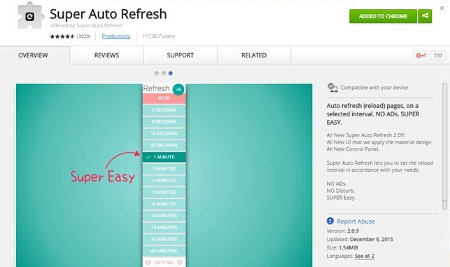
Install Super Auto Refresh
You can use the Super Auto Refresh Chrome extension to save yourself from brutally assaulting your browser’s refresh button. You can do so by following the above link in the Chrome Web Store, and selecting + ADD TO CHROME.

ib browser

Once you’ve successfully downloaded and installed the extension, an icon will appear in the far-right side of Chrome’s address bar. Click it, and you’ll see a drop-down menu.

ib browser2

Next, you’ll need to select how often you want the page to be refreshed. You could have the page refresh as often as every two seconds, or as infrequently as every 60 minutes.

If you’ve reached the point where you don’t need the browser to refresh automatically anymore, you can stop Super Auto Refresh from doing so. Click the icon in the address bar, and select the red Stop tile.

One additional feature of Super Auto Refresh is that you can easily manage the tabs that you’ve enabled the extension on. Online Tech Tips explains how to do so:

If you click on the little green hamburger icon to the right of the word “Refresh,” a new tab will load that will list out all the pages that are currently set to refresh along with the set time intervals and the amount of time remaining before the next refresh. Note that if you close a tab and then reopen it later, the extension will remember and apply the same refresh settings.

We also want to mention that a page with Super Auto Refresh activated on it only applies to that particular tab. Other open tabs won’t automatically be refreshed. They will only do so if you activate the extension within the tab. You can easily open a new tab that’s unaffected by Super Auto Refresh by selecting the hamburger icon > New tab.

Please be aware that constantly refreshing a web page can eat up a significant amount of bandwidth, so make sure that you’re mindful of how you use Super Auto Refresh on your company network.

For more great tips and tricks, subscribe to NuTech Services’s blog.

b2ap3_thumbnail_guest_account_400.jpg

Tip of the Week: How to Let a Friend Use Your PC Without Compromising Your Data

b2ap3_thumbnail_guest_account_400.jpgWe’ve all been in a situation where you’re asked by someone if they can use your personal computer for whatever reason; checking their social media, email, or just browsing the Internet. Some people, however, also want to protect their privacy, and allowing relatives to use your own account can become problematic. A quality solution to this issue is to create a guest account.

Keep in mind, you shouldn’t do this with your company workstation, and if you administrate your own network, you should restrict your staff from creating new accounts to prevent security issues.

Why would you want to set up a guest account? Here are three reasons:

  • Guest accounts allow others to use your PC while preventing them from browsing password-protected files, like those stored on your own personal user account.
  • Using guest accounts, users won’t accidentally stumble upon your logged-in accounts and email, which could give even those with the best intentions the urge to take a peek.
  • Guest accounts don’t have access to the administrator privileges that you would as the owner of the PC. Guest users can’t install software, configure hardware devices, or change settings. They can still use the Internet and other applications that are already installed, giving them the best experience possible without risking any breach of privacy.

Without further ado, here’s how you can set up a guest account on Windows 7, Windows 8.1, and Windows 10.

Windows 7
Setting up a guest account in Windows 7 is simple enough. First, navigate to your Control Panel. Next, select User Accounts. Go to Add or remove user accounts. You’ll then be prompted to alter an existing account. If the Guest account isn’t already turned on, it will appear in your available accounts. Click it, and select Turn On.

Once the guest account has been turned on, you’ll be able to access it from your PC’s login screen. Anyone can now access the PC, and they won’t be able to access any of your personal files or information. You should keep in mind that any browsing history or logged-in websites will be available to future guests, as well, so be sure to tell your guests to log out of their accounts before logging off.

Windows 8/8.1
The process is largely the same as it is for Windows 7, if not a bit easier. While you could find the guest account feature in the same way as you did with Windows 7, try typing “guest account” into the search bar instead. Make sure you’re only searching Settings. You should see an option titled Turn guest account on or off in the results. Click on the Guest account, and select Turn On. It’s as simple as that.

Windows 10
For Windows 10, it gets a little trickier. Rather than accessing your guest user options through the Control Panel, you have a couple of options, though the easiest way to do so is to just do it through the Windows Command Prompt. Type CMD in the search bar to find the Command Prompt, and make sure that you right click it and select Run as administrator. You’ll then see the command prompt open on your screen. Type the following command, and hit Enter: net user guest /active:yes

After that, a message should display saying that “The command completed successfully.” That’s all there is to it. Keep in mind that you should always turn the Guest account on as needed rather than leaving it on continuously. Since the Guest account still has access to the network, you could become susceptible to passive threats.

For more great tech tips, be sure to check back next week, and subscribe to NuTech Services’s blog.

b2ap3_thumbnail_incognito_mode_400.jpg

3 Easy Ways to Go Incognito In Google Chrome

b2ap3_thumbnail_incognito_mode_400.jpgThe Internet can be a dangerous place. Sometimes you want to keep your identity a secret on the web. Now, your reasons for doing so aren’t any of our business, but you should know that there are several ways to access this secretive function in Google Chrome. Here are three ways you can take advantage of Google Chrome’s Incognito mode to browse the web in an anonymous fashion.

Why Incognito Mode?
Incognito mode has several advantages over your typical Google Chrome browsing session. For one, you can allow someone to use their Google account on your device without signing out of your current session. On the other hand, sometimes you might not want your browsing history to stick around. While this is often associated with viewing questionable content online, it’s also convenient when planning for a surprise party or purchasing a gift so that the recipient isn’t aware of the situation.

Keep in mind that, while you’re browsing the web in a more anonymous fashion than you would be normally, your activity can still be seen by your Internet service provider (ISP).

The Classic Way to Incognito Mode
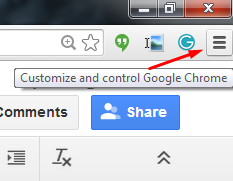
Activating Incognito mode is super easy, but it requires a couple of steps. First, click on the hamburger menu in the corner of Chrome, titled Customize and control Google Chrome.

incognito ib 1

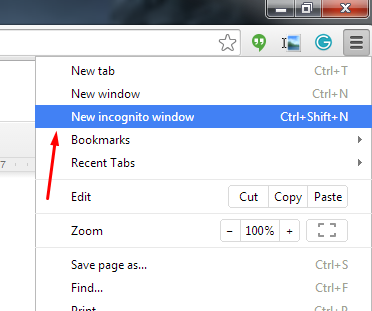
Next, click on New incognito window. Your new window should pop right up.

incognito ib 2

Open a New Incognito Window Through Right-Clicking
Let’s say you find an article on the web that you really want to view, but you’re not sure who could be watching your activity. In order to avoid showing them what you’re viewing, you can right-click a link and select Open in incognito window. Another situation where this might be useful is when you’re shopping for something particular that you don’t want another user to see in the search history. Simply right-click the item you’re considering to privately browse it.

A Simple Two-Click Solution
If neither of these solutions are simple enough, the easiest way to access Incognito mode is by taking advantage of the top of your Chrome window, and selecting the account button to the left of the minimize button. This gives you the option to either switch users or go incognito, providing more than one solution to the issue in one handy location.

Or, better yet: here’s a keyboard shortcut that opens up incognito mode. Just use Ctrl+Shift+N to open a new incognito window.

For more tips and tricks about how to be more productive in the workplace, call NuTech Services at 810.230.9455.

b2ap3_thumbnail_chrome_extentions_400.jpg

Tip of the Week: The 4 Most Useful Extensions for Google Chrome

b2ap3_thumbnail_chrome_extentions_400.jpgIf you’re one of the many people who prefer Google Chrome to other browsers, you know all about extensions and how they can improve your browsing experience. These are mostly add-ons that are designed to augment your browsing experience or adding new features. While some aren’t so useful, there are others that are invaluable under the right circumstances. To help you get the most out of Chrome, here are four useful browser extensions that you should take advantage of.

Text Mode
You don’t need us to tell you that the Internet is a distracting place. Your attention span is at the mercy of YouTube videos, cute cat pictures, and just about everything else humanly imaginable. This can be quite irritating if you’re working on a deadline and absolutely need to complete a big project on time. In order to help you take back your productivity unsullied by the Internet, Chrome’s Text Mode extension eliminates all images so that you can concentrate on the task at hand. Thanks to there being no images loading, you’ll notice that the browser’s speed is slightly increased, as well.

AdBlock
Online ads are annoying. It’s as simple as that. You don’t want to accidentally click an ad and have even more tabs open than normal. More importantly, you just want to browse the web in peace without pop-up videos or distracting ad text in your sidebar. AdBlock completely blocks these ads from your web pages, allowing you to get back to business without a new ad catching your eye.

Lightshot
All Windows PCs come with the innate ability to take screenshots using the PrtScn key. The free tool Lightshot allows you to take focused, clear screenshots of select areas of your screen. For instance, you’ve received a strange error message or noticed a spelling error, and you want to report this to the appropriate personnel. Lightshot also comes with the ability to draw on the image, insert text, and more. You can then proceed to either upload it directly to the Internet, or save it locally on your PC. This helps you give your IT support team a visual representation of what your problem is, allowing for a swift resolution.

Google Cast
Google’s Chromecast is an essential part of any techie’s entertainment repertoire, but in order to use it effectively, you need the Google Cast extension on your PC. Chromecast is a device that you can plug into your television’s HDMI port to send content to the big screen. A great use of this would be in your office’s conference room for a meeting, or simply in your living room for movie streaming. It’s compatible with all sorts of entertainment mediums, like Netflix, YouTube, Google Docs, and more.

Do you have a favorite Google Chrome extension? If so, let us know in the comments.