b2ap3_thumbnail_google_chrome_400.jpg

Tip of the Week: Load Cached Pages in Google Chrome for Offline Browsing

b2ap3_thumbnail_google_chrome_400.jpgYou might have experienced the frustration of reading an article online and having the Internet connection cut out on you. This is one of the most common problems while working with a shoddy WiFi connection. If this happens to you, you can view your browser’s cached pages in order to finish up what you were reading; so long as you’re not trying to view pages like Facebook, which update periodically throughout the day.

Here’s how you can view Google Chrome’s cached pages, even while offline.

What Exactly is Caching?
You might have heard the term in passing, but do you understand how the cache works? It’s basically a component that stores data when you visit a website. This allows that data to be loaded faster the next time you visit the page. The idea is to reduce bandwidth and processing power required to view the material.

How to Load Cached Chrome Pages
By taking advantage of the cache, you can read web content that you’ve previously accessed, even while offline. Chrome doesn’t automatically enable this feature, but there is an experimental add on that you can use from the mad scientists at Google. Type chrome://flags into the search bar.

flags

After reading Google’s disclaimer, locate the feature called Show Saved Copy Button. If you aren’t using the latest version of Chrome, try looking for Enable Offline Load Stale Button.

show button

Select Enable from the dropdown menu, which will prompt you to restart Chrome. When you next visit an offline web page, you’ll see a button that says Show Saved Copy. If you’ve previously visited the page, you’ll be able to load the cached copy of the website’s content.
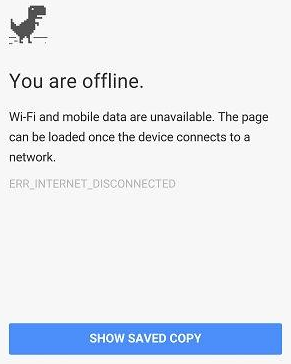
offline

Keep in mind that due to the nature of website caching, you won’t be able to see any updates made to the page since you last visited it. This is the one true downfall of offline viewing. However, this is useful if you’re trying to finish reading an article where you don’t have Internet access.

Stay tuned next week for more productivity tips from NuTech Services.
b2ap3_thumbnail_chrome_flat_400.jpg

Tip of the Week: How to Set Up User Permissions For Google Chrome

b2ap3_thumbnail_chrome_flat_400.jpgAre you looking for a way to manage Internet use on a single computer that’s being used by multiple people? To help you keep your browsing history and settings intact and keep unwanted users from accessing the web, Google has a free add-on available for Chrome created for just this very purpose.

With this add-on, you gain the ability to essentially lock Chrome and only grant access to those you’ve given permission to use it. Although, this add-on is experimental, so be sure to keep potential issues in mind:

How to Install this Helpful Add-On for Google Chrome:
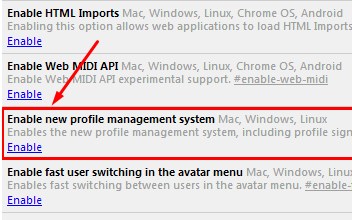
Open Chrome and enter chrome://flags in the search bar, now hit enter. From here, you will see a list of all the experimental add-ons available for Chrome. The one you want to track down is “Enable new profile management system.

profile management

With the long list of add-ons before you, you’ve got the option to find the needed add-on a little quicker by using the CTRL+F (find) function.

Once you’ve located the add-on, click Enable. Next, close Chrome and open it again. You will now find the extension to be active. You can tell that the add-on is active because the sign-in screen will have a similar look to the sign-in screen used for Windows.

To login to your Chrome browser, select the Google account that you want to use, or enter the login credentials of an another account. Once logged in, you will be all set to browse the Internet like you normally would. Be sure to logout when you’re done. This will prevent other users from browsing Chrome with your Google account and messing with your settings.

Limitations of the Add-On
This add-on works great if you’re logged in and working with a single Google account. However, this add-on is designed to only work in conjunction with a single Google account, which means you will be unable to use a Google App, like Google Drive, under an account different than the one associated with the add-on. Therefore, this add-on isn’t ideal for users that routinely cycle through different Google accounts in single browsing sessions.

If you’ve installed the add-on and you don’t like how it limits your use of multiple Google accounts, then you can simply remove it by going to chrome://flags, finding the add-on, and clicking Disable.

This add-on is a great solution to keep unwanted people from using Chrome on your computer, but it’s doesn’t come close to protecting people from messing with other applications and settings on your PC, or deterring hackers. For a more comprehensive network security solution, call NuTech Services at 810.230.9455.