surgeProtector_28843708_400.jpg

Outlining the Differences Between a Surge Protector and a Power Strip

surgeProtector_28843708_400.jpg

When it comes to business technology, there are sure to be a lot of electrical plugs, so you’ll naturally want plenty of outlets to plug them into. A power trip likely won’t cut it, though. For your needs, you’ll want to invest in a surge protector. Why is the surge protector so much better, you ask? Well, let’s explore this question.

The Big Difference Between Power Strips and Surge Protectors

At first glance, the two devices seem quite similar. Some might even call them glorified extension cords with additional outlets. It should be straightforward what they are used for, but it’s a little more complicated than that.

The difference is in its name.

Surge Protectors Protect Against Surges

Power surges are commonplace, and as long as people continue to manipulate electricity, there will always be a risk involved with its use. Surges can cost businesses untold amounts of money, for if electronics receive an influx of electricity that they are not prepared for, they can be damaged–often irreparably.

You want to avoid this whenever possible, which is where the surge protector comes into play. A surge protector keeps these surges from damaging your electronics, while a simple power strip lets them pass right through.

Surge Protectors Are Better Investments

If you want to make sure that your IT systems are set up in a way that minimizes the possibility of a power surge or other disaster, NuTech Services can help you acquire the appropriate technology and set it up effectively. To learn more about what we can do for your company, reach out to us at 810.230.9455.

PCRecycle_394939613_400.jpg

What Happens to a Recycled Computer?

PCRecycle_394939613_400.jpg

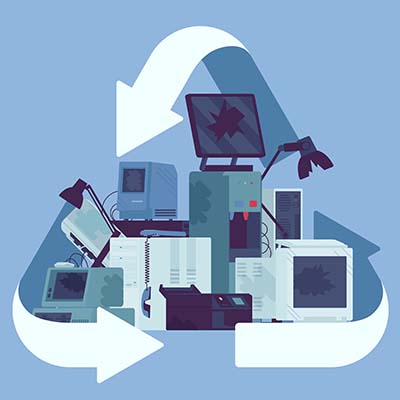
Do you know what you are supposed to do with electronics that are no longer of any use? Let’s quickly go over the process of properly disposing of electronic devices and the steps that make up the procedures involved.

Why Shouldn’t I Just Throw Out My Old Technology?

There are a few reasons why the regular trash collection is a poor choice for device disposal. 

  • First and foremost, there is no real accountability for the chain of custody. Simply tossing an old device without any of the additional precautions that recycling these devices involves leaves the data they contain potentially accessible to those who know where to look.
  • Secondly, modern computer components (including those more and more commonly found in appliances) contain amounts of hazardous materials that—if left in a landfill—can ultimately make it back to us through the water table. Many of these components are actually shipped to poorer countries to be dumped illegally.
  • Third, it is just wasteful. There are a lot of materials used in constructing electronics that are perfectly reusable, so ensuring that a device is properly processed and everything that can be recycled, is, is a more responsible choice.

Regardless of your recycling facility’s processes and policies, it is always wise to ensure that all of your data has been completely removed from any storage drives and devices being processed to ensure that no data remains to potentially leak out somewhere down the line. While we recommend that you reformat any drives you plan on recycling, know that this isn’t always enough. You should also make sure that whoever is going to be processing your technology also plans to erase this data and specifically destroy the hard drives—typically, by shredding them—so nothing can be recovered.

How Electronics Are Recycled

Once a computer or other device has been taken to a reputable recycling center, the process of breaking it down can begin. Most recycling companies will then disassemble the device and process different parts separately, based on what the components are made of. Then, the plastic, metal, glass, and circuit boards that made up each device are recycled according to best practice. This is also how the more hazardous materials are removed from the device.

The disassembled components can then be processed and renewed by using the materials to create new devices, eliminating a lot of potential waste that would otherwise, well, go to waste.

We understand how useful technology is to businesses, and how important it is that it is handled properly even after it has outlasted its usefulness. That’s why we’re committed to assisting businesses, regardless of their technology needs. Give us a call at 810.230.9455 to find out what we can do for you and your business’ essential IT.

299335892_black_friday_cyber_monday_400.jpg

Technology is Center Stage on Black Friday and Cyber Monday

299335892_black_friday_cyber_monday_400.jpg

The holidays are rapidly approaching and each year people position themselves to get the best deals they can on all the potential gifts, whether they are gifts to themselves, or to others. Like many other years, bargain shoppers wake up from their tryptophan naps, bundle up, and head out to try and score the best deals they can. Today, we thought we’d talk a little about Black Friday and Cyber Monday and why they are great to get the technology-lover on your shopping list the products they’ll love this holiday season.

Black Friday

Black Friday is the day after Thanksgiving and has been the busiest shopping day in the United States for 15 years. Nowadays, most retail stores not only extend their Black Friday deals starting on Thanksgiving (or stay open to start at midnight on the day after), they also give consumers a fair bit of warning of what will be available so that people can plan their shopping experience.

Cyber Monday

Starting years later, Cyber Monday is basically an extension of Black Friday that takes place online the following Monday. Since a lot of holiday shopping is completely online these days, Cyber Monday started at shop.com in 2005, but has grown substantially each year since. In 2020, as the in-person retail economy reeled from the COVID-19 pandemic, Cyber Monday was the largest retail day in history, netting close to $11 billion. 

2021 Extends Holiday Shopping

In 2021, the lingering supply chain issues caused by the COVID-19 pandemic have caused many retail chains to not only alter their plans for 2021 holiday sales, but they have also extended a lot of their deals online, effectively making Cyber Monday, Cyber-End-of-November. Most retailers are doing what they can to make sure that consumers have the opportunity to get deals to check the people off their holiday shopping lists.

Technology is Front and Center

Technology is typically viewed as a great gift and in 2021 there is more tech to choose from than ever before. Some of the most popular gifts that you will see on sale after Thanksgiving in the United States include:

Amazon Fire Stick 4K with Alexa Voice Remote

The newest iteration of the popular HDMI streaming media dongle features voice controls through Alexa and is 4K-capable. Starting at $25.

Apple AirPods (Gen 2)

Apple’s popular wireless earbuds. Starting at $89.

Samsung Chromebook 4

With an 11.6-inch screen, this laptop is a good value for people looking for a reliable laptop for everyday tasks. Starting at $129.

Facebook Portal Go and Portal+

The Portal Go and Portal+ are video chat interfaces that integrate with Facebook Messenger. Starting at $199.99. 

Of course, this isn’t everything, but if you are in the market for computer hardware and electronics, late November will be a good time to check for deals!

What’s on your holiday list? Let us know in the comments, and make sure you practice safe browsing habits while shopping online!

172453146_quick_tip_400.jpg

Tip of the Week: Take a Screenshot in Windows 10

172453146_quick_tip_400.jpg

There is one key on the keyboard that might seem a little odd: PrtSc. It’s not immediately obvious what this key does or why you would want to use it, but we assure you that it is an extremely helpful keyboard shortcut once you understand how it works and why you might want to try it out. In reality, the PrtSc key is important for taking screenshots on your Windows device.

Windows has a lot of keyboard shortcuts, but PrtSc is perhaps one of the easiest to carry out. When you hit the PrtSc key, Windows will take a screenshot of your computer’s monitor, allowing you to save it as an image.

There are many practical reasons for taking screenshots, many of which you might not have considered. Let’s go over your options for taking screenshots on your Windows device.

Why Take Screenshots?

Screenshots are incredibly helpful for a variety of reasons, one of which is to help IT support determine what the root cause of your technology troubles is. Basically, it lets them see what you see on the screen so they can check off boxes for more common fixes before diving into more technical issues. Screenshots are also helpful for documentation purposes, allowing you to put together guides for workflows and processes for more visual learners.

The PrtSc Key

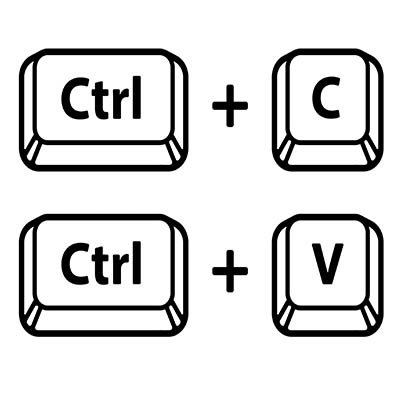
When you hit the PrtSc key, you might notice that there are no pop-ups or anything that appears on-screen to show that you have taken a screenshot. Basically, the PrtSc key captures an image of your desktop screen and copies it to the clipboard as an image. You can then paste it like you would if it were copied or cut text. The problem with this is that it takes a screenshot of the whole screen, not just one part of it, so for more focused screenshots, you have to get a little more creative.

Snip & Sketch

This solution is built right into Windows 10 and allows you to snip specific parts of your screen for a screenshot. To use Snip & Sketch, use the keyboard shortcut Shift + Windows Key + S. There are some options here: Rectangular Snip, Freeform Snip, Window Snip, and Fullscreen Snip. Pick whichever you think best suits your needs. Your selection will then be saved to the clipboard in the same way as PrtSc, allowing you to paste it into an application or edit it in the Snip & Sketch tool.

Third-Party Services, Applications, and Extensions

There are some third-party tools and applications that you can use to take screenshots that let you capture specific parts of your screen in much the same way Snip & Sketch allows. These other solutions may be perfectly effective for taking screenshots, but you should clear any of them with IT first just to make sure that the solution is one that is allowed on your network. Plus, you might already have better tools available to you, so it never hurts to confirm with IT before going all-in on a screenshot tool; and, of course, you have us to fall back on as well!

So, how are you going to use screenshots to take your business to the next level? Let us know in the comments, and be sure to subscribe for more great tips and tricks.

374847019_technology_business_400.jpg

Read This to Learn How Technology Can Help You Build a Better Business

374847019_technology_business_400.jpg

With so much competition in business today, it’s no surprise that companies are always looking for the next big thing to get ahead. One way these companies can improve operations and kick their businesses up a notch is through the use of the right technology. With the right IT on your side, you can make a significant difference between yourself and others in your chosen industry.

Improved Potential for Productivity

When you implement a new solution or upgrade to a new technology, there needs to be some sort of benefit to doing so. Otherwise, there is no point in implementing it. The technology implemented to improve productivity might vary by industry or business type, but the productivity benefits are universal. To start taking advantage of these benefits, consider your company’s weak points and think about products that you can implement to solve them.

Enhanced Communication Options

If you can improve communications, then you can effectively improve your business. Whether it is the internal communications you use between departments or the external ones used to contact customers and vendors, the right communication tools are incredibly valuable. If you can make these processes easier, the experience on both the employee and consumer sides can be improved dramatically.

Better Opportunities to Satisfy Customers

Customer service is another major part of running your business that technology can aid with. Fulfillment can be made much smoother and more efficient, and with the right tools, organizations can provide customers with even greater support options. For example, chatbots, service portals, ticketing systems, automated phone systems, and so on can all improve the customer experience.

Decreased Capital Expenses

Technology provides businesses with the opportunity to convert capital expenses, which are generally unpredictable in nature, into predictable and stable operational expenses. This means that you won’t be dropping huge amounts of cash at a time and instead are taking advantage of smaller, more manageable payments, freeing up money in the budget for other opportunities.

If you can effectively leverage the right technology tools, your business will surely see improvements in its operations. NuTech Services can help you with every stage of the technology implementation process, from conception to procurement to management. To learn more, reach out to us at 810.230.9455.

162947308_server_room_400.jpg

How to Build the Perfect Server Room for Your Business

162947308_server_room_400.jpg

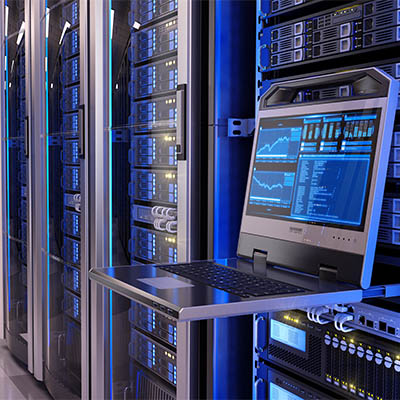
Your business relies on technology for access to an IT infrastructure. One such piece of technology that you use on a daily basis, whether you realize it or not, is a server. A company that has a single server might be able to get away with less-than-stellar server management policies, but those that have multiple servers should never be skimping on the environment in which their servers live.

Let’s outline why having dedicated space for your technology is important.

Enough Space for Hardware and Work

This should go without saying, but your server room needs to comfortably house your server units and any other equipment you need to keep them functional. On a similar note, you should make sure that there is enough room to perform maintenance on them, should the need arise at some point in the future.

A Controlled Environment

Servers are not your typical workstations or computers. While they might appear to just be another box lit up by flashing lights and drives, they are far more powerful and output a significant amount of heat. This is why you often see server rooms that have climate controls that account for temperature and humidity. In fact, server rooms often store the units in specialized cabinets that control these conditions. Too much heat and moisture can cause harm over time, and hurt the overall performance of your network.

The Ability to Scale for Growth

You might be designing your server room for your current infrastructure, but it’s important to keep in mind that your infrastructure is not going to remain the same for the entire time you are in business. It will likely grow and scale with your business’ prosperity, so you should also plan for a certain level of growth. This means making sure that you have room to add new units, additional cabling, and other technological solutions as needed.

Physical and Digital Security Solutions

The more people who have access to your server room, the more that could possibly go wrong with it. All it takes is one person not following the appropriate protocols, changing settings on machines, or improperly handling the hardware to send everything out of whack and create chaos. Your server room should be secured on the physical side as well as the digital side, preferably with biometrics and multi-factor authentication whenever possible.

Now, let’s say that you don’t want to go through all the trouble of customizing a room in your office specifically for your servers. Many organizations tend to store their data and servers in off-site data centers, choosing instead to access it through the cloud rather than hosting it in-house. This is a perfectly viable solution, even for a small business with a more limited budget. That’s where we come in!

At NuTech Services, we believe that small businesses should have access to the same great solutions and services as enterprises. If you are worried that you cannot afford such solutions and services—including server management—give us a call and find out what your options are! We are sure that we can help you out. To discuss the possibilities with one of our skilled technicians, reach out to us at 810.230.9455.

clean_up_your_400.jpg

Clean Up Your Computer with These Digital Clutter Practices

clean_up_your_400.jpg

Computers are supposed to make life easier, and in a lot of ways, they do. However, using a computer can get complicated at times, especially when you are working with tons of files, applications, and resources on a daily basis. This can lead to a ton of digital clutter, which can be counterproductive and time-wasting. Let’s learn about how you can reduce digital clutter on your work PC.

Your Files

A common practice is to save files to the desktop so that they are easily accessible at a later date. While this does make things easier short-term, imagine saving one new file to the desktop every day for a month without removing any of the old ones. There is a saying: “A place for everything and everything in its place.” You can apply this line of thought to minimize your digital clutter. Set up a folder system for your files and make sure that you can store them in the appropriate places.

Keep in mind, most workplaces require that work-related documents get stored on the server. If that’s the case, you shouldn’t be keeping important or sensitive information on your desktop in the first place. Your server or network directory that is in place is likely being backed up and protected, while your desktop computer might not be in most cases.

You can also cut down on digital clutter by deleting unused or unnecessary files. One folder that is almost always cluttered is the Downloads folder. More often than not, you have files here that you haven’t looked at since you downloaded them, and there is almost certainly a better place for them all if they are even necessary in the first place. We recommend routinely cleaning up your files so that things don’t get too cluttered over time. For system files, however, do NOT delete these. If you ever have any questions about which files are okay to delete, you should contact your IT resource.

Your Programs

Sometimes you might download software because it solves an immediate problem at that moment, then never use it again. That application is now taking a little space on your computer and if you aren’t keeping it updated, it could lead to vulnerabilities. This is why we recommend that you uninstall unused applications. Ask yourself the same question as before; do you get value from this program? Have you used it at all in the past couple of months?

We do want to put a slight disclaimer here, though. You should always check with your IT staff or trusted IT resource, like NuTech Services, before ever trying to uninstall an app. This is especially true if you don’t know the purpose the application serves. It might actually be there for a very specific reason, so it is always better to err on the side of caution.

Your Media

As time progresses, you likely accumulate all kinds of media, from pictures to videos to music. All of this can create a lot of clutter on your device. The solution here is simple: ask yourself the question, “Do I get value out of this?” This question is at the heart of the minimalism concept and can be applied here, too. For example, you might have gone on vacation and captured a bunch of great photos, but we are willing to bet that you also captured a bunch of not-so-great ones. Why hold on to them?

It’s important that you have a place where you can store all of this media in a convenient and organized space. For this, as well as any other personal file storage needs, we recommend a good cloud solution. For business owners looking to securely store documents in the cloud, we can help with that too.

Implement a Cloud Solution

As you might expect, technology has provided a solution to many of the common problems that organizations run into. Chief among them is cloud computing and cloud storage, offering an excellent way to minimize digital clutter on your devices. 

NuTech Services can work with your business to implement the best cloud solutions for your needs. Get started today by chatting with one of our skilled and knowledgeable technicians about how your organization can best utilize the cloud. To get the conversation started, reach out to us at 810.230.9455.

287215660_shortcuts_400.jpg

Tip of the Week: The Letters of the Alphabet, in Windows Shortcuts

287215660_shortcuts_400.jpg

The Windows operating system comes with more than its fair share of capabilities, many of which are accessible through the appropriate keyboard shortcut. Because remembering so many would be a challenge for some (and impossible for most) we’ve put together a list of those associated with the letters found on the keyboard, with a few extras tacked on for good measure. Make sure to take note of any you may find the most useful.

Windows Shortcuts, from A to Z

  • WinKey + A opens the Action Center.
  • WinKey + B highlights the notification area.
  • WinKey + C launches Cortana in listening mode.
  • WinKey + D toggles Show Desktop and the previous state.
  • WinKey + E launches File Explorer in the Quick Access tab.
  • WinKey + F opens the Microsoft Feedback hub.
  • WinKey + G opens the Game Bar tools, for personal use at home.
  • WinKey + H opens the Dictation toolbar.
  • WinKey + I opens your Settings.
  • WinKey + K opens the Connect pane to connect to wireless displays and devices.
  • WinKey + L locks the device.
  • WinKey + M minimizes all open windows.
  • WinKey + O locks the device’s orientation on tablets and mobile devices.
  • WinKey + P opens the Project pane.
  • WinKey + Q opens Search.
  • WinKey + R displays the run dialog box.
  • WinKey + S launches Cortana in typing mode.
  • WinKey + T cycles through the apps on the taskbar.
  • WinKey + U launches the Ease of Access/Display Center to manage attached displays.
  • WinKey + V opens the clipboard app to view things copied to it with Ctrl + C.
  • WinKey + X opens the advanced, Secret Start menu.

Bonus: Adjusting Your Program Windows

A neat workspace is a productive workspace, and if there’s a quick way to arrange your computer’s display, that’s all the better. Fortunately, Windows has a few built-in shortcuts to help quickly accomplish just that:

  • WinKey + Left/Right Arrow will take the active window and adjust it to fill the left or right side of the monitor it is displayed in. 
  • WinKey + Shift + Left/Right Arrow will move the active window over to another display.
  • WinKey + Up Arrow will maximize the active window. 
  • WinKey + Down Arrow will minimize the active window.

Believe it or not, this list is just a small sample of the available Windows shortcuts out there. There are plenty more to explore. We periodically go over a few on this blog, so make sure you’re subscribed so you can be alerted whenever we post something new!

229508639_ssd_400.jpg

Solid State Is the Way to Go

229508639_ssd_400.jpg

Whenever you ponder the purchase of a new computer, one important specification that you likely consider is its data storage. This was especially the case when you considered a new machine for family use—there are a lot of documents and photos to store, and any kids you have will want to fill it with games and other apps. Nowadays, it’s a little different. Rather than focusing on storage, you’ll want to focus on the computer’s speed. Let’s get into it a little further.

Storage (Typically) Isn’t a Concern Anymore

For most users, the PC or laptop they’ll purchase will have a decent capacity in its storage drives, for a very simple reason: it costs the factory about the same amount to produce hard drives that hold 256GB, as it does to produce 512GB drives. In this situation, providing more storage just makes more sense… especially once you factor in the exponential increase in demand for storage.

The sheer amount of data that the human race produces is staggering. Estimates say that, as of 2020, each human being on Earth is creating 1.7MB each second. Remember the 3.5-inch floppy disks? One of those could hold about 1.4MB. So, crunching the numbers, humanity is filling the equivalent of eight billion of them every second.

So, how is it that storage isn’t the issue? Simple—we’ve moved beyond these kinds of storage solutions.

Modern drives can now hold exponentially more data and run faster and more efficiently to a similar scale. Taking an average new PC off the shelf, its built-in storage capacity would exceed that of around 750,000 floppy disks. Besides, most data storage happening nowadays takes place in the cloud. Google, Amazon, Facebook, and countless web hosts, businesses, and others now collect and store it on the user’s behalf.

To come back to our point, with all of this taken into consideration, the 1TB drive that was built into your PC really is a lot. Unless you’re using it for specific things—photography, video editing, 3D modeling, or gaming—you’re likely not going to need any more.

If a PC is in the office, this is even more the case. All a workstation’s data should really be stored in a centralized location, whether that’s a server on your network, or in the cloud. Your business’ purposes will dictate which is the better option for you—give us a call at 810.230.9455 to work that out with us.

The point remains: capacity shouldn’t be your final metric for determining the PC you’ll use, unless you know for a fact you’re going to need a lot.

Performance Matters

At the end of the day, your hard drive’s efficiency is really the defining factor. Modern PCs have considerable processing power, with 8-to-16 gigs of RAM being pretty standard. This leaves plenty to run office applications and other daily software titles. As a result, the speed of your hard drive could easily cause the biggest bottleneck in your operations.

For our purposes, there are two different kinds of hard drives.

Hard Disk Drive (HDDs)

Also known as mechanical hard drives, HDDs contain an array of shiny, spinning magnetic platters that are used to store your data. Seen as the standard for decades now, they are generally the most affordable option when comparing price by storage capacity. Capable of storing high capacities of data, they are often used in servers or backup devices nowadays.

Solid State Drives (SSDs)

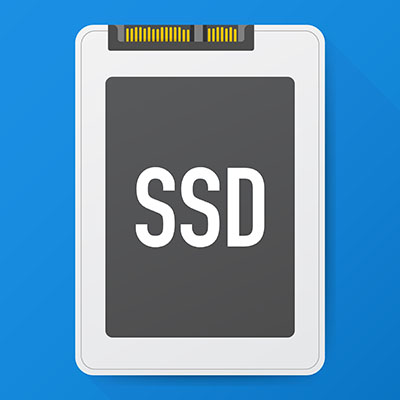
SSDs use electronic data storage to work, and therefore have no moving parts. Reading and writing this data is much faster as a result, an outcome that impacts all a computer’s processes. These drives are expensive, but as prices have decreased they have become a much more reasonable purchase… especially when you consider the performance, reliability, and stability benefits you see from them.

We always recommend that any new workstation purchased should rely on an SSD as its main hard drive. Most desktops can have secondary drives added after the fact, and centralized storage and/or the cloud can also be considered viable solutions.

If you need more assistance in choosing the technology right for your business and its needs, give NuTech Services a call at 810.230.9455. We’ll help you make the best choice.

332666885_remote_work_400.jpg

Tip of the Week: How to Work Best While Working Remotely

332666885_remote_work_400.jpg

While remote work has been more widely implemented than ever as of late, many people still find themselves struggling to remain productive throughout their workday. We wanted to share a few tips to help them really make the most of working from home.

Dictate Your Environment

One of the psychological keys to effectively working from home is to identify a certain area as the at-home workplace and stick to it. Preferably, this workplace is away from the distractions of the kitchen and its snacks or the bedroom and its temptation of a nap. Once you have found your area, make sure that you have it equipped with the tools you will need to be productive, like a laptop, external monitor, and any other accessories you use.

Once you’ve established all this, you then need to consider how your days are to be scheduled. Many people enjoy working from home for its relative freedom from the typical 9-to-5 schedule, which allows them to fulfill other responsibilities with their time. So long as office processes allow for it and things are accomplished on time, there is nothing wrong with splitting up the workday as is needed.

Work a Consistent Amount of Time

With so many stresses felt by so many right now, the normalcy of work may seem like a good way to keep from dwelling on them. This is not necessarily the case. Even when working from home, the risk of burnout and fatigue are still there, so it is still important to put some distance between your work life and home life. It can be considered crucial, as setting this distance can help your thought processes and even your physical health.

To make the most use of the hours available to you, it will be important to be disciplined, resisting distractions, and minimizing disturbances. Furthermore, it is also important to end the day when the day should be ended. Not only will this help keep you focused throughout the day to accomplish what needs to be done, it will help to prevent feelings of overworking from settling in.

Have the Right Tools

As we alluded to above, it is important that you have everything you will need to be productive at the ready. This includes the hardware we referenced, as well as the software that your operations are based on.

You have a few options available to you to help make sure that your team has this software. Using remote access solutions, your team could tap into your business infrastructure and utilize it from a distance. Alternatively, you could elect to use cloud-hosted solutions, ultimately having the same result.

Naturally, some of these tools will need to be those that enable your team members to communicate with one another as they are kept apart. Email is perhaps the first business collaboration tool to come to mind, but in certain cases, other options like instant messaging and project management may be better suited to your team’s needs.

If your business needs help getting set up remotely, or needs to do a health check on your existing workforce that are already working remotely, give us a call at 810.230.9455.

350427420_remote_work_400.jpg

Tip of the Week: Reviewing Some Remote Work Best Practices

350427420_remote_work_400.jpg

Despite many having to work from home for some time now, a lot of these people still haven’t quite gotten the hang of remote productivity or have developed some less-than-productive habits. This week, we’re providing these people with a few remedial tips to make their efforts while working from home as effective as possible.

Figure Out Where and How You Work Most Effectively

As you work from home, it will help to establish one area of your living space as the area where work is to be done and commit to working there. Pick a spot that isn’t going to serve as an additional distraction (as the snacks of the kitchen and the temptation of a nap in the bedroom would serve) and claim that area as your productive workspace. Make sure that you have all the tools that you will need for your work in that area—from a laptop, an additional monitor, and any other peripherals that you will need for your tasks.

Once your workspace is settled, you need to settle how your day will be arranged. Unless the workflows of the office need to be maintained, try rearranging your schedule around personal duties. As long as the work is done on time, there’s no harm in giving your remote team a bit of freedom as you can.

Don’t Overwork

While work responsibilities may seem like a welcome escape for many from today’s stresses, you need to be sure that you are appropriately taking breaks and working the appropriate number of hours. Fatigue and burnout are just as big of an issue at home as they are in the office, so allowing yourself to step away on occasion is important to do, even as you work remotely. In fact, stepping away has been shown to inspire new ideas and progress, as well as improve overall physical health.

This means that you also must set a few firm boundaries. By requesting not to be disturbed during work hours, one can accomplish much more in the time allotted to them. As a result, the prospect of stopping at the end of the workday—another firm necessity—seems to be more manageable.

Make Sure You Have the Tools You Need

Sure, we may have already started discussing the hardware that one will need while working from home, but there are a lot of other aspects to consider. For instance, the software solutions that your team will need must be available to them as well. There are a few methods to doing so that you may choose from. You could have your team remote into your business’ network to access the software and data they will need, or you could make use of cloud solutions to effectively accomplish the same result.

Your team communication will become even more crucial than it currently is, so your team will also need the tools and resources available to collaborate with one another. Email works for certain things, of course, but should always be supplemented by an internal instant messaging platform and other tools to keep everyone on the same foot, like a project management system.

Remote operations will help you keep your business running and your team healthy, two incredibly important considerations for the near future. To learn more about the solutions that remote operations will require, or to start putting them in place, reach out to NuTech Services at 810.230.9455 today.

260013401_reset_power_on_off_400.jpg

Is there a Difference Between Restarting and Just Turning It Off?

260013401_reset_power_on_off_400.jpg

In a word, yes. Sure, there’s the obvious difference in that one leaves you with a computer that is turned off while the other results in it being turned on again, but there are other important differences that are present behind the scenes. Let’s go over a few of these differences, and how they impact when you should restart your computer versus when you should shut down completely.

What’s the Difference Between the Shut Down and Restart Processes?

Before Windows 8, there was no difference whatsoever (aside from the obvious fact that Restart would start the device back up). This changed, however, with the introduction of Windows 8, and a new feature: Fast Startup.

Shut Down

Still present in Windows 10, Fast Startup shortens what was once a much longer start process after a user had clicked Shut Down.

While all a user’s files and programs are still shut down, the heart of the operating system is just put into standby mode. Please note that it does power down everything, unlike hibernate and standby. This makes it much easier for Windows to reactivate. However, since not all processes are completely stopped, present issues won’t be affected. Your problem will still be there the next time the workstation is turned on.

Restart

On the other hand, restarting the device actually does put a stop to all processes and resumes operations with a fresh boot on the motherboard level. This is why restarting your computer seems to take so long as compared to manually turning it off and on again.

So, the difference is really in the granularity of the shutdown process. Counterintuitively, “shutting down” a computer leaves more components active than a restart does, which is why restart is the process recommended when troubleshooting an issue.

So, while we may recommend that you “turn your computer off and on again,” or “reboot,” what we really mean is “restart your computer.”

For more assistance in dealing with pesky technology issues, lean on the managed services that NuTech Services provides. Learn more about what we offer by calling 810.230.9455.

168387524_400.jpg

Warning Signs that Your Computer Needs Replacing

168387524_400.jpg

Are the computers in your office beginning to show their age? Do you even know how old they are? For the sake of your productivity, it may be time to replace them for a newer model. We’ll go over some warning signs that your computers may be nearing their retirement age.

How to Tell How Old a Computer Is

When a computer starts to get too old, it can become a problem for productivity. In fact, to help avoid this, some even recommend replacing a work computer every four years… but how do you tell how old a work computer is in the first place?

This isn’t always as cut-and-dried as one would think it should be. Some computers and laptops will have a date right on the case, neat the serial number. If there is no date provided, a quick search for the serial number might give you an idea.

You can also check the components of your computer itself, using the System Information tool. In the Search Windows box, type in “sysinfo.’ From the results, access System Information and in the window that appears, you can find plenty of information to help you date the machine. For instance, if the BIOS of the device has never been upgraded, the date will likely tell you how old the machine is, more or less. Searching for other components can help you to confirm this estimate.

As a result, you can get a better idea of whether your computer’s issues are age-related, or if there’s something else creating problems.

Signs That Say It’s Time to Replace Your Computer

There are quite a few factors that can indicate when your computer is due to be retired. While these indicators can each be a sign that something else is going on with your machine, a combination of a few of them is a fairly reliable signal that you and your device will soon have to say goodbye:

  • The computer is huge. In the interest of space, many modern devices are built to be compact, taking up less space than their predecessors did. While this isn’t a hard and fast rule (powerhouse workstations often take up a lot of space out of necessity), a larger, basic-function workstation or laptop is generally an older one.
  • Startup and shutdown take forever. Again, there are a few different issues that could contribute to lengthy startup and shutdown times. Too many applications may be set to automatically run in the background, or your hard drive might be almost full. However, this is another common symptom of an aging device.
  • You’re encountering hardware and software limitations. If your attempts to upgrade your computer’s hardware and software – especially security software – are stymied by a lack of interoperability or support, it’s probably time to consider replacing it. This is even more so the case if your work-essential solutions can’t be upgraded any further or runs slowly, or loading your applications takes notably long and they can’t efficiently run simultaneously.
  • Your computer is loud. If the fans in your device (whether it’s a desktop or a laptop) run loud, it’s a sign that your computer either needs a good cleaning or needs a good replacing. If the issue persists after a thorough cleaning has taken place, that’s a sign that your hardware is working too hard, a sure sign of age-related issues.

If you feel that your hardware is due to be replaced, reach out to NuTech Services. We have the contacts to help you procure the equipment you need to remain productive and offer the support to keep this equipment going. Call us at 810.230.9455.

78155290_new_comp_400.jpg

Getting a New Computer? We Can Help, Part V

78155290_new_comp_400.jpg

By now it should be clear that the same computer might not work for two different businesses’ needs. In previous articles we discussed how to select the right CPU, RAM, storage, and display for your desktop. This final post will be dedicated to some of the topics that couldn’t fit into previous parts.

Deciding on a Brand

Brand can boil down to something as simple as user preference, but ultimately, all computer manufacturers–namely Dell, Asus, Lenovo, HP, Acer, and friends–have access to the same basic components and parts. It doesn’t start to get complicated until you reach the higher end of the spectrum, like with gaming rigs and video production.

Brand does, however, make a big difference in regard to laptops and all-in-one-devices. For example, HP and Microsoft have high-end graphic design all-in-one desktop computers. Microsoft, HP, and Lenovo have laptop options with the option for pen input from artists. Beyond this, we start talking about specialized hardware and devices meant to be used for certain tasks. In addition to reading a lot of reviews from big box stores, we recommend working with NuTech Services to help your business find the best specialized hardware.

Full-Size Desktop vs Compact Desktop

This has to do with the size of the desktop case. Full-size desktops are easier to upgrade and maintain, and they often cost less. Compact desktops are slim desktops, but they might have a limited capacity to upgrade. Smaller designs are easier to deploy for office workstations, whereas gaming PCs and video production machines require more space for hardware and cooling.

Read Reviews and Benchmarks

There are many sites out there that are invaluable for finding information on specific models of desktops and computer hardware. The Internet is full of reviews, but the most valuable might be some on the websites of stores you visit regularly. High-end systems will have more specific information mentioned in their reviews simply due to the fact that there are bigger nerds picking up these devices. You will want to pay attention to make sure you’re not spending more than you need to on desktop or laptop hardware.

Be Aware of Bloatware

Pre-configured desktops from certain brands can come with pre-installed software. It’s not always bad–a free trial of Microsoft Office might be just what you need–but often times, the pre-installed software can slow down your device. You’ll want to remove some of this software so you can continue to use your centralized antivirus and licenses for Office.

Eliminating Your Old PC

When you migrate your data to a new computer, you’ll need to take great care in wiping your old drives thoroughly. You should leave this task to the professionals, unless you plan on physically destroying the drives. Depending on your industry’s standard procedures and compliances, you may need to make sure it gets done professionally.

You also have several options for recycling your PC, but we always encourage users to not just throw their computer in the trash. Computers have many harmful elements in them that simply can’t be disposed of in the traditional sense. We also recommend against donating a PC that your business used previously without having it professionally wiped first. While it’s a nice gesture to donate something you don’t need anymore, it could put your business at risk.

Need Desktops for Your Office?

If you want to purchase desktops, it’s best to do so with the help of trained IT professionals who know how to configure, optimize, and license your devices to help your staff work as best they can. We can also help on the infrastructure and network side of things to make sure your office can accommodate growth. We also offer 24/7 monitoring and maintenance to keep your computers working properly. To learn more, reach out to us at 810.230.9455.

270736084_old_comp_400.jpg

Getting a New Computer? We Can Help, Part IV

270736084_old_comp_400.jpg

Without a monitor for your new desktop, it won’t be much to look at. While you’re recovering from that pun, let’s discuss some of the major considerations you might have for purchasing a display for your new device.

The Number of Monitors

Do you have more than one monitor for your home PC? Most people don’t, which is why having a second one is all the more interesting once you get to a work environment where it’s practically necessary. Having more than one monitor can dramatically improve your productivity by spending less time moving applications around and having multiple applications open without needlessly complicating the screen.

Utilizing multiple monitors is so common these days that most desktops will support it right out of the box. You need to check to see if your desktop comes with two or more ports first, though. You’ll see several options for connecting displays to your computer, including the following:

  • VGA/DVI: These older connections consist of a plug with little pins that need to be connected and tightened with screws. Older monitors will use these connections, but most desktops will have at least one VGA port to ensure compatibility with these connections.
  • HDMI: HDMI is the type of connection used by flat-screen televisions, modern game consoles, and Blu-Ray players. As such, you can assume that it’s pretty standard these days.
  • DisplayPort: DisplayPort is similar to HDMI, as it’s another cable that can carry video and audio. DisplayPort will eventually become the standard, but for your purposes, you might as well consider HDMI and DisplayPort the same. The only reason not to is if you look into the finer details of these cables.

Budget desktops will require that users examine how many ports are available on the device. It would stink to get the wrong kind of monitor because you thought you had a port for that particular type. Some types will also require connectors or adapters, so be sure to do your due diligence before purchasing a monitor.

Integrated Video vs Dedicated Graphics

Integrated video simply means that your computer processes video and graphics from hardware that is built in on the motherboard rather than a dedicated graphics device, like a video card. Most office PCs don’t need dedicated graphics, but they are helpful for video editing and gaming. Of course, this is also where the price starts to increase. High-end graphic cards can cost anywhere between $500 to $1,500.

Most graphic card chipsets have multiple models, and with so many companies out there selling their own brands of hardware, purchasing a graphics card might seem a little intimidating. While you don’t have to worry about things like 3D rendering or video editing (unless you’re making a gaming or video editing rig), the graphics card that comes with your desktop’s hardware will likely be adequate.

Are You Purchasing Monitors for Your Desktop?

With so many options to consider, we want to outline some of the important specs you’ll need to focus on when looking for a monitor:

  • Resolution: The resolution of a monitor is how many pixels the monitor will display. Most desktop monitors display at a 16:9 display ratio, or “widescreen.” This is the current standard, though there are other ultra-wide monitors that utilize either HD, FULL HD, Ultra HD, or 4K to break the mold.
    • HD: In a bizarre twist of fate, HD is actually the low-end of the spectrum, displaying its best on small screens. This resolution tends to be known as 720p, and it’s the go-to display for budget laptops.
    • FHD: Full HD is known as 1080p, and it’s the most common resolution you’ll see. It’s the one that you should focus on finding whenever possible.
    • UHD: Ultra HD is a pixel resolution of 3,840 x 2,160. This might not be available on low-end desktops without dedicated graphics cards, or at least integrated video that supports higher resolutions–particularly if you’re using multiple monitors.
    • 4K: 4K is technically a higher resolution that UHD, though some people think that it’s roughly the same thing. These displays are much more expensive than the average office needs, and they are only particularly useful for high-end gaming, video production, graphic design, or other visual tasks. Budget hardware often times won’t even support 4K, although this is a trend that is slowly being broken down.
  • Refresh Rate: The refresh rate is measured in milliseconds. This is a statistic that measures the speed that your monitor can update its image. High refresh rates give the impression that the time between you moving or clicking the mouse and the time it takes for the computer to register the movement is delayed. This was a much bigger problem in the past but suffice to say that it’s not as big of an issue in today’s environment, unless you are a gamer.

NuTech Services can help you determine the best options for your display needs. To learn more, reach out to us at 810.230.9455.

197354555_newcomp2_400.jpg

Getting a New Computer? We Can Help, Part II

197354555_newcomp2_400.jpg

In this second part of our desktop buying guide, we’ll be discussing RAM, or random access memory. Many users find this difficult to understand, but we’ll do our best to make sure it’s explained as adequately as possible so you have all the answers you need when you build your new computer.

We will cover options for both high-end and low-end machines so you know what to look for in each.

Random Access Memory, or RAM, is often confused with the amount of data that a computer can store, but the reality is much different. RAM is used to measure the temporarily stored data so that it can be recalled easily without recalling it from the computer’s storage. It’s kind of like short-term memory like that pulled from a human’s brain.

If you’re one to multitask, RAM is what allows it to happen. RAM determines how many tasks can be accomplished at once on your computer. The CPU handles the instructions and processes the data your computer’s RAM holds. More RAM means that the larger amount of data that a CPU can process, and the faster that a CPU is, the faster that data can be processed. It makes your computing experience much less of a pain.

How Much RAM Does Your Computer Need?

Most computers these days have pretty limited options for RAM. There might be several brands to choose from, all with their own clock speeds, but PC manufacturers will handle this process for you so you don’t need to worry as much. It’s only something you should be concerned with if you plan on building your own PC. This guide will oversimplify it a little bit to help you determine your specific needs. The speed and type of RAM will be determined by the manufacturer’s model, so all you need to do is focus on how much RAM is included with the device.

  • Skimping the Budget: The smallest amount of RAM that should ever be used on a Windows 10 device is 4 GB. While you can technically get Windows 10 to run on less, you really shouldn’t. 4 GB is pretty bare bones, so you’ll only be able to handle some light document editing and web browsing.
  • Low-End: Most reasonable low-end budget PCs come with 8 GB of RAM, which can handle the majority of office tasks, such as editing documents, browsing photos, surfing the Internet, and whatever else you need to accomplish.
  • Mid-Range: 16 GB is possible for a lot of organizations, even on a budget. The price difference isn’t too noticeable, and the investment is certainly worth it. 16 GB is nice as an entry point for gaming rigs, but while it’s not necessarily a catch-all, it’s the best way to make the most out of your budget.
  • High-End: The ceiling for RAM is incredible, but the cost rises in association with it. For example, the new Mac Pro can reach 1.5 TB of RAM–about 1500 GB–but experts have placed the value of this at approximately $20,000. If you’re building a gaming rig, video editing system, or server, you might need more than 16 GB of RAM, but at that point, you should be speaking with professionals to determine the best path forward.

Wrapping Up

Depending on the device, you might have the ability to upgrade your RAM, but it’s easier to do with desktops than with laptops. We recommend going for nothing less than 8 GB, and consider looking at 16 GB to determine if it’s a viable option for your organization.

For more information on how we can help you get the best computer for your budget, reach out to us at 810.230.9455.

188275281_new_400.jpg

Getting a New Computer? We Can Help, Part I

188275281_new_400.jpg

Are you in the market for a new desktop computer for your business (or your home office)? We’ve put together a five-part guide to help make sense of the components that go into a desktop computer to give you a better idea about what you may need in a new desktop. We start our guide by breaking down CPUs, and what is right for your needs. 

What Do You Need Your Computer For?

There are a lot of different computers on the market. Some are created by big-box stores and branded with a fancy name. Some are thrown together inexpensively by your cousin. Regardless of who puts your computer together, knowing what you need the system for is the best way to determine what components you need inside of your system. After all, there are some big differences between the components that make up a workstation designed to run web apps and a CRM as opposed to a system that has been designed as a video editing station. 

For practical purposes, we will focus on cost-effective CPU options, since higher-end computing options used for audio/video production or gaming can get extremely expensive, quickly. Remember, you can typically upgrade a computer’s CPU, but it’s not going to be cost-effective to turn a low-end PC into a gaming rig, whether its a desktop or a laptop. 

CPU Specifications

When you are shopping for a new computer, you’ll see a spec sheet accompanying the computer. You will see a myriad of components listed. Today we are going to talk about the CPU.

The CPU determines just how much “computing” your computer can accomplish at once, and how fast it will load that information up. Nowadays, there are two brands you’ll run into; Intel and AMD. Intel, in an attempt to simplify an otherwise complicated component, tiers most if their CPUs: Core i3, Core i5, Core i7, and Core i9. The larger the number, the more powerful the CPU. AMD recently has followed suit with its Ryzen series of processors. Since both brands make both low-end and high-end CPUs, it’s important that you understand what each type of processor would be used for. Let’s take a look.

Intel

Core i3 – This tier is found in budget PCs and works fine for low-end processing. If you need to edit documents, check email, or surf the web, is a good, cheap option. The latest generation of Core i3 processors are strong enough to handle streaming video services like YouTube and Netflix without too much trouble.

Core i5 – The i5 will do what the i3 can do, just a little faster. Users will have no problem streaming video, doing some light photo editing, and maybe playing a game or two if it isn’t too resource-intensive. The Core i5 is a solid choice if you are building a workstation for your office.

Core i7 – Core i7 CPUs are more expensive and geared towards high-end systems for video editing and gaming. If your team has resource-intensive applications, a Core i7 processor will provide plenty of oomph for just about any task. 

Core i9 – The Core i9, introduced in late 2018, is Intel’s fastest and best commercial grade processor. If you are building out a computer for 3D animation, rendering, gaming while streaming, or scientific calculations, then this might be the way to go, but the price tag for this CPU alone can be several thousands of dollars. 

AMD Ryzen 3 – AMD’s low end model is, to simplify things, on par with the Intel Core i3. You’ll be able to edit documents and surf the web, but not a whole lot else without straining the system.

AMD Ryzen 5 – The Ryzen 5 is in about the same tier as the Intel Core i5. You’ll pay a little more than the Ryzen 3, and get some more performance out of your desktop. Expect to handle typical office work, streaming video, and be able to do some light photo editing and gaming.

AMD Ryzen 7 – The Ryzen 7 is AMD’s answer to the Intel Core i7. Just like the i7, the cost of the CPU starts to climb pretty significantly compared to the lower-end models.

AMD Threadripper – The Threadripper is designed for heavy loads like 3D animation, gaming while broadcasting your stream, and other intense computing that a typical workstation isn’t traditionally used for.

When Does the GHz Matter?
At one time, users would have to consider the clock speed of their processors, but now with these manufacturers tiering their products, these numbers can often be ignored. The higher the GHz number, the faster the CPU, and the more it costs. Until you get to the point where you are building a server or high-end gaming PC, you can definitely just worry about the tiers instead of the GHz.

Does the Number of Cores Matter?
Cores are the number of processors built within the main processor. Typically, shoot for at least four cores unless you are on a serious budget. For gaming and video editing and higher-end tasks, more cores can start to matter, but even then, most of the time the number caps off at eight. There are processors out there with dozens of cores, but typically these are designed for servers or specific uses.

You may start to look up older processors, only to find that it isn’t going to save you a lot of money. This is largely because older CPUs, even products like Intel’s Core 2 Duo, have clock speeds in range of today’s comparable processors. Going with newer hardware is always preferable as they typically won’t have as good of a chance to fail. 

In part two of our computer buying guide we will continue to sort through the other components of a new PC. If you would like help with building computers for your business, call the IT professionals at NuTech Services today at 810.230.9455. We can help you sort through all the options and improve your chances of being happy with your new hardware.


windows_tips_400.jpg

Tip of the Week: 5 Windows Tricks

windows_tips_400.jpg

The Windows 10 operating system is the most common operating system for business use, which is what makes it surprising that so few know how to adjust its appearance to suit their preferences. For this week’s tip, we’ll go over a few ways to adjust what you’re seeing and/or looking at for maximum productivity.

Quicker Settings
Your settings are your greatest tool to control your Windows 10 preferences. If you need to change a setting on the fly, you can pull up the menu by pressing CTRL + I or Windows Key + I.

Zoom In/Out
Whether it’s a graphic you want a closer look at or text that’s just a smidge too small (or the opposite cases) the ability to zoom in or out on the entire screen can quickly become a handy trick to know. You have options here: you can either press CTRL + (+) or CTRL + (-) to zoom in or out, or press CTRL + Scroll Wheel to accomplish the same. Pressing CTRL + 0 will reset the screen to normal.

Changing Active Applications
If you’ve really got a good groove flowing as you work, pausing to switch windows with your mouse can really trip you up. With some practice, you can use a keyboard shortcut instead, eliminating this inconvenience. Holding Alt as you press Tab will bring up smaller versions of your active windows, and using the directional keys (while still holding Alt) will allow you to select a different one to work in.

Switching Monitors
Workplaces are seeing more and more multi-monitor setups in use. A shortcut makes it easy to move application windows around and across screens. To move a window to the other monitor, press Windows Key + Shift + Left/Right. Whether you choose left or right depends on which way you want your window to move.

You can use a simpler version of this shortcut to dock an application or browser window to the side of its current monitor, too. All you press for this one is Windows Key + Left/Right.

Shortcuts like these can turn you into a Windows power user in no time at all, with a little practice. Do you have a shortcut that you use frequently enough to make it second nature? Share it with us in the comments!

5_windows_400.jpg

Tip of the Week: 5 Tricks to Using Windows

5_windows_400.jpg

There’s a lot more to the Windows operating system than first meets the eye, especially where handy shortcuts are concerned. Today, we’ll cover five of the shortcuts baked into Windows that may be beneficial to your productivity.

Rename File
Every so often, you will discover that the name of a document isn’t entirely accurate anymore. Naturally, this file name should be changed to accurately reflect its contents. While you could right-click and select ‘rename’ for each one you have to change, it is much faster to simply select the file (or files) that needs a name change, and press F2. If you change the name of multiple files to the same thing, it will even automatically add the number to the end to differentiate them.
Active Window Screenshot
Screenshots can be very useful, but they can also be a pain to capture. Fortunately, there’s a way to easily take a screenshot of just the active window. By pressing Alt + Print Screen, the active window will be captured cleanly.
Problem Steps Recorder
Every so often, you may need to record your steps exactly, whether you’re replicating an issue for IT to check out or outlining a procedure for training purposes. Windows offers the Problem Steps Recorder, which is an easy-to-use action recording program that outlines and illustrates each step you take while the program is observing you. It then generates a step-by-step report to be reviewed. Creating one is especially simple – the hardest part is typing “psr” into the Windows search bar to pull up the program.

Easy Open Applications
The taskbar is extremely useful for storing your most-used programs and files for easy access. Windows has incorporated a shortcut that makes accessing them even easier. First, figure out which number your desired application is in sequence, then press the Windows key + the sequence number to open that application. This also works to maximize and minimize these windows.

Minimize/Maximize
Another way to quickly minimize and maximize your open windows is a little silly, but effective. If you want to minimize all but one of your windows, simply click and hold the window and shake it. All the rest will minimize. The same action will also reverse this, maximizing all of your windows again.

What other neat Windows tricks and shortcuts do you know about? Share them in the comments!

totw_guide_multiple_displays_400.jpg

Tip of the Week: Your Guide to Using Multiple Displays

totw_guide_multiple_displays_400.jpg

Depending on the task you’re trying to work on, it can sometimes seem like there just isn’t enough space on your computer monitor. One of the best solutions is to add another monitor. However, this sometimes requires more that just plugging another display into your system. For this week’s tip, we’ll review the steps to connecting multiple displays to your workstation.

Preparation
Connecting multiple monitors is a process, so before you begin, you should make sure you have all your ducks in a row. First, you need to make sure that your computer is capable of supporting multiple monitors in the first place.

To do so, you need to make sure you have sufficient graphics ports to connect these multiple monitors to. Look at the back of your computer and check for graphics ports, or ones labeled DVI, HDMI, DisplayPort, or VGA. Depending on what you see, your computer may or may not have a discrete graphics card, which dictates whether or not you can most likely use more than two monitors. If you only have a motherboard, two displays are generally your cap, while three or more – in addition to the first two – suggest that you have the separate graphics card.

However, even this doesn’t always mean that you can use more than two displays. Checking for the make and model of your graphics card and running it through a quick Google search with the amount of monitors you’d want to use should tell you if your card can support them.

If not, there is always the possibility of adding an additional graphics card, as long as you have the real estate and a sufficient power supply in your computer to support it. If you do, you will want to be sure that you use the same brand of card as your system currently uses. This will improve your performance and cause much less trouble for you in the long run. In addition to this, you will also need to be sure that you have the appropriate connector cables, and that they will connect properly between your tower and your display.

From there, all you have to do is obtain the additional monitors you want to use, which will be dictated by your budget, your needs and intended use, and your available real estate.

Setup and Configuration
Unfortunately, you still aren’t quite ready to dive back in – you need to tell your computer itself to play nice with all these monitors, too. Fortunately, the Windows operating system makes this fairly simple.

Press Windows + P to pull up a simple menu of your display modes. These modes are as follows:

  • PC screen only – Your primary monitor will be the only one utilized.
  • Duplicate – All monitors will show the same desktop.
  • Extend – The monitors work collaboratively to provide a single, expanded desktop.
  • Second screen only – Your secondary monitor will be the only one utilized.

Generally speaking, you will most likely want to utilize the ‘Extend’ setting.

Once you have done all this, you will want to right-click anywhere on your desktop to pull up your Display settings. Using the diagram provided, mimic the way your screens are set up, each numbered box representing one of them. Clicking Identify will have the screens identify themselves by number. You can also adjust whether your taskbar is displayed on all screens and change up your desktop customization for each.

It doesn’t take much to help boost your productivity at work, which means even the smallest changes can make a big difference. How many monitors do you prefer to use? Tell us in the comments!