106394196_software_patch_400.jpg

Unpatched Vulnerability Leads to Remote Factory Resets in Western Digital My Book NAS Devices

106394196_software_patch_400.jpg

Imagine going to log into one of your devices only to find that it has been completely wiped of any files located on it. Furthermore, imagine trying to log into your online account to manage the settings of said device, only to find that the password you know is correct is being identified as incorrect. This is the experience that many users of Western Digital’s My Book NAS device are currently going through, and it’s suspected that it is all because of an unpatched vulnerability.

The device in question, the Western Digital My Book, is a network-attached storage device that gives users the ability to remotely access files and manage devices. This is notable, as they can do so even if the NAS device is secured with a firewall or router. Bleeping Computer reports that some users are unable to log into their NAS devices, the reason being an “Invalid Password.” Since the devices appeared to be factory reset, some users tried the default login credentials but had no luck accessing their devices or recovering their files.

After some investigation, users discovered that the devices received a remote command to perform factory resets. Bleeping Computer reports that this attack is an odd one in terms of remote command attacks, mostly because the device in question is secured behind a firewall and communicates exclusively through the My Book Live cloud servers to issue remote access. Therefore, it makes sense for some users to assume that Western Digital’s servers were hacked, although they do mention that it is strange that the attack deleted files rather than issuing ransoms, such as with other threats like ransomware which are designed to steal data or encrypt files.

Although Western Digital is investigating the attack, Bleeping Computer does detail a statement issued by the company, stating the following:

  • “If you own a WD My Book Live NAS device, Western Digital strongly recommends that you disconnect the device from the Internet. ‘At this time, we recommend you disconnect your My Book Live and My Book Live Duo from the Internet to protect your data on the device,’ Western Digital said in an advisory.”

These WD My Book Live devices have not received updates since 2015, so it’s unsurprising that a vulnerability surfaced. Still, this situation should be a reminder that it is beneficial to consider upgrading from unsupported devices to those that are actively receiving patches and security updates. That said, failing to administer patches and security updates as they are released is just as bad as using unsupported devices, so the responsibility falls on your shoulders to make sure that you are using technology that isn’t putting your organization at risk.

Need a Hand with Upgrading?

NuTech Services can help your organization take care of any updates to its technology infrastructure. Especially in today’s age of massive security breaches and considerable cyberthreats, it has never been more important to make sure that your network is protected in every conceivable way. To learn more about what we can do for your business, reach out to us at 810.230.9455.
188604470_data_storage_hard_drives_400.jpg

Storing Data Is More Complex than You Know

188604470_data_storage_hard_drives_400.jpg

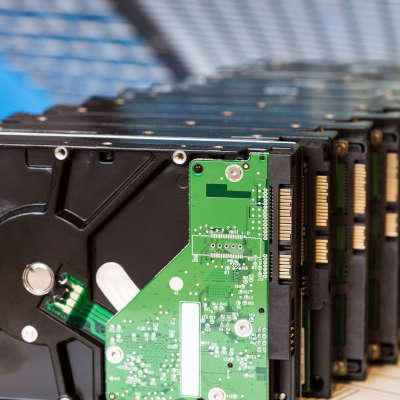
We all store data on our computers. Whether you have family photos and text documents on your home computer, or databases and on-premises applications running your entire business, data is typically stored in exactly the same way. If you knew how delicate your data actually was, you’d never let a single file exist in one place ever again. Let’s explore that.

How Do Hard Drives Store Data?

A traditional mechanical hard drive, also known as an HDD, holds your data on small magnetic platters. These platters are layered on top of each other, with a small mechanical arm that rests above them. Think about a record player, with the arm and needle over the record, except you have many, many records stacked on top of each other.

Of course, a record player spins the record between 33 and 78 times per minute. Your hard drive typically spins the platters much faster, most of them clocking in at 7200 rotations per minute.

The platters spin so fast, that it creates a cushion of air that prevents the head of the arm from touching the surface of the platter while it spins. This is critical, because if the head (the needle, to continue with the record analogy) were to even graze the surface of the platter, it would destroy the data on the drive.

These hard drives are mechanical in nature. Just like your car, mechanical systems can and will fail eventually. The little motor in the drive can burn out, the spindle can cease up, and so forth. These issues will very likely make the hard drive inaccessible. Thus, your data is lost. Opening files, saving files, and general computer use (even web surfing) causes the hard drive to read and write data. You are always using it, and depending on its stability to protect your data.

(Of course, there are also SSD drives, which don’t utilize moving mechanical parts. These tend to be a little more shock resistant, but they aren’t immune to failure.)

Yet, we trust these devices every single day. If you have a computer or a laptop, you likely have one or two of these inside it. Your servers tend to have many more. Many of us have external hard drives we use to store data to take around with us. If they are using a mechanical-based hard drive, all of our data is at the mercy of several rapidly moving parts and a cushion of air.

This leads us to ask:

Why Would You Ever Rely on a Single Hard Drive?

If your data is only stored on a single hard drive, consider it at high risk. It only takes one tiny issue to lose it all.

Fortunately, preventing data loss is easier than ever. We help businesses establish thoroughly tested, highly-trusted backup solutions that ensure that no disaster will be able to destroy your data. That includes storing a copy of all of your data on a separate device within the office, and a copy stored securely offsite that you can access at any time. This means even a major disaster like a fire or flood doesn’t cause data loss.

Want to learn more? Give us a call at 810.230.9455.

252595488_new_comp_400.jpg

Getting a New Computer? We Can Help, Part III

252595488_new_comp_400.jpg

Part three of our computer buying guide will be dedicated to storage space. Most modern gadgets have a couple of options for storage space, in addition to external storage, but the amount of space will largely depend on the brand and version of the device. When selecting a computer, be it a desktop or laptop, how much data it can store will be of vital importance.

Data storage has progressed rapidly in the past few decades, ranging from punch cards to floppy disks (and then less-floppy disks), to rewritable compact discs, all the way to the countless storage devices that are used in the workplace today. Your standard floppy diskette measured in at 3.5 inches wide and could contain about 1.44 MB (megabytes) of information. While this was impressive at the time and enabled these disks to hold large text files, they were unable to hold something like an MP3 file on one disk alone.

A CD can contain around 650 MB of data, while a DVD can hold 4.7 GB. A single DVD can hold just as much data as approximately 3,342 3.5-inch floppy disks, just to give you an idea for how much things have changed. Blu-Ray disks can store even more data, up to 10 times as much as a DVD can. For reference, Google’s data storage exceeds 15 exabytes, which would take 26.2 million Blu-Ray disks to fill.

How Your Use Affects Your Storage Needs

First, you’ll need to consider your storage needs before implementing any storage device. For example, if your computer will be plugged into your office’s network, and most of the data is stored in a central location or cloud solution, the device probably doesn’t need so much onboard storage. It will likely only need enough for the operating system and any programs on it that aren’t associated with the cloud, as well as a little breathing room for file storage and other oddities. If your computer is for personal use, gaming, or a home office, you should invest a little extra in your storage. This also applies for video production, as it requires dedicated storage devices for these specific file types.

Comparing HDD and SSD Storage

When examining your options, the devices used will have at least one of the following acronyms: solid state drive (SSD) or hard disk drive (HDD). Some devices have both of these storage options.

Hard Disk Drives (HDD)

Hard disk drives are components in your computer that store data, and they have been used for over three decades. They utilize tiny electric motors, a spinning stack of magnetic platters, and a small arm to read and write data; all housed within a heavy metal construction. They work similarly to record players, though they move far faster. These drives are often called mechanical drives due to their many moving parts.

HDDs can hold large amounts of data, but they are slower and less energy-efficient, for sure. They are also more fragile, and if you’re not careful, you could lose data due to roughing up your device a bit too much. For this express purpose, laptops tend to avoid using HDD storage, both to save battery life and maintain durability. Still, HDDs can be utilized for high-capacity storage options, as they are a cheaper alternative to solid state drives.

Solid State Drives (SSD)

Unlike the hard disk drive, SSDs don’t have any moving parts. All data is recorded electronically. While they are expensive, they are much safer and more reliable to use than an HDD. They also work faster and experience less wear and tear over the years, making them less likely to fail and cause problems with data loss. The biggest issue with SDD stems from limited capacity, and higher storage drives can increase the price considerably. For comparison, a budget HDD with 3 terabytes of storage would set you back less than a single terabyte SSD at the time of this writing.

What Are Your Storage Needs?

For the most part, your computer storage needs will depend on what the computer is being used for. Start by thinking about whether an SSD will be beneficial or not. If you don’t use your PC for much, then perhaps you will only need one that stores 128 or 256 GBs of storage. If your data is stored on the office network, you won’t need much onboard storage.

If your computer is for personal use, you’ll want to invest in between 512 GB and 1 TB. Depending on where you get your computer, it might not influence the cost of the PC at all–at least, nowhere near as much as others like your CPU or RAM might.

A home office desktop without a centralized server or network-attached storage device will likely need additional hard drive storage. Using an SSD to run your operating system will help the operating system run more efficiently, but you could still use an additional HDD for your data.

A gaming PC would benefit from this setup, as there are storage-intensive programs that can quickly fill up even a whole terabyte of storage. The same holds true if you have a lot of media, like photos, videos, or music on your device. Even casual hobbyists might find themselves filling up their device’s storage without meaning to.

In the End…

An SSD is a mostly-superior option for your primary drive, no matter what kind of device you’re using. However, just to be safe, it’s helpful to have an additional hard drive for data storage to ensure that you don’t run out of space for storage. Finally, try to avoid the cheapest option, as there is no good reason to put data at risk–and don’t forget to take data backups!

For help with acquiring your next computer, reach out to NuTech Services at 810.230.9455.

cloud_sync_backup_400.jpg

The Differences Between Sync, Backup, and Storage

cloud_sync_backup_400.jpg

The cloud is a great solution for your business’s file management needs, but depending on your specific situation, you’ll find that the same cloud won’t work for every single business model. We’ll walk you through some similar-sounding terms related to the cloud that might sound like they are the same thing, even when they’re not.

Cloud Sync
Cloud sync is a way to access files and documents across multiple users and devices through a cloud-based folder on the device. You know how you open a folder on your laptop or desktop? It’s just like that. You place any files that you want to share across devices into this folder and they will be uploaded to the cloud and shared between them. Just keep in mind that any mistakes you make with the file will also carry over, which can be problematic, as they are all updated in real time.

Cloud Backup
Using the cloud to back your data up is a great way to change the way you protect your business’s future. You can automatically save your data to a secondary location, updating it whenever a file has been changed beyond the original. However, unlike tape backup, cloud backup doesn’t need any of your internal staff changing over tapes or initiating the backup themselves. Your data is then stored off-site automatically. You can retrieve your data as long as you have appropriate bandwidth. In fact, regardless of your bandwidth, it will likely be faster than your traditional tape backup solution. If you need your data for any reason, it can be encrypted and stored on a hard drive to be shipped overnight to your location as well. Remember, a great cloud backup solution will allow you to revert to a previous version of your data in the event that you suffer from a data loss incident.

Cloud Storage
Cloud storage is, more or less, exactly as it’s described. You store your data in the cloud. Cloud syncing forms the backbone of cloud storage. These services are quite reliable so that you almost always have access to your data. Depending on what kind of data it is, you could host it almost exclusively in the cloud. This type of hosting is somewhat situational, though, so we recommend that you consult with us before going ahead with such an initiative.

Forming Your Cloud Strategy
Ultimately, you want to have no fewer than two working copies of your data readily available in the event of a disaster. All of your important files and data should be kept off of your workstations and stored on a centralized network infrastructure, which is regularly backed-up directly to the cloud for restoration at a later date. This way, you’ll be able to minimize downtime and data loss. Above all else, keep your data backups off of your business’s internal infrastructure. If you somehow lose access to your data or your infrastructure due to a hacking attack or natural disaster, you’ll be glad that you backed up to a secure off-site location.

For assistance with forming a cloud backup solution, reach out to NuTech Services at 810.230.9455.

cloud_stroage_400.jpg

Why Cloud Storage is Knocking Flash Storage Out of the Picture

cloud_stroage_400.jpg

You need to quickly move documents from one computer to another. Do you reach for a USB Thumb drive? You may want to think twice and entrust the cloud to your data. Let’s talk about why.

A Brief History of Recent Data Storage Methods
Throughout the 1990s, NAND flash memory–which is what stores the data on a USB flash drive–was progressively becoming more and more affordable. The first company to sell a USB Flash Drive was a Singaporean company Trek 2000 International, who released their proprietary ThumbDrive at the beginning of 2000. Later that year, IBM became the first producer to sell USB flash drives in the United States with their product, DiskOnKey.

The cloud, believe it or not, was thought up in 1969 by J.C.R. Licklider. His idea was an online storage system that could be accessed from an Internet connection anywhere in the world–an idea that had to wait until the technology was there to support it. Once it was, many well-known companies (like Google and Amazon) were quick to leverage the cloud to provide utilities, including data storage capabilities.

Comparing the Two…
…however, there isn’t much of a comparison. The biggest benefit that a usb flash drive has to offer is the fact that it doesn’t rely on an Internet connection to access files. Otherwise, there isn’t much to be said about them that’s positive other than the convenience of portability. They’re easily infected by malicious programs, easy to lose, and easily stolen. Plus, they don’t offer near the collaborative abilities that the cloud does.

Cloud storage is, first and foremost, very secure against threats and malware, and backed up to protect your data against any circumstances that might put it at risk. Security mostly includes AES-256 encryption and superior access control through multi-factor authentication. As far as collaboration goes, the cloud offers much more utility than passing around a USB drive ever could.

The cloud allows you to work on your documents and data from any device with an Internet connection (we recommend that you make sure your connection is secure), sharing access with any other user by sharing a simple link. Also unlike the USB device, which only allows a single person to work on a file at a time, multiple users can manipulate the data simultaneously, simplifying any responsibilities that require collaboration.

While the USB thumb drive had its moment in computing history to be the star of data storage and sharing, that title has moved on to the cloud. Has your business done the same?

NuTech Services can help you make the move to the cloud. Call us at 810.230.9455 for more details.

b2ap3_thumbnail_how_are_you_storing_data_400.jpg

What’s the Best Way to Store Your Company’s Data? Find Out!

b2ap3_thumbnail_how_are_you_storing_data_400.jpgMarch 31st is World Backup Day! This occasion begs the question, “How much thought have you put into where your data is stored?” If you haven’t thought through your data storage options, then your files may be located in several different places. This could make accessing your data difficult, as well as jeopardize your network’s security. To get you started, let’s take a look at these four data storage options.

Storing Your Data Locally
The most common way for businesses to store their data is over their internal networks, like on in-house server units and workstations. Storing information locally offers companies the most control over their data, and with the right protections in place, it can be a very secure option. However, as is the case with every data storage scenario, if security isn’t given enough attention, then storing data locally can actually put your information at risk. One advantage of utilizing an internal network for data storage is a quick and reliable connection that’s not dependent upon the Internet. Although, this is at the financial expense of having to maintain your own IT infrastructure, which includes workstations, cables, server units, routers, and more.

Storing Your Data in the Cloud
Storing data in the cloud is an option that’s grown tremendously for businesses of all sizes. The advantage of the cloud is that it offers organizations anytime/anywhere access to their data, which is super convenient when dealing with multiple office locations and remote workers. Plus, the fact that you don’t have to maintain your own IT equipment will save you a boatload on your operating budget.

On the control side of things, storing your data in the cloud makes you dependent upon the policies of your cloud service provider. This is why it’s important to find a cloud provider that best suits your company’s data needs, instead of just going with the first provider that comes along. The same can be said of cloud security. If you’re dealing with sensitive information or data that requires strict security protocols, then you’re going to want to work closely with your cloud service provider to cover your bases.

Storing Your Data Off-Site
Off-site data storage is similar to storing your data in the cloud. You can access it from a remote computer, and with a reliable connection, it will be there when you need it. One of the most popular uses for off-site data storage is backing up data. For example, if a disaster strikes your company’s office and damages your in-house IT infrastructure, then you’re going to be glad that your data is off-site and safe.

Backup and Disaster Recovery
One great tool that takes advantage of storing your data both in the cloud and locally is a Backup and Disaster Recovery solution. BDR takes multiple snapshots of the data on your network and sends them to the cloud where they can be quickly retrieved, should you ever need it. Plus, if your server unit stopped working for any reason, BDR can then serve as a temporary replacement while the server issue gets resolved. This kind of convenience is possible thanks to BDR’s ability to securely store your backed up data off-site, and have it be available for when you need it the most.

For more information about data storage, the cloud, and BDR, give NuTech Services a call at 810.230.9455.

b2ap3_thumbnail_cloud_uses_400.jpg

4 Ways Cloud Computing Can Benefit Any Business

b2ap3_thumbnail_cloud_uses_400.jpgIs your business using the cloud in 2016? If not, you should know that it’s a great tool that’s designed to help your business better manage its data and application deployment. However, the cloud can be used for so much more, and it’s quickly becoming an indispensible tool for SMBs.

Here are four ways that cloud computing is changing the way that small businesses handle their technology.

Data Storage
The cloud is a great way to share data amongst your entire organization, and deploy it on a per user basis. Businesses can store their information in a secure, off-site location, and the cloud allows them to access it through an Internet connection. This eliminates the need to host your data internally, and allows your employees to access information from any approved device through a secure connection, effectively allowing for enhanced productivity when out of the office.

Application Deployment
Your business relies on having various types of applications and software solutions available for use. If you lose access to these programs, you could be facing lost productivity and downtime, which could directly influence your bottom line. If you’re using the cloud to deploy your applications, any Internet-connected device can access the applications you need to keep work moving forward at a respectable pace. This opens up all sorts of opportunities for cost savings, including providing your team with the ability to work from anywhere.

Virtualization
The cloud can be an effective tool for virtualization, which is a great method for cutting costs for your business. By virtualizing physical IT components, you’re abstracting them for use in the cloud. This means that you’re storing them in the cloud. Businesses can virtualize servers, desktop infrastructures, and even entire networks for use in the cloud. Doing so eliminates the physical costs associated with operating equipment, allowing you to dodge unnecessary costs and limit the risk of hardware failure. For example, you can deploy all of your users’ desktops virtually from the cloud so you don’t need to rely heavily on more expensive workstation technology, and can instead use thin clients. Simply log into your company cloud and access all of your applications and data on virtually any Internet connected device.

Backup and Disaster Recovery
A BDR device relies on the cloud to ensure quick and speedy recovery deployment. The BDR takes snapshots of your data, which are sent to both a secure, off-site data center, and the cloud. From there, you can access your data or set a recovery into motion. If you experience hardware failure, the BDR can temporarily take the place of your server, allowing you ample time to find a more permanent solution. The cloud is crucial to the success of a BDR device, simply because the cloud is where the BDR stores an archive of its data.

With so many great uses for the cloud, only one question remains: how will your business use the cloud in 2016? NuTech Services can help you get started. To find out more about your options, give us a call at 810.230.9455.