computerTranslate_238459874_400.jpg

Tip of the Week: Translating a Gmail Message

computerTranslate_238459874_400.jpg

There are times when you might receive an email written in another language. Even if it’s unlikely, it helps to be able to translate a message for the rare time when you might receive one, particularly if your organization occasionally conducts business beyond your country’s borders. Let’s go over how you can use Gmail’s built-in translation functionality.

We should start by saying that we doubt the translation function will ever be 100% guaranteed accurate, but it should do well enough to give you an idea of what the other person has to say. If that’s all you need, then this tool might be just for you. Otherwise, consider a more comprehensive solution.

Translate Your Email in Gmail

First, you’ll see that the moment you receive an email that seems to be written in another language, you’ll see the translation open at the top of the page. If you see this button, you can translate the message into your preferred language using the Translate button. Click it and it will run the translation right away.

Now, if you don’t see the translation button, you’ll have to tweak some settings. Tap the three-dot menu for the message and find the translate Message menu. You’ll see this open up the Translate bar. Select the language from the drop-down list, or have Gmail detect the language on its own. Once you do, you can click on the Translate Message option to complete it. You can also revert it to the original language in the same way.

If you want to just turn on automatic translation, you can do it pretty easily. This option should be on the right side of the screen after you have translated your message, along with the language you have selected. You can disable automatic translations in the same way.

We hope you got some value out of today’s blog. Be sure to subscribe to learn more!

emailInboxSettings_396050678_400.jpg

Tip of the Week: Turning Off Focused Inbox

emailInboxSettings_396050678_400.jpg

For Microsoft Outlook users, you’ll notice that there is a feature called Focused Inbox which groups together all of the important messages you receive while placing all of the less important ones in the Other inbox. If you don’t like this feature and want to change it, we have just the tip for you.

Turning Off Microsoft Outlook’s Focused Inbox

Today, we’re going to give three tips in one blog! We’re going to cover not one, not two, but three different ways you can turn off your Focused inbox.

On Your Desktop

First, open up your Outlook app from your desktop. Select the View tab from the ribbon at the top of the screen, then look for the option for Show Focused Inbox. You can click on this same button whether you want to enable it or disable it.

On Your Web-Based App

This option is a little more confusing, but still not terribly difficult. Open up your web browser, then navigate to the Outlook inbox from the web portal. You should see a gear-like icon at the top of the screen in the right corner. Click this Settings icon.

From here, you’ll see the slider for Focused Inbox. Click it to enable or disable your focused inbox.

On Your Mobile Device

Finally, let’s look at the mobile app. First, launch Outlook on your mobile device. Next, tap on your profile icon in the top left corner. You’ll see a menu open. Tap the gear icon for your Settings, then scroll to your Focused Inbox.

In the end, the feature works just about the same, no matter how you choose to enable or disable it. Just turn it on when you want it on or turn it off when you want it off.

That’s all there is to it! What are some other tips or tricks you want to see from us? Let us know and subscribe so you don’t miss out on them.

communication_tools_125753703_400.jpg

Four Standard Communication Tools Businesses Should Embrace

communication_tools_125753703_400.jpg

Depending on the software your business uses, you might find yourself either struggling to collaborate or reaping the rewards of doing so. When it comes to collaborative integrations, there are many innovative options on the market. Let’s examine some of the best options you have available to you.

Standard Communications Tools

Most modern businesses offer their employees several different ways to communicate with other members of their staff, their prospective clients, and current customers. Depending on the solution, they can either be simple and seamless or complicated with larger price tags. Here are some of the most commonly utilized tools:

  • Email
  • Telephone
  • Instant messaging
  • Documents

Communications can generally be split into two categories: written and verbal. Businesses need to have solutions in place that can handle both aspects of communication. One of the most common written communication solutions is email, and you’d be hard-pressed to find a business that doesn’t use it.

Email

Thanks to hosted email solutions, businesses have access to dynamic tools that can help them send out messages in the most effective and efficient way. Most modern email solutions will use the following features:

  • Daily backup of emails
  • Virus protection
  • Encryption
  • Spam filtering
  • Synchronization
  • Push mail
  • Archival

These options give users all the features they will need to go about their day-to-day duties using email. Along with making the management of email easier, most modern business’ email systems have integration for additional features, like security, for example.

Instant Messaging

Thanks to instant messaging, businesses have access to faster methods of communication than email, but you should know that not all solutions are as effective as others. Some hosted email platforms might have them built right into them, while others might be standalone solutions. Regardless, IM systems are extremely valuable and helpful for businesses, and they are usually a part of a larger communication platform.

Documentation

Other written communication platforms that you might not have considered include written resources like pamphlets, white papers, and other documents. When employees have access to this type of documentation, they can go about their duties in an informed manner. Sometimes documentation and FAQs can save your organization precious time and resources.

Telephone System

The telephone has been an important part of business communications for a long time, but the traditional sense of telephony is dead in the water compared to Voice over IP solutions. VoIP can be hosted on-site or in the cloud, and it can offer plenty of great features that your traditional telephone system would kill to have, chief among them seamless video conferencing. Remote teams benefit so much from this feature, as it gives them a chance to throw together a meeting at a moment’s notice. VoIP as a whole is an exceptionally potent business tool that can save you money. Here are some of the features it can offer:

  • Automated attendant with advanced call management
  • Caller ID
  • Call queuing 
  • Call following
  • SMS and MMS integration
  • Mobile device integration
  • Analytics 

…And many more.

NuTech Services can equip your business with all the tools it needs to stay productive and communicative. To learn more, reach out to us at 810.230.9455.

emailHosting_89566215_400.jpg

Is Hosted Email Right for Your Growing Business?

emailHosting_89566215_400.jpg

Email is a solution that your business uses just about every single day, and as one of your central methods of communication, you need to consider how it’s managed and maintained. Thankfully, modern businesses have more choices available to them than ever before, some of which are so hands-off and easy that they can completely change how a business views their email.

The typical business might choose to host their email management system in-house on their own server infrastructure. While there are various benefits to doing so—chiefly, the security benefits—the same challenges that apply to server management in general, apply to email server management. The hardware and software need to be effectively managed and maintained, a process which might include updating the operating system with security patches and updates, keeping the hardware in proper working order, and ensuring proper climate control so that the devices do not experience difficulties with operations.

Furthermore, email access can also be challenging when your email is exclusively hosted on an in-house infrastructure. Unless your infrastructure has cloud capabilities, your employees will have limited access to their email while outside of the office. It’s also important that your systems are appropriately secured and backed up, which can be stressful to manage for an in-house team, especially if IT is not necessarily your forte.

The alternative is email hosting through a managed service provider, and it solves most of the problems associated with email management. Rather than hosting your email system in-house where you are responsible for taking care of it all, you can outsource these responsibilities to a managed service provider who hosts it on their own infrastructure. The managed service provider takes on the responsibilities of managing and maintaining your email system. This ensures that the system is taken care of adequately, as small businesses frequently have trouble keeping up with the maintenance of IT resources like email servers.

NuTech Services can help your business manage and maintain its email solution. We can even host it on your own infrastructure so you don’t have to worry about it at all! We can take care of all the challenges of protecting, backing up, and maintaining your email solution so you can focus on what matters most: running your business.

Don’t wait any longer; all it takes is one phone call to change the way you do business forever. To learn more about email management and other technology services we can provide, reach out to us at 810.230.9455.

233944854_email_400.jpg

Tip of the Week: The Best Practices of Adding People to Emails

233944854_email_400.jpg

Whenever you go to send an email, you might glance at the CC and BCC fields and wonder what they are used for, or perhaps you are an avid user of both. Well, let’s take a look at what CC and BCC are supposed to be used for and whether or not you actually use them for their intended purpose.

Where Do CC and BCC Come From?

CC and BCC are remnants from when paper communication ruled the roost. CC stands for carbon copy, a practice in which a document was copied by layering a carbon sheet between two pieces of paper. Writing utensils would then put pressure on the top sheet of paper with the carbon beneath it applying pressure to the second, creating what is essentially a perfect copy of the message.

In the context of email, CC is sending a copy of a message to another recipient. BCC (or blind carbon copy), on the other hand, allows you to send a copy of a message without the recipients seeing others on the email chain.

When Should You Use CC and BCC?

At first glance, there doesn’t appear to be a major difference between CCing someone and sending a regular email, but there is a bigger one than you might think—especially in terms of proper manners and etiquette. The “To” field and the “CC” field have two different uses. “To” is the field you use to send an email to its main recipients. “CC” is meant to be used when the recipient isn’t directly involved with the conversation, but still wants to be kept in the loop. You can think of CCing someone on an email as providing them with a copy of the email for reference.

BCC is best used when you don’t want other recipients to see who the email was sent to. It’s useful for when you want to respect the privacy of those involved or if you have a long list of recipients that does not necessarily require a mail merge.

Hopefully, this will help you use your email more effectively as a communication tool.

We can help your business learn more about communication solutions and understand how the many technology services you use work toward improving your business. To learn more, reach out to us at 810.230.9455.

332123206_inbox_stress_400.jpg

Don’t Let Your Inbox Be a Source of Stress

332123206_inbox_stress_400.jpg

What does your email inbox look like? Do you keep it clean for the most part, or do you let it get out of control because of how many email lists you find yourself on? If you find that you have a lot of trouble with managing your email inbox, well, read on. You’ll find some tips for how you can effectively manage and potentially even clean up your inbox!

First, it’s important to limit how many emails actually enter your inbox. Here are some ways to do just that.

Send Fewer Emails In General

This one is simple in theory. If you send fewer emails throughout the day, you will receive fewer emails, thereby cutting down on the amount of clutter in your email inbox. By design, email is best utilized as a passive method of outreach rather than an active one, so if you take action to send fewer emails, you should start to see some results, even if they are only small ones initially. As with most things, it takes building a routine to build a habit.

Plus, let’s be real here; how often have you sent emails when you could have instead just gotten a more immediate response with a phone call or instant message? While these methods might be reserved for the more pressing issues you face, you might be surprised by how much relying on these other methods of outreach can change your communication dynamic for the better.

Unsubscribe from Email Lists

It’s one thing to stay up-to-date on the latest in your industry, but it’s another to subscribe to a hundred email lists that send you messages every other day and bog down your inbox. Subscribing to too many email lists can easily render your inbox an insurmountable mountain of messages, drowning out emails that are actually important.

A good rule to follow is to unsubscribe from email lists when you have not opened a message from the recipient over the past month, as at that point it is safe to say that you are either uninterested in the message or it does not hold value for your organization any longer. Some email newsletters are monthly, but these shouldn’t be clogging up your inbox. The really intrusive senders might send messages out every other day or so. Most senders will have an Unsubscribe link at the bottom of their emails, but do be careful when clicking on these, as you don’t want to fall victim to a phishing attack.

Archive Messages When Possible

We all have those important email messages that we don’t want, or simply can’t get rid of. You could organize your inbox into folders and subfolders to hold onto these important messages, but this could lead you to “hoard” the emails out of fear that they might be useful at a later date. You can’t know which messages will be important over the next several months or years, so we recommend that you remove that stress from the equation and utilize an archiving system.

An email archiving system, complete with data backup and maintenance, is the best way to limit the influence that these potentially unnecessary emails have on you. You can essentially search your archive and pull specific emails from the bunch when they are needed rather than sitting on folders upon folders of potentially unimportant messages. Most cloud-based platforms like Office 365’s Outlook or Google Workspace’s Gmail give you this capability.

Schedule Time Every Day

If you think that you simply have too many messages to sift through, the weight of the task can be daunting and seem like an impossible thing to accomplish. You can break it down into more manageable chunks by simply dedicating some time each morning to deleting or archiving messages. It doesn’t have to be a lot of time, but if you can stay consistent with it, you might find that you get your email inbox under control faster than expected.

Implement Spam Protection Solutions

One huge way to clean up your inbox is to implement a spam blocking solution, thereby preventing threatening or time-wasting messages from ever hitting the inbox in the first place. This preventative solution is just one that NuTech Services can help your organization implement to save time and streamline operations. To learn more, reach out to us at 810.230.9455.

295355986_cloud_solutions_400.jpg

How Should Your Small Business Implement Cloud Solutions?

295355986_cloud_solutions_400.jpg

Whether you take advantage of it or not, the cloud is a major part of most businesses’ IT infrastructures—especially with the ongoing pandemic, which has kept many workers out of their offices and off of the in-house network. If your business is one of the few that has managed to stay afloat without the cloud, let’s change that. With a high-quality cloud solution, you can future-proof your business in ways you may not have considered.

Explaining Cloud Computing

Cloud computing is so common that the majority of people use it on a day-by-day basis, perhaps without even realizing it. One of the biggest examples of consumer cloud computing is most email accounts, like Gmail or Yahoo, which use the cloud to store emails. In general, this is what cloud computing looks like—storing data in an online environment, improving flexibility and accessibility. It’s the ideal solution for businesses that want to keep operations running even outside of the office.

Most organizations utilize the cloud to some degree, usually a public or private cloud.

Public vs Private Clouds

Cloud-based services fall into one of these two categories, each with their own advantages and disadvantages. Let’s take a look!

Private Cloud

It’s actually pretty common for businesses to manage and maintain their own cloud infrastructure. This means that they have server units on-premises that they are responsible for keeping active, thus providing their workers with the ability to connect to their data through any approved devices, be they a desktop, laptop, or smartphone. A private cloud offers more flexibility in terms of the way that it’s designed, as well as a greater security ceiling. However, this comes at the cost of… well, costs; you need to manage, maintain, and secure server units, and they also consume a considerable amount of electricity.

Public Cloud

As you might imagine, not all businesses have the ability to care for server units in-house. This is where the public cloud comes into play. Essentially, the public cloud is like “renting” online computing resources; you pay for space from a cloud provider and do with it as you see fit. The space is partitioned off per user or account, meaning that only you have access to your data, even if it is technically located on the same server as other users’ data. The convenience of this concept makes cloud computing much more accessible, but it does come with its fair share of concerns. The space is managed by your cloud provider, so you won’t have as much control over it as if you were managing it yourself. Furthermore, you won’t be able to have as much control over security as you might like. The public cloud is generally pretty secure, but businesses shouldn’t have to compromise on security.

The small business is put into a bit of a dilemma. Do you invest in a private cloud infrastructure and all of the challenges that come with it, or do you pinch your pennies and go with the public cloud? If neither option sounds ideal, we have one more option for you: the hybrid cloud.

Hybrid Cloud

For businesses that don’t have the capabilities to implement a private cloud solution, but don’t want to accept the shortcomings of the public cloud, a hybrid cloud solution might be the right call.

The idea is simple; a managed service provider hosts your data so that you don’t have to. You then work with the provider to design your infrastructure around your specific needs. The managed service provider manages and protects your infrastructure to whatever extent you are comfortable with, freeing up tons of time for you to focus on being productive. All of this combines to get the customization you need without compromising elsewhere.

Does your business need a hand setting up a cloud solution? NuTech Services can help. To learn more, reach out to us at 810.230.9455.

174935768_email_400.jpg

Tip of the Week: Rearranging Your Gmail Messages

174935768_email_400.jpg

Email remains a popular tool in the business setting because of its undeniable usefulness in the office—but having said that, it can have its negative impacts on your productivity simply due to how much it can take to manage it appropriately. With so many messages that are crucial for you to keep track of coming through email, let’s go over a fancy trick to help you manage your messages in Gmail.

How Gmail Can Be Hacked to Control Your Message Order

Granted, there are a lot of tools and features that Gmail offers that are intended to help you manage just this. Just consider the filters and labels that can help your sort and contextualize the messages that come in.

While these are undoubtedly useful tools, they don’t always prevent messages from slipping through and being missed. However, with a simple “hack” of sorts, you can effectively reorder your messages so that your most urgent communications can be moved to the top and highlighted for added prominence.

Postponing Messages

Let’s say that you open your inbox to discover an important message that you don’t want to lose track of, but it’s also buried amongst other messages that aren’t nearly as pressing in the moment. Gmail offers a literal Snooze button that allows you to simplify this.

Don’t get too excited—this snooze button won’t let you catch a few extra winks at your desk. Instead, pressing that button allows you to resend yourself an email at a time you dictate so that it reappears at the top of your inbox. Here’s how to use it:

  • (On a desktop/laptop) selecting the box next to an email and clicking the clock-shaped icon at the top of the window.
  • (In the mobile app) tapping on the icon at its left, accessing the three-dot menu, and selecting Snooze.

You will then be prompted to set a time for the message to come back, in the form of the Pick date & time option. Once you’ve sent the message away, it will return at the time you’ve dictated and sit conveniently at the top of your inbox.

What other handy Gmail tricks do you know? Share them in the comments!

94903109_highlight_email_400.jpeg

Tip of the Week: Highlighting Certain Outlook Messages

94903109_highlight_email_400.jpeg

While no email platform is immune to mismanagement, Microsoft Outlook can quickly become filled with outdated and redundant messages that detract from the communication that it is meant to provide. Fortunately, there is a bit of a hack that you can use in Outlook to help prioritize your most pressing messages. Let’s dive into it.

Separating the Wheat from the Chaff in Your Inbox

The average inbox will contain a veritable ton of messages, the important ones mixed with promotions, group messages, and those that have been saved for later. After a short time, this can make it challenging to find the important ones as they are pushed down lower.

However, Outlook offers a means of finding these messages more easily through its conditional formatting capabilities. Basically, by switching a few basic settings, you can make the messages you want to focus on stand out a little more in the crowd.

Highlighting Your Messages

Let’s say, for the sake of example, that you often work with your colleague, Sandra, so her messages are some of the most important that you receive on a regular basis. Setting her messages to stand out is a longer process, but that is just due to the many options you have as you do so:

  • In Outlook, locate the View menu at the top of the window. Doing so will give you access to your View Settings. Click into them.
  • From there, click into the Conditional Formatting option. You’ll see a list of preloaded options included with Outlook, along with buttons that say Add, Delete…, Move Up, and Move Down. Click Add.
  • You’ll see a new rule added to the list of options called Untitled. Rename it to whatever works for your purposes. For this example, we’ll call it Sandra.
  • Click the button that says Condition… to establish when this rule comes into play. This can be based on a variety of options: whether a word or phrase is included in specific parts of the message, who it is from, the time it was sent, and even whether the message was directed to you specifically or to a larger group of recipients. Some of these can be disabled by unchecking the appropriate box or leaving the field blank. Let’s stick to simply specifying that these messages are ones sent directly to you, from Sandra.
  • You’ll be brought back to your list of rules in Conditional Formatting. With your Sandra rule still selected, click the Font button.
  • There, you can adjust the way messages that meet your conditions will appear in your inbox. You can change the font, the font style, its size, add strikeout or underline effects, and even change its color. In this example, we’ll simply say that the messages should be highlighted in green.
  • Click OK once you’re satisfied, continuing to do so until all the dialogue boxes are resolved.

Your inbox should now reflect the changes you have made—Sandra’s messages appearing green in the list—to help you quickly identify those she has sent to you. Simply follow the same process for any other messages you want to easily identify, and your inbox will quickly be more manageable for you.

Speaking of your email, did you know that you can receive a notification there whenever we post a new blog? Subscribe for these updates, and don’t hesitate to call NuTech Services for any of your IT-related questions at 810.230.9455.

179946009_email_organization_400.jpeg

Tip of the Week: Keep Track of Your Priority Gmails

179946009_email_organization_400.jpeg

Email is undeniably a useful tool, but it can be a real drag on productivity and a hindrance to manage. Then again, there are some messages that you absolutely need to keep track of as they contain sensitive information. Gmail makes keeping messages under your thumb simple.

Email Can Be Frustrating

Gmail offers a lot of tools to help people organize their email. Features such as filters and labels make dealing with the loads of mail that come in easier, but still some messages might slip through the cracks. Wouldn’t it be useful if your email platform could give you a second chance to be alerted to a direct email? Users can now use a simple trick to reorder messages, so the most urgent ones appear at the top of your inbox. Let’s take you through it. 

Snoozing Your High-Priority Messages

So you’ve identified an important message that you want to return to after you deal with the mountain of other messages. Gmail allows you to do this with the use of the Snooze button.

Unfortunately, it doesn’t really work like your favorite snooze button on your alarm clock. Gmail’s snooze button is simply to resend yourself an email later so that the priority messages are at the top. Here’s how to access this feature:

  • (On a desktop/laptop) selecting the box next to it and clicking the clock-shaped icon at the top of the window.
  • (In the mobile app) tapping on the icon at its left, accessing the three-dot menu, and selecting Snooze.

Once this is done, a prompt will appear that will allow you to set when the message should return. The Pick date & time option allows you to set anytime after now for you to get the message back. Once you send this message, it will come back and sit at the top of your inbox in orange. It is extremely useful for the person who gets a lot of emails, but doesn’t get a lot of important emails. 

For more great tips and tricks, return to our blog regularly. 

197866824_email_inbox_400.jpg

Become an Email Champion by Spending Less Time Dealing with Email

197866824_email_inbox_400.jpg

Email is important, but it seems to steal so much of your valuable time, doesn’t it?

Conquering your never-ending inbox can seem like a feat all in itself—let alone having it done before lunchtime. There’s an easier way, and when done properly, you’ll be able to spend less time sifting through your email and more time on the more important stuff.

Make Your Inbox Do the Work for You

You’ve got better things to do than organizing and prioritizing your emails manually. Granted, you’ll still need to respond to important emails, but most email clients have everything you need to set up a system that automatically parses and sorts emails based on a whole slew of different factors. It will take a little time, and likely a few rounds of adjustments to get your inbox to work the way you want it to, but we’re going to show you the tools that will help get you there.

Most businesses either use Microsoft Outlook, or Google’s Gmail, so we’re going to cover these two email platforms.

Gmail’s Labels and Filters

If you use Gmail, there are two tools that you’ll want to get familiar with: Labels and Filters.

A label is exactly what it sounds like. Applying a label to an email will essentially categorize it. If you used to use Outlook in the past, think of these as Folders (we’ll get to Outlook next).

You can organize labels based on a wide variety of topics—maybe you have a label for each project you are working on, or a label for different types of correspondence (invoices, reports, employee evals, etc.). Organizing your email into labels makes it easier to pull up specific emails later without having to rely on searching for them. More than one label can be applied to any particular email.

To create a label, just select Create new label in the sidebar (hidden under the More link) in Gmail or select the Tag Icon Box that appears when an email is selected. You’ll be able to select any labels you already have or create a new one. You’ll also be able to color-code each label.

But remember, we want to save time, so instead of having to manually move emails to a label, you can create filters to automatically apply labels to certain types of messages. Once you have some labels created, go to Settings, and click the Filters and Blocked Addresses tab. Once there, select Create a new filter.

You can also start this process by doing a Search from the top of your Gmail. Click the little dropdown arrow in the search box at the top of your email, and you can fill out the form to search for specific emails. You can create filters based on who the email is from, what email address the email is sent to, the subject line, words within the email, and more. 

If I wanted to send all correspondence from Bob to a certain label, I’d just put his email in the To: line and click Create Filter. Then Gmail will allow me to choose what to do to all emails from Bob. I could star it to make it stand out, apply a label, or a variety of other options.

Microsoft Outlook’s Rules and Folders

Microsoft Outlook’s process is pretty similar. Instead of filters and labels, Microsoft calls them rules and folders. Here are the steps to set up new rules:

  • Right-click the message and select Rules, then, select Create Rule.
  • Then you need to select the conditions that activate the rule, and what that means. 
  • Make sure you select Run this new rule now on messages already in the current folder (if you wish) and click OK to finalize your rule.

This means that you will need to have a folder to file these messages in. While the option will be presented to you as you create a rule, you can also set up your folders separately in advance.

  • In the Mail pane, right-click where you want to add your folder and select New Folder… from the menu that appears.
  • Name your folder, and press Enter.

It takes time to build all of the rules (or filters) you need to streamline your inbox, but it will ultimately save you hours of time that would otherwise be wasted sifting through your inbox by hand. It’s all about becoming more efficient!

For more tips and tricks, bookmark our blog, and if you need help with your technology, give us a call at 810.230.9455.


217569572_email_template_400.jpg

Gmail Templates Can Speed Up Your Communications

217569572_email_template_400.jpg

Email is one of the most popular business communication tools, with Google’s Gmail service being a popular choice with a market share of around 33.7 percent. It therefore makes sense that a lot of time is spent using Gmail, time that you might like spent on other initiatives. To help reduce the amount of time spent in Gmail on routine correspondence, we’re sharing how you can use Gmail templates to get the job done.

There are multiple add-ons and browser extensions available to help boost your email templates with more dynamic options, but today, we’ll be focusing on the baked-in capabilities that Gmail comes with.

What is a Gmail Template?

A template is Gmail’s digitized version of a form letter—a stock piece of correspondence that doesn’t change much (if at all) each time it is sent. Naturally, by eliminating the time it takes to repeatedly re-type what is essentially the same message over and over, a template can make your more routine correspondences much more efficient.

As a result, you can spend more time on your more important tasks, without short-changing your communications.

Activating Gmail Templates

In Gmail, access your Settings by clicking on the gear-shaped icon. From there, select See All Settings, and then Advanced. On the page that appears, you should find an option for Templates. Enable it and Save Changes.

Now, you’ll have the capability to create whatever template you need for your usual correspondence.

Creating a Gmail Template

Generating a new template is very simple. All you must do is start a new email and write it out the way that your template should replicate. Once your template is written to your liking, click the message’s three-dot menu and navigate to the Templates option. In the sub-menu that appears, you can Save draft as template (which also gives you the option to overwrite your old templates if they need an update). The Templates sub-menu is also where you’ll find all the templates you have saved in the past, when you’re ready to use them, as well as the option to Delete template if one is no longer applicable.

Hopefully, this will help you make much faster use of Gmail in the future. To learn more time-saving technology tricks, make sure you subscribe to our blog!

345261061_remote_meetings_400.jpg

Tip of the Week: Three Ways to Improve Remote Meetings

345261061_remote_meetings_400.jpg

Remote work has certainly shown its utility over the past months, but despite this there are still many businesses who struggle to effectively run remote meetings. As remote meetings aren’t likely to phase out anytime soon, we felt it would be helpful to offer some tips to help make these meetings a little smoother for all involved.

Give Your Team Members Some Responsibilities

An in-person meeting and a meeting through a conferencing solution can admittedly have two very different feelings to the participants. The kind of participation that comes somewhat naturally in an in-person meeting can suddenly feel entirely foreign, the visual context cues that would normally drive the conversation stripped away using technology. As a result, awkward pauses and missed line items abound. This can easily lead to people increasingly talking out of turn, while others will remain silent. One way to help mitigate this is by distributing an agenda with assigned segments beforehand. That way, each team member will be responsible for some facet of the meeting, with the bonus of being able to prepare ahead of time to increase the meeting’s benefit.

This isn’t the only way you can keep your team members involved, either. You could also assign tasks for people to take notes or to keep track of the time remaining in the meeting. As a result, the whole team stays engaged in the meeting, and therefore will be more apt to contribute to the discussion.

Don’t Overfill Your Meetings

Have you ever sat in one of those meetings where the group was so big you felt as though you couldn’t get a word in edgewise, and that even if you did, only half the group would pick up on the point you made? An overly large remote meeting can work the same way. Lagging technology and people fighting for the chance to speak can make conversations difficult, and the increased background noise could easily drown out any productive conversation.

Therefore, smaller remote meetings are invariably better, as a more natural conversation can quickly take over and there is a reduced chance of distracting background noise. As a bonus, the smaller meeting size means that each person has a chance to contribute proportionally more to the meeting, increasing their engagement with it.

Don’t Allow People to Mute Themselves

Having people mute themselves during a remote meeting is like having a mime join a choir—there’s very little that they are going to contribute.

In addition to preventing people from contributing (potentially sacrificing valuable ideas), muting could also allow people to dissociate from the meeting completely. If they’re muted, one of your participants could be listening to a podcast, for all you know. If anything, allow brief muting to help hide noisy interruptions, like a sneeze or an unaware family member, but that’s it.

What have you done to keep your meetings running smoothly? Share your strategies with us by putting them in the comments!

343103314-covid-pish_400.jpg

COVID-19 Vaccine Attacks Teach an Important Cybersecurity Lesson

343103314-covid-pish_400.jpg

Since the outbreak of the COVID-19 coronavirus has wreaked havoc across the globe, there has been a lot of hope and effort put towards developing a vaccine against it. Unfortunately, just as some experiments have produced promising results, hackers have begun targeting the research centers responsible. Let’s look at this situation to see what it can teach us.

The Cozy Bear Threat

According to the National Cyber Security Centre, a government security organization based in the United Kingdom, a hacking group known as “APT29” (also referred to as “the Dukes” or “Cozy Bear”) has actively targeted the research centers conducting research into developing a COVID-19 vaccine. These claims have been supported by both the United States’ National Security Agency and Canada’s Communications Security Establishment.

In fact, the National Cyber Security Center released a report that outlined the attack that the U.S. Department of Homeland Security’s Cybersecurity and Infrastructure Security Agency also endorses.

This report describes the use of various exploits in conjunction with spear phishing attacks by APT29. Both tactics give APT29 access to carry out the rest of their attacks, which often involves deploying malware known as WellMess or WellMail.

On a side note, some of these exploits have been patched, so make sure you’re also up to date on your patches as well.

Many experts also share the opinion that Cozy Bear has struck before, and that the current threat needs to be taken very seriously as a result. It is believed that APT29 was responsible for the 2016 intrusion into the Democratic National Committee’s systems, as reported by CNN. The group has also been linked to assorted attacks on healthcare, energy, governmental and diplomatic organizations, and think tanks in the past.

What is Spear Phishing?

Phishing is a form of hacking that targets the end user, rather than using software vulnerabilities, to gain access to a system. Spear phishing is a more direct form of phishing. Instead of sending a generic message to massive groups of potential targets to see who takes the bait, spear phishing is specifically directed to an individual with access to key data and resources.

While APT29 may not target your organization as a part of these efforts to steal research, it is nevertheless critical that you and your team can recognize a potential phishing attack and mitigate it before it causes significant problems. While the following is by no means a comprehensive list of warning signs, it is a good place to start educating your team:

  • Always check the details. Many phishing attacks can be identified by close-but-no-cigar “From” addresses. When in doubt, try looking up the email address that sent an email.
  • Proofread the message. While legitimate messages can contain terrible spelling and grammar mistakes, and attackers can more and more effectively mimic professional communications, many phishing messages can be rife with errors.
  • Double-check. If possible, don’t be afraid to confirm that the email is legitimate by reaching out to the supposed sender (through some non-email form of communication) to confirm that they sent the message.

For more assistance in dealing with phishing attacks, reach out to us! At NuTech Services, we’re motivated to help prevent a phishing attack from impacting your operations. Give us a call at 810.230.9455 to learn more.

138817540_crm_400.jpg

Understanding the Benefits of a CRM Solution

138817540_crm_400.jpg

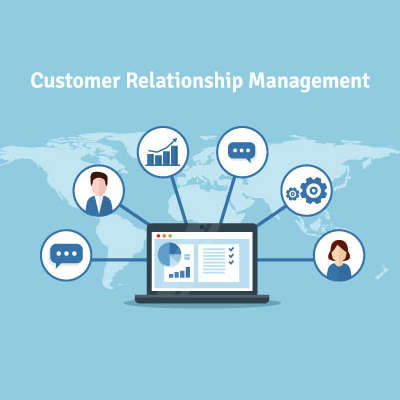
Business success is largely based on the quality of the relationships you develop with your prospects and clients. Of course, no relationship is ever easy, and they usually don’t number in the hundreds. To simplify things for you, we want to discuss a tool that provides a lot of benefits: CRM software.

What is a CRM?

Short for Customer Relationship Management, your CRM is the tool that helps you track the relationships you have with the people you offer your services to, assisting you in developing these contacts into faithful clientele. As a bonus, these solutions generally come with integrations that give you access to even greater capabilities and resources.

Why don’t we go through some of the most common CRM integrations to demonstrate how beneficial they can be to your processes?

Calendar Integrations

Keeping track of your customers and your opportunities to communicate with them is a critical facet to your success, so it is important to stick to a schedule to avoid creating conflicts. A CRM can integrate with your business calendar to help prevent overlapping schedules while keeping you engaged with those you should be communicating with. By synchronizing your calendar to your CRM, your team can work more collaboratively and efficiently.

Customer Support Integrations

A good CRM also communicates with the tools you use as a part of your customer service and support delivery. With a CRM, any time a customer reaches out to your support team, the system directs the call directly to the department the caller wants to reach. By preventing some other department from receiving the call, both your overall productivity and your customer relationships are improved. As a result, your business sees benefit.

Email Integrations

Email is a valuable communication tool for many businesses, which is why a CRM’s capability to help personalize any marketing efforts a business uses their email to support is such a valuable one. With the data stored in the CRM, lead generation becomes a much simpler endeavor.

Supporting your operations with a CRM can directly lead to improved business, as your customers will be more inclined to reach out to you. If you’re interested in some other ways that technology can be used to benefit your business’ operations, reach out to NuTech Services at 810.230.9455.

187695875_email_400.jpg

Tip of the Week: Three Simple Measures for More Productive Email

187695875_email_400.jpg

Email is a great tool for businesses to use, but if mismanaged, it can quickly become a major time sink. That’s why we wanted to go over a few ways that you can use your email solution to boost your overall productivity (rather than squander it) in the form of some handy tips.

#1: Interact with it less.

As we established from the very start, email can very rapidly shift from an asset to a considerable time commitment, often multiple times throughout the workday. If possible, avoid getting drawn in by reducing the total amount of time you spend in your mailbox. There are a few ways to accomplish this:

#2: Organize yourself, by organizing it.

Without the proper maintenance, your inbox can quickly become bogged down with messages and make it impossible to find important messages later. Therefore, it is useful to add additional rules and features to your email client, such as:

  • When you’re dealing with a ton of emails, it can be annoying to have to bounce back to your inbox each time you delete, move, or act on one of your incoming messages. Fortunately, there is a way to mitigate this issue through a simple change in your settings.
    • In Gmail, there is a feature called Auto Advance. With it activated, deleting, moving, or archiving a message will no longer send you back to your inbox, and will instead move you to your next message. You can also activate the Send & Archive button, which will give you the option to do both things in one click.
    • When using Outlook, you can change your settings to also advance you to your next message after acting upon its predecessor. Call up your Options (under the File menu option) and select Mail. On that page, you’ll find a section labelled Other, and the specification to complete an action “After moving or deleting an open item.” Select open the next item from the dropdown.
  • Whether you’re dealing with communications referencing different projects or simply receive many kinds of correspondence, it can be difficult to keep them all straight. Sorting these messages out automatically can save quite a bit of time and frustration.
    • In Gmail, you can create Labels, which effectively help you manage different emails from different senders or that reference different topics. By creating Filters via the drop-down option in the Search bar, you can also set certain emails to have these labels applied based on preset criteria. These can even be used to sort through different email addresses you receive in the Gmail client.
    • Outlook also offers a similar function with its capability to create Folders and generate Rules to direct certain messages to them automatically, once again. When an existing inbox message is right-clicked, suggested rules will display, along with the opportunity to create one or to manage the ones you have already created.

#3: Prepare Ahead of Time

We all have those messages that we find ourselves sending time and time again, with minimal details changed between them. Shave the time you spend drafting these messages down by creating a template to start off with.

  • In Gmail, as your message composer is open, click the triple-dot menu at the bottom and navigate to Templates. From there, you have the option to either insert a template you have already created or save what you have drafted as a new template to use later. If you no longer need a template, you can also delete it from this menu.
  • In Outlook, you can create a new template from a message by navigating to File and Save As, then switching the file type to Outlook Template. To use them, select New Items as you are drafting your email and from there, More Items and then Choose Form. From there, select User Templates in File System in the Look In box. Find your template, and select Open.

What other ways do you know to speed up your use of your email? Share them in the comments! For more handy tips, make sure you subscribe to our blog.

outlook_283484351_400.jpg

Tip of the Week: Helpful Outlook Tips

outlook_283484351_400.jpg

Many businesses turn to Microsoft Outlook as their email client of choice. Did you know that Outlook comes with certain features that make it an even better business option? To help you get the most use out of Outlook, we’re sharing a few of these features as this week’s tip.

Consolidate Your Email with the Clean Up Tool

Businesses will often use email to communicate between groups of people, which is a really useful practice for keeping people apprised and in-the-know of what’s going on. However, these messages can quickly become repetitive, incoherent messes–especially in chains made up of larger groups–as participants reply to them, duplicating the thread within itself. Outlook includes a utility known as the Clean Up tool to fix these problems in your email conversations, and even in entire email folders.

By finding the Clean Up icon in the ribbon at the top of your Outlook window, you can access a drop-down menu. This menu offers to Clean Up Conversation, Clean Up Folder, or Clean Up Folder & Subfolders. Once you’ve confirmed your choice, you can access Clean Up settings, which allow you more granular control over how the tool sorts through your existing conversations.

Schedule Out a Message with Future Delivery

Sometimes you’ll have an opportune moment to send an email, but it isn’t the right time for this email to be received. For instance, if you want to share something with your employees to keep in mind throughout the next day, it doesn’t make sense to distribute it at the end of the day before for it to be forgotten. Outlook allows you to use your opportunity to your full advantage with Future Delivery.

Once you’ve written an email, click on Options, and then Delay Delivery. This opens a Properties box for that specific message, including Delivery Options that include a checkbox labeled “Do not deliver before.” Selecting this option and specifying a time and date will prevent your recipient from receiving your message before that point. Once you’re satisfied, close the Properties box and send the message just like any other.

Taking Advantage of Shortcuts

Keyboard shortcuts are used to simplify access to commonly-used functions in many computer programs and applications, and Outlook is no exception. For instance, Outlook features shortcuts for a wide range of its functionality – covering the basics (like composing a new message by pressing Ctrl+Shift+M), organizational tools (like moving a message with Ctrl+Shift+V) or annotating your messages (like adding flags to important ones with Ctrl+Shift+G).

This is really just the start of Outlook’s capabilities to help your operations. Subscribe to our blog to find out whenever we post other tips or IT blogs.

scam_284361147_400.jpg

How Cybercriminals Can Add “Be Scammed” to Your Google Calendar

scam_284361147_400.jpg

Users seem to have a bit of a blind spot when it comes to solutions put out by Google, particularly the risks associated with Gmail. It’s almost odd to say: a security threat leverages Gmail. Unfortunately, it isn’t unheard of, as a phishing scam has been leveraging Gmail and its cooperation with Google Calendar for some time now.

Here, we’ll review the basic experiences that this scam subjects a user to as it sets the trap… and, of course, what your business can do to avoid these threats.

How Users Can Be Scammed

Put yourself in the shoes of a targeted user for a moment: just like any other day, you access your Gmail account and discover what looks like a Google Calendar invite. The invite is apparently for some kind of company-wide meeting (probably to discuss the company’s trajectory, policy changes, or something like that) to take place at the end of the workday. The message includes a link to the complete agenda, which can be accessed once a user confirms their credentials. You do so… and in doing so, fall for a scam.

This scam can be pretty safely categorized as “brilliant in its simplicity,” much like other phishing attacks can be nowadays. By using Google’s own convenience-based features, a fraudulent calendar event can be automatically added to a user’s Google Calendar, notifying the user. Fraudulent links send the user to a faked Google login page, where the user’s credentials are stolen as they attempt to log in. Alternatively, the link just begins installing malware directly to the targeted system. This scam has also proved effective against private users – informing them of some fabulous cash prize they’ve “won” through these fake Calendar entries.

How the Scam Was Uncovered

As it turns out, the details of this scam were reported to Google by an IT security firm in 2017, but Google has not made any steps to resolve it until recently.

The firm stumbled upon this discovery when a coworker’s flight itinerary appeared in an employee’s Google Calendar. From there, the researcher realized the implications of this accidental discovery, and quickly determined that users just don’t anticipate phishing attacks to come in through their Calendar application.

Can This Scam Be Stopped?

Now that Google has acknowledged the issue, a fix is currently being developed as of this writing. Until the point that a successful fix is deployed, you need to make sure your users are protected against this vulnerability.

The first thing they need to do is ensure that no Gmail events are automatically added to their Google Calendar. Under Settings in the Google Calendar application, they need to access their Event settings. From there, they need to deselect the option to Automatically add events to my calendar from their Events from Gmail.

To disable invitations to events from automatically adding themselves to the Google Calendar, a user needs to go through the same process, this time switching the Automatically add invitations option to the much safer “No, only show invitations to which I have responded.”

With any luck, this – combined with a little vigilance from your users – will protect your business from a phishing attack via its schedule. To learn more about how to protect your business against a variety of threats, subscribe to our blog, and give NuTech Services a call at 810.230.9455.

193972626_Communication_400.jpg

Business Communication Tools Your Business Could Use

193972626_Communication_400.jpg

All businesses need some type of communication infrastructure, especially considering how connected today’s workplace is. Today we will look at some of the best communications solutions out there for businesses of all sizes and industries, including many that you may (or may not) have already implemented for yourself. You can use this knowledge to fuel improvements to your own communications infrastructure.

Video Conferencing

Video conferencing can help business owners accomplish a plethora of tasks in the workplace. For one, video conferencing gives you the power to directly communicate with other parties, like vendors, customers, regulators, etc., without being in the same physical location. You also have the option to share screens, documents, presentations, and more through a video conferencing setup.

Chat Platforms

A chat platform will give users the ability to communicate both in and out of the office, whether it’s providing assistance to your clients or acting as a communication infrastructure for your employees. Some organizations have even taken to automating chat platforms to provide a more effective service to their clients. In fact, these services are often more cost-effective, and they come with a high level of customizability to provide an alternative to having a traditional support line.

Voice over Internet Protocol

Voice over IP has been around for quite some time, and it’s so popular that even cable companies are providing it these days. The biggest component of a successful VoIP platform is ensuring that you’re not overpaying for bandwidth. Your business’ phone system will run over your organization’s Internet connection, so it’s crucial that you’re not buying more than needed. A VoIP solution, when implemented correctly, can save you time and resources better spent elsewhere. VoIP systems can integrate well with other services, as well.

Mobile Devices and BYOD

Everyone has a mobile device of some sort, so businesses are beginning to leverage this to their advantage through the use of Bring Your Own Device. Organizations that have employees who often travel for work will find it beneficial for them to bring their own devices into the workplace so as to offset the cost of purchasing work devices for them… as long as there are limits in place, of course.

Of course, securing these devices is also of the utmost importance, which is why solutions such as mobile device management exist. These solutions give administrators the chance to limit a device’s data access based on user privileges, limit the kinds of software installed on them, and more. Mobile device management might be hard to implement for certain businesses with outspoken employees, so address these issues accordingly.

Intranet

Intranet solutions consist of a data system that can be used for file sharing. A company intranet can be used in various ways; they can be hosted on-site, in a private cloud solution, or implemented in a hybrid solution. An intranet hosted on your local area network can give any computer that’s connected to the network the ability to access the intranet. Given the right permissions, an intranet can enable collaboration utilizing this single point of storage.

A cloud-based solution can be hosted on private hardware, but it will depend on the integration and whether or not you’ve set up access control and authorization. Cloud systems are generally hosted outside the confines of your physical network, yet they offer a considerable amount of flexibility with access to data and applications.

Cloud Services

There are countless cloud services out there that your organization can use to establish lines of communication, including email, instant messaging, collaboration software, and more.

Unified Communications

If you can unify your business’ communications, you will see quite a lot of benefits. Centralized software gives you the opportunity to host all of your applications in one location, like VoIP, Instant Messaging, Video Conferencing, etc., and it all reports back to one location where it can be tracked. Unified communications are a great way to monitor transparency and increase the value of your solution.

NuTech Services’s IT experts can present you with the best communications solutions for your organization. To learn more, reach out to us at 810.230.9455.
81131209_email_400.jpg

Tip of the Week: How to Utilize Your Business’ Email

81131209_email_400.jpg

Email seems to be a pretty basic workplace tool, but like any tool, there are many ways to use it. From sending emails to managing tasks and messages from your inbox, let’s discuss a few tips and best practices to help you use your email like a true professional.
Properly Managing Your Email Like a Professional

Let’s not split hairs here: checking your email throughout the day can be a major waste of time. In order to avoid sinking time you could otherwise spend productively on reading (and re-reading) emails, there are a few habits you could develop.

Impose Rules on Your Email Habits

As we’ve said, repeatedly checking your email throughout the day can very quickly become a waste of your time. To avoid this, schedule times throughout your day to commit to checking your email. Once your time is up, stop until your next scheduled time.

We’ve all also accumulated emails that we simply don’t need to read. As harsh as it may seem, archive these emails, or unsubscribe as they come in to keep your inbox clean based on the subject line or the sender.

Managing Important Emails

Admittedly, not every email that comes in will be a waste of time. However, an overstuffed inbox can make it easy to miss something important. To avoid this issue, utilize folders to file your emails so that your inbox doesn’t become overfilled.

If Time is Left, Return to Your Inbox

If you finish your other tasks, return to your inbox and review your messages in order of importance. If you happen to run out of time, stop your review until your next opportunity. As you review your emails, don’t be afraid to unsubscribe to emails that aren’t important to your tasks.

Don’t Be Afraid to Leverage Filters and Labels

Filters and labels can help you to keep your emails more automatically organized. Your filters/labels should be relevant to their content. One can contain messages from a certain sender or pertain to a certain topic. As a result, you will be able to more easily keep your emails organized.

Rules like these can also keep you from having to deal with automatic replies, like out-of-office autoresponders and similar replies that you don’t need to receive.

What other emails have gotten in the way of your productivity? Let us know… we might cover them in a future blog! For more information, subscribe to our blog!