245500388_phishing_400.jpg

Taking an Exploratory Stab at Spear Phishing

245500388_phishing_400.jpg

Chances are, you’ve heard of “phishing” – a cybercriminal’s scam that steals data, access credentials, and other sensitive information by fooling a user into thinking they are providing this information to someone who is supposed to have access to it. However, there are a few different kinds of phishing, based on how it is carried out. Here, we’ll discuss the realities of spear phishing, and the risks it poses to your business.

What Makes Spear Phishing Different?

As a rule, spear phishing is a much more precise and personalized process. To keep to the “fishing” analogy, a generalized phishing campaign casts a wide net, trying to snare as many victims as possible with their scam. Utilizing vague and generic language, the ‘typical’ phishing attack is made to appear to come from a large organization, informing the user of some need for the user to take action, resulting in the hacker gaining access to the user’s information. This methodology makes the typical phishing attack fairly effective against many people, while simultaneously easier to spot if one knows the warning signs.

By comparison, spear phishing is far more precise. Instead of trying to find value in the quantity of targets snared in a trap, spear phishing takes the opposite tack. Using a highly targeted approach, spear phishing attacks are directed toward a specific individual within an organization.

This specified approach means that the generic messages that many phishing attempts leverage simply won’t be enough to fool the intended target. Instead, the hacker has to play investigator, seeking out as much information as they can about their intended target. Where do they work? What is their position in the company? Who do they frequently communicate with? Once the hacker has collected enough information to create a convincing message, they will typically spoof an email to their target. This email will usually contain some reference to a known contact or some in-progress project to make it more convincing and will request that the recipient download a file via a provided link.

However, while the link will direct to what appears to be a Google Drive or Dropbox login page, it is just another layer to the deception. Entering credentials into this page will give them right to the hacker for their use, breaching the user’s security and putting the entire business at risk in one fell swoop.

What Methods Do Spear Phishers Use?

Due to how spear phishing works, the messages sent by hackers need to be as convincing as possible. Combining extensive research with some practical psychology, a hacker has more ammunition to power their attacks.

As mentioned above, spear phishing is far less generic than the average phishing attempt. By referencing specific people, things, and events that mean something to the target, or appearing to come from an internal authority (a manager, perhaps, or even the CEO), the hacker can create a message that is less likely to be questioned. If the hacker writes their messages without any spelling or grammatical errors, as many spear phishers do, it only becomes more convincing.

These hackers are so reliant upon their target being fooled; many will purchase domains that strongly resemble an official one. For instance, let’s say you owned the domain website-dot-com. If a hacker decided to pose as you to launch a spear phishing attack, they might purchase the domain vvebsite-dot-com. Without close inspection, the switch may not be noticed – especially if the hacker creates a good enough lookalike website.

Am I A Target?

Of course, the research that a hacker has to do to successfully pull off a spear phishing attack is extensive – not only do they have to identify their target, they also have to figure out the best way to scam this target. Generally speaking, a hacker seeking to leverage spear phishing will focus their efforts on anyone in an organization who could potentially access the information that the hacker wants but isn’t high up enough in the organization to question an assignment from above.

Or, in more certain terms, a business’ end users.

In order to minimize the chances that a spear phishing attack will be successful against your company, you need to make sure that everyone subscribes to a few best practices. For example:

  • Pay attention to the finer details of an email. Is the message actually from christine@contactcompany.com, or does the email address actually read kristine@companycontact.com? Did Christine/Kristine include any attachments? As these can be used to spread malware via email, you should avoid clicking on them unless you are certain the message is legitimate.
  • Is the message written to sound overly urgent? Many phishing messages, especially spear phishing messages, will try to push an action by making it seem as though inaction will lead to a critical issue. Another warning sign to look out for: any deviation from standard operating procedures. Don’t be afraid to question a sudden switch from Google Drive to Dropbox – it may just be the question that stops a spear phishing attack.
  • Speaking of questioning things, don’t hesitate to make sure that any messages you suspect may be spear phishing aren’t actually legitimate through some other means of communication. A quick phone call to the alleged sender will be well worth avoiding a data breach.

While spear phishing is a considerable threat to your business, it is far from the only thing you need to worry about. NuTech Services can help your business secure its IT solutions and optimize them for your use. To learn more, subscribe to our blog, and give us a call at 810.230.9455.
smart_compose_400.jpg

Tip of the Week: Enabling Smart Compose on Gmail for Android

smart_compose_400.jpg

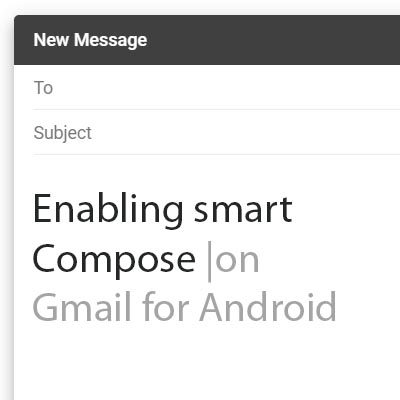
As we have opened our lives to technologies like machine learning and artificial intelligence, it would seem that the beneficial predictions made in science fiction are more likely to become fact. Many of these technologies have actually manifested in some of the smallest, but most useful, ways. For this week’s tip, we’ll learn how to leverage Gmail’s predictive Smart Compose feature on Android.

Those familiar with the online version of Gmail will find all of this quite familiar, as Smart Compose has been predicting their next words for some time now. It will seem newer to those more familiar with the Gmail application in macOS and Windows, as it hasn’t been available there until now.

Using Smart Compose on Android Devices

The first thing you’ll have to have in order to use Smart Compose is an active Google account, with the latest version of the Gmail application installed on your chosen device. As you type, Smart Compose will present its predictive text suggestions that a user can either accept, or just keep typing to ignore. While this form of machine learning is pretty basic, it does demonstrate how a device can “learn” how a user is most likely to use it – in this case, what word is likely to come next in the user’s sentence.

Turning Smart Compose Off (and On Again)

Of course, some users may find these suggestions inconvenient or distracting. That’s totally fair, and means that these users should deactivate the Smart Compose feature. Access the Gmail app’s menu by pressing the hamburger icon at the top left. You should see your Settings from there. You will be asked to choose from the accounts that have access to your device. Once you’ve selected the appropriate account, look under General settings to find Smart Compose. Use the toggle switch to activate it or deactivate it as you please.

While Smart Compose may not be quite as impressive as the artificial intelligence that appears in feature films, it has one major advantage over them: it can actually be used to benefit your business. For other ways that you can give your business operations a boost through technology solutions and tips, subscribe to our blog! You can also reach out to us directly by calling 810.230.9455.

ofice_threat_400.jpg

Microsoft Launches Office 365 Advanced Threat Protection

ofice_threat_400.jpg

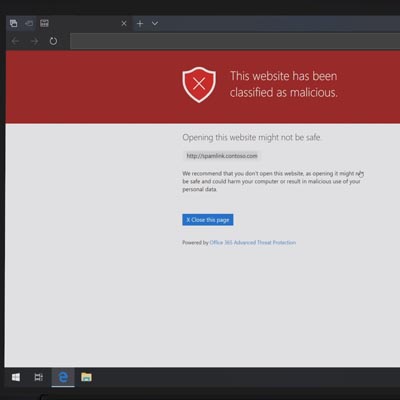
Microsoft has been at the forefront of security through their numerous operating systems for decades. As the security of computing systems and communication gets more important, and with threats to that security growing exponentially, the world’s leading software company has made it a point to introduce a new security platform to help people in many walks of life keep their endeavors secure. Today we’ll look at the new security & compliance services that are bundled with the Microsoft 365 cloud platform.

Microsoft’s Dedication to Security

Microsoft has as good of a handle on the nature of cybersecurity as any other major software company. The sustainability of their business and the effectiveness of their products are dependent on it. If their security software didn’t work well, there is no way they could sustain their place as the world’s most important software company, right?

One problem they are running into is that their security is SO effective, that hackers had to shift the ways they tried to infiltrate networks and steal data. The establishment of phishing is a social engineering term for duping a victim into downloading software that’s only purpose is to gain access to their personal data, which leads to data and identity theft, and in the case of business computing, access to much more.

Businesses Have Trouble with Security

Today’s business has to deal with a lot of different security issues. First, they are responsible for having the technology protections connected to each part of their computing infrastructure. This can be as simple as having the router-supplied firewall and an antimalware program loaded on their server. It’s likely, however, that the average business will need more coverage over their network to secure it, and the data stored behind those security platforms.

Next, and maybe most crucially, it is the business’ responsibility to train its staff on what kind of issues to look out for. Today, most malware infections and other infiltrations are the result of a mistake made by a person that has credentials and access to data. If your organization doesn’t properly train your staff on how to eliminate these threats, there is a fair chance that your network will be inundated with some type of malware at some point.

Microsoft 365 Security and Compliance

Microsoft, acknowledging the need for an enterprise product that combines the power of their Windows 10 operating system, the productivity options presented from Office 365, and powerful security and compliance controls, has launched Microsoft Office 365. The cloud-based solution presents the core computing resources that any business could use in a product that is available right now from NuTech Services.

Our knowledgeable technicians can help you find the right security platform for any of your business’ computing needs. Call us today at 810.230.9455.

78169116_S_email_400.jpg

Tip of the Week: Simplifying Your Email with Consolidation

78169116_S_email_400.jpg

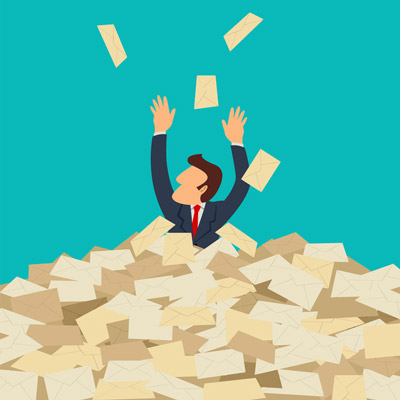
How many email accounts do you have? Out of those, how many do you check regularly, and how many different platforms are they on? Too many, and you’re apt to miss something important. That’s why we’re going over how to ensure that your emails are well-organized and accessible from a single source.

One Account, Two Accounts, Three Accounts, Four…
Based on your work responsibilities and how your office is structured, it is quite possible that you need regular access to multiple email accounts. You could have one you use internally, one for communicating with clients, one to reach out to vendors, one to use to sign up for resources… you get the point. When all is said and done, that’s a lot of email messages.

However, you presumably have other work responsibilities beyond just checking your email, so switching between all of them just isn’t a practical option. Well, it just so happens that you won’t need to switch, as the email client you choose will be able to consolidate these multiple accounts for you. Before we get into how, we need to make sure that we’re speaking the same language here.

– An email account is the individual address used to send or receive a message. In your organization, you might have employee1@yourbusiness.com and employee2@yourbusiness.com. Likewise, each employee may have a different account for their different responsibilities – for instance, employee1vendor@yourbusiness.com and employee1internal@yourbusiness.com.

– An email client is the program that allows you to send and receive emails. Gmail and Microsoft Outlook are two perfect examples. If you have multiple clients stored on the same server, they can be used pretty much interchangeably, each client presenting all emails. An email client also has a few features that enable you to better keep track of multiple email accounts, provided you have set it up to do so.

Let’s go over your options now.

Multiple Inboxes
The people who developed the email clients that we use weren’t naive. They understood that a given user isn’t going to be tied down to a single email provider, and certainly not a single account. This is why email clients can support multiple inboxes, assuming they are configured correctly. Multiple inboxes allow a user to access a single client to manage multiple email accounts, streamlining the process greatly and enabling customized organization.

Multiple Email Personalities
On the other hand, some users don’t mind leveraging one inbox, but might still need to utilize more than one address in their correspondence. There is also a method that enables the use of a single, catch-all inbox, but enables the user to select which email address (in this case, known as personalities) their response is sent from.

To do so, you will first need to set up an email account that you do not give out, as it will serve as the catch-all address that all of your emails ultimately accumulate within. Once it has been set up, you need to set all of your other accounts to forward their contents to that mailbox – your internal IT resource should be able to help.

Once your messages are all being sent to the catch-all account, you will be able to respond to these emails from the address that they were originally sent to.

Setting Up Inboxes and Personalities
In order to accomplish either of these tasks for your client of choice, you will need to adjust a few settings.

Gmail
To add another account to your Gmail client, you’ll need to access your Settings, which means you have to click on the gear icon. Once you’re in your Settings, you should see a tab labeled Accounts and Import. Under that tab, there is a Check mail from other accounts section. Click on Add a mail account, and follow the instructions provided.

To add additional personalities to your Gmail account, you’ll need to again navigate to the Accounts and Import tab. There, you will find a section labeled Send Mail As, with the option to Add another email address. This will also allow you to choose your default email address.

Outlook
As it happens, there are too many different versions of Microsoft Outlook and too many variables to allow us to provide a walk-through. Fortunately, Microsoft does offer some documentation that instructs users how to manage their “connected accounts.” Of course, you can also call 810.230.9455 for our assistance, as well.

Are there any solutions that you frequently use that you’d like some extra tips for? Tell us which ones in the comments section, and don’t forget to subscribe!

email_security_encryption_400.jpg

The Major Points of A Secure Email Solution

email_security_encryption_400.jpg

It’s not out of the ordinary for employees to not know the best practices surrounding email management, but it’s something that any self-respecting employer needs to consider. How are your employees using their email, and are they putting your organization at risk? The best way to address these issues is taking a two-pronged approach involving training employees on proper best practices, as well as taking technical measures to keep the risk of a breach to a minimum.

We’ll go over some of the most viable options for keeping your email communications as secure as possible, including encryption, spam protection, and employee awareness.

Email Encryption
Encryption is extremely important for keeping your data safe from prying eyes. Encryption is easy to understand when it’s explained in terms that aren’t mind-bogglingly complex. Data that’s sent through a connection that isn’t encrypted can be intercepted. When data is sent through an encrypted connection, it’s scrambled so that it can’t be read by those who might steal it while it’s in transit. Only those who hold an encryption key can unscramble it, making it a much more secure method of sending and receiving important data. Some industries, such as healthcare and government organizations, mandate compliance standards that may include encryption to send and receive email.

Spam Protection
Employees are almost certain to encounter email hazards like spam messages and phishing attempts, and if they don’t know how to identify these dangerous messages, they could expose your organization to data breaches. This is because hackers can ask employees for various information, such as passwords, usernames, and other credentials that aid them in infiltrating your carefully laid-out defenses. The best way to keep this from happening is to keep spam and phishing messages from hitting the inbox in the first place with spam protection systems.

Phishing attempts are a bit trickier, as they will need to be handled in a careful and calculated manner. Scammers often personalize messages to optimize their odds of the message being opened or an attachment being downloaded. Therefore, you need to consider employee training to properly defend against it.

Conditioning Your Employees for Security
Your network’s security can’t be complete without taking care of the ones actually using the technology. Since your end users are going to be using the organization’s email, it’s only natural that you prepare them for the act of keeping it secure. You can provide your users with a list of best practices for them to keep in mind while going about their duties. They are the following:

  • Check the sender: Who has sent the message? Is it a suspicious email address that can’t be traced to any of your contacts? Does it come from a strange email domain? If the answer to any of these is in question, you might have a spam message.
  • Identify the intent: Hackers want you to click on their spam messages as quickly as possible. Therefore, they will often try to incite immediate action to prevent you from thinking twice.
  • Check the spelling and grammar: Many hackers come from countries where English isn’t the hacker’s first language, making their messages quite identifiable compared to others. If you receive messages filled with these inconsistencies, you can bet they are either unprofessional or likely a hacker.
  • Don’t open unrequested attachments: Attachments are a big way for hackers to spread threats, as a lot of people don’t think twice before downloading a supposed receipt or statement. Double-check who sent the attachment before downloading it.
  • Don’t click sketchy links: Before clicking on any links in an email, make sure it’s going where you expect it to. You can do this by hovering over the link without clicking on it. If the link goes to a weird URL or an IP address (a string of numbers and periods), it might be a phishing attempt. The destination might look legitimate and ask you to log in, but it will capture your credentials and give access to the bad guys.

Of course, the biggest thing to keep in mind is when in doubt, ask your IT department about the message. For more information on how to keep your organization safe from spam and email threats, reach out to us at 810.230.9455.

totw_canned_response_gmail_400.jpg

Tip of the Week: Creating Canned Responses in Gmail

totw_canned_response_gmail_400.jpg

If you’re like most business users, you rely on email quite a bit to stay apprised of what is going on, as do most of the people you are likely in communication with. As such, you most likely understand that, while most emails require some kind of response or confirmation of receipt, not all of these messages require a heartfelt message. This is where Gmail’s Canned Responses come in handy.

This week’s tip will go over how to set up your own canned responses to streamline your repetitive, but necessary, communications.

How to Set Up Canned Responses
First, you’ll need to log in to the browser version of Gmail. Once there, click on the Gear icon in the top right under your profile image and select Settings from the menu. From there, you’ll see a horizontal menu that will display Advanced, click into it. You will see the option to enable Canned Responses. Click the radio button to select enable, and then save your changes. You can now create canned responses to use in your correspondence.

Creating and Using Your Canned Responses
To create a canned response to use, open the message composer and write out what you want your message to say. Once you are satisfied with your return message, access the message window options by clicking the button in the bottom-right corner. That menu should now have a Canned responses option, with a sub-menu that allows you to save a New canned response. You will be prompted to give your new response a name, and then it will be saved for future use in that sub-menu.

What kind of messages would you anticipate using canned responses for? Tell us what you think in the comments!

Schrdingers_Cat_Lives_Dies_400.jpg

Email Attachments are Schrӧdinger’s New Cat

Schrdingers_Cat_Lives_Dies_400.jpg

Have you ever heard of the physicist Erwin Schrӧdinger? He is most well-known for explaining a paradox related to quantum physics which involves a cat. Even though the theory behind Schrӧdinger’s cat is meant to explain something quite different, it can still be applied to a lot of different concepts. In particular, when explaining email security.

The thought experiment works as follows. The Schrӧdinger’s Cat scenario was created to strike down an interpretation of quantum mechanics that states an object can exist in all states but will revert to just one if it’s observed. As for Schrӧdinger’s experiment, a cat was hypothetically shut in a box with a small amount of radioactive material. This material had about a 50% chance of setting off a geiger counter. In this case, a hammer would smash a container filled with poison, killing the cat. If the Copenhagen interpretation is presumed to be correct, the cat would be both alive and dead until you see which one it really is.

At the time, Schrӧdinger’s cat was designed to challenge the Copenhagen interpretation, but a more modern version of this experiment can be seen in a business email solution. The primary topic associated with this line of thought is email attachments.

Spam and phishing emails are some of the more popular ways that cybercriminals use to spread their influence. The idea of how this ties into Schrӧdinger’s hypothetical cat involves approaching each email as both a normal message and a real threat at the same time. The only issue here is that there’s a lot more at risk with your business’s infrastructure than with a hypothetical scenario (no cats were harmed in the creation of this blog). After all, you don’t want to click on an email attachment unless you’re absolutely sure that it’s not going to cause problems for your organization.

Thankfully, there are ways that your business can protect itself from advanced threats that make their home attached to email messages, especially spam and phishing threats. Preventative measures like antivirus and anti-malware tools are great for keeping threats off of your infrastructure, and spam protection can help remove messages from your inbox before they become a cause for concern.

Your inbox needs to be secure, so why not do it the right way? To get started with network security solutions, call NuTech Services at 810.230.9455 today.

Spam_avoid_emails_400.jpg

Tip of the Week: How to Avoid Spam Emails

Spam_avoid_emails_400.jpg

Would you just give your bank account information to anyone who called you up and asked for it? Probably not. For the same reason, you wouldn’t just download attachments from your email messages without a second thought. This can be a dangerous practice, as some of the most common threats nowadays spread themselves via unwanted email attachments. It’s important that you can identify when it’s the right time to download an attachment, and when it’s best to just leave it be without exposing your business to unnecessary risk.

First, a little information about why you might be forced to make this decision in the first place. Spam messages are often the easiest way to spread the influence of malware and other threats. It’s simply a fact that you can send one message to countless individuals knowing that at least some of them will be fooled into downloading the attachment, and in turn, downloading all of the nasty things found on it.

For example, ransomware makes its home on workstations due to infected attachments. Your company might receive an unsolicited message from a prospective employee, who has attached their resume for review. Before your HR department knows what’s happening, their files are encrypted due to the attachment actually containing malware from a hacker. Surprise–your organization has fallen victim to a targeted phishing attack, with an infected infrastructure being the fallout.

While your spam filter might flag some of these messages as dangerous, it’s unlikely that the most dangerous ones will be caught in its web. Be wary of messages that claim to be receipts, shipping information, resumes/CVs, and other information that might be important for your organization. Hackers understand this and want to take advantage of that knowledge, which could potentially put your company in a tight spot.

Ultimately, the best way to keep your company safe is by taking a two-pronged approach–educating your employees on the importance of email security, and a technology solution designed to eliminate the majority of spam in the first place. The first can be maintained simply by holding awareness training and actively practicing proper email etiquette. Teach your employees that they should never open attachments from anyone they don’t know, and to always investigate the source of the message before declaring that it’s safe enough.

For the second measure, you can rely on NuTech Services to help you out. Our technicians can hook you up with an enterprise-level spam blocker to keep the majority of dangerous messages from making their way to your inbox in the first place. It’s a great measure that can minimize your employees’ exposure to risky elements. To learn more, reach out to us at 810.230.9455.

multi-device_email_400.jpg

Tip of the Week: Sync Your Inboxes with IMAP

multi-device_email_400.jpg

How many emails do you send on a daily basis? You use it so frequently that you might not second-guess how it actually works. Depending on the way your business uses email, you might be able to optimize the way that it works for your mobile devices. There are two types of protocol that work to varying degrees for your email solution.

The first kind of email protocol is called POP, or Post Office Protocol. This can be seen in a similar way to snail mail. POP works by downloading messages to your device from the mail server through your email client. However, this keeps you from downloading the messages onto other devices. If you want to check your email on your smartphone, the same messages will not be accessible on your desktop–it’s just the way it works.

On the other hand, you have the preferred method of handling multi-device email: IMAP, or Internet Message Access Protocol. IMAP stores the messages live on an email server rather than downloading them directly to the devices. This means that the messages remain on the email server and are accessed by a mail client on any device you use. Any actions performed on the messages are done so through the mail server. This is the best way to use email if you’re hoping to keep your messages in sync across your devices.

Modern email systems generally allow for IMAP, including Google’s Gmail, Microsoft Outlook, and Mozilla’s Thunderbird. Some, like Apple’s iCloud, even default to it. Depending on your business’ needs, you’ll want to implement a communications solution that allows your team to access email on a multitude of devices–that’s where we come in.

If your business is unfamiliar with mobile devices, NuTech Services can work with your organization to ensure that your mobile device policy matches up properly with your email client. You want to ensure that any devices accessing company information are secured from end to end. Furthermore, these devices need access to information unimpeded so that productivity can commence. We can work with your organization to make this happen.

To learn more about email, mobile devices, and business technology for a modern workforce, reach out to NuTech Services at 810.230.9455.

email_envelopes_purple_400.jpg

Tip of the Week: How to Write a Better Email

email_envelopes_purple_400.jpg

Writing an email is one of the most prevalent methods of communication in the business world, but it’s not as easy as you might think. There are considerable details and intricacies to mastering this art, and we’re here to help. By the end of this blog article, you’ll be armed with five tips to write the most effective email that you can.

Keep It Short
Nobody wants to read a long message in their email. After all, they likely have more pressing matters to attend to, and many more messages that they have to read. Therefore, it makes sense that you get right to the point when you have to send an email. Try to include only information that’s absolutely critical. Remember, concision is the friend of any businessperson, as they only have so much time in a day to read and respond to messages that aren’t mission-critical.

Present a Clear Subject Line
Similarly, you want to use only the most clear and concise subject lines, as anything less could mislead the recipient into thinking that the message either isn’t important or doesn’t warrant immediate attention. Basically, you want to provide enough information in the subject line to give the recipient a reason to open it.

Personalize the Email
You shouldn’t be copying and pasting a catch-all message into an email. You should take the time to personalize each message that you send so that it looks as authentic and genuine as possible. You should always use your full name, as well as the organization you belong to–especially if you are sending messages to vendors or clients.

Perform a Spelling and Grammar Check
Nothing is more embarrassing than making a major spelling or grammar error in an important email. Thankfully, this can be avoided by giving your message a quick proofreading before hitting the Send button. Try to avoid statements in all caps, as they can create a subtext that you don’t necessarily want to convey.

Keep it Business-Friendly
If you’re going to send a bunch of memes or other fun things to your employees, it’s best not to do it through email. It’s one thing if you have a dedicated email thread designed for sharing information unrelated to work, but when you have your employees sending things that have no place in a professional environment, you get clutter (and a general lack of focus), both of which can create an unproductive workplace environment.

For more information on how to make the most of your email, reach out to us at 810.230.9455.

phishers_man_400.jpg

Someone’s Trying To Phish You… Do You Play Along?

phishers_man_400.jpg

Phishing scams have been popping up for years–their most infamous attack vector has even become a punchline: some long-lost relative stuck in a far-off country suddenly reaches out, offering riches, but only if so-much money is provided first. People from all walks of life have been duped by these scams, and while not all of them are this transparent, most are pretty easy to spot.

There may be some temptation to strike back in retribution against the criminal who targeted you, in the form of driving them crazy by wasting their time. Unfortunately, as tempting as such activities may be, they are not a good idea. Take it from the cyber security researchers who have tried–cybercriminals do not take well to mockery, or having their time wasted. A researcher from Malwarebytes, Jerome Segura, found out firsthand when he used a virtual machine to follow a scam to see where it would lead.’

With his device recording everything that played out, Segura first interacted with a female who claimed to have found many, many issues on his device that needed to be resolved before his system was corrupted. Not only that, but Segura was told that his software warranty had recently expired, and he would have to pay the $299 renewal fee to another representative.

Of course, Segura didn’t supply the correct payment credentials, which tipped off the hackers. The hackers then seized control of Segura’s computer, deleting all of his files and his Ethernet adapter driver before calling Segura a rude word and disconnecting.

While these sorts of stories may seem comical in hindsight, they are no laughing matter. This is especially true when things get much more serious.

Take Jakob Dulisse’s story. The wildlife photographer received a call to his home in British Columbia from “Windows Technical Support” in Los Angeles. Coming to the conclusion that this was an attempt to scam him, Dulisse played along before accusing the caller of being “a scammer, a thief, and a bad person.”

The person on the line did not react well at all. Describing himself as a killer, the caller claimed that his group had people in Canada who would cut their victims into pieces and dispose of them in the river.

Other scammers will simply install remote access software as their target decides to mess with them, opening the door for them to come back later, as other cyber security professionals have found.

It is important to remember that these are, in fact, professionals, which means they are better equipped to deal with such threats. It is their job to discover what means of attack cyber criminals are using, and share the best response. This is not how the average business user should handle this situation, the business owner should file a report with the authorities and alert both their Internet service provider and their managed service provider.

An MSP can help make sure that you are fully prepared to handle any cyber security threat that darkens your business’ door. Give NuTech Services a call at 810.230.9455 today.

outlook_tips_400.jpg

Tip of the Week: Using Shortcuts Can Improve Your Microsoft Outlook Experience

outlook_tips_400.jpg

Microsoft Outlook is a great tool that can help your business stay in touch with clients and vendors, as well as stay updated regarding your internal operations. However, did you know that you probably aren’t using Outlook to the best of its abilities? We’ll walk you through some of the easiest ways to help you take even greater advantage of Microsoft Outlook for your organization: keyboard shortcuts.

Many of the shortcuts that work in Microsoft Word, like bolding or underlining text, remain unchanged through the Office 365 productivity suite, but the following are exclusive to Outlook. Here are some great shortcuts that you can use in Microsoft Outlook versions 2013 and 2016. In fact, you can print out this blog and place it on your desk so that you’ll never have to look up another Microsoft Outlook keyboard shortcut again!

  • Alt + S: This will send an email.
  • Ctrl + Enter: Send the message you’re currently writing.
  • Ctrl + R: Reply to an email.
  • Ctrl + F: Forward an email.
  • Ctrl + K: Complete the name or email you are typing into the address bar.
  • Ctrl + N: Create a new email folder.
  • Ctrl + Shift + A: Create a new appointment on your calendar.
  • Ctrl + Shift + O: Open your Outbox.
  • Ctrl + Shift + I: Open your Inbox.
  • Ctrl + Shift + C: Create a new contact.

As previously mentioned, many other shortcuts exist, and they all function in similar ways to the way they work in other Microsoft products.

By using all of these shortcuts to your best advantage, you can cut down on time wasted by fumbling through Outlook to click on several buttons that can be replaced by keyboard shortcuts. To learn more about how you can take full advantage of your business technology, be sure to subscribe to our blog.

email_management_400.jpg

3 Time-Saving Benefits to Outsourced Email Management

email_management_400.jpg

You don’t have time to worry about managing your email solution, but it’s still a vital aspect of your business’s operations. You never know when someone will fall for a spam message, and you certainly can’t look over the shoulders of each employee to make sure they don’t. What’s the busy business owner to do? How can you get quality email management without it eating up too much time and effort on your part?

The answer, like many technological pain points of SMBs, is to outsource the responsibility to a managed IT provider. Managed IT is great for businesses that want to focus on their operations rather than spending time managing technology. We’ll discuss three of the ways that email management helps your organization stay on task and ahead of the game.

Strengthen Security with Spam Blocking
Spam is the favored vehicle for major online threats, including phishing and ransomware schemes, specifically because it allows hackers to spread their work in a way which allows them to target as many people as possible without devoting much individual work. Users can accidentally download attachments or click on links to malicious websites. Enterprise-level spam blocking solutions allow your organization to keep threatening or suspicious messages out of your inbox indefinitely, significantly reducing the risk of finding such messages in your email solution.

Hosting and Management
If you’re the one who has to constantly add new users or check to see that your email servers are working properly, you’ll find that you have less time to spend doing your actual work. Of course, nothing is more important than making sure operations proceed as intended. NuTech Services can manage your technology and free up incredible amounts of time to focus on building your company’s profitability. We can ensure maximum uptime and optimal mail flow so that you don’t have to.

Archive Messages for Future Viewing
Email archiving is a great way to ensure that your business retains a record of any incoming and outgoing messages for your business. This helps you keep a better track of who shares information with who, and more importantly, why information might be shared with those outside of your business. Furthermore, if an employee has recently left your business, but you weren’t privy to their reasons, you might find some clues in your email system that could strengthen retention and prevent turnover in the future.

If you want your business to flourish, managing email effectively is a great place to start. In the hands of professionals like those at NuTech Services, you can focus on operations without worrying about keeping mail flow from working as intended. For more information about email management, reach out to us at 810.230.9455.

woman_using_email_400.jpg

Tip of the Week: Improve Email Open Rates With an Attention-Grabbing Title

woman_using_email_400.jpg

It’s safe to say that nobody enjoys their email inbox getting clogged with messages. Unfortunately, communicating by email is a standard part of doing business. Of course, in order for these emails to communicate their message, they must first pique the interest of the recipient enough to be opened. Here is a guide to crafting email subject lines that get readers to open them.

\Depending on your audience and context of the email, there are a few different approaches to take. One rule to go by is to keep your subject lines as relatable and personable as possible.

According to Unbounce, a message with the subject line, “Steve, where are you?” achieved a 43 percent open rate, compared to a Mailchimp report citing the industry average to be 24 percent. This is due to both the personalization of the subject line, as well as the perception that, by not reading the email, the recipient will miss out in some way.

Another excellent method to reach an email subscriber is to include some detail about their recent activity with you. Asking them in the subject line what their follow-up experience has been like makes your message appear to be completely customized to them (and not spam). For example, if someone ordered a new product or service from your website, asking them how their experience with it has been can provide a personal connection, and can encourage them to take advantage of your business further.

Offering a special benefit or advantage to reading the email can inspire a great open rate as well. If your email offers to teach your audience some trick or surprising fact, the recipient will receive an instant benefit for opening your message and could quite possibly be convinced to take any action you suggest to gain further benefits.

When an email is used to convey some bad news to the reader, it is best to be honest and authoritative. If a service is experiencing issues, let them know about these problems, as well as the actions you plan to take to resolve them.

Ultimately, each message needs to be tailored to fit the expectations of the intended recipient. Communication is not a one-size-fits-all venture, and if users suspect that you’re not being genuine with them, they will push your message to the back-burner, or perhaps even to the spam folder.

This tailored approach, of course, begins at the subject line. With proper crafting and care, you can hook in your recipient and improve the odds of them actually reading your message and responding promptly.

What are some tips and tricks you use to personalize your emails? Let us know in the comments.

b2ap3_thumbnail_email_gaffs_400.jpg

Tip of the Week: 4 Common Email Mistakes and How to Avoid Them

b2ap3_thumbnail_email_gaffs_400.jpgEmail is a staple in offices around the world, but many organizations are finding it easier than ever to make simple mistakes that can be easily avoided with proper training procedures. It’s a best practice to ensure that your team is adequately trained on how to efficiently use your chosen email client to its maximum potential. Here are four of the most common email mistakes that the average employee can make, and how they can easily be avoided in the future.

Avoid Major Spelling and Grammar Errors
The importance of spelling and grammar in both internal and outgoing communications cannot be stressed enough. While a minor error here or there is acceptable, anyone who wants to be considered a professional in their industry should take the time to put together messages that are both grammatically correct and easy to read. This is especially true when dealing with prospective clients. You want to be seen as the expert, and showing that you’re a well-rounded and educated individual will reinforce this thought.

Most email clients like Outlook and Gmail have a built-in spell checker that can be used for a quick idea of how many corrections need to be made, but it’s often better to compose an email in a word processor like Microsoft Word. This lets you use the powerful spell checker that the program provides, and allows you to use a copy/paste tactic where there’s minimal room for error.

Don’t Accidentally CC the Wrong People
If you’re dealing with a medium-to-large workforce, you might find it easier to communicate with all of your employees by simply clicking the “carbon copy” option when issuing statements via email. However, this comes with a risk. When you’ve received a CC of a message, and you have some input, you want to make sure that you don’t reply to all, especially if it’s something that’s only meant to be seen by the recipient. Always be aware of what you’re sending, and who you’re sending it to.

Or, better yet, don’t complain about one of your coworkers through email at all. Email should be a formal type of communication in the workplace, and you shouldn’t be using it like it’s your personal account. If someone is checking up on your email messages, it could come back to haunt you later. Still, letting off some steam in the workplace is often a necessity, so if you feel you absolutely have to get something off your chest, do it in person rather than through email.

Make Sure Your Email is Finished Before Sending It
This seems like a given, but you’d be surprised how often some folks forget to finish an email before hitting the “send” button. Again, you want to ensure that you’re retaining your professional presence with both your staff and your prospective or current clients, and sending half-finished emails isn’t going to help this goal. It’s relatively easy to hit the “send” button before your message is actually complete, especially if you’re multitasking and distracted by your other responsibilities.

This is especially why it’s important that you give your message a thorough proofreading that helps you ensure that the message is complete and ready to be sent. It’s an important part of the email process, and shouldn’t be overlooked if you’re in a hurry.

Be Absolutely Sure Who You’re Sending Your Message To
While the other mistakes we’ve mentioned thus far have somewhat trivial repercussions, sending a message that potentially reveals sensitive information to the wrong person could have far-reaching complications. If it’s internally, it’s possible that it’s no big deal, and can be resolved by simply asking the recipient to disregard the email. However, if the message is sent to an external party, and it contains sensitive information, you should immediately put yourself in damage control mode.

In the event that you accidentally send company information to an unknown email address (which you shouldn’t), it’s important to assess how important this information was and take action as soon as possible. For example, if you sent passwords or usernames (which you shouldn’t), promptly change the credentials. You should also make an attempt to notify any party involved, especially clients. While it might be embarrassing, it’s better than the alternative.

For more best practices and tips, be sure to subscribe to our blog.

b2ap3_thumbnail_hold_up_in_gmail_400.jpg

How to Block and Unsubscribe from Users with Gmail’s New Features

b2ap3_thumbnail_hold_up_in_gmail_400.jpgWe all know how annoying spam and unwanted emails can be when you’re trying to navigate your inbox. While a quality spam filter can go a long way toward eliminating these irritating time-wasters, Gmail now has a feature that lets you dodge some of this pain. With the ability to block selected users and unsubscribe from email campaigns, you can reclaim plenty of time that you might have been wasting weeding out your inbox.

Before we dig into the details, though, it should be mentioned that, while Gmail’s new feature is indeed a good first step towards eliminating spam in your inbox, it’s by no means a guarantee that you’ll see a significantly less amount of time-wasting messages. A comprehensive spam-blocking solution is often necessary to keep malicious emails and other time-wasting junk out of your inbox. Just because you block or unsubscribe from a particular email address doesn’t mean that emails won’t start pouring in from another source. If you have concerns over your current levels of spam and junk mail, feel free to contact NuTech Services at 810.230.9455.

Still, Gmail is taking strides to make it easier for the average consumer to take advantage of the benefits of email, without the negative side-effects, like spam. If you happen to be receiving an alarming number of messages from a specific person that you don’t want to hear from, or if something just looks plain sketchy, you can block anything further from the sender. Any blocked messages will immediately be sent straight to your spam folder. To block someone, all you have to do is open an email from the sender you want to block, click on the down-arrow next to the reply button, and select Block “user.”

Gmail’s unsubscribe feature works in a similar manner to the unsubscribe links that you might find in various advertisement emails, like ones you might get from Amazon or other big-box retailers. On the Android Gmail app (the most recent version – this feature isn’t on the desktop version of Gmail yet), open a message from the user you want to unsubscribe from. Click the three-dot More button next to Reply and select Unsubscribe.

While this doesn’t necessarily block spam completely, it’s a good step in the right direction. Your goal shouldn’t be to send all spam to the spam folder; in order to achieve maximum productivity and email security, you want to prevent spam altogether. For more tips on how to accomplish this feat, give NuTech Services a call at 810.230.9455. Also, be sure to subscribe to our blog, where we often post about the latest security developments, security how-tos, and much more. When it comes to securing your email from spam, and protecting your business from hackers, you need all of the help you can get.

b2ap3_thumbnail_security_for_it_400.jpg

Your Inbox Needs a Sheriff with a Strike Plan

b2ap3_thumbnail_security_for_it_400.jpgSpam emails often contain viruses leading to any number of potentially threatening situations for your company’s network. Therefore, it’s essential that your network has a security solution in place that acts as a sort of virtual sheriff, blocking malicious messages from accessing your network, while granting passage to the good guys.

For your company’s spam filtering needs, a Unified Threat Management solution is useful. A UTM is the sheriff your network needs; able to spot and eliminate harmful spam emails with black-belt proficiency. Like any good sheriff, a UTM solution has a strike plan in place to get your sensitive data out of any potentially threatening situations. One helpful way to understand this is to think of this approach as an A-B-C strike plan.

A: Take an Assessment of the Situation
Your email inbox is constantly being bombarded by spam messages. In fact, did you know that more than 60 percent of all the email traffic over the Internet is spam? A good spam filtering solution takes a thorough assessment of your company’s email situation and is ready for anything; in a similar way to how a sheriff would give a potential criminal an ocular patdown, looking for any hidden weapons. With a UTM, every single message (no exceptions) gets stopped, assessed, and its security situation broken down.

B: Garner if the Email is a Security Risk
When an email is given a “patdown,” the UTM sheriff looks for a security risk. What’s that email hiding? It could be something sinister like a virus-filled attachment tucked underneath its pant leg. Or maybe an email is disguised to look like a legitimate message in the same way a criminal tries to conceal their identity. This kind of email trickery is known as spear phishing, and imposter messages like these can easily get past a standard-grade spam solution. As long as your enterprise-level UTM network sheriff is around, your business will be safe.

C: Clear the Message for Passage
After garnering that the message is safe, then, and only then, will it be cleared for passage to your inbox. Otherwise, the malicious message will go straight to your spam folder, and possibly even deleted automatically if that’s the setting you choose.

Ultimately, an end result like this is the highest goal for every spam filtering solution. In addition to a UTM protecting your company’s network security situation, it will also protect your wallet. For example, did you know that it cost the average office worker $712 per year in salaried hours to sort through all the spam themselves that hit their inbox? Therefore, as far as productivity goes, it’s like your UTM is providing your network with a gym partner to spot you, as well as a sheriff to keep you safe.

It doesn’t matter whether you’re using a PC or a MAC, with a UTM solution protecting your network, you’ll gain a sunny disposition regarding your network’s security. Call us at 810.230.9455, we’re always available to take your call!

b2ap3_thumbnail_windows_10_email_scam_400.jpg

This Windows 10 Email Scam Isn’t The Upgrade You’re Looking For

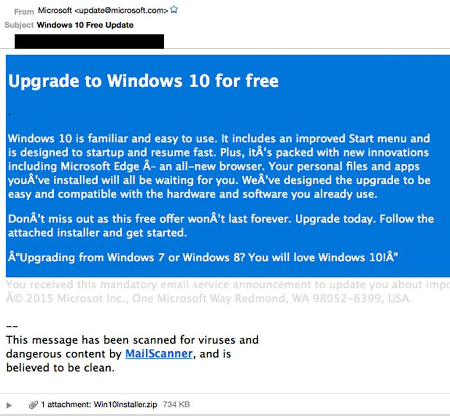
b2ap3_thumbnail_windows_10_email_scam_400.jpgFor those of you who don’t yet have Windows 10, don’t panic. It’s not going anywhere, and you’ll get it soon enough. In the meantime, it’s important that you don’t get impatient and hastily open suspicious emails containing what appears to be a launcher for your Windows 10 download. Hackers are using ransomware to extort money from unsuspecting users who just want their new operating system already.

For some, the fault might lie with Microsoft because of the way they’ve decided to deploy Windows 10. Making people wait even more for a product that already exists is somewhat maddening, and hackers are taking advantage of this impatience to strike. CTB-Locker is a ransomware similar to Cryptolocker, in which it encrypts information locally on your PC, and offers a decryption key in exchange for a hefty price.

This ransomware spreads via email. Victims will receive a message in their inbox which appears to be from Microsoft detailing how they can bypass the wait for Windows 10, and prompts them to download what appears to be a launcher for the new operating system. Once the user downloads the executable file, the malware starts encrypting data on the PC. The user is locked out of their PC until they pay the ransom.

Furthermore, if the user wants to regain access to their files, the ransom must be paid in Bitcoin, a cryptocurrency which is known for its anonymity and difficulty to trace. Adding to the difficulty is that the hackers are using the Tor anonymity network to communicate, which makes catching the clowns behind this act difficult at best. Ransomware is an increasingly popular problem, and according to ZDNet, it can cost users anywhere from $200 to $10,000 for each occurrence, leading to ultimate costs of up to $18 million. That’s a lot of cash that’s been extorted from some 1,000 users in 2015 alone.

windows10scam

Of course, with a good email solution you won’t be receiving this message. A powerful spam blocking solution is capable of keeping spam messages out of your inbox almost indefinitely, meaning that you have little to worry about from the average phishing attack. Still, if a hacker wants to scam you bad enough, they’ll find a way to get through your security measures and attack you directly, in the form of a targeted spear phishing attack.

Therefore, the best way you can protect yourself from threats like CTB-Locker is to keep an eye on your inbox for any suspicious messages, and to never, ever, download attachments from unknown senders. Augment caution with a powerful spam filter and you’ll have all you need to keep phishing attacks at bay. Give NuTech Services a call at 810.230.9455 to learn more.

b2ap3_thumbnail_email_no_more_400.jpg

Experts Believe Email Will Soon Meet Its End

b2ap3_thumbnail_email_no_more_400.jpgWith email being such a prevalent tool used in the modern office, it might seem silly to think that in just a few short years, email might not be as relevant as it used to be. However, many professionals believe that email is limping along on its last leg, waiting to be put out of its misery by a new solution. Will email be around for much longer? Should the average business prepare for a world without it?

The Future of Email Looks Bleak
John Brandon of Inc thinks that email’s time is just about up. He sees a future where email falls out of favor due to the increase in use of other communication alternatives, both formal and informal. He builds an argument from his personal experiences with email over the past few years:

In my own workday, email has become less and less important. There are entire groups of people (public relations, for one) who contact me primarily on social networks first. Friends never send email anymore. They almost always send a text or chat on Facebook. Even a few of my colleagues tend to use apps like Campfire more than email.

social media kills email

He also discusses how email isn’t a reliable method of communication, explaining that many users ignore their email or simply take forever to respond. This is especially true for the younger generation, many of which don’t even have a personal email for use outside of work or school. Finally, when users do receive email, they can be buried under spam, especially if no measures are taken to protect against it.

Yet, Email is Still Necessary in Today’s Work Environments
Improving your business’s communications is imperative to its success, and despite email’s shortcomings, it’s still one of the most used systems to date. Therefore, you want to do everything in your power to optimize its performance.

Modern managed services have given small and medium-sized organizations enterprise-level solutions designed to augment your current business practices and ensure that mission-critical systems continue operating at maximum efficiency.

NuTech Services understands the best ways to bring these practices into your office. If hosting your Exchange server in-house is an issue, we can remedy it by hosting it for you. We have a multitude of solutions designed to improve security by blocking spam and phishing threats. Instead of wasting precious moments of your day picking through your inbox, you can rest assured that the majority of spam will never reach your inbox in the first place.

Technology is imperative to the proper functionality of the modern office, and yours is no different. We wouldn’t necessarily say that email will be rendered obsolete in the future, but it will certainly evolve and adapt to the future technology environment. We change our strategies to match the most recent and up-to-date best practices. Email is still a valuable asset to your business, so why not let us help you make it easier and less demanding on your business? Give us a call at 810.230.9455 today.

b2ap3_thumbnail_email_overload_400.jpg

Study: Checking Your Inbox Can Increase Your Stress Level

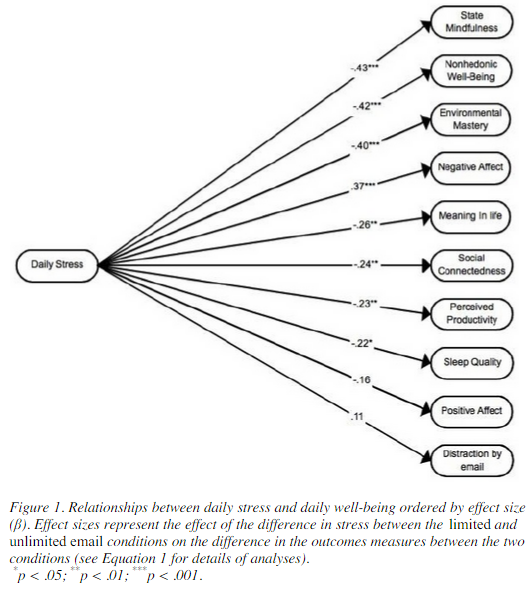
b2ap3_thumbnail_email_overload_400.jpgIf you’re one of those people who are always checking their inbox, you might be dealing with a lot of unnecessary stress in the workplace. A study has linked constantly checking your email inbox to higher stress levels. While this might not come off as much of a surprise, researchers at the University of British Columbia have managed to put a number to the maximum amount of times you should be checking your email to minimize stress.

According to their test, the maximum number of times you should be checking your email for minimum stress levels is three times. The study involved 124 adult workers over a seven-day testing period, in which they were only able to check their email three times a day. Then, the following week, workers were encouraged to check their email inbox whenever they got a spare moment. This is generally how most workers are in the office. At the end of each workday, the test subjects were asked to fill out a short questionnaire about their current stress levels.

stress levels

When encouraged to check their email as often as possible, the average worker checked their email 15 times throughout the day. Unsurprisingly, the primary reason checking email is so stressful for the average worker is that they have to constantly shift from urgent work tasks, to checking email, to personal matters. It’s no wonder that workers get so stressed out, especially when some email recipients expect immediate answers. This might be why, at first, workers were somewhat hesitant to only respond to their emails three times a day. In fact, according to Mashable, 92 percent of workers in the United States use email for inter-office communication, and as many as 183 billion emails are sent out on a daily basis. This root of email stress lies in the need to stay connected at the workplace.

Ideally, according to the study, workers should only have about three periods of email correspondence throughout the workday. To accomplish this, set aside a block of time at the beginning, middle, and end of your day to respond to emails that demand your attention. You might notice a significant decrease in stress. Unfortunately, not all business professionals can manage this with their busy schedules. If this is the case with you, here are some tips which might help you understand that your email inbox isn’t as important as it seems:

  • If it’s especially important, you’ll receive a phone call or instant message about the issue at hand. If you have something urgent which needs to get done, try making a phone call yourself, and save the time you might have wasted drafting the perfect email message.
  • You can’t afford to continuously respond to emails all day long. Continuously halting more important tasks isn’t ideal for productivity, concentration, or quality of work.
  • If it’s not marked as important, it’s probably not important.

If you can manage to move away from checking your email constantly, great. However, you still want to make sure that the messages you are receiving are real, legitimate messages. Spam is a problem which makes checking email slightly more stressful due to its potentially-disastrous nature and its reputation for being a time-waster. With an enterprise-level spam blocking solution from NuTech Services, you can mitigate the spam received during the workday and free up more time for important tasks.

If you’re ready to stop wasting time and dealing with unnecessary stress concerning your email inbox, give NuTech Services a call at 810.230.9455. We’ll work with you to manage your technology in the most efficient way possible.