excelIcon_68666636_400.jpg

Tip of the Week: An Easy Way to Remove Duplicate Values in Excel

excelIcon_68666636_400.jpg

How much do you know about Microsoft Excel? There are loads of features that most users aren’t aware of, one of which is the ability to remove duplicate values in columns. Let’s walk you through this process so you can more easily compare data sets between two or more columns within your spreadsheets.

How to Remove Duplicate Values in Columns

The process for removing duplicate values in your columns is remarkably easy. Using a built-in option, you can remove duplicates with just a couple of clicks. First, open up your desired spreadsheet.

The next step is to select the cells within your spreadsheet. You can select the whole spreadsheet through the use of Ctrl + A.

Next, you’ll want to navigate to the Data tab to select the option for Data Tools. Be sure to select Remove Duplicates from the drop-down menu. You should see a menu with various options open up. To keep your headers, if your spreadsheet has them, you can select the box for My data has headers. This means that your top-most row will be ignored when considering duplicate values.

You should also see a list of columns in your spreadsheet. Select the columns you want to delete duplicate values from. You can use the options for Select All or Unselect All to speed this process up a bit. When you are ready to go, click OK. You’ll see a dialog box open on the screen that tells you how many duplicate values and unique values were contained within the spreadsheet.

What kinds of tips do you want to see us cover in the future? Let us know in the comments, and be sure to subscribe so you don’t miss out!

excel_tips_400.jpg

Tip of the Week: Making Your Excel Use Easier

excel_tips_400.jpg

When it comes to making a spreadsheet, Microsoft Excel is the go-to program for many users. However, many of these users spend much more time creating and formatting these spreadsheets than they have to. For today’s tip, we’ll outline some experience-improving shortcuts that can improve how you use Excel.

Auto Sum Shortcut
You can use Excel as a quick-adding calculator. This can be made even easier with a quick shortcut. Once you’ve highlighted all the cells you’re trying to total up, pressing Alt and = will give you the final result.

Multiple Cells with the Same Text
We’ve all been there–arduously pasting the same text into cell after cell. Fortunately, there’s a shortcut that will let you do the same thing. Again, after highlighting all the cells that need the same text, you simply type the desired input, but press Ctrl and Enter rather than just hitting the Enter button on its own.

Speedy Data Sorting
Sometimes, we need to order the data in a spreadsheet by a particular variable. The Microsoft Auto Filter is a handy way to do so. Once your data is in the spreadsheet, you can select the columns you want to Auto Filter by clicking the top rows. Once that’s attended to, click Data. You will then see the option for Filter and then Auto Filter. This adds drop-down option menus to the top rows of each column, allowing you to sort them based on that column’s data, alphabetizing or grouping the data by its value.

What are your favorite Excel shortcuts? Let us know in the comments, and be sure to come back to the NuTech Services blog for more handy tips and trick!

b2ap3_thumbnail_excel_sheets_400.jpg

Tip of the Week: Freeze an Excel Row for Easier Spreadsheet Navigation

b2ap3_thumbnail_excel_sheets_400.jpgMany office workers feel like they live in Microsoft Excel, spending hours using spreadsheets to enter data and crunch numbers. By taking advantage of tools like Excel’s freeze feature, workers can make the most of their time by navigating a spreadsheet more efficiently.

Once a spreadsheet grows to be larger than the screen, it can become tricky to navigate. It can be maddening to try and cross-reference a certain row or column on one side of the spreadsheet with another that’s offscreen.

Excel’s freeze feature resolves this pain point by freezing a selected row or column into place, allowing you to scroll off screen while having your needed row or column locked into place. When you think about it, this Excel feature is kind of like a grown-up version of freeze tag.

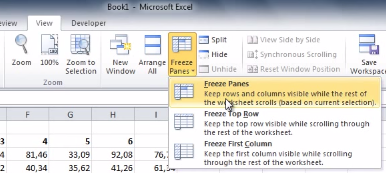
To freeze a row or column in Excel, select the cell that’s in the first column and row that you don’t want to be frozen. Next, go to the View tab and click Freeze Panes. A drop down menu will appear. From here, click on the first option, Freeze Panes.

lock panes one

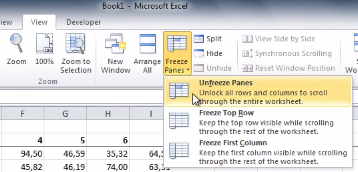
With your selected rows now frozen in place, you will be able to scroll up, down, and sideways in your spreadsheet without having your needed columns or rows move off screen. When you’re ready to unfreeze your rows and columns, simply select any row or column and then go to the View tab. Now go to Freeze Panes > Unfreeze Panes.

lock-panes-two

This is just one of the many Microsoft Office features that make navigating a project easier. Be sure to check back next week for more time-saving technology tips.