Google is well-known for being a go-to provider for Internet-related services and solutions. Your business might already be taking advantage of them, but are you using them to the best of your ability? With keyboard shortcuts and other various tips and tricks, you’ll be able to take advantage of them in previously unforeseen ways. Here are just a few of them.
Google Drive
- X allows you to select or deselect items.
- Shift + A allows you to select all visible items. You can use Shift + N to clear your selection of visible items.
- Enter or O will let you open an item you have selected, while N will let you rename it.
- Z lets you move an item to a selected folder, while S will star or unstar them.
- You can use these shortcuts to create various items:
- Folder – Shift + f
- Document – Shift + t
- Spreadsheet – Shift + s
- Presentation – Shift + p
Google Docs
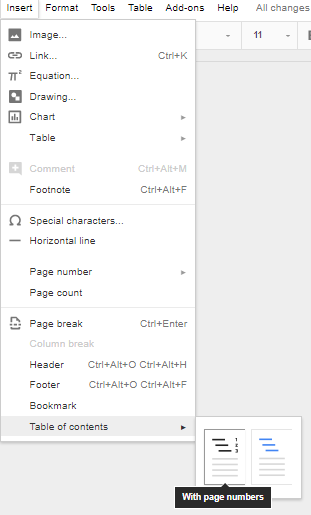
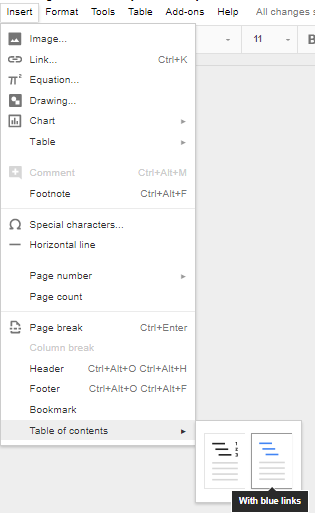
- Ctrl + K: Insert or edit a link.
- Alt + Enter: Open a link.
- Alt + Shift + 5: Type with a strikethrough in your text.
- Ctrl +: Format your text with a superscript.
- Ctrl -: Format your text with a subscript.
- Ctrl + Alt + F: Insert a footnote.
Google Sheets
- Ctrl + Space: Select all contents in one column.
- Shift + Space: Select all contents in one row.
- Alt + Shift + 7 or Ctrl + Shift + 7: Apply a border to your selected cells.
- Ctrl + \\: Clear formatting of your selection.
- Ctrl + Page Up or Ctrl + Page Down: Jump to either the previous sheet or the next sheet.
- Ctrl + ~: See the list of formulas.
Google Slides
- Ctrl + D: Duplicate a slide or object.
- Page Up/Page Down, Up/Down: Move from slide to slide in the filmstrip.
- Ctrl + Alt + Shift + F: Move over to the filmstrip.
- Ctrl + Alt + Shift + C: Move back to the canvas.
- Alt + Shift + Left/Right Arrow: Rotate objects by one degree.
- Alt + Left/Right Arrow: Rotate objects by fifteen degrees.
By using these shortcuts, you should be able to get more out of your Google services. There are far too many shortcuts to include here, so for the complete list, you’ll need to be in Drive, Docs, Sheets, or Slides. Once you’re in, just use Ctrl + / to pull up the list of keyboard shortcuts for the Google app you’re using.
Do you have any tips and tricks to share? Let us know in the comments.