kyt_accessory_400.jpg

Know Your Tech: Accessory

kyt_accessory_400.jpg

We make a big deal about how important it is to take care of your computers. Whether that be routinely cleaning your PC, weeding through the unnecessary information stored on them, or utilizing a mobile device’s built-in security features to keep mobile malware from making the management of your company–wide mobile solution more difficult. Much of the time, however, your organization’s IT works as designed, creating no issues whatsoever. In those moments you begin to pay more attention to your accessories.

For this week’s tech term, we talk a little bit about accessories. In the past, accessories were mandatory to simply use any computer, but with the advent and prevalent use of smartphones and tablets, that isn’t always the case today. They do, however still make up a huge portion of the cost to businesses and individuals when purchasing a computer. Let’s take a look at the computer accessory market.

When looking to define what a computer accessory is, you’d have no trouble finding multiple definitions. On one hand, many computer accessories attach themselves to a computer, while others are there to provide additional functionality, security, or support. We’ll break them into two different groups: basic and advanced.

Basic Computer Accessories

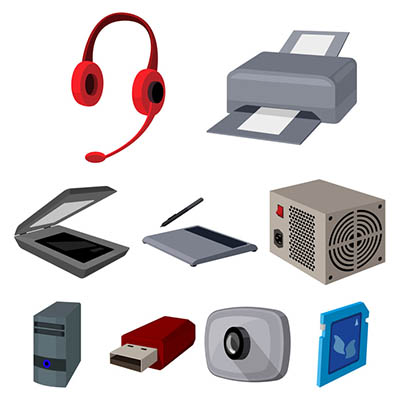
Basic computer accessories are accessories that are typically less expensive, and don’t usually come with their own power supplies, although wireless technology has somewhat changed this. There are all types of simple accessories that include:

  • Cables and Wires
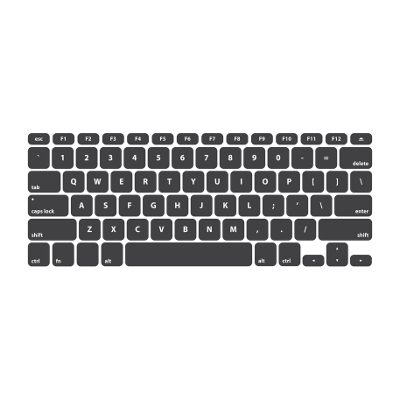
  • Keyboards and Mice
  • Speakers and Microphones
  • Webcams
  • Headsets
  • Flash Drives
  • Adapters
  • Bags and Cases

Advanced Computer Accessories

Advanced computer accessories typically have a higher price tag and come with their own power supply. Also called peripherals, these products typically perform advanced tasks or have more stand-alone value than basic computer accessories. Some include:

  • Printers
  • Scanners
  • Charging Stations
  • Digital Signage
  • External Storage
  • Power Protection

Essentially, every product you can buy beside the computer and the monitors is considered an accessory. Even peripherals that come with their own power supply are technically accessories for a computer (since you can’t use them without a CPU).

NuTech Services’s knowledgeable IT technicians are committed to providing useful technology support services to organizations like yours. To find out how we can help your organization best use its technology call us today at 810.230.9455.

letters_swirl_pink_400.jpg

Tip of the Week: How to Type Accent Marks and Symbols

letters_swirl_pink_400.jpg

When it comes to businesses-to-business relationships, the global impact of the Internet has unlocked quite a few doors. Rather than developing relationships with exclusively businesses in their region, it’s not uncommon for a small manufacturer of model airplanes in Iowa to use the web to find the vendor that can meet all of their needs, even if they’re located in Austria. Doing business internationally means there may be an occasion where you’ll need to communicate in another language. Fortunately, for Windows 10 users, it has never been easier to switch your computer or mobile device’s language.

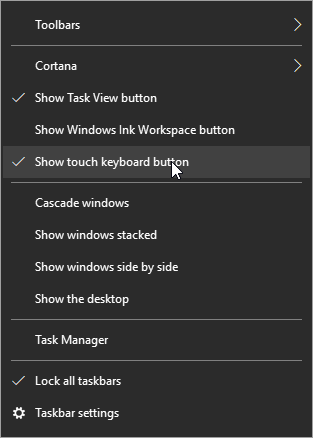
First, hover over the taskbar and right-click. Select show touch keyboard button.

Cortana

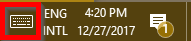
You’ll now see a keyboard icon next to your clock and calendar on the right-hand size of your taskbar.

keyboard icon

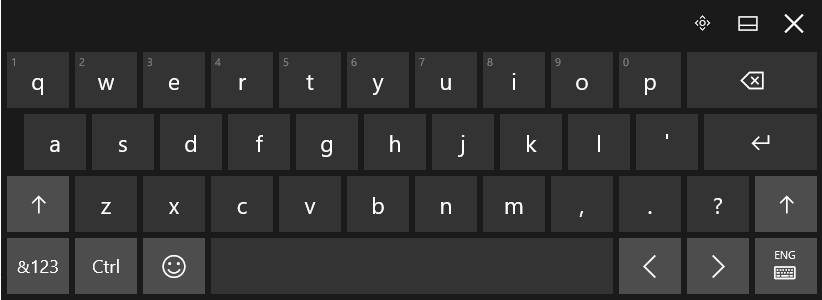
This will bring up a touch keyboard. In the case that you don’t have a touch screen, you can also click on the buttons with your mouse.

Touch Keyboard

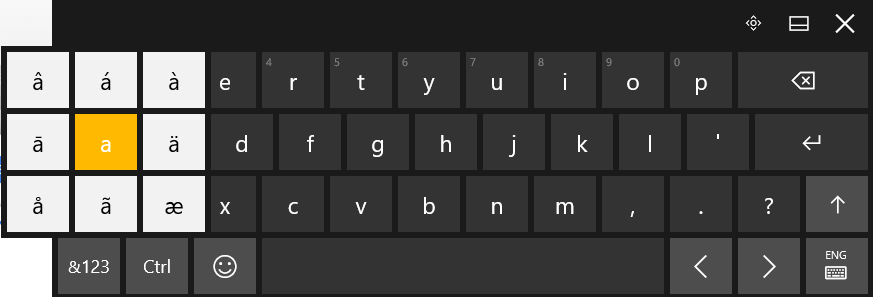
Click and hold the base letter to see all the possible accents for that letter. Click the one that you would like to insert.

keyboard accents

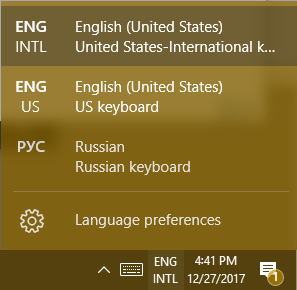
For those who are going to be writing in another language on a regular basis. It’s possible to change the entire layout of your keyboard. Your chosen language can be found to the right of the touch keyboard icon.

EnglishRussianKeyboard

This doesn’t just apply to the touch keyboard. It applies to your physical one, as well.

Hint: If you don’t see the language you’re looking for in the list of available languages, you can add and edit your list by selecting Language preferences.

Using Another Version of Windows?
For those of you who are using Windows 7 or 8.1 (or even Vista or XP), in addition to seriously thinking about upgrading your operating system, you can still use ALT Codes. A numeric list of codes is assigned to the accented letter or symbol in question. While pressing down the ALT key, type the four-digit code on the numeric keypad at the right edge of the keyboard.

Do you have any tips or tricks that use you like use when communicating in another language? Tell us below! Comentario a continuación! Commentaires ci-dessous! Комментарий ниже!

lesser_known_shortcuts_400.jpg

Tip of the Week: Be More Efficient With These Windows 10 Shortcuts

lesser_known_shortcuts_400.jpg

A mouse can be very handy when it comes to navigating around the documents you have to work on, but it can also slow you down. Fortunately, key command shortcuts exist for situations just like these, and as Windows 10 has continued to improve, more shortcuts have been included to accomplish more tasks with improved efficiency.

Quick Access to the Start Menu
Take, for instance, the Start menu. Almost anyone who has sat at a computer knows that by clicking the Windows icon in the bottom left-hand corner, a comprehensive menu of your available content is revealed. However, for those those cases when a mouse is unavailable and a trackpad (if working on a laptop) is inefficient, you can navigate the Start menu exclusively with your keyboard. Press the Windows key to open the menu and navigate up and down the column with the arrow keys. You may also begin a search by just typing, once you have opened the Start menu.

For users seeking a more advanced experience, there’s an additional menu, the Power Users menu, that offers utilities like your device’s Event Viewer, Device Manager, and Command Prompt module.

Greater Accessibility of Your Apps
You can also press the Windows Key in combination with a number key to open the associated apps that appear on your taskbar. If the app is already open, it’s a quick way to minimize and maximize a window. Adding the Control key to the combination will open a new window for an app. For example, if you want a separate Chrome window, and Chrome is the fifth app on your taskbar, you would press Ctrl+Windows+5. Alternatively, to open a new app from your taskbar, you can use Windows+T to highlight your first toolbar app by selecting which app to launch with the arrow keys and Enter.

Utilizing a Virtual Desktop
If you are one to heavily use virtual desktops in your day-to-day, you can quickly create one by pressing Windows key+Shift+D. Once you are finished, Windows key+Ctrl+F4 will close the virtual desktop back down.

With these shortcuts now in your arsenal, you have the tools to help you stay productive–with or without a mouse. For more tips, tricks, and handy information, keep coming back to NuTech Services’s blog!