b2ap3_thumbnail_smartphone_battery_life_400.jpg

Tip of the Week: 7 Tips to Extend the Life of Your Android’s Battery

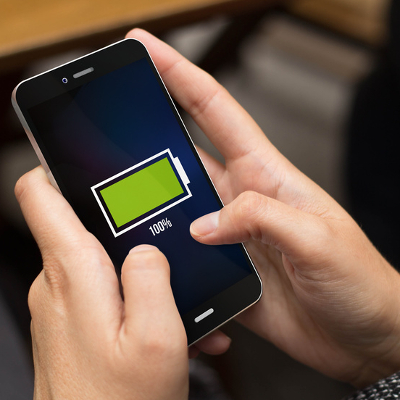
b2ap3_thumbnail_smartphone_battery_life_400.jpgOne experience shared by every mobile device user is batteries losing power faster than they’d like. Until someone invents a battery that never again needs to be recharged, this struggle will always be real. Here are seven ways to make your mobile device’s battery last longer.

Dim Your Screen
Go to Settings > Display and toggle Adaptive brightness.

Your screen is likely your device’s biggest energy hog. The longer it’s powered on and the brighter it is, the more power it will sap from the batteries. For example, you don’t really need your screen to remain powered on for a full minute after you’re done checking a notification. Therefore, make adjustments to your screen’s settings accordingly.

Turn Off Location Service (GPS)
Go to Settings > General > Location.

As long as your phone’s location service is enabled, it will use energy to stay connected to GPS satellites. Unless you’re actively using an app that requires GPS, like Google Maps, it’s likely that you won’t need GPS and you can go ahead and turn it off.

Disable WiFi When Out and About
Go to Settings > WiFi, Bluetooth, or Data Usage.

If you ever get a chance to connect your device to WiFi, do it and save yourself some precious data. However, when you’re traveling from place-to-place and you’re outside the range of any usable WiFi, then you’ll want to go ahead and disable your device’s WiFi. Otherwise, your device will use a significant amount of energy looking for and trying to connect to usable WiFi signals.

Turn Vibration Off
Hit the Volume Down key until you feel the phone vibrate, then hit it once more to silence all notifications.

When in social situations, having your phone vibrate for notifications is a great way to not annoy others. However, it requires significant battery power to get your phone to buzz and shake like that. By turning off your phone’s vibration setting, you’ll extend the battery of your phone just a wee bit more, especially if you’re one to receive constant notifications.

Manually Update App
Go to Play Store > Settings > Auto-update apps, and turn auto-update off or set it to update over WiFi only.

By default, your phone is set to automatically update its apps. While this works out fine if you’ve got a full battery, if you’re trying to conserve battery power, the last thing you’ll want is for your phone to connect to the Play Store and start downloading data.

Disable Background Data
Go to Settings > Data Usage.

Just because you’ve closed an app doesn’t mean that it’s not doing something behind the scenes. For some of your apps, they might be consuming more background data than you think (like GPS information). Disabling the collection of background data will save you battery power, but it also might cause some of your apps to not function properly when you go use them, so just be aware of that.

Airplane Mode
Go to Settings > Connections > More networks > Airplane mode.

Before you get desperate enough to conserve power that you turn off your phone entirely, try airplane mode. This is a handy feature that gives you access to several of your device’s useful apps, like clock, calendar, and contacts while cutting off its connection to networks like the Internet. If your phone isn’t trying to push data to all of its Internet-connected apps, then it will eat up much less power. Obviously, you won’t be able to send or receive messages or calls, but you’ll be able to reserve power until you need it.

These are just some of the battery-saving tips you can try, there are actually several more things you can try if you’ve gone through this list and still find your battery dying quicker than you’d like. What are some ways that you keep your batteries powered? Let us know in the comments.
b2ap3_thumbnail_battery_misconception_400.jpg

Don’t Fall for these 4 Smartphone Battery Myths

b2ap3_thumbnail_battery_misconception_400.jpgMobile technology has become so integrated into society that some people can’t even leave their smartphone at home for a few moments. As a business owner, you in particular know the value that mobile technology brings to your industry. You should know that there are plenty of common misconceptions surrounding how to get the most power from your mobile battery.

According to TechRepublic, there are several common misconceptions surrounding the smartphone battery. Some of these ideas might sound familiar, while others might sound like whoever came up with them was a bit off their rocker.

Batteries Don’t Have Memory
Unlike your cat or dog, you can’t train a battery to perform certain tasks based off of memory. There isn’t a way to teach your battery how to get the most out of its charge. It’s perfectly fine to charge your battery at any percentage. After all, a full battery is a happy battery, right? Plus, it helps you get the most out of it in one sitting.

Despite this, it’s generally a good idea to keep your battery charged somewhere between 40 and 80 percent overnight. Most smartphones today know when the battery is full and won’t try to overcharge the battery. This can help you get the most out of your battery and improve its longevity.

Off-Brand Chargers Don’t Damage Your Battery
Contrary to popular belief, off-brand chargers won’t do permanent damage to your battery. While it’s true that off-brand chargers don’t provide as good of a charge as the original charger provided by the manufacturer, they don’t cause permanent damage. It might be the most economical solution to your charging woes, but it should be noted that the quality of the charge will surely suffer. The reason is that these chargers aren’t made specifically for the device.

Use Your Phone While It Charges
It’s natural for people to think that using a device while it’s charging will decrease the quality of the charge. However, contrary to popular belief, using your phone while it’s charging doesn’t damage the battery or affect the quality of the charge. The only time this happens is if you’re using the worst of the off-brand chargers. Even when you’re not using your phone, it’s likely that it is continuously processing data and syncing to the cloud regardless of whether you are using it, so you have little to lose.

Turn Your Phone Off Once in a While
Just like any other device that uses a lithium-ion battery, you should turn your phone off once in a while. Believe it or not, some people think that it can be bad for a battery to turn it off (which doesn’t make sense at all). The battery might drain while it’s off, but that’s the nature of batteries. Instead of harming the device, an occasional restart is beneficial to the functionality most devices.

Did these misconceptions debunk any of your smartphone knowledge? Let us know in the comments.

b2ap3_thumbnail_android_battery_400.jpg

Tip of the Week: 3 Tricks to Get the Most Power Out of Your Android Device

b2ap3_thumbnail_android_battery_400.jpgSmartphones are exceptionally useful tools capable of enhancing your productivity, even while out of the office, but this comes at a steep cost. If your phone’s battery isn’t optimized to handle the workload, the multitude of apps will quickly drain it and you’ll be left with a dead device.

Thankfully, there are a ton of ways you can conserve your battery’s charge. To avoid being tethered to an outlet at all times, CNet has several suggestions for cutting down the amount of energy your battery wastes throughout the day.

Disable GPS-Based Services
Your phone will have its GPS enabled when you first receive it. This helps it communicate your location to satellites and cell phone towers. Unfortunately, all of this communication with the GPS phone chip eats up your device’s battery. Since many of these GPS features aren’t necessarily required for your device to function properly, you can get by just fine by turning them off.

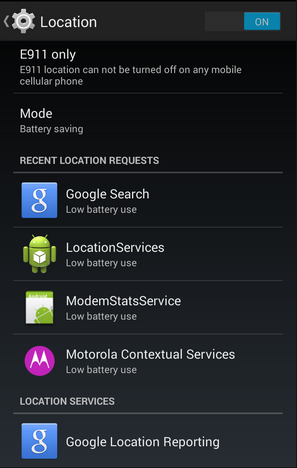
Do this by going to Location reporting and Location history. These settings use your phone’s GPS alongside other Google applications to enhance your user experience, but they aren’t really necessary. Disable them by going to Settings > Location > Google Location Reporting.

in blog android

Turn Off WiFi Scanning
You probably use WiFi the most when you’re in the office or at home, but while you’re out and about, your device continuously scans for a new connection. This scanning constantly drains the battery, and automatically connecting to random WiFi networks while on the go can be a security threat.

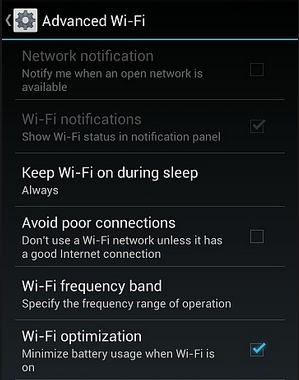
To do this, make sure your autoconnect feature is turned off, and turn off WiFi scanning by going to WiFi settings > Advanced. If the WiFi scanning box is unchecked, you’re all set.

in blog android2

Keep Track of Your Data Sync
Android smartphones constantly sync to your Google account. This keeps your device’s data backed up and up to date, but the process of syncing your data might have unintended consequences… like a drained battery. Turning off your sync might solve this problem, but it’s more efficient to choose what data you’d like to sync.

Android allows you to filter the data sync process to certain files, like pictures and videos. Do this by heading to Settings > Accounts. Select the account to access the sync settings. You can then uncheck any items you don’t want synced, or turn it off completely if you want.

While there are plenty of ways to conserve your device’s battery, these are only three of them. For more tips and tricks on how to make your Android device as useful and efficient as possible, give us a call at 810.230.9455.