priceIncrease_190440774_400.jpg

Understanding Microsoft Services’ Price Hike

priceIncrease_190440774_400.jpg

If you are a subscriber of Microsoft 365 or Office 365, you might find that your service plan will soon cost you a bit more. We just wanted to give you a warning in advance so that you’re not caught off guard, as well as to let you know we are here to help you adjust your plans if need be.

Microsoft’s Price Increase is Out of Our Hands

Whether we are the ones providing you with Microsoft’s services or you work with another provider, there is no denying that there will be an increase in the costs associated with Microsoft’s services. The reason has nothing to do with us; rather, it’s coming from Microsoft themselves, and not all businesses will be able to absorb the price. To help counter this, we want to help you make the most of the services you pay for. Let’s take a look at some of them!

How We Can Help You Get the Most Value from Microsoft’s Tools

We’re pretty familiar with the services offered by Microsoft, so trust us when we say that there are tons of tools in this toolbox that you’ll find helpful moving forward. Here are just a few of them:

Microsoft Teams

Teams is Microsoft’s dedicated collaboration platform, and it’s a pretty great one. It gives your team all kinds of ways to communicate and collaborate, from voice and video calls to instant messaging. You can even use it in collaboration with other Microsoft tools to share files and be more productive. Speaking of which…

OneDrive

The business version of OneDrive gives your organization all of the features of the free (or personal) version, but with so much more, including the ability to share documents on multiple devices and browsers. OneDrive provides users access to all the documents they need, provided they have the permissions to access them.

SharePoint

SharePoint is similar to OneDrive in that it is also a document-sharing tool, but it functions more like an intranet solution for your employees to document and share processes. Basically, SharePoint is just another means to be more productive.

Microsoft Bookings

Scheduling appointments can be difficult, especially with packed schedules. Well, Microsoft Bookings places the responsibility for this on the client by presenting them with a list of your available times. They can then book the time for themselves, making this much easier for you.

Azure Information Protection

AIP adds an additional layer of protection for your data security, something which is particularly helpful when out of the office and the safety of your network. Access permissions are also available through this tool, so you can adjust who has access to specific parts of your infrastructure.

Intune

Intune allows you to control data access on your business’ devices, including those owned by your employees. You can think of it like a type of mobile device management and a way to control the dangers of it.

Power Automate and Power BI Pro

Automation can empower your business to make better use of its data. Power Automate and Power BI Pro give you the power to connect processes without the need for complex coding skills, allowing you to fully leverage your data, organize it, and reveal key insights that can aid your organization moving forward.

We’ll Help You Make the Most of All Your Business’ Tools

Regardless of the price increase from Microsoft, we will always strive to help your business make the most out of the resources at its disposal. To learn more about how we can make this happen, reach out to us at 810.230.9455.

darkModeBrowser_303234749_400.jpg

Tip of the Week: Take the Strain Off Your Eyes with Dark Mode

darkModeBrowser_303234749_400.jpg

Sometimes the last thing you want to do is stare at a bright computer screen and have the white glare bother your eyes. While we know that staying away from computers and devices is particularly hard, especially in the office environment, a dark mode option can make your device easier to tolerate for extended periods of time.

Let’s go over how you can enable a dark theme for your Windows operating system and its applications.

Keep in mind that this doesn’t affect most of your desktop applications—only those associated with Microsoft and Windows. We do, however, urge you to check the settings for other applications, as dark mode is a common thing for developers to include these days.

Enable Dark Mode for Windows

The blanket setting for dark mode on Windows can be found by following this path: Settings > Personalization > Colors. You should see the option for dark mode under Choose Your App Mode. As previously stated, this doesn’t change all of your apps, so be sure to check the settings for your other commonly used applications to see if it allows for a dark mode.

Enable Dark Mode for Edge

Microsoft Edge, Windows’ default web browser, has a dark mode setting as well. To enable it, click the three-dot menu on the right side of the screen. Select Settings, then navigate to the drop-down menu and select Choose A Theme. From here, select Dark.

Enable Dark Mode for Microsoft Office

Microsoft Office also has a dark option that can be enabled through its settings. Begin by opening any Office application, like Word or PowerPoint, then go to File > Options. Under the General tab, you’ll see the option for Personalize Your Copy of Microsoft Office. You can set the Office Theme setting to Black.

And there you have it! Dark mode is enabled on your Microsoft products. Other applications might require extensions or other add-ons, so be sure to do your research or reach out to us if you are unsure of how legitimate they are.

Did you find this blog helpful? If so, share it with colleagues!

key11_466685152_400.jpg

Checking In on Windows 11 Adoption

key11_466685152_400.jpg

Has your business implemented the next iteration of the Windows operating system yet, Windows 11? If not, you’re not alone; adoption has been progressing at a snail’s pace, and according to industry professionals, it’s not going to ramp up for quite some time. Still, recent surveys and polls indicate that Windows 11 adoption is far lower than expected, and there is even some discrepancy between reports.

For example, take a look at the number reported by AdDuplex, which represents an adoption rate of 8.9 percent. Compare this to the number reported by Lansweeper, 0.21 percent, and you’ll see why we say things are slow-going. These types of discrepancies in data reporting are not uncommon, as it largely depends on the sample size and the type of users assessed, but it’s safe to say that Windows 11 adoption will be a trickle rather than an open floodgate.

The main culprit for this lack of adoption seems to be the lack of urgency associated with the update, as well as the rather stringent upgrade requirements for Windows 11. It’s also worth mentioning that Windows 11 is far from the comprehensive update that its predecessor, Windows 10, was.

When the time comes to bring Windows 11 to your office, you’ll have to make sure that you meet the minimum system requirements. As a reminder, the requirements for Windows 11 include the following:

  • 64-bit processors
  • 4 GB of memory
  • 64 GB of storage
  • UEFI Secure Boot
  • Trusted Platform Module (TPM) v2.0

We know that your business might not necessarily be ready to adopt Windows 11 at this very second, and for now, that is totally fine. However, please keep in mind that 2025 will sneak up on us. Before we know it, people will be talking about the Windows 10 end-of-support date and how it will impact the user base. When that time comes, we hope you will keep NuTech Services in mind for all your patch management needs.

Our trusted technicians can help you implement any of the hardware or software upgrades your business needs to stay safe and thrive while implementing a new operating system for your infrastructure. To learn more about what we can do for your business, reach out to us at 810.230.9455.

shortcutDude_52468235_400.jpg

Here Are Some of the Best Outlook Shortcuts

shortcutDude_52468235_400.jpg

Microsoft Outlook, just like its sibling solutions Word and Excel, has several keyboard shortcuts that are designed to make navigating and using the application easier than ever. We’ve put together a short list of the ones that you might need to know so that you can take your productivity to the next level.

We always like to recommend that you print out this blog article so that you can use it as a quick reference.

Basic Outlook Functions

Here are some of the basic functions of Microsoft Outlook

  • Create a message: Ctrl + Shift + M
  • Send a message: Alt + S
  • Insert a file: Alt + N, A, F
  • Delete an item: Delete
  • Reply to a message: Alt + H, R, P
  • Reply All to a message: Alt + H, R, A
  • Forward a message: Alt + H, F, W

Navigating Outlook

Here are some other shortcuts you can use to move around Outlook and examine it from different views.

  • Switch to Mail: Ctrl + 1
  • Switch to Calendar: Ctrl + 2
  • Switch to Contacts: Ctrl + 3
  • Switch to Tasks: Ctrl + 4
  • Switch to Notes: Ctrl + 5
  • Switch to Folders: Ctrl + 6
  • Switch to Shortcuts: Ctrl + 7
  • Switch to the next open message: Ctrl + .
  • Switch to last open message: Ctrl + ,

Creating Items or Files

You may need to make items within Outlook. Here are some of the ways you can do so.

  • Create an appointment: Ctrl + Shift + A
  • Create a contact: Ctrl + Shift + C
  • Create a contact group: Ctrl + Shift + L
  • Create a folder: Ctrl + Shift + E
  • Create a meeting request: Ctrl + Shift + Q

Obviously we cannot list them all here, so if you want to view even more Outlook shortcuts, visit Microsoft’s official website. What other tips should we cover on this blog? Let us know in the comments, and be sure to subscribe!

53441664_windows_400.jpg

Microsoft is Gearing Up to Retire Windows 8.1

53441664_windows_400.jpg

With Windows 11 releasing sometime this year, most users are looking to upgrade to hardware that actually supports it, but today we are instead focusing on upgrading away from one of the more controversial of Microsoft’s recent operating systems, Windows 8.1. With its end-of-life date creeping up in January 2023, it’s never too early to start thinking about how your company will move away from this operating system toward a supported one.

Windows 8.1 is Only Kind of Windows 8

Windows 8 first released in August of 2012, and it was first described as “metro” in an attempt to appeal to the mobile market. Windows 8 was specifically designed to work with touchscreen devices and PCs, but its initial rollout caused a bit of confusion amongst the user base. Many people simply stuck to Windows 7, as they were more used to the traditional Windows operating system. Microsoft grew frustrated with the fair amount of criticism the OS received and released a huge update to the OS in 2013 that restored many of the features that people loved about prior Windows operating systems, including the coveted Start menu. This update was called Windows 8.1 and became the working version of Windows 8 for the better part of the past decade.

The initial version of Windows 8 had its end-of-support date set for January 12, 2016, ending all support for that version of the operating system by that date. Windows 8.1, however, was much more popular, thus Microsoft set an end-of-life date for January 2023. Windows 10 launched two years after the 8.1 update, meaning that most people took advantage of the free upgrade, leaving only about 3.5 percent of all PCs running Windows 8.1. If this is the first you are hearing about the end-of-life event for Windows 8.1, this is probably why—it’s not like the Windows 7 end-of-life event, where the install base was much larger.

What You Need to Know

If you currently run 8.1 on your device, you should consider upgrading to Windows 10 now. On the other hand, if you think your hardware can take it, you could wait to upgrade to Windows 11 as it rolls out later this year into next. Either way, however, you need to start thinking about it now, as that January 2023 end-of-life event for Windows 8.1 will creep up on you before you know it. Waiting any longer after that will leave your technology susceptible to security risks.

Why Is It Important to Only Use Supported Software?

Each new version of the Windows operating system adds additional security updates and features that are designed to tackle the problems associated with today’s computing environment. If you don’t upgrade your software on a regular basis, your organization will fall behind and eventually be put at risk due to the overwhelming rate at which security threats grow. Any business that utilizes sensitive information (read: all businesses, basically) must make it a priority that all software used by the company is supported by the software developer.

The IT professionals at NuTech Services know what it takes to keep your software as up-to-date and secured as possible. We can even help your company make the upgrade to a supported operating system or utilize legacy applications without a hitch. To learn more, reach out to us at 810.230.9455.
124754493_shortcuts_400.jpg

Windows Shortcuts to Help Boost Your Efficiency

124754493_shortcuts_400.jpg

Some keyboard shortcuts work within applications, but there are others that work all throughout the Windows operating system. To help you be as productive as possible throughout the workday, let’s go over some of the most common keyboard shortcuts that work not only within your applications, but whenever you are just navigating your operating system. If you use these effectively, you can dramatically improve your productivity and look like a Windows master!

With all of our keyboard shortcut blogs, we think you will get the most value out of them if you print them out and keep them as a quick reference for use throughout the workday.

General Keyboard Shortcuts

These general keyboard shortcuts should work for the majority of applications that you use on your Windows PC.

  • Cut: Ctrl + X
  • Copy: Ctrl + C
  • Paste: Ctrl + V
  • Select All Text: Ctrl + A
  • Rename selected item: F2
  • Switch between open applications: Alt + Tab
  • Refresh: F5
  • Delete an item: Delete
  • Redo an action: Ctrl + Y
  • Undo an action: Ctrl + Z

Windows Key Shortcuts

These keyboard shortcuts use the Windows key on your keyboard.

 Open the Start menu: Windows Key

  • Lock your computer: Windows Key + L
  • Hide or show your Desktop: Windows Key + D
  • Open the Action Center: Windows Key + A
  • Open Cortana in listening mode: Windows Key + C (Note: this is disabled by default. Enable it in your Settings)
  • Open File Explorer: Windows Key + E
  • Open Settings: Windows Key + I
  • Open the Search bar: Windows Key + S
  • Open Taskbar Applications: Windows Key + Number Key (whichever corresponds with the apps in your taskbar)
  • Minimize all windows: Windows Key + M

This list is not nearly all of the keyboard shortcuts possible with Windows, so if you want a more comprehensive list, visit the official Microsoft support page for even more keyboard shortcuts.

What other tips and tricks do you want us to share with you in the future? Whatever they are, be sure to plug them in the comments below.

310405451_virtual_desktop_400.jpg

Microsoft Has a Virtual Desktop-as-a-Service Model with Windows 365

310405451_virtual_desktop_400.jpg

With more companies opting to get involved with the “as a service” market, it’s no surprise that Microsoft, one of the world’s leading software companies, went this route with the Microsoft 365 cloud-service offering. Microsoft has been aiming to take their strategy even further with Windows 365, a way for organizations to opt into virtual desktops. Here’s what you need to know about Windows 365.

Keep in mind that this is still a developing service, so the state of Windows 365 may change over time.

What is Windows 365?

At its core, Windows 365 is a desktop virtualization service (think of it as DaaS, or Desktop as a Service). Users can take full advantage of a virtual Windows desktop, as well as some first and third-party applications. What’s notable is that this can be utilized by devices that are both PCs and non-PCs, allowing for flexible use of the desktop operating system.

You may have heard of “thin computing,” which is when you use endpoints that are somewhat underpowered compared to your traditional desktop computers to run virtual desktops. This is the exact same thing, with the desktop’s data accessed through the Internet. The desktop itself lives in the cloud and is accessed through your connection. The virtual desktop itself is powered by Azure Virtual Desktop, a service that is capable of creating virtual machines for access via the cloud.

How Much Will it Cost?

Microsoft just started to release some pricing information for the base service on their website, and while we like what we see, the real cost is going to come down to setting it up, teaching your users how to access it, and ensuring that the devices you have will access it. We have high hopes that this will be an affordable way to get cloud-based desktop environments for the average worker, even if their only device is a Mac or Chromebook. Pricing per user per month is based on the various configurations available through the service based on how powerful the virtual machines are.

What’s the Difference Between Microsoft 365 and Windows 365?

We are sure that this will cause a bit of confusion within the user base. The big difference between Microsoft 365 and Windows 365 is that Microsoft 365 gives you the licenses to run the included software, whereas Windows 365 gives you the virtual machines to run them on. So, it’s not necessarily double-dipping, but they both will be required if you want to fully leverage the power of Microsoft’s cloud-based deployment service.

You can count on NuTech Services to help you navigate the developments surrounding Windows 365. Perhaps you will even consider us when it comes time for your organization to implement it or when it comes time to consider if it is the right call for your business. You can count on NuTech Services to be here for you! Just give us a call at 810.230.9455.

245723955_reset_password_400.jpg

You Better Update Your Microsoft Password Today

245723955_reset_password_400.jpg

While we would strongly recommend that you update your passwords more than once a year, now is as good a time as any to do so. Reflecting on this, let’s go over how to fully lock down your Microsoft accounts.

We should start with a bit of a warning. In December, a massive cybersecurity attack targeted the US government via (along with other tools) Microsoft Office. As it was revealed, foreign hackers were monitoring the US Treasury Department and the National Telecommunications and Information Administration through their email accounts.

While Microsoft hasn’t identified any specific vulnerabilities within their cloud services or applications (a good sign, for certain), they have shared some practices to help users properly and comprehensively secure their data. These practices are important to keep in mind for both your personal and business accounts.

What is Included in a Microsoft Account?

Your Microsoft account will include many programs under its purview… basically, anything that Microsoft contributes to will be tied to this account, including:

  • Windows
  • Outlook
  • Office
  • Skype
  • OneDrive
  • Xbox Live
  • Bing
  • Microsoft Store
  • MSN

How to Update Your Microsoft Account Password

Microsoft has made the process somewhat simple and straightforward.

  • Visit https://account.microsoft.com/
  • Click Sign In on the top right if you aren’t already signed in. If you are already signed in, the page will display your name with options about your subscriptions and other services. Once you sign in with your email and password, you’ll be taken to this page.
  • Towards the top of the page, on the right-hand side, you’ll see an option that says Change Password. Click it.
  • If you have Two-step verification enabled, it will walk you through verifying your account with a text, an email, or using the Microsoft Authenticator app. If you don’t have that set up, don’t worry, we’re going to get you set up after you change your password.
  • Once prompted, enter your current password, and then come up with a brand-new password.

An important consideration: You need to make sure that every password you create abides by certain best practices, like not being used for more than one account and involving no personal details or identifiable information. If pressed, select four random and unrelated words, switch up some of the capitalization, and substitute numbers and symbols for some letters—the more complicated, the better.

Helpfully, Microsoft has included a feature that will require a password change every 72 days. While this sounds like a pain to deal with, it can help reduce the chance of your password being breached and therefore can keep your account more secure.

Additional Security Features

While we’re changing your password, let’s go ahead and add another layer to your security in the form of Two-Step Verification. Setting this up will require you to provide proof of your authenticity beyond just having the right username and password. Work accounts may need administrator permissions to activate it, but it is worth doing.

Once you change your password, you should be directed to Microsoft’s account security page, where you will find the option to activate two-step verification. You’ll be walked through the process via on-screen instructions that will tell you how to link an authenticator application on your smartphone (like Google Authenticator, LastPass Authenticator, Duo Mobile, and other examples). If you don’t have one, you’ll be instructed how to set up Microsoft Authenticator, or you can opt in to one of these other options.

You’ll be taken through the setup process and asked to verify your contact information.

From that point forward, you’ll need to use your authentication app to log into your Microsoft account on a new device, or anytime you want to make changes like updating your password. You’ll be able to use other programs, like Word or Outlook, as normal. Make sure that you keep an eye on your emails and text messages for any Microsoft may send you.

This process can take mere minutes but deliver lasting benefits to your security. For more assistance with locking down your work accounts, or any other of your IT needs, make sure you reach out to NuTech Services by calling 810.230.9455.

343322051_collaborative_tools_400.jpg

Collaborate Better with Microsoft SharePoint

343322051_collaborative_tools_400.jpg

As businesses continue to adapt to the ever-evolving workforce, many are now supporting a variety of environments. Ranging from hybrid, remote, and in-office, the one constant is the need for your team and clients to communicate with each other. Learn how Microsoft SharePoint can help.

Communication is Key to Success

As many business owners are aware, their ability to communicate is critical to their business’ success. They are also mindful that the current business environment has made it more challenging to communicate effectively as they did pre-coronavirus. As face-to-face and word of mouth communication have been significantly reduced, business communication has been transferred to the cloud, particularly when it comes to sharing information.

How the Cloud Helps Small Businesses

A primary benefit of cloud computing is that it allows smaller business access to the same type of technology that was once the larger businesses’ domain. This is accomplished through NuTech Services using cloud technology to provide a range of services while offering significant cost reduction.

By removing the need to maintain your server on your premises physically, you reduce the cost in staff hours and capital to keep your infrastructure up and running. In addition to our Hosted IT solutions, we also offer other cloud solutions such as:

  • Hosted Microsoft Exchange Email
  • Email Filtering/Spam Protection
  • Hosted VoIP
  • Hosted Security and Backup

These solutions are designed to provide your small to medium-sized business access to the tools you need to compete at a price point you can afford. While these tools allow your business to operate at a higher level, it can all be for naught if your team and clients can’t communicate with each other.

Microsoft Services Can Answer the Collaboration Concerns

While most businesses only think of Microsoft cloud services in terms of Word and Excel, and yes, while Microsoft 365 is a reliable option for businesses, the reality is Office 365 offers more than you think, with a wealth of services benefiting a business of any size. Most importantly, the very fact that the services are cloud-based adds to the value Microsoft products can bring to your business. If you’re interested in improving your team’s collaboration, Microsoft SharePoint can help.

Better Collaboration with Microsoft SharePoint

As remote work continues to dominate the business arena, Microsoft SharePoint can empower your staff regardless of their status, remote or in-house, and provide them with the tools to collaborate wherever they are. With SharePoint, your team can create a customized collaboration environment best suited for their needs. Microsoft SharePoint makes sharing, managing, and finding documents more manageable. Its integration into your IT infrastructure can provide your organization with the means to immediately see the benefits of an integrated document management system, including:

  • A central shared platform for storing documents and files that improves efficiency and organization.
  • Clear and concise indexing to allow users to find things faster.
  • An integrated continuity protection system to ensure there is communication between users, so works are not overwritten.
  • A complete revision history that provides roll-back capabilities.

If your team is working in a mixed environment, SharePoint will allow your workflow to be more organized. Additionally, cooperation between users, departments, and clients will be frequent and more comfortable to depend on. Communication is critical for completing the projects that will drive your business forward during these uncertain times.

We are the Michigan SharePoint Experts

Every business is different and needs a unique solution to their communication concerns. Moreover, we realize that the typical small to medium-sized business may not have the resources to implement a fully actualized SharePoint solution. 

Fortunately, NuTech Services offers various virtualized computing environments, virtualization services, and fully hosted SharePoint solutions to give your organization the flexibility it needs to communicate and collaborate with your team. We can assess your organization’s IT and develop a SharePoint interface to suit your needs, whether you want to manage the platform yourself or have NuTech Services manage it for you. To learn more about your options, reach out to us at 810.230.9455.
microsoft_windows.jpg

What’s Next for Microsoft Windows?

microsoft_windows.jpg

It may be hard to believe but Windows 10 has been around for five years. It may not have reached the on-every-device OS Microsoft had planned, but it still can be found on over a billion devices worldwide. That’s pretty impressive. Today, we will be taking a look at Microsoft’s plans for Windows 10 and how it might just be the last build of Windows.

Windows 10

In Windows 10, Microsoft has built a complete and secure operating system. Users can do about anything they’d like inside of Windows 10. The platform was initially built to support three levels of devices, from smartphones to other mobile productivity machines, to your traditional productivity machines, your PCs. After Microsoft pulled the plug on their smartphone division, the subsequent changes they’ve made to the OS have been with the PC user in mind. 

Microsoft had a solid strategy to get their Windows 10 software on as many devices as possible: they gave it away. For a year they provided any user that had Windows 7, Windows 8, or Windows 8.1 the ability to upgrade for free. Since then, it has been available as other versions of Windows have been, for digital download.

Windows-as-a-Service

Since the software giant has retired support for the hugely-popular Windows 7, and Windows 8.1 was kind of a flop, Windows 10 becomes the development priority for Microsoft. They seem to be extremely invested in the OS, hinting that it might very well be the last Windows title ever developed. Microsoft has made many huge changes to Windows 10 over the past five years and looks to continue to develop the software more as a service than a product. 

Like many other software, Windows–or, Windows-as-a-Service, if you will–will continue to be one of the leading names in computing. It just won’t be replacing Windows 10 the way Windows 10 replaced Windows 8.1. In fact, Microsoft is now offering Azure-hosted Windows 10/Office 365 platforms for one monthly fee. In doing so it is changing the way that people access, and pay for their computing. 

If you would like to know more about Windows 10, Microsoft 365 platforms, or any other way that business computing is innovating, call the IT professionals at NuTech Services today at 810.230.9455. 

50010208_onedrive_microsoft_400.jpg

Tip of the Week: Making Microsoft OneDrive Work for You

50010208_onedrive_microsoft_400.jpg

From its very beginnings, Microsoft has been creating devices and software to help users accomplish their goals. This is one reason why their solutions are so commonly found in businesses. Today, we wanted to focus on just one, OneDrive, and highlight some of its features that any business could find useful.

For context, it helps to know that Microsoft OneDrive is a cloud storage platform that just about any business could make use of, regardless of its size. After all, any size of business will have to remain organized.

Speaking of which, our first tip covers how OneDrive can make this organization super convenient for you.

OneDrive Files On-Demand

Files On-Demand gives your users the ability to effectively link their File Explorer to OneDrive, which enables them to work with files found in your OneDrive without downloading all of them to their device. Not only does this save real estate in the device’s storage, it allows work to continue offline through a simple proactive switch in a particular file’s settings.

Known Folder Move

OneDrive can also work as a simple backup option, although it certainly should not replace a comprehensive plan. Regardless, Known Folder Move allows users to have the contents of certain folders automatically synchronize with their OneDrive storage. This can be set up during the initial installation of OneDrive, or at any time you have need for it.

Integration with Microsoft Outlook

Consider what typically happens when you try to share some kind of Office document as an email attachment for someone to work on: you aren’t sending them access to your file, you’re simply sending them their own copy. OneDrive fixes that by enabling a user to share their files as though they were attachments, editing the permissions provided on the fly. As a result, the actual file is being collaborated on, really allowing work to be done.

What has been your experience using OneDrive? Share your impressions, as well as any other questions we can help with, in the comments!

onedrive_286274312_400.jpg

Tip of the Week: How to Control File Sharing in OneDrive

onedrive_286274312_400.jpg

Microsoft’s solutions are fairly common among businesses, so there’s a fair chance that you utilize Microsoft Office 365, which gives you access to Microsoft’s cloud storage solution, OneDrive. Using this, your users are better able to share documents and collaborate on them… but what if you don’t want your users sharing company documents willy-nilly? Today, our tip will cover how to control sharing in OneDrive.

In OneDrive, a user can share a singular file or folder pretty easily. All they have to do is log in, right-click on the file/folder, and click Share.

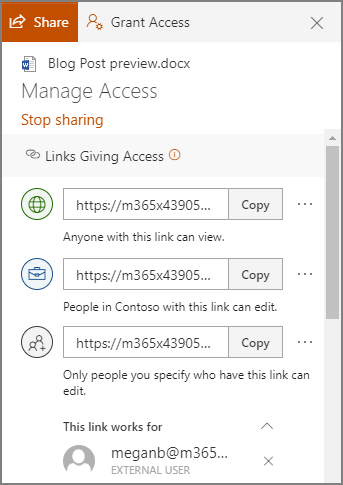
Sharing this way allows a user to share their content with one of their contacts, send it to an email address, or copy a shareable link and send it along through an instant message or, again, and email. Doing so gives the recipient access to make edits to it by default, but the sender can restrict them to read-only access if desired.

However, you probably don’t want to micromanage your entire team to make sure they are sharing files and folders with people actually authorized to receive them. Fortunately, by using the global settings of OneDrive, you can take control past the file/folder basis to control how a user can share documents.

Controlling a User’s File Sharing in OneDrive

Assuming that you have administrative access over your OneDrive account, sign in by visiting https://admin.microsoft.com/ before proceeding with the following steps:

  •  Look for Admin centers on the left side of your display. Click SharePoint.
  • You should then be directed to the new SharePoint admin center. If you are brought to the old one, you can go to the new on by clicking on Open it now.
  • Again, on the left side of the screen, find Policies and click on Sharing.

Doing so means that you have edited the global settings, applying your changes to all accounts. To manage settings on a case-by-case basis, access Users, Active Users, and select the individual who you are attempting to manage. You should find a OneDrive tab, with adjustable Sharing options.

With privacy and security being so critical for contemporary businesses, you need to make sure you are doing everything you can to maintain control of your company’s information. Our security experts can help – reach out to us at 810.230.9455 to get started.

bug_216065370_400.jpg

Microsoft Releases Rare Bug Fix Off of Regular Patch Schedule

bug_216065370_400.jpg

Most of us like to take matters into our own hands, almost to a point where we might refer to ourselves as control freaks. So, when it comes to letting other people or even our own devices update themselves, we tend to click “remind me later” or “don’t ask me again”. Patches however, are a crucial task in the computing era. Keeping everything up-to-date aids your business in staying one step ahead of lurking threats. Recently, Microsoft announced that it had two major security updates which required emergency patches. 

The two vulnerabilities were patched off of Microsoft’s typical “patch Tuesday” due to the urgency. Most Microsoft patches are released on the second Tuesday of the month. The fact that these two were released ahead of time might seem like an insignificant occurrence, but the reality is this event is a major red flag.

Internet Explorer Zero-Day

The most significant patch was for a zero-day vulnerability that was found in Internet Explorer. It may be hard to believe, but people are indeed still using this antique browser to surf the web. The term zero-day suggests that the vulnerability that was discovered, had already been exploited by ill-minded cybercriminals. 

While not much information has been released on the event, Microsoft did call it a remote code execution exploit that, if accessed, could have given a user control of another user’s account. The attack requires phishing someone who is exploring the internet on Internet Explorer, and luring them onto a malicious website. Once there, an attacker would be able to gain access over the victim. 

Internet Explorer is such a forgotten browser that the event did not spark a lot of controversy. This is largely due to the fact that Internet Explorer makes up just two percent of the active market share. However, for the relatively small amount of users that continue to surf, an event like this is still a huge disaster. 

Microsoft Defender DOS Bug

The second patch that Microsoft expedited was a denial of service vulnerability in Microsoft Defender. The antivirus program comes standard in all Windows 10 PCs, and truly is the core of Windows 10’s sterling security record. 

The bug that was discovered wasn’t necessarily obvious, or easily exploitable. In order to do so, the attacker would need the ability to read, understand, and write code. Doing so would allow them to disable Windows Defender components, giving the attacker access. This would give them free rein to do whatever malicious act they chose to deploy. 

Patches aren’t optional. If you are worried about your business’ vulnerability, speak to one of our experts at NuTech Services. We have the know-how to keep your software up to date. Give us a call at 810.230.9455 today! 

Microsoft365_400.jpg

Taking a Long Look at Microsoft 365

Microsoft365_400.jpg

Microsoft has always offered a variety of business solutions, some which conform to your needs and others that do not. The beauty of this, is you can pick what solution will benefit your business, and leave the ones that will not behind. Here, we will discuss Microsoft 365 and what is offered within the Microsoft 365 package.   

What is Microsoft 365?

Microsoft 365 is a bundle containing Office 365, the Enterprise version of Windows 10, along with Microsoft’s Enterprise Mobility + Security. Microsoft 365 is comprised of all of these solutions, meaning your business will benefit from all of the features that come with these solutions, with just one package. So, what does this package include exactly?

Here are all of these solutions you could or should be taking advantage of with Microsoft 365:

Here at NuTech Services we understand this list is extensive. However, it is worth viewing as there could be solutions your business could benefit from. NuTech Services has the technicians needed to help you procure, implement, and manage the right solutions for you. Reach out to us at 810.230.9455 to learn more.

37959013_eol_400.jpg

The Time Has Come for SQL Server 2008 and 2008 R2

37959013_eol_400.jpg

Software solutions don’t last forever. While patches and security updates can stave off the inevitable for quite some time, it’s impossible to maintain a specific solution forever. Support is eventually cut off, and businesses are left exposed if they haven’t taken the time to prepare. In the case of Microsoft SQL Server 2008 and 2008 R2, you are running out of time.

Outdated software is an issue that all businesses have to deal with. The fact that so many organizations don’t routinely update their software solutions is pretty telling. For one, many businesses simply don’t have the resources at their disposal to make sure maintenance is performed on a regular basis. Granted, unless a business has taken substantial steps toward upgrading away from software that has reached its end of support date, they will have to suffer the consequences.

What Does “End of Life” Mean?

End of Life, also known as End of Support, is a term that is used to identify software that is not updated or patched after a specific period of time has passed. Certain Microsoft products can utilize the Extended Security Update, but only for a maximum of three years, meaning it’s more efficient and cost-effective to upgrade away from your old systems before they reach the end of support date.

What You Need to Do

How would your business be affected by a potential security breach? Since you won’t be receiving security patches or updates, you’ll need to consider this possibility. Following a major security breach, you’ll be forced to upgrade your systems anyway, so not only will you have those costs, but you’ll have to deal with the fallout of a data breach. It’s never too early to start taking preventative measures and think about the future of your infrastructure, as well as who will be responsible for the management, maintenance, and upgrading of your business technology.

Before Windows SQL Server 2008’s End of Support date arrives, consult this list of upcoming end of support dates and take the necessary steps to upgrade your technology. It’s better to do so now than wait until it’s too late.

We Can Help

Worrying about your business’s IT infrastructure is something that you simply don’t have time for. A managed service provider like NuTech Services can help you achieve affordable and accessible technology support, including the updates and patches needed to maintain network security. We can even help monitor your infrastructure for potential End of Support software that will soon be outdated. To learn more, reach out to us at 810.230.9455.

48319365_word_400.jpg

Tip of the Week: How to Customize Your Microsoft Word Tools

48319365_word_400.jpg

It’s probably pretty fair to say that Microsoft Word has become the poster child for word processing programs – and for good reason: its tools and capabilities are very well-suited for the user’s needs. Did you know that you can even adjust Word so that it better fits your use of it? For this week’s tip, we’ll go over a few ways to do so.

Customizing the Quick Access Toolbar

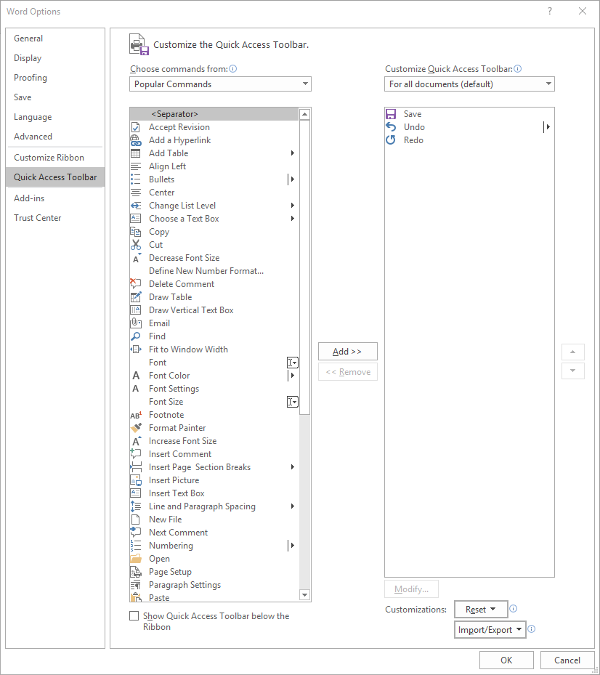
The Quick Access Toolbar can be found at the top left of the window, with default options like Save, Undo, and Redo. It’s pretty easy to spot, isn’t it? This is one of the reasons that adjusting it to your preferences can be so helpful.

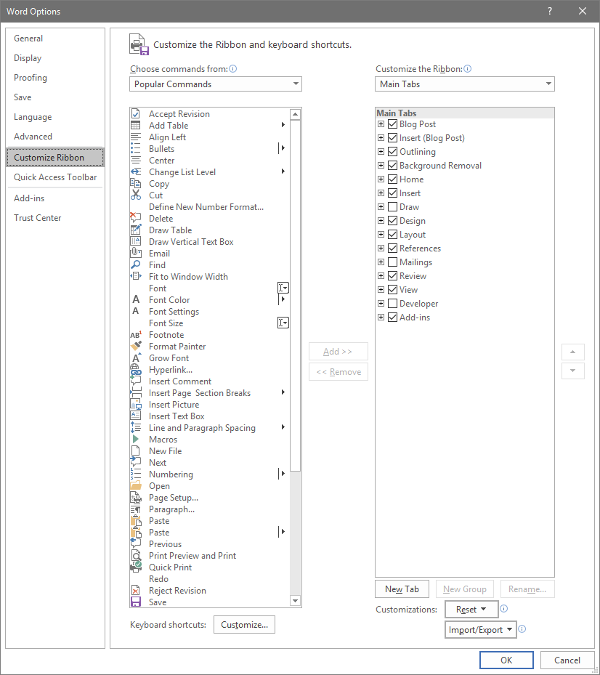
Making these changes is fairly simple. Your first step is to access the Quick Access Toolbar’s options. Under File. select Options, and in the window that appears, click Quick Access Toolbar in the sidebar menu. It should look like this:

From here, you can see that the typical Save, Undo, and Redo options are in the Quick Access Toolbar – which is all well and good, but you can easily use keyboard shortcuts to accomplish the same things.

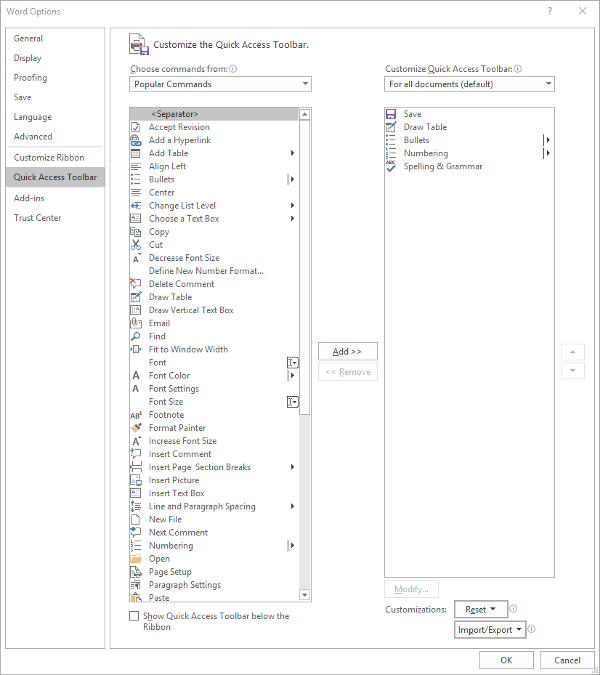
You might find a different assortment of tools more handy to keep in your Quick Access Toolbar. Altering them is simple enough from this menu, all you have to do is select the item and click the appropriate button, Add>> or <<Remove. The list on the left defaults to Popular Commands, but there are plenty of options to choose from, based on your needs. For now, we’ll stick to Popular Commands.

Let’s assume you use Word to put a lot of data into context, so you use a lot of lists and tables… and it needs to be spelled correctly. You can easily change your Quick Access Toolbar to meet these preferences.

Once you’ve done so, just click OK and your changes will be saved. You can always revert to the default settings by using the Reset option as well.

Customizing the Ribbon

The Ribbon in Word is where you find your options like Home, Insert, and the rest. Depending on your usage, you may not have much of a need for some of these options. Let’s assume that you don’t have any purpose for the Mailings tab, or the Draw tab, for that matter.

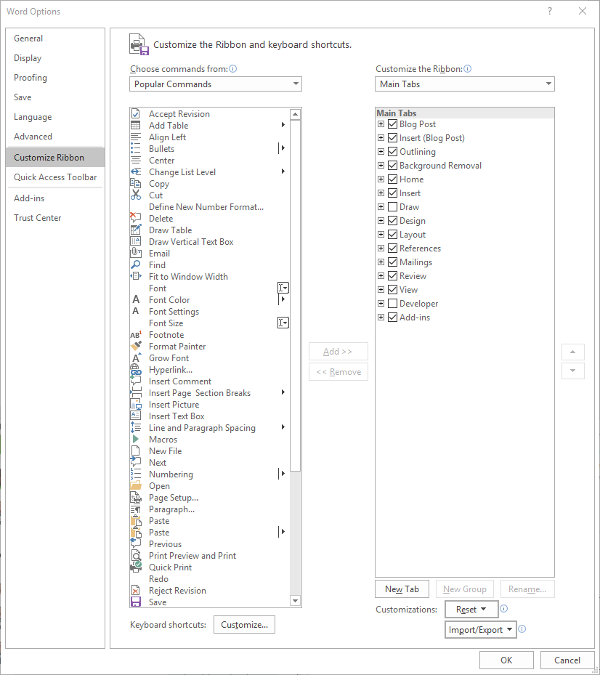
Again accessing File and Options, this time we’re looking for Customize Ribbon, which looks like this:

Just as we did with the Quick Access Toolbar above, you can adjust what is displayed in the Ribbon. Since we’ve established that – in this example – we have no purpose for either the Mailings or Draw tabs, we can uncheck them to remove them from the Ribbon display.

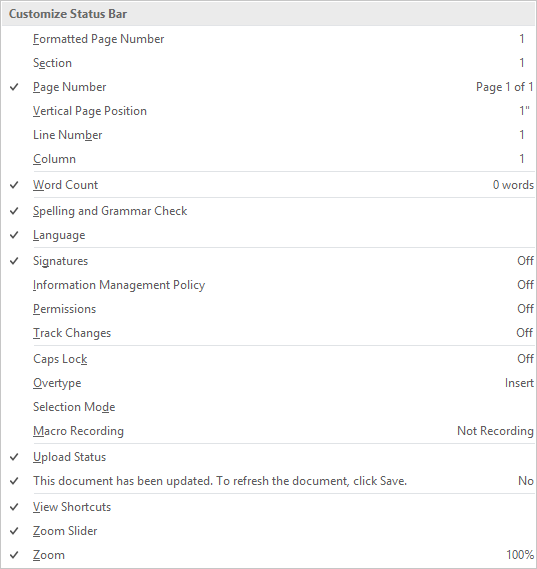
Customizing the Status Bar

At the very bottom of the window is the Status Bar, which can be altered to provide other valuable information based on what you have prioritized. Doing so is very simple: just right-click on the Status Bar, and select (or deselect) the options.

There you have it- three ways to customize Microsoft Word to better suit your purposes. For more technology tips, make sure you subscribe to our blog!

85639707_microsoft_word_400.jpg

Tip of the Week: Adjusting Microsoft Word to Match Your Style

85639707_microsoft_word_400.jpg

The popularity of Microsoft Word is undeniable, in part because it features preconfigured settings to make it easier for its users. While these settings are useful for most of these users, they might not reflect your business’ use of Word. Fortunately, you can make adjustments to these settings to increase the value that Word can offer your business. Here, we’ve put together some tips to help you make these changes, if you so choose.

Before we get started, we want to make sure that you know to consult with your IT department or provider before you go to make any of these changes. That way, they will be able to undo any mistakes you or your employees might make during the following processes.

Customizing Word’s Rules to Meet Your Preferences

It’s likely that there are some things that you regularly type into Microsoft Word that it may not agree with. Your company’s name might not exactly jive with the grammatical rules that the rest of the language should subscribe to, for instance, or you may prefer to stylize certain terms or phrases differently. Word isn’t going to like this, and is going to try to let you know that a mistake has been made. Of course, it might also just change the word you typed to what it is “supposed” to be.

These corrections can be a pain to repeatedly make, and there’s always the chance that one will be missed. Fortunately, Word offers you the opportunity to “teach” it new rules via a fairly simple process.

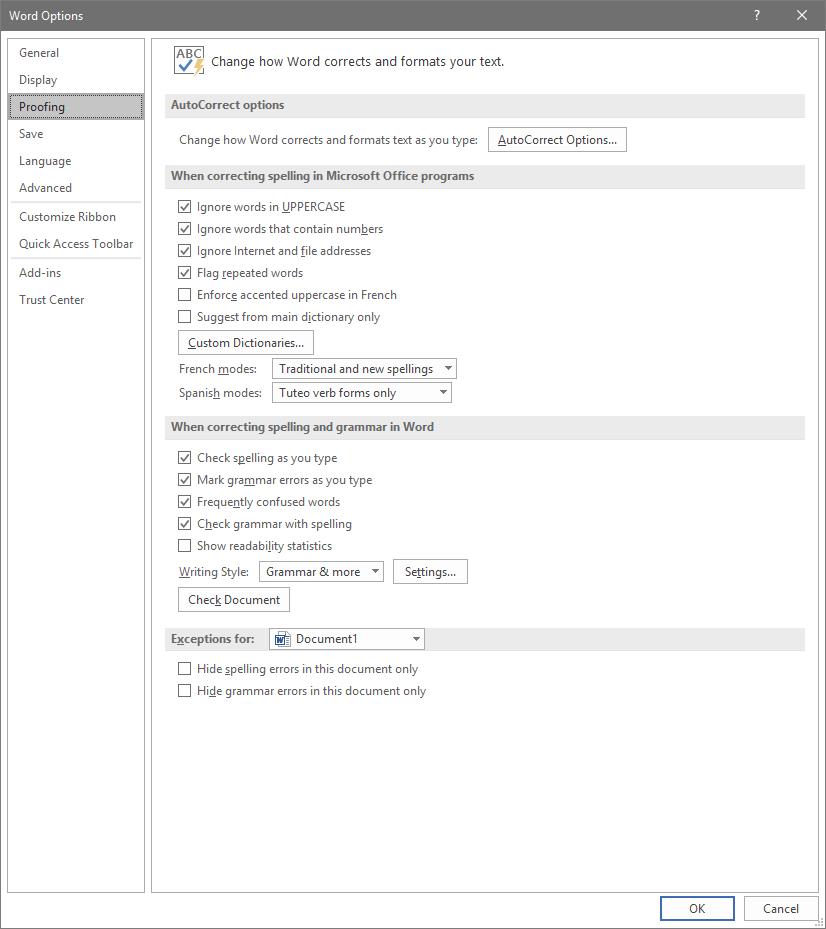
To access these rules, select File, and from there, Options. A new window should pop up with a Proofing option in the list. That page looks like this:

Adjusting AutoCorrect

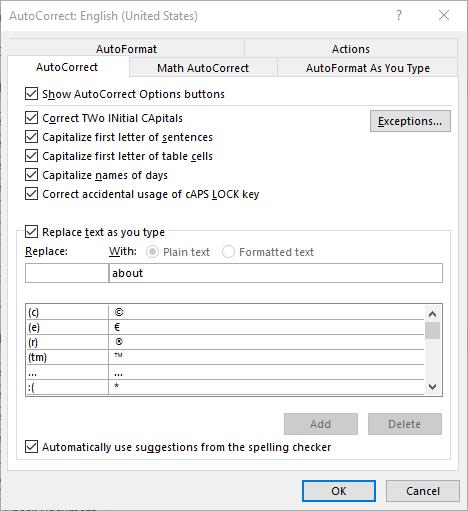
Here, you can alter a variety of proofing options, including your AutoCorrect Options. Clicking that button will present you with another window.

This window allows you to set your AutoCorrect rules, identify any exceptions you might want to make, and review how misspelled text can be automatically revised.

Establishing Grammar Rules

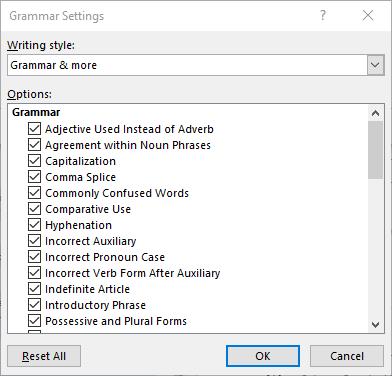
Returning to the Proofing List window, you also have other options that allow you to adjust Word’s corrections. For instance, clicking the Settings… button under When correcting spelling and grammar in Word provides another window. From here, you can control which grammar rules Word will flag or ignore in your copy.

Stop Worrying About Word Changing What You Write

By implementing these changes, you can prevent small annoyances from interrupting you as you work with Microsoft Word. This way, you can accomplish more without having to worry about dealing with automatic corrections again.

For more tips on how to best leverage your solutions to save you valuable time and money, subscribe to our blog!

how_microsoft_certified_400.jpg

How You Can Get Microsoft Office Certified

how_microsoft_certified_400.jpg

There are many reasons, both personal and professional, that you may want to consider adding a few certifications to your expertise. Today, we’ll discuss how you and your staff can become certified Microsoft Office Specialists on Microsoft Office 2016, and why you may want to consider doing so.

Why You Want An MOS (Or Any Other) Certification
The more your internal staff can handle, the less they have to lean on others for assistance.

Chances are, these “others” would be the members of your internal IT team (assuming that you have more than one person in the first place). Otherwise, they’ll likely spend a bunch of valuable time trying to Google the answer to their question.

Therefore, it only makes sense to have your staff be capable of as much as possible independently, without the need to turn to someone else or an Internet search. That way, everyone’s time is used more efficiently, maintaining productivity and allowing everyone to focus on what needs to be done.

When a solution is as commonly used as Microsoft Office is, this only becomes even more evident.

Certifications are effectively seals of approval from an authority. If someone was to be certified as a Microsoft Office Specialist, it more or less is just proof provided by Microsoft that this someone does indeed know their stuff when it comes to the Office software suite. Having certified people on staff means that a business is able to handle more advanced situations.

The Operational Benefits Of A Microsoft Office Specialist
Microsoft’s productivity software titles are among the most commonly used in the business world, to the point where many of their applications’ names are now synonymous with the documents they produce – how often have you heard someone call a presentation a “Powerpoint” instead of a “slideshow?”

As a result, chances are fairly high that your business is one that uses at least one of the applications included in the “Microsoft Office” suite.

Like we said before, a lot of time can easily be wasted trying to do something in an Office program, especially if the person is having difficulty remembering how to perform a task that they do not need very often, or have never encountered before.

However, if your team has a few Microsoft Office Specialists on it, they would be able to assist with a quick message, reducing the stress put on your IT staff and allowing them to continue their other duties without interruptions coming in (at least, interruptions from Microsoft Office requests).

How to Become Certified
To learn more about this certification, visit Microsoft’s official page describing it. The official test is exclusively administered by Certiport testing centers, who provide a useful test center locator to help you figure out where and when your next testing opportunity is.

To otherwise assist your staff with their technology issues, and take some more of the workload from your internal IT staff’s shoulders, NuTech Services is here to help. Reach out to us at 810.230.9455 to discuss our solutions with one of our professionals.

windows_logo_end_of_life_400.jpg

Save the Date: Microsoft Products End of Life

windows_logo_end_of_life_400.jpg

There are one of two reactions every person gets when they get a save-the-date card in the mail. They either are excited for an event or they realize that the event is going to cost them money. For today’s blog, we give you our version of save the date as some of the most widely used Microsoft products in recent memory are coming up on their end of support date, and for some businesses, this save-the-date might be bad news.

We know that unsupported software can be a complete nightmare. This is especially true if the unsupported software is a critical component of your company’s computing infrastructure. Microsoft has announced that they will be officially ending support for two major operating systems, Windows Server 2008 R2 and Windows 7, on January 14, 2020. Both pieces of software are currently in their extended support periods, meaning that people can pay Microsoft to support the software, but after January 2020, neither piece of software will have any type of support available.

Windows 7
In 2016, all Windows 7 users were given the option to upgrade away from the OS to Microsoft’s newest OS, Windows 10. Users that didn’t take advantage of that offer have since had to pay for it, but if you haven’t upgraded away from Windows 7 by now, you are probably paying for support or not receiving any, both of which are not advantageous. By upgrading today, you will get ahead of what could be a major problem down the road. Waiting until the last minute to implement new versions of the OS is not recommended, since upgrading sometimes comes with hidden problems and legacy software issues that could put your whole organization at risk.

Windows Server 2008 R2
In what will be a larger problem for businesses, support for the already extended Windows Server 2008 R2 is definitely going away. For the last four years, Microsoft has insisted that anyone using Windows server 2008 R2 needs to upgrade, but since it kept offering extended support, businesses kept on using it. Well, Microsoft has announced the end is near for the decade-old server OS.

Newer versions of Windows Server have a lot of new options, especially in the arena of virtual environments. So while it is possible to swap out Server 2008 R2 for another Windows Server OS, the best course of action will be to scrap the old server altogether and upgrade to new infrastructure. Since there are substantial costs that go along with changing servers, companies still using the old software will want to do their best to start upgrading immediately.

At NuTech Services, we can help any-sized business get upgraded, while finding you innovative options to reduce the capital costs of doing so. To find out more, contact us at 810.230.9455.

cortana_additions_400.jpg

Using Cortana Gets Better with Customization

cortana_additions_400.jpg

As Cortana has more and more added to its functionality, it gradually becomes more of a utility to all. Those who prefer to use Google’s applications are now able to use Cortana to augment their use of Gmail, Google Contacts, and Google Calendar. Today, we’ll go through how you can set these programs up to play nice with Cortana.
For Cortana to work with Google apps, these apps must first be identified as a service. Access Cortana and click Notebook, and once the panel appears, access Connected Services and from there, Add service.

At this point, you will only be given an option for Gmail, but that includes Contacts and Calendar as well, in addition to Google Drive. After you next sign on to your Google account, your Connected Services menu will include Gmail as an option.

Privacy and Usage Disclaimers
Be warned, when you give Cortana access to your email and other services, you are opening your personal data to the assistant, and therefore, to Microsoft as well. You should definitely review the disclaimer that appears before connecting these accounts, as it will explain how your data is going to be used. If you have second thoughts after reading this disclaimer, you can be directed to where these integrations can be deactivated.

Since there isn’t any indication, as of yet, as to which of Cortana’s commands will work with these Google services, we are given the opportunity to speculate freely. What functions do you think Cortana will have in regard to Google’s apps? Give us your ideal list in the comments!