kyt_accessory_400.jpg

Know Your Tech: Accessory

kyt_accessory_400.jpg

We make a big deal about how important it is to take care of your computers. Whether that be routinely cleaning your PC, weeding through the unnecessary information stored on them, or utilizing a mobile device’s built-in security features to keep mobile malware from making the management of your company–wide mobile solution more difficult. Much of the time, however, your organization’s IT works as designed, creating no issues whatsoever. In those moments you begin to pay more attention to your accessories.

For this week’s tech term, we talk a little bit about accessories. In the past, accessories were mandatory to simply use any computer, but with the advent and prevalent use of smartphones and tablets, that isn’t always the case today. They do, however still make up a huge portion of the cost to businesses and individuals when purchasing a computer. Let’s take a look at the computer accessory market.

When looking to define what a computer accessory is, you’d have no trouble finding multiple definitions. On one hand, many computer accessories attach themselves to a computer, while others are there to provide additional functionality, security, or support. We’ll break them into two different groups: basic and advanced.

Basic Computer Accessories

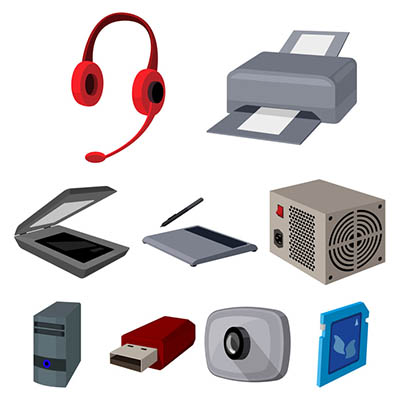
Basic computer accessories are accessories that are typically less expensive, and don’t usually come with their own power supplies, although wireless technology has somewhat changed this. There are all types of simple accessories that include:

  • Cables and Wires
  • Keyboards and Mice
  • Speakers and Microphones
  • Webcams
  • Headsets
  • Flash Drives
  • Adapters
  • Bags and Cases

Advanced Computer Accessories

Advanced computer accessories typically have a higher price tag and come with their own power supply. Also called peripherals, these products typically perform advanced tasks or have more stand-alone value than basic computer accessories. Some include:

  • Printers
  • Scanners
  • Charging Stations
  • Digital Signage
  • External Storage
  • Power Protection

Essentially, every product you can buy beside the computer and the monitors is considered an accessory. Even peripherals that come with their own power supply are technically accessories for a computer (since you can’t use them without a CPU).

NuTech Services’s knowledgeable IT technicians are committed to providing useful technology support services to organizations like yours. To find out how we can help your organization best use its technology call us today at 810.230.9455.

b2ap3_thumbnail_snap_to_mouse_400.jpg

Tip of the Week: Take Advantage of Your Mouse’s “Snap To” Feature

b2ap3_thumbnail_snap_to_mouse_400.jpgComputers are designed to save people significant time when it comes to getting work done, and with a few simple tweaks and adjustments, you can trim even more seconds off a project, which really adds up in terms of gaining productivity. Your PC’s Snap To mouse feature is a classic example of this.

When enabled, Snap To automatically moves your mouse pointer to the dialogue box that pops up. This is the box that typically appears after you delete a file, close a window, or perform any other similar task.

Although, when using Snap To, be careful about what you click on. For example, your pointer may automatically move to the “Ok button” for something that you don’t want to approve; something like, “Are you sure you want to permanently delete this file?” A blunder like this can be avoided if you simply take a moment to read what you click on, instead of rushing yourself and clicking the first thing that pops up.

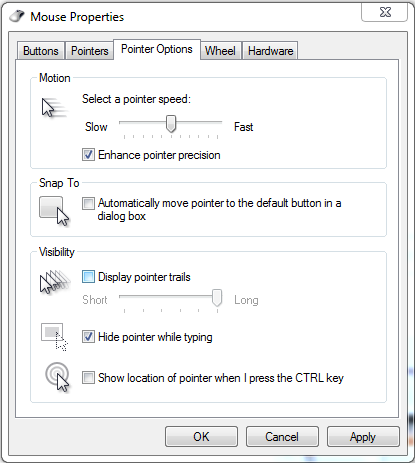
To enable this feature, go to Control Panel > Mouse Properties. Next, click on the Pointer Options tab and then checkmark the Snap To box that says “Automatically move pointer to the default button in a dialog box.”

snap to

Click OK or Apply when you’re done.

Be warned, this Snap To feature might take a little while to get used to (it’s always surprising to have your mouse pointer move when you’re not expecting it to). Also, in the event that you don’t want to go through these steps and enable Snap To, most dialogue boxes allow you to select the OK button by hitting the Enter key.

At the end of the day, it might seem like this is a rather silly tip because you’re just saving yourself few seconds of not having to move the pointer. However, any worker concerned about productivity understands the importance of saving a few seconds here and there, and how tips like this can save you significant time in the long run. Plus, when on a laptop with a squirrely touchpad, this can save you those few seconds of frustration.

For more productivity tips, subscribe to NuTech Services’s blog and check back every week.

b2ap3_thumbnail_mouse_security_400.jpg

Your Computer Can Identify You Based On How You Move Your Mouse

b2ap3_thumbnail_mouse_security_400.jpgAny user of technology knows that it’s important to optimize security on all fronts of your business. The only problem with this is that passwords aren’t as secure as they used to be. Many businesses have moved in the direction of two-factor authentication, which requires a secondary credential in order to access an account. Did you know there’s a security method that uses your mouse’s behavior to authorize your login?

A startup called BioCatch has developed an authentication procedure that analyzes your mouse movements and behavior. Everyone has probably encountered two-factor authentication at some point or another, be it for a bank account login or email inbox access; but we doubt that you’ve ever given mouse two-factor authentication a shot.

According to BioCatch, the way that a PC user uses a mouse can identify who they are. ZDNet explains:

The entire way that we use the human-machine interface embedded within each and every modern computer, browser, or website, is like a unique fingerprint. Lefties will operate a mouse differently to right-handed people, for example, and each user ‘grabs’ an icon at a different point, angle, and so on.

Essentially, BioCatch’s idea looks at the way users move their mouse to build a “character profile,” so to speak. This helps identify whether the user is actually who they say they are. In fact, it’s been estimated that this method of authentication can prevent fraudulent logins up to 80 to 90 percent of the time.

In addition to monitoring your mouse movement, BioCatch’s solution considers other aspects, crammed into four layers of properties:

Layer One: Standard Authentication
Layer one consists of the device, network, IP address, hardware, and location – all traits that physically tie you to your PC. These are the typical authentication properties used when logging into an account. The following layers, however, take a much different approach to authentication.

Layer Two: Physical Profile
Layer two consists of mainly motion-related actions, such as moving objects around the screen, hand-eye coordination, and the mouse pointer (or finger on touch screen devices).

Layer Three: Cognitive Profile
Layer three consists of examining mental abilities, such as response time and connection time. It also looks for suspicious activity that is out of the norm. One example used by ZDnet is online banking – normally, a user would check their balance before doing anything. If a money transfer is their top priority, something might be up.

Layer Four: Invisible Challenges
BioCatch’s final layer of protection is meant to authenticate a user’s identity, but not in the traditional sense. BioCatch purposely puts problems in the way of the user in order to determine who they are. Everyone reacts to potential threats differently, and their response can be used to verify one’s identity.

Will mouse two-factor authentication catch on? We don’t know; but what NuTech Services does count on is the importance of two-factor authentication in general. Users need to have more than just a password protecting their accounts if they want to stay secure. This is especially important for any business-related material. With today’s sophisticated hacking tools and procedures, all it takes is one skilled hacker to crack a password.

To get started with two-factor authentication, give NuTech Services a call at 810.230.9455.

b2ap3_thumbnail_mouse_wheel_click_400.jpg

Tip of the Week: 3 New Tricks to Teach Your Old Computer Mouse

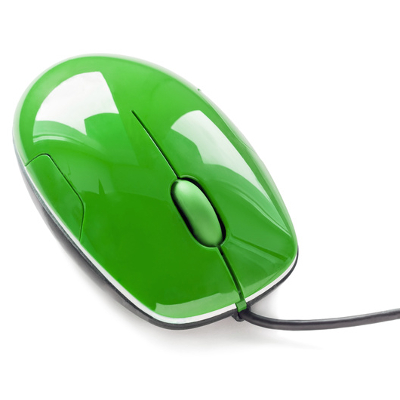
b2ap3_thumbnail_mouse_wheel_click_400.jpgThe computer mouse has been a staple in the modern office for many years. Despite its proven usefulness, it’s now threatened by the growing adaptation of touchscreen devices in the workplace. Are you considering trading in your trusty mouse? Before you do, consider these three mouse scroll wheel tricks that make your boring old mouse more useful.

Who said you can’t teach an old mouse new wheel tricks?

tip-scroll-wheel-fun

Click a Link With the Scroll Wheel Button to Open it In a New Tab
What’s that you say, a mouse scroll wheel button? If this is the first you’ve heard about the scroll wheel also being a third button on your mouse, then you’re getting your money’s worth with this blog article because we just opened up for you a whole new and click-tastic world.

To execute this first trick, all you have to do is move the cursor over a hyperlink and click the mouse scroll wheel button. This will automatically open the link in a new browser tab, which is easier than having to right-click the hyperlink and then go to “Open link in new tab.”

Close the Browser Tab By Clicking it With the Mouse Scroll Wheel Button
When you’re done with your browser’s tab, you can close it just as easily using the mouse scroll wheel button. All you have to do is move your cursor anywhere on the tab and then select the mouse scroll wheel button.

Granted, this isn’t a major upgrade from selecting the red X with the left mouse button, but it does give you a little bit more room to work with. Additionally, once you get in the habit of using the mouse scroll wheel button, you’ll find yourself closing tabs in this manner more often.

Ctrl+Scroll Up to Zoom In/Ctrl+Scroll Down to Zoom Out
For our third trick, try using the mouse scroll wheel in conjunction with the Ctrl key for easy zooming in and out of your web browser, as well as most other applications too. As you hold down the Ctrl key, your page will zoom in as you push the mouse forward, and zoom out as you push the wheel in the opposite direction.

Ultimately, this is the fastest and easiest way to zoom in and zoom out, especially in comparison to locating the view tab and manually selecting “zoom in” or “zoom out.”

Bonus Tip: One of the handiest uses for this zoom-in feature is when you’re browsing a web page with annoying ads on the side of the page. Simply perform this new scroll wheel trick and zoom in just enough to where you no longer see the ads. Problem solved. You’re welcome.

It turns out that your old computer mouse can do more than what you previously thought. Pretty cool, huh? Perhaps now you’ll think twice about trading in your mouse and workstation for a fancy new touchscreen device. Or, maybe not.

Can you teach an old mouse any more new tricks? If so, share them with us in the comments.