action_leads_to_productivity_400.jpg

Pair Up the Right Workers to Increase Productivity By 10%

action_leads_to_productivity_400.jpg

Keeping your workers as productive as possible is a challenge for every employer. According to a recent study by the Harvard Business Review, there is one easy that you can increase productivity: By keeping a productive worker in close proximity to other workers.

Such a profound discovery could be enough to shake the foundations of how you form your departments and how the interior of your office looks. Theoretically, you could simply arrange your office in a way which takes advantage of this “productivity by proximity” rule, keeping those who get the most work done at the center of the action. This could inspire your less-dutiful employees to better themselves and improve how they work.

What’s interesting is just how the study describes this phenomenon: “We saw that neighbors have a significant impact on an employee’s performance, and it can be either positive or negative. In terms of magnitude, we found that approximately ten percent of a worker’s performance spills over to her neighbors. Replacing an average performer with one who is twice as productive results in his or her neighboring workers increasing their own productivity by about ten percent, on average.”

Maybe you’re feeling that you should reevaluate how your organization is approaching the office setup, but before you go and make drastic changes, keep in mind that doing this haphazardly could actually make things worse. This study highlights the benefits of productivity by proximity, but keep in mind that it also warns of how the exact opposite can happen too. For example, an employee who wants to get the most done, for example, could be held back by a slacker that’s nearby.

You need to also consider other factors that influence worker productivity, like motivation. If you have a worker who wants to learn how to do a better job, putting them next to someone who is highly motivated and willing to go the extra mile could help dramatically. On the other hand, a worker who doesn’t care about doing a good job won’t be impressed by the positive attitude of their peers.

This is a negativity that your business can do without. In this situation, it might seem tempting to just isolate workers so they don’t influence each other. You can do this by either providing them with their own office, giving them the freedom to work remotely, or removing the problem employee from the equation completely.

As you can see, motivation is a crucial when it comes to worker productivity. It’s logical to assume that if you can provide powerful motivators, your team will be more likely to do their best work. Allowing workers to improve themselves by learning from motivated employees can be a spectacular way of improving productivity.

One last thing to consider is the technology that your organization uses. Implementing cloud-based collaboration software and communication solutions like VoIP and instant messaging can be a great way to help employees stay in touch and be more productive, regardless of where they are working. This helps your staff (especially those who might need help) stay in constant contact with those who can help them, allowing your team to be productive at all times.

To take advantage of the latest and greatest technology solutions, reach out to NuTech Services at 810.230.9455.

shooting_trouble_troubleshooting_400.jpg

Tip of the Week: 6 Truths to Guide Your PC Troubleshooting Efforts

shooting_trouble_troubleshooting_400.jpg

We’ve all ran into problems that weren’t easily solvable, even by technically-proficient people. In fact, it’s often the case that simple problems can be escalated far beyond where they deserve to be. Sometimes all it takes is a little outside perspective, and some out-of-the-box thinking, to fix an issue.

The next time you run into a seemingly unsolvable problem, try out these six troubleshooting tips and see how you fare.

  • Keep it simple: In some cases, the most difficult problems can be solved by doing something simple. You could try resetting the hardware or application, checking to see if the machine is plugged in, and if all else fails, try shutting the machine down completely, and rebooting it. There’s no point in going through a ton of work, if the problem can easily be resolved by a reboot.
  • Trust only your own word: Have you ever tried to fix something, but you couldn’t get anything done because someone else has already tried everything under the sun to resolve the issue? In situations like this, don’t listen to them; go with your gut, as they could be troubleshooting the issue the wrong way.
  • It’s probably the user’s fault: According to ZDNet, about 80 percent of problems are due to user errors. There’s an old adage: “problem exists between keyboard and chair.” Basically, the idea is that the end-user is to blame, so it’s important to admit that you may be at fault on occasion.
  • Try to replicate the issue: The easiest way to get to the bottom of a problem with your technology is to replicate the issue. Often times, knowing how a situation was created can offer valuable insight into how to resolve it. You can ask your end-users to show you what they did, and what the problem is.
  • Know when to fix or replace: Your IT budget should always be at the top of your mind, as unexpected and unnecessary hardware replacements could convolute your business for months. You should understand how much it will take to fix something, but only fix it if replacing the technology isn’t a better option. Remember, hardware refreshes are great ways to improve the quality of operations.
  • When all else fails, throw in the towel: If you can’t fix a problem, it’s important that you know when you should stop giving it a shot yourself. You can’t waste valuable time and resources digging deep into why your technology isn’t working, especially when you have a business to run. Instead, it’s more efficient to outsource the maintenance and management of your technology to a third-party managed service provider; one who specializes in caring for the technical requirements of small and medium-sized businesses.

For assistance with your business’s technology solutions, you can always reach out to NuTech Services. Our skilled technicians are trained in a myriad of related topics, and we can help your team get the support they need, when they need it. You’ll waste minimal time and your operations will soar. To learn more, give us a call at 810.230.9455.

ergonomic_setup_400.jpg

Tip of the Week: 4 Easy Changes to Make Your Workspace More Comfortable

ergonomic_setup_400.jpg

Sitting at a desk all day is probably the worst thing you can do for your health. The average office worker sits for 9.7 hours each day and after one hour of sitting the production of enzymes that burn fat declines by as much as 90 percent, significantly slowing metabolism. Then there’s ongoing back pain and eye strain. What’s the modern office worker to do?

If you have to sit at a desk all day, you might as well do so properly. Here are four ways to optimally set up your workspace. In addition to this being a good move for your health, you’ll be setting yourself up for increased comfort and productivity.

Getting Your Chair Just Right
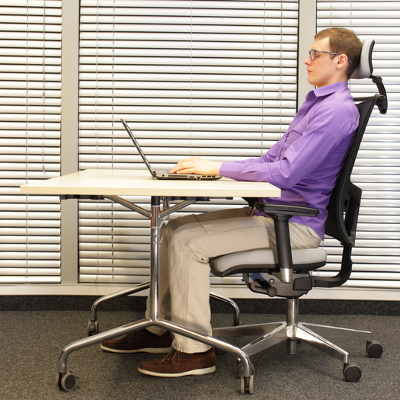
First off, if your chair is uncomfortable, then you need a different chair. Now, we’re not suggesting you go out and get a La-Z-Boy for your desk (as cool as that would be), but you should at least sit in some kind of chair with enough padding that your back isn’t hurting at the end of the day. Ideally, you’ll want a chair with armrests bent at a 90 degree angle. Also, look for a chair that has lumbar support and adjustable settings for the backrest, height, and angle. Remember, the goal here is to have a chair that provides you with an upright posture throughout the workday–not a bed that will put you to sleep.

Desktop Hardware Placement is Key
It should feel natural for you to use your computer. The best way to achieve this is by lining up your keyboard’s “B” keys and mouse with your navel, and your keyboard should be as close to your body as comfortably possible. Heightwise, position your keyboard so that you’re bending your elbows, not your wrist. For your monitor, make sure that the top edge is two or three inches above your eyeline, and make sure that it’s reflecting as little glare as possible. To give you a picture of what we’re talking about, check out this chart.

Be Deliberate About Good Posture
Even if you have an ergonomic chair and desk and your computer equipment is positioned perfectly, all of this won’t matter if you’re not intentional about having good posture. If you’re used to slouching, this bad habit may take some help from your coworkers to break. For example, asking them to remind you to sit up straight if they catch you slouching may seem annoying at first, but it will help cement a good habit that will have far-reaching benefits for your health.

Be Sure to Take Breaks
Even though it feels counterproductive, taking breaks actually improves productivity and it’s good for your health. You’ll want to avoid being so locked into your task that you never look away from your screen, and you’ll want to get up from your desk from time to time and take a walk around the room or stretch. There are actually several useful apps that will help you achieve this. One good app is StretchClock, designed to remind you when to take a break by providing a short tutorial video of different stretches that you can do.

At the end of the day, these are all fairly minor actions you can take that will yield major results in terms of increased comfort, productivity, and improved health. Try these tips out for yourself and let us know in the comments if you feel any different.

b2ap3_thumbnail_clean_computer_400.jpg

Tip of the Week: Don’t Use Your Keyboard as a Dinner Plate and 3 Other PC Best Practices to Live By

b2ap3_thumbnail_clean_computer_400.jpgComputers are complex devices that require special attention to keep in optimal shape. Unfortunately, some people don’t pay enough attention to the current state of their computers. Once you’ve cleaned your computer properly, though, it’s important to make sure that it stays that way for as long as possible. Doing so can increase the longevity of your technology, and prevent it from an untimely demise.

Keep in mind that whenever you decide it’s time to clean your computer, be sure to power it down and unplug it before doing so. It’s better to be safe than sorry, especially with expensive hardware.

Don’t Eat, Drink, or Smoke at the Computer
Remember all of those crumbs that fall out of your keyboard when you turn it upside down? All of those crumbs got there somehow, and it’s probably thanks to one habit that you might have: eating at your desk. To minimize the amount of crumbs that fall onto your keyboard, it’s best to just lock your PC and go eat somewhere else, like the kitchen, dining room, or break room. Furthermore, smoking in the same room as your computer can gunk up your fans and other components with ash, tar, and other nasty substances that are found in cigarettes.

In general, it can be good to separate yourself from your computer while you eat. If you’re doing it at work, it separates the work environment from you momentarily, which can be helpful for maintaining your sanity.

Clean Your PC Regularly
Giving your PC a thorough cleaning is only the first step toward ensuring that your computer remains in optimal shape. In order to keep it that way, you need to set up regular upkeep cleaning sessions, where you clean out the keyboard, the monitor, and the main body of your PC. Doing so can considerably prolong its lifespan, and it makes it more appealing to look at when you have to sit in front of it for hours on end.

If you need help knowing how often (or how) to clean your PC, ComputerHope has a great calculator that helps you determine how often you should do so. The variables that it takes into account include your lifestyle, where your computer is located, who’s using it, and so much more. We think it’s safe to say that you should clean your PC at least twice a year, maybe more if your lifestyle calls for it.

Give it Room to Breathe
In order to keep your PC functioning at optimal efficiency, you need to give it the space it requires to run without overheating. In other words, you should keep it in an open location, where all of the fans are capable of keeping air circulation flowing. This prevents overheating, and can improve overall functionality of the device. Furthermore, you should keep your PC tower off of carpet if possible, to help with keeping the heat low.

Constantly Clear Dust Collection
Desktop PCs and workstations tend to be a bit on the large side, and therefore, don’t move around as much as laptops or other smaller devices do. This leads to computers collecting dust in the fans, vents, and just about anywhere else. It’s important that you keep your PC dust-free whenever possible; otherwise, it could run into operational issues due to overheating, keyboard stickiness, and so on. In fact, dust can even cause PC components to seize up and stop working.

The best way you can keep your computer dust-free is to keep a can of compressed, or “canned,” air right on your desk. This way, you’ll have a neat tool for cleaning your PC available at your disposal. Please be sure that you don’t spray liquids at your computer, ever. If you have to use a liquid cleaner, use water, and use a damp cloth rather than a spray bottle to directly apply the liquid, but never use water on an internal computer component.

For more great tips on how to take care of your technology, subscribe to NuTech Services’s blog.

b2ap3_thumbnail_keyboard_cleaning_400.jpg

Tip of the Week: How to Save Your Keyboard After Spilling Your Drink On It

b2ap3_thumbnail_keyboard_cleaning_400.jpgYou know that you shouldn’t keep a beverage near your computer, but how good are you at actually abiding by this best practice? Due to the busyness of our modern lives, it’s likely that most office workers eat more meals at their computer than away from it. Inevitably, this will lead to a drink spilt on your keyboard, which can put you in a rather sticky situation.

When your keyboard takes an unintended plunge, what can you do about it?

First off, don’t just sit there with your keyboard sopping wet and try typing into Google, “How to clean Mountain Dew off my keyboard.” The liquid will only seep further into your keyboard, making it extremely difficult to type. Actually, a sugary substance like Mountain Dew will cause your keys to stick, which means that your Google Search query would actually look something like this:

not good ib1

Don’t lollygag when faced with a liquid-on-your-keyboard crisis or you’ll just make the problem worse. Instead, take immediate action by following these five steps:

Power Off Your Computer and Disconnect the Keyboard
By far, your computer is way more important than your keyboard (and quite possibly your outfit that also took a Mountain Dew bath). Therefore, as soon as you can, be sure to either disconnect your keyboard. Most modern keyboards are USB, so they can be unplugged with the computer on, but other keyboards use round connectors. Unplugging the round connectors while the PC is on could cause damage, so if you aren’t sure just shut the PC down before disconnecting the keyboard. Act quickly, the liquid may seep into the keyboard’s circuits and cause some problems (and not the good kind like we saw from Coca-cola’s spilt-soda-on-computer scenario).

Flip the Keyboard Upside Down and Give it a Good Shaking
When you encounter a spill, your first instinct is to get up and grab a towel. Before you do that, flip your keyboard over and shake it. Basically, when dealing with a spill, you’ve got precious little time to locate a towel while the ill-fated beverage seeps deeper and deeper into your circuits.

Wipe Down Your Keyboard
After gravity has done its job and drained as much liquid as possible, now is the time to use a dry cloth to wipe down your mess. Do what you can to get in between the keys, but don’t do anything drastic like apply too much force or pop off the keys, yet. For now, the goal is clean up, not detailing.

Let it Dry Overnight
Next, find a dry place to let your keyboard sit upside down overnight. When you come back to it the next day, look for any additional moisture that may be left and give it a wiping.

Check for Stickiness
Before plugging in your now-dry keyboard, press on every key to check for stickiness. This will most likely be the case if you split a sugary substance, like Mountain Dew. To clean out the stickiness, you’ll have to remove the keys to really clean underneath. Computer Hope offers some solid advice on how to do this:

Removing a standard keyboard key is simple. Start by pressing down on the key in front of the key you want to remove and insert a flat object such as a car key… or a small flathead screwdriver below the key. Once below the key twist it or push down until the key pops off. If you want to remove more than one key, repeat this process until all keys are removed.

Once you’ve got your keys removed, using a tool like a Q-tip will really help with those small and hard-to-reach places, with both your keyboard and your ear canal.

Lastly, with your keyboard fully cleaned and dry, plug it in and give it a spin. If you were fast-acting enough to catch the mess, then you might have been able to save it. Although, if the spill was too great, then your keyboard might be toast and you’ll have to replace it. You’ll know for sure when you sit down with your cleaned keyboard and try it out.

We hope that you’ve found this week’s tip helpful. For more great technology tips, subscribe to NuTech Services’s blog and check back every week.