53441664_windows_400.jpg

Microsoft is Gearing Up to Retire Windows 8.1

53441664_windows_400.jpg

With Windows 11 releasing sometime this year, most users are looking to upgrade to hardware that actually supports it, but today we are instead focusing on upgrading away from one of the more controversial of Microsoft’s recent operating systems, Windows 8.1. With its end-of-life date creeping up in January 2023, it’s never too early to start thinking about how your company will move away from this operating system toward a supported one.

Windows 8.1 is Only Kind of Windows 8

Windows 8 first released in August of 2012, and it was first described as “metro” in an attempt to appeal to the mobile market. Windows 8 was specifically designed to work with touchscreen devices and PCs, but its initial rollout caused a bit of confusion amongst the user base. Many people simply stuck to Windows 7, as they were more used to the traditional Windows operating system. Microsoft grew frustrated with the fair amount of criticism the OS received and released a huge update to the OS in 2013 that restored many of the features that people loved about prior Windows operating systems, including the coveted Start menu. This update was called Windows 8.1 and became the working version of Windows 8 for the better part of the past decade.

The initial version of Windows 8 had its end-of-support date set for January 12, 2016, ending all support for that version of the operating system by that date. Windows 8.1, however, was much more popular, thus Microsoft set an end-of-life date for January 2023. Windows 10 launched two years after the 8.1 update, meaning that most people took advantage of the free upgrade, leaving only about 3.5 percent of all PCs running Windows 8.1. If this is the first you are hearing about the end-of-life event for Windows 8.1, this is probably why—it’s not like the Windows 7 end-of-life event, where the install base was much larger.

What You Need to Know

If you currently run 8.1 on your device, you should consider upgrading to Windows 10 now. On the other hand, if you think your hardware can take it, you could wait to upgrade to Windows 11 as it rolls out later this year into next. Either way, however, you need to start thinking about it now, as that January 2023 end-of-life event for Windows 8.1 will creep up on you before you know it. Waiting any longer after that will leave your technology susceptible to security risks.

Why Is It Important to Only Use Supported Software?

Each new version of the Windows operating system adds additional security updates and features that are designed to tackle the problems associated with today’s computing environment. If you don’t upgrade your software on a regular basis, your organization will fall behind and eventually be put at risk due to the overwhelming rate at which security threats grow. Any business that utilizes sensitive information (read: all businesses, basically) must make it a priority that all software used by the company is supported by the software developer.

The IT professionals at NuTech Services know what it takes to keep your software as up-to-date and secured as possible. We can even help your company make the upgrade to a supported operating system or utilize legacy applications without a hitch. To learn more, reach out to us at 810.230.9455.

308593867_virtual_desktop_400.jpeg

Tip of the Week: Working with a Virtual Desktop in Windows 10

308593867_virtual_desktop_400.jpeg

With Windows 10, you have no shortage of features and capabilities to take advantage of. One such capability: the use of a virtual desktop. Found near the Start button in your taskbar, the Task View button enables you to create and manage these virtual desktops, which we’ll discuss here.

Understanding the Virtual Desktop

Before we go on, we should clarify that we’re discussing a specific variety of virtual desktop.

Most things you hear called “virtual desktops” are the product provided as part of a Desktop-as-a-Service (DaaS) solution. Here, we’re discussing the feature built into the Windows 10 operating system that effectively opens a separate session of Windows 10 alongside your first one. Doing so can provide some significant benefits to your usage of Windows in terms of task organization and application management, along with other use cases that business and personal users alike could find an advantage in.

How to Use These Virtual Desktops

Opening a virtual desktop in Windows 10 almost couldn’t be simpler.

  • Start by clicking on the Task View button in your taskbar. If the button isn’t there by default, right-click on the taskbar and select the Show Task View button. Alternatively, Task View is accessible through Windows Key + Tab.
  • In Task View, you’ll see the option to add a New Desktop. These desktops are your different instances of Windows 10 and can be switched between by either returning to Task View or using Ctrl + Windows Key + Left/Right Arrow to cycle through your open desktops.

When working in these desktops, you should see no difference in performance. Be warned, some apps can only be opened once in a system, so trying to open another version of these will pull you into the desktop where it is already running. Closing one of these desktops will simply cause any open applications to jump to another open desktop instance.

Hopefully, you have a better idea of what Windows 10’s virtual desktop options have to offer. If you have any other questions about the technology that your business relies on, leave them in the comments or give us a call at 810.230.9455.

microsoft_windows.jpg

What’s Next for Microsoft Windows?

microsoft_windows.jpg

It may be hard to believe but Windows 10 has been around for five years. It may not have reached the on-every-device OS Microsoft had planned, but it still can be found on over a billion devices worldwide. That’s pretty impressive. Today, we will be taking a look at Microsoft’s plans for Windows 10 and how it might just be the last build of Windows.

Windows 10

In Windows 10, Microsoft has built a complete and secure operating system. Users can do about anything they’d like inside of Windows 10. The platform was initially built to support three levels of devices, from smartphones to other mobile productivity machines, to your traditional productivity machines, your PCs. After Microsoft pulled the plug on their smartphone division, the subsequent changes they’ve made to the OS have been with the PC user in mind. 

Microsoft had a solid strategy to get their Windows 10 software on as many devices as possible: they gave it away. For a year they provided any user that had Windows 7, Windows 8, or Windows 8.1 the ability to upgrade for free. Since then, it has been available as other versions of Windows have been, for digital download.

Windows-as-a-Service

Since the software giant has retired support for the hugely-popular Windows 7, and Windows 8.1 was kind of a flop, Windows 10 becomes the development priority for Microsoft. They seem to be extremely invested in the OS, hinting that it might very well be the last Windows title ever developed. Microsoft has made many huge changes to Windows 10 over the past five years and looks to continue to develop the software more as a service than a product. 

Like many other software, Windows–or, Windows-as-a-Service, if you will–will continue to be one of the leading names in computing. It just won’t be replacing Windows 10 the way Windows 10 replaced Windows 8.1. In fact, Microsoft is now offering Azure-hosted Windows 10/Office 365 platforms for one monthly fee. In doing so it is changing the way that people access, and pay for their computing. 

If you would like to know more about Windows 10, Microsoft 365 platforms, or any other way that business computing is innovating, call the IT professionals at NuTech Services today at 810.230.9455. 

187442149_mobile_400.jpg

Tip of the Week: 9.0 Pie Brings with It New Features

187442149_mobile_400.jpg

Over two billion devices in the world run the Android mobile operating system. Most of them that have been purchased in the past year, as well as the ones that have been updated recently, run on the current operating system, Android 9.0 Pie. With this latest mobile operating system, Google has made it clear that they want to be seen as the smartphone software provider. Today, we’ll take you through how you can get the most out of your Android Pie experience.

New Gestures
The latest version of Android OS contains a built-in new gesture navigation system, but it might not be turned on automatically. To turn this on, go to Settings > System > Gestures. Then you must tap on Swipe on Home Button and press the on-screen toggle switch. You will see the change propagate almost immediately–the three-icon setup will change to a singular pill-shaped icon.

Navigation isn’t much different from the other builds, either. Tap the pill icon to bring back the homescreen and long press it to bring up your Google Assistant. You can then swipe up twice or long-swipe from the home icon to bring up your app drawer.

Another change that needed to occur is that Android 9.0 Pie removes the dedicated button for recent applications. Users now need to singular short swipe up from the bottom of the screen to open up a carousel gallery that shows all recently opened apps. You can then navigate by swiping between apps or using the home icon to swipe fast-left or right to move through the apps more quickly. To clear the apps, swipe up on the specific app window. To clear all of the apps, just scroll all the way to the left and tap the Clear All button to exit out of all running applications.

Android 9.0 Pie actually tries to predict what you’re likely to need next. These commands are within the apps. If you find it useful, you can drag these suggestions, found at the top of your app drawer, onto the screen. You can then find the shortcuts offered by each app by long-pressing the specific application’s icon. This includes opening an application in split-screen mode, a considerable improvement from Android 8.0 Oreo.

Device Notes
One extremely useful feature for smartphone users is the ability to open your device using a fingerprint scanner, but an even better one is when you can use the scanner on devices that don’t feature an in-display fingerprint reader to keep your screen from turning off.

The alarm clock in Android 9.0 provides some additional functionality. When your notification panel is open (swipe down from the top), you only need to tap on the clock in the system tray to open your clock app and manage the alarms.

What do you think about Android 9.0? What are your favorite features? Let us know in the comments.

oreo_phone400.jpg

Tip of the Week: Android Oreo Is Double-Stuffed With Features

oreo_phone400.jpg

Earlier this year, Android released Oreo, version 8.0 of their popular mobile device operating system. Whether you’ve already updated to the latest version of this OS or are still waiting for your update, it has several new or improved features that you’ll want to consider using. Let’s look at five of our (many) favorite additions to the OS.

Autofill Passwords for Apps – Considering the widespread popularity of using an application over accessing programs within your browser, Google has decided to bring autofill beyond its use in the Chrome browser. The ability to autofill and store passwords for applications are a feature that many people will welcome.

Picture in Picture – Have you ever been in a video conference on your mobile device at the same time you needed to access an email or other information from an application? With Android Oreo, you can continue a video call or view a clip started in Chrome using the picture-in-picture mode by just tapping the home button when the video is playing.

New Emojis – Even though the use of emojis in business correspondence is marginal, they’re still one of the features that users are looking forward to with the Android Oreo release. Luckily, many mobile devices are used for both professional and personal communications, which means that you’ll have plenty of opportunity to use these fun additions to your library of emojis.

Smart Text Select – Anyone who regularly uses a computer likely considers the Select Text, Copy, and Paste functions to be very handy tools. To improve functionality, Oreo has introduced a Smart Text Select feature that is much easier to use than trying to drag and highlight text manually on your smartphone.

Snooze Notifications – Especially when you use a mobile device that for both work and personal uses, you’re probably going to receive notifications that you might not want to deal with immediately – but would like to check out a bit later when you get a chance. With Android Oreo, you can snooze notifications. Simply swipe to the right on the notification until a clock icon pops up. From there, select the amount of time you want to delay the notification by and go back about your regularly scheduled activity.

How do you feel about Android’s latest release? Have you found any other useful features? Or perhaps you still prefer to use iOS, regardless of how many new features Android adds? Sound off in the comments! We’d love to hear your opinion!

windows_10s_interface_400.jpg

Microsoft “Slims” Down Windows 10 With New Operating System

windows_10s_interface_400.jpg

Have you ever tried using a Google Chromebook for work purposes? While it might offer the ability to browse the web on a budget, the device is limited by the operating system’s lack of functionality. Microsoft has created a similar operating system in the form of Windows 10 S, which uses less processing power than the full version of their latest operating system.

Windows 10 S runs on less resources than laptops running Windows 10 Pro, which gives it a better loading speed. In fact, a laptop that’s running Windows 10 S can load a user profile up to 15 seconds faster. This is mostly thanks to there being fewer processes and applications running in the background.

The first audience Microsoft is targeting with this new operating system is educational institutions, like schools and college campuses. Unfortunately, Windows 10 S likely won’t be a good fit for an organization outside of education. While it might be helpful if you’re on a budget, it faces the same limits and inconsistencies as the Chrome OS. You get a passable experience, but what you can do will be limited.

It stands to reason that Windows 10 S will be found mostly on inexpensive laptops. Businesses that want to keep costs down have an option if they don’t want or need the extra power. Big names such as Dell, HP, and Acer have all chosen to produce laptops with Windows 10 S pre-packaged on them. This might be a great way to acquire a low-cost device for traveling or for meetings.

Most notable about this new operating system is that Microsoft is using this opportunity to upsell users on their Windows 10 Pro OS. Windows 10 S will be free, primarily because it’s already installed on the devices that will be using it. However, users can easily upgrade to the full version of Windows 10 Pro. While students can receive the full version of Windows 10 Pro for free, non-students must pay $49. This effectively gives businesses the opportunity to “test-drive” Windows 10 before going all-in.

Starting as early as this summer, Windows 10 S will be available. However, you still need to consider the repercussions of trying to save money by going with a cheaper device and lightweight OS. If you consult a professional IT technician, you’ll be able to iron out all of the details and understand exactly what you want and need before making a commitment, like purchasing a new device.

To learn more about how NuTech Services can help your business with its technology needs, reach out to us at 810.230.9455.

microsoft_sql_eos_date_passed_400.jpg

It’s the End of the Line for Microsoft SQL Server 2005 – Are You Prepared?

microsoft_sql_eos_date_passed_400.jpg

Do you know which database management system is used by your company’s servers? Obviously your end users aren’t expected to know the answer to this question, but this is something that you, as a business owner, need to be aware of. If you don’t keep track of which database software you’re using, you might accidentally wait too long and wind up running an unsupported piece of software. For example, you need to move away from SQL Server 2005 (which is now unsupported) as soon as possible.

For those unaware, the end of life for SQL Server 2005 was just last week, April 12th. This means that if you haven’t upgraded away from it yet, you could be in serious trouble. Plus, 10 years is far too long a time to use any dated software.

Your best chance is to upgrade to a more recent version of database software that’s supported by Microsoft’s security patches and updates. SQL Server 2014 or Azure SQL Database are two great options that will last your business for years to come. The skilled technicians at NuTech Services can assist you with such an important upgrade. Let’s face it; unless you’re an experienced technician in your own right, your best chance of switching to a new database software solution with minimal complication is by letting professionals do it. This helps you avoid a lack of compatibility with mission-critical applications. Errors like these can lead to huge operational inefficiencies, which inevitably leads to downtime. Plus, if you are upgrading your SQL Server, you may need to reconfigure or upgrade certain apps, which is significantly more challenging than installing a new version of SQL Server.

Tim Hegedus, senior manager of the analyst team with Miro Consulting, explains to CIO: “The biggest risk stems from continuing to use the product when there is any kind of uncontrolled or external access to that database. Any security breach can be damaging not just monetarily but also reputationally.”

Organizations that utilize sensitive data need to be especially careful of this type of upgrade. If you’re using SQL Server 2005 (or any other unsupported software), what would happen if your systems were hacked and you lost access to important data? Or worse, what would happen if this data was stolen by hackers looking to sell it on the black market? Your business could be subject to hefty fines, many of which could number in the thousands of dollars per record.

Businesses that want to upgrade have a great opportunity to try out Microsoft Azure. Azure SQL VM is a legitimate option to consider, especially if you don’t want to buy and maintain a new server unit. Keep in mind that doing so requires the migration of software solutions and all of your data; something that NuTech Services can help you with. We can also help you weigh the pros and cons of the many options available to you.

For assistance upgrading away from SQL Server 2005, or any of your other unsupported software, contact NuTech Services at 810.230.9455.

b2ap3_thumbnail_windows_10_rollout_400.jpg

Windows 10 On Pace to Be the Most Popular OS By 2017

b2ap3_thumbnail_windows_10_rollout_400.jpgWith Windows 10 making leaps and bounds in the business environment, Microsoft has created another commercial success for both consumer use and workplace productivity. In recent weeks, Windows 10’s adoption has slowed significantly, but in a few years it’s expected to surpass other Windows operating systems in terms of usability.

Gartner has made a prediction that, by January 2017, Windows 10 will be used by half of all businesses, making it the most widely used Windows version so far. This comes off as a surprise, especially since its adoption rate has seemingly plateaued as of late. Businesses still tend to stick to operating systems that they know and love, like Windows 7, and feel little need to move to something bigger and better. Still, there are some factors that can change Windows 10’s adoption rate for the better.

For example, Windows 7, which is widely considered to be the favored Windows operating system at the present moment, will reach its end of support date in January 2020. While this sounds like it’s far off, it doesn’t change the fact that Microsoft will eventually stop supporting Windows 7, just like it stopped supporting Windows XP. Considering the fact that Windows 8 and 8.1 aren’t very popular, the clear cut winner here is Windows 10.

According to ZDNet:

Gartner said many organizations are planning to begin pilots for Windows 10 in the first half of 2016, and will broaden their deployments later in the year. It expects that at least half of organizations will have started some production deployments by the beginning of 2017, with an eye to completing their migrations in 2019.

Up until fairly recently, Windows 10 was a huge hit, which can be attributed to the free download from Windows 7 and 8.1 for the first year of Windows 10’s existence. This pushed Windows 10’s growth rate far past that of Windows 7 and 8, and while the consumer might see nothing wrong with an immediate upgrade to Windows 10, businesses might see things differently. Basically, businesses that want to adopt Windows 10 won’t do so right away. Instead, they’ll be making plans to do so in the near future.

The lesson that you can learn here is that, while upgrading to the latest Windows operating system has its merits, you should be approaching it in a logical manner. If other businesses are waiting to take advantage of Windows 10, doesn’t it make sense to get a head start on them by leveraging the latest and greatest Windows operating system? Doing so will help you take better advantage of your resources, including your current (and future) technology solutions. Plus, you’ll be able to rest easy knowing that your technology is up to date.

Still, you don’t want to blindly upgrade. You need to make sure that the upgrade isn’t going to complicate your usage of legacy applications. This means that you’ll want to consult a trained technician before upgrading. For help answering any questions you have about Windows 10, give us a call at 810.230.9455.

b2ap3_thumbnail_windows_logo_400.jpg

Windows Server 2003 End of Support Date Looms on the Horizon

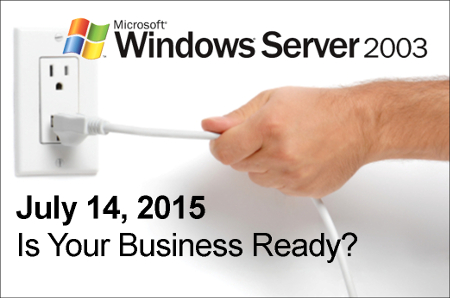
b2ap3_thumbnail_windows_logo_400.jpgThe next major operating system to get the ax from Microsoft is Windows Server 2003. Slated to have its mainstream support ended on July 14th, businesses that currently use the software need to begin making plans to upgrade their system as soon as possible. With this server operating system no longer being supported by Microsoft, your data will be vulnerable to the latest online threats.

end of support windows server 2003It’s best practice to upgrade your server’s OS (and all of your software for that matter) every time a new version is released–not every twelve years. One reason to upgrade is that the latest software is built to handle the demands of modern businesses, which gives you a competitive edge over companies running older software. Security is another big part of why you should upgrade, and in the case of Windows Server 2003, the need to upgrade by July 14th is urgent because Microsoft ending mainstream support means that they will no longer be providing security updates and patches to protect you from the latest threats.

If you want to dig in your heels and hang on to your precious Windows Server 2003, you have the option to purchase custom support from Microsoft. However, this isn’t a tangible option for the small business. According to Processor magazine, Microsoft is charging upwards of $200,000 for this service. Your business is better off just upgrading to the latest OS for your server, especially if you’re working in a field like health care that requires your technology to be up-to-date in order to comply with strict security standards.

Upgrading from Windows Server 2003 isn’t difficult, but it does require you to take an accurate assessment of your applications to find out if they can transfer to your new system. For example, you may run into some issues when attempting to move older applications that run off a 32-bit operating system to a newer OS. Issues like this can be worked around, but it requires the skills of a knowledgeable professional, which is time and expense that must be factored into the upgrading cost. When upgrading your server to a new OS, it’s best to go about it with a well-thought-out plan so that your upgrading process won’t run into any surprises that will take your server offline any longer than it needs to be.

NuTech Services can work with your business to make the upgrading process as quick, easy, and affordable as possible. We can come up with a time-saving plan that accounts for any discrepancies that might hinder the upgrading process of an older system, and we can migrate your data to a temporary server that your business can operate from while we equip your server with the latest OS. This way, the productivity of your business won’t skip a beat.

It may be that upgrading the software on an older server unit isn’t the most efficient option for your business. A lot has changed in twelve years, and your old server units have likely experienced some wear and tear and require more maintenance. Technologies like server virtualization and cloud computing may be a better data-hosting option for your business than trying to update your old system.

Whatever the best route is for your business, NuTech Services will guide you in it so that your organization isn’t stuck using older software that leaves your data vulnerable and your business inept. Call us today at 810.230.9455 to learn more.