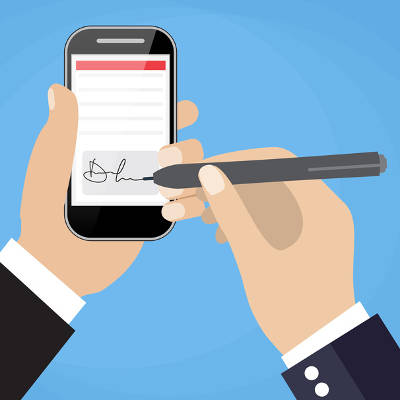
Think for a minute the power a signature has. Signatures have started and ended wars, they have committed whole nations of people to rule of law, and they are attached to birth and death. For the individual, the signature is one of the most powerful possessions. You can use it to acquire money, property, and transportation. You use it to enter agreements and to end agreements. With so much importance squarely focused on the signature, it seems curious how people today are now signing documents digitally; but, with the security behind this solution, people won’t have to be on hand to sign with theirs.
Nowadays, businesses often choose to utilize electronic documents to reduce printing costs, and to provide remote workers the ability to sign mandatory documents without the need for postage or travel. Besides, more businesses are attempting to go paperless and do away with their bulky filing cabinets, ensuring that finding documents is an easier task.
Up until recently, if something was to be signed “electronically” it would still have to be printed out, signed, and returned to the organization that needed the signature, either by mail, or by scanning the document after a signature was completed. Now things have progressed to the point where many PDF editing software titles provide a perfect solution to this problem through their digital signature features.
Understanding the Digital Signature
Since official documents aren’t worth much without a signature, it was important for people to develop a way to sign documents remotely, since people can’t always be in the same place all the time. The old print, sign, and scan method may as well be called the print, sign, and scam method. It would be simple for people to forge the signature onto an important document, setting in motion a series of unfortunate events.
PDF software mitigates this risk since a digital signature is more than a graphical representation of a signature. It is rooted in cryptography, the same technology that protects nearly every secure transaction that happens over the Internet. It works like this: the digital signature uses digital keys to confirm the attachment of your identity to the document that is being signed. In fact, these encrypted digital signatures are far more difficult to forge than a typical paper document as long as the keys that were used to create the field are kept secure.
Just as a physical signature, inside a digital signature solution, you will see the graphical representation of your signature, a common name of your choosing, the location where you signed the document from, and of course, a time stamp displaying the date and time you applied the signature to the file.
Not all PDF software solutions provide the full variety of features needed to create digital signatures. Without one, however, your organization will be less flexible, and as a result, move slower than it would with a dedicated electronic signature solution. By pairing the features the modern PDF program has with an electronic signature, it will cut down on postage and printing costs and help your business move faster.
For more information about digital signatures, contact our IT professionals at 810.230.9455 today.