netflix_password_sharing_no_no_400.jpg

Warning: It’s Now a Crime to Share Your Netflix Password

netflix_password_sharing_no_no_400.jpg

“What’re you in for?” a prison inmate asks. “I shared my Netflix password with my sister,” you say. This conversation might be absurd, but according to a recent ruling in accordance with the Computer Fraud and Abuse Act, it’s one that could actually happen. Now, sharing your Netflix password to let someone catch up on their favorite TV show can be considered a federal offense.

In a two-to-one ruling, three judges from the Ninth Circuit of the United States Court of Appeals declared that password sharing is a federal crime. The case in question included a former employee of Korn Ferry, David Nosal, who was headhunting his former colleagues with the intention of obtaining valid user credentials to steal data from Korn Ferry.

As expected, this landed Nosal in court, and he was charged with hacking in violation of the Computer Fraud and Abuse Act (CFAA). The CFAA has an extraordinarily wide reach, and allows the Justice Department to go after anyone who does something as meager as violating the Terms of Service agreement issued to the user of any end product (like, say, an online streaming service).

Though Nosal managed to get off the hook for his 2011 charges, he was convicted of his 2013 charges due to a ruling by a federal jury. His sentence was set for one year and one day, and earned him a felony. Yet, the one dissenting judge feels that this kind of sentence is harsh; Judge Stephen Reinhardt, who sees the larger implications of such a ruling:

“This case is about password sharing. People frequently share their passwords, notwithstanding the fact that websites and employers have policies prohibiting it. In my view, the Computer Fraud and Abuse Act (“CFAA”) does not make the millions of people who engage in this ubiquitous, useful, and generally harmless conduct into unwitting federal criminals.”

What this precedent sets is that even “generally harmless conduct,” like sharing your passwords for subscription-based streaming services like Netflix or HBO Go, can be penalized under law. Netflix only allows its service to be used in one “household,” on six different devices, with streaming capabilities on two devices at a time. The new ruling gives Netflix a reason to crack down on those who are sharing passwords without first asking them for permission to do so.

This particular interpretation of the CFAA makes it more important than ever to keep your passwords safe and secure from anyone besides yourself. After all, the more people who have access to a password, the more likely it is that the password will fall into the hands of hackers. Therefore, you should practice proper password security and keep sensitive information away from everyone who has no business accessing it.

For more trending tech news, tips, and tricks, be sure to subscribe to our blog.

password_security_400.jpg

Mark Zuckerberg’s Recent Password Blunder is an All-Too-Common Problem

password_security_400.jpg

In a recent hack attack, Twitter had 33 million user login credentials stolen. This is unfortunate, but not surprising; an incident like this routinely makes the headlines. Although, what is surprising is what this hack reveals about people’s poor password security habits.

An analysis of the millions of stolen credentials by security company LeakedSource shows a troubling practice; the most-used passwords are also super easy to guess. In fact, the number one password (connected to more than 120,000 accounts) is “12345.”

Fans of the 1987 Mel Brooks film Spaceballs can see the irony here. In one of the movie’s most quoted scenes, the evil-yet-lovable Dark Helmet is blackmailing King Roland to turn over the password protecting Druidia’s precious atmosphere. Eventually, King Roland caves and reveals the super-secret, super-important password to be, you guessed it, “12345.”

To which Dark Helmet replies, “That’s the stupidest combination I’ve ever heard in my life! That’s the kind of thing an idiot would have on his luggage!”

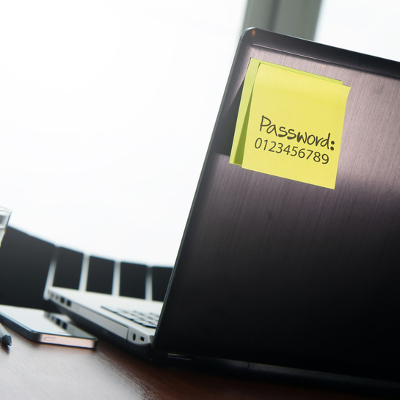
The report from LeakedSource goes on to reveal that the other, most-used passwords are also ridiculously easy to guess; “123456789,” “qwerty,” and “password.”

The fact that Spaceballs came out almost 30 years ago is evidence that using overly simple passwords has been a problem for quite a while, and, as long as there will be passwords, this will continue to be a major issue. Fortunately, the solution is stupidly simple; make sure to use complex passwords with random characters.

Although, using complex passwords is only part of the security equation. For websites and services offering two-factor authentication, like Twitter, you’ll want to take advantage of it. This way, even if a hacker made off with your super-complex password, they’ll still need access to your email account or smartphone in order to log in.

One additional password blunder that’s all too common and easy to avoid is using the same password for multiple accounts. In a major hacking situation like Twitter experienced, even a novice hacker could connect the dots and use the stolen password to try and log into different accounts belonging to the victim.

What kind of a King Roland-like idiot would use the same, super-simple password across multiple online accounts? Well, Facebook’s CEO Mark Zuckerberg for one.

On June 6th, Mark Zuckerberg lost control of his Twitter and Pinterest accounts after a hacker used the same password to access both of them. The super-complex password that stood between a hacker and the King of Social Media, “dadada.” Admittedly, this is a step up from “12345,” but not by much.

To make matters worse, Zuckerberg had used this password before. This highlights yet another best practice when it comes to password security; be sure to routinely change your password, and when you change it, make sure to not use a password that you’ve used before.

Being smart about your passwords will go a long way in protecting your online identity. For your business, it’s wise to take as many security precautions as possible in order to protect your network from hackers looking to steal your company’s sensitive information. To learn more about how NuTech Services can keep you safe, call us at 810.230.9455.

congress_to_hear_arguments_for_ecpa_reform_400.jpg

A Law From 1986 Shouldn’t Govern Email Privacy in 2016

congress_to_hear_arguments_for_ecpa_reform_400.jpg

Are you familiar with the protections in place that ensure that your digital communications remain private? What’s keeping an entity like the government from going through your emails? In the United States, the government uses a loophole in an outdated law to access the digital information they want from its citizens. If you’re concerned about privacy, you need to be informed about such laws and loopholes.

For the US government, this loophole is found in the Electronic Communications Privacy Act (ECPA). Key to this discussion is the fact that the law was originally passed in 1986. We don’t have to tell you how different the technological landscape was in 1986, much less digital communications like email. The loophole to ECPA is that it considers any stored electronic communications over 180 days old to be “abandoned,” and thus, law enforcement agencies can access it after the 180-day mark without a warrant. Obviously, the original version of ECPA was passed without having any idea how dependent the world would become on sharing and storing digital communications 30 years into the future.

Recently, legislative action has taken place to try and close this loophole. CompTIA reports:

On April 13th, the House Judiciary Committee unanimously passed an amended version of the Email Privacy Act (H.R. 699)… The Email Privacy Act would put an end to this outdated 180 day rule and require a warrant for law enforcement to access the content of all stored communications. While the current iteration of the bill is not perfect, we were happy to see that it does not contain a carve out to the warrant requirement for civil agencies, nor does it alter ECPA’s emergency exception procedures.

The idea here is to protect users of email and cloud services, along with the service providers themselves. As society continues to become more dependant upon digital communications, having discussions like this and knowing who has access to your data is increasingly important.

Were you aware of this loophole before reading this article? Do you feel this is cause for concern, or do you not care if the government reads your emails? Share your opinion with us in the comments.

b2ap3_thumbnail_dvr_iot_issues_400.jpg

The Super-Creepy Reason Why You’ll Want to Secure Your Surveillance Camera

b2ap3_thumbnail_dvr_iot_issues_400.jpgWith approximately 5.5 million new devices being connected to the Internet everyday, the Internet of Things presents the biggest security challenge to date for IT professionals. Essentially, an IoT device that’s not secured can easily fall prey to hackers, and with so many different devices being connected, it’s easy to overlook a device or two, like your security cameras.

The creepy risk associated with not securing an Internet-connected security camera was recently reported on by Lisa Vaas of Naked Security. In her article, “DVR snaps stills from CCTV surveillance and sends them to China,” she presents findings from researchers at UK-based Pen Test Partners about the security holes found in the Internet of Things.

For the study, Pen Test Partners researchers analyzed data from Shodan, which is essentially a search engine for Internet-connected devices, like buildings, smart appliances, webcams, and much more. In particular, the researchers used Shodan to look at Internet-connected surveillance cameras.

Before we go into the technicalities of what they found, let’s take a step back and warn everybody who uses a webcam or Internet-connected surveillance camera that even a novice PC user can create a free account with Shodan and use it to search for, access, view, and even control unsecured cameras. We were skeptical of this claim when we first heard about it, but the proof is in the pudding. Check out these stills from random surveillance cameras we came across on Shodan:

ib spy1

ib spy2

ib spy3

ib spy4

These cameras are just random ones that we stumbled upon. However, Shodan has been criticized for giving its users easy access to cameras that are sensitive in nature. Vocativ cites findings by Ars Technica:

These webcams show feeds from sensitive locations like schools, banks, marijuana plantations, labs and babies’ rooms. Shodan members who pay the $49 monthly fee can search the full feed at images.shodan.io. A Vocativ search of some of the most recently added images shows offices, school, porches and the interior of people’s homes. Accompanying each of these grabs is a pinned map that shows the location of the device capturing that footage.

If that doesn’t creep you out, then lets go back and take a look at the even-more-in-depth findings of the first study we mentioned by Pen Test Partners. Vass reports:

The device also has no Cross-Site Request Forgery (CSRF) protection, so attackers can trick users into clicking on links to carry out malicious actions; it has no lock-out, so attackers can guess as many passwords as they like; it sends communications without HTTPS that can be intercepted and tampered with; and there’s no firmware updates, so “you’re stuck with these issues,” Pen Test Partners said. But weirdest of all, the thing is capturing still images from video feeds and emailing them to an address that appears to be hosted in China.

As far as why surveillance images were being sent to China, that’s a mystery that Pen Test Partners was unable to get to the bottom of. We could speculate as to what’s going on here, but at the risk of letting our imaginations run wild and sounding like conspiracy nuts, we won’t. Instead of making wild speculations, we want to communicate that we’re here to help your company secure all of its Internet-connected devices from the prying eyes of everyone on the web.

Are you confident that all of your IOT devices are secure enough to keep hackers out of your network? Do you even know if you have IoT devices on your network transmitting data across the web? Or at the very least, are you sure that random Shodan users aren’t making a highlight reel from your surveillance camera footage? To get a grip on the security of every Internet-connected device on your company’s network, give NuTech Services a call at 810.230.9455.

b2ap3_thumbnail_windows_10_pin_400.jpg

Tip of the Week: How to Add a PIN to Your Windows 10 Login

b2ap3_thumbnail_windows_10_pin_400.jpgThe fact that so many businesses are rushing to take advantage of two-factor authentication displays how the password has lost its edge as a security credential. Passwords simply aren’t good enough anymore, and hackers are always finding ways to crack even the most complex passwords. This is why many businesses are looking to improve security through alternative means.

Windows 10 has a built-in PIN system that helps to keep your workstation secure from would-be hackers that want to take advantage of a simple password. Here’s how to set up your PIN, as well as how to change it or reset it if need be.

Why Bother with a PIN?
Using a PIN offers several benefits over traditional password security. For example, Windows 10 uses your Microsoft account password to access your PC. If this password were to be obtained by a hacker, they could access your other Microsoft accounts. If you’re using a PIN to access your PC, the PIN is specific to the device. This makes it less risky to use a PIN than a password.

Adding the PIN
First, click on the search bar at the bottom of the screen and type Settings. Select Sign-in options in the left column, and scroll down to the PIN section in the right column. Next, select Add. You’ll be prompted to verify your password, so just enter your current credential into the form and click OK.

Once you’ve finished that, you’ll be taken to the Setup a PIN page. Now, all you have to do type out your PIN in the provided forms. While the only criteria for creating a PIN is that it needs to be at least four characters long, and no more than nine characters long, a simple PIN is easy to guess and could be almost as bad as not having a PIN at all. Be sure to keep these tips in mind when selecting your new PIN:

  • The longer the PIN, the better the security: You’ve heard all about how using a complex password is a best practice, and the same can be said for your PIN. Make it as long as possible– this makes it more difficult for hackers to guess.
  • Refrain from using PINs from other accounts: Everyone has credit cards that they use a PIN for, but these numbers shouldn’t be used for every single account you have. You should have individual PINs for each of your different accounts. Otherwise, one compromisation could lead to multiple breaches.
  • Use as many different numbers as possible: In much the same way that a password should contain variable letters, you want to stay away from short PINs with largely the same number.

Changing or Resetting Your PIN
To change your PIN, you’ll need to go back to Settings > Accounts > Sign-in options. Tap Change underneath PIN, and you’ll be taken to the Change your PIN screen.

If you simply need to reset your PIN, you can do this easily enough. Just click I forgot my PIN next to the Change button, and you can reset your PIN. Keep in mind that you’ll need your current account password to do so.

For more great tips, be sure to subscribe to NuTech Services’s blog.

b2ap3_thumbnail_guest_account_400.jpg

Tip of the Week: How to Let a Friend Use Your PC Without Compromising Your Data

b2ap3_thumbnail_guest_account_400.jpgWe’ve all been in a situation where you’re asked by someone if they can use your personal computer for whatever reason; checking their social media, email, or just browsing the Internet. Some people, however, also want to protect their privacy, and allowing relatives to use your own account can become problematic. A quality solution to this issue is to create a guest account.

Keep in mind, you shouldn’t do this with your company workstation, and if you administrate your own network, you should restrict your staff from creating new accounts to prevent security issues.

Why would you want to set up a guest account? Here are three reasons:

  • Guest accounts allow others to use your PC while preventing them from browsing password-protected files, like those stored on your own personal user account.
  • Using guest accounts, users won’t accidentally stumble upon your logged-in accounts and email, which could give even those with the best intentions the urge to take a peek.
  • Guest accounts don’t have access to the administrator privileges that you would as the owner of the PC. Guest users can’t install software, configure hardware devices, or change settings. They can still use the Internet and other applications that are already installed, giving them the best experience possible without risking any breach of privacy.

Without further ado, here’s how you can set up a guest account on Windows 7, Windows 8.1, and Windows 10.

Windows 7
Setting up a guest account in Windows 7 is simple enough. First, navigate to your Control Panel. Next, select User Accounts. Go to Add or remove user accounts. You’ll then be prompted to alter an existing account. If the Guest account isn’t already turned on, it will appear in your available accounts. Click it, and select Turn On.

Once the guest account has been turned on, you’ll be able to access it from your PC’s login screen. Anyone can now access the PC, and they won’t be able to access any of your personal files or information. You should keep in mind that any browsing history or logged-in websites will be available to future guests, as well, so be sure to tell your guests to log out of their accounts before logging off.

Windows 8/8.1
The process is largely the same as it is for Windows 7, if not a bit easier. While you could find the guest account feature in the same way as you did with Windows 7, try typing “guest account” into the search bar instead. Make sure you’re only searching Settings. You should see an option titled Turn guest account on or off in the results. Click on the Guest account, and select Turn On. It’s as simple as that.

Windows 10
For Windows 10, it gets a little trickier. Rather than accessing your guest user options through the Control Panel, you have a couple of options, though the easiest way to do so is to just do it through the Windows Command Prompt. Type CMD in the search bar to find the Command Prompt, and make sure that you right click it and select Run as administrator. You’ll then see the command prompt open on your screen. Type the following command, and hit Enter: net user guest /active:yes

After that, a message should display saying that “The command completed successfully.” That’s all there is to it. Keep in mind that you should always turn the Guest account on as needed rather than leaving it on continuously. Since the Guest account still has access to the network, you could become susceptible to passive threats.

For more great tech tips, be sure to check back next week, and subscribe to NuTech Services’s blog.

b2ap3_thumbnail_security_for_your_passwords_400.jpg

Tip of the Week: Make Your Password Rhyme Every Time

b2ap3_thumbnail_security_for_your_passwords_400.jpgPassword security is quite the conundrum. We want our passwords to be easy to remember, but the problem is that passwords that are easy to remember are often simple and insecure. Therefore, it becomes a best practice to use complicated passwords with both upper and lower-case letters, numbers, and symbols to compensate. The “passpoem” might resolve this issue in the most obvious way.

The method in question suggests that passwords chosen by your average PC user aren’t nearly as secure as they should be, but are very easy to remember. As explained in an essay from the university of Southern California, written by Marjan Ghazvininejad and Kevin Knight, it’s best to use randomly generated 60-bit strings (basically, a series of 60 ones and zeros), and convert these strings into words or phrases.

Confused? Let us explain a little more in detail. This method is derived from a XKCD comic (which you can find here) that describes the difficulty of remembering passwords. Basically, what it entails is taking a string of numbers, like 10101101010100101101010101010101010110101101, and converting segments of this code into words to create an English phrase. The above string would wind up reading “correct horse battery staple,” which is complete and utter nonsense, but very easy to remember by associating it with a mental image or a story.

Rather than use a 44-bit string like the above example, Ghazvininejad and Knight suggest using a 60-bit string to increase security, and to create a poem-like string of words that makes sense and is easy to remember. Going too in-depth into this method would take a considerable amount of time to explain, but the basic idea is to create something that’s easy to remember while making it borderline impossible for a computer to guess. By today’s standards, the 44-bit string would take around an hour to crack, while a 60-bit string would take well over a decade. How’s that for secure?

While using segments from existing poems is a possibility, Knight and Ghazvininejad don’t suggest doing so. Considering how there are millions of poems online, the chances of getting hacked are much higher than if the string of characters were truly random. However, while using a line from your favorite poem isn’t as secure as a string of 60 characters, it’s certainly more secure than using a simple password like “MOM385” or “password.” On one hand, you’re using real words that can be used in a dictionary attack; but on the other, you’re using a long password (which is a best practice). So, it’s really up to you to decide how you want to approach password security.

Of course, you’ll need multiple passwords for all of your different accounts. This in itself can make memorizing passwords a huge pain. Therefore, the best way that you can remember all of your passwords and effectively use them to maximize your account security, is by taking advantage of a password manager. NuTech Services can help your business get set up with the best password manager on the market. To learn more, give us a call at 810.230.9455.

b2ap3_thumbnail_do_you_share_too_much_400.jpg

Tip of the Week: How to Protect Yourself, Your Staff, and Your Kids From Sharing Too Much Online

b2ap3_thumbnail_do_you_share_too_much_400.jpgAttention people of the Internet, October is Cyber Security Month! Make sure that you share this information with everyone on the Internet that you know. In a situation like this, sharing content with everyone to raise awareness of a worthy cause is perfectly fine. Although, what’s not alright is the sharing of your personal information online.

Out of all the different aspects of cyber security that we can hit on, talking about the problem of oversharing is one of the most important because it affects everybody–you, your family, and your employees. The worst place for this problem is on social media, but it extends to anywhere on the Internet where content can be shared and posted. You may know that oversharing personal information can lead to identity theft, but you may not have known that oversharing can also attract cyber bullies and the eyes of your competitors.

Being mindful of what information you share online is the best way to prevent the dangers of oversharing, and the best way to do this is through education. Here are some proven ways that you and others can be intentional about not oversharing:

Your Employees
The alluring thing about social media is that it makes you want to share whatever it is you’re feeling at that very moment. For example, the first thing you see when opening Facebook is the question, “What’s on your mind?” What tends to happen is that, for many workers, their ill feelings about their job are exactly what’s on their mind–and these thoughts find their way to social media. This is a classic example where oversharing can have some dire consequences as far as one’s career goes.

Additionally, an employee who’s used to sharing all the details of their life online may accidentally share company secrets that they’re privy to. What’s worse, their social network may include someone associated with a competitor. This is why you shouldn’t brag about a big sale online until the check has cleared.

Your Teenagers
For teenagers and Millennials, sharing their personal information on social media is second nature. In fact, they’re probably doing it using apps and in ways that you as a parent may not fully understand (there’s much more to social media than Facebook and Twitter). Young people will want to be mindful of revealing too much information to predators, as well as leaving behind a digital footprint that they’ll regret later.

Unfortunately, the Internet is full of people who would like to do harm to your child. This can come in the form of a classmate who acts as the school’s cyberbully, or even predators who are looking to abduct your kid. Young people especially need to be careful online, and this starts with only befriending and sharing information with people online who they know and trust. Also, another way to prevent your kids from oversharing to the wrong people is to monitor their online activity and educate them on what red flags to watch out for.

Additionally, every career-minded young person needs to be mindful of their “digital footprint.” Today, when a potential employer or educational institution investigates a person’s application, they do more than make phone calls to the listed references, they will also perform and Internet search on the applicant’s name and scan their social media profiles. Therefore, you will want to teach your kids to view their online activities from an employer’s perspective.

Here are five tips from Net Nanny on how you can help monitor your kid’s digital footprint:

  1. Check their digital trail by searching for them on Google. View the results from a college or employer’s perspective and make sure it coincides with the application.
  2. Limit profile visibility to friends only.
  3. Make sure profile photo is appropriate.
  4. Remove any past Facebook posts from public view.
  5. Take control of tagging (i.e. don’t allow friends to tag your teen because it is uncontrollable).

Yourself
One of the biggest risks from oversharing comes from having your identity stolen. Obviously, you’re not dumb enough to post your credit card number online for all to see, but you may be surprised to learn that posting seemingly-innocent information about yourself can actually lead to identity theft. Information like:

  • Your mother’s maiden name.
  • Your high school.
  • Where you got married and where you met your spouse.
  • Your favorite hobbies and sports teams.
  • The names of your pets and children.
  • Your home address (including pictures of your home).

Now, you may be thinking, “What’s wrong with posting fun facts like this?” Well, if you’ve ever forgotten your password for an online account, you may recall that you will be asked intimate questions of yourself like these in order to confirm your identity so you can be sent a new password. A hacker that knows both your account’s username and the answers to these questions will be able to access your account. Don’t be fooled by social media “fun quizzes” that ask these questions under the guise of “How well do you know your friend?”

Following these tips, you will decrease the dangers of oversharing. For more tips on what information you shouldn’t share online, check out https://www.staysafeonline.org, and be sure to subscribe to NuTech Services’s blog.

b2ap3_thumbnail_facebook_security_400.jpg

Tip of the Week: 3 Facebook Security Tips to Protect You and Your Friends

b2ap3_thumbnail_facebook_security_400.jpgWith social media playing such an important role in everyone’s day-to-day lives, one has to wonder to what degree this affects the security of online accounts and profiles. Social media might have revolutionized the way we communicate with others, but it’s also revolutionized the way that hackers stalk their victims. How vulnerable are you and the people you love when it comes to your Facebook settings?

Imagine this worst-case scenario. Hackers can impersonate your friends or the people you trust easily enough. If your profiles are set to public, nothing is stopping them from browsing your personal information (phone number, email, address), posts on your wall, pictures, videos, and more. This is all information that helps hackers determine how and when they will target you, or worse, the people you know.

The unique issue with social media attacks is that hackers can take advantage of both digital and physical variables in their favor, making it extra important that you take the proper precautions with your approach to social media. To avoid these unnerving possibilities, try these three tips to lock down your Facebook account.

Use the Privacy Checkup Shortcut
Upon clicking the padlock icon in the top-right corner of Facebook (near your notifications), you’ll notice that there’s a new feature called privacy shortcuts. These allow you to quickly and efficiently access some of Facebook’s best privacy and security features. By clicking on the Privacy Checkup button, a friendly bipedal blue dinosaur will guide you through a short process. You can set your default post status (public, private, etc), the apps that have access to your account, and certain parts of your profile information. You can then choose to view your profile as either one of your friends, or a stranger, to see if the changes you made were to your specifications.

The privacy shortcuts also provide you with opportunities to access other settings, like who can contact you via inbox or friend request, and how you can get someone to leave you alone. At the bottom of the drop-down, you can access even more privacy settings.

Enable Login Notifications
You probably know someone who has had their Facebook account hacked. This happens because people are unaware that their accounts have been compromised. Facebook has a measure dedicated to informing you of when someone logs into your account, and from where. You can receive these notifications either through your Facebook notification bar, email, or text messaging.

Facebook also allows you to see where your account is currently logged in, as well as the last location the device connected from. This includes device, operating system, and physical location, effectively allowing you to eliminate suspicious activity before too much damage is done. Click End Activity, which will give them the boot and give you some time to change your password.

Take Advantage of Two-Factor Authentication
Facebook has two-factor authentication, too, which uses a PIN sent to your smartphone to act as an additional login credential. You can also access the Code Generator application on your mobile phone, which gives you a security code that lets you access your account. This helps keep your account open to you, and only you.

Security is more important than ever, especially when we’re all connected through the Internet. It’s important to always keep the security of both yourself, your friends, and family in mind, by spreading best practices related to security protocol. Share this article on Facebook to get the word out.

b2ap3_thumbnail_lost_devices_can_be_a_major_problem_400.jpg

Tip of the Week: My Company Device Has Been Lost or Stolen, Now What?

b2ap3_thumbnail_lost_devices_can_be_a_major_problem_400.jpgMobile devices are one of the hottest items for thieves to target. According to reports from Consumer Reports and LoJack, 2013 saw the theft of two million laptops and three million handsets. What this means for you is that having your mobile device stolen is probably a lot more likely than you would think.

The loss of a mobile device means much more than just losing a piece of pricy technology (which can be replaced). It also means the loss of the data stored on the device, and easy access to all the accounts associated with the device if the thief doubles as a hacker (which could lead to identity theft). Not having access to one’s data is why, in a recent survey by IDG Research, 50 percent of phone-theft victims said they would pay a ransom of $500 just to get their phone back, while another one-third would pay $1,000.

Obviously, having your mobile device lost or stolen is a big deal, especially if the device contains corporate data. If you happen to find yourself in this predicament, what are you going to do next? Let’s assume for a moment that you didn’t have the foresight to install any of the great security apps on your device, allowing you to track down the phone’s location or remotely shut it down. Without the assistance of any preventive security solutions, a thief will only have a lockscreen standing between them and your data.

Here are four steps that will let you control the damage caused by a lost or stolen mobile device.

Contact Your Mobile Service Provider
Contacting your phone’s service provider about the theft is a good move because, depending on the make and model of your phone and the details of your service contract, your service provider may be able to remotely access your smartphone and “brick it” (render it useless). At the very least, notifying your service provider will prevent the thief from making calls using your account. Also, it’s important that you quickly contact your mobile service provider about the missing device. Otherwise, the thief will be able to bypass this “bricking” feature by removing the SIM card and still have access to the data stored on your device.

Change All of Your Passwords
If the thief happens to gain access to your smartphone or laptop, they’ll easily be able to open all accounts associated with the device. We don’t have to tell you how devastating this can be, especially if your bank account or corporate network were to be accessed. One of the best ways to keep a thief like this out of your accounts is to login to all of them and change the passwords. You’ll want to do this sooner than later so that the thief doesn’t have enough time to figure out your passwords.

Report the Theft to the Authorities
While it’s unlikely that reporting the theft of your mobile device will lead to a full-scale investigation, it will give them information they can use to spot patterns, which might be enough to eventually get your device back. You never know.

Notify Everybody Affected
The toughest part comes next: notifying everyone that the device is gone. It can be embarrassing to contact everybody about your negligence, but you may be actually legally obligated to do it. The reason why it’s so important to do this is because the data connected to the lost device could lead to stolen identities. As humbling as it will be to write that email to your clients, they will appreciate the fact that you’re taking proactive measures to protect their sensitive information. To help smooth things over, paying for a year’s worth of identity theft insurance will go a long way.

By taking these four steps, you should have a good grasp on damage control. Moving forward, the best way to protect yourself and your business from this all-too-common event of mobile device theft is to reach out to NuTech Services at 810.230.9455. Call us to learn more about proactive mobile security solutions designed to give you a fighting chance.

b2ap3_thumbnail_incognito_mode_400.jpg

3 Easy Ways to Go Incognito In Google Chrome

b2ap3_thumbnail_incognito_mode_400.jpgThe Internet can be a dangerous place. Sometimes you want to keep your identity a secret on the web. Now, your reasons for doing so aren’t any of our business, but you should know that there are several ways to access this secretive function in Google Chrome. Here are three ways you can take advantage of Google Chrome’s Incognito mode to browse the web in an anonymous fashion.

Why Incognito Mode?
Incognito mode has several advantages over your typical Google Chrome browsing session. For one, you can allow someone to use their Google account on your device without signing out of your current session. On the other hand, sometimes you might not want your browsing history to stick around. While this is often associated with viewing questionable content online, it’s also convenient when planning for a surprise party or purchasing a gift so that the recipient isn’t aware of the situation.

Keep in mind that, while you’re browsing the web in a more anonymous fashion than you would be normally, your activity can still be seen by your Internet service provider (ISP).

The Classic Way to Incognito Mode
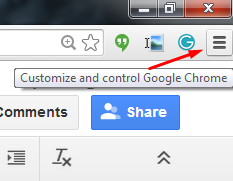
Activating Incognito mode is super easy, but it requires a couple of steps. First, click on the hamburger menu in the corner of Chrome, titled Customize and control Google Chrome.

incognito ib 1

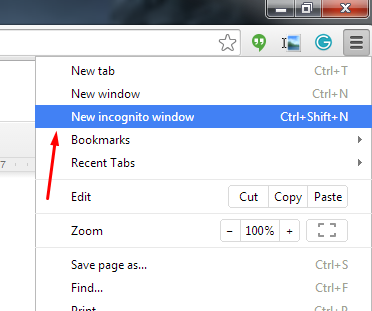
Next, click on New incognito window. Your new window should pop right up.

incognito ib 2

Open a New Incognito Window Through Right-Clicking
Let’s say you find an article on the web that you really want to view, but you’re not sure who could be watching your activity. In order to avoid showing them what you’re viewing, you can right-click a link and select Open in incognito window. Another situation where this might be useful is when you’re shopping for something particular that you don’t want another user to see in the search history. Simply right-click the item you’re considering to privately browse it.

A Simple Two-Click Solution
If neither of these solutions are simple enough, the easiest way to access Incognito mode is by taking advantage of the top of your Chrome window, and selecting the account button to the left of the minimize button. This gives you the option to either switch users or go incognito, providing more than one solution to the issue in one handy location.

Or, better yet: here’s a keyboard shortcut that opens up incognito mode. Just use Ctrl+Shift+N to open a new incognito window.

For more tips and tricks about how to be more productive in the workplace, call NuTech Services at 810.230.9455.

b2ap3_thumbnail_windows_10_privacy_400.jpg

Tip of the Week: Adjust Windows 10’s Privacy Settings to Keep Your Information Secure

b2ap3_thumbnail_windows_10_privacy_400.jpgIt would be prudent to begin by saying that Windows 10 is far and away the most refined version of Windows ever created. In a lot of ways, it’s like using a souped-up version of Windows 7, with a sprinkling of Windows 8/8.1 metro on top. Beneath the surface, however, is a vast information-collecting infrastructure that has many users left worried about their privacy. There are even conspiracy theories suggesting that Windows 10 is a vessel used by the NSA in order to collect all the information on every user.

Anyone that is familiar with the fallout of Edward Snowden’s whistleblowing campaign knows that government agencies don’t need Microsoft’s software engineers to syphon as much information as they want, but that doesn’t mean there aren’t some potential privacy issues with the new OS. In fact, it could be said that the default settings of Windows 10 violate user privacy. Here are some of the ways they do so.

Advertising ID
The first privacy issue users are having with Windows 10 is that each user is automatically assigned an ID based on the email address they use to sign in. By capturing information using this ID, Windows 10 will tailor the advertisements that users see when surfing the web or uses certain applications.

Cortana
In order to get the most comprehensive user experience available, the Cortana application collects data; and not just essential data, but seemingly everything. In attempting to make the best personal assistant application on the market, Microsoft has made it a point to capture every piece of information they can. This presents privacy issues for some, but they’re likely no more intrusive than Cortana’s competitors: Apple’s Siri and Google’s Google Now.

Windows Modern Apps
Windows Modern or Universal Apps are also at the center of the perceived controversy. Each of these apps collects your location, which is no different than their Windows 8.1 versions. The situation that is presenting problems for users’ privacy is the advanced reporting these apps do to the central Microsoft servers. For example, when using the very useful OneNote app, the content of the notes are synced with the Microsoft servers.

Many users will not mind receiving better services in return for computing information, but many users are up in arms on Windows 10 policy of deliberately sharing all captured information with their “partners”; a series of third-party vendors that can use this information to improve their sales and marketing tactics. For the purposes of user privacy, however, there are actions that can be taken to limit the ability for Windows 10 to report user computing performance.

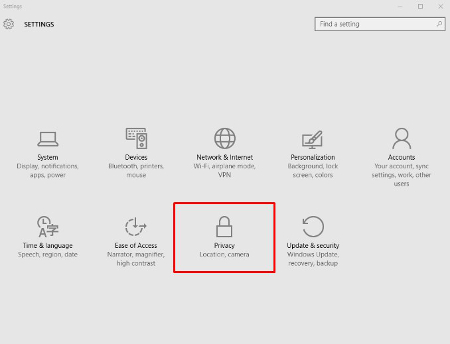
First, you need to access the privacy menu, which can be found in the start menu. Simply open the start menu, then click on Settings and select Privacy from the pop-up.

privacy ib 1
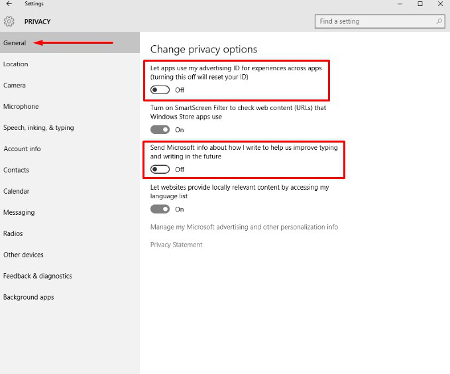
One thing that can be said for Windows 10 is that there are a lot of options. Each one of the privacy settings above represents the ability for Windows 10 to work for the user, albeit by the user sacrificing their privacy. The first suggestion we have, if you are one of the many users that feel as if Microsoft doesn’t need to know every movement you make on your home PC, is to disable the targeted advertising ID.

privacy ib 2From this screen users can also turn off SmartScreen Filter if you are worried about the Windows Store syphoning links to Store items. Many users will choose to leave this option on, but will want to turn the other two off. “Send Microsoft info about how I write..” is basically a keylogger, and its practical application is to provide information for Cortana and language settings that give regional information to Microsoft.

privacy ib 3
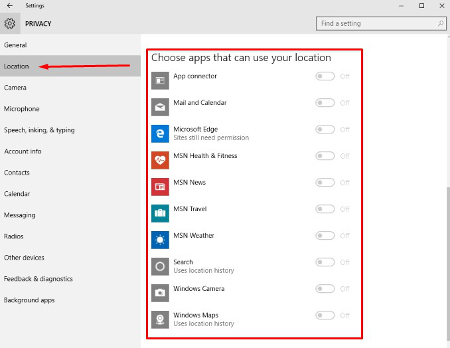
From there, clicking on Location will take you to a list of applications that use your location. Services like weather, traffic, news, and Cortana utilize your current location to provide you the best representation of relevant information for your situation. If you are using a desktop computer, there is little value one way or the other, but on mobile, turning off applications that don’t need your location won’t hurt the perception of privacy.

It is best to leave your Camera and Microphone options toggled on if you want to use Skype or another video communications application.

privacy ib 4
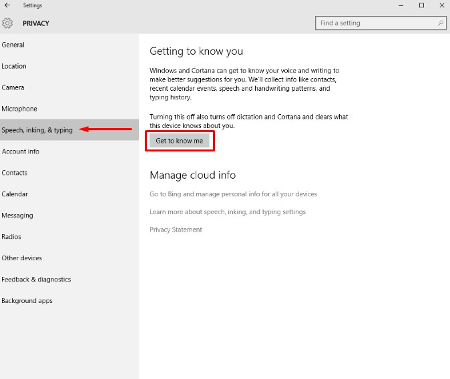
The next tab is the Speech, inking & typing tab. These options are used primarily with Cortana. If you choose not to utilize Cortana, you can consider telling Windows 10 to stop getting to know you. The problem with this is many Windows Store-based apps require your account info, making it impossible for you to turn off this option.

Privacy is a major consideration for most users on the Internet, especially in lieu of many companies’ strategy of selling off user information. These are only a couple of options that you can consider to keep your personal information personal. At NuTech Services we understand why privacy and security are important for users. Our certified technicians can present you with options and best practices that will allow you to remain private and secure while online. Call us today at 810.230.9455 for more information.

b2ap3_thumbnail_mouse_security_400.jpg

Your Computer Can Identify You Based On How You Move Your Mouse

b2ap3_thumbnail_mouse_security_400.jpgAny user of technology knows that it’s important to optimize security on all fronts of your business. The only problem with this is that passwords aren’t as secure as they used to be. Many businesses have moved in the direction of two-factor authentication, which requires a secondary credential in order to access an account. Did you know there’s a security method that uses your mouse’s behavior to authorize your login?

A startup called BioCatch has developed an authentication procedure that analyzes your mouse movements and behavior. Everyone has probably encountered two-factor authentication at some point or another, be it for a bank account login or email inbox access; but we doubt that you’ve ever given mouse two-factor authentication a shot.

According to BioCatch, the way that a PC user uses a mouse can identify who they are. ZDNet explains:

The entire way that we use the human-machine interface embedded within each and every modern computer, browser, or website, is like a unique fingerprint. Lefties will operate a mouse differently to right-handed people, for example, and each user ‘grabs’ an icon at a different point, angle, and so on.

Essentially, BioCatch’s idea looks at the way users move their mouse to build a “character profile,” so to speak. This helps identify whether the user is actually who they say they are. In fact, it’s been estimated that this method of authentication can prevent fraudulent logins up to 80 to 90 percent of the time.

In addition to monitoring your mouse movement, BioCatch’s solution considers other aspects, crammed into four layers of properties:

Layer One: Standard Authentication
Layer one consists of the device, network, IP address, hardware, and location – all traits that physically tie you to your PC. These are the typical authentication properties used when logging into an account. The following layers, however, take a much different approach to authentication.

Layer Two: Physical Profile
Layer two consists of mainly motion-related actions, such as moving objects around the screen, hand-eye coordination, and the mouse pointer (or finger on touch screen devices).

Layer Three: Cognitive Profile
Layer three consists of examining mental abilities, such as response time and connection time. It also looks for suspicious activity that is out of the norm. One example used by ZDnet is online banking – normally, a user would check their balance before doing anything. If a money transfer is their top priority, something might be up.

Layer Four: Invisible Challenges
BioCatch’s final layer of protection is meant to authenticate a user’s identity, but not in the traditional sense. BioCatch purposely puts problems in the way of the user in order to determine who they are. Everyone reacts to potential threats differently, and their response can be used to verify one’s identity.

Will mouse two-factor authentication catch on? We don’t know; but what NuTech Services does count on is the importance of two-factor authentication in general. Users need to have more than just a password protecting their accounts if they want to stay secure. This is especially important for any business-related material. With today’s sophisticated hacking tools and procedures, all it takes is one skilled hacker to crack a password.

To get started with two-factor authentication, give NuTech Services a call at 810.230.9455.

b2ap3_thumbnail_facial_recognition_400.jpg

Forget Passwords: Access Your Phone By Identifying Pics of Familiar Faces

b2ap3_thumbnail_facial_recognition_400.jpgWith all the hacking attacks we’ve seen in the news, it’s painfully obvious that using passwords just isn’t enough to protect our information. We now have more security measures available than ever before. One of the more unique and effective solutions to have surfaced is Facelock, a clever solution that grants access based on how well you can identify images of your friends and family.

What makes Facelock unique is that it taps directly into your personal memories. By displaying a series of images of people that only you know, in a randomly generated order and with faces scattered in different positions, access is not dependent on a code or a string of characters (which hackers have become skilled at bypassing). Instead, for a hacker to be successful, they will have to tap into your memories, a technology that only exists in science fiction.

You might be thinking, “Okay, what if the device is picked up by a close friend who knows all of the same people that I know?” First off, if they truly are a close friend, they wouldn’t be a jerk and hack into your phone. Second, it’s rare for 100 percent of a person’s friends to be the same. After all, even your spouse had a life before they met you, which included many people whom you’ve never been introduced to.

As secure as Facelock is, a hacker who’s familiar with your social circles does have a better chance at accessing your Facelock-enabled device. In a study of Facelock’s effectiveness, 6.6 percent of hackers who knew the victim were able to successfully bypass Faceflock. Hackers who didn’t know their victims had a less than one percent success rate. Overall, when the two groups were combined, the study showed that Facelock had a 97.5 percent success rate. Additionally, the study showed that would-be hackers who didn’t know the people in the images had a difficult time distinguishing multiple pictures of the same person if they didn’t have a prominent facial feature (like a big nose or a large forehead).

The advantage of Facelock is that you never again have to worry about forgetting your password. However, one disadvantage is that it might not work for your business technology because it will require your IT support team to be familiar with the user’s circle of friends. Plus, for someone who knows you very, very well, hacking into your device may be as easy as playing the classic board game “Guess Who,” minus the fun.

Does Facelock seem like the perfect solution to forgetting your password? Would you trust those who are familiar with your circle of family and friends enough to leave them alone with a Facelock-protected smartphone? Let us know in the comments.

b2ap3_thumbnail_entering_personal_data_online_400.jpg

What Really Happens when Websites Collect Your Personal Data

b2ap3_thumbnail_entering_personal_data_online_400.jpgYou might be aware that some websites collect personal data from you depending on your mobile device’s location, your browsing history, and several other factors. This information is generally used for marketing, but it could have unforeseen effects on the way you browse the Internet. It can be fairly revealing about your personality, or possibly even incriminating. Therefore, you should be aware of how this personal information is gathered from you without you even knowing it.

Here are a few things Forbes magazine suggests you might not know about the gathering of your personal data:

wundermanMarketers Are the New Mom & Pop Store Owners

Remember that man who worked at the old general wares store down the road from you several years ago? He would remember everything about you; your name, your face, your interests, favorite beer, etc. The truth is that he knew most of what you preferred because you visited often and he picked up on patterns in your behavior.

In 1967, Lester Wunderman, the “father of direct marketing,” was able to predict that technology could accomplish this same feat with exponentially larger numbers: “A computer can know and remember as much marketing detail about 200,000,000 customers as did the owner of a crossroads general store about his handful of customers.”

As such, marketers are able to analyze data that computers gather about you and create marketing lists, which includes all types of personal information: religion, political view, marital status, sexual orientation, and more.

Your ZIP Code is Worth a Lot
To a marketer, your ZIP code is an absolute gold mine. You might think nothing of it when you enter your ZIP code at the local grocery store, but you’re giving marketing institutions all of the information they need to find you at a later location for future marketing campaigns. According to a Harvard professor Latanya Sweeney, a company can identify you an alarmingly high 87 percent of the time with only a few of your credentials:

  • ZIP code
  • Date of birth
  • Gender

Even the folks you trust the most with your ZIP code, your local post office, can take advantage of this and sell your information to marketers. The United States Postal Service is continuously validating old addresses and informing marketers when their targets have moved on to another location. According to Forbes, the USPS makes roughly $8 million a year by selling this data.

Facebook: A Goldmine of Information
Everyone’s favorite social media site houses an incredible amount of information about them, and is arguably one of the best marketing tools available on the Internet. Other users can see what pages you have “Liked,” and can even suggest pages or friends to you. Due to this open-minded approach to social media, marketers are generally able to collect this data and use it to formulate the aforementioned lists. Even if you only host the minimal amount of personal data on your Facebook, there’s still a good chance that marketers can put you into a list judging from your liked pages and friends.

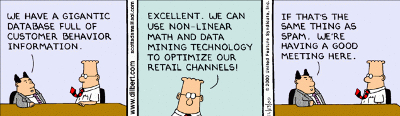
Whether we like it or not, companies and merchants are gathering our information and storing it for later use. Your business likely does something similar; collecting information about your own clients and storing it for later consumption.

dilbert spam

By law, these institutions are allowed to collect this information, but there are others out there who seek out private information, like Social Security numbers, to commit identity fraud or steal your money. This begs the question of whether or not your business’s security solutions are up to snuff and able to protect your stored information from hackers.

When you deal with lots of personal information, like Social Security numbers or credit card numbers, you want to use the best security measures available. NuTech Services can equip your business with a Unified Threat Management solution to keep your data safe from being compromised by hackers. This includes a firewall, spam blocking, and web filtering to keep the threats out, compounded by an antivirus to neutralize threats that get in. For more information about our UTM solution, give us a call at 810.230.9455.

b2ap3_thumbnail_nfc_payment_400.jpg

Biohacking: Integration of Smart Technology with the Human Body

b2ap3_thumbnail_nfc_payment_400.jpgWearable technology is still emerging, but a much different type of smart tech is coming soon. At the Kaspersky Labs Security Analyst Summit, the question of whether or not embedding technology in the human body is a viable concept was discussed in detail. This is supposedly the future of smart technology.

Hannes Sjoblad, a member of a Swedish group called BioNyfiken (warning: unless you speak Swedish, you might have trouble on this website), has implanted NFC (Near Field Communication) chips into his own hands in an attempt to back what he calls “biohacking.” This is the process of embedding technology into the human body to perform certain functions. This technology is still in development, but if it’s successful, we can expect to see “cyborg-like” results.

Sound too weird to be true? It’s a squeamish trend that’s happening all around the world. For proof, here’s a real video of YouTuber Mike James getting an xNT NFC chip implanted into his hand (skip the video if you don’t like needles).

According to ZDNet, over 300 Swedish citizens have volunteered to have these NFC chips implanted in their hands, specifically between the thumb and the forefinger. This project began as a crowdfunding campaign on Indiegogo, and has quickly turned into a topic of interest. Sjoblad himself uses this chip for a number of things. He says he can use it to unlock his house doors, bike lock, and even for his shop memberships and business cards. How’s that for smart technology?

Sjoblad was quick to defend his organization’s ideas by explaining that cyborgs “are already among us,” in the form of people with pacemakers, insulin pumps, and other medical technologies. He also explains that this technology is rapidly becoming more affordable as time goes on, not unlike other technologies like computers and smartphones. In terms of privacy, we already have smartphones that are capable of sharing personal data; therefore, these NFC chips shouldn’t be a cause for concern.

Sjoblad hopes that embedded NFC chips will improve the way that humans perform day-to-day activities normally achieved through use of smartphones, without having to use the device itself. Devices “clutter up” these daily routines and complicate things. Even wearables are considered “clutter.” Sjoblad’s goal is to eliminate these devices and simplify tasks using his NFC chips.

You can imagine the possibilities for this type of technology in the future. One of the most notable possibilities is two-factor authentication. Imagine keeping your computer locked until you and your unique NFC chip are within range. Or, imagine accessing a bank account without fear that someone else has access to it. Whether or not this type of technology will become readily available for the public is another topic altogether, but there’s a very real possibility that this kind of authentication can change the way we use our technology.

What are your thoughts on turning NFC chips and the human body itself into an authentication tool? Let us know in the comments.

Bonus technology: Want to take advantage of NFC tech without the use of needles? Try the NFC Ring.

thumb identity

What is your Identity Worth to You?

thumb identityYour identity has quite a lot of value, especially in the wrong hands. Security firm ZoneAlarm put together some numbers in 2011 concerning identity fraud, and it even shocked us. Let’s talk about a few of these statistics and what it means.

First of all, what shocked us the most is that according to the FTC, in the United States, 9 million individuals have their identities stolen each year. Identity theft is a little different than identity fraud, however. Theft is when personal information is exposed and taken without permission. This is happening all the time by malicious software like spyware, but it can also happen when legitimate websites and services get infiltrated by cybercriminals. If a reputable online store (or even a database for a brick and mortar store) gets hacked into, your personal information can be stolen. That’s identity theft.

Identity fraud is when that data is misused for financial gain. This is when things start to get very dangerous. In 2009, $56 billion dollars were accumulated by cyber criminals through identity fraud. The good news is in 2010 that number went down to “only” $37 billion. What does that mean to the average person? On average, victims of identity fraud had $4,841 dollars stolen per victim. Trouble is, the world has had to improve drastically to protect consumers from identity fraud. This means higher costs of doing business which then get reflected on prices of products and services. In other words, because of identity fraud, we all lose.

How does your data get stolen?  There are plenty of ways, but here are a few popular methods:

  1. Hackers can pick up credentials via public Wi-Fi and public PCs.
  2. Credit Card Skimming – a process that involves your credit card data being stolen when your credit card is swiped at a standard ATM or credit card terminal.
  3. Selling or discarding used computer equipment that isn’t properly wiped can expose personal information.
  4. Hackers can infiltrate networks and databases.
  5. Dumpster diving and paper mail theft.
  6. Malware and viruses
  7. Phishing.

In almost half of reported identity theft cases, the victim knew the criminal.

What do you do if your identity is stolen?

Almost half of all reports of identity frauds are discovered by the user first, although banks and credit card companies have methods in place to stay on top of it as well. If your financial credentials are stolen, you need to contact your bank and/or credit card companies immediately, both by phone and in writing. You’ll want to file a police report with details about where your identity was stolen, what you believe was or could have been stolen, and documented proof of the crime.

You don’t want to risk identity fraud. Monitor your credit reports closely, shred sensitive mail and documents before throwing them away, and ensure your computers and network are running latest security updates and antivirus, as well as other security measures. For a complete review of your security, contact us at 810.230.9455 and we will help pinpoint vulnerabilities and fill in the cracks before a costly event occurs.

How Safe is Your Email?

Email is (and has been) a prime method of communication for businesses of all sizes. With email comes a whole slew of issues that are essentially synonymous with the technology; spam, information overload, phishing, and information privacy. Even Michigan small businesses that only do business locally are at risk of these issues. Personal email accounts are equally at risk. Employing proper precautions and practices whenever communicating via email is very important to prevent the risk of security compromises, monetary loss, and even legality issues.

Spam Inundation

If you’ve been using email for a while either professionally or personally you have almost certainly gotten email from people you don’t know. Most of these emails are blatantly unwanted while others can look ‘almost’ legit, as if a real person is trying to contact you. Often (and unfortunately) spammers can get your email address when you put it online or use it to register for accounts on sites on the internet. The good news is standard spam protection is getting better these days, and more advanced spam protection is cost effective for businesses that need the extra layer of protection. Spam can cause a lot of harm for a business network if it isn’t kept under control – spam can bog down email servers and eat up network bandwidth and plus it drastically slows down employee productivity because they need to sift through it all just to find their real email. If you and your staff are getting more than a few spam emails a day, contact us at 810.230.9455 and ask about our anti-spam solutions.

Don’t Open Attachments from Unsolicited Emails

This has been a golden rule for general email usage for a very long time. If you received an email from a stranger and there is an attachment, don’t touch it. If you receive an email from a contact and there is an attachment, but anything is suspicious, don’t touch it. This goes the same for links – if the email was unexpected and just seems fishy, it is possible your contact’s email may have been compromised. Use your judgment on this, but remember it isn’t your contact trying to trick you, they are merely the victim of a similar hoax from one of their contacts. If you have any doubt, simply reply or pick up the phone and ask them about it before continuing.

Keep your Computer Safe

Be sure to keep antivirus definitions up to date, and run scans regularly. Running adware and spyware removal software at regular intervals is important too. Be sure your Windows Updates are up to date as well. For businesses, you’ll want to invest in network protection to keep external threats from leaking in. Even for small Michigan businesses, security and threat management is important to keep operations running smoothly and to prevent expensive downtime and data theft.

Don’t Rely on Email for Storage

Everyone has done this at least once; you are working on a report or document on one computer and you email it to yourself in order to pull it up on another computer. That’s fine as long as you mind your inbox capacity, but you shouldn’t rely on email for storing files, not even as a reliable backup. Imagine having to painstakingly pick through all of your email to restore your most important files. It doesn’t sound like a good idea now, does it? On top of that, email isn’t any less prone to data corruption or loss than any typical storage solution, and unless the server hosting your email is backed up with a reliable solution, it could be here today and gone the next.

Encrypt Sensitive Data

If you send sensitive data to other recipients, you will want to consider email encryption. Some industries require this. Email encryption simply scrambles the message while it is being sent, and depending on what type of encryption, will descramble itself or allow your recipient to log in to a secure location to view the data. Although email encryption services vary, most of them are very cost effected especially when put beside the risks of sensitive data getting leaked and stolen. Give us a call at 810.230.9455 to learn more about email encryption and what solution is right for your business needs.