b2ap3_thumbnail_snap_to_mouse_400.jpg

Tip of the Week: Take Advantage of Your Mouse’s “Snap To” Feature

b2ap3_thumbnail_snap_to_mouse_400.jpgComputers are designed to save people significant time when it comes to getting work done, and with a few simple tweaks and adjustments, you can trim even more seconds off a project, which really adds up in terms of gaining productivity. Your PC’s Snap To mouse feature is a classic example of this.

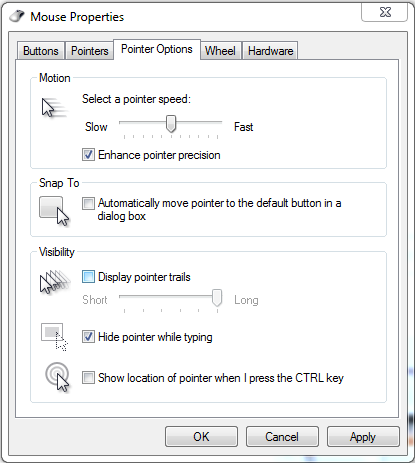
When enabled, Snap To automatically moves your mouse pointer to the dialogue box that pops up. This is the box that typically appears after you delete a file, close a window, or perform any other similar task.

Although, when using Snap To, be careful about what you click on. For example, your pointer may automatically move to the “Ok button” for something that you don’t want to approve; something like, “Are you sure you want to permanently delete this file?” A blunder like this can be avoided if you simply take a moment to read what you click on, instead of rushing yourself and clicking the first thing that pops up.

To enable this feature, go to Control Panel > Mouse Properties. Next, click on the Pointer Options tab and then checkmark the Snap To box that says “Automatically move pointer to the default button in a dialog box.”

snap to

Click OK or Apply when you’re done.

Be warned, this Snap To feature might take a little while to get used to (it’s always surprising to have your mouse pointer move when you’re not expecting it to). Also, in the event that you don’t want to go through these steps and enable Snap To, most dialogue boxes allow you to select the OK button by hitting the Enter key.

At the end of the day, it might seem like this is a rather silly tip because you’re just saving yourself few seconds of not having to move the pointer. However, any worker concerned about productivity understands the importance of saving a few seconds here and there, and how tips like this can save you significant time in the long run. Plus, when on a laptop with a squirrely touchpad, this can save you those few seconds of frustration.

For more productivity tips, subscribe to NuTech Services’s blog and check back every week.

b2ap3_thumbnail_tablets_for_works_400.jpg

Tip of the Week: 3 Essential Bluetooth Devices for Your Smartphone

b2ap3_thumbnail_tablets_for_works_400.jpgIf you’ve ever taken your gadgets on the go for work purposes, you might have found that it’s somewhat difficult to get anything done with the limited computing potential of a smartphone or tablet. However, with the right technology, you can take full advantage of your mobile devices, especially if you’re using Windows 10 with its full Microsoft Office suite (Want to know if Windows 10 is right for your business? Reach out to us before you upgrade).

Being able to perform work remotely is especially important in today’s work environment. This is why it’s preferable to have a tablet or smartphone that one can work on while out of the office. As of 2015, it’s estimated by Pew Research that 64 percent of all American adults own a smartphone. Here are three technologies that you can use to get more productivity out of your mobile devices.

Bluetooth Keyboard
How long was the last message you typed on an on-screen smartphone or tablet keyboard? It’s clear that this isn’t the most efficient way to write out longer emails or documents. While it might be great for a quick text message or email update, you’ll want a more comprehensive solution that helps you spend less time messing around with autocorrect errors. You can give your thumbs a break by purchasing a Bluetooth keyboard. This essentially turns your device into one with laptop-like functionality.

Bluetooth Mouse
Anyone who uses a tablet understands that navigating productivity applications like email and document editors with a touch screen can be frustrating at times. You can remedy this by using a Bluetooth-connected mouse that gives you the feeling of a desktop with an itty bitty screen. It might only be a slight convenience, but whatever helps your productivity, right?

Many tablets today are compatible with Bluetooth mice, which, when combined with a keyboard, give you more of a traditional laptop experience with the mobility of a slim, light tablet.

Bluetooth Headset
One of the core functions of a telephone is to allow you to communicate over long distances with your voice. While you could easily stop whatever you’re working on to make a phone call, it’s unnecessary and takes away from the task at hand. If you’re using a Bluetooth headset, you can use your mobile device for phone calls without interrupting your work process, and without bothering the people around you by putting your phone on speaker mode.

Besides the obvious use of being able to talk on the phone, you can also use a Bluetooth headset to listen to music, view webinars, or listen to podcasts that are designed to help you boost productivity or learn new best practices. If you’re on a plane and have several hours left of your flight, it might not be a bad idea to check in on what’s hot and upcoming in your chosen industry. While some airlines have concerns over the safety of Bluetooth, the FAA has confirmed that Bluetooth will not interfere with critical airplane communication systems (in other words, it depends on your airline).

What are some of your favorite ways to stay productive with your mobile devices? Let us know in the comments, and be sure to subscribe to our blog for more productivity hacks and technology tips.

b2ap3_thumbnail_tips_to_enhance_productivity_400.jpg

Tip of the Week: Try the 52-17 Rule to Get the Most Productivity Out of Your Workday

b2ap3_thumbnail_tips_to_enhance_productivity_400.jpgThere are countless ways to boost your productivity in the office… at least, that’s what the Internet says. How do you separate the productivity champs from the chumps? It’s simple, really; just look for the tried and true methods that have been backed by thorough research. One such study, performed by Julia Gifford of Draugiem Group, claims that workers can be more productive by not trying to do as much office work as possible.

This is hardly the first productivity strategy proposed by professionals. What makes this different from others? Well, it’s backed up with results. Using the tracking application DeskTime, the researchers at Draugiem Group examined how their best, most productive employees spent their time in the office. Surprisingly, it boiled down to how much time wasn’t being spent doing work.

52 Minutes of Work, 17 Minutes of Rest
While it might seem incredibly inefficient, the results of this study turned out to be a cycle of 52 minutes of hard work, followed by 17 minutes of rest. This is similar to the Pomodoro technique, another relatively well-known process which includes 25-minute work intervals with five-minute breaks, followed by one 15-minute break after the fourth increment. Overall, the 52-17 rule seems to be geared more for those who are confident they can stay focused on a single task for almost a solid hour.

The Importance of Rest
Rest is an absolutely critical part of any function performed by humans; therefore, its importance cannot be overemphasized. In fact, many researchers studying the science behind workplaces find that rest is absolutely imperative to the success of all participants.

Entrepreneur Chris Winfield claims that he cut his work week in half because he took consistent breaks throughout the workday. As you can imagine, finding the right balance between work and rest can be a tricky subject. Meetings and other time-sensitive appointments are difficult to fit into an individual’s schedule. For Winfield, he was able to cut his 40-hour work week down to 16.7 hours (not counting the time he spent in meetings). This is a considerable difference, especially because he was still getting everything done that he wanted to.

The End Result: Increased Flexibility
As you can imagine, scrunching your work week to less than half of the original size opens up several opportunities. The only way this is possible is with proper prioritization of important tasks. By ensuring that high-priority tasks are tackled in the most effective way possible, you’ll be able to approach the rest of your work in a clear, stress-free manner. Winfield claims that his approach changed the way he looked at the work week:

The final piece to my puzzle was moving from a five-day workweek, where I had to stop by 5 p.m., to a seven-day workweek, where I could work when it suited me. This took me from 40 to 45 hours available to get my 40 Pomodoros in, to having 168 hours each week. Since I only need 16.7 hours net, that means I only work 10% of my time. What a difference.

Granted, Winfield didn’t count the 20-to-25 hours of meetings and phone calls toward his total time, yet, he still managed to save his sanity by taking small breaks.

If you aren’t quite sold on either the Pomodoro technique or other work-break increment strategies, there are several other alternatives to look into. For one, you can look into using the latest and greatest technology solutions to improve the overall efficiency of your time spent working. Give us a call at 810.230.9455 to learn more about what productivity solutions can help your business.

b2ap3_thumbnail_windows_tablets_productivity2_400.jpg

Microsoft Takes a Business-Centric Approach With Its Mobile Strategy, Part II

b2ap3_thumbnail_windows_tablets_productivity2_400.jpgIn our last blog article, we looked at Microsoft’s mobile computing strategy for businesses. In part II, we want to follow up by looking at some specific mobile technology from Microsoft, including a preview of its newest mobile computing venture, Windows 10.

Driving Microsoft’s mobile computing strategy are three factors; integration, security, and simplicity. Microsoft’s long history of developing enterprise-level software comes through with its latest mobile offerings. This advantage is sure to increase Microsoft’s mobile market share, especially since the devices offered by its primary competitor, Apple, are designed with the consumer in mind.

For example, if one thinks about the typical tablet device, there’s a natural aversion to using it for everyday business tasks, like typing and sharing files. Also, the security of mobile devices has been a concern for business owners (a trend known as BYOD). Microsoft is looking to change this perception of tablets and mobile devices with its latest offerings, and hopefully turn more businesses on to the world of mobile computing with Microsoft.

In regards to Microsoft’s current mobile offering, its Windows 8.1 tablets, the devices provide a level of security that’s unmatched by its competitors. This is due in part because the software, Windows 8.1, was designed as an OS for workstations too, which require a high degree of security. Protections that come with Windows 8.1 tablets include comprehensive device encryption and a tamper-resistant booting process that prevents unauthorized access and low-level malware infections.

There are several advantages to Microsoft’s approach of using the same OS for both its desktop computers and its tablets. Users who go back and forth between the two machines prefer it because it’s one less software and interface to familiarize themselves with. Although, it’s important to point out that not every Microsoft tablet on today’s market is equipped with Windows 8.1. Microsoft’s lower-end tablets have their own mobile OS (Windows 8 RT), that, while similar to its desktop counterpart, is still a different OS entirely.

Consumers should know which Windows OS to look for in a tablet before making a blind purchase. As we’ll cover with Microsoft’s upcoming release of its next OS, Windows 10, they’re looking to change this dynamic and have the same software run across all mobile devices. Time will tell if Microsoft will be able to follow through on this ambition. If you recall, this was the same expectation the tech world had on the eve of Windows 8’s release.

Top 3 Mobile Devices Running Windows 8.1
If you’re looking to take advantage of a tablet that utilizes all of the benefits offered by Windows 8.1, then we recommend one of these three tablet devices:

  • Microsoft Surface Pro 3: Microsoft’s primarily known as a software company, but with products like its Surface Pro 3, it’s shown the world that’s it’s capable of putting out quality hardware too. Boasting a 12.6” screen, the Surface Pro 3 has enough resources to do essentially everything that a laptop can do. Fans of the Surface models take note that Microsoft has renovated and improved the type cover for its latest version.
  • ASUS Transformer Book: ASUS tablets come equipped with the full version of Windows 8.1. ASUS’s top model is the Transformer Book T2000, which has an 11.6” display and comes with a keyboard.
  • Samsung XE500: Samsung is known as the world’s leading mobile device manufacturer. Its most attractive tablet offering is the XE500 model. Boasting of an 11.6” display and an attachable keyboard, it also comes with a Livescribe Smartpen stylus.

Windows 10: Microsoft’s True All-In-One Strategy
Microsoft’s next big thing is Windows 10. This OS promises to really enhance Microsoft’s mobile strategy since the same version of the OS will be available on both desktop and mobile platforms (much like we see now with select Windows 8.1 tablets). This all-in-one feature of Windows 10 will make it easier for a business to adopt a mobile strategy.

Microsoft’s release date for Windows 10 is July 29, 2015. Current Windows users should have already been notified by Microsoft about reserving their copy of Windows 10. What kind of features and upgrades are we looking at for Windows 10? Concerning the mobile side of the new OS, International Business Times provides us with seven things to look for:

  • Clutter-free interface.
  • A new settings menu that will allow you to access your preferences universally across all your Windows 10 devices.
  • A new Internet browser, Edge, will be featured across all Windows 10-based devices and be able to organize your bookmarks, history, and RSS feeds across all your devices.
  • All-in-one messaging and calling that will feature an integrated message center by drawing all your text messages, Skype messages, and from any other third party message apps.
  • A floating keyboard with well-laid buttons and voice-typing ability.
  • Universal apps will allow you to use the same version of apps across your Windows devices.
  • Free to upgrade for licensed Windows users.

In the past, adopting a solid mobile strategy seemed difficult and an unsure move for companies that aren’t experts in mobile trends like BYOD. However, with Microsoft’s mobile computing offerings like its current line of Windows 8.1 tablets, and Windows 10, going mobile has never been easier for small and large businesses alike. To have a conversation about how your company can take advantage of these mobile technologies and more, reach out to NuTech Services at 810.230.9455.

b2ap3_thumbnail_caffeine_fix_400.jpg

Too Much Coffee Can Give Your Work Performance The Jitters

b2ap3_thumbnail_caffeine_fix_400.jpgThe road down entrepreneurialism is a long and twisted path, full of pitfalls that can lead you astray. However, there’s one companion who will never forsake you, and that’s your morning cup of coffee. While you might feel like you can’t get anything done without your morning caffeine fix, it can be holding you back from achieving your maximum productivity.

Giving up on caffeine can be a life-changing experience, but some are more reliant on it than others. It might seem like caffeine’s benefits vastly outweigh its negatives, but when it comes down to it, caffeine’s benefits are only temporary, saddled with side-effects.

What Exactly Does Caffeine Do to Your Body?
A study performed by the John Hopkins Medical School has proven that, despite caffeine’s negative side-effects, it has been proven to increase task performance and cognitive ability, but only temporarily. The main issue with caffeine is that there’s no way to reap the benefits of that cup of coffee without experiencing caffeine withdrawal almost immediately afterward. Because of this, the user goes straight for the coffee pot time after time. This eventually links performance to the amount of caffeine ingested, which limits cognitive function when without it.

To make matters worse, caffeine induces an adrenaline rush, not unlike the response you receive from a life-threatening situation. This is what’s known as the “fight or flight” syndrome, which triggers emotional responses to defend the self from harm. Naturally, you can imagine how horribly wrong this can go when responding to critical emails at a time where you lack sleep and are thriving off of caffeine.

By the end of the day, you’ll feel exhausted and ready for bed; but despite how tired you are, you’ll find it difficult to sleep. This is because caffeine has a six-hour half life. According to Inc:

Have a cup of joe at 8 a.m., and you’ll still have 25 percent of the caffeine in your body at 8 p.m. Anything you drink after noon will still be at 50 percent strength at bedtime. Any caffeine in your bloodstream–with the negative effects increasing with the dose–makes it harder to fall asleep.

This makes it extraordinarily difficult to get good, quality sleep, and even harder for the brain to catch up and restore its energy. When you wake up exhausted, you naturally go right for the cup of coffee, leading to even more withdrawal later in the afternoon.

Caffeine’s Side Effects
Caffeine is well known to produce several adverse side effects when users are going through withdrawal, all of which can be harmful to your cognitive ability and health. According to Inc, they are:

  • Irritability
  • Anxiety
  • Headaches
  • Insomnia
  • Sleep deprivation

The side effects of prolonged caffeine use aren’t limited to just these, though. These are simply those that affect the cognitive ability to function, which is arguably the most important part of the workday. It’s well known that caffeine can induce uncomfortable problems like frequent urination and gastrointestinal anomalies, as well.

Caffeine addiction might seem innocent enough, but like any other drug out there, too much can be a bad thing. Millions of people around the world suffer from caffeine addiction, whether they admit to it or not. Cutting yourself off from caffeinated beverages might seem impossible, but it can change your life.

b2ap3_thumbnail_mouse_wheel_click_400.jpg

Tip of the Week: 3 New Tricks to Teach Your Old Computer Mouse

b2ap3_thumbnail_mouse_wheel_click_400.jpgThe computer mouse has been a staple in the modern office for many years. Despite its proven usefulness, it’s now threatened by the growing adaptation of touchscreen devices in the workplace. Are you considering trading in your trusty mouse? Before you do, consider these three mouse scroll wheel tricks that make your boring old mouse more useful.

Who said you can’t teach an old mouse new wheel tricks?

tip-scroll-wheel-fun

Click a Link With the Scroll Wheel Button to Open it In a New Tab
What’s that you say, a mouse scroll wheel button? If this is the first you’ve heard about the scroll wheel also being a third button on your mouse, then you’re getting your money’s worth with this blog article because we just opened up for you a whole new and click-tastic world.

To execute this first trick, all you have to do is move the cursor over a hyperlink and click the mouse scroll wheel button. This will automatically open the link in a new browser tab, which is easier than having to right-click the hyperlink and then go to “Open link in new tab.”

Close the Browser Tab By Clicking it With the Mouse Scroll Wheel Button
When you’re done with your browser’s tab, you can close it just as easily using the mouse scroll wheel button. All you have to do is move your cursor anywhere on the tab and then select the mouse scroll wheel button.

Granted, this isn’t a major upgrade from selecting the red X with the left mouse button, but it does give you a little bit more room to work with. Additionally, once you get in the habit of using the mouse scroll wheel button, you’ll find yourself closing tabs in this manner more often.

Ctrl+Scroll Up to Zoom In/Ctrl+Scroll Down to Zoom Out
For our third trick, try using the mouse scroll wheel in conjunction with the Ctrl key for easy zooming in and out of your web browser, as well as most other applications too. As you hold down the Ctrl key, your page will zoom in as you push the mouse forward, and zoom out as you push the wheel in the opposite direction.

Ultimately, this is the fastest and easiest way to zoom in and zoom out, especially in comparison to locating the view tab and manually selecting “zoom in” or “zoom out.”

Bonus Tip: One of the handiest uses for this zoom-in feature is when you’re browsing a web page with annoying ads on the side of the page. Simply perform this new scroll wheel trick and zoom in just enough to where you no longer see the ads. Problem solved. You’re welcome.

It turns out that your old computer mouse can do more than what you previously thought. Pretty cool, huh? Perhaps now you’ll think twice about trading in your mouse and workstation for a fancy new touchscreen device. Or, maybe not.

Can you teach an old mouse any more new tricks? If so, share them with us in the comments.

b2ap3_thumbnail_open_office_problems_400.jpg

Find Out Why the Open Office Isn’t for Everybody

b2ap3_thumbnail_open_office_problems_400.jpgOne of the more recent office trends seems to be the open office. While this is more space-efficient and supposedly helps foster productivity and communication, there’s also the possibility that it can do exactly the opposite. According to a 2002 study from Environment and Behavior, the open office can be a hindrance to unlocking the full potential of all employees.

In this survey, Environment and Behavior tracked employees as they were moved from a private office to an open office. Overall, these workers felt that the open office decreased their performance as employees. They felt worse about their work environment, their work performance, their attitude, and their co-worker relationships.

the-open-office-gif1.jpg

Architectural and Psychological Privacy
When you’re at home, you can shut the door and a whole new world of privacy and productivity can commence. However, when you’re at the office, this feeling is somewhat diminished and is only furthered by the open office. According to Inc, this concept is called architectural privacy. Being able to shut the door to the world around you can be somewhat therapeutic. Even the walls of a cubicle, with your own personal space, can be effective.

This architectural privacy is what initiates psychological privacy, which is the feeling that you can control who has access to you during the workday. This is crucial to improving performance and satisfaction in the office. Open office workers reported higher levels of impaired memory, aggravated migraines, and ulcers; stress-related symptoms that drag productivity to a halt. Just having a door that you can use to separate yourself from the rest of the office can mitigate background noise and workflow disruption. This, in turn, leads to lower levels of stress, leading to a better overall working environment.

the-open-office-gif3.jpg

Unsurprisingly, Introverts Dislike the Open Office
As a business, your workforce is probably extremely diverse with many different types of workers. This means you have some introverts working for you; people who generally like to work by themselves or simply aren’t social butterflies. It’s been proven that solitude leads to more creative behavior, so introverts can achieve their maximum potential by having their own space. The open office restricts their potential by the immense amount of background noise and disruptive conversation.

the-open-office-gif2.jpg

Multitasking Can Reduce Quality of Work
While the open office was first introduced to increase the amount of collaboration in the workplace, it’s been shown that moving from one task to another rapidly can decrease the quality of a worker’s overall performance. Concentration isn’t easy, especially when you’re constantly moving from one task to another. According to The Wall Street Journal, it can take up to 27 minutes to regain focus on a task after being disrupted. If this happens constantly throughout the day, that time adds up quickly, leading to a lot of disruption and a lot of wasted time.

How Technology Helps the Open Office
While the open office environment doesn’t generally foster a healthy environment at times, there exist several technology solutions that can help alleviate some of its more prevalent issues. Unfortunately, since the effects of the open office depend heavily on the psychological makeup of your workforce, it’s difficult to find a technological solution that fits every situation. For those who have problems concentrating due to disruptive background noise, there are applications out there that play ambient noise and allow workers to move elsewhere, if they’re allowed to do so. Ultimately, these apps won’t be a reliable solution for all of your open office woes.

These issues, compounded by the fact that germs can quickly spread and cause illness amongst the office, are one reason why many workers might prefer their own private office rather than one big open room. What does your office look like? Would your workers, if surveyed, agree that it’s an environment that fosters productivity? Leave your thoughts in the comments.

b2ap3_thumbnail_maximum_productivity_400.jpg

Tip of the Week: Achieve Maximum Productivity for Your Team with These 5 Technologies

b2ap3_thumbnail_maximum_productivity_400.jpgYou pay your employees to come to the office and perform their daily duties, but how much of that time is actually being spent working? Every wasted minute cuts into your daily profits, which can waste countless minutes. If you want to get the most out of your team, there are several technology strategies that the modern business can take advantage of to maximize productivity.

Surveillance Cameras
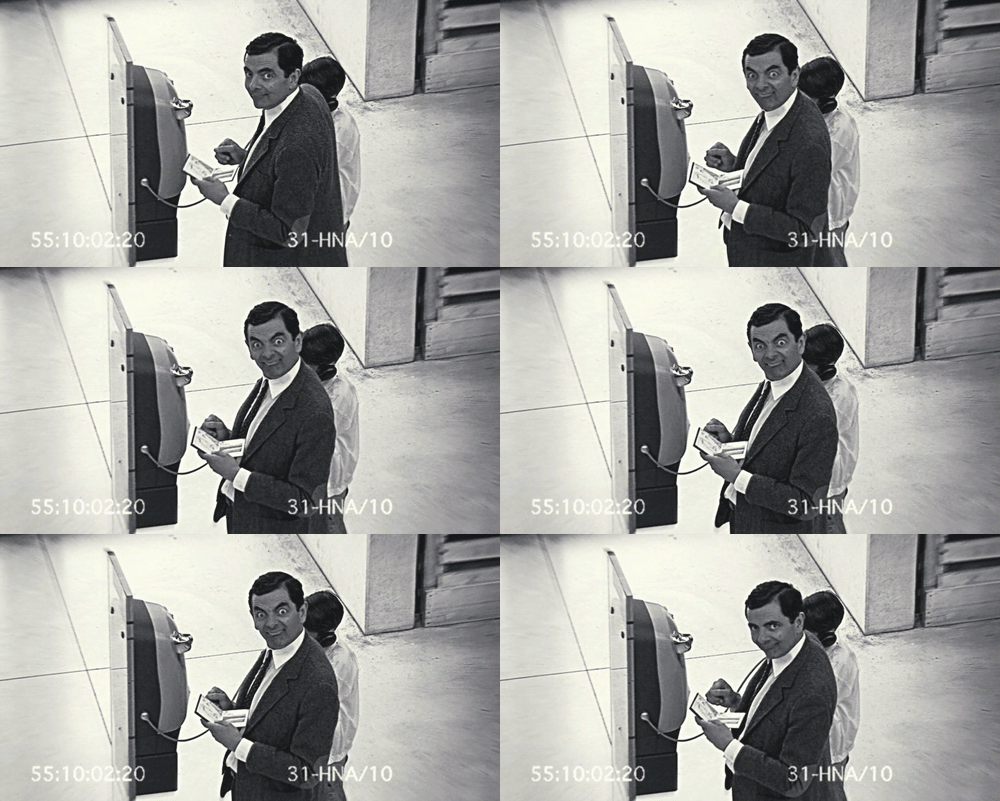
Depending on your productivity problem, there are varied levels of solutions which you might integrate. When the boss rarely makes rounds around the office, your team might be encouraged to “loaf around,” which is the act of wasting time. If you can’t leave the room for even a minute without your team goofing off, surveillance cameras might be the best way to set them straight.
max productivity1.jpg

This might be a worst-case scenario, but believe it or not, some offices need to take advantage of these kinds of solutions to maintain order. Surveillance systems are now much more cost-effective than in the past, so integrating one into your IT strategy is more affordable than it sounds. With a camera installed in the office, employees will understand that any loafing that’s performed in the office will be recorded, and incriminating evidence can and will be used against them when it comes time for a review. Some cameras can even allow you to watch a live feed of your office on your mobile device, which is ideal for the traveling business owner.

Automatic Door Locks
One of the more common ways that employees tend to waste time is through their breaks. When it comes to extra time spent on breaks, every wasted minute can really add up. If every employee slacks off a few minutes here and there, it can add up quickly and cut into your company’s bottom line. Automatic locks on your organization’s doors can encourage your team to stop wasting time and get back to work.

max productivity2.jpg

After all, you aren’t paying them to be late and irresponsible. With automatic locks, you can set them to lock the door right at 8:00 a.m., or whenever your office opens. If they don’t make it to work on time, they’ll be forced to either endure the embarrassment of needing someone to let them in, or lose a day’s pay. They’ll quickly get the point. This might seem like an extreme measure, but it’s one that might be necessary. Just like surveillance cameras, these locks can be controlled remotely from your mobile devices if need be.

Content Filtering
Your employees sit in front of a workstation all day in order to work, not browse the Internet searching for memes or wasting time on social media. Unfortunately, even the best employees can be susceptible to the allure of sites like Facebook, YouTube, BuzzFeed, and so on. Content filtering can be used to keep your team off of these websites, which can keep them on task. In fact, companies that have integrated a content filtering solution have seen productivity increase as much as 23 percent.

Unified Threat Management
Content filtering is one of the many functions of NuTech Services’s Unified Threat Management (UTM) solution. In addition to content filtering, the UTM provides users with an enterprise-level firewall, antivirus, and spam-blocking solutions. You can view how your team is taking advantage of your business’s network, including if they are streaming movies or playing games. By blocking these countless distractions, your team will have no choice but to focus on the task at hand.

Functioning Workstations
This isn’t something you might immediately think of when it comes to workplace productivity. Sometimes the reason that your team might not get as much done as possible is because their technology isn’t working properly. A workstation that is bogged down and in need of maintenance can be a significantly difficult hurdle to jump for the average employee.

max productivity3.jpg

You don’t even want to think about the costs associated with hardware failure. It’s more efficient to simply make sure that all of your business’s technology operates in its intended fashion. NuTech Services can monitor and maintain your systems to make sure that all of the latest patches and updates are applied, which can increase both productivity and security.

With these five technologies, you’ll be able to help your team understand the value of productivity. For more information, give NuTech Services a call at 810.230.9455.


b2ap3_thumbnail_email_overload_400.jpg

Study: Checking Your Inbox Can Increase Your Stress Level

b2ap3_thumbnail_email_overload_400.jpgIf you’re one of those people who are always checking their inbox, you might be dealing with a lot of unnecessary stress in the workplace. A study has linked constantly checking your email inbox to higher stress levels. While this might not come off as much of a surprise, researchers at the University of British Columbia have managed to put a number to the maximum amount of times you should be checking your email to minimize stress.

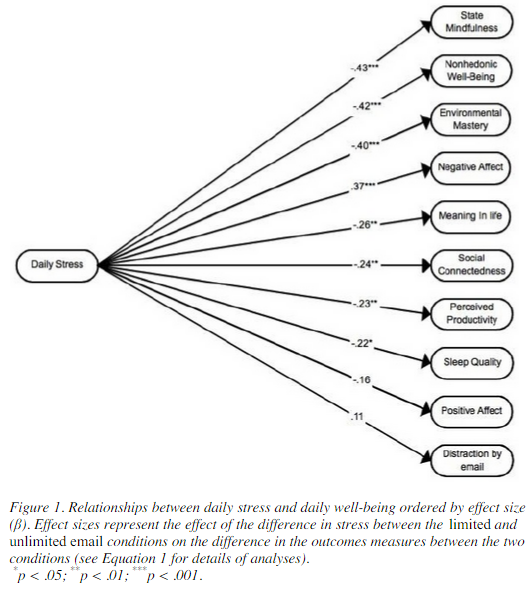
According to their test, the maximum number of times you should be checking your email for minimum stress levels is three times. The study involved 124 adult workers over a seven-day testing period, in which they were only able to check their email three times a day. Then, the following week, workers were encouraged to check their email inbox whenever they got a spare moment. This is generally how most workers are in the office. At the end of each workday, the test subjects were asked to fill out a short questionnaire about their current stress levels.

stress levels

When encouraged to check their email as often as possible, the average worker checked their email 15 times throughout the day. Unsurprisingly, the primary reason checking email is so stressful for the average worker is that they have to constantly shift from urgent work tasks, to checking email, to personal matters. It’s no wonder that workers get so stressed out, especially when some email recipients expect immediate answers. This might be why, at first, workers were somewhat hesitant to only respond to their emails three times a day. In fact, according to Mashable, 92 percent of workers in the United States use email for inter-office communication, and as many as 183 billion emails are sent out on a daily basis. This root of email stress lies in the need to stay connected at the workplace.

Ideally, according to the study, workers should only have about three periods of email correspondence throughout the workday. To accomplish this, set aside a block of time at the beginning, middle, and end of your day to respond to emails that demand your attention. You might notice a significant decrease in stress. Unfortunately, not all business professionals can manage this with their busy schedules. If this is the case with you, here are some tips which might help you understand that your email inbox isn’t as important as it seems:

  • If it’s especially important, you’ll receive a phone call or instant message about the issue at hand. If you have something urgent which needs to get done, try making a phone call yourself, and save the time you might have wasted drafting the perfect email message.
  • You can’t afford to continuously respond to emails all day long. Continuously halting more important tasks isn’t ideal for productivity, concentration, or quality of work.
  • If it’s not marked as important, it’s probably not important.

If you can manage to move away from checking your email constantly, great. However, you still want to make sure that the messages you are receiving are real, legitimate messages. Spam is a problem which makes checking email slightly more stressful due to its potentially-disastrous nature and its reputation for being a time-waster. With an enterprise-level spam blocking solution from NuTech Services, you can mitigate the spam received during the workday and free up more time for important tasks.

If you’re ready to stop wasting time and dealing with unnecessary stress concerning your email inbox, give NuTech Services a call at 810.230.9455. We’ll work with you to manage your technology in the most efficient way possible.