facebook_info_download_400.jpg

Tip of the Week: A Step-By-Step Guide to Downloading Your Facebook Information

facebook_info_download_400.jpg

The longer you use Facebook, the more personal content you hand over to the social media empire. Sharing content is what drives the social media experience, but what if you want your content back? Surprisingly, Facebook makes this easy.

The reasons to download your personal content from Facebook can vary. Perhaps you just feel better about having a backup copy of your data stored locally. Or maybe you’re working on a picture collage and want to use several of the images you’ve uploaded to Facebook. Or, as is more often the case, perhaps you’re fed up with Facebook and you want to leave it for good, but before you close your account, you would like to download your data.

Whatever your reason may be for needing to download your personal data, Facebook makes it easy. After all, it’s not like Facebook has any reason to make this process difficult, since they technically own whatever content you upload, whether or not you download it back or even close your account.

To get started, log in to Facebook and go to Settings. Below General Account Settings you will see Download a copy of your Facebook data, click on it. Next, click Start My Archive.

This will allow you to select a place to store your information, just like you would with any Internet download. Whichever folder you select to download your Facebook data into, make sure that’s it’s secure, seeing as it will likely contain sensitive data.

What kind of information is included when you download your archive? Facebook explains, “This includes a lot of the same information available to you in your account and activity log, including your Timeline info, posts you have shared, messages, photos and more. Additionally, it includes information that is not available simply by logging into your account, like the ads you have clicked on, data like the IP addresses that are logged when you log into or out of Facebook, and more.”

Depending on how much you’ve used Facebook in the past, this can be a rather large download. Although, at the end of the day, downloading everything in one fell swoop is much more convenient than going through every single Facebook post, selecting what to and what not to download.

For more useful tips and technology best practices, be sure to subscribe to NuTech Services’s blog for a new tip every week!

iphone_storage_trick_400.jpg

Tip of the Week: Try This Weird Trick to Free Up Space on Your iPhone

iphone_storage_trick_400.jpg

It’s a situation that’s all too familiar to an iPhone user: after taking a gorgeous picture, or trying to download a new app, the device flashes up a warning that there is not enough storage to complete the download. So what do you do?

Most people would do either of two things, depending on how badly they wanted to complete what they had first attempted. They would either start cleaning out the apps on their phone, deleting the ones they no longer used, or give up and not download the app. However, what if there was another option? One that would allow a user to free up storage space without sacrificing other files and applications that they would rather keep?

According to Reddit user eavesdroppingyou, there is a trick that has been verified by dozens of other users and quite a few technology websites since the original thread was started. All one has to do is try to rent a movie from the iTunes store. Not just any movie, however; one with a file size larger than the amount of available space left on the phone.

The trick works like this: a user enters the Settings on their phone and checks how much space is left available in the device’s memory. They then enter the iTunes store and attempt to rent a movie with a file size larger than the allotted space remaining. The phone will notify the user that there is not enough available storage to download their selection, giving the user the option to either accept the notification or travel back to Settings. If the user returns to Settings to reevaluate their available storage space, it will have increased since they attempted their futile download.

This is apparently because the iPhone will try to make room for the file by clearing out extraneous data from the apps you already have, like cookies and histories, which take up extra space while serving no real purpose. This process can be repeated, as the memory gains will most likely be incremental. After a few attempts, however, a user can accumulate a considerable amount of extra space. Commenters and posters on the Reddit thread and the various websites publicizing the find have reported memory gains ranging from a few hundred megabytes to a few gigabytes.

What makes the process even nicer is that, since the rental is unable to complete its download, the user is not charged for it and receives data space at essentially no cost. As long as, that is, they remember to check their available storage between attempts, so that they don’t inadvertently rent a movie by clearing up enough space to host it on their device.

Furthermore, this in no way voids any warranty and requires no jailbreaking of the device. The riskiest aspect of this method is the possibility of the trick adding a few megabytes of data to the phone (as has been reported by a few commenters), or perhaps renting a movie that there was no interest in watching. Regarding that, who knows – the rented movie just might become a new favorite.

How would you make use of the newly freed-up space on your phone? Leave a comment below and let us know what your next download will be!

b2ap3_thumbnail_autorefresh_your_browser_400.jpg

Tip of the Week: How to Set Your Browser to Automatically Refresh Itself

b2ap3_thumbnail_autorefresh_your_browser_400.jpgHave you ever been in a situation where you have to continuously hit the refresh button in your browser? Maybe you’re waiting for an online sale to go live, or you’re waiting on an online forum for a critical response. Or, maybe you’re just waiting for an important email. Either way, manually refreshing your browser multiple times can be both annoying and inefficient. We’ll show you how you can refresh it automatically.

Install Super Auto Refresh
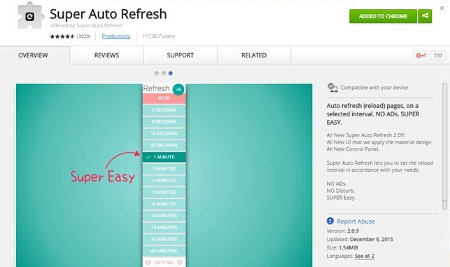
You can use the Super Auto Refresh Chrome extension to save yourself from brutally assaulting your browser’s refresh button. You can do so by following the above link in the Chrome Web Store, and selecting + ADD TO CHROME.

ib browser

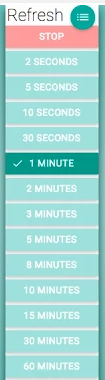
Once you’ve successfully downloaded and installed the extension, an icon will appear in the far-right side of Chrome’s address bar. Click it, and you’ll see a drop-down menu.

ib browser2

Next, you’ll need to select how often you want the page to be refreshed. You could have the page refresh as often as every two seconds, or as infrequently as every 60 minutes.

If you’ve reached the point where you don’t need the browser to refresh automatically anymore, you can stop Super Auto Refresh from doing so. Click the icon in the address bar, and select the red Stop tile.

One additional feature of Super Auto Refresh is that you can easily manage the tabs that you’ve enabled the extension on. Online Tech Tips explains how to do so:

If you click on the little green hamburger icon to the right of the word “Refresh,” a new tab will load that will list out all the pages that are currently set to refresh along with the set time intervals and the amount of time remaining before the next refresh. Note that if you close a tab and then reopen it later, the extension will remember and apply the same refresh settings.

We also want to mention that a page with Super Auto Refresh activated on it only applies to that particular tab. Other open tabs won’t automatically be refreshed. They will only do so if you activate the extension within the tab. You can easily open a new tab that’s unaffected by Super Auto Refresh by selecting the hamburger icon > New tab.

Please be aware that constantly refreshing a web page can eat up a significant amount of bandwidth, so make sure that you’re mindful of how you use Super Auto Refresh on your company network.

For more great tips and tricks, subscribe to NuTech Services’s blog.

b2ap3_thumbnail_shortcuts_for_windows_10_400.jpg

Tip of the Week: 10 Handy Windows 10 Keyboard Shortcuts

b2ap3_thumbnail_shortcuts_for_windows_10_400.jpgWith the launch of Windows 10, many users are upgrading and loving every second of it. As always, a new operating system comes with a learning curve, including getting to know the new features and keyboard shortcuts. To get the most out of Windows 10, you can try these ten great hotkey combinations to get through your workday with blazing speed.

[WinKey + S] Activates Cortana
[WinKey + C] Activates Cortana with Speech
Microsoft’s Cortana feature, which was once exclusive to Windows Phone users, is now built into Windows 10 by default. She acts as a personal voice assistant, much like Apple’s Siri. You can use these shortcuts to make more effective use of Cortana.

[WinKey + Ctrl + D] Creates a New Virtual Desktop
[WinKey + Ctrl + F4] Close Virtual Desktop
[WinKey + Ctrl + Left or Right] Switch Between Virtual Desktops
One of the neat new features Windows 10 offers is virtual desktops, which will most likely be used by enterprises to enhance productivity. You can easily use the above keystrokes to navigate through your current virtual desktops, plus open and close them on your local desktop.

[WinKey + Shift + Left or Right] Move Apps from One Monitor to Another
Workers generally use two monitors to get the most done, but if you’re working with several different applications, it can be a bother to continually resize the windows and move them about. To make this process much easier, use the above keystroke while you have a window selected.

[WinKey + K] Activates Connect Feature to Stream to Wireless Displays and Audio Devices
This keystroke is pretty self explanatory, and it will be used often by those who regularly access Connect.

[WinKey + R] Run a Command
Regardless of how many new features there are in Windows 10, the basics still apply. You’ll want to access the Run Command function. This keystroke makes it much easier to do so.

[WinKey + I] Opens Windows 10 Settings
As one of the most customizable operating systems Microsoft has created, Windows 10 offers plenty of great ways you can put the “personal” back in your PC. Use this keystroke to make navigating to your settings easier.

[WinKey + G] Activates the New Xbox Game Bar to Let You Record Games or Take Screenshots
All you gamers out there are going to love this keystroke.

For more ways you can get the most out of Windows 10, keep an eye out for more productivity and technology tips from NuTech Services.