safe_router_424236593_400.jpg

Boosting Your Router’s Security in 3 Ways

safe_router_424236593_400.jpg

Your wireless router handles a lot of the tough work for your business, and as such, it’s important that it’s protected and secured as best as can be. If you want to secure your router, we recommend that you use the following best practices to make it happen.

First, let’s talk about the router. The router is basically a modern computer in its own right. They have their own operating systems and software, and as such, they can be susceptible to vulnerabilities. If you aren’t keeping in mind basic data security practices, then you are already behind the security curve.

Update Your Router’s Software and Check Settings

Your router runs on software that needs to be updated periodically. As your router ages, so too does your network security. When you update your router, you are updating the firmware and other software used to route the wireless signals. Here are some other settings you should consider changing:

  • Change network name or SSID – Make sure it is something that is unique but doesn’t necessarily identify you or your organization.
  • Turn on automatic firmware updates – As we described already, getting firmware updates is essential to maintain security for your router. 
  • Enable WPA2 wireless encryption (or WPA3, if your router supports it) – This ensures that only authorized users can access your wireless network. 

Disable Dangerous Accessibility Options

Most users utilize the Universal Plug and Play feature and keep their routers on the default settings, something which puts these wireless connections at greater risk of compromise. Another way that hackers will attempt to undermine the security of your router is by using the Wi-Fi Protected Setup feature on your router. It is an easy-to-use feature that helps you connect devices using a static eight-digit pin, even if the username and password have been changed. The PIN is printed right on the router, and if it’s on your router, then that makes it easier to get into. It’s far from the ideal scenario.

Set Up a Guest Wi-Fi Network

A great way to keep your wireless network secure is by limiting who has access to it. So, for example, let’s say you have guests come to the office, and you don’t want to give them access to your employees’ wireless network. You can instead have them connect to a guest wireless network specifically for them. Most commercial-grade routers and many personal routers provide this level of functionality. You can even set the network to turn off after a certain amount of time. 

This also helps if your organization operates with a lot of Internet of Things devices. The guest wireless network can keep them from creating security troubles. All you have to do is connect some of your IoT devices to the network so that they don’t accidentally leave anything exposed on your main network.

To learn more about how you can keep your wireless network secure, reach out to us at 810.230.9455.
router_botnet_400.jpg

What is a Router Botnet? Find Out Today!

router_botnet_400.jpg

Ordinarily, one of the best ways to protect your organization’s infrastructure is to make sure any and all patches administered to the software you use are applied as soon as possible after they’ve been released. However, patches don’t help against threats that aren’t discovered at the moment they are released. The recent spread of BCMUPnP_Hunter botnet shows that it’s not enough for people to keep patching their systems.

Threat Background
This botnet was initially discovered in September. Since then, it has infected devices to support a huge spam email campaign. BCMUPnP_Hunter is able to zero-in on victims thanks to its ability to scan for potential targets, like routers with the BroadCom University Plug and Play feature enabled. The system can then be taken over by the hacker.

It is assumed that the network created by BCMUPnP_Hunter was created to send out spam emails. The threat creates a proxy that communicates with email servers, allowing attackers to use botnets to generate profit through fraudulent clicks. What’s more is that the malware seems to have been created by someone who has a considerable amount of skill. To make things worse is that BCMUPnP_Hunter also appears to scan from over 100,000 sources, making this botnet quite large.

How Does This Prove That Patches Aren’t Working?
In order for BCMUPnP_Hunter to work as intended, it must target devices that have BroadcomUPnP enabled to take advantage of a vulnerability. The thing is that this vulnerability has been patched since 2013 when it was first discovered, meaning that most manufacturers have issued a patch since then. Therefore, the majority of devices being used by this threat are those that haven’t been patched for some reason or another.

The Lesson Learned
A simple lesson can be learned here. It goes to show that any equipment on your infrastructure that’s not maintained could be putting your business at risk. This includes making sure that you implement patches and security updates as soon as they are released. Of course, they aren’t always broadcast to the public–after all, who would want to admit that the product they have created is vulnerable to attack, and that the vulnerability is being exploited? As a business owner, it’s your responsibility to keep up with the latest threats.

Granted, not all business owners have the time or luxury to focus on something like this. For those who want to minimize the threat posed by vulnerabilities, give the IT professionals at NuTech Services a call at 810.230.9455.

totw_business_wifi_better_400.jpg

Tip of the Week: Improve Your Business’ Wi-Fi

totw_business_wifi_better_400.jpg

For many businesses, a wireless network connection plays a large role in what they do. The people who make your organization work require access to a continuous Internet connection to ensure collaboration can happen with minimal trouble, but it also means that more productivity can happen throughout the workday on your employees’ terms. Therefore, the problems that come from a poor wireless connection can present a considerable hurdle for your business to overcome.

We’re here to help your organization make better use of its wireless connection.

The Router
Your router will determine the general range of your wireless network, as well as its security. Depending on your business’ specific needs, a router can be a tricky investment. You have to consider several aspects, including how much range you need and what kind of options are available for it. Here are some of the variables you’ll need to consider:

  • It is within your budgetary constraints
  • It supports Internet speeds you pay for
  • The space your router needs to cover
  • The devices the router has to support
  • Ensure that any router you choose supports WPA2 encryption

Once you’ve determined which router you’re going with, you can set it up in a place that is most effective for your purposes. If you want your router to broadcast a signal through your entire office, you’ll need to test it out and see how the location works. Try to find a nice central location. If the router doesn’t work as intended in specific parts of the office, you might need to include a Wi-Fi repeater to get the range you’re looking for.

The Repeater
If your signal isn’t extending as far as you’d like, a repeater (or extender) can be used to extend the wireless signal to reach a larger area. This way, the signal will reach any area you need it to reach. A Wi-Fi repeater contains two wireless routers. One of them picks up the wireless signal coming off of your network’s central router, while the other picks up the signal and transmits it in much the same way as your network’s central router. Thankfully, the wireless repeater only needs to be in a location within the broadcasting range of the central router. Just plug it into an average outlet and you’re good to go.

Security
Security is another important part of your business’ wireless network that requires you to think about it during the setup phase. The router doesn’t necessarily have to be hard to set up, though. First, make sure you have WPA2 encryption turned on. Some models don’t default to this and instead use the ineffective Wireless Equivalent Privacy (WEP) encryption that can be broken through easily enough. With WPA2, you’ll be much more secure.

Next, you want to name your wireless network to something that can help you identify it, as well as assign a complex password to defend it. This ensures that only those who need the network for work will be logging onto it, and that they will know which network belongs to your organization if multiple are available. Once you’ve finished with this task, you want to enable the router’s firewall. Doing this provides an additional layer of protection against potential threats.

One more thing: be sure to change the admin’s password on the actual router, as most default passwords can simply be looked up online.

For more information on how to optimize the use you get out of your business’ wireless connection, reach out to us at 810.230.9455.
router_can_be_infected_400.jpg

Did You Know Your Router Can be Infected?

router_can_be_infected_400.jpg

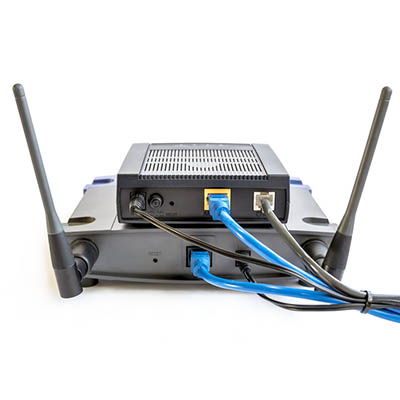
A new type of malware is targeting routers in what is considered a large enough threat that even the FBI is addressing it. Even worse, a router isn’t necessarily a device that you think would be vulnerable to attack from a hacker. What can you do to keep your business’ Internet access points secure from hacking attacks? Let’s dig in to the details about what the VPNFilter malware does and how you can address it.

Explaining VPNFilter
The malware in question, VPNFilter, hides in routers for both individual users and small businesses with the intention of persisting even if the device has been rebooted. VPNFilter targets devices that are Ukraine-based most of the time, but others have been known to fall victim to this as well. It’s thought that the VPNFilter malware originated from a group called Sofacy. The malware itself takes three steps to become an issue for your organization.

The first is that the malware sets itself up so that it will persist even if the device is rebooted or turned off. The second stage of the attack consists of the malware installing permissions for itself to change router settings, manage files, and execute commands. This allows the router to essentially brick itself, leading to considerable connectivity problems. The final stage of this malware lets the hackers look at the data packets passing to and from the device, as well as the ability to issue commands and communicate through the Tor web browser.

The reason why the FBI recommends resetting your router is because the second and third steps are wiped when you do so, but the first stage remains regardless.

Is Your Router Affected?
While not all routers are affected, there is still a sizeable list of confirmed contaminated devices. Some of the affected brands include:

  • Asus
  • D-Link
  • Huawei
  • Linksys
  • MikroTik
  • Netgear
  • TP-Link
  • Ubiquiti
  • Upvel
  • ZTE

For a comprehensive list of affected devices, you can see specifics for each brand at Symantec’s website: https://www.symantec.com/blogs/threat-intelligence/vpnfilter-iot-malware

How to Fix It
The best way to resolve these issues with VPNFilter is to perform a factory reset for your router, which completely deletes anything installed during the first stage of the threat. If the router’s manufacturer has administered a patch for the vulnerability, you can also install it following a factory reset so that you’ll never have to deal with this vulnerability again.

For more updates and tips on some of the latest threats, keep an eye on NuTech Services’s blog.

router_can_host_malware_400.jpg

Your Router Can Host Some Pretty Nasty Malware

router_can_host_malware_400.jpg

Hundreds of millions of people use wireless Internet connections every day, and as a result, hackers are taking that as a challenge. They are now starting to develop malware that targets people through their routers. Recently, security researchers at Kaspersky Lab have discovered the malware named Slingshot. The code is designed to spy on PCs through a multi-layer attack that targets MikroTik routers. Today we take a look at Slingshot, and other router-based malware and what you can do about it.

Slingshot
Slingshot works by replacing a library file with a malicious version that downloads more malicious components and then eventually launches a two-front attack on the computers connected to it. The first one runs low-level kernel code that gives an intruder free rein of a system, while the other focuses on the user level and includes code to manage the file system and keep the malware alive.

It is a very intricate attack that calls the nefarious code in from an encrypted virtual file system; managing to do so without crashing the host system, a feat not lost on the security experts at Kaspersky Lab, who deemed it a state-sponsored attack because of the quality of the overall attack and the complexity of its components. Reports suggest that the malware can basically steal whatever it wants, including keyboard strokes, passwords, screenshots, and information about network usage and traffic.

MikroTik has announced that they have patched the vulnerability on versions of their routing firmware, but concerns remain as no one is sure if other router manufacturers have been affected. If that were to come to fruition, Slingshot could be a much larger problem than is currently believed.

Other Instances
Slingshot isn’t the first instance of a router turning on its owner. Traditionally, router security is known to be largely unreliable. Much of this is on the manufacturers, which have been known to build many different products without having a strategy in place to keep them working with up-to-date security. It is also up to the user to keep their router’s firmware up-to-date – something that is very easy to not keep top-of-mind. Plus, some routers make firmware updates time-consuming and difficult.

To attack the network, hackers seek to change the DNS server setting on your router. When you try to connect to a secure website, the malicious DNS server tells you to go to an elaborately constructed phishing site instead. By spoofing the domain and rerouting you to a website that is specifically constructed to take advantage of you, you have very little chance of warding off the attack before it’s too late.

Hackers have also been known to inject all types of user hindrances such trying to perform drive-by downloads, or inundating users with advertisements. Many attacks make use of cross-site request forgery attacks where a malicious actor creates a rogue piece of JavaScript that repeatedly tries to load the router’s web-admin page and change the router’s settings.

What to Do If This Happens to You
The first thing you should do is work to ascertain if your router has been compromised. You can do this in several ways, but the most telling is that your DNS server has been changed. You’ll have to access your router’s web-based setup page. Once in, you have to visit the Internet connection screen. If your DNS setting is set to automatic, you are in the clear. If it’s set to “manual”, however, there will be custom DNS servers entered in the space. Many times, this is the first sign of a problem.

If you have been compromised, ensuring your router is set up to your manufacturer’s specifications will help you mitigate damage. To ward against this happening to you, you should always:

  • Install firmware updates: Making sure your router’s firmware is updated to the latest version will definitely help.
  • Disable remote access: Stop remote access to secure against anyone changing settings on your networking equipment.
  • Turn off UPnP: Plug and play can be very convenient, but your router could be affected through UPnP if there is any malware on the network since it is designed to universally trust all requests.
  • Change credentials: Changing your passwords are a simple way of keeping unwanted entities out of your router.

For more information about network and cybersecurity, the expert technicians at NuTech Services are accessible and ready to help you keep your network and infrastructure secure. For help, call us at 810.230.9455.

wi-fi_router_tips_400.jpg

Tip of the Week: Improving Your Wi-Fi May Have Something To Do With Your Router

wi-fi_router_tips_400.jpg

While many may want their Internet to be faster, not many realize that their router may be contributing to the problem. For this week’s tip, we’ll discuss how to configure your router for a faster Internet connection.

Gaining Access to the Administration Console
Of course, before you can make any changes to your router, you need to access the place where those changes can be made. With your router connected to your device (either a wired or wireless connection is fine) access your web browser. In the address bar, enter your router’s IP address, which can be found in the router’s user manual. Alternatively, you can check for your router’s IP address by clicking into the Control Panel and then, under the Network and Internet category, View network status and tasks.

To make this easier, you should use the dropdown menu in the top-right corner of the window to view your options by category.

In the Network and Sharing Center, click into your current network connection. An Ethernet Status window will appear. Once you click on the Details… button, your router’s IP address will display under IPv4 Default Gateway.

Once you have the IP address of your router, enter it into your browser’s address bar. Before you can access your router, you will need to enter your username and password. This could actually be one of the factors causing your problems: if your router’s access credentials have been left to the factory defaults, anyone can access your Internet connection without your knowledge and eat up your bandwidth. This is why it is important to change your access credentials to something more secure.
Once you have secured your access to your router, you should also look for Wireless Settings or Advanced Wireless Settings. This is where the rest of the changes to help speed up your connection will be made.

Checking the Bands
Based on what gigahertz your routers use for their signal, they come in different types–also known as ‘bands.’ Today’s routers will often support multiple bands, identified by the letter at the end of the router’s protocol. Older routers will often have a ‘G’ denoted at the end, while new ones are denoted with an ‘N’ or ‘AC.’ Even newer ones might end their protocol with ‘AD.’

These bands will tell you what devices will play nice with your router, but the multi-band capabilities of many routers will allow a single router to support numerous devices with different protocols.

Selecting a Channel
A connection can also be made slower if the router is set to a channel with higher traffic. If set to the 2.4GHz frequency, for example, your router has to compete with common devices like cordless phones, Bluetooth speakers, and others. Switching to a less busy channel may improve your connection speed and overall quality.

You can check which channels are available to you with some utilities for Windows devices and applications for Android devices. After running your scan and identifying a promising channel, use your Administration Console to switch over and test for any improvements.

Optimizing the Security Settings
As referenced above, it is important that your router is secured for the sake of your network security, but even the way it is secured can influence the speed of your connection. Setting your router to WPA2 with AES should give you fast, yet secure, connection.

If this all seems like a bit much, don’t worry–the IT professionals at NuTech Services are ready and willing to help you with your networking. Reach out to us at 810.230.9455.
ssid_name_400.jpg

Tip of the Week: You May Want to Remove Your Wi-Fi Information From the WiGLE Database

ssid_name_400.jpg

The next time you look at your device’s available Wi-Fi connections when in public, take a look at what some of the local connection names are. Chances are that you’ll see some names that match a nearby organization or family. Others might still be using the default SSID, like Linksys/Netgear-something-or-other. Others might get a little more creative. The latter example may have the right idea; using an obscure wireless network name is much more secure than naming your connection after what it’s associated with.

That’s not to say that those who have named their home Wi-Fi networks things like “FBI Surveillance Van 3” or “Pretty Fly for a Wi-Fi” are in the right, but you get the idea. Instead of misleading people with your SSID, you want to think of your wireless network’s name as a shield against possible hacking attacks. In fact, it’s recommended that you don’t broadcast it at all if you can help it, but this isn’t always an option–especially for organizations that offer Wi-Fi to the public as part of their consumer obligation.

One website in particular highlights the importance of naming your Wi-Fi network something inconspicuous. A service called WiGLE collects information from wireless networks and compiles it in an online database that’s searchable. WiGLE also offers software solutions that can map, query, and update these databases. Among the uses for WiGLE are: educating the public, research projects, site surveys, journalism, analyzing wireless usage, and finding usable networks while on the go.

Knowing that a tool like this exists, should make you stop and ask several questions. If your wireless network’s data is being collected, is it at risk? Is it something that you should be worried about? How do you remove your business’s wireless network from WiGLE? Well, WiGLE has posted answers to all of these questions:

“If your network is in WiGLE and you don’t like it, we’ll take it out immediately, but you should look into making your network harder to detect AND more secure; remember that you’re the one bombarding passers-by with your signal. We aren’t affiliated directly with any particular community or interest (other than our own), but we applaud the efforts of the people who wrote the stumbling software that feeds our project, the people looking to use wireless in innovative ways, and especially the community of people who just dig wireless network access and dig sharing it.”

To learn more, you can access the website here.

What are your thoughts on WiGLE? Let us know in the comments, and be sure to reach out to us for help securing your company’s wireless network.

Are you confident in the security of your wireless network? Don’t hesitate to call us at 810.230.9455 if you feel it’s time to audit one of your most targetable entry-points.

your_network_router_400.jpg

Tip of the Week: 4 Easy Tips to Boost Your WiFi Signal

your_network_router_400.jpg

Your wireless router is both an integral part of your business’s online infrastructure, and a critical part of your home computing environment. Therefore, you need to make sure that your router is broadcasting a clear signal. Here are some tips on how to keep your wireless signal as strong as possible, regardless of where you are in the office.

Place Your Router Out in the Open
People like to conceal their routers in cabinets, hidden on the floor behind a desk, or elsewhere. It’s not like the device is an eyesore or anything, yet people are so quick to just throw them somewhere they won’t be seen. This is often dangerous and impractical, as the device can overheat if it’s in a place with poor air circulation. Plus, if you’re storing your device in a cabinet or otherwise, your signal could be suffering, making your Internet connection spotty and unpredictable at best.

Instead, we recommend that you keep your router out in the open, where it can get plenty of air circulation and broadcast its signal unhindered. In general, this is a best practice for your technology; especially workstations and servers.

Place Your Router in a Central Location
It’s tempting to just tuck your router away into a corner on the far side of your office, but this is a good way to make sure that the other side of the building doesn’t get a strong wireless connection. What you need to do is set up your router in a spot where it can broadcast its signal equally to each location. Depending on the architecture and size of your office, you may need multiple access points.

It should also be noted that you will probably want to elevate your router slightly, so as to make sure that your signal isn’t being blocked by objects placed on the floor, like file cabinets, desks, and so on.

Check Your Bandwidth and Internet Service Agreement
Sometimes placing a router will do nothing to help with your business’s wireless Internet speed. In cases like this, it might not be a problem with your router’s placement, and instead is a result of your network’s modem. The modem is often issued by an Internet service provider and works in accordance with your service agreement, limiting bandwidth and the flow of data. Therefore, if you’re having wireless problems, but have tried every router position out there, give your ISP a call and see what they can do for you.

Upgrade Your Router
If you’re using the same router that you had when your business first started, chances are that it’s grown outdated. In this case, your wireless signal could be limited by the router itself. Since this is something that your business has control over, you may want to purchase a new one. It’s recommended that you at least go with something that has dual-band support for both 2.4 GHz and 5.0 GHz bands. This will help to keep your network strong, with minimal resistance from external forces. NuTech Services is available to help you choose the best wireless solution for your business.

Alternatively, you could try updating the firmware of your router; often times, this can help with connection issues and limited wireless range.

For more assistance with your wireless network, contact NuTech Services at 810.230.9455. Our trusted technicians would be happy to lend our assistance with your IT troubles.