217849482_frustrated_mobile_400.jpg

Frustrated by Your Android Device Lately? A Bad Update Might be Why

217849482_frustrated_mobile_400.jpg

With a global market share of 71.9 percent, the Android operating system that Google provides is well and away the most utilized there is today. Despite the fact that different phone manufacturers will fiddle with the OS to fit into the devices they create, Android tends to be pretty stable—which is part of the reason why many users were surprised around March 22nd, 2021. This is when these users discovered that their applications were crashing incessantly.

This issue wasn’t constrained to a given application, either—numerous, otherwise unrelated applications began to persistently crash whenever the user attempted to start them up.

Gmail reportedly created issues amongst users, while others found themselves unable to do a Google search through their browser. Lastpass also became notorious for crashing during this time. Other applications remained unscathed with no apparent rhyme or reason. It wasn’t as though Google’s applications were specifically creating issues—applications of all kinds were crashing, and giving users no small amount of stress as a result.

The Cause of These Android App Crashes

The underlying cause of these issues was soon identified, and the news quickly spread on Twitter: a system application known as Android WebView had received a buggy update.

Powered by the Chrome browser, WebView is meant to give other applications the capability to reference web-related content. For a short time, the only recourse against these application crashes was to uninstall the updated version—but Google soon released a new update fixing the bug. In fact, some users missed the issue entirely, based simply on the timing of their device’s update checks.

This proves an important point, regardless: while updates are important and should always be seriously considered, they aren’t always perfect and can present some unforeseen flaws. This is something that should always be kept in mind when installing an update on either a work device or a personal device.

This is precisely why we follow a policy to always evaluate updates in a controlled environment—particularly when they pertain to mission critical apps. While it only took Google 12 hours or so to identify and mitigate the issue, it needs to be remembered that it was a particularly pressing one. There is no guarantee that all update-borne issues will be resolved so quickly, especially if one doesn’t affect as many people. The time you have to wait could extend from hours to full days, weeks, or even months.

Hence, why we always recommend that you test updates and patches before applying them to your business’ devices… just to be safe.

Don’t get us wrong: keeping your IT up-to-date is important. However, it is also important that you are still able to use it afterwards. NuTech Services is here to help businesses like yours with their critical IT management and maintenance. Reach out to us at 810.230.9455 to find out more about how we can help.

199361750_lost_mobile_400.jpeg

What to Do Immediately If You’ve Lost Your Phone

199361750_lost_mobile_400.jpeg

In our last blog we gave you some advice on what to do if your phone has gone missing, but if it has been stolen or lost for good, there are more pressing issues than the anger and loss you feel; you need to ensure that you and the people you do business with are protected. Let’s take a look at what you need to do to make that happen.

Step 1: Assume Your Phone is Gone for Good

The first thing you need to be aware of is that you probably won’t be getting your device back. In fact, you should operate like you’ll never see it again. This is unfortunate as you’ll need to fork over hundreds of dollars to replace it, but in order to protect yourself and others and avoid even more cost, you have to take action. 

The truth is that your phone has access to a lot of different accounts. Think about how many apps you consistently use, and how many of them have access to your financial and personal information. Now think about how much data is on there from other people. Instant messages, contact info, social media, and your work profile all are exposed if someone is able to access the contents of your phone. 

Once it’s gone, it’s gone. Forget about that phone and forge ahead. 

Step 2: Remotely Lock and Wipe Your Device

Go ahead and wipe the device. You can do this with Apple’s Find My iPhone setting on iPhone or Google’s Find My Device application on Android. From these hubs you can track the device (if you want) but at this point you should just focus on getting the information off of the device as quickly as possible. 

To do this, Apple users will need to log into their iCloud account, while Android users will need to navigate to Google’s Find My Device page. Either one of these methods will give you the device’s exact location, which can be used in context. If it’s at the restaurant you last ate at, you could just go get it, but if it’s some other place you haven’t been, you will want to wipe it and lock the contents of it down. 

If you haven’t set the tools up, your wireless carrier or phone’s manufacturer may be able to help. Here are some links to information that you will need to get in touch with them:

Step 3: Report It

Now that you’ve come to the conclusion that you’ll never see your device again, you need to report it. If you own the device—not had it provided to you through work—you should contact your mobile carrier. They can block your phone from the network and make it much more difficult for people to siphon information off of it. 

For your convenience, here is some carriers’ contact information:

If your phone was given to you by your workplace, you definitely need to report it to them as well so they can take the steps to protect their company data. This goes for any device used for your work in any way. A lost device is a clear liability, with both your data and company data at real risk. Businesses need to have the capability to revoke access to company data and email remotely, or at least remove the device’s work profile.

Step 4: Change Your Passwords

It won’t be easy, it won’t be fun, but it’s time to fill a pot of coffee and change all of your passwords. You will have to change your passwords for your mobile account, and to be on the safe side, all of the accounts found on your phone. First start with these three, if you have them. 

Obviously, every password needs to be unique and complex. Don’t use the same password twice.

Then you will want to prioritize your next moves. Changing passwords is an extremely lengthy experience. We’ve given you an avenue of attack here, starting with: 

  • Email accounts (if you have others besides your main Apple/Google/Microsoft accounts)
  • Banking/financial accounts (bank accounts, credit cards, PayPal, merchant accounts, etc.)
  • Cloud storage accounts (e.g. Dropbox, Amazon, Box, iCloud, Google Drive, Onedrive, etc.)
  • Hosting/Domain-related accounts (e.g. GoDaddy, Network Solutions, Cloudflare, etc.)
  • Social media (e.g. LinkedIn, Facebook, Twitter, etc.)
  • eCommerce stores (e.g. Amazon, Best Buy, Walmart, ebay, etc.)
  • Services/utilities (e.g. Netflix, Hulu, your electric company, insurance companies, etc.)
  • Games and other apps

Again, this is going to take a long time. Take your time. You’ll feel better when all of your accounts are newly secured.

If You Suspect Your Phone Has Been Stolen, Report It to Authorities

After you are done with this, if it’s obviously been stolen, report it to the police. Why not? It probably won’t have any effect, but it is good to have a police record of the theft. These days, people don’t often steal phones, but it does happen occasionally. Most people today know that you can track a stolen phone, but those brazen enough to lift a smartphone are probably not the type of people you want to go confront over it. 

If You Find a Lost Phone

Now if you come across a phone in your daily jaunt out into the world, you will want to find someone to give it to. Typically if you find a phone it will be on a restaurant or bar room table. Just find the manager and give it over. It won’t take long and it could really help someone else out. 

We hope you never have to experience the loss of a phone, but if it does happen, we sincerely hope this guide helps.

254906239_lost_mobile_phone_400.jpeg

How to Find Your Lost iPhone or Android Smartphone

254906239_lost_mobile_phone_400.jpeg

Imagine for a second you are out to a socially distant dinner date with the friends that you barely get to see. You wrap up dinner and say your goodbyes and when you get to your car you realize that you don’t have your phone. COMPLETE PANIC! Your whole life is on your phone. Now imagine that when you went back to the restaurant to get your phone, it wasn’t anywhere to be found. We’ll talk you through how to proceed. 

Use Google’s Find My Device App to Find an Android Device

Android users have access to a feature called Google Find My Device, that you should definitely set up if you haven’t already. You first need to install it from the Google Play Store.

Once the app is installed, it will ask you to log into your Google account. You will want to set up a strong and unique password just as you would with any other account. When asked, you will want to Allow Find My Device to access this device’s location. Now you will be able to see where your phone is. 

Using Apple’s Find My iPhone to Locate Your Device

Apple provides a similar service to iPhone users. You will need to enable Find My iPhone. Find My iPhone is a built-in service that comes as a part of iCloud. As expected, it allows users to track the whereabouts of a lost or stolen device. If you suspect that your iPhone has been stolen, you probably shouldn’t try and go to the location it is at, for safety’s sake. 

The Find My iPhone feature also allows users to remotely wipe the device. This feature can help you avoid identity theft, a data breach, or any other unfortunate experience that could happen with someone in possession of your phone. You will need to opt-in to these services, but you will be glad you did if the worst becomes reality. Here’s how:

On your iPhone or iPad:

  • Open Settings.
  • Access iCloud.
  • Locate the Find My iPhone/Find My iPad slider and make sure it is switched On.

If you haven’t already set up an iCloud account, you’ll be taken through the steps by a tutorial. You will want to set up your iCloud account with a unique and strong password. We keep harping on this point, but it is an important one. 

Apple will let you track your device through its iCloud service as long as it is still on or not in airplane mode. 

Most iPhone users already have, but if you haven’t you should set up Touch ID or Face ID on your device. That way, it will be extremely difficult to access the contents of your phone. To do this, access Settings under Touch ID & Passcode.

If you are careful, you will probably never need these features, but if you do have to use them you will be thankful they are there. With the increasing price of new mobile devices (and the importance of the data stored on them) they offer a kind of insurance against loss or theft. 

At NuTech Services, we know the importance of technology for businesses and individuals alike and hope that you never have to worry about these features. Contact us today if you have any questions about how to protect your business’ data against theft at 810.230.9455.

81236505_android_400.jpg

Tip of the Week: Simple Solutions to a Few Android Problems

81236505_android_400.jpg

While the Android platform is a highly capable mobile platform, there are a few oddities baked in that can create some annoyances for the user. To help you out, we’ve assembled a few tips to help you prevent these annoyances from impacting your use of your mobile device.

Screen Rotating Too Much? Lock It in Place!

How often have you been in the middle of doing something, only to shift your phone’s position and have your screen switch orientation as it calibrates to what it assumes is what you are looking for? It doesn’t take long for this to get old, and quick.

Fortunately, Android 9 and later iterations have included a fix for this. In your System Settings, access Display and from there, Advanced. Here is where you’ll find the Auto-rotate screen option and the means to switch it off.

Samsung device users have a bit of a different process. This toggle can instead be found in the Quick Settings menu (the one that emerges from the top of your screen by swiping down twice). It includes an icon labeled Auto rotate, which you will want to switch to Portrait. This effectively disables Landscape mode from switching over unless commanded to in context.

Too Many Notifications? You Have More Options than “Yes” or “No”!

We’ve all been there before, too, and have had those applications that—if given permission to notify you of things—do so seemingly incessantly. Android has now made it very simple to adjust these permissions on the fly. Once you receive one of these annoying notifications, you can press and hold it to access a control panel. This panel can be used to either silence your notifications, or completely turn them off.

Has Your Phone Stopped Charging Well? Clean Up the Charging Port!

Debris that accumulates in your phone’s charging port over time can easily interfere with your device’s ability to charge. So, before you assume the worst and start budgeting for a costly repair job, why not try cleaning out this debris?

With extreme caution, take a toothpick or a cotton swab and try to tease out any junk that the device has collected over time. Then, try charging your device again and see if you have any more success in doing so. You may just find that your issue was little more than pocket lint, and not a problem with the hardware.

For more useful technology information, advice, and tips, subscribe to our blog!

355953300_mobile_device_management_400.jpg

How to Make the Most of Mobile Device Management

355953300_mobile_device_management_400.jpg

The concept of remote work is closely tied to mobility, which means that solutions and strategies that promote this mobility are particularly important for businesses to adopt if they are interested in benefiting from remote operations. Mobile device management is one such solution.

Let’s go over a few key practices to successfully using MDM to your business’ benefit.

What is Mobile Device Management?

Mobile device management is the application of software solutions that allow you to implement policies that control how users can access your business’ data. This enables your business to improve its data security while implementing a Bring Your Own Device policy.

If you are currently considering implementing an MDM solution, here are a few best practices to keep in mind as you make your selection:

Comprehensive Compatibility

Some people are fans of Android, while others will pick iOS whenever they have a choice. To successfully implement MDM, both platforms need to be supported. You should also be sure that your solution can differentiate between an employee-owned device and one that is property of your business and be able to adjust its policies accordingly.

Device Tracking and Management

On the off chance you have to let an employee go, you don’t want your BYOD strategy to leave you vulnerable to retribution. A good MDM solution will allow you to review what a device has access to, and to remotely revoke that access as necessary. As a bonus, these features make general device troubleshooting much simpler as well.

Security in Your Control

While your business’ security is obviously a priority for you, your team probably won’t think about it as seriously as you will… despite it largely being their responsibility. They might just assume that the chances of something happening are so low, they can cut a corner or two. Instead of convincing them that they’re mistaken, an MDM solution allows you to set the acceptable benchmarks for your security. This enables minimum password requirements, encryption, remote wiping capabilities, and other utilities.

Comprehensive Backup

If you’re allowing BYOD in your business, there’s a good chance that some of your business’ data is spread out amongst several employee devices. Should something happen to that device, you could easily lose this data. Protecting this data is as simple as backing it up to the cloud.

For more information about mobile device management, or any of our other IT services and support options, give NuTech Services a call at 810.230.9455.

221390155-secure-mobile_400.jpg

What’s the Best Way to Secure Your Mobile Device?

221390155-secure-mobile_400.jpg

Smartphones now come with a variety of ways that users can elect to unlock their device, from biometrics to tactile patterns to good, relatively old-fashioned personal identification numbers. Of course, not all these authentication measures secure your phone equally well. Let’s consider some of these measures to determine which one is best for your device’s security.

Why Mobile Security is So Important in the First Place

Consider the capabilities of our mobile devices today, as compared to those that were considered high-end before Apple premiered the iPhone in 2007 (Not to discredit all the classic PDA/smartphones that came before the iPhone, like the Palm Trio, the Blackberry, and the line of super cool HTC Windows phones, but general consensus feels that the big shift in mobile computing really started with Apple). The difference is staggering. While those devices that are affectionately referred to as “dumb phones” certainly can contain sensitive data, it is effectively nothing compared to what a smartphone can access.

Applications for money management, shopping, medical data, and so many other examples of personal information currently reside on today’s mobile devices—which is precisely what makes the security that protects these devices so important. The authentication method that a user can confirm their identity through is just one example of this security.

The Best Options, and the Worst Options

The various methods that are available to users now each offer their own method of maintaining security, presumably for the user’s convenience. However, as we have established previously, not all these authentication methods are equally good.

Let’s review your various available options and see how their differences make some a better solution than the others.

Passcodes/PINs/Passwords

These authentication measures are effectively the baseline security on any mobile device, as they also protect the device from other forms of authentication being added without approval. While these security measures are by no means impassable, they form the foundation for any decent security measures if used responsibly.

Of course, we do have to address the inherent weaknesses that these authentication requirements present. Most of these weaknesses are derived from the user responsible for setting them up. For instance, a 2012 study demonstrated that most people used PINs that either represented personally important years, simply repeated digits, or heavily featured the number “69.”  Also prevalent, numbers that are simple to type: 1234, 7890, and so on. Another research study revealed that the benefits on a six-digit PIN were negligible as compared to a four-digit PIN, as the added length provides a false sense of security and winds up encouraging less-secure PINs in general.

Of course, passwords are also an option (and a stronger one to boot) if the user has the patience to retype their password each time the device locks. The consensus is that these authentication measures are the most secure option currently available.

Biometrics

Improved hardware and software now allow users to effectively use their own bodies as the key to their mobile devices, as biometric authentication is now incorporated into many mobile devices. Of course, the efficacy of biometric authentication isn’t universally consistent—some methods are simply more secure than others are.

Fingerprint Sensors: Most smartphones will have fingerprint-detection capabilities for some time, some projections seeing up to 90 percent of devices incorporating these tools by 2023, while 95 percent of phones had such a sensor in 2018.

There are various technologies in play that power these sensors, with varying security efficacy. For instance, Samsung devices are beginning to include sensors under the screen, which create a three-dimensional image of a fingerprint. While this makes them inherently very secure, screen protectors have been shown to bamboozle them, potentially allowing any fingerprint to unlock them. Furthermore, fingerprints can potentially be harvested from surfaces and transplanted to a device, so properly training your device to your unique fingerprint is crucial.

Iris Scanning: The prevailing opinion is that iris scanning is the most secure form of biometric authentication, as fingerprints aren’t as unique as a person’s irises are. Some phones feature these capabilities, but they may not be as popular, as scanning the iris can take a little longer simply because the user must look directly at the sensor for it to work.

Facial Recognition: Many manufacturers have begun to phase out fingerprint sensors for facial recognition options, especially as full screens have grown in popularity. With appropriately captured reference data, decent facial recognition software can simplify the unlocking process significantly.

However, the quality of the software and the images it uses for reference can cause some issue. Poor-quality images—like those with excessive glare—can make it easier for an attacker to make it past the lock, not to mention make it more challenging for the user.

Pattern Passwords/Knock Codes

Finally, many Android devices have the option to designate a pattern on a 2×2 or 3×3 grid that must be tapped correctly to unlock the device. Studies have shown that this method is by far the least secure of the authentication requirements, as it becomes far easier for an attacker to figure out the user’s chosen pattern.

For instance, in one study, researchers discovered that a full 65 percent of the 351 participants selected a code that began at the top-left square and immediately proceeded to the top-right, presumably influenced by Westernized reading patterns. Larger grids encouraged shorter patterns, and the data collected during the study revealed that some patterns were commonly adopted:

  1. An hourglass: top left, top right, bottom left, bottom right, top left, top right
  2. A square: Top left, top right, bottom right, bottom left, top left, top right
  3. The number seven: Top left, top left, top right, top right, bottom left, bottom left

Proving patterns are an even worse method, these researchers also observed that knock codes were more easily forgotten, with about 10 percent of participants having forgotten theirs by the end of the 10-minute study, and their five-second entry time being slower than the 4.5 seconds needed for a PIN.

Make Sure Your Mobile Device is Secured

With our mobile devices playing such a huge role in our personal and professional lives, their security needs to be prioritized, with only the most secure methods protecting them.

For assistance in managing your security, from your in-house business solutions to the devices your employees use each day, reach out to NuTech Services. Our team can assist you in implementing the technology you need while educating your employees on the importance of secure practices. Give us a call at 810.230.9455 to learn more.

159300888_mobile_malware_400.jpg

Tip of the Week: Warning Signs of a Mobile Malware Infection

159300888_mobile_malware_400.jpg

If you’re the average business user today, you probably rely on a smartphone to manage much of your life, both personally and in the professional sense. As our phones have become so central to our lives, hackers now have the opportunity to attack through malicious applications. For this week’s tip, we wanted to go over a few ways to tell that an app might be an attack in disguise.

Excessive Permissions

Data security is a priority for many people, but even amongst them, mobile applications often aren’t even considered a potential threat to their data. While you should ever only download applications from an official application store, some attacks can potentially slip through the vetting process to be distributed via these means. Therefore, it is important to carefully consider every application you have installed and the permissions that each one demands. If these permissions seem excessive for the application’s needs, reconsider if the app is necessary to use (chances are, it isn’t). This helps protect you against the tactic that many cybercriminals use: getting a harmless app to the store, and then turning it malicious with an update once it is downloaded.

Rapid Battery Loss

Buckle up, it’s time for a lesson in physics.

According to the first law of thermodynamics, there is a set amount of energy present in the universe. Energy isn’t created or destroyed; it is simply transferred in different forms from one thing to another. This is important to our point.

Have you ever set your fully charged phone down, not touching it or interacting with it at all, only to later pick it up and find a significantly lower charge? While the technology behind the battery isn’t perfect, the amount of energy lost should not be that extreme. Your phone may be infected with malware, which uses your phone’s battery as it operates in the background processes. Check your battery settings to see which applications are using more power than they should be.

Sudden Password Changes

Let’s say that you type in the password to one of your accounts, and it bounces back labeled as incorrect. Fair enough, everyone makes mistakes. However, if this keeps happening, and you know that you’ve entered it correctly, there’s a good chance that your account has been infiltrated and taken over.

To resolve this, you’re going to have to reach out to the company and reclaim your account, if possible. Whether or not your account can be retrieved, you need to change the passwords for all the others too, just to be safe. Keeping to password best practices and restoring your device from a recent backup to clear out any lurking malware, are solid practices.

From your on-site infrastructure, to the cloud environments you’ve deployed, to the mobile devices your employees use, NuTech Services can help you manage your IT. Learn more about our many managed services by calling 810.230.9455.

242775017_key_400.jpg

Tip of the Week: Your Phone Can Work as Your Security Key

242775017_key_400.jpg

If you’re like most people nowadays, your mobile phone is currently well within your reach (and that’s assuming you aren’t reading this blog on it). The fact that most people keep their phone on them at all times has greatly contributed to these devices becoming a part of any given work-related process. One major way is the implementation of two-factor authentication, which we’ll discuss as a part of this week’s tip.

As we begin, it is important that we acknowledge that the Android operating system has been granted FIDO2 certification. In other words, the FIDO (Fast IDentity Online) Alliance has given the Android OS their seal of approval in regard to the authentication standards that the Alliance has set.

What Does This Mean?

In very simple terms, any Android device running 7.0 or higher with the latest Google Chrome update installed can be used as part of a two-factor authentication strategy – more specifically, as a security key. This includes the support that FIDO2 offers for onboard fingerprint scanners as a means of identity authentication. Currently, this authentication standard is only supported by Android, with no indication of Apple devices incorporating it.

In no uncertain terms, this all means that passwords may soon be phased out.

Abandoning Passwords

Passwords have been the standardized form of authenticating one’s identity for quite some time, despite the potential issues that are present with them. How often have we seen just how many ways a determined cybercriminal has to obtain a password? Between insecure databases filled with credentials and unfortunately successful phishing schemes, millions of accounts have been exposed – and that isn’t even taking all the times an insecure password was guessed into account.

The biggest weakness that any password has is the fact that it can be shared at all, that someone other than the owner can use it. Over any other reason, this is why FIDO2 is likely to become as popular as it is expected to be. When was the last time you successfully shared a thumbprint with someone, after all? Furthermore, FIDO2 keeps all of the information that is pulled from its biometrics onboard the device, keeping it safe from being stolen on the Internet.

As an added bonus, FIDO2 won’t allow the user to input their fingerprint’s biometric data into websites that don’t have sufficient security measures in place.

How to Use Your Android Device as a FIDO2 Security Key

In order to leverage your Android device as a security key, you need to make sure that it meets a few benchmarks. First and foremost, you’ll need to be running at least Android 7.0, with the latest version of Chrome installed. You will also need to have Bluetooth activated, and a Google account with two-step verification enabled.

This is somewhat simple to do. Logging into your Google account, access the Security section. Here, you’ll find the option to activate 2-Step Verification. After a short process, your smartphone will work as a security key.

Authenticating Google Sign-Ins with Your Phone

As long as you have enabled both Bluetooth and Location on your mobile device, any Google service you try to access will prompt you to confirm the sign-in attempt via your phone. This process is exceptionally simple – all you have to do is press Yes on your phone and wait. Once you’ve done so, you can confidently access your Google account, securely. As more developers adopt FIDO2, this enhanced security will only appear more often.

What do you think of this new authentication method? Share your impressions in the comments! While you’re there, let us know if there are any other tips you’d like us to cover!

how_to_find_lost_phone_400.jpg

Tip of the Week: Locating a Misplaced Smartphone

how_to_find_lost_phone_400.jpg

The great thing about smartphones, in a business sense, is how portable they are – you can literally be productive almost anywhere. Unfortunately, this also means that they can be lost almost anywhere. Luckily, there just so happens to be a feature built into Android that can help you find yours.

The Stakes Are High
A lost smartphone is something that needs to be taken seriously nowadays. Not only is it an expensive device to replace, its contents could be considered priceless. Anything you’ve accessed via that phone (potentially including your finances and social media) is then at risk. If this device was used for business purposes, your data could be at stake if your device was stolen – and, if you used it as a part of a two-factor authentication measure, there goes your access to your network.

Clearly, this wouldn’t be a good thing.

This is precisely why Android includes a feature to help you find a device, should it ever be lost.

Auto-Location
On your Android device, you need to work proactively and enable a few settings.

In your Settings, you should be able to find a Find My Device option. Make sure this is turned on. Your Location should be set to High accuracy. Finally, you will want to enable Google to Use Location History. While this will diminish your privacy from the eyes of Google, it will make your phone that much easier to find.

To locate your device, you’ll then need to access the same Google account that is used on the device in question from a web browser. Google is able to give you a general idea of where the device was last located on a map, and even what Wi-Fi networks it is connected to. The Find My Device application can do the same thing if you have access to a second device.

Find My Device also allows you to remotely lock your device and display a message to help anyone who might find it get it back to you. Once you’re in the vicinity of your device, you can also command your device to ring. This command will override the volume settings, increasing the chances of it being heard.

If you truly believe that your device has been stolen, there is also the nuclear option: remotely wiping the device via Find My Device.

Keep in mind, in order for these features to work, you absolutely have to enable them on your phone first. Otherwise, you’ll be out of luck if the device ever goes missing.

Act Fast
It is also important to remember that these features will only work as long as the phone is on. Sure, you could still check for its last known location in Find My Device, but there’s no guarantee that it will still be there.

Finally, if you truly believe that your device was stolen, contact the proper authorities and give them everything you know.

With any luck, you’ll be able to find your lost phone lickety-split. While you’re here, take a look at some of our other blogs, where you can find other handy tricks and useful information, courtesy of NuTech Services.

smart_phones_hot_400.jpg

Powerful Smartphones That are Currently On the Market

smart_phones_hot_400.jpg

With the new innovations made to smartphones every year, you’d be hard-pressed to understand how the global smartphone has hit the skid. While Apple and Samsung sit pretty with large market shares, manufacturers that we’ve come to expect near the top of the smartphone market: Blackberry, HTC, and Nokia are but bit players. Their largest competition is now coming from Chinese companies Xiaomi, Huawei, and OnePlus.

Many of the largest-growing smartphone manufacturers set their eyes on untapped markets in Africa, the Middle East, and southeast Asia. Regardless, the smartphone market has now showed negative growth for four consecutive fiscal quarters and the manufacturers are feeling the heat. The new flagships show off how the world’s most successful smartphone manufactures plan on altering their market’s forces. The new flagships include:

Apple iPhone XS Max
The world’s most profitable company’s newest flagship smartphone looks a lot like last year’s, but there are some major upgrades made to this year’s version that you may not be able to miss out on. The iPhone XS Max features Apple’s new A12 Bionic chip that improves device performance by 15 percent and a vastly-improved neural engine that accelerates machine learning on the device.

The newest iPhone has a 6.5-inch edge-to-edge display built on an aluminum chassis. The back of the device is all glass and comes with two separate 12-megapixel (MP) cameras. There is a single 7 MP camera on the front. The iPhone XS Max’s Battery is a 3,174 mAh that has an endurance rating at 78 hours. With a hefty price tag of $1099.99, consumers are paying a premium price for a premium device. It is available on all major carriers in Pace Gray, Silver, and Gold.

Specifications
Build – Stainless Steel with Glass Front/Back
Display – 6.5” Super AMOLED with ~458 ppi
Chipset – Apple A12 Bionic
Memory – 4GB RAM
Storage – 64/256/512 GB
Software – iOS 12/iOS 12.1
Cameras – 12 MP (26mm); 12 MP (52mm) with 2x optical zoom and optical image stabilization; 7 MP front-facing
Battery – 3,174 mAh (78 hours)
Additional Features – Face ID

LG V40 ThinQ
The newest LG flagship, the V40 ThinQ builds on what was LG’s best-reviewed smartphone to date: the LG V30. The V40 ThinQ offers users a 6.4-inch display that is inline with the other devices on this list. Their OLED display sets the standard for any LG-manufactured device and the build quality, a problem LG has had over the years, is premium.

One of the major upgrades of the LG V40 ThinQ is its camera setup. The device comes with two 12-megapixel cameras (one wide angle and one telephoto), as well as a 16 MP ultra-wide-angle lens. The camera app features a ‘triple-preview” that does exactly that: provides an active look through all three lenses so the user can choose which one works best. At $900, it is at least a hundred dollars cheaper than the Samsung or Apple flagship. It is available on all major carriers and can be had in New Platinum Gray, Carmine Red, New Aurora Black, and New Moroccan Blue.

Specifications
Build – Aluminum with Glass Front/Back
Display – 6.4” P-OLED with ~537 ppi
Chipset – Qualcomm Snapdragon 845
Memory – 6 GB RAM
Storage – 64/128GB, microSD up to 512GB
Software – Android 8.1 Oreo
Cameras – 12 MP (27mm) optical image stabilization; 12 MP (52mm) with 2x optical zoom and optical image stabilization; 16 MP (16mm); 8 MP (26mm) and 5 MP (21mm) front-facing.
Battery – 3,300 mAh (64 hours)
Additional Features – Rear-mounted fingerprint scanner

Samsung Galaxy Note 9
Samsung has been making upper-crust mobile devices for much of the past decade, and the Galaxy Note 9 is no different. The Note 9 is made from aluminum and a whole lot of glass, Gorilla Glass 5 to be specific. On board it has a Qualcomm Snapdragon 845 and up to eight gigs of RAM and 512GB of storage space. There are many Ultrabooks that don’t have those specs.

Running on Android 8.1 Oreo, the Note 9 features two 12 MP camera lenses and an 8 MP front-facing camera. With a 4,000 mAh battery, the Note 9 seems to outpace the rest of this year’s devices in battery life and sustainability. With available colors including Metallic Copper, Lavender Purple, Midnight Black, Ocean Blue and Pure White; and, availability on all major carriers, the Note 9 can be found for $1000.

Specifications
Build – Aluminum with Glass Front/Back
Display – 6.4” Super AMOLED with ~516 ppi
Chipset – Qualcomm Snapdragon 845
Memory – 6 or 8 GB of RAM
Storage – 128 or 512 GB of onboard storage and microSD up to 512 GB
Software – Android 8.1 Oreo
Cameras – 12 MP (26mm); 12 MP (52mm) with 2x optical zoom; optical image stabilization; 8 MP front-facing
Battery – 4,000 mAh (97 hours)
Additional Features – Samsung S Pen, rear-mounted fingerprint scanner, iris scanner.

Huawei Mate 20 Pro
Huawei isn’t the type of manufacturer that is typically on a list like this. This is because the company has run into hot water with some in the west who believe that the stake that the Chinese government has in the company is a security threat to users. Whether you believe that or not, Huawei sure has made an impressive phone with the Mate 20 Pro.

Created with a Kirin 980 octa-core processor that comes in at seven nanometers, Huawei has built the Mate 20 Pro with a 6.4-inch AMOLED display, 6/8 GB of RAM and 128/256 GB of storage space. The 4,200 battery provides some of the strongest high-usage results of any manufacturer, but like the LG V40 ThinkQ, it comes with three rear-facing cameras. One is a powerful 40 MP fixed wide-angle lens, another is a 20 MP ultra-wide-angle lens, and the other is an eight MP telephoto lens with a 5x optical zoom. It’s also the first device from a major manufacturer to have an in-display fingerprint reader. It may be difficult to find in the U.S., but for those who can, it comes in Emerald Green, Midnight Blue, Twilight, Pink Gold, and Black, and can be had for a hefty lot of $1,100.

Specifications
Build – Aluminum frame with Glass Front/Back
Display – 6.4” AMOLED with ~538 ppi
Chipset – HiSilicon Kirin 980
Memory – 6/8GB RAM
Storage – 128/256GB with Nano Memory slot up to 256GB
Software – Android 9.0 Pie, Huawei UI
Cameras – 40 MP (27mm); 20 MP (16mm); 8 MP (80mm) with 5x optical zoom and optical image stabilization. Front facing 24 MP.
Battery – 4,200 mAh (85 hours)
Additional Features – Face ID, In-display fingerprint scanner, Qi wireless charging broadcasting, 40-Watt fast charging

Google Pixel 3 XL
The Pixel 3 XL has a crystal clear, OLED display that comes in at 6.3-inches. Currently, the Pixel 3 XL runs Android’s newest OS, 9.0 Pie. The Pixel 3 XL picks up where the Pixel 2 XL left off in terms of camera functionality. Largely lauded as the best camera on any smartphone, the Pixel 3 XL is great for content creators and consumers, alike.

The Pixel 3 XL is available in White, Black, and Not Pink; and has a few neat features that aren’t found on many other phones. With a price tag that is at least $100 less than its direct competitors it will be a popular choice for the next year.

Specifications
Build – Aluminum with Glass Front/Back
Display – 6.3” P-OLED with ~523 ppi
Chipset – Qualcomm Snapdragon 845
Memory – 4GB RAM
Storage – 64/128GB
Software – Android 9.0 Pie
Cameras – 12.2 MP (28mm) with optical image stabilization
Battery – 3,430 mAh (69 hours)
Additional Features – Rear-mounted fingerprint scanner, squeeze to call Google Assistant, Call screen feature, Flip to quiet notifications

Smartphones continue to be a major part of people’s lives. As long as that continues, expect manufacturers to keep improving their best devices every year. What smartphone do you use? Would you consider getting one of these flagship devices? Leave your thoughts in the comments.

robocaller_stop_400.jpg

Fingers Crossed! The Robocalls May Soon Stop

robocaller_stop_400.jpg

While many of us rely on phones to remain productive during the day, too often are we now picking up the phone to a spammer’s snake-oil sale: “Hello, we are reaching out to inform you that there has been an issue with your account” or similar nonsense. While this is enough of an irritant in our daily lives, it isn’t as though a business can wait for a call to go to voicemail to find out if it was legitimate or not.

Chances are, you’re all too familiar with exactly the kind of scam I’m describing. The one that makes the Do Not Call List sound like wishful thinking, that makes it look like someone from your area – or even your contacts list – is trying to reach you.

Chances are, you’ve answered one of these calls, only to hear silence, broken after you say “Hello?” As soon as you do, a (likely prerecorded) voice launches into its tirade, being a nuisance and bothering people.

Chances are, you may have even received angry phone calls from people you’ve never met, let alone called, claiming that your number has been the source of repeated calls just like these.

You aren’t alone.

Unfortunately, the scammers responsible are talented at skirting rules and regulations.
Calls like these have been harassing users for quite some time, simply because the scammers understand how to cheat and find loopholes. This is all despite the efforts of regulatory bodies like the FCC (the Federal Communications Commission).

In November of 2017, the FCC enabled telephone providers to block calls that were presumably fraudulent. This was based on many factors, like the calls coming from invalid numbers or numbers with no service provider attached.

However, the rules outlined in the 2017 Call Blocking Order weren’t enough to stop scam robocalls for long.

Now, we all have had to deal with the huge nuisance of neighbor spoofing. Neighbor spoofing has almost certainly affected you directly, and if you’ve been lucky enough to avoid it, it’s happened to someone you know.

But you may be asking, what is neighbor spoofing?
If your phone rang, and you have caller ID enabled, you’ve probably developed the habit of checking the number before you answer it – after all, a local number is probably safe to pick up.

Neighbor spoofing has made it so that assumption is no longer the case.

Instead of using a fake number to call their targets, scammers using neighbor spoofing will actually use someone’s real number to call someone relatively nearby – sometimes literally next door. If you’ve ever received an angry phone call from someone demanding an explanation for someone with your number repeatedly calling them and harassing them, your number just so happened to be the one that these cybercriminals spoofed.

There have even been reports of people receiving calls from their own number, claiming to be from the phone company as an attempt to “verify a hacked account.”

Neighbor spoofing is also a very effective method for scammers because it can bamboozle the automated protections already in place to stop scam calls, just like it fools the targeted phone’s user. This also keeps the Do Not Call list from affecting these scammers’ attempts (as if it ever stopped them before).

Additionally, many apps may add some unwanted complications, even if they are effective.
There are mobile applications available that are intended to stop robocalls from ringing your smartphone in the first place. One such application, the aptly-named RoboKiller, does this in two ways. First, RoboKiller references a list of numbers identified as spam, and blocks these calls completely. Second, it uses a patented analysis of the call’s audio fingerprint to compare it to those of other spam calls. Regardless of the number it appears to come from, RoboKiller can identify if it is a match to a known attempt.

You’ll only know that you were targeted after you read the notification that RoboKiller provides.

Meanwhile, RoboKiller responds to the scammer with a time-wasting prerecorded message. You can then review the calls that RoboKiller blocked by opening the app on your phone. There, you can listen to a recording of blocked calls to determine which calls were spam, and which were legitimate attempts to reach you. From there, you can whitelist a number by pressing the Allow button.

Users of RoboKiller can also add numbers to their list of permitted callers to allow them to come through. RoboKiller is a subscription-based application that charges $2.99 each month ($24.99 for an annual subscription), which may be seen as a relatively low cost if you’ve received enough of these calls.

As RoboKiller states on their website, “With RoboKiller, you don’t stop neighbor spoofing. You take action in the fight against the robocall epidemic.”

However, this approach isn’t without some worries.

For one, consider the cost of admission for this app. Yes, $2.99 may seem like a bargain if you have a smartphone, but what about all the people who still don’t? Furthermore, many mobile users today are of older generations, and may not understand how to work the application (or again, may not have a device that is compatible with the app). Yet, these worries may not be necessary for long.

Both the government and the telecom industry have had enough.
It wasn’t long after the 2017 Call Blocking Order was released that the attorneys general from a full 40 states came together to form the Robocall Technologies Working Group. This is a bipartisan commission intent on collaborating with service providers to learn about robocalling technology with the ultimate goal of stopping it.

On October 8th, the attorneys general of 35 of those states signed a letter to the FCC stating that the efforts of law enforcement had not and would not be sufficient to stop abusive scam attempts and robocalls. In this letter, the attorneys state some chilling facts:

  • 30.5 billion illegal robocalls were made in 2017 alone, up from the estimated 2016 total of 29.3 billion.
  • Estimates have placed the total calls made by the end of 2018 to be somewhere near 40 billion.
  • Phone scams allowed cybercriminals to steal an estimated $9.5 billion in 2017.
  • August of this year saw 1.8 billion scam attempts in the 4 billion illegal robocalls made that month.

Facts like these only highlight the pervasiveness of these scams, and how important it truly is to eliminate them as much as possible. In fact, the Federal Communications Commission has gone on the record to demand that mobile providers figure out a standardized system to help prevent these calls from reaching mobile users, echoing the demands made by the attorneys general.

This system would rely on call authentication to ensure that only legitimate calls would make it though, and that spoofed calls would be caught by requiring all calls be verified as coming from the correct source.

Not only did Commissioner Ajit Pai release a statement to the press demanding that this system be created, he sent a letter to 14 telecom CEOs, including AT&T’s John Donovan, Charter’s Tom Rutledge, Verizon’s Hans Vesterburg, T-Mobile’s John Legere, Comcast’s Brian Roberts, and Google’s Sundar Pichai.

Pai demanded that these changes be ready to deploy in one year, giving telecoms a ticking clock to establish what they call the SHAKEN/STIR framework (Secure Handling of Asserted information using toKENs/Secure Telephone Identity Revisited). This move was met with the approval of the attorneys general, who went on to encourage the FCC “to implement additional reforms, as necessary, to respond to technological advances that make illegal robocalls and illegal spoofing such a difficult problem to solve.”

As the attorneys general said: “Only by working together, and utilizing every tool at our disposal, can we hope to eradicate this noxious intrusion on consumers’ lives.” Fortunately, this will also benefit the businesses that have been affected.

With any luck, we’ll only have to deal with the robocalling nuisance a little while longer. For assistance in keeping other scams from interrupting your business and putting it at risk, reach out to NuTech Services. We have the experience to stop the other threats you would otherwise deal with on a daily basis. Call 810.230.9455 today.


mobile_safe_encrypt_smart_phone_400.jpg

Encryption Helps Keep your Smartphone Secure

mobile_safe_encrypt_smart_phone_400.jpg

These days everyone has a smartphone; and, they can do some pretty incredible things. One place that the average smartphone may seem to be a little loose is in the arena of data security. Today’s smartphones do, in fact, come with encryption by default, so there is some semblance of device security on every device. What does this mean? We’ll break it down.

“Smartphone encryption” describes the state in which the data on the device is scrambled so that people that don’t have the proper security clearance, won’t be able to see the device’s contents. While this is extraordinarily helpful for device security and personal privacy, it has nothing to do with protecting actual data transmission.

Without entering the credentials or biometric data that allows for a device to open, many of the features a device has are not able to be accessed. In fact, most modern smartphones won’t actually connect to a Wi-Fi network without the proper credentials. This is handled differently on the different mobile platforms.

Apple
The iPhone ships with 256 AES encryption. It is not stored on the phone (which could result in more successful hacks), a correct passcode combines with data stored on the Secure Enclave chip to generate a key that unlocks the device. This chip also holds biometric data (fingerprint and facial recognition) that can be used to open the device or use Apple Pay. Any Apple product that is repeatedly unsuccessfully opened will lock, stopping unwanted parties from getting into your iPhone.

Android
Since so many more people use the Android mobile OS, Google did not make device encryption standard until devices that run their Android 6.0 Marshmallow mobile OS. If your new Android device runs 6.0 Marshmallow or better, it now ships with encryption enabled. Since Google’s implementation of encryption depends on the manufacturer, some phones will use a key generation system similar to the iPhone’s, while others will use a more complex system called file-based encryption. File-based encryption allows for varying levels of decryption and provides unauthorized users access to a limited number of the features on the device.

In the News
Over time, there has been a push for mobile OS developers to build in “backdoors” to ensure that law enforcement can get into a device if/when they need to. Companies like Apple, Microsoft, and Google have had to field their fare share of criticism, but strongly defend their position. Apple CEO Tim Cook states the following, “In the physical world, it would be the equivalent of a master key, capable of opening hundreds of millions of locks – from restaurants and banks to store and homes. No reasonable person would find that acceptable.”

Encryption is for your benefit. If you would like more information about modern digital cryptography or any other mobile security, visit our blog.

phone_new_data_apps_400.jpg

Tip of the Week: How to Transfer Apps to a New Phone

phone_new_data_apps_400.jpg

There is little that is more satisfying than obtaining a new phone. However, this sense of satisfaction is often undermined by the need to get your applications and data to ensure that your new device has everything you normally use installed. For this week’s tip, we’ll go over a method of making this process easier on an Android phone.

The first step to ensuring that your Android’s data can be retrieved is to ensure that it is properly backed up and able to be retrieved.

To check, you will need to access Settings, before opening Backup & reset. You will then have to toggle on Back up my data. You’ll then return to previous menu and select Backup & reset. Check that your Android account is the correct one in Backup account. You will then toggle automatic restore to On to be able to restore settings and data associated with the Android account in question.

Now that you’ve enabled Android’s backup service, your personal settings and application data will be saved to Google Drive. Now that the preliminary steps are handled, it’s time to restore your applications and settings to your new phone.

Restoration
Restoring your applications and data is pretty straightforward if you are utilizing the Lollipop-version of the Android OS or above. This setting is available to phones as they’re booting up for the first time, or just after they have been factory reset.

  1. Select the arrow at the welcome screen to start setting up your phone.
  2. Select System language and log into your Wi-Fi network.
  3. Select Accept and continue.
  4. You can then copy your Google accounts, apps, and data from another device. If you choose not to do that, you can then forge ahead by logging in to your Google account.
  5. There will be a privacy statement, press Accept.
  6. Now go to the Google services page. Here you can select to enable the backup service for your account.
  7. Choose all your preferences and select Next.
  8. If you want to add an email account, you can do so in the Add another email section. If you don’t need to do that, just select Not now, then click Next.
  9. You will then have to restore your apps from the “Which device?” menu. You will see all the Android devices that you’ve used. Select the device to see which apps will be available when you restore. If you don’t want everything restored, you can choose the arrow next to the Restore option and select what you’d like to restore and what you’d like to leave off your new device.
  10. Choose which device’s configuration you want to restore from, hit Restore.

After your apps are restored, be sure to enable security for your phone; and, if you so choose, get Google Now for your device.

The Android smartphone is one of today’s most important productivity tools. For more great information about mobile usability and security, give us a call today at 810.230.9455.

security_android_400.jpg

11 Ways to Enhance Android Security

security_android_400.jpg

It should come as no surprise that hackers are always trying to get ahead of security developers, just as it should be no surprise that these hackers often target the Android operating system. After all, the Android OS is used on mobile devices all over the world. If your business leverages these devices, there are quite a few security considerations you need to keep in mind.

Remember Security Basics
There are multiple ways to help your mobile security that take relatively little effort on your part. If you aren’t already in the habit, get used to locking your device whenever it isn’t in use. To unlock your device, you should require a PIN at the very least, and leverage biometric authentication whenever possible. This will help to keep your phone secured if it should be lost or stolen in public.

Use Google Play to Keep Your Devices Organized
Whenever you download an application from the Google Play Store, you are given the option to install the app on any device associated with your Google account. This list is also used to locate a misplaced device. You can help to make this easier by renaming your devices to differentiate between them more easily. Should you need to remove a device from your list, all you have to do is uncheck the box labelled Show in Menus.

Make Sure Your Trusted Devices are Updated
Every device you access your Google account with is automatically added to a list of trusted devices. You should make sure that this list only has devices on it that you know and trust. If there is a device that is unfamiliar on this list, you should remove it and change your password immediately. To check which devices have access to your Google account, visit https://myaccount.google.com/device-activity.

Finding a Lost Device
In the event that your device is misplaced, Google has a solution that you can leverage to find it more easily by taking a few proactive measures. First, open up your Android device’s Settings and find the Google option. From there, select Security and activate the Find My Device setting. While in settings, you should also confirm that your Location settings are activated so that Find My Device will work properly. You can even use the web version of Find My Device to make your lost device ring and help to find it.

Leverage Google’s Security Check
If you ever suspect that your Google account is vulnerable to access by unauthorized parties, the web giant provides a security checker that evaluates your preparations. This tool can be found here: https://myaccount.google.com/security-checkup.

Review the Passwords Saved to Smart Lock
One of Google’s features is a handy one, but could foreseeably create some difficulties in the future. Smart Lock will save the credentials you use to access different accounts with the device. However, you should periodically check and be sure that the passwords are properly updated to avoid issues when you try to access your saved accounts.

Connect with Caution
While it can be handy to connect an app to your Google account, this isn’t a permission you should grant willy-nilly. Some apps will only be needed once or twice, and others will become a tool you regularly use. If you no longer have use for an app, it is best that you remove it from your account. After all, the more connections your account has, the more vulnerable it is to attack. You can edit your account permissions by visiting https://myaccount.google.com/permissions.

Be Discerning When Downloading Apps
Even the Google Play Store can have a threatening application available, despite the best efforts to screen out such apps. As a result, you should be sure to only download applications from the Play Store, and even then, consider each app and its permissions before adding it to your device.

Leverage Android’s App-Scanning Capabilities
Android has a security scanning feature built in, eliminating the need to download a third-party app to accomplish the same thing. In Settings, access Security & Location. Under Google Play Protect, make sure that Scan device for security threats is selected. Your device will now periodically run automatic scans in the background for threats, only notifying you if an issue is discovered.

Reinforcing with Third-Party Apps
Despite the incorporation of Android’s security scanning capabilities, it may not hurt to add additional protections. A trusted IT provider will be able to recommend solutions that you can rely on to protect your devices.

Incorporating 2FA
2FA, or Two-Factor Authentication, is another excellent way to keep others from accessing your accounts. With a solution like Google Authenticator or many others, a single-use code will be generated that is a necessary credential along with your username and password. You’ll want to lean on your IT provider to ensure you have a trustworthy 2FA solution that meets a business’ needs.

If you want to learn more about mobile security, or any other IT topic, lean on the resources at NuTech Services. We’re available at 810.230.9455.

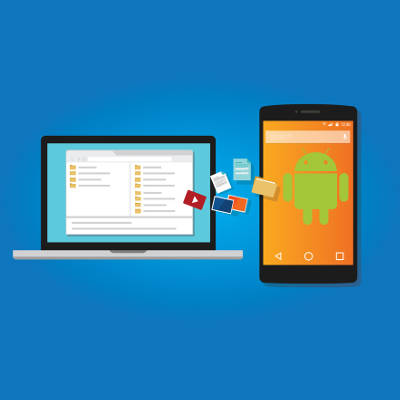
android_file_transfer_400.jpg

Tip of the Week: Drag and Drop Between Android and Windows

android_file_transfer_400.jpg

Smartphones have proven to be excellent devices for enhancing an employee’s ability to be productive while mobile. However, this approach often means that company work is now on an employee’s mobile device, instead of on your network. This issue can be easily resolved if the mobile device in question runs the Android OS. We’ll go over how for this week’s tip.

Android-to-PC File Transfers
Due to the fact that an Android device allows you direct access to its file system, it can essentially serve the same purpose as your standard external hard drive. Just as you would plug an external hard drive into a computer to move data, you can most likely use the charging cable for your device to connect it to your workstation.

Once your smartphone is connected and unlocked, you should be able to find a notification informing you that the device is charging. Tapping the notification will bring up a menu of the USB connection capabilities, for which one option is “Transfer files.” With that enabled, open File Explorer on your workstation. Your Android device should be accessible through the File Explorer menu.

Accessing your device this way will allow you to browse through your files and copy them over to your PC.

Safely Leveraging BYOD
Of course, security should always be your first concern when implementing a new process. Even a process as small and simple as transferring files from a mobile device needs to be approached mindfully for the business’ safety. A Bring Your Own Device, or BYOD, strategy may be tempting to implement to help cut the costs of equipping your entire staff with company mobile devices. However, if you elect to enact BYOD practices, you need to be sure that you are properly prepared to deal with any risks associated with them. That’s where we come in.

NuTech Services can help you to establish a BYOD strategy that meets the needs of your business–without exposing it to undue risk. Call 810.230.9455 to get started.

smartphone_accessories_400.jpg

Tip of the Week: 4 Accessories Every Smartphone Needs

smartphone_accessories_400.jpg

Smartphones are very convenient technologies, but with a couple of improvements to your device repertoire, you can drastically improve both your user experience and the value of your device. Here are four smartphone accessories that can enhance the way you use your mobile device.

Portable Battery Pack
Sometimes, no matter how much you charge your battery, you might find yourself falling short of the juice required to work while on the go. You aren’t always going to have access to an outlet, and even a quick charge may not be enough to get the job done. In instances like this, a portable battery pack is a huge help. There are battery packs available that are compatible with modern USB technology, so all you have to do is plug in your phone to charge your device. For starters, you can check out this one made by Anker.

A Long USB Cord
Your typical smartphone charging cable is generally only a few feet long, which means it’s easy to come up short when you need a charge. If you regularly find yourself needing the extra length, you can try out this huge USB cord by Anker. It makes a perfect partner for the portable battery pack we brought up. Plus, this cord is built out of some pretty hefty material, which means that you won’t have to worry about your pet chewing it, or severing it unexpectedly when moving a heavy piece of furniture around. With reinforced stress points, the cord can be bent and wrapped up for quite a bit, making it a long-lasting solution to your USB cord woes.

Bluetooth Headset
How often do you find yourself sick and tired of holding a phone to your face while trying to get work done? In cases like this (particularly long meetings with no end in sight), a Bluetooth headset for your smartphone can come in real handy. All you have to do is tether the device to your smartphone, pop it in your ear, and voila–you have a hands-free way of talking on the phone while getting to your work.

Other Bluetooth Technology
Basically, anything that uses Bluetooth technology is great for your smartphone, as it allows you to wirelessly tether devices to it. For example, you could use a wireless keyboard when you need to write a document or email. If you want to listen to music, you could hook up a pair of Bluetooth headphones so as not to bother others who might be in the vicinity.

What are some other great accessories that you can use for your mobile device while out and about? Be sure to let us know in the comments, and subscribe to our blog for more great tips and tricks.

phone_fax_other_comm_400.jpg

4 Crazy Facts About Smartphones You Probably Didn’t Know

phone_fax_other_comm_400.jpg

You may feel like you’re familiarized with everything your smartphone can do; yet, there are still some little-known things about smartphones that may surprise you. Take for example these four smartphone facts from List25.

Wirelessly Charge Your Smartphone’s Battery
There’s a day coming when you’ll be able to charge your smartphone wirelessly using radio waves. Nokia is currently developing this technology for mass production, and there’s another product, the Nikola Case (named after the pioneer of wireless technology, Nikola Tesla), that’s already figured out a way to wirelessly charge phones using a specialized phone case. To get an idea of how this newfangled technology works, check out this video.

Smartphones Provide Live Traffic Updates
Apps like Google Maps are extremely useful for making travel plans, especially when it comes to determining which roads to avoid due to traffic congestion. Have you ever wondered how Google Maps is able to provide users with live traffic updates? It turns out that Android phones utilize GPS technology to feed Google Maps real-time updates. For example, if there’s a traffic jam and several drivers on the congested roadway have their phones on, then the traffic jam will be registered on Google Maps so that other drivers can be warned.

Smartphones Deter Nuclear Warfare
Thanks to a regulation known as COCOM (Coordinating Committee for Multilateral Export Controls), your smartphone will automatically turn off if it’s traveling at a speed of more than 1,200 mph, and at an altitude higher than 60,000 feet. The reasoning here is to prevent a smartphone’s GPS technology from being used to guide intercontinental ballistic missiles. Now that you know about this regulation, you’ll never look at a superhero movie quite the same again if the flying hero whips out a smartphone.

The Quirky Reason Behind Waterproofing Smartphones
Waterproofing is a trend that’s catching on with smartphones, as seen with the newest line of Samsung Galaxy phones. Oddly enough, do you know very many smartphone users that asked for this feature? You probably don’t, and that’s because waterproofing smartphones is meant to appeal to Japanese teenagers, known for using their mobile devices in the shower. Perhaps this trend will catch on with Westerners and, sooner or later, you’ll find yourself emailing in the shower.

How many of these smartphone facts have you heard of? Can you think of any more odd smartphone factoids to add to this list? Share them in the comments!

b2ap3_thumbnail_applications_and_pranks_400.jpg

Is the “Send Me to Heaven” App the Best Technology Prank Ever? [VIDEO]

b2ap3_thumbnail_applications_and_pranks_400.jpgIf someone asked you to throw your expensive smartphone high up into the air and risk dropping it, just for the fun of it, you would probably say no. However, for the hundreds of thousands of smartphone users who have downloaded an app designed to do just that, they may have fallen for one of the best (or dumbest) technology pranks of all time.

The app we’re referring to is S.M.T.H. (Send Me to Heaven) and it’s found on Google Play. However, unlike Google, Apple isn’t falling for it. Apple actually banned the game from their App Store, claiming that it was “encouraging behavior that could result in damage to the user’s device.”

To Apple’s credit, they’re not wrong, as evidenced by a WIRED interview of the app’s creator, Petr Svarovsky. In the interview, Svarovsky admitted that he had “hoped to have people shatter as many iPhones as possible.” Why would someone want to do such a thing?

Unlike your average mischief-maker who wants to watch the world burn just for the fun of it, Svarosky’s motivation is to get back at people who buy expensive devices as a status symbol. He admitted as much to WIRED, “The original idea was to have very expensive gadgets, which people in certain societies buy just to show off, and to get them to throw it.” One can only imagine the devastation Svarsoky could unleash upon the world if he designed the S.M.T.H. app for smart TVs.

How Does the S.M.T.H. Work?
Like all great mobile gaming apps, S.M.T.H. is ridiculously simple. With the app activated, you simply chuck your smartphone into the air and catch it. After it lands safely in your hands, you’ll then check the screen to see how high your throw was. As seen in this tutorial video:

To give you the motivation to keep throwing your smartphone and putting it at further risk, the app registers the throw’s height and uploads the result to leaderboards such as; World Top 10, Week Top 10, Day Top 10, Local Top 10 (national) and Facebook Friends lists.

Safe to say, there has been many phones destroyed because of this game, earning it the infamous title, “the last game your phone will ever play.” However, for those who aren’t all that concerned about breaking their phone, S.M.T.H. actually makes for a fun and competitive gaming experience where you have to get creative in order to break your old record. Take it from these guys using rubber bands to launch their phones and a blanket to catch it:

What do you think about S.M.T.H.? Does it seem like a fun and exhilarating way to do something new with your smartphone? Are you going to give it a try, or perhaps recommend it to a friend as a practical joke? Share with us your thoughts and high score (well, maybe not) in the comments!

b2ap3_thumbnail_smartphone_battery_life_400.jpg

Tip of the Week: 7 Tips to Extend the Life of Your Android’s Battery

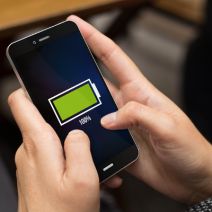
b2ap3_thumbnail_smartphone_battery_life_400.jpgOne experience shared by every mobile device user is batteries losing power faster than they’d like. Until someone invents a battery that never again needs to be recharged, this struggle will always be real. Here are seven ways to make your mobile device’s battery last longer.

Dim Your Screen
Go to Settings > Display and toggle Adaptive brightness.

Your screen is likely your device’s biggest energy hog. The longer it’s powered on and the brighter it is, the more power it will sap from the batteries. For example, you don’t really need your screen to remain powered on for a full minute after you’re done checking a notification. Therefore, make adjustments to your screen’s settings accordingly.

Turn Off Location Service (GPS)
Go to Settings > General > Location.

As long as your phone’s location service is enabled, it will use energy to stay connected to GPS satellites. Unless you’re actively using an app that requires GPS, like Google Maps, it’s likely that you won’t need GPS and you can go ahead and turn it off.

Disable WiFi When Out and About
Go to Settings > WiFi, Bluetooth, or Data Usage.

If you ever get a chance to connect your device to WiFi, do it and save yourself some precious data. However, when you’re traveling from place-to-place and you’re outside the range of any usable WiFi, then you’ll want to go ahead and disable your device’s WiFi. Otherwise, your device will use a significant amount of energy looking for and trying to connect to usable WiFi signals.

Turn Vibration Off
Hit the Volume Down key until you feel the phone vibrate, then hit it once more to silence all notifications.

When in social situations, having your phone vibrate for notifications is a great way to not annoy others. However, it requires significant battery power to get your phone to buzz and shake like that. By turning off your phone’s vibration setting, you’ll extend the battery of your phone just a wee bit more, especially if you’re one to receive constant notifications.

Manually Update App
Go to Play Store > Settings > Auto-update apps, and turn auto-update off or set it to update over WiFi only.

By default, your phone is set to automatically update its apps. While this works out fine if you’ve got a full battery, if you’re trying to conserve battery power, the last thing you’ll want is for your phone to connect to the Play Store and start downloading data.

Disable Background Data
Go to Settings > Data Usage.

Just because you’ve closed an app doesn’t mean that it’s not doing something behind the scenes. For some of your apps, they might be consuming more background data than you think (like GPS information). Disabling the collection of background data will save you battery power, but it also might cause some of your apps to not function properly when you go use them, so just be aware of that.

Airplane Mode
Go to Settings > Connections > More networks > Airplane mode.

Before you get desperate enough to conserve power that you turn off your phone entirely, try airplane mode. This is a handy feature that gives you access to several of your device’s useful apps, like clock, calendar, and contacts while cutting off its connection to networks like the Internet. If your phone isn’t trying to push data to all of its Internet-connected apps, then it will eat up much less power. Obviously, you won’t be able to send or receive messages or calls, but you’ll be able to reserve power until you need it.

These are just some of the battery-saving tips you can try, there are actually several more things you can try if you’ve gone through this list and still find your battery dying quicker than you’d like. What are some ways that you keep your batteries powered? Let us know in the comments.

b2ap3_thumbnail_smartphone_addiction_dangerous_400.jpg

7 Signs of Smartphone Addiction and 4 Things You Can Do About It

b2ap3_thumbnail_smartphone_addiction_dangerous_400.jpgThere’s no doubt that smartphones are one of the greatest achievements in modern technology. Compared to computers from several years ago, the average smartphone is vastly more powerful. Coupled with mobility, the smartphone is a productivity machine that helps you get more done in your day. Despite these advantages, you might be a little too attached to your device.
Telltale Signs of an Addiction
If you truly can’t tell if you’re addicted to your smartphone, try asking yourself these questions:

  • Do you always keep your smartphone on your person? This isn’t always a bad thing, but when it’s always in your pocket, you feel compelled to pull it out and respond to texts, emails, or even phone calls while in the office. This can be distracting, and detrimental to your productivity.
  • Do you find yourself placing your smartphone on the table when eating a meal? Besides being rude and inconsiderate to your company or waiter, this shows that you can’t go a simple half-hour session without checking your phone once.
  • How many times a day do you check your phone? We realize that there might be a reason you check your phone, but if it’s simply to “check the time,” that’s what watches are for. Continuously checking your phone when you aren’t expecting a call is either a result of boredom, or a smartphone addiction.
  • Where do you place your smartphone when you sleep? If it’s on the nightstand or under your pillow, you might be in trouble. This might be because you use your phone as an alarm clock. If your phone goes off in the middle of the night and wakes you up, it can cut into your sleep cycle and reduce the quality of rest you receive. This, in turn, can be bad for both your health and concentration in the workplace.
  • Do you bring your smartphone into the bathroom with you? Plenty of people bring their phones into the bathroom with them and take the opportunity to catch up on emails, reply to text messages, or check social media. Besides clearly being a sign of addiction, this can be a primary reason for the spread of germs in the office. You might wash your hands, but we doubt you wash your smartphone.
  • Do you get angry at your smartphone when it goes off? The average smartphone user has a ton of different applications on their device, each with notifications that go off periodically throughout the day, or signal the arrival of a new message. If you feel compelled to check these constantly, you might (understandably) get angry or flustered.
  • Do texts, emails, and other messages seem to take the place of real-life conversation? That’s because they are. The beauty of a smartphone is that you can communicate with people across the world in the blink of an eye, but when you use it as a substitute for real-world interaction, you can say with confidence that something needs to change.

What Can You Do?
One of the better life choices you can make is to cut down on your smartphone use, especially if you feel like it’s taking the place of your social life and familial relationships. Here are some solutions that might help you get over your mobile dependency:

  • Don’t buy the latest smartphone. The latest technology is sure to have the most features, and as such, you’re sure to waste more time on one of them, than another, slightly older model.
  • Limit your application consumption. When your phone is filled with applications, they can be bothersome. Most people only take advantage of somewhere between 5-10 apps every day, so why use more than that when you don’t need to?
  • Separate yourself from the phone. Instead of leaving it in your pocket, keep it in another room, a bag, or a purse. Use other devices for purposes that can accomplish the same thing, like an alarm clock or a watch.
  • Just ignore it. While ignoring your phone might seem difficult, it’s the best choice in most cases, so long as it’s not an urgent call that you’re expecting. Always take real human interaction over a text or phone call.

Of these seven questions, how many do identify with? Let us know in the comments just how addicted you are to your smartphone.