charge_your_smartphone_battery_400.jpg

Tip of the Week: How to Charge Your Mobile Device Battery Faster

charge_your_smartphone_battery_400.jpg

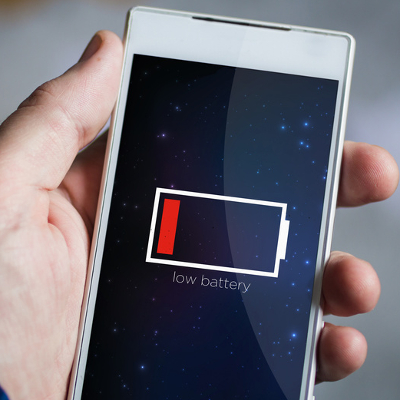
Most of the time, you don’t care about how long it takes to charge your device’s battery–that is, until you find yourself in a bind and need a full charge ASAP! It’s in a moment like this when you frantically ask the question, “Is there any way to make this battery charge any faster!?” Fortunately, there is.

Power Off Your Device
The first charging tip happens to be the most obvious: turn off the device while it charges. This way, your battery is fully devoted to the task of charging, instead of your juice being diverted to open apps.

Although, as we’re all well aware, there are many times when you need a charge, but you’re not in a position to power off your device. After all, you may need to take a phone call or use the device to get work done. In an all-too-common scenario such as this, there are actions you can take to speed up a charge. Consider the following.

Disable the Device’s Internet Connection
Your phone uses a bunch of juice just to stay connected to the World Wide Web. If the task you’re working on doesn’t require an Internet connection, then you can disconnect from the web by activating airplane mode. While in airplane mode, you can still use many of your device’s core apps, like the calendar, calculator, alarm clock, etc.

Turn Off Bluetooth
Bluetooth is another major power drain for mobile devices. If you’re not in need of a Bluetooth signal, then your device will charge faster if Bluetooth is turned off.

Use a Wall Outlet
Yes, you can charge your device while it’s plugged into another device’s USB port, but the reality of the situation is that a direct connection to a wall outlet provides way more juice than another device’s USB port. In fact, in some scenarios, you may experience that a device charging via another device’s USB only prevents your device from losing power more quickly.

The mechanics behind this actually makes a lot of sense. Essentially, different chargers have different power outputs. PC Advisor explains, “While a PC’s USB port is specified at 2.5W for USB 1.0 and 2.0 and 4.5W for USB 3.0 (so always use a USB 3.0 port in preference to USB 1.0 or 2.0 when available), a phone charger might be rated at 5W and a tablet charger 10W, for example.”

Upgrade Your Charger
We should note that just because you’ve got your device plugged into the wall, doesn’t mean that it’s receiving the maximum charge. Sometimes, a charger may be rated at 5W when your device can accept a higher charge like 10W. If this is the case, then upgrading your charger appropriately will allow you to take full advantage of your phone’s charging potential. To better understand your device’s charging capability, consult the owner’s manual.

Quick Charge 2.0 By Qualcomm
Thinking beyond the tweaks you can make to your device, you can employ an outside solution like Quick Charge 2.0 by Qualcomm and have a 3300mAh battery reach 60 percent capacity in only 30 minutes. Compare this to a normal 5W charger which would charge the same battery to 12 percent in the same amount of time. Of course, the catch is that the device needs to be running certain Snapdragon processors. So again, be sure to look into your device’s capabilities before following through with this solution. See the Quick Charge 2.0 in action by clicking here >>

By trying these best practices, you should be able to get the charge you need in order to supercharge your productivity! Do you have any additional tips that you try to get the most out of your device’s battery? If so, share them in the comments below!

voip_softphones_400.jpg

3 Ways VoIP Phone Systems are Superior to Traditional Landlines

voip_softphones_400.jpg

Compared to traditional telephone solutions, software-based phone systems have become a major opportunity for businesses to cut costs and improve efficiency. Even if traditional phone systems have their uses, VoIP still wins out by eliminating unnecessary costs and simplifying your business’s physical infrastructure. You might find that VoIP has a place in your office, too.

VoIP takes advantage of your business’s Internet connection to transfer your voice to the desired recipient, usually through a software client that’s installed on a workstation, laptop, or smartphone. The main draw for VoIP is that it works anywhere as long as you have an Internet connection. Organizations have widely accepted VoIP as a viable alternative to the traditional telephony system for a number of reasons. We’ll go over the three most beneficial reasons to use VoIP as your trusted communications solution.

VoIP is Versatile
One of the big pain points that businesses have with their office phone system is that they can’t easily take it on the road with them when they leave the office. VoIP makes this easy by installing a softphone application on any applicable device, like a smartphone or a laptop. Just hook up a headset or microphone and you’re all set–it’ll be just like using your office phone.

VoIP is Flexible
Onboarding new employees is another major problem for growing businesses. A larger workforce means adding new telephones and new cables to your communications infrastructure. In a worst-case scenario, you may need to remodel your office to accommodate for the changes in the size of your workforce or communications infrastructure. VoIP eliminates this need. All you have to do is add a new user, including their extension, and configure the phone system. Although, depending on the size of your workforce, you may need to keep a close eye on your bandwidth, as it relies on your Internet connection to work properly.

VoIP is Cost-Effective
If you compare the costs of VoIP to those of a traditional phone system, you’ll be in for a pleasant surprise. A great way to describe the cost savings is by comparing VoIP to that of cable cutters who no longer want cable television. Those who pay for cable television get access to countless channels that they can’t possibly watch all of. Thanks to monthly services like Netflix and Hulu Plus, viewers pay a fraction of the price they would normally pay for entertainment, leading them to cancel their television plans in favor of more affordable monthly payments. Similarly, telephone providers often bundle together services that your business may not want or need, and you certainly don’t want to pay for things you won’t use. Since VoIP only uses your Internet connection, it uses a service you already pay for, making it convenient and budget-friendly. You can add all of those additional features later on if you want them.

If your business is considering a new approach to communications, try VoIP from NuTech Services. We’ll work with you to find a solution that’s just right for your business. To learn more, reach out to us at 810.230.9455.

two_phone_numbers_400.jpg

Tip of the Week: How to Easily Add a Second Phone Number to Your Mobile Device

two_phone_numbers_400.jpg

As the smartphone takes over many of our daily tasks, it can be annoying if we have to use a separate device to accomplish what we need to, like making calls on a different phone. Did you know that it’s easy to add a second phone number to your smartphone?

There are plenty of reasons why you would want to do this. Maybe you would like a second phone number that you can use to sign up for promotions so that your primary number doesn’t end up on a telemarketing list. Or, perhaps you want to take calls for your business on your personal smartphone. Whatever your reason, the technology that allows you to do this is very accessible.

Call Transfer
A solution that has been around for quite some time (even before smartphones) and comes with most phone plans is Call Transfer. If your current phone system supports it, you can forward calls from it to your personal cell phone, allowing you to take business calls while on the go.

Using Call Transfer is an easy way to receive calls on your smartphone from another line, but this feature traditionally doesn’t allow you to make calls from your second device using the transferred phone number. Although, there are phone solutions specifically designed for business, like Voice over Internet Protocol, that will give you the option to both make and receive calls using the transferred phone number with minimal hoops to jump through.

Second Phone Number Apps
If your goal is to get a second phone number for your smartphone that operates entirely as a fully functioning phone line, then there are several apps that allow you to do this. Here are a few of the most popular options.

Google Voice/Hangouts
Using your Google account, you can sign up for a second Google Voice phone number and then use Google Hangouts on your smartphone to both make and receive phone calls. This is a convenient option for those already getting a lot of use out of their Google account, and the best part is that it’s free.

Sideline
Sideline provides your phone with a second phone number, although it just provides the basics. With Sideline, you have the ability to make and receive calls and have voicemail with your second phone number, but that’s about it. At $3 per month, Sideline is an inexpensive option, but you’ll have to suffer through advertisements while using it.

Line 2
Line 2 has more features than the previous examples, making it a better option if you want to use your second phone number for business purposes. These features are reflected in Line 2’s two plans; $10 per month for a personal number and $15 per month for a business line. For many smartphone users, the mobile app and the online dashboard may make Line 2 a desirable product.

Skype Number
Skype makes getting a second phone number relatively easy, and if you’re already using Skype as your go-to video chat solution, then getting a second phone number through Skype will make a lot of sense. A Skype Number offers users a fairly robust package of features, and at $6 per month, it’s an affordable option.

For putting a second phone number on your smartphone, you’ve got plenty of options. However, to implement a unified, Internet-based phone solution across your entire organization, you’ll want to go with something more heavy duty like VoIP. For help with VoIP or any other of your communications technology needs, call us today at 810.230.9455.

apps_for_voice_to_text_400.jpg

3 Talk-to-Text Apps that Get the Job Done

apps_for_voice_to_text_400.jpg

Mobile platforms have given way to entirely new ways to develop and make use of apps. More business professionals than ever before are relying on their smartphones to get work done while out of the office, but the functionality of the on-screen keyboard interface has some of them stumped on how to stay productive. It’s for this reason that developers have created applications designed to listen to users’ voices, and record them in text format.

Here are three of the most reliable options we know of that can turn your voice into text.

Evernote
Evernote has been a major note-taking application for the Android and iOS mobile platforms, as it helps users keep track of their ideas and manage their content. It’s designed to capture and store sound bytes, which can then be converted into text format. You can keep both audio and the transcribed text file together and easily accessible. This useful option gives users an outlet to cross-check between the two to make sure that everything has been translated properly.

Other than capturing audio to text, Evernote also allows you to collect information and catalog it in a way which allows for easy searching. This gives you near-instantaneous access to your data. You can chat with collaborators using a real-time, built-in chat system, as well as share files. This provides the seamless cooperation tools that the business world needs to succeed.

Dragon Dictation
Another way to take advantage of voice-to-text integration is the #1 audio dictation software, Dragon. The app itself is quite simple; it has one button that’s used to stop and record audio. Once you’ve finished reciting what you’d like to record, the text will show up. It might be a little difficult at first, but it doesn’t take too long to accomplish. The Dragon software behind the app is renowned for having great accuracy, which will allow you to produce lengthy emails, notes, status updates, and more. You can easily copy the text and save it for later, too.

Voice Assistant
Voice Assistant is an app that has been redesigned for iOS and is now easier to use than ever before. All you need to do is switch to your preferred option, and you can convert your audio files to text with ease. Once the text file is available, you can then use the auto-copy feature to send your transcripts to apps that you use the most. This makes Voice Assistant a convenient medium that can work across platforms. It’s a great alternative to built-in voice assistants like Siri. Voice Assistant supports over 22 different languages and can integrate with many of today’s most popular apps. It can be purchased for only $0.99.

If you’re hoping to make voice-to-text dictation easier, all you need to do is consider these three options. Do you find this feature useful? If so, how do you go about turning audio files to text? Let us know in the comments.

how_did_you_break_your_phone_400.jpg

Tip of the Week: The Top 5 Mistakes that Ruin Mobile Devices

how_did_you_break_your_phone_400.jpg

To get the most life out of your smartphone, you’re going to want to properly take care of it. Of course, this is easier said than done for a small device that’s prone to being dropped and subject to the many dangers of being transported. Here are five smartphone practices to avoid if you want your device to last.

Going Without a Case
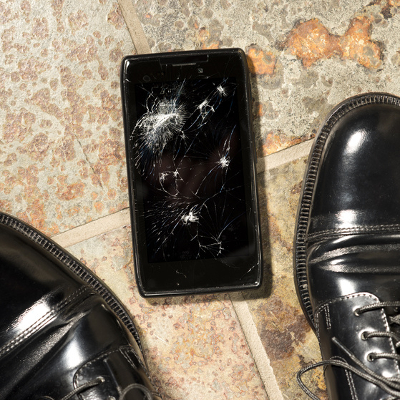
When purchasing a mobile device, it’s easy to brush off getting a case. Although, if your device goes unprotected, then it can experience some serious damage when (not if) you next drop it. At the end of the day, protective cases are relatively inexpensive and can be easily found, so you really have no excuse… unless you’re this poor bloke.

Plus, if you’re super serious about protection, you can even special order a military-grade case that promises to safeguard your device from the harshest of conditions.

Exposing Your Device to Extreme Temperatures
Both extreme hot and cold weather can devastate a device. At 113 degrees Fahrenheit, a phone will overheat and become damaged, which is easy enough to reach inside a car on a hot summer day. On the opposite side of the thermometer, a smartphone ceases to work when the exterior temperature reaches -40° Fahrenheit. Just be mindful of this and turn your device off if you find yourself either in the desert, Arctic tundra, or even in direct sunlight.

Never Turning Off Your Device
Smartphones are different than PCs. With a PC, you can leave it on all day long without any adverse effects. In fact, some PC users will argue that it’s better to never turn off a PC. However, smartphones need to be turned off every now and then. TechRepublic explains:

At least once a week, reboot that device or (even better) shut it down for 30 minutes or so. Doing this will ensure that caches are cleared and subsystems are properly restarted. Shutting down the device once a week will aid with the longevity of the RAM on the device and allow certain diagnostics to be run at boot.

Keeping Your Phone in Your Pockets
While it certainly is convenient to keep your phone in the pockets of your pants, doing so puts your device at great risk. This is especially the case with your back pockets; forget to remove your phone and you’re in for one expensive sit. Even keeping your smartphone in the front pocket of your pants can cause it to fall out if you bend your legs a certain way. Plus, in some rare occasions, phone batteries have been known to combust.

Also, shirt pockets make for a bad place to store mobile devices. The reason should be obvious. Instead, it’s better to transport a mobile device on a belt clip, or even in a purse or messenger bag.

Ignoring Malware
For many users, mobile security solutions are ignored because they feel like their mobile devices aren’t susceptible to the same risks as PCs. While it’s true that more viruses are designed for desktops, there are many attacks exclusive to mobile platforms, and the number of threats continues to rise as mobile computing becomes ever more popular. At the very least, you should have an antivirus solution for your phone and perform regular scans, and you need to be careful of the mobile apps you install.

By avoiding these smartphone blunders, your phone should last for years to come, and the risk of something happening to it will decrease dramatically. For more tips and best practices, contact NuTech Services and subscribe to our blog.

b2ap3_thumbnail_bad_cell_phone_etiquitte_400.jpg

Tip of the Week: 4 Social Taboos Smartphone Users Should Never Break

b2ap3_thumbnail_bad_cell_phone_etiquitte_400.jpgCellphone etiquette goes hand-in-hand with common sense. Here are four cellphone etiquette tips that every device owner should know.

Don’t Use Your Phone During Mealtime
Mealtime is a social time for pretty much every culture around the globe. During this time, it’s expected that you are fully present and engaged in conversation–which is super hard to do if you’re glued to your phone. Even the quick glance at the screen to check notifications can be construed as rude.

Solution: Turn your phone off during mealtime, or at least, keep it off the table.

A restaurant in Iowa, Sneaky’s Chicken, offers a 10 percent discount for diners who don’t bring their treasured phone to their meal. Also, Bucato, in Los Angeles, has a dedicated “cell-phone section.”

Use a Voice Level That’s Appropriate for Your Setting
While it’s okay to use your phone in a room with other people, it’s not okay to talk on your phone using such a high volume that others around you can’t focus or must talk over you. The problem here often comes from phone calls with poor connections, causing the caller to feel the need to talk louder so they can be heard. Then there are those who feel the need to speak in abnormally high volumes when using the phone, no matter the situation or quality of their connection, much to the chagrin of those in the same room. Awareness of the volume of one’s own voice is the best deterrent here, which for some people, is easier said than done.

Solution: If you need to speak at higher-than-normal volume when using the phone, step outside or go to the next room

Hang Up Before Checking Out
While it’s perfectly acceptable to shop and use your phone at the same time, it’s rather rude to continue talking on your phone while a cashier is ringing you out. Even if you don’t plan on having a grand conversation with the person behind the register, talking on the phone still communicates that you essentially don’t think very highly of them and their time. Plus, it just makes things awkward for the poor cashier if they have to interrupt your conversation in order to ask you a question about your purchase.

Solution: In a scenario where you must stay on the phone while the cashier is ringing you out, at the very least, apologize for the inconvenience and be attentive to them just in case they need to ask you a question.

Don’t Leave Long Voicemails
Just because you can explain every detail possible in a voicemail, doesn’t mean that you should. When a voicemail goes beyond the one minute mark with no prospect of coming to an end anytime soon, it can overwhelm a person. This is especially the case if the message goes into great detail, requiring you to scramble to find a pen and paper; then you don’t get to a pen in time and have to listen to the long message all over again. Grrrr.

Solution: If you’ve got a lot to share, make the voicemail primarily about having the person call you back. Otherwise, it’s best to just leave your name, what you’re calling about, your callback number, and nothing more.

Surprisingly, as common sense as these tips are, we see cellphone users break them all the time. When it comes to preventing annoyances such as these, spreading knowledge about proper cell phone usage goes a long way. Therefore, if you know of any offenders of cell phone etiquette, share this article with them–in a subtle way.

What are some of the most annoying cellphone usage habits that you’ve observed (or are guilty of)? Let us know in the comments.

b2ap3_thumbnail_smartphones_on_market_400.jpg

The Newest Smartphones From Samsung, Apple, and Microsoft

b2ap3_thumbnail_smartphones_on_market_400.jpgSmartphones are firmly established as a staple of modern society. In fact, sales of smartphones grew a whopping 23 percent during the previous year. It’s the nature of mobile devices for consumers to look forward to the latest models. To that end, here’s our preview of this year’s top three smartphones.

Due to the sheer demand of smartphones flooding today’s market, there are way more than three models to choose from. However, for the sake of being concise and relevant, we’ll focus on the flagship device from these three mobile manufacturer; Samsung, Apple, and Microsoft.

Samsung Galaxy Note 5
Samsung has taken the lead as far as smartphone marketshare goes, garnering 24.6 percent of the market in 2014. They’ve achieved this success with their line of s-model phones and Note phablets. All eyes are on Samsung and its latest offering, the Galaxy Note 5.

Galaxy Note 5 Specifications
Display: 5.66-inch Super AMOLED capacitive touchscreen with 1440 x 2560 resolution made from Gorilla Glass 4
Operating System: Google Android v5.1.1 (Lollipop)
Processor: Samsung octa-core Exynos 7420
Memory: 32 GB, 64 GB, and 128 GB models available; 4 GB RAM
Cameras: 16 MP camera with optical image stabilization, 5 MP front-facing camera
Battery: 4,100 mAh
Communication: NFC, Bluetooth v4.1, Wi-Fi, Infrared, microUSB
Other features: Accelerometer, gyro, proximity, compass, barometer, gesture, UV, heart rate, Sp02, integrated s-pen

iPhone 6s
The iPhone has been Apple’s best-selling device for almost 12 years, and the iPhone 6s looks to continue this trend. The latest iPhone will include an all-new A9 processor, designed to exceed in computing power Samsung’s Exynos 7420 processor. It’s also been confirmed that the iPhone 6s will get an upgrade to its body. Presumably, this will make it stronger and more durable, especially in light of how the previous model was ridiculed for bending too easily. Additionally, the iPhone 6s will have a larger display than the iPhone 6.

iPhone 6s Specifications
Display: 4.7-inch Retina display with 750 x 1334 resolution with ion-strengthened glass and a oleophobic coating
Operating System: iOS 9
Processor: Apple A9
Memory: 32 GB, 64 GB, and 128 GB models available; 2 GB RAM
Cameras: 12 MP camera with phase detection focus, 5 MP front-facing camera
Battery: Li-Po 1,810 mAh
Communication: Bluetooth v4.1, Wi-Fi, v 2.0, reversible connector
Other features: Accelerometer, gyro, proximity, compass, barometer

Lumia 940
Microsoft recently acquired Nokia and its line of Lumia smartphones. Despite the fact that the Lumia phones have received great reviews, they’ve never made the kind of sizable impact that Microsoft would have liked. Thanks to the success of the newly-released Windows 10 OS (a system that promises one single interface across every device, including the Lumia smartphones), the time may be ripe for Windows Phone to finally take off.

Lumia 940 Specifications
Display: 5.2-inch display with 1440 x 2560 resolution with Gorilla Glass 4
Operating System: Microsoft Windows 10
Processor: Dual-core 1.82 GHz, Qualcomm MSM8992 Snapdragon 808
Memory: 32 GB, 64 GB models available; 3 GB RAM
Cameras: 20 MP camera with phase detection focus, 5 MP front-facing camera
Battery: Li-Ion 3,000 mAh
Communication: NFC, Bluetooth v4.1, Wi-Fi, microUSB 2.0
Other features: Accelerometer, gyro, proximity, compass, sensor core

These three smartphones are the flagship devices sold by each manufacture, but they’re not the only devices offered by each company. If you like what you see here, but you’re looking for variations in regards to features, check out these alternative models:

  • Samsung Galaxy s6, s6 Edge, s6 Edge+
  • iPhone 6+
  • Lumia 940 XL

Which smartphone is right for you? While you’re sure to have personal preferences toward a particular brand, it’s in your best interest to do your due diligence when shopping for a new phone so you can obtain a model that best meets your needs. Want to know about how mobile technology like this can improve your business? Call us at 810.230.9455 to learn more.