routerPlace_99947271_400.jpg

Tip of the Week: Placing Your Router in the Ideal Spot

routerPlace_99947271_400.jpg

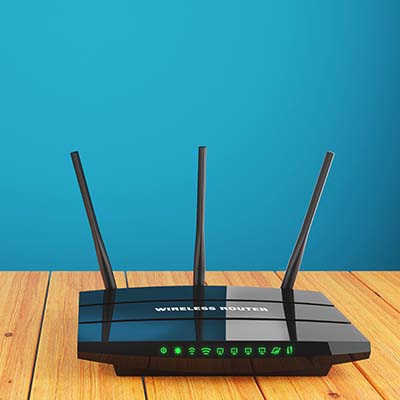
Whether in the home or office, getting work done nowadays is very reliant on a reliable Wi-Fi signal. This makes it important to have your router placed in the right spot. Let’s go over a few best practices so that you can set up your router in a place where it does you the most good.

Keep Your Router in a Central Location

Let’s face it—if you’re trying to cover the entirety of a building, putting your router at one end or the other is going to be counterproductive. Not only is the signal generally directed outward in all directions from the hardware, putting the router on one side of the building potentially doubles the number of walls the signal will have to penetrate to reach a device on the other side. Plus, that also means that half of your signal is being sent where nobody will be using it. Keeping your router in the middle helps to keep the signal as centralized to your business as possible.

Minimize the Obstacles the Signal Will Have

On the topic, the more your Wi-Fi signal needs to go through to get to your devices, the weaker it will be by the time it gets there. Avoid putting your router in an enclosed space (as aesthetically preferable it may be to do so) to help keep your signal as strong as possible.

Other electronic devices count as obstacles as well, as they can let out interference that, well, interferes with your Wi-Fi signal. Try to keep your router away from these if at all possible.

Position the Antennas Appropriately

Depending on where you need your signal to go, you’d be wise to adjust how your router’s antennas are positioned (if your router allows you to adjust them, that is). If you only need your signal to cover the floor that the router is also on, keeping the antennas vertical will be your best bet. If multi-floor coverage is required, angling them slightly (to about a 30-degree angle) may be best.

Truly optimizing your wireless connection may take a bit of fiddling, but keeping these practices in mind is bound to help. For more assistance with your business’ IT, give us a call at 810.230.9455.

darkModeBrowser_303234749_400.jpg

Tip of the Week: Take the Strain Off Your Eyes with Dark Mode

darkModeBrowser_303234749_400.jpg

Sometimes the last thing you want to do is stare at a bright computer screen and have the white glare bother your eyes. While we know that staying away from computers and devices is particularly hard, especially in the office environment, a dark mode option can make your device easier to tolerate for extended periods of time.

Let’s go over how you can enable a dark theme for your Windows operating system and its applications.

Keep in mind that this doesn’t affect most of your desktop applications—only those associated with Microsoft and Windows. We do, however, urge you to check the settings for other applications, as dark mode is a common thing for developers to include these days.

Enable Dark Mode for Windows

The blanket setting for dark mode on Windows can be found by following this path: Settings > Personalization > Colors. You should see the option for dark mode under Choose Your App Mode. As previously stated, this doesn’t change all of your apps, so be sure to check the settings for your other commonly used applications to see if it allows for a dark mode.

Enable Dark Mode for Edge

Microsoft Edge, Windows’ default web browser, has a dark mode setting as well. To enable it, click the three-dot menu on the right side of the screen. Select Settings, then navigate to the drop-down menu and select Choose A Theme. From here, select Dark.

Enable Dark Mode for Microsoft Office

Microsoft Office also has a dark option that can be enabled through its settings. Begin by opening any Office application, like Word or PowerPoint, then go to File > Options. Under the General tab, you’ll see the option for Personalize Your Copy of Microsoft Office. You can set the Office Theme setting to Black.

And there you have it! Dark mode is enabled on your Microsoft products. Other applications might require extensions or other add-ons, so be sure to do your research or reach out to us if you are unsure of how legitimate they are.

Did you find this blog helpful? If so, share it with colleagues!

462322582_zip_400.jpg

Tip of the Week: Zipping and Unzipping Files

462322582_zip_400.jpg

Large files like videos aren’t exactly the ideal attachments for something like an email. There are also cases where you have to send multiple files, some of which may be large, attached to an email, but when the files are too large, this just won’t work. Thankfully, there are some ways around this, one of which is to compress files into a .zip file with a tool found in Windows 10.

There are tools besides the ones built into Windows 10, like the free and open-source 7-ZIP, which allow you to compress and decompress files; for the purposes of this blog, however, we want to focus on the built-in functionality of Windows 10.

First, let’s explain what compression and decompression actually does to the files; please note that we will use the terms “zip” and “unzip” files when referring to these processes moving forward. When you compress a file, it becomes a more compact format that can easily be transferred. This process helps to reduce the file size of the files. A ZIP folder is one which stores these compressed folders or files.

Windows 10 has made great strides in terms of transparency and accessibility of compression/decompression. Windows now allows you to view the contents of a zipped folder just by opening it like any other folder (it used to be the case that you would have to decompress it first). You can then use this information to determine whether or not you want to extract (or unzip) the contents of the folder to your PC. Any edits made to these files will not be permanent until you extract them.

Zipped files are easily identifiable by the zipper that runs up and down the icon, as well as the file type being .ZIP. To unzip a specific file, click and drag the file to the extraction location. Alternatively, if you would rather just unzip all contents of the folder, you can right-click the .ZIP file and click Extract All. If you are in the folder already, you can click the button from within the folder. You will have to choose an extraction location next. In the end, all extracted files will go to your desired location.

As for the extraction location, click on the Browse option and find the folder you want to extract your files to. Once you have the destination selected, click on the Extract button. Depending on how large the files are, it might take some time, but the process is simple enough and quick enough that it shouldn’t take too long before you see the unzipped folder in your desired location.

Did you find this trick helpful? Let us know in the comments below.

459811394_shortcut_400.jpg

Tip of the Week: A Short Guide to Microsoft Word Shortcuts

459811394_shortcut_400.jpg

Most companies utilize a word processor of some sort, and one of the most powerful and dynamic (not to mention commonplace) is Microsoft Word. If you want to get the most out of this great solution, we’ve got your back. Stay tuned for a quick look at some of the most commonly used keyboard shortcuts that we think you will find helpful during your business’ day-to-day operations.

We recommend that you print out this blog article and use it as a quick reference for certain shortcuts that you might use frequently, at least until you memorize how to use them.

  • Cut: Ctrl + X
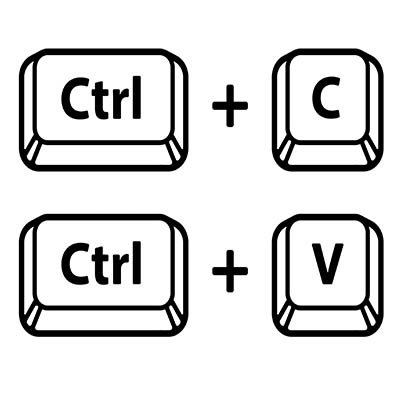
  • Copy: Ctrl + C
  • Paste: Ctrl + V
  • Undo: Ctrl + Z
  • Redo: Ctrl + Y
  • Open a document: Ctrl + O
  • Close a document: Ctrl + W
  • Save current document: Ctrl + S
  • Create new document: Ctrl + N
  • Select all content: Ctrl + A
  • Bold: Ctrl + B
  • Italic: Ctrl + I
  • Underline: Ctrl + U
  • Align center: Ctrl + E
  • Align left: Ctrl + L
  • Align right: Ctrl + R

Navigating Your Word Document

The above keyboard shortcuts are mostly for formatting, but the following are mostly used for navigating your Microsoft Word document.

  • Move cursor to beginning of document: Ctrl + Home
  • Move cursor to end of document: Ctrl + End
  • Move cursor to top of next page: Ctrl + Page down
  • Move cursor to top of previous page: Ctrl + Page up
  • Move cursor to location of last revision: Ctrl + F5
  • Open the navigation pane for search features: Ctrl + F

As always, it is impossible for us to list all keyboard shortcuts for Microsoft Word, so if you want a more comprehensive list, be sure to check out the keyboard shortcut charts over on Microsoft’s official support website here.

What are some other programs that you would like to see us cover in future tip articles? Let us know in the comments, and be sure to subscribe so you don’t miss out on them!

233944854_email_400.jpg

Tip of the Week: The Best Practices of Adding People to Emails

233944854_email_400.jpg

Whenever you go to send an email, you might glance at the CC and BCC fields and wonder what they are used for, or perhaps you are an avid user of both. Well, let’s take a look at what CC and BCC are supposed to be used for and whether or not you actually use them for their intended purpose.

Where Do CC and BCC Come From?

CC and BCC are remnants from when paper communication ruled the roost. CC stands for carbon copy, a practice in which a document was copied by layering a carbon sheet between two pieces of paper. Writing utensils would then put pressure on the top sheet of paper with the carbon beneath it applying pressure to the second, creating what is essentially a perfect copy of the message.

In the context of email, CC is sending a copy of a message to another recipient. BCC (or blind carbon copy), on the other hand, allows you to send a copy of a message without the recipients seeing others on the email chain.

When Should You Use CC and BCC?

At first glance, there doesn’t appear to be a major difference between CCing someone and sending a regular email, but there is a bigger one than you might think—especially in terms of proper manners and etiquette. The “To” field and the “CC” field have two different uses. “To” is the field you use to send an email to its main recipients. “CC” is meant to be used when the recipient isn’t directly involved with the conversation, but still wants to be kept in the loop. You can think of CCing someone on an email as providing them with a copy of the email for reference.

BCC is best used when you don’t want other recipients to see who the email was sent to. It’s useful for when you want to respect the privacy of those involved or if you have a long list of recipients that does not necessarily require a mail merge.

Hopefully, this will help you use your email more effectively as a communication tool.

We can help your business learn more about communication solutions and understand how the many technology services you use work toward improving your business. To learn more, reach out to us at 810.230.9455.

172453146_quick_tip_400.jpg

Tip of the Week: Take a Screenshot in Windows 10

172453146_quick_tip_400.jpg

There is one key on the keyboard that might seem a little odd: PrtSc. It’s not immediately obvious what this key does or why you would want to use it, but we assure you that it is an extremely helpful keyboard shortcut once you understand how it works and why you might want to try it out. In reality, the PrtSc key is important for taking screenshots on your Windows device.

Windows has a lot of keyboard shortcuts, but PrtSc is perhaps one of the easiest to carry out. When you hit the PrtSc key, Windows will take a screenshot of your computer’s monitor, allowing you to save it as an image.

There are many practical reasons for taking screenshots, many of which you might not have considered. Let’s go over your options for taking screenshots on your Windows device.

Why Take Screenshots?

Screenshots are incredibly helpful for a variety of reasons, one of which is to help IT support determine what the root cause of your technology troubles is. Basically, it lets them see what you see on the screen so they can check off boxes for more common fixes before diving into more technical issues. Screenshots are also helpful for documentation purposes, allowing you to put together guides for workflows and processes for more visual learners.

The PrtSc Key

When you hit the PrtSc key, you might notice that there are no pop-ups or anything that appears on-screen to show that you have taken a screenshot. Basically, the PrtSc key captures an image of your desktop screen and copies it to the clipboard as an image. You can then paste it like you would if it were copied or cut text. The problem with this is that it takes a screenshot of the whole screen, not just one part of it, so for more focused screenshots, you have to get a little more creative.

Snip & Sketch

This solution is built right into Windows 10 and allows you to snip specific parts of your screen for a screenshot. To use Snip & Sketch, use the keyboard shortcut Shift + Windows Key + S. There are some options here: Rectangular Snip, Freeform Snip, Window Snip, and Fullscreen Snip. Pick whichever you think best suits your needs. Your selection will then be saved to the clipboard in the same way as PrtSc, allowing you to paste it into an application or edit it in the Snip & Sketch tool.

Third-Party Services, Applications, and Extensions

There are some third-party tools and applications that you can use to take screenshots that let you capture specific parts of your screen in much the same way Snip & Sketch allows. These other solutions may be perfectly effective for taking screenshots, but you should clear any of them with IT first just to make sure that the solution is one that is allowed on your network. Plus, you might already have better tools available to you, so it never hurts to confirm with IT before going all-in on a screenshot tool; and, of course, you have us to fall back on as well!

So, how are you going to use screenshots to take your business to the next level? Let us know in the comments, and be sure to subscribe for more great tips and tricks.

252587124_improve_productivity_400.jpg

Tip of the Week: How to Improve Productivity by Identifying Distractions

252587124_improve_productivity_400.jpg

For all the time we spend promoting productivity-enhancing technologies, we’d be remiss if we didn’t address the source of quite a bit of inefficiency: the user. People get distracted from their tasks all the time and the bounceback rates from these distractions aren’t great. Let’s go over a few tips that you and your team can use to help identify and avoid distractions throughout the workday.

What Is the Impact that Distractions Can Have?

On average, a worker in the United States is distracted about every 11 minutes or so. As if this wasn’t bad enough, it then takes this worker about 25 minutes to return to the task at hand. Of course, more complicated tasks take even longer to refocus on—simply because of the greater mental effort needed to pivot from one challenging task to another.

Naturally, this isn’t a great turnaround rate… particularly when today’s workplaces are so committed to making the most of their available time. Minimizing these distractions is therefore a crucial goal that businesses should emphasize. In order to do so, it is important that we acknowledge that all distractions can be split into one of two categories: external distractions, and internal distractions.

How Are Internal Distractions Different Than External Distractions?

While there is a case to be made that a distraction is a distraction, comparing the differences between those that come from internal sources and those that are introduced by external factors can help us understand what is causing the worst productivity deficits.

We’re all familiar with external distractions, the kind that come in and pull our attention away from the task at hand. Emails, phone calls, instant messages, and impromptu meetings all fall into this category, and each contribute to the problem by some measure.

Adding to these distractions are those that reside internally. These internal distractions are those that are caused by the various mental blocks a person can experience. Oftentimes, these blocks come from an inability to weigh out our choices and prioritize them effectively… particularly when there are a lot of options to choose from. Think about the last time you looked at a restaurant’s menu, for instance. The more items they offer, the harder your choice potentially becomes to make. Smaller menus, on the other hand, give you fewer options to balance and therefore an easier choice to make.

Of course, with so many workplaces setting the schedule for their team members, this isn’t a perfect comparison. It is probably more fair to say that a lot of internal distractions in the professional environment are generated by a lack of prioritization in the tasks that are assigned to team members.

Think of it this way: if everything is marked as the highest priority, who’s to say which task has the highest highest priority?

So, not only are your team members liable to become distracted by the need to identify the most important task to attend to, they also can have a challenge in appropriately arranging these tasks so that they are finished most efficiently.

Other common internal distractions are likely to be familiar to most people: wandering thoughts, and all those moments spent thinking about the other tasks that are coming after the present one is finished. Combined, internal and external distractions can make real productivity difficult for even the most dedicated employee.

Fortunately, sharing a few strategies with your team can help give them the power to overcome these kinds of distractions and reclaim the productivity that may have otherwise been sacrificed.

How to Get Rid of Many Distractions

Rule Out Some Options

Let’s touch back on the menu example we discussed earlier. If too many options ultimately leads to more distractions, encouraging your team members to start eliminating options should help to make them more productive. Whether this means they spent a few minutes clearing their workspace of anything that may draw their attention away from their tasks, or figuring out the most impactful responsibilities they currently have assigned to them and starting with those, investing a little bit of time initially will help to prevent a lot more time being lost later.

Set Limits Before You Start

Remember how we mentioned that a big source of distraction can come from your upcoming tasks and lingering thoughts about them? One effective way to keep yourself focused on the task at hand is to give yourself a concrete stopping point. Perhaps you’ll give yourself an hour and a half of committed time to one project, after which you transition to the next, with a budgeted half an hour. Alternatively, you could set a progress limit—maybe you move to your next task after you’ve completed so many of something, or completed some percentage of your total goal. Establishing these boundaries—and sticking to them, of course—can be a very effective way to help minimize your distractions.

Remove Distractions from Your Area

Where you work plays a considerable role in how you work, with our five senses unfortunately much harder to focus than our thoughts can be. Sounds like background chatter can be intrusive and interruptive, while our sense of touch will exacerbate any discomfort we feel. Many of us rely on sight to see what we are doing, but that also opens us up to visual distractions. Smells (both pleasant and decidedly not so) can very quickly occupy our attention, and everyone has had to try and deal with the distraction of an inexplicable funny taste.

Identifying these kinds of distractions and being prepared to address them when they do appear will help to take away a few sources of distraction, potentially preserving productivity.

What have you found distracts you the most, and what have you done about it? If it isn’t enough, know that NuTech Services is here to help. There are a few things that we can do to help keep your team members on track, and we can make sure your company is equipped to make the absolute most of any time spent by implementing productive and efficient IT solutions. Learn more by giving us a call at 810.230.9455.

423837102_password_management_400.jpg

Tip of the Week: Is Browser-Based Password Management Safe to Use?

423837102_password_management_400.jpg

Passwords are quite literally everywhere nowadays. With so much of modern life now controlled or held within user accounts, keeping your passwords both secure and straight in your head is crucial. Many web browsers now offer some built-in password management utility to help make this process more convenient for the user, but is this option available at the cost of security?

Let’s examine how secure each major browser’s integrated password manager is, as well as how to disable them if you so choose.

How Secure is Your Chosen Browser’s Password Management?

Let’s do a side-by-side comparison of the password managers now built into the major browsers on the market: Google Chrome, Firefox, Microsoft Edge, and Safari. 

Chrome

Tied to the user’s Google account, the password manager found in Google Chrome offers many of the features one would expect of a modern password manager. Not only is it itself protected by two-factor authentication, but it also offers the capability to generate a random password on the user’s behalf whenever they create a new online account. This password generation helps to prevent users from simply recycling the same password over and over which minimizes the chances of a single data breach undermining more than one account.

Firefox

Whenever you access one of your accounts through Firefox, the browser will prompt you to save the username and password you used on that device where it can be viewed through your browser’s Options. From that point on, the credentials will be saved. The default setting for this capability is unfortunately insecure, but you can set a master password to protect its contents, making this the most secure option available to you.

Edge

Microsoft was late to the party concerning its password management, only adding the capability to its browser at the start of January 2021 to supplement its other security features. Among these features is Password Monitor, which helps to alert the user of breaches, as well as the capability to auto-generate a password when creating an account.

Safari

Rounding out our selection of browsers, Safari features a bundled password generator and management tool, enabling you to autofill your passwords into the websites you visit. Taking it a step further, contact info and credit card information can be saved, with all of it accessible on all your devices with iCloud Keychain. Of course, this platform is Apple-agnostic, and is relatively stingy compared to many third-party password management options, with no two-factor authentication available.

So, What’s the Most Secure Offering?

As a general rule, integrated password managers will do in a pinch, but the better option is to instead use a dedicated password manager. The reason that this is the case? Primarily: most integrated password management platforms don’t require the passwords they save to be all that secure. The opposite is usually true of your dedicated management programs, which also offer the convenience of generating sufficiently secure passwords at the click of the mouse.

We also recommend that you supplement your password security whenever available with two-factor authentication, in addition to many of the typical best practices we always recommend, including:

  • Keeping your devices and browsers up to date to ensure security patches are installed properly.
  • Avoiding websites without SSL certificates (which will simply have “http” in the URL, as compared to “https”) or using publicly-accessible Wi-Fi connections. This is noted with a little lock icon in your browser address bar.
  • Being discerning about the browser extensions or software titles you enable.

How to Deactivate the Built-In Password Management in Your Browser

Each option provides its own means of disabling its integrated password manager:

Chrome

In the Chrome browser, access the three-dot menu and select Settings. Under Autofill, click into Passwords and switch off Offer to Save Passwords.

Firefox

In your Firefox browser, access the hamburger menu and select Options. Find Privacy & Security out of the options on the left and locate the Logins and Passwords section. Deselect Ask to save logins and passwords for websites.

Edge

In Edge, access the three-dot menu and click into Settings. From there, select Passwords and then deselect the option to Offer to save passwords.

Safari

In Safari, access the Menu and select Preferences. Accessing the AutoFill category, deselect everything: Using info from my contacts, User names and passwords, Credit cards, and Other forms.

If you’re looking for reliable IT solutions, along with the means to keep them secure, look no further than what NuTech Services provides. Learn more about what we have to offer by calling 810.230.9455 today.

287215660_shortcuts_400.jpg

Tip of the Week: The Letters of the Alphabet, in Windows Shortcuts

287215660_shortcuts_400.jpg

The Windows operating system comes with more than its fair share of capabilities, many of which are accessible through the appropriate keyboard shortcut. Because remembering so many would be a challenge for some (and impossible for most) we’ve put together a list of those associated with the letters found on the keyboard, with a few extras tacked on for good measure. Make sure to take note of any you may find the most useful.

Windows Shortcuts, from A to Z

  • WinKey + A opens the Action Center.
  • WinKey + B highlights the notification area.
  • WinKey + C launches Cortana in listening mode.
  • WinKey + D toggles Show Desktop and the previous state.
  • WinKey + E launches File Explorer in the Quick Access tab.
  • WinKey + F opens the Microsoft Feedback hub.
  • WinKey + G opens the Game Bar tools, for personal use at home.
  • WinKey + H opens the Dictation toolbar.
  • WinKey + I opens your Settings.
  • WinKey + K opens the Connect pane to connect to wireless displays and devices.
  • WinKey + L locks the device.
  • WinKey + M minimizes all open windows.
  • WinKey + O locks the device’s orientation on tablets and mobile devices.
  • WinKey + P opens the Project pane.
  • WinKey + Q opens Search.
  • WinKey + R displays the run dialog box.
  • WinKey + S launches Cortana in typing mode.
  • WinKey + T cycles through the apps on the taskbar.
  • WinKey + U launches the Ease of Access/Display Center to manage attached displays.
  • WinKey + V opens the clipboard app to view things copied to it with Ctrl + C.
  • WinKey + X opens the advanced, Secret Start menu.

Bonus: Adjusting Your Program Windows

A neat workspace is a productive workspace, and if there’s a quick way to arrange your computer’s display, that’s all the better. Fortunately, Windows has a few built-in shortcuts to help quickly accomplish just that:

  • WinKey + Left/Right Arrow will take the active window and adjust it to fill the left or right side of the monitor it is displayed in. 
  • WinKey + Shift + Left/Right Arrow will move the active window over to another display.
  • WinKey + Up Arrow will maximize the active window. 
  • WinKey + Down Arrow will minimize the active window.

Believe it or not, this list is just a small sample of the available Windows shortcuts out there. There are plenty more to explore. We periodically go over a few on this blog, so make sure you’re subscribed so you can be alerted whenever we post something new!

109434737_home_office_400.jpg

Tip of the Week: Designing an Effective Work-from-Home Workstation

109434737_home_office_400.jpg

Working from home has made it clear to many that they weren’t prepared to do so—not by a long shot. In addition to the many other stresses that came with these challenging times, the lack of a sufficient and proper workspace has proved to have its impacts on the human body. To perhaps help remedy this, we wanted to offer a few considerations that might help a remote worker benefit ergonomically.

The Seat

While a comfortable chair will be important to have, there is such a thing as too comfortable. This means that the soothing lull of the bed or even the couch should be avoided. At the same time, most hard chairs won’t give you enough lower back or leg support. The best fix would be to invest in a desk chair intended for such purposes, but short of that, a pillow or rolled-up blanket can suffice.

In an ideal world, your chair would include armrests too, well, rest your arms on. Lacking that, using the tabletop without leaning or slouching would serve the same purpose.

In order to ensure your feet remain planted on the floor, it is also a good plan to keep a footrest nearby. When seated at your workstation, your legs should be bent at right angles at the knee and hip, stabilizing your position.

The Work Surface

Of course, you need a work surface in order to do work. Lacking a desk? Any place you can sit or stand somewhat comfortably will do, whether that’s a table or a countertop. All you need is the room to work comfortably.

The Devices

Modern devices give you a wide variety of options to work with. Need an additional display? Laptops can stream to another device as an external display. Dealing with a lot of distractions at home? Tune them out with some noise-canceling headphones with an integrated mic to keep you communicating with work. Incorporating these tools into your makeshift workstation will keep you ready to work productively.

Ready to talk to an IT professional about your office and team’s technology solutions? Give NuTech Services a call at 810.230.9455 today.

251388032_spying_webcam_400.jpg

Tip of the Week: Stop the Spying Webcam

251388032_spying_webcam_400.jpg

Have you ever been using your computer and you realize the operational indicator light next to your webcam is activated, only to realize that you never closed the video conference you were just on? Well, what would happen if you noticed it and you didn’t have that software up and running? If you are not an exhibitionist, it would likely freak you out to know that someone might be looking at you as you use your computer. Today, we will get into what to do to ensure that you aren’t being spied on through your webcam.

#1 – Update All Software

Of course, the best way to be sure that you aren’t being spied on is to update any software that has access to your webcam. You may just find out that there are some surprising pieces of software on your computer or phone that you’ve given access to your webcam. When you keep your software up to date you keep it from having vulnerabilities that hackers can exploit. Keeping the OS you are using updated is the most important.

On a PC, you will want to go to your Settings app and click on Update & Security. On the next page select Windows Update and select Change active hours to tell Microsoft when is the best time to update your Windows OS.

#2 – Keep Your Firewall Updated and Running

You will want to do your best to keep entities out of your personal network just like the technicians at NuTech Services do for your business. One of the best ways is to keep an up-to-date firewall. Here’s how to turn your firewall on:

Go to your Settings app in Windows and click on Update & Security. In the left sidebar click on Firewall & network protection. Once the menu opens, toggle Windows Defender Firewall. Now your firewall is on and will help you keep threats off your network. 

#3 – Make Sure Your Wi-Fi is Secure

People looking to get into your network (or spy on you through your webcam) may target your wireless router instead of your actual computer. If they get in, they can access a lot of things… including your webcam.  This means you need to beef up your router security.

First, rename your wireless network. Rename it something that isn’t easily associated with you and make sure to make a strong password. We recommend a string of at least three random words with no association to one another and replace some letters with numbers and symbols, and change the case. Make it so you can remember it (because anyone that comes to your house will want access to it), but make it secure enough that it is a strong impediment to unauthorized access. 

#4 – Cover Your Webcam

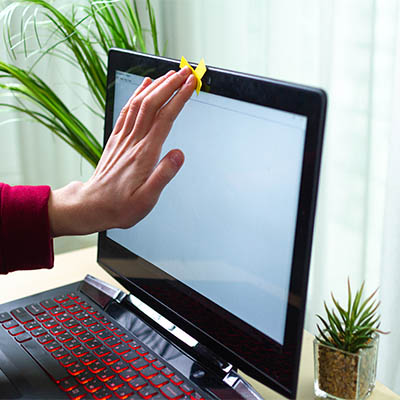
The most pragmatic (and admittedly simplest) way of avoiding the gaze of someone over a hacked webcam is to ensure that when it is not in use that it is covered. If your webcam is covered, any creep or hacker on the other end won’t see a thing.

Keeping your privacy in mind is always a solid practice. If you are looking for more tips and tricks on how to keep your data safe and your accounts private, return to our blog each week.

220561040_helpful_tips_400.jpg

Tip of the Week: The Better Way to Take a Screenshot on Windows

220561040_helpful_tips_400.jpg

For the Windows user seeking to take a screenshot, there is no lack of options. Most notably, many keyboards today offer a Print Screen key that allows the user to capture an image of their entire display. Having said this, there are better options, such as the platform’s integrated Snip & Sketch tool, with its greater functionality and greater ease of use.

How to Use Snip & Sketch

Snip & Sketch is a utility built into Windows, providing a user with four screenshot-taking options, called up by pressing Windows Key+Shift+S. These options consist of the following:

  1. A basic box selection, allowing you to click and drag to encompass your selection
  2. A freeform selection, allowing you to draw out your boundary
  3. Window snip, allowing you to select an active monitor to screenshot
  4. Fullscreen snip, taking the place of the Print Screen key, allowing you to take a picture of all your monitors simultaneously

This way, you have access to a wider range of utilities that are commonly useful, particularly in the workplace.

With any luck, this tip will help your in-office communication improve. If you’re interested in learning some more helpful IT tips, make sure you check back here often—or give our team a call at 810.230.9455.

325701375_burnout_400.jpg

Don’t Let Burnout Overcome Your Business

325701375_burnout_400.jpg

It can be said that most of 2020 and the first couple of months of 2021 have been difficult for most people. Not billionaires, of course, but most other people have found the past year difficult on some level. That’s why it isn’t surprising to hear people talk about workplace burnout. Today, we’ll define burnout and what is being said about it. 

What Exactly is Burnout?

You probably already know or at least have seen cases of burnout. If someone starts laughing maniacally, screaming uncontrollably for no apparent reason, or crying silently while they sit at their desk, you are probably looking at a case of burnout. Burnout is the feeling of helplessness, frustration, and exhaustion you get when you have had enough.

Some cases of burnout go away quickly, while others fester and stay around for months. Burnout makes a person cynical or even apathetic and is not a good thing to have around your business. With the burden of burnout, you can unwittingly create a toxic work environment. Keeping this from happening should be a priority. 

Spotting Burnout Amongst Your Team

If you want to catch burnout before it creates workplace toxicity, you will need to pay attention. The best way is to have regular conversations with your staff and honest conversations with yourself. By dedicating a few minutes to self-evaluation, you can help identify the triggers that can make all the difference between getting the burnt-out party the help they need before it can negatively affect your workplace culture.

Today, with so many people surely feeling like they are losing control over things in their lives, the risk of burnout is greater than ever and needs to be mitigated so that negativity doesn’t seep into your office and cause more problems. One way to accomplish this is to establish some consistent and predictable routines to be followed in the office, emphasizing control, and decreasing the potency of employee burnout.

Resolving Burnout

If you plan to prevent this type of thing from happening in your office, you have to respect that anyone that is feeling stressed or tired or angry could have a negative impact on your business. The human mind is complex and extraordinarily capable, but it won’t always be able to deal with everything that is thrown at it. 

If you or a member of your staff is on the verge of burning out, you will want to take some time to sort through the issues that are making you feel this way. On an organizational level, incentivized collaboration and other support incorporated into the workday can help prevent burnout even further.

Have you had problems with feelings of exhaustion from just being too stressed, being stretched too thin, or having too many demands on your time? Leave your stories in the comments section below and return to our blog soon for more great content.

174935768_email_400.jpg

Tip of the Week: Rearranging Your Gmail Messages

174935768_email_400.jpg

Email remains a popular tool in the business setting because of its undeniable usefulness in the office—but having said that, it can have its negative impacts on your productivity simply due to how much it can take to manage it appropriately. With so many messages that are crucial for you to keep track of coming through email, let’s go over a fancy trick to help you manage your messages in Gmail.

How Gmail Can Be Hacked to Control Your Message Order

Granted, there are a lot of tools and features that Gmail offers that are intended to help you manage just this. Just consider the filters and labels that can help your sort and contextualize the messages that come in.

While these are undoubtedly useful tools, they don’t always prevent messages from slipping through and being missed. However, with a simple “hack” of sorts, you can effectively reorder your messages so that your most urgent communications can be moved to the top and highlighted for added prominence.

Postponing Messages

Let’s say that you open your inbox to discover an important message that you don’t want to lose track of, but it’s also buried amongst other messages that aren’t nearly as pressing in the moment. Gmail offers a literal Snooze button that allows you to simplify this.

Don’t get too excited—this snooze button won’t let you catch a few extra winks at your desk. Instead, pressing that button allows you to resend yourself an email at a time you dictate so that it reappears at the top of your inbox. Here’s how to use it:

  • (On a desktop/laptop) selecting the box next to an email and clicking the clock-shaped icon at the top of the window.
  • (In the mobile app) tapping on the icon at its left, accessing the three-dot menu, and selecting Snooze.

You will then be prompted to set a time for the message to come back, in the form of the Pick date & time option. Once you’ve sent the message away, it will return at the time you’ve dictated and sit conveniently at the top of your inbox.

What other handy Gmail tricks do you know? Share them in the comments!

264585236_guest_mode_400.jpg

Tip of the Week: Politely Protect Your Data with Android Guest Mode

264585236_guest_mode_400.jpg

For many people, their mobile device contains a mixture of sensitive information and personal details. In some cases, some of the data isn’t even theirs—instead, it belongs to their workplace. Naturally, this makes many people less inclined to share the use of their device, but most people also want to avoid being rude.

For precisely these circumstances, Android’s Guest Mode feature allows you to be courteous without potentially undermining the security of your device or, more accurately, the data stored on it.

What is Android Guest Mode?

First appearing in 2014 as a part of Android 5.0 Lollipop, Android Guest Mode is a way that your team can more easily fight against a scammer. Unfortunately, firewalls and antivirus aren’t exactly capable of protecting a phone if the user hands it over to someone with malicious intent—something that could easily happen if the scammer sold their story well enough.

Should this play out, the phone immediately becomes a direct threat to your data.

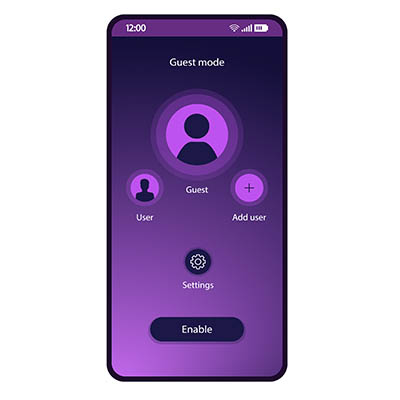
Guest Mode offers you a safe alternative to handing a phone filled with sensitive data over to a potential hacker by allowing you to effectively wipe your device before you share it. If the device’s manufacturer supports the Android feature, you can hide away all your settings, applications, accounts, and other data. Activating Guest Mode allows you to still share the use of your device without sharing access to the data that the borrower has no reason to see.

Unfortunately for Samsung users, the phone manufacturer has removed this feature from their version of Android. Otherwise, an Android user should find the task of enabling and disabling this feature easy to accomplish.

Turning Guest Mode On and Off

Enabling Guest Mode is very simple:

  • Access your device’s Settings.
  • From there, access Advanced and Multiple users. If your manufacturer has changed their menu order, search for “Guest Mode.”
  • Switch the toggle to “On” to enable Guest Mode.

After doing this, the Quick Settings panel and profile it shows can be accessed to Add guest. Reverting to your own settings is as simple as returning to Quick Settings and the user profile. Selecting the option Remove guest and providing verification will restore your device.

Security always needs to remain top of mind, so keep coming back to our blog for regular reminders to help keep your business protected. We can help, too, with our managed services, so give us a call at 810.230.9455 to learn more.

94903109_highlight_email_400.jpeg

Tip of the Week: Highlighting Certain Outlook Messages

94903109_highlight_email_400.jpeg

While no email platform is immune to mismanagement, Microsoft Outlook can quickly become filled with outdated and redundant messages that detract from the communication that it is meant to provide. Fortunately, there is a bit of a hack that you can use in Outlook to help prioritize your most pressing messages. Let’s dive into it.

Separating the Wheat from the Chaff in Your Inbox

The average inbox will contain a veritable ton of messages, the important ones mixed with promotions, group messages, and those that have been saved for later. After a short time, this can make it challenging to find the important ones as they are pushed down lower.

However, Outlook offers a means of finding these messages more easily through its conditional formatting capabilities. Basically, by switching a few basic settings, you can make the messages you want to focus on stand out a little more in the crowd.

Highlighting Your Messages

Let’s say, for the sake of example, that you often work with your colleague, Sandra, so her messages are some of the most important that you receive on a regular basis. Setting her messages to stand out is a longer process, but that is just due to the many options you have as you do so:

  • In Outlook, locate the View menu at the top of the window. Doing so will give you access to your View Settings. Click into them.
  • From there, click into the Conditional Formatting option. You’ll see a list of preloaded options included with Outlook, along with buttons that say Add, Delete…, Move Up, and Move Down. Click Add.
  • You’ll see a new rule added to the list of options called Untitled. Rename it to whatever works for your purposes. For this example, we’ll call it Sandra.
  • Click the button that says Condition… to establish when this rule comes into play. This can be based on a variety of options: whether a word or phrase is included in specific parts of the message, who it is from, the time it was sent, and even whether the message was directed to you specifically or to a larger group of recipients. Some of these can be disabled by unchecking the appropriate box or leaving the field blank. Let’s stick to simply specifying that these messages are ones sent directly to you, from Sandra.
  • You’ll be brought back to your list of rules in Conditional Formatting. With your Sandra rule still selected, click the Font button.
  • There, you can adjust the way messages that meet your conditions will appear in your inbox. You can change the font, the font style, its size, add strikeout or underline effects, and even change its color. In this example, we’ll simply say that the messages should be highlighted in green.
  • Click OK once you’re satisfied, continuing to do so until all the dialogue boxes are resolved.

Your inbox should now reflect the changes you have made—Sandra’s messages appearing green in the list—to help you quickly identify those she has sent to you. Simply follow the same process for any other messages you want to easily identify, and your inbox will quickly be more manageable for you.

Speaking of your email, did you know that you can receive a notification there whenever we post a new blog? Subscribe for these updates, and don’t hesitate to call NuTech Services for any of your IT-related questions at 810.230.9455.

308593867_virtual_desktop_400.jpeg

Tip of the Week: Working with a Virtual Desktop in Windows 10

308593867_virtual_desktop_400.jpeg

With Windows 10, you have no shortage of features and capabilities to take advantage of. One such capability: the use of a virtual desktop. Found near the Start button in your taskbar, the Task View button enables you to create and manage these virtual desktops, which we’ll discuss here.

Understanding the Virtual Desktop

Before we go on, we should clarify that we’re discussing a specific variety of virtual desktop.

Most things you hear called “virtual desktops” are the product provided as part of a Desktop-as-a-Service (DaaS) solution. Here, we’re discussing the feature built into the Windows 10 operating system that effectively opens a separate session of Windows 10 alongside your first one. Doing so can provide some significant benefits to your usage of Windows in terms of task organization and application management, along with other use cases that business and personal users alike could find an advantage in.

How to Use These Virtual Desktops

Opening a virtual desktop in Windows 10 almost couldn’t be simpler.

  • Start by clicking on the Task View button in your taskbar. If the button isn’t there by default, right-click on the taskbar and select the Show Task View button. Alternatively, Task View is accessible through Windows Key + Tab.
  • In Task View, you’ll see the option to add a New Desktop. These desktops are your different instances of Windows 10 and can be switched between by either returning to Task View or using Ctrl + Windows Key + Left/Right Arrow to cycle through your open desktops.

When working in these desktops, you should see no difference in performance. Be warned, some apps can only be opened once in a system, so trying to open another version of these will pull you into the desktop where it is already running. Closing one of these desktops will simply cause any open applications to jump to another open desktop instance.

Hopefully, you have a better idea of what Windows 10’s virtual desktop options have to offer. If you have any other questions about the technology that your business relies on, leave them in the comments or give us a call at 810.230.9455.

179946009_email_organization_400.jpeg

Tip of the Week: Keep Track of Your Priority Gmails

179946009_email_organization_400.jpeg

Email is undeniably a useful tool, but it can be a real drag on productivity and a hindrance to manage. Then again, there are some messages that you absolutely need to keep track of as they contain sensitive information. Gmail makes keeping messages under your thumb simple.

Email Can Be Frustrating

Gmail offers a lot of tools to help people organize their email. Features such as filters and labels make dealing with the loads of mail that come in easier, but still some messages might slip through the cracks. Wouldn’t it be useful if your email platform could give you a second chance to be alerted to a direct email? Users can now use a simple trick to reorder messages, so the most urgent ones appear at the top of your inbox. Let’s take you through it. 

Snoozing Your High-Priority Messages

So you’ve identified an important message that you want to return to after you deal with the mountain of other messages. Gmail allows you to do this with the use of the Snooze button.

Unfortunately, it doesn’t really work like your favorite snooze button on your alarm clock. Gmail’s snooze button is simply to resend yourself an email later so that the priority messages are at the top. Here’s how to access this feature:

  • (On a desktop/laptop) selecting the box next to it and clicking the clock-shaped icon at the top of the window.
  • (In the mobile app) tapping on the icon at its left, accessing the three-dot menu, and selecting Snooze.

Once this is done, a prompt will appear that will allow you to set when the message should return. The Pick date & time option allows you to set anytime after now for you to get the message back. Once you send this message, it will come back and sit at the top of your inbox in orange. It is extremely useful for the person who gets a lot of emails, but doesn’t get a lot of important emails. 

For more great tips and tricks, return to our blog regularly. 

110764836_embedding_video_400.jpeg

Tip of the Week: Embedding a YouTube Video into a PowerPoint Presentation

110764836_embedding_video_400.jpeg

If you’re trying to share an idea in a presentation, adding a brief video clip can make it very simple to communicate with your audience. With this in mind, it is quite helpful that Microsoft PowerPoint makes it simple to embed a YouTube video directly into your presentation, whether you’re using PowerPoint 365 or PowerPoint 2016.

Embedding a YouTube Video in PowerPoint 2016

To embed a video into your presentation:

  1. Navigate to YouTube and find the video you want to include in your presentation.
  2. Find the Share option and select Embed from the menu that appears when you click into it.
  3. You’ll see a preview of your chosen video’s thumbnail, along with a series of code and some other options that allow you to control the point from which the video starts, whether your embedded video will provide viewers with controls, and the ability to enable a privacy-enhanced mode (which pertains more to videos that are posted on a website). Copy this code in its entirety.
  4. Back in PowerPoint, click into the Insert tab and select Video. Select Online Video from the provided drop-down.
  5. A box will appear. Paste the code you copied into the From a Video Embed Code field. Alternatively, you could attempt searching for the video you wanted to use using the YouTube search field.


Embedding a YouTube Video in PowerPoint 365

The process when using PowerPoint 365 is very similar:

  1. Find the video you wish to embed on YouTube. Copy its URL from the address bar.
  2. In PowerPoint, click on the Insert tab. Select Video, then Online video…
  3. Paste the URL into the Online Video dialog box.
  4. You can also add various effects to the video preview (not the video that plays) via the buttons in the Video Format tab.

Regardless of the version you’re using, Microsoft PowerPoint has an excellent reputation amongst those who know how to use it. It, like many other solutions, provides much-needed capabilities that no business can fully go without.

Whatever your needs may be, NuTech Services can help you see to them. Give us a call at 810.230.9455 to find out more about what we have to offer.

199361750_lost_mobile_400.jpeg

What to Do Immediately If You’ve Lost Your Phone

199361750_lost_mobile_400.jpeg

In our last blog we gave you some advice on what to do if your phone has gone missing, but if it has been stolen or lost for good, there are more pressing issues than the anger and loss you feel; you need to ensure that you and the people you do business with are protected. Let’s take a look at what you need to do to make that happen.

Step 1: Assume Your Phone is Gone for Good

The first thing you need to be aware of is that you probably won’t be getting your device back. In fact, you should operate like you’ll never see it again. This is unfortunate as you’ll need to fork over hundreds of dollars to replace it, but in order to protect yourself and others and avoid even more cost, you have to take action. 

The truth is that your phone has access to a lot of different accounts. Think about how many apps you consistently use, and how many of them have access to your financial and personal information. Now think about how much data is on there from other people. Instant messages, contact info, social media, and your work profile all are exposed if someone is able to access the contents of your phone. 

Once it’s gone, it’s gone. Forget about that phone and forge ahead. 

Step 2: Remotely Lock and Wipe Your Device

Go ahead and wipe the device. You can do this with Apple’s Find My iPhone setting on iPhone or Google’s Find My Device application on Android. From these hubs you can track the device (if you want) but at this point you should just focus on getting the information off of the device as quickly as possible. 

To do this, Apple users will need to log into their iCloud account, while Android users will need to navigate to Google’s Find My Device page. Either one of these methods will give you the device’s exact location, which can be used in context. If it’s at the restaurant you last ate at, you could just go get it, but if it’s some other place you haven’t been, you will want to wipe it and lock the contents of it down. 

If you haven’t set the tools up, your wireless carrier or phone’s manufacturer may be able to help. Here are some links to information that you will need to get in touch with them:

Step 3: Report It

Now that you’ve come to the conclusion that you’ll never see your device again, you need to report it. If you own the device—not had it provided to you through work—you should contact your mobile carrier. They can block your phone from the network and make it much more difficult for people to siphon information off of it. 

For your convenience, here is some carriers’ contact information:

If your phone was given to you by your workplace, you definitely need to report it to them as well so they can take the steps to protect their company data. This goes for any device used for your work in any way. A lost device is a clear liability, with both your data and company data at real risk. Businesses need to have the capability to revoke access to company data and email remotely, or at least remove the device’s work profile.

Step 4: Change Your Passwords

It won’t be easy, it won’t be fun, but it’s time to fill a pot of coffee and change all of your passwords. You will have to change your passwords for your mobile account, and to be on the safe side, all of the accounts found on your phone. First start with these three, if you have them. 

Obviously, every password needs to be unique and complex. Don’t use the same password twice.

Then you will want to prioritize your next moves. Changing passwords is an extremely lengthy experience. We’ve given you an avenue of attack here, starting with: 

  • Email accounts (if you have others besides your main Apple/Google/Microsoft accounts)
  • Banking/financial accounts (bank accounts, credit cards, PayPal, merchant accounts, etc.)
  • Cloud storage accounts (e.g. Dropbox, Amazon, Box, iCloud, Google Drive, Onedrive, etc.)
  • Hosting/Domain-related accounts (e.g. GoDaddy, Network Solutions, Cloudflare, etc.)
  • Social media (e.g. LinkedIn, Facebook, Twitter, etc.)
  • eCommerce stores (e.g. Amazon, Best Buy, Walmart, ebay, etc.)
  • Services/utilities (e.g. Netflix, Hulu, your electric company, insurance companies, etc.)
  • Games and other apps

Again, this is going to take a long time. Take your time. You’ll feel better when all of your accounts are newly secured.

If You Suspect Your Phone Has Been Stolen, Report It to Authorities

After you are done with this, if it’s obviously been stolen, report it to the police. Why not? It probably won’t have any effect, but it is good to have a police record of the theft. These days, people don’t often steal phones, but it does happen occasionally. Most people today know that you can track a stolen phone, but those brazen enough to lift a smartphone are probably not the type of people you want to go confront over it. 

If You Find a Lost Phone

Now if you come across a phone in your daily jaunt out into the world, you will want to find someone to give it to. Typically if you find a phone it will be on a restaurant or bar room table. Just find the manager and give it over. It won’t take long and it could really help someone else out. 

We hope you never have to experience the loss of a phone, but if it does happen, we sincerely hope this guide helps.