274607542_project_management_400.jpg

Tip of the Week: 3 Crucial Considerations when Managing Projects

274607542_project_management_400.jpg

In the workplace, projects are used to push operations forward. This makes your ability to manage your business’ projects truly important as the global economy turns back on. To help, we’re sharing three tips that will help you most effectively do so.

1.  Communicate, communicate, communicate.

Even in the best of times, clear and comprehensive communications are necessary to the success of any business initiative. Without them, a team simply cannot function as they should, leading to delays, redundancy, and missed steps.

To avoid these ramifications, you need to set a precedent that encourages your team to communicate with one another. In addition to frequently reinforcing the importance of their collaboration, give your team the opportunity to do so in various settings. Regular meetings are a must to keep everyone on the same page. You should also provide your team with the solutions that facilitate communication (like VoIP, messaging, and good old email) and set an example by using them yourself.

2.  Identify and address risks.

Murphy’s Law clearly states that, “Anything that can go wrong, will go wrong.” This is important to keep in mind, especially regarding your business. Acknowledging the risks that you’ll face and determining how to address them proactively will prove to be exceptionally useful, as you can figure out which is the most likely to impact you and your operations and prepare for them accordingly.

One of these risks could involve scope creep, where your project expands beyond its original limitations and deadlines. Make sure that you’re accounting for these kinds of delays as you plan it ahead of time.

3.  Clarify responsibilities.

When multiple people are working together on a project, it is critically important to establish who is to see to which task. Otherwise, you encounter the same issues that a lack of communication will cause.

As your project progresses, you need to firmly establish each team member’s role and the responsibilities that they need to uphold. Not only will each member have a clearer idea of their part in a project, they will better understand the process and be able to contribute to it in a more productive way. Make sure that you work with the members of the team to distribute these tasks to the best available person for each one. This will help contribute to the team having ownership of the project and inspire them to contribute their best efforts.

For the IT tools and solutions to assist you in your project management, or the other processes your business relies upon, reach out to NuTech Services! Give us a call at 810.230.9455 to learn more.

120234781_keyboard_shortcut_400.jpg

Tip of the Week: Keyboard Shortcuts for Convenient Browsing

120234781_keyboard_shortcut_400.jpg

With its all-purpose functionality really coming to the forefront in the office, your Internet browser is likely one of your most used computer programs. Considering that so much of your time is spent using the Internet, we thought it would make sense to share a few shortcuts to make it more efficient for you.

If you want to try them out as you read along, make sure you open a new browser window… we don’t want you leaving this page before you read all of them!

Jump to Address Bar: Ctrl+L

Let’s say that it’s the beginning of your day, so you are checking your email for the first time. Afterwards, you know that you need to go to a particular website. Windows offers a quick shortcut that selects and clears the address bar so you don’t have to even stop typing before you move along. To make the jump, simply press Ctrl+L.

Quickly Add the Dot Com: Ctrl+Enter

Let’s use an easy example for this one, like the official website of the 1996 movie Space Jam. Visiting this website is as easy as typing in “www-dot-spacejam-dot-com,” but this shortcut allows you to just type in “spacejam” instead. Pressing Ctrl+Enter will automatically add the “www-dot” and “dot-com” in for you.

Open a Search in a New Tab: Alt+Enter

Of course, a lot of searches come about as something else is being done online, and that something isn’t always something you can navigate away from. If you’re trying to open a new website up or perform a search in a new tab, pressing Alt+Enter rather than just the latter will open what you typed in a new tab.

These two shortcuts also work together, so pressing Ctrl+Alt+Enter after typing “spacejam” would add the missing domain information and navigate to it in a new tab.

Open Clear Browsing Data: Ctrl+Shift+Delete

Finally, when you’re all done browsing the Space Jam website (or whatever else you may have used these tips to do), you can more conveniently open your option to clear your browsing data.  Pressing Ctrl+Shift+Delete will bring you to the requisite screen for you to press the button.

Before you navigate away from this page, make sure you subscribe to our blog for more useful tips and time-saving best practices!

304702255_laptop_unplugged_400.jpg

Tip of the Week: What Happens when a Laptop is Left Plugged In?

304702255_laptop_unplugged_400.jpg

Laptops have proven to be one of the more useful gadgets for businesses and business users. Not only do they hold their own in performance against a desktop, their portability is another consideration that cannot be ignored. However, this portability means that they are at least somewhat reliant on their battery, which begs the question: can they be left plugged in otherwise?

For this week’s tip, we’ll dig into this exact question.

How Working from Home Has Impacted the Use of Mobile Devices

Here’s the thing: with stay-at-home orders and other measures being put into place across the country, a lot of people aren’t as mobile as they once were. As a result, the mobile devices that would travel with them back and forth to the office have effectively become temporary desktops in their homes… and as such, are spending more time plugged in than not.

So, Is This a Problem?

That depends on a variety of circumstances, the first of which being the age of your device. Not all that long ago, leaving your laptop plugged in could overload and damage the battery (which was not a good thing by any means). Today’s batteries, made of either a lithium-polymer or lithium-ion, won’t behave that way. Instead, once a device’s battery reaches full power, any additional power brought in will instead power the laptop itself.

However, this doesn’t mean that there aren’t some concerns to doing this.

Any laptop user has likely noticed that, after their device has been charging for so long, the bottom will get hot. While this is to be expected, too high heat for too long can damage the device, impacting the battery’s performance. One study, performed by Battery University, indicated that leaving a laptop that’s fully charged plugged in at different temperatures can bring down the battery’s capacity over time.

Therefore, to answer whether it is safe to always leave your laptop plugged in, the verdict is now yes… so long as it is in a cool and well-ventilated area. Otherwise, you’re apt to run into problems.

NuTech Services is here to offer you other useful advice for managing your technology properly, even while your team is working remotely. To learn more about the services and solutions we can provide, reach out to us at NuTech Services.

187695875_email_400.jpg

Tip of the Week: Three Simple Measures for More Productive Email

187695875_email_400.jpg

Email is a great tool for businesses to use, but if mismanaged, it can quickly become a major time sink. That’s why we wanted to go over a few ways that you can use your email solution to boost your overall productivity (rather than squander it) in the form of some handy tips.

#1: Interact with it less.

As we established from the very start, email can very rapidly shift from an asset to a considerable time commitment, often multiple times throughout the workday. If possible, avoid getting drawn in by reducing the total amount of time you spend in your mailbox. There are a few ways to accomplish this:

#2: Organize yourself, by organizing it.

Without the proper maintenance, your inbox can quickly become bogged down with messages and make it impossible to find important messages later. Therefore, it is useful to add additional rules and features to your email client, such as:

  • When you’re dealing with a ton of emails, it can be annoying to have to bounce back to your inbox each time you delete, move, or act on one of your incoming messages. Fortunately, there is a way to mitigate this issue through a simple change in your settings.
    • In Gmail, there is a feature called Auto Advance. With it activated, deleting, moving, or archiving a message will no longer send you back to your inbox, and will instead move you to your next message. You can also activate the Send & Archive button, which will give you the option to do both things in one click.
    • When using Outlook, you can change your settings to also advance you to your next message after acting upon its predecessor. Call up your Options (under the File menu option) and select Mail. On that page, you’ll find a section labelled Other, and the specification to complete an action “After moving or deleting an open item.” Select open the next item from the dropdown.
  • Whether you’re dealing with communications referencing different projects or simply receive many kinds of correspondence, it can be difficult to keep them all straight. Sorting these messages out automatically can save quite a bit of time and frustration.
    • In Gmail, you can create Labels, which effectively help you manage different emails from different senders or that reference different topics. By creating Filters via the drop-down option in the Search bar, you can also set certain emails to have these labels applied based on preset criteria. These can even be used to sort through different email addresses you receive in the Gmail client.
    • Outlook also offers a similar function with its capability to create Folders and generate Rules to direct certain messages to them automatically, once again. When an existing inbox message is right-clicked, suggested rules will display, along with the opportunity to create one or to manage the ones you have already created.

#3: Prepare Ahead of Time

We all have those messages that we find ourselves sending time and time again, with minimal details changed between them. Shave the time you spend drafting these messages down by creating a template to start off with.

  • In Gmail, as your message composer is open, click the triple-dot menu at the bottom and navigate to Templates. From there, you have the option to either insert a template you have already created or save what you have drafted as a new template to use later. If you no longer need a template, you can also delete it from this menu.
  • In Outlook, you can create a new template from a message by navigating to File and Save As, then switching the file type to Outlook Template. To use them, select New Items as you are drafting your email and from there, More Items and then Choose Form. From there, select User Templates in File System in the Look In box. Find your template, and select Open.

What other ways do you know to speed up your use of your email? Share them in the comments! For more handy tips, make sure you subscribe to our blog.

162878390_disaster_strikes_400.jpg

Tip of the Week: Stay Positive When Disaster Strikes

162878390_disaster_strikes_400.jpg

In uncertain times, one of the most important things for any business to do is to stay the course—albeit in an adjusted fashion. To help, we’ve put together a few key practices to work positively to achieve this end.

Involve Your Team

In a crisis event, you need to have your team at your side (even if they must physically stay home) and supporting you. Here are a few ways to encourage this:

  • Keep your team in the loop. Make sure that everyone has the information that they should, as withholding as much as possible will only distract from the goals you are trying to accomplish and make effective communications more difficult. Of course, don’t share information that they shouldn’t hear.
  • Set the tone. As much as you can, maintain control of the situation at hand and make sure everything that you need to complete is still completed. Your employees will probably follow your example, making progress and recovery much simpler.
  • Trust who you’ve hired. There is a reason that you haven’t fired your employees: they can contribute to the business. Allow them to make these contributions, rather than taking on too much yourself.

Evaluate the Situation and Adjust

Of course, a disaster is going to require some deviation from your standard operating procedures. Considering this, you need to be prepared to do a few things:

  • Take stock of your situation. Try to get a comprehensive understanding of how things have been impacted by the disaster, and what is likely to happen as a result. Once you do this, you will be more prepared to shift your strategy as need be.
  • Make the hard calls ahead of time. As you are anticipating the future, figure out what you will need to do to potentially deal with your predicted scenario. Start with the smaller stuff, like how your business hours might be influenced, and move on to the major ones, like how long of a shutdown your business could survive.
  • Adjust to continue operations. Use the technologies available today to figure out alternative methods of completing your usual workflows. Give remote work a try, or open an online store to sell merchandise.

Keep Your Chin Up

Finally, it is important that you and your team maintain a healthy frame of mind as you make these adjustments, never mind deal with a disaster’s other ramifications.

  • Find some normal. Keep yourself grounded and thinking clearly by finding something that helps you disconnect from the influence of a disaster. This can be something as simple as a new hobby, fostering an animal in need, anything that keeps you occupied and engaged.
  • Help. If you have any free time, spend it doing something that can help someone else, even if it’s just writing a card. Even the smallest gesture can make a big difference.
  • Stay informed via reliable sources. With the low barrier for entry that today’s technology provides, it is too easy to find and share incorrect and inflammatory information out there, not to mention opportunistic scams. Make sure you only trust news sources with a lengthy and proven history of reliability… even if it doesn’t make you feel better, at least you’ll know the information is trustworthy.

A big part of what NuTech Services does as a managed service provider is to help make sure that our clients are able to use the tools we give them to make it through scenarios like this. Call 810.230.9455 today to learn more about how we can help, and make sure you are staying safe.

200059364_IT_Monitoring_400.jpg

Tip of the Week: Keep an Eye on Your IT While You Aren’t There

200059364_IT_Monitoring_400.jpg

As the workers that power many businesses are remaining at home, remote solutions have proven to be a significant tool in keeping productivity moving. However, with nobody going into the office, monitoring your IT environment is necessary to make sure that the infrastructure you depend on is still in the right conditions. For this week’s tip, we’ll discuss some best practices to help you do so.

First, we’ll define what “infrastructure monitoring” refers to:

Understanding IT Infrastructure Monitoring

Infrastructure monitoring covers a few different considerations, all critically important to the continued productivity of your business. These considerations include things like the physical condition of your infrastructure’s hardware, how your operating systems are being utilized, how much of your network’s bandwidth is being consumed and how many errors are occurring, or the performance and availability of your applications.

Naturally, hardware failures are a considerably sizable issue, even among the issues that infrastructure monitoring can help detect. This is especially the case when you consider that your remote workers will be especially reliant on your hardware to deliver the solutions they need. This means that you need to be particularly concerned about the possibility of issues happening within your server room and impacting your physical infrastructure itself.

In order to avoid the disastrous results this could have upon your data, productivity, budget, and business continuity, it is important that you have the proper infrastructure monitoring in place. Considering all that is going on now with a largely absent workforce, you especially need to abide by a few best practices considering your infrastructure monitoring solutions.

How to Make the Most of Infrastructure Monitoring

Here, we’ve assembled a few of the most important considerations you need to take into account–especially if your team is operating remotely.

Identify your most critical pieces of infrastructure for remote work capabilities.

While the entirety of your infrastructure is important, there are bound to be some components that a remote team is going to rely on more frequently. Regardless, since your business likely relies on each piece of equipment in your setup to some degree, you will want to make sure that the conditions are ideal for them all to operate. Consider adding backups of your climate control systems to take over if your primary ones should fail, and devices that allow for unresponsive components to be rebooted remotely to ensure that your in-house tools are available to your remote team.

Make sure your alert settings are up-to-date.

It’s one thing to have alerts set up for detected issues… it’s quite another to have alerts set up to inform the right people about these detected issues. If James needs to know about something, it doesn’t make much sense to alert Sarah. As the balance of your team shifts and responsibilities move around to new people, you need to make sure that your alerts are shifted accordingly. 

Confirm your system is in working order.

If a technician ever must go into the office to attend to something, have them check around your infrastructure for issues with your monitoring system. After all, it won’t do you any good if it isn’t functional itself and something were to happen. Have them check connections and ensure that the sensors are clean.

While we all try to keep ourselves safe, we must remember to do something to keep our business technology operational. Monitoring its environment is a great way to accomplish this.

To learn more about implementing the tools that protect your business during a wide array of circumstances, reach out to the team at NuTech Services today by calling 810.230.9455, and subscribe to our blog for more IT information and updates.

124497990_helpful_tips_400.jpg

Tip of the Week: Streamline Your IT with These 4 Tips

124497990_helpful_tips_400.jpg

The world has been turned on its head recently and it has forced the hands of many business owners to make a complete digital transformation of their business. Many businesses have made this transformation previously, but haven’t completely worked out the logistics of it when the stay-at-home orders came down due to the COVID-19 pandemic. Today we will look at four elements of a digital transformation that are extremely useful for your business.

Real-Time Analysis

It’s been said that knowledge is the best weapon. For the small and medium-sized business looking to navigate this situation, this couldn’t ring more true. To be able to make the best financial and operational decisions possible, SMBs are turning to data analysis, in real time. By being able to look at the data that is coming in and going out in real time, a decision maker can swiftly make educated decisions. This can help businesses stay afloat in times where they are at their most vulnerable.

When decision makers can get insights as they happen, they can take action quicker. Additionally, many of today’s most dynamic analytics platforms can be deployed near the edge of their company’s computing infrastructure, meaning that data coming represents the flow of information in and out of a business. 

Some other benefits include:

  • Managing location data – Helps decision makers determine the relevant data for multiple locations.
  • Anomaly detection – Quickly detects outlying data sets to avoid impulsive decision making. 
  • Improved marketing – With a lot of the information coming in, decision makers can make decisions based on demand when it otherwise wouldn’t be noticed.

Online Sales

Many businesses feature ecommerce platforms already, but since all non-essential store locations are closed as lawmakers try to stymie the spread of the Novel Coronavirus, businesses are quickly ramping up their online sales capabilities. In fact, in the retail sector, some businesses are now seeing two-to-three times the amount of online orders than they would typically. It may not be the same as it was when foot traffic was allowed, but by having a strong online sales platform in place, businesses can stay in operation until the stay-at-home orders are lifted, and they are allowed to resume business as usual.

VoIP

It seems that Voice over Internet Protocol (VoIP) phone systems are the single most useful tool during this entire situation. VoIP provides businesses with strong and reliable telephone systems, with options that you would expect out of an enterprise phone system, for a fraction of the cost of what a business would normally pay for a comparable system from a telecom. 

Additionally, VoIP has a lot of optional features that a business can add when remote work is necessary. Solutions like instant messaging, text messaging, and audio and video conferencing can be major benefits for the remote workforce. Many businesses have taken advantage of their VoIP system’s more dynamic features during the stay-at-home period to ensure that communication and productivity isn’t stymied. 

Automate

Cutting costs during an economic downturn is an art form. Many businesses looked at their pre-coronavirus operations as efficient until they were forced to embrace a digital workforce and cut additional line-items from their budgets. If there is one element that will help any business streamline their operations it is finding ways to deploy automated tools. 

For the business that is looking to enhance their automated processes, they will first need to identify which of them they can effectively automate. These typically include:

  • Tasks that involve moving information around
  • Frequent and mundane, but necessary tasks
  • Tasks that frequently interrupt focus on business critical tasks

Investing in ways to automate tasks like these can go a long way toward streamlining your operations now when it’s most necessary. Best yet, these automated processes will be in place when business returns to some semblance of normalcy.

This is an unprecedented time for the small business, and we would like to help see you through it. Call us today at 810.230.9455 to find out more how we can help you streamline your business processes.

135559157_phishing_email_400.jpg

Tip of the Week: Phishing Attacks at Home

135559157_phishing_email_400.jpg

Microsoft’s latest Security Intelligence Report cites phishing attacks as the most prevalent cyberthreat. With the COVID-19 outbreak pushing large numbers of workers to their own homes, it is almost assuredly still the case. As a result, it is extremely important that you and your staff understand how to spot potential phishing attacks and what to do when confronted with an attack. Today, we will provide you some tips on how to identify and remediate such attacks.

You would think that since millions of phishing attacks are ignored, set to spam, and actively mitigated each month, that there wouldn’t be such a desperate effort to educate people about the signs of phishing attacks, but the fact remains that it only takes one successful phishing attack to compromise an entire workstation, network, or computing infrastructure. 

Today, everyone that works for your company will need to be able to spot and report a phishing attack. Doing so can sometimes be extremely difficult if the spammer does his/her homework. Consider using and teaching these tips to keep your business from being a victim of a phishing attack.

1. The Email Gives You Anxiety

One of the first things you need to know about phishing emails is that they almost always push you to take impulsive action. That’s why so many people fall for them each year. They often seem like they are from a legitimate source and are written to deliver fear. If the contents of an email give you an uneasy feeling, and they seem a little out of scope for the sender, chances are it is a scam and should be reported.

2. It’s Zipped Up

Hackers will often send attachments with their phishing attacks. If you are sent a .zip file, and you don’t immediately recognize the sender, do not click on it. In fact, it’s best practice that any email sent with an attachment, if you don’t know exactly what it is, should be verified before being opened. 

3. URLs and Addresses are Fraudulent

If you can’t tell by the tone of the content, one telltale sign that you are dealing with a phishing attack is to look at the URLs of the links or the actual email address the message comes from. Hackers will often resort to small changes and redirects to get a recipient into a compromised position. If you hover your cursor over any link, you can see the URL it directs to in the status bar. If it is not a URL you immediately know, you should verify from the sender.

4. The Message is Sloppy

Today’s company is more cognizant of their brand and message than any time in history. If you receive an email that is filled with grammatical errors, misspelled words, and poorly defined sentences, you will want to avoid clicking on anything. Marketers today are trained to make an email as personal as they can. If your email has an impersonal message, chances are it wasn’t sent from a marketer and should be reported.

This may not be a comprehensive list, but by following these tips you will be better prepared to deal with a phishing message. The IT professionals at NuTech Services do a lot to drive forward security as an integral part of any IT management policy. To learn more about phishing, call our knowledgeable professionals at NuTech Services today at 810.230.9455.

264920413_remote_work_400.jpg

Tip of the Week: Eight Ways to Optimize Remote Productivity

264920413_remote_work_400.jpg

There are a variety of reasons that you may find yourself working from home at some point or another. Whether there’s something going on at the office, you’re mindfully practicing social isolation, you’re home sick, or it is just an option you want to exercise, you need to be sure that you and the rest of your team are doing so in the best way. Here, we’re sharing a few tips to help you do so.

Set Some Boundaries

Establish a Workspace

One of the first things that you should do when adopting a remote work approach is to give yourself guidelines. It can be immensely helpful to establish a set place to do your work, and equip it appropriately with minimal distractions. As a general rule, it is best if this area is not in the bedroom, or any area in your living space that you typically spend your recreational time. This will help you to keep up your focus throughout the day.

Don’t Overwork

You also need to set some boundaries as far as work time is concerned. While many employers are concerned about their remote employees goofing off and slacking, the opposite is just as common–employees trying to get as much done as possible and overexerting themselves. Make sure you don’t slip into the “just five more minutes” habit and step away when it is time to do so.

Make Sure You’re Dressing as You Dress Down

Finally, there’s the question of how casual you can be while working from home. While pajamas are overwhelmingly frowned upon in the vast majority of offices, there is nothing stopping you from foregoing the shower and working in your bathrobe. While there is nothing wrong with dressing down a little if you’re working from home, you will undoubtedly feel and perform better if you clean yourself up before getting down to business.

Encourage Co-working

Set the Standard

Collaboration is always critical for a business’ success, but it takes on a particular importance when the workforce is working remotely. Therefore, you need to encourage the liberal use of communication in order to keep your team on the same page, and lead by example. Show them the kind of communications you are expecting them to engage in by actively participating in them.

Use Your Available Tools

Modern business solutions are overwhelmingly designed with collaboration in mind, so don’t be shy about encouraging your team to use them, especially as you are leading by example with your communications. Demonstrate when it is best to use instant messaging or email to communicate by using them to keep your team accountable to the business and to each other.

Do Some Proactive Networking

In the same vein as setting the standard, don’t be afraid to take the first step and reach out to the people you’re working with for some non-work-related conversation (within reason, of course). Getting to know everyone on the team, even the ones you don’t work with directly, will help to make the workplace a more collaborative one.

Commit to Working Productively

Customize Your Schedule

In some cases, the benefit in working remotely comes from the fact that the workday isn’t necessarily constrained to the traditional 9-to-5 agenda. If this applies to the tasks typical of your office, encourage your employees to figure out the times that they are able to work most effectively, and allow them to shift their schedules to match. Depending on their circumstances, not every day would necessarily have the same schedule… but if the work gets done, what difference does it make?

Block Out Distractions

FInally, we do have to acknowledge the elephant in the room: the temptation to procrastinate can be strong when an employee is out of the office. While recreational activities should obviously wait until you and your team is done working for the day, it is important to remember that there’s more than one way to waste time. Some people will postpone their tasks by doing “other” important things, like tidying up their house. Resist spending the time you need to commit to work by doing other things. If you really can’t help but procrastinate, find some way to do so in a way that will ultimately help you focus… whether that’s journaling briefly or taking a few moments to quietly meditate.

Of course, in order to put these tips into action, your team needs the tools necessary to work remotely. NuTech Services can help with that, as well as your other IT needs. To learn more, reach out to us at 810.230.9455.

117063408_computer_user_400.jpg

Tip of the Week: Using Microsoft Word Templates

117063408_computer_user_400.jpg

Microsoft Word is an excellent tool for businesses to use for a great assortment of their word processing needs… especially due to the assortment of editable templates available to users. For this week’s tip, we’ll go over how you can customize a Microsoft Word template to meet your preferences.

In actuality, you’ve used a template every time you’ve opened a Microsoft Word document… the Normal template. However, you may want to use a different template to meet your different needs. If that’s the case, you’ll need to adjust some settings as you create your document.

As you select New from the File tab, you will be presented with a few options. One of them will be Blank document, but you also have the opportunity to utilize a huge variety of other templates that can be found in the application and then downloaded. Once you have done so, select your chosen template and your new document will be generated with that template’s contents. These can include:

  • Boilerplate text
  • Styles
  • Images and logos
  • Table of contents
  • Sections that split the document into different parts, with appropriate numbering
  • Table and chart boilerplates

Of course, this isn’t a comprehensive list of your options. Feel free to explore the different templates and their options to see all that these documents can do.

Once you have a few templates downloaded, you can even edit them to better fit your needs. To do so, all you need to do is open the template you want to edit (File>Open>This PC>My Documents>Open) and make your desired changes. Once that’s done, just Save and Close.

Why Bother with Templates at All?

There are a few advantages to using templates that you should see significant benefits from, such as:

  1. Templates can be shared amongst your staff and unify your business’ style.
  2. Templates can be used to make forms much easier (and less expensive) to reproduce.
  3. Templates can reference your other applications to simplify additional tasks.
  4. Templates allow you to quickly reformat your documents if need be.

So, do you think you’ll do any investigating into templates in the future? Why or why not? Let us know in the comments, and let us know what other tips you would find helpful!

315390952_increase_productivity_400.jpeg

Tip of the Week: 5 Ways to Maximize Productivity, According to Experts

315390952_increase_productivity_400.jpeg

In most workspaces and offices, “productivity” is always present on the list of goals. Why settle for one task completed in a set time, when multiple tasks can be completed in the same amount of time without sacrificing the quality of the result? This goal is popular enough for many experts and consultants to have weighed in on. This week, our tip will involve a basic overview of some such strategies so you may consider them.

Two-Hour Solution

Roger Seip, author of Train Your Brain for Success, took a proactive and prepared look at productivity by developing his Two-Hour Solution. The idea is to take two hours to plan out a schedule to follow each week, based on how your plans and goals culminated the week before. Investing this time should allow you to make the most of your available time to accomplish what you want to accomplish.
The reason that this is different than simply going over your calendar each week is the fact that, if guided by the Two-Hour Solution, you’re figuring out how the time you’re spending contributes to your goals. “Green time” is time that helps you generate financial capital, while your “red time” is the time that you spend preparing for green time, without generating any profit. To account for the wrench in the works that would ordinarily throw off your schedule, you also include “flex time” to provide a buffer. What’s left is your “re-creation” time, where you recover from your productive endeavors by doing the things you want to do.

Prioritizing

Steven Covey is an educator and a businessman who came up with a philosophy to living a full life that can also apply to life in the office.

Consider your big priorities, your more flexible responsibilities, and your rote tasks in the workplace as large rocks, smaller stones, and sand, respectively. Your time is a bucket, ready to be filled with these items as you see fit.

Let’s say you decide to start with the “sand,” before trying to cram in the “rocks” and “stones.” Chances are pretty good that you won’t be able to accomplish very much at all, at least nothing of any circumstance. However, if you prioritize the more impactful rocks, then the stones, and fill in the rest of the space with your sand, your bucket—or workday—is then used as productively as possible, and anything you didn’t get to complete isn’t of consequence.

Two-Minute Rule

While there are countless variables that can potentially influence the amount of time a task will take to complete, you eventually get a feeling for the typical duration, right? So, some tasks can predictably take a significant amount of time, while others take almost no time at all to make it through. The idea of the Two-Minute Rule, thought up by productivity consultant David Allen, takes advantage of that difference. His strategy: if a task will take two minutes or less, do it.

If that seems too simple, it kind of is. The philosophy behind the Two-Minute Rule is to build up your motivation to tackle the larger responsibilities by successfully completing smaller tasks. Think about it—every task, regardless of how large it is, can be broken into smaller, more manageable chunks, chunks that can take mere minutes to complete. Once you’ve completed enough of these two-minute tasks, it only makes sense to see the greater responsibility through… and with the progress you’ve already made supporting you, completing it seems that much more feasable. 

The Blastoff Method

Entrepreneur and motivational speaker Mel Robbins devised this practice to help overcome the mental blocks that encourage us to procrastinate rather than doing things that are good for us. Robbins posits that, by hesitating, we put the brain into “protection” mode—by thinking about everything that needs to be done between point A and point B, your brain ultimately prevents you from doing what you need to do. However, if that hesitation can be avoided, your productivity (or, by Robbins’ original theory, your well-being) will see benefits.

Her solution is to close the gap that hesitation creates between your capability to do a task and your perception of that task. Her recommendation is to, quite literally, treat yourself like a rocket and count down to your action. Focus on counting down…5,4,3,2,1… and act immediately, before your thoughts get in the way.

Scientifically, by doing so, you are bypassing a behavioral process and resetting an established habit loop… allowing better, more productive habits to be created instead. Give it a try next time you encounter a task you want to avoid starting.

Create a Time Crunch

We’ll wrap up with another method that Roger Seip came up with. If you really feel you work better on a deadline, add a bit of a hurdle as you are scheduling your “green time” … give yourself less time than you think you’ll need. The pressure can help you to focus. Naturally, you need to avoid any flex time you have assigned for this to work.

What methods do you use to keep yourself focused and productive? Do any of these approaches sound like something you want to try? Let us know in the comments!

For the technology solutions that can also help you improve your practical productivity, talk to us! Give us a call at 810.230.9455 to discuss your options.

304657402_network_slow_internet_400.jpg

Tip of the Week: Fixing a Slow Internet Connection

304657402_network_slow_internet_400.jpg

The modern business uses IT in so many ways that aim to make a business move faster, be more efficient, and ultimately, produce more than it would have without that technology. Each of these technologies are powerful in their own right, but they depend on two variables: electricity and a reliably fast Internet connection. When your Internet connection isn’t doing your business any favors, you need to look into why you aren’t getting the network speeds you are paying for. After all, your business depends on it. Today, we will take a look at a few ways you can go about troubleshooting a slow Internet connection.

You Don’t Have Enough Bandwidth

When you purchase an Internet package, you get certain speeds. Today, these speeds are faster than ever, but if your business has too much going on, it can wreak havoc with your Internet speeds. There is a situation that happens when too much data is trying to pass through a network connection. This situation is called bottlenecking and it is potentially the reason your speeds are slow. Think about it, if you try to put several gigabytes through a connection that is only rated for a few megabits per second, it’s going to take some time to get all the data through. To check this, audit how many devices are at work. Most of the time you’ll be surprised how much data you are sending and receiving. We can help you with this audit before you make the call to upgrade your Internet package.

Outdated Equipment

Another potential issue is that your networking equipment may simply be old and not be able to use the dual bands that are often necessary to get the most out of your wireless network. If you have enough bandwidth, but your Internet is just slow, chances are upgrading the modem, switches, or routers would be a prudent move and will likely fix any problems you have. 

Misconfigured Equipment and Environmental Factors

Once you’ve made sure that the physical components of your network are working as intended, but your Internet connection isn’t improving, you probably need to reconfigure your software on your devices or move your hardware to avoid interference. Specifically, if your wireless network signal is having problems making it through obstructions, you will want to consider using the 2.4 GHz connection rather than the 5.0 GHz channel. The max speed you’ll see will decrease, but the 2.4 GHz connection makes its way through obstructions better. Unfortunately, however, the 2.4 GHz signal can be a victim of electronic interference more than the 5.0 GHz channel. 

If you need help with your business’ networking, don’t wait and lose more money. Contact the professionals at NuTech Services today at 810.230.9455.

179284127_helpful_tips_400.jpg

Tip of the Week: Four Fundamental Small Business Tech Tips

179284127_helpful_tips_400.jpg

Technology impacts the business landscape more than it ever has, and its impact shows no sign of slowing. This is especially the case for the small business, which now has a much larger pool of competitors to deal with. As a result, it is more crucial than ever that small businesses take advantage of technology to assist them. Let’s go over a few tips that every small business should act upon.

1. Adopt Technology Solutions

Regardless of your industry, who your business serves, or even where you operate, there are some universal changes that technology has brought to how the average small-to-medium-sized business functions. Methods of collaboration have shifted to digital formats, “coming to work” is no longer a prerequisite to working, and the filing cabinet has been rendered woefully obsolete by other, better options. Cloud solutions are a major contributor to this. I want you to take a moment and consider something: why were any of these changes made in the first place?

It is for the same reason that the assembly line process was adopted, or why we cook our food before eating it: it provides greater benefits than the old way. It is the same with business technology, and you will see this as a common theme throughout these tips. Don’t disqualify yourself from competing by removing your ability to do so.

2. Don’t Shortchange Email

Email is now the gold standard for business communications, for numerous reasons. While a small business might find it redundant to email an announcement, doing so can prove useful to their operations. For instance, let’s say Mary manages a small office with four or five employees. She could easily just announce an important message to the room, but what if James was at the dentist that day, or Rob had excused himself to the bathroom just before? What if Ellen had just connected for an important phone call?

Email provides an easy way for you to communicate with others in your workplace that ensures everyone gets the message, without disrupting operations too much.

3. Go Mobile

While we’re on the subject, let’s consider Ellen for a moment. In the past, making a phone call would tie her to her desk, so any distractions in the office would be an unavoidable issue. Nowadays, there are many ways that Ellen could hypothetically remove herself from the situation while still fulfilling her responsibilities. For instance, a Voice over Internet Protocol solution could allow her to make and take calls from anywhere she could establish a connection, so she could presumably find a quieter area to work without sacrificing her ability to do so.

Other solutions also offer some form of mobility, assuming they are backed up with enough security. For instance, if James was unable to get to the office after his dental appointment, he could still work on his assigned tasks from home with the right cloud-based solutions.  Again, this helps eliminate his reliance upon getting to the office in order to produce.

4. Don’t Underestimate the Cloud

We’ve already touched upon how the cloud has shifted businesses, primarily focusing on how useful it is for hosting and storing data. However, this isn’t the only thing the cloud can do. Cloud technology enables today’s businesses to make use of tools that would ordinarily be out of reach. Yes, its storage capabilities can help make data more accessible to team members who need it, but it can also assist you in preserving your data in case of some disaster, give you access to computing resources that you couldn’t procure yourself, and provide you flexible access to your business applications.

5. Improve Your Security

A small business’ size once protected it from cybercrime, but nowadays, all businesses are fair game. In order to remain secure against these attacks, the right defenses need to be put in place. Things like firewalls, spam blockers, antivirus, and assorted other solutions help to reduce these risks. Additionally, any employee could potentially let in a significant threat, so all need to be educated on how to spot them, and the proper procedures to dealing with them.

NuTech Services is here to assist you in implementing these modern IT essentials, as well as maintaining them for you through our remote monitoring and access capabilities. To learn more about how else we can help your growing business, give us a call at 810.230.9455.

250999058_phising_400.jpg

Tip of the Week: How to Avoid Phishing Scams

250999058_phising_400.jpg

For many businesses, email plays a crucial role in the dessemination of information. Whether it is simply interacting with clients or pushing directions to individuals, email is a simple and efficient way to communicate. One problem that organizations are running into is that individuals are being inundated with social engineering messages called phishing. This strategy is causing major operational problems for businesses, from malware to data breaches to extended downtime. For this week’s tip, we identify what exactly phishing is and how it is used to the detriment of many businesses and other organizations.

What Exactly Is Phishing?

The practice of phishing is not new. It has been used for much of the past decade. The strategy goes like this: hackers use deception to get a user to provide their own credentials, thus giving them unknowingly to the hacker. The hacker then accesses the account legitimately (as the user) and has free reign over the entire account. Sometimes they will go in and siphon data and sometimes they will hijack the entire account, but regardless of the hacker’s intentions a successful phishing attack is a successful transfer of power over an account. 

What’s worse is that you can get phished in multiple mediums. Email is the predominant channel where phishing attacks are carried out, but people can (and do) get phished over social media, instant message, or via text message. There are even phone-based or snail mail phishing attacks that direct users to go to a fake website where they would provide their credentials and/or personal information. 

There are even different forms of phishing based on their intended targets. The general strategy behind traditional phishing attacks is to send emails out to as many people as possible, hoping to snare unwitting recipients into their phishing nets. Today, with more personal information available about people, there is phishing that targets individual people. This is called a spear phishing attack. Then there are spear phishing attacks that are carried out against business and organizational leaders. These are called whaling attacks. The intended imagery aside, phishing attacks are getting more direct, more deceitful, and more serious. 

Spotting Phishing

For all of the bad news surrounding phishing attacks, there is some undeniably good news: with a critical eye, you can tell when you are being phished. You aren’t going to fall for these types of attacks if you know what to look for. Today, we’ve put together a short guide on how to determine if you are dealing with a phishing attack and how to proceed when you are.
Look for Warning Signs

There are a litany of warning signs that will help you spot a phishing attack. Most of them are pretty obvious, and some of the more subdued ones come with telltale signs. 

Does the message have spelling and grammar mistakes? 

Not many businesses will send out official correspondence with grammar and spelling mistakes. This should be the first sign that something is amiss. Most phishing messages come from supposedly-reputable organizations and while a spelling or grammar mistake does happen from time-to-time, several mistakes won’t happen.  

Does the message deal with curious circumstances? 

One of the biggest telltale signs that you are dealing with a phishing attack is the tone of the message that is received. Does the message reference immediate situations that need to be remedied? Does it mention money or illicit a sense of fear or anxiety? If it has these elements, it’s probably not legitimate. Think about it: most organizations that need you to act immediately will have specific ways of contacting you and that correspondence will make it clear that you are dealing with a legitimate organization.
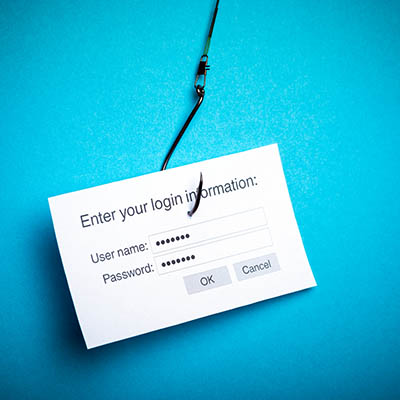
Does this message have a trusted URL?

Most phishing attacks will redirect to a website that is set up by the hacker. You probably shouldn’t be clicking on any links sent to you in an email unless you are sure who sent the email. One way to determine whether or not a link is from a reputable source is to mouse over the link and see where the link goes. If you get an email from Amazon and the link goes to amazorn.com, you are staring at a phishing email.

Protecting Your Assets

There are a couple simple ways to ensure that you or a member of your staff doesn’t fall for phishing attacks:

  • Use technology. A spam blocking filter on your email will go a long way towards removing unnecessary and potentially-malicious emails from hitting employee inboxes in the first place.
  • Training. Make sure your employees are trained to spot and properly handle attempts that may come through. By starting with the end user, you’re taking away a lot of the power that phishing has.

At NuTech Services, we appreciate the importance of secure workplace practices. If you’d like to learn more about phishing, and how we can help stop it from hurting your business, reach out to us at 810.230.9455.

50010208_onedrive_microsoft_400.jpg

Tip of the Week: Making Microsoft OneDrive Work for You

50010208_onedrive_microsoft_400.jpg

From its very beginnings, Microsoft has been creating devices and software to help users accomplish their goals. This is one reason why their solutions are so commonly found in businesses. Today, we wanted to focus on just one, OneDrive, and highlight some of its features that any business could find useful.

For context, it helps to know that Microsoft OneDrive is a cloud storage platform that just about any business could make use of, regardless of its size. After all, any size of business will have to remain organized.

Speaking of which, our first tip covers how OneDrive can make this organization super convenient for you.

OneDrive Files On-Demand

Files On-Demand gives your users the ability to effectively link their File Explorer to OneDrive, which enables them to work with files found in your OneDrive without downloading all of them to their device. Not only does this save real estate in the device’s storage, it allows work to continue offline through a simple proactive switch in a particular file’s settings.

Known Folder Move

OneDrive can also work as a simple backup option, although it certainly should not replace a comprehensive plan. Regardless, Known Folder Move allows users to have the contents of certain folders automatically synchronize with their OneDrive storage. This can be set up during the initial installation of OneDrive, or at any time you have need for it.

Integration with Microsoft Outlook

Consider what typically happens when you try to share some kind of Office document as an email attachment for someone to work on: you aren’t sending them access to your file, you’re simply sending them their own copy. OneDrive fixes that by enabling a user to share their files as though they were attachments, editing the permissions provided on the fly. As a result, the actual file is being collaborated on, really allowing work to be done.

What has been your experience using OneDrive? Share your impressions, as well as any other questions we can help with, in the comments!

AdobeStock_188630884_400.jpg

Tip of the Week: Why Rebooting Can Fix so Many Problems

AdobeStock_188630884_400.jpg

There is quite possibly no more famous question in IT services than “Have you tried turning it off and on again?” While it may sound like a joke (and has quite often been used as one), could this advice actually work? The short answer: it does. For this week’s tip, we’ll explain why that is.

There are countless examples of IT turning to a reboot as a quick fix for technology issues in popular culture. Going back to August 4, 1999, Scott Adams’ syndicated comic strip Dilbert featured Dogbert working in tech support, interrupting a caller with the instruction to “Shut up and reboot.” The Channel 4 comedy, The IT Crowd, turned it into a catchphrase for one of its characters…

The joke has appeared in countless other places, including Supernatural, the long-running show that airs on The CW…

Even South Park used the concept as a joke, as Kyle effectively saves the world after the Internet stops by traveling to the “center of the Internet” and discovering that it is a giant router. I bet you can guess how Kyle fixes it:

As it turns out, this trope really is an example of art imitating life.

Why is Rebooting So Effective?

Well, let’s consider how much you actually do with your computer (or your mobile device, or your router, or your washing machine, or anything else that now has its own operating system) on a regular basis.

You start processes, you may install new programs, and that’s not even considering the massive amount of computing that goes on behind the scenes. A lot of these processes and activities will start things up in the background that are never really resolved, which means that your system resources are being used up. This usually has the biggest impact on your Random Access Memory, or RAM. Ultimately, your solutions aren’t able to work effectively any longer, and you see the effects.

However, rebooting inherently ends all of these processes, as they all require power in order to work. As a result, once the computer starts back up again, these processes are no longer running and impacting your system’s resources.

As a result, you have a better-working computer, and the IT stereotype is proven correct.

Keep in mind: if an issue seems to come back and persist despite a reboot (or multiple reboots) you likely have a bigger problem at hand. If this is the case, you can always lean on the professionals at NuTech Services to assist you with your technology.

Just don’t be surprised if we ask a particular question.

Subscribe to our blog for more great tips, IT tricks, and best practices!

newphone_78117894_400.jpg

Tip of the Week: How to Restore Your Android Apps and Settings

newphone_78117894_400.jpg

There are a few reasons that you’d need to restore your Android device. Some reasons are good, like you finally got the phone you were given an IOU for over the holidays, and some are bad, like your old phone had just broken. For this week’s tip, we’ll assume it is the first reason, as we go over how you can easily prepare your phone data for migration.

Even if you aren’t planning on replacing your phone soon, it may make sense to pay attention here, as this process will also make it easier to restore your data to a new phone if needed. Either way, this process is much easier if you make some proactive preparations on your current phone.

Enabling the Native Android Backup Capabilities 

The first step is to make sure that your current phone has the backup service running. It can be found in your Settings, under System. Tap the Backup option, and check to see that the option to Back up to Google Drive is selected. If it isn’t, do so.

Now you have a copy of your current phone’s configuration to restore from, which you can do from the initial configuration of your new device. If you were using the Google Now or Pixel Launcher, even your backgrounds, icons, and folder structure is saved.

During setup, hit the Let’s Go button that appears at the welcome screen. Tap Copy your data, and connect to Wi-Fi.

Now, you’ll be presented with your restoration options. Since we just went over how to save a backup in the cloud, let go with the option to use A backup from the cloud. You’ll be prompted to sign into your Google account, and to agree to Google’s Terms of Service.

From the list of backup options, select the correct one. You can easily hit Restore to recover all of your previous device’s settings and data, and can select which apps to reinstall via Apps.

As your data is pulled over, you will be guided through the rest of the setup process.

Voila! Your new phone is now equipped with your selected tools and settings, ready for you to jump right back in. For more handy tips, make sure you subscribe to our blog!

PDF_136785362_400.jpg

Tip of the Week: Working with PDF Files

PDF_136785362_400.jpg

Portable Document Format files (better known as PDFs) have become incredibly common as a means to save documents in a constant and consistent format that can be viewed on just about any device. They also allow users to make some simple changes to make it even easier to review the data they contain. Here, we’ll go over a few options for this year’s first tips.

Rotate the Document

It is very easy to accidentally scan a document into your computer so that it doesn’t appear upright on your display. A program like Adobe Acrobat Pro offers an in-menu option that allows you to do just that – in Document, find Rotate Pages. This option will allow you to select the pages that need to be rotated, and how to rotate them. Other programs may feature a toolbar button that allows you to rotate each page.

Fixing your pages, despite taking a few moments of time, is certainly a worthwhile thing to do, as it makes the document easier to read, promoting accuracy and convenience.

Password Protecting the Document

As long as the person or people who need to see a particular PDF have the proper password, protecting the document in question with a password is a generally good idea – especially if it contains “for your eyes only” information. To make these files as secure as possible, make sure that the passwords are distributed through secure means.

In Word, you can save your files as a PDF using the “Save as” function, simply selecting the PDF option as you do so. You will also see a button offering More options, which brings up a second dialogue box where you can find “encrypt document with a password” in that box’s Options button. By selecting encrypt document with a password, you will have the option to provide a password (and confirm it). At that point, anyone opening the PDF will need to enter that password to view it.

Merging PDF Files

It isn’t uncommon for different parts of the same document to be saved as different PDF files, or for multiple copies to be saved with different information filled in. It is usually better to have all of this information consolidated, to make reviewing it much easier. While many free and paid software titles can allow you to do this, you should reach out to us before you select one, as we can help you make the right choice for your needs – you probably don’t want the program’s watermark on your finished document, or find yourself needing to merge more documents than a free program will allow.

If you’ve already acquired Adobe Acrobat, merging your files is fairly simple. After opening the program, access the Tools menu and select Combine files. Doing so will give you the ability to Add Files… and once you have selected all of the files that should create your new PDF, click Combine. Once they are combined, clicking Save as will allow you to store it where it belongs.

Signing a PDF

Many times, a contract that needs to be signed will arrive as a PDF. While many resort to printing these documents out to sign them, there is an easier way – signing them electronically.

This time, the free Adobe Reader software can get the job done, but you should still check with your IT resource before using it.

If Adobe Reader is approved and installed by IT, you can easily sign PDFs electronically. By opening the PDF file with Reader, you have access to a Fill & Sign button. Click it, then Sign and Add signature. You’ll then have access to three options:

  • Type – you simply type your name into the field, and an electronic signature is rendered (which will not look like yours).
  • Draw – you use your mouse to draw out your signature.
  • Image – you use a scanned image of your actual signature that is then saved for future use.

Once you’ve positioned your signature where it should be, click apply and make sure you save your revised PDF.

Always remember to check with your IT team before you download any software! For more IT tips and other useful pieces, make sure you subscribe to our blog!

phishing_55951039_400.jpg

Tip of the Week: 3 Signs of a Phishing Attempt

phishing_55951039_400.jpg

Social engineering is a very important component of many modern cyberattacks, as the popularity of phishing scams goes to show. Protecting yourself from phishing scams will require you to be able to identify them. For today’s tip, we’ll go over a few warning signs that someone may be trying to phish you through your email.

1. There’s an Unexpected Attachment or Link

It’s one thing to get an unexpected email from someone, it’s completely another thing entirely to get an email from someone that includes an unexpected attachment or link. Neither of these is a good thing. Attachments can easily contain hidden malware files, and links can be disguised with very little effort.

Don’t believe me? Try visiting google.com. Go ahead!

Not exactly what you were expecting, eh? Keep in mind that you can double-check links by hovering your cursor over them, and if you weren’t anticipating an attachment, don’t click it unless you have confirmed its legitimacy through some other means.

2. The Sender’s Email Seems Off

It isn’t uncommon for scammers to disguise a fraudulent email address by making it look at lot like a legitimate one would. For instance, let’s say that you normally worked with a business vendor, hypothetically named “Super Business Supplies.” A scammer might send you an email from “sales (at) superbusinessupplies.com.” Looks pretty okay, until you notice that there’s one fewer ‘s’ than there should be. Scammers can get downright devious with these replacements, replacing “Amazon” with “Arnazon” and other blink-and-you’ll-miss-it tricks.

In short, read carefully.

3. There are Other Questionable Elements

While that may be a very vague tip, it is only because there is such a wide variety of warning signs that an email is actually a phishing attempt. For instance:

  • Spelling and grammar errors. Look at it this way: would you anticipate a company like Microsoft, or Google, or the likes of such to send you an email riddled with mistakes? Of course not, so if you receive an email that purports to be from a company of high repute, but features these kinds of errors, red flags should be going up.
  • Time-sensitivity. One of a scammer’s go-to tools is to put their target off-balance, especially by pressuring them into immediate action. If you receive an email that offers you a great deal by acting right now, or threatens to shut down your account unless you act right now, the first thing you should do is pick up the phone and call up the organization or individual that sent the email.
  • Requests for personal information. Similarly to any messages that rely on cultivating a sense of urgency, you need to look at any emails that request personally identifiable information, access or financial credentials – really, any data that you and your company rely on – with a critical eye. This is another case where calling to confirm is probably your best bet.

Email can be an extremely helpful business tool, but it can also be an equally useful tool for cybercriminals looking to victimize your business. NuTech Services can help you secure it, with best practices and practical solutions to lock it down. To learn more, reach out to us at 810.230.9455.

ITAM_234630081_400.jpg

Tip of the Week: Tips to Help Manage Your IT Inventory Better

ITAM_234630081_400.jpg

IT inventory management, also known as IT asset management or ITAM, is an important process for any business to undergo. This is effectively the process of ensuring that all of your information technology resources are accounted for and protected. Here, we’ve assembled some practices that will help make this process much simpler.

First, let’s delve into what ITAM actually covers.

Understanding ITAM

Consider all of the internal resources that your business uses, with the exception of your living, breathing employees. Everything that’s left can be considered an asset. ITAM narrows this down further into specifically the assets that pertain to your comprehensive IT infrastructure. This includes:

  • Hardware (like workstations, servers, printers, etc.)
  • Software (antivirus, productivity titles, etc.)
  • Any Peripherals (Keyboards, computer mice, other devices)

With these assets identified, ITAM assists you in tracking their purpose, how they interact, and other crucial details. This means, as you’ve likely realized, ITAM covers a considerable breadth of your resources, which makes it important that you keep it organized.

How ITAM Helps

A well-organized ITAM can help you save time and hassle by streamlining your processes, simply by keeping the data you need in a manageable and accessible record. As a result, you can make a variety of processes easier through improved data. This data can also help inform you of potential issues, or of the minimum requirements you have to meet to implement change.

Making the Most of ITAM

As promised, here are a few ways that you can optimize your use of IT asset management practices.

  • Make it a proactive process. Managing your technology assets needs to be something that you start before you are required to do so, and that isn’t abandoned after reaching a certain milestone. This will help keep you prepared for a wider range of circumstances.
  • Leverage automation. While Excel used to be an invaluable tool for asset management purposes, there are better options now that don’t require you to contend with spreadsheets that extend into the thousands of rows. Not only are automated solutions easier to manage, they come with a valuable set of added features to make your work life that much easier.
  • Track your assets. This one especially applies to your software. There is often a difference between what an agreement says can be deployed, and what can be deployed practically. Keeping your agreements and receipts helps you pass audits by proving compliance.

NuTech Services can assist you with your IT assets. To learn more, reach out to us at 810.230.9455.