176338853_bandwidh_400.jpg

Tip of the Week: Bandwidth Questions

176338853_bandwidh_400.jpg

Consider the following question: is your business’ Internet connection feeling a bit sluggish lately? If you haven’t examined your bandwidth since you started your business, then there’s a chance that you aren’t being as productive as you could be if you took a closer look at it. We’ll discuss some ways you can make the most of your IT solutions with proper bandwidth.

What is Bandwidth?
In its most basic form, bandwidth is how quickly you can download content from the Internet. Bandwidth is measured in megabits per second, or Mbps. The more bandwidth you have, the faster downloads will run. Some high-speed connections can be measured in Gigabits per second.

How Exactly Does Bandwidth Translate to Download Speed?
If you’re trying to calculate your projected download speed, keep in mind that there are eight bits for every byte. This means that if you’re trying to download eight megabytes of data on a one Mbps connection, it will take about one minute. A 512 megabyte file, on the other hand, would take just over a hour to download on the same connection.

Estimating Your Business’ Needs
In order to reach an appropriate estimate for your business’ bandwidth, you’ll need to use a little math. Take the estimated traffic that you expect each of your processes to take up, as well as the number of users that are engaged in this process. You’ll want to assume that this is during peak operations; otherwise you might not have enough during an important operational period. You can generally rely on the following speeds for bandwidth estimation:

  • 100Kbps and below: Low-end, single-line VoIP phones and e-fax machines. Some more basic computers have processes that use less than 100Kbps, but in the business world, you probably aren’t using them.
  • 100-500Kbps: More computers and laptops fall into this range, as they are more likely to be the ones streaming, downloading, emailing, and browsing than other less intensive devices.
  • 500Kbps-2.0Mbps: Cloud solutions and standard definition video conferencing take up about this much bandwidth. This is the general range for Enterprise Resource Planning solutions, Customer Relationship Management platforms, and Point of Sale devices.
  • 2.0Mbps and more: High-definition conferencing solutions, remote access, heavy cloud access, and other resource-intensive tasks fall under this category.

If you keep peak activities at the top of your mind, use them to add up what your staff will need to stay on task and ahead of schedule. For example, let’s say you have ten users, including yourself. You might be using 450Kbps for correspondence, while six of your employees are using a CRM solution at 2.0Mbps each. The last three are using high-definition video conferencing software for 2.5Mbps each. Add all this up and you can expect to use about 20Mbps at heaviest use, but you want to go a little beyond this to 25Mbps, just to be safe.

What are other tips that you might want us to share? Leave us a comment and let us know.
85639707_microsoft_word_400.jpg

Tip of the Week: Adjusting Microsoft Word to Match Your Style

85639707_microsoft_word_400.jpg

The popularity of Microsoft Word is undeniable, in part because it features preconfigured settings to make it easier for its users. While these settings are useful for most of these users, they might not reflect your business’ use of Word. Fortunately, you can make adjustments to these settings to increase the value that Word can offer your business. Here, we’ve put together some tips to help you make these changes, if you so choose.

Before we get started, we want to make sure that you know to consult with your IT department or provider before you go to make any of these changes. That way, they will be able to undo any mistakes you or your employees might make during the following processes.

Customizing Word’s Rules to Meet Your Preferences

It’s likely that there are some things that you regularly type into Microsoft Word that it may not agree with. Your company’s name might not exactly jive with the grammatical rules that the rest of the language should subscribe to, for instance, or you may prefer to stylize certain terms or phrases differently. Word isn’t going to like this, and is going to try to let you know that a mistake has been made. Of course, it might also just change the word you typed to what it is “supposed” to be.

These corrections can be a pain to repeatedly make, and there’s always the chance that one will be missed. Fortunately, Word offers you the opportunity to “teach” it new rules via a fairly simple process.

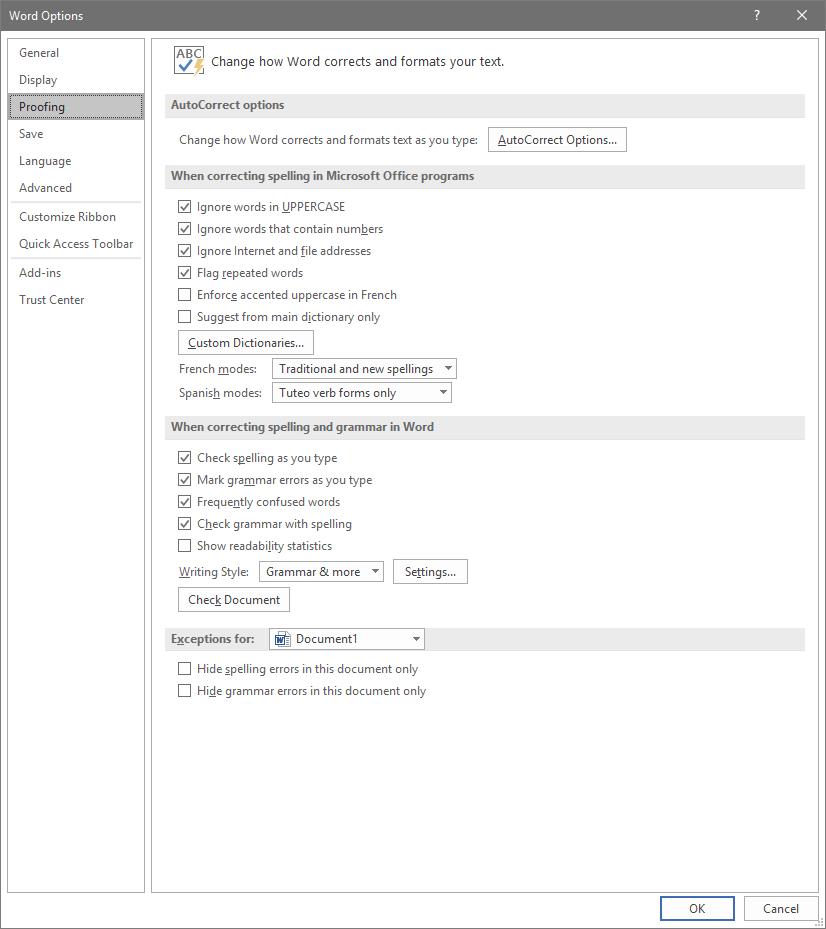
To access these rules, select File, and from there, Options. A new window should pop up with a Proofing option in the list. That page looks like this:

Adjusting AutoCorrect

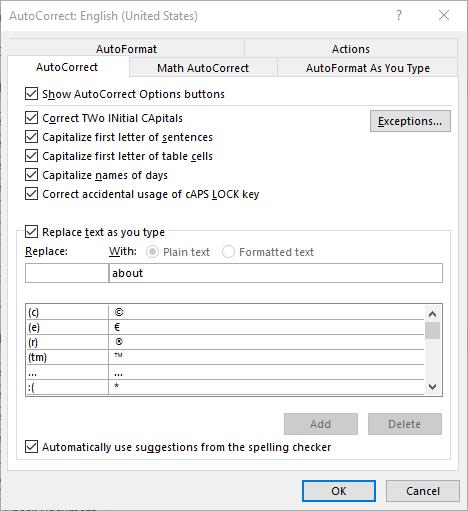
Here, you can alter a variety of proofing options, including your AutoCorrect Options. Clicking that button will present you with another window.

This window allows you to set your AutoCorrect rules, identify any exceptions you might want to make, and review how misspelled text can be automatically revised.

Establishing Grammar Rules

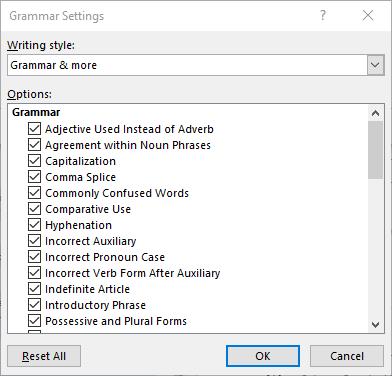
Returning to the Proofing List window, you also have other options that allow you to adjust Word’s corrections. For instance, clicking the Settings… button under When correcting spelling and grammar in Word provides another window. From here, you can control which grammar rules Word will flag or ignore in your copy.

Stop Worrying About Word Changing What You Write

By implementing these changes, you can prevent small annoyances from interrupting you as you work with Microsoft Word. This way, you can accomplish more without having to worry about dealing with automatic corrections again.

For more tips on how to best leverage your solutions to save you valuable time and money, subscribe to our blog!

187442149_mobile_400.jpg

Tip of the Week: 9.0 Pie Brings with It New Features

187442149_mobile_400.jpg

Over two billion devices in the world run the Android mobile operating system. Most of them that have been purchased in the past year, as well as the ones that have been updated recently, run on the current operating system, Android 9.0 Pie. With this latest mobile operating system, Google has made it clear that they want to be seen as the smartphone software provider. Today, we’ll take you through how you can get the most out of your Android Pie experience.

New Gestures
The latest version of Android OS contains a built-in new gesture navigation system, but it might not be turned on automatically. To turn this on, go to Settings > System > Gestures. Then you must tap on Swipe on Home Button and press the on-screen toggle switch. You will see the change propagate almost immediately–the three-icon setup will change to a singular pill-shaped icon.

Navigation isn’t much different from the other builds, either. Tap the pill icon to bring back the homescreen and long press it to bring up your Google Assistant. You can then swipe up twice or long-swipe from the home icon to bring up your app drawer.

Another change that needed to occur is that Android 9.0 Pie removes the dedicated button for recent applications. Users now need to singular short swipe up from the bottom of the screen to open up a carousel gallery that shows all recently opened apps. You can then navigate by swiping between apps or using the home icon to swipe fast-left or right to move through the apps more quickly. To clear the apps, swipe up on the specific app window. To clear all of the apps, just scroll all the way to the left and tap the Clear All button to exit out of all running applications.

Android 9.0 Pie actually tries to predict what you’re likely to need next. These commands are within the apps. If you find it useful, you can drag these suggestions, found at the top of your app drawer, onto the screen. You can then find the shortcuts offered by each app by long-pressing the specific application’s icon. This includes opening an application in split-screen mode, a considerable improvement from Android 8.0 Oreo.

Device Notes
One extremely useful feature for smartphone users is the ability to open your device using a fingerprint scanner, but an even better one is when you can use the scanner on devices that don’t feature an in-display fingerprint reader to keep your screen from turning off.

The alarm clock in Android 9.0 provides some additional functionality. When your notification panel is open (swipe down from the top), you only need to tap on the clock in the system tray to open your clock app and manage the alarms.

What do you think about Android 9.0? What are your favorite features? Let us know in the comments.

2.5_72712129_windows_400.jpg

Tip of the Week: How to Speed Up a Slow Windows 10 Device

2.5_72712129_windows_400.jpg

Windows 10 is a remarkable tool. Having said this, it can sometimes seem to slow to a crawl… not the ideal situation when you’re trying to be productive. That’s why we’re devoting this week’s tip to speeding up Windows 10.

However, as with any changes you are considering to your computer, you should lean on your IT resource to determine if it’s okay to make these adjustments. Better yet, IT may want to make them for you. One way or another, make sure you get the all-okay before switching anything on a work device.

Cleansing of Bloatware
Whether you picked something up during your browsing or the device’s manufacturer installed it during production, your computer can easily collect programs known as bloatware or adware. These programs, while not always harmful per se, can easily eat up system resources for nothing. Ask your IT resource to seek out these programs and eliminate them for you. This alone may result in some considerable boosts to your computing speeds.

Adjust Power Settings
While it may sound like a good idea, the Power saver plan that comes baked-into Windows 10 can actually make your experience as a user more of a pain. This is because this setting cuts your device’s processes to minimum so that energy can be conserved. Furthermore, desktops are plugged in as a rule, leaving little reason to use Power saver anyways. To improve performance on your Windows 10 laptop, stick to the Balanced power option when unplugged, and switch to High when power is available.

Kill Windows Tips and Tricks
Yes, it’s ironic that we’re recommending that you disable Windows Tips and Tricks in a tip-based blog post, but there are a few compelling reasons to do so. Most pertinent to our current conversation, the fact that Windows is analyzing your usage with these capabilities enabled means that your device’s performance is going to suffer.

In order to disable these invasive bits of advice, click the Start button. Under your Settings, access System and from there, Notifications & actions. Under the Notifications section, you will find the option to Get tips, tricks, and suggestions as you use Windows.” Deactivate this option, and you won’t have anything more to worry about.

Finally, the Cliché: Restart Your Device
Yes, this suggestion has become a joke in and of itself, as the IT field’s go-to question. However, there’s a really good reason for this: restarting a device can often solve its issues. This is because it clears out the use of the computer’s resources, wiping unneeded memory usage and stopping equally unneeded background processes. Restarting your workstation effectively gives it a fresh slate, allowing it to run much better than it did when it was bogged down.

Let us know if there are any other tips you want us to share in the comments, and don’t forget to subscribe!

85140760_S_time_400.jpg

Tip of the Week: 3 Ways to Optimize Your Time

85140760_S_time_400.jpg

Time always seems to escape so many of us. What should be easily accomplishable in a morning can easily stretch to the afternoon, for what seems like no reason. The hard truth is, it isn’t time’s fault… it’s our own bad practices. For today’s tip, we’re going over how you can fight these tendencies to optimize your use of the time that is available.

1. Prioritize

One of the biggest time sinks to be found in any business is the simple act of deciding what to work on next. We’ve all been there at some point: having finished one task, we suddenly reference our to-do list and encounter the same problem as a kid has in a candy store… too many options.

Taking a few moments at the start of every day to organize these tasks can greatly improve how you spend your time throughout the rest of the day, and can ultimately lead to far less waffling later on. With a set process laid out, you no longer have to make the decision over what to work on next – it has already been made.

To create this order, look at everything you have to work on and establish how urgent each task is compared to the others. Deadlines are a handy way to help establish this, or if someone else in your organization needs it before they can continue their work. Identifying these qualities and ordering your tasks accordingly from the start is a small time investment, especially when you consider the impact it can have on your productivity later on. Utilizing a communications and collaboration solution can help you establish the organizational priority of each of your tasks with the help of your team.

2. Habitually Limit the Time You Spend on Rote Tasks

There are always those tasks that pop up throughout the day that seem insignificant at the time. Take checking your email, for example… how long does it take to do that? However, checking email and a variety of other tasks can quickly grow from a momentary activity to an extended process.

After all, there’s always the chance that briefly responding to an email could pull you into an extended and time-consuming debate.

Furthermore, some of these tasks carry the expectation that you will immediately drop what you’re doing to take care of whatever’s needed. Emails are notorious for communicating this urgency, whether or not it was intended. Regardless, it puts pressure on the employee to switch their focus, which hurts productivity.

Instead, establish a practice of setting a concrete period out of your day where you will check and respond to your email, or whatever task it is that applies to your situation. Actually schedule this time into your day, using the business management solution that your company has in place to control schedules. Outside of that time, leave that task alone… if an email’s contents are truly that important, you’ll find out about them some other way before long.

3. Delegation and Outsourcing

We get it, business matters and activities tend to be kept close to the chest. After all, if you can’t trust yourself to do something right, who can you trust? Who else has the incentive you do, to do the best job possible?

Frankly? Someone you’ve hired to do a job.

Delegation can be difficult, of course, but only if you don’t trust those around you. However, there are plenty of resources out there, both inside your business and available through outsourcing, that could do exactly the job that needs ro be done. As a result, you can divert your focus to tasks that need it more, trusting the resource to produce.

You may have to put in a bit of time picking the best resources, especially when outsourcing, but the results will be well worth the time.

NuTech Services can help you put these practices into action, with the added effects of the solutions that can be implemented to make these practices easier. Give us a call at 810.230.9455 to further discuss any of the solutions we’ve described here, and for more handy tips that could help you better leverage your time, subscribe to our blog!.

78169116_S_email_400.jpg

Tip of the Week: Simplifying Your Email with Consolidation

78169116_S_email_400.jpg

How many email accounts do you have? Out of those, how many do you check regularly, and how many different platforms are they on? Too many, and you’re apt to miss something important. That’s why we’re going over how to ensure that your emails are well-organized and accessible from a single source.

One Account, Two Accounts, Three Accounts, Four…
Based on your work responsibilities and how your office is structured, it is quite possible that you need regular access to multiple email accounts. You could have one you use internally, one for communicating with clients, one to reach out to vendors, one to use to sign up for resources… you get the point. When all is said and done, that’s a lot of email messages.

However, you presumably have other work responsibilities beyond just checking your email, so switching between all of them just isn’t a practical option. Well, it just so happens that you won’t need to switch, as the email client you choose will be able to consolidate these multiple accounts for you. Before we get into how, we need to make sure that we’re speaking the same language here.

– An email account is the individual address used to send or receive a message. In your organization, you might have employee1@yourbusiness.com and employee2@yourbusiness.com. Likewise, each employee may have a different account for their different responsibilities – for instance, employee1vendor@yourbusiness.com and employee1internal@yourbusiness.com.

– An email client is the program that allows you to send and receive emails. Gmail and Microsoft Outlook are two perfect examples. If you have multiple clients stored on the same server, they can be used pretty much interchangeably, each client presenting all emails. An email client also has a few features that enable you to better keep track of multiple email accounts, provided you have set it up to do so.

Let’s go over your options now.

Multiple Inboxes
The people who developed the email clients that we use weren’t naive. They understood that a given user isn’t going to be tied down to a single email provider, and certainly not a single account. This is why email clients can support multiple inboxes, assuming they are configured correctly. Multiple inboxes allow a user to access a single client to manage multiple email accounts, streamlining the process greatly and enabling customized organization.

Multiple Email Personalities
On the other hand, some users don’t mind leveraging one inbox, but might still need to utilize more than one address in their correspondence. There is also a method that enables the use of a single, catch-all inbox, but enables the user to select which email address (in this case, known as personalities) their response is sent from.

To do so, you will first need to set up an email account that you do not give out, as it will serve as the catch-all address that all of your emails ultimately accumulate within. Once it has been set up, you need to set all of your other accounts to forward their contents to that mailbox – your internal IT resource should be able to help.

Once your messages are all being sent to the catch-all account, you will be able to respond to these emails from the address that they were originally sent to.

Setting Up Inboxes and Personalities
In order to accomplish either of these tasks for your client of choice, you will need to adjust a few settings.

Gmail
To add another account to your Gmail client, you’ll need to access your Settings, which means you have to click on the gear icon. Once you’re in your Settings, you should see a tab labeled Accounts and Import. Under that tab, there is a Check mail from other accounts section. Click on Add a mail account, and follow the instructions provided.

To add additional personalities to your Gmail account, you’ll need to again navigate to the Accounts and Import tab. There, you will find a section labeled Send Mail As, with the option to Add another email address. This will also allow you to choose your default email address.

Outlook
As it happens, there are too many different versions of Microsoft Outlook and too many variables to allow us to provide a walk-through. Fortunately, Microsoft does offer some documentation that instructs users how to manage their “connected accounts.” Of course, you can also call 810.230.9455 for our assistance, as well.

Are there any solutions that you frequently use that you’d like some extra tips for? Tell us which ones in the comments section, and don’t forget to subscribe!

100923125_document_400.jpg

Tip of the Week: Do Yourself a Favor, Document Your Processes

100923125_document_400.jpg

The average business has a lot of internal processes, and these processes are typically pretty concrete: to accomplish this task, follow steps A, B, and C, in that order. However, due to the sheer volume of processes like these, it helps to have these processes documented for the benefit of your future employees… and, if we’re being honest, your future self. For this week’s tip, we’ll go over the proper process for documenting a task.

Let’s face it, if your business operates anything like most do, you have far too many of these processes for anyone to reasonably remember. This means that making sure that your processes are both comprehensively recorded and accessible for your employees to reference is a crucial facet to your productivity.

Fortunately, doing so is relatively simple, as long as you go about it properly.

Step One: Identify What You’re Documenting
The important thing to remember about creating documentation is that, unless the task itself is incredibly granular, making the documentation too specific isn’t going to help anyone. On the flip side, any documentation that is too vague isn’t likely to provide anyone with the value that it should.

You need to store your documentation in a centralized place that all employees can access. It helps even more if there is a system in place to allow you to search the contents of each document, sort them in various ways, and highlight changes and edits made to processes. In other words, utilizing a document management system or a knowledge center of some kind will go a long way in preserving the functionality of your processes. There are plenty of tools and applications out there for this, and we can help you choose the best one for your situation based on your specific needs.

Step Two: DIARI (Do It And Record It)
This step will form the basic shape of your documentation, as it will create a step-by-step guide to completing the task as a whole. You’ll need to go through a run-through of the process you’re trying to document, recording every step you take.

Don’t be shy about including details, either. For instance, if your process will require the same questions to be asked each time it is put into action, include the list of questions in your documentation. If someone is supposed to be contacted specifically, identify them in your documentation and provide their contact information.

From here, you should have a pretty good handle on how the process typically goes down… and the insights to make it even better.

Step Three: Refine, Repeat, Revise
When you were running through your process, were there any steps that would have made more sense to do earlier so you could be better prepared for a later responsibility? Try rearranging the steps in your documentation and trying it again. Did it work better, or worse? Take these observations into account and act accordingly.

Really, once you commit the time to doing it properly, creating invaluable and useful documentation isn’t that difficult of a process. You can even bring multimedia into it, if it’s a good fit, using tools like Steps Recorder on Windows.

For more handy IT tips, make sure you subscribe to our blog!

170432530_4_questions_400.jpg

Tip of the Week: 4 Tech Questions, Answered

170432530_4_questions_400.jpg

Have you ever thought about why we use certain techniques to get the most out of our technology? Believe it or not, there is often a rhyme and a reason for why certain tactics are most useful for business technology solutions. We’ll try to get to the bottom of some of the strangest questions you might have about how to use your business technology.

What Does Restarting the Computer Do?
You might think of restarting the computer as something that cuts down on productivity, but this is far from the truth. While it stops you from working in the interim, it’s beneficial in the long run to routinely restart your computer for periodic updates and general upkeep. Have you ever tried to run a machine all the time without giving it a break every now and then? When you do this, it’s more likely that the device will be run into the ground. Your devices will run much better if you restart them every now and then to ensure that they aren’t being overworked.

What Use Is There for Your Task Manager?
You can imagine the look on someone’s face when their computer freezes up and it can’t run properly. Well, once upon a time, someone had the brilliant idea to include a task manager in a computer’ operating system to ensure that you can identify the problematic application (if there is one) and end its tasks without having to restart the computer. Overall, it’s a way to see how your computer’s resources are being allocated, as well as how to end troublesome tasks without restarting the computer.

Why Must Passwords Be Changed?
While some might argue that passwords should only be reset when they are discovered, this in-turn highlights why passwords should be reset frequently. Sometimes passwords will be stolen without the user knowing about it until they are being used against them, but other times, they will be stolen and sold on the black market to the highest bidder. It’s up to the user to make sure any passwords potentially stolen are changed before they can be used against your organization. The best way to protect against this from happening is to assume they will be stolen and change them periodically.

How Do Drivers Affect Your Work?
Drivers can be considered pieces of software that make your device compatible with a variety of external devices. You might have noticed that drivers must be installed on your device in order to use that USB mouse or wireless keyboard. These drivers must be kept up to date so that compatibility with devices doesn’t interfere with your work, and that security vulnerabilities are not presented to nefarious folks who want access to your systems and data.

Do you have any tips that you’d like to share with us? Let us know in the comments, and be sure to subscribe to our blog.

totw_laptop_best_400.jpg

Tip of the Week: Is a Laptop the Best Fit for Your Employees?

totw_laptop_best_400.jpg

In today’s working world, not using technology to work on your tasks can be seen as an oddity. Taking this into account, choosing the device that best suits your office’s work style is an important consideration to make. For this week’s tip, we’ll dive into some of the reasons that you may want to standardize laptops in your office.

Reason 1: Mobility
Let’s begin with the most obvious reason laptops are a great option – you aren’t tied to a desk to do your work as you would be with a conventional desktop. Instead, you can just pick it up and take it with you, whether that’s to a meeting on the other side of the office or home for some remote work. I don’t know if you’ve ever seen someone haul an entire desktop workstation around, but if you have, you know that it just isn’t practical to do.

Potentially travelling with a laptop is also much easier. A desktop workstation would need to be carefully stowed in a vehicle, if not shipped to its destination. While it may seem like a hassle at the airport, stowing a laptop in a carry-on is a much more secure and convenient option when all is said and done.

In short, utilizing a laptop makes a lot more sense in an increasingly mobile world than does utilizing its far less mobile cousin, the desktop.

Reason 2: Concision
If the resources are there, one might make the argument that it makes more sense to utilize both a desktop and a laptop – one for the office, and one for home and travel.

Financial considerations aside, there are other issues with this strategy. The major one is the fact that it makes it that much more complicated to ensure that everything you need is where you need it to be, when you need it to be there. There is little that is more professionally frustrating than sitting down to work and realizing that the data you need is on your other device. Hopefully, you have the access to the other device at the time to make the necessary transfer.

While properly utilizing a cloud solution would be another way to approach this difficulty, why use two devices when one will suffice? That way, you can be sure that your employees always have access to the programs and data that they need to be productive.

Reason 3: Consistency
One of the most important considerations for any office technology configuration to take into account is how compatible the many devices it contains are with each other, and the solutions needed to accomplish each day’s tasks. If each employee has a different device, not only is this no longer guaranteed, you have no guarantee that each laptop will have the same shortcuts and features. For instance, if you want to encrypt the data on laptops and allow your staff to sign in with a thumbprint scanner, not all models are equipped with that. Different devices don’t tend to change how complicated it is to manage the devices, but it can vary the experience your users have and limit the policies you can set.

Standardizing your office’s devices becomes much easier when everyone has the same device, which inherently means that everyone has the same capabilities in the office. Of course, if someone needs their device to have more specialized capabilities, they should be the exception. However, for the run-of-the-mill tasks that many are responsible for, the average laptop should suit them just fine.

If you want more help in designing your technology infrastructure and setting it up for prolonged productivity, reach out to NuTech Services. One call to 810.230.9455 is all it takes to start receiving the technology services that you need for success!

recovery_challenges_400.jpg

Tip of the Week: Prepare for These Disaster Recovery Challenges?

recovery_challenges_400.jpg

While it would be nice, not all troubles concerning your data are resolved once a disaster has passed – even if you have a strategy in place. There’s still the matter of having the right strategy, and having it configured correctly. Here, we’ve listed a few considerations you should take regarding your backup (preferably before you need it) to make sure you’re properly prepared.

1. Compliance Concerns
First, you need to be sure that your data is not only stored securely but is also sent back and forth to your backup solution properly. This is especially true if your industry is subject to any government mandates concerning how data must be handled, as the penalties for non-compliance can be just as severe as the influence of data loss would be.

Whether you manage your own solution or leverage a vendor to keep your data securely backed-up, the same severity applies. The size of your business has no influence, either, despite many smaller organizations having a difficult time keeping up with these regulations. These businesses are especially benefited by the availability of outsourced IT resources, as these providers are better prepared to see to these compliances and minimize any risk.

2. Costs and Scalability
It is also important to recognize your needs, including the costs that fulfilling those needs may incur (like how much a cloud provider charges for you to download your backed-up data). Before you select a particular cloud provider, make sure that you have considered all of these charges.

Furthermore, a backup solution that can only keep you safe from major disasters is one that overlooks a huge percentage of the actual issues you are apt to face. Sure, ransomware attacks and fires happen, but so do hard drive failures and other causes of small-scale data loss. Every strategy you enact needs to be documented properly, with useful information shared clearly, succinctly, and actionably.

3. Lack of Management or Testing
If your company is ever in the position that it needs to lean on a data backup, they’re going to need to lean on a leader to ensure that this process goes without a hitch. In many cases, this role would fall on your shoulders – but what if something goes down while you (or whoever is in charge of managing the recovery process) aren’t there?

This is why you need to keep a comprehensive, up-to-date plan prepared for just this occasion, a hard copy ready to be referenced on-site as well as one digitally stored in your backup files.

In addition to this preparation, you also need to make sure that the backups you’ve prepared actually work in the first place. A backup will do you no good if you can’t recover the data from it, after all. Make sure that, just as you would a fire drill, you practice utilizing the backup on occasion.

How NuTech Services Can Help
We have the expertise and capability to put together just this kind of strategy for you and your employees to leverage. That way, you can be confident that your disaster recovery won’t just be a new disaster to deal with. Reach out to us at 810.230.9455 to learn more today.

totw_business_wifi_better_400.jpg

Tip of the Week: Improve Your Business’ Wi-Fi

totw_business_wifi_better_400.jpg

For many businesses, a wireless network connection plays a large role in what they do. The people who make your organization work require access to a continuous Internet connection to ensure collaboration can happen with minimal trouble, but it also means that more productivity can happen throughout the workday on your employees’ terms. Therefore, the problems that come from a poor wireless connection can present a considerable hurdle for your business to overcome.

We’re here to help your organization make better use of its wireless connection.

The Router
Your router will determine the general range of your wireless network, as well as its security. Depending on your business’ specific needs, a router can be a tricky investment. You have to consider several aspects, including how much range you need and what kind of options are available for it. Here are some of the variables you’ll need to consider:

  • It is within your budgetary constraints
  • It supports Internet speeds you pay for
  • The space your router needs to cover
  • The devices the router has to support
  • Ensure that any router you choose supports WPA2 encryption

Once you’ve determined which router you’re going with, you can set it up in a place that is most effective for your purposes. If you want your router to broadcast a signal through your entire office, you’ll need to test it out and see how the location works. Try to find a nice central location. If the router doesn’t work as intended in specific parts of the office, you might need to include a Wi-Fi repeater to get the range you’re looking for.

The Repeater
If your signal isn’t extending as far as you’d like, a repeater (or extender) can be used to extend the wireless signal to reach a larger area. This way, the signal will reach any area you need it to reach. A Wi-Fi repeater contains two wireless routers. One of them picks up the wireless signal coming off of your network’s central router, while the other picks up the signal and transmits it in much the same way as your network’s central router. Thankfully, the wireless repeater only needs to be in a location within the broadcasting range of the central router. Just plug it into an average outlet and you’re good to go.

Security
Security is another important part of your business’ wireless network that requires you to think about it during the setup phase. The router doesn’t necessarily have to be hard to set up, though. First, make sure you have WPA2 encryption turned on. Some models don’t default to this and instead use the ineffective Wireless Equivalent Privacy (WEP) encryption that can be broken through easily enough. With WPA2, you’ll be much more secure.

Next, you want to name your wireless network to something that can help you identify it, as well as assign a complex password to defend it. This ensures that only those who need the network for work will be logging onto it, and that they will know which network belongs to your organization if multiple are available. Once you’ve finished with this task, you want to enable the router’s firewall. Doing this provides an additional layer of protection against potential threats.

One more thing: be sure to change the admin’s password on the actual router, as most default passwords can simply be looked up online.

For more information on how to optimize the use you get out of your business’ wireless connection, reach out to us at 810.230.9455.

how_to_find_lost_phone_400.jpg

Tip of the Week: Locating a Misplaced Smartphone

how_to_find_lost_phone_400.jpg

The great thing about smartphones, in a business sense, is how portable they are – you can literally be productive almost anywhere. Unfortunately, this also means that they can be lost almost anywhere. Luckily, there just so happens to be a feature built into Android that can help you find yours.

The Stakes Are High
A lost smartphone is something that needs to be taken seriously nowadays. Not only is it an expensive device to replace, its contents could be considered priceless. Anything you’ve accessed via that phone (potentially including your finances and social media) is then at risk. If this device was used for business purposes, your data could be at stake if your device was stolen – and, if you used it as a part of a two-factor authentication measure, there goes your access to your network.

Clearly, this wouldn’t be a good thing.

This is precisely why Android includes a feature to help you find a device, should it ever be lost.

Auto-Location
On your Android device, you need to work proactively and enable a few settings.

In your Settings, you should be able to find a Find My Device option. Make sure this is turned on. Your Location should be set to High accuracy. Finally, you will want to enable Google to Use Location History. While this will diminish your privacy from the eyes of Google, it will make your phone that much easier to find.

To locate your device, you’ll then need to access the same Google account that is used on the device in question from a web browser. Google is able to give you a general idea of where the device was last located on a map, and even what Wi-Fi networks it is connected to. The Find My Device application can do the same thing if you have access to a second device.

Find My Device also allows you to remotely lock your device and display a message to help anyone who might find it get it back to you. Once you’re in the vicinity of your device, you can also command your device to ring. This command will override the volume settings, increasing the chances of it being heard.

If you truly believe that your device has been stolen, there is also the nuclear option: remotely wiping the device via Find My Device.

Keep in mind, in order for these features to work, you absolutely have to enable them on your phone first. Otherwise, you’ll be out of luck if the device ever goes missing.

Act Fast
It is also important to remember that these features will only work as long as the phone is on. Sure, you could still check for its last known location in Find My Device, but there’s no guarantee that it will still be there.

Finally, if you truly believe that your device was stolen, contact the proper authorities and give them everything you know.

With any luck, you’ll be able to find your lost phone lickety-split. While you’re here, take a look at some of our other blogs, where you can find other handy tricks and useful information, courtesy of NuTech Services.

computer_novice_tips_400.jpg

Tip of the Week: 4 Really Simple Tips for the Computer Novice

computer_novice_tips_400.jpg

If you work with a computer, you know that if you can find shortcuts, you use them. Not only do they help you be more productive by making your tasks easier to complete, they can actually help you be MORE effective at completing those tasks. Today, we have four simple tips that can help you build better computer skills.

Tip #1: No Fear
Sometimes technology can be a tad bit intimidating, especially when people are expecting you to quickly grasp a concept with little-to-no experience. The best thing you can do is not be afraid of screwing up. After all, there aren’t many actions you can take with a computer that will break the machine, the applications you are using, or the file you are working on. If you don’t have much experience with the computer and you want to learn anything from this blog today, learn that Ctrl+Z will undo. Having a good understanding that Ctrl+Z will undo your last action in almost every application you are going to use should give you the confidence you need to stop worrying about possible failure.

Tip #2: Liberally Use Search Engines
For the computer novice, it can sometimes be intimidating to try to find applications and files within an operating system. No matter what problems you come across, keep in mind that the Internet is the world’s greatest troubleshooting guide, and you only need to know how to open your browser to get at it (on modern machines, you may not need even that). Once you have your browser open, simply type your search query in the address bar. It will return results. You may have to dig through the results, or alter your search perimeters slightly, but you will be able to find the answers to the problems you are having with the help of a search engine.

Tip #3: Learn Keyboard Shortcuts
This is typically for speed. If you can quickly learn a few basic shortcuts, you will enhance your ability to control your computer tenfold. Here are a few suggestions to get you started:

  • Ctrl+A – Select all
  • Ctrl+C – Copy selected content
  • Ctrl+X – Cut selected content`
  • Ctrl+Z – Undo (Seriously, this one is crucial.)
  • Ctrl+Y – Redo

There are many more depending on the application you are working in. Most applications will provide their shortcuts under their Help menu. Learning these will quickly make you a much more proficient user.

Tip #4: Find Your Comfort Zone
When Michael Jordan first picked up a basketball, he wasn’t a natural, so how can anyone expect to use something as complex as a computer proficiently right off the bat? If you are a new user, or just someone that isn’t proficient with a computer yet, stick to what you know. If you have a series of applications you feel some level of skillfulness with, stick to them. While our first tip suggests that you shouldn’t have fear, that mainly pertains to navigating your way around a computer, not the frustration a user can build when they continuously make mistakes. If you want to enjoy your time on the computer, stick to the applications you know, and you will have a good time.
We want everyone to remember that there was a time when we were all new to the computer; and, since computer skills are now an expectation of almost any career path (not to mention a major form of communication), learning your way around a computer will improve your standard of living. Do you have any other tips you could suggest to new users to keep them engaged and improving? Leave them in the comments section below.

totw_replicate_relocate_400.jpg

Tip of the Week: How to Replicate and Relocate Text Easily

totw_replicate_relocate_400.jpg

Sometimes, things are written in the wrong place. Fortunately, there are means of moving them if they happened to be written using a computer. These processes are relatively very simple and are so commonly used that the shortcuts are right next to each other on the keyboard. For today’s tip, we’ll review how you can cut, copy, and paste content in effectively any program you use.

Once you have your content selected, whether it’s text or an image, all you have to do is press two keys.

To cut a word or phrase from one place in your content, press Ctrl + X. To copy this content instead, keeping the original and duplicating it elsewhere, press Ctrl + C. Pasting your content is just as simple – with the place you want the content added selected, press Ctrl + V. This will insert your content where you want.

If you happen to be copy-pasting from a website to another document, it may not be a bad idea to paste it without bringing any formatting from the website over. Otherwise, it is apt to look funny on your documents. Pasting without formatting is almost as simple as regular pasting, you just add another keystroke in the middle: Ctrl + Shift + V.

Of course, any of the tasks can be accomplished with the mouse alone. Right clicking on a word, an image, or a group of selected text will bring up a menu that includes all of the above options. However, your cursor is generally more accurate than the mouse, so you may have to undo your efforts (Ctrl + Z) a few times before it’s right.

Real World Example:
Let’s say you want to send a webpage link to someone in an email or instant message. In your web browser, click the address bar (that’s the part with the ‘http://… “). That will highlight the URL. Hold down Ctrl and press C. Then go into your email or instant messenger, click where you want to paste the URL, and hold down Ctrl and press V.

Whichever you use, it’s bound to be more time-efficient than rewriting anything that needs to go in a different spot. Make sure you subscribe to our blog, so you can be alerted whenever we upload more content!

totw_pro_plan_400.jpg

Tip of the Week: Three Pro Business Tips

totw_pro_plan_400.jpg

While running a business can be quite rewarding on a professional level, it can be extremely challenging, with countless obstacles to overcome–particularly in regard to technology and its management. Thankfully, there are ways your business can minimize the pain of managing technology. Here are just a few of them.

Be Prepared to Lose Power
Electricity is perhaps the most important part of using technology in the workplace, as without it, the devices that empower your business’ operations just won’t function. In some cases, you might suddenly lose power, leading to data loss and other disaster scenarios that could strike your business down if you’re not prepared for them. With progress grinding to a halt, downtime will ensue, creating a considerable loss for your business.

Even if you’re not losing power, an excessive amount of it can create a surge, damaging the infrastructure itself and harming the individual components that make it up. It’s ultimately in your best interest to take measures against these events, as you made an investment that needs a substantial return. Surge protectors can be helpful to prevent excessive power from crippling these important machines, but in some cases, you’ll want a more powerful solution. An uninterruptible power supply, or UPS device, can help your servers, workstations, and other important technology shut down properly in the event of a power outage or surge, giving you the ability to minimize damage done.

Maintain a Steady Internet Connection
The Internet is an invaluable tool that can help your business succeed, and the Internet plays a larger role in its functionality than it ever has before. A lack of Internet ultimately becomes downtime for many organizations, as they depend on the Internet for various services and communications. More often than not, there’s nothing you can do about a lack of Internet if it comes from your service provider. To keep this kind of downtime from sinking operations, many businesses have implemented backup Internet connections, just in case they ever have to use it. This comes with a downside–you’ll have to maintain that connection–but it will likely be worth the investment if you ever need it.

Place Boundaries on Your Staff
Even the best employees are known to make mistakes from time-to-time. While you can trust them for the most part, nobody is perfect, nor should you expect them to be. Some might even try to implement their own solutions with the intention of making their jobs easier and more efficient. This is called shadow IT, and it can be dangerous. You have no way of knowing whether it’s putting your business at risk. You can implement measures to ensure that your employees aren’t downloading unauthorized applications through the use of administrator and user privileges. If you limit what your users can do with their machines, then you have less to worry about.

NuTech Services can help your business ensure managing IT doesn’t become a hassle. To learn more, reach out to us at 810.230.9455.

evernote_tips_400.jpg

Tip of the Week: Using Templates in Evernote

evernote_tips_400.jpg

The note-taking application Evernote is a favorite of many users, as it allows them to keep extensive notes in an organized fashion. Its true utility goes beyond that of a digital scratch pad, however, as it has additional features that offer much more. For this week’s tip, we’ll review one particularly useful feature: templates.

What Are Templates?
Evernote’s templates are handy, pre-built structures for notes that provide users with a simpler means of organizing specific types of information. Instead of taking time struggling with your formatting each time you start a new note, you can apply one of the templates that Evernote offers on their website. Those with a subscription to Evernote Plus, Premium, or Business can even use formatting they’ve created in past notes to generate their own templates for repeated use.

Applying Templates in Evernote
Once you’ve acquired a few templates, either from the Evernote website’s collection or from a past note, applying one of your choosing is relatively simple.

  • In Evernote, start a new note.
  • In the body of the note, click Templates to view the ones you have saved.
  • From there, you can search for any templates you have, delete ones you no longer want or need, edit their names, and of course, apply them to notes.
  • If you want to edit a template, follow the same process, and once you’ve made the changes that you want, save it as a new template. Note: only those with Plus, Premium, or Business accounts are able to do this.
  • Plus, Premium, and Business users are also able to create their own templates this way.

So, what do you think? Is this a welcome change to Evernote? What other improvements would you like to see them make down the line? Let us know in the comments!

windows_tips_400.jpg

Tip of the Week: 5 Windows Tricks

windows_tips_400.jpg

The Windows 10 operating system is the most common operating system for business use, which is what makes it surprising that so few know how to adjust its appearance to suit their preferences. For this week’s tip, we’ll go over a few ways to adjust what you’re seeing and/or looking at for maximum productivity.

Quicker Settings
Your settings are your greatest tool to control your Windows 10 preferences. If you need to change a setting on the fly, you can pull up the menu by pressing CTRL + I or Windows Key + I.

Zoom In/Out
Whether it’s a graphic you want a closer look at or text that’s just a smidge too small (or the opposite cases) the ability to zoom in or out on the entire screen can quickly become a handy trick to know. You have options here: you can either press CTRL + (+) or CTRL + (-) to zoom in or out, or press CTRL + Scroll Wheel to accomplish the same. Pressing CTRL + 0 will reset the screen to normal.
Changing Active Applications
If you’ve really got a good groove flowing as you work, pausing to switch windows with your mouse can really trip you up. With some practice, you can use a keyboard shortcut instead, eliminating this inconvenience. Holding Alt as you press Tab will bring up smaller versions of your active windows, and using the directional keys (while still holding Alt) will allow you to select a different one to work in.

Switching Monitors
Workplaces are seeing more and more multi-monitor setups in use. A shortcut makes it easy to move application windows around and across screens. To move a window to the other monitor, press Windows Key + Shift + Left/Right. Whether you choose left or right depends on which way you want your window to move.

You can use a simpler version of this shortcut to dock an application or browser window to the side of its current monitor, too. All you press for this one is Windows Key + Left/Right.

Shortcuts like these can turn you into a Windows power user in no time at all, with a little practice. Do you have a shortcut that you use frequently enough to make it second nature? Share it with us in the comments!

5_windows_400.jpg

Tip of the Week: 5 Tricks to Using Windows

5_windows_400.jpg

There’s a lot more to the Windows operating system than first meets the eye, especially where handy shortcuts are concerned. Today, we’ll cover five of the shortcuts baked into Windows that may be beneficial to your productivity.

Rename File
Every so often, you will discover that the name of a document isn’t entirely accurate anymore. Naturally, this file name should be changed to accurately reflect its contents. While you could right-click and select ‘rename’ for each one you have to change, it is much faster to simply select the file (or files) that needs a name change, and press F2. If you change the name of multiple files to the same thing, it will even automatically add the number to the end to differentiate them.

Active Window Screenshot
Screenshots can be very useful, but they can also be a pain to capture. Fortunately, there’s a way to easily take a screenshot of just the active window. By pressing Alt + Print Screen, the active window will be captured cleanly.

Problem Steps Recorder
Every so often, you may need to record your steps exactly, whether you’re replicating an issue for IT to check out or outlining a procedure for training purposes. Windows offers the Problem Steps Recorder, which is an easy-to-use action recording program that outlines and illustrates each step you take while the program is observing you. It then generates a step-by-step report to be reviewed. Creating one is especially simple – the hardest part is typing “psr” into the Windows search bar to pull up the program.

Easy Open Applications
The taskbar is extremely useful for storing your most-used programs and files for easy access. Windows has incorporated a shortcut that makes accessing them even easier. First, figure out which number your desired application is in sequence, then press the Windows key + the sequence number to open that application. This also works to maximize and minimize these windows.

Minimize/Maximize
Another way to quickly minimize and maximize your open windows is a little silly, but effective. If you want to minimize all but one of your windows, simply click and hold the window and shake it. All the rest will minimize. The same action will also reverse this, maximizing all of your windows again.

What other neat Windows tricks and shortcuts do you know about? Share them in the comments!

totw_scams_400.jpg

Tip of the Week: Avoiding Scams

totw_scams_400.jpg

Uh oh. One of your employees sat down at their workstation and was presented with a pop-up telling them that Microsoft has detected a fatal issue with their workstation, and if they don’t let someone remote in to fix it, all of their data will be lost. This could be a serious problem… especially if your employee falls for this scam and lets in a threat.

Tech support scams are not an uncommon thing, blending social engineering and phishing together to deliver the desired result to a scammer. For our tip, we’ll discuss how to identify and avoid these scams and deprive a scammer of that result.

A Global Problem
Make no mistake, these scams are an issue all around the world. While the impact is felt the greatest in the United States, China, and India, scammers clearly don’t discriminate by region.

However, there’s another layer to the issue of tech support scams.

There is an intense level of competition in India for employment opportunities, especially among the generation who should now be entering the workforce. For some reference as to how intense this competition is, 2016 saw a state-owned bank receive over one and a half million applications for just 1,500 open positions. This makes it not uncommon for many job applicants to be grossly overqualified for the position they are seeking, recipients of a master’s degree in business administration often applying to be a street sweeper. Naturally, this provides ample motivation for the populace to take any job that presents itself – even if it is at the expense of another.

Many call centers in India will take full, unabashed advantage of this, hiring young job-seekers through a convoluted and secretive process – sometimes not even informing the applicant who they are actually working for. This process can also cost the applicant a not-insignificant sum, as they are often charged for these interviews and trainings. Once the training is complete, an applicant leaves with a start date.

However, these jobs are often not what is expected. Instead of working in customer service, these youths are tasked with initiating a scam. They will call a target, deliver their “pitch,” and transfer the primed caller to a senior scammer who seals the deal. However, despite abysmal pay for being involved in these scams and the emotional burden placed on them by interacting with their often-helpless and terrified targets, many of these scammers find that scams are, again, one of the few effective ways to make money. As a result, many of these young scammers – effectively exploited themselves – end up embracing their role, working to get as big a piece of the pie as possible.

Thwarting These Attempts
Of course, while those on the other end of the line may not be in a great position themselves, you want to make sure that their efforts to scam you are ultimately wasted. To accomplish this outcome, it is important to remember a few key warning signs.

  • Don’t Call Us, We’ll Call You – The first thing to remember is that, if a Microsoft representative suddenly calls you without warning, they probably aren’t actually with Microsoft. You should even take your caller ID with a grain of salt, as that can be spoofed to look official enough to trust.
  • Weak Link in the Chain – Links are another favorite weapon of scammers, as they can be shared in an email to direct a user to a website filled with fake warning pop-ups. Avoid clicking on these links, and if you are presented with an alert screen, restart your computer. Scammers will also work to ensure that they reach the top results of search engines through sponsored ads to attract those legitimately looking for help. These links should be avoided as well. Google has made serious efforts to not allow scammers to run Remote IT Support ads, but it hasn’t stopped everything yet.
  • Remain in Control – Unless you are absolutely sure that a third party is trustworthy, never give up control of your computer. Otherwise, you could hand precious data over to a scammer or otherwise land yourself in hot water.

The Better Method
Of course, if you enlist the services of NuTech Services, a fair amount of these points become moot, as you will have access to an experienced team of trustworthy IT professionals who have your business’ interests at heart. For more information, give us a call at 810.230.9455.

Have you ever encountered a scam like this before? Tell us about it in the comments!

totw_cloud-sharing_400.jpg

Tip of the Week: Cloud Software for File Sharing

totw_cloud-sharing_400.jpg

Businesses have a lot to gain by personal file storage and sharing, but then again, so does the individual user. After all, even the most ambitious business owner has a personal life and people to share information with. How can you share files with people without leaving them vulnerable to data theft and worse? Here are some options that you can use for your personal file sharing solution.

 While there are a lot of products on the market for this purpose, some of the best are those that can also be utilized for business purposes. Most of these file sharing services take advantage of the cloud so they can be used more readily for collaboration or sharing. Here are some of the most popular storage systems at a consumer level.

Google Drive
Google Drive is an extremely helpful tool that can be used by both businesses and personal users alike. It makes it very easy to share files and collaborate in a cloud-based interface. You can share documents, spreadsheets, images, videos, and just about any other file you want to share with other people. You can control permissions for these files as well, controlling who can do what with it. This includes sharing and editing, among other things.

As far as pricing goes, the average user with a Google account can take advantage of Google Drive free of charge, with the option for increasing storage space for a modest fee.

Microsoft OneDrive
Just like Google Drive, Microsoft’s flagship cloud storage system OneDrive is a great solution that integrates Microsoft office applications with their OneDrive cloud storage. The neat thing about Microsoft OneDrive is that it can sync with your Microsoft Office to always update files that you might have stored locally on the device you’re accessing it from. Just like Drive, OneDrive can be an excellent tool for both a business and individual user, with many different plans available for both power users and casual users alike.

Ultimately, the choice is yours on how to proceed with a cloud service for your personal needs. Let us know which one you decide on in the comments below.