no_just_kill_power_400.jpg

Tip of the Week: Why You Shouldn’t Just Kill Power to Windows

no_just_kill_power_400.jpg

There’s a big difference between turning off any other appliance, like a stereo or a television, and turning off a computer. A computer takes much more time to shut down than your average device, but why is this the case? Is there a way to speed up this process? This tip will explain these processes and provide some ideas for how you can make this process much faster.

Why Shutdown is So Slow
Let’s take a look at this process as a whole. As a computer is running, there are many components that are doing different jobs. When a computer (or any computing device, like a phone or game console) is shut down, it needs to follow a procedure to make sure data doesn’t get lost. A full shutdown will aim to minimize damage to internal components, empty the RAM, wipe the virtual memory on the hard drive, remove all cached data, close all open applications, and turn off the operating system.

If your computer shuts down without going through this entire process, it could cause file corruption or other damage to its contents that could create issues.

Steps to a Proper Shutdown
It’s important to remember that even though there are a lot of different stages to the shutdown process, but it should go pretty quickly.

The first step in this process is that any applications that are opened are checked to make sure that the data has been saved. If not, the process is interrupted to inform the user. The computer then initiates a sequence that shuts down all services and programs, and it has to confirm that they have indeed been closed before eliminating any unneeded program data. A log is made of anything strange happening during the process, so the user can consult it later. All users are logged out of the system and the computer shuts down on an operating system level. Once this happens, any updates are installed, and the machine is turned off completely.

Speed Up Your Shutdown (and Startup) Times
There are ways your business can improve shutdown speed, but they are somewhat complex and difficult to do on your own with limited IT experience. This is why we recommend working with a provider like NuTech Services to make the process easier and more efficient for your organization. We can help your organization make sure that the shutdown process is as streamlined as possible. The same goes for your computer boot times. If you or someone on your staff has a laptop that seems to take forever to ‘wake up,’ there are steps we can take to investigate why and resolve it.

We recommend that your computers get restarted regularly (based on their performance) so as to help the computer keep itself in top working order. To learn more, reach out to us at 810.230.9455.

excel_features_power_400.jpg

Tip of the Week: Excel Features for the Power User

excel_features_power_400.jpg

As useful as a spreadsheet can be to convey information, they can be a little drab and disengaging if the full capabilities of Microsoft Excel aren’t understood and leveraged. For today’s tip, we’ll go over a few little-known and underutilized features that can help you create spreadsheets with both more style, and more utility.

Visible Zeros
There is a fair chance that, at some point, you will need to input data into Excel that begins with zeroes, whether you’re documenting serial numbers or what have you. The trouble is, Excel has a habit of hiding these zeros, so 0056907 would display as 56907. This unfortunately renders the data inaccurate. However, an easy fix to this is to just add a quotation mark in front of the number. This prevents the zeros from being omitted, so instead of resulting in 56907, you would keep your original “0056907.

Adding a Drop-Down List
Adding a drop-down list to a spreadsheet is a simple, yet effective way to limit the input a particular cell will accept. The first thing you have to do is select the cell that needs to have drop-down capabilities, and then click Validate in the Data tab in the header menu. On the Settings page of the window that pops up, there will be a menu labelled Allow. From that menu, select List and highlight the cells that make up the options you want in your drop-down, and finally, click OK.

Accessing Tools on the Developer Tab
Depending on your needs, you may require some more advanced capabilities in your spreadsheet, like creating option buttons, creating macros, and other features. These can all be found in the Developer tab, which is hidden by default. In order to access it, you will first have to access the Excel menu at the top of your screen and select Preferences. Once you’re provided with the Preferences menu, select Ribbon & Toolbar. You will then see a list of the various options that you can add or remove from your Tabs. Selecting Developer will give you access to the tools that tab contains.

Shading Every Other Row
If spreadsheets have any faults, the eye can easily wander when one is looking at them. Adding shading to the formatting, more specifically, to break up individual rows can be very helpful to someone trying to read the information the spreadsheet has to share. To do this, you will need to highlight the area where you want to display the effect or use the Select All shortcut (Ctrl + A) to apply the effect to the entire sheet. In the Home tab, click into Conditional Formatting and select New Rule from the drop-down menu. You will then have a Style drop-down menu to select from, from which you should pick Classic, after which you should select Use a formula to determine which cells to format. Enter the formula =MOD(ROW(),2) and pick your desired color, and your spreadsheet should be striped quite nicely.

Do you know any other tricks to improve the use of Microsoft Excel? Share them in the comments!

totw_guide_multiple_displays_400.jpg

Tip of the Week: Your Guide to Using Multiple Displays

totw_guide_multiple_displays_400.jpg

Depending on the task you’re trying to work on, it can sometimes seem like there just isn’t enough space on your computer monitor. One of the best solutions is to add another monitor. However, this sometimes requires more that just plugging another display into your system. For this week’s tip, we’ll review the steps to connecting multiple displays to your workstation.

Preparation
Connecting multiple monitors is a process, so before you begin, you should make sure you have all your ducks in a row. First, you need to make sure that your computer is capable of supporting multiple monitors in the first place.

To do so, you need to make sure you have sufficient graphics ports to connect these multiple monitors to. Look at the back of your computer and check for graphics ports, or ones labeled DVI, HDMI, DisplayPort, or VGA. Depending on what you see, your computer may or may not have a discrete graphics card, which dictates whether or not you can most likely use more than two monitors. If you only have a motherboard, two displays are generally your cap, while three or more – in addition to the first two – suggest that you have the separate graphics card.

However, even this doesn’t always mean that you can use more than two displays. Checking for the make and model of your graphics card and running it through a quick Google search with the amount of monitors you’d want to use should tell you if your card can support them.

If not, there is always the possibility of adding an additional graphics card, as long as you have the real estate and a sufficient power supply in your computer to support it. If you do, you will want to be sure that you use the same brand of card as your system currently uses. This will improve your performance and cause much less trouble for you in the long run. In addition to this, you will also need to be sure that you have the appropriate connector cables, and that they will connect properly between your tower and your display.

From there, all you have to do is obtain the additional monitors you want to use, which will be dictated by your budget, your needs and intended use, and your available real estate.

Setup and Configuration
Unfortunately, you still aren’t quite ready to dive back in – you need to tell your computer itself to play nice with all these monitors, too. Fortunately, the Windows operating system makes this fairly simple.

Press Windows + P to pull up a simple menu of your display modes. These modes are as follows:

  • PC screen only – Your primary monitor will be the only one utilized.
  • Duplicate – All monitors will show the same desktop.
  • Extend – The monitors work collaboratively to provide a single, expanded desktop.
  • Second screen only – Your secondary monitor will be the only one utilized.

Generally speaking, you will most likely want to utilize the ‘Extend’ setting.

Once you have done all this, you will want to right-click anywhere on your desktop to pull up your Display settings. Using the diagram provided, mimic the way your screens are set up, each numbered box representing one of them. Clicking Identify will have the screens identify themselves by number. You can also adjust whether your taskbar is displayed on all screens and change up your desktop customization for each.

It doesn’t take much to help boost your productivity at work, which means even the smallest changes can make a big difference. How many monitors do you prefer to use? Tell us in the comments!

tottw_how_to_improve_invoice_400.jpg

Tip of the Week: How to Improve Your Invoicing Processes

tottw_how_to_improve_invoice_400.jpg

One of the most important considerations in any business is to ensure that payments are properly received and processed. Otherwise, you may as well not be in business at all. To help expedite this, we’re dedicating this week’s tip to creating a better, more effective invoice. Let’s get into it.

How to Create Your Invoice
First, you need to have some way to actually construct the invoice document itself. For this, you have some options. If you use Microsoft Office products, both Excel and Word have templates you can use to put it together, and G Suite users can leverage any number of integrations to do the same. Alternatively, there are many software titles out there that offer more specific functions based on need and preference.

Once you have selected your software, you can start to put your invoice together. You will want to be sure that your invoice includes the following information:

  • Description – You want to be crystal clear on your invoices about what you are billing for, especially if part of it refers to time spent rendering a service. This will allow you to properly bill your clients while allowing them to understand exactly what they are being billed for, cutting back on how often your invoices are contested. Overall, every invoice should include the order number it refers to, the total amount owed, how the invoice can be paid, and when payment is due.
  • Discount Details – If you are offering any discounts, you will also want to make sure these are clearly annotated on your invoices as well – especially for those who are first signing on to your services. Otherwise, these discounts may confuse your clients and instill a false expectation for the future – creating surprise and frustration when the discounts are gone later.
  • Schedules and Policies – Just as you were held to a schedule to deliver your service, your client needs to be held to a schedule to pay for it. Consistency will also help your client prepare their payments on time. On a related note, your invoice should thoroughly explain your company policies on discounts, late payments and associated fines, and due dates to make your expectations of the client very clear.

Of course, this isn’t everything that can, or should, go on your invoices. However, these aspects are crucial enough to be mentioned and detailed separately. You should also consider other elements to include on your invoice, making use of what would otherwise be blank space. You may consider adding a more personalized touch and suggesting the next steps that a client should take, based on the services you are billing them for.

Furthermore, add some more of a personal touch by including some kind of thank-you message on the invoice. Write up a brief piece thanking your client for their business and have it printed on the invoice. Not only is this a visible way to earnestly say thank you, the appreciation you show may help to expedite payments and encourage repeat business.

When and How to Distribute Your Invoice
If you want to receive your payments on time, how you send your invoices is just as important as how they look. First and foremost, they need to be sent much sooner than later.

If yours is like many businesses, you may have found that your invoices go unpaid for long stretches of time. Estimates put the total of unpaid invoices to small businesses at well over $800 billion, and that was back in January of this year. This is why it is crucial that your invoices are distributed efficiently – it may be a long time before you get them back.

This is another reason that technology solutions are useful tools to assist you in managing your invoices digitally. Most invoicing software will likely enable you to track the status of the invoices you’ve sent.

If you want more assistance in managing your invoices, reach out to NuTech Services. We’d be happy to assist you, all you have to do is call 810.230.9455. In the meantime, don’t forget to subscribe to our blog for more useful technology tips and advice!

totw_word_pdf_400.jpg

Tip of the Week: Changing a PDF in Microsoft Word

totw_word_pdf_400.jpg

Did you know that Microsoft Word can actually edit PDF files? Well… the most recent version of it can, anyway. Since Adobe Acrobat can be a considerable investment for each and every one of your employees, you can instead turn to the tried and true Microsoft Word for this purpose. We’ll show you how you can do this (as long as you have the most recent version of MS Word).

Open the PDF
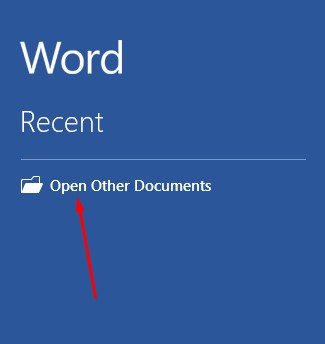
First, you’ll need to open the PDF. To do this, open up Microsoft Word and select Open Other Documents from the left-hand menu.

_ib_word_pdf_1.jpg

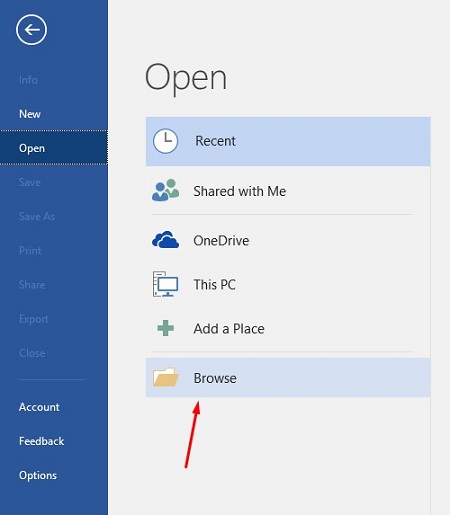
This brings up the Open menu. Next, you want to click on Browse.

_ib_word_pdf_2.jpg

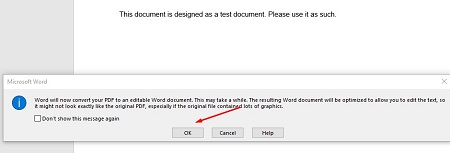
Another message will appear telling you that Word will convert the PDF to an editable Word document. If this sounds fine, click on OK.

_ib_word_pdf_3.jpg

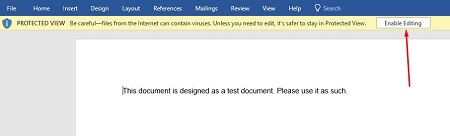
Your PDF should open up in Word now, but you might notice that there is still a yellow bar at the top of the screen that says PROTECTED VIEW. This is meant to secure your software from opening anything dangerous. If you can trust the document, click the Enable Editing button.

_ib_word_pdf_4.jpg

Once you press the button, another notification will show you that Word will convert the PDF to an editable Word document. To close this message, just click on the checkboxor click OK.

_ib_word_pdf_5.jpg

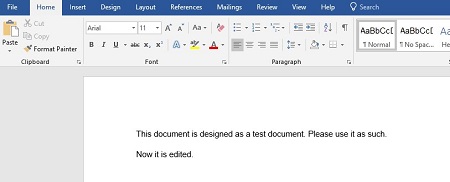
You can now edit your PDF.

_ib_word_pdf_6.jpg

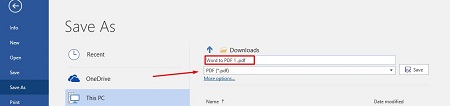
Once you’re done, you can save the file back to a PDF format. To do this, select File > Save As and set the type to PDF from the dropdown menu under the assigned file name. You will have to rename the document slightly to save it to a file folder.

_ib_word_pdf_7.jpg

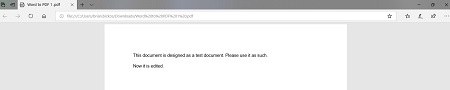
Once you’re done, your edited PDF will open in Microsoft Edge, or whatever your default PDF viewer happens to be.

_ib_word_pdf_8.jpg

What are some other cool features of Microsoft Word that you would like us to cover? Let us know in the comments, and be sure to subscribe to our blog.

totw_canned_response_gmail_400.jpg

Tip of the Week: Creating Canned Responses in Gmail

totw_canned_response_gmail_400.jpg

If you’re like most business users, you rely on email quite a bit to stay apprised of what is going on, as do most of the people you are likely in communication with. As such, you most likely understand that, while most emails require some kind of response or confirmation of receipt, not all of these messages require a heartfelt message. This is where Gmail’s Canned Responses come in handy.

This week’s tip will go over how to set up your own canned responses to streamline your repetitive, but necessary, communications.

How to Set Up Canned Responses
First, you’ll need to log in to the browser version of Gmail. Once there, click on the Gear icon in the top right under your profile image and select Settings from the menu. From there, you’ll see a horizontal menu that will display Advanced, click into it. You will see the option to enable Canned Responses. Click the radio button to select enable, and then save your changes. You can now create canned responses to use in your correspondence.

Creating and Using Your Canned Responses
To create a canned response to use, open the message composer and write out what you want your message to say. Once you are satisfied with your return message, access the message window options by clicking the button in the bottom-right corner. That menu should now have a Canned responses option, with a sub-menu that allows you to save a New canned response. You will be prompted to give your new response a name, and then it will be saved for future use in that sub-menu.

What kind of messages would you anticipate using canned responses for? Tell us what you think in the comments!

totw_google_home_how_to_400.jpg

Tip of the Week: Working from Google Home

totw_google_home_how_to_400.jpg

It is no secret that Google can serve a great utility in the office through its many services and applications. However, have you ever considered how the Google Assistant can, well, assist you through devices like your smartphone and the assorted smart speakers that Google has produced? For today’s tip, we’ll review how some of the features of the Google Assistant can lend you a hand in the professional environment.

Basic Automation
Since productivity is one of the top goals in almost any office, it only makes sense to first focus on how using Google Home can boost your productivity through automation. While the device can serve many purposes on its own, it truly blossoms as a productivity tool through integrations with other devices and services.

For example, if you have equipped your office with smart lights or smart thermostats, you can adjust your office’s environment simply by telling Google to make the change you want. As a result, you can take greater control over your business environment without interrupting your productivity. After all, doesn’t it take much less time and effort to simply say, “Hey Google, turn off the lights in the conference room,” or “Hey Google, set temperature to 73 degrees,” than it would to interrupt what you were doing and go manually make the same changes?

More Advanced Automation (Kind Of)
If you’re at all familiar with the web service IFTTT, you can integrate it with your Google Home device to automate a variety of outcomes, based on predetermined triggers. It’s right in IFTTT’s name: If This, Then That.

Using IFTTT, you can connect your Google Home (or whichever Google device you’re using) to design your own commands that require the use of the Google Home. All you have to do is set “this” to be the Google Assistant, and choose the trigger you want your command to use. These triggers will all be of the spoken word variety, and each command can feature a few different variations. Once you’ve assigned the words to the command, click Create Trigger. To add the desired action you want automated, click through “that.”

You can then search through the available channels that you can trigger through your Google Assistant, select the one you want, and fill in the required configuration fields. Once you hit finish, your automated action will be active and ready to go when you are.

Activating More Commands
The Google Home devices have other utilities baked in that can be of some use to you in an office setting, especially if multiple devices are in use.

For instance, if your office is large and you can’t get ahold of someone through message or phone call, your Google Home device can function as an intercom. By accessing the Assistant on your smartphone, you can command the Google Home to “broadcast” and it will replay whatever message you speak into it afterwards to any Home devices connected to your account.

Of course, the Google Home devices are receptive to commands from multiple users, with up to six accounts being able to use the devices in their own way. The Google Home will even customize their answers based on the user making the request through its Voice Match training.

Finally, if a visitor to the office has something to share over the Google Home, the Guest mode allows them to connect directly to the device, without needing to connect to Wi-Fi. This means that you can keep your Wi-Fi password to yourself, and not give it out to every visitor to your office.

How else can you think of to use the Google Home to augment your day-to-day activities in the office? Share your ideas in the comments!

keep_inventory_operations_400.jpg

Tip of the Week: Keeping Track of Your Inventory

keep_inventory_operations_400.jpg

Regardless of your organization’s size, there is more than likely a large amount of information technology to keep track of and maintain. As is usually the case when so many moving parts and variables are involved, the task of keeping them organized can quickly become difficult and stressful. This week, we’ll give you a few tips on how a proper inventory can help your business stay apprised of its IT resources.

What Can an Inventory Do?
At its core, an inventory serves the purpose of keeping track of the assets and resources a business has in its possession. This spans from how many cases of burger patties a fast food franchise has to how much water a hydroponic plant has in reserve. Not only does this assist the business with ensuring that it always has the resources necessary to operate, it also assists with insurance claims. By keeping you up-to-date on what you have, an inventory serves as a documented resource that can support your claims if the need arises – such as after a disaster event or theft.

Furthermore, a detailed and up-to-date inventory record can help you to identify how old your resources are, allowing you to prioritize when it needs to be refreshed and/or replaced.

As one would imagine, these are all important factors to consider when technology is involved. In light of this, it becomes especially important to develop and enforce a unified and direct system as a standard during the inventorying process.

What Your Inventory Needs to Account For
As you create this system, you need to make sure it addresses the five key details included in a comprehensive inventory record.

1. What is it that you have?
Of course, the whole point of an inventory is to identify the resources you have on hand. Given the long, detailed names that many technology components have (in addition to the many details a piece of hardware or software will have that need to be addressed), it may make the most sense to develop a shorthand that easily and efficiently communicates what exactly it is that your business has in its possession.

For example, if you utilize differently-sized hard drives for different tasks and purposes, you will likely have a stash of these hard drives squirrelled away for later use. Rather than writing out a comprehensive list, creating an internal shorthand will make the task of inventorying these components much easier.

So, if a company were to have 7 spare hard drives, 1 blue hard disk drive with a 5 terabyte capacity, 3 red solid state drives with 10 terabytes each, 2 black hard disk drives with 10 terabytes each, and one purple hard disk drive with a capacity of 5 terabytes, using shorthand might simplify that list into:

  • 1 HDD – BLUE – 1TB
  • 3 SSD – RED – 10TB
  • 2 HDD – BLACK – 10TB
  • 1 HDD – PURPLE – 10TB

2. Where is it stored?
This consideration is especially important if a company has more than one location or stores their supplies in more than one spot in the building. Your inventory record needs to keep track of where a given component is kept so it may be found quickly if need be. Make sure you mark the building it is in, as well as the room and where specifically in that room it is kept. This adds a little more information to your shorthand list:

  • 1 HDD – BLUE – 1TB (MAIN LOCATION/BASEMENT/SHELF A)
  • 3 SSD – RED – 10TB (MAIN LOCATION/BASEMENT/SHELF E)
  • 2 HDD – BLACK – 10TB (SAT-OFFICE1/ROOM4/SHELF B)
  • 1 HDD – PURPLE – 10TB (SAT-OFFICE2/ROOM2/SHELF D)

3. Additional Details to Include
Finally, there are other pieces of information you should use your inventory process to track. To assist with potential insurance needs and monitoring your solutions for a refresh, it helps to add the date that the technology was acquired, as well as how much it cost to acquire it. As a result, your list becomes:

  • 1 HDD – BLUE – 1TB (MAIN LOCATION/BASEMENT/SHELF A) – $95 (May 9, 2017)
  • 3 SSD – RED – 1TB (MAIN LOCATION/BASEMENT/SHELF E) – $250 (June 30, 2017)
  • 2 HDD – BLACK – 1.5TB (SAT-OFFICE1/ROOM4/SHELF B) – $160 (August 18, 2017)
  • 1 HDD – PURPLE – 10TB (SAT-OFFICE2/ROOM2/SHELF D) – $355 (February 2, 2018)

Other Considerations for Your Inventory
Maintaining an up-to-date set of totals for your inventory is an essential process. After all, what’s the point of keeping track of your inventory if it isn’t going to be accurate anyway? This means that, in addition to ensuring that you start off with the right numbers, you need some sort of system to help you keep a running total. Whether this system is manually keeping totals on a clipboard, updating a spreadsheet, or leveraging asset management, is up to you.

Reach out to us here at NuTech Services by calling 810.230.9455 to see how we can help. In the meantime, keep checking back for more helpful tips and tricks.

tech_term_motherboard_400.jpg

Tech Term: Defining Motherboard

tech_term_motherboard_400.jpg

Inside its casing, your computer contains many parts. While these parts may not be moving, they are hard at work, enabling you to use your computer to accomplish your goals. For today’s Tech Term, we’ll take a closer look at just one, the motherboard, and examine what it contributes to your device’s operation.

What the Motherboard Does
Your computer’s motherboard is its internal control center, the communications hub for the rest of the device. It is through this circuit board that all of the computer’s components and peripherals connect and share data. In this way, the motherboard is what makes a computer a computer, and not just a box filled with disparate components.

When the computer first boots up, the first thing to get power is the motherboard. Its different components then activate the various other parts of your computer.

Parts of a Motherboard
In order to properly function, the motherboard requires quite a few pieces to be present and correct. While the layout, or form factor, varies based on the specifications needed, all motherboards have these basic components incorporated.

Chipset – the chipset is what enables the transfer and flow of data between the various other components of the motherboard. Divisible into two parts, the Northbridge and Southbridge, the chipset allows the different components to communicate with each other.

CPU – The CPU is the part of the motherboard that relays information from the Northbridge to the different parts that it communicates with. A better CPU will assist you in having a fast and efficient computer.

Slots – A motherboard’s slots are what hold the different pieces that make up a particular motherboard in place. These pieces could include:

  • Random Access Memory, or RAM
  • PCI(e), which connects to expansion cards, like video, network, or sound cards
  • SATA, which connect to storage drives like HDD and SSD

In short, your computer’s motherboard is a small, but absolutely critical component to the function of the device as a whole. Have any more questions about motherboards, or any other aspect of your technology? Reach out to us and let us know!

phone_new_data_apps_400.jpg

Tip of the Week: How to Transfer Apps to a New Phone

phone_new_data_apps_400.jpg

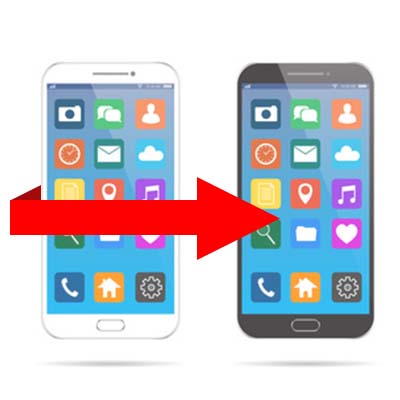
There is little that is more satisfying than obtaining a new phone. However, this sense of satisfaction is often undermined by the need to get your applications and data to ensure that your new device has everything you normally use installed. For this week’s tip, we’ll go over a method of making this process easier on an Android phone.

The first step to ensuring that your Android’s data can be retrieved is to ensure that it is properly backed up and able to be retrieved.

To check, you will need to access Settings, before opening Backup & reset. You will then have to toggle on Back up my data. You’ll then return to previous menu and select Backup & reset. Check that your Android account is the correct one in Backup account. You will then toggle automatic restore to On to be able to restore settings and data associated with the Android account in question.

Now that you’ve enabled Android’s backup service, your personal settings and application data will be saved to Google Drive. Now that the preliminary steps are handled, it’s time to restore your applications and settings to your new phone.

Restoration
Restoring your applications and data is pretty straightforward if you are utilizing the Lollipop-version of the Android OS or above. This setting is available to phones as they’re booting up for the first time, or just after they have been factory reset.

  1. Select the arrow at the welcome screen to start setting up your phone.
  2. Select System language and log into your Wi-Fi network.
  3. Select Accept and continue.
  4. You can then copy your Google accounts, apps, and data from another device. If you choose not to do that, you can then forge ahead by logging in to your Google account.
  5. There will be a privacy statement, press Accept.
  6. Now go to the Google services page. Here you can select to enable the backup service for your account.
  7. Choose all your preferences and select Next.
  8. If you want to add an email account, you can do so in the Add another email section. If you don’t need to do that, just select Not now, then click Next.
  9. You will then have to restore your apps from the “Which device?” menu. You will see all the Android devices that you’ve used. Select the device to see which apps will be available when you restore. If you don’t want everything restored, you can choose the arrow next to the Restore option and select what you’d like to restore and what you’d like to leave off your new device.
  10. Choose which device’s configuration you want to restore from, hit Restore.

After your apps are restored, be sure to enable security for your phone; and, if you so choose, get Google Now for your device.

The Android smartphone is one of today’s most important productivity tools. For more great information about mobile usability and security, give us a call today at 810.230.9455.

secure_browsing_doesnt_private_400.jpg

Tip of the Week: ‘Secure’ Browsing Doesn’t Mean ‘Private’

secure_browsing_doesnt_private_400.jpg

Internet browsers, by in large, provide enough security for the average user to come out unscathed. Nowadays, people deal with many more threats than they once did, but by in large, users stay secure when using today’s most popular browsers. Privacy, however, is a whole different matter.

Nearly every brand of browser offers some of supposedly covert browsing options. Google Chrome has Incognito mode, Microsoft Edge allows you to access the web using “InPrivate” mode, and Apple’s Safari browser also offers users private browsing. Each of these platforms, however, are a would-be nightmare for privacy advocates. For this week’s tip, we will discuss some things you can do to keep yourself private while online.

Privacy in Browsing
Shielding your online identity inside your browser may prevent your browser’s history from tracking your online activity, but your ISP doesn’t have those kind of restrictions. Your ISP is capable of tracking every site you go to no matter what browser you use. Additionally, websites you visit when you are browsing privately, can also track your IP address regardless of your use of private browser settings. Since your path is left unprotected, it leaves your website activity open for inspection.

On that note, it also should be mentioned that no matter what kind of in-browser private setting you use, your employer, who typically owns the network you are working on, can still see what sites you access. For business owners that are serious about lost productivity from employee web surfing, there are solutions to ensure that you control what your workers can see. If you are serious about keeping your web browsing private, your best bet is to use your own virtual private network (VPN).

Virtual Private Browsing
Using a VPN will keep the connection between your system and your destination hidden, allowing you to choose the location you are browsing from. In hiding your connection under the encryption afforded by the VPN, you can get the privacy you need from anywhere on any Internet connection.

For assistance in implementing a VPN for your business’ browsing needs, reach out to NuTech Services at 810.230.9455.

Spam_avoid_emails_400.jpg

Tip of the Week: How to Avoid Spam Emails

Spam_avoid_emails_400.jpg

Would you just give your bank account information to anyone who called you up and asked for it? Probably not. For the same reason, you wouldn’t just download attachments from your email messages without a second thought. This can be a dangerous practice, as some of the most common threats nowadays spread themselves via unwanted email attachments. It’s important that you can identify when it’s the right time to download an attachment, and when it’s best to just leave it be without exposing your business to unnecessary risk.

First, a little information about why you might be forced to make this decision in the first place. Spam messages are often the easiest way to spread the influence of malware and other threats. It’s simply a fact that you can send one message to countless individuals knowing that at least some of them will be fooled into downloading the attachment, and in turn, downloading all of the nasty things found on it.

For example, ransomware makes its home on workstations due to infected attachments. Your company might receive an unsolicited message from a prospective employee, who has attached their resume for review. Before your HR department knows what’s happening, their files are encrypted due to the attachment actually containing malware from a hacker. Surprise–your organization has fallen victim to a targeted phishing attack, with an infected infrastructure being the fallout.

While your spam filter might flag some of these messages as dangerous, it’s unlikely that the most dangerous ones will be caught in its web. Be wary of messages that claim to be receipts, shipping information, resumes/CVs, and other information that might be important for your organization. Hackers understand this and want to take advantage of that knowledge, which could potentially put your company in a tight spot.

Ultimately, the best way to keep your company safe is by taking a two-pronged approach–educating your employees on the importance of email security, and a technology solution designed to eliminate the majority of spam in the first place. The first can be maintained simply by holding awareness training and actively practicing proper email etiquette. Teach your employees that they should never open attachments from anyone they don’t know, and to always investigate the source of the message before declaring that it’s safe enough.

For the second measure, you can rely on NuTech Services to help you out. Our technicians can hook you up with an enterprise-level spam blocker to keep the majority of dangerous messages from making their way to your inbox in the first place. It’s a great measure that can minimize your employees’ exposure to risky elements. To learn more, reach out to us at 810.230.9455.

term_encryption_400.jpg

Tech Term: Understanding Encryption

term_encryption_400.jpg

With data security becoming paramount for almost everyone, encryption is one of the more important technology terms you will need to know. Since data security has to be a priority–not just for your business–but for you, understanding what encryption is, and how its used can put you in a better position to understand tomorrow’s security solutions. For this week’s tip, we will take you inside cryptography, and more specifically, data and network encryption.

What is Cryptography?
Simply put, cryptography is the art (or science) of writing or solving written or generated codes. Cryptography is the strategy of using a predefined key to convert data into a format that is indecipherable. Since no entity can view the information without the key, the information secured by encryption is able to be stored and transmitted securely. To decode the message, you need a cipher or a key.

A Short History of Cryptography
As long as there has been human communication, there have been secrets. The first known evidence of the use of cryptography was found carved in hieroglyphics on a wall in Egypt, and has subsequently been used throughout human history to send and receive secret messages.

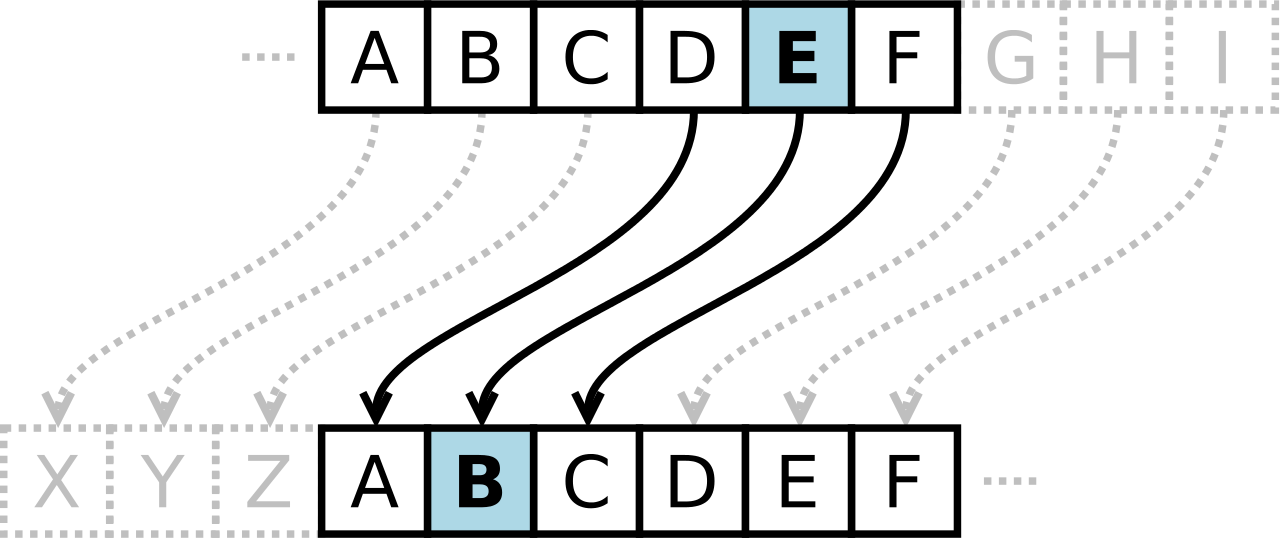
Centuries later, Julius Caesar was known to use a form of substitution cipher that shifts each letter three spots in the alphabet to encode a message. In fact, there are some that still call this type of cipher a Caesar cipher. The Caesar cipher looks like this:

ib cipher 1

It’s clear that this type of cipher is dependent on the secrecy around the system, not a dedicated key to unlock the cipher. Once the system is known, these basic codes become known almost immediately. In fact, most substitution ciphers can be broken with a simple pad and paper.

This changed in the 16th century when Giovan Battista Bellaso came up with an improvement by using a series of interwoven ciphers. The process was misattributed to Blaise de Vigenère, and has since been referred to as the Vigenère cipher.

Despite all the coded messages sent and received over the centuries, cryptography as we know it has only come into fashion over the past century as technological advancements have facilitated more sophisticated methods of encryption. In the early 20th century, Edward Hebern, while sitting in jail for stealing a horse, came up with a method of encryption using an old typewriter fashioned with a rotor. The purpose was to turn what to the user was a simple Caesar cipher into a Vigenère cipher with the use of Hebern’s two-way rotor machine. A user would push a key and the rotor would provide the corresponding substitution key to decrypt the message. b2ap3_thumbnail_ib_cipher_2.png

If this machine started modern encryption, Enigma changed it forever. Shortly after Hebern’s invention, German engineer Arthur Scherbius innovatively built what was essentially a Hebern device with multiple rotors and called it Enigma. For a decade German naval superiority over mainland Europe had as much to do with their ability to send and receive coded messages as it did to their manufacturing might.

Modern Encryption
When we speak of encryption today, we are just talking about the same type of thing that Hebern and Scherbius were doing: cloaking data to provide privacy or security to the parties involved in the correspondence. Today, data is worth more than ever; as a result businesses are spending more on their encryption solutions.

All businesses collect a fair amount of personally identifiable information (PII). This information includes names, birth dates, Social Security numbers, and financial and medical information. The liability companies have today is immense, as they can (and often are) sued if a customer, employee, or vendor’s PII is stolen and leaked or shared.

The modern business uses several types of encryption. Individual file encryption encrypts specific data; volume encryption secures a container where files and folders can be stored; and, full-disk encryption secures all the information on a computer or server. To ensure that the data is protected from theft, encrypting all the information deemed sensitive should be a priority.

In order for your business’ encryption initiatives to be successful, there are some best practices that users need to know. One is password security. Often the key to your encrypted information is a simple password. In order to mitigate risk and keep encryption working for you, there are some password management tips you should adhere to. Following these will keep your encrypted data, and your business safe. They include:

  • Use passwords with eight characters or more.
  • Use different passwords for different files, computers, and systems.
  • Change your passwords frequently.
  • Utilize upper and lowercase letters, numbers, and symbols in your passwords.
  • Don’t use common words or phrases.
  • Don’t use words spelled backwards, common misspellings, or abbreviations.

More Encryption
Other than your standard protection against the loss of data, there are security solutions that allow you to encrypt communications you have with your customers, staff, and vendors. Email encryption has become an essential business tool. Many of today’s enterprise email solutions come with options to encrypt your messages, keeping communications secure.

Another way encryption is leveraged by the modern business is with the use of a virtual private network (VPN). The VPN offers users who are outside of a network to get an encrypted and secure pathway to share and receive files from a centralized server. Remote file exchange is important for many businesses, and the use of VPNs can go a long way toward quelling the risks inherent in this process.

Types of Encryption Finally, understanding what types of encryption there are can help you understand what position your organization is in, in regards to file, server, and communication security. The types of encryption used today include:

  • Triple DES – Designed as a replacement to the single Data Encryption Standard (DES) that doesn’t hold up against the tools modern hackers have. Triple DES uses three individual keys with 56 bits each, which in total adds up to 168 bits, however experts place it closer to 112 bits of key strength.
  • RSA – RSA is a public-key encryption algorithm and is currently the standard for secure transmission of data over the Internet. Since it uses two keys, a public key to encrypt it and a secure private key to decrypt it, it makes it very difficult for hackers to decipher.
  • Blowfish – Designed to replace DES, Blowfish is a symmetric cipher that splits messages into blocks of 64 bits and encrypts them individually. As a result, it is extraordinarily secure and often used in e-commerce platforms and password managers.
  • Twofish – The developer of Blowfish has released Twofish as a faster option that makes it a perfect encryption tool for hardware and software systems.
  • AES – Available in 128-bit, 192-bit, and 256-bit options, the Advanced Encryption Standard is basically uncrackable. Used by governments and other organizations that deal in extraordinarily sensitive information, AES has begun to become the standard in encryption due to its impenetrable record.

Data security is more important today than ever. At NuTech Services, our knowledgeable technicians can help your organization come up with data and network security plan that is sure to keep your data safe, and keep your business running efficiently. To learn more, don’t hesitate to call us today at 810.230.9455.

browser_comparison_400.jpg

Tip of the Week: Browser Security 2018

browser_comparison_400.jpg

The Internet browser is one of the most utilized applications on most computers. With so many complex and aggressive issues popping up on the Internet it would be useful to know which of today’s most utilized browsers are best at keeping your computing network free from threats. Today we will take a look at each of the five most utilized web browsers to find out which is the most reliable and secure for your business to use.

What Risks Do You Face?
The risks are numerous and unrelenting. Around every corner on the Internet there are muggers with knives looking to take your stuff. The good news is that for many of the threats present, there are solutions to a lot of them–pretty much as soon as they are discovered. The Internet security community has leveraged this constant attention into immense profits. According to an article in Forbes, the cybersecurity industry is growing rapidly and is expected to be worth $170 billion by 2020, with a good portion of growth dependent on the ever-present Internet of Things.

To get a good idea about what kind of threats you face, all you need to do is take a look at the cybersecurity markets.There are cybersecurity markets for gadgets, appliances, cars, and more. There is cybersecurity insurance. PricewaterhouseCoopers has forecasted a $7.5 billion market for data insurance to come to fruition by 2020.

Four of the largest banking institutions in the world, J.P. Morgan Chase, Bank of America, Citigroup, and Wells Fargo spend upwards of $1.5 billion on cybersecurity annually. If the least risk-averse people in the world are spending a fortune, you know what you are up against. These organizations have seen companies decimated by cybersecurity lapses and understand the risk; something you and your business should consider a sign that it’s time to do something about protecting the people that depend on you against the rogue actors who breach and roam around computing networks like yours and take what they please.

Small Business Browsing
You’d think that in the context of a small business’ computing, they wouldn’t need the protection that global banking institutions do, but with all the risks that are there, there has to be some attention paid to the issue and some investment in understanding how to mitigate those risks that are laid on your organization by constant threats from the web. The good news is that most of what you need to do is attainable by simply understanding how the web works, and through the use of a secure Internet browser.

The most well-known, and most utilized, Internet browsers include: Google Chrome (56.3%), Apple’s Safari (14.5%), Mozilla Firefox (5.7%), with other browsers making up for less than 5% including Microsoft Edge/Internet Explorer, Opera and others. Any Internet browser worth its salt will do a great deal to keep users’ computers and networks from being maligned by malware and other problems.

This is accomplished by producing secure connections. In the browser, any website identified with the protocol “https://” has a secure connection. This connection encrypts the data that is sent and received through the browser to keep any transmission of data on that site from being intercepted, stolen, or leaked. This allows data to be protected during interchange providing a semblance of privacy. Since the two components every secure connection requires are privacy and identification, this encryption starts things off pretty well.

Since the typical connection between the Internet browser and any server it is cooperating with is initially short on security, websites rely on secure connections through the use of digital certificates in order to know exactly who a website is owned and run by to establish a trustworthiness of the Internet browser.

Google Chrome
Google Chrome, long known for its reliability and popularity, sports the most powerful sandbox of any of the major browsers. A sandbox is an isolated environment that attempts to keep the Internet contained, and thus away from your network or computer. Google has the fastest response time to security vulnerabilities, but with the use of “Chrome apps”, weaknesses begin to present themselves. If you stick to the browser itself, you are looking at the most secure of the major Internet browsers.

The issue of privacy, however, makes Chrome tricky to get a hold on. Google, after all, has built an empire by knowing things about its users. This lack of privacy, even if it just results in you having more advertisements targeting you than before, is disconcerting to some and can be seen as a necessary evil for using Google’s browser.

Mozilla Firefox
Firefox is getting old. Since Firefox doesn’t utilize the sandbox technology, it doesn’t have the buffer between the user and the web that most browsers have. Firefox has a problem with their JavaScript plugins sharing the same namespace, which exposes all plugins to potential attack by any malicious plugin. In order to get the most out of Firefox, you have to understand and practice safe browsing habits, and aren’t installing plugins from developers you don’t trust.

Privacy, however has been Firefox’s strength from day one. Mozilla collects very little data and does not trade information on its users; and, remains the only of the major browsers that is open sourced. This allows users to open up the source code to see exactly what is going on.

Apple’s Safari
Apple’s browser is limited to just Apple products after attempting, and failing, to move the browser over to the PC. Safari is known for developing and releasing patches fast, and as a secure browsing experience because the risks were just not as prevalent for devices running macOS or iOS as they were for those that run Windows.

Like Chrome, and the Microsoft browsers we will mention later, user privacy isn’t on the list of priorities for Apple. While a lack of privacy could be looked upon as a positive characteristic of a browser (as more transparency helps develop bug fixes faster), if you are running a Mac OS, sticking with Safari is your best bet.

Opera
Opera is the oldest Internet browser on this list. Having gone through a major overhaul in 2013, Opera replaces their proprietary engine to go with Chromium, the same engine used by Google’s Chrome browser (and others). As far as security goes, Opera has a lot going for it. Having a small percentage of the market share is a major one (one their developers would gladly shed), as this kind of security through obscurity keeps threats to a minimum. Despite using the same browser engine as Chrome, Opera doesn’t support browser apps, limiting its already minimal exposure.

Privacy in Opera is much like Firefox’s. They have a very conservative data collection policy which despite the software not being open sourced, does present users with privacy concerns some peace of mind.

Microsoft Edge and Internet Explorer
Microsoft’s browser was once the predominant one in use. Today their market share has dwindled into the single digits, with the “new” Edge browser still gaining traction. Internet Explorer is barely being supported any longer, so it’s best to avoid that software at all costs, but Edge seems to be just a scaled down IE that doesn’t support ActiveX technology or Browser Helper Objects. It has its own limited set of in-browser apps that give people looking to infiltrate the browser more access points.

Privacy in Microsoft’s browsers is non-existent as Microsoft has a history of collecting everything. There are options to make it less transparent, but users should be happy the Edge isn’t IE.

No matter what browser you use, you have to be cognizant of sharing data you don’t want others to see. Understanding what your responsibilities are will go a long way toward keeping your data and network safe from security threats. For more information about Internet browser security and privacy, or to discuss your organization’s general network security, call NuTech Services today at 810.230.9455.


medical_records_digital_400.jpg

Tip of the Week: Do You Know How to Protect Medical Data?

medical_records_digital_400.jpg

Businesses that work with medical data are in a tricky situation, as the slightest issue with security could place considerable risk on storing this data. If you’re not careful, you could be putting your business at risk. With the compliance issues that have to be regarded, the security of any medical data you store on your infrastructure has to be made a priority. How can you minimize the risk of storing this data without compromising your business’ effectiveness?

Compliance regulations, like the Health Insurance Portability and Accountability Act (HIPAA), will make things a bit more difficult for your business. However, your business shouldn’t be hit too hard if you’re being mindful of the regulations while planning how you store medical records and other sensitive information. Here are some tips to help you keep your business as secure as possible.

Encryption is Key
The strange thing about HIPAA is that it doesn’t necessarily require that your business have data encryption implemented. Considering how much it helps in the event of a data breach, it’s ludicrous to think that it’s not required at all. Encryption essentially scrambles data so that you need an encryption key in order to view it properly. This makes any stolen data practically useless, as military-grade encryption is incredibly tough to crack by your average hacker.

Implement Comprehensive Security Solutions
More often than not, it’s better to stop attacks from happening before they infect your infrastructure rather than respond to them afterward. You can do this by implementing a Unified Threat Management solution, which includes a firewall, antivirus, content filter, and spam protection to minimize the security threats of your company at all times. These preventative measures don’t necessarily guarantee immunity to threats and hackers, but they significantly reduce the chances that you’ll suffer from them.

Limit Access Based on User Roles
The more users have access to certain data, the more threats can potentially access that specific data. Think about it this way; if you have 10 computers on your network, any one of those computers can be used to infiltrate your network. However, it’s unlikely that all 10 of the users also need the same privileges to access important data. You can keep specific data safe by limiting the number of users who have access to it.

Does your business utilize medical records or other sensitive information? Your company could be at risk of being fined due to compliance regulations. To find out how your business fares regarding data compliance, reach out to NuTech Services at 810.230.9455. We can work with you to ensure that you’re being as proactive as you need to be to ensure your data is secure.

gmail_icon_current_400.jpg

Tip of the Week: Filters and Labels Help Organize Your Gmail Inbox

gmail_icon_current_400.jpg

Gmail is an excellent tool for business use, even more than many business owners may realize. Did you know that it even has the capability to keep itself organized? For today’s tip, we’ll go over how to use filters and labels to keep your Gmail inbox organized and easy to use.

An Intro to Labels and Filters
Labels and filters are just a few ways that Gmail can help to keep your messages organized. You can assign rules that are applied to messages as they come in. These rules make a filter, which analyze your incoming messages and ensure that these messages are sent to the right label. These labels allow you to view messages more conveniently, consolidating those that have certain factors in common.

For example, you could create a filter that assigns a particular label to any message that has “Quarterly Reports” in the subject line. That label can then be used to access any and all messages with “Quarterly Reports” in a single, consolidated list.

Creating a Filter
Creating a filter in Gmail is fairly simple.

  • Once in Gmail, click the down arrow in the search bar at the top. This allows you access to greater detail in your search criteria.
  • Fill in the details that you want your filter to pay attention to, whether it is who the email has come from, or if the subject line contains a particular word or phrase.
  • Once your criteria have been established in this window, click in the bottom-right corner of the window, where it says, Create filter with this search.
  • You will be given a list of options, including the option for the message to be automatically ‘starred,’ or marked as important. For our purposes, we are concerned with the option to Apply the label.
  • Next to the ‘Apply the label’ option, there is a drop-down menu labelled Choose label. You have the option to create a new label from here, or select from those you have already made.
  • Once your filter has been properly configured, click the Create Filter button.

Creating a Label
While creating your filter gives you the opportunity to create a label, there are sometimes that you may want to have a label prepared that you can add messages to manually, or to already have one to direct a filter towards. Fortunately, creating a label and adding it to a received message is also fairly simple.

  • In Gmail, click the More option on the left of the screen.
  • From there, click Create new label.
  • Name your label and click Create.

To add this label to a message:

  • Open the appropriate message.
  • At the top, click the Label button. You can also add a label to a group of messages by selecting them before you click the Label button.
  • Select each label to be added. You can also create a new label from this point as well by typing in a new name.

Now you’re ready to take even greater control of your Gmail inbox. For more handy IT tips and tricks, subscribe to the NuTech Services blog!

password_strength_400.jpg

Tip of the Week: A Secure 2018 Relies on Powerful Passwords

password_strength_400.jpg

Password security is one of the most important parts of using an online account. It seems that the average user runs into the paradox of password security by using either complex, hard-to-remember passwords, or simple and less-secure passwords that put their accounts at risk. Even if the user is aware of the benefits that come from using a secure password, chances are that they will sideline security in favor of ease of access.

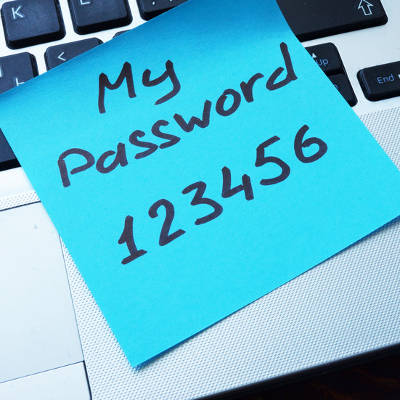
According to a list of the worst passwords in 2017 compiled by Splashdata, some of the worst passwords included “password” and “123456.” These two have topped the list since at least 2010, when Splashdata made their debut survey. Other passwords included in the top five include “12345678,” “qwerty,” and “12345.” Even “starwars” made the list at #16. For further reference, you can view the list of the worst passwords in 2017 here.

Best practices for password security are relatively well-known, especially considering how many experts study this particular field. Here are some tips from the guidelines recommended by the United States Computer Emergency Readiness Team, or US-CERT. In fact, US-CERT was created by the Department of Homeland Security for the specific purpose of preserving online security against threats.

Some sites or applications force users to use these best practices when creating a password, so do yourself a favor and keep these in mind:

  1. Use different passwords on different systems and accounts.
  2. Don’t use passwords that are based on personal information that can be easily accessed or guessed.
  3. Use a combination of capital and lowercase letters, numbers, and special characters.
  4. Don’t use words that can be found in any dictionary of any language.
  5. Develop mnemonics (or spoken memory tricks) such as passphrases for remembering complex passwords.
  6. Consider using a password manager program to keep track of your passwords.

NuTech Services is of the firm mind that you should never underestimate the importance of network security best practices–particularly password security. To learn more about how you can secure your business, reach out to us at 810.230.9455.

little_green_android_400.jpg

Tip of the Week: 5 Handy Android Shortcuts

little_green_android_400.jpg

With business becoming more and more mobile, there is a greater need for the devices we use to offer features that allow the user to boost efficiency and avoid downtime. It just so happens that Android devices come with a few little-known ways to accomplish these goals. For this week’s tip, we’ll go over a few ways your phone can be used more efficiently.

Fast Snap
If there are two apps that you use frequently, and often need to switch between as reference, you’ll appreciate this feature. Pressing the overview key (the little square icon) will switch you between the two apps you used most recently. If you are on your device’s home screen, this action will pull up the application you were using last.

Fast Vibrate/Do Not Disturb
We’ve all been in a position where a sudden ringing of a phone would be frowned upon, a situation that’s extremely likely in a business setting. If you find yourself in such an occasion and you realize your phone is still at full volume, you can simply activate the screen and hold the volume down button. This will set the device to vibrate mode.

If vibrate is still too loud, pressing the volume down button once again after the phone has been set to vibrate will activate Do Not Disturb, saving you from having your phone go off at an inopportune time.

Notification Customization
If a particular app is interrupting your workday needlessly, you can tell your Android device under what circumstances that app can provide you with a notification. When the next notification pops up, press and hold the notification until you are offered the opportunity to dictate when the app can ping you through some additional settings.

Freeze Reboot
If you ever find yourself with an inexplicably locked-up and frozen device, you can force it to reboot with the Power and Volume Up buttons. Pressing both down simultaneously for anywhere from 10 to 15 seconds will cause your device to restart. If it doesn’t, that may be a sign that something more serious is happening, or that your phone simply needs a recharge.

Power Button Ends Call
If you’re like most business users, you’re busy from the beginning of the workday to the time you clock out. This is especially true if your work takes you out of the office. To save a few extra moments of time, there’s an easier way to hang up a call on your Android device. Instead of fumbling around to press the end call button on your touchscreen, the power button can be used to end the call.

In your settings, access Accessibility and engage the Power Button Ends Call setting. This enables you to end a call with a much easier gesture that you can successfully pull off without looking.

letters_swirl_pink_400.jpg

Tip of the Week: How to Type Accent Marks and Symbols

letters_swirl_pink_400.jpg

When it comes to businesses-to-business relationships, the global impact of the Internet has unlocked quite a few doors. Rather than developing relationships with exclusively businesses in their region, it’s not uncommon for a small manufacturer of model airplanes in Iowa to use the web to find the vendor that can meet all of their needs, even if they’re located in Austria. Doing business internationally means there may be an occasion where you’ll need to communicate in another language. Fortunately, for Windows 10 users, it has never been easier to switch your computer or mobile device’s language.

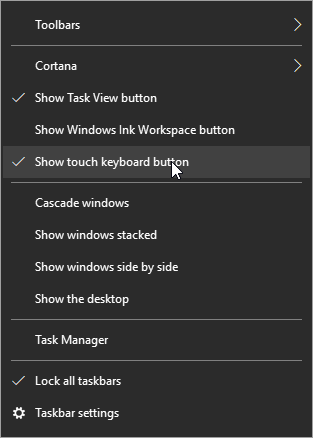
First, hover over the taskbar and right-click. Select show touch keyboard button.

Cortana

You’ll now see a keyboard icon next to your clock and calendar on the right-hand size of your taskbar.

keyboard icon

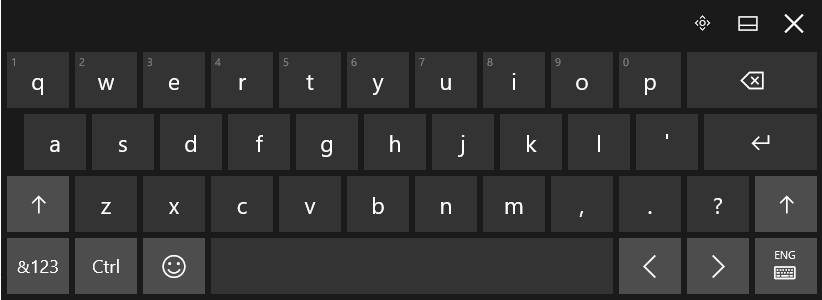
This will bring up a touch keyboard. In the case that you don’t have a touch screen, you can also click on the buttons with your mouse.

Touch Keyboard

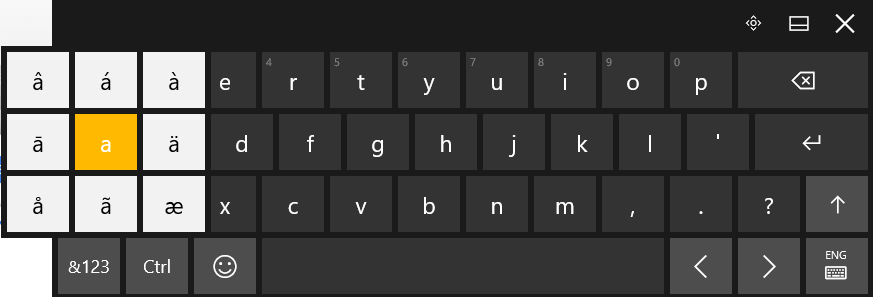
Click and hold the base letter to see all the possible accents for that letter. Click the one that you would like to insert.

keyboard accents

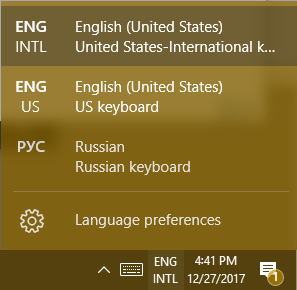
For those who are going to be writing in another language on a regular basis. It’s possible to change the entire layout of your keyboard. Your chosen language can be found to the right of the touch keyboard icon.

EnglishRussianKeyboard

This doesn’t just apply to the touch keyboard. It applies to your physical one, as well.

Hint: If you don’t see the language you’re looking for in the list of available languages, you can add and edit your list by selecting Language preferences.

Using Another Version of Windows?
For those of you who are using Windows 7 or 8.1 (or even Vista or XP), in addition to seriously thinking about upgrading your operating system, you can still use ALT Codes. A numeric list of codes is assigned to the accented letter or symbol in question. While pressing down the ALT key, type the four-digit code on the numeric keypad at the right edge of the keyboard.

Do you have any tips or tricks that use you like use when communicating in another language? Tell us below! Comentario a continuación! Commentaires ci-dessous! Комментарий ниже!

evernote_onenote_400.jpg

Tip of the Week: Is OneNote or Evernote Better for Your Needs?

evernote_onenote_400.jpg

The ability to take notes is invaluable to business, but the ability to take cohesive, well-organized notes is essential. Therefore, it is important to utilize a solution that enables you to do so. For this week’s tip, we’ll compare and contrast two note-taking applications — Microsoft OneNote and Evernote — to evaluate which will better serve your needs.

What OneNote Has To Offer
OneNote offers a fairly comprehensive suite of features to its user, offering a wider variety of tools than Evernote does. Depending on the platform you use, you can draw, record a quick audio or video clip, add images and spreadsheets, and share everything with other users — all in addition to the basic text-based note function.

The way it is set up, OneNote also enables the user to remain well-organized in a logical and sensible way, with the ability to create individual notebooks that are themselves able to be divided into sections and subsections, each divisible into pages. The many functions that OneNote allows are divided into a tabbed system similar to what can be found in the Office applications. This interface is most prominent in the Windows version, with similar (if less comprehensive) features in the Mac, iPad, iPhone, web, and Android versions.

OneNote’s major flaw lies in its web clipping function. When content is clipped from a webpage and added to OneNote, it is added as an image. As a result, links and videos and other similar content will not work, and you can’t copy and paste any content from the clipped webpage. It is also only available to users with a Microsoft account.

Finally, OneNote utilizes OneDrive to keep itself synced across all of your devices. Depending on what version of Office you use, your OneDrive storage space allotment will vary. There is also the option of purchasing additional storage space through various plans.

The Features of Evernote
Evernote offers the same basic functionality as OneNote, but there is still enough of a perceptible difference that the comparison between the two feels a little like comparing apples to oranges. While Evernote also allows the user to create notes and such from scratch, it has clear strengths in its capability to clip web content.

Rather than just taking a screenshot of the web page, Evernote provides a toolbar application that allows the user to capture content in a variety of different ways. A user can grab the article alone, without ads and extraneous content, or just the stripped-down text and graphics, sacrificing the original formatting. Evernote also accepts the full page, a working bookmark to that page, and yes, a screenshot of a particular page.

The clipper also allows you to add tags, as well as notes by adding text, highlighting what’s there, drawing on it or adding arrows, and more. Plus, the only element to a captured page that isn’t live and editable are things like videos. However, clicking on the video in Evernote will take you to the original page where it can be viewed.

Evernote shows some significant changes between its versions for Windows and Apple devices, making the Apple device versions a little trickier to navigate than the lists that the Windows version showcases. The web and mobile versions have a shortcuts feature that enables the user to save a quick link to a particular note in a special favorites menu.

Evernote comes in a limited, trimmed-down free version, as well as in various subscription models for differing price points and data caps.

Why Not Both?
Clearly, both OneNote and Evernote have their specific strengths, which translate into improved capabilities for certain tasks. As a result, it may best suit your needs to have a version of each, which is made easier if you only require the free version of one or the other. You may want to use Evernote to compile research for a given project, and OneNote to map out the project and take notes for reference.

One thing to keep in mind, although both systems are relatively secure, business owners will want to make sure employees aren’t storing sensitive company information on their own personal OneNote or Evernote accounts. Both services offer business/enterprise versions that let you manage and control your data.

Whichever approach you take, NuTech Services is here to help. Call us at 810.230.9455 for more information, and be sure to subscribe to this blog for more tips every week!