multi-device_email_400.jpg

Tip of the Week: Sync Your Inboxes with IMAP

multi-device_email_400.jpg

How many emails do you send on a daily basis? You use it so frequently that you might not second-guess how it actually works. Depending on the way your business uses email, you might be able to optimize the way that it works for your mobile devices. There are two types of protocol that work to varying degrees for your email solution.

The first kind of email protocol is called POP, or Post Office Protocol. This can be seen in a similar way to snail mail. POP works by downloading messages to your device from the mail server through your email client. However, this keeps you from downloading the messages onto other devices. If you want to check your email on your smartphone, the same messages will not be accessible on your desktop–it’s just the way it works.

On the other hand, you have the preferred method of handling multi-device email: IMAP, or Internet Message Access Protocol. IMAP stores the messages live on an email server rather than downloading them directly to the devices. This means that the messages remain on the email server and are accessed by a mail client on any device you use. Any actions performed on the messages are done so through the mail server. This is the best way to use email if you’re hoping to keep your messages in sync across your devices.

Modern email systems generally allow for IMAP, including Google’s Gmail, Microsoft Outlook, and Mozilla’s Thunderbird. Some, like Apple’s iCloud, even default to it. Depending on your business’ needs, you’ll want to implement a communications solution that allows your team to access email on a multitude of devices–that’s where we come in.

If your business is unfamiliar with mobile devices, NuTech Services can work with your organization to ensure that your mobile device policy matches up properly with your email client. You want to ensure that any devices accessing company information are secured from end to end. Furthermore, these devices need access to information unimpeded so that productivity can commence. We can work with your organization to make this happen.

To learn more about email, mobile devices, and business technology for a modern workforce, reach out to NuTech Services at 810.230.9455.

remote_worker_pros_vs_cons_400.jpg

Tip of the Week: Would Remote Workers Benefit Your Business?

remote_worker_pros_vs_cons_400.jpg

If you allow your workforce to work remotely, your business can flourish under the right conditions. You still need to think about the risks associated with it, though. If you’re not careful about your remote work strategy, it could blow up in your face. Here are some of the ways you can minimize the risk of remote workers.

The Benefits of Remote Work
Have you ever stopped to consider that a lot of your budget is spent paying for rent and other utilities, like heat, power, and air conditioning? These are some of the major costs associated with operations. You need to pay for these services in order to actually make a profit for your organization. However, if you downsize your office space and eliminate unnecessary expenses, you can take advantage of new opportunities. You also provide your employees with more flexibility so that they can work how they want. Thanks to this flexibility, you can provide your workers with benefits that they may not be able to find elsewhere. That’s not even mentioning that you can hire anyone from anywhere, eliminating geographical barriers for good for any new hires.

A good example to consider is how a remote working plan could help parents with young children. They need to work, but it’s also important for them to spend time with their new family. A flexible schedule is the ideal way for a parent to keep their work schedule while taking care of their kids, allowing them to be there when it’s needed. The freedom and flexibility associated with remote working can help you retain employees, as it costs more to hire new employees than keep current ones.

The Downsides
The freedom and flexibility that comes from remote working can also be a major issue. What if the worker decides to just throw away the workday on chores or television instead of doing their work? These types of distractions don’t exist in the office environment, but they might prove to be too irresistible to the remote worker. Plus, remote employees have been known to suffer from reduced communication and interaction skills with their coworkers, which can limit productivity and morale.

Correcting the Downsides
To keep remote workers from holding your business back, you should focus on hiring only remote workers that have strong communication skills and use them to foster a sense of connection during the on-the-job training stage. You should periodically check in with your remote workers to ensure that they are working properly and to remind them that they are an important part of your workplace. Make sure that they feel valued and develop camaraderie. However, there is a fine line that you don’t want to cross here, as a misstep could lead to micromanagement.

Having the technology to ensure your workers can collaborate is a crucial step toward making sure your business is ready for this development. Technology can reduce the gap between your in-house and remote workers to create a great workplace for your entire staff. To learn more about remote workers and managing them effectively, reach out to NuTech Services at 810.230.9455.

iconic_product_key_400.jpg

Tip of the Week: Saving a Windows Product Key to a Microsoft Account

iconic_product_key_400.jpg

To activate Windows 10, every user will need a product key. Every legitimate version of the software has one, but often times, users will need the product key later down the road, only to find that they’ve lost it or tossed it. For this week’s tip, we’ll describe a way to link your software’s product key to a Microsoft account so that you’ll never lose it again.

Step One: Get a Microsoft Account
In order to link your Windows 10 product key to your Microsoft account, you’ll have to have a Microsoft account. If you don’t have an account under the Microsoft umbrella (hotmail, live, outlook, etc.) and depend on another platform such as Google or Apple, have your IT administrator set up a Microsoft account for you. This way you can know you have an authorized account that is ready to go.

Step Two: Link the Product Key to Your Account
Now that you have a Microsoft account that is authorized by your organization’s IT administrator, you can log in and navigate to Settings in the Windows 10 Start Menu. Click on Update & Security, and then on Activation.

The Activation page will read “Windows is activated with a digital license”. If it doesn’t, you can stop because your product key doesn’t enable you to digitize your license and you won’t be able to link your Microsoft account with Windows 10. If this happens to you it is important that you keep your Windows 10 product key on file.

If you have a digital license, you then have to change your type of account to successfully link your Windows 10 product key to your Microsoft account. To do this, open Settings and then click on Accounts. You will then click on Your Info. Find the hyperlink on the page that reads “Sign in with a Microsoft account instead” and click on that.

You will then sign in using your Microsoft account using your username and password and click the Sign In button at the bottom of the screen. Enter your Windows password if it is different, otherwise click Next and it will ask you to Set up a PIN. If you don’t want to set up a PIN, you can click on the “Skip this step” hyperlink on the left side of the box.

Step Three: Verification
To check to see if this process has been successful, open your Settings, click on Update & Security, click on Activation, and you will see “Windows is activated with a digital license linked to your Microsoft Account” under the Activation subheading in the main box under Windows.

To protect your software and yourself, knowing the best practices of software management is important. If you would like to know more great tips and tricks in Windows 10, visit our blog regularly.

just_the_tips_400.jpg

Tip of the Week: Using Your Computer to Its Full Potential

just_the_tips_400.jpg

Your computer, and the many resources you use it to access, are made for utility. As a result, there is an assortment of useful features built into many commonly used systems and solutions. For this week’s tip, we’ll go over some of the shortcuts that you may not have known about.

For Windows
The Windows operating system itself comes with a few shortcuts that can make using your computer much more convenient.

A cluttered screen can be extremely distracting, but minimizing and maximizing each window each time you need a different one can add up to be a major time sink. Arguably even more so, it gets annoying pretty quickly. Windows provides a fix that sounds a little silly — to quickly minimize every window other than the one you want to keep, click and hold the bar at the top (where the minimize, full screen, and close buttons are located) and shake your mouse. All other active windows will minimize. Repeating this action calls your windows back to your display.

  • You can also use your taskbar to accomplish a similar result. Pressing the Windows key and the number of the application on your taskbar will open it, and then can minimize and maximize it.
  • If you have a file selected and you need to rename it, pressing F2 will allow you to do so without right-clicking and selecting Rename from the options.
  • If you want to speed up deleting a sentence you just typed, pressing Ctrl as you hit backspace will delete your text word-by-word, instead of character-by-character.
  • Windows also makes it easier to take specific screenshots of your active window: all you have to do is press Alt and Print Screen.

For Chrome
Google Chrome is a highly utilizable browser, with plenty of shortcuts and features baked in.

  • We’ve all had those searches we regret, and Google never seems to let us forget about them–until now, that is. Using your arrow keys, select the unwelcome suggestion, and press Shift + Delete to eliminate it.
  • If you’ve ever wanted to move multiple tabs to a new browser window, you know how quickly the back-and-forth gets old. By holding Ctrl, you can select multiple tabs and drag them to an existing window or create an entirely new window.

For Any Browser
If you aren’t a Chrome user, there are still plenty of shortcuts that will work for any of the popular browsers.

  • Selecting text in a web page can be frustrating, as you can easily grab an unwanted chunk by drifting your mouse too far one way or another. This can be avoided by clicking in the text where you want to begin highlighting, then pressing Shift as you click on the end of your desired segment.
  • You can quickly access the address bar at any time by pressing F6, or Ctrl + L.
  • Once you’re done with one of your tabs, middle-clicking it will close it.

How many of these tips did you know about? Are there any you know of that we missed? Share them in the comments!

email_envelopes_purple_400.jpg

Tip of the Week: How to Write a Better Email

email_envelopes_purple_400.jpg

Writing an email is one of the most prevalent methods of communication in the business world, but it’s not as easy as you might think. There are considerable details and intricacies to mastering this art, and we’re here to help. By the end of this blog article, you’ll be armed with five tips to write the most effective email that you can.

Keep It Short
Nobody wants to read a long message in their email. After all, they likely have more pressing matters to attend to, and many more messages that they have to read. Therefore, it makes sense that you get right to the point when you have to send an email. Try to include only information that’s absolutely critical. Remember, concision is the friend of any businessperson, as they only have so much time in a day to read and respond to messages that aren’t mission-critical.

Present a Clear Subject Line
Similarly, you want to use only the most clear and concise subject lines, as anything less could mislead the recipient into thinking that the message either isn’t important or doesn’t warrant immediate attention. Basically, you want to provide enough information in the subject line to give the recipient a reason to open it.

Personalize the Email
You shouldn’t be copying and pasting a catch-all message into an email. You should take the time to personalize each message that you send so that it looks as authentic and genuine as possible. You should always use your full name, as well as the organization you belong to–especially if you are sending messages to vendors or clients.

Perform a Spelling and Grammar Check
Nothing is more embarrassing than making a major spelling or grammar error in an important email. Thankfully, this can be avoided by giving your message a quick proofreading before hitting the Send button. Try to avoid statements in all caps, as they can create a subtext that you don’t necessarily want to convey.

Keep it Business-Friendly
If you’re going to send a bunch of memes or other fun things to your employees, it’s best not to do it through email. It’s one thing if you have a dedicated email thread designed for sharing information unrelated to work, but when you have your employees sending things that have no place in a professional environment, you get clutter (and a general lack of focus), both of which can create an unproductive workplace environment.

For more information on how to make the most of your email, reach out to us at 810.230.9455.

using_smartphone_tips_400.jpg

Tip of the Week: Using Your Smartphone More Effectively in Five Ways

using_smartphone_tips_400.jpg

It’s getting to the point where most people have a smartphone, even if they shouldn’t necessarily have one. If you go all-in on a device like this to boost your productivity and efficiency, then you know how difficult it can be at times. We’re here to provide you with some tips to help you better take advantage of your smart device.

Use Your Mobile Wireless Hotspot
Often times you’ll find yourself limited by not having a wireless connection for devices like your laptop or tablet. In instances like this, you can turn your smartphone into a mobile wireless hotspot to “piggyback” off of your cellular data plan, providing Internet access to other devices that may need it.

A Bring Your Own Device strategy can help your organization supply employees with a stipend to cover any costs of using the device as a mobile hotspot. On the other hand, you can simply provide them with company devices that have enough data to fulfill their needs.

Sort Your Home Screen
You don’t have to suffer from a cluttered home screen on your device. In fact, depending on your personal preferences, you can either sort your apps into folders, or distribute them across various screens so that you know where to locate each of them. You don’t want to lose track of your applications when you need them most.

Customize Your Email and Browser Options
If you’re using an iPhone or Android device, chances are that your device will default to a specific web browser or email management application. You don’t necessarily have to use these, though. As long as you can find an app for your preferred email application, or whichever application your organization uses to communicate, you can install it and achieve a comparable level of functionality regardless of your choice.

Of course, you’ll want to work with your IT department to ensure that you’re not downloading any malware-laden versions of applications–particularly email and web browsers, which you will be using often.

Use Your Shortcuts
Your device has a plethora of shortcuts available, so do your best to work with them whenever you can. The more you get used to these shortcuts, you’ll find yourself being more productive. Consider how much time you waste trying to figure out just what you’re doing with your device, and you’ll see the importance of understanding how these shortcuts work.

Of course, depending on the model of your phone, you’ll have different shortcuts at your disposal. This is because the software installed on them is likely to be different, so just play around a little bit to find the best shortcuts available for your device.

Research Insurance Options
What would you do if your mobile device fell out of your pocket or bag and smashed into a thousand pieces on the pavement? What about if you lost it while you were out and about? Whatever ill fortune may present itself, you’ll want to look into insurance to make sure that you’re covered in the event of a disastrous scenario.

What are your best smartphone tips? Do you have any that you think should have been on our list? Let us know in the comments.

wi-fi_router_tips_400.jpg

Tip of the Week: Improving Your Wi-Fi May Have Something To Do With Your Router

wi-fi_router_tips_400.jpg

While many may want their Internet to be faster, not many realize that their router may be contributing to the problem. For this week’s tip, we’ll discuss how to configure your router for a faster Internet connection.

Gaining Access to the Administration Console
Of course, before you can make any changes to your router, you need to access the place where those changes can be made. With your router connected to your device (either a wired or wireless connection is fine) access your web browser. In the address bar, enter your router’s IP address, which can be found in the router’s user manual. Alternatively, you can check for your router’s IP address by clicking into the Control Panel and then, under the Network and Internet category, View network status and tasks.

To make this easier, you should use the dropdown menu in the top-right corner of the window to view your options by category.

In the Network and Sharing Center, click into your current network connection. An Ethernet Status window will appear. Once you click on the Details… button, your router’s IP address will display under IPv4 Default Gateway.

Once you have the IP address of your router, enter it into your browser’s address bar. Before you can access your router, you will need to enter your username and password. This could actually be one of the factors causing your problems: if your router’s access credentials have been left to the factory defaults, anyone can access your Internet connection without your knowledge and eat up your bandwidth. This is why it is important to change your access credentials to something more secure.
Once you have secured your access to your router, you should also look for Wireless Settings or Advanced Wireless Settings. This is where the rest of the changes to help speed up your connection will be made.

Checking the Bands
Based on what gigahertz your routers use for their signal, they come in different types–also known as ‘bands.’ Today’s routers will often support multiple bands, identified by the letter at the end of the router’s protocol. Older routers will often have a ‘G’ denoted at the end, while new ones are denoted with an ‘N’ or ‘AC.’ Even newer ones might end their protocol with ‘AD.’

These bands will tell you what devices will play nice with your router, but the multi-band capabilities of many routers will allow a single router to support numerous devices with different protocols.

Selecting a Channel
A connection can also be made slower if the router is set to a channel with higher traffic. If set to the 2.4GHz frequency, for example, your router has to compete with common devices like cordless phones, Bluetooth speakers, and others. Switching to a less busy channel may improve your connection speed and overall quality.

You can check which channels are available to you with some utilities for Windows devices and applications for Android devices. After running your scan and identifying a promising channel, use your Administration Console to switch over and test for any improvements.

Optimizing the Security Settings
As referenced above, it is important that your router is secured for the sake of your network security, but even the way it is secured can influence the speed of your connection. Setting your router to WPA2 with AES should give you fast, yet secure, connection.

If this all seems like a bit much, don’t worry–the IT professionals at NuTech Services are ready and willing to help you with your networking. Reach out to us at 810.230.9455.
chrome_extensions_400.jpg

Tip of the Week: Seven Extensions to Add to Chrome

chrome_extensions_400.jpg

Google Chrome is the most popular web browser in the world, and for good reason. The browser has many useful features, largely due to the user’s ability to install ‘extensions’–applications that add to the browser’s functionality or the user’s experience. Once an extension is added to the browser’s toolbar, it is ready for the user to use whenever they need.

Here are a few examples of Chrome extensions that offer a user a useful function.

Select and Speak (SpeakIt!)
By leveraging the human-quality text-to-speech abilities of iSpeech, Select and Speak (SpeakIt!) can read out any text that has been selected in the browser. The user can select a language from a considerable list and adjust the voice and speed of the program to make the best use of the reader for their needs. However, this extension is clearly annotated as being for personal use, so make sure to contact the developer to obtain a license to use it in any other fashion.

Download Select and Speak (SpeakIt!) here:
https://chrome.google.com/webstore/detail/select-and-speak-text-to/gfjopfpjmkcfgjpogepmdjmcnihfpokn?hl=en

Readism
It isn’t uncommon for many jobs to require an employee to read articles online. It also isn’t uncommon for a user to suddenly realize that the article they’ve committed to reading is considerably longer than first estimated. Readism takes the guesswork out of the user’s hands by scanning a page for content and delivering an estimated reading time.

Download Readism here:
https://chrome.google.com/webstore/detail/readism-article-reading-t/bmiolhceebkeljaikojgcoeefblcihje

Honey
How often do you do your shopping online? If you’re like many people, it’s fairly frequently. Honey gives you an added bonus as you shop online by providing you with coupon codes for the site you’re browsing. Honey currently supports retail sites in the U.S., Canada, Australia, the United Kingdom and India, plus global websites–and more websites are always being added to their databases. For the avid online shopper, Honey helps keep money in your pocket and the balance on your credit card down.

Download Honey here:
https://chrome.google.com/webstore/detail/honey/bmnlcjabgnpnenekpadlanbbkooimhnj?hl=en-US

Unshorten.Link
Shortened URLs can be a double-edged sword. On the one hand, they make it more convenient to browse the Internet, but they can also be used to hide URLs that could put you and your system at risk. This extension, as its name states, will un-shorten shortened URLs and check them for malware, giving you a clearer picture of exactly where the link will send you. This extension even removes known tracking cookies from the URL, keeping you that much safer.

Download Unshorten.Link here:
https://chrome.google.com/webstore/detail/unshortenlink/gbobdaaeaihkghbokihkofcbndhmbdpd

ColorZilla
ColorZilla is a comprehensive tool for analyzing the color of web content, giving you the code for the precise shade and hue you find. With a color picker, eyedropper and gradient generator included in the same tool, ColorZilla gives you a clearer view of what you’re looking at, without taking up too many of your resources.

Download ColorZilla here:
https://chrome.google.com/webstore/detail/colorzilla/bhlhnicpbhignbdhedgjhgdocnmhomnp?hl=en

SessionBuddy
As a session and bookmark manager, SessionBuddy helps to avoid browser clutter and frees up your computer’s memory. By saving open tabs, this extension allows you to restore your tabs after a crash or unexpected shutdown.

Download SessionBuddy here:
https://chrome.google.com/webstore/detail/session-buddy/edacconmaakjimmfgnblocblbcdcpbko?hl=en

MightyText – SMS from PC & Text from Computer
This extension effectively turns your Chrome browser into another means of sending SMS and MMS messages. Any messages and texts you send will still be transmitted using your phone, and therefore, its number. What makes this extension different is the fact that you can still use your smartphone to text as well.

Download MightyText – SMS from PC & Text from Computer here:
https://chrome.google.com/webstore/detail/mightytext-sms-from-pc-te/dkfhfaphfkopdgpbfkebjfcblcafcmpi?hl=en

Google Chrome is constantly improving with each new extension that is added to help its users. Which extensions do you feel are most valuable? Which ones should have made our list? Leave a comment to let us know!

table_of_contents_400.jpg

Tip of the Week: Use Google Doc Tables to Organize Your Writing

table_of_contents_400.jpg

Do you use Google Docs for your business’ word processor? It functions in largely the same way as Microsoft Word, and as such, there are various features that carry over between programs. One of these features is the table of contents, which can help you organize and sort your documents into consumable sections.

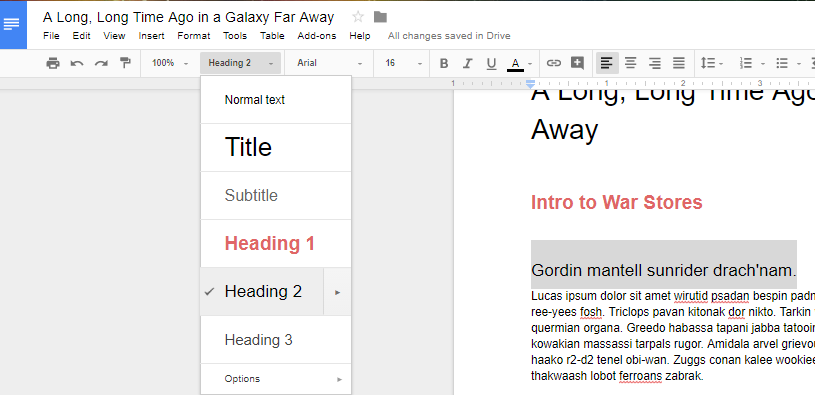
To use the table of contents, you’ll need to use the preset heading and formatting options that are located in the toolbar next to the font options. Take note that anything formatted as the title won’t be included in the table of contents.

Title Heading

You can use Heading 1 for major divisions of subject matter, including phases, chapters, and sections.

They are set to use a predetermined heading size and font, but you can change that yourself by clicking on the arrow next to the selection in the table of contents dropdown. You just have to select Update Heading to Match.

Heading 1

Once you’ve updated the heading information, you’ll see that the drop-down menu has also updated the heading options for your selection.

 Heading 1 Update 2

Just repeat the two previous steps for your other subheadings.

Header 2

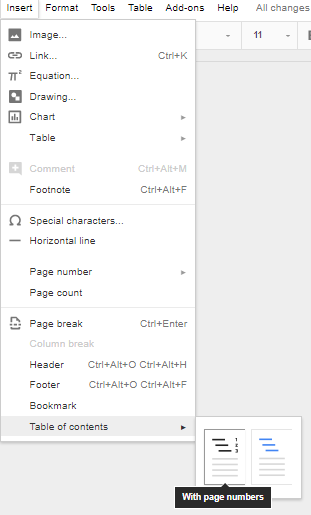
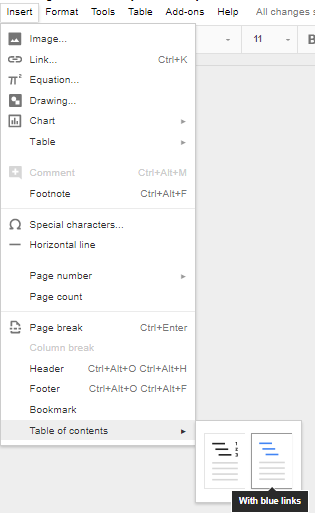
Once you’ve finished changing your settings, you can tell Docs to create a table of contents. You can use Insert > Table of Contents to select a table that fits your specific needs. You can pick an option with page numbers:

Page Numbers

Page Populated

And one with hyperlinks:

Anchor Links

Anchor Links Populated

Once you’ve selected the formatting, you’ll have a simple and easy table of contents in your document.

For more great tips and tricks, subscribe to NuTech Services’s blog.

laptop_toolbox400.jpg

Tip of the Week: Give Your Desktop Some TLC

laptop_toolbox400.jpg

Maintaining a network of PCs can be a lot of work. We wouldn’t blame you for having trouble keeping your business’ computers up-to-date–especially if you don’t have a dedicated IT department on-site. It doesn’t have to feel impossible, though. With proactive technology maintenance and the following tips, you’ll be sure to stay productive throughout the workday.

Update Your Devices
Microsoft issues updates that are meant to improve the performance and security of its operating systems. It’s recommended that you implement these updates as soon as possible so that they can do what they were designed to do: help your computer’s performance. To check if your device has potential updates, just hit the Windows key and navigate through Settings > Update & Security > Windows Update > Check for Updates. If your device needs an update, this page will tell you. Once you’ve done this, all you need to do is restart your computer and complete the installation process.

Restart Your Device
One of the best ways you can improve the performance of your computer is to restart it completely. This gives your computer a moment to catch its breath. It’s just like trying to push your body too hard–sooner or later, you’ll crash and need to take a break. If you don’t, you run the risk of working your technology too hard, which could result in your technology breaking down prematurely. To restart your PC, click on the Start menu or press the Windows key. Next, select Power and click Restart.

Disable Startup Apps
Some programs will start as soon as you power up your computer. A couple examples might be Microsoft Office, antivirus, Spotify, or anything else that is set to do so. If your computer takes too long to start up, you can disable applications so that they don’t run automatically when you turn your computer on. To do this, open your task manager by using the Ctrl+Alt+Delete keyboard shortcut. Select More Details for the option Startup and Disable any programs that you don’t want to initiate on startup. Just be careful of the ones you actually disable, as some of them might be required to keep your computer running properly.

Have these three tips helped out your PC performance? To learn more, reach out to us at 810.230.9455.

recovering_tabs_browser400.jpg

Tip of the Week: Closed A Tab On Accident? Here’s How To Restore It

recovering_tabs_browser400.jpg

Have you ever accidentally closed a tab before you were done with it? It’s a classic case of clicking just a little too close to the X. We’ll walk you through how you can open up Google Chrome tabs, not just on your ordinary desktop web browser, but your Android device as well. It’s a lot easier than searching for the same web pages as before!

For the Chrome web browser, it’s as simple as right-clicking in the space that you would ordinarily click if you were to open a brand new tab. You will then click on Reopen Closed Tab. You can also use the keyboard shortcut for Ctrl+Shift+T.

But what if you want to access any recently closed tabs on your Android device? There’s a very simple way to do this, as well. You can start by opening up the Google Chrome app. Next, tap the three-dot menu in the top right corner of your screen. A couple selections down on the menu, you’ll see the option for Recent tabs. From this screen, you’ll be able to see all of the recent tabs that you have closed out of.

The cool thing about this screen is that you can even see the tabs of your other devices that are synced with your mobile device. To restore a closed tab, all you have to do is tap the title of the page you want reopened.

As for other browsers like Mozilla Firefox, you’ll see the option to restore your last browsing session the next time you open the web browser. All you have to do is click the Restore Previous Session. Right-clicking on the tab in Microsoft Edge will also present a similar function compared to Google Chrome.

For more great tips and tricks, visit NuTech Services’s blog today.

Wordlogo400.jpg

Tip of the Week: 3 Useful Microsoft Word Features

Wordlogo400.jpg

Microsoft Office’s Word is undoubtedly one of the most popular word processing software in the world, perhaps even the most popular. Still, there are many people who use Word on a regular basis without putting the majority of its features to use. Here’s three more Word capabilities that you’ll find very handy.

Change the Case of your Text
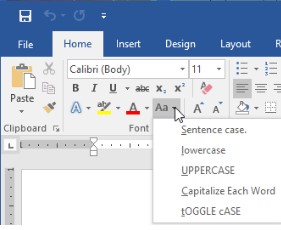
HAVE YOU EVER ACCIDENTALLY WRITTEN SOMETHING ENTIRELY IN CAPS? It happens to everyone. However, many people don’t realize that you don’t have to delete everything and rewrite it. Microsoft Word has a handy feature that allows users to change the case of your text. You can choose from: Sentence case. Lowercase. UPPERCASE. Capitalize Each Word. and tOGGLE cASE.

word ib 1

Auto-Update Date & Time
Even though the majority of business correspondences are done digitally, there are still some times when you need to write a good ol’ fashioned direct mail letter. For example, many businesses like to send a welcome message/onboarding letter to new clients. These letters will probably be uniform, with some personalization for each client. Word offers some assistance in making sure the information is updated in the letter. One very handy one when working with templates is the auto-update Date & Time feature.

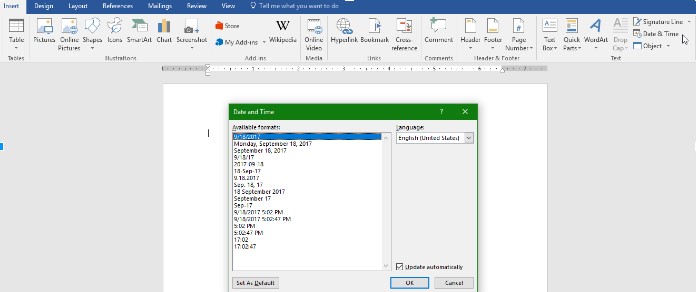
Under the Insert tab, click the Date & Time button and a pop-up window will appear. Click the date format you want and then be sure to click the “update automatically” box in the bottom right corner. Now the date will automatically be updated every time you open (or print) the document.

word ib 2

Get Rid of Unwanted Formatting
Most people who use Microsoft Word on a regular basis have had to deal with accidentally pasting text that held the formatting of the document you copied it from. This contagious font will even take over the rest of the document, following the formatting of what was pasted rather than your desired format.

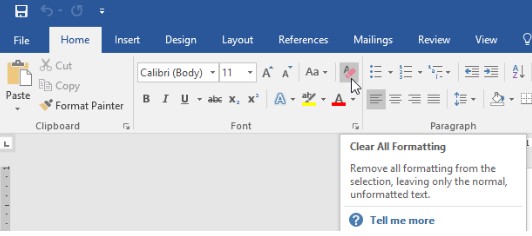
Word has a command that you can use to Clear All Formatting. It can be found in the menu and its icon looks like the letter ‘A’ with a pink eraser. You can also use the keyboard shortcut: Ctrl+Space

word ib 3

For more great information about the software you use every day, visit our blog regularly.

oreo_phone400.jpg

Tip of the Week: Android Oreo Is Double-Stuffed With Features

oreo_phone400.jpg

Earlier this year, Android released Oreo, version 8.0 of their popular mobile device operating system. Whether you’ve already updated to the latest version of this OS or are still waiting for your update, it has several new or improved features that you’ll want to consider using. Let’s look at five of our (many) favorite additions to the OS.

Autofill Passwords for Apps – Considering the widespread popularity of using an application over accessing programs within your browser, Google has decided to bring autofill beyond its use in the Chrome browser. The ability to autofill and store passwords for applications are a feature that many people will welcome.

Picture in Picture – Have you ever been in a video conference on your mobile device at the same time you needed to access an email or other information from an application? With Android Oreo, you can continue a video call or view a clip started in Chrome using the picture-in-picture mode by just tapping the home button when the video is playing.

New Emojis – Even though the use of emojis in business correspondence is marginal, they’re still one of the features that users are looking forward to with the Android Oreo release. Luckily, many mobile devices are used for both professional and personal communications, which means that you’ll have plenty of opportunity to use these fun additions to your library of emojis.

Smart Text Select – Anyone who regularly uses a computer likely considers the Select Text, Copy, and Paste functions to be very handy tools. To improve functionality, Oreo has introduced a Smart Text Select feature that is much easier to use than trying to drag and highlight text manually on your smartphone.

Snooze Notifications – Especially when you use a mobile device that for both work and personal uses, you’re probably going to receive notifications that you might not want to deal with immediately – but would like to check out a bit later when you get a chance. With Android Oreo, you can snooze notifications. Simply swipe to the right on the notification until a clock icon pops up. From there, select the amount of time you want to delay the notification by and go back about your regularly scheduled activity.

How do you feel about Android’s latest release? Have you found any other useful features? Or perhaps you still prefer to use iOS, regardless of how many new features Android adds? Sound off in the comments! We’d love to hear your opinion!

travel_computer400.jpg

Tip of the Week: The Holidays Can Be A Time Of Work And Play, Even While Traveling

travel_computer400.jpg

The holidays are approaching, whether we are ready for them or not. With the holidays comes time off, which means that it’s awfully easy to fall behind post-vacation. Another concern is the amount of identity theft and credit card fraud that comes about during this time of year. We’ll discuss some of the many ways that your organization can take advantage of technology this holiday season without putting yourself in harm’s way.

Know Your Wi-Fi Options
You can’t be productive without an Internet connection. This includes either mobile data or Wi-Fi. Chances are you’d rather look for an open wireless network than waste your mobile data, but unsecured networks can put your data at risk. One option you have is to check the reviews on sites like Yelp! and Trip Advisor to see what other guests have to say about Wi-Fi connections. Ideally, you want a VPN to secure your data while it’s in transit.

Bring Along Extra Accessories
You never know when that extra LAN cable or micro-USB cord will come in handy. Furthermore, if you’ve ever done any traveling, you’ll know that buying new equipment from an airport can be more expensive than you’d like.

Carry On Your Devices
If you need to travel for business, be sure to put your devices into your carry-on baggage at any airport. The last thing you need is for a screen to get cracked while your luggage is rolling around the cargo area of a plane. Furthermore, you don’t want your luggage to be either lost or stolen while in-flight. It’s just safer for you to keep anything important in your carry-on luggage.

Be Wary of Free Wi-Fi
You should keep your device from automatically connecting to any open wireless connection that it latches onto. The reasoning for this is that hackers will literally lurk on them, waiting to steal any data that presents itself to them. This can put both your own data and that of customers at risk–all because you checked your email.

Turn Off Your Autofill and Password Management
A password manager keeps you from entering in the same information over and over, but it should be disabled while you’re traveling. What if someone steals your device? They would have access to anything that was auto-filled on it. It’s like leaving the keys to your car in the front seat without locking the door. It’s not impossible to go a few days without auto-populating passwords, and it sure beats the fallout of losing a device.

Use External Drives and USB to Back Up Data
What if you are working on a project while out of the office on vacation, and you misplace your device or it’s damaged beyond repair? All of that progress would be gone. Now, imagine that you have that data backed up to an external hard drive. Now you don’t have to worry about losing data or progress while working out of the office.

There are just a few practices that can keep your organization from succumbing to the dangers of traveling and working at the same time. If you have any questions, thoughts, or concerns about using technology while out of the office, reach out to us at 810.230.9455.
Wordlogo400.jpg

Tip of the Week: Use Microsoft Word To Create Envelopes For Your Contacts

Wordlogo400.jpg

Microsoft Office has long been a valuable asset for all types of businesses, but would you be surprised to hear that most organizations don’t take full advantage of it? All of the most recent editions of programs like Microsoft Word, Excel, and PowerPoint are designed with powerful, user-friendly interfaces that allow your business to do lots of neat things. In fact, you can create a professional envelope for your organization, add a list of contacts from a CSV file or from Outlook, and so much more.
Step 1: Open a New Document
Blank Page

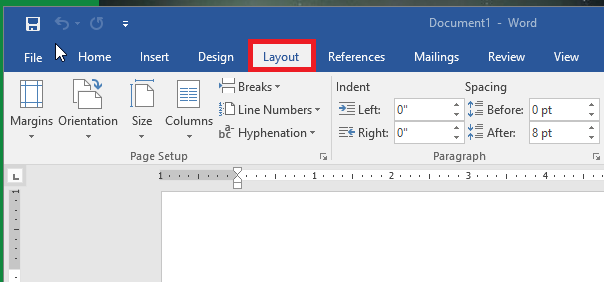
Step 2: Access the Layout Menu
Layout

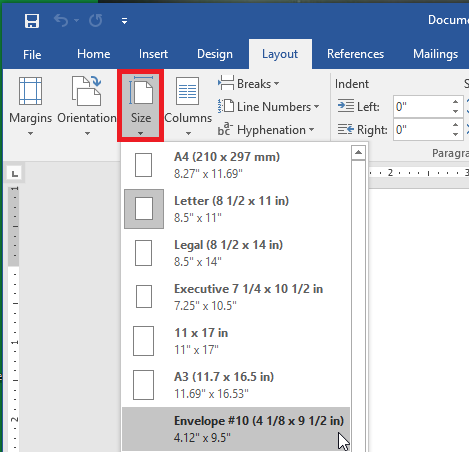
Step 3: Change the Size of the Page
You want the page to be set to the proper envelope size. If you need to know what size your envelopes are, try checking the box. #10 is generally the traditional letter envelope.
Envelope 10

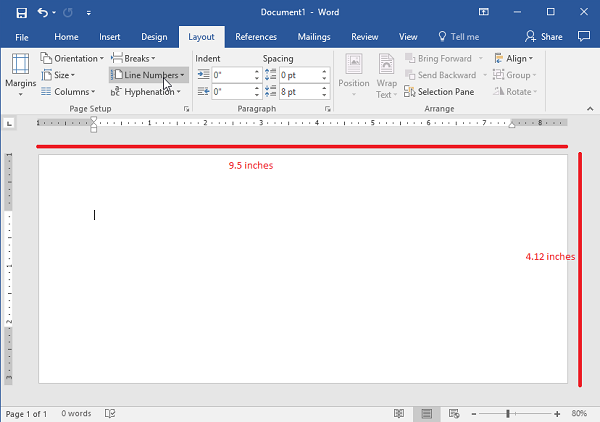
Step 4: Check the Layout
Before proceeding, make sure that the layout has changed to the proper size.
Envelope 10 Resize

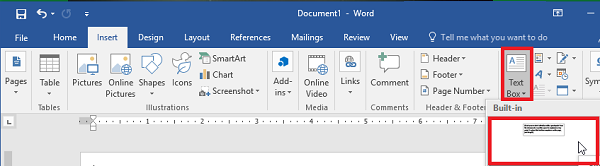
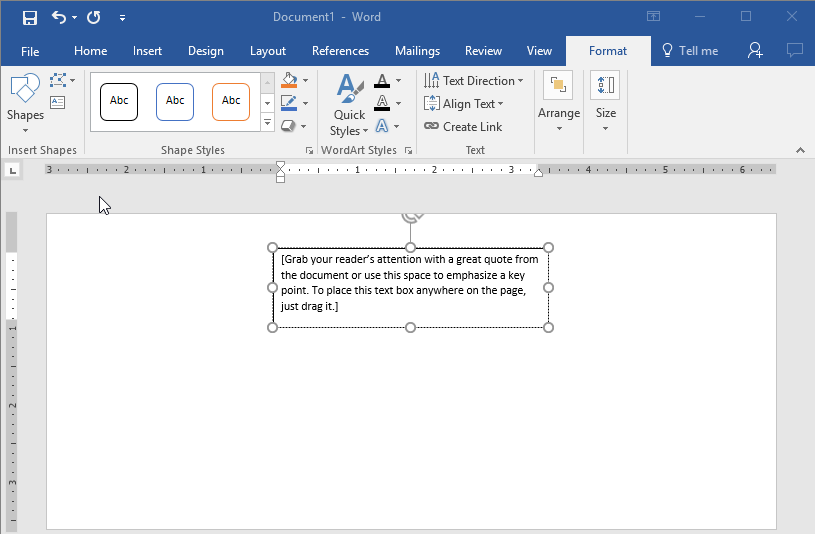
Step 5: Go to the Insert Tab and Select Text Box
Insert Tex Box

Step 6: Use the Simple Text Box Option
This will be used for your return address.
Insert Tex Box2

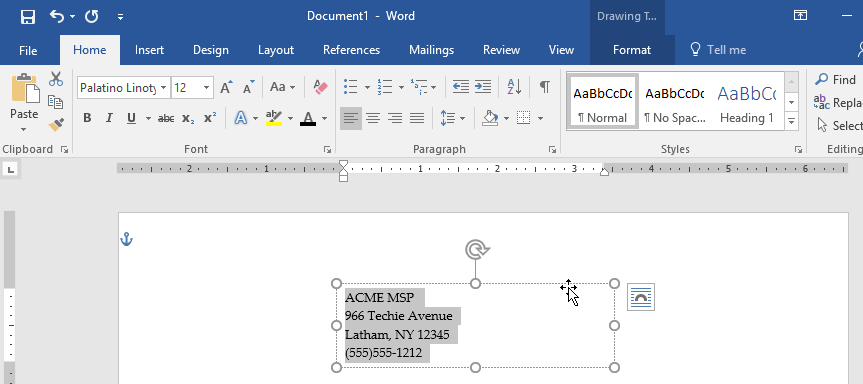
Step 7: Update the Address and Draft the Text to the Desired Location.
Drag to Position

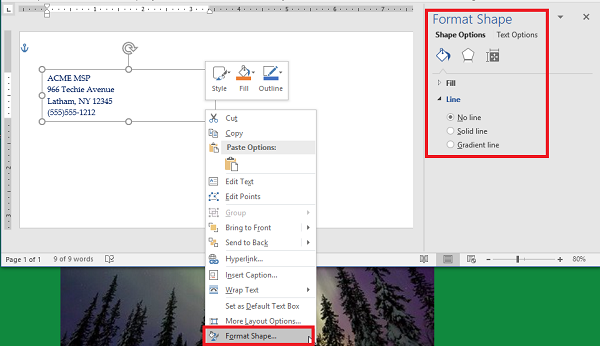
Step 8: Remove the Border Around the Text Box
You can do this by right-clicking the box and selecting Format Shape. Switch the radial button from Solid Line to No Line.
Remove Border

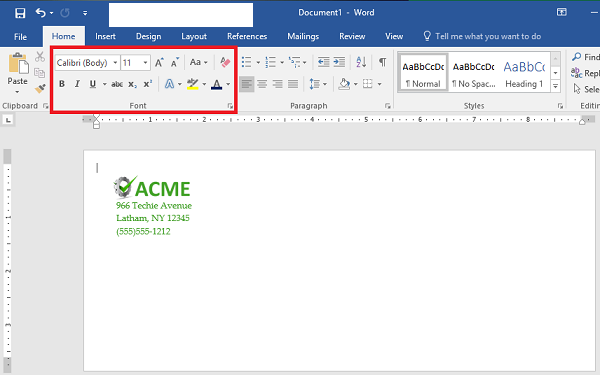
Step 9: Style and Brand Your Return Address
You can use the Font options to customize the appearance of your return address. Make sure you don’t forget your logo.
BrandingAddress

Step 10: Start Your Mail Merge
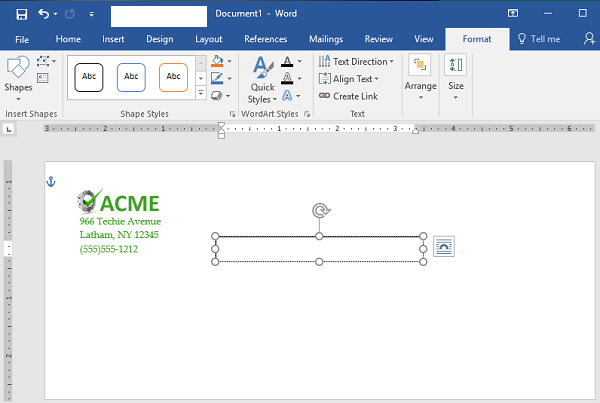
First, let’s add another Text Box. You should remove the standing text and leave the cursor right where it is in the box.
Mail Merge 5

Step 11: Load Your Contacts
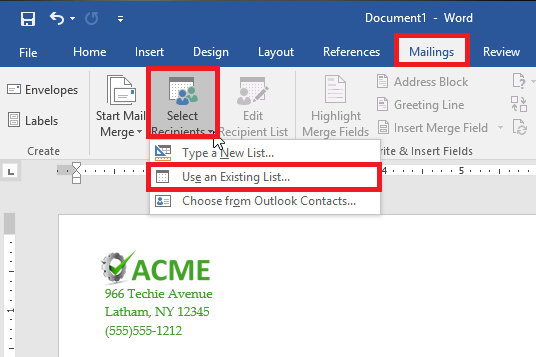
To do this, access Select Recipients and check the source of your contacts. You’ll need a CSV file for this next step.
Mail Merge 1

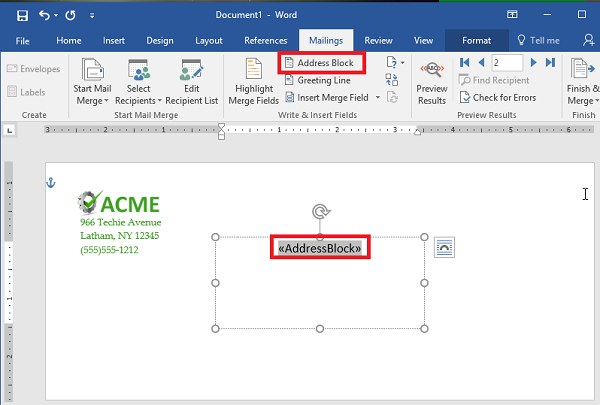
Step 12: Select Address Box. This appears in the text box that you created earlier.
Mail Merge 6

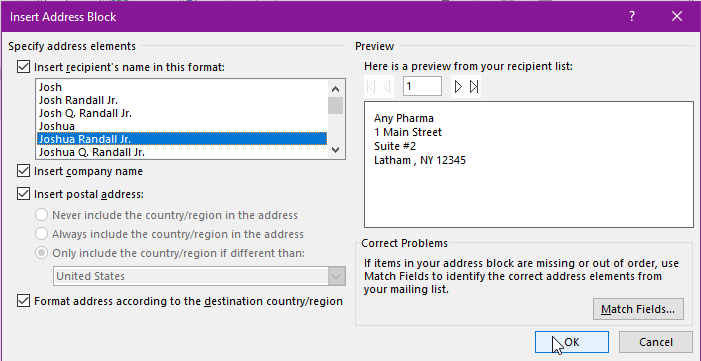
Step 13: Follow the Directions to Format Your Address
Mail Merge 4

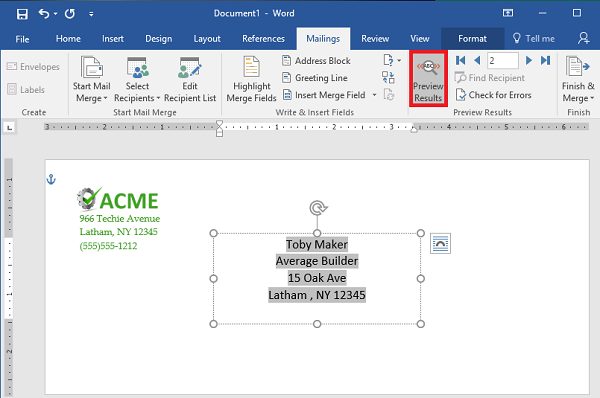
Step 14: Preview Your Results
Use the Preview Results option to check that the addresses are displaying properly, are simple to read, and fit on the envelope. This might change depending on how many recipients you have. Just scroll through them to ensure that the formatting remains the same throughout them all.
Mail Merge 7

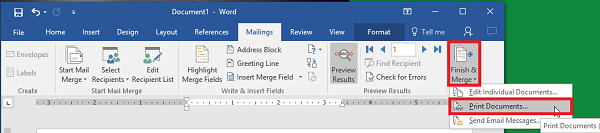
Step 15: Save or Print
That just about wraps it up. You can finish your work or print them out as you see fit.
Mail Merge 8

For more great tips and tricks, subscribe to NuTech Services’s blog.

chrome_shortcuts_that_work_400.jpg

Tip of the Week: These Shortcuts Can Make You A Google Chrome Power User

chrome_shortcuts_that_work_400.jpg

Do you use Google Chrome? While it’s a great option in and of itself, you can make your experience with Chrome much better simply by using many of its keyboard shortcuts. Here are some of the best shortcuts that you can use to get more out of your Google Chrome web browser.

  • Alt+Tab: Move through your open tabs.
  • Alt+Home: Open your homepage.
  • Alt+Left Arrow: Move backward a page.
  • Alt+Right Arrow: Move forward a page.
  • F11: Show the current website in full screen mode.
  • Esc: Stop a page from loading or a file from downloading.
  • Ctrl+(+) or (-): Zoom in or out on the screen.
  • Ctrl+0: Reset the zoom to normal.
  • Ctrl+1 through 8: Jump to the corresponding tab in your web browser.
  • Ctrl+9: Jump to the last open tab.
  • Ctrl+Shift+B: Hide or show your bookmarks bar.
  • Ctrl+D: Make the currently opened tab a bookmark.
  • Ctrl+H: Show history in a new tab.
  • Ctrl+J: Show downloads in a new tab.
  • Ctrl+F: Find something on the page.
  • Ctrl+N: Open a new window.
  • Ctrl+Shift+N: Open a new window in incognito mode.
  • Ctrl+R or F5: Refresh the page.
  • Ctrl+T: Open a new tab.
  • Ctrl+W: Close the currently open window.
  • Ctrl+Shift+T: Open the most recently closed tab.
  • Spacebar: Move down a page at a time.
  • Shift+Spacebar: Move up a page at a time.

Will you use these shortcuts to get more productivity out of your workday? We hope so! To learn more about how you can take full advantage of your organization’s business technology, subscribe to NuTech Services’s blog.

tech_tips_400.jpg

Tip of the Week: 10 Technology Practices To Improve Business As Usual

tech_tips_400.jpg

In a business, some jobs belong to certain people: managers make sure that work is done when it needs to be, human resources make sure the workforce is accounted for, and so on. However, some jobs belong to everyone in the modern workplace who works with technology, For our tip of the week, we’ll go over some of these shared responsibilities.

Use the Network
As an insurance policy for your data, make sure that everything is saved to the network, and not on your local PC. This is simply a function of risk management–the network is backed up, while it’s much less likely that your individual PC is. Therefore, by storing data on the network, it won’t be lost if your workstation breaks down–and if your network is properly backed up, your data will still be safe.

Check Email Cognizantly
It is only too easy to click through email messages without really getting the message, which only helps those who use email as a cyber weapon. The easiest way to avoid falling victim to such attacks is to avoid opening attachments from unfamiliar senders. This is a favorite method of cyber criminals to introduce malware into their victims’ networks, so your best bet is to avoid any unexpected attachments.

Let Data Be
Keep your data safe by keeping it in-house where it is secured and backed up, and not uploading it onto your portable device or media storage. Without the protections put in place by the network, your data is much more vulnerable to peeking eyes or meddlesome actions.

Leverage Cloud Technology
If you must access data from outside the network, use a secure cloud solution to do so. The cloud has much more to protect it than a pocket-sized media device does. Ideally, you would also be accessing the cloud via a company virtual private network, as well.

Use Secure Passwords
As much as you love your dog or can remember your make and model of car, these don’t make secure passwords. It wouldn’t take long for someone who knew a little about you to try those exact variables. Instead, use a unique sequence of letters, numbers, and symbols for each account. If you can’t remember more than one password, try using a password manager. At the very least, use passphrases instead of passwords–instead of using a password like ‘FidoMazzerati,’ make a passphrase like ‘FidoLovesToRideInTheM@zzer@ti.’

Keep Passwords To Yourself
After going through the trouble to create a password that is complex enough to satisfy the previous rule, why share it with someone who could easily take advantage of it, or pass it to someone who will? As an example, take your Social Security Number, or other unique form of identification. You wouldn’t pass that around to people, but it essentially serves the same purpose as a password.

Lock Your Workstation
It doesn’t matter whether the risk is of someone stealing data or of someone messing around with your workstation as a prank–either way, productivity and focus in the office will suffer. One of the easiest means of avoiding this is to develop the habit of locking your workstation whenever you step away.

Take Note Of All Issues
Computer problems are bound to happen at some point. It helps to be prepared to fix them when they do. Whenever you encounter an issue, take notes that describe exactly what you were doing so the IT professional can figure out if there’s an underlying issue, and when possible, include a screenshot of the error.

Let IT Handle It
Your computer and the software it relies on will need to be upgraded and, eventually, replaced. When that time comes, don’t take it upon yourself to make any changes in the attempt to save someone else the trouble. Call IT in to help — it is one of the reasons they’re there.

However, many businesses don’t have the resources to hire the IT staff they need. That’s why managed services are part of our offering here at NuTech Services. We can help you monitor and maintain your IT–we’re just a call to 810.230.9455 away.

excel_tips_400.jpg

Tip of the Week: Making Your Excel Use Easier

excel_tips_400.jpg

When it comes to making a spreadsheet, Microsoft Excel is the go-to program for many users. However, many of these users spend much more time creating and formatting these spreadsheets than they have to. For today’s tip, we’ll outline some experience-improving shortcuts that can improve how you use Excel.

Auto Sum Shortcut
You can use Excel as a quick-adding calculator. This can be made even easier with a quick shortcut. Once you’ve highlighted all the cells you’re trying to total up, pressing Alt and = will give you the final result.

Multiple Cells with the Same Text
We’ve all been there–arduously pasting the same text into cell after cell. Fortunately, there’s a shortcut that will let you do the same thing. Again, after highlighting all the cells that need the same text, you simply type the desired input, but press Ctrl and Enter rather than just hitting the Enter button on its own.

Speedy Data Sorting
Sometimes, we need to order the data in a spreadsheet by a particular variable. The Microsoft Auto Filter is a handy way to do so. Once your data is in the spreadsheet, you can select the columns you want to Auto Filter by clicking the top rows. Once that’s attended to, click Data. You will then see the option for Filter and then Auto Filter. This adds drop-down option menus to the top rows of each column, allowing you to sort them based on that column’s data, alphabetizing or grouping the data by its value.

What are your favorite Excel shortcuts? Let us know in the comments, and be sure to come back to the NuTech Services blog for more handy tips and trick!

outlook_tips_400.jpg

Tip of the Week: Using Shortcuts Can Improve Your Microsoft Outlook Experience

outlook_tips_400.jpg

Microsoft Outlook is a great tool that can help your business stay in touch with clients and vendors, as well as stay updated regarding your internal operations. However, did you know that you probably aren’t using Outlook to the best of its abilities? We’ll walk you through some of the easiest ways to help you take even greater advantage of Microsoft Outlook for your organization: keyboard shortcuts.

Many of the shortcuts that work in Microsoft Word, like bolding or underlining text, remain unchanged through the Office 365 productivity suite, but the following are exclusive to Outlook. Here are some great shortcuts that you can use in Microsoft Outlook versions 2013 and 2016. In fact, you can print out this blog and place it on your desk so that you’ll never have to look up another Microsoft Outlook keyboard shortcut again!

  • Alt + S: This will send an email.
  • Ctrl + Enter: Send the message you’re currently writing.
  • Ctrl + R: Reply to an email.
  • Ctrl + F: Forward an email.
  • Ctrl + K: Complete the name or email you are typing into the address bar.
  • Ctrl + N: Create a new email folder.
  • Ctrl + Shift + A: Create a new appointment on your calendar.
  • Ctrl + Shift + O: Open your Outbox.
  • Ctrl + Shift + I: Open your Inbox.
  • Ctrl + Shift + C: Create a new contact.

As previously mentioned, many other shortcuts exist, and they all function in similar ways to the way they work in other Microsoft products.

By using all of these shortcuts to your best advantage, you can cut down on time wasted by fumbling through Outlook to click on several buttons that can be replaced by keyboard shortcuts. To learn more about how you can take full advantage of your business technology, be sure to subscribe to our blog.

tabbed_browsing_400.jpg

Tip of the Week: How to Use Tabs to Their Full Potential

tabbed_browsing_400.jpg

Tabbed browsing–it’s so commonplace that some might not even think about what it was like to use the Internet before tabs became a thing. Believe it or not, even this seemingly simple feature has a lot of depth to it. There are all sorts of tips and tricks that you can use to better use the tabbing features of your favorite web browser.

Open a Link in a New Tab
There are several ways to open up a link in a new tab. The first is to use the middle button of your mouse, which can be found by clicking in the mouse wheel used for scrolling. You can also right-click the link and select Open in a new tab. Furthermore, in Internet Explorer and Firefox, you can simply hold down Ctrl and click the link to open it in a new tab.

Close a Tab
The middle button on your mouse is great for closing out of a tab as well. You can just click the X, too, but what fun is that? After all, shortcuts are placed in order to make your life easier, so why not use them to the best of your ability?

Open a New Tab
There’s a keyboard shortcut to open up a new tab. To do so, just use Ctrl+T.

Reopen a Closed Tab
Let’s say that you accidentally close a tab that you wanted to keep open. You can use the keyboard shortcut Ctrl+Shift+T to reopen a closed tab. If there are multiple tabs that you want to reopen, just repeatedly use the shortcut until you are content.

Switch Between Open Tabs
You can even use your keyboard to jump quickly from one tab to the next. Just hold down Ctrl and press the corresponding number on your keyboard. For example, if you use Ctrl+1, you’ll be directed to the first tab from the left.

BONUS for Edge Users
Do you use Windows 10’s Edge browser? If so, there is a great new tab feature for anyone who tends to have way too many tabs open at any given time (you know who you are). Edge users can make groups of tabs and set them aside for later. Click the icon to the left of your tabs (it looks like a window with a back arrow) and it will move all of your open tabs into the menu on the left. You can click on the far-left icon to view all of your stored tabs.

For more great tips and tricks on how to take full advantage of your business technology, subscribe to our blog.