usb_c_fast_data_400.jpg

Is USB Type-C the Answer for Fast Data Transfer?

usb_c_fast_data_400.jpg

You might use USB every day for your general technology needs, but do you know the difference between the various kinds of USB? This week’s tech term is dedicated to investigating the different types of Universal Serial Bus (USB) ports, including its history, development, and uses.

The Origins of USB
First developed and implemented in 1996, the USB cable was created with the purpose of connecting devices to a computer in mind. A total of seven leaders in the computing and communications industry–Compaq, DEC, IBM, Intel, Microsoft, NEC, and Nortel–wanted to create a simple solution that could allow several different kinds of devices to connect to a PC.

Essentially, an early USB connection provided a data transfer of about 1.5 Mbps to 12 Mps. While this isn’t as fast as today’s standards, it was quite remarkable for the time. The first major release of USB technology was in September 1998, and it provided users with a 12 Mbps transfer rate on high-speed devices. Apple’s own iMac computer was actually one of the first devices to come with USB built into it, and it success played a major role in the commercialization and popularity of USB. The original USB came in two different connector types: type A, or standard USB, and type B, the more squared-off connector.

Innovations of USB
In August of 2000, USB 2.0 was released. The increase in data transfer was substantial at about 280 Mbps. Additionally, the first mini-USB (types A and B) were also developed. Furthermore, USB 2.0 introduced a new integrated battery charging feature, as well as fast data transfer from the emerging smartphone market. USB 3.0, introduced in November 2008, achieved an impressive 5.0 Gbs transfer rate, and the next decade would only further enhance this. September 2017 brought about the Type-C connector and USB 3.2, resulting in a transfer of around 20 Gbps.

USB Type-C
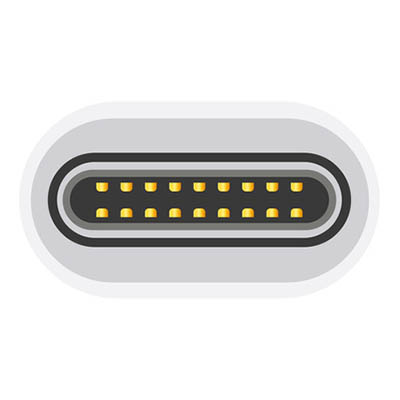
The USB Type-C uses a 24-pin USB connector system. You can identify it by looking for its rotational-symmetrical connector. We think that this is not just the most identifiable feature, but its most important as well. Nowadays, there is no wrong way to plug in your USB cable. In terms of size, the USB-C connector is larger than the micro-B connector. Just like the typical USB wire, one end has a type-A or type-B connection, while the other end has the new type-C connector.

For your reference, here are three of the best new features for USB Type-C:

  1. It’s designed to be easier to plug in since there is no discernible way that the dongle has to be entered into the device.
  2. Data transfer and power capability are basically twice what they were with USB 3.1.
  3. It’s designed to become a future-proof option for data and power transfer for mobile devices.

Unfortunately, not all devices support one cable, but maybe in the future this will become the new standard. For more information about new developments and the latest technology, subscribe to our blog.
usbad_idea_400.jpg

Without Protection, Your USB Ports Could Become RIP Ports

usbad_idea_400.jpg

It seems like everything available today can function with a USB connection, be it a thumb drive, device charger, or a desktop device–there are even USB-powered mini fridges meant for a single soda can. Unfortunately, “everything” includes malicious devices and malware.

If a USB drive is infected by malware, you can put your computer and data at risk by merely plugging it in, and there are some malicious USB devices out there that pose some pretty serious threats.

USB Kill 2.0 
Despite being powered by electricity, computers don’t mix well with too much charge, as USBKill.com has capitalized on. Creating a dongle that is capable of siphoning power off of the device it is plugged into, USBKill.com’s proprietary device then releases the energy back into the system as a power surge attack.

Intended for hardware developers to test their devices’ resistances against ‘juice jacking’ (a form of data theft that extracts data as a device is charging), the USB Kill 2.0 permanently damaged–if not destroyed–95% of all devices it was tested with without the company’s proprietary USB protection shield. This shield is what allows the USB Kill 2.0 to be safely used for its intended purpose–to test electrical attack resistance.

What’s more, in some cases when used without the shield, the USB Kill 2.0 wipes data from the device. While this is not what the USB Kill 2.0 is intended to do, this occurs simply because the charge is enough to damage the device’s drive controllers.

Needless to say, a business saboteur could find great use in the $56 USB Kill 2.0 as a method of attack, and there aren’t many effective protections a workplace can implement, besides educating employees to resist the temptation of plugging in any USB device they find.

USB-to-Ethernet Theft
Best practices for workstation security dictate that a system be locked whenever its user steps away, no matter how briefly. However, a security researcher recently discovered a method of extracting data from a locked computer using, you guessed it, a USB-connected device. By disguising itself in a particular way, the target computer adopts the device as the preferred network interface, allowing the hacker to extract data to a rogue computer attached to the cable’s other end in about 13 seconds. The best defense, according to the researcher who uncovered this flaw: don’t leave your workstation logged in and unattended, even with the screen locked.

What a Business Can Do to Protect Itself
Of course, not all USBs are evil carriers of the worst malwares and threats, but by no means should they be used after being found on the street willy-nilly, especially in a workplace setting. In order to protect business workstations and data from threats, simply enforce a requirement to have any USBs fully checked by your IT department before in-office use. Alternatively, consider utilizing a cloud solution as a much safer option to meet your mobile storage needs.

To protect your business from possible saboteurs introducing their USB-based malware, it is also wise to secure exposed ports with locking devices.

While USB devices seem to be the pinnacle of affordable convenience in data storage, they are far more trouble than they are worth, at least in terms of security. There are much safer solutions to implement that feature equal, if not greater mobility than even a flash drive. A cloud solution, for instance, can be accessed from anywhere there is an Internet connection, kept safe in a well-protected, offsite location. New and improved solutions like these make risk-laden devices, such as USB dongles, unnecessary.

For more IT tips, tricks, and solutions, subscribe to our blog.

b2ap3_thumbnail_tether_your_internet_signal_400.jpg

USB vs Wireless vs Bluetooth: Which is the Best for Tethering?

b2ap3_thumbnail_tether_your_internet_signal_400.jpgUsing your smartphone to tether another device like a laptop to the Internet can come in handy when you need to accomplish a task that can’t be done on your phone (which is becoming increasingly rare these days). Most smartphones present the user with three ways to tether their Internet signal. What are they and which is the best?

Connecting with a WiFi Mobile Hotspot

Advantages
Using your smartphone as a mobile hotspot to broadcast a WiFi signal is the easiest way to connect your WiFi-enabled device to the Internet. Additionally, depending on your phone’s reception, today’s smartphone’s are capable of producing signals that are on par strength-wise with a wireless router. In fact, many smartphones are capable of connecting as many as five devices to the Internet from their mobile hotspot.

Disadvantages
Security is one disadvantage of using your phone to create a mobile hotspot. Your phone’s WiFi signal will be vulnerable to any hacker within range. Be sure to take the same WiFi security measures that you do with your office’s wireless routers. Also, using your phone as a mobile hotspot can quickly drain your battery, so plan your battery usage accordingly and have a charger handy.

Tethering with a USB Cable

Advantages
Battery life isn’t an issue when going with USB. Your phone will receive a charge via your device, so you will only have to worry about the battery of one device instead of two. Additionally, the Internet signal is pushed only through your USB cable, making it a more secure option than a mobile hotspot. Plus, in most cases a wired connection yields a faster signal.

Disadvantages
Having to carry an extra cable around can be a bit of an inconvenience, and so is having to keep your smartphone within arm’s reach. Tethering with USB may also require special software and configurations for each device, so there might be a few more hoops to jump through than using mobile hotspot, but if you’ve got a cable handy and you’re planning to work while sitting in one spot, then it’s probably worth it.

Make an Mobile Internet Connection with Bluetooth

Advantages
Similar to WiFi, you can use your phone’s Bluetooth signal to wirelessly broadcast an Internet signal for your device. Thanks to Bluetooth being specifically designed for mobile needs, it uses less battery power, as well as offers better security thanks to Bluetooth not being as common as WiFi.

Disadvantages
The disadvantage to Bluetooth is that it’s not as easy to configure as WiFi. According to Pocketnow:

It’s a little more involved to set up than WiFi, and a little more involved every time you want to use Bluetooth tethering. If power consumption is a concern, Bluetooth is probably the way to go, if you’re willing to configure it.

So which tethering option is the best? It really depends on your needs.

Do you need help with tethering your mobile devices, or want to securely equip your office with mobile technology like cloud computing? Then call NuTech Services at 810.230.9455.