mobileMagnifyingGlass_71159277_400.jpg

Tip of the Week: Adjust Your Screen Size in Android

mobileMagnifyingGlass_71159277_400.jpg

Sometimes you just want to look at your phone without squinting at the screen to read small text. In cases like this, you can change the display size of your Android’s screen. To get started, simply follow the directions in this blog article. Before you know it, you’ll be browsing your phone without having to strain your eyes.

Please keep in mind that you need to be running at least Android 10 to follow the steps in this blog.

Change Your Display Size in Android

We should preface this by saying that we aren’t changing the physical screen size; rather, we are adjusting the screen’s zoom. Adjusting the zoom can make fonts easier to read and objects easier to see or interact with. To get started, go to the Settings app. If you swipe down on your screen twice, you should see a gear icon at the top of the screen. Tap it to open up the Settings.

From here you should select Display. You should see several options appear before you, but the one you are looking for is Display Size. If you don’t see this option, you should see a Screen Zoom option which functionally does the same thing.

You should see within this setting a drag bar at the bottom of the screen. You can tap and drag the meter to adjust the screen zoom for your device. Find your preferred setting and you should be all set.

Can I Change the Screen Resolution?

Adjusting the resolution can also help make certain objects or texts more crisp. To change this, simply follow the same directions outlined above. However, instead of clicking on Display Size or Screen Zoom, click on Screen Resolution. You can adjust it to suit your needs.

That’s it! By following these simple tips, you can use your device without straining your eyes or viewing blurry images. You’ll find that it’s easier on your eyes and more enjoyable to use in general.

For more great tips and tricks, be sure to subscribe to our blog.

messyDesktop_197023584_400.jpg

Tip of the Week: How to Hide or Remove Desktop Icons

messyDesktop_197023584_400.jpg

Your Windows desktop can often get cluttered with icons, so it is helpful to have the ability to show or hide them so you can keep your focus on the task at hand. Let’s discuss how you can do this with your Windows PC.

We should note here that deleting the icons from your desktop is not necessarily removing the programs from your computer. Deleting the icons is merely deleting the shortcut to the application, and in order to actually remove it from your computer, you’ll have to go through the official uninstallation process.

Delete Icons from Your Desktop

You can delete icons from your desktop to make it easier to look at, and it’s remarkably easy to do it. Just right-click on the icon and select Delete from the menu. If you want to delete multiple icons, though, you can use Ctrl to select multiple icons and delete them all at once if you’d like.

This will send the icon or file to the Recycle Bin where you can find them later on, if you need to. Alternatively, you can click and drag the icons into the Recycle Bin to delete them.

Hide the Icons on Your Desktop

If you’d like to hide all of the icons on the desktop, you can do this pretty easily, too. All you need to do is right-click on the desktop and hover over the View option. Uncheck the option for Show Desktop Icons, which will hide them from view. To bring them back, simply recheck the option.

Do you have any suggestions for decluttering your desktop? Be sure to let us know in the comments below.

keyboardShortcuts_474696794_400.jpg

Tip of the Week: Useful Google Chrome Shortcuts

keyboardShortcuts_474696794_400.jpg

We know that time is of the essence, especially in today’s fast-paced work environment. To help you fully leverage the technology at your disposal, we recommend that you read through this list of Google Chrome keyboard shortcuts and take them to heart. You never know when they might come in handy.

Handy Google Chrome Keyboard Shortcuts

We thought today we could use this blog to show off a handful of helpful Google Chrome keyboard shortcuts that you might find useful as you navigate the workday.

  • Ctrl + Shift + B: Show or hide the bookmark bar
  • Ctrl + Shift + O: Open your bookmarks manager:
  • Ctrl + Shift + T: Reopen a closed tab: 
  • Ctrl + Shift + W: Reopen a closed window
  • Ctrl + Click: Open a link in a new tab 
  • Ctrl + D: Bookmark your current tab
  • Ctrl + J: Open the downloads manager
  • Ctrl + T: Open a new tab
  • Ctrl + H: Open your History
  • Ctrl + Shift + Del: Delete your History
  • Ctrl + Shift + N: Open Incognito Mode

Of course, there are the standard keyboard shortcuts as well in addition to the above, but if you would like a comprehensive list of shortcuts, Google has compiled their own list here.

Did we forget any that you find particularly useful? Be sure to share them with us in the comments, and make sure you subscribe.

download_448199231_400.jpg

Tip of the Week: Alter Your Download Location in Chrome

download_448199231_400.jpg

Normally when you download a file from the Internet, it can be found in the Downloads folder. There are ways you can adjust this setting, though. You might not mind them going to Downloads for a short while, but there are other locations you might consider sending your files, like where they might actually belong. You can change the default location of your downloaded files to take one small step out of the process. We’ll show you how to do it with your Google Chrome web browser.

Change Your Downloads Location for Google Chrome

The first step is to open your Chrome web browser. Next, you’ll select the three-dot menu up in the top right corner of the screen. You can then select Settings.

The Settings window will open up in a new tab. From the left side of the screen, you should see an option for Advanced settings. Expanding this setting will reveal your Downloads options.

You’ll see some different options to play around with, including the ability to create a new folder to send your downloads to. You can also ask the browser to send new downloads to a preexisting folder, or have your web browser ask you where to send the new download whenever you initiate one. If you select this option, you’ll get the Save As dialog box whenever you start a download.

Once you have figured out where you want to send your downloads, you can open the folder location to see all your downloads as they occur. You can then move them around to wherever they might need to be by dragging and dropping them.

We cover all kinds of technology tips and tricks, so what are some interesting ones you’d like to see us discuss in the future? Make sure your opinion is heard in the comments.

excelIcon_68666636_400.jpg

Tip of the Week: An Easy Way to Remove Duplicate Values in Excel

excelIcon_68666636_400.jpg

How much do you know about Microsoft Excel? There are loads of features that most users aren’t aware of, one of which is the ability to remove duplicate values in columns. Let’s walk you through this process so you can more easily compare data sets between two or more columns within your spreadsheets.

How to Remove Duplicate Values in Columns

The process for removing duplicate values in your columns is remarkably easy. Using a built-in option, you can remove duplicates with just a couple of clicks. First, open up your desired spreadsheet.

The next step is to select the cells within your spreadsheet. You can select the whole spreadsheet through the use of Ctrl + A.

Next, you’ll want to navigate to the Data tab to select the option for Data Tools. Be sure to select Remove Duplicates from the drop-down menu. You should see a menu with various options open up. To keep your headers, if your spreadsheet has them, you can select the box for My data has headers. This means that your top-most row will be ignored when considering duplicate values.

You should also see a list of columns in your spreadsheet. Select the columns you want to delete duplicate values from. You can use the options for Select All or Unselect All to speed this process up a bit. When you are ready to go, click OK. You’ll see a dialog box open on the screen that tells you how many duplicate values and unique values were contained within the spreadsheet.

What kinds of tips do you want to see us cover in the future? Let us know in the comments, and be sure to subscribe so you don’t miss out!

Efficiency_96557162_400.jpg

Learn to Get Through Distractions to Be More Productive

Efficiency_96557162_400.jpg

Productivity can be a challenging thing to measure and maintain, especially in a world full of distractions. Sometimes the distractions come from the nature of the work itself, and understanding this can become the key to overcoming them. Here are five tips you can use to overcome any workplace distractions and become more productive in the workplace.

Plan Your Route

Planning ahead can make your next workday much easier, and it doesn’t involve spending some time at home preparing for the morning after. We recommend that you take some time at the end of each workday to plan the next; you might find that you’re less likely to get distracted by the countless possibilities of the workday if you do so, and you will be more focused on the task at hand.

Put Your Phone Away

Sometimes notifications can distract you from getting work done–especially if these notifications are work-related. Sometimes the best course of action is to either silence your notifications or put your phone away so you can focus on whatever you happen to be working on at that time. More often than not, push notifications are not going to be urgent, so we recommend either limiting the notifications that pop up on your phone during work hours or just turning them off altogether. After all, if something is truly urgent, you can expect to be contacted in a different way than a text message or an email, right?

Don’t Overpromise

A deadline can make all the difference in productivity (depending on the individual), but there are often cases where people might overpromise on something they can’t simply deliver on. Even if these deadlines can be met, the work involved might suffer, so it’s best to give yourself some leeway so that these types of problems don’t surface in the first place.

Set Smaller Goals

Small goals are not just easier to accomplish; they also provide you with the appropriate forward momentum to stay positive about work throughout the day. Large tasks can be broken up into smaller chunks to make them less intimidating and more manageable, too.

Reward Yourself

If you can make work satisfying for yourself, then you can make it more productive. One way you can do this is by giving yourself rewards for accomplishing tasks, like a short break or something sweet to eat. If you want to be both satisfied and productive, taking a step back when necessary to appreciate yourself and the hard work you invest can be helpful.

What are some tips you have to stay productive in the workplace? Be sure to share them with us in the comments.

homeBurnout_325701521_400.jpg

It’s Important Not to Overdo Things When Working from Home

homeBurnout_325701521_400.jpg

Contrary to what many might assume, remote work is commonly associated with overwork—employees working longer hours and having difficulties disconnecting from professional life during their personal time. This can have some serious consequences if not offset in some way, so let’s discuss how this can be accomplished.

Overwork is a Serious Issue, Especially for Remote Workers

Recent years have seen a lot of work and workplace-related issues come to the forefront that, quite frankly, this blog isn’t the place to discuss… things like racial imbalances and wage inequality have gotten more attention than ever. However, overwork is a challenge that we can tackle here.

There are many ways that your business could be influenced by the impacts of overwork. Your employees can quickly become burned out, as overworked employees experience anxiety and fatigue, along with physical symptoms like pain, headaches, and vision problems. Remote work can also become detrimental to the communications your employees share with one another… and we can’t forget all the added stress and pressure that the pandemic has brought.

All things considered, it’s no wonder that overworking could ultimately be a detriment to an employee’s overall performance and productivity. So, what can be done to prevent this kind of overworking?

Reducing Overwork in Remote Work

While it isn’t realistic that you can hold each of your employees’ hands throughout their workday (and doing so might result in more than a few HR inquiries), there are things you can do to help reduce how much your employees are held back by the tendency to overwork themselves—starting with your policies in and out of the office.

Encourage Schedules

In the home and in the office alike, adhering to a schedule is an effective way to keep the amount of time an employee commits to work processes in balance with their off-hours. This should include not only the time spent working in terms of keeping to their scheduled work hours, but also as a way to help them establish a routine in their personal life that helps them better prepare for their time working.

Track Their Time with Specialized Tools

While time tracking can help keep your team accountable to you, they also help keep them accountable to themselves. Giving them a referenceable way to gauge where they are in their day and their assigned tasks can be of great help. If you need assistance in establishing which of the available time-tracking tools would be best for your needs, we’re always here to provide this help to you.

Empower Your Team to Chime In

If your team members are becoming overwhelmed by their work responsibilities and simply cannot finish all they are assigned in the time available to them, you need to be sure that they know they can come to you to inform you of this. They also need to be comfortable doing so, so operational issues can be resolved as they are revealed.

If you are in need of the tools that can help encourage your team’s success, NuTech Services can help. Give us a call at 810.230.9455 today.

cleanComp_48112113_400.jpg

Tip of the Week: Keep a Clean Computer

cleanComp_48112113_400.jpg

If you think about it, a computer is a machine that is full of complex parts and components. Therefore, if you want it to operate at maximum efficiency, it must be taken care of, like being kept tidy and clean. Let’s discuss how you can make sure this happens for your business technology!

Here are three tips you can implement today to clean up your workstation and improve the performance of your device.

Prevent Dust from Accumulating

If something is stationary for too long, it accumulates dust, and computers are no exception. Unless you make it routine to clean regularly, dust will gather around fans and vents utilized for cooling down its components. Make sure you remove the dust regularly so that your device doesn’t experience cooling issues.

Avoid Food or Drink at the Workstation

The best way to keep your computer clean is to not put it in a position to get dirty. By this, we mean keeping your food and drink well away from your computer. If you don’t bring your meals near it, you’ll be less likely to spill it on your device. We know that the grind can be pretty stressful, but you really should be taking your lunch break away from the computer—for reasons other than it’s bad for your device.

Clean Out Your Keyboard Every So Often

Keyboards can collect a ton of skin particles, crumbs, dust, and so much more that can get stuck underneath the keys, and this is all just by going about your day-to-day routine. Take a moment to shake out your keyboard every now and then; it might mean the difference between taking your keys off to clean underneath them at a later date.

Did you find these tips helpful? If so, why not share them with a friend or colleague?

darkModeBrowser_303234749_400.jpg

Tip of the Week: Take the Strain Off Your Eyes with Dark Mode

darkModeBrowser_303234749_400.jpg

Sometimes the last thing you want to do is stare at a bright computer screen and have the white glare bother your eyes. While we know that staying away from computers and devices is particularly hard, especially in the office environment, a dark mode option can make your device easier to tolerate for extended periods of time.

Let’s go over how you can enable a dark theme for your Windows operating system and its applications.

Keep in mind that this doesn’t affect most of your desktop applications—only those associated with Microsoft and Windows. We do, however, urge you to check the settings for other applications, as dark mode is a common thing for developers to include these days.

Enable Dark Mode for Windows

The blanket setting for dark mode on Windows can be found by following this path: Settings > Personalization > Colors. You should see the option for dark mode under Choose Your App Mode. As previously stated, this doesn’t change all of your apps, so be sure to check the settings for your other commonly used applications to see if it allows for a dark mode.

Enable Dark Mode for Edge

Microsoft Edge, Windows’ default web browser, has a dark mode setting as well. To enable it, click the three-dot menu on the right side of the screen. Select Settings, then navigate to the drop-down menu and select Choose A Theme. From here, select Dark.

Enable Dark Mode for Microsoft Office

Microsoft Office also has a dark option that can be enabled through its settings. Begin by opening any Office application, like Word or PowerPoint, then go to File > Options. Under the General tab, you’ll see the option for Personalize Your Copy of Microsoft Office. You can set the Office Theme setting to Black.

And there you have it! Dark mode is enabled on your Microsoft products. Other applications might require extensions or other add-ons, so be sure to do your research or reach out to us if you are unsure of how legitimate they are.

Did you find this blog helpful? If so, share it with colleagues!

462322582_zip_400.jpg

Tip of the Week: Zipping and Unzipping Files

462322582_zip_400.jpg

Large files like videos aren’t exactly the ideal attachments for something like an email. There are also cases where you have to send multiple files, some of which may be large, attached to an email, but when the files are too large, this just won’t work. Thankfully, there are some ways around this, one of which is to compress files into a .zip file with a tool found in Windows 10.

There are tools besides the ones built into Windows 10, like the free and open-source 7-ZIP, which allow you to compress and decompress files; for the purposes of this blog, however, we want to focus on the built-in functionality of Windows 10.

First, let’s explain what compression and decompression actually does to the files; please note that we will use the terms “zip” and “unzip” files when referring to these processes moving forward. When you compress a file, it becomes a more compact format that can easily be transferred. This process helps to reduce the file size of the files. A ZIP folder is one which stores these compressed folders or files.

Windows 10 has made great strides in terms of transparency and accessibility of compression/decompression. Windows now allows you to view the contents of a zipped folder just by opening it like any other folder (it used to be the case that you would have to decompress it first). You can then use this information to determine whether or not you want to extract (or unzip) the contents of the folder to your PC. Any edits made to these files will not be permanent until you extract them.

Zipped files are easily identifiable by the zipper that runs up and down the icon, as well as the file type being .ZIP. To unzip a specific file, click and drag the file to the extraction location. Alternatively, if you would rather just unzip all contents of the folder, you can right-click the .ZIP file and click Extract All. If you are in the folder already, you can click the button from within the folder. You will have to choose an extraction location next. In the end, all extracted files will go to your desired location.

As for the extraction location, click on the Browse option and find the folder you want to extract your files to. Once you have the destination selected, click on the Extract button. Depending on how large the files are, it might take some time, but the process is simple enough and quick enough that it shouldn’t take too long before you see the unzipped folder in your desired location.

Did you find this trick helpful? Let us know in the comments below.

124754493_shortcuts_400.jpg

Windows Shortcuts to Help Boost Your Efficiency

124754493_shortcuts_400.jpg

Some keyboard shortcuts work within applications, but there are others that work all throughout the Windows operating system. To help you be as productive as possible throughout the workday, let’s go over some of the most common keyboard shortcuts that work not only within your applications, but whenever you are just navigating your operating system. If you use these effectively, you can dramatically improve your productivity and look like a Windows master!

With all of our keyboard shortcut blogs, we think you will get the most value out of them if you print them out and keep them as a quick reference for use throughout the workday.

General Keyboard Shortcuts

These general keyboard shortcuts should work for the majority of applications that you use on your Windows PC.

  • Cut: Ctrl + X
  • Copy: Ctrl + C
  • Paste: Ctrl + V
  • Select All Text: Ctrl + A
  • Rename selected item: F2
  • Switch between open applications: Alt + Tab
  • Refresh: F5
  • Delete an item: Delete
  • Redo an action: Ctrl + Y
  • Undo an action: Ctrl + Z

Windows Key Shortcuts

These keyboard shortcuts use the Windows key on your keyboard.

 Open the Start menu: Windows Key

  • Lock your computer: Windows Key + L
  • Hide or show your Desktop: Windows Key + D
  • Open the Action Center: Windows Key + A
  • Open Cortana in listening mode: Windows Key + C (Note: this is disabled by default. Enable it in your Settings)
  • Open File Explorer: Windows Key + E
  • Open Settings: Windows Key + I
  • Open the Search bar: Windows Key + S
  • Open Taskbar Applications: Windows Key + Number Key (whichever corresponds with the apps in your taskbar)
  • Minimize all windows: Windows Key + M

This list is not nearly all of the keyboard shortcuts possible with Windows, so if you want a more comprehensive list, visit the official Microsoft support page for even more keyboard shortcuts.

What other tips and tricks do you want us to share with you in the future? Whatever they are, be sure to plug them in the comments below.

208456487_code_400.jpg

Breaking Down the Konami Code

208456487_code_400.jpg

Those born in the 80s (as well as some others) will likely recognize
“Up-Up-Down-Down-Left-Right-Left-Right-B-A-Select-Start” as the Konami Code, a famous cheat code that first appeared in 1986. Since then, the Konami Code has spread, now being featured in software titles and websites. Let’s consider the origins of the Konami Code, and how it has been featured in the zeitgeist.

The Origin of the Konami Code

In 1986, video game company Konami released a version of the arcade game Gradius that could be played in the home on the Nintendo Entertainment System (NES). As the game was being developed, however, it needed to be played through each time in order to be tested. Naturally, Kazuhisa Hashimoto—the developer responsible for porting the game—found this quite frustrating.

To simplify his process, Hashimoto created a cheat code that would give him every powerup in the game, making it far easier to progress to the point that needed testing. However, when production of the game started before the code was removed, it wound up being left in place so that removing it wouldn’t create any glitches. This was justified by the assumption that nobody would be so lucky as to input the Up-Up-Down-Down-Left-Right-Left-Right-B-A-Select-Start combination accidentally.

Regardless, it wasn’t long before the code was discovered. Since then, many game developers have intentionally included it in their products, and it has even spread outside of the gaming world. The Konami Code has itself become a pop culture reference.

Where the Konami Code Has Appeared

Along with Gradius, dozens of other games have featured the Konami Code. Most famous amongst them is possibly Contra, in which the player would receive 30 extra lives for inputting the Konami Code. It has also appeared in other media, including as a blink-and-you’ll-miss-it plot device in Wreck-It Ralph, an encoded background detail in an episode of animated spy series Archer, and was recited in an episode of Family Guy.

Otherwise, various websites and services have used the Konami Code as an Easter egg. Saying it to Alexa or the Google Assistant will trigger a special response from either. If you’re using Discord and encounter an Error 404 page, you can use it to start a game of snake.

Now you’re familiar with the origins of the Konami Code, and all the ways that it can be used. Have you ever stumbled across this before, or heard how it can be used otherwise?

Subscribe to our blog for more technology information!

30922300_tech_terms_question_400.jpg

7 Technology Terms That End Users Should Know

30922300_tech_terms_question_400.jpg

No matter what role you are in at your company, be it management or otherwise, there are certain terms related to technology that you are going to want to be familiar with. Doing so will not only help you make the process of asking for help when it’s needed easier, but it will also help you stay current on business technology in general, leading to more awareness of what goes into a successful business technology strategy. Let’s discuss some of the important technology terms for everyday business operations.

Desktop

Your desktop can mean two different things; it is either the front-most screen when you are logged on to your computer, where you can see icons for the various programs installed on your computer and other folders for storage, or it can mean your entire work computer setup (monitor, tower, keyboard, mouse, etc). More likely than not, when you hear the word “desktop,” it will be in the context of the computer setup itself. Other times, it might be referred to as a “workstation.”

Hardware

On a similar note, hardware consists of the components that actually make the computer work. Hardware includes any bits and pieces inside the computer, as well as any equipment that might be used alongside the computer. Some examples of hardware might include the computer’s monitor, your keyboard, computer mouse, webcam, microphone, and any internal components, like RAM, the motherboard, etc. It’s just a fancy word that encompasses all of this.

Software

If hardware consists of the physical components of your computer, then the software consists of the digital components of your computer. Software includes your operating system and any programs installed on your computer. Examples might include the Windows or macOS operating systems, the Microsoft Office productivity suite, or Adobe Creative Suite.

Operating System

Your computer’s operating system is the thing that basically acts as the interface through which you do just about anything. Learning how to navigate the operating system is a critical part of any office worker’s day-to-day responsibilities, so we want to emphasize the importance of it. The operating system also plays a role in which software is compatible with your computer, as some might require a specific OS in order to be most effective. For example, for the longest time, Microsoft Office was most compatible with Microsoft’s Windows operating systems.

Help Desk

More often than not, if you run into technology problems while going about your day-to-day duties, you will be told to contact the help desk. The help desk is a group of IT professionals whose sole responsibility is to help you figure out the best solution to your technology problems. Most help desks have a phone number, email address, or even a live chat function to offer support.

Remote

If you managed to make it through the COVID-19 pandemic without hearing the term “remote” thrown around, then kudos to you. In business terms, “remote” means a location away from your normal desk or location of operation. It is often used synonymously with “working from home,” but these two should not be confused. Working from home is one way to work remotely, but it’s worth mentioning that “remote” just means “anywhere that is not your office.” You might also hear this term used in the context of “remote access,” as in accessing files and information without being physically connected to a network.

Cloud

Similar to “remote,” the cloud is something which allows for work outside the confines of your organization’s office. “Cloud” can refer to a location, i.e. storing data in the cloud for remote access, or it could be used to describe something, like cloud-based software. In either case, cloud technology, or cloud computing, is a means to an end, usually to improve the accessibility of resources like data, software, and in some cases hardware.

Even if all of this sounds a bit confusing, don’t worry; NuTech Services is here to answer any questions that you may have about technology. To learn more, reach out to us at 810.230.9455.

264585236_guest_mode_400.jpg

Tip of the Week: Politely Protect Your Data with Android Guest Mode

264585236_guest_mode_400.jpg

For many people, their mobile device contains a mixture of sensitive information and personal details. In some cases, some of the data isn’t even theirs—instead, it belongs to their workplace. Naturally, this makes many people less inclined to share the use of their device, but most people also want to avoid being rude.

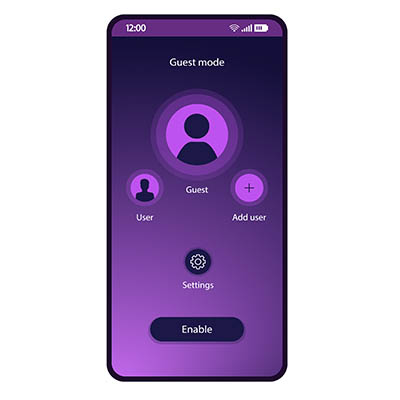
For precisely these circumstances, Android’s Guest Mode feature allows you to be courteous without potentially undermining the security of your device or, more accurately, the data stored on it.

What is Android Guest Mode?

First appearing in 2014 as a part of Android 5.0 Lollipop, Android Guest Mode is a way that your team can more easily fight against a scammer. Unfortunately, firewalls and antivirus aren’t exactly capable of protecting a phone if the user hands it over to someone with malicious intent—something that could easily happen if the scammer sold their story well enough.

Should this play out, the phone immediately becomes a direct threat to your data.

Guest Mode offers you a safe alternative to handing a phone filled with sensitive data over to a potential hacker by allowing you to effectively wipe your device before you share it. If the device’s manufacturer supports the Android feature, you can hide away all your settings, applications, accounts, and other data. Activating Guest Mode allows you to still share the use of your device without sharing access to the data that the borrower has no reason to see.

Unfortunately for Samsung users, the phone manufacturer has removed this feature from their version of Android. Otherwise, an Android user should find the task of enabling and disabling this feature easy to accomplish.

Turning Guest Mode On and Off

Enabling Guest Mode is very simple:

  • Access your device’s Settings.
  • From there, access Advanced and Multiple users. If your manufacturer has changed their menu order, search for “Guest Mode.”
  • Switch the toggle to “On” to enable Guest Mode.

After doing this, the Quick Settings panel and profile it shows can be accessed to Add guest. Reverting to your own settings is as simple as returning to Quick Settings and the user profile. Selecting the option Remove guest and providing verification will restore your device.

Security always needs to remain top of mind, so keep coming back to our blog for regular reminders to help keep your business protected. We can help, too, with our managed services, so give us a call at 810.230.9455 to learn more.

94903109_highlight_email_400.jpeg

Tip of the Week: Highlighting Certain Outlook Messages

94903109_highlight_email_400.jpeg

While no email platform is immune to mismanagement, Microsoft Outlook can quickly become filled with outdated and redundant messages that detract from the communication that it is meant to provide. Fortunately, there is a bit of a hack that you can use in Outlook to help prioritize your most pressing messages. Let’s dive into it.

Separating the Wheat from the Chaff in Your Inbox

The average inbox will contain a veritable ton of messages, the important ones mixed with promotions, group messages, and those that have been saved for later. After a short time, this can make it challenging to find the important ones as they are pushed down lower.

However, Outlook offers a means of finding these messages more easily through its conditional formatting capabilities. Basically, by switching a few basic settings, you can make the messages you want to focus on stand out a little more in the crowd.

Highlighting Your Messages

Let’s say, for the sake of example, that you often work with your colleague, Sandra, so her messages are some of the most important that you receive on a regular basis. Setting her messages to stand out is a longer process, but that is just due to the many options you have as you do so:

  • In Outlook, locate the View menu at the top of the window. Doing so will give you access to your View Settings. Click into them.
  • From there, click into the Conditional Formatting option. You’ll see a list of preloaded options included with Outlook, along with buttons that say Add, Delete…, Move Up, and Move Down. Click Add.
  • You’ll see a new rule added to the list of options called Untitled. Rename it to whatever works for your purposes. For this example, we’ll call it Sandra.
  • Click the button that says Condition… to establish when this rule comes into play. This can be based on a variety of options: whether a word or phrase is included in specific parts of the message, who it is from, the time it was sent, and even whether the message was directed to you specifically or to a larger group of recipients. Some of these can be disabled by unchecking the appropriate box or leaving the field blank. Let’s stick to simply specifying that these messages are ones sent directly to you, from Sandra.
  • You’ll be brought back to your list of rules in Conditional Formatting. With your Sandra rule still selected, click the Font button.
  • There, you can adjust the way messages that meet your conditions will appear in your inbox. You can change the font, the font style, its size, add strikeout or underline effects, and even change its color. In this example, we’ll simply say that the messages should be highlighted in green.
  • Click OK once you’re satisfied, continuing to do so until all the dialogue boxes are resolved.

Your inbox should now reflect the changes you have made—Sandra’s messages appearing green in the list—to help you quickly identify those she has sent to you. Simply follow the same process for any other messages you want to easily identify, and your inbox will quickly be more manageable for you.

Speaking of your email, did you know that you can receive a notification there whenever we post a new blog? Subscribe for these updates, and don’t hesitate to call NuTech Services for any of your IT-related questions at 810.230.9455.

378464120_best_practices_400.jpg

Tip of the Week: Essential Information Technology Practices

378464120_best_practices_400.jpg

Information technology is a critical tool for many businesses today, which means \\it is crucial that your IT is compliant to a few key best practices. Let’s go over these practices so that you have a roadmap to ensure that your operations can remain secure and productive.

Keep Your IT Up-to-Date and Maintained

Here’s the thing: you wouldn’t drive a horse and buggy to the office any more than you would type up a business brief on a typewriter or calculate your business’ budget on an abacus. The reasoning for this is simple: technology has gotten better over time and provided us with improved alternatives to what has been used before. These improvements have also come faster and have been more dramatic in scale.

On the other side of this coin, threats to your business technology have seen similar advancements.

As a result, your operational success depends on you keeping up with these changes. In addition to maintaining the operability of your IT solutions, you also need to prioritize updating and upgrading them when the time comes. These activities will both ensure your team can perform their tasks, and that they are also capable of doing so securely.

Back Up Your Data

With data being so important to a business’ successful and productive operations, you need to have insurance that some circumstance won’t cause you to lose your access to it—especially with so many circumstances potentially leading to that outcome. Infrastructure damage, theft, user error, equipment failure, and more can all lead to data loss at any level.

This is precisely why a backup solution is so important for a business to maintain. With no way of accurately predicting how or when data loss may strike, having some means of preserving your data continuity needs to be considered an essential consideration… arguably above any other. To accomplish this, we recommend that your backup strategy incorporate multiple copies of your data, with a minimum of three copies included. First should be the original copy of your data, second should be an onsite backup, and the rest should be hosted offsite—preferably in the cloud. That way, all your bases are covered, whether you need a quick fix for a deleted file or need to reconstruct your entire infrastructure.

Secure Your Data

Finally, data security must be addressed by all businesses, regardless of their size. Cybercrime nets more profit for its perpetrators than the global trade of illicit drugs does, and an average of 75 records are stolen each second. A bank account is currently available for a few dollars, provided you know where to look.

Businesses are often targeted via phishing attacks, which are only made more effective due to many user accounts having more access than is warranted and internal storage lacking the appropriate security protections. If they manage to fool one of a business’ employees into letting them in, a cybercriminal is given considerable power.

To help counter this, there needs to be a combined effort to both better educate business users as well as reinforce the security measures built into the infrastructure itself. Authentication requirements, role-based permissions, and other means could help prevent some data from being leaked that otherwise could be.

Lean on NuTech Services for assistance in putting these measures—and more—in place.

For our help and more information about your business’ technology, give us a call at 810.230.9455.

355597506_excel_400.jpg

Tip of the Week: Keeping Track of Changes Made in Excel

355597506_excel_400.jpg

With today’s software solutions, the fact that collaboration is possible has helped many business processes move more efficiently. Despite this, there is also the potential for these solutions to contribute to confusion within your business. Take, for instance, changes people make in Microsoft Excel. Fortunately, Excel offers a means for you to track changes made.

Let’s go over how to set up this capability. As a disclaimer, it will require you to edit some of your menu options, so reach out to your IT resource to confirm that it is okay to do so and to assist you if need be.

You should also know that Track Changes won’t work if a spreadsheet contains a table that hasn’t been converted into a range. To make this conversion, select the table, navigate to the Design tab, and click the Convert to Range option. If you want others to be able to collaborate on your workbook, it needs to be saved in a shared location.

Adding the Track Changes Buttons

To access these options, you’ll need to add them to your Ribbon menu (unless your version of Excel includes them by default). Doing so is simple:

  • Right-click on the Ribbon menu. From the options available, select the Customize the Ribbon option.
  • On the resulting dialog screen, find the drop-down menu labelled Choose commands from: and select All Commands. In the other menu, select Main Tabs, and find Review in the list that appears. Click on the + next to Review, and then click the New Group button.
  • Right click on New Group, renaming it to “Track Changes.”
  • With “Track Changes” selected, find Highlight Changes and Accept/Reject Changes in the left-hand list. Click the Add button to add them to your “Track Changes” group.

Once your Highlight Changes button has been added to the Review category of the Ribbon menu, click on the Highlight Changes button. A box will appear, where you should select both Track changes while editing… and Highlight changes on screen. Click Okay once you’ve done so.

Once you’ve done this, any changes made to the spreadsheet will be marked with a small triangle in the corner of the cell to display the most recent change.

Reviewing all Changes

After everyone has contributed their input, you can choose to accept or reject the changes that have been made with the Accept/Reject Changes button. You’ll be asked to Save the Workbook, and once you have, the changes will be highlighted one by one with the option to Select Changes to Accept or Reject.

All changes will be listed so that you can Accept them or Reject them accordingly. The cursor will automatically proceed to the next change for you to repeat the process. If there are multiple instances of a similar change (like all ampersands or percentages written out instead of the symbols used), you can use the Accept All button to mass update them.

With any luck, we’ve helped make collaboration that much easier for you and your team members. For more tips like this, as well as best practices and other IT assistance, make sure you subscribe to our blog. Remember, our team is always available at 810.230.9455 for your IT needs.

194025563_smart_scheduling_400.jpg

There’s Scheduling, and Then There’s SMART Scheduling

194025563_smart_scheduling_400.jpg

A schedule has long been the tool of choice for businesses to uphold their productivity, despite the challenges that managing everyone’s schedule can often present. Fortunately, today’s cloud solutions provide a means to overcome these challenges. Let’s explore the idea of smart scheduling and how it can make your entire process so much simpler.

Understanding Smart Scheduling

These software solutions are commonly found in industries that are subject to a lot of outside influence and fluctuating demand due to a variety of factors, such as retail. Smart scheduling gives these businesses the capability to schedule their employees more effectively, using automation to simplify the process.

Having said that, the principles of smart scheduling can be applied to all industries if they are viewed as a process, rather than a technology. Not only can all industries apply these principles, they should, as all businesses must deal with numerous factors that impact their operations.

Looking at it in this light, smart scheduling effectively just boils down to consolidating your various circumstances and scheduling to accommodate them accordingly. It’s recognizing that certain times will have different demand levels, that some conditions will impact operations, and making the preparations to deal with them proactively.

Scheduling More Intelligently

Even if you don’t have a dedicated solution lined up for these purposes, there are some ways that you can embrace the concept of smart scheduling. Consider these strategies:

  • Bring Your Information Together—You should consolidate any available information that you have regarding your schedule and your business’ operations to make it easier for you to predict patterns and prepare for them. Understanding what priorities you have, and how much your employees have been available to accomplish, will assist you in scheduling your team more effectively.
  • Communicate—Communication is one of the most important factors when determining your success, and this goes for how much information your schedule provides. Give your employees context into their tasks to help empower their procedures and productivity.
  • Use a Scheduling Platform—Businesses have many options to assist them with their scheduling available, and not all of them need to be inherently “smart.” Finding one that works for your needs will bring considerable benefits to your business and its processes. 

Regardless of the business solutions you need, NuTech Services is here to help you manage them. To learn more, reach out to our team by calling 810.230.9455.

323829103_tasks_400.jpg

Tip of the Week: How to Effectively Task Out Goals and Assignments

323829103_tasks_400.jpg

There is a lot that needs to be done in the typical business each day, and with so many steps involved in each process, it can be difficult to stay on track. Without the right information, it is basically impossible to remain productive. To help keep up your productivity and morale, we’ve put together a guide to help you task out your objectives for this week’s tip.

The Ideal Task Formula

The consensus of many productivity experts and trusted names is that the equation to build out a task essentially looks like this:

Step + Detail + Deadline + Context = Task

This works well, as it can apply to either a complete project, or each piece of a larger project. Let’s take a closer look at each part.

Step

Every task is going to feature some action or another, whether something needs to be researched, written, completed, or reviewed, what have you. Essentially, this defines the what of the task at hand, the goal that the person assigned to it needs to accomplish.

Detail

This takes the step and builds it out with additional context and specificity. This might involve such details as:

  • Who the task is assigned to
  • Why they’re completing the task
  • What contribution this task gives toward the final goal
  • Where the assigned team member can find the resources needed to complete the task

Deadline

Of course, one of the most important details associated with any task is the date and time it needs to be completed. By specifying this, you prevent your projects from remaining in a holding pattern, moving them along.

Context

The final things you include in your task are the other important details surrounding it: how long is allotted to spend on it, any projects it is associated with, and where it should fall in the assigned team member’s priorities. This enables the person you’ve assigned to better organize their schedule to make the most effective use of their time.

Let’s say you wanted to assign one of your team members to write you a blog post about creating a task, so you needed to task it out. The final product might look something like this:

“Write blog post about creating tasks”

Creation of blog for website describing how to create a task for a business goal to be posted on Friday. Please compose blog on document found in content creation folder.

Assigned to SEAN – Priority 5

*If unable to complete, please inform HR and reschedule to next week*

Wednesday: 9:30—10:30

  • Seek out sources for blog post about how to task out responsibilities
  • Compose blog post
  • Contact BRIAN to read blog over and proof

Friday: 1:30—2:00

  • Post blog to website”

There you have it: how to task out your business’ processes for your team to reference as they follow your instructions. This process can apply to just about anything, if you are careful to follow the steps and provide a clear and comprehensive view of that which needs to be accomplished. The more information you provide, the better the outcome will likely be.
For more information to help you boost your productivity, and information about the tools that can help you to do so, subscribe to our blog today!

315390952_increase_productivity_400.jpeg

Tip of the Week: 5 Ways to Maximize Productivity, According to Experts

315390952_increase_productivity_400.jpeg

In most workspaces and offices, “productivity” is always present on the list of goals. Why settle for one task completed in a set time, when multiple tasks can be completed in the same amount of time without sacrificing the quality of the result? This goal is popular enough for many experts and consultants to have weighed in on. This week, our tip will involve a basic overview of some such strategies so you may consider them.

Two-Hour Solution

Roger Seip, author of Train Your Brain for Success, took a proactive and prepared look at productivity by developing his Two-Hour Solution. The idea is to take two hours to plan out a schedule to follow each week, based on how your plans and goals culminated the week before. Investing this time should allow you to make the most of your available time to accomplish what you want to accomplish.

The reason that this is different than simply going over your calendar each week is the fact that, if guided by the Two-Hour Solution, you’re figuring out how the time you’re spending contributes to your goals. “Green time” is time that helps you generate financial capital, while your “red time” is the time that you spend preparing for green time, without generating any profit. To account for the wrench in the works that would ordinarily throw off your schedule, you also include “flex time” to provide a buffer. What’s left is your “re-creation” time, where you recover from your productive endeavors by doing the things you want to do.

Prioritizing

Steven Covey is an educator and a businessman who came up with a philosophy to living a full life that can also apply to life in the office.

Consider your big priorities, your more flexible responsibilities, and your rote tasks in the workplace as large rocks, smaller stones, and sand, respectively. Your time is a bucket, ready to be filled with these items as you see fit.

Let’s say you decide to start with the “sand,” before trying to cram in the “rocks” and “stones.” Chances are pretty good that you won’t be able to accomplish very much at all, at least nothing of any circumstance. However, if you prioritize the more impactful rocks, then the stones, and fill in the rest of the space with your sand, your bucket—or workday—is then used as productively as possible, and anything you didn’t get to complete isn’t of consequence.

Two-Minute Rule

While there are countless variables that can potentially influence the amount of time a task will take to complete, you eventually get a feeling for the typical duration, right? So, some tasks can predictably take a significant amount of time, while others take almost no time at all to make it through. The idea of the Two-Minute Rule, thought up by productivity consultant David Allen, takes advantage of that difference. His strategy: if a task will take two minutes or less, do it.

If that seems too simple, it kind of is. The philosophy behind the Two-Minute Rule is to build up your motivation to tackle the larger responsibilities by successfully completing smaller tasks. Think about it—every task, regardless of how large it is, can be broken into smaller, more manageable chunks, chunks that can take mere minutes to complete. Once you’ve completed enough of these two-minute tasks, it only makes sense to see the greater responsibility through… and with the progress you’ve already made supporting you, completing it seems that much more feasable. 

The Blastoff Method

Entrepreneur and motivational speaker Mel Robbins devised this practice to help overcome the mental blocks that encourage us to procrastinate rather than doing things that are good for us. Robbins posits that, by hesitating, we put the brain into “protection” mode—by thinking about everything that needs to be done between point A and point B, your brain ultimately prevents you from doing what you need to do. However, if that hesitation can be avoided, your productivity (or, by Robbins’ original theory, your well-being) will see benefits.

Her solution is to close the gap that hesitation creates between your capability to do a task and your perception of that task. Her recommendation is to, quite literally, treat yourself like a rocket and count down to your action. Focus on counting down…5,4,3,2,1… and act immediately, before your thoughts get in the way.

Scientifically, by doing so, you are bypassing a behavioral process and resetting an established habit loop… allowing better, more productive habits to be created instead. Give it a try next time you encounter a task you want to avoid starting.

Create a Time Crunch

We’ll wrap up with another method that Roger Seip came up with. If you really feel you work better on a deadline, add a bit of a hurdle as you are scheduling your “green time” … give yourself less time than you think you’ll need. The pressure can help you to focus. Naturally, you need to avoid any flex time you have assigned for this to work.

What methods do you use to keep yourself focused and productive? Do any of these approaches sound like something you want to try? Let us know in the comments!

For the technology solutions that can also help you improve your practical productivity, talk to us! Give us a call at 810.230.9455 to discuss your options.