 It would be prudent to begin by saying that Windows 10 is far and away the most refined version of Windows ever created. In a lot of ways, it’s like using a souped-up version of Windows 7, with a sprinkling of Windows 8/8.1 metro on top. Beneath the surface, however, is a vast information-collecting infrastructure that has many users left worried about their privacy. There are even conspiracy theories suggesting that Windows 10 is a vessel used by the NSA in order to collect all the information on every user.
Anyone that is familiar with the fallout of Edward Snowden’s whistleblowing campaign knows that government agencies don’t need Microsoft’s software engineers to syphon as much information as they want, but that doesn’t mean there aren’t some potential privacy issues with the new OS. In fact, it could be said that the default settings of Windows 10 violate user privacy. Here are some of the ways they do so.
Advertising ID
The first privacy issue users are having with Windows 10 is that each user is automatically assigned an ID based on the email address they use to sign in. By capturing information using this ID, Windows 10 will tailor the advertisements that users see when surfing the web or uses certain applications.
Cortana
In order to get the most comprehensive user experience available, the Cortana application collects data; and not just essential data, but seemingly everything. In attempting to make the best personal assistant application on the market, Microsoft has made it a point to capture every piece of information they can. This presents privacy issues for some, but they’re likely no more intrusive than Cortana’s competitors: Apple’s Siri and Google’s Google Now.
Windows Modern Apps
Windows Modern or Universal Apps are also at the center of the perceived controversy. Each of these apps collects your location, which is no different than their Windows 8.1 versions. The situation that is presenting problems for users’ privacy is the advanced reporting these apps do to the central Microsoft servers. For example, when using the very useful OneNote app, the content of the notes are synced with the Microsoft servers.
Many users will not mind receiving better services in return for computing information, but many users are up in arms on Windows 10 policy of deliberately sharing all captured information with their “partners”; a series of third-party vendors that can use this information to improve their sales and marketing tactics. For the purposes of user privacy, however, there are actions that can be taken to limit the ability for Windows 10 to report user computing performance.
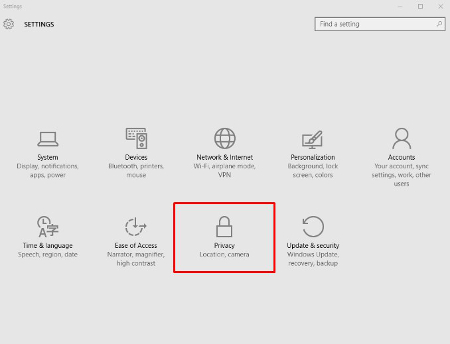
First, you need to access the privacy menu, which can be found in the start menu. Simply open the start menu, then click on Settings and select Privacy from the pop-up.
One thing that can be said for Windows 10 is that there are a lot of options. Each one of the privacy settings above represents the ability for Windows 10 to work for the user, albeit by the user sacrificing their privacy. The first suggestion we have, if you are one of the many users that feel as if Microsoft doesn’t need to know every movement you make on your home PC, is to disable the targeted advertising ID.
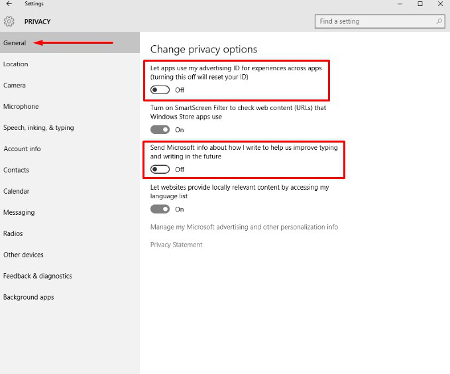 From this screen users can also turn off SmartScreen Filter if you are worried about the Windows Store syphoning links to Store items. Many users will choose to leave this option on, but will want to turn the other two off. “Send Microsoft info about how I write..” is basically a keylogger, and its practical application is to provide information for Cortana and language settings that give regional information to Microsoft.
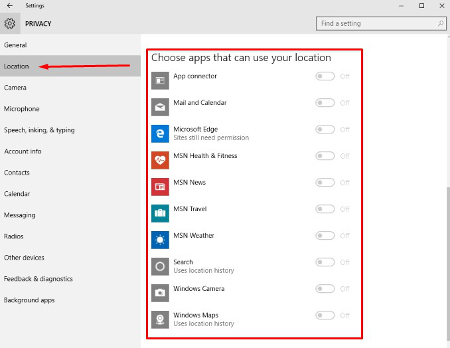
From there, clicking on Location will take you to a list of applications that use your location. Services like weather, traffic, news, and Cortana utilize your current location to provide you the best representation of relevant information for your situation. If you are using a desktop computer, there is little value one way or the other, but on mobile, turning off applications that don’t need your location won’t hurt the perception of privacy.
It is best to leave your Camera and Microphone options toggled on if you want to use Skype or another video communications application.
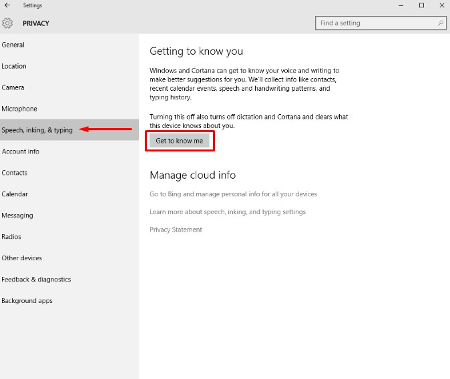
The next tab is the Speech, inking & typing tab. These options are used primarily with Cortana. If you choose not to utilize Cortana, you can consider telling Windows 10 to stop getting to know you. The problem with this is many Windows Store-based apps require your account info, making it impossible for you to turn off this option.
Privacy is a major consideration for most users on the Internet, especially in lieu of many companies’ strategy of selling off user information. These are only a couple of options that you can consider to keep your personal information personal. At NuTech Services we understand why privacy and security are important for users. Our certified technicians can present you with options and best practices that will allow you to remain private and secure while online. Call us today at 810.230.9455 for more information.