update_to_windows_10_400.jpg

What You Need to Know About Upgrading to Windows 10

update_to_windows_10_400.jpg

It’s been over two years since Microsoft stopped providing Windows XP with security updates and patches. The Windows operating system was known as one of the most popular Windows operating systems ever. Both businesses and consumers were affected by this major update, being forced to migrate to more recent operating systems in order to stay secure. Thankfully, an upgrade to Windows 10 isn’t nearly as difficult as one from XP to Windows 7, largely because of the hardware costs involved.

Budgeting Issues
The first major lesson that can be learned from Windows XP’s end of life is that many businesses felt a financial strain when considering the upgrade from such an old operating system. With Windows 10, this isn’t an issue… yet. Organizations that are currently using Windows 7 or 8.1 as their preferred operating system can still enjoy the free upgrade to Windows 10. This means that they don’t necessarily have to be worried about applying huge strains to their budget. Plus, businesses that ran Windows XP likely had to upgrade their hardware, as well, which was another major expense that caused organizations to dread upgrading and put it off for as long as possible.

In comparison, those who used Windows XP likely upgraded to Windows 7 or 8.1 leading up to and following XP’s end of support date. This means that organizations have a free upgrade to Windows 10 that can be cashed in until July 29th, 2016. Now is as good a time as any to invest in Windows 10, especially considering you already did the hard work of getting away from Windows XP.

Legacy Applications
Moving applications and internal software solutions can be a huge pain, regardless of which operating system you’re moving from, or what you’re moving to. Particularly with XP, organizations needed to perform extensive research into how to make their internal solutions work on more recent operating systems. Thanks to Windows XP’s end of life event, this research has already been done for many organizations.

In theory, a Windows 7 and 8.1 upgrade to Windows 10 will be much easier to pull off than an XP-to-Windows 7 upgrade. Of course, we’re not going to make any promises; each business is different, and will require varying degrees of compatibility with legacy software and applications. It’s important that you perform this research before you make any significant changes to your computing infrastructure, as even the slightest hiccup can cause downtime and hamper the migration process.

With over 300 million devices actively using Windows 10, it’s time to ask yourself when you’ll be implementing Windows 10 on your workstations and mobile devices. It’s important that you do so before the deadline for your free Windows 10 upgrade arrives. The latest technology could be a great benefit for your organization, and you’ll want to take advantage of the free upgrade before it’s gone forever.

To learn more about migration, contact NuTech Services at 810.230.9455.
no_windows_ads_400.jpg

Tip of the Week: Get Rid of Those Pesky Ads on Your Windows 10 Lock Screen

no_windows_ads_400.jpg

Do you have Windows 10 on your workstation or PC? You’ve probably realized that it’s a pretty sweet operating system. Still, there’s a reason why so many people have been bothered by it, and it’s because of its practically omnipresent attempts to advertise to consumers.

One of the ways that Windows 10 will do this is by displaying ads on your lock screen. This is done through the Windows Spotlight feature found in your Personalization settings. Chances are that if you are using the default settings for your Windows 10 PC, these ads are enabled. Thankfully, it’s very easy to switch them off for good.

To start, open up the Settings app. You can do this through either the Start menu or by typing Settings into the search bar/Cortana at the bottom of your screen. Next, click on Personalization. This opens up several options for your background image, colors for the operating system, themes, and your Start menu. You want to click on Lock screen.

Once you’ve clicked on Lock screen, you’ll see a preview for what your lock screen will look like, as well as options for what Windows will display as your lock screen. You can select the Windows spotlight, which is showing the ads, or if you’d rather have something more personal and ad-free, you can pick Picture or Slideshow.

If you choose Pictures or Slideshow, Microsoft won’t be able to bother you with shameless ad-pushing to your lock screen, which nobody appreciates. When you’re choosing your new background, we recommend that you choose pictures of a sunny, tropic locale that you dream of visiting on your next vacation. Or, better yet, a slideshow of something that you’re particularly passionate about.

One other feature that you should consider switching off is the Get fun facts, tips, tricks, and more on your lock screen slider. This helps you avoid frustrating and annoying ads that may still find their way to your lock screen. Or, if you don’t mind the ads, you can provide feedback to Microsoft so that they can better serve your interests. Click the top-right icon to inform Microsoft of what you want to see more of, as well as what you don’t want to see.

For more great tips and tricks to help you get the most out of your operating system, give us a call at 810.230.9455 and subscribe to our blog.

windows_10_automatic_update_400.jpg

Some Microsoft Users are Getting Windows 10 Upgrades Against Their Will

windows_10_automatic_update_400.jpg

Windows 10 might be the latest operating system from Microsoft, but despite its great new business-friendly features, many are still hesitant to upgrade. For those who don’t want Windows 10, there are reports of unwanted (and unexpected) Windows 10 updates. Now, here’s the big question: would you want your business’s software upgraded without your consent?

The biggest concern about Windows 10’s automatic installations is that businesses are still in the process of testing their compatibility with the operating system. Many organizations rely on legacy software that may be incompatible with Windows 10, and in a worst-case scenario, an unexpected upgrade could completely shut down operations. Your business could experience crippling downtime and headaches that are easily preventable through proactive maintenance.

ComputerWorld discusses some of the many concerning claims of Windows 10’s automatic updates and installations, with several of them seemingly due to users choosing automatic installation of Windows Updates. Ordinarily this wouldn’t be a problem, but the unique way that Windows 10’s installation launcher is distributed also plays a role in this. There’s another setting that users have checked off where recommended updates are installed as critical updates. Since Windows 10 is a recommended update, it will be set up and installed, for no other reason than the fact that the user’s machine is set to do so by default.

Additionally, a supposed inability to refuse the update also plays a major part in updating to the operating system. Some users are stuck in an upgrade loop which won’t allow them to decline the update. Some are even claiming that Microsoft has tampered with their settings to distribute Windows 10 to as many people as possible, but we’re not going to buy into this train of thought. Instead, we see this as an opportunity to remind you to be prepared for unintended upgrades. Depending on your business’s needs, you might even be able to prevent Windows 10 from installing indefinitely, but you want to consult a professional IT technician before doing so. In general, you should always consult tech professionals before making significant changes to your computing infrastructure.

If you don’t want to update to a new version of Windows, perhaps you should consider why you are having reservations. Do you have legacy applications, or are you simply worried that you’ll be changing operations too much in a short time? Consulting a professional technician is the best way to effectively make a significant change to your business’s infrastructure, and while you’re at it, you can ask about all of the great opportunities that managed IT offers. In particular, virtualization services can be valuable assets to help your organization use legacy applications in the most convenient way possible.

The most important part about upgrading your business’s operating system is to make sure that it happens on your own terms; not accidentally due to Windows 10’s installation settings. Regardless of whether or not you think Windows 10 could automatically install on your infrastructure, you need to prepare for the worst. You will want to take every precaution possible to make sure that Windows 10 won’t leave you without vital operational assets for an extended period of time. It’s recommended that you contact NuTech Services for your IT questions or concerns. Our team can help make your Windows 10 adoption as painless as possible. We can examine your network for potential problems, so you can approach Windows 10 in an educated and informed manner.

For more information, give us a call at 810.230.9455.

b2ap3_thumbnail_windows_10_pin_400.jpg

Tip of the Week: How to Add a PIN to Your Windows 10 Login

b2ap3_thumbnail_windows_10_pin_400.jpgThe fact that so many businesses are rushing to take advantage of two-factor authentication displays how the password has lost its edge as a security credential. Passwords simply aren’t good enough anymore, and hackers are always finding ways to crack even the most complex passwords. This is why many businesses are looking to improve security through alternative means.

Windows 10 has a built-in PIN system that helps to keep your workstation secure from would-be hackers that want to take advantage of a simple password. Here’s how to set up your PIN, as well as how to change it or reset it if need be.

Why Bother with a PIN?
Using a PIN offers several benefits over traditional password security. For example, Windows 10 uses your Microsoft account password to access your PC. If this password were to be obtained by a hacker, they could access your other Microsoft accounts. If you’re using a PIN to access your PC, the PIN is specific to the device. This makes it less risky to use a PIN than a password.

Adding the PIN
First, click on the search bar at the bottom of the screen and type Settings. Select Sign-in options in the left column, and scroll down to the PIN section in the right column. Next, select Add. You’ll be prompted to verify your password, so just enter your current credential into the form and click OK.

Once you’ve finished that, you’ll be taken to the Setup a PIN page. Now, all you have to do type out your PIN in the provided forms. While the only criteria for creating a PIN is that it needs to be at least four characters long, and no more than nine characters long, a simple PIN is easy to guess and could be almost as bad as not having a PIN at all. Be sure to keep these tips in mind when selecting your new PIN:

  • The longer the PIN, the better the security: You’ve heard all about how using a complex password is a best practice, and the same can be said for your PIN. Make it as long as possible– this makes it more difficult for hackers to guess.
  • Refrain from using PINs from other accounts: Everyone has credit cards that they use a PIN for, but these numbers shouldn’t be used for every single account you have. You should have individual PINs for each of your different accounts. Otherwise, one compromisation could lead to multiple breaches.
  • Use as many different numbers as possible: In much the same way that a password should contain variable letters, you want to stay away from short PINs with largely the same number.

Changing or Resetting Your PIN
To change your PIN, you’ll need to go back to Settings > Accounts > Sign-in options. Tap Change underneath PIN, and you’ll be taken to the Change your PIN screen.

If you simply need to reset your PIN, you can do this easily enough. Just click I forgot my PIN next to the Change button, and you can reset your PIN. Keep in mind that you’ll need your current account password to do so.

For more great tips, be sure to subscribe to NuTech Services’s blog.

b2ap3_thumbnail_windows_10_rollout_400.jpg

Windows 10 On Pace to Be the Most Popular OS By 2017

b2ap3_thumbnail_windows_10_rollout_400.jpgWith Windows 10 making leaps and bounds in the business environment, Microsoft has created another commercial success for both consumer use and workplace productivity. In recent weeks, Windows 10’s adoption has slowed significantly, but in a few years it’s expected to surpass other Windows operating systems in terms of usability.

Gartner has made a prediction that, by January 2017, Windows 10 will be used by half of all businesses, making it the most widely used Windows version so far. This comes off as a surprise, especially since its adoption rate has seemingly plateaued as of late. Businesses still tend to stick to operating systems that they know and love, like Windows 7, and feel little need to move to something bigger and better. Still, there are some factors that can change Windows 10’s adoption rate for the better.

For example, Windows 7, which is widely considered to be the favored Windows operating system at the present moment, will reach its end of support date in January 2020. While this sounds like it’s far off, it doesn’t change the fact that Microsoft will eventually stop supporting Windows 7, just like it stopped supporting Windows XP. Considering the fact that Windows 8 and 8.1 aren’t very popular, the clear cut winner here is Windows 10.

According to ZDNet:

Gartner said many organizations are planning to begin pilots for Windows 10 in the first half of 2016, and will broaden their deployments later in the year. It expects that at least half of organizations will have started some production deployments by the beginning of 2017, with an eye to completing their migrations in 2019.

Up until fairly recently, Windows 10 was a huge hit, which can be attributed to the free download from Windows 7 and 8.1 for the first year of Windows 10’s existence. This pushed Windows 10’s growth rate far past that of Windows 7 and 8, and while the consumer might see nothing wrong with an immediate upgrade to Windows 10, businesses might see things differently. Basically, businesses that want to adopt Windows 10 won’t do so right away. Instead, they’ll be making plans to do so in the near future.

The lesson that you can learn here is that, while upgrading to the latest Windows operating system has its merits, you should be approaching it in a logical manner. If other businesses are waiting to take advantage of Windows 10, doesn’t it make sense to get a head start on them by leveraging the latest and greatest Windows operating system? Doing so will help you take better advantage of your resources, including your current (and future) technology solutions. Plus, you’ll be able to rest easy knowing that your technology is up to date.

Still, you don’t want to blindly upgrade. You need to make sure that the upgrade isn’t going to complicate your usage of legacy applications. This means that you’ll want to consult a trained technician before upgrading. For help answering any questions you have about Windows 10, give us a call at 810.230.9455.

b2ap3_thumbnail_windows_10_privacy_400.jpg

Tip of the Week: Adjust Windows 10’s Privacy Settings to Keep Your Information Secure

b2ap3_thumbnail_windows_10_privacy_400.jpgIt would be prudent to begin by saying that Windows 10 is far and away the most refined version of Windows ever created. In a lot of ways, it’s like using a souped-up version of Windows 7, with a sprinkling of Windows 8/8.1 metro on top. Beneath the surface, however, is a vast information-collecting infrastructure that has many users left worried about their privacy. There are even conspiracy theories suggesting that Windows 10 is a vessel used by the NSA in order to collect all the information on every user.

Anyone that is familiar with the fallout of Edward Snowden’s whistleblowing campaign knows that government agencies don’t need Microsoft’s software engineers to syphon as much information as they want, but that doesn’t mean there aren’t some potential privacy issues with the new OS. In fact, it could be said that the default settings of Windows 10 violate user privacy. Here are some of the ways they do so.

Advertising ID
The first privacy issue users are having with Windows 10 is that each user is automatically assigned an ID based on the email address they use to sign in. By capturing information using this ID, Windows 10 will tailor the advertisements that users see when surfing the web or uses certain applications.

Cortana
In order to get the most comprehensive user experience available, the Cortana application collects data; and not just essential data, but seemingly everything. In attempting to make the best personal assistant application on the market, Microsoft has made it a point to capture every piece of information they can. This presents privacy issues for some, but they’re likely no more intrusive than Cortana’s competitors: Apple’s Siri and Google’s Google Now.

Windows Modern Apps
Windows Modern or Universal Apps are also at the center of the perceived controversy. Each of these apps collects your location, which is no different than their Windows 8.1 versions. The situation that is presenting problems for users’ privacy is the advanced reporting these apps do to the central Microsoft servers. For example, when using the very useful OneNote app, the content of the notes are synced with the Microsoft servers.

Many users will not mind receiving better services in return for computing information, but many users are up in arms on Windows 10 policy of deliberately sharing all captured information with their “partners”; a series of third-party vendors that can use this information to improve their sales and marketing tactics. For the purposes of user privacy, however, there are actions that can be taken to limit the ability for Windows 10 to report user computing performance.

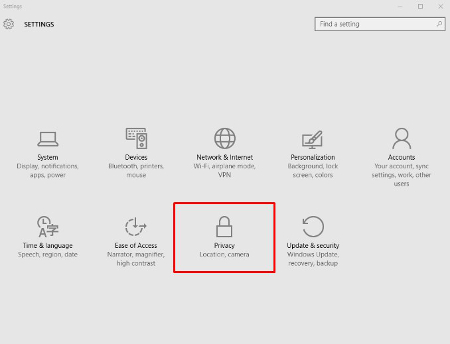
First, you need to access the privacy menu, which can be found in the start menu. Simply open the start menu, then click on Settings and select Privacy from the pop-up.

privacy ib 1
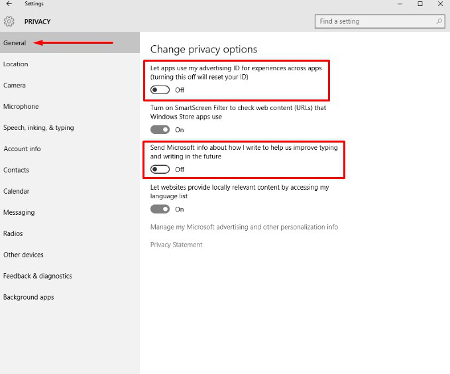
One thing that can be said for Windows 10 is that there are a lot of options. Each one of the privacy settings above represents the ability for Windows 10 to work for the user, albeit by the user sacrificing their privacy. The first suggestion we have, if you are one of the many users that feel as if Microsoft doesn’t need to know every movement you make on your home PC, is to disable the targeted advertising ID.

privacy ib 2From this screen users can also turn off SmartScreen Filter if you are worried about the Windows Store syphoning links to Store items. Many users will choose to leave this option on, but will want to turn the other two off. “Send Microsoft info about how I write..” is basically a keylogger, and its practical application is to provide information for Cortana and language settings that give regional information to Microsoft.
privacy ib 3
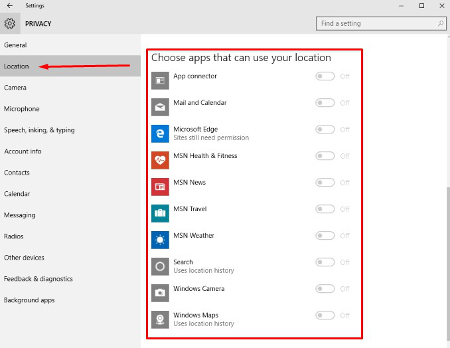
From there, clicking on Location will take you to a list of applications that use your location. Services like weather, traffic, news, and Cortana utilize your current location to provide you the best representation of relevant information for your situation. If you are using a desktop computer, there is little value one way or the other, but on mobile, turning off applications that don’t need your location won’t hurt the perception of privacy.

It is best to leave your Camera and Microphone options toggled on if you want to use Skype or another video communications application.

privacy ib 4
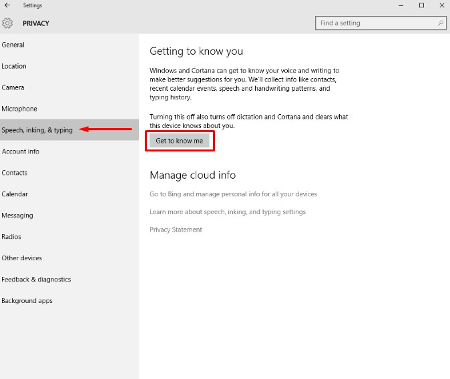
The next tab is the Speech, inking & typing tab. These options are used primarily with Cortana. If you choose not to utilize Cortana, you can consider telling Windows 10 to stop getting to know you. The problem with this is many Windows Store-based apps require your account info, making it impossible for you to turn off this option.

Privacy is a major consideration for most users on the Internet, especially in lieu of many companies’ strategy of selling off user information. These are only a couple of options that you can consider to keep your personal information personal. At NuTech Services we understand why privacy and security are important for users. Our certified technicians can present you with options and best practices that will allow you to remain private and secure while online. Call us today at 810.230.9455 for more information.

b2ap3_thumbnail_will_you_upgrade_to_windows_10_400.jpg

Tip of the Week: 4 Windows 10 Features that Let You Do More

b2ap3_thumbnail_will_you_upgrade_to_windows_10_400.jpgWith Windows 10’s arrival comes all sorts of great new features, many of which are unprecedented. Here are four new features that you should check out on your Windows 10 device.

Microsoft OneDrive Integration
Microsoft’s cloud storage solution, OneDrive, is a major focus with Windows 10, especially with the cloud growing more important for modern companies. With Windows 10, OneDrive is far more integrated than it was in the past, all to handle your data-sharing needs. Now, rather than being forced to use OneDrive with a Microsoft device, you can access your files with Android and iOS devices. In fact, you can even use OneDrive to access any of the files on your Windows 10 PC remotely, adding even more value to the service.

Battery-Saving Features
One of the cool new features of Windows 10 on a mobile device or laptop is that you don’t have to closely monitor your battery levels like you used to. Windows 10’s new battery saver feature automatically detects when your power level reaches a certain point, and it powers down background applications that aren’t absolutely essential. In theory, it gives you a chance to save your work or plug in your computer, making the chances of an accidental power-down less likely. To enable Battery Saver, go to Start menu > Settings > System > Battery Saver.

Background Scrolling
One annoying issue for Windows users is when they are actively working in an application, then hovering the cursor over another open app that’s on the screen. When you go to scroll up or down, you can’t, because the app isn’t selected. While this is only a small issue, Microsoft still thought it should be addressed. To turn on Background Scrolling, go to Settings > Devices > Mouse and Touchpad.

Customized Start Menu Apps
Windows 10 practically got rid of the Windows 8 Metro interface, but it’s still available in the new Windows 10 Start Menu. Rather than a full screen interface, you have the option to place your most important applications in this easy-access menu. To do this, click the Start Menu and click on All Apps. Scroll to an application you’d like to add, right click it, and select Pin to Start. This puts an application shortcut right in the Start Menu for you. You can then edit the apps in the Start Menu by right-clicking them. You can change their size, or even remove them.

Windows 10 has proven to be an exceptional operating system for both the office and personal computing, and there’s sure to be more great new tricks out there allowing you to be more efficient with it. What are your favorite new features? Let us know in the comments.

b2ap3_thumbnail_shortcuts_for_windows_10_400.jpg

Tip of the Week: 10 Handy Windows 10 Keyboard Shortcuts

b2ap3_thumbnail_shortcuts_for_windows_10_400.jpgWith the launch of Windows 10, many users are upgrading and loving every second of it. As always, a new operating system comes with a learning curve, including getting to know the new features and keyboard shortcuts. To get the most out of Windows 10, you can try these ten great hotkey combinations to get through your workday with blazing speed.

[WinKey + S] Activates Cortana
[WinKey + C] Activates Cortana with Speech
Microsoft’s Cortana feature, which was once exclusive to Windows Phone users, is now built into Windows 10 by default. She acts as a personal voice assistant, much like Apple’s Siri. You can use these shortcuts to make more effective use of Cortana.

[WinKey + Ctrl + D] Creates a New Virtual Desktop
[WinKey + Ctrl + F4] Close Virtual Desktop
[WinKey + Ctrl + Left or Right] Switch Between Virtual Desktops
One of the neat new features Windows 10 offers is virtual desktops, which will most likely be used by enterprises to enhance productivity. You can easily use the above keystrokes to navigate through your current virtual desktops, plus open and close them on your local desktop.

[WinKey + Shift + Left or Right] Move Apps from One Monitor to Another
Workers generally use two monitors to get the most done, but if you’re working with several different applications, it can be a bother to continually resize the windows and move them about. To make this process much easier, use the above keystroke while you have a window selected.

[WinKey + K] Activates Connect Feature to Stream to Wireless Displays and Audio Devices
This keystroke is pretty self explanatory, and it will be used often by those who regularly access Connect.

[WinKey + R] Run a Command
Regardless of how many new features there are in Windows 10, the basics still apply. You’ll want to access the Run Command function. This keystroke makes it much easier to do so.

[WinKey + I] Opens Windows 10 Settings
As one of the most customizable operating systems Microsoft has created, Windows 10 offers plenty of great ways you can put the “personal” back in your PC. Use this keystroke to make navigating to your settings easier.

[WinKey + G] Activates the New Xbox Game Bar to Let You Record Games or Take Screenshots
All you gamers out there are going to love this keystroke.

For more ways you can get the most out of Windows 10, keep an eye out for more productivity and technology tips from NuTech Services.

b2ap3_thumbnail_windows_10_email_scam_400.jpg

This Windows 10 Email Scam Isn’t The Upgrade You’re Looking For

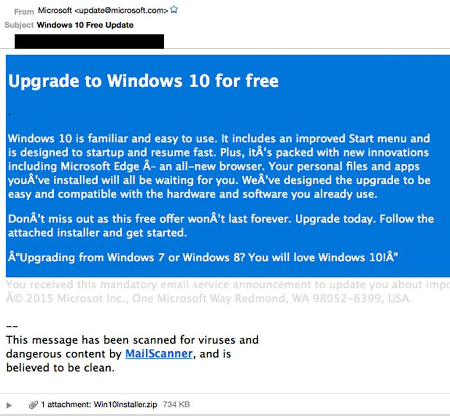
b2ap3_thumbnail_windows_10_email_scam_400.jpgFor those of you who don’t yet have Windows 10, don’t panic. It’s not going anywhere, and you’ll get it soon enough. In the meantime, it’s important that you don’t get impatient and hastily open suspicious emails containing what appears to be a launcher for your Windows 10 download. Hackers are using ransomware to extort money from unsuspecting users who just want their new operating system already.

For some, the fault might lie with Microsoft because of the way they’ve decided to deploy Windows 10. Making people wait even more for a product that already exists is somewhat maddening, and hackers are taking advantage of this impatience to strike. CTB-Locker is a ransomware similar to Cryptolocker, in which it encrypts information locally on your PC, and offers a decryption key in exchange for a hefty price.

This ransomware spreads via email. Victims will receive a message in their inbox which appears to be from Microsoft detailing how they can bypass the wait for Windows 10, and prompts them to download what appears to be a launcher for the new operating system. Once the user downloads the executable file, the malware starts encrypting data on the PC. The user is locked out of their PC until they pay the ransom.

Furthermore, if the user wants to regain access to their files, the ransom must be paid in Bitcoin, a cryptocurrency which is known for its anonymity and difficulty to trace. Adding to the difficulty is that the hackers are using the Tor anonymity network to communicate, which makes catching the clowns behind this act difficult at best. Ransomware is an increasingly popular problem, and according to ZDNet, it can cost users anywhere from $200 to $10,000 for each occurrence, leading to ultimate costs of up to $18 million. That’s a lot of cash that’s been extorted from some 1,000 users in 2015 alone.

windows10scam

Of course, with a good email solution you won’t be receiving this message. A powerful spam blocking solution is capable of keeping spam messages out of your inbox almost indefinitely, meaning that you have little to worry about from the average phishing attack. Still, if a hacker wants to scam you bad enough, they’ll find a way to get through your security measures and attack you directly, in the form of a targeted spear phishing attack.

Therefore, the best way you can protect yourself from threats like CTB-Locker is to keep an eye on your inbox for any suspicious messages, and to never, ever, download attachments from unknown senders. Augment caution with a powerful spam filter and you’ll have all you need to keep phishing attacks at bay. Give NuTech Services a call at 810.230.9455 to learn more.

b2ap3_thumbnail_windows_10_logo_400.jpg

Microsoft Skips Windows 9 While Most of the World Skips Windows 8

b2ap3_thumbnail_windows_10_logo_400.jpgThe release of Windows 10 is fast approaching, and it’s suspected that it will arrive sometime this summer. However, Microsoft’s latest OS release, Windows 8.1, is still being left in the dust by Windows 7 in terms of sheer popularity and usage. What’s the current state of Microsoft’s Windows OS economy?

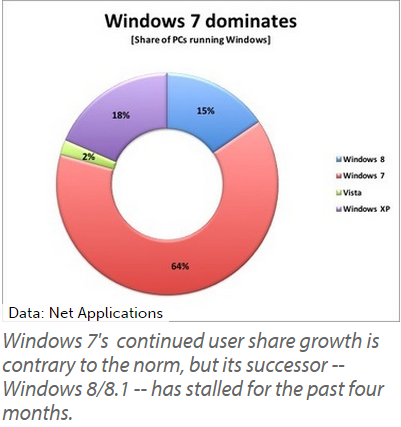
ComputerWorld reports that two-thirds of all PC users are currently running Windows 7, as of last month. Based off of Net Applications’ monthly user share tracking, these are the statistics taken for the month of March 2015 concerning the different operating systems in Microsoft’s repertoire.

windows 7 dominates

  • 64 percent of users use Windows 7.
  • 2 percent of users use Windows Vista.
  • 18 percent of users are still clinging to Windows XP.
  • 15 percent of users are using Windows 8 or 8.1.

Windows 7 is certainly a great operating system that has stood the test of time. Ever since it was released in 2009, it’s been a very popular choice amongst both consumers and business professionals. It was so well-received that it pulled support away from the overwhelmingly popular Windows XP, which lost patch and update support last spring.

rueters error

However, Windows 8 and 8.1, the most recent of the Windows operating systems to be released, have failed to entice the end user into upgrading from Windows 7. If anything, Windows 7 is still growing more popular. As of this past February, 7 has seen a 2.6 percent increase, while Windows 8 and 8.1 have just about reached their limit over the past four months.

Even though Windows 7 still has a few good years left before its end-of-support date in 2020, all good things must come to an end sooner or later. Will Windows 7 follow in the footsteps of its predecessor, Windows XP, and have countless end users forsake upgrading for an unsupported system? If Windows 10 fails to take off, this might happen, leaving many users running without vital support patches and updates. This is why using a supported operating system is so important.

The next OS to hit Microsoft’s chopping block is the server OS, Windows Server 2003. However, the main cause for concern isn’t necessarily over security, but the complications of legacy hardware and software capability with new, modern machines and applications. It’s not always easy to predict what happens to your IT infrastructure when upgrading to a brand new server.

If your office is one of those that haven’t yet made plans to move away from Windows Server 2003, or if you’re running outdated operating systems on your business’s workstations, you should make arrangements immediately to start moving toward a more modern office. You can’t afford to fall behind, and NuTech Services understands this. If you’re having a difficult time juggling your responsibilities as a business owner with incorporating imperative upgrades, we can help you manage and maintain your IT infrastructure. Just give us a call at 810.230.9455 to learn more.