b2ap3_thumbnail_business_sabotage_400.jpg

4 Scenarios to Consider On Disaster Preparedness Day

b2ap3_thumbnail_business_sabotage_400.jpgSeptember was National Disaster Preparedness Month, and as such, it’s important to consider the state of your business’s current backup and disaster recovery practices. Different disasters pose various threats for your organization, but many of them have one thing in common: they’re going to ruin your physical IT infrastructure, and, depending on your backup practices, could potentially bring down your entire operational infrastructure.

Here are four of the most common natural disasters that drastically affect IT systems, and what you can do to prevent them from causing permanent damage.

Power Outages
Fierce storms are often enough to cause quite a bit of damage to businesses that haven’t taken the proper precautions. If power lines go down, you run the risk of losing electricity. This could result in your machines unexpectedly powering down, and you losing information or even causing damage to the hardware. Using an uninterrupted power supply, or UPS, can help to keep your systems up and running long enough to save any files that are being worked on. This helps to prevent damage from unexpected power-downs.

Floods and Tropical Storms
Again, storms, hurricanes, and heavy rainfall in general is enough to create problems for businesses along the coast, on bodies of water, or near rivers. Unexpected flooding is enough to cause extensive water damage, wash out foundations of buildings, and, of course, fry any technology it comes into contact with. This means that floods can potentially cost your business in not just physical repairs to your building, but also in replacing vital hardware systems.

To avoid water damage to your office’s equipment, consider placing your vital technology components in an elevated location, away from the floor. This will help keep them safe from a couple inches of water, if the flood infiltrates your building. Still, the best way to prepare for flood damage is to keep an off-site backup of your data infrastructure. This makes sure that your data isn’t wiped out by an unpredictable natural disaster.

Earthquakes
Earthquakes have the potential to be even more devastating for businesses, especially if you’re located somewhere that is known to experience periodic violent quakes. With the power to level entire buildings, your business could be at constant risk of both physical infrastructure damage and data loss.

Implementing a reliable backup and disaster recovery solution is required if you want to ensure that your data is safely stored off-site, somewhere earthquakes shouldn’t be able to reach it. You can also switch to cloud computing and virtualization tactics for your primary mode of data and application distribution, which decreases the amount of physical infrastructure networking you need to stay productive.

Fires
Just like earthquakes, a fire is one of the more damaging disasters that could hit your business. If your building were to catch fire, there’s a risk of everything you hold dear being destroyed: data, hardware, and even your physical location. Thankfully, you can at least save your data from destruction by using a backup and disaster recovery solution.

These are only a few disasters that could strike your business’s IT infrastructure. If you want to optimize your chances of making it through disasters like these unscathed, give NuTech Services a call at 810.230.9455 for more information about our backup and disaster recovery solutions.

b2ap3_thumbnail_implement_cloud_solutions_400.jpg

Study: The Cloud Can Double Small Business Profits

b2ap3_thumbnail_implement_cloud_solutions_400.jpgIf your business has put off embracing cloud computing as a legitimate method for data distribution and application deployment, it might be time to reconsider why you haven’t integrated a cloud solution yet. A recent study from software companies Exact and Pb7 Research shows that the cloud can provide your organization with a significant increase in both profits and net growth, proving once and for all that cloud business is better business.

Specifically, the study shows that the cloud can potentially double small business profits and help them achieve an additional 25 percent revenue growth compared to businesses that don’t take advantage of any cloud solutions. This study, which was published on August 19th, contains findings that are based on 750 interviews with small businesses, all of which have less than 50 employees. 51 percent of all respondents claimed to use at least one form of cloud computing software, while nearly 30 percent of small businesses in the United States admitted to using three or more cloud applications in the workplace.

In other words, most businesses are adapting to the cloud and using it to improve the way they operate. When asked why they chose to implement cloud solutions, businesses gave these top five reasons:

  1. Security: 32%
  2. Lower IT costs: 26%
  3. Low maintenance requirements, less physical infrastructure: 23%
  4. Easy mobile access: 23%
  5. More productivity and efficiency for end-users: 21%

Additionally, when asked to rate certain aspects of the cloud on a scale of 1 (low) through 5 (high), the average results were:

  1. Easy to use: 4.0
  2. Easier to find information: 4.0
  3. Easier to share information: 3.9
  4. Increased productivity: 3.9
  5. Easier to add and remove users: 3.8

While the reasons why cloud users implement the cloud vary, this proves that there are a number of benefits that this type of computing infrastructure can provide. When considering integrating a cloud solution for your business, you need to ensure that your organization can handle this change in protocol. Changing the way you deploy and manage your data and vital technology systems requires the attention of a knowledgeable professional. Contact NuTech Services at 810.230.9455 to learn more.

b2ap3_thumbnail_cryptolocker_400.jpg

CryptoLocker Strikes Again: This Time, It Hits Gamers Where It Hurts

b2ap3_thumbnail_cryptolocker_400.jpgCan you believe it’s already been two years since Cryptolocker, a particularly nasty strain of ransomware, was released into the online environment? By encrypting files on a victim’s computer, and forcing them to pay a fee for their safe return, Cryptolocker has been a significant threat to both business and personal environments. Now, however, a particular strain of Cryptolocker is making gamers look like cybersecurity rookies.

Cryptolocker has single-handedly changed the cybersecurity scene by ushering in an era of ransomware unlike any seen before. In fact, it will probably remain a key player for many years to come, simply because it’s an unprecedented threat that businesses are still learning to fight against.

By taking advantage of anonymity technologies like cryptocurrency and a network called Tor, authorities are finding it exceptionally difficult to track down and silence. The fact that Cryptolocker continues to evolve is a testament to its tenacity. Since Cryptolocker was taken down two years ago, a new variant called Cryptowall, which is capable of encrypting an entire network infrastructure, has been causing trouble for small businesses. Even now, Cryptolocker continues to adapt and find new targets.

While the business environment is indeed a lucrative market for these kinds of malware due to the importance of a business’s mission-critical data and applications, hackers are always looking to take advantage of all sects of the computing industry. Even innocent gamers are falling prey to Cryptolocker. In fact, according to Bromium Labs, this brand new strain of Cryptolocker is almost exclusively targeting gamers, making them pay for access to games that they’ve already purchased. The malware is distributed through an unidentified WordPress-based site, but the URL that distributes the malicious flash file is always changing, making it difficult to locate. Upon visiting the malicious website, the user downloads the malware unexpectedly.

In fact, according to ZDNet, the majority of files targeted by this particular strain of Cryptolocker consists of games.

graph ib 1

So, if there are any gamers in your lives, be sure to tell them to stay cautious. This strain of Cryptolocker is known to hit games that have a massive following, like Minecraft, World of Warcraft, League of Legends, and many other games that are distributed through the PC-gaming platform, Steam. The researchers claim that this malware can also detect company-specific files, like those from EA Sports, Valve, Bethesda, and more. Just think of the effects that this could have on the business sector if this strain decides to target new markets.

If there’s anything that you take away from this article, we hope that it’s the possibility that Cryptolocker could be found in other, more focused strains that might directly affect your business. If your business were to be struck by ransomware, would you be able to recover? Call NuTech Services at 810.230.9455 today to find out how you can protect your PC from the clutches of Cryptolocker, Cryptowall, and other types of ransomware.

b2ap3_thumbnail_lost_devices_can_be_a_major_problem_400.jpg

Tip of the Week: My Company Device Has Been Lost or Stolen, Now What?

b2ap3_thumbnail_lost_devices_can_be_a_major_problem_400.jpgMobile devices are one of the hottest items for thieves to target. According to reports from Consumer Reports and LoJack, 2013 saw the theft of two million laptops and three million handsets. What this means for you is that having your mobile device stolen is probably a lot more likely than you would think.

The loss of a mobile device means much more than just losing a piece of pricy technology (which can be replaced). It also means the loss of the data stored on the device, and easy access to all the accounts associated with the device if the thief doubles as a hacker (which could lead to identity theft). Not having access to one’s data is why, in a recent survey by IDG Research, 50 percent of phone-theft victims said they would pay a ransom of $500 just to get their phone back, while another one-third would pay $1,000.

Obviously, having your mobile device lost or stolen is a big deal, especially if the device contains corporate data. If you happen to find yourself in this predicament, what are you going to do next? Let’s assume for a moment that you didn’t have the foresight to install any of the great security apps on your device, allowing you to track down the phone’s location or remotely shut it down. Without the assistance of any preventive security solutions, a thief will only have a lockscreen standing between them and your data.

Here are four steps that will let you control the damage caused by a lost or stolen mobile device.

Contact Your Mobile Service Provider
Contacting your phone’s service provider about the theft is a good move because, depending on the make and model of your phone and the details of your service contract, your service provider may be able to remotely access your smartphone and “brick it” (render it useless). At the very least, notifying your service provider will prevent the thief from making calls using your account. Also, it’s important that you quickly contact your mobile service provider about the missing device. Otherwise, the thief will be able to bypass this “bricking” feature by removing the SIM card and still have access to the data stored on your device.

Change All of Your Passwords
If the thief happens to gain access to your smartphone or laptop, they’ll easily be able to open all accounts associated with the device. We don’t have to tell you how devastating this can be, especially if your bank account or corporate network were to be accessed. One of the best ways to keep a thief like this out of your accounts is to login to all of them and change the passwords. You’ll want to do this sooner than later so that the thief doesn’t have enough time to figure out your passwords.

Report the Theft to the Authorities
While it’s unlikely that reporting the theft of your mobile device will lead to a full-scale investigation, it will give them information they can use to spot patterns, which might be enough to eventually get your device back. You never know.

Notify Everybody Affected
The toughest part comes next: notifying everyone that the device is gone. It can be embarrassing to contact everybody about your negligence, but you may be actually legally obligated to do it. The reason why it’s so important to do this is because the data connected to the lost device could lead to stolen identities. As humbling as it will be to write that email to your clients, they will appreciate the fact that you’re taking proactive measures to protect their sensitive information. To help smooth things over, paying for a year’s worth of identity theft insurance will go a long way.

By taking these four steps, you should have a good grasp on damage control. Moving forward, the best way to protect yourself and your business from this all-too-common event of mobile device theft is to reach out to NuTech Services at 810.230.9455. Call us to learn more about proactive mobile security solutions designed to give you a fighting chance.

b2ap3_thumbnail_incognito_mode_400.jpg

3 Easy Ways to Go Incognito In Google Chrome

b2ap3_thumbnail_incognito_mode_400.jpgThe Internet can be a dangerous place. Sometimes you want to keep your identity a secret on the web. Now, your reasons for doing so aren’t any of our business, but you should know that there are several ways to access this secretive function in Google Chrome. Here are three ways you can take advantage of Google Chrome’s Incognito mode to browse the web in an anonymous fashion.

Why Incognito Mode?
Incognito mode has several advantages over your typical Google Chrome browsing session. For one, you can allow someone to use their Google account on your device without signing out of your current session. On the other hand, sometimes you might not want your browsing history to stick around. While this is often associated with viewing questionable content online, it’s also convenient when planning for a surprise party or purchasing a gift so that the recipient isn’t aware of the situation.

Keep in mind that, while you’re browsing the web in a more anonymous fashion than you would be normally, your activity can still be seen by your Internet service provider (ISP).

The Classic Way to Incognito Mode
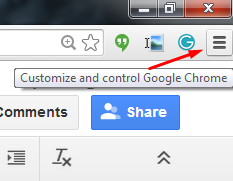
Activating Incognito mode is super easy, but it requires a couple of steps. First, click on the hamburger menu in the corner of Chrome, titled Customize and control Google Chrome.

incognito ib 1

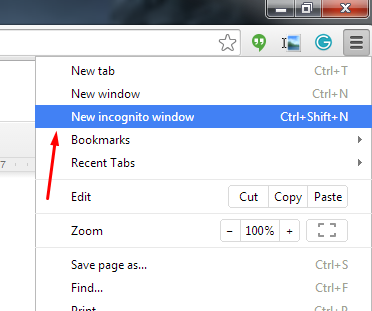
Next, click on New incognito window. Your new window should pop right up.

incognito ib 2

Open a New Incognito Window Through Right-Clicking
Let’s say you find an article on the web that you really want to view, but you’re not sure who could be watching your activity. In order to avoid showing them what you’re viewing, you can right-click a link and select Open in incognito window. Another situation where this might be useful is when you’re shopping for something particular that you don’t want another user to see in the search history. Simply right-click the item you’re considering to privately browse it.

A Simple Two-Click Solution
If neither of these solutions are simple enough, the easiest way to access Incognito mode is by taking advantage of the top of your Chrome window, and selecting the account button to the left of the minimize button. This gives you the option to either switch users or go incognito, providing more than one solution to the issue in one handy location.

Or, better yet: here’s a keyboard shortcut that opens up incognito mode. Just use Ctrl+Shift+N to open a new incognito window.

For more tips and tricks about how to be more productive in the workplace, call NuTech Services at 810.230.9455.

b2ap3_thumbnail_lightning_google_data_center_400.jpg

Not Even Google is Exempt From Data Loss Disasters

b2ap3_thumbnail_lightning_google_data_center_400.jpgWhen you store your data in the cloud, you assume it will be safe and that nothing bad will happen to it. But what if the real clouds hovering above your virtual cloud are literally full of lightning? Google experienced this last month when one of its data centers in Belgium fell to the wrath of Zeus.

Maybe the Greek god of lightning was insulted by a video of him uploaded to YouTube? It’s hard to know for sure the cause of the strike, but what we do know is that the charred data center is primarily used to host Google’s Cloud Platform, and on that fateful evening it sustained four consecutive lightning strikes, one after another.

As terrifying as a lightning strike sounds, for Google, the scariest part of the whole ordeal was that five percent of its disks in the center could no longer read or write data, equating to a loss of 0.000001 percent of the center’s total data. Regarding this data, Google issued a statement saying, “In these cases, full recovery is not possible.”

Such a small amount of data lost may not sound like a big deal, but that’s because it wasn’t your data that was lost. When it comes to data, you don’t have to have your entire infrastructure wiped out for your bottom line to be hurt. Instead, all it takes is a fraction of your mission-critical files to be erased for your entire workflow to be thrown off. Therefore, it’s crucial to have a backup and recovery plan in place for all of your files.

One would assume that a giant company like Google with such deep pockets would have taken precautions in order to prevent something like this from happening. To Google’s credit, they do have safeguards in place to protect themselves from regular lighting strikes (a common occurrence for data centers), but nothing could have prepared them for this quadruple-electric whammy.

Despite the obscene chance of this ever happening again (you know what they say, “four consecutive lightning bolts never strike the same data center twice”), Google has assured its users that they’re making upgrades to prevent any future incidents of this nature. Although, we’re sure that even the best efforts of Google will be puny and ineffective compared to what the mighty Zeus can dish out!

Contact NuTech Services at 810.230.9455 for a Backup and Disaster Recovery solution that will protect your company’s data from everything on this side of Mount Olympus.

b2ap3_thumbnail_windows_10_privacy_400.jpg

Tip of the Week: Adjust Windows 10’s Privacy Settings to Keep Your Information Secure

b2ap3_thumbnail_windows_10_privacy_400.jpgIt would be prudent to begin by saying that Windows 10 is far and away the most refined version of Windows ever created. In a lot of ways, it’s like using a souped-up version of Windows 7, with a sprinkling of Windows 8/8.1 metro on top. Beneath the surface, however, is a vast information-collecting infrastructure that has many users left worried about their privacy. There are even conspiracy theories suggesting that Windows 10 is a vessel used by the NSA in order to collect all the information on every user.

Anyone that is familiar with the fallout of Edward Snowden’s whistleblowing campaign knows that government agencies don’t need Microsoft’s software engineers to syphon as much information as they want, but that doesn’t mean there aren’t some potential privacy issues with the new OS. In fact, it could be said that the default settings of Windows 10 violate user privacy. Here are some of the ways they do so.

Advertising ID
The first privacy issue users are having with Windows 10 is that each user is automatically assigned an ID based on the email address they use to sign in. By capturing information using this ID, Windows 10 will tailor the advertisements that users see when surfing the web or uses certain applications.

Cortana
In order to get the most comprehensive user experience available, the Cortana application collects data; and not just essential data, but seemingly everything. In attempting to make the best personal assistant application on the market, Microsoft has made it a point to capture every piece of information they can. This presents privacy issues for some, but they’re likely no more intrusive than Cortana’s competitors: Apple’s Siri and Google’s Google Now.

Windows Modern Apps
Windows Modern or Universal Apps are also at the center of the perceived controversy. Each of these apps collects your location, which is no different than their Windows 8.1 versions. The situation that is presenting problems for users’ privacy is the advanced reporting these apps do to the central Microsoft servers. For example, when using the very useful OneNote app, the content of the notes are synced with the Microsoft servers.

Many users will not mind receiving better services in return for computing information, but many users are up in arms on Windows 10 policy of deliberately sharing all captured information with their “partners”; a series of third-party vendors that can use this information to improve their sales and marketing tactics. For the purposes of user privacy, however, there are actions that can be taken to limit the ability for Windows 10 to report user computing performance.

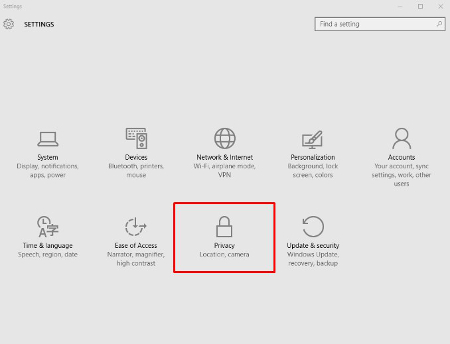
First, you need to access the privacy menu, which can be found in the start menu. Simply open the start menu, then click on Settings and select Privacy from the pop-up.

privacy ib 1
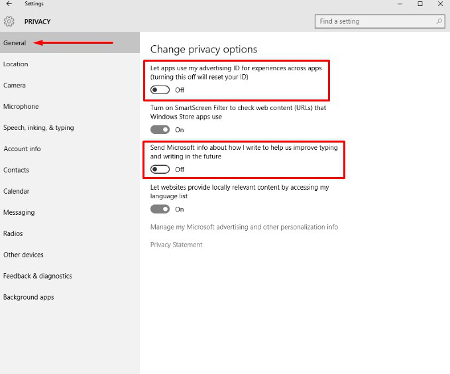
One thing that can be said for Windows 10 is that there are a lot of options. Each one of the privacy settings above represents the ability for Windows 10 to work for the user, albeit by the user sacrificing their privacy. The first suggestion we have, if you are one of the many users that feel as if Microsoft doesn’t need to know every movement you make on your home PC, is to disable the targeted advertising ID.

privacy ib 2From this screen users can also turn off SmartScreen Filter if you are worried about the Windows Store syphoning links to Store items. Many users will choose to leave this option on, but will want to turn the other two off. “Send Microsoft info about how I write..” is basically a keylogger, and its practical application is to provide information for Cortana and language settings that give regional information to Microsoft.

privacy ib 3
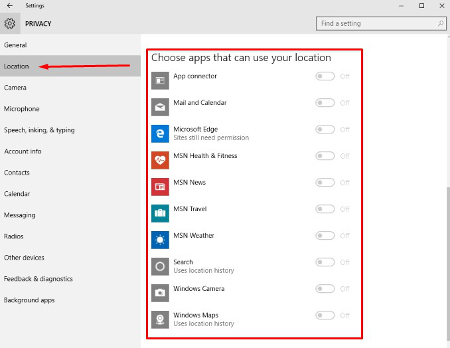
From there, clicking on Location will take you to a list of applications that use your location. Services like weather, traffic, news, and Cortana utilize your current location to provide you the best representation of relevant information for your situation. If you are using a desktop computer, there is little value one way or the other, but on mobile, turning off applications that don’t need your location won’t hurt the perception of privacy.

It is best to leave your Camera and Microphone options toggled on if you want to use Skype or another video communications application.

privacy ib 4
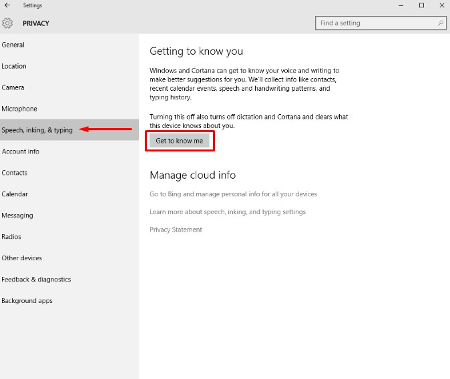
The next tab is the Speech, inking & typing tab. These options are used primarily with Cortana. If you choose not to utilize Cortana, you can consider telling Windows 10 to stop getting to know you. The problem with this is many Windows Store-based apps require your account info, making it impossible for you to turn off this option.

Privacy is a major consideration for most users on the Internet, especially in lieu of many companies’ strategy of selling off user information. These are only a couple of options that you can consider to keep your personal information personal. At NuTech Services we understand why privacy and security are important for users. Our certified technicians can present you with options and best practices that will allow you to remain private and secure while online. Call us today at 810.230.9455 for more information.

b2ap3_thumbnail_hillary_server_snafu_400.jpg

Hillary Clinton Learns the Hard Way Why Network Security Best Practices Must Be Followed

b2ap3_thumbnail_hillary_server_snafu_400.jpgWith the United States’ Presidential election ramping up, it’s hard to go anywhere without seeing Hillary Clinton’s face. The former U.S. secretary of state and first lady, Clinton is making her second attempt at the Presidency. She has gained some negative attention recently in regards to emails she had sent from a personal email address when she was the United States’ top diplomat and it’s opened up some questions about data security at the highest reaches of government.

Every potentially scandalous political situation presents some question of motive, and this particular one is no different. The situation started when The New York Times’ Michael Schmidt broke the story on March 2, 2015. At the time, the reporter recalled, that he didn’t think much of the story. “It was curious and it was interesting,” Schmidt told the Huffington Post, “but it didn’t seem like it was going to be some type of major story.” In fact, the situation was so under the radar that Schmidt left for vacation the day after it ran in print.

Of course, what we know now is that it has snowballed into a political scandal that many Republicans hope derails her campaign. The basics of the story are this: While she was secretary of state under President Obama she used her personal email address to conduct official state business, potentially violating federal requirements that officials’ correspondence be retained as an official record of proceedings. Moreover, Mrs. Clinton did not use a state-issued email address throughout her tenure at the state department. That alone is not the issue, however. The issue is that her staff did not preserve that correspondence, a clear failure to comply with the Federal Records Act.

Many government officials have commented on this issue, with the consensus being that Mrs. Clinton had not been in breach of any law, but that the practice of not using the state-sponsored email address is highly unusual, and deserves further investigation. Of course, Mrs. Clinton is running for the highest office in the land and the scrutiny, especially from the opposite party, has intensified. Clinton agreed to turn over the email server to the FBI; the server that her account was hosted on for the entire time she was secretary of state. The former first lady gave it over willingly, without legal precedent to do so, which suggests that Clinton doesn’t feel as if she did anything criminal. She also does not seem to have a grasp on the best practices of network security.

Since turning over the server August 12, the FBI has begun probing the server to see if, in fact, Mrs. Clinton has violated the law by mishandling classified information. In doing a damage assessment, the FBI has also begun attempting to ascertain if the email address she was using at the time, or the server itself, had been hacked. Clinton herself recently dismissed the chances that the old email server could have been infiltrated by stating that the email address “[…] was set up for President Clinton’s office. And it had numerous safeguards. It was on property guarded by the Secret Service. And there were no security breaches.”

There has been some concern from authorities and the Judge overseeing this situation, Emmet Sullivan, that Clinton or her Colorado-based IT provider had wiped the server in question when the Clintons upgraded their IT and migrated all the information from their old servers to their new ones. The provider that hosted the email server, Platte River Networks, who also turned over the server to the FBI, acquired the server in question in 2013. They have gone on the record to proclaim that there are almost certainly backups of the deleted files on the server.

Since any good IT provider will ensure their clients’ IT is backed up properly, you can bet that the content of that server, with years worth of diplomatic correspondence is someplace. The FBI’s probe will focus on getting the emails back and to ascertain how the email data was protected, whether traces of code that suggest an attempt at infiltration had taken place, and whether or not it is possible to reconstruct the logs of what machines actually accessed the server when Clinton was working for the state department.

Outside of the political realm, the whole issue brings up some interesting topics for the security of an organization’s IT. When you wipe a computer, what are you actually deleting? What kind of information can be accessed after you think everything is off your old technology? When you absolutely have to send secure emails, what solution do you use to ensure that they are received without tampering?

Although your company might not receive the same media scrutiny as a politician, suffering from data theft or hacker infiltration can be a seriously complicated situation that could cost you a lot of time, money, and even your reputation. Making sure your data is in check and your network is secure is becoming even more crucial, even for smaller businesses.

Whether you are dealing in state secrets or not, data security is important for any organization. NuTech Services’s technicians can answer all of your IT security questions, and find your organization the solutions they need to keep downtime to a minimum. Call us at 810.230.9455 to get your pressing IT security questions answered today.

b2ap3_thumbnail_companys_it_budget_400.jpg

3 Benefits of Outsourced IT That Let You Do More For Less

b2ap3_thumbnail_companys_it_budget_400.jpgCost drives business, this much cannot be denied. When the technology your business relies on fails, you have to get it repaired or replaced quickly in order to keep the resulting downtime from damaging your business. The traditional method of computer repair is much like when your car is in disrepair. When your technology isn’t working properly, your organization reacts to the problem by calling your friendly neighborhood computer repair guy.

The technician will come to your office and try to fix the technology that is broken. When they figure out they can’t fix the problem on the spot, they will give you a quote. The time and materials of summoning these technicians to the office will cost you money, so will the replacement technology, and most notably, the downtime you accrue. Add that to the variable cost of fixing the malfunctioning technology, and your business has a real problem.

At NuTech Services, we offer a proactive IT support platform that utilizes remote monitoring and management software to ensure that the technology that’s attached to your network, and your network itself, is up and working properly. Additionally, our whole IT services platform is billed in one monthly payment.

If you add it up, you are saving money in every aspect of your business. You not only remove the variable costs of keeping your IT running smoothly, you also get proactive support that in many cases gives you the time to replace hardware BEFORE it fails, saving you from the doldrums of company wide downtime.

The fact is that small and medium-sized businesses need to cut their technology support costs if they want to compete with larger organizations. There are a myriad of benefits that come from a managed services provider like NuTech Services handling the administration and support of your technology. Besides the obvious cost savings, two other huge benefits include:

  • Comprehensive Support: A major speedbump SMBs have when shopping for any service that claims to help their business, is the quality of that service. For those that worry that our managed services are too good to be true, we employ certified and trustworthy technicians that are proficient in finding solutions for today’s most challenging business technology problems.
  • Single Point of Contact: As an alternative from having to manage several vendors, our IT service offering provides you with a single point of contact for all of your technology needs. Since we understand the intricacies of your network, we can get issues resolved faster.

Managed IT services can provide you with many other benefits as well. For more information about how our managed IT services can benefit your organization, call us at 810.230.9455 today.

b2ap3_thumbnail_will_you_upgrade_to_windows_10_400.jpg

Tip of the Week: 4 Windows 10 Features that Let You Do More

b2ap3_thumbnail_will_you_upgrade_to_windows_10_400.jpgWith Windows 10’s arrival comes all sorts of great new features, many of which are unprecedented. Here are four new features that you should check out on your Windows 10 device.

Microsoft OneDrive Integration
Microsoft’s cloud storage solution, OneDrive, is a major focus with Windows 10, especially with the cloud growing more important for modern companies. With Windows 10, OneDrive is far more integrated than it was in the past, all to handle your data-sharing needs. Now, rather than being forced to use OneDrive with a Microsoft device, you can access your files with Android and iOS devices. In fact, you can even use OneDrive to access any of the files on your Windows 10 PC remotely, adding even more value to the service.

Battery-Saving Features
One of the cool new features of Windows 10 on a mobile device or laptop is that you don’t have to closely monitor your battery levels like you used to. Windows 10’s new battery saver feature automatically detects when your power level reaches a certain point, and it powers down background applications that aren’t absolutely essential. In theory, it gives you a chance to save your work or plug in your computer, making the chances of an accidental power-down less likely. To enable Battery Saver, go to Start menu > Settings > System > Battery Saver.

Background Scrolling
One annoying issue for Windows users is when they are actively working in an application, then hovering the cursor over another open app that’s on the screen. When you go to scroll up or down, you can’t, because the app isn’t selected. While this is only a small issue, Microsoft still thought it should be addressed. To turn on Background Scrolling, go to Settings > Devices > Mouse and Touchpad.

Customized Start Menu Apps
Windows 10 practically got rid of the Windows 8 Metro interface, but it’s still available in the new Windows 10 Start Menu. Rather than a full screen interface, you have the option to place your most important applications in this easy-access menu. To do this, click the Start Menu and click on All Apps. Scroll to an application you’d like to add, right click it, and select Pin to Start. This puts an application shortcut right in the Start Menu for you. You can then edit the apps in the Start Menu by right-clicking them. You can change their size, or even remove them.

Windows 10 has proven to be an exceptional operating system for both the office and personal computing, and there’s sure to be more great new tricks out there allowing you to be more efficient with it. What are your favorite new features? Let us know in the comments.

b2ap3_thumbnail_technology_innovation_for_business_400.jpg

3 Ways to Make Innovation a Priority For Your Company

b2ap3_thumbnail_technology_innovation_for_business_400.jpgHow difficult is it for your organization to innovate and come up with new ideas? Sometimes it might seem impossible when it feels like all the good ideas are already taken. Normally, advancements in technology are a primary fuel for innovation within a company. If you aren’t feeling inspired, there are several new ways you can approach innovation. Here are three ideas.

If you ever feel that you aren’t making enough of a splash in the market, just remember that you’re not alone. Many organizations often have the same issue when it comes to innovation. Just like inspiration, it comes and goes in cycles. When a business grows, it might lose track of finding better solutions due to their continued success with proven solutions that work. This can hinder their ability to further expand. You’ve heard the saying, “Without risk there is no reward,” and in this case, it’s true.

Innovation and Acquisition
One way you can improve innovation in your company is through acquisition. The downside of innovation via acquisition is that it can be costly and difficult to get used to. There’s the cost of purchasing a company, as well as two different business models that might conflict. You can’t just buy a company and force it to comply with your current strategy right off the bat. Plus, if you’re having trouble with innovation, and you try to impose the same principles upon your purchased company, they’ll also have trouble with innovation, making it even more difficult to get anything done. The innovation will be short-lived or nonexistent, and you’ll be stuck with the same problem you had in the first place, only with a lot less coin in your pocket.

Take, for instance, Dell’s acquisition of certain aspects of IBM servers. This is the proper way to fuel innovation through acquisition. Find the value that you’re looking for in an acquisition, and hold onto it. Protect it and let it transform the way your organization does business. Use your available resources to help the endeavor succeed.

Skunkworks: Groups Focused on Innovation
Another way to enhance innovation is through the concept of skunkworks. This is when you put together a team that specializes in the concept of innovation. By creating a separate firm within your organization dedicated to coming up with game-changing ideas, you clear them to create and implement ideas that aren’t restricted by your corporate policies, effectively allowing the skunkworks group to act as a startup. One example of this is how EMC’s Pivotal Labs functions in order to create new products.

Innovation and Friendly Competition
Sometimes all innovation needs is a gentle push in the right direction from internal competition. In order to foster innovation in this fashion, you can use certain competitions designed to reward workers with bonuses. Or, you can use your local competition to fuel innovation similar to the way Dell does with its annual Innovation Day. It’s a reality show-like program where multiple companies compete for a fully-funded innovation trial. The winning company gets the prize of springboarding into a full-sized company which includes further funding. An incentive like this is sure to motivate your team.

Ultimately, one of the best ways you can boost innovation is by fueling it with technology best practices. NuTech Services can equip your business with the technology to develop new ideas. Give us a call at 810.230.9455 to learn more.

b2ap3_thumbnail_smartphones_on_market_400.jpg

The Newest Smartphones From Samsung, Apple, and Microsoft

b2ap3_thumbnail_smartphones_on_market_400.jpgSmartphones are firmly established as a staple of modern society. In fact, sales of smartphones grew a whopping 23 percent during the previous year. It’s the nature of mobile devices for consumers to look forward to the latest models. To that end, here’s our preview of this year’s top three smartphones.

Due to the sheer demand of smartphones flooding today’s market, there are way more than three models to choose from. However, for the sake of being concise and relevant, we’ll focus on the flagship device from these three mobile manufacturer; Samsung, Apple, and Microsoft.

Samsung Galaxy Note 5
Samsung has taken the lead as far as smartphone marketshare goes, garnering 24.6 percent of the market in 2014. They’ve achieved this success with their line of s-model phones and Note phablets. All eyes are on Samsung and its latest offering, the Galaxy Note 5.

Galaxy Note 5 Specifications
Display: 5.66-inch Super AMOLED capacitive touchscreen with 1440 x 2560 resolution made from Gorilla Glass 4
Operating System: Google Android v5.1.1 (Lollipop)
Processor: Samsung octa-core Exynos 7420
Memory: 32 GB, 64 GB, and 128 GB models available; 4 GB RAM
Cameras: 16 MP camera with optical image stabilization, 5 MP front-facing camera
Battery: 4,100 mAh
Communication: NFC, Bluetooth v4.1, Wi-Fi, Infrared, microUSB
Other features: Accelerometer, gyro, proximity, compass, barometer, gesture, UV, heart rate, Sp02, integrated s-pen

iPhone 6s
The iPhone has been Apple’s best-selling device for almost 12 years, and the iPhone 6s looks to continue this trend. The latest iPhone will include an all-new A9 processor, designed to exceed in computing power Samsung’s Exynos 7420 processor. It’s also been confirmed that the iPhone 6s will get an upgrade to its body. Presumably, this will make it stronger and more durable, especially in light of how the previous model was ridiculed for bending too easily. Additionally, the iPhone 6s will have a larger display than the iPhone 6.

iPhone 6s Specifications
Display: 4.7-inch Retina display with 750 x 1334 resolution with ion-strengthened glass and a oleophobic coating
Operating System: iOS 9
Processor: Apple A9
Memory: 32 GB, 64 GB, and 128 GB models available; 2 GB RAM
Cameras: 12 MP camera with phase detection focus, 5 MP front-facing camera
Battery: Li-Po 1,810 mAh
Communication: Bluetooth v4.1, Wi-Fi, v 2.0, reversible connector
Other features: Accelerometer, gyro, proximity, compass, barometer

Lumia 940
Microsoft recently acquired Nokia and its line of Lumia smartphones. Despite the fact that the Lumia phones have received great reviews, they’ve never made the kind of sizable impact that Microsoft would have liked. Thanks to the success of the newly-released Windows 10 OS (a system that promises one single interface across every device, including the Lumia smartphones), the time may be ripe for Windows Phone to finally take off.

Lumia 940 Specifications
Display: 5.2-inch display with 1440 x 2560 resolution with Gorilla Glass 4
Operating System: Microsoft Windows 10
Processor: Dual-core 1.82 GHz, Qualcomm MSM8992 Snapdragon 808
Memory: 32 GB, 64 GB models available; 3 GB RAM
Cameras: 20 MP camera with phase detection focus, 5 MP front-facing camera
Battery: Li-Ion 3,000 mAh
Communication: NFC, Bluetooth v4.1, Wi-Fi, microUSB 2.0
Other features: Accelerometer, gyro, proximity, compass, sensor core

These three smartphones are the flagship devices sold by each manufacture, but they’re not the only devices offered by each company. If you like what you see here, but you’re looking for variations in regards to features, check out these alternative models:

  • Samsung Galaxy s6, s6 Edge, s6 Edge+
  • iPhone 6+
  • Lumia 940 XL

Which smartphone is right for you? While you’re sure to have personal preferences toward a particular brand, it’s in your best interest to do your due diligence when shopping for a new phone so you can obtain a model that best meets your needs. Want to know about how mobile technology like this can improve your business? Call us at 810.230.9455 to learn more.

b2ap3_thumbnail_person_network_400.jpg

Tip of the Week: Sharing Files Between 2 PCs is as Easy as Dragging and Dropping

b2ap3_thumbnail_person_network_400.jpgWhat’s the best way to share files between your different personal devices and computers? It turns out that you can share files over your home’s network, and you don’t have to be an IT technician to do it.

To be sure, there are many different ways to share files between your different devices. You can send an email from one device to another. You can upload the file to a cloud data storage service. You can even use an external data storage device like a USB thumb drive. While all of these methods will do the trick, some are more inconvenient than others (like using a thumb drive), while others (like the first two examples) require an Internet connection and reliance on a third party.

Instead, you might be surprised to learn that you can just as easily (if not more easily) move files over your home network to your different devices by dragging and dropping what you need to a shared folder. This functions similarly to how your computer network at the office is set up with its server units and multiple workstations. However, you don’t need a home server unit to share files across your different devices at home. Instead, if you’ve got two computers connected via your home’s Internet router, then you’re all set to easily share files between the two machines.

Share Files Using My Network Places
To do this, open My Network Places, locate a file associated with the computer that you want to share files with (designated by the PC’s assigned name), and then drag and drop your content into the shared file. To access the shared content with the computer that you just shared it with, locate My Network Places on your other computer and open the file that corresponds with the actions you just took.

Or Create a Windows Homegroup
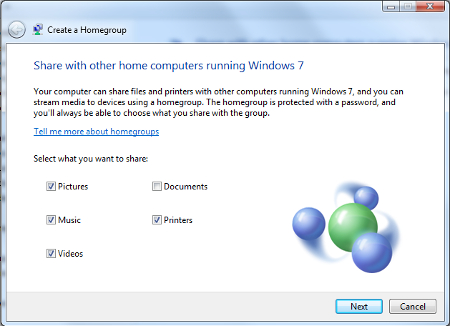
If for some reason you’re unable to share the files you need between your two computers using My Network Places, then you can set up a Windows Homegroup. To do this, type “homegroup” in the Windows search box and then hit Enter. From here, Windows will let you know if there are any homegroups on your network. If it can’t find one, click Create a homegroup.

Next, select what kind of content and devices that you want to share in this homegroup and then select Next.

homegroup ib 1

Windows will now generate a password that you will want to use for other computers to access the newly created homegroup. Be sure to record and share this in a secure manner if you’re adding multiple users to the homegroup.

Lastly, using the other computer on your home network, search for “homegroup” in the Windows search bar. This should bring up a dialogue box letting you know that a new homegroup has been added to your network. It will display the name of the computer you’ve originally used to create the homegroup. Now, just click Next > Enter the password > click Next again > and you’ll have both of your computers set up on the homegroup for easy file sharing.

If you need professional assistance with any of your computer networking needs, give NuTech Services a call at 810.230.9455.