
b2ap3_thumbnail_new_voip_400.jpg

Use Conference Calls? Here are 3 Reasons to Drop Your Phone Company and Go With VoIP

b2ap3_thumbnail_new_voip_400.jpgConference calling has evolved with the years, and it’s a crucial service that’s needed by modern businesses. You probably find yourself in more meetings than you’d like to be in, but compared to the days before Voice over Internet Protocol existed, you have it pretty easy nowadays. In fact, VoIP is such a great tool that every business should look into its advantages.

VoIP is capable of transmitting your voice over the Internet, making it fantastic for communicating with both your internal team, and for your external communications. In fact, VoIP can be a great alternative to meeting face-to-face if your office has limited space available for meetings. Here are three benefits that your business can reap from using VoIP as your primary conference calling system.

VoIP Uses the Internet
Do you remember those days when you would have to conduct meetings over the phone if there wasn’t space available for a real-time meeting? Conference calling used to be, literally, a pain in the neck. Now, though, the Internet makes it infinitely easier to communicate, and VoIP capitalizes on this fact. By using the Internet to transmit voice signals, you can use your connection in a similar manner to traditional telephone systems. The biggest difference is that you won’t have to deal with all of the complex landline cabling that makes adding new extensions and lines so irritating (and expensive).

In general, cable companies tend to package together several services that your business might not necessarily want or need, which means that if you want to use their landline telephony services, you’d have to go all-in on something that you won’t need. With VoIP, you don’t need to worry about this. All VoIP needs is your Internet connection, so you won’t have to worry about unreasonably high charges… including long distance. If you find that you do need more services, VoIP solutions are flexible enough that you can easily add them as required.

This also means that limitations for trunks (the number of physical phone lines you have leaving the building) are a thing of the past. As you grow, your phone system won’t limit your team from making outbound calls.

VoIP Provides Mobility
Traditional phone systems are limiting in nature. You’re limited to your desk or office, and even if you have a cordless phone you can only travel so far from the receiver before it stops working. VoIP solutions utilize a web application or desktop software that transfers your voice over the Internet, so as long as you have access to the web, you can take full advantage of anywhere, anytime access. You can even use your smartphone with your VoIP solution, which makes it feel just like any normal telephone service. Depending on the VoIP solution, you can also just use a headset on your desktop or laptop.

If you choose to integrate VoIP, you could even let your team work remotely. By doing so, you’re opening your business up to untold opportunities for cost savings and increased productivity; not to mention the fact that your employees will be much happier and fulfilled with their daily duties.

VoIP Has Add-Ons
One of the best features that VoIP presents is its versatility with add-ons. VoIP often comes with video conferencing software, which allows users to emulate face-to-face meetings via video chat. By taking full advantage of VoIP and its various add-ons, you can essentially replicate an inter-office communication solution, even if your team is scattered across the country (or the world).

VoIP can change the way your business communicates for the better. NuTech Services has the skills and expertise required to help your business integrate VoIP, from planning the implementation to the setup itself. For more information, give us a call at 810.230.9455.

b2ap3_thumbnail_android_gmail_400.jpg

Tip of the Week: How to Access Multiple Gmail Accounts On Your Android Device

b2ap3_thumbnail_android_gmail_400.jpgIf you have an Android smartphone, you know that the device is closely tied to your own personal Google account. As such, in order to get the most out of your Android device, you should take advantage of its seamless functionality with Google applications. This includes making sure that your Gmail account is properly set up on your device. We’ll walk you through how to add additional Gmail accounts to Android’s Gmail app.

First off, why would you want to add a new Gmail account to your Android device in the first place? This could be helpful for a couple of reasons. For one, there are some folks out there who do, in fact, have multiple Gmail accounts. While it’s frowned upon by Google, they might make a free “burner” account in an attempt to limit the amount of junk mail they receive. Another reason could be to add a work account, if your business uses Gmail as its preferred email client. Doing so gives you anywhere access to your email, calendar, and Google Docs, especially while you’re on the road or traveling for business purposes.

Either way, it’s a good idea to know how to add a new account to your device. Here’s how it’s done.

Adding a New or Existing Gmail Account
First thing’s first; open the Gmail app. You’ll see your inbox, but what you really want to see is the side menu. Tap the hamburger menu (the three-line menu in the top-left corner), and scroll all the way down to the bottom of the page. Select Settings, and you’ll see a list of all your current accounts.

Next, tap on Add account. Select Google, and tap Next. Afterwards, it’s simply a matter of following the instructions on the screen.

Switching Between Accounts
Once you’ve finished adding your new account to the Gmail app, you can switch between your account inboxes easily enough. Simply open up the hamburger menu again, and you should see your accounts in the form of icons at the top of the menu. You can tap the icon, or you can select the down arrow next to your currently open account to select the one you want to use.

For more great tips and tricks for your Android smartphone, and technology in general, subscribe to NuTech Services’s blog.

b2ap3_thumbnail_ie_8_9_10_goes_bye_bye_400.jpg

Microsoft Ends Support For Internet Explorer 8, 9, and 10, What’s This Mean For Your Business?

b2ap3_thumbnail_ie_8_9_10_goes_bye_bye_400.jpgBad news for users still running outdated versions of Internet Explorer – Microsoft has ended support for its legacy web browser. What this means is that Internet Explorer 8, 9, and 10, will no longer be issued critical patches and security updates, making its continued use a security risk.

As of January 12th, 2016, Internet Explorer 8, 9, and 10, will no longer be supported by Microsoft. This effectively forces users to either upgrade to the most recent version of everyone’s favorite web browser, IE 11, or switch to a competing web browser. Coincidentally, Microsoft also cut the cord on its Windows 8 operating system on January 12th, which seems like little more than a ploy to get users to upgrade to Windows 10. Thankfully, doing so will give Internet Explorer users access to IE 11, but it will also allow users the option of using Microsoft’s new web browser, Edge.

Keep in mind that “end of support” for Microsoft products only means that they will no longer be issuing patches and security updates to these products. They won’t disappear from your PC just because they’ve reached their end-of-support date. Basically, continuing to use software that’s no longer supported is a security risk, and should be avoided at all costs.

It might seem painful to give up on Internet Explorer, but rather than focus on how IE fell from grace, it’s less depressing to think about how great of a run it had in its prime. The fact remains that IE has fallen out of favor with users. As reported by CNet:

IE’s worldwide browser market share on desktops dropped from 58.2 percent at the start of 2014 to 48.6 percent in December, according to tracking company NetMarketShare. During the same period, Google-owned Chrome’s share rose from 16.4 percent to 32.3 percent.

This end-of-support date is a valuable reminder of just how important it is to be using the latest software and operating systems with your workstations and servers. If you’re using unsupported software, there’s a solid chance that your organization’s sensitive data could be at risk of a data breach or compromisation. Hackers and other online threats will gladly abuse any advantage you give them, including weak points normally addressed through patches and security updates. This is why it’s so important to keep your business’s infrastructure up to date.

One important fact to keep in mind about Internet Explorer is that there are rare cases of mission-critical software relying on certain parts of outdated versions of the web browser. Some businesses run into problems being unable to upgrade a workstation because they can’t afford to not be able to use this software. If you’ve had problems with this in the past, there’s a chance that it can happen again. You should always consult a trusted technician before upgrading haphazardly to a more recent operating system or web browser.

Many businesses find it extraordinarily difficult to keep their technology up to date, primarily because they’re already stretched too thin as it is. They simply don’t have the time or technical expertise required to perform quality maintenance. SMBs benefit the most from outsourcing IT services, primarily due to the immense savings of time and capital that can be invested in improving the business. NuTech Services can provide quality IT services, like our remote maintenance and management service, that’s designed to save you money while making IT management exceedingly easier.

For more information about how NuTech Services can make upgrading and maintaining your technology easier, give us a call at 810.230.9455.

b2ap3_thumbnail_shadow_it_400.jpg

How Shadow IT Puts Your Entire Business In Jeopardy

b2ap3_thumbnail_shadow_it_400.jpgThe average small and medium-sized business has trouble with the implementation of comprehensive IT solutions, mainly due to these organizations having fewer resources to allocate towards these solutions. This often leads to end-users implementing their own solutions, which can be dangerous under the wrong circumstances. By allowing this “shadow IT” to run rampant in your office, you’re putting business continuity, data storage compliance, and security on the line.

Shadow IT is a surprisingly common factor that businesses need to crack down on. Shadow IT is a broad term that refers to technology solutions that are implemented without the knowledge of management or your internal IT department.

An example of shadow IT would be an employee downloading and installing a free antivirus on his workstation if there isn’t one already present. While having antivirus is an important part of any IT infrastructure, it’s important to remember that you need to be using an enterprise-level antivirus solution, rather than a free one. This is why you always want to keep your trusted IT technicians in the loop; otherwise, you could be approaching technology management in a way which is counterproductive, or even dangerous.

Let’s go back to the antivirus example–even if the employee had only the best interests of the organization in mind, the fact is that they’re implementing technology without the oversight of professional IT workers or the IT decision maker of your business. In situations like this, you have to assume the worst. The solution could be set up wrong, which could present problems later on. Even worse, if something were to go wrong, the one at fault would be the employee, which isn’t fair for someone who only wanted to make their job easier.

Another reason that shadow IT might become a problem is if there’s an immediate problem that needs to be resolved, but your current IT staff isn’t available, or lack the resources, to fix it. This could prompt an employee, thinking only to find the most efficient method of resolving the problem, to fix the issue himself. Again, while the employees’ desire to make everyone’s lives easier is appreciated, their actions could lead to more trouble down the line due to solutions not being set up properly, or the fact that the solutions aren’t powerful enough to help. Ultimately, it becomes more trouble than it’s worth, which is why you only want those who know what they’re doing implementing technology solutions.

The presence of shadow IT can, therefore, be attributed to two reasons:

  1. The absence of a dedicated in-house IT department, which forces employees to perform maintenance themselves.
  2. An overloaded IT department that’s too busy to deal with spontaneous or recurrent issues.

Either employees are given the responsibility of performing system maintenance on their office technology, or IT is far too busy to consider implementing new solutions, let alone maintain existing operations.

Thankfully, there’s a great solution available for SMBs. NuTech Services specializes in the procurement and deployment of enterprise-level technology solutions for small and medium-sized businesses. Our offerings are capable of fitting into any IT budget because they perform two critical functions: 1) We provide enterprise-level technology solutions at a monthly rate that SMBs can afford, and 2) We make it easier for your staff to get their job done, thanks to them not needing to worry about the functionality of their technology.

Even if you don’t have an in-house IT department, NuTech Services’s services can be very beneficial for your business. We can provide your team with the tech support they need to fulfill their day-to-day responsibilities, and provide the flexibility that you need to fully leverage your technology. For more information about how managed services can help your business increase its bottom line, give NuTech Services a call at 810.230.9455.

b2ap3_thumbnail_clean_computer_400.jpg

Tip of the Week: Don’t Use Your Keyboard as a Dinner Plate and 3 Other PC Best Practices to Live By

b2ap3_thumbnail_clean_computer_400.jpgComputers are complex devices that require special attention to keep in optimal shape. Unfortunately, some people don’t pay enough attention to the current state of their computers. Once you’ve cleaned your computer properly, though, it’s important to make sure that it stays that way for as long as possible. Doing so can increase the longevity of your technology, and prevent it from an untimely demise.

Keep in mind that whenever you decide it’s time to clean your computer, be sure to power it down and unplug it before doing so. It’s better to be safe than sorry, especially with expensive hardware.

Don’t Eat, Drink, or Smoke at the Computer
Remember all of those crumbs that fall out of your keyboard when you turn it upside down? All of those crumbs got there somehow, and it’s probably thanks to one habit that you might have: eating at your desk. To minimize the amount of crumbs that fall onto your keyboard, it’s best to just lock your PC and go eat somewhere else, like the kitchen, dining room, or break room. Furthermore, smoking in the same room as your computer can gunk up your fans and other components with ash, tar, and other nasty substances that are found in cigarettes.

In general, it can be good to separate yourself from your computer while you eat. If you’re doing it at work, it separates the work environment from you momentarily, which can be helpful for maintaining your sanity.

Clean Your PC Regularly
Giving your PC a thorough cleaning is only the first step toward ensuring that your computer remains in optimal shape. In order to keep it that way, you need to set up regular upkeep cleaning sessions, where you clean out the keyboard, the monitor, and the main body of your PC. Doing so can considerably prolong its lifespan, and it makes it more appealing to look at when you have to sit in front of it for hours on end.

If you need help knowing how often (or how) to clean your PC, ComputerHope has a great calculator that helps you determine how often you should do so. The variables that it takes into account include your lifestyle, where your computer is located, who’s using it, and so much more. We think it’s safe to say that you should clean your PC at least twice a year, maybe more if your lifestyle calls for it.

Give it Room to Breathe
In order to keep your PC functioning at optimal efficiency, you need to give it the space it requires to run without overheating. In other words, you should keep it in an open location, where all of the fans are capable of keeping air circulation flowing. This prevents overheating, and can improve overall functionality of the device. Furthermore, you should keep your PC tower off of carpet if possible, to help with keeping the heat low.

Constantly Clear Dust Collection
Desktop PCs and workstations tend to be a bit on the large side, and therefore, don’t move around as much as laptops or other smaller devices do. This leads to computers collecting dust in the fans, vents, and just about anywhere else. It’s important that you keep your PC dust-free whenever possible; otherwise, it could run into operational issues due to overheating, keyboard stickiness, and so on. In fact, dust can even cause PC components to seize up and stop working.

The best way you can keep your computer dust-free is to keep a can of compressed, or “canned,” air right on your desk. This way, you’ll have a neat tool for cleaning your PC available at your disposal. Please be sure that you don’t spray liquids at your computer, ever. If you have to use a liquid cleaner, use water, and use a damp cloth rather than a spray bottle to directly apply the liquid, but never use water on an internal computer component.

For more great tips on how to take care of your technology, subscribe to NuTech Services’s blog.

b2ap3_thumbnail_uninterrupted_power_supply_400.jpg

Here’s the Best Way to Safeguard Your Computers From Power Outages

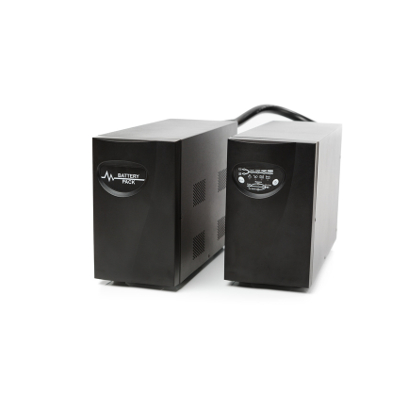
b2ap3_thumbnail_uninterrupted_power_supply_400.jpgWhen it comes to purchasing the best technology to protect your business, you should consider an Uninterruptible Power Supply (UPS) device. The reasoning is simple; they help your organization avoid data loss, and aid in business continuity. Here’s what you need to know about UPS devices.

What is an Uninterruptible Power Supply?
A UPS device is integral for any organization that prioritizes data redundancy and retainment. As explained by Wikipedia:

An uninterruptible power supply, also uninterruptible power source, UPS or battery/flywheel backup, is an electrical apparatus that provides emergency power to a load when the input power source, typically mains power, fails. A UPS differs from an auxiliary or emergency power system or standby generator in that it will provide near-instantaneous protection from input power interruptions, by supplying energy stored in batteries, supercapacitors, or flywheels. The on-battery runtime of most uninterruptible power sources is relatively short (only a few minutes) but sufficient to start a standby power source or properly shut down the protected equipment.

The easiest way to explain how a UPS works is by providing an example. What would happen if your business were to suddenly lose power due to an electrical storm, flood, or other natural disaster? With no electricity, your machines would forcibly be powered down and rendered inoperable until the power returns. Naturally, this isn’t ideal, but the primary problem that the UPS is designed to address is the loss of data due to workstations and servers not being shut down properly.

To prevent this, the UPS supplies the servers and workstations with enough power to properly save all files in use, and properly shut down the machines. The UPS then sends a message to the server indicating that it’s safe to turn off. Unexpected power outages can lead to data loss and even hardware failure, so a UPS is vital to ensuring the integrity of both your data systems and mission-critical hardware.

What Kind of UPS Should You Get?
Just like any piece of hardware that your business uses, UPS devices come in various models and different price tags. It’s best to consult a technology expert like those at NuTech Services before committing to purchasing new hardware of any kind. In general terms, though, you want a UPS that you can rely on to get the job done right. If you’re looking for a solution that simply offers a safe shutdown procedure on a desktop, it will be a much different kind of UPS than one designed for use by a mission-critical server. This is why it’s important to do your research and consult a professional before making a choice.

Having a data backup and disaster recovery plan is a critical part of ensuring that your business can continue in the face of hardships of all kinds. This includes having a proper data backup solution, which takes regular snapshots of your business’s data, and sends them to a secure off-site data center and the cloud for redundancy. You also need a way to rapidly deploy your backups in a moment’s notice.

NuTech Services has all of the tools your business needs to ensure data redundancy and mitigate the losses suffered by unexpected power outages and hardware failures. To learn more about how we can improve the way you do business, give NuTech Services a call at 810.230.9455.

b2ap3_thumbnail_these_old_pcs_400.jpg

3 Billion Users May Have Good Reason to Avoid Upgrading Their Old PCs

b2ap3_thumbnail_these_old_pcs_400.jpgAny user of technology knows the frustration of periodically replacing it with better and more recent technology. In fact, the latest gadgets seem to be outdated just months after they’re released. Many people believe that this unprecedented growth in the technology industry could lead to a decrease in PC sales, but it also means that devices are growing more reliable.

According to a study from Intel, there are over a billion PCs in the world that are three years old or older, with around half of those being up to four or five years old. Those who enjoy the latest and greatest technology understand this dilemma. In just a year or two, these PCs could be rendered obsolete by breakthroughs in computing technology. However, thanks to the increased longevity of technology, this is no longer a problem. Many PCs from the last five years are capable of handling a lot more than those from ten years ago, but most importantly, recent PCs are displaying significantly more reliability, which leads users to forsake purchasing new technology in favor of keeping their older devices. You know what they say, “If it ain’t broke, don’t fix it.”

Another problem facing the commercial PC industry is that technological growth has slowed significantly in recent years. Though there’s still progress being made, it’s not coming as rapidly as it was in previous years. However, as previously mentioned, the need for new technology is dwindling, as technology grows more reliable and doesn’t need to be replaced as often. As reported by ZDNet:

Sure, on paper it’s going to be advertised as being faster, and benchmark tests will support this, but in the real world – assuming that the old one isn’t all kludged up and ailing – you’re just not going to see much difference. Sure, there might be a slightly faster boot up time, or it might be a little snappier, but most of the gains that new PC owners see are nothing more than confirmation bias. Sure, if you go to the performance end of the scale then things are different, but you average home or office PC spends most of their time running a web browser or a word processor application. A three-year-old PC can do that without breaking a sweat.

Basically, users will generally replace their PC with a new one that can perform, more or less, the exact same function, only better. When people have to do this, they think that it’s not worth the investment, since they get the same function without the up-front expenses. This makes sense from an owner’s point of view, since there’s no reason to replace a perfectly fine piece of technology. Doing so can easily break a budget if it’s not planned out properly beforehand. Furthermore, legacy applications are an issue, especially if you haven’t upgraded your technology since you first opened your doors for business. Upgrading without the necessary precautions could prevent your staff from accessing critical hardware and software systems required for operations.

Often times, issues with a slow computer or sluggish performance don’t necessarily facilitate the purchasing of new technology. The root of the problem could be just a single component of your workstation, like a failing hard drive or a bad stick of RAM. Addressing these issues is often much more budget-friendly than completely replacing an entire workstation, so make sure to check for these possibilities before going all-in. If there’s nothing wrong with your hardware, the problem could even extend to a software issue, like a need for routine maintenance or driver updates. It’s best to have a trained technician on-hand who can diagnose these problems for you.

Even if your organization’s current technology is fine, we’ll always advocate for organizations like yours to take full advantage of the latest technology solutions. Doing so can provide a competitive advantage for your business. In today’s business world, you need all of the help you can get, and NuTech Services is more than willing to help you surpass other Michigan businesses.

If anything, the fact that PCs aren’t getting replaced as often means that your workstations will need more attention in order to continue functioning properly. Outsourcing this responsibility to NuTech Services is your best shot at doing so. To get started, all you have to do is call us at 810.230.9455.

b2ap3_thumbnail_d_d_o_s_400.jpg

Tip of the Week: Spot a DDoS Attack Before it Takes Down Your Network

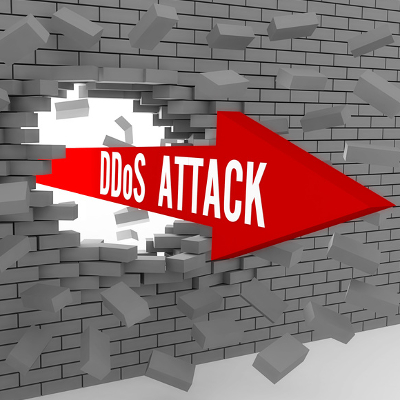
b2ap3_thumbnail_d_d_o_s_400.jpgDirect denial of service attacks are a major problem for businesses. On one hand, they’re difficult to prevent entirely, incredibly annoying, and costly. Hackers are realizing just how annoying DDoS attacks can be, and are capitalizing on them in order to both make a quick buck, and to take jabs at organizations that aren’t necessarily doing anything wrong.

When a business is targeted by a distributed denial of service (DDoS) attack, their servers are overloaded with traffic and brought down by the sheer amount of activity, usually performed by botnets (compromised computer hordes). This is a massive inconvenience for both end users and the business owner. Your workers lose access to critical files and applications, which becomes a cause for expensive and dangerous downtime.

One of the most frightening things about DDoS attacks is that practically anyone can truly pull one off. There have been stories about lone wolf hackers and random kids pulling off DDoS attacks under the right circumstances.

DDoS attacks are designed to cause massive headaches and downtime, but you don’t have to live in fear of them. Here are two ways you can make the next DDoS attack you experience less painful.

Understand Your Network
Before assuming that you’ve been the target of a DDoS attack, you should first familiarize yourself with the normal quality of your network. By doing so, you’ll more easily be able to detect any strange occurrences that may be causes for concern. If it’s business as usual, you have little to fear.

Keep in mind that while this is helpful for DDoS attacks, it can be a good first step toward diagnosing many common issues with your network. If something feels out of place, chances are that there’s something going on behind the scenes. A quality IT technician can help you further correct problems associated with your network.

Be Ready
While DDoS attacks are seemingly unpredictable, this doesn’t mean that you shouldn’t be prepared for them. You should start by identifying what your critical systems are, and take measures to ensure their operation continues, even in the face of the worst circumstances. Are there any services that can be hosted off-site? While it helps to have all of your services hosted in-house, your server will likely be the target of a DDoS attack; therefore, it makes sense to host your critical business systems elsewhere, like in a secure, off-site cloud solution. Although you run the risk of the data center getting hit by a DDoS attack, most data centers have the resources and safeguards to reduce downtime caused by them.

 Regardless of the business type, you should never dismiss downtime as an acceptable issue, and you should always do whatever you can to mitigate your losses. Contacting IT professionals like those at NuTech Services can go a long way toward limiting downtime caused by all types of threats, including DDoS attacks.

For more information about how you can fight against DDoS attacks, give NuTech Services a call at 810.230.9455.

b2ap3_thumbnail_new_gadgets_of_2016_400.jpg

3 New Gadgets That Will Spice Up the Office in 2016 [VIDEO]

b2ap3_thumbnail_new_gadgets_of_2016_400.jpgTechnology is a staple in the modern office, but with thousands of new devices manufactured each year, it can be difficult to identify what will help your business, and what will ultimately hold it back. While some new gadgets hit the market and fail miserably, others become phenomenal successes. Here are three pieces of upcoming 2016 technology that we believe will help you get the most out of your workday in the near future.

Zcan Mouses
Do you remember the flat-bed scanners that once dominated offices all over the country? You might even still have one sitting inside a closet somewhere, waiting to find purpose in life once more. Or, instead, you might just opt to try out the Zcan mouse, which functions as a two-in-one scanner and mouse. Basically, the Zcan is an ordinary mouse setup, but it comes equipped with scanning capabilities that allow users to capture pictures, documents, notes, and whatever else you might need to scan, and save it locally or share through social media. The Zcan mouse has built-in Evernote integration, so users can keep themselves organized.

Zcan’s latest product, which you can see on display in the above video, is a wireless version of their scanner mouse. This product is great for allowing users to scan on the move, which makes it very valuable for getting work done on the road. The Zcan is currently obtaining funds via Indiegogo, but if you want to learn more about it before it’s released, you can view all you need to know on this website.

Slide N’Joy
How many times have you been disheartened by your laptop’s lack of screen space? If you’re using a typical workstation, it’s likely that you have multiple monitors that you use to get things done. The laptop, unless you feel like lugging around an entirely separate monitor, doesn’t have this luxury. This is why the Slide N’ Joy was created. The Belgium-based Slide N’ Joy was developed with the laptop user in mind, allowing them to immediately achieve more desktop screen space to be productive with. The company is currently active on Kickstarter to gather funding.

The display uses two magnetically-attached screens that connect to your laptop, tripling the amount of display space on your screen. Each is connected with an aluminum hinge, allowing you to share information with others you’re working with, or display them toward yourself for a more private feel. This idea could be a great investment, especially if you’re worried about not having enough space to conduct meetings or work on projects while out and about.

Swiftpoint GThttps://youtu.be/MY6weQACgm4
Mouse technology has continuously evolved to suit the needs of the computer it’s attached to. With more devices than ever before taking advantage of touch screens, the mouse needs a way to communicate with these devices. While using a touch screen has its uses, performing quality work on a mobile device presents new challanges. This is why the Swiftpoint GT is so valuable. It’s a wireless mouse that mimics the controls of a touch screen, making navigating a tablet much easier.

Swiftpoint GT uses two different modes. There’s the traditional point-and-click mode that’s used by your typical mouse, but the other mode allows for use similar to your typical mobile OS. It integrates touchscreen features like zooming and application switching. The mouse is connected via Bluetooth or a USB connection that can be used to charge the mouse. Each 30 second charge is good for an hour of use. In a world dominated by touchscreens, Swiftpoint GT delivers a solution for the mobile professional. Visit their campaign on Kickstarter for more information.

What are some of your favorite new 2016 technologies that you look forward to using? Let us know in the comments.

b2ap3_thumbnail_business_continuity_400.jpg

Business Continuity: Prepare For the Worst and Hope For the Best

b2ap3_thumbnail_business_continuity_400.jpgThere are few things more important than the continuity of your business. Your livelihood, and that of your employees, depends on the continued functionality of your organization. Therefore, it becomes necessary to do all that you can to ensure your business is protected from an unexpected downfall, due to data loss, natural disasters, and other means.

Business continuity, despite the fact that it’s hugely important, can often be neglected due to more pressing matters. For example, dealing with small issues that pop up periodically might feel more important than worrying about a huge data loss disaster. In cases like this, it’s always best to be prepared. You should approach business continuity from the viewpoint of Murphy’s Law: “Anything that can go wrong, will go wrong.” Your organization should be prepared to handle anything and everything that the universe throws at it.

Natural Disasters
We all know that floods, fires, and electrical storms are often beyond the control of human action. A freak tornado could strike and level your office at any time, or a bad storm could topple power lines and the impending power outage could cause damage to your technology. A natural disaster doesn’t have to destroy your office; all it has to do is cause enough damage to make getting back to normal operations difficult. This is the most common problem stemming from natural disasters.

You can reduce the pain of this by integrating some relatively common technology solutions, like an uninterruptible power supply (UPS). If your IT infrastructure is suddenly cut off from electricity, the UPS will send a signal to the server, telling it to shut down normally once all work and applications are properly finished and closed.

Succession Planning
This is perhaps the most neglected part of planning for business continuity. Many organizations have important staff members that have been around for what seems like forever, but it won’t always be this way. Making sure that critical personnel remain at the company can seem daunting, especially if you’ve never given a thought to what would happen if they left. When we say “leave,” we usually mean one of three things: 1) The employee quits, 2) The employee is severely ill and away from the office for an extended period of time, and 3) The employee dies.

We don’t want to sound morbid, but again, you should always prepare for the case when important people aren’t available anymore. Establishing a policy for succession beforehand can help to ensure that your organization is prepared for anything. Even something as simple as cross training can contribute to this goal.

Data Loss and Disaster Recovery
Data loss is a primary reason a business fails to continue operations, and as such, making sure that it’s mitigated is a primary function of any good business continuity plan. Organizations that fail to restore their data following a data loss disaster are likely to go out of business within a year, so you know that data loss is no joke.

Thankfully, it’s easy to integrate data backup with help from professionals like NuTech Services. Our data backup and disaster recovery service is designed to help small and medium-sized businesses avoid data loss and get back in the game as quickly as possible, following a data loss incident. Your data backups will be sent to secure, off-site data centers, where they can be quickly recovered in the event of a disaster. The BDR can temporarily act like a server to help your business continue functioning, even while you’re searching for new technology to replace the downed server.

Some folks might think we’re being paranoid, but honestly, preparing for the worst only means that you can move forward with confidence, knowing that even the worst possible circumstances can’t take your business down. If you’re ready to embrace business continuity, give NuTech Services a call at 810.230.9455.

b2ap3_thumbnail_on_off_400.jpg

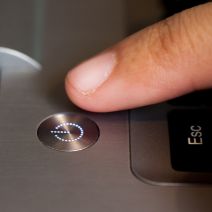
Tip of the Week: Should You Leave Your PC On, or Power it Down?

b2ap3_thumbnail_on_off_400.jpgAt the end of the workday, you’ve got an important decision to make: power down your desktop or log off? Each option has its own set of pros and cons, but are you confident that you’re making the right decision? Here’s how to find out for sure.

First off, the answer to this question is dependent upon how frequently the machine is used. For the sake of this blog article, let’s address the computing needs of the average office worker who uses their PC for the Monday through Friday, 9-to-5 grind.

Secondly, we feel the need to address a common perception about turning a computer on and off: it does NOT cause physical harm to the equipment. This was the case in the early days of the PC, back when the power surge from powering it on was actually bad for the components, but this issue has been resolved since 1993.

Another factor to consider is power consumption. If you’re the kind of person that likes to make sure every light is turned off before going home and you pride yourself in finding ways to lower your electricity bill, then you may want to power down your machine for the night. Although, if you’re looking to leave it on in order to get a jump start on your workday, then put your PC in sleep mode (aka, Standby or Hibernate) before leaving the office, instead of turning it off. Sleep mode is designed to use as little energy as possible, which equates to less than what’s used by a traditional light bulb.

Your geographical location should also factor into this decision. For example, if you live in a place that’s prone to natural disasters and the power grid sporadically blackouts, then you’re going to want to power off your machine at the end of the work day. Unless your IT infrastructure is equipped to handle power inconsistencies with tools like an Uninterrupted Power Supply, a powered-on computer can be damaged by a sudden loss of power.

Also, as explained by Computer Hope, while turning off a PC can protect from a sudden loss of power, turning it off does nothing to prevent damage from a power surge:

A power surge destroys electrical devices regardless if it is on or off. Therefore, turning the computer off does not prevent this from occurring. The only way to prevent power surges is to unplug all power cables, phone cables, and network cables.

Another factor that you’ll want to consider is your computer’s maintenance schedule. For example, it’s best practice to run a daily virus scan at night so that the scan doesn’t interfere with your work during the day. Also, if you’re taking advantage of managed IT services like what NuTech Services provides, then you’ll want to leave your desktop powered on so that we can remote into it (or all of them) and run scans, apply patches and updates, and more. If the machine is powered down, then we won’t be able to access it and do our job.

After considering all of these different factors, only you can know if it’s best to turn off your PC at the end of the day, or keep it on. Whatever you decide, NuTech Services is here to support your decision, along with your company’s IT infrastructure. This is one service that you’ll never want to turn off.

b2ap3_thumbnail_virtualization_security_400.jpg

Can a Virtual Infrastructure Be Enough to Guarantee Data Security?

b2ap3_thumbnail_virtualization_security_400.jpgEvery business needs technology in order to function. Yet, if a company’s IT network is overly complicated, then technology will hinder operations, not help it. Enter virtualization, offering business owners a way to simplify their IT infrastructure, as well as make it more secure.

Even though virtualization has been utilized by enterprises for many years, it might not be a solution that everyone’s familiar with. In fact, you might be surprised to learn that, according to a recent report from Cisco, 77 percent of small and medium-sized businesses are using some kind of virtualization, be it for storage, server hosting, or desktop infrastructure.

What exactly is virtualization? Here’s a helpful definition from Gartner:

[…] the abstraction of IT resources that masks the physical nature and boundaries of those resources from resource users. An IT resource can be a server, a client, storage, networks, applications or OSs. Essentially, any IT building block can potentially be abstracted from resource users.

One example of virtualization would be a network that’s hosted in an off-site data center. Companies that take advantage of hosted networks like this don’t have to host this technology in-house. This approach streamlines operations. Additionally, with virtualization, adding new users is as easy as setting up a new account, instead of having to run new cables and upgrade equipment.

Peace of mind is another advantage of virtualization. For example, if your company’s physical location were to be hit with a disaster, like a fire, flood, earthquake, etc., then any virtualized data that’s hosted off-site would be safe and sound. In addition to virtualization safeguarding your data from natural disasters, it protects your data from man-made disasters, like hardware failure and hacking attacks. Although, we feel the need to point out that a virtualized network isn’t impenetrable to hacking, so you’ll still want to utilize a firewall, antivirus, and spam blocking security solution.

So far, we’ve mentioned how virtualization provides companies with simplicity and security, yet we’ve failed to mention the benefit that will appeal to every business owner–cost savings! One outcome of virtualizing your network is not having to pay for the electricity it takes to run servers or pay for those pesky maintenance issues. This literally puts money back into your company’s operating budget.

Is your business taking advantage of virtualization? If not, would you like to? To learn more about the many benefits of having a virtualized network and what it takes for your company to fully utilize this technology, call us today at 810.230.9455.

b2ap3_thumbnail_guest_account_400.jpg

Tip of the Week: How to Let a Friend Use Your PC Without Compromising Your Data

b2ap3_thumbnail_guest_account_400.jpgWe’ve all been in a situation where you’re asked by someone if they can use your personal computer for whatever reason; checking their social media, email, or just browsing the Internet. Some people, however, also want to protect their privacy, and allowing relatives to use your own account can become problematic. A quality solution to this issue is to create a guest account.

Keep in mind, you shouldn’t do this with your company workstation, and if you administrate your own network, you should restrict your staff from creating new accounts to prevent security issues.

Why would you want to set up a guest account? Here are three reasons:

  • Guest accounts allow others to use your PC while preventing them from browsing password-protected files, like those stored on your own personal user account.
  • Using guest accounts, users won’t accidentally stumble upon your logged-in accounts and email, which could give even those with the best intentions the urge to take a peek.
  • Guest accounts don’t have access to the administrator privileges that you would as the owner of the PC. Guest users can’t install software, configure hardware devices, or change settings. They can still use the Internet and other applications that are already installed, giving them the best experience possible without risking any breach of privacy.

Without further ado, here’s how you can set up a guest account on Windows 7, Windows 8.1, and Windows 10.

Windows 7
Setting up a guest account in Windows 7 is simple enough. First, navigate to your Control Panel. Next, select User Accounts. Go to Add or remove user accounts. You’ll then be prompted to alter an existing account. If the Guest account isn’t already turned on, it will appear in your available accounts. Click it, and select Turn On.

Once the guest account has been turned on, you’ll be able to access it from your PC’s login screen. Anyone can now access the PC, and they won’t be able to access any of your personal files or information. You should keep in mind that any browsing history or logged-in websites will be available to future guests, as well, so be sure to tell your guests to log out of their accounts before logging off.

Windows 8/8.1
The process is largely the same as it is for Windows 7, if not a bit easier. While you could find the guest account feature in the same way as you did with Windows 7, try typing “guest account” into the search bar instead. Make sure you’re only searching Settings. You should see an option titled Turn guest account on or off in the results. Click on the Guest account, and select Turn On. It’s as simple as that.

Windows 10
For Windows 10, it gets a little trickier. Rather than accessing your guest user options through the Control Panel, you have a couple of options, though the easiest way to do so is to just do it through the Windows Command Prompt. Type CMD in the search bar to find the Command Prompt, and make sure that you right click it and select Run as administrator. You’ll then see the command prompt open on your screen. Type the following command, and hit Enter: net user guest /active:yes

After that, a message should display saying that “The command completed successfully.” That’s all there is to it. Keep in mind that you should always turn the Guest account on as needed rather than leaving it on continuously. Since the Guest account still has access to the network, you could become susceptible to passive threats.

For more great tech tips, be sure to check back next week, and subscribe to NuTech Services’s blog.