new_petya_friend_400.jpg

For This Ransomware, “Yes or No” Really Means “Yes or Yes”

new_petya_friend_400.jpg

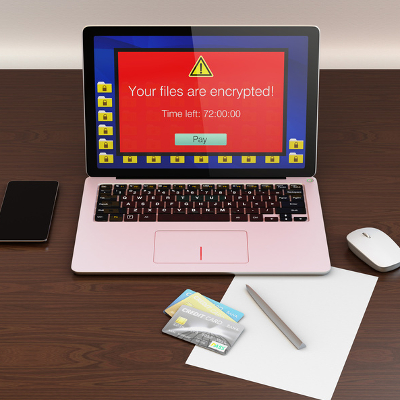
The ransomware Petya (previously thought to have been eradicated) has unfortunately resurfaced, and it’s brought a friend to the party. Petya was delivered via an email containing an invitation to apply for a job, including the virus in an executable file that was disguised as a PDF job resume. When a hepless user clicked the file, Petya would get to work.

The original version of the ransomware operated by restricting access to the master boot record, allowing access only to a dark web payment portal that may (or may not) fix the problem. Since Petya required administrative privileges to do so, a savvy user could render it useless by denying them. Unfortunately, its developers have come up with an unpleasant way to work around this Achilles heel.

The malware now comes bundled together with a second ransomware program, a more traditionally operating one known as Mischa. Mischa blocks access to files until the user pays a ransom, providing the user with links to TOR payment sites and authentication codes to utilize there as well. The kicker is, Mischa also encrypts executable files, leaving the Windows folder and browser folders untouched. Once the computer has been sufficiently infected, Mischa leaves two files for the user with their payment instructions.

Just as when Petya was originally distributed, an email is delivered containing a file appearing to be a job application, which would ask to run an .exe file. Selecting “yes” will download Petya, and selecting “no” used to foil the attack. Not anymore – now selecting “no” will install Mischa.

The payment site for Mischa works in a very similar manner to Petya’s. After inputting the authentication code, the user is ordered to purchase enough Bitcoins to pay the ransom, currently set to the general equivalence of $875. The user is then provided with the Bitcoin address where they are to send the ransom.

Unlike Petya, there is no known way to recover files affected by Mischa without paying the Bitcoin ransom, but there are tools available online to remove the virus.

However, also to be found online are the rumblings of upcoming copycats of Petya and Mischa. Malwarebytes.com posted a threat analysis of another dual-horned ransomware called Satana. Just like the Petya and Mischa bundle, Satana has the capability to lock the master boot record and the complete file record. The main difference is, while Petya and Mischa would only run one of the two malware options depending on the user’s actions, Satana goes right ahead and runs both, sequentially.

While Malwarebytes reports that Satana is currently flawed and appears to still be in the early stages of development, this news is still unsettling. Imagine how frustrating it would be to have no fighting chance after downloading a virus – and now consider that we could be approaching that point.

However, we will continue to monitor the situation and keep you in the loop with any updates that arise. Keep visiting the NuTech Services blog to check in for the latest news and security updates.

useful_windows_10_tips_400.jpg

Tip of the Week: 4 Windows 10 Tips You’ll Use Again and Again

useful_windows_10_tips_400.jpg

It’s been almost one year since the release of Windows 10. Are you taking advantage of everything Windows 10 offers? Here are four of the best Windows 10 features that you’ll want to start using right away.

Virtual Desktops
If you’ve never used a virtual desktop before (not to be confused with desktop virtualization), it’s a feature that allows you to open up multiple desktops that can be used for different things. This is ideal if you want to organize and spread out the way that you use your apps and windows, and helps to keep your main desktop free from the clutter. To open a new virtual desktop, click the Task View icon next to the Cortana search bar. Select the New desktop feature on the right corner of the screen. Then, if you’d like to move an open app to a different virtual desktop, it’s only a matter of clicking and dragging it to where you’d like the window to be.

Advanced Screenshots
Windows 10 lets you take screenshots in a quick and easy way. To do so, just hold down the Windows key + Prt Scn. This captures your entire screen, and will place the file in a Screenshots folder. Or, alternatively, you can press Alt + Prt Scn to copy the screenshot to your clipboard, and then paste it into your preferred image editor. Another great way to edit your screenshot is to use Windows 10’s built-in Snipping Tool to customize it.

We’d also like to add that communicating with tech support is made much easier by using screenshots of your specific trouble. A visual representation helps technicians figure out the exact problem, and take steps toward resolving it.

Record Your Screen
Windows 10’s latest Xbox app allows users to record their desktop screens, which can be useful if you want to put together a quick tutorial or record a task being completed for future reference. To get started, launch the Xbox app, then press Windows + G while you’re in the app that you want to record. You’ll be shown a message that says, “Do you want to open the Game bar?” Check the “Yes, this is a game,” option, and click the record button. Even if it’s not a game, you’ll be able to record something quickly and easily.

Battery Saver Mode
On Windows 10 mobile devices, you can customize how the battery saver mode works. Specifically, you can control when it turns on. Normally, the battery saver mode will kick on around 20 percent, but you can change it to suit your preference. All you have to do is go through Settings > System > Battery saver.

Of course, if you can’t take advantage of these tips because you don’t have Windows 10, it’s not too late to claim your free version of Windows 10 from Microsoft. Just a few days from now (July 29, 2016) you’ll be unable to get it for free. Of course, before doing so, you’ll still want to consider the pains of the migration process. If you don’t do your research, your business could suffer from unexpected downtime and incompatibility with legacy applications.

Now that you know of these four tips, how will you use Windows 10? Let us know in the comments, and be sure to subscribe to our blog for more great tips and tricks.

android_malware_400.jpg

Alert: New Malware Can Download 200 Malicious Apps in a Few Short Hours

android_malware_400.jpg

You don’t often hear about mobile operating systems being vulnerable to security threats (desktop vulnerabilities usually hog the spotlight), but when you do, they’re usually major problems that you need to be aware of. One such threat is called “Hummer,” a trojan that has installed unwanted apps and malware to more than a million phones all over the world.

About the Hummer Malware Family
The Hummer family of malware has increased in reach and scope since earlier this year. Cheetah Mobile reports that, at its peak, Hummer infected as many as 1.4 million devices daily. Thought to originate in China, Hummer infected over 63,000 devices daily in China alone. While the number of infections has begun to drop off, there still remain an astounding number of infected devices: about 1,190,000.

As reported by TechRepublic, here are the top five countries that are infected by the Hummer malware family:

  • India: 154,248
  • Indonesia: 92,889
  • Turkey: 63,906
  • China: 63,285
  • Mexico: 59,192

What It Does
The Hummer trojan roots the device that it infects, effectively unlocking the operating system and allowing for administrator privileges. Once it has done this, it begins to install malware and unwanted applications, games, pornographic applications, and other dangerous, if not annoying, programs. Since the Hummer trojan gains root access, traditional antivirus and other preventative measures aren’t capable of eliminating it from your device.

Perhaps the most annoying part of this malware is the fact that you can’t even uninstall the unwanted apps. The trojan will reinstall them continuously, which is both frustrating and cause for concern. Cheetah Mobile ran a test on the Hummer trojan and came to some shocking results: “In several hours, the trojan accessed the network over 10,000 times and downloaded over 200 APKs, consuming 2 GB of network traffic.” In other words, you can bet that you don’t want this trojan installed on your device.

How to Fix It
If you think that wiping your device will get rid of the trojan, think again. Cheetah Mobile claims that even a factory reset won’t remove it from your device. However, Cheetah Mobile’s Killer app is capable of removing the trojan. Alternatively, users can flash their device, but this is a complicated procedure that may not be worth the effort.

Hummer is just one of the many mobile threats out there that users of smartphones and other devices need to worry about. To learn more about how you can secure your organization’s mobile devices from Hummer and other threats, reach out to us at 810.230.9455.

ancient_greek_computer_400.jpg

Ancient Greek Computer in Serious Need of Firmware Update

ancient_greek_computer_400.jpg

When you picture an old computer, do you see a giant machine that takes up an entire room? These days, people might consider even something like a CRT monitor and a device running Windows XP to be ancient. Yet, the oldest “computer” in the world may actually be a bronze contraption found off the coast of Greece; the Antikythera mechanism, which was used to predict and track astronomical events, like the movement of the planets and occurrence of eclipses.

The Antikythera mechanism was supposedly discovered around the turn of the 20th century. Sponge divers off the coast of Antikythera, a Greek island, found it submerged in 45 meters of water, buried with other treasures, including pottery, statues, and coins. The antique device was originally dated at around 60 BC to 200 BC, but recent studies suggest a more specific timeline that places the device closer to 125 BC.

At first, the device seemed to be nothing but an old pile of bronze and wood. A closer inspection revealed that the mechanism was something quite extraordinary for its time. The Antikythera mechanism consists of bronze gears, and was designed to predict astronomical cycles. While the device was originally discovered in one heap, it was later split into three sections for study. Those who have tried to recreate it believe that, in its prime, the Antikythera mechanism consisted of up to 30 bronze gears that functioned like clockwork.

Click here to view a photo gallery of the Antikythera mechanism on display.

Today, the Antikythera mechanism is in 82 different pieces, each of which are being studied. In particular, the text carved into them is of interest, but highly unreadable. There are inscriptions on the gears that are so small, the human eye can’t make out what it says. Thousands of years have eaten away at it, so researchers had to use x-ray and visualization technologies in order to decipher the meaning.

At first, the Antikythera mechanism was thought to be purely scientific, but recent findings have found that it may have had a more astrological use. It’s been found that the Ancient Greeks would try to predict the colors of eclipses, which had an existential meaning for how the Greeks viewed the world around them. We can consider the Antikythera mechanism as an object that they designed to understand how the world around them worked. The device is currently on display in the National Archaeological Museum of Athens, where it continues to be studied.

Who knew that something so advanced existed some two-thousand years ago? It makes you wonder what other civilizations came up with. We may be credited as the most technologically advanced civilization known to man, but take a moment to consider the fact that the Antikythera mechanism was advanced and high-tech for its time. In fact, this type of astronomical clock was hundreds of years ahead of its time, and the knowledge of how to build such a machine would eventually be lost until the 14th century. So, what other lost technologies are out there, waiting for us to discover them?

This may not have much to do with business, but we thought we’d share this interesting development with you. After all, as tech geeks ourselves, we love learning about old technologies that have come and gone. Did you like this article? If so, subscribe to our blog for more technology news, tips, and tricks.

multiple_file_storage_400.jpg

Tip of the Week: 5 Easy Ways to Move Several Files at Once

multiple_file_storage_400.jpg

File storage is a staple in the office, and chances are that even your work desktop is jam-packed with files and folders that could use a bit of sorting. This might include moving all of your files to different locations, but you don’t have to move each one individually. We’ll go over the many different ways that you can move files, many of which can save you considerable time and effort.

Click and Drag
If your files are located in one location, like your desktop, you can simply click and drag your mouse to display an area-of-effect box. Any files within this box will be selected. You can then drag any individual file to the desired location and you’ll move all selected files there. This is helpful if you have several files jumbled together on your desktop, and you want to move them all in one go.

Select the Checkboxes
In Windows 10, a little checkbox will appear when you hover over a file on the desktop or within a folder. If your files are scattered all over your desktop, you can simply check each of the boxes for the files that you want to move, then drag and drop any of them into the folder where you want them to be located. This will move every single item you checked to the designated location, saving you considerable time and effort.

Click and Shift
You can easily select files that are stored horizontally and adjacent to each other by using the Click and Shift method. First, select the first file that you want to move. Then, hold down the Shift key, and select the last one that you want to move. Anything stored in between the two will be selected. After that, it’s just a matter of dragging one of them to the desired folder or location.

Hold Ctrl
If you hold down the Ctrl key, you can click on files that you want to move, and they’ll be selected. Then, all you have to do is move your files to the appropriate folder.

Select Them All
If you decide that you really need to clean up your desktop, or move all of your files to a new location, you can use the Select All keyboard shortcut to do so. It’s the same as it is in any word processor: Ctrl + A. You’ll see all of your files in the current window, or your desktop, selected. Just drag them where you want and you’re all set.

Keep in mind that many of the same keyboard shortcuts will also work with Mac OS X as well. Just substitute the Command key for the Ctrl key and many of them will provide the same experience.

Fun Fact: You know how Windows is bundled with Solitaire? No, we aren’t assuming that you are playing it at work. Microsoft decided to bundle their OS with Solitaire as a way to get users more accustomed to dragging and double-clicking objects with their mouse.

For more great tips, reach out to NuTech Services at 810.230.9455; or, subscribe to our blog to receive new tricks straight to your email inbox.

badtunnel_vulnerability_400.jpg

Newly Discovered Vulnerability Gives Reason to Worry for Every Windows User

badtunnel_vulnerability_400.jpg

A vulnerability has been discovered that affects all versions of Microsoft’s Windows operating system, including the long-unsupported Windows XP, going all the way back to Windows 95. The vulnerability, called BadTunnel, allows attackers to directly bypass system defenses and initiate a man-in-the-middle attack. The vulnerability isn’t limited to just Windows, either; it also affects Internet Explorer, Edge, and other Microsoft software.

This vulnerability is largely being called “probably the widest impact in the history of Windows,” making it quite a big deal indeed. Yang Yu, a security researcher at Tencent’s Xuanwu Lab, is the one responsible for finding the bug, and his actions in doing so were rewarded handsomely; he’s one of the few who have managed to earn more than $100,000 through Microsoft’s “bug bounty” program, and the discovery of BadTunnel netted him a modest $50,000.

Forbes reports: “This vulnerability can be exploited through Edge, Internet Explorer, Microsoft Office and many other third-party software on Windows. It can also be exploited through web servers … or even through thumb drives – insert the thumb drive into one of the ports on the system and the exploitation is complete.”

Perhaps the most disconcerting thing about this vulnerability is that it’s left Windows PCs vulnerable to attacks for the past 20 years. A successful exploit of the flaw can spoof connections over NetBIOS that allows computers to communicate with one another over a local area network. Essentially, the hacker could route traffic on a user’s Windows PC to their own. Forbes explains further: “Not only could the hacker spy on non-encrypted traffic, they could intercept and tamper with Windows Update downloads. And they could inject further attacks in web pages visited by the victim. For instance, they could ensure that the “tunnel” between the target and the hacker would remain open by inserting code into web pages cached by the browser.”

But, fear not – a patch for BadTunnel was issued in Microsoft’s June 14th Patch Tuesday. However, not all businesses automatically deploy patches and updates, so communicate with your IT department to ensure that your business is protected from BadTunnel. If you ignore this vulnerability, there’s a chance that your Windows PCs could be monitored and controlled remotely by malicious entities. You can view the official Microsoft security bulletin here.

Yu believes this vulnerability to be the first of its kind, and it’s understood that Windows users should update as soon as possible. Yet, some users, like those who have Windows XP (still), will be out of luck. In these circumstances, researchers have recommended disabling NetBIOS over TCP/IP. However, it might just be easier, and more secure, to just upgrade to a supported operating system. Whatever you decide to do, NuTech Services has your back.

Yu plans to discuss the finer details of BadTunnel later this month at the 2016 BlackHat Conference in Las Vegas, July 30th through August 4th.

For more technology news and security tips, reach out to NuTech Services at 810.230.9455.

enterprise_level_mobility_solutions_for_business_400.jpg

How Your Business Can Take Advantage of These 4 Mobility Trends

enterprise_level_mobility_solutions_for_business_400.jpg

In a world where mobility is king, it can be challenging at best to implement new solutions without first taking into account how they can affect your business’s mobility. Especially with the cloud gaining ground, companies have their eyes on mobility and the requisite security, hoping to achieve greater flexibility and profitability by doing so.

The following are mobility trends that have made themselves prevalent throughout the enterprise world. By analyzing them and comparing them to your own organization, you might be able to save yourself some trouble in the future by keeping them in mind when implementing new solutions.

  • Security is a priority: It doesn’t matter what type of devices your business uses, or how you access data. Security is always going to be a top concern, especially for mobile devices that are often connecting to unsecured Wi-Fi networks. Using what’s known as a virtual private network, as well as monitoring access to critical data, can be great ways to limit your company’s exposure to threats while mobile.
  • More focus on the cloud: The cloud allows data and applications to be available from anywhere with an Internet connection via a web browser, improving business mobility and agility. The cloud can allow your business to collaborate and communicate no matter where you or your team are, allowing for unprecedented convenience.
  • The convergence of desktop and mobile: We see more of this every day with Windows 10, an operating system that Microsoft is attempting to implement for all devices in some way, shape, or form. The idea is to make apps and operating systems that work across devices, so as to increase user productivity and flexibility. Think about it; are you more likely to get work done with a watered-down version of an app on a mobile device, or with a full version that contains all of the features you would find on the desktop application?
  • Regulation and oversight are needed: Data control is a must for any organization that wants to use mobile devices to their benefit. You need to make sure that your team can be held accountable for not just their actions, but also for what they do with your data. You should be able to see when files are accessed, and by whom. It’s important that you implement measures that restrict the flow of data as much as possible, so as not to expose sensitive information to those who have no business viewing it.

With so much to think about, how does your business implement mobile technology? If you’re ever concerned with adding new devices or setting up security policies for smartphones, tablets, laptops, or other mobile technology, reach out to NuTech Services at 810.230.9455. We offer several solutions, such as mobile device management, which can help your team best leverage their mobile devices, without putting your organization’s sensitive data at risk.

shooting_trouble_troubleshooting_400.jpg

Tip of the Week: 6 Truths to Guide Your PC Troubleshooting Efforts

shooting_trouble_troubleshooting_400.jpg

We’ve all ran into problems that weren’t easily solvable, even by technically-proficient people. In fact, it’s often the case that simple problems can be escalated far beyond where they deserve to be. Sometimes all it takes is a little outside perspective, and some out-of-the-box thinking, to fix an issue.

The next time you run into a seemingly unsolvable problem, try out these six troubleshooting tips and see how you fare.

  • Keep it simple: In some cases, the most difficult problems can be solved by doing something simple. You could try resetting the hardware or application, checking to see if the machine is plugged in, and if all else fails, try shutting the machine down completely, and rebooting it. There’s no point in going through a ton of work, if the problem can easily be resolved by a reboot.
  • Trust only your own word: Have you ever tried to fix something, but you couldn’t get anything done because someone else has already tried everything under the sun to resolve the issue? In situations like this, don’t listen to them; go with your gut, as they could be troubleshooting the issue the wrong way.
  • It’s probably the user’s fault: According to ZDNet, about 80 percent of problems are due to user errors. There’s an old adage: “problem exists between keyboard and chair.” Basically, the idea is that the end-user is to blame, so it’s important to admit that you may be at fault on occasion.
  • Try to replicate the issue: The easiest way to get to the bottom of a problem with your technology is to replicate the issue. Often times, knowing how a situation was created can offer valuable insight into how to resolve it. You can ask your end-users to show you what they did, and what the problem is.
  • Know when to fix or replace: Your IT budget should always be at the top of your mind, as unexpected and unnecessary hardware replacements could convolute your business for months. You should understand how much it will take to fix something, but only fix it if replacing the technology isn’t a better option. Remember, hardware refreshes are great ways to improve the quality of operations.
  • When all else fails, throw in the towel: If you can’t fix a problem, it’s important that you know when you should stop giving it a shot yourself. You can’t waste valuable time and resources digging deep into why your technology isn’t working, especially when you have a business to run. Instead, it’s more efficient to outsource the maintenance and management of your technology to a third-party managed service provider; one who specializes in caring for the technical requirements of small and medium-sized businesses.

For assistance with your business’s technology solutions, you can always reach out to NuTech Services. Our skilled technicians are trained in a myriad of related topics, and we can help your team get the support they need, when they need it. You’ll waste minimal time and your operations will soar. To learn more, give us a call at 810.230.9455.

microsoft_technology_as_a_service_400.jpg

Microsoft Moves to Get a Piece of the Technology as a Service Market Share

microsoft_technology_as_a_service_400.jpg

Microsoft has been looking to cover more ground in the business environment by offering a new Technology as a Service (TaaS) offering, which will allow small businesses to purchase Surface products, accessories, and support for their devices, all with a monthly payment plan. Also, when it comes time to upgrade, customers can easily make the switch, as per their lease agreement.

Microsoft’s TaaS agreement allows businesses to pay for their devices over 12, 24, or 36 months. As expected, prices will vary depending on the length of the payment plan, and the devices purchased. One of the most affordable offerings is a basic-model Surface 3 paid for over 30 months, while a more expensive payment plan would be for a Surface Book over 18 months.

A membership in this program has several perks, including support when you need it, either by phone or in-store, one-on-one personal training, and in-store discounts on hardware and software solutions.

Of course, with all great things, there’s always a catch. First off, this is a business-exclusive offering. In the General Terms section of the TaaS Program Benefits Summary, it’s stated that the service is for “Business Customers Only; No purchase for resale.” In other words, this service is for end-users only, and that it has the right to cancel orders if it suspects resale activity. It also must be mentioned that this service is limited to official Microsoft products only.

While this service might seem tempting, we want to remind you that you don’t necessarily have to turn to Microsoft, or other hardware or software giants, for this type of service. NuTech Services wants to help your business find the right devices for your specific needs. We want your business to have the technology it deserves, without the headaches and frustrations of lease terms, purchase options, and cancellation fees.

Working with NuTech Services provides a fruitful relationship with a local business, rather than leasing your equipment through a third-party juggernaut like Microsoft – the software company is using LiftForward, a marketplace loan platform, to finance its Surface Membership service. We’ll handle all of the details for you, so that you can stay focused on what matters most – running your business.

Ultimately, NuTech Services can offer your business both the latest and greatest in computing solutions, and a professional relationship that allows your business to get the most out of its technology. To learn more about what we can offer your business, reach out to us at 810.230.9455.

publishing_and_new_tech_400.jpg

The Internet Dramatically Changed the Publishing Industry. What About Your Field of Expertise?

publishing_and_new_tech_400.jpg

It’s well-known that publishers are a major component of an author sharing their work with the world, but recent innovations threaten to disrupt the status quo of the industry. Like many industries, the publishing industry has been changed significantly by the introduction of new technologies that afford writers more liberty when producing their work. What can the business owner learn from these changes?

Traditionally, and still today, the publishing industry relies on manuscripts that are submitted by authors for publication. Once a manuscript has been accepted, the publishing house will provide the personnel and services necessary to polish the work and turn it into something that can make them money. This typically includes editing for quality, designing the book, and marketing it to potential readers.

Unfortunately, the problem that many budding authors run into is the fact that it can take publishing houses several weeks, to several months, to read and accept (or reject) a manuscript. Plus, after waiting so long for an acquisition editor to read a manuscript, it might not even get approved. If it does get approved, the author still has to wait several months to hold their new publication in their hands.

Today’s authors can potentially avoid the headaches that stem from dealing with traditional publishing houses. Thanks to technology like the Internet, authors can now share their work through many different outlets. Social media websites, personal web hosting, online product review sites, and so much more, all allow people to share their work with like-minded individuals.

In particular, self-publishing has taken the brunt of abuse from traditional publishing houses. At first, it might seem to be because they perceive it as a threat, but more often than not, they are just bent out of shape by how “unprofessional” self-publishing looks. When an author goes through the self-publishing process, they’re in charge of editing the manuscript and preparing it for publication, rather than taking advantage of established professionals in the industry. The end result could vary from a polished masterpiece to a mistake-ridden manuscript that becomes a commercial failure.

This brings up an excellent point; if you can use a service to make your job easier, save time, and conserve capital, should you do so? It depends on the level of quality that you can expect. If you’d rather have the work done professionally, outsourcing the service is always an option. For example, in the case of the self-published author, they might hire a freelance editor or editing firm to review their work and make edits, check for usage inconsistencies, and review the narrative. Basically, the concept is that onboarding a professional dedicated to the specific craft can be a great asset.

It’s not much of a stretch to compare this concept to the modern business environment. Outsourcing is a major trend that is more acceptable than ever, especially for technical positions like IT maintenance and technology procurement. Small and medium-sized businesses often don’t have the luxury of having an in-house IT department that they can depend on for their support and maintenance. Therefore, they look to other organizations, like NuTech Services, who can assist them without breaking their budget or looking for new hires.

If you’re having a hard time managing your business’s technology, we’re here to help. With our managed services, we can take care of your hardware, remotely administer patches and security updates, back up your systems, protect your infrastructure from threats, and so much more. Let us help you write the next chapter of your business’s journey to success. For more information, give us a call at 810.230.9455.

two_phone_numbers_400.jpg

Tip of the Week: How to Easily Add a Second Phone Number to Your Mobile Device

two_phone_numbers_400.jpg

As the smartphone takes over many of our daily tasks, it can be annoying if we have to use a separate device to accomplish what we need to, like making calls on a different phone. Did you know that it’s easy to add a second phone number to your smartphone?

There are plenty of reasons why you would want to do this. Maybe you would like a second phone number that you can use to sign up for promotions so that your primary number doesn’t end up on a telemarketing list. Or, perhaps you want to take calls for your business on your personal smartphone. Whatever your reason, the technology that allows you to do this is very accessible.

Call Transfer
A solution that has been around for quite some time (even before smartphones) and comes with most phone plans is Call Transfer. If your current phone system supports it, you can forward calls from it to your personal cell phone, allowing you to take business calls while on the go.

Using Call Transfer is an easy way to receive calls on your smartphone from another line, but this feature traditionally doesn’t allow you to make calls from your second device using the transferred phone number. Although, there are phone solutions specifically designed for business, like Voice over Internet Protocol, that will give you the option to both make and receive calls using the transferred phone number with minimal hoops to jump through.

Second Phone Number Apps
If your goal is to get a second phone number for your smartphone that operates entirely as a fully functioning phone line, then there are several apps that allow you to do this. Here are a few of the most popular options.

Google Voice/Hangouts
Using your Google account, you can sign up for a second Google Voice phone number and then use Google Hangouts on your smartphone to both make and receive phone calls. This is a convenient option for those already getting a lot of use out of their Google account, and the best part is that it’s free.

Sideline
Sideline provides your phone with a second phone number, although it just provides the basics. With Sideline, you have the ability to make and receive calls and have voicemail with your second phone number, but that’s about it. At $3 per month, Sideline is an inexpensive option, but you’ll have to suffer through advertisements while using it.

Line 2
Line 2 has more features than the previous examples, making it a better option if you want to use your second phone number for business purposes. These features are reflected in Line 2’s two plans; $10 per month for a personal number and $15 per month for a business line. For many smartphone users, the mobile app and the online dashboard may make Line 2 a desirable product.

Skype Number
Skype makes getting a second phone number relatively easy, and if you’re already using Skype as your go-to video chat solution, then getting a second phone number through Skype will make a lot of sense. A Skype Number offers users a fairly robust package of features, and at $6 per month, it’s an affordable option.

For putting a second phone number on your smartphone, you’ve got plenty of options. However, to implement a unified, Internet-based phone solution across your entire organization, you’ll want to go with something more heavy duty like VoIP. For help with VoIP or any other of your communications technology needs, call us today at 810.230.9455.

password_security_400.jpg

Mark Zuckerberg’s Recent Password Blunder is an All-Too-Common Problem

password_security_400.jpg

In a recent hack attack, Twitter had 33 million user login credentials stolen. This is unfortunate, but not surprising; an incident like this routinely makes the headlines. Although, what is surprising is what this hack reveals about people’s poor password security habits.

An analysis of the millions of stolen credentials by security company LeakedSource shows a troubling practice; the most-used passwords are also super easy to guess. In fact, the number one password (connected to more than 120,000 accounts) is “12345.”

Fans of the 1987 Mel Brooks film Spaceballs can see the irony here. In one of the movie’s most quoted scenes, the evil-yet-lovable Dark Helmet is blackmailing King Roland to turn over the password protecting Druidia’s precious atmosphere. Eventually, King Roland caves and reveals the super-secret, super-important password to be, you guessed it, “12345.”

To which Dark Helmet replies, “That’s the stupidest combination I’ve ever heard in my life! That’s the kind of thing an idiot would have on his luggage!”

The report from LeakedSource goes on to reveal that the other, most-used passwords are also ridiculously easy to guess; “123456789,” “qwerty,” and “password.”

The fact that Spaceballs came out almost 30 years ago is evidence that using overly simple passwords has been a problem for quite a while, and, as long as there will be passwords, this will continue to be a major issue. Fortunately, the solution is stupidly simple; make sure to use complex passwords with random characters.

Although, using complex passwords is only part of the security equation. For websites and services offering two-factor authentication, like Twitter, you’ll want to take advantage of it. This way, even if a hacker made off with your super-complex password, they’ll still need access to your email account or smartphone in order to log in.

One additional password blunder that’s all too common and easy to avoid is using the same password for multiple accounts. In a major hacking situation like Twitter experienced, even a novice hacker could connect the dots and use the stolen password to try and log into different accounts belonging to the victim.

What kind of a King Roland-like idiot would use the same, super-simple password across multiple online accounts? Well, Facebook’s CEO Mark Zuckerberg for one.

On June 6th, Mark Zuckerberg lost control of his Twitter and Pinterest accounts after a hacker used the same password to access both of them. The super-complex password that stood between a hacker and the King of Social Media, “dadada.” Admittedly, this is a step up from “12345,” but not by much.

To make matters worse, Zuckerberg had used this password before. This highlights yet another best practice when it comes to password security; be sure to routinely change your password, and when you change it, make sure to not use a password that you’ve used before.

Being smart about your passwords will go a long way in protecting your online identity. For your business, it’s wise to take as many security precautions as possible in order to protect your network from hackers looking to steal your company’s sensitive information. To learn more about how NuTech Services can keep you safe, call us at 810.230.9455.

apps_for_voice_to_text_400.jpg

3 Talk-to-Text Apps that Get the Job Done

apps_for_voice_to_text_400.jpg

Mobile platforms have given way to entirely new ways to develop and make use of apps. More business professionals than ever before are relying on their smartphones to get work done while out of the office, but the functionality of the on-screen keyboard interface has some of them stumped on how to stay productive. It’s for this reason that developers have created applications designed to listen to users’ voices, and record them in text format.

Here are three of the most reliable options we know of that can turn your voice into text.

Evernote
Evernote has been a major note-taking application for the Android and iOS mobile platforms, as it helps users keep track of their ideas and manage their content. It’s designed to capture and store sound bytes, which can then be converted into text format. You can keep both audio and the transcribed text file together and easily accessible. This useful option gives users an outlet to cross-check between the two to make sure that everything has been translated properly.

Other than capturing audio to text, Evernote also allows you to collect information and catalog it in a way which allows for easy searching. This gives you near-instantaneous access to your data. You can chat with collaborators using a real-time, built-in chat system, as well as share files. This provides the seamless cooperation tools that the business world needs to succeed.

Dragon Dictation
Another way to take advantage of voice-to-text integration is the #1 audio dictation software, Dragon. The app itself is quite simple; it has one button that’s used to stop and record audio. Once you’ve finished reciting what you’d like to record, the text will show up. It might be a little difficult at first, but it doesn’t take too long to accomplish. The Dragon software behind the app is renowned for having great accuracy, which will allow you to produce lengthy emails, notes, status updates, and more. You can easily copy the text and save it for later, too.

Voice Assistant
Voice Assistant is an app that has been redesigned for iOS and is now easier to use than ever before. All you need to do is switch to your preferred option, and you can convert your audio files to text with ease. Once the text file is available, you can then use the auto-copy feature to send your transcripts to apps that you use the most. This makes Voice Assistant a convenient medium that can work across platforms. It’s a great alternative to built-in voice assistants like Siri. Voice Assistant supports over 22 different languages and can integrate with many of today’s most popular apps. It can be purchased for only $0.99.

If you’re hoping to make voice-to-text dictation easier, all you need to do is consider these three options. Do you find this feature useful? If so, how do you go about turning audio files to text? Let us know in the comments.