BH67RPE_3trends_400.jpg

Three Technology Trends We’ve Witnessed in 2019

BH67RPE_3trends_400.jpg

Businesses are increasingly adopting more advanced technologies to benefit their operations. We’ve seen a few of these technologies really come into the public eye this year. That’s why we wanted to take some time and review these tools and time-saving solutions with you: to tell you about ways that your business procedures can improve through their implementation.

Blockchain

Perhaps most famously associated with cryptocurrencies, there are various applications in business that blockchain can be of use in. Really, blockchain is of great use in any situation where a record of changes needs to be kept, as the blockchain creates a record of these changes each time a new block is added to the chain – hence the name.

Originally utilized primarily by the financial industries, the utility of the blockchain has expanded to be of considerable use to far more verticals, with no signs of slowing.

AI and Machine Learning

In the past few years, we’ve gone from fearing artificially intelligent machines like HAL 9000 to carrying around a relatively rudimentary version of the sentient computer in our pockets. While our current machines and devices are (thank goodness) far less capable than HAL, they are plenty capable of assisting business processes – largely thanks to machine learning.

Via AI, directed by machine learning, your solutions can carry out predetermined processes and make informed decisions based on the input they receive. As a result, your business can take care of some if its tasks automatically, leaving your team free to focus on other responsibilities.

AR and VR

While augmented reality and virtual reality have been largely associated with entertainment purposes, the business world has started to embrace them for numerous purposes, both in terms of their internal processes and their marketing efforts. Furthermore, with today’s youth being exposed to these kinds of interfaces, they will be more familiar with them when they reach working age (and will be able to use them more productively as a result).

Has your business begun to implement any of these technologies in its workflows – even the most basic varieties? NuTech Services can help you do more. Reach out to us at 810.230.9455 to learn more!

Alert_Blog_400.jpg

Hack of Capital One Exposes Information on 100,000 Customers

Alert_Blog_400.jpg

Capital One is one of the largest credit card issuers in the world. On July 29th 2019, Capital One made an announcement, confirming it is the victim of one of the largest data breaches in financial sector history, as a former software engineer for Amazon has been indicted on charges related to the hacking.

Here’s what we know:

Capital One has admitted that the personally identifiable information (PII) of over 100 million American and Canadian credit applicants’ information has been exposed. The company did admit that no credit card account numbers or authentication credentials were compromised in the hack. They also go on to mention that in 99 percent of the files, social security numbers were not compromised. The largest category of information that was accessed were individual and small business credit applications that span from 2005 to 2019.

The perpetrator, Paige Thompson of Seattle, Washington, was a former software developer for Amazon Web Services (AWS), which took advantage of a firewall misconfiguration to gain access to the information, AWS confirmed Monday. The flaw came as a result of a setup error and not a flaw within the massively popular AWS.

The breach happened on March 22 to 23, 2019. Thompson was apprehended as a result of being reported to Capital One for storing incriminating evidence on her Github and Slack accounts. Capital One contacted the FBI on July 19, 2019 and after a short investigation, Thompson was arrested and indicted by the Western District of Washington.

The CEO of Capital One, Richard Fairbank released the following statement:

“While I am grateful that the perpetrator has been caught, I am deeply sorry for what has happened. I sincerely apologize for the understandable worry this incident must be causing those affected and I am committed to making it right.”

For a full report of the event, visit: https://www.capitalone.com/facts2019/

Capital One has said that it will inform you if you have been a victim of this massive attack, but if like many of us, too much is at stake to wait for the company to reach out to you, you can take some immediate steps to safeguard your personal information.

  • Check your accounts – Account monitoring and fraud detection should be a major part of any action you take to secure personal information.
  • Change passwords – One great way to at least feel more secure after a major hack like this is to immediately change your passwords.
  • Freeze your credit report – One option you can take to protect yourself is to freeze your credit report, this won’t let any credit reporting services check your credit, meaning if someone were to try to take money out in your name that the banks wouldn’t be able to authorize credit.
  • Avoid scams – A big part of keeping any data secure is to not give unauthorized parties access to it. That means avoiding phishing attacks and other scams.
  • Continued vigilance – Vigilance over your account information, your personally identifiable information, and your overall financial health is more important than ever. As mentioned above, credit monitoring and fraud detection services give users tools to combat unauthorized access.

Keeping yourself and your business secure online is more difficult than ever. To learn more about data security, subscribe to our blog.

78155290_new_comp_400.jpg

Getting a New Computer? We Can Help, Part V

78155290_new_comp_400.jpg

By now it should be clear that the same computer might not work for two different businesses’ needs. In previous articles we discussed how to select the right CPU, RAM, storage, and display for your desktop. This final post will be dedicated to some of the topics that couldn’t fit into previous parts.

Deciding on a Brand

Brand can boil down to something as simple as user preference, but ultimately, all computer manufacturers–namely Dell, Asus, Lenovo, HP, Acer, and friends–have access to the same basic components and parts. It doesn’t start to get complicated until you reach the higher end of the spectrum, like with gaming rigs and video production.

Brand does, however, make a big difference in regard to laptops and all-in-one-devices. For example, HP and Microsoft have high-end graphic design all-in-one desktop computers. Microsoft, HP, and Lenovo have laptop options with the option for pen input from artists. Beyond this, we start talking about specialized hardware and devices meant to be used for certain tasks. In addition to reading a lot of reviews from big box stores, we recommend working with NuTech Services to help your business find the best specialized hardware.

Full-Size Desktop vs Compact Desktop

This has to do with the size of the desktop case. Full-size desktops are easier to upgrade and maintain, and they often cost less. Compact desktops are slim desktops, but they might have a limited capacity to upgrade. Smaller designs are easier to deploy for office workstations, whereas gaming PCs and video production machines require more space for hardware and cooling.

Read Reviews and Benchmarks

There are many sites out there that are invaluable for finding information on specific models of desktops and computer hardware. The Internet is full of reviews, but the most valuable might be some on the websites of stores you visit regularly. High-end systems will have more specific information mentioned in their reviews simply due to the fact that there are bigger nerds picking up these devices. You will want to pay attention to make sure you’re not spending more than you need to on desktop or laptop hardware.

Be Aware of Bloatware

Pre-configured desktops from certain brands can come with pre-installed software. It’s not always bad–a free trial of Microsoft Office might be just what you need–but often times, the pre-installed software can slow down your device. You’ll want to remove some of this software so you can continue to use your centralized antivirus and licenses for Office.

Eliminating Your Old PC

When you migrate your data to a new computer, you’ll need to take great care in wiping your old drives thoroughly. You should leave this task to the professionals, unless you plan on physically destroying the drives. Depending on your industry’s standard procedures and compliances, you may need to make sure it gets done professionally.

You also have several options for recycling your PC, but we always encourage users to not just throw their computer in the trash. Computers have many harmful elements in them that simply can’t be disposed of in the traditional sense. We also recommend against donating a PC that your business used previously without having it professionally wiped first. While it’s a nice gesture to donate something you don’t need anymore, it could put your business at risk.

Need Desktops for Your Office?

If you want to purchase desktops, it’s best to do so with the help of trained IT professionals who know how to configure, optimize, and license your devices to help your staff work as best they can. We can also help on the infrastructure and network side of things to make sure your office can accommodate growth. We also offer 24/7 monitoring and maintenance to keep your computers working properly. To learn more, reach out to us at 810.230.9455.

270736084_old_comp_400.jpg

Getting a New Computer? We Can Help, Part IV

270736084_old_comp_400.jpg

Without a monitor for your new desktop, it won’t be much to look at. While you’re recovering from that pun, let’s discuss some of the major considerations you might have for purchasing a display for your new device.

The Number of Monitors

Do you have more than one monitor for your home PC? Most people don’t, which is why having a second one is all the more interesting once you get to a work environment where it’s practically necessary. Having more than one monitor can dramatically improve your productivity by spending less time moving applications around and having multiple applications open without needlessly complicating the screen.

Utilizing multiple monitors is so common these days that most desktops will support it right out of the box. You need to check to see if your desktop comes with two or more ports first, though. You’ll see several options for connecting displays to your computer, including the following:

  • VGA/DVI: These older connections consist of a plug with little pins that need to be connected and tightened with screws. Older monitors will use these connections, but most desktops will have at least one VGA port to ensure compatibility with these connections.
  • HDMI: HDMI is the type of connection used by flat-screen televisions, modern game consoles, and Blu-Ray players. As such, you can assume that it’s pretty standard these days.
  • DisplayPort: DisplayPort is similar to HDMI, as it’s another cable that can carry video and audio. DisplayPort will eventually become the standard, but for your purposes, you might as well consider HDMI and DisplayPort the same. The only reason not to is if you look into the finer details of these cables.

Budget desktops will require that users examine how many ports are available on the device. It would stink to get the wrong kind of monitor because you thought you had a port for that particular type. Some types will also require connectors or adapters, so be sure to do your due diligence before purchasing a monitor.

Integrated Video vs Dedicated Graphics

Integrated video simply means that your computer processes video and graphics from hardware that is built in on the motherboard rather than a dedicated graphics device, like a video card. Most office PCs don’t need dedicated graphics, but they are helpful for video editing and gaming. Of course, this is also where the price starts to increase. High-end graphic cards can cost anywhere between $500 to $1,500.

Most graphic card chipsets have multiple models, and with so many companies out there selling their own brands of hardware, purchasing a graphics card might seem a little intimidating. While you don’t have to worry about things like 3D rendering or video editing (unless you’re making a gaming or video editing rig), the graphics card that comes with your desktop’s hardware will likely be adequate.

Are You Purchasing Monitors for Your Desktop?

With so many options to consider, we want to outline some of the important specs you’ll need to focus on when looking for a monitor:

  • Resolution: The resolution of a monitor is how many pixels the monitor will display. Most desktop monitors display at a 16:9 display ratio, or “widescreen.” This is the current standard, though there are other ultra-wide monitors that utilize either HD, FULL HD, Ultra HD, or 4K to break the mold.
    • HD: In a bizarre twist of fate, HD is actually the low-end of the spectrum, displaying its best on small screens. This resolution tends to be known as 720p, and it’s the go-to display for budget laptops.
    • FHD: Full HD is known as 1080p, and it’s the most common resolution you’ll see. It’s the one that you should focus on finding whenever possible.
    • UHD: Ultra HD is a pixel resolution of 3,840 x 2,160. This might not be available on low-end desktops without dedicated graphics cards, or at least integrated video that supports higher resolutions–particularly if you’re using multiple monitors.
    • 4K: 4K is technically a higher resolution that UHD, though some people think that it’s roughly the same thing. These displays are much more expensive than the average office needs, and they are only particularly useful for high-end gaming, video production, graphic design, or other visual tasks. Budget hardware often times won’t even support 4K, although this is a trend that is slowly being broken down.
  • Refresh Rate: The refresh rate is measured in milliseconds. This is a statistic that measures the speed that your monitor can update its image. High refresh rates give the impression that the time between you moving or clicking the mouse and the time it takes for the computer to register the movement is delayed. This was a much bigger problem in the past but suffice to say that it’s not as big of an issue in today’s environment, unless you are a gamer.

NuTech Services can help you determine the best options for your display needs. To learn more, reach out to us at 810.230.9455.

252595488_new_comp_400.jpg

Getting a New Computer? We Can Help, Part III

252595488_new_comp_400.jpg

Part three of our computer buying guide will be dedicated to storage space. Most modern gadgets have a couple of options for storage space, in addition to external storage, but the amount of space will largely depend on the brand and version of the device. When selecting a computer, be it a desktop or laptop, how much data it can store will be of vital importance.

Data storage has progressed rapidly in the past few decades, ranging from punch cards to floppy disks (and then less-floppy disks), to rewritable compact discs, all the way to the countless storage devices that are used in the workplace today. Your standard floppy diskette measured in at 3.5 inches wide and could contain about 1.44 MB (megabytes) of information. While this was impressive at the time and enabled these disks to hold large text files, they were unable to hold something like an MP3 file on one disk alone.

A CD can contain around 650 MB of data, while a DVD can hold 4.7 GB. A single DVD can hold just as much data as approximately 3,342 3.5-inch floppy disks, just to give you an idea for how much things have changed. Blu-Ray disks can store even more data, up to 10 times as much as a DVD can. For reference, Google’s data storage exceeds 15 exabytes, which would take 26.2 million Blu-Ray disks to fill.

How Your Use Affects Your Storage Needs

First, you’ll need to consider your storage needs before implementing any storage device. For example, if your computer will be plugged into your office’s network, and most of the data is stored in a central location or cloud solution, the device probably doesn’t need so much onboard storage. It will likely only need enough for the operating system and any programs on it that aren’t associated with the cloud, as well as a little breathing room for file storage and other oddities. If your computer is for personal use, gaming, or a home office, you should invest a little extra in your storage. This also applies for video production, as it requires dedicated storage devices for these specific file types.

Comparing HDD and SSD Storage

When examining your options, the devices used will have at least one of the following acronyms: solid state drive (SSD) or hard disk drive (HDD). Some devices have both of these storage options.

Hard Disk Drives (HDD)

Hard disk drives are components in your computer that store data, and they have been used for over three decades. They utilize tiny electric motors, a spinning stack of magnetic platters, and a small arm to read and write data; all housed within a heavy metal construction. They work similarly to record players, though they move far faster. These drives are often called mechanical drives due to their many moving parts.

HDDs can hold large amounts of data, but they are slower and less energy-efficient, for sure. They are also more fragile, and if you’re not careful, you could lose data due to roughing up your device a bit too much. For this express purpose, laptops tend to avoid using HDD storage, both to save battery life and maintain durability. Still, HDDs can be utilized for high-capacity storage options, as they are a cheaper alternative to solid state drives.

Solid State Drives (SSD)

Unlike the hard disk drive, SSDs don’t have any moving parts. All data is recorded electronically. While they are expensive, they are much safer and more reliable to use than an HDD. They also work faster and experience less wear and tear over the years, making them less likely to fail and cause problems with data loss. The biggest issue with SDD stems from limited capacity, and higher storage drives can increase the price considerably. For comparison, a budget HDD with 3 terabytes of storage would set you back less than a single terabyte SSD at the time of this writing.

What Are Your Storage Needs?

For the most part, your computer storage needs will depend on what the computer is being used for. Start by thinking about whether an SSD will be beneficial or not. If you don’t use your PC for much, then perhaps you will only need one that stores 128 or 256 GBs of storage. If your data is stored on the office network, you won’t need much onboard storage.

If your computer is for personal use, you’ll want to invest in between 512 GB and 1 TB. Depending on where you get your computer, it might not influence the cost of the PC at all–at least, nowhere near as much as others like your CPU or RAM might.

A home office desktop without a centralized server or network-attached storage device will likely need additional hard drive storage. Using an SSD to run your operating system will help the operating system run more efficiently, but you could still use an additional HDD for your data.

A gaming PC would benefit from this setup, as there are storage-intensive programs that can quickly fill up even a whole terabyte of storage. The same holds true if you have a lot of media, like photos, videos, or music on your device. Even casual hobbyists might find themselves filling up their device’s storage without meaning to.

In the End…

An SSD is a mostly-superior option for your primary drive, no matter what kind of device you’re using. However, just to be safe, it’s helpful to have an additional hard drive for data storage to ensure that you don’t run out of space for storage. Finally, try to avoid the cheapest option, as there is no good reason to put data at risk–and don’t forget to take data backups!

For help with acquiring your next computer, reach out to NuTech Services at 810.230.9455.

197354555_newcomp2_400.jpg

Getting a New Computer? We Can Help, Part II

197354555_newcomp2_400.jpg

In this second part of our desktop buying guide, we’ll be discussing RAM, or random access memory. Many users find this difficult to understand, but we’ll do our best to make sure it’s explained as adequately as possible so you have all the answers you need when you build your new computer.

We will cover options for both high-end and low-end machines so you know what to look for in each.

Random Access Memory, or RAM, is often confused with the amount of data that a computer can store, but the reality is much different. RAM is used to measure the temporarily stored data so that it can be recalled easily without recalling it from the computer’s storage. It’s kind of like short-term memory like that pulled from a human’s brain.

If you’re one to multitask, RAM is what allows it to happen. RAM determines how many tasks can be accomplished at once on your computer. The CPU handles the instructions and processes the data your computer’s RAM holds. More RAM means that the larger amount of data that a CPU can process, and the faster that a CPU is, the faster that data can be processed. It makes your computing experience much less of a pain.

How Much RAM Does Your Computer Need?

Most computers these days have pretty limited options for RAM. There might be several brands to choose from, all with their own clock speeds, but PC manufacturers will handle this process for you so you don’t need to worry as much. It’s only something you should be concerned with if you plan on building your own PC. This guide will oversimplify it a little bit to help you determine your specific needs. The speed and type of RAM will be determined by the manufacturer’s model, so all you need to do is focus on how much RAM is included with the device.

  • Skimping the Budget: The smallest amount of RAM that should ever be used on a Windows 10 device is 4 GB. While you can technically get Windows 10 to run on less, you really shouldn’t. 4 GB is pretty bare bones, so you’ll only be able to handle some light document editing and web browsing.
  • Low-End: Most reasonable low-end budget PCs come with 8 GB of RAM, which can handle the majority of office tasks, such as editing documents, browsing photos, surfing the Internet, and whatever else you need to accomplish.
  • Mid-Range: 16 GB is possible for a lot of organizations, even on a budget. The price difference isn’t too noticeable, and the investment is certainly worth it. 16 GB is nice as an entry point for gaming rigs, but while it’s not necessarily a catch-all, it’s the best way to make the most out of your budget.
  • High-End: The ceiling for RAM is incredible, but the cost rises in association with it. For example, the new Mac Pro can reach 1.5 TB of RAM–about 1500 GB–but experts have placed the value of this at approximately $20,000. If you’re building a gaming rig, video editing system, or server, you might need more than 16 GB of RAM, but at that point, you should be speaking with professionals to determine the best path forward.

Wrapping Up

Depending on the device, you might have the ability to upgrade your RAM, but it’s easier to do with desktops than with laptops. We recommend going for nothing less than 8 GB, and consider looking at 16 GB to determine if it’s a viable option for your organization.

For more information on how we can help you get the best computer for your budget, reach out to us at 810.230.9455.

188275281_new_400.jpg

Getting a New Computer? We Can Help, Part I

188275281_new_400.jpg

Are you in the market for a new desktop computer for your business (or your home office)? We’ve put together a five-part guide to help make sense of the components that go into a desktop computer to give you a better idea about what you may need in a new desktop. We start our guide by breaking down CPUs, and what is right for your needs. 

What Do You Need Your Computer For?

There are a lot of different computers on the market. Some are created by big-box stores and branded with a fancy name. Some are thrown together inexpensively by your cousin. Regardless of who puts your computer together, knowing what you need the system for is the best way to determine what components you need inside of your system. After all, there are some big differences between the components that make up a workstation designed to run web apps and a CRM as opposed to a system that has been designed as a video editing station. 

For practical purposes, we will focus on cost-effective CPU options, since higher-end computing options used for audio/video production or gaming can get extremely expensive, quickly. Remember, you can typically upgrade a computer’s CPU, but it’s not going to be cost-effective to turn a low-end PC into a gaming rig, whether its a desktop or a laptop. 

CPU Specifications

When you are shopping for a new computer, you’ll see a spec sheet accompanying the computer. You will see a myriad of components listed. Today we are going to talk about the CPU.

The CPU determines just how much “computing” your computer can accomplish at once, and how fast it will load that information up. Nowadays, there are two brands you’ll run into; Intel and AMD. Intel, in an attempt to simplify an otherwise complicated component, tiers most if their CPUs: Core i3, Core i5, Core i7, and Core i9. The larger the number, the more powerful the CPU. AMD recently has followed suit with its Ryzen series of processors. Since both brands make both low-end and high-end CPUs, it’s important that you understand what each type of processor would be used for. Let’s take a look.

Intel

Core i3 – This tier is found in budget PCs and works fine for low-end processing. If you need to edit documents, check email, or surf the web, is a good, cheap option. The latest generation of Core i3 processors are strong enough to handle streaming video services like YouTube and Netflix without too much trouble.

Core i5 – The i5 will do what the i3 can do, just a little faster. Users will have no problem streaming video, doing some light photo editing, and maybe playing a game or two if it isn’t too resource-intensive. The Core i5 is a solid choice if you are building a workstation for your office.

Core i7 – Core i7 CPUs are more expensive and geared towards high-end systems for video editing and gaming. If your team has resource-intensive applications, a Core i7 processor will provide plenty of oomph for just about any task. 

Core i9 – The Core i9, introduced in late 2018, is Intel’s fastest and best commercial grade processor. If you are building out a computer for 3D animation, rendering, gaming while streaming, or scientific calculations, then this might be the way to go, but the price tag for this CPU alone can be several thousands of dollars. 

AMD Ryzen 3 – AMD’s low end model is, to simplify things, on par with the Intel Core i3. You’ll be able to edit documents and surf the web, but not a whole lot else without straining the system.

AMD Ryzen 5 – The Ryzen 5 is in about the same tier as the Intel Core i5. You’ll pay a little more than the Ryzen 3, and get some more performance out of your desktop. Expect to handle typical office work, streaming video, and be able to do some light photo editing and gaming.

AMD Ryzen 7 – The Ryzen 7 is AMD’s answer to the Intel Core i7. Just like the i7, the cost of the CPU starts to climb pretty significantly compared to the lower-end models.

AMD Threadripper – The Threadripper is designed for heavy loads like 3D animation, gaming while broadcasting your stream, and other intense computing that a typical workstation isn’t traditionally used for.

When Does the GHz Matter?
At one time, users would have to consider the clock speed of their processors, but now with these manufacturers tiering their products, these numbers can often be ignored. The higher the GHz number, the faster the CPU, and the more it costs. Until you get to the point where you are building a server or high-end gaming PC, you can definitely just worry about the tiers instead of the GHz.

Does the Number of Cores Matter?
Cores are the number of processors built within the main processor. Typically, shoot for at least four cores unless you are on a serious budget. For gaming and video editing and higher-end tasks, more cores can start to matter, but even then, most of the time the number caps off at eight. There are processors out there with dozens of cores, but typically these are designed for servers or specific uses.

You may start to look up older processors, only to find that it isn’t going to save you a lot of money. This is largely because older CPUs, even products like Intel’s Core 2 Duo, have clock speeds in range of today’s comparable processors. Going with newer hardware is always preferable as they typically won’t have as good of a chance to fail. 

In part two of our computer buying guide we will continue to sort through the other components of a new PC. If you would like help with building computers for your business, call the IT professionals at NuTech Services today at 810.230.9455. We can help you sort through all the options and improve your chances of being happy with your new hardware.

163051357_digital-signage_400.jpg

Tip of the Week: Using Digital Signage

163051357_digital-signage_400.jpg

Businesses often utilize signage to direct visitors to specific points of interest in their offices, but with the advent of digital technologies, the potential for digital signage is nearly endless. If leveraged properly, these displays can be used to provide key insights into operations, as well as notify employees and visitors of important information.

When we say digital signage, what we mean is having digital displays in your office. You may have seen them out and about in other locations, such as fast food restaurants using monitors as menu boards. In essence, digital signage solutions give your business the opportunity to broadcast content to screens around your office for a variety of reasons, and they are great opportunities to make your workplace a more dynamic experience as a whole.

Showcase Important Information or Statistics

Sometimes you need your employees to see announcements, but you want to make the information known in a more public location. Otherwise, you can use it to display statistics, like the number of sales or a countdown to a certain date or time. Either way, digital signage can be used to keep your staff informed.

Digital signage is also helpful for navigating the office. You can have signs indicating where important locations, like a conference room or bathroom, are located. 

Display Upcoming Dates and Events

All businesses have deadlines of some sort, and digital signage is a perfect way to broadcast it to your entire office… or at least the locations where digital signage is used. It’s an easy, supplemental way of drawing attention to certain times, dates, or events that are arriving in the future. 

Monitor Goals More Effectively

Digital signage can help your organization keep its employees accountable through the display of goals and key performance indicators. You might even be able to foster some healthy competition between your organization’s employees, as their performance will be displayed in an easy-to-understand format.

Does your business need assistance with setting up or acquiring resources for digital signage? NuTech Services can equip you with all the assets you need to make effective use of digital signage. To learn more about what we can do for your business, reach out to us at 810.230.9455.

amazon-hacked_400.jpg

Even Amazon Can Be Hacked

amazon-hacked_400.jpg

In 2018, Amazon was struck by a considerable attack, with hackers taking funds from approximately 100 seller accounts, according to a Bloomberg report. Between May and October 2018, Amazon sellers were struck approximately 100 times, draining funds from the seller control platform to augment their own funds. According to the investigation, the first fraudulent transaction took place on May 16, 2018, with an undisclosed amount being stolen. The hackers utilized phishing attacks in order to scam their targets.

“Unknown Hack”

On May 8, 2019, almost a year to the day after the first transaction was made, an Amazon spokesperson claimed that the company had completed investigating the compromised accounts, and had been the victim of an “extensive” fraud. The extent of the fraud was large enough where two banking companies, Barclays and Prepay Technologies (who is a partial subsidiary of Mastercard) are caught up in the crime.

Ultimately, Amazon neglected to disclose the true scope of the hack, but a report by Bloomberg indicated that over one billion dollars were dispersed to merchants in 2018 via Amazon Capital Services U.K. While there is currently no figure provided by the company, if large portions of that money was subverted, it could rank as one of the largest hacks in the history of online commerce, and certainly the biggest fraud that has involved Amazon. 

Amazon, which has a business model built to be largely automated, has done a remarkable job of keeping personally identifiable information from being hacked over the years, but in today’s threat-persistent culture, even the most secure companies can have situations happen to them that jeopardize their ability to complete financial and information transactions, regardless of how much they invest in cybersecurity.

Phishing Attacks

Just because this article mentions a major fraud involving the world’s largest online retailer in no way means that hackers have moved on from trying to hack small businesses. Small businesses face the majority of hacking attacks, mainly because they have the least amount of security to thwart. In fact, if Amazon can fall victim to phishing attacks, it’s not a stretch to believe that your company is susceptible. With millions of phishing messages sent every day, many of which target small businesses, having a strategy to educate your staff is extremely important.

The best way to go about doing that is to be proactive. Getting your staff to understand that they are on the front lines of a never-ending cyberwar and what they need to learn in order to keep themselves, and your organization free from the serious risks that come from falling victim of phishing attacks. Some things you can prioritize:

  • Annual education and training – Have a comprehensive plan in place to educate new and current staff that is updated and required annually.
  • Having strong passwords – Since phishing is a form of social engineering, the hackers on the other end of the phishing attack are simply looking for access. Having strong passwords will keep them out much longer than weak ones. 
  • Avoid shadow IT – Make it clear that all software has to pass through IT first, before it is downloaded onto a workstation. It may seem inefficient at first, but the company will be better off vetting a software solution before it gains access to your organization’s network.
  • Provide cloud storage – When people are constantly on the move and have a lot of responsibilities, they will often upload their work into their personal cloud-based file storage. This can be risky behavior, even if the employee’s motives are solid. Keep your company’s data hosted on its own infrastructure.

With these four tips you can go a long way toward protecting your business, and your staff, from the detrimental characteristics of a phishing attack.

If you need help with your organization’s cybersecurity, or if you simply want some help outlining a strategy to use, contact the IT professionals at NuTech Services today at 810.230.9455.

51878134_no_support_400.jpg

Windows 7 and Windows Server 2008 R2 is Finally Losing Support

51878134_no_support_400.jpg

Microsoft Windows has been a staple of modern computing, with each title in the series offering more innovative features. When it becomes time to retire one of their OSs, it can be troublesome for businesses. This coming January, two of the most utilized versions of the Windows OS–Windows 7 and Windows Server 2008 R2 will be losing support, effectively ending their viability. Businesses that still use these titles will have to come up with a plan about how they are going to proceed once Microsoft retires that software. 

Support for these two titles ends on January 14, 2020. If your business has neglected to upgrade away from the technology after Microsoft ended mainstream support in 2015, time is finally running out in which to do so. It is important to have a strategy to move to a more up-to-date operating system. By not completing a full migration away from these titles your business will not have the protection it needs to keep your company’s data secure. Vulnerabilities will begin to present themselves pretty quickly and you will see your ability to maintain data security wane. Let’s take a look at these titles, and what needs to happen to successfully remain secure.

Windows 7

Windows 7 is one of Microsoft’s most popular operating systems of all time, and is still used by millions of people from all over the world. In fact, it wasn’t until last December that Windows 10, Micrsosoft’s latest OS, passed Windows 7 in number of users. The software giant has started a major ad campaign to inform people of how to upgrade away from Windows 7 as soon as possible.

The most obvious option is to upgrade your business’ workstations to Windows 10. Windows 10 is constantly supported, offers many features that Windows 7 is incapable of, and features a profile that isn’t significantly heavier so most systems that you have will run Windows 10 effectively.  If you are in a position where you need to move over a lot of workstations, our consultants can help you calculate the best route forward. 

Another option Microsoft provides is called Microsoft 365. This cloud-based service deliberately targets the millions of Windows 7 users as it doesn’t require huge capital costs to move to Windows 10. At NuTech Services, we can help you determine the pricing of a migration either to new onsite infrastructure or a hosted solution. Either way, your business will need to have upgraded before January 14, 2020.

Windows Server 2008 R2

In addition to Windows 7, in January 2020, Microsoft will be retiring the entire Windows Server 2008 R2 suite. If your business utilizes Windows Server 2008 R2 for data and application hosting, you will need to have a plan in place to upgrade prior to the end of support date. Just like Windows 7, Microsoft will stop delivering security patches to Windows Server 2008 R2, meaning that there is a very real possibility that your organization could go without security updates if you fail to upgrade.

Microsoft has since released two new versions of the Windows Server software, as well as implemented a cloud-based option in Azure. It might be able to help you save money with cloud-based server management, but you won’t know for sure if it’s the right call to make without talking to the IT professionals at NuTech Services. Call us today to find out more at 810.230.9455.

118929227_sprint_400.jpg

Tip of the Week: For Maximum Productivity, Try Sprinting

118929227_sprint_400.jpg

The value of productivity cannot be understated, especially in the workplace. While there are many methods people use to increase theirs, we wanted to share a specific approach with you for our tip: sprinting.

Don’t worry… we don’t expect you to try and work while you’re running as fast as you can. What we mean by “sprinting” is that you commit to focused, intensive work for a period of time, followed by a shorter period of rest.

The Science Behind Sprinting

The human body has certain capabilities, and is subject to certain limits. The way we are designed, we are meant to spend our time either spending or accumulating energy. These cycles are known as ultradian rhythms. Using our brains counts against this energy.

As a result, our focus is limited to somewhere between 90 and 120 minutes. Research indicates that, in order to perform well again after that, you need to take a 20-to-30 minute break so your brain can recover.

A sprinting methodology fits this pattern to a ‘T.’ By narrowing your focus to a single one of your tasks and blocking out distractions, you are better able to commit yourself to your goal. Once you hit the end of your sprint, you spend your recovery time refocusing yourself and preparing for your next foray into intense productivity.

Various authors and researchers have provided anecdotal evidence as to the efficacy of this approach:

  • While writing The Way We’re Working Isn’t Working: The Four Forgotten Needs That Energize Great Performance, Tony Schwartz used 90-minute blocks of time to break up his day, only writing for a daily total of four and a half hours. Six months later, his book was finished.
  • In 1993, performance researcher Anders Ericsson discovered via a study that the most skilled young violinists all followed a similar practice schedule: three 90-minute sessions of morning practice, with breaks in between.
  • In his book, Schwartz tells the story of how Leonardo Da Vinci would put down his paints while working on The Last Supper and daydream for hours at a time. When he was questioned about it, Da Vinci is said to have replied, “The greatest geniuses accomplish more when they work less.”

Why and How to Leverage Sprinting

One of sprinting’s biggest benefits is something that many people are very familiar with: the feeling of being in “the zone.” It’s that time when you are fully committed to your task at hand, and are enjoying yourself as you apply yourself. Psychologists refer to this as “flow.”

One psychologist, Mihaly Csikszentmihalyi, has committed his career to studying flow. As he said in his book, Flow: The Psychology of Optimal Experience, he wrote:

“The best moments usually occur when a person’s body or mind is stretched to its limits in a voluntary effort to accomplish something difficult and worthwhile. Optimal experience is thus something that we make happen.”

To make flow happen, sprinting once again fits quite well. Incorporating these patterns into your daily routine will help you to work more productively and ultimately, be more successful in your work.

What methods have you used to boost your productivity? Share some in the comments!

159354221_video_call_400.jpg

Five Reasons Video Conferencing is a Great Business Tool

159354221_video_call_400.jpg

Many businesses have turned to video conferencing as a promising communications solution for their workforces to leverage, and for good reason. There are assorted collaborative benefits that a company can enjoy by embracing video conferencing capabilities. Here, we’ll review five of them.

Team Building Benefits

Many modern businesses have employees who don’t always work in the office, instead electing to operate remotely. However, it is important that these employees are still assimilated as a part of your team as a whole. A conferencing solution can allow you to keep your remote employees on the same page as your on-site employees, building camaraderie between coworkers despite any distance between them. The better your team is able to collaborate, the more effective they will be able to be in accomplishing their tasks, as they will have each other as a resource to lean on as needed.

Keep Your Team On-Task

Let’s face it, it can sometimes be hard to be sure that your employees are focused on the task at hand. This is especially true when you can only hear their voice, or see the responses they send back to you. A conferencing solution fixes this difficulty by giving you and your team a visual of each other, keeping everyone involved accountable and engaged.

Increase Your Collaborative Footprint

It wasn’t all that long ago that collaborating with someone a distance away was only possible over the phone or by physically traveling to meet with them. However, collaborative conferencing solutions have taken this distance and shrank it down to effectively nothing. Like the team building benefits we discussed earlier, your team is no longer restricted to one place, or to dealing with exclusively local coworkers, partners, and other resources.

Promote “Face-to-Face” Communication

A sizable portion of communication is non-verbal, which means that your solution needs to account for this balance. More traditional solutions didn’t take this into consideration – or rather, couldn’t. Modern collaboration solutions, on the other hand, allow you to communicate more completely by allowing you to witness these non-verbal cues. 

Conferencing Can Simplify Your Solution Set

Compared to legacy solutions, modern conferencing tools offer a much more comprehensive selection of features. As a result, you can reduce the number of solutions that your operations rely upon, cutting expenses and streamlining your processes. This makes it much easier to find success in communicating with your team, without sinking all of your capital into your solutions.

NuTech Services can assist you in establishing the collaboration solution that fits your needs, as well as any other IT implementation your business requires. Learn more by calling 810.230.9455.

199393098_iot_400.jpg

How Much Risk Can the IoT Cause?

199393098_iot_400.jpg

The Internet of Things is rapidly growing in popularity, which makes it all the more likely that some IoT devices will make their way into your office. Also growing: the reputation that these devices have as vulnerabilities to your organizational security. In an increasingly connected world, it is important to remember how the IoT could quickly become a hindrance to your business if not managed properly.

Let’s explore some of the risks that the IoT can present.

The Security Issues of the IoT

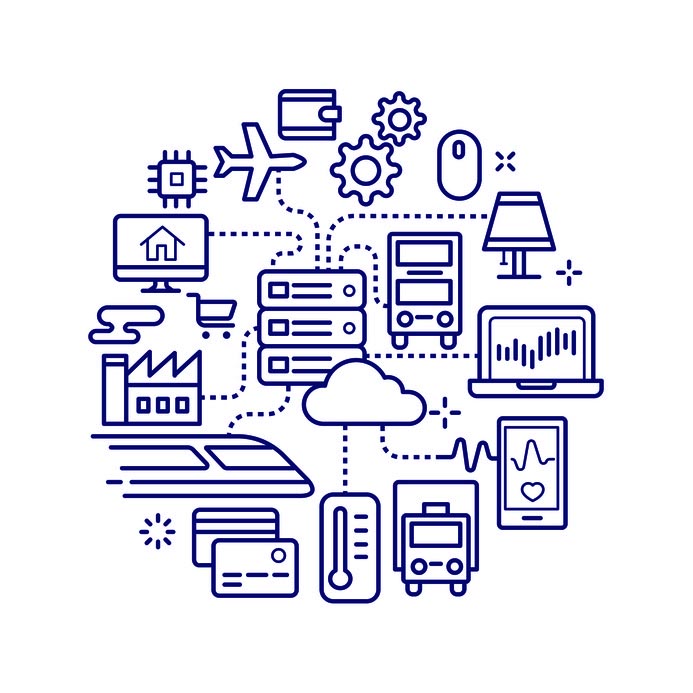
The Internet of Things has added utility to many devices, expanding their potential in ways that would otherwise be impossible. This has only been further augmented by the access to personal devices that many employees enjoy through Bring Your Own Device policies.

However, these benefits have come with an assortment of considerable risks alongside them. Devices that are a part of the IoT are notoriously vulnerable to many cyberattacks, which means that they could potentially be used as a point of access to your business’ network. From there, a cybercriminal has plenty of opportunities to create issues – whether that’s by stealing your data, hijacking your devices to be used in a botnet, or whatever their goal may be.

This problem is only exacerbated by the tendency for IoT devices to go without updates, whether through the negligence of the manufacturer or of the consumer. Without these updates, security flaws go unresolved, and the devices are thereby left vulnerable.

Consider how many devices are now manufactured that connect to the Internet. Smart watches and other wearables, smart speakers and televisions – really, almost anything with the word “smart” in its name – we have more or less surrounded ourselves with the Internet of Things. This includes the time we spend in the workplace, despite many of these devices not being visible on the network to IT. As a result, it has become almost impossible to track all the devices that attach to a network, which has developed into a new issue for businesses.

Shadow IoT

Thanks to the public demand for convenience and advanced functionality, more and more IoT devices are being manufactured all the time. If any of these devices makes its way into your office without the knowledge and approval of IT, you have a shadow IoT problem.

If you do, you aren’t alone.

In 2017, 100 percent of organizations surveyed by an IoT security firm were found to have consumer IoT devices on the network that qualified as shadow IoT. Another report, from 2018, stated that one-third of United States, United Kingdom, and German companies have over 1,000 shadow IT devices on their networks every day. Combine this with the security shortcomings discussed above, and you have a recipe for a cybersecurity disaster.

You may remember the Mirai botnet, which struck back in 2016. This botnet was built up of over 600,000 devices at its peak and focused primarily on IoT devices. Once these devices were identified by Mirai, they would be attacked and infected, adding more computing power to the botnet. Mirai is far from the only example, too… cybercriminals have been known to hack into IoT devices to gain network access, spy and listen in on conversations, and otherwise prove themselves to be a nuisance.

How to Minimize Shadow IoT

Clearly, shadow IoT isn’t a good thing for any organization. There are a few things you can do to help protect your business from the security issues that shadow IoT can cause.

  • Accept IoT devices in the workplace. If your employees really want to use one of their devices at work, they’re going to. Instead of shooting down requests to bring in these devices, make it easier for your employees to do so through the proper channels – and make sure your employees are aware of these channels. Openness and cooperation can be effective tools as you try to get your team on the same page you’re on.
  • Keep IoT devices separate. To better protect your network, you will want to consider utilizing a dedicated Wi-Fi network for IoT devices, configured to allow them to transmit the information they generate while blocking any incoming calls to them. This will help prevent threats from being transmitted to IoT devices.
  • Seek out potential threats. Not all shadow IoT necessarily can be found on an organization’s network, as over 80 percent of the IoT is wireless. This means that you need to be monitoring your wireless signals for shadow IoT devices and networks.

Your business’ security is important – too important to be undermined by an insecure consumer device that was brought in without your knowledge. You need to get out ahead of shadow IoT, as well as the other threats that could do your business harm.

NuTech Services can help. Our professionals are well-versed in cybersecurity best practices and how to use them to your benefit. To find out more about what we can do for your business, reach out to us at 810.230.9455.

254597996_message_400.jpg

Tip of the Week: How to Use Instant Messaging Professionally

254597996_message_400.jpg

Communication is paramount in any business environment, which makes it crucial that your business is equipped with the tools that allow this communication to take place. In light of this, many businesses have embraced instant messaging applications in the workplace. For this week’s tip, we’ll go over how to most productively and professionally utilize instant messaging.

Why Effective Communications are So Critical

There are a few reasons that you want your business’ internal communications to be clear and effective.

Fewer Errors

Miscommunication is rarely a good thing, but in the business setting, it has the potential to be crippling to your operations. If the correct information isn’t shared at the right time, with the right people, productivity will suffer. On the other hand, proper communications can help minimize, or even avoid, many potential workplace errors.

Increased Accountability

When an organization keeps its communications open across the board, it is prone to see an associated increase in companywide accountability. From owner to intern, being responsible for (and being held responsible for) certain milestones in a process keeps each member of a team on-task and motivated.

Improved Teamwork

Naturally, when members of a team communicate properly, they are better able to work cooperatively. As a result, problems often become easier to solve, as ideas may more easily flow and develop. Additionally, potential issues between departments are more easily resolved, preventing interpersonal concerns from affecting the work.

Efficient Problem-Solving

The ability to communicate clearly enables a team to better pool their talents to much more efficiently overcome any issues that may arise. Whether a problem is strategic or technical, having the capability to swiftly solve it will only benefit a business’ operations.

Instant Messaging in the Workplace

Naturally, all of the above outcomes can (and often do) result from the use of an instant messaging application… as long as it’s the right one.

You need to make sure that your chosen solution is intended for business purposes, which means you need to use an enterprise-grade instant messaging application. In addition, you also need to be sure that you and your staff are properly leveraging your solution. Try to encourage the following practices and behaviors in your staff to ensure that your instant messaging solution doesn’t turn into an instant messaging problem:

  • Keep it in check. You don’t want a solution that is meant to be a productivity booster to actually harm it. There’s a very real difference between your staff properly leveraging instant messaging capabilities, and aimlessly chatting all day. Encourage your staff to keep their conversations pertinent to the workplace and the task at hand (at least as much as possible).
  • Remain professional. Again, conversations on your instant message solution should be far and away focused on workplace matters. It is important that your staff knows this, and resists using the solution to share jokes, GIFs, or memes excessively. Moderation is key.
  • Don’t rely too much on it. Not all conversations are appropriate for an instant messaging platform, especially those that contain sensitive or overly complicated details. Some conversations are better shared in person, or in an email, where lengthier messages can be sent.

Have you ever utilized instant messaging in the workplace? Share your experience with us in the comments!

248191206_mobile_400.jpg

Smartphones Role In the Modern Workplace

248191206_mobile_400.jpg

Smartphones are everywhere. You go to the supermarket, people are on their phones, you go to the gym, people are on their phones. Go into the office? You guessed it…you see a lot of smartphone use that may not be in the best interest to organizational profitability. The question becomes, do smartphones help or hurt business? Let’s get into it.

Smartphones in the Workplace

Let’s start with the trickiest bit of this first. Smartphones are a distraction, pure and simple. In fact, according to one survey, employees average about 56 minutes per day on their phones while they are in the office. This equates to a massive productivity leak for many businesses, but just when you think it isn’t equitably fair for the employer to pay for time employees spend scrolling through Twitter, Facebook, and Instagram, responding to personal emails, and browsing websites blocked by the company’s content filter, employers aren’t totally innocent in this situation.

The modern employer is the first person to take advantage of the computing prowess of these devices. Since the modern company tries to do more with less, many employers expect their workforce to always be available; and, that means always. Moreover, managers and executives aren’t any different: they are always on their smartphones too!

Some organizations feel the need to try and strategically design policies to keep people from using their personal devices for personal use on company time. These same people don’t have a problem with them using these devices for the benefit of the organization, just not for personal gain. This is where policies go wrong. They create archaic and completely unrealistic policies and are shocked when even their best performers can’t avoid their phones for long. 

If you want your staff to limit their phone use at work, you have to make that clear. Some companies have implemented a policy that provides small breaks in which they can use their phones, but most companies have come to understand that this isn’t a trend and that phone use is part of day-to-day life. Locking down people’s ability to connect with the outside world for eight (or more) hours a day is only going to serve to bring negative reviews from your team, so your best bet is to embrace it, and realize that as long as your expectations have been communicated properly, most employees won’t take advantage.

Smartphones Out of the Workplace

While the smartphone may be a bit of a distraction to your in-house staff, what happens the moment people leave the confines of your business? They use their phone. In fact, I doubt very much if they make it out to their car or onto the train without a full assessment of the messages sent by applications, people, and others. How long do you last without checking yours?

This brings us to the point that needs to be hammered home. The more people use mobile devices, and specifically smartphones, the more they are willing to do off the clock for work. You don’t think this is true? If you are a business owner or manager, try texting, emailing, or messaging a member of your staff outside of work. They may not appreciate it, but more than likely, they will respond. This effectively extends them to “on-call”, a state that was typically reserved for people with jobs that the public depends on like doctors, lawyers, and the like. Now if you have a question about a project that just can’t wait until the morning, there is an excellent chance that you will be able to get the answer you seek directly from the person who worked on a task last. That can have a lot of benefits for your business.

What About Security?

Mobile malware has become much more prevalent than ever before–so much so that it can be a major problem for your business. The best way to mitigate liability from this is to design and enact a Bring Your Own Device (BYOD) strategy that takes advantage of cutting-edge mobile device management tools. Your staff may scoff at first, but if their two options are using their data or using your wireless network, they will opt in, guaranteed. 

If you need some help ensuring that you are doing everything you can to take advantage of your staff’s reliance on their smartphones, we can provide you with all the information, resources, and technology you need to make employee smartphone use work for your company. To learn more, call us today at 810.230.9455.