b2ap3_thumbnail_lost_devices_can_be_a_major_problem_400.jpg

Tip of the Week: My Company Device Has Been Lost or Stolen, Now What?

b2ap3_thumbnail_lost_devices_can_be_a_major_problem_400.jpgMobile devices are one of the hottest items for thieves to target. According to reports from Consumer Reports and LoJack, 2013 saw the theft of two million laptops and three million handsets. What this means for you is that having your mobile device stolen is probably a lot more likely than you would think.

The loss of a mobile device means much more than just losing a piece of pricy technology (which can be replaced). It also means the loss of the data stored on the device, and easy access to all the accounts associated with the device if the thief doubles as a hacker (which could lead to identity theft). Not having access to one’s data is why, in a recent survey by IDG Research, 50 percent of phone-theft victims said they would pay a ransom of $500 just to get their phone back, while another one-third would pay $1,000.

Obviously, having your mobile device lost or stolen is a big deal, especially if the device contains corporate data. If you happen to find yourself in this predicament, what are you going to do next? Let’s assume for a moment that you didn’t have the foresight to install any of the great security apps on your device, allowing you to track down the phone’s location or remotely shut it down. Without the assistance of any preventive security solutions, a thief will only have a lockscreen standing between them and your data.

Here are four steps that will let you control the damage caused by a lost or stolen mobile device.

Contact Your Mobile Service Provider
Contacting your phone’s service provider about the theft is a good move because, depending on the make and model of your phone and the details of your service contract, your service provider may be able to remotely access your smartphone and “brick it” (render it useless). At the very least, notifying your service provider will prevent the thief from making calls using your account. Also, it’s important that you quickly contact your mobile service provider about the missing device. Otherwise, the thief will be able to bypass this “bricking” feature by removing the SIM card and still have access to the data stored on your device.

Change All of Your Passwords
If the thief happens to gain access to your smartphone or laptop, they’ll easily be able to open all accounts associated with the device. We don’t have to tell you how devastating this can be, especially if your bank account or corporate network were to be accessed. One of the best ways to keep a thief like this out of your accounts is to login to all of them and change the passwords. You’ll want to do this sooner than later so that the thief doesn’t have enough time to figure out your passwords.

Report the Theft to the Authorities
While it’s unlikely that reporting the theft of your mobile device will lead to a full-scale investigation, it will give them information they can use to spot patterns, which might be enough to eventually get your device back. You never know.

Notify Everybody Affected
The toughest part comes next: notifying everyone that the device is gone. It can be embarrassing to contact everybody about your negligence, but you may be actually legally obligated to do it. The reason why it’s so important to do this is because the data connected to the lost device could lead to stolen identities. As humbling as it will be to write that email to your clients, they will appreciate the fact that you’re taking proactive measures to protect their sensitive information. To help smooth things over, paying for a year’s worth of identity theft insurance will go a long way.

By taking these four steps, you should have a good grasp on damage control. Moving forward, the best way to protect yourself and your business from this all-too-common event of mobile device theft is to reach out to NuTech Services at 810.230.9455. Call us to learn more about proactive mobile security solutions designed to give you a fighting chance.

b2ap3_thumbnail_incognito_mode_400.jpg

3 Easy Ways to Go Incognito In Google Chrome

b2ap3_thumbnail_incognito_mode_400.jpgThe Internet can be a dangerous place. Sometimes you want to keep your identity a secret on the web. Now, your reasons for doing so aren’t any of our business, but you should know that there are several ways to access this secretive function in Google Chrome. Here are three ways you can take advantage of Google Chrome’s Incognito mode to browse the web in an anonymous fashion.

Why Incognito Mode?
Incognito mode has several advantages over your typical Google Chrome browsing session. For one, you can allow someone to use their Google account on your device without signing out of your current session. On the other hand, sometimes you might not want your browsing history to stick around. While this is often associated with viewing questionable content online, it’s also convenient when planning for a surprise party or purchasing a gift so that the recipient isn’t aware of the situation.

Keep in mind that, while you’re browsing the web in a more anonymous fashion than you would be normally, your activity can still be seen by your Internet service provider (ISP).

The Classic Way to Incognito Mode
Activating Incognito mode is super easy, but it requires a couple of steps. First, click on the hamburger menu in the corner of Chrome, titled Customize and control Google Chrome.

incognito ib 1

Next, click on New incognito window. Your new window should pop right up.

incognito ib 2

Open a New Incognito Window Through Right-Clicking
Let’s say you find an article on the web that you really want to view, but you’re not sure who could be watching your activity. In order to avoid showing them what you’re viewing, you can right-click a link and select Open in incognito window. Another situation where this might be useful is when you’re shopping for something particular that you don’t want another user to see in the search history. Simply right-click the item you’re considering to privately browse it.

A Simple Two-Click Solution
If neither of these solutions are simple enough, the easiest way to access Incognito mode is by taking advantage of the top of your Chrome window, and selecting the account button to the left of the minimize button. This gives you the option to either switch users or go incognito, providing more than one solution to the issue in one handy location.

Or, better yet: here’s a keyboard shortcut that opens up incognito mode. Just use Ctrl+Shift+N to open a new incognito window.

For more tips and tricks about how to be more productive in the workplace, call NuTech Services at 810.230.9455.

b2ap3_thumbnail_lightning_google_data_center_400.jpg

Not Even Google is Exempt From Data Loss Disasters

b2ap3_thumbnail_lightning_google_data_center_400.jpgWhen you store your data in the cloud, you assume it will be safe and that nothing bad will happen to it. But what if the real clouds hovering above your virtual cloud are literally full of lightning? Google experienced this last month when one of its data centers in Belgium fell to the wrath of Zeus.

Maybe the Greek god of lightning was insulted by a video of him uploaded to YouTube? It’s hard to know for sure the cause of the strike, but what we do know is that the charred data center is primarily used to host Google’s Cloud Platform, and on that fateful evening it sustained four consecutive lightning strikes, one after another.

As terrifying as a lightning strike sounds, for Google, the scariest part of the whole ordeal was that five percent of its disks in the center could no longer read or write data, equating to a loss of 0.000001 percent of the center’s total data. Regarding this data, Google issued a statement saying, “In these cases, full recovery is not possible.”

Such a small amount of data lost may not sound like a big deal, but that’s because it wasn’t your data that was lost. When it comes to data, you don’t have to have your entire infrastructure wiped out for your bottom line to be hurt. Instead, all it takes is a fraction of your mission-critical files to be erased for your entire workflow to be thrown off. Therefore, it’s crucial to have a backup and recovery plan in place for all of your files.

One would assume that a giant company like Google with such deep pockets would have taken precautions in order to prevent something like this from happening. To Google’s credit, they do have safeguards in place to protect themselves from regular lighting strikes (a common occurrence for data centers), but nothing could have prepared them for this quadruple-electric whammy.

Despite the obscene chance of this ever happening again (you know what they say, “four consecutive lightning bolts never strike the same data center twice”), Google has assured its users that they’re making upgrades to prevent any future incidents of this nature. Although, we’re sure that even the best efforts of Google will be puny and ineffective compared to what the mighty Zeus can dish out!

Contact NuTech Services at 810.230.9455 for a Backup and Disaster Recovery solution that will protect your company’s data from everything on this side of Mount Olympus.

b2ap3_thumbnail_windows_10_privacy_400.jpg

Tip of the Week: Adjust Windows 10’s Privacy Settings to Keep Your Information Secure

b2ap3_thumbnail_windows_10_privacy_400.jpgIt would be prudent to begin by saying that Windows 10 is far and away the most refined version of Windows ever created. In a lot of ways, it’s like using a souped-up version of Windows 7, with a sprinkling of Windows 8/8.1 metro on top. Beneath the surface, however, is a vast information-collecting infrastructure that has many users left worried about their privacy. There are even conspiracy theories suggesting that Windows 10 is a vessel used by the NSA in order to collect all the information on every user.

Anyone that is familiar with the fallout of Edward Snowden’s whistleblowing campaign knows that government agencies don’t need Microsoft’s software engineers to syphon as much information as they want, but that doesn’t mean there aren’t some potential privacy issues with the new OS. In fact, it could be said that the default settings of Windows 10 violate user privacy. Here are some of the ways they do so.

Advertising ID
The first privacy issue users are having with Windows 10 is that each user is automatically assigned an ID based on the email address they use to sign in. By capturing information using this ID, Windows 10 will tailor the advertisements that users see when surfing the web or uses certain applications.

Cortana
In order to get the most comprehensive user experience available, the Cortana application collects data; and not just essential data, but seemingly everything. In attempting to make the best personal assistant application on the market, Microsoft has made it a point to capture every piece of information they can. This presents privacy issues for some, but they’re likely no more intrusive than Cortana’s competitors: Apple’s Siri and Google’s Google Now.

Windows Modern Apps
Windows Modern or Universal Apps are also at the center of the perceived controversy. Each of these apps collects your location, which is no different than their Windows 8.1 versions. The situation that is presenting problems for users’ privacy is the advanced reporting these apps do to the central Microsoft servers. For example, when using the very useful OneNote app, the content of the notes are synced with the Microsoft servers.

Many users will not mind receiving better services in return for computing information, but many users are up in arms on Windows 10 policy of deliberately sharing all captured information with their “partners”; a series of third-party vendors that can use this information to improve their sales and marketing tactics. For the purposes of user privacy, however, there are actions that can be taken to limit the ability for Windows 10 to report user computing performance.

First, you need to access the privacy menu, which can be found in the start menu. Simply open the start menu, then click on Settings and select Privacy from the pop-up.

privacy ib 1
One thing that can be said for Windows 10 is that there are a lot of options. Each one of the privacy settings above represents the ability for Windows 10 to work for the user, albeit by the user sacrificing their privacy. The first suggestion we have, if you are one of the many users that feel as if Microsoft doesn’t need to know every movement you make on your home PC, is to disable the targeted advertising ID.

privacy ib 2From this screen users can also turn off SmartScreen Filter if you are worried about the Windows Store syphoning links to Store items. Many users will choose to leave this option on, but will want to turn the other two off. “Send Microsoft info about how I write..” is basically a keylogger, and its practical application is to provide information for Cortana and language settings that give regional information to Microsoft.

privacy ib 3
From there, clicking on Location will take you to a list of applications that use your location. Services like weather, traffic, news, and Cortana utilize your current location to provide you the best representation of relevant information for your situation. If you are using a desktop computer, there is little value one way or the other, but on mobile, turning off applications that don’t need your location won’t hurt the perception of privacy.

It is best to leave your Camera and Microphone options toggled on if you want to use Skype or another video communications application.

privacy ib 4
The next tab is the Speech, inking & typing tab. These options are used primarily with Cortana. If you choose not to utilize Cortana, you can consider telling Windows 10 to stop getting to know you. The problem with this is many Windows Store-based apps require your account info, making it impossible for you to turn off this option.

Privacy is a major consideration for most users on the Internet, especially in lieu of many companies’ strategy of selling off user information. These are only a couple of options that you can consider to keep your personal information personal. At NuTech Services we understand why privacy and security are important for users. Our certified technicians can present you with options and best practices that will allow you to remain private and secure while online. Call us today at 810.230.9455 for more information.

b2ap3_thumbnail_hillary_server_snafu_400.jpg

Hillary Clinton Learns the Hard Way Why Network Security Best Practices Must Be Followed

b2ap3_thumbnail_hillary_server_snafu_400.jpgWith the United States’ Presidential election ramping up, it’s hard to go anywhere without seeing Hillary Clinton’s face. The former U.S. secretary of state and first lady, Clinton is making her second attempt at the Presidency. She has gained some negative attention recently in regards to emails she had sent from a personal email address when she was the United States’ top diplomat and it’s opened up some questions about data security at the highest reaches of government.

Every potentially scandalous political situation presents some question of motive, and this particular one is no different. The situation started when The New York Times’ Michael Schmidt broke the story on March 2, 2015. At the time, the reporter recalled, that he didn’t think much of the story. “It was curious and it was interesting,” Schmidt told the Huffington Post, “but it didn’t seem like it was going to be some type of major story.” In fact, the situation was so under the radar that Schmidt left for vacation the day after it ran in print.

Of course, what we know now is that it has snowballed into a political scandal that many Republicans hope derails her campaign. The basics of the story are this: While she was secretary of state under President Obama she used her personal email address to conduct official state business, potentially violating federal requirements that officials’ correspondence be retained as an official record of proceedings. Moreover, Mrs. Clinton did not use a state-issued email address throughout her tenure at the state department. That alone is not the issue, however. The issue is that her staff did not preserve that correspondence, a clear failure to comply with the Federal Records Act.

Many government officials have commented on this issue, with the consensus being that Mrs. Clinton had not been in breach of any law, but that the practice of not using the state-sponsored email address is highly unusual, and deserves further investigation. Of course, Mrs. Clinton is running for the highest office in the land and the scrutiny, especially from the opposite party, has intensified. Clinton agreed to turn over the email server to the FBI; the server that her account was hosted on for the entire time she was secretary of state. The former first lady gave it over willingly, without legal precedent to do so, which suggests that Clinton doesn’t feel as if she did anything criminal. She also does not seem to have a grasp on the best practices of network security.

Since turning over the server August 12, the FBI has begun probing the server to see if, in fact, Mrs. Clinton has violated the law by mishandling classified information. In doing a damage assessment, the FBI has also begun attempting to ascertain if the email address she was using at the time, or the server itself, had been hacked. Clinton herself recently dismissed the chances that the old email server could have been infiltrated by stating that the email address “[…] was set up for President Clinton’s office. And it had numerous safeguards. It was on property guarded by the Secret Service. And there were no security breaches.”

There has been some concern from authorities and the Judge overseeing this situation, Emmet Sullivan, that Clinton or her Colorado-based IT provider had wiped the server in question when the Clintons upgraded their IT and migrated all the information from their old servers to their new ones. The provider that hosted the email server, Platte River Networks, who also turned over the server to the FBI, acquired the server in question in 2013. They have gone on the record to proclaim that there are almost certainly backups of the deleted files on the server.

Since any good IT provider will ensure their clients’ IT is backed up properly, you can bet that the content of that server, with years worth of diplomatic correspondence is someplace. The FBI’s probe will focus on getting the emails back and to ascertain how the email data was protected, whether traces of code that suggest an attempt at infiltration had taken place, and whether or not it is possible to reconstruct the logs of what machines actually accessed the server when Clinton was working for the state department.

Outside of the political realm, the whole issue brings up some interesting topics for the security of an organization’s IT. When you wipe a computer, what are you actually deleting? What kind of information can be accessed after you think everything is off your old technology? When you absolutely have to send secure emails, what solution do you use to ensure that they are received without tampering?

Although your company might not receive the same media scrutiny as a politician, suffering from data theft or hacker infiltration can be a seriously complicated situation that could cost you a lot of time, money, and even your reputation. Making sure your data is in check and your network is secure is becoming even more crucial, even for smaller businesses.

Whether you are dealing in state secrets or not, data security is important for any organization. NuTech Services’s technicians can answer all of your IT security questions, and find your organization the solutions they need to keep downtime to a minimum. Call us at 810.230.9455 to get your pressing IT security questions answered today.

b2ap3_thumbnail_companys_it_budget_400.jpg

3 Benefits of Outsourced IT That Let You Do More For Less

b2ap3_thumbnail_companys_it_budget_400.jpgCost drives business, this much cannot be denied. When the technology your business relies on fails, you have to get it repaired or replaced quickly in order to keep the resulting downtime from damaging your business. The traditional method of computer repair is much like when your car is in disrepair. When your technology isn’t working properly, your organization reacts to the problem by calling your friendly neighborhood computer repair guy.

The technician will come to your office and try to fix the technology that is broken. When they figure out they can’t fix the problem on the spot, they will give you a quote. The time and materials of summoning these technicians to the office will cost you money, so will the replacement technology, and most notably, the downtime you accrue. Add that to the variable cost of fixing the malfunctioning technology, and your business has a real problem.

At NuTech Services, we offer a proactive IT support platform that utilizes remote monitoring and management software to ensure that the technology that’s attached to your network, and your network itself, is up and working properly. Additionally, our whole IT services platform is billed in one monthly payment.

If you add it up, you are saving money in every aspect of your business. You not only remove the variable costs of keeping your IT running smoothly, you also get proactive support that in many cases gives you the time to replace hardware BEFORE it fails, saving you from the doldrums of company wide downtime.

The fact is that small and medium-sized businesses need to cut their technology support costs if they want to compete with larger organizations. There are a myriad of benefits that come from a managed services provider like NuTech Services handling the administration and support of your technology. Besides the obvious cost savings, two other huge benefits include:

  • Comprehensive Support: A major speedbump SMBs have when shopping for any service that claims to help their business, is the quality of that service. For those that worry that our managed services are too good to be true, we employ certified and trustworthy technicians that are proficient in finding solutions for today’s most challenging business technology problems.
  • Single Point of Contact: As an alternative from having to manage several vendors, our IT service offering provides you with a single point of contact for all of your technology needs. Since we understand the intricacies of your network, we can get issues resolved faster.

Managed IT services can provide you with many other benefits as well. For more information about how our managed IT services can benefit your organization, call us at 810.230.9455 today.

b2ap3_thumbnail_will_you_upgrade_to_windows_10_400.jpg

Tip of the Week: 4 Windows 10 Features that Let You Do More
b2ap3_thumbnail_will_you_upgrade_to_windows_10_400.jpgWith Windows 10’s arrival comes all sorts of great new features, many of which are unprecedented. Here are four new features that you should check out on your Windows 10 device.

Microsoft OneDrive Integration
Microsoft’s cloud storage solution, OneDrive, is a major focus with Windows 10, especially with the cloud growing more important for modern companies. With Windows 10, OneDrive is far more integrated than it was in the past, all to handle your data-sharing needs. Now, rather than being forced to use OneDrive with a Microsoft device, you can access your files with Android and iOS devices. In fact, you can even use OneDrive to access any of the files on your Windows 10 PC remotely, adding even more value to the service.

Battery-Saving Features
One of the cool new features of Windows 10 on a mobile device or laptop is that you don’t have to closely monitor your battery levels like you used to. Windows 10’s new battery saver feature automatically detects when your power level reaches a certain point, and it powers down background applications that aren’t absolutely essential. In theory, it gives you a chance to save your work or plug in your computer, making the chances of an accidental power-down less likely. To enable Battery Saver, go to Start menu > Settings > System > Battery Saver.

Background Scrolling
One annoying issue for Windows users is when they are actively working in an application, then hovering the cursor over another open app that’s on the screen. When you go to scroll up or down, you can’t, because the app isn’t selected. While this is only a small issue, Microsoft still thought it should be addressed. To turn on Background Scrolling, go to Settings > Devices > Mouse and Touchpad.

Customized Start Menu Apps
Windows 10 practically got rid of the Windows 8 Metro interface, but it’s still available in the new Windows 10 Start Menu. Rather than a full screen interface, you have the option to place your most important applications in this easy-access menu. To do this, click the Start Menu and click on All Apps. Scroll to an application you’d like to add, right click it, and select Pin to Start. This puts an application shortcut right in the Start Menu for you. You can then edit the apps in the Start Menu by right-clicking them. You can change their size, or even remove them.

Windows 10 has proven to be an exceptional operating system for both the office and personal computing, and there’s sure to be more great new tricks out there allowing you to be more efficient with it. What are your favorite new features? Let us know in the comments.

b2ap3_thumbnail_technology_innovation_for_business_400.jpg

3 Ways to Make Innovation a Priority For Your Company

b2ap3_thumbnail_technology_innovation_for_business_400.jpgHow difficult is it for your organization to innovate and come up with new ideas? Sometimes it might seem impossible when it feels like all the good ideas are already taken. Normally, advancements in technology are a primary fuel for innovation within a company. If you aren’t feeling inspired, there are several new ways you can approach innovation. Here are three ideas.

If you ever feel that you aren’t making enough of a splash in the market, just remember that you’re not alone. Many organizations often have the same issue when it comes to innovation. Just like inspiration, it comes and goes in cycles. When a business grows, it might lose track of finding better solutions due to their continued success with proven solutions that work. This can hinder their ability to further expand. You’ve heard the saying, “Without risk there is no reward,” and in this case, it’s true.

Innovation and Acquisition
One way you can improve innovation in your company is through acquisition. The downside of innovation via acquisition is that it can be costly and difficult to get used to. There’s the cost of purchasing a company, as well as two different business models that might conflict. You can’t just buy a company and force it to comply with your current strategy right off the bat. Plus, if you’re having trouble with innovation, and you try to impose the same principles upon your purchased company, they’ll also have trouble with innovation, making it even more difficult to get anything done. The innovation will be short-lived or nonexistent, and you’ll be stuck with the same problem you had in the first place, only with a lot less coin in your pocket.

Take, for instance, Dell’s acquisition of certain aspects of IBM servers. This is the proper way to fuel innovation through acquisition. Find the value that you’re looking for in an acquisition, and hold onto it. Protect it and let it transform the way your organization does business. Use your available resources to help the endeavor succeed.

Skunkworks: Groups Focused on Innovation
Another way to enhance innovation is through the concept of skunkworks. This is when you put together a team that specializes in the concept of innovation. By creating a separate firm within your organization dedicated to coming up with game-changing ideas, you clear them to create and implement ideas that aren’t restricted by your corporate policies, effectively allowing the skunkworks group to act as a startup. One example of this is how EMC’s Pivotal Labs functions in order to create new products.

Innovation and Friendly Competition
Sometimes all innovation needs is a gentle push in the right direction from internal competition. In order to foster innovation in this fashion, you can use certain competitions designed to reward workers with bonuses. Or, you can use your local competition to fuel innovation similar to the way Dell does with its annual Innovation Day. It’s a reality show-like program where multiple companies compete for a fully-funded innovation trial. The winning company gets the prize of springboarding into a full-sized company which includes further funding. An incentive like this is sure to motivate your team.

Ultimately, one of the best ways you can boost innovation is by fueling it with technology best practices. NuTech Services can equip your business with the technology to develop new ideas. Give us a call at 810.230.9455 to learn more.

b2ap3_thumbnail_smartphones_on_market_400.jpg

The Newest Smartphones From Samsung, Apple, and Microsoft
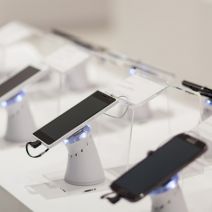
b2ap3_thumbnail_smartphones_on_market_400.jpgSmartphones are firmly established as a staple of modern society. In fact, sales of smartphones grew a whopping 23 percent during the previous year. It’s the nature of mobile devices for consumers to look forward to the latest models. To that end, here’s our preview of this year’s top three smartphones.

Due to the sheer demand of smartphones flooding today’s market, there are way more than three models to choose from. However, for the sake of being concise and relevant, we’ll focus on the flagship device from these three mobile manufacturer; Samsung, Apple, and Microsoft.

Samsung Galaxy Note 5
Samsung has taken the lead as far as smartphone marketshare goes, garnering 24.6 percent of the market in 2014. They’ve achieved this success with their line of s-model phones and Note phablets. All eyes are on Samsung and its latest offering, the Galaxy Note 5.

Galaxy Note 5 Specifications
Display: 5.66-inch Super AMOLED capacitive touchscreen with 1440 x 2560 resolution made from Gorilla Glass 4
Operating System: Google Android v5.1.1 (Lollipop)
Processor: Samsung octa-core Exynos 7420
Memory: 32 GB, 64 GB, and 128 GB models available; 4 GB RAM
Cameras: 16 MP camera with optical image stabilization, 5 MP front-facing camera
Battery: 4,100 mAh
Communication: NFC, Bluetooth v4.1, Wi-Fi, Infrared, microUSB
Other features: Accelerometer, gyro, proximity, compass, barometer, gesture, UV, heart rate, Sp02, integrated s-pen

iPhone 6s
The iPhone has been Apple’s best-selling device for almost 12 years, and the iPhone 6s looks to continue this trend. The latest iPhone will include an all-new A9 processor, designed to exceed in computing power Samsung’s Exynos 7420 processor. It’s also been confirmed that the iPhone 6s will get an upgrade to its body. Presumably, this will make it stronger and more durable, especially in light of how the previous model was ridiculed for bending too easily. Additionally, the iPhone 6s will have a larger display than the iPhone 6.

iPhone 6s Specifications
Display: 4.7-inch Retina display with 750 x 1334 resolution with ion-strengthened glass and a oleophobic coating
Operating System: iOS 9
Processor: Apple A9
Memory: 32 GB, 64 GB, and 128 GB models available; 2 GB RAM
Cameras: 12 MP camera with phase detection focus, 5 MP front-facing camera
Battery: Li-Po 1,810 mAh
Communication: Bluetooth v4.1, Wi-Fi, v 2.0, reversible connector
Other features: Accelerometer, gyro, proximity, compass, barometer

Lumia 940
Microsoft recently acquired Nokia and its line of Lumia smartphones. Despite the fact that the Lumia phones have received great reviews, they’ve never made the kind of sizable impact that Microsoft would have liked. Thanks to the success of the newly-released Windows 10 OS (a system that promises one single interface across every device, including the Lumia smartphones), the time may be ripe for Windows Phone to finally take off.

Lumia 940 Specifications
Display: 5.2-inch display with 1440 x 2560 resolution with Gorilla Glass 4
Operating System: Microsoft Windows 10
Processor: Dual-core 1.82 GHz, Qualcomm MSM8992 Snapdragon 808
Memory: 32 GB, 64 GB models available; 3 GB RAM
Cameras: 20 MP camera with phase detection focus, 5 MP front-facing camera
Battery: Li-Ion 3,000 mAh
Communication: NFC, Bluetooth v4.1, Wi-Fi, microUSB 2.0
Other features: Accelerometer, gyro, proximity, compass, sensor core

These three smartphones are the flagship devices sold by each manufacture, but they’re not the only devices offered by each company. If you like what you see here, but you’re looking for variations in regards to features, check out these alternative models:

  • Samsung Galaxy s6, s6 Edge, s6 Edge+
  • iPhone 6+
  • Lumia 940 XL

Which smartphone is right for you? While you’re sure to have personal preferences toward a particular brand, it’s in your best interest to do your due diligence when shopping for a new phone so you can obtain a model that best meets your needs. Want to know about how mobile technology like this can improve your business? Call us at 810.230.9455 to learn more.

b2ap3_thumbnail_person_network_400.jpg

Tip of the Week: Sharing Files Between 2 PCs is as Easy as Dragging and Dropping

b2ap3_thumbnail_person_network_400.jpgWhat’s the best way to share files between your different personal devices and computers? It turns out that you can share files over your home’s network, and you don’t have to be an IT technician to do it.

To be sure, there are many different ways to share files between your different devices. You can send an email from one device to another. You can upload the file to a cloud data storage service. You can even use an external data storage device like a USB thumb drive. While all of these methods will do the trick, some are more inconvenient than others (like using a thumb drive), while others (like the first two examples) require an Internet connection and reliance on a third party.

Instead, you might be surprised to learn that you can just as easily (if not more easily) move files over your home network to your different devices by dragging and dropping what you need to a shared folder. This functions similarly to how your computer network at the office is set up with its server units and multiple workstations. However, you don’t need a home server unit to share files across your different devices at home. Instead, if you’ve got two computers connected via your home’s Internet router, then you’re all set to easily share files between the two machines.

Share Files Using My Network Places
To do this, open My Network Places, locate a file associated with the computer that you want to share files with (designated by the PC’s assigned name), and then drag and drop your content into the shared file. To access the shared content with the computer that you just shared it with, locate My Network Places on your other computer and open the file that corresponds with the actions you just took.

Or Create a Windows Homegroup
If for some reason you’re unable to share the files you need between your two computers using My Network Places, then you can set up a Windows Homegroup. To do this, type “homegroup” in the Windows search box and then hit Enter. From here, Windows will let you know if there are any homegroups on your network. If it can’t find one, click Create a homegroup.

Next, select what kind of content and devices that you want to share in this homegroup and then select Next.

homegroup ib 1

Windows will now generate a password that you will want to use for other computers to access the newly created homegroup. Be sure to record and share this in a secure manner if you’re adding multiple users to the homegroup.

Lastly, using the other computer on your home network, search for “homegroup” in the Windows search bar. This should bring up a dialogue box letting you know that a new homegroup has been added to your network. It will display the name of the computer you’ve originally used to create the homegroup. Now, just click Next > Enter the password > click Next again > and you’ll have both of your computers set up on the homegroup for easy file sharing.

If you need professional assistance with any of your computer networking needs, give NuTech Services a call at 810.230.9455.

b2ap3_thumbnail_kfc_bucket_tech_400.jpg

Colonel Sanders Might Be a Technology Genius Thanks to KFC’s Bucket/Printer [VIDEO]

b2ap3_thumbnail_kfc_bucket_tech_400.jpgHuman ingenuity never ceases to amaze us. This whole information technology revolution has pushed access to information to levels that any person that lived before the advent of the computer could never have imagined. What’s more, the establishment of the Internet of Things has made it so humans even have remote access to the goods they own. So when we first saw the technological marvel that KFC had in store for the Canadian chicken consumers, we weren’t so shocked as excited that we’ve reached the next step in humanity’s trek into the future.

The marketing geniuses at KFC have recently struggled employing an engaging Colonel Sanders, replacing Saturday Night Live veteran Darrell Hammond, with another SNL vet, Norm Macdonald. No matter whom KFC tabs as the southern gentlemen in white, nothing will compare to their Canadian colleagues’ idea to create a piece of marketing material that is sure to stay with consumers. For the diamond anniversary of KFC in Canada, they have created the KFC Memories Bucket.

What is the KFC Memories Bucket?
KFC Canada has created a chicken bucket that comes equipped with a color printer. The idea is that you buy a bucket of chicken for your friends, family, or (gulp) yourself, and then you take some pictures of you enjoying the meal, and you can print them out right there and then. Nothing describes a good time like taking pictures on your $500 smartphone after you just plowed through a drumstick and a thigh of Col.’s Original Recipe. This video merely cements the practical (and fulfilling) applications of the Memories Bucket

According to the online technology magazine, The Verge, this is just one in several attempts to use technology to drive their marketing initiatives.

The company’s Japanese chapter raffled off a chicken-themed keyboard, mouse, USB stick, and sets of 3D-printed earrings as part of a social media promotion last fall, and its German outpost gave customers a thin, rechargeable Bluetooth keyboard in place of the usual grease-sopping paper sheet this May. The company’s experimentation goes beyond physical products, too. If you have a minute at lunch, you can play ColonelQuest, an 8-bit romp through Colonel Sanders’ life released in May. The Memories Bucket may raise the bar on ridiculous poultry products.

KFC’s Memory Bucket comes with a photo printer in the bottom, that produces Polaroid-style photos. The printer is accessed by bluetooth, making it probably the weirdest thing on the Internet of Things, but at least it executes its practical use (as a vessel for fried chicken) commendably. Can you think of other bizarre technological roll outs from over the years? Join the conversation below in the comments.

b2ap3_thumbnail_security_for_it_400.jpg

Your Inbox Needs a Sheriff with a Strike Plan

b2ap3_thumbnail_security_for_it_400.jpgSpam emails often contain viruses leading to any number of potentially threatening situations for your company’s network. Therefore, it’s essential that your network has a security solution in place that acts as a sort of virtual sheriff, blocking malicious messages from accessing your network, while granting passage to the good guys.

For your company’s spam filtering needs, a Unified Threat Management solution is useful. A UTM is the sheriff your network needs; able to spot and eliminate harmful spam emails with black-belt proficiency. Like any good sheriff, a UTM solution has a strike plan in place to get your sensitive data out of any potentially threatening situations. One helpful way to understand this is to think of this approach as an A-B-C strike plan.

A: Take an Assessment of the Situation
Your email inbox is constantly being bombarded by spam messages. In fact, did you know that more than 60 percent of all the email traffic over the Internet is spam? A good spam filtering solution takes a thorough assessment of your company’s email situation and is ready for anything; in a similar way to how a sheriff would give a potential criminal an ocular patdown, looking for any hidden weapons. With a UTM, every single message (no exceptions) gets stopped, assessed, and its security situation broken down.

B: Garner if the Email is a Security Risk
When an email is given a “patdown,” the UTM sheriff looks for a security risk. What’s that email hiding? It could be something sinister like a virus-filled attachment tucked underneath its pant leg. Or maybe an email is disguised to look like a legitimate message in the same way a criminal tries to conceal their identity. This kind of email trickery is known as spear phishing, and imposter messages like these can easily get past a standard-grade spam solution. As long as your enterprise-level UTM network sheriff is around, your business will be safe.

C: Clear the Message for Passage
After garnering that the message is safe, then, and only then, will it be cleared for passage to your inbox. Otherwise, the malicious message will go straight to your spam folder, and possibly even deleted automatically if that’s the setting you choose.

Ultimately, an end result like this is the highest goal for every spam filtering solution. In addition to a UTM protecting your company’s network security situation, it will also protect your wallet. For example, did you know that it cost the average office worker $712 per year in salaried hours to sort through all the spam themselves that hit their inbox? Therefore, as far as productivity goes, it’s like your UTM is providing your network with a gym partner to spot you, as well as a sheriff to keep you safe.

It doesn’t matter whether you’re using a PC or a MAC, with a UTM solution protecting your network, you’ll gain a sunny disposition regarding your network’s security. Call us at 810.230.9455, we’re always available to take your call!

b2ap3_thumbnail_shortcuts_for_windows_10_400.jpg

Tip of the Week: 10 Handy Windows 10 Keyboard Shortcuts

b2ap3_thumbnail_shortcuts_for_windows_10_400.jpgWith the launch of Windows 10, many users are upgrading and loving every second of it. As always, a new operating system comes with a learning curve, including getting to know the new features and keyboard shortcuts. To get the most out of Windows 10, you can try these ten great hotkey combinations to get through your workday with blazing speed.

[WinKey + S] Activates Cortana
[WinKey + C] Activates Cortana with Speech
Microsoft’s Cortana feature, which was once exclusive to Windows Phone users, is now built into Windows 10 by default. She acts as a personal voice assistant, much like Apple’s Siri. You can use these shortcuts to make more effective use of Cortana.

[WinKey + Ctrl + D] Creates a New Virtual Desktop
[WinKey + Ctrl + F4] Close Virtual Desktop
[WinKey + Ctrl + Left or Right] Switch Between Virtual Desktops
One of the neat new features Windows 10 offers is virtual desktops, which will most likely be used by enterprises to enhance productivity. You can easily use the above keystrokes to navigate through your current virtual desktops, plus open and close them on your local desktop.

[WinKey + Shift + Left or Right] Move Apps from One Monitor to Another
Workers generally use two monitors to get the most done, but if you’re working with several different applications, it can be a bother to continually resize the windows and move them about. To make this process much easier, use the above keystroke while you have a window selected.

[WinKey + K] Activates Connect Feature to Stream to Wireless Displays and Audio Devices
This keystroke is pretty self explanatory, and it will be used often by those who regularly access Connect.

[WinKey + R] Run a Command
Regardless of how many new features there are in Windows 10, the basics still apply. You’ll want to access the Run Command function. This keystroke makes it much easier to do so.

[WinKey + I] Opens Windows 10 Settings
As one of the most customizable operating systems Microsoft has created, Windows 10 offers plenty of great ways you can put the “personal” back in your PC. Use this keystroke to make navigating to your settings easier.

[WinKey + G] Activates the New Xbox Game Bar to Let You Record Games or Take Screenshots
All you gamers out there are going to love this keystroke.

For more ways you can get the most out of Windows 10, keep an eye out for more productivity and technology tips from NuTech Services.

b2ap3_thumbnail_it_maintenance_400.jpg

Overcome IT Performance Issues with These 4 Proven Practices

b2ap3_thumbnail_it_maintenance_400.jpgIs your network running a little sluggish? Computing hardware isn’t perfect and requires a certain level of maintenance in order to keep everything running at capacity. Before you swap out your old server units for new ones, try these maintenance best practices.

Update Your Software
For whatever software you use, it’s best practice to run the most up-to-date version. In addition to providing your system with improved security, software updates will often include fixes to bugs that tend to slow things down (not to mention put you at risk for viruses and other online threats). In order to take full advantage of the benefits of running updated software, it’s best practice to have a solution in place that upgrades your system in a timely fashion. With NuTech Services’s managed IT service, we remotely provide upgrades for your network so that you don’t have to.

Corrective Maintenance
One of the most unpleasant hardware maintenance practices is fixing an issue that’s disabled your system. Performing corrective maintenances like this can be expensive, and breakdowns always seem to happen at the worst possible time. Regardless, fixes like this must be done so your business can function. At NuTech Services, we’ve found that the best way to approach corrective maintenance is to prevent these breakdowns from happening in the first place. This is the route we take with our preventative IT care.

Server Virtualization
Depending on how old your problem-prone server unit is, and depending on if you possess another server unit that runs well and is underutilized, you can migrate the data off your older server unit to your newer, more powerful one. This is a solid practice that will save you money by not having to pay for maintenance on two separate units, as well as free up space. However, it’s important to know what you’re doing before making such a move because over-consolidation with excessive virtual machines on a physical server can lead to deteriorating performance and system instability.

A Hardware Refresh
For network equipment like server units, it’s standard to get three to five years of use out of them before experiencing performance issues that cause you to seriously consider replacing them. Depending on the severity of your issues, you may be able to extend the life and improve the performance of your server with a hardware refresh. This includes installing additional CPUs or RAM, as well as upgrading the storage. It’s a tough call choosing whether or not to go with a hardware refresh or to replace the unit altogether. For this reason, it’s always a good idea to first check with your IT consultant.

Implementing these best practices will minimize performance issues and extend the life of your server units, and NuTech Services is here to assist you with all of these recommendations. Of course, technology isn’t perfect and every piece of hardware will eventually fail. When it does, you’ll have to purchase replacement hardware that meets the needs of your business and NuTech Services can assist you with this too.

For help with all of your company’s technology-related needs, give us a call today at 810.230.9455.

b2ap3_thumbnail_profits_from_the_cloud_400.jpg

Cloud Computing Grows at Staggering Rate While Traditional IT Hangs In There

b2ap3_thumbnail_profits_from_the_cloud_400.jpgIf your organization hasn’t considered the cloud as a viable business solution, stop what you’re doing and check some recent statistics. You might be surprised to learn that cloud spending is the third-biggest IT expenditure. Such popularity shows that businesses are finding the benefits that the cloud has to offer to be substantial, and you too can take advantage of the cloud to more effectively leverage today’s technology.

According to the Worldwide Cloud IT Infrastructure tracker for the first quarter of 2015, cloud IT will soon surpass even traditional IT models sometime in the next ten years.

value ib1

There are several noteworthy observations to make concerning this image:

  • Traditional IT is still the main player for 2015, rolling in at just over 65 percent of all deployments.
  • Public cloud IT accounts for around 20 percent of all deployments.
  • Private cloud IT makes up over 10 percent of all deployments.
  • Over the next five years, traditional IT will continue to decrease in usage, while the public cloud will make a significant jump in use. Private clouds will continue to grow, but not as quick of a rate as the public cloud.

On the financial scale, here are some statistics:

  • Spending on cloud IT infrastructures will reach $33.4 billion in 2015 alone.
  • Spending on private cloud infrastructures will grow to $11.7 billion.
  • Public cloud shows projected expenditures and growth of up to $21.7 billion.

As these numbers show, the cloud isn’t something that successful businesses should ignore. It’s not a gimmick or a fad. It’s a legitimate IT infrastructure solution that vastly improves operations and procedures. If you want to take advantage of the future of computing, cloud IT should be a top priority. The benefits greatly outweigh the cost in the long run, and there are a plethora of options to choose from; be it private cloud, public cloud, or even a mix of the two in a hybrid cloud solution.

The cloud has the ability to provide maximum mobility for your business, effectively allowing your employees to access critical systems that they might otherwise only be able to access in-house. This provides more opportunities for productivity, especially while on the road for a business trip or conference. Your team can choose how they want to work, and when, so long as the devices can access the Internet and are approved beforehand.

With the cloud dramatically changing the way we view the deployment of information and applications, we want to hear your thoughts about this revolutionary technology. Contact NuTech Services at 810.230.9455 for more information about how cloud computing can change the way your company works with technology.

b2ap3_thumbnail_facial_recognition_400.jpg

Tip of the Week: “Windows Hello” Unlocks Your PC With Your Face

b2ap3_thumbnail_facial_recognition_400.jpgWhile new Windows 10 features like Cortana and the return of the Start Menu are getting a lot of attention, there’s another cool addition that’s sure to change your Windows experience for the better. Using Windows Hello, you can actually log into your PC… with your face!

This technology isn’t new to Microsoft; a biometric authentication feature has been available with Xbox One’s Kinect since its release. However, unlike Kinect, the camera for Windows Hello promises to only be activated when it’s needed. This is a lesson in privacy that Microsoft learned the hard way after facing sharp criticism for designing Kinect’s camera to be “always on.”

Although, don’t expect to be able to use Windows Hello with your current webcam. Instead, Windows Hello requires a special Intel RealSense 3D camera, priced at less than $100. It’s reported that the newest Windows 10 laptops and PCs are already being shipped with RealSense cameras, and more models are expected to adopt RealSense cameras later this year.

The Advantages of Biometrics Authentication
To sweeten the deal, Windows Hello gives a user the capability to also log in with their iris and fingerprint. Biometrics technology like this being available on a popular platform like Windows 10 is a huge leap forward in transitioning away from passwords, which are becoming a more vulnerable way to protect your information with every passing year. Dustin Ingalls, member of Windows Security Team, explains in a Microsoft promotional video the benefit of using Windows Hello biometric technology:

As a hacker, if I get ahold of your password, I can use that from anywhere. But with [biometrics]… the key is actually bound in hardware to my device. So the only way a hacker can use my identity, is to actually steal the device. When you use Windows Hello, not only does the attacker have to steal my device, but they also have to be able to use my biometrics. Which is super challenging.

Okay, what about a hacker simply using a picture of you to unlock the device?

facial ib1

This is why Windows Hello only works with the RealSense 3D camera, because it’s compatible with Microsoft’s anti-spoofing capabilities which require a slight turn of the head. Time will tell how well Windows Hello can lock out identical twins and 3D-printed miniatures; but, seeing that the RealSense camera is capable of analyzing a person down to their facial hair, we’re sure that it’s still a much safer route than passwords.

Setting Up Windows Hello on Your PC
For those with Windows 10, Windows Hello is easy to setup. Go to settings, enable a PIN, and then stare into the RealSense camera to let it detect your face. Users who wear glasses will want to let the camera capture images of yourself with your glasses both on and off. Once your settings are saved, an animated eye will show up on the lock screen, look at you, and wink after it’s detected that you are really you. Windows Hello will then grant you access to your PC with a welcoming message.

It’s as simple as that. With security innovations like Windows Hello, it’s only a matter of time before we never have to remember a password ever again!

b2ap3_thumbnail_windows_10_email_scam_400.jpg

This Windows 10 Email Scam Isn’t The Upgrade You’re Looking For

b2ap3_thumbnail_windows_10_email_scam_400.jpgFor those of you who don’t yet have Windows 10, don’t panic. It’s not going anywhere, and you’ll get it soon enough. In the meantime, it’s important that you don’t get impatient and hastily open suspicious emails containing what appears to be a launcher for your Windows 10 download. Hackers are using ransomware to extort money from unsuspecting users who just want their new operating system already.

For some, the fault might lie with Microsoft because of the way they’ve decided to deploy Windows 10. Making people wait even more for a product that already exists is somewhat maddening, and hackers are taking advantage of this impatience to strike. CTB-Locker is a ransomware similar to Cryptolocker, in which it encrypts information locally on your PC, and offers a decryption key in exchange for a hefty price.

This ransomware spreads via email. Victims will receive a message in their inbox which appears to be from Microsoft detailing how they can bypass the wait for Windows 10, and prompts them to download what appears to be a launcher for the new operating system. Once the user downloads the executable file, the malware starts encrypting data on the PC. The user is locked out of their PC until they pay the ransom.

Furthermore, if the user wants to regain access to their files, the ransom must be paid in Bitcoin, a cryptocurrency which is known for its anonymity and difficulty to trace. Adding to the difficulty is that the hackers are using the Tor anonymity network to communicate, which makes catching the clowns behind this act difficult at best. Ransomware is an increasingly popular problem, and according to ZDNet, it can cost users anywhere from $200 to $10,000 for each occurrence, leading to ultimate costs of up to $18 million. That’s a lot of cash that’s been extorted from some 1,000 users in 2015 alone.

windows10scam

Of course, with a good email solution you won’t be receiving this message. A powerful spam blocking solution is capable of keeping spam messages out of your inbox almost indefinitely, meaning that you have little to worry about from the average phishing attack. Still, if a hacker wants to scam you bad enough, they’ll find a way to get through your security measures and attack you directly, in the form of a targeted spear phishing attack.

Therefore, the best way you can protect yourself from threats like CTB-Locker is to keep an eye on your inbox for any suspicious messages, and to never, ever, download attachments from unknown senders. Augment caution with a powerful spam filter and you’ll have all you need to keep phishing attacks at bay. Give NuTech Services a call at 810.230.9455 to learn more.

b2ap3_thumbnail_applications_for_work_400.jpg

3 Mobile Apps Every Modern Office Worker Needs

b2ap3_thumbnail_applications_for_work_400.jpgMobile devices are changing the face of businesses in obvious ways, like employees accessing their work outside of the office. Additionally, there are many not-so-obvious ways that mobile devices and apps have changed work environments. Let’s focus a moment on the little things around the office that have changed since mobile devices took over.

Calendars
Calendar making used to be a profitable industry. Calendars adorned office walls and inspired workers daily to be better people, one disposable page at a time. Also, let’s not forget about how calendars make for that perfect, gender-neutral gift to contribute to any office’s end-of-the year holiday gift exchange. Now, everyone just gives each other gift cards and hilariously-themed calendars collect dust at mall kiosks.

What happened? It turns out that every mobile device comes with its own calendar app. As workers adopted it, software developers integrated calendar apps to the cloud so that workers could sync their calendars for easy scheduling. This mobile trend effectively “did in” the usefulness of the 12-month calendar, but you may still find one or two on the office walls for novelty’s sake.

If you’re not taking advantage of your mobile device’s calendar, check out these links on how to use your calendar’s sync feature.

Notebooks
Another paper casualty of mobile devices is the office worker’s trusty notebook. You used to see notebooks brought into every meeting, and the super serious note-takers would distinguish themselves with leatherbound notebooks, emblazoned with their company’s logo. While office supply stores are bemoaning the demise of notebooks and pens, workers are taking better notes and collaborating in new and exciting ways via cloud-based apps.

There are a variety of mobile note-taking apps on the market, and they each allow you to do much more than scribble ideas and cartoon characters on paper. Mobile apps like Evernote, Microsoft OneNote, and Google Keep allow users to capture screenshots, upload files, record audio, and of course, jot down meeting notes. These notes can be tagged to make them searchable, and stored in the cloud so that every member of your team can access them.

Fax Machines
The adoption of mobile devices should’ve been the final nail in the coffin for the office fax machine. Actually, email should’ve been the technology that killed off the fax machine. Yet, despite advancements in email, cloud computing, mobile devices, and even the leadership baton being passed from one generation to the next… and then to the next, fax machines still have a strong presence in most modern offices.

It’s our hope that the advancements of mobile technology have caused the mighty fax machine to lose some sway over its users. Remember, if you’re altogether tired of dealing with your fax machine, then NuTech Services can provide you with technologies to phase it out, like our fax server solution and a host of digital communication apps for your mobile device.

Why You Need to Adopt Mobile Solutions
Maybe you’re old fashioned and you just like the feel of working with paper, the thrill of turning over a calendar page at the first of the month, and the ear-piercing sound of receiving a fax. That’s all fine and good, but as a modern business owner, it’s in your best interest to adopt mobile solutions for your company. If you don’t, then your mobile-device-loving employees will bring their gadgets into the workplace and do so on their own. The danger of them doing this is that you’ll lose control of how company information is shared and stored, which could lead to a major data breach.

Instead, you need to be proactive about implementing an official mobile solution for your office that everybody can access and use from their approved mobile devices. Due to all the different devices out there, and the different expectations of your employees, getting everybody to use the same mobile solution can prove to be quite challenging. At NuTech Services, we’re here to help equip your business with mobile and cloud-based solutions that meet your company’s needs perfectly. For more information, give us a call at 810.230.9455.

b2ap3_thumbnail_screenshot_pc_400.jpg

Tip of the Week: Taking a Screenshot is Ridiculously Easy

b2ap3_thumbnail_screenshot_pc_400.jpgSometimes explaining issues with your technology to someone over the phone is difficult at best. To help your tech support better understand the issue you’re dealing with, provide screenshots to help with your explanations. All you have to do to take a screenshot is hit a few keys. Here’s how it’s done.

Screenshots in Windows
For a Windows PC, look at the top-most row of keys. How often do you use these? Probably not that often. Well, maybe the Escape key. Either way, look toward the right-hand side of this row and you’ll find the PrtScn key. PrtScn will create a .png file of your entire desktop screen at the time you press it. Unfortunately, you’re not going to see the file immediately; it’s only being stored on your clipboard until you paste it into another program.

To do so, you can use pretty much any common application that allows you to paste images into it. Some of the more basic programs you can use are Microsoft Word, OneNote, Outlook, and even MS Paint. Open your preferred program, hold down Ctrl, and press V to paste the image into the application you are working in. This is also the keyboard shortcut for Paste, which you can keep in mind for later use.

For example, let’s use Microsoft Paint. Now that you have the screenshot pasted into Paint, you can draw on it using Paint’s various features to emphasize what the problem is. You can crop it to the area of interest, paint on arrows, and so on. This helps you better explain to tech support what the problem is.

Afterward, all you have to do is save the file using either a .png or .jpg file extension. To do so, click File > Save As. Give your file a name and you should be all set to send it off for analysis from tech support. If you’d rather not toy with the image, you can paste the image directly into Microsoft Outlook instead.

Forget PrtScn: Try LightShot to Simplify Things
While taking a screenshot using PrtScn isn’t terribly difficult, it can be somewhat time-consuming to tailor your image to specifically show your problem. Instead, we prefer to use a tool called LightShot. It’s an application designed specifically to take screenshots, and best of all, it’s entirely free to use. You can download the app here: https://app.prntscr.com/en/download.html

With LightShot, hitting the PrtScn key does much more than take a screenshot of your entire desktop. Instead, your screen will be greyed out and you can select a specific part of your screen for a screenshot. You can then save your image locally on your PC, or upload it to the cloud for sharing via URL. Once you get used to taking screenshots, you’ll wonder how you ever lived without them. Not only can it be an easy way to share concentrated content, but it can also be a great way to communicate what your specific problems are to IT support.

If IT support issues have you troubled, you’ll be glad to hear that NuTech Services’s remote maintenance and management solution is designed to prevent issues from becoming bigger problems. Give us a call at 810.230.9455 to learn more.

b2ap3_thumbnail_angry_customers_400.jpg

You Can’t Afford to Ignore a Ticked Off Customer

b2ap3_thumbnail_angry_customers_400.jpgHaving confidence in your ability to run your business is an important thing to have, but it doesn’t matter how much confidence you have if your customers beg to differ. After all, without them, your business wouldn’t be where it is today. This is why it’s important to listen to what your customers say, and if it’s not positive, you need to resolve the problem as quickly as possible.

The reason you need to fix problems with upset customers (sooner rather than later) is largely based upon how connected today’s generation is thanks to the Internet. Users can share their experiences in the blink of an eye. If their reviews are good, then great; you just got a repeat customer. However, if they aren’t happy with the services rendered, you can be sure that the Internet will hear about it, and the rest of the world by extension.

How Customers Build Your Business
As a business owner, you share a symbiotic relationship with your customers. They require a service, and you provide them with a quality solution to their predicament. Your organization can’t survive if you have no customers, which means that you need to make sure that they’re satisfied if you want to stay in business.

According to Vision Critical, it takes somewhere between 10-to-12 positive reviews to make up for one negative review. What’s worse is that 80 percent of people won’t buy products or services from a business with negative reviews. If there’s anything that can cause the death of a company, it’s a lack of customers and a lack of business.

Other statistics concerning unhappy customers include:

  • Customers are three times more likely to tell their friends about negative experiences, be it on social media or through word of mouth.
  • Businesses with an average of three stars or more on Google Places get 87 percent of all clickthroughs.
  • Restaurants in the Seattle area reported 5-to-9 percent increases in revenue gained following positive reviews on Yelp.

A Ton of Cash is Lost Due to Unhappy Customers
Because of the extremely competitive nature of business, customers who you can’t satisfy will probably ditch you and find someone who can. You’d be surprised how much profit is lost every year to unhappy clients. Here are some rough statistics that explain how much unhappy customers can cost your business.

  • In the U.S. consumer market alone, there’s around $1,300,000,000,000 on the line. Yes, you read that right: trillion, with a capital “T,” and thirteen figures.
  • 51 percent of customers will switch businesses or service providers due to poor customer experience.
  • 81 percent of customers who switch businesses claim that the company could have prevented them from leaving.
  • Totaled together, that’s approximately $537,030,000,000 lost by unhappy customers every year.

It’s understood that customers who are satisfied with your services will generally contribute more cash (up to 14 times more) than a dissatisfied customer. In most cases, it’s much more lucrative to retain your current customers than acquire new ones. It costs 6-7 times more cash to generate new leads than it does to keep your current customers. If you take care of your clients, they’ll repay your business in kind with their continued loyalty to your brand.

What are some of your favorite ways to show your customers you appreciate them? Let us know in the comments.