keep_inventory_operations_400.jpg

Tip of the Week: Keeping Track of Your Inventory

keep_inventory_operations_400.jpg

Regardless of your organization’s size, there is more than likely a large amount of information technology to keep track of and maintain. As is usually the case when so many moving parts and variables are involved, the task of keeping them organized can quickly become difficult and stressful. This week, we’ll give you a few tips on how a proper inventory can help your business stay apprised of its IT resources.

What Can an Inventory Do?
At its core, an inventory serves the purpose of keeping track of the assets and resources a business has in its possession. This spans from how many cases of burger patties a fast food franchise has to how much water a hydroponic plant has in reserve. Not only does this assist the business with ensuring that it always has the resources necessary to operate, it also assists with insurance claims. By keeping you up-to-date on what you have, an inventory serves as a documented resource that can support your claims if the need arises – such as after a disaster event or theft.

Furthermore, a detailed and up-to-date inventory record can help you to identify how old your resources are, allowing you to prioritize when it needs to be refreshed and/or replaced.

As one would imagine, these are all important factors to consider when technology is involved. In light of this, it becomes especially important to develop and enforce a unified and direct system as a standard during the inventorying process.

What Your Inventory Needs to Account For
As you create this system, you need to make sure it addresses the five key details included in a comprehensive inventory record.

1. What is it that you have?
Of course, the whole point of an inventory is to identify the resources you have on hand. Given the long, detailed names that many technology components have (in addition to the many details a piece of hardware or software will have that need to be addressed), it may make the most sense to develop a shorthand that easily and efficiently communicates what exactly it is that your business has in its possession.

For example, if you utilize differently-sized hard drives for different tasks and purposes, you will likely have a stash of these hard drives squirrelled away for later use. Rather than writing out a comprehensive list, creating an internal shorthand will make the task of inventorying these components much easier.

So, if a company were to have 7 spare hard drives, 1 blue hard disk drive with a 5 terabyte capacity, 3 red solid state drives with 10 terabytes each, 2 black hard disk drives with 10 terabytes each, and one purple hard disk drive with a capacity of 5 terabytes, using shorthand might simplify that list into:

  • 1 HDD – BLUE – 1TB
  • 3 SSD – RED – 10TB
  • 2 HDD – BLACK – 10TB
  • 1 HDD – PURPLE – 10TB

2. Where is it stored?
This consideration is especially important if a company has more than one location or stores their supplies in more than one spot in the building. Your inventory record needs to keep track of where a given component is kept so it may be found quickly if need be. Make sure you mark the building it is in, as well as the room and where specifically in that room it is kept. This adds a little more information to your shorthand list:

  • 1 HDD – BLUE – 1TB (MAIN LOCATION/BASEMENT/SHELF A)
  • 3 SSD – RED – 10TB (MAIN LOCATION/BASEMENT/SHELF E)
  • 2 HDD – BLACK – 10TB (SAT-OFFICE1/ROOM4/SHELF B)
  • 1 HDD – PURPLE – 10TB (SAT-OFFICE2/ROOM2/SHELF D)

3. Additional Details to Include
Finally, there are other pieces of information you should use your inventory process to track. To assist with potential insurance needs and monitoring your solutions for a refresh, it helps to add the date that the technology was acquired, as well as how much it cost to acquire it. As a result, your list becomes:

  • 1 HDD – BLUE – 1TB (MAIN LOCATION/BASEMENT/SHELF A) – $95 (May 9, 2017)
  • 3 SSD – RED – 1TB (MAIN LOCATION/BASEMENT/SHELF E) – $250 (June 30, 2017)
  • 2 HDD – BLACK – 1.5TB (SAT-OFFICE1/ROOM4/SHELF B) – $160 (August 18, 2017)
  • 1 HDD – PURPLE – 10TB (SAT-OFFICE2/ROOM2/SHELF D) – $355 (February 2, 2018)

Other Considerations for Your Inventory
Maintaining an up-to-date set of totals for your inventory is an essential process. After all, what’s the point of keeping track of your inventory if it isn’t going to be accurate anyway? This means that, in addition to ensuring that you start off with the right numbers, you need some sort of system to help you keep a running total. Whether this system is manually keeping totals on a clipboard, updating a spreadsheet, or leveraging asset management, is up to you.

Reach out to us here at NuTech Services by calling 810.230.9455 to see how we can help. In the meantime, keep checking back for more helpful tips and tricks.
modem_router_wifi_400.jpg

Tech Term: Modems and Routers Defined

modem_router_wifi_400.jpg

The Internet is an amazing tool, only bolstered by our ability to access it wirelessly – but what do you know about the devices that allow us to access it, namely, modems and routers? Do you know what each does? For today’s tech term, we’ll dive into exactly that.

First, it is important to understand that these devices serve two different purposes, each critical to the end goal. By working together, the modem and the router create a usable network for you to leverage.

What Does a Modem Do?
A modem is what actually connects your local network to your Internet service provider, and therefore, the Internet. It allows information to pass over without any kind of filtering.

What Does a Router Do?
Your router is what bridges the gaps between the devices on your network and the Internet through either a wired or wireless connection. It also features protections like firewalls to thwart potential threats coming in from the Internet.

Despite this, it may not be entirely necessary for you to include a router, especially if you only want a particular device to have Internet access.
Combination Options
There is also the option to consolidate these two devices into a single one, although this doesn’t fit everyone’s needs. Using a modem/router combination limits what you can do with your network, and if your 2-in-1 device dies or is damaged, you lose all of your networking capability. Alternatively, a malfunctioning modem or router can be swapped out and replaced relatively easily, with less of a capital investment.
NuTech Services can assist you in setting up a network that meets your business’ needs optimally. Call us at 810.230.9455 for more information.

phone_new_data_apps_400.jpg

Tip of the Week: How to Transfer Apps to a New Phone

phone_new_data_apps_400.jpg

There is little that is more satisfying than obtaining a new phone. However, this sense of satisfaction is often undermined by the need to get your applications and data to ensure that your new device has everything you normally use installed. For this week’s tip, we’ll go over a method of making this process easier on an Android phone.

The first step to ensuring that your Android’s data can be retrieved is to ensure that it is properly backed up and able to be retrieved.

To check, you will need to access Settings, before opening Backup & reset. You will then have to toggle on Back up my data. You’ll then return to previous menu and select Backup & reset. Check that your Android account is the correct one in Backup account. You will then toggle automatic restore to On to be able to restore settings and data associated with the Android account in question.

Now that you’ve enabled Android’s backup service, your personal settings and application data will be saved to Google Drive. Now that the preliminary steps are handled, it’s time to restore your applications and settings to your new phone.

Restoration
Restoring your applications and data is pretty straightforward if you are utilizing the Lollipop-version of the Android OS or above. This setting is available to phones as they’re booting up for the first time, or just after they have been factory reset.

  1. Select the arrow at the welcome screen to start setting up your phone.
  2. Select System language and log into your Wi-Fi network.
  3. Select Accept and continue.
  4. You can then copy your Google accounts, apps, and data from another device. If you choose not to do that, you can then forge ahead by logging in to your Google account.
  5. There will be a privacy statement, press Accept.
  6. Now go to the Google services page. Here you can select to enable the backup service for your account.
  7. Choose all your preferences and select Next.
  8. If you want to add an email account, you can do so in the Add another email section. If you don’t need to do that, just select Not now, then click Next.
  9. You will then have to restore your apps from the “Which device?” menu. You will see all the Android devices that you’ve used. Select the device to see which apps will be available when you restore. If you don’t want everything restored, you can choose the arrow next to the Restore option and select what you’d like to restore and what you’d like to leave off your new device.
  10. Choose which device’s configuration you want to restore from, hit Restore.

After your apps are restored, be sure to enable security for your phone; and, if you so choose, get Google Now for your device.

The Android smartphone is one of today’s most important productivity tools. For more great information about mobile usability and security, give us a call today at 810.230.9455.

gmail_icon_current_400.jpg

Tip of the Week: Filters and Labels Help Organize Your Gmail Inbox

gmail_icon_current_400.jpg

Gmail is an excellent tool for business use, even more than many business owners may realize. Did you know that it even has the capability to keep itself organized? For today’s tip, we’ll go over how to use filters and labels to keep your Gmail inbox organized and easy to use.

An Intro to Labels and Filters
Labels and filters are just a few ways that Gmail can help to keep your messages organized. You can assign rules that are applied to messages as they come in. These rules make a filter, which analyze your incoming messages and ensure that these messages are sent to the right label. These labels allow you to view messages more conveniently, consolidating those that have certain factors in common.

For example, you could create a filter that assigns a particular label to any message that has “Quarterly Reports” in the subject line. That label can then be used to access any and all messages with “Quarterly Reports” in a single, consolidated list.

Creating a Filter
Creating a filter in Gmail is fairly simple.

  • Once in Gmail, click the down arrow in the search bar at the top. This allows you access to greater detail in your search criteria.
  • Fill in the details that you want your filter to pay attention to, whether it is who the email has come from, or if the subject line contains a particular word or phrase.
  • Once your criteria have been established in this window, click in the bottom-right corner of the window, where it says, Create filter with this search.
  • You will be given a list of options, including the option for the message to be automatically ‘starred,’ or marked as important. For our purposes, we are concerned with the option to Apply the label.
  • Next to the ‘Apply the label’ option, there is a drop-down menu labelled Choose label. You have the option to create a new label from here, or select from those you have already made.
  • Once your filter has been properly configured, click the Create Filter button.

Creating a Label
While creating your filter gives you the opportunity to create a label, there are sometimes that you may want to have a label prepared that you can add messages to manually, or to already have one to direct a filter towards. Fortunately, creating a label and adding it to a received message is also fairly simple.

  • In Gmail, click the More option on the left of the screen.
  • From there, click Create new label.
  • Name your label and click Create.

To add this label to a message:

  • Open the appropriate message.
  • At the top, click the Label button. You can also add a label to a group of messages by selecting them before you click the Label button.
  • Select each label to be added. You can also create a new label from this point as well by typing in a new name.

Now you’re ready to take even greater control of your Gmail inbox. For more handy IT tips and tricks, subscribe to the NuTech Services blog!

little_green_android_400.jpg

Tip of the Week: 5 Handy Android Shortcuts

little_green_android_400.jpg

With business becoming more and more mobile, there is a greater need for the devices we use to offer features that allow the user to boost efficiency and avoid downtime. It just so happens that Android devices come with a few little-known ways to accomplish these goals. For this week’s tip, we’ll go over a few ways your phone can be used more efficiently.

Fast Snap
If there are two apps that you use frequently, and often need to switch between as reference, you’ll appreciate this feature. Pressing the overview key (the little square icon) will switch you between the two apps you used most recently. If you are on your device’s home screen, this action will pull up the application you were using last.

Fast Vibrate/Do Not Disturb
We’ve all been in a position where a sudden ringing of a phone would be frowned upon, a situation that’s extremely likely in a business setting. If you find yourself in such an occasion and you realize your phone is still at full volume, you can simply activate the screen and hold the volume down button. This will set the device to vibrate mode.

If vibrate is still too loud, pressing the volume down button once again after the phone has been set to vibrate will activate Do Not Disturb, saving you from having your phone go off at an inopportune time.

Notification Customization
If a particular app is interrupting your workday needlessly, you can tell your Android device under what circumstances that app can provide you with a notification. When the next notification pops up, press and hold the notification until you are offered the opportunity to dictate when the app can ping you through some additional settings.

Freeze Reboot
If you ever find yourself with an inexplicably locked-up and frozen device, you can force it to reboot with the Power and Volume Up buttons. Pressing both down simultaneously for anywhere from 10 to 15 seconds will cause your device to restart. If it doesn’t, that may be a sign that something more serious is happening, or that your phone simply needs a recharge.

Power Button Ends Call
If you’re like most business users, you’re busy from the beginning of the workday to the time you clock out. This is especially true if your work takes you out of the office. To save a few extra moments of time, there’s an easier way to hang up a call on your Android device. Instead of fumbling around to press the end call button on your touchscreen, the power button can be used to end the call.

In your settings, access Accessibility and engage the Power Button Ends Call setting. This enables you to end a call with a much easier gesture that you can successfully pull off without looking.

letters_swirl_pink_400.jpg

Tip of the Week: How to Type Accent Marks and Symbols

letters_swirl_pink_400.jpg

When it comes to businesses-to-business relationships, the global impact of the Internet has unlocked quite a few doors. Rather than developing relationships with exclusively businesses in their region, it’s not uncommon for a small manufacturer of model airplanes in Iowa to use the web to find the vendor that can meet all of their needs, even if they’re located in Austria. Doing business internationally means there may be an occasion where you’ll need to communicate in another language. Fortunately, for Windows 10 users, it has never been easier to switch your computer or mobile device’s language.

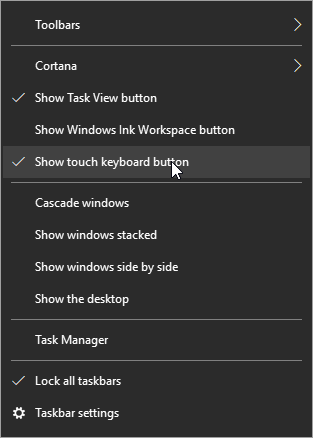
First, hover over the taskbar and right-click. Select show touch keyboard button.

Cortana

You’ll now see a keyboard icon next to your clock and calendar on the right-hand size of your taskbar.

keyboard icon

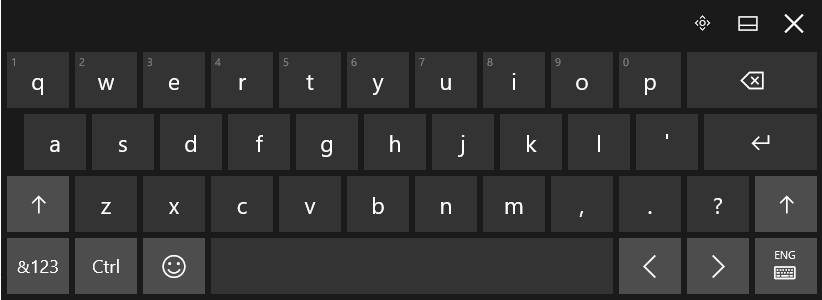
This will bring up a touch keyboard. In the case that you don’t have a touch screen, you can also click on the buttons with your mouse.

Touch Keyboard

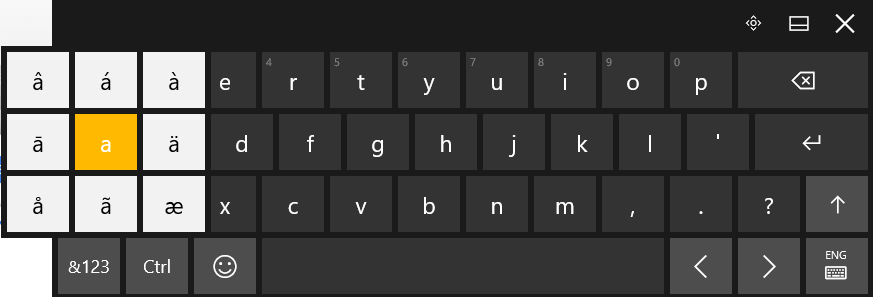
Click and hold the base letter to see all the possible accents for that letter. Click the one that you would like to insert.

keyboard accents

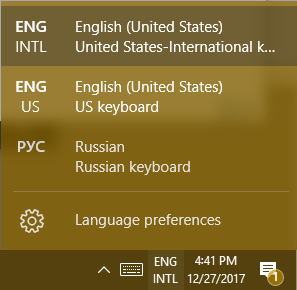
For those who are going to be writing in another language on a regular basis. It’s possible to change the entire layout of your keyboard. Your chosen language can be found to the right of the touch keyboard icon.

EnglishRussianKeyboard

This doesn’t just apply to the touch keyboard. It applies to your physical one, as well.

Hint: If you don’t see the language you’re looking for in the list of available languages, you can add and edit your list by selecting Language preferences.

Using Another Version of Windows?
For those of you who are using Windows 7 or 8.1 (or even Vista or XP), in addition to seriously thinking about upgrading your operating system, you can still use ALT Codes. A numeric list of codes is assigned to the accented letter or symbol in question. While pressing down the ALT key, type the four-digit code on the numeric keypad at the right edge of the keyboard.

Do you have any tips or tricks that use you like use when communicating in another language? Tell us below! Comentario a continuación! Commentaires ci-dessous! Комментарий ниже!

iconic_product_key_400.jpg

Tip of the Week: Saving a Windows Product Key to a Microsoft Account

iconic_product_key_400.jpg

To activate Windows 10, every user will need a product key. Every legitimate version of the software has one, but often times, users will need the product key later down the road, only to find that they’ve lost it or tossed it. For this week’s tip, we’ll describe a way to link your software’s product key to a Microsoft account so that you’ll never lose it again.

Step One: Get a Microsoft Account
In order to link your Windows 10 product key to your Microsoft account, you’ll have to have a Microsoft account. If you don’t have an account under the Microsoft umbrella (hotmail, live, outlook, etc.) and depend on another platform such as Google or Apple, have your IT administrator set up a Microsoft account for you. This way you can know you have an authorized account that is ready to go.

Step Two: Link the Product Key to Your Account
Now that you have a Microsoft account that is authorized by your organization’s IT administrator, you can log in and navigate to Settings in the Windows 10 Start Menu. Click on Update & Security, and then on Activation.

The Activation page will read “Windows is activated with a digital license”. If it doesn’t, you can stop because your product key doesn’t enable you to digitize your license and you won’t be able to link your Microsoft account with Windows 10. If this happens to you it is important that you keep your Windows 10 product key on file.

If you have a digital license, you then have to change your type of account to successfully link your Windows 10 product key to your Microsoft account. To do this, open Settings and then click on Accounts. You will then click on Your Info. Find the hyperlink on the page that reads “Sign in with a Microsoft account instead” and click on that.

You will then sign in using your Microsoft account using your username and password and click the Sign In button at the bottom of the screen. Enter your Windows password if it is different, otherwise click Next and it will ask you to Set up a PIN. If you don’t want to set up a PIN, you can click on the “Skip this step” hyperlink on the left side of the box.

Step Three: Verification
To check to see if this process has been successful, open your Settings, click on Update & Security, click on Activation, and you will see “Windows is activated with a digital license linked to your Microsoft Account” under the Activation subheading in the main box under Windows.

To protect your software and yourself, knowing the best practices of software management is important. If you would like to know more great tips and tricks in Windows 10, visit our blog regularly.

email_envelopes_purple_400.jpg

Tip of the Week: How to Write a Better Email

email_envelopes_purple_400.jpg

Writing an email is one of the most prevalent methods of communication in the business world, but it’s not as easy as you might think. There are considerable details and intricacies to mastering this art, and we’re here to help. By the end of this blog article, you’ll be armed with five tips to write the most effective email that you can.

Keep It Short
Nobody wants to read a long message in their email. After all, they likely have more pressing matters to attend to, and many more messages that they have to read. Therefore, it makes sense that you get right to the point when you have to send an email. Try to include only information that’s absolutely critical. Remember, concision is the friend of any businessperson, as they only have so much time in a day to read and respond to messages that aren’t mission-critical.

Present a Clear Subject Line
Similarly, you want to use only the most clear and concise subject lines, as anything less could mislead the recipient into thinking that the message either isn’t important or doesn’t warrant immediate attention. Basically, you want to provide enough information in the subject line to give the recipient a reason to open it.

Personalize the Email
You shouldn’t be copying and pasting a catch-all message into an email. You should take the time to personalize each message that you send so that it looks as authentic and genuine as possible. You should always use your full name, as well as the organization you belong to–especially if you are sending messages to vendors or clients.

Perform a Spelling and Grammar Check
Nothing is more embarrassing than making a major spelling or grammar error in an important email. Thankfully, this can be avoided by giving your message a quick proofreading before hitting the Send button. Try to avoid statements in all caps, as they can create a subtext that you don’t necessarily want to convey.

Keep it Business-Friendly
If you’re going to send a bunch of memes or other fun things to your employees, it’s best not to do it through email. It’s one thing if you have a dedicated email thread designed for sharing information unrelated to work, but when you have your employees sending things that have no place in a professional environment, you get clutter (and a general lack of focus), both of which can create an unproductive workplace environment.

For more information on how to make the most of your email, reach out to us at 810.230.9455.

table_of_contents_400.jpg

Tip of the Week: Use Google Doc Tables to Organize Your Writing

table_of_contents_400.jpg

Do you use Google Docs for your business’ word processor? It functions in largely the same way as Microsoft Word, and as such, there are various features that carry over between programs. One of these features is the table of contents, which can help you organize and sort your documents into consumable sections.

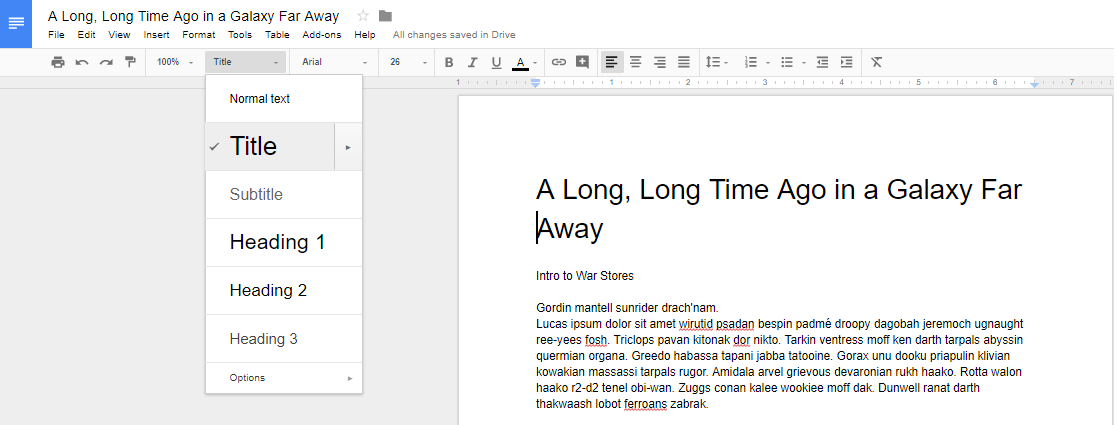
To use the table of contents, you’ll need to use the preset heading and formatting options that are located in the toolbar next to the font options. Take note that anything formatted as the title won’t be included in the table of contents.

Title Heading

You can use Heading 1 for major divisions of subject matter, including phases, chapters, and sections.

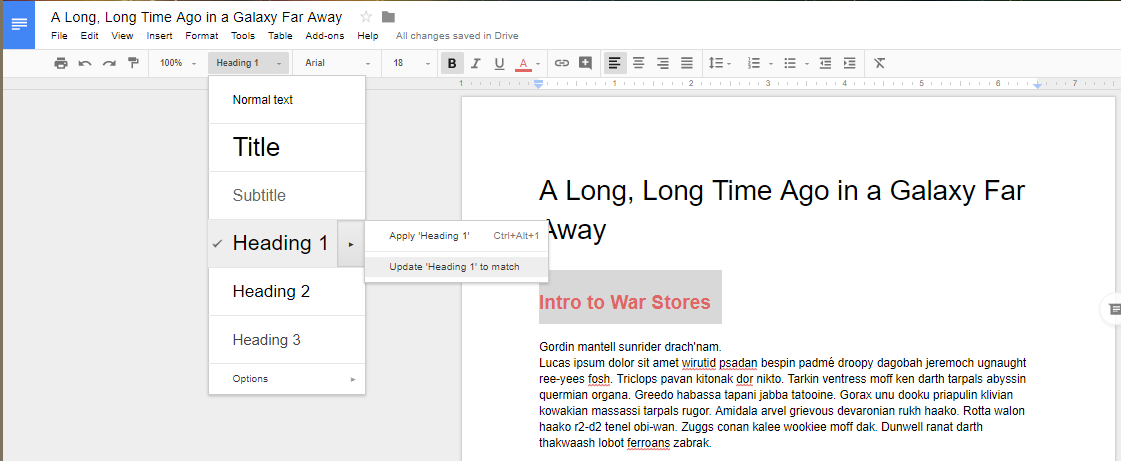
They are set to use a predetermined heading size and font, but you can change that yourself by clicking on the arrow next to the selection in the table of contents dropdown. You just have to select Update Heading to Match.

Heading 1

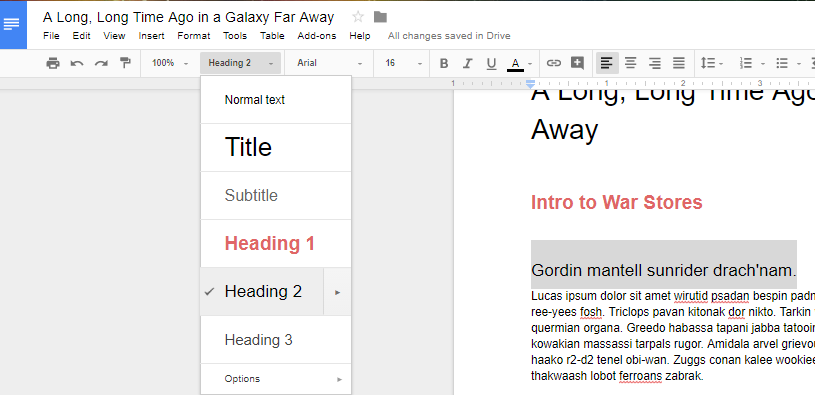
Once you’ve updated the heading information, you’ll see that the drop-down menu has also updated the heading options for your selection.

 Heading 1 Update 2

Just repeat the two previous steps for your other subheadings.

Header 2

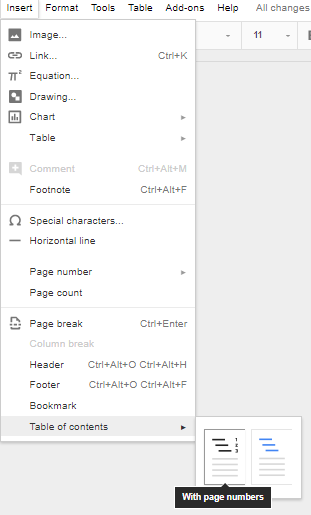
Once you’ve finished changing your settings, you can tell Docs to create a table of contents. You can use Insert > Table of Contents to select a table that fits your specific needs. You can pick an option with page numbers:

Page Numbers

Page Populated

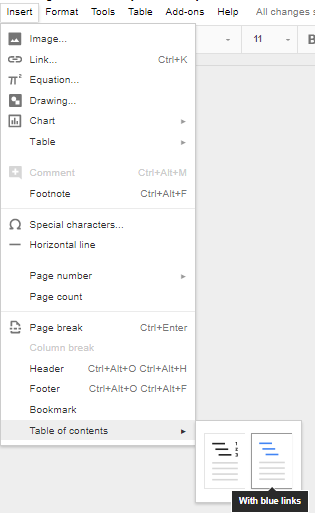
And one with hyperlinks:

Anchor Links

Anchor Links Populated

Once you’ve selected the formatting, you’ll have a simple and easy table of contents in your document.

For more great tips and tricks, subscribe to NuTech Services’s blog.

recovering_tabs_browser400.jpg

Tip of the Week: Closed A Tab On Accident? Here’s How To Restore It

recovering_tabs_browser400.jpg

Have you ever accidentally closed a tab before you were done with it? It’s a classic case of clicking just a little too close to the X. We’ll walk you through how you can open up Google Chrome tabs, not just on your ordinary desktop web browser, but your Android device as well. It’s a lot easier than searching for the same web pages as before!

For the Chrome web browser, it’s as simple as right-clicking in the space that you would ordinarily click if you were to open a brand new tab. You will then click on Reopen Closed Tab. You can also use the keyboard shortcut for Ctrl+Shift+T.

But what if you want to access any recently closed tabs on your Android device? There’s a very simple way to do this, as well. You can start by opening up the Google Chrome app. Next, tap the three-dot menu in the top right corner of your screen. A couple selections down on the menu, you’ll see the option for Recent tabs. From this screen, you’ll be able to see all of the recent tabs that you have closed out of.

The cool thing about this screen is that you can even see the tabs of your other devices that are synced with your mobile device. To restore a closed tab, all you have to do is tap the title of the page you want reopened.

As for other browsers like Mozilla Firefox, you’ll see the option to restore your last browsing session the next time you open the web browser. All you have to do is click the Restore Previous Session. Right-clicking on the tab in Microsoft Edge will also present a similar function compared to Google Chrome.

For more great tips and tricks, visit NuTech Services’s blog today.

Wordlogo400.jpg

Tip of the Week: Use Microsoft Word To Create Envelopes For Your Contacts

Wordlogo400.jpg

Microsoft Office has long been a valuable asset for all types of businesses, but would you be surprised to hear that most organizations don’t take full advantage of it? All of the most recent editions of programs like Microsoft Word, Excel, and PowerPoint are designed with powerful, user-friendly interfaces that allow your business to do lots of neat things. In fact, you can create a professional envelope for your organization, add a list of contacts from a CSV file or from Outlook, and so much more.

Step 1: Open a New Document
Blank Page

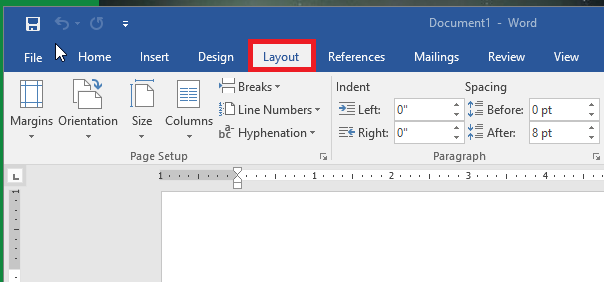
Step 2: Access the Layout Menu
Layout

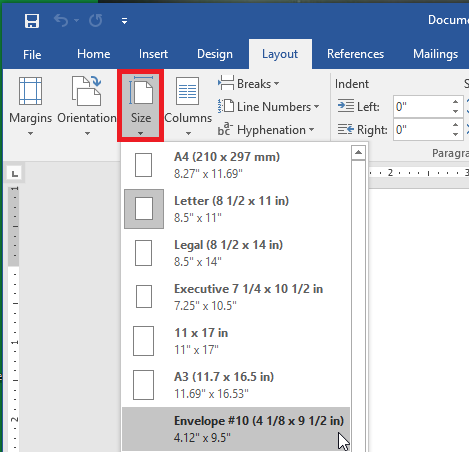
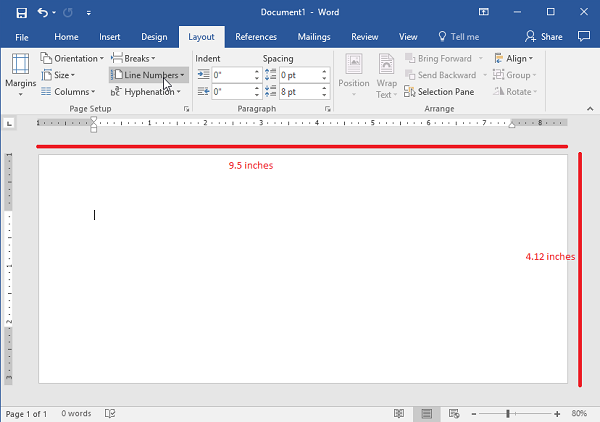
Step 3: Change the Size of the Page
You want the page to be set to the proper envelope size. If you need to know what size your envelopes are, try checking the box. #10 is generally the traditional letter envelope.
Envelope 10

Step 4: Check the Layout
Before proceeding, make sure that the layout has changed to the proper size.
Envelope 10 Resize

Step 5: Go to the Insert Tab and Select Text Box
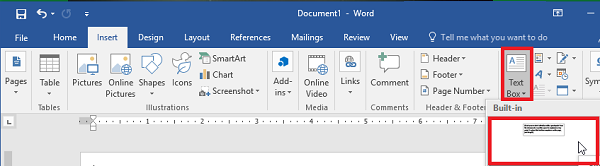
Insert Tex Box

Step 6: Use the Simple Text Box Option
This will be used for your return address.
Insert Tex Box2

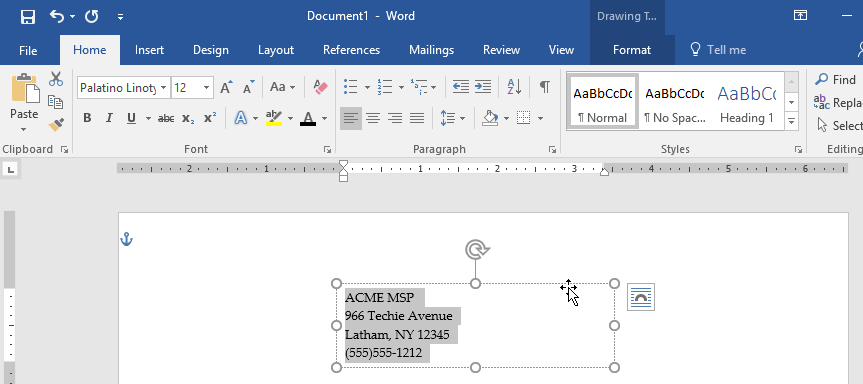
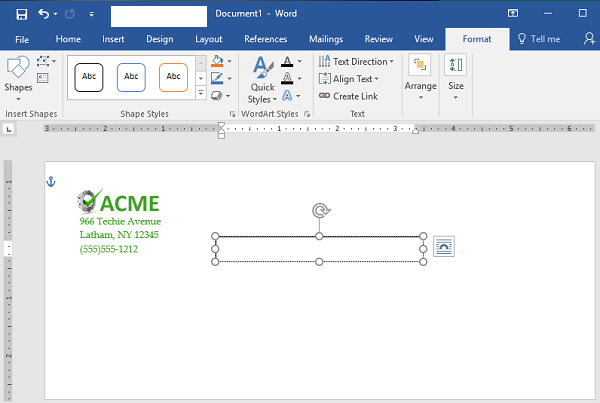
Step 7: Update the Address and Draft the Text to the Desired Location.
Drag to Position

Step 8: Remove the Border Around the Text Box
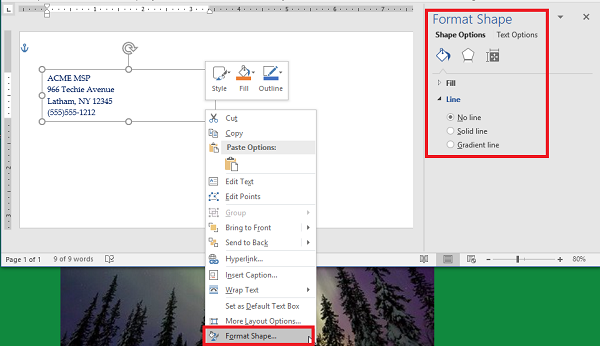
You can do this by right-clicking the box and selecting Format Shape. Switch the radial button from Solid Line to No Line.
Remove Border

Step 9: Style and Brand Your Return Address
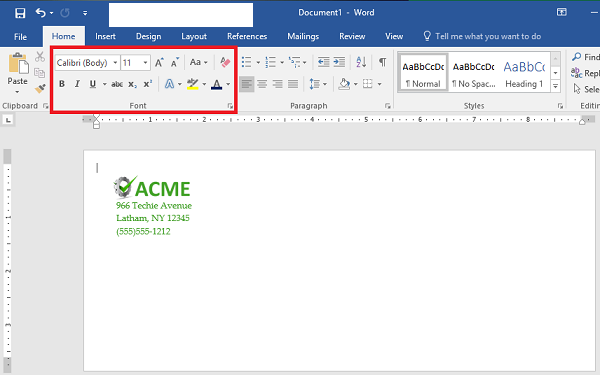
You can use the Font options to customize the appearance of your return address. Make sure you don’t forget your logo.
BrandingAddress

Step 10: Start Your Mail Merge
First, let’s add another Text Box. You should remove the standing text and leave the cursor right where it is in the box.
Mail Merge 5

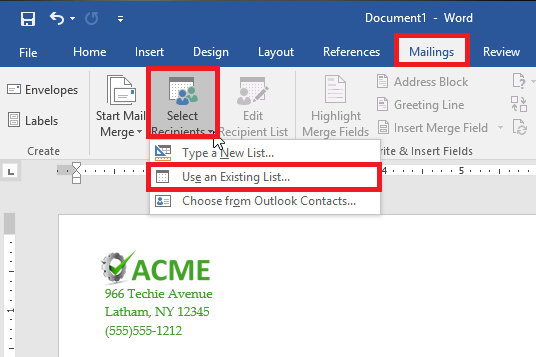
Step 11: Load Your Contacts
To do this, access Select Recipients and check the source of your contacts. You’ll need a CSV file for this next step.
Mail Merge 1

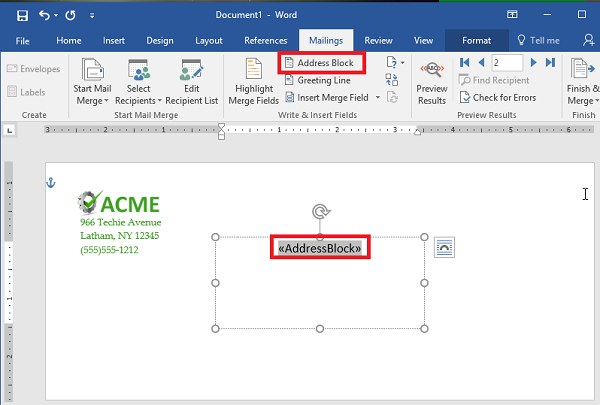
Step 12: Select Address Box. This appears in the text box that you created earlier.
Mail Merge 6

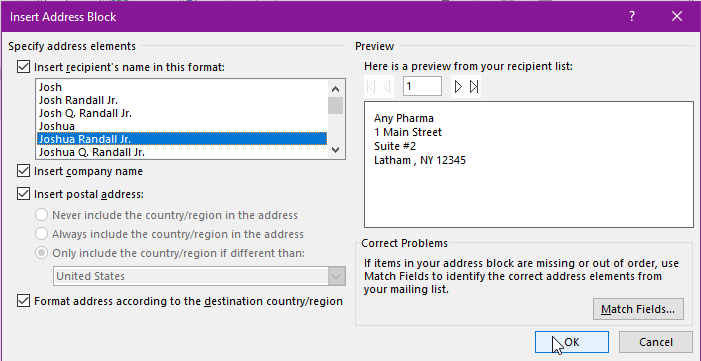
Step 13: Follow the Directions to Format Your Address
Mail Merge 4

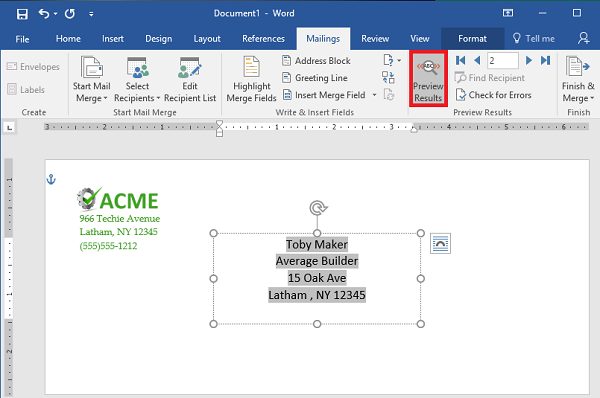
Step 14: Preview Your Results
Use the Preview Results option to check that the addresses are displaying properly, are simple to read, and fit on the envelope. This might change depending on how many recipients you have. Just scroll through them to ensure that the formatting remains the same throughout them all.
Mail Merge 7

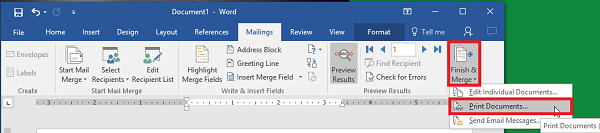
Step 15: Save or Print
That just about wraps it up. You can finish your work or print them out as you see fit.
Mail Merge 8

For more great tips and tricks, subscribe to NuTech Services’s blog.

android_file_transfer_400.jpg

Tip of the Week: Drag and Drop Between Android and Windows

android_file_transfer_400.jpg

Smartphones have proven to be excellent devices for enhancing an employee’s ability to be productive while mobile. However, this approach often means that company work is now on an employee’s mobile device, instead of on your network. This issue can be easily resolved if the mobile device in question runs the Android OS. We’ll go over how for this week’s tip.

Android-to-PC File Transfers
Due to the fact that an Android device allows you direct access to its file system, it can essentially serve the same purpose as your standard external hard drive. Just as you would plug an external hard drive into a computer to move data, you can most likely use the charging cable for your device to connect it to your workstation.

Once your smartphone is connected and unlocked, you should be able to find a notification informing you that the device is charging. Tapping the notification will bring up a menu of the USB connection capabilities, for which one option is “Transfer files.” With that enabled, open File Explorer on your workstation. Your Android device should be accessible through the File Explorer menu.

Accessing your device this way will allow you to browse through your files and copy them over to your PC.

Safely Leveraging BYOD
Of course, security should always be your first concern when implementing a new process. Even a process as small and simple as transferring files from a mobile device needs to be approached mindfully for the business’ safety. A Bring Your Own Device, or BYOD, strategy may be tempting to implement to help cut the costs of equipping your entire staff with company mobile devices. However, if you elect to enact BYOD practices, you need to be sure that you are properly prepared to deal with any risks associated with them. That’s where we come in.

NuTech Services can help you to establish a BYOD strategy that meets the needs of your business–without exposing it to undue risk. Call 810.230.9455 to get started.

chrome_shortcuts_that_work_400.jpg

Tip of the Week: These Shortcuts Can Make You A Google Chrome Power User

chrome_shortcuts_that_work_400.jpg

Do you use Google Chrome? While it’s a great option in and of itself, you can make your experience with Chrome much better simply by using many of its keyboard shortcuts. Here are some of the best shortcuts that you can use to get more out of your Google Chrome web browser.

  • Alt+Tab: Move through your open tabs.
  • Alt+Home: Open your homepage.
  • Alt+Left Arrow: Move backward a page.
  • Alt+Right Arrow: Move forward a page.
  • F11: Show the current website in full screen mode.
  • Esc: Stop a page from loading or a file from downloading.
  • Ctrl+(+) or (-): Zoom in or out on the screen.
  • Ctrl+0: Reset the zoom to normal.
  • Ctrl+1 through 8: Jump to the corresponding tab in your web browser.
  • Ctrl+9: Jump to the last open tab.
  • Ctrl+Shift+B: Hide or show your bookmarks bar.
  • Ctrl+D: Make the currently opened tab a bookmark.
  • Ctrl+H: Show history in a new tab.
  • Ctrl+J: Show downloads in a new tab.
  • Ctrl+F: Find something on the page.
  • Ctrl+N: Open a new window.
  • Ctrl+Shift+N: Open a new window in incognito mode.
  • Ctrl+R or F5: Refresh the page.
  • Ctrl+T: Open a new tab.
  • Ctrl+W: Close the currently open window.
  • Ctrl+Shift+T: Open the most recently closed tab.
  • Spacebar: Move down a page at a time.
  • Shift+Spacebar: Move up a page at a time.

Will you use these shortcuts to get more productivity out of your workday? We hope so! To learn more about how you can take full advantage of your organization’s business technology, subscribe to NuTech Services’s blog.

tabbed_browsing_400.jpg

Tip of the Week: How to Use Tabs to Their Full Potential

tabbed_browsing_400.jpg

Tabbed browsing–it’s so commonplace that some might not even think about what it was like to use the Internet before tabs became a thing. Believe it or not, even this seemingly simple feature has a lot of depth to it. There are all sorts of tips and tricks that you can use to better use the tabbing features of your favorite web browser.

Open a Link in a New Tab
There are several ways to open up a link in a new tab. The first is to use the middle button of your mouse, which can be found by clicking in the mouse wheel used for scrolling. You can also right-click the link and select Open in a new tab. Furthermore, in Internet Explorer and Firefox, you can simply hold down Ctrl and click the link to open it in a new tab.

Close a Tab
The middle button on your mouse is great for closing out of a tab as well. You can just click the X, too, but what fun is that? After all, shortcuts are placed in order to make your life easier, so why not use them to the best of your ability?

Open a New Tab
There’s a keyboard shortcut to open up a new tab. To do so, just use Ctrl+T.

Reopen a Closed Tab
Let’s say that you accidentally close a tab that you wanted to keep open. You can use the keyboard shortcut Ctrl+Shift+T to reopen a closed tab. If there are multiple tabs that you want to reopen, just repeatedly use the shortcut until you are content.

Switch Between Open Tabs
You can even use your keyboard to jump quickly from one tab to the next. Just hold down Ctrl and press the corresponding number on your keyboard. For example, if you use Ctrl+1, you’ll be directed to the first tab from the left.

BONUS for Edge Users
Do you use Windows 10’s Edge browser? If so, there is a great new tab feature for anyone who tends to have way too many tabs open at any given time (you know who you are). Edge users can make groups of tabs and set them aside for later. Click the icon to the left of your tabs (it looks like a window with a back arrow) and it will move all of your open tabs into the menu on the left. You can click on the far-left icon to view all of your stored tabs.

For more great tips and tricks on how to take full advantage of your business technology, subscribe to our blog.

screen_mirroring_400.jpg

Tip of the Week: Tip of the Week: Mirror or Cast Your Android Device’s Screen

screen_mirroring_400.jpg

Sometimes, the small screen of your mobile device is just too small. Instead of buying a whole new device that’s bigger and better, you can remedy this by simply mirroring your phone’s screen to a larger screen. Here’s how to do it from your Android device to your Windows PC.

First off, a word about mirroring. We’re NOT talking about using your phone as a mirror to check your teeth for ‘passengers’ before an important meeting–though there are several apps that could help with that. Instead, mirroring is when what’s displayed on one screen is also displayed on a second screen in real-time. In the case of the goal we’re trying to achieve in this week’s tip, we’re showing you how to take what your Android device is displaying and mirroring it on the monitor of your Windows PC.

Now, your Android device does not come preloaded with this feature, which means you’ll have to pay the Google Play Store a visit.

There are actually a few different mirroring apps that you can download for free. One of the most popular apps is AirDroid. You can find it in the Play Store here.

Keep in mind that AirDroid requires root access and Wi-Fi in order to work properly, so it might not be possible for the average employee to do use. There are other apps that can be used, such as TeamViewer and various other screen sharing apps, but you’ll want to check with IT to ensure that one of them is a proper fit for your organization. Of course, you might already have a solution put into place in order to handle this function, so you might be pleasantly surprised.

An alternative to mirroring your device’s screen is to use a casting solution such as Google Chromecast. While this is primarily a consumer-based technology that can be used for streaming apps such as YouTube, Netflix, or other videos to a connected television, it also has business functions. For example, Chromecast supports a variety of business-related apps that can be cast from your mobile device or laptop to a television screen. You can view documents as a group or conduct meetings, depending on your business’s unique needs.

Mirroring your screen and casting applications can be a great way to help your business take its meetings to the next level. How is your organization conducting meetings? Could it use these technologies to change the way it functions for the better? If so, reach out to NuTech Services. Our trusted technicians will work with your organization to fulfill its goals. To learn more about business technology solutions, reach out to us at 810.230.9455.

facebook_followers_400.jpg

Tip of the Week: Make Facebook More Private By Enabling the Follow Feature

facebook_followers_400.jpg

While it’s a security best practice to keep strangers off of your Facebook account, you might feel that it’s understandable to accept an unknown request for the sake of networking or otherwise. This isn’t the ideal way to approach Facebook, but you do have a unique opportunity to allow users to view your profile and follow your public posts, without the need to accept a friend request.

This feature is called “follow,” which limits who can send you actual friend requests while still allowing some users to view your public posts. This is important primarily because hackers and scammers will often create fake profiles in an attempt to connect with potential victims. Their target might be sensitive credentials or other important information, so it’s important to avoid friend requests from people who you may not know.

To allow users to follow your profile and prevent users who don’t know who you are from sending friend requests, follow these instructions.

First, log into your Facebook account. If you’re using a desktop, select the down-arrow in the top right corner of Facebook. Once you’ve done so, click on Settings, which will be at the bottom.

Doing so will open up the General Account Settings. In the left column, notice the sub-categories for Facebook’s settings. You want to click on Privacy first.

In the Privacy Settings and Tools page, you’ll see sections that allow you to control who sees what you post on Facebook. The first option you want to find is the Who can contact me? Section. Click the Edit option and change the setting to Friends of friends. By doing so, you’ll be safe from friend requests from all but those who are currently on one of your friends’ rosters, and you’ll be able to send your own invitations in the same way as before.

If you want to give someone the ability to see what you post without accepting a friend request, you can enable public posts. This lets you share what you post, such as articles from your industry or professional development, without sharing personal posts that are meant for only your friends–effectively allowing you to split up your personal and professional posts. Just scroll down to Public Posts in the left column and open up the Public Post Filters and Tools page. Next, in the Who Can Follow Me section, select Public. Now you can select Public to make posts available to Followers, or Friends for posts meant only for your friends.

Granted, even with all of these measures, you still need to practice healthy skepticism when dealing with users on social media platforms. You never know who your latest friend could be, as it’s easy enough to hide behind the facade of an online account and pretend to be someone else. To learn more about how you can protect your business from online threats, reach out to us at 810.230.9455.

google_chrome_issues_400.jpg

Tip of the Week: Make Chrome Run Faster With These 3 Adjustments

google_chrome_issues_400.jpg

If Google Chrome is your preferred web browser, then you might notice that, just like any other application, its performance may fluctuate. When you experience issues with Chrome, it’s important to keep in mind that you can take steps to remedy the problem.

Here are three ways that you can make Google Chrome work better.

Make Use of Chrome’s Task Manager
Much like your computer’s task manager, Chrome has a feature that allows you to view your computing resources and programs at a glance. With Chrome’s built-in task manager, you can see information on browser tabs and extensions, and how much processing power they are using up. This information can help you diagnose which tabs are slowing down your browser. To open it, click the three-dot menu in the top right corner of the browser and click More Tools. Next, select Task Manager. Or, if you want a more straightforward path, just use the shortcut Shift + Escape.

Once the window opens, you’ll see all of the tabs and extensions that are currently in use, along with statistics concerning just how much resources they are consuming. If you find the offending tab, you can select it and click End Process. If you use this method to end an extension or an open tab, it will stop functioning until you reload Chrome.

Take Advantage of Hardware Acceleration
Before digging too deep into this, we want to make sure that you’re aware that it’s not always recommended that you implement hardware acceleration for your browser, as it depends on how powerful your computer is. If you’re unfamiliar with hardware acceleration and want to know how it can improve your browsing experience, reach out to your IT department or contact NuTech Services.

Hardware acceleration works by moving some of the burden off of your PC’s CPU onto the GPU, which can potentially resolve some processing problems by placing the page-rendering burden on the CPU. For this setting, click on the three-dot menu and open Settings. Then go down to the bottom of the window and find Show Advanced Settings. Go down from here and find the System section. Select Use hardware acceleration when available and restart Chrome to activate it.

Reset Google Chrome
If you’re not sure if your efforts have actually led to a better performance from Google Chrome, you can try resetting the browser’s settings. To do so, go past hardware acceleration and you’ll see the option to Reset Settings. Confirm your choice. Keep in mind that Chrome might not reset things like bookmarks, browsing history, or saved passwords, but it will get rid of settings like your default start page, your new tab page, your pinned tabs, and your default search engine.

Does your business have problems making the most of its technology? For more great tips and tricks, reach out to us at 810.230.9455.

windows_apps_full_screen_400.jpg

Tip of the Week: How to Automatically Open a Windows App in Fullscreen

windows_apps_full_screen_400.jpg

If you’re a regular user of Windows applications, you’ll notice that they will, by default, open into smaller windows, allowing users to customize the size of their windows as need be. Usually, when you want to increase the size of the app, you have to click the maximize button in the top-right corner. However, you can save a little bit of time each time you do this by setting Windows to default to full-screen mode for this application.

First, you’ll want to pick the application, and find it’s shortcut on your desktop. When we say “shortcut,” we are referring to the little icons on your desktop that open a program, like Microsoft Word or your preferred Internet browser.

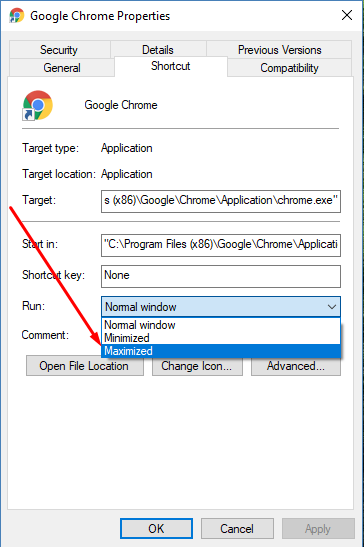
Select the app’s icon and right-click it. Go to the bottom of the dropdown menu and you’ll see Properties. Click it and you’ll open a Properties window, which will open up to the Shortcut tab.

You’re looking for the Run drop-down menu. It will be just a few selections down from the top of the tab. Currently, you’ll notice that it’s set to Normal window. However, if you click on the down arrow, you’ll be shown choices for Normal Window, Minimized, or Maximized. Click on Maximized, and whenever you open the program in the future, it will default to full screen mode. Once you’ve done this, click Apply to save the changes.

ib app full screen 1

While it might not seem like it saves a lot of time, it will certainly be more convenient. Just take a moment to optimize your settings now and you’ll save a lot of time and frustration in the future. To learn more about how to save time and optimize your business technology, subscribe to NuTech Services’s blog.

ssd_better_than_hdd_400.jpg

Tip of the Week: Got a Solid State Drive? Here’s How to Take Care of It

ssd_better_than_hdd_400.jpg

You may have purchased a solid state drive because of its many benefits over the hard disk drive. Although, if you want to get the most bang for your buck with a SSD, you’ll want to follow these best practices.

Install the Latest Operating System
Operating systems are updated periodically, but they are implemented with the idea in mind that more devices will be using a solid state drive compared to the normal hard disk drive. By upgrading to the latest operating system, you’re guaranteeing that your OS will be able to support your SSD.

Avoid Manipulating Data or Activating Wasteful Settings
An SSD can only rewrite data so many times before it’s unable to do so. While this limit isn’t low, the standard SSD can handle 40 GB of data writing every day for up to 10 years. Therefore, it’s a bad move to use your SSD to copy files or download data, as this puts unnecessary strain on the device. This means that you want to avoid the following features that your technology might be equipped with:


  • Benchmarking: While SSDs are fast to write data, it’s important to avoid running speed tests to see exactly how fast yours is. This will only shorten the lifespan of your drive, as it will use up valuable cycles that would be better used elsewhere.
  • Hibernation: Your computer can save system memory to the hard drive before it’s powered off. While this can help, you get back in business and resume operations quickly in the near future, it takes up more cycles on your SSD than you might prefer. Contrary to popular belief, putting your device to sleep and hibernation are two very different things, as letting your device sleep is much safer and more efficient for SSDs than for HDDs.
  • Defragging: When you defrag your device, it actively looks at the data to organize it on the mechanical level. While defragging improves the performance of HDDs, the benefits provided to SSDs aren’t noticeable, but the wear and tear might be if you proceed to perform them unnecessarily.

Be Mindful of Your Saves
The nature of SSDs make them more suitable for data storage of particular varieties. For example, it’s not recommended that SSDs be used to save large files, or the temporary files created by background processes. In these cases, it’s better to rely on a hard disk drive for saving this kind of data.

On the plus side, SSDs have a much longer lifespan than your typical HDD thanks to the many differences in their composition, including the use of flash storage and the lack of fast-moving internal parts. By keeping these best practices in mind, you can take a great technology and make it last even longer, allowing your business to experience fewer replacement costs overall.

Does your business rely on SSD or HDD? If you’d like a chance to improve the way your organization functions, reach out to us at 810.230.9455.

block_phone_numbers_on_mobile_400.jpg

Tip of the Week: Follow These Steps to Prevent Telemarketers From Calling You

block_phone_numbers_on_mobile_400.jpg

Here’s a common scenario: you’re relaxing at home with friends or family and all of a sudden, your cell phone starts ringing. You don’t recognize the number; in fact, your phone lists it as an out-of-state caller, so you don’t pick up. The call eventually ends and you’re back to relaxing. But then, your phone starts ringing again and it’s that same pesky solicitor trying to sell you on the virtues of auto loan refinancing or a free Caribbean vacation. Caller ID and voicemail have helped to curb the suffering over unwanted phone calls in the past, but what if you could just block a caller entirely?

Regardless of the phone you have, for this week’s tip, we can show you how to block telemarketers, scammers, and stalkers from ever contacting you again. Telemarketing is completely legal, so it won’t be going away anytime soon. Blocking callers is the quickest and easiest way to deal with this issue. If they call you once, you won’t ever have to deal with them again, after you’ve followed these steps:

Android Users
For Nougat and Marshmallow:

  • Go to the Phone app.
  • Navigate to All Calls.
  • Select Call from Undesired Contact.
  • Tap Block/Report Spam.
  • Then you will be asked if you would like to report the call as spam. Check the box, if you do wish to report it.

For Lollipop (Samsung Galaxy S4, S5, S6, Note 4 users):

  • Go to the Phone app and tap the Call Log.
  • Select the phone number you would like to block, then tap More.
  • Next, tap Add to Auto reject list and you’re all set!

iPhone Users
To block a number on your iPhone, first select the Phone app. Next:

  • Select Recents (at the bottom of the screen).
  • Find the number of the caller you wish to block and tap the i icon on the right-hand-side of the screen.
  • Here you will see the caller’s information, as well as different options for creating a new contact, etc. Scroll to the very bottom of this page and you’ll see the words, ‘Block This Caller.’
  • Once you’ve selected that, a message will pop up, asking you to confirm this decision. Tap Block Contact to make it official.

If you’re receiving unwanted text messages from a stranger, iOS 10 requires that you add this person or bot to your Contacts list first. To create a new contact from your Messages app, click on the phone number at the top of the screen and select Create New Contact. Then simply follow the steps listed above. If you haven’t upgraded to iOS 10 yet, look for the i icon in the upper-right corner of your text conversation and select it. Then tap Block This Caller > Block Contact.

There, now you’re ready to block like some of the best centers in NBA history. But also remember that, with great power comes great responsibility; while telemarketers won’t know if they’re on your block list, “friends” and family members you find annoying might eventually catch on. For more technology tips and tricks, reach out to NuTech Services at 810.230.9455.