dispose_of_computers_400.jpg

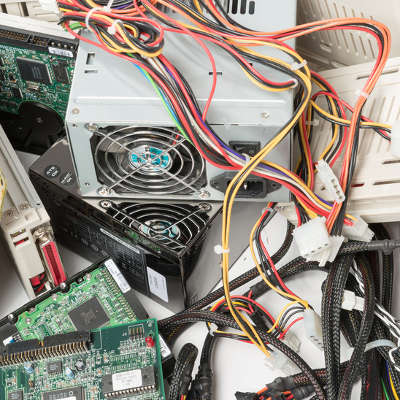
Tip of the Week: Cover Your Assets By Properly Disposing of Your Old Computers

dispose_of_computers_400.jpg

It can be difficult to think about replacing expensive hardware like desktops and servers without breaking your budget, much less having to deal with your old data. Thankfully, there are certain steps that you can take to make the transition to a new PC or server much easier, and it all starts with properly getting rid of your old technology.

Before we get started, though, we want to emphasize the importance of taking preventative measures. These keep you from getting into a situation where you don’t have the technology you need. In other words, if your desktop is outdated, then you shouldn’t wait until it completely breaks down before you replace it. This makes it imperative that you identify warning signs for your ailing technology before it suddenly stops working.

Warning Signs
To get started thinking about what to do when your computer breaks down, look for the following warning signs.

  • General PC slowdown
  • Freezing or even operating system crashes
  • Corrupted files or data loss
  • Random shutdowns
  • Startup errors

Keep in mind that these symptoms could be signs of other PC issues as well.

Understand When You Need to Replace Technology
Nothing your business utilizes can last forever, including technology like workstations and servers. If you suspect that your PC is reaching its limit, it’s crucial that you implement a strategy to properly replace it and dispose of the old one. If there’s no such policy to adhere to, you could be putting your business at risk of a data breach, and putting yourself at odds when the investigators look into whether it was your fault for failing to follow best practices. Gartner explains, “Best-practice PC disposal processes provide an audit trail documenting the serial-numbered inventory of disposed PCs, certification that proprietary and personal data has been removed and made unrecoverable, and transfer/reuse of software licenses, where applicable.”

Does your business have old technology that’s holding you back from moving forward? If so, contact NuTech Services right away. Our technicians can help your business completely wipe the data off of your old technology’s hard drives, or transfer it to your new, more recent hardware. Plus, we can recycle your business’s old devices so they won’t cause harm to the environment.

Our goal is to help your business make a smooth transition to new hardware solutions without putting your sensitive data at risk. To learn more about what we can do for your organization, reach out to us at 810.230.9455.

cleaning_your_computer_400.jpg

Tip of the Week: How to Clean Your PC Like an IT Pro

cleaning_your_computer_400.jpg

Just as anything else will, a computing device will need some TLC to keep it physically clean and in tip-top shape. In order to clean your system safely, you will need proper tools, and the know how to properly clean your PC.

For a basic cleaning, a can or two of compressed air and lint-free wipes should suffice. For jobs that will require a little more elbow grease, you will need to add a few more items to this list–a small screwdriver, cotton swabs, and isopropyl alcohol (make sure it’s isopropyl, and not ethyl-based).

Cleaning Out the Desktop
Before you get started, keep in mind that you’ll be dealing with some pretty sensitive hardware. We highly recommend having an experienced technician handle this for you.

First and foremost, you’ll want to completely power-down your system. This includes not only powering down the machine but also killing power to the surge protector it is plugged into and removing the power supply cord from your system. Wipe down the case exterior using a static-free dust cloth and get rid of dust that has been caught in the external vents, preferably by using your compressed air once the case has been opened. For dust bunnies of above-average size and other assorted crumbs, carefully go through and wipe them away with cotton swabs before using the compressed air to rid the system of the remaining dust.

As you use the compressed air, be sure not to sustain the stream for too long, as it could damage some of the more sensitive components of your system. You should also be very careful of what you touch in the system and avoid any bare or soldered wire to avoid serious electric shock. As you will almost certainly be generating static, make sure that you touch the metal and plastic frameworks frequently enough to keep you fairly equalized.

Once you’ve finished with that, close the case back up and go over it again with your dust cloth.

While it may be tempting to just take a vacuum to the buildup of dust in your system, don’t. The bristles on the vacuum are notorious for generating static, which can easily damage the delicate internal parts that your system relies on to function.

Making Your Screen Spic and Span
There is little more annoying than fingerprints and smudges streaking up your screen, especially when you are trying to focus on your work. Fortunately, cleaning the screen of your display is fairly similar to cleaning a window, with a few special considerations.

If you utilize an LCD display, applying a half and half mixture of distilled water and white vinegar to a microfiber cloth and gently wiping the screen works wonders to rid it of debris. If you still operate a CRT monitor, an ammonia-free glass cleaner will do just fine while preserving the screen’s coating. Make sure that you don’t spray the device with whatever liquid you use in either case. Instead, apply the cleanser directly to the cloth and wipe down the screen that way.

Keeping the Keyboard and Mouse Clean
Of all of your computer’s components, the keyboard and mouse will be the ones that are exposed to the most debris and bacteria as they are handled almost constantly during computer use. To do a basic cleaning, unplug your keyboard from the rest of the system and turn it upside-down, gently shaking it to dislodge any crumbs and other particles that are trapped between the keys. Another option is to use a can of compressed air, spraying between the keys at a 45-degree angle. Once you’re confident that most of the accumulated mess is cleared away, gently flip it over and shake it out again before carefully wiping it with an antibacterial wipe and drying it with a microfiber cloth.

If your keyboard is a membrane type keyboard, it is possible to remove the keys to get a good, comprehensive clean. Before you do so, be sure to create a record of the keyboard’s layout so your keys may be replaced properly.

To remove the keycaps, use the small screwdriver to gently pry them from their housing. However, because they can be difficult to put back on, leave larger keys (like the space bar, shift, and enter) on the keyboard as it is being cleaned. Use compressed air, cotton swabs, and isopropyl alcohol to clean out the grime that was hiding under the keys. Once you’re satisfied, snap the keycaps back in place and test thoroughly.

As far as the mouse goes, the overwhelmingly more common LED-sensor models will only need to be wiped down with a lint-free cloth and a few quick swabs of rubbing alcohol.

A Clean Workstation is a Happy Workstation
Keeping your computer clean can provide many benefits beyond just the aesthetic value. Equipment will likely run better, last longer, and be less apt to make you sick through exposure to simmering bacteria and germs. For more ways to optimize your technology experiences, make sure you keep checking back to our blog.

usbad_idea_400.jpg

Without Protection, Your USB Ports Could Become RIP Ports

usbad_idea_400.jpg

It seems like everything available today can function with a USB connection, be it a thumb drive, device charger, or a desktop device–there are even USB-powered mini fridges meant for a single soda can. Unfortunately, “everything” includes malicious devices and malware.

If a USB drive is infected by malware, you can put your computer and data at risk by merely plugging it in, and there are some malicious USB devices out there that pose some pretty serious threats.

USB Kill 2.0 
Despite being powered by electricity, computers don’t mix well with too much charge, as USBKill.com has capitalized on. Creating a dongle that is capable of siphoning power off of the device it is plugged into, USBKill.com’s proprietary device then releases the energy back into the system as a power surge attack.

Intended for hardware developers to test their devices’ resistances against ‘juice jacking’ (a form of data theft that extracts data as a device is charging), the USB Kill 2.0 permanently damaged–if not destroyed–95% of all devices it was tested with without the company’s proprietary USB protection shield. This shield is what allows the USB Kill 2.0 to be safely used for its intended purpose–to test electrical attack resistance.

What’s more, in some cases when used without the shield, the USB Kill 2.0 wipes data from the device. While this is not what the USB Kill 2.0 is intended to do, this occurs simply because the charge is enough to damage the device’s drive controllers.

Needless to say, a business saboteur could find great use in the $56 USB Kill 2.0 as a method of attack, and there aren’t many effective protections a workplace can implement, besides educating employees to resist the temptation of plugging in any USB device they find.

USB-to-Ethernet Theft
Best practices for workstation security dictate that a system be locked whenever its user steps away, no matter how briefly. However, a security researcher recently discovered a method of extracting data from a locked computer using, you guessed it, a USB-connected device. By disguising itself in a particular way, the target computer adopts the device as the preferred network interface, allowing the hacker to extract data to a rogue computer attached to the cable’s other end in about 13 seconds. The best defense, according to the researcher who uncovered this flaw: don’t leave your workstation logged in and unattended, even with the screen locked.

What a Business Can Do to Protect Itself
Of course, not all USBs are evil carriers of the worst malwares and threats, but by no means should they be used after being found on the street willy-nilly, especially in a workplace setting. In order to protect business workstations and data from threats, simply enforce a requirement to have any USBs fully checked by your IT department before in-office use. Alternatively, consider utilizing a cloud solution as a much safer option to meet your mobile storage needs.

To protect your business from possible saboteurs introducing their USB-based malware, it is also wise to secure exposed ports with locking devices.

While USB devices seem to be the pinnacle of affordable convenience in data storage, they are far more trouble than they are worth, at least in terms of security. There are much safer solutions to implement that feature equal, if not greater mobility than even a flash drive. A cloud solution, for instance, can be accessed from anywhere there is an Internet connection, kept safe in a well-protected, offsite location. New and improved solutions like these make risk-laden devices, such as USB dongles, unnecessary.

For more IT tips, tricks, and solutions, subscribe to our blog.

access_old_clipboards_400.jpg

Tip of the Week: Access Old Clipboard Content With ClipDiary

access_old_clipboards_400.jpg

The Copy and Paste feature has long been a staple of computing, but it’s easy to lose something that may have once been stored on the clipboard. Most people who have used a PC understand this pain and will be happy to hear that recovering the lost “copy” might be easier than they thought. A third-party tool called ClipDiary allows users to retrieve information lost in this way, but without it, it’s notoriously difficult.

The Copy/Paste Conundrum
Let’s say that you copy some important text to your clipboard with the intention of using it somewhere–perhaps a username or password. You close the app containing this information and open the app that you need to enter it into, but then you get distracted by the Internet. Maybe it’s a cat video or a page of memes. Regardless of what it is, all you know is that you want to share it with the world via social media. You copy the URL of the page, and that’s when it hits you: you have copied over the information on the clipboard that you needed to use elsewhere.

Now you have to go back into the app you’ve already closed and copy the original information, or worse–completely rewrite the whole thing. Depending on your situation, you might realize that this is a bigger pain that it needs to be. Think about it like not saving the progress on a favorite video game, or forgetting to put a bookmark in a novel.

The unfortunate reality is that there isn’t a “secret” file within Windows that holds your copied content, so there’s no way by default for you to access any deleted copied content. Instead, you can install an app called a clipboard manager, like ClipDiary, which allows you to retrieve your copied content.

Introducing ClipDiary
If you’ve experienced the aforementioned Copy/Paste dilemma, or it’s a mistake that you can see yourself making in the future, try installing ClipDiary: http://clipdiary.com/

ClipDiary lets you dodge this bullet. Just enter the keystroke Ctrl+D to open ClipDiary. The app will display your clipboard history and allow you to copy items back to your clipboard.

The problem we explained in detail is just one of the ways which Copy/Paste woes can translate into missed productivity, and how ClipDiary can help. For some other similar tales, check out this blog from ClipDiary’s website:

http://clipdiary.com/clipboard-articles/using-clipboard-history-and-clipboard-manager.php

ClipDiary also comes with some pretty useful features:

  • Insert saved data directly into any application
  • Fast copy data back to the clipboard
  • Paste text without formatting (as plain text)
  • Find data you once copied to the clipboard
  • View the list of clips in the clipboard history viewer window
  • Recover data accidentally replaced in the clipboard
  • Improve your productivity and save lots of time with the clipboard manager

If you choose to check out ClipDiary, let us know what you think. It might turn out to be the most useful tool you’ve never heard of.

used_computer_400.jpg

Tip of the Week: 4 Guidelines When Buying Used Computer Equipment

used_computer_400.jpg

One way that your business can save money is by purchasing used computer equipment, but only if you do your research and perform a meticulous analysis of where it’s been, and why it’s no longer being used. If you’re serious about purchasing pre-owned computing equipment, consider these four tips.

The Hard Drive’s Age
One of the most critical components of a computer is the hard drive. It can be difficult to judge the condition of a hard drive by observation, so keep this general rule in mind; the average lifespan of a hard drive is about five years, so you don’t want to purchase one that’s four or more years old. Or, rather, you should prioritize finding those that have more life left in them, as an older hard drive is typically at a higher risk of crashing.

However, an older hard drive doesn’t necessarily have to be technically useless. This five-year rule only applies to hard drives that see continuous use. If you find one that’s been used sparingly during its lifetime, it will probably have more life left in it than you might initially think. In general, the five-year rule isn’t something that you need to hold to. Just like any technology solution, there will be hard drives that can outlast others; some are known to exceed even 10 years without experiencing issues. Solid state drives are capable of bypassing this rule altogether, as they’re built to last for much longer than the hard disk drive.

In the end, you want to make your decision based off of what you need your hard drive to do. If it’s something that absolutely cannot fail, you may be better off just purchasing a new one outright. Or, you could use a reliable data backup and disaster recovery solution, like a BDR, and hope for the best.

Also, be sure to give the computer a test before you actually purchase it (if possible). If it’s making strange noises, it’s not a safe investment for your business.

Clean Up Your Used Technology
As you’re well-aware, computers are known to collect all kinds of grime, germs, and dust. This is important to keep in mind when you purchase a new PC, seeing as it might not be the cleanest machine in the world. It’s your responsibility to clean it up and make sure that it, or any of its components, are ready for use. Of course, depending on how long this process takes, you may just come to the conclusion that it’s too much of a hassle.

Additionally, there are some other components of workstations that are way too germy to be passing around the office. One example is the keyboard, a device so filthy and foul that it collects more germs than toilet seats. Just let that sink in before you pass on a used keyboard to another user. You might come to the conclusion that it’s better to just buy a new one.

The Parts Might Be Damaged
Whether you want to believe it or not, there’s a reason why someone is selling their used technology. Either it doesn’t work, or they found something that works better. Basically, it comes down to functionality. There’s no point in shopping around and investing in used technology if you wind up getting something that doesn’t work as intended. You would have been better off just purchasing a new part altogether, but you may not realize this until it’s too late.

This is what’s known in the technology industry as risk management. Some sources, like reputable online dealers, will be more reliable to purchase used technology from. Others, however, may not be so trustworthy. We’re looking at you, Craigslist.

Consult the Professionals
Here’s one last tip for procuring quality computer equipment: contact the IT professionals at NuTech Services. We’ll provide a clear risk assessment, identify quality sources of used IT equipment, and suggest new and affordable solutions that you may not even have known existed. It never hurts to ask for a second opinion.

If you’re finding that technology solutions are difficult to come by, reach out to us at 810.230.9455.

ancient_greek_computer_400.jpg

Ancient Greek Computer in Serious Need of Firmware Update

ancient_greek_computer_400.jpg

When you picture an old computer, do you see a giant machine that takes up an entire room? These days, people might consider even something like a CRT monitor and a device running Windows XP to be ancient. Yet, the oldest “computer” in the world may actually be a bronze contraption found off the coast of Greece; the Antikythera mechanism, which was used to predict and track astronomical events, like the movement of the planets and occurrence of eclipses.

The Antikythera mechanism was supposedly discovered around the turn of the 20th century. Sponge divers off the coast of Antikythera, a Greek island, found it submerged in 45 meters of water, buried with other treasures, including pottery, statues, and coins. The antique device was originally dated at around 60 BC to 200 BC, but recent studies suggest a more specific timeline that places the device closer to 125 BC.

At first, the device seemed to be nothing but an old pile of bronze and wood. A closer inspection revealed that the mechanism was something quite extraordinary for its time. The Antikythera mechanism consists of bronze gears, and was designed to predict astronomical cycles. While the device was originally discovered in one heap, it was later split into three sections for study. Those who have tried to recreate it believe that, in its prime, the Antikythera mechanism consisted of up to 30 bronze gears that functioned like clockwork.

Click here to view a photo gallery of the Antikythera mechanism on display.

Today, the Antikythera mechanism is in 82 different pieces, each of which are being studied. In particular, the text carved into them is of interest, but highly unreadable. There are inscriptions on the gears that are so small, the human eye can’t make out what it says. Thousands of years have eaten away at it, so researchers had to use x-ray and visualization technologies in order to decipher the meaning.

At first, the Antikythera mechanism was thought to be purely scientific, but recent findings have found that it may have had a more astrological use. It’s been found that the Ancient Greeks would try to predict the colors of eclipses, which had an existential meaning for how the Greeks viewed the world around them. We can consider the Antikythera mechanism as an object that they designed to understand how the world around them worked. The device is currently on display in the National Archaeological Museum of Athens, where it continues to be studied.

Who knew that something so advanced existed some two-thousand years ago? It makes you wonder what other civilizations came up with. We may be credited as the most technologically advanced civilization known to man, but take a moment to consider the fact that the Antikythera mechanism was advanced and high-tech for its time. In fact, this type of astronomical clock was hundreds of years ahead of its time, and the knowledge of how to build such a machine would eventually be lost until the 14th century. So, what other lost technologies are out there, waiting for us to discover them?

This may not have much to do with business, but we thought we’d share this interesting development with you. After all, as tech geeks ourselves, we love learning about old technologies that have come and gone. Did you like this article? If so, subscribe to our blog for more technology news, tips, and tricks.

b2ap3_thumbnail_these_old_pcs_400.jpg

3 Billion Users May Have Good Reason to Avoid Upgrading Their Old PCs

b2ap3_thumbnail_these_old_pcs_400.jpgAny user of technology knows the frustration of periodically replacing it with better and more recent technology. In fact, the latest gadgets seem to be outdated just months after they’re released. Many people believe that this unprecedented growth in the technology industry could lead to a decrease in PC sales, but it also means that devices are growing more reliable.

According to a study from Intel, there are over a billion PCs in the world that are three years old or older, with around half of those being up to four or five years old. Those who enjoy the latest and greatest technology understand this dilemma. In just a year or two, these PCs could be rendered obsolete by breakthroughs in computing technology. However, thanks to the increased longevity of technology, this is no longer a problem. Many PCs from the last five years are capable of handling a lot more than those from ten years ago, but most importantly, recent PCs are displaying significantly more reliability, which leads users to forsake purchasing new technology in favor of keeping their older devices. You know what they say, “If it ain’t broke, don’t fix it.”

Another problem facing the commercial PC industry is that technological growth has slowed significantly in recent years. Though there’s still progress being made, it’s not coming as rapidly as it was in previous years. However, as previously mentioned, the need for new technology is dwindling, as technology grows more reliable and doesn’t need to be replaced as often. As reported by ZDNet:

Sure, on paper it’s going to be advertised as being faster, and benchmark tests will support this, but in the real world – assuming that the old one isn’t all kludged up and ailing – you’re just not going to see much difference. Sure, there might be a slightly faster boot up time, or it might be a little snappier, but most of the gains that new PC owners see are nothing more than confirmation bias. Sure, if you go to the performance end of the scale then things are different, but you average home or office PC spends most of their time running a web browser or a word processor application. A three-year-old PC can do that without breaking a sweat.

Basically, users will generally replace their PC with a new one that can perform, more or less, the exact same function, only better. When people have to do this, they think that it’s not worth the investment, since they get the same function without the up-front expenses. This makes sense from an owner’s point of view, since there’s no reason to replace a perfectly fine piece of technology. Doing so can easily break a budget if it’s not planned out properly beforehand. Furthermore, legacy applications are an issue, especially if you haven’t upgraded your technology since you first opened your doors for business. Upgrading without the necessary precautions could prevent your staff from accessing critical hardware and software systems required for operations.

Often times, issues with a slow computer or sluggish performance don’t necessarily facilitate the purchasing of new technology. The root of the problem could be just a single component of your workstation, like a failing hard drive or a bad stick of RAM. Addressing these issues is often much more budget-friendly than completely replacing an entire workstation, so make sure to check for these possibilities before going all-in. If there’s nothing wrong with your hardware, the problem could even extend to a software issue, like a need for routine maintenance or driver updates. It’s best to have a trained technician on-hand who can diagnose these problems for you.

Even if your organization’s current technology is fine, we’ll always advocate for organizations like yours to take full advantage of the latest technology solutions. Doing so can provide a competitive advantage for your business. In today’s business world, you need all of the help you can get, and NuTech Services is more than willing to help you surpass other Michigan businesses.

If anything, the fact that PCs aren’t getting replaced as often means that your workstations will need more attention in order to continue functioning properly. Outsourcing this responsibility to NuTech Services is your best shot at doing so. To get started, all you have to do is call us at 810.230.9455.

b2ap3_thumbnail_on_off_400.jpg

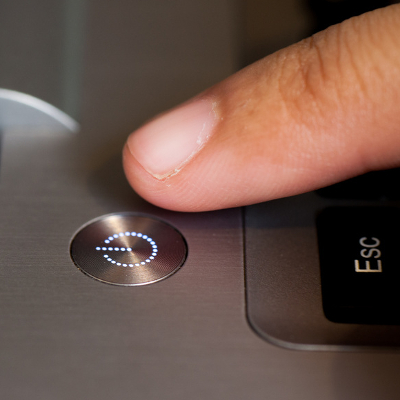
Tip of the Week: Should You Leave Your PC On, or Power it Down?

b2ap3_thumbnail_on_off_400.jpgAt the end of the workday, you’ve got an important decision to make: power down your desktop or log off? Each option has its own set of pros and cons, but are you confident that you’re making the right decision? Here’s how to find out for sure.

First off, the answer to this question is dependent upon how frequently the machine is used. For the sake of this blog article, let’s address the computing needs of the average office worker who uses their PC for the Monday through Friday, 9-to-5 grind.

Secondly, we feel the need to address a common perception about turning a computer on and off: it does NOT cause physical harm to the equipment. This was the case in the early days of the PC, back when the power surge from powering it on was actually bad for the components, but this issue has been resolved since 1993.

Another factor to consider is power consumption. If you’re the kind of person that likes to make sure every light is turned off before going home and you pride yourself in finding ways to lower your electricity bill, then you may want to power down your machine for the night. Although, if you’re looking to leave it on in order to get a jump start on your workday, then put your PC in sleep mode (aka, Standby or Hibernate) before leaving the office, instead of turning it off. Sleep mode is designed to use as little energy as possible, which equates to less than what’s used by a traditional light bulb.

Your geographical location should also factor into this decision. For example, if you live in a place that’s prone to natural disasters and the power grid sporadically blackouts, then you’re going to want to power off your machine at the end of the work day. Unless your IT infrastructure is equipped to handle power inconsistencies with tools like an Uninterrupted Power Supply, a powered-on computer can be damaged by a sudden loss of power.

Also, as explained by Computer Hope, while turning off a PC can protect from a sudden loss of power, turning it off does nothing to prevent damage from a power surge:

A power surge destroys electrical devices regardless if it is on or off. Therefore, turning the computer off does not prevent this from occurring. The only way to prevent power surges is to unplug all power cables, phone cables, and network cables.

Another factor that you’ll want to consider is your computer’s maintenance schedule. For example, it’s best practice to run a daily virus scan at night so that the scan doesn’t interfere with your work during the day. Also, if you’re taking advantage of managed IT services like what NuTech Services provides, then you’ll want to leave your desktop powered on so that we can remote into it (or all of them) and run scans, apply patches and updates, and more. If the machine is powered down, then we won’t be able to access it and do our job.

After considering all of these different factors, only you can know if it’s best to turn off your PC at the end of the day, or keep it on. Whatever you decide, NuTech Services is here to support your decision, along with your company’s IT infrastructure. This is one service that you’ll never want to turn off.

b2ap3_thumbnail_more_PC_mistakes_400.jpg

Tip of the Week: Every PC User Should Know NOT to Do These 3 Things

b2ap3_thumbnail_more_PC_mistakes_400.jpgKnowing how to properly use your PC is key to its longevity. Therefore, you should never take for granted basic PC best practices. Here are three basic PC best practices that are easy to overlook.

Don’t Plug Your Computer Equipment Directly Into an Outlet
While it’s likely that you plug a variety of your electronics directly into your outlet, you shouldn’t do this with computer equipment. The problem here is that electricity coming directly from outlets can fluctuate. For example, this is why your building’s lights may randomly get dimmer and then brighter. While your light bulbs can handle these power fluctuations, your computer equipment cannot; and it may lead to irreversible damages.

Instead, be sure to plug your equipment directly into a surge protector. This is a simple power strip that can be found at most any store. Though even a cheap power strip is better than no power strip, a basic power strip will not protect your PC as well as a heavy-duty one. Therefore, it’s worth it to drop some extra cash on a power strip that’s rated to protect your equipment from surges, instead of one that’s designed only to provide you with extra outlets.

For the best solution to these power surges, consider an Uninterrupted Power Supply (UPS). This is a device that both restricts surges in electricity, as well as provides additional power during a surge’s low point.

Don’t Click Next or Ok Without First Reading
Granted, it’s unreasonable to expect someone to read every word of every software agreement, but at the very least, you should skim it over to have an idea of what you’re agreeing to. It may be the case that a shady third-party software company is trying to pull a fast one on you. ComputerHope.com explains:

It is not uncommon for new users to click Ok or Next without reading what they are agreeing to and not making sure there are no check boxes still checked. Make sure you read every prompt before agreeing, or you may be agreeing to install new browser toolbars, a program you didn’t intend to install, or other crapware.

Don’t Open Unknown Email Attachments
A quality spam filter will go a long way to prevent a PC from getting slammed with a virus or malware. However, even the most secure system can be compromised if the user makes the mistake of downloading something that they shouldn’t, like a corrupted email attachment. Viruses that spread through email attachments are among the most common ways that computers become infected. In order to trick you to download the dangerous attachment, hackers will disguise the message as originating from a trustworthy source, like your bank, your hospital, a parcel delivery service, a resume, and much more.

As a rule, never download an email attachment unless you’re absolutely sure of the source, and if something seems sketchy, it probably is. Remember, if the email appears to come from a legitimate source, then you can always call the sender using the phone number that you have on record in order to confirm the message. If your source admits to not sending you the message, then you know it’s a scam.

By following these three best practices, you’re sure to save yourself the headache (and expense) of dealing with PC performance issues. Knowing how to properly use a PC is the best way to prevent issues and breakdowns. To learn more PC tips and best practices, subscribe to NuTech Services’s blog and give us a call at 810.230.9455.

b2ap3_thumbnail_leave_your_workspace_400.jpg

Be Sure to Take These 4 Actions Before Leaving Your Desk Unattended

b2ap3_thumbnail_leave_your_workspace_400.jpgWe’ve published several blog articles about enterprise security technologies, but it’s equally important to focus on the other side of the security equation and make sure people know how to properly log off, lock, and walk away from their workspace. To that end, even something as seemingly-mundane as forgetting to lock your computer can leave your network vulnerable, big-time.

Here are four actions every office worker should take before leaving for the day–even if you feel like you can fully trust your co-workers. Not to sound paranoid, but when it comes to crime, the old saying is true: “It’s always the person you least suspect.”

Log Out of Your Web Accounts Before Logging Off Your PC
Before leaving your workstation, it’s best practice to log out of whatever online accounts you have open. It might seem like you’re safe by simply closing your web browser, but if you didn’t take the time to actually log off from your account, your browser may keep your account open; despite the fact that the browser itself is closed. In a situation like this, all a person has to do to “hack” your account is open the browser and go to the active website. Upon doing this, they may find your account open. They will then have complete control to navigate your account as if they were you, which can lead to some pretty hilarious social media posts. They could also change your account settings, revoking your control. Social media isn’t the only culprit here – bank accounts and online email accounts are just as susceptible.

The consequences of not logging out could be more serious if a malicious hacker were to remotely take control of your computer while you were away from it. All they would have to do is open your web browser, look at your history to see what sites you frequent, and then visit these links from your browser. An account that’s still logged in will grant them instant access. In a situation like this, an account that’s been manually logged out of would be more difficult for a hacker to access. For serious threats like this, it’s extremely beneficial to have NuTech Services monitoring your network for any suspicious activity.

Be Sure to Log Off Before Stepping Away From Your PC
For similar reasons as logging out of your account, you will want to log off of your PC before walking away from it. If you don’t, a co-worker could easily access your desktop and mess with it in ways only limited by their computer know-how. What’s more, if you work in an office where strangers have easy access, like customers and delivery personnel, you will want to log off before stepping away from your PC. You never know who is going to walk through your front door and snoop around the place.

Put Away and Lock Up Any Mobile Devices
It may seem harmless to close your laptop and leave it on your desk when it’s time to go home, but for someone in the mood to do some crime, a mobile device left out in the open is an easy target. You may think that your co-workers can be trusted to leave your device unattended, but all it takes is one conniving worker who has it out for you to grab your device, dig in, and set you up for failure. Instead of leaving your device out in the open, lock it up in a drawer or a closet, utilize a laptop lock cable, or just take it home with you if it’s your device.

Lock Up the Office Before You Leave
This may sound like a no-brainer, but you’d be surprised by how many businesses overlook the security of side doors, windows, and other access points around their building. Being fully dependent on security measures like access cards, codes, and keys, isn’t enough to fully protect your assets, especially if several different employees can unlock your office. An employee that isn’t wise to the ways of security may see nothing wrong with loaning their access code to another worker, and if you don’t regularly change your locks, then employees who were let go may still have access to your building (and they may have an ax to grind).

Additionally, it’s good to have a surveillance system in place, especially one that you can access from your mobile device, wherever you may be. Because a smart surveillance system like this would piggyback off your company’s network, NuTech Services can help set it up for you, as well as recommend a system that best suits your security needs.

Are there any additional security measures that you take before calling it a day? Share your tips in the comments.