168387524_400.jpg

Warning Signs that Your Computer Needs Replacing
168387524_400.jpg

Are the computers in your office beginning to show their age? Do you even know how old they are? For the sake of your productivity, it may be time to replace them for a newer model. We’ll go over some warning signs that your computers may be nearing their retirement age.

How to Tell How Old a Computer Is

When a computer starts to get too old, it can become a problem for productivity. In fact, to help avoid this, some even recommend replacing a work computer every four years… but how do you tell how old a work computer is in the first place?

This isn’t always as cut-and-dried as one would think it should be. Some computers and laptops will have a date right on the case, neat the serial number. If there is no date provided, a quick search for the serial number might give you an idea.

You can also check the components of your computer itself, using the System Information tool. In the Search Windows box, type in “sysinfo.’ From the results, access System Information and in the window that appears, you can find plenty of information to help you date the machine. For instance, if the BIOS of the device has never been upgraded, the date will likely tell you how old the machine is, more or less. Searching for other components can help you to confirm this estimate.

As a result, you can get a better idea of whether your computer’s issues are age-related, or if there’s something else creating problems.

Signs That Say It’s Time to Replace Your Computer

There are quite a few factors that can indicate when your computer is due to be retired. While these indicators can each be a sign that something else is going on with your machine, a combination of a few of them is a fairly reliable signal that you and your device will soon have to say goodbye:

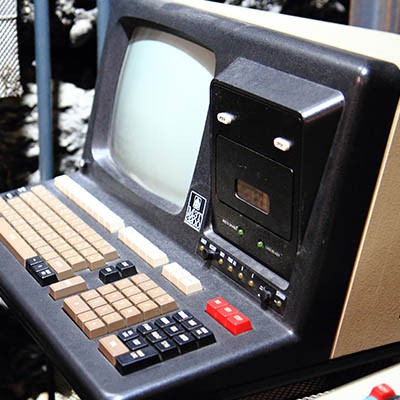
  • The computer is huge. In the interest of space, many modern devices are built to be compact, taking up less space than their predecessors did. While this isn’t a hard and fast rule (powerhouse workstations often take up a lot of space out of necessity), a larger, basic-function workstation or laptop is generally an older one.
  • Startup and shutdown take forever. Again, there are a few different issues that could contribute to lengthy startup and shutdown times. Too many applications may be set to automatically run in the background, or your hard drive might be almost full. However, this is another common symptom of an aging device.
  • You’re encountering hardware and software limitations. If your attempts to upgrade your computer’s hardware and software – especially security software – are stymied by a lack of interoperability or support, it’s probably time to consider replacing it. This is even more so the case if your work-essential solutions can’t be upgraded any further or runs slowly, or loading your applications takes notably long and they can’t efficiently run simultaneously.
  • Your computer is loud. If the fans in your device (whether it’s a desktop or a laptop) run loud, it’s a sign that your computer either needs a good cleaning or needs a good replacing. If the issue persists after a thorough cleaning has taken place, that’s a sign that your hardware is working too hard, a sure sign of age-related issues.

If you feel that your hardware is due to be replaced, reach out to NuTech Services. We have the contacts to help you procure the equipment you need to remain productive and offer the support to keep this equipment going. Call us at 810.230.9455.

144339508_infrastructure_400.jpg

What Does Your Business’ IT Infrastructure Look Like?
144339508_infrastructure_400.jpg

Small and medium-sized businesses (SMBs) simply don’t have the large budgets that come with running an enterprise, and because of this, many of them have trouble affording IT maintenance and management. In a similar sense, these smaller organizations struggle with planning out an IT infrastructure. Does your business have a plan in place?

What Does Your IT Infrastructure Look Like?

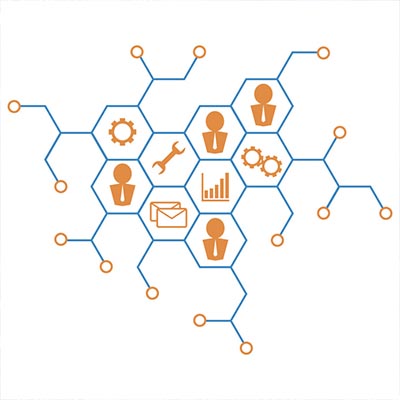
Your IT infrastructure consists of all the technology that enables your organization to store and utilize data that it has collected. This includes your network, your storage system, and any hardware and software solutions that are used to access it. Basically, an IT infrastructure is effectively your organization’s central nervous system, supporting operations through the transportation of data.

It’s clear that your IT infrastructure will play an important role in the way your business works. This means that you’ll need to invest time and energy into developing a proper strategy for your IT infrastructure to adhere to.

Determining Your IT Infrastructure Strategy

The same infrastructure won’t work for all businesses, so you’ll have to craft one. To create an optimized infrastructure strategy, consider the following best practices.

Simplification

Make no mistake–your infrastructure today hardly resembles what it looked like just a few short years ago (at least, it shouldn’t). Chances are that your IT infrastructure contains several different types of technology. This complicates the process of improving and updating it.

Be sure to consider the modern standardization of the software and integrations that are possible with your centralized IT platform, as this will maximize access to data and increase how much value you get from your solutions.

Flexibility

IT is always changing and adapting to trends, which means that you will want to build your IT infrastructure in such a way that it can take advantage of these changes. Ask yourself where your organization’s biggest speed constraints are, as well as how they can be rectified. If you can consolidate your existing infrastructure to limit the risks, how would this affect your business processes? These are all factors that must be taken into consideration.

Service-Focused

The biggest advantage that IT provides for your organization is that operations can’t happen without it. When planning out your infrastructure, be sure to consider the fact that your entire business will need to use it for access to services and tools required for each employee’s day-to-day responsibilities. Ask yourself what you can do to make sure your infrastructure can do what must be done both now and in the future.

Why You Should Consider a Managed IT Infrastructure

You might recall the process you used to create your network back when your business was just a fledgling pushing back against the world. Remember that feeling and use it to fuel the process of reexamining your current IT infrastructure. In fact, you may find it more reasonable to outsource this task to a managed service provider.

There are many benefits to doing this, but the biggest has to come from the time you’ll save from doing so. You have a lot on your plate as a business owner. Can you say with confidence that you have the time it takes to design, build, manage, and maintain an IT infrastructure? Of course not–there simply aren’t enough hours in the day. Instead, you hand this responsibility to professionals you trust to ensure that the process goes well.

NuTech Services wants to be the MSP you trust to make sure your infrastructure is working for your business and its goals. To learn more about the services we offer, reach out to us at 810.230.9455.

128887834_fingerprint_400.jpg

Biometric Authentication Becomes More Commonplace

128887834_fingerprint_400.jpg

Biometrics are a common sight in futuristic or science-fiction settings, but they are increasingly entering the real world in practical ways. In fact, similar technologies are being implemented every day for businesses all over the world. Let’s take a look at some of them, as well as what benefits they provide these organizations.

What Are Biometrics?
Biometrics are a method of authentication that uses some sort of physical attribute or qualifier rather than a password or a key code. Some examples include fingerprints, voice patterns, typing rhythms, and so much more. They are easier to use than your typical passwords or key codes, and even better, they can be used in conjunction with traditional security measures and practices.

Let’s take a closer look at what some of these biometrics are, as well as the most practical way to implement them.

Biometric Types
There are two major categories for biometrics: physical identifiers and behavioral identifiers. Physical identifiers are by far the most common:

  • Signatures: Signatures are one of the unique ways you can identify an individual, and you’ve surely seen this biometric used at least once somewhere or another. Whether it’s a transaction or an agreement, a signature can do much to guarantee someone’s authenticity.
  • Fingerprints/Physiological Attributes: This particular biometric is often used to secure smartphones. Fingerprints can be used to determine the identity of the user, as well as various other physiological attributes, like palm scanning, retinal scanning, and facial recognition.
  • Voice: Voice-based authentication is common all over the place these days, whether it’s a personal user issuing commands to a virtual assistant or a business using voice authentication to navigate automated answering systems.
  • DNA: The technology to implement DNA sequencing into authentication is still a ways off, but it’s closer than you might think.

There are other behavioral identifiers that are used for biometric authentication. While these methods are still in development, here are a few examples of them:

  • Typing Patterns: People all write in different ways, and the same goes for typing. Therefore, this can be used to determine the authenticity of the user based on their keystrokes and the pressure applied to the keys.
  • Navigation and Engagement: In a similar fashion, the way that people navigate applications and systems can also determine identity. Mouse movements are quite showing, as well as how we hold devices.

Reliability (and Risks) of Biometrics
Biometrics are proving problematic to an extent, mostly because they can be inconsistent. Voices can vary depending on the user’s health or age, and faces can change based on a clean-shaven (or bearded) face, a haircut, or a pair of glasses. There are ways to work around this system, and with biometric authentication, there is much that needs to be taken into account.

Security is a Major Concern
This kind of data needs to be heavily protected, as it not only exposes sensitive information, but personal information as well. These kinds of credentials are also not easily changed, as they are heavily based on physical traits. For these reasons, biometrics may take some time to be adopted as the norm.

What are your thoughts on biometrics? Let us know in the comments.

microchip_technology_400.jpg

What Do You Know About the Microchips That Power Your Technology?
microchip_technology_400.jpg

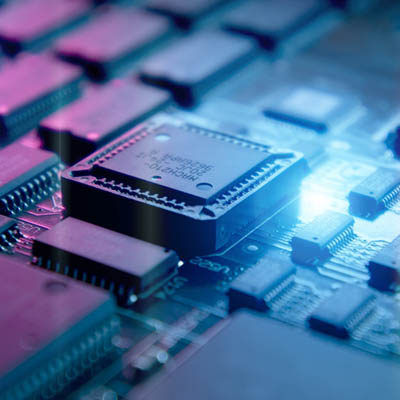
Computers are made up of many complex pieces of technology, and any business that uses them must have at least a working knowledge of them (or know someone who does, like a managed IT provider). Among these pieces of technology are “chips,” or microchips, that are responsible for making sure the technology, whatever it may be, works as intended. We’ll discuss some of the different kinds of chips the everyday user or business owner may be involved with when thinking about their computer.

Generally speaking, microchips in computers are made out of a variety of materials, but the most common is silicon. These microchips are responsible for acting as semiconductors and give your devices the ability to perform various tasks. We’ll get into the details about a couple of them here.

Memory
One of the more notable uses of microchips in devices includes temporarily storing data. These kinds of chips have a familiar name that you’ve probably heard before–Random Access Memory, or RAM. As long as the chip is receiving power, it can store data on the device. Once the device is turned off and the chips are no longer receiving power, this temporary data is wiped. Depending on what the device is used for, the computer might have many RAM chips installed on it; otherwise, the device will be slowed down considerably by resource-intensive tasks.

Microprocessors
Microprocessors have a lot to do with your device’s CPU, or central processing unit. You’ll often hear the comparison of a CPU to the brain of the human body. The CPU is responsible for processing all of the programmable commands on the device. Microprocessors generally rely on logic to function as intended. Of course, depending on the kind of device, various strength microprocessors will need to be used, as the same kind of microprocessor won’t work for every single kind of device out there.

Other Kinds of Chips
Depending on the device used, you might find various device-specific chips in use. For example, some devices that have cameras might have chips specifically designed for use with video recording or picture taking. Others that have networking abilities might have chips designed for use with those. Basically, chips are responsible for both the everyday functionality of your devices, as well as some of the specific, more advanced features that not everyone will be using.

For more information about technology or devices, stay subscribed to our blog.

maintain_server_400.jpg

Why (and How) You Need to Maintain Your Servers
maintain_server_400.jpg

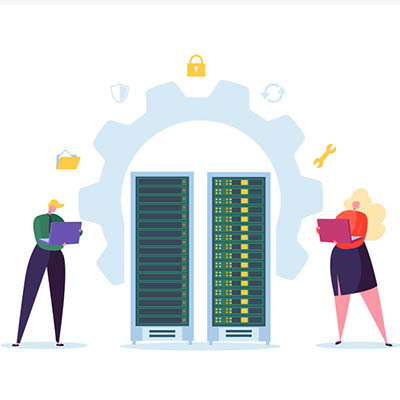
It is impossible to understate the importance of a server to today’s businesses. We talk a big game as to how important data is, but we don’t often broach the topic of how important it is to ensure that your server is well-maintained. Below, we discuss how to determine what your servers need for optimal performance, and how you can be sure that they get it.

What Can Cause Problems in Your Server Room?
Of all the potential issues that your servers can face, the smallest ones can create some of the biggest problems – literally. For instance, there’s always the worry of dust.

Dust, and other similarly-sized contaminants, can easily make their way into your server’s components, where they build up and become an insulator. As a result, your equipment can become up to 30ºF warmer – and just like in human beings, a rise in internal temperature to this degree can be lethal.

Other contaminants include things that human beings generate, like skin particles and dander, or even the result of wear on the devices themselves, like belt debris from the climate control systems and metal shavings from the hardware. The worst culprit, however, is actually the soles of your feet. Approximately 80 percent of the most damaging debris can be introduced to your server room this way.

Mitigating Issues through Maintenance and Prevention
Consider what would happen if your server was to suddenly fail. All of the data you had worked to preserve and protect, investing in the infrastructure to house it and the solutions to mitigate external threats to it, would be gone. Therefore, it is important to remember that protecting your servers against inadvertent internal threats is just as critical as protecting them against external attacks. This is accomplished in two overarching ways: first, strict standards of cleanliness, and secondly, avoiding the introduction of contaminants.

Keeping it Clean
The less dust and grime there is in your server room, the easier it will be to keep the room nice and cool for your infrastructure. While the big cleaning jobs should be left to experienced professionals who have a history with cleaning computing equipment, there are some jobs that you should be able to handle.

After all, some cleaning may have to be done on a daily basis, especially if your server room is a high-traffic area. Careful vacuuming will help get rid of that notorious sole-grime that comes in, as well as a considerable amount of other dust. To clean your server components themselves, use an antistatic cloth to gently remove the grime, using compressed air to get into hard-to-reach places.

Avoiding Contamination
If possible, you might also want to make some changes to help reduce the amount of dust and grime that enters your server room in the first place. Installing air filters inside can help, as can (assuming you are able) creating a buffer room between your office and the server room itself, where special mats can be installed to help minimize contamination. Hats and booties can also help reduce the amount of human-borne contaminants entering the area.

Finally, do your best to stay out of the server room if at all possible. Avoid bringing potential contaminants into it, like cardboard, and clean off any tools and equipment before they are brought into the server room.

For more best practices to maintain your business’ crucial technology, reach out to NuTech Services at 810.230.9455!

no_just_kill_power_400.jpg

Tip of the Week: Why You Shouldn’t Just Kill Power to Windows

no_just_kill_power_400.jpg

There’s a big difference between turning off any other appliance, like a stereo or a television, and turning off a computer. A computer takes much more time to shut down than your average device, but why is this the case? Is there a way to speed up this process? This tip will explain these processes and provide some ideas for how you can make this process much faster.

Why Shutdown is So Slow
Let’s take a look at this process as a whole. As a computer is running, there are many components that are doing different jobs. When a computer (or any computing device, like a phone or game console) is shut down, it needs to follow a procedure to make sure data doesn’t get lost. A full shutdown will aim to minimize damage to internal components, empty the RAM, wipe the virtual memory on the hard drive, remove all cached data, close all open applications, and turn off the operating system.

If your computer shuts down without going through this entire process, it could cause file corruption or other damage to its contents that could create issues.

Steps to a Proper Shutdown
It’s important to remember that even though there are a lot of different stages to the shutdown process, but it should go pretty quickly.

The first step in this process is that any applications that are opened are checked to make sure that the data has been saved. If not, the process is interrupted to inform the user. The computer then initiates a sequence that shuts down all services and programs, and it has to confirm that they have indeed been closed before eliminating any unneeded program data. A log is made of anything strange happening during the process, so the user can consult it later. All users are logged out of the system and the computer shuts down on an operating system level. Once this happens, any updates are installed, and the machine is turned off completely.

Speed Up Your Shutdown (and Startup) Times
There are ways your business can improve shutdown speed, but they are somewhat complex and difficult to do on your own with limited IT experience. This is why we recommend working with a provider like NuTech Services to make the process easier and more efficient for your organization. We can help your organization make sure that the shutdown process is as streamlined as possible. The same goes for your computer boot times. If you or someone on your staff has a laptop that seems to take forever to ‘wake up,’ there are steps we can take to investigate why and resolve it.

We recommend that your computers get restarted regularly (based on their performance) so as to help the computer keep itself in top working order. To learn more, reach out to us at 810.230.9455.

new_recycle_cable_400.jpg

A Better Way to Be Rid of Old Cables

new_recycle_cable_400.jpg

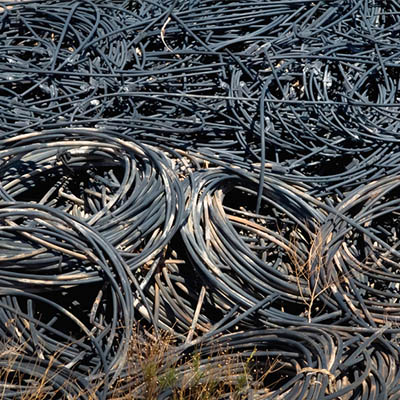
Are you drowning in old computer cables? Do they sit in a drawer and take up space? Chances are that you’ll have quite a lot of old cables that are sitting around collecting dust due to your organization picking up new devices that come with even more new cables. Sure, you might think you still need that old 25-pin serial cable for that legacy scanner from 1997, but it’s probably time to let go. While there is some merit to keeping old cables around just in case, the proper alternative to throwing out unneeded cables is to recycle them.

Take an Inventory
First, you need to see what cables you have on-hand. This includes cables, wires, and adapters. Basically, keep an eye out for anything that might be of value to your organization. This doesn’t mean to hoard them–rather, keep an eye out for anything that could potentially be useful, but not obsolete in the near future. For example, smartphone chargers with USB Type-A and Type-C cables might come in handy for travel or to keep as spares for staff.

Recycle (Don’t Discard) Your Unwanted Cables
If there are any cables remaining, you should always, always recycle them rather than throwing them in the trash. Modern computer and video cables are typically made out of valuable materials, such as copper and gold. On their own, they might not be worth much, but if everyone recycled their old cables instead of throwing them out in the trash, it would have a pretty large impact.

You can reach out to NuTech Services for assistance with getting rid of your unneeded and unwanted hardware. This goes for more than just cables–if you have anything at all that you simply don’t need, we’ll take it off your hands. If you just want a place to drop off your unneeded hardware, just call 1-800-RECYCLING or visit the National Center for Electronics Recycling website.

For help with recycling your unused technology, give us a call at 810.230.9455.

haas_money_savings_400.jpg

Your Business Can Use HaaS

haas_money_savings_400.jpg

Just like how your organization relies on hardware solutions to keep operations moving, this hardware relies on regular refreshes which keep it in proper working order. If you fail to replace or maintain the solutions that you have in place, you’ll be more likely to experience downtime, or at least hardware failure. Managed IT has provided SMBs with a way to bypass many of the frustrations involved with acquiring new hardware in the form of Hardware as a Service.

HaaS helps your organization keep its critical hardware running. This includes servers, workstations, networking components, and more. While these technology solutions require daily maintenance in order to run at maximum efficiency, they often need to be replaced after a certain amount of wear and tear. By working with a managed service provider to implement HaaS, you can maximize the amount of mileage you get out of your hardware solutions, all while obtaining new technology without breaking the bank. We believe that your organization shouldn’t have to suffer due to an unforeseen hardware failure.

Chances are that your organization doesn’t upgrade its hardware as often as it should. While your technology budget might be limited, this mindset will hold your organization back from implementing new hardware solutions that can boost productivity and improve operations. It’s often difficult to know when it’s time to invest in new hardware, but unexpected hardware failures can throw a wrench in your plans. In other words, you’re paying to both replace your hardware, and to make up for downtime that can cause trouble for your organization.

Hardware as a Service addresses many of the problems that businesses have with hardware management. Thanks to monthly payments and a service level agreement, you can expect new hardware when it’s needed at an affordable cost. Here are some of the many benefits of HaaS.

  • An IT roadmap: Knowing where you’re going in on a trip is great, and so is knowing when your hardware goes through its next refresh. We can help you plan out a special IT roadmap that includes hardware refreshes and overall maintenance of your network’s health. This keeps your network from going too long without a proper upgrade.
  • Lower upfront costs: Since you only pay a flat monthly rate for new technology, you’ll be able to afford it much more easily. HaaS providers can also take future upgrades and management into account when picking equipment for your organization, allowing you to save money down the road.
  • The latest hardware, now: You’ll be using the latest hardware solutions that help you stay one step ahead of the game. This means that you’ll be able to take great strides in productivity and functionality that may not have been initially available for your organization.

Do you want your business to take full advantage of the latest and greatest hardware solutions on the market? NuTech Services can help. To learn more, reach out to us at 810.230.9455.

cloud_stroage_400.jpg

Why Cloud Storage is Knocking Flash Storage Out of the Picture
cloud_stroage_400.jpg

You need to quickly move documents from one computer to another. Do you reach for a USB Thumb drive? You may want to think twice and entrust the cloud to your data. Let’s talk about why.

A Brief History of Recent Data Storage Methods
Throughout the 1990s, NAND flash memory–which is what stores the data on a USB flash drive–was progressively becoming more and more affordable. The first company to sell a USB Flash Drive was a Singaporean company Trek 2000 International, who released their proprietary ThumbDrive at the beginning of 2000. Later that year, IBM became the first producer to sell USB flash drives in the United States with their product, DiskOnKey.

The cloud, believe it or not, was thought up in 1969 by J.C.R. Licklider. His idea was an online storage system that could be accessed from an Internet connection anywhere in the world–an idea that had to wait until the technology was there to support it. Once it was, many well-known companies (like Google and Amazon) were quick to leverage the cloud to provide utilities, including data storage capabilities.

Comparing the Two…
…however, there isn’t much of a comparison. The biggest benefit that a usb flash drive has to offer is the fact that it doesn’t rely on an Internet connection to access files. Otherwise, there isn’t much to be said about them that’s positive other than the convenience of portability. They’re easily infected by malicious programs, easy to lose, and easily stolen. Plus, they don’t offer near the collaborative abilities that the cloud does.

Cloud storage is, first and foremost, very secure against threats and malware, and backed up to protect your data against any circumstances that might put it at risk. Security mostly includes AES-256 encryption and superior access control through multi-factor authentication. As far as collaboration goes, the cloud offers much more utility than passing around a USB drive ever could.

The cloud allows you to work on your documents and data from any device with an Internet connection (we recommend that you make sure your connection is secure), sharing access with any other user by sharing a simple link. Also unlike the USB device, which only allows a single person to work on a file at a time, multiple users can manipulate the data simultaneously, simplifying any responsibilities that require collaboration.

While the USB thumb drive had its moment in computing history to be the star of data storage and sharing, that title has moved on to the cloud. Has your business done the same?

NuTech Services can help you make the move to the cloud. Call us at 810.230.9455 for more details.

dispose_of_computers_400.jpg

Tip of the Week: Cover Your Assets By Properly Disposing of Your Old Computers
dispose_of_computers_400.jpg

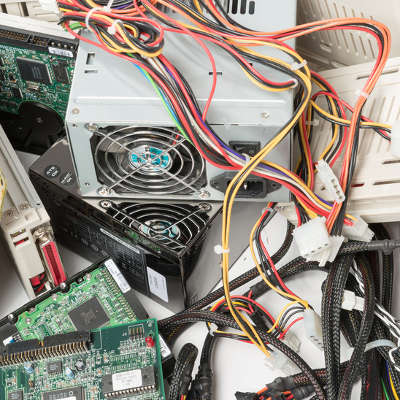
It can be difficult to think about replacing expensive hardware like desktops and servers without breaking your budget, much less having to deal with your old data. Thankfully, there are certain steps that you can take to make the transition to a new PC or server much easier, and it all starts with properly getting rid of your old technology.

Before we get started, though, we want to emphasize the importance of taking preventative measures. These keep you from getting into a situation where you don’t have the technology you need. In other words, if your desktop is outdated, then you shouldn’t wait until it completely breaks down before you replace it. This makes it imperative that you identify warning signs for your ailing technology before it suddenly stops working.

Warning Signs
To get started thinking about what to do when your computer breaks down, look for the following warning signs.

  • General PC slowdown
  • Freezing or even operating system crashes
  • Corrupted files or data loss
  • Random shutdowns
  • Startup errors

Keep in mind that these symptoms could be signs of other PC issues as well.

Understand When You Need to Replace Technology
Nothing your business utilizes can last forever, including technology like workstations and servers. If you suspect that your PC is reaching its limit, it’s crucial that you implement a strategy to properly replace it and dispose of the old one. If there’s no such policy to adhere to, you could be putting your business at risk of a data breach, and putting yourself at odds when the investigators look into whether it was your fault for failing to follow best practices. Gartner explains, “Best-practice PC disposal processes provide an audit trail documenting the serial-numbered inventory of disposed PCs, certification that proprietary and personal data has been removed and made unrecoverable, and transfer/reuse of software licenses, where applicable.”

Does your business have old technology that’s holding you back from moving forward? If so, contact NuTech Services right away. Our technicians can help your business completely wipe the data off of your old technology’s hard drives, or transfer it to your new, more recent hardware. Plus, we can recycle your business’s old devices so they won’t cause harm to the environment.

Our goal is to help your business make a smooth transition to new hardware solutions without putting your sensitive data at risk. To learn more about what we can do for your organization, reach out to us at 810.230.9455.

hardware_cost_400.jpg

Is New Hardware Procurement on Your IT Budget?

hardware_cost_400.jpg

Depending on how long you’ve had your current workstation, you might start to see performance problems. Eventually, you’ll start to see issues that could cause downtime and lead to wasted assets. Therefore, you need to have a plan in order to replace your hardware before it fails. What’s the best way to do this without breaking your budget?

The answer is easy, and it’s called hardware procurement. This is way to help your business commit to regular hardware refreshes without spending an exorbitant amount of cash doing so. Through hardware procurement, you can get replacement servers, workstations, network components, and so much more without having to pay for them up-front.

How it Works
Purchasing new hardware can often be a financial problem, especially for big ticket items. You might be in the red for months following a hardware failure, or even up to a year. Still, even if it’s expensive, hardware refreshes are borderline necessary if you want to make sure that your business doesn’t fall victim to the eventual hardware failure, which can cause data loss. The question, therefore, is how you can accomplish all of this without breaking your IT budget.

Let’s Get Started with an Assessment
Are you unsure about investing in hardware procurement? NuTech Services can offer you a complete assessment of your IT infrastructure. This tells us if you have any outdated hardware components that are running in a way which might threaten your network with downtime. Furthermore, we can build you out an IT roadmap that helps you plan out your hardware refreshes for the next five or even ten years. This is crucial if you want to make sure that your organization can best implement new hardware in the long run.

Routinely updating your hardware is an important part of keeping your network secure, as well. Older hardware may not be getting the proper security patches and updates, which could put your business at risk of hacking attacks, in addition to the amplified risk of hardware failure. You don’t have the luxury of waiting until something bad happens to you, as the threat is omnipresent and could happen at any time.

To learn more about hardware refreshes and network audits, reach out to NuTech Services at 810.230.9455.

used_computer_400.jpg

Tip of the Week: 4 Guidelines When Buying Used Computer Equipment

used_computer_400.jpg

One way that your business can save money is by purchasing used computer equipment, but only if you do your research and perform a meticulous analysis of where it’s been, and why it’s no longer being used. If you’re serious about purchasing pre-owned computing equipment, consider these four tips.

The Hard Drive’s Age
One of the most critical components of a computer is the hard drive. It can be difficult to judge the condition of a hard drive by observation, so keep this general rule in mind; the average lifespan of a hard drive is about five years, so you don’t want to purchase one that’s four or more years old. Or, rather, you should prioritize finding those that have more life left in them, as an older hard drive is typically at a higher risk of crashing.

However, an older hard drive doesn’t necessarily have to be technically useless. This five-year rule only applies to hard drives that see continuous use. If you find one that’s been used sparingly during its lifetime, it will probably have more life left in it than you might initially think. In general, the five-year rule isn’t something that you need to hold to. Just like any technology solution, there will be hard drives that can outlast others; some are known to exceed even 10 years without experiencing issues. Solid state drives are capable of bypassing this rule altogether, as they’re built to last for much longer than the hard disk drive.

In the end, you want to make your decision based off of what you need your hard drive to do. If it’s something that absolutely cannot fail, you may be better off just purchasing a new one outright. Or, you could use a reliable data backup and disaster recovery solution, like a BDR, and hope for the best.

Also, be sure to give the computer a test before you actually purchase it (if possible). If it’s making strange noises, it’s not a safe investment for your business.

Clean Up Your Used Technology
As you’re well-aware, computers are known to collect all kinds of grime, germs, and dust. This is important to keep in mind when you purchase a new PC, seeing as it might not be the cleanest machine in the world. It’s your responsibility to clean it up and make sure that it, or any of its components, are ready for use. Of course, depending on how long this process takes, you may just come to the conclusion that it’s too much of a hassle.

Additionally, there are some other components of workstations that are way too germy to be passing around the office. One example is the keyboard, a device so filthy and foul that it collects more germs than toilet seats. Just let that sink in before you pass on a used keyboard to another user. You might come to the conclusion that it’s better to just buy a new one.

The Parts Might Be Damaged
Whether you want to believe it or not, there’s a reason why someone is selling their used technology. Either it doesn’t work, or they found something that works better. Basically, it comes down to functionality. There’s no point in shopping around and investing in used technology if you wind up getting something that doesn’t work as intended. You would have been better off just purchasing a new part altogether, but you may not realize this until it’s too late.

This is what’s known in the technology industry as risk management. Some sources, like reputable online dealers, will be more reliable to purchase used technology from. Others, however, may not be so trustworthy. We’re looking at you, Craigslist.

Consult the Professionals
Here’s one last tip for procuring quality computer equipment: contact the IT professionals at NuTech Services. We’ll provide a clear risk assessment, identify quality sources of used IT equipment, and suggest new and affordable solutions that you may not even have known existed. It never hurts to ask for a second opinion.

If you’re finding that technology solutions are difficult to come by, reach out to us at 810.230.9455.

microsoft_technology_as_a_service_400.jpg

Microsoft Moves to Get a Piece of the Technology as a Service Market Share
microsoft_technology_as_a_service_400.jpg

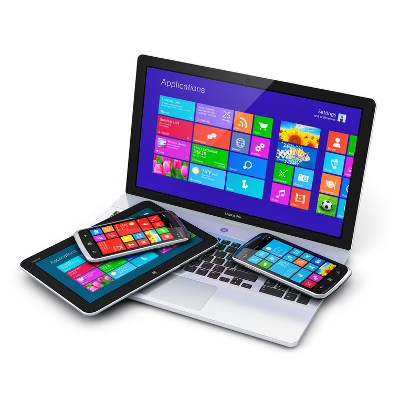
Microsoft has been looking to cover more ground in the business environment by offering a new Technology as a Service (TaaS) offering, which will allow small businesses to purchase Surface products, accessories, and support for their devices, all with a monthly payment plan. Also, when it comes time to upgrade, customers can easily make the switch, as per their lease agreement.

Microsoft’s TaaS agreement allows businesses to pay for their devices over 12, 24, or 36 months. As expected, prices will vary depending on the length of the payment plan, and the devices purchased. One of the most affordable offerings is a basic-model Surface 3 paid for over 30 months, while a more expensive payment plan would be for a Surface Book over 18 months.

A membership in this program has several perks, including support when you need it, either by phone or in-store, one-on-one personal training, and in-store discounts on hardware and software solutions.

Of course, with all great things, there’s always a catch. First off, this is a business-exclusive offering. In the General Terms section of the TaaS Program Benefits Summary, it’s stated that the service is for “Business Customers Only; No purchase for resale.” In other words, this service is for end-users only, and that it has the right to cancel orders if it suspects resale activity. It also must be mentioned that this service is limited to official Microsoft products only.

While this service might seem tempting, we want to remind you that you don’t necessarily have to turn to Microsoft, or other hardware or software giants, for this type of service. NuTech Services wants to help your business find the right devices for your specific needs. We want your business to have the technology it deserves, without the headaches and frustrations of lease terms, purchase options, and cancellation fees.

Working with NuTech Services provides a fruitful relationship with a local business, rather than leasing your equipment through a third-party juggernaut like Microsoft – the software company is using LiftForward, a marketplace loan platform, to finance its Surface Membership service. We’ll handle all of the details for you, so that you can stay focused on what matters most – running your business.

Ultimately, NuTech Services can offer your business both the latest and greatest in computing solutions, and a professional relationship that allows your business to get the most out of its technology. To learn more about what we can offer your business, reach out to us at 810.230.9455.

b2ap3_thumbnail_alter_screen_brightness_400.jpg

Tip of the Week: Do Your Eyes Hurt? Try Adjusting Your Screen’s Brightness

b2ap3_thumbnail_alter_screen_brightness_400.jpgComputer monitors have been getting bigger and brighter for years; improving on picture quality, responsiveness, and energy efficiency. However, working in a dark room in front of a bright screen can lead to eye strain and even headaches. You can avoid these side effects by lowering the brightness on your screen. Furthermore, lowering your screen’s brightness can save you precious battery life on your laptop, so it’s worth keeping these tips in mind for that fact alone.

Adjust Screen Brightness on Your Laptop
Turning down the screen brightness on your laptop is simple, however, the process might be a little different depending on the make and model of your device.

Check out the line of F keys at the top of your keyboard; do any of them have a little icon that looks like a light bulb, a sun, or any other light source? Once you’ve found them, the one with more light around it increases your brightness, while the one with less light around it decreases the brightness. You may need to find your Fn or Function key, and hold it down to trigger the brightness options as well.

ib key

If you don’t see the brightness keys, it’s possible your laptop doesn’t have them, or has buttons on the front or side that control the brightness.

Manually Adjust Screen Brightness in Windows 10
Keep in mind that the aforementioned tip only applies to laptops. Therefore, if you want to decrease the brightness of your desktop PC, there are a few ways to do this. For one, you can click on the battery icon in Windows 10’s notification area, which lets you adjust the brightness. If you want to use the Settings app to do the same thing, that’s also an option. All you have to do is open Settings from the Start menu, select System, and choose Display. Then, it’s just a matter of adjusting the slider to what you want the brightness to be.

You can also click the search icon on your and simply type brightness settings“.

If you’re using Windows 7 or 8, you can adjust your screen’s brightness by going through the Control Panel. Select Hardware and Sound, and select Power Options. A Screen brightness slider will be available at the bottom of the Power Plans window.

Automatically Adjust Brightness When Your Battery’s Low
You can set your Windows 10 PC’s brightness to automatically adjust in relation to your remaining battery life. Open Settings > System > Battery save, and select Battery saver settings. Make sure that the Lower screen brightness while in battery saver is checked, and you can use the adjustable bar to choose the percentage at which the screen will dim. By default, it will be set at 20 percent battery remaining.

Bonus Tip: Don’t Forget Your Monitor Settings
Although in our opinion, it’s usually more difficult to navigate through the monitor settings with the buttons on the front or the side of your computer monitor, but in extreme cases, it doesn’t hurt to check them if your eyes are experiencing fatigue. Most monitors have several different settings, including brightness, contrast, and color adjustments that you can tweak to make it easier on the eyes. We wish we could give you some tips for this, but virtually every monitor and manufacturer have slightly different configurations.

By effectively managing your screen’s brightness, you can help keep your eyes focused and in less pain. Plus, your battery will last longer, which is a win-win situation for both your work and your device.

For more great tips and tricks, subscribe to NuTech Services’s blog.

b2ap3_thumbnail_on_off_400.jpg

Tip of the Week: Should You Leave Your PC On, or Power it Down?
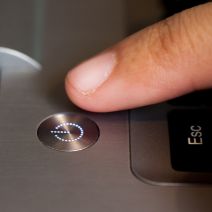
b2ap3_thumbnail_on_off_400.jpgAt the end of the workday, you’ve got an important decision to make: power down your desktop or log off? Each option has its own set of pros and cons, but are you confident that you’re making the right decision? Here’s how to find out for sure.

First off, the answer to this question is dependent upon how frequently the machine is used. For the sake of this blog article, let’s address the computing needs of the average office worker who uses their PC for the Monday through Friday, 9-to-5 grind.

Secondly, we feel the need to address a common perception about turning a computer on and off: it does NOT cause physical harm to the equipment. This was the case in the early days of the PC, back when the power surge from powering it on was actually bad for the components, but this issue has been resolved since 1993.

Another factor to consider is power consumption. If you’re the kind of person that likes to make sure every light is turned off before going home and you pride yourself in finding ways to lower your electricity bill, then you may want to power down your machine for the night. Although, if you’re looking to leave it on in order to get a jump start on your workday, then put your PC in sleep mode (aka, Standby or Hibernate) before leaving the office, instead of turning it off. Sleep mode is designed to use as little energy as possible, which equates to less than what’s used by a traditional light bulb.

Your geographical location should also factor into this decision. For example, if you live in a place that’s prone to natural disasters and the power grid sporadically blackouts, then you’re going to want to power off your machine at the end of the work day. Unless your IT infrastructure is equipped to handle power inconsistencies with tools like an Uninterrupted Power Supply, a powered-on computer can be damaged by a sudden loss of power.

Also, as explained by Computer Hope, while turning off a PC can protect from a sudden loss of power, turning it off does nothing to prevent damage from a power surge:

A power surge destroys electrical devices regardless if it is on or off. Therefore, turning the computer off does not prevent this from occurring. The only way to prevent power surges is to unplug all power cables, phone cables, and network cables.

Another factor that you’ll want to consider is your computer’s maintenance schedule. For example, it’s best practice to run a daily virus scan at night so that the scan doesn’t interfere with your work during the day. Also, if you’re taking advantage of managed IT services like what NuTech Services provides, then you’ll want to leave your desktop powered on so that we can remote into it (or all of them) and run scans, apply patches and updates, and more. If the machine is powered down, then we won’t be able to access it and do our job.

After considering all of these different factors, only you can know if it’s best to turn off your PC at the end of the day, or keep it on. Whatever you decide, NuTech Services is here to support your decision, along with your company’s IT infrastructure. This is one service that you’ll never want to turn off.

b2ap3_thumbnail_upgrade_your_it_400.jpg

Think Strategically When Upgrading Your Workstations

b2ap3_thumbnail_upgrade_your_it_400.jpgWith technology growing faster than most businesses can keep up with, organizations have to continuously upgrade their solutions in order to maintain a semblance of modernity. The only issue with this is that many businesses can’t keep up, simply because they don’t have a team that’s dedicated to this important task. What technology upgrades should be made a top priority, and why?

Naturally, the first thing you need to know about workstation and technology updates is that you need to integrate them periodically in order to ensure optimal security for your organization. Most viruses and malware will attempt to take advantage of weaknesses in your infrastructure in order to infiltrate it. These weaknesses in your software and operating systems’ source code will ultimately allow these threats to force their way into your network, putting any contained information at risk.

These flaws are often addressed in software patches and system updates issued by the software developer, but tackling the updates in a timely fashion is a whole other monster. Managing all software updates is easier said than done, especially without a dedicated IT department watching over your technology. Regular maintenance is often pushed to the back burner, and dangerously close to being forgotten by all. Therefore, the best way to make sure that your systems are prepared to handle the threats that are found in today’s computing environment is to make upgrading your technology a priority for your organization.

Software Updates
There are several applications that your organization needs in order to stay functional, so your software updates aren’t limited to just your workstations’ operating systems. The fewer unnecessary security flaws that can be found in your IT infrastructure, the safer your information will be. Furthermore, users who are working with top-notch, optimized technology will be far more productive than they would be if they were using sluggish, bogged down computers. It doesn’t make any sense to let your employees use machines that hold them back from achieving their maximum productivity. In fact, sometimes you might encounter a situation where using a different software will be better for your business strategy. It’s always recommended that you consult with a professional technician before making drastic changes to your business’s software infrastructure.

Antivirus Updates
Your antivirus solution is often a software solution, but it’s worth mentioning on its own for the sole purpose that virus and malware definitions are continuously being updated. If your antivirus and other security software solutions aren’t properly maintained, it’s like you’re basically “leaving your keys in the front door,” so to speak. Your antivirus solution needs to be managed on all workstations, or better yet, centrally controlled from the server to ensure that all users are protected and up to date.

Hardware Updates
Older hardware that’s been around the block a time or two might have proven reliable, but it eventually starts to show signs of its old age. Hardware failure grows more likely, and you run the risk of losing information due to the degradation of your technology. This is why monitoring your systems for faulty tech, and periodically upgrading to more recent models is preferable, if not necessary.

Granted, all of the software and hardware upgrades your business might need may feel overwhelming. This is why NuTech Services offers our remote monitoring and maintenance solution that’s designed to administer patches to your mission-critical systems remotely. This helps your organization ensure that your systems are always up-to-date. We can also monitor your infrastructure for any irregularities that might be caused by hardware malfunctions, hackers, and much more. Give us a call at 810.230.9455 to learn more.

b2ap3_thumbnail_ssd_better_or_worse_400.jpg

Your Solid State Drive May Outlive You
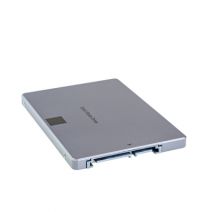
b2ap3_thumbnail_ssd_better_or_worse_400.jpgWhen shopping for a new computer, you’re faced with a choice; go with a traditional hard drive (HDD), or a solid state drive (SSD). The benefits of an SSD are many, but are they enough to justify the extra expense?

To accurately answer this question, you first need to consider your computing needs. If you’re on a tight budget and looking to buy a workstation that can run basic productivity applications like Microsoft Excel and your preferred customer relationship management product, then you shouldn’t need the extra performance provided by an SSD, and an HDD will suit your needs.

SSDs are preferred for tasks that use a lot of resources, like rendering video and high-end graphics. In the past, a business that didn’t need this extra power might have overlooked SSD, concluding that it’s simply not worth the money. However, there’s another benefit to SSDs that should appeal to virtually every business owner, SSD lifespan.

In the IT world, it’s common knowledge that the average lifespan of an HDD is five years. Plus, thanks to the small and moving parts associated with an HDD, it’s not a matter of if, but when it will fail. According to a recent study by Backblaze, which analyzed the lifespan of more than 41,000 drives used in their data centers, the lifespan of an HDD drops down to four years if it’s seeing constant use, like in a server unit.

Therefore, if the only reason you’re buying a new computer is to get you through a couple of years, then HDD should work out fine. However, if you’re looking to get maximum ROI out of your equipment and have it last as long as possible, then the lifespan of an SSD makes it well worth the extra expense. This begs the question, “Just how long do SSDs last?”

Due to SSDs being a comparatively newer technology, the IT world still doesn’t have a concrete answer. One reason for this is due to the fact that one doesn’t judge SSD lifespan based on actual hours in use, but rather, how many reads and writes the drive performs. To that end, TechReport did a stress test and saw more than 700TB of data read and written to a single SSD before it failed. Lifehacker has put this ridiculous number into perspective:

These drives usually come with a three to five year warranty, and manufacturers assume you’ll write 20GB-40GB per day in data. That means to get to that 700TB, you’d have to do 40GB every day for 17,500 days, or about 50 years.

50 years! That’s ten times the expected lifespan of an HDD. Even though an SSD will cost you more money, it won’t cost you more than ten times the amount of an HDD. Especially with the technology becoming more affordable as time goes on. Plus, concerning the TechReport stress test, a 700TB SSD lifespan is on the low end. ArsTechnica explains how TechReport found some SSDs to last much, much longer:

The other three SSDs are still working and have made it past 1PB of writes, and TechReport’s torture test remains ongoing. However long the drives do end up lasting, it’s definitely long enough to put to rest a lot of fears about current-generation SSD lifetime limits.

In your quest for a new computer, findings like this should really help clear things up. SSDs are clearly the superior drive in virtually every way, including additional areas like power consumption and durability. The many benefits of SSD make it worth the extra money for businesses looking to turn their computer purchase into an investment.

NuTech Services is here to help you make important technology decisions like this so that you can get the most out of your IT investments. Additionally, we’ve got the tools it takes to protect and maintain your IT equipment so that it will perform optimally and last you as long as possible. To learn more about how NuTech Services can help your business get the most out of its technology, give us a call at 810.230.9455.

computer memory

Slow Computer? Increase your memory to boost computer Speeds

computer memorySometimes when your workstation feels bogged down, a relatively cheap and simply hardware update can make a huge difference in performance. Adding more RAM (Random Access Memory, often just referred to as memory) can be a game changer for your bogged down PC.

There are several factors that contribute to the speed of a PC. Let’s very briefly break these down:

CPU/Processor

The CPU handles all of calculations a computer performs. These days consumer-class CPUs handle billions and even trillions of instructions per second. While dated processors can greatly influence the actual speed of a computer, if your PC is fairly new (as in 1 or 2 years old, and possibly older for higher end builds) it’s likely not bottlenecking your performance. Today, CPUs are equipped with two, four, or even more cores, which means the CPU can handle an more calculations exponentially and consume less electricity.

RAM/Memory

Random Access Memory is basically the short-term memory of your computer. While your computer is loading and running applications, they get stored in the RAM. The RAM is much faster than the hard drive, so your computer doesn’t need to spin it’s wheels looking for specific files and parts of applications. The more RAM you have, the more “stuff” that can be stored in it. The faster your RAM, the faster your computer can sift through the data that gets temporarily pushed into it. Once your RAM is full, your computer will depend on the hard drive to retrieve information, and that’s where things get sluggish. Once you stop running a program, it will remove itself from the RAM to free up some space for everything else running.

Hard Drive

The hard drive is the storage device of a computer. For extremely high-end PCs, the hard drive is the bottleneck. Hard drives, when compared to RAM, are very slow to access and write information. Once your computer needs to rely on your hard drive heavily for RAM, things are going to start getting bogged down. While it’s great that your PC can rely on your hard drive in this way for those times it needs some extra memory, it is likely this is the slowdown. Unfortunately, because hard drives are mechanical and have moving parts, there’s limitations to how fast science can make them perform. There are costly solid-state drives, but as a performance-improving factor on a standard workstation, typically solid state drives aren’t the cost-effective answer.

Of course, there are software factors as well. Malware and Spyware can bog down your system, and after a lot of use, temporary files can bog things down. Before upgrading hardware, you’ll want to have a technician run a quick evaluation on your PC – it’s possible a little cleanup can make all the difference in the world.

Otherwise, the next step is upgrading the RAM. RAM is usually relatively cheap, even to double or triple your existing RAM with faster, higher performance memory. Often the cost of the new RAM itself will be between $50 and $100, and more than likely less than that, and that’s for a substantial increase, but it depends on your PC.

Is your computer running slow? Does it get bogged down by the time you have all of your day-to-day applications open? Contact us at 810.230.9455 for a quick evaluation to see if a simple, cost-effective upgrade will help you perform your job more effectively.