264585236_guest_mode_400.jpg

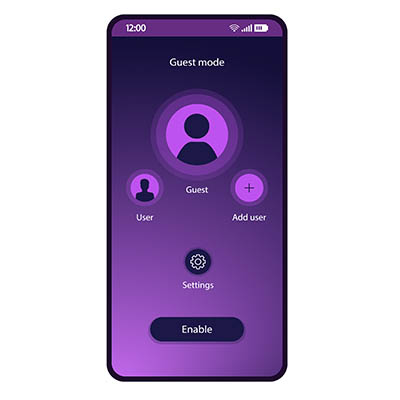
Tip of the Week: Politely Protect Your Data with Android Guest Mode

264585236_guest_mode_400.jpg

For many people, their mobile device contains a mixture of sensitive information and personal details. In some cases, some of the data isn’t even theirs—instead, it belongs to their workplace. Naturally, this makes many people less inclined to share the use of their device, but most people also want to avoid being rude.

For precisely these circumstances, Android’s Guest Mode feature allows you to be courteous without potentially undermining the security of your device or, more accurately, the data stored on it.

What is Android Guest Mode?

First appearing in 2014 as a part of Android 5.0 Lollipop, Android Guest Mode is a way that your team can more easily fight against a scammer. Unfortunately, firewalls and antivirus aren’t exactly capable of protecting a phone if the user hands it over to someone with malicious intent—something that could easily happen if the scammer sold their story well enough.

Should this play out, the phone immediately becomes a direct threat to your data.

Guest Mode offers you a safe alternative to handing a phone filled with sensitive data over to a potential hacker by allowing you to effectively wipe your device before you share it. If the device’s manufacturer supports the Android feature, you can hide away all your settings, applications, accounts, and other data. Activating Guest Mode allows you to still share the use of your device without sharing access to the data that the borrower has no reason to see.

Unfortunately for Samsung users, the phone manufacturer has removed this feature from their version of Android. Otherwise, an Android user should find the task of enabling and disabling this feature easy to accomplish.

Turning Guest Mode On and Off

Enabling Guest Mode is very simple:

  • Access your device’s Settings.
  • From there, access Advanced and Multiple users. If your manufacturer has changed their menu order, search for “Guest Mode.”
  • Switch the toggle to “On” to enable Guest Mode.

After doing this, the Quick Settings panel and profile it shows can be accessed to Add guest. Reverting to your own settings is as simple as returning to Quick Settings and the user profile. Selecting the option Remove guest and providing verification will restore your device.

Security always needs to remain top of mind, so keep coming back to our blog for regular reminders to help keep your business protected. We can help, too, with our managed services, so give us a call at 810.230.9455 to learn more.

199361750_lost_mobile_400.jpeg

What to Do Immediately If You’ve Lost Your Phone

199361750_lost_mobile_400.jpeg

In our last blog we gave you some advice on what to do if your phone has gone missing, but if it has been stolen or lost for good, there are more pressing issues than the anger and loss you feel; you need to ensure that you and the people you do business with are protected. Let’s take a look at what you need to do to make that happen.

Step 1: Assume Your Phone is Gone for Good

The first thing you need to be aware of is that you probably won’t be getting your device back. In fact, you should operate like you’ll never see it again. This is unfortunate as you’ll need to fork over hundreds of dollars to replace it, but in order to protect yourself and others and avoid even more cost, you have to take action. 

The truth is that your phone has access to a lot of different accounts. Think about how many apps you consistently use, and how many of them have access to your financial and personal information. Now think about how much data is on there from other people. Instant messages, contact info, social media, and your work profile all are exposed if someone is able to access the contents of your phone. 

Once it’s gone, it’s gone. Forget about that phone and forge ahead. 

Step 2: Remotely Lock and Wipe Your Device

Go ahead and wipe the device. You can do this with Apple’s Find My iPhone setting on iPhone or Google’s Find My Device application on Android. From these hubs you can track the device (if you want) but at this point you should just focus on getting the information off of the device as quickly as possible. 

To do this, Apple users will need to log into their iCloud account, while Android users will need to navigate to Google’s Find My Device page. Either one of these methods will give you the device’s exact location, which can be used in context. If it’s at the restaurant you last ate at, you could just go get it, but if it’s some other place you haven’t been, you will want to wipe it and lock the contents of it down. 

If you haven’t set the tools up, your wireless carrier or phone’s manufacturer may be able to help. Here are some links to information that you will need to get in touch with them:

Step 3: Report It

Now that you’ve come to the conclusion that you’ll never see your device again, you need to report it. If you own the device—not had it provided to you through work—you should contact your mobile carrier. They can block your phone from the network and make it much more difficult for people to siphon information off of it. 

For your convenience, here is some carriers’ contact information:

If your phone was given to you by your workplace, you definitely need to report it to them as well so they can take the steps to protect their company data. This goes for any device used for your work in any way. A lost device is a clear liability, with both your data and company data at real risk. Businesses need to have the capability to revoke access to company data and email remotely, or at least remove the device’s work profile.

Step 4: Change Your Passwords

It won’t be easy, it won’t be fun, but it’s time to fill a pot of coffee and change all of your passwords. You will have to change your passwords for your mobile account, and to be on the safe side, all of the accounts found on your phone. First start with these three, if you have them. 

Obviously, every password needs to be unique and complex. Don’t use the same password twice.

Then you will want to prioritize your next moves. Changing passwords is an extremely lengthy experience. We’ve given you an avenue of attack here, starting with: 

  • Email accounts (if you have others besides your main Apple/Google/Microsoft accounts)
  • Banking/financial accounts (bank accounts, credit cards, PayPal, merchant accounts, etc.)
  • Cloud storage accounts (e.g. Dropbox, Amazon, Box, iCloud, Google Drive, Onedrive, etc.)
  • Hosting/Domain-related accounts (e.g. GoDaddy, Network Solutions, Cloudflare, etc.)
  • Social media (e.g. LinkedIn, Facebook, Twitter, etc.)
  • eCommerce stores (e.g. Amazon, Best Buy, Walmart, ebay, etc.)
  • Services/utilities (e.g. Netflix, Hulu, your electric company, insurance companies, etc.)
  • Games and other apps

Again, this is going to take a long time. Take your time. You’ll feel better when all of your accounts are newly secured.

If You Suspect Your Phone Has Been Stolen, Report It to Authorities

After you are done with this, if it’s obviously been stolen, report it to the police. Why not? It probably won’t have any effect, but it is good to have a police record of the theft. These days, people don’t often steal phones, but it does happen occasionally. Most people today know that you can track a stolen phone, but those brazen enough to lift a smartphone are probably not the type of people you want to go confront over it. 

If You Find a Lost Phone

Now if you come across a phone in your daily jaunt out into the world, you will want to find someone to give it to. Typically if you find a phone it will be on a restaurant or bar room table. Just find the manager and give it over. It won’t take long and it could really help someone else out. 

We hope you never have to experience the loss of a phone, but if it does happen, we sincerely hope this guide helps.

254906239_lost_mobile_phone_400.jpeg

How to Find Your Lost iPhone or Android Smartphone

254906239_lost_mobile_phone_400.jpeg

Imagine for a second you are out to a socially distant dinner date with the friends that you barely get to see. You wrap up dinner and say your goodbyes and when you get to your car you realize that you don’t have your phone. COMPLETE PANIC! Your whole life is on your phone. Now imagine that when you went back to the restaurant to get your phone, it wasn’t anywhere to be found. We’ll talk you through how to proceed. 

Use Google’s Find My Device App to Find an Android Device

Android users have access to a feature called Google Find My Device, that you should definitely set up if you haven’t already. You first need to install it from the Google Play Store.

Once the app is installed, it will ask you to log into your Google account. You will want to set up a strong and unique password just as you would with any other account. When asked, you will want to Allow Find My Device to access this device’s location. Now you will be able to see where your phone is. 

Using Apple’s Find My iPhone to Locate Your Device

Apple provides a similar service to iPhone users. You will need to enable Find My iPhone. Find My iPhone is a built-in service that comes as a part of iCloud. As expected, it allows users to track the whereabouts of a lost or stolen device. If you suspect that your iPhone has been stolen, you probably shouldn’t try and go to the location it is at, for safety’s sake. 

The Find My iPhone feature also allows users to remotely wipe the device. This feature can help you avoid identity theft, a data breach, or any other unfortunate experience that could happen with someone in possession of your phone. You will need to opt-in to these services, but you will be glad you did if the worst becomes reality. Here’s how:

On your iPhone or iPad:

  • Open Settings.
  • Access iCloud.
  • Locate the Find My iPhone/Find My iPad slider and make sure it is switched On.

If you haven’t already set up an iCloud account, you’ll be taken through the steps by a tutorial. You will want to set up your iCloud account with a unique and strong password. We keep harping on this point, but it is an important one. 

Apple will let you track your device through its iCloud service as long as it is still on or not in airplane mode. 

Most iPhone users already have, but if you haven’t you should set up Touch ID or Face ID on your device. That way, it will be extremely difficult to access the contents of your phone. To do this, access Settings under Touch ID & Passcode.

If you are careful, you will probably never need these features, but if you do have to use them you will be thankful they are there. With the increasing price of new mobile devices (and the importance of the data stored on them) they offer a kind of insurance against loss or theft. 

At NuTech Services, we know the importance of technology for businesses and individuals alike and hope that you never have to worry about these features. Contact us today if you have any questions about how to protect your business’ data against theft at 810.230.9455.

93116530_mobile_games_400.jpg

Tip of the Week: Four Tips and Tricks Within the Google Play Store

93116530_mobile_games_400.jpg

The Google Play Store is the Android operating system’s primary source of applications and widgets and can do a lot more than many might first think. Let’s consider a few useful tools and tricks that are incorporated into the Play Store that you should keep in mind.

Using a Password to Restrict Purchases

App store purchases can become notoriously expensive, and fast, so it makes sense to do whatever you can to help prevent any unauthorized purchases from going through. One means of doing so is to restrict the capability to make purchases behind password protection. That way you can avoid unwanted spending on your Android device… particularly if others regularly utilize your device.

Filter Apps Based on their Content

The Play Store has content available meant for a wide variety of age groups, due to the inclusion of gambling, violence, or other adult-themed elements present. While this is certainly a reason to restrict such apps for younger users, it also serves as an excellent reason to restrict what your business users can download—although you should also discourage them from using any apps not intended for business use during work hours anyways.

To filter out inappropriate apps, navigate to the Play Store and access Settings. Once there, tap Content Filtering, and select and deselect the maturity levels that apply to your needs.

View All Application Orders and Purchases

Keeping track of your investments into your applications is much simpler that you might expect, as the Play Store keeps a running record of your purchases. Finding this list is simple: all you must do is visit the web version of the Play Store and, via the Gear icon, access the My orders section.

See All Android Devices

Finally, you can track each device connected to a Google Account and used to access the Play Store, as there is a list in your account that outlines them. Finding this list is also fairly simple: from the online Play Store, click into the Gear icon and from there, Settings.

Have you heard about any other tricks behind the Google Play Store? Share them with us in the comments!

211193007_mobile_businessman_400.jpg

Tip of the Week: 5 Ways to Improve Mobile Business Etiquette

211193007_mobile_businessman_400.jpg

Mobility is important to today’s workers and can be valuable to many different types of businesses; so much so that businesses demand that employees stay connected. Sometimes, especially when in public, this can become a social problem. Today, we will discuss mobile phone etiquette and five ways that you can improve yours. 

Business Doesn’t Stop, But You Should

We’ve all been there. We’re driving or on the train and a phone call comes in that you absolutely have to take. What do you do? Most people will take the call, but the right thing to do is send it to voicemail and return the call as soon as possible. Why? Because you are distracted. It’s best to call back and give the caller the attention they deserve rather than trying to juggle a phone call in the middle of traffic. Okay, this one is pretty basic, but it’s the foundation of all mobile etiquettes.

Don’t Be Rude

One of the biggest problems with mobile business is that there seems to be a continuous amount of communications that come in. This isn’t a problem when you are free to talk or text. It can be a problem if you are with other people, however. If you must take a phone call when you are face-to-face with others, be sure to excuse yourself and go at least ten feet away. This is courteous, and after all, it’s only four more feet than social distancing.

Brevity is often a cornerstone to modern mobile communication, with emails and texts often being short and sweet. Keep in mind though, sometimes being overly short can come across as disarming or even disrespectful to the recipient.

Stop Texting in Important Moments

One of the biggest faux pas that a mobile professional can have is the tendency to text people when other people demand their attention. If there is business going on right in front of you, even if it’s just a meal or an impromptu conversation, do yourself a favor and wait until it is over to return text messages. Again, pretty basic, but it doesn’t hurt to keep it top of mind.

Make Sure You Have Good Reception

This one is a serious problem. A lot of times when people are on the go, their service is not conducive to professional conversation. You can’t do business if calls keep getting dropped or texts don’t go through because you’ve chosen a poor place to conduct a mobile meeting; and nothing ruins your ability to communicate than if people have to stop every few minutes to get clarification or ask you to repeat yourself. Choose your location wisely. 

Sometimes you can’t help it, we get it, but if you are planning on running a meeting and need to participate, try to be somewhere where the service is reliable. It’s a sign that you respect everyone else’s time. If it’s impossible to prevent, simply be forthcoming about it and let everyone know at the start of the call. Perhaps even give an option to resume the call later if things get too difficult for the other participants.

Return Calls as Soon as Possible

When you return phone calls soon after you miss them, it shows professionalism and respect for the caller. If you are going to be out of touch for a bit, whether it be for meetings or personal time, it is solid practice to change your voicemail to state when you won’t be available. Then, when you are available, be sure to reach back out. Nothing is worse than getting a voicemail stating that the person won’t be available two weeks ago.

The mobile device is one of the best business tools available for people today, but knowing how to use them professionally is extremely important. Have you had to deal with a vendor or client that doesn’t adhere to mobile best practices? Leave your stories in the comments section below and return to our blog for more great tips and tricks each week.

182791535_mobile_phishing_400.jpg

You Even Need To Worry About Phishing In Your Text Messages

182791535_mobile_phishing_400.jpg

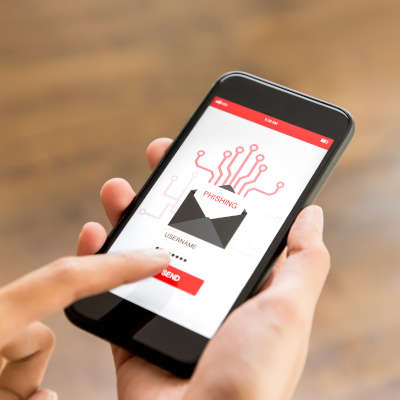
As serious as they are, cyberattacks are not always labeled with the most serious-sounding names. We are, of course, talking about phishing: the use of spoofed email addresses and fraudulent messages to get hold of data, or whatever goal the attacker has in mind. One of the silliest-sounding versions of phishing—smishing—has proven to be of particular risk.

What is Smishing?

When cybercriminals use phishing scams, they aren’t using advanced technologies to crack their target’s digital defenses. Instead, they hack users by exploiting the assumptions, bad habits, and ignorance of the target to get them to release sensitive information.

Attackers circumvent cybersecurity measures by sending messages purporting to be from an authority figure or trusted contact, thereby convincing the user to undermine their protection. A notorious example of phishing is the email from the persecuted royal family, known as the “Nigerian Prince scam.”

Smishing simply applies this principle to SMS instead of the usual email.

You could simply receive an SMS from a number that claims to be a financial institution or service provider, or even if you are doing business with that institution.

This message could contain details that confirm that the sender is who they purport to be, or it could go unnoticed because it is not the kind of message that most people expect to be phished through. More recently, many of these attacks have been sent under the ruse of being from authorities trying to share information about the COVID-19 pandemic.

There is a possibility that a link may be included in the message asking you to log in, but the problem is that this will lead you back to a fraudulent login page where the user’s actual login data is collected. It may prompt you to download a document that hides a variety of malicious programs, and suddenly the attacker has access to all your personal information, such as your phone number, email address, credit card numbers, bank account credentials and other sensitive information.

It’s as simple as that.

Now, think for a moment about how much sensitive data you’re likely to keep on your phones and what data a hacker might extract from them.

Spotting a Smishing Message

To prevent this from affecting your business, your entire team must be able to detect phishing attempts as soon as they are sent via SMS.

  • Just as with suspected phishing emails, opening a suspected smishing message is extremely risky. If the sender is not familiar to you, do not open the message and definitely do not access any links included.
  • If you cannot verify the legitimacy of the message, do not release sensitive information. If you receive a text message from Facebook informing you of a problem with your account, access Facebook separately to confirm before you resolve it.
  • Some mobile devices can block texts, just like email clients can filter messages. So, make sure you block phone numbers that are suspected of phishing and apply settings that might be helpful.

As a final tip, you need to make sure your entire organization keeps an eye on security during the workday and that they know how to identify and respond to threats.

Of course, it does not hurt to apply certain preventative measures to your network, such as anti-virus, firewall protections, and others. We can help! NuTech Services can support your team in its IT requirements for security, productivity, and mobility. Find out about our services by contacting 810.230.9455.

123819913_smartphone_400.jpg

Smartphone Flagships to Consider Going into 2021

123819913_smartphone_400.jpg

The modern smartphone user is dedicated, spending an average of three hours and 15 minutes per day using them. On average, people check their phones 58 times a day. With this amount of traction, it’s not a surprise that people want to get the best devices they can. Today, we will take a look at what makes a flagship phone, and give you a couple of popular options that are available for the power user right now.

Flagship Phones

The flagship smartphone gets its name from a military nautical tradition where the ship that holds the commanding officer would be the best, strongest, and most capable ship in the fleet. When discussing smartphones, it typically describes the best available device that any manufacturer has released for the year. Let’s take a look at some of 2020’s flagship smartphones:

iPhone 12 Pro Max

Apple’s iPhone 12 Pro Max has a lot of names, but it is a steady improvement over 2019’s Apple flagships. Built on a stainless steel frame with Gorilla Glass 6 front and back, the iPhone 12 Pro Max comes with a crystal clear 6.7-inch Super Retina Display.

Internally it runs on Apple’s A14 Bionic chipset that is the first 5 nanometer processor available in a smartphone in the west. It comes with 6 GB of RAM and up to 512 GB of onboard storage. The 3,687 mAh battery teams with settings in iOS 14.1 to create one of the most reliable smartphone experiences for users looking to be productive throughout the day without charging. It does support wireless charging and 20-watt fast charging.

The device has three rear-facing cameras and the additional time of flight sensor to create crisp and clear photos. It is also IP68 dust and water resistant. Available in Silver, Graphite, Gold, and Pacific Blue, the iPhone 12 Pro Max—along with the iPhone 12 mini, the iPhone 12, and the iPhone 12 Pro—will be available this week in November. 

Apple iPhone 12 Pro Max
Body: Stainless Steel with Gorilla Glass 6
Display: 6.7-inch Super Retina OLED (~458 ppi)
OS: iOS 14.1
Chipset: A14 Bionic
Memory: 6 GB RAM, up to 512 GB onboard storage
Expandable Memory: No
Cameras: Rear: 12 MP (wide), 12 MP (ultra wide), 12 MP (telephoto) 2.5x Front: 12 MP (wide)
Sounds: Stereo Speakers, no headphone jack
Battery (battery endurance rating): 3,687 mAh (~100 hours)
Security: Face ID
Miscellaneous: Accelerometer, Gyrometer, Proximity, compass, barometer, Siri assistant, IP68 dust/water resistant
Other versions: iPhone 12 Mini, iPhone 12, iPhone 12 Pro

OnePlus 8 Pro

The OnePlus 8 Pro is built on a lightweight aluminum frame with Gorilla Glass 5 front and back. The device is curved more than 2019’s OnePlus 7 Pro. It features a 6.78-inch Fluid AMOLED display, a pretty clean version of Android 10, and a cutting-edge Qualcomm Snapdragon 865 processor. The OnePlus 8 Pro comes with 12 GB of RAM and features a 120hz refresh rate, hastening the already snappy user experience.

The OnePlus 8 Pro features two 48 megapixel cameras and a 8 MP telephoto lens. The battery comes in at a beefy 4,510 mAh. Available in Glacial Green, Ultramarine Blue, and Onyx Black, the OnePlus 8 Pro can be had from many major carriers.

OnePlus 8 Pro
Body: Aluminum with Gorilla Glass 5 Front and Back
Display: 6.78-inch Fluid AMOLED (~513 ppi)
OS: Android 10, upgrade available to Android 11
Chipset: Qualcomm Snapdragon 865
Memory: 8-to-12 GB RAM
Expandable Memory: No
Cameras: 48 MP (wide); 8 MP (telephoto) 3x; 48 MP (ultra wide) Front: 16 MP (wide)
Sounds: Stereo speakers, no headphone jack.
Battery (battery endurance rating): 4,510 mAh (103 hours)
Security: In-screen fingerprint reader
Miscellaneous: Accelerometer, Gyrometer, Proximity, Compass, IP68 dust/water resistant
Other versions: OnePlus 8, OnePlus 8T

Samsung Galaxy s20 Ultra

Samsung has been known to build the very best Android smartphones on the market for several years. The Galaxy s20 Ultra is no exception. It is built on an aluminum frame with Gorilla Glass 6 front and back. A 6.9-inch Dynamic AMOLED 2x display with a 1440 x 3200 resolution is an improvement over the s10 Plus’ screen from 2019. 

Running a Qualcomm Snapdragon 865, the Galaxy s20 Ultra has options available with up to 16 GB of RAM, top of the line for any smartphone. The whopping 5,000 mAh battery can be recharged using 45-watt fast charging or Qi wireless charging.

The Galaxy s20 Ultra has a 10x 48-megapixel telephoto lens, a 108-megapixel wide angle lens, a 12-megapixel ultra wide angle lens, and a DepthVision Time of Flight camera. It is capable of recording 8K video. 

Available in Cosmic Grey, Cloud White, and Cosmic Black, the Galaxy s20 Ultra is available now on many major carriers. 

Samsung Galaxy s20 Ultra
Body: Aluminum with Gorilla Glass 6 Front and Back
Display: 6.9-inch Dynamic AMOLED 2x (~511 ppi)
OS: Android 10
Chipset: Qualcomm Snapdragon 865
Memory: 12-to-16 GB RAM
Expandable Memory: Yes (microSDXC)
Cameras: Rear – 108 MP (wide), 48MP (periscope telephoto) 10x, 12 MP (ultra wide), .3 MP( Time of Flight). Front – 40 MP wide.
Sounds: Stereo Speakers, No Headphone Jack
Battery (endurance rating): 5,000 mAh (87 hours)
Security: In-screen fingerprint reader
Miscellaneous: Accelerometer, Gyrometer, Proximity, Barometer, Compass, Bixby assistant, IP68 dust/water resistant
Other versions: Galaxy s20, Galaxy s20+, Galaxy s20 FE

Samsung Galaxy Note 20 Ultra 

Samsung is also the manufacturer of the Galaxy Note 20 Ultra, which might just be the best all-around smartphone available right now. With a stainless steel chassis with Gorilla Glass Victus front and back, the Note 20 Ultra is a productivity monster.

Running Android 11 with an industry-best Qualcomm Snapdragon 865 processor, the Note 20 Ultra has a 6.9-inch Dynamic AMOLED 2X display, 12 GB of RAM, and 4,500 mAh battery. 

The camera experience, something that was notably less-than-stellar on the Note 10, includes a 50x zoom telephoto lens and a 108-megapixel wide angle lens. With an integrated s-pen, the Galaxy Note 20 Ultra offers software features no other smartphone provides. 

Available only in Mystic Bronze, Mystic Black, and Mystic White, this year’s Note can be found prominently on almost every carrier’s roster.

Samsung Galaxy Note 20 Ultra
Body: Stainless Steel with Gorilla Glass Victus
Display: 6.9-inch Dynamic AMOLED 2X 
OS: Android 10, One UI 2.5
Chipset: Qualcomm Snapdragon 865
Memory: 12 GB RAM
Expandable Memory:  Yes
Cameras: 108 MP wide, 12 MP (periscope telephoto) 50x, 12 MP (ultra wide) Front: 10 MP wide 
Sounds: Stereo Speakers, no headphone jack
Battery (battery endurance rating): 4,500 mAh (88 hours)
Security: In-display fingerprint reader
Miscellaneous: Accelerometer, Gyrometer, Proximity, Compass, Barometer ,IP68 dust/water resistant 
Other versions: Samsung Galaxy Note 20

These aren’t the only devices available. There are some additional devices that may not be as widely available including: the Huawei Mate 40 Pro, the Xiaomi Mi 10 Pro, the Sony Xperia 1ii, and the Google Pixel 5.

Will you be buying a new smartphone this year? Are you considering a flagship? Let us know in the comments section below.

100826616_VoIP_400.jpg

Why is VoIP Seen as Such a Great Business Solution?

100826616_VoIP_400.jpg

Voice over Internet Protocol, or VoIP, is a common business communication solution nowadays… but it is still possible that you aren’t aware of what VoIP is and the many benefits it can deliver to your operations. To remedy this, let’s briefly review the concepts behind VoIP, and how your business can embrace them to its advantage.

What is VoIP, Anyways?

Voice over Internet Protocol is simply a different, more cost-effective means of transmitting voice data from one telephonic device to another. Rather than using a telephone provider’s infrastructure, a VoIP signal utilizes the Internet. This eliminates an entire line item from your expenses by rendering your telephone provider’s services redundant. This enables you to simultaneously save money while enjoying many often-included features that would otherwise have cost extra—assuming that they were even available with traditional telephony.

Is That the Only Reason I Should Use a VoIP Solution?

Absolutely not! VoIP can help you save time and money in other ways, as well:

  • With a history of being built upon open standards, VoIP solutions work on any device with sufficient specifications to support them—including mobile devices. This helps to minimize the investment you need to make to adopt VoIP, while simultaneously allowing you and your team to use your business telephone system remotely.
  • As VoIP operates through an Internet connection, the infrastructure to support it should already be in place within your business. As a result, it is likely that no costly renovations or additional wiring will be necessary, provided that your infrastructure is up to par.
  • Many businesses require costly Private Branch Exchange (PBX) equipment to properly utilize their internal phone network. VoIP eliminates the need for this expensive investment at all, also negating the need to maintain this equipment over time.
  • VoIP telephony generally doesn’t cost your business any extra for certain kinds of calls, like long distance calling—and if it does, it generally costs you much less than the telephone company would charge for it.
  • Unified communications are simpler to accomplish with VoIP, as many modern business solutions offer integrations with VoIP platforms. This makes communication easier to establish and track, which helps to keep the conversation moving forward efficiently.

All in all, utilizing VoIP as a part of your communications is not only a good strategy at the present, it is set to only show more promise as technologies—like artificial intelligence and 5G connectivity—continue to develop and improve.

NuTech Services can help you implement and maintain a VoIP solution that suits your business needs. To learn more, reach out to our team of experienced IT professionals by calling 810.230.9455.

81236505_android_400.jpg

Tip of the Week: Simple Solutions to a Few Android Problems

81236505_android_400.jpg

While the Android platform is a highly capable mobile platform, there are a few oddities baked in that can create some annoyances for the user. To help you out, we’ve assembled a few tips to help you prevent these annoyances from impacting your use of your mobile device.

Screen Rotating Too Much? Lock It in Place!

How often have you been in the middle of doing something, only to shift your phone’s position and have your screen switch orientation as it calibrates to what it assumes is what you are looking for? It doesn’t take long for this to get old, and quick.

Fortunately, Android 9 and later iterations have included a fix for this. In your System Settings, access Display and from there, Advanced. Here is where you’ll find the Auto-rotate screen option and the means to switch it off.

Samsung device users have a bit of a different process. This toggle can instead be found in the Quick Settings menu (the one that emerges from the top of your screen by swiping down twice). It includes an icon labeled Auto rotate, which you will want to switch to Portrait. This effectively disables Landscape mode from switching over unless commanded to in context.

Too Many Notifications? You Have More Options than “Yes” or “No”!

We’ve all been there before, too, and have had those applications that—if given permission to notify you of things—do so seemingly incessantly. Android has now made it very simple to adjust these permissions on the fly. Once you receive one of these annoying notifications, you can press and hold it to access a control panel. This panel can be used to either silence your notifications, or completely turn them off.

Has Your Phone Stopped Charging Well? Clean Up the Charging Port!

Debris that accumulates in your phone’s charging port over time can easily interfere with your device’s ability to charge. So, before you assume the worst and start budgeting for a costly repair job, why not try cleaning out this debris?

With extreme caution, take a toothpick or a cotton swab and try to tease out any junk that the device has collected over time. Then, try charging your device again and see if you have any more success in doing so. You may just find that your issue was little more than pocket lint, and not a problem with the hardware.

For more useful technology information, advice, and tips, subscribe to our blog!

355953300_mobile_device_management_400.jpg

How to Make the Most of Mobile Device Management

355953300_mobile_device_management_400.jpg

The concept of remote work is closely tied to mobility, which means that solutions and strategies that promote this mobility are particularly important for businesses to adopt if they are interested in benefiting from remote operations. Mobile device management is one such solution.

Let’s go over a few key practices to successfully using MDM to your business’ benefit.

What is Mobile Device Management?

Mobile device management is the application of software solutions that allow you to implement policies that control how users can access your business’ data. This enables your business to improve its data security while implementing a Bring Your Own Device policy.

If you are currently considering implementing an MDM solution, here are a few best practices to keep in mind as you make your selection:

Comprehensive Compatibility

Some people are fans of Android, while others will pick iOS whenever they have a choice. To successfully implement MDM, both platforms need to be supported. You should also be sure that your solution can differentiate between an employee-owned device and one that is property of your business and be able to adjust its policies accordingly.

Device Tracking and Management

On the off chance you have to let an employee go, you don’t want your BYOD strategy to leave you vulnerable to retribution. A good MDM solution will allow you to review what a device has access to, and to remotely revoke that access as necessary. As a bonus, these features make general device troubleshooting much simpler as well.

Security in Your Control

While your business’ security is obviously a priority for you, your team probably won’t think about it as seriously as you will… despite it largely being their responsibility. They might just assume that the chances of something happening are so low, they can cut a corner or two. Instead of convincing them that they’re mistaken, an MDM solution allows you to set the acceptable benchmarks for your security. This enables minimum password requirements, encryption, remote wiping capabilities, and other utilities.

Comprehensive Backup

If you’re allowing BYOD in your business, there’s a good chance that some of your business’ data is spread out amongst several employee devices. Should something happen to that device, you could easily lose this data. Protecting this data is as simple as backing it up to the cloud.

For more information about mobile device management, or any of our other IT services and support options, give NuTech Services a call at 810.230.9455.

341185664_covid19_tracking_app_phone_400.jpg

Nope, You Haven’t Been Hacked By Google and Apple’s COVID-19 App

341185664_covid19_tracking_app_phone_400.jpg

Google and Apple have recently started an initiative with local governments to try and help prevent the increased spread of COVID-19. Basically, this app would notify people if there were positive COVID-19 test results in their area. While this does bring up some major privacy concerns, we wanted to discuss something else today: the prevalence of false warnings that have already been forced onto mobile devices. Let’s dig in.

There’s been a consistent pattern that has emerged with popular software applications: a major update or other change is made, and uproar on social media ensues.

Just look at what happened when the Android platform’s Facebook application began requesting access to the user’s smartphone camera several years ago now. While this was required so that Facebook’s newly released native photo-taking capabilities could be embraced, there was still a lot said about it on social media.

Don’t get us wrong—many of the changes made in technology can be concerning, especially where it involves a user’s privacy. However, there is usually a ton of misinformation muddying the waters. Again, we’re not saying that you can always trust giant tech companies and their data collection policies… quite the opposite, in fact. You’re right to feel concerned at times and should be exercising the control over their collection of your data that you have a right to.

Having said that, we couldn’t help but notice an extreme response to the news of Apple and Google’s new COVID-19 contact tracing application framework.

So, Did Google or Apple Install a COVID-19 Tracking App on My Phone?

Nope.

Neither Google or Apple added an application to your mobile device without your knowledge or consent. What Google and Apple did was collaborate to develop an application framework, which can now be used by app developers as they create COVID-19 tracking apps.

However, due to sensationalism on social media, a lot of people are concerned. Just look at this post that has been making the rounds on Facebook:

“**VERY IMPORTANT ALERT!***

A COVID-19 sensor has been secretly installed into every phone. Apparently, when everyone was having “phone disruption” over the weekend, they were adding COVID-19 Tracker [SIC] to our phones!

If you have an Android phone, go under settings, then look for google settings and you will find it installed there.

If you are using an iPhone, go under settings, privacy, then health. It is there but not yet functional.

The App can notify you if you’ve been near someone who has been reported having COVID-19.”

There’s a lot of misleading information to unpack here. First, neither Google nor Apple secretly installed a new “sensor” (especially since we’re talking about a software update, not a hardware update).

This software update was simply a setting to enable the COVID-19 Exposure Notification system that the two platforms are preparing. When this system has its official applications developed, users will not only have to install the application and activate it, but also confirm that they want to participate with Google or Apple.

So, this update simply provides a unified framework for local governments and the health industry to use as they create their COVID-19 applications, while offering users the choice of whether they want to participate.

So No, This is NOT a COVID-19 Tracking App

Seriously, unless you consciously selected the option to “Install,” your mobile device isn’t going to start tracking you and those close to you to identify anyone with COVID-19. In fact, if you follow that Facebook post’s instructions to your settings, you’ll see that you have to A: install a participating application or B: finish setting up a participating application before your notifications can even be activated.

In a rare joint statement from Apple and Google, they go on record to say, “What we’ve built is not an app—rather public agencies will incorporate the API into their own apps that people install.”

To clarify further, an API is an Application Programming Interface. Think of it as the foundation of an application. By teaming up, Apple and Google have laid the foundation for others to build their own applications upon.

As a bonus, this also makes it easier for people to opt out. Unfortunately, if too many people decide not to use the system, it may not be reliable enough to work at all.

What Do We Know About these Tracking Apps?

Well, the system itself is extremely new, so responsibility for the official applications will fall to state and local governments.

The platform that Google and Apple co-developed is built to be decentralized, which will help to make it more secure. Basically, when a user opts to use one of these apps, their phone is assigned a random ID and it is then shared with other phones within the range of a Bluetooth connection. Each phone then stores an anonymous roster of the other IDs it has been in proximity to.

So, when someone is diagnosed with COVID-19, they would then manually share that with the contact tracing app. Then, with their permission, all the IDs that their phone has stored over the prior two weeks would be uploaded and those users would be sent a notification of their potential exposure. Your location isn’t shared, nobody’s identity is shared, not even Google or Apple will get this information. In addition to all this, that random ID is changed every 10 to 20 minutes, and the apps are not allowed to use your location or to track it in the background.

As a result, these apps are safe to use with complete anonymity, and to avoid opting in, you just wouldn’t install any COVID-19 tracking apps, official or not.

Uninstalling the COVID-19 Exposure Notification

Okay, since we know that some will want to ask this question, we felt we needed to address it.

In short, you shouldn’t because it isn’t an app, it is an API. As such, it can’t just be uninstalled. It is now part of the Android and iOS operating systems and is pushed to devices through security updates.

If you were to do some Internet snooping, you could find some walkthroughs on the Internet that take you through how to roll back your phone and other such processes, but that only leaves your device exposed to other threats. Again, there is nothing to uninstall, and neglecting future security updates is a terrible idea.

The API is nothing to worry about. It is nothing more than a setting, and one that is deactivated by default. If you really are worried, both Apple and Google have confirmed that not installing, or uninstalling, a COVID-19 Exposure Notification app is enough to avoid participation.

And again, since we can’t stress this enough:

DO NOT FOLLOW ANY INSTRUCTIONS ONLINE THAT WALK YOU THROUGH ROLLING BACK YOUR PHONE AND OPTING OUT OF SECURITY UPDATES. 

If you are that serious about your privacy, it just doesn’t make sense to expose that privacy to greater risk.

In our professional opinion, understanding the technology used to create the COVID-19 Exposure Notification system, every effort has been made to ensure the security and anonymity of its users. Keep in mind, there are also healthcare regulations to comply with as well, and our clients will know how stringent they are where data privacy is concerned.

The decision whether or not to use the COVID-19 Exposure Notification system falls to you, but you can rest assured that both Google and Apple have done everything right to keep their system safe, private, and secure.

Please, to learn more about these technologies, don’t hesitate to give us a call.

355152474_network_security_400.jpg

Four Cybersecurity Tools Your Business Needs

355152474_network_security_400.jpg

In 2020, conducting business has been hard enough to have to constantly worry that your business is going to be the victim of a cyberattack. Unfortunately, it is an issue that isn’t going away, and can be a truly devastating experience. 

Today, it’s not enough to have an antivirus or firewall. You need solutions designed to actively protect your network and data from those that are actively trying to gain access to them. So while it may not be enough, making sure that your firewall and antivirus software are updated with the latest threat definitions, and that your other solutions like spam blocking and virtual private networks are being utilized properly, can set you up for success. Let’s look at four additional strategies that extend traditional cybersecurity into the modern age. 

Network Monitoring

Network monitoring is a solid strategy that will allow you to keep tabs on what is happening on your network. Today, there are remote monitoring tools that feature cutting-edge automated features designed to ensure that if something is funky on your network, or with your infrastructure, that you know about it before it becomes a major problem. Your IT support team should be outfitted with these tools as active monitoring may be the only strategy that can truly keep your network and infrastructure secure. 

Mobile Device and Endpoint Management

More businesses were relying on remote workers anyway, but with the COVID-19 pandemic that number has risen by several hundred percent. Mobile device management allows an organization to control the access each mobile user has to company resources, which applications employees can access on the network, while also providing control over the flow of mobile data. Securing endpoint access can go a long way toward protecting organizational computing resources from possible threats that users may have on their remote computers.

Security Training and Management

Today’s biggest threats often come into a network from user mistakes or negligence. In order to mitigate these instances, ensuring that your staff is properly trained is more important than ever. Not only will you want to provide them with the information needed to secure your network, you will also want to test them to ensure they are capable and willing to follow the company-outlined protocol on how to deal with threats. 

Threat Management and Detection

Despite your increased reliance on your staff to ensure that nefarious people don’t gain access to your network, there are still tools designed to identify threats and mitigate their existence. From firewalls to antivirus to powerful new threat management tools, if protecting your network from outside threats is a priority, making investments in solutions designed to eliminate threats is prudent. 

NuTech Services is the Michigan experts in IT security. Call our expert technicians today at 810.230.9455 to learn more about what you should be doing to secure your network and infrastructure.

304702255_laptop_unplugged_400.jpg

Tip of the Week: What Happens when a Laptop is Left Plugged In?

304702255_laptop_unplugged_400.jpg

Laptops have proven to be one of the more useful gadgets for businesses and business users. Not only do they hold their own in performance against a desktop, their portability is another consideration that cannot be ignored. However, this portability means that they are at least somewhat reliant on their battery, which begs the question: can they be left plugged in otherwise?

For this week’s tip, we’ll dig into this exact question.

How Working from Home Has Impacted the Use of Mobile Devices

Here’s the thing: with stay-at-home orders and other measures being put into place across the country, a lot of people aren’t as mobile as they once were. As a result, the mobile devices that would travel with them back and forth to the office have effectively become temporary desktops in their homes… and as such, are spending more time plugged in than not.

So, Is This a Problem?

That depends on a variety of circumstances, the first of which being the age of your device. Not all that long ago, leaving your laptop plugged in could overload and damage the battery (which was not a good thing by any means). Today’s batteries, made of either a lithium-polymer or lithium-ion, won’t behave that way. Instead, once a device’s battery reaches full power, any additional power brought in will instead power the laptop itself.

However, this doesn’t mean that there aren’t some concerns to doing this.

Any laptop user has likely noticed that, after their device has been charging for so long, the bottom will get hot. While this is to be expected, too high heat for too long can damage the device, impacting the battery’s performance. One study, performed by Battery University, indicated that leaving a laptop that’s fully charged plugged in at different temperatures can bring down the battery’s capacity over time.

Therefore, to answer whether it is safe to always leave your laptop plugged in, the verdict is now yes… so long as it is in a cool and well-ventilated area. Otherwise, you’re apt to run into problems.

NuTech Services is here to offer you other useful advice for managing your technology properly, even while your team is working remotely. To learn more about the services and solutions we can provide, reach out to us at NuTech Services.

battery_137911906_400.jpg

Your Technology’s Batteries, Then and Now

battery_137911906_400.jpg

The smartphone is quite possibly the most important invention of our era. As time has passed, these devices have only continued to improve. These improvements have led to ever-increasing demands on the batteries that power our devices… batteries that, for about a decade, have changed very little. Here, we’ll examine the batteries that power our smartphones, and what we may see happen to them in the future.

Mobile Phones and Their Batteries 

Cellular phones have been around on the open market for about 35 years. In the 1980s and 90s, these devices were bulky and had considerable heft, as did the nickel-cadmium (NiCD) batteries that powered them. These batteries couldn’t power these phones for very long at all, and had a relatively short lifespan (especially if charged when they still had some juice in them).

This didn’t stop the demand, however, and so improved batteries were manufactured using nickel-metal hydride (NiMH). This material was lighter, charged back up more efficiently, and while they still had a severely stunted lifespan by today’s standards, they degraded more slowly that NiCD batteries. This technology hit the market in the late 1990s, leading to considerable growth in the cellular phone market.

Smartphone Batteries

This growth eventually led to the introduction of the smartphone, making the NiMH batteries an ineffective option – there just needed to be more power in order to run what effectively boiled down to a computer in your pocket. As a result, lithium-ion batteries were developed. These batteries lasted longer, charged more quickly, and didn’t degrade over time. The one drawback to these batteries is the increased price, which helps to explain the sudden increase in the cost of a phone in recent years.

Even more recently, the lithium-poly ion (Li-Poly) battery was developed, offering about 40 percent more power than NiMH batteries. Unfortunately, the cost of production has prohibited them from being used in anything other than flagship devices.

Batteries of the Future

As our technology continues to advance, so must the batteries that power it. Lithium-ion batteries are already being improved by up to three times performance, the graphite they once contained being replaced with silicon. This is far from the most intriguing example of tomorrow’s tech we’re apt to see in our batteries, too:

  • Charging your device with a Wi-Fi signal – What if your Wi-Fi connection could help to charge your phone? Researchers are essentially trying to accomplish as much. By using a rectenna (an ultra-thin and flexible radio wave antenna), the idea is that AC power could be found in Wi-Fi signals and other electromagnetic waves, and harvested. This power could then be converted to DC to supplement a device’s power supply.
  • Literally charging your device by yourself – The human body relies on electricity to function – as in, any and all of its functions. In order to communicate, your cells generate a charge. The reason that lightning strikes are so dangerous to your business’ infrastructure is the same reason they are so dangerous to people – the circuitry is fried. However, research into improvements to triboelectric nanogenerators (TENG technology) implies that we may someday be capable of harvesting the energy produced by the human body and amplifying it, giving us an on-hand (or on-shoulder, or on-foot…) power supply.
  • Lithium-ion batteries will be solid state – The use of solid electrodes and electrolytes to create a battery isn’t a new idea – some devices, like pacemakers, wearables, and RFID sensors, actually already use them. However, due to cost prohibitions, they haven’t yet been incorporated into smartphones… emphasis on “yet.”
  • Batteries will be biological – Proteins are made up of chains of amino acids. Less complicated chains are known as peptides. Scientists have discovered that incorporating peptides into batteries can help improve them further, making them more stable. An Israeli startup, StoreDot, has also used peptides to develop a device capable of charging a smartphone in 60 seconds.
  • Sodium-ion, instead of lithium-ion, will be used – Lithium is abundantly rare, which is why newer devices cost so much – it’s the batteries. Sodium, on the other hand, is just plain abundant, which would make these batteries cheaper to produce, leading to more affordable end-products. 
  • Liquid flow batteries take over – Liquid flow batteries have been shown to be a cost-effective means of increasing power storage in everything from our personal devices to our municipal infrastructures. While there is considerable work yet to be done, these batteries could appear in the near future.

For now, it is probably best to understand the batteries we have around today, and how to best handle them.

Modern Battery Myths and Best Practices

  • Myth: Always let your batteries drain to zero before recharging.
    As mentioned above, this was once necessary, but the batteries we use now no longer have the vulnerabilities that NiCD and NiMH did.
  • Myth: One way to ruin your batteries is overcharging them.
    Again, this isn’t so much a myth as it is a best practice that no longer applies. Modern devices have failsafe defenses built into them to prevent overcharging. However, you still need to be concerned about heat build-up. Make sure your device has some breathing room. 
  • Best Practice: Don’t throw batteries away.
    Many of the materials that go into batteries are hazardous, and have no place in a landfill as a result. Instead, recycle them! We might be able to help with that, depending on what you have to dispose of. Call us at 810.230.9455 to talk more about that.
  • Best Practice: Check your settings to see what uses the most power.
    If you have a device that just doesn’t seem to hold a charge, you probably have some options to go about fixing it. Reducing the brightness of the screen, adjusting how long the screen stays on, and other tweaks can help extend the life. Some of your applications may be a contributing factor as well.
An increasingly mobile world will require the power to be available to support it. We can help support your business’ mobility in other ways, keeping it secure and reliable. To learn more, call 810.230.9455 today.

248191206_mobile_400.jpg

Smartphones Role In the Modern Workplace

248191206_mobile_400.jpg

Smartphones are everywhere. You go to the supermarket, people are on their phones, you go to the gym, people are on their phones. Go into the office? You guessed it…you see a lot of smartphone use that may not be in the best interest to organizational profitability. The question becomes, do smartphones help or hurt business? Let’s get into it.

Smartphones in the Workplace

Let’s start with the trickiest bit of this first. Smartphones are a distraction, pure and simple. In fact, according to one survey, employees average about 56 minutes per day on their phones while they are in the office. This equates to a massive productivity leak for many businesses, but just when you think it isn’t equitably fair for the employer to pay for time employees spend scrolling through Twitter, Facebook, and Instagram, responding to personal emails, and browsing websites blocked by the company’s content filter, employers aren’t totally innocent in this situation.

The modern employer is the first person to take advantage of the computing prowess of these devices. Since the modern company tries to do more with less, many employers expect their workforce to always be available; and, that means always. Moreover, managers and executives aren’t any different: they are always on their smartphones too!

Some organizations feel the need to try and strategically design policies to keep people from using their personal devices for personal use on company time. These same people don’t have a problem with them using these devices for the benefit of the organization, just not for personal gain. This is where policies go wrong. They create archaic and completely unrealistic policies and are shocked when even their best performers can’t avoid their phones for long. 

If you want your staff to limit their phone use at work, you have to make that clear. Some companies have implemented a policy that provides small breaks in which they can use their phones, but most companies have come to understand that this isn’t a trend and that phone use is part of day-to-day life. Locking down people’s ability to connect with the outside world for eight (or more) hours a day is only going to serve to bring negative reviews from your team, so your best bet is to embrace it, and realize that as long as your expectations have been communicated properly, most employees won’t take advantage.

Smartphones Out of the Workplace

While the smartphone may be a bit of a distraction to your in-house staff, what happens the moment people leave the confines of your business? They use their phone. In fact, I doubt very much if they make it out to their car or onto the train without a full assessment of the messages sent by applications, people, and others. How long do you last without checking yours?

This brings us to the point that needs to be hammered home. The more people use mobile devices, and specifically smartphones, the more they are willing to do off the clock for work. You don’t think this is true? If you are a business owner or manager, try texting, emailing, or messaging a member of your staff outside of work. They may not appreciate it, but more than likely, they will respond. This effectively extends them to “on-call”, a state that was typically reserved for people with jobs that the public depends on like doctors, lawyers, and the like. Now if you have a question about a project that just can’t wait until the morning, there is an excellent chance that you will be able to get the answer you seek directly from the person who worked on a task last. That can have a lot of benefits for your business.

What About Security?

Mobile malware has become much more prevalent than ever before–so much so that it can be a major problem for your business. The best way to mitigate liability from this is to design and enact a Bring Your Own Device (BYOD) strategy that takes advantage of cutting-edge mobile device management tools. Your staff may scoff at first, but if their two options are using their data or using your wireless network, they will opt in, guaranteed. 

If you need some help ensuring that you are doing everything you can to take advantage of your staff’s reliance on their smartphones, we can provide you with all the information, resources, and technology you need to make employee smartphone use work for your company. To learn more, call us today at 810.230.9455.

242775017_key_400.jpg

Tip of the Week: Your Phone Can Work as Your Security Key

242775017_key_400.jpg

If you’re like most people nowadays, your mobile phone is currently well within your reach (and that’s assuming you aren’t reading this blog on it). The fact that most people keep their phone on them at all times has greatly contributed to these devices becoming a part of any given work-related process. One major way is the implementation of two-factor authentication, which we’ll discuss as a part of this week’s tip.

As we begin, it is important that we acknowledge that the Android operating system has been granted FIDO2 certification. In other words, the FIDO (Fast IDentity Online) Alliance has given the Android OS their seal of approval in regard to the authentication standards that the Alliance has set.

What Does This Mean?

In very simple terms, any Android device running 7.0 or higher with the latest Google Chrome update installed can be used as part of a two-factor authentication strategy – more specifically, as a security key. This includes the support that FIDO2 offers for onboard fingerprint scanners as a means of identity authentication. Currently, this authentication standard is only supported by Android, with no indication of Apple devices incorporating it.

In no uncertain terms, this all means that passwords may soon be phased out.

Abandoning Passwords

Passwords have been the standardized form of authenticating one’s identity for quite some time, despite the potential issues that are present with them. How often have we seen just how many ways a determined cybercriminal has to obtain a password? Between insecure databases filled with credentials and unfortunately successful phishing schemes, millions of accounts have been exposed – and that isn’t even taking all the times an insecure password was guessed into account.

The biggest weakness that any password has is the fact that it can be shared at all, that someone other than the owner can use it. Over any other reason, this is why FIDO2 is likely to become as popular as it is expected to be. When was the last time you successfully shared a thumbprint with someone, after all? Furthermore, FIDO2 keeps all of the information that is pulled from its biometrics onboard the device, keeping it safe from being stolen on the Internet.

As an added bonus, FIDO2 won’t allow the user to input their fingerprint’s biometric data into websites that don’t have sufficient security measures in place.

How to Use Your Android Device as a FIDO2 Security Key

In order to leverage your Android device as a security key, you need to make sure that it meets a few benchmarks. First and foremost, you’ll need to be running at least Android 7.0, with the latest version of Chrome installed. You will also need to have Bluetooth activated, and a Google account with two-step verification enabled.

This is somewhat simple to do. Logging into your Google account, access the Security section. Here, you’ll find the option to activate 2-Step Verification. After a short process, your smartphone will work as a security key.

Authenticating Google Sign-Ins with Your Phone

As long as you have enabled both Bluetooth and Location on your mobile device, any Google service you try to access will prompt you to confirm the sign-in attempt via your phone. This process is exceptionally simple – all you have to do is press Yes on your phone and wait. Once you’ve done so, you can confidently access your Google account, securely. As more developers adopt FIDO2, this enhanced security will only appear more often.

What do you think of this new authentication method? Share your impressions in the comments! While you’re there, let us know if there are any other tips you’d like us to cover!

P9UGYQ5_byod_400.jpg

Is Your BYOD Strategy About to Backfire?

P9UGYQ5_byod_400.jpg

Bring Your Own Device, or BYOD, has become a very popular option for businesses seeking to save a bit of their budget on obtaining and maintaining devices for their employees. While this is an economically commendable practice, it has the potential to generate risks for your business if left unchecked. Let’s discuss the pros and cons of BYOD, and how you can make it work for your business.

How Can BYOD Manifest Issues?

Unfortunately, for all its benefits, there is no shortage of drawbacks to BYOD – at least, if it is implemented without conscious deliberation and preparation. Here, we’ve listed a few such drawbacks:

Business and Personal Data Often Mix, but Shouldn’t

Do you really expect an employee to have a personal device that isn’t for personal use? If this device is used for work purposes as well, it can become very easy to combine this data and put some of it at risk. What if an employee who brought their own device in then left the company, the device in question full of your company’s sensitive data? Without some kind of policy in place to eliminate this risk, BYOD is simply too risky to allow.

Your Business Will Be Vulnerable to More Risks

Unfortunately, a poorly-strategized BYOD policy opens your business up to a variety of issues that could have severe and lasting ramifications.

This is mainly due to the many risks that mobile devices inherently have in terms of data leakage, malware infection, and other vulnerabilities. If your employees aren’t vigilant in keeping their devices updated and secured, your network will be subject to the same vulnerabilities. Malware infections can also be introduced via an employee not treating their device as carefully as they should be. If malware is installed on their device, it can easily be spread to your network – free to wreak havoc and steal data.

Your Infrastructure Will Likely Need Reworking

This one is admittedly less of an issue as it is an inconvenience. Simply put, adding an influx of devices and ensuring that your IT remains compliant to any policies can be a huge investment of time – and if not done correctly the first time, this investment will only grow.

How to Prevent These Issues Via Policies

As we briefly mentioned above, any BYOD initiative you introduce to your company needs to be controlled through a stringent use policy. This policy needs to clearly describe how an employee is to use their device during work hours, as well as the prerequisites that your employees need to abide by and agree to in order to use their own device. We recommend the following:

Mobile Device Management and Endpoint Protection

This technology helps to keep any company data isolated from any personal data on the device, which means that it allows you to control your data without intruding on an employee’s privacy. As a result, if a device is stolen, you can remotely remove any business data from it to ensure your data is protected.

Another precaution to enact is endpoint protection software. This software essentially performs a preemptive security scan of any device trying to access the network, identifying if a device has been infected. This means that your network isn’t introduced to whatever malware is present on the device, and the owner is then aware of their security issue as well.
Access Controls

The fact of the matter is that not every employee needs access to every byte of data you have. Therefore, it makes sense to implement role-based access controls. These controls can help keep an employee focused on the data they need for their work duties, and can help you identify where a breach occurred, should one happen. Some access controls can even prevent a device that isn’t up to date from connecting to the network at all. You should also investigate two-factor authentication measures that might assist you in limiting access to those who should have it.
Exit Strategies and Safeguards

Finally, you also have to consider what to do if something happens to one of the devices that has been used for BYOD purposes. First of all, you need to have your employees agree to have a lost device wiped remotely, applying the necessary solutions to each device used. Your employees also need to report a lost or stolen device immediately so these precautions can be put to use.

Finally, should an employee leave your business, you also need to make sure you have already secured the authorization to remove your company’s data from their device. You don’t want someone walking around with access to your data, whether their departure was amicable or not. Including this in your BYOD policy will ensure that anyone who leverages their mobile device is aware of your capability to remove your company data from their device, and will allow them to opt out of BYOD if it makes them uncomfortable.

With these policies backing up your Bring Your Own Device planning, you should be able to make use of a great productivity tool without sacrificing your data security. For assistance in putting BYOD into practice, reach out to NuTech Services at 810.230.9455.

totw_laptop_best_400.jpg

Tip of the Week: Is a Laptop the Best Fit for Your Employees?

totw_laptop_best_400.jpg

In today’s working world, not using technology to work on your tasks can be seen as an oddity. Taking this into account, choosing the device that best suits your office’s work style is an important consideration to make. For this week’s tip, we’ll dive into some of the reasons that you may want to standardize laptops in your office.

Reason 1: Mobility
Let’s begin with the most obvious reason laptops are a great option – you aren’t tied to a desk to do your work as you would be with a conventional desktop. Instead, you can just pick it up and take it with you, whether that’s to a meeting on the other side of the office or home for some remote work. I don’t know if you’ve ever seen someone haul an entire desktop workstation around, but if you have, you know that it just isn’t practical to do.

Potentially travelling with a laptop is also much easier. A desktop workstation would need to be carefully stowed in a vehicle, if not shipped to its destination. While it may seem like a hassle at the airport, stowing a laptop in a carry-on is a much more secure and convenient option when all is said and done.

In short, utilizing a laptop makes a lot more sense in an increasingly mobile world than does utilizing its far less mobile cousin, the desktop.

Reason 2: Concision
If the resources are there, one might make the argument that it makes more sense to utilize both a desktop and a laptop – one for the office, and one for home and travel.

Financial considerations aside, there are other issues with this strategy. The major one is the fact that it makes it that much more complicated to ensure that everything you need is where you need it to be, when you need it to be there. There is little that is more professionally frustrating than sitting down to work and realizing that the data you need is on your other device. Hopefully, you have the access to the other device at the time to make the necessary transfer.

While properly utilizing a cloud solution would be another way to approach this difficulty, why use two devices when one will suffice? That way, you can be sure that your employees always have access to the programs and data that they need to be productive.

Reason 3: Consistency
One of the most important considerations for any office technology configuration to take into account is how compatible the many devices it contains are with each other, and the solutions needed to accomplish each day’s tasks. If each employee has a different device, not only is this no longer guaranteed, you have no guarantee that each laptop will have the same shortcuts and features. For instance, if you want to encrypt the data on laptops and allow your staff to sign in with a thumbprint scanner, not all models are equipped with that. Different devices don’t tend to change how complicated it is to manage the devices, but it can vary the experience your users have and limit the policies you can set.

Standardizing your office’s devices becomes much easier when everyone has the same device, which inherently means that everyone has the same capabilities in the office. Of course, if someone needs their device to have more specialized capabilities, they should be the exception. However, for the run-of-the-mill tasks that many are responsible for, the average laptop should suit them just fine.

If you want more help in designing your technology infrastructure and setting it up for prolonged productivity, reach out to NuTech Services. One call to 810.230.9455 is all it takes to start receiving the technology services that you need for success!

how_to_find_lost_phone_400.jpg

Tip of the Week: Locating a Misplaced Smartphone

how_to_find_lost_phone_400.jpg

The great thing about smartphones, in a business sense, is how portable they are – you can literally be productive almost anywhere. Unfortunately, this also means that they can be lost almost anywhere. Luckily, there just so happens to be a feature built into Android that can help you find yours.

The Stakes Are High
A lost smartphone is something that needs to be taken seriously nowadays. Not only is it an expensive device to replace, its contents could be considered priceless. Anything you’ve accessed via that phone (potentially including your finances and social media) is then at risk. If this device was used for business purposes, your data could be at stake if your device was stolen – and, if you used it as a part of a two-factor authentication measure, there goes your access to your network.

Clearly, this wouldn’t be a good thing.

This is precisely why Android includes a feature to help you find a device, should it ever be lost.

Auto-Location
On your Android device, you need to work proactively and enable a few settings.

In your Settings, you should be able to find a Find My Device option. Make sure this is turned on. Your Location should be set to High accuracy. Finally, you will want to enable Google to Use Location History. While this will diminish your privacy from the eyes of Google, it will make your phone that much easier to find.

To locate your device, you’ll then need to access the same Google account that is used on the device in question from a web browser. Google is able to give you a general idea of where the device was last located on a map, and even what Wi-Fi networks it is connected to. The Find My Device application can do the same thing if you have access to a second device.

Find My Device also allows you to remotely lock your device and display a message to help anyone who might find it get it back to you. Once you’re in the vicinity of your device, you can also command your device to ring. This command will override the volume settings, increasing the chances of it being heard.

If you truly believe that your device has been stolen, there is also the nuclear option: remotely wiping the device via Find My Device.

Keep in mind, in order for these features to work, you absolutely have to enable them on your phone first. Otherwise, you’ll be out of luck if the device ever goes missing.

Act Fast
It is also important to remember that these features will only work as long as the phone is on. Sure, you could still check for its last known location in Find My Device, but there’s no guarantee that it will still be there.

Finally, if you truly believe that your device was stolen, contact the proper authorities and give them everything you know.

With any luck, you’ll be able to find your lost phone lickety-split. While you’re here, take a look at some of our other blogs, where you can find other handy tricks and useful information, courtesy of NuTech Services.

2018_end_mobile_cyber_400.jpg

As 2018 Ends, Mobile Cyberthreats Won’t

2018_end_mobile_cyber_400.jpg

Mobile devices have made conducting business much more convenient, as the right application can allow transactions to be made from anywhere you may be reading this blog. However, this increased accessibility has come with a price – threats to mobile security – which requires any business to be aware of the state of cybersecurity, especially concerning mobile devices, now and in the foreseeable future.

The Now:
It’s the holiday season, which means that many will find that themselves traveling, either to visit family and friends or to seek out more agreeable climates. However, business being what it is, many will also still be trying to get work done during their travels.

Thanks to the incredible capabilities of the mobile devices we have today, this is made much easier. A business that leverages cloud solutions offers mobile users an exceptional amount of maneuverability, and the popularity of Bring Your Own Device policies have made it so that the resources needed to accomplish work goals are never too far away. Yet, this access is a catch-22, as it also means that data can be easily lost, far from the business’ location and the protections it should have in place.

Resultantly, there are a multitude of ways that a cybercriminal can come into possession of your data, either personal or professional. Fortunately, there are some ways to help prevent this from happening as well.

  • Public Wi-Fi is Too Public: When out in public, you’ll want to avoid connecting to public Wi-Fi networks when shopping or accessing sensitive information. We all know that hunting for the best deals is made much easier when you can look up prices online, but you’ll want to use your data instead. Public signals make hackers’ jobs that much easier with their typically insufficient security standards.
  • Charity Good, Charity Scams Bad: These phishing variants can come in via all avenues, but very commonly take the form of calls and text messages. A scammer pretends to be working for some charity, but in actuality, just wants your money and data for themselves. If you receive what you believe to be a charity scam attempt, you’d be wise to do some research into who is asking for it before handing over your data, payment information or otherwise.
  • Charge Carefully: Whether you’re at the airport during a layover and trying to eke a few more minutes out of your device, or you’re deal-hunting online as you’re wandering the mall, you need to make sure you’re being smart about how you’re keeping your device charged. Many attackers will hide attacks in charging stations, waiting to strike whomever connects.

The Then:
Of course, these hacks and threats aren’t going to end after the holiday season is over. Moving into 2019, the above threats are still going to be just as large of a problem, along with many other threats. Much of this will be in part due to our reliance on mobile devices.

Hackers will still be able to intercept data exchanged on an unsecure network, more devices will become outdated and insecure (you may want to peek at some of those holiday deals for an upgrade), and yes, more people will enable these threats through uninformed decisions. You need to make sure that your business isn’t influenced by threats like these.

NuTech Services can help. Get your business a holiday gift by calling 810.230.9455 and speaking to us about our managed IT services.