343322051_collaborative_tools_400.jpg

Collaborate Better with Microsoft SharePoint

343322051_collaborative_tools_400.jpg

As businesses continue to adapt to the ever-evolving workforce, many are now supporting a variety of environments. Ranging from hybrid, remote, and in-office, the one constant is the need for your team and clients to communicate with each other. Learn how Microsoft SharePoint can help.

Communication is Key to Success

As many business owners are aware, their ability to communicate is critical to their business’ success. They are also mindful that the current business environment has made it more challenging to communicate effectively as they did pre-coronavirus. As face-to-face and word of mouth communication have been significantly reduced, business communication has been transferred to the cloud, particularly when it comes to sharing information.

How the Cloud Helps Small Businesses

A primary benefit of cloud computing is that it allows smaller business access to the same type of technology that was once the larger businesses’ domain. This is accomplished through NuTech Services using cloud technology to provide a range of services while offering significant cost reduction.

By removing the need to maintain your server on your premises physically, you reduce the cost in staff hours and capital to keep your infrastructure up and running. In addition to our Hosted IT solutions, we also offer other cloud solutions such as:

  • Hosted Microsoft Exchange Email
  • Email Filtering/Spam Protection
  • Hosted VoIP
  • Hosted Security and Backup

These solutions are designed to provide your small to medium-sized business access to the tools you need to compete at a price point you can afford. While these tools allow your business to operate at a higher level, it can all be for naught if your team and clients can’t communicate with each other.

Microsoft Services Can Answer the Collaboration Concerns

While most businesses only think of Microsoft cloud services in terms of Word and Excel, and yes, while Microsoft 365 is a reliable option for businesses, the reality is Office 365 offers more than you think, with a wealth of services benefiting a business of any size. Most importantly, the very fact that the services are cloud-based adds to the value Microsoft products can bring to your business. If you’re interested in improving your team’s collaboration, Microsoft SharePoint can help.

Better Collaboration with Microsoft SharePoint

As remote work continues to dominate the business arena, Microsoft SharePoint can empower your staff regardless of their status, remote or in-house, and provide them with the tools to collaborate wherever they are. With SharePoint, your team can create a customized collaboration environment best suited for their needs. Microsoft SharePoint makes sharing, managing, and finding documents more manageable. Its integration into your IT infrastructure can provide your organization with the means to immediately see the benefits of an integrated document management system, including:

  • A central shared platform for storing documents and files that improves efficiency and organization.
  • Clear and concise indexing to allow users to find things faster.
  • An integrated continuity protection system to ensure there is communication between users, so works are not overwritten.
  • A complete revision history that provides roll-back capabilities.

If your team is working in a mixed environment, SharePoint will allow your workflow to be more organized. Additionally, cooperation between users, departments, and clients will be frequent and more comfortable to depend on. Communication is critical for completing the projects that will drive your business forward during these uncertain times.

We are the Michigan SharePoint Experts

Every business is different and needs a unique solution to their communication concerns. Moreover, we realize that the typical small to medium-sized business may not have the resources to implement a fully actualized SharePoint solution. 

Fortunately, NuTech Services offers various virtualized computing environments, virtualization services, and fully hosted SharePoint solutions to give your organization the flexibility it needs to communicate and collaborate with your team. We can assess your organization’s IT and develop a SharePoint interface to suit your needs, whether you want to manage the platform yourself or have NuTech Services manage it for you. To learn more about your options, reach out to us at 810.230.9455.
279676523_Office_400.jpg

Microsoft is Constantly Improving Office 365

279676523_Office_400.jpg

Microsoft Office is the most common productivity suite in the world, and it’s for a good reason. One of the biggest reasons for this is that they routinely update the applications with great features. Office 2019 is one of the biggest improvements that Microsoft has made, and it features several apps that make the modern office work.

The following apps are included in Office 2019:

  • Outlook
  • Word
  • Excel
  • PowerPoint

Here are some changes that have been brought to these applications.

Outlook

Most people use Outlook for email, but it’s more of a personal information manager, since it can be used as a calendar, task manager, and contact manager. Changes to Outlook 2019 include:

  • One-click fixes for accessibility issues – Enhanced accessibility options are updated to new international standards.
  • Focused inbox – Outlook now features more options to keep you focused on the information you need and less on the glut of email that you may get. 
  • Outlook reads your emails to you – Outlook now offers a text to voice option that will read your emails to you. 

Word

Microsoft Word is the Office suite’s word processor, and Word 2019 is looking to be a great upgrade from Word 2016. Here are some of the best changes:

  • Real time collaboration – Work side-by-side with others to collaborate on documents in real time.  
  • Integrated translation – Microsoft translator gives workers the ability to translate words, phrases, and sentences in many languages.
  • Enhanced reading options – Instead of straining your eyes, choose options to help make it easier on them, including page color, column width, text spacing, or have Word read your document to you.
  • Easier navigation – You can now flip through documents quickly with side-by-side view.

Excel

Excel is a spreadsheet software that comes bundled with Microsoft Office. The latest version gives users plenty of opportunities to take advantage of new and interesting features, several of which give Excel the ability to act as a database. Here are just a few of the new features:

  • New Charts – Users can now create a series of new charts, including map charts, funnel charts, and more. 
  • Precision selecting – Now users can deselect cells that aren’t relevant to their query without having to frustratingly start over.  
  • New and improved connectors – Now there are integrations that allow Excel to be front and center on any of your organization’s analytics initiatives.

PowerPoint

PowerPoint is Microsoft’s presentation-creator app. The software has hundreds of other functions, of course, and PowerPoint 2019 expands PowerPoint’s effectiveness in the long run. Some functions include:

  • Zoom for PowerPoint – Provides custom navigation inside a presentation for more presenter-friendly interaction.
  • SVG image compatibility – You can now insert and edit scalable vector graphics (SVG) images for clearer, more defined imagery. 
  • Export to 4K – Now you can export your presentation to 4K format, slightly better than Ultra High Definition. 

Other software

Office 2019 is also built with a much-improved Microsoft Teams collaboration app–and SharePoint–the industry standard in project management and coordination. Additionally, the ever-popular Microsoft Office 365 now uses Office 2019 as a base for their cloud-delivered products. 

Microsoft lists OneNote as a part of their Microsoft Office platform, but the software giant is starting to move away from OneNote as a part of the productivity suite, building it instead as a part of Windows 10. 

If you would like to talk about what Microsoft products are right for your business and/or personal computing needs, the IT professionals at NuTech Services are available to answer your questions and give you suggestions. To speak to one of our certified consultants call us today at 810.230.9455.

how_microsoft_certified_400.jpg

How You Can Get Microsoft Office Certified

how_microsoft_certified_400.jpg

There are many reasons, both personal and professional, that you may want to consider adding a few certifications to your expertise. Today, we’ll discuss how you and your staff can become certified Microsoft Office Specialists on Microsoft Office 2016, and why you may want to consider doing so.

Why You Want An MOS (Or Any Other) Certification
The more your internal staff can handle, the less they have to lean on others for assistance.

Chances are, these “others” would be the members of your internal IT team (assuming that you have more than one person in the first place). Otherwise, they’ll likely spend a bunch of valuable time trying to Google the answer to their question.

Therefore, it only makes sense to have your staff be capable of as much as possible independently, without the need to turn to someone else or an Internet search. That way, everyone’s time is used more efficiently, maintaining productivity and allowing everyone to focus on what needs to be done.

When a solution is as commonly used as Microsoft Office is, this only becomes even more evident.

Certifications are effectively seals of approval from an authority. If someone was to be certified as a Microsoft Office Specialist, it more or less is just proof provided by Microsoft that this someone does indeed know their stuff when it comes to the Office software suite. Having certified people on staff means that a business is able to handle more advanced situations.

The Operational Benefits Of A Microsoft Office Specialist
Microsoft’s productivity software titles are among the most commonly used in the business world, to the point where many of their applications’ names are now synonymous with the documents they produce – how often have you heard someone call a presentation a “Powerpoint” instead of a “slideshow?”

As a result, chances are fairly high that your business is one that uses at least one of the applications included in the “Microsoft Office” suite.

Like we said before, a lot of time can easily be wasted trying to do something in an Office program, especially if the person is having difficulty remembering how to perform a task that they do not need very often, or have never encountered before.

However, if your team has a few Microsoft Office Specialists on it, they would be able to assist with a quick message, reducing the stress put on your IT staff and allowing them to continue their other duties without interruptions coming in (at least, interruptions from Microsoft Office requests).

How to Become Certified
To learn more about this certification, visit Microsoft’s official page describing it. The official test is exclusively administered by Certiport testing centers, who provide a useful test center locator to help you figure out where and when your next testing opportunity is.

To otherwise assist your staff with their technology issues, and take some more of the workload from your internal IT staff’s shoulders, NuTech Services is here to help. Reach out to us at 810.230.9455 to discuss our solutions with one of our professionals.

totw_word_pdf_400.jpg

Tip of the Week: Changing a PDF in Microsoft Word

totw_word_pdf_400.jpg

Did you know that Microsoft Word can actually edit PDF files? Well… the most recent version of it can, anyway. Since Adobe Acrobat can be a considerable investment for each and every one of your employees, you can instead turn to the tried and true Microsoft Word for this purpose. We’ll show you how you can do this (as long as you have the most recent version of MS Word).

Open the PDF
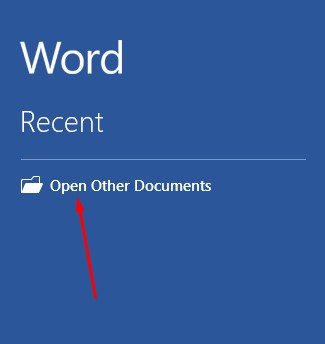
First, you’ll need to open the PDF. To do this, open up Microsoft Word and select Open Other Documents from the left-hand menu.

_ib_word_pdf_1.jpg

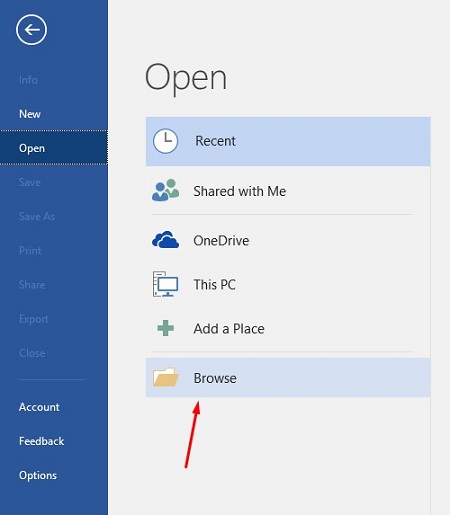
This brings up the Open menu. Next, you want to click on Browse.

_ib_word_pdf_2.jpg

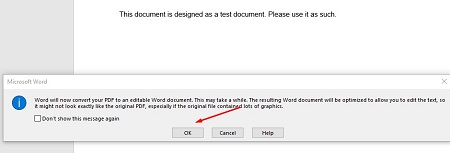
Another message will appear telling you that Word will convert the PDF to an editable Word document. If this sounds fine, click on OK.

_ib_word_pdf_3.jpg

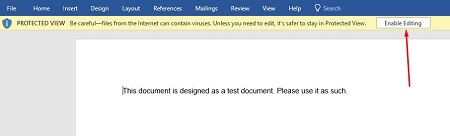
Your PDF should open up in Word now, but you might notice that there is still a yellow bar at the top of the screen that says PROTECTED VIEW. This is meant to secure your software from opening anything dangerous. If you can trust the document, click the Enable Editing button.

_ib_word_pdf_4.jpg

Once you press the button, another notification will show you that Word will convert the PDF to an editable Word document. To close this message, just click on the checkboxor click OK.

_ib_word_pdf_5.jpg

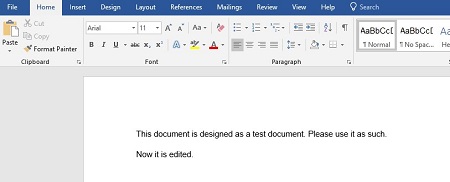
You can now edit your PDF.

_ib_word_pdf_6.jpg

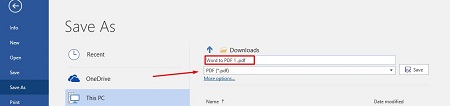
Once you’re done, you can save the file back to a PDF format. To do this, select File > Save As and set the type to PDF from the dropdown menu under the assigned file name. You will have to rename the document slightly to save it to a file folder.

_ib_word_pdf_7.jpg

Once you’re done, your edited PDF will open in Microsoft Edge, or whatever your default PDF viewer happens to be.

_ib_word_pdf_8.jpg

What are some other cool features of Microsoft Word that you would like us to cover? Let us know in the comments, and be sure to subscribe to our blog.

Wordlogo400.jpg

Tip of the Week: Use Microsoft Word To Create Envelopes For Your Contacts

Wordlogo400.jpg

Microsoft Office has long been a valuable asset for all types of businesses, but would you be surprised to hear that most organizations don’t take full advantage of it? All of the most recent editions of programs like Microsoft Word, Excel, and PowerPoint are designed with powerful, user-friendly interfaces that allow your business to do lots of neat things. In fact, you can create a professional envelope for your organization, add a list of contacts from a CSV file or from Outlook, and so much more.

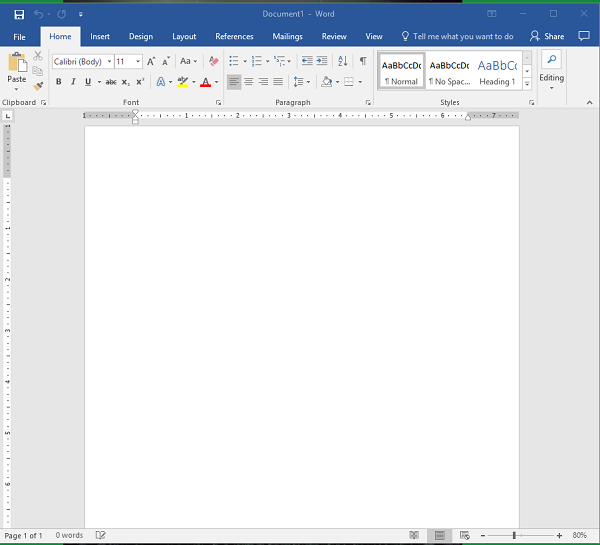
Step 1: Open a New Document
Blank Page

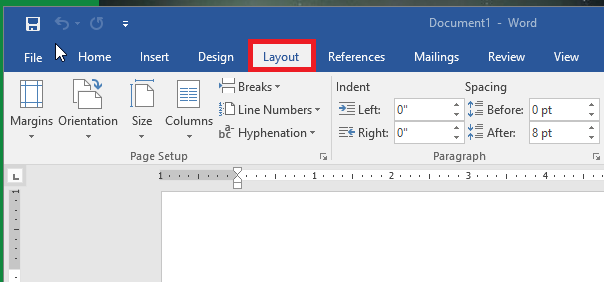
Step 2: Access the Layout Menu
Layout

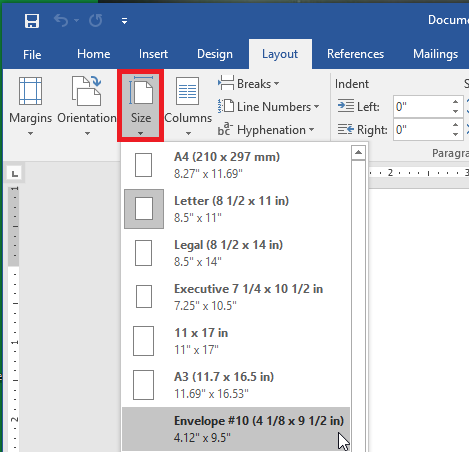
Step 3: Change the Size of the Page
You want the page to be set to the proper envelope size. If you need to know what size your envelopes are, try checking the box. #10 is generally the traditional letter envelope.
Envelope 10

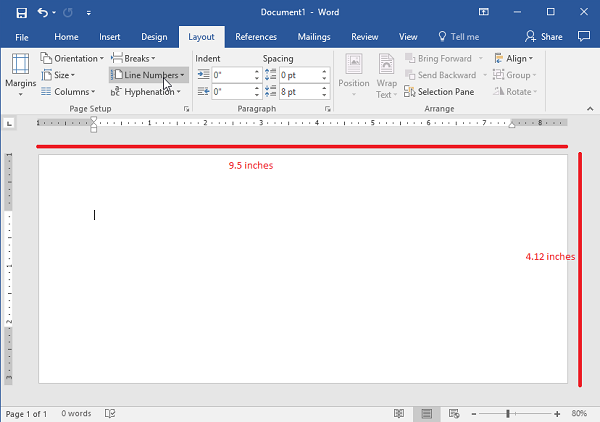
Step 4: Check the Layout
Before proceeding, make sure that the layout has changed to the proper size.
Envelope 10 Resize

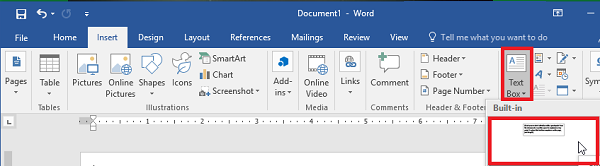
Step 5: Go to the Insert Tab and Select Text Box
Insert Tex Box

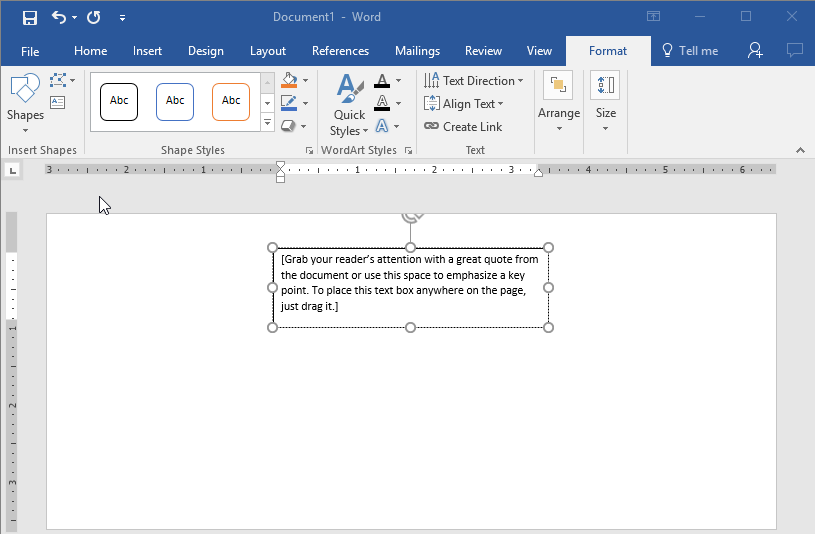
Step 6: Use the Simple Text Box Option
This will be used for your return address.
Insert Tex Box2

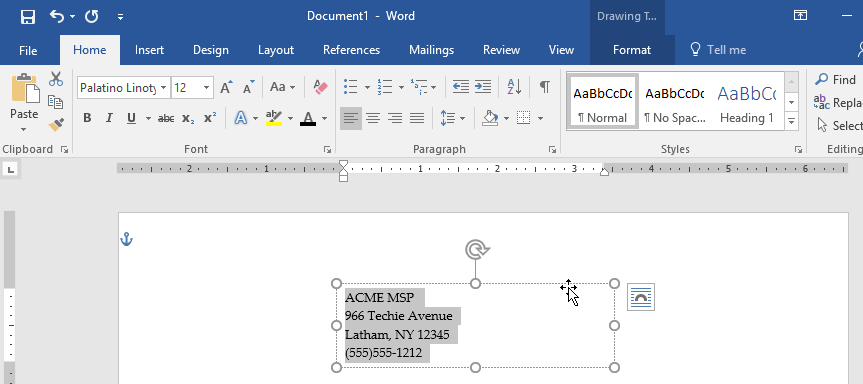
Step 7: Update the Address and Draft the Text to the Desired Location.
Drag to Position

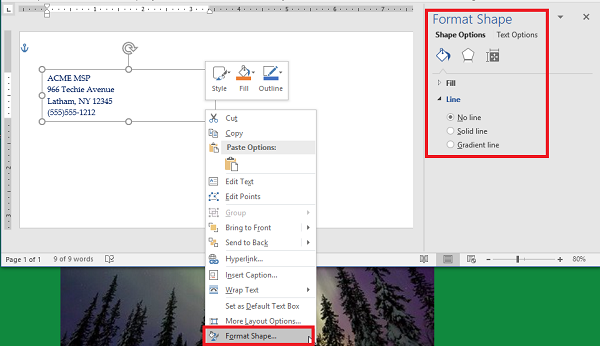
Step 8: Remove the Border Around the Text Box
You can do this by right-clicking the box and selecting Format Shape. Switch the radial button from Solid Line to No Line.
Remove Border

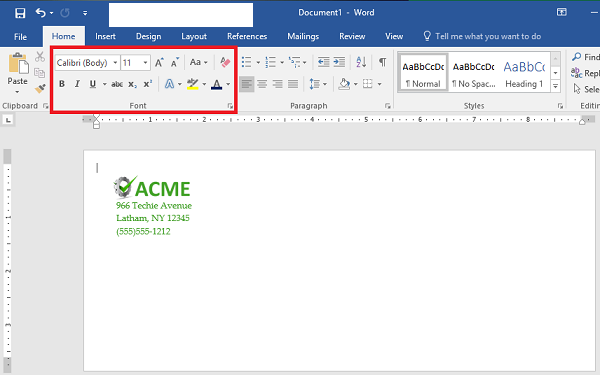
Step 9: Style and Brand Your Return Address
You can use the Font options to customize the appearance of your return address. Make sure you don’t forget your logo.
BrandingAddress

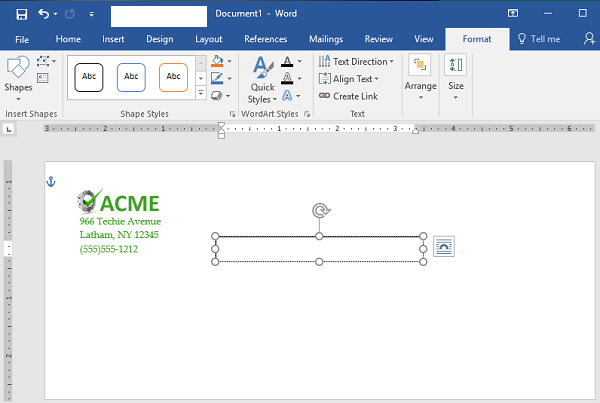
Step 10: Start Your Mail Merge
First, let’s add another Text Box. You should remove the standing text and leave the cursor right where it is in the box.
Mail Merge 5

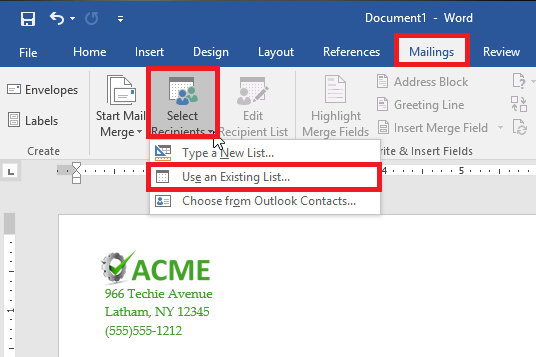
Step 11: Load Your Contacts
To do this, access Select Recipients and check the source of your contacts. You’ll need a CSV file for this next step.
Mail Merge 1

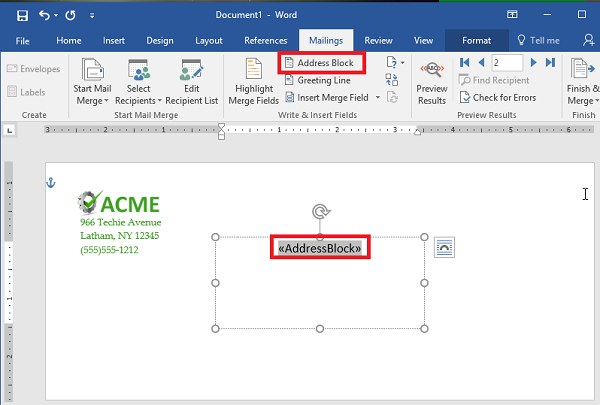
Step 12: Select Address Box. This appears in the text box that you created earlier.
Mail Merge 6

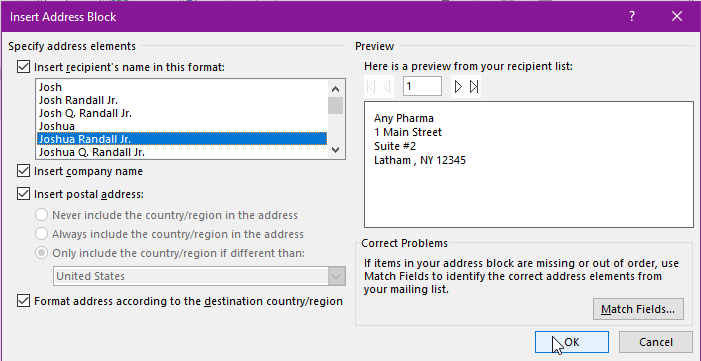
Step 13: Follow the Directions to Format Your Address
Mail Merge 4

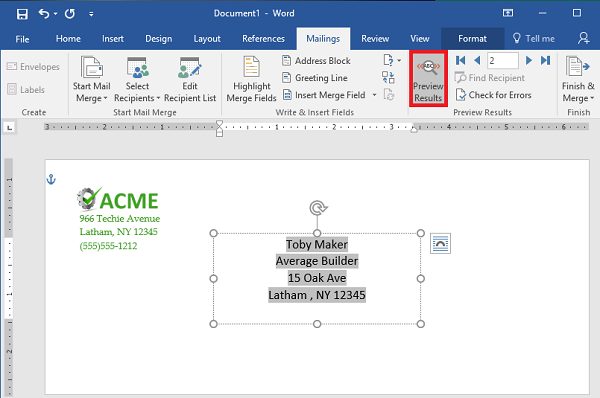
Step 14: Preview Your Results
Use the Preview Results option to check that the addresses are displaying properly, are simple to read, and fit on the envelope. This might change depending on how many recipients you have. Just scroll through them to ensure that the formatting remains the same throughout them all.
Mail Merge 7

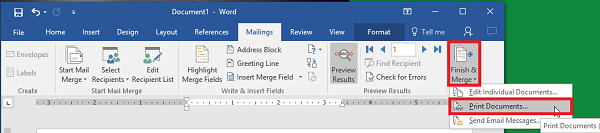
Step 15: Save or Print
That just about wraps it up. You can finish your work or print them out as you see fit.
Mail Merge 8

For more great tips and tricks, subscribe to NuTech Services’s blog.

microsoft_office_collaboration_400.jpg

Microsoft Word Makes Collaboration Easier With Co-Authorship

microsoft_office_collaboration_400.jpg

Does your workforce have the option of working together on a document in Microsoft Word? This type of collaboration is something that is much desired in business today. One of the best ways to take advantage of this collaboration is through Microsoft Office 365’s built-in sharing features, which allow your workforce to work together on various initiatives.

Cooperate and Collaborate
If you need multiple users to access the same document, you can use Microsoft Office 365 to allow for it. You can review and edit documents in real time, but before doing so, you need to allow access to these documents by your staff. 

First, open a new document in Word 2016 or Word Online. Once you’ve done so, select Share, and then Save to cloud. You can share the document in OneDrive or in a SharePoint Online location. Once you press Save, you’ll be able to share your document. Just select the Share panel and you’ll have several options for doing so. You can select Invite people to summon additional assistance from others in your organization, or Get a sharing link to send the invite out through email or instant message.

Once the invitations are sent and accepted, your team can then access the Word document and make changes. If you allow these changes to be made automatically, everyone will be able to see them as they happen.

Communication is Critical
You can’t have collaboration without communication. There are plenty of solutions available that help your business keep in touch while working together on a project. Microsoft Office 365 has a leg up on the competition because of its built-in integration with Skype for Business, allowing you to send messages or talk to anyone while working in a document.

Word also keeps a complete record of any changes made to your document so that you always have access to various versions of your documents. This makes it quite an excellent way to see who has made which changes, and when. Of course, the best collaboration happens when your workforce knows the endgame of the project, and they can then work toward a common goal moving forward.

In fact, many of these features are also available in other Microsoft products, including Publisher, Excel, PowerPoint, and more.

Which of these features do you use most often in Office 365? Let us know in the comments, and be sure to subscribe to our blog for more great tips and tricks.

office_vs_office_365_400.jpg

What’s the Main Difference Between Office 365 and the Traditional Office Suite?

office_vs_office_365_400.jpg

Even if you already have Microsoft Office, did you know that there are multiple ways to use Office which could potentially save you money? It’s the difference between using the traditional Office apps, versus the subscription-based model provided by Office 365.

Users and business professionals need to know that Office 365 is a subscription-based model, while the traditional Office 2016 suite is a one-time purchase. Yet, there are a few other notable differences between the two. Here are three reasons why it’s beneficial to choose Office 365 over the more traditional Office suite.

Office 365 is Cost-Effective
Small monthly payments fit into budgets much better than big up-front costs. This is a staple of software as a service, and it applies to Office 365. When purchased through Microsoft, Office 365 can provide users with a discount when paying for 12 months ahead of time, allowing for even more cost savings.

Office 365 Stays Up-to-Date
The traditional Office suite gives you the most recent version at the time of your download. For example, if you downloaded today, you would get Microsoft Office 2016. The problem here is that several years might pass and you’ll eventually have to upgrade to a more recent version of the software, like Office 2018–which can be another major expense in itself. It’s one big investment after another, which makes the subscription-based model more economically reliable, efficient, and easy to budget around. With Office 365, you’ll always have the latest version of Microsoft Office, without the hassle of purchasing new software.

Office 365 is More Flexible
Office 2016 is a one-time download, unlike its subscription-based counterpart. Office 365 allows organizations to achieve varied levels of service as per their user requirements or device thresholds. This helps your business get exactly the kind of functionality you need out of Office 365, as it helps to better accommodate growth.

Have we convinced you to give Office 365 a shot? If so, reach out to us at 810.230.9455. We’d be happy to help your business get started with your new Office 365 solution.
b2ap3_thumbnail_microsoft_office_400.jpg

Microsoft Office 2016 is Here and It’s Got Something For Everyone

b2ap3_thumbnail_microsoft_office_400.jpgIt’s only been a few months since Microsoft introduced Windows 10, but the world’s largest software company is now updating their wildly popular Office productivity suite. Office 2016 takes the fully-featured productivity apps that users are used to and adds in significant improvements, especially to the integrated collaborative capabilities. Applications like Word, Excel, PowerPoint, Outlook and the other apps that make up the Office suite have all seen improvements.

Microsoft Word
Microsoft Word is one of the most utilized word processing programs on the market, and has been for over three decades. Word 2016 has built-in dynamic features that help users collaborate, share, and remain productive, in real time. With integrated features that allow users to edit any kind of text file, including classically-stubborn PDFs. Improvements to Read Mode allow for a reconfiguration of text to provide an easier-to-read interface, while the “Tell me what you want to do…” bar is a great addition for users that want to utilize the software to its maximum benefit. Whether you use a centralized SharePoint interface or simply store your files using OneDrive or a local repository, Microsoft Word will continue to be the go-to program for all of your word processing needs.

Microsoft Excel
Excel is the most useful spreadsheet application on the market with dozens of features that no other major spreadsheet application offers. Like Word, the Excel program has been improved to include dynamic collaborative options, while maintaining the trusted and powerful interface millions of users already know. Some of the more useful new options that Excel 2016 delivers include more access to charts and graphs than ever before, as well as improved pattern recognition. Like the other apps in the suite, Excel adds the “Tell me what you want to do…” box, to help users completely utilize the app’s features.

Microsoft PowerPoint
For anyone that needs to produce the perfect presentation, Microsoft PowerPoint is on the short list of applications dedicated to that purpose. PowerPoint 2016 provides users with a higher degree of access than ever before, allowing users to team up to edit, manage, and create presentations in real time. The new PowerPoint offers improved revision history and better conflict resolution, keeping users on task and efficient.

Microsoft Outlook
Outlook is one of the most utilized email interfaces in the world, and Outlook 2016 makes certain that won’t change in the future. Again the major theme of Office 2016 is collaboration, and Outlook makes it easier than ever to send and receive files and keep messages organized. Outlook, has also integrated the “Tell me what you want to do…” box, giving users a robust interface to assist them with whatever issues arise.

Other improved applications that are a part of the Microsoft Office 2016 suite are:

  • Microsoft OneNote – Office’s note-taking application
  • Microsoft Access – Office’s database management software
  • Microsoft Project – Office’s project management software
  • Microsoft Visio – Office’s diagramming software

Each will get the “Tell me what you want to do…” box integration as well as subtle improvements over their previous versions.

If you are looking for a comprehensive productivity suite, look no further than Microsoft Office 2016 through Microsoft’s Office 365 offering. With Office 365, users get all of these powerful apps complete with OneDrive integration for a simple and affordable monthly rate. Call NuTech Services at 810.230.9455 to get an idea of further benefits Microsoft Office 2016 and Office 365 can offer your organization.